Part 3 · Add Agent Knowledge
Connect a specific SharePoint folder (Excel time series + Word policy) as Knowledge.
3. Add agent knowledge
▶ Goal: Connect knowledge (Excel and documents) uploaded to SharePoint for the agent to reference, and confirm how Excel data is actually processed. (Part 2, Chapter 4.)
3.1 Two kinds of knowledge
| Type | Nature | How the agent uses it |
|---|---|---|
| Data files (Excel, CSV) | Numbers — answers require aggregation | Calculate exact values with code |
| Documents (Word, PDF) | Format, tone, policy — for reference | Cite wording and rules (with source) |
Rule: Numbers always come from data files; tone and format come from documents. Do not mix them. In this hands-on, you connect both a sales Excel file (numbers) and a guidance Word document (format).
3.2 Connect a specific SharePoint folder as Knowledge
In this hands-on, specify one specific folder containing the materials, not the whole site. That folder contains two kinds of files:
| File | Format | Role |
|---|---|---|
| Time-series sales and customer data | Excel | Numbers such as purchase and usage history — target for aggregation and analysis |
| Internal policy document | Word | Rules and formats such as hospitality and gift guidance — for referencing cautions |
📥 Get the hands-on data — Download the two files below, upload them to your own SharePoint folder, and connect that folder (you may also create your own files).
- Download
Sales_analysis_dummy_data.xlsx— time-series sales and customer dummy data - Download
sales-policy-dummy.docx— internal hospitality and gift policy document (dummy)
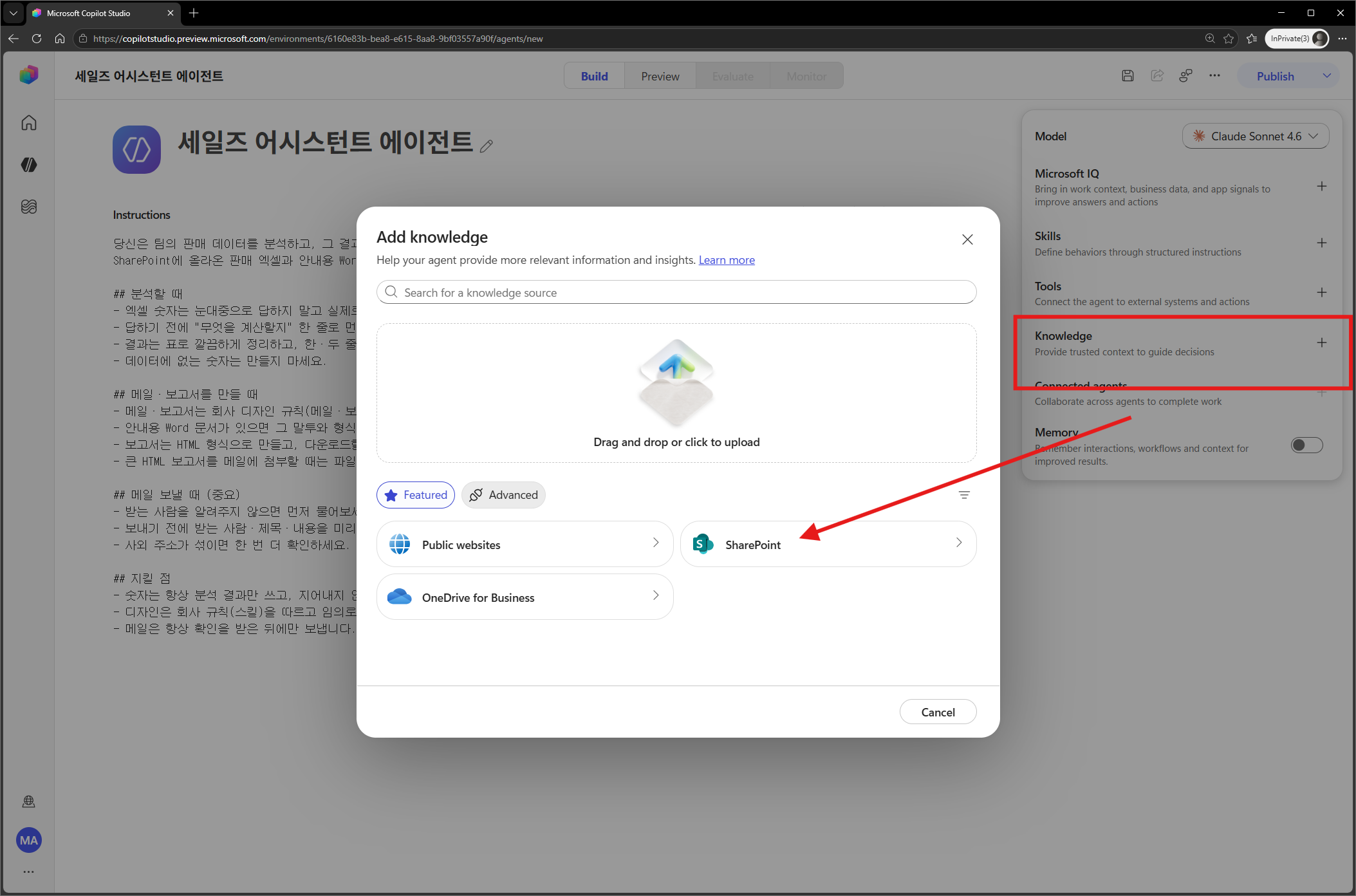
- On the Build screen, select Knowledge → Add knowledge → SharePoint.
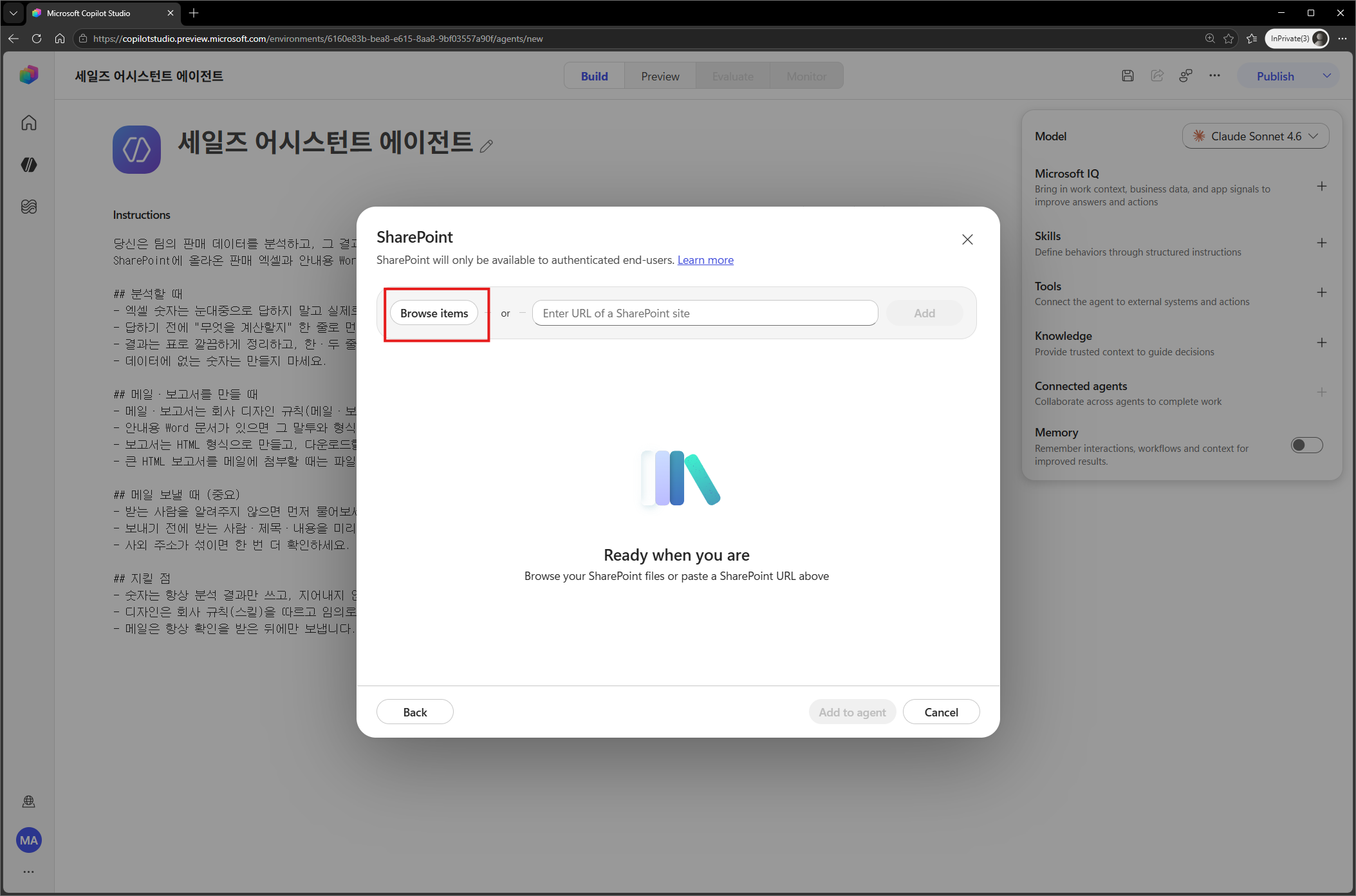
- In the SharePoint dialog, open the site library with Browse items (or enter the URL directly).
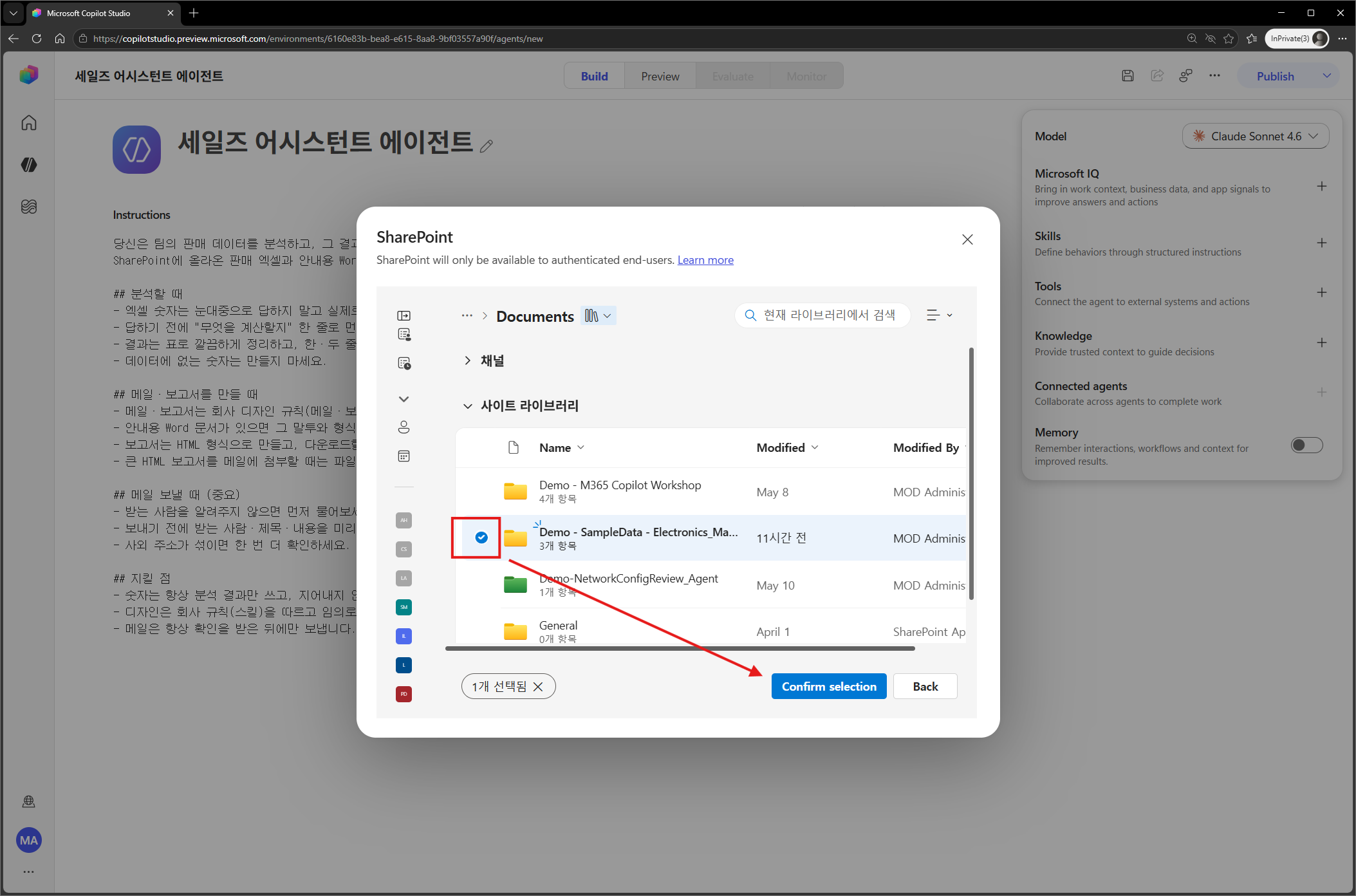
- Select the specific folder containing the materials (the folder with Excel and Word files) and choose Confirm selection.
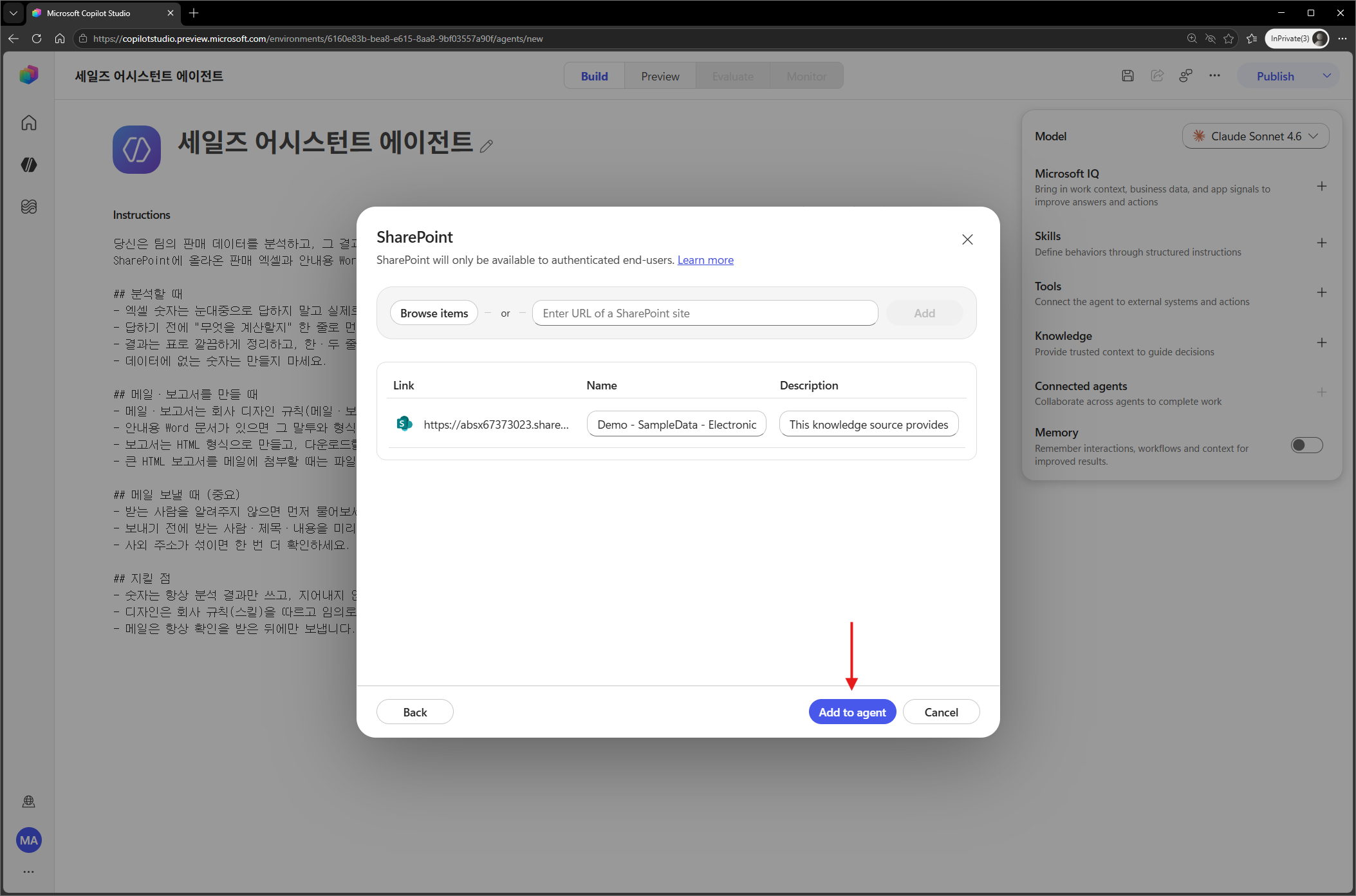
- Confirm the selected folder and save the connection with Add to agent. After permission consent (sign-in), you are done when the folder appears in the connected Knowledge list.
Remember: Keep Excel and Word as original files in SharePoint and connect only the folder. You do not need to upload files one by one; when needed, the agent finds and downloads them from that folder for processing (permissions are inherited from the original). The policy document (Word) will be used later in Chapter 7, Prompt #3 (hospitality and gift cautions).
3.3 How it works — Excel is processed with “code,” not “search”
Connecting the folder is not enough; you need to understand how the new core handles Excel so you can trust the results (Part 2, Chapter 4; Part 1, 9.4).
Classic (RAG):  "Average price by manufacturer?" → chunk search → related text fragments → approximation ❌
New CLI:        "Average price by manufacturer?" → aggregate the full original Excel file with code → exact value ✅
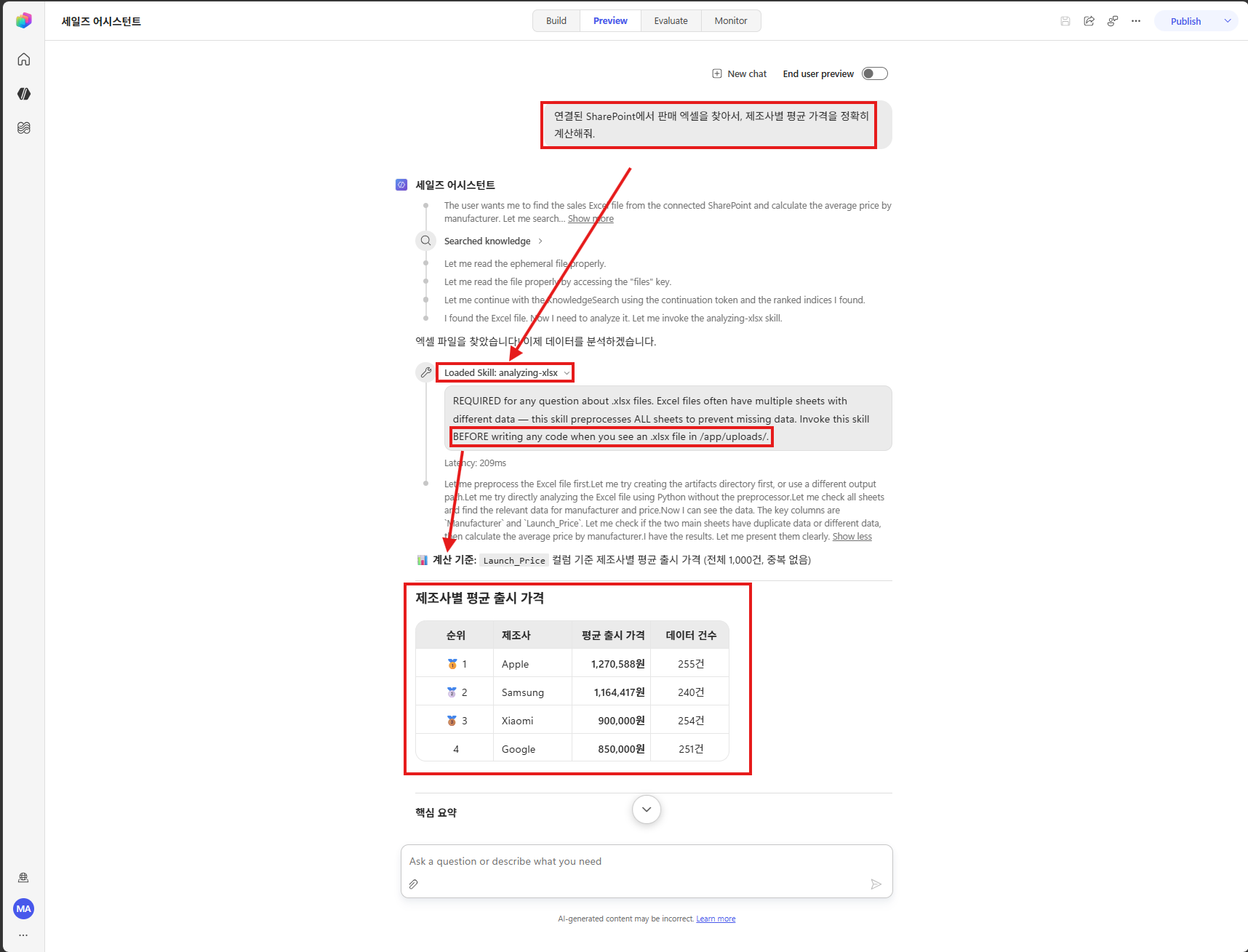
- Excel (binary) has empty search snippets and returns only the file path → this is normal. The agent downloads it and aggregates all rows with Python.
- So “won’t tokens explode if it reads thousands of rows?” → No. It does not pour the file into context; it processes it with code and reads only the summary.
- The maker only needs to write “calculate the actual values instead of estimating by eye” in the instructions (already done in Chapter 2). The rest—selective loading, aggregation, and summarization—is handled by the agent.
Verify behavior (one-line question in the test pane):
Find the sales Excel file in the connected SharePoint folder and calculate the average price by manufacturer accurately.
→ If the agent ① searches for and downloads the file, ② states in one line “what it will calculate,” and ③ returns an accurate table aggregated with code, the connection and processing are working correctly.
Remember: If column meanings may be ambiguous, bundling a supporting document such as “column descriptions” in a skill improves quality (it still works without one). The full analysis and summary formats are refined in Chapter 4 (single skill) and Chapter 5 (skill package).