Mission 00: Course Setup
Start the Recruit course by preparing your development environment, Copilot Studio trial, and SharePoint site.
Translated article — This article is based on 🚨 Mission 00: Course Setup from the Copilot Studio Agent Academy. The original wording takes precedence.
Mission Briefing
Welcome, Recruit. Before you build your first AI agent, you need a development environment that is ready for field work.
This briefing walks you through the systems, access credentials, and setup steps required to work successfully in the Microsoft 365 ecosystem.
Important — This mission uses the classic Copilot Studio UI
Microsoft Copilot Studio is rolling out a new user experience (UI). The screenshots and steps in this mission are based on the classic experience. If your screen looks different, turn off New Experience in the upper-right corner before continuing.
Objectives
In this mission, you will learn how to:
- Get a Microsoft 365 account
- Get access to Microsoft Copilot Studio
- Understand when a Microsoft 365 Copilot license is required for publishing to production environments
- Create a developer environment for Copilot Studio
- Create a SharePoint site that will be used as a data source in later missions
Important
Do you already have access to Microsoft 365, Power Platform, and Copilot Studio?
Steps 1–4 below create a new trial environment from scratch. If you already have a Microsoft 365 business tenant with access to Power Platform and Copilot Studio, you can skip directly to Step 5: Create a new SharePoint site. Steps 1–4 are only needed if you want to set up a dedicated trial environment for testing these capabilities.
Prerequisites
Before you begin, make sure you have:
- A work or school email address (personal email addresses such as
@outlook.comor@gmail.comare not supported) - An internet connection and a modern browser (recommended: Edge, Chrome, or Firefox)
- Basic experience using Microsoft 365, such as signing in to Office apps or Teams
- (Optional) A credit card or payment method if you plan to purchase a paid license
Set up a trial environment (Steps 1–4)
Step 1: Prepare a Microsoft 365 account
Copilot Studio is part of Microsoft 365, so you need a Microsoft 365 account to access it. You can use an existing account, or follow the steps below to prepare the appropriate license.
Prepare a paid Microsoft 365 Business subscription:
- Go to Microsoft 365 Business Plans and Pricing.
- Select the Microsoft 365 Business Basic plan, then select Try for free. Follow the forms to enter your subscription, account, and payment information.
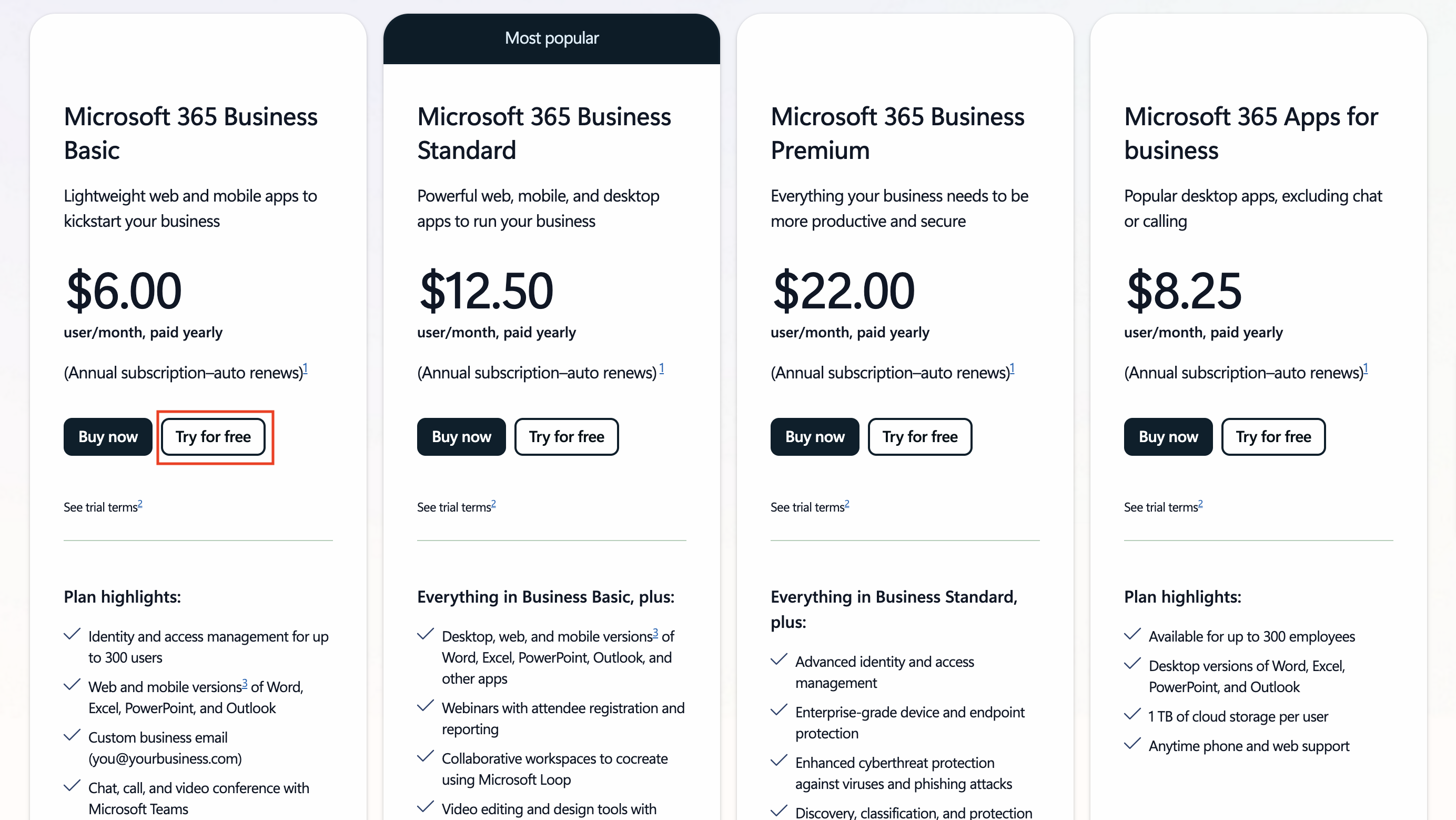
- When setup is complete, sign in with your new account.
Tip
To publish agents to Microsoft 365 Copilot Chat or connect to organizational data such as SharePoint, OneDrive, and Dataverse, you need a Microsoft 365 Copilot license. For more information about this additional license, see the Microsoft 365 Copilot plans page.
Step 2: Start a Copilot Studio trial
After preparing your Microsoft 365 tenant, you need access to Copilot Studio. Follow these steps to start a 30-day free trial.
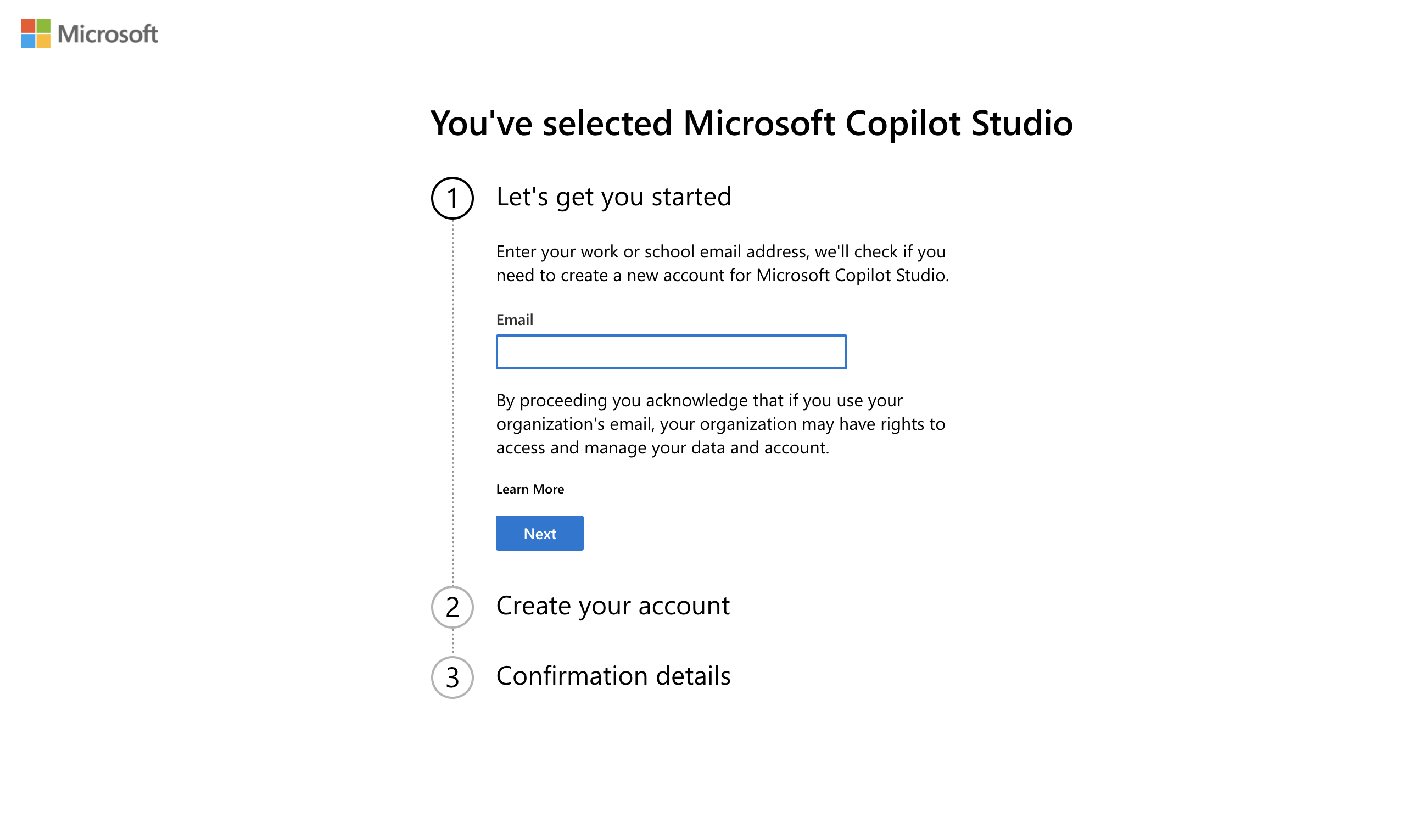
- Go to the Copilot Studio trial sign-up page.
- Enter the email address for the new account you configured in the previous step, then select Next.
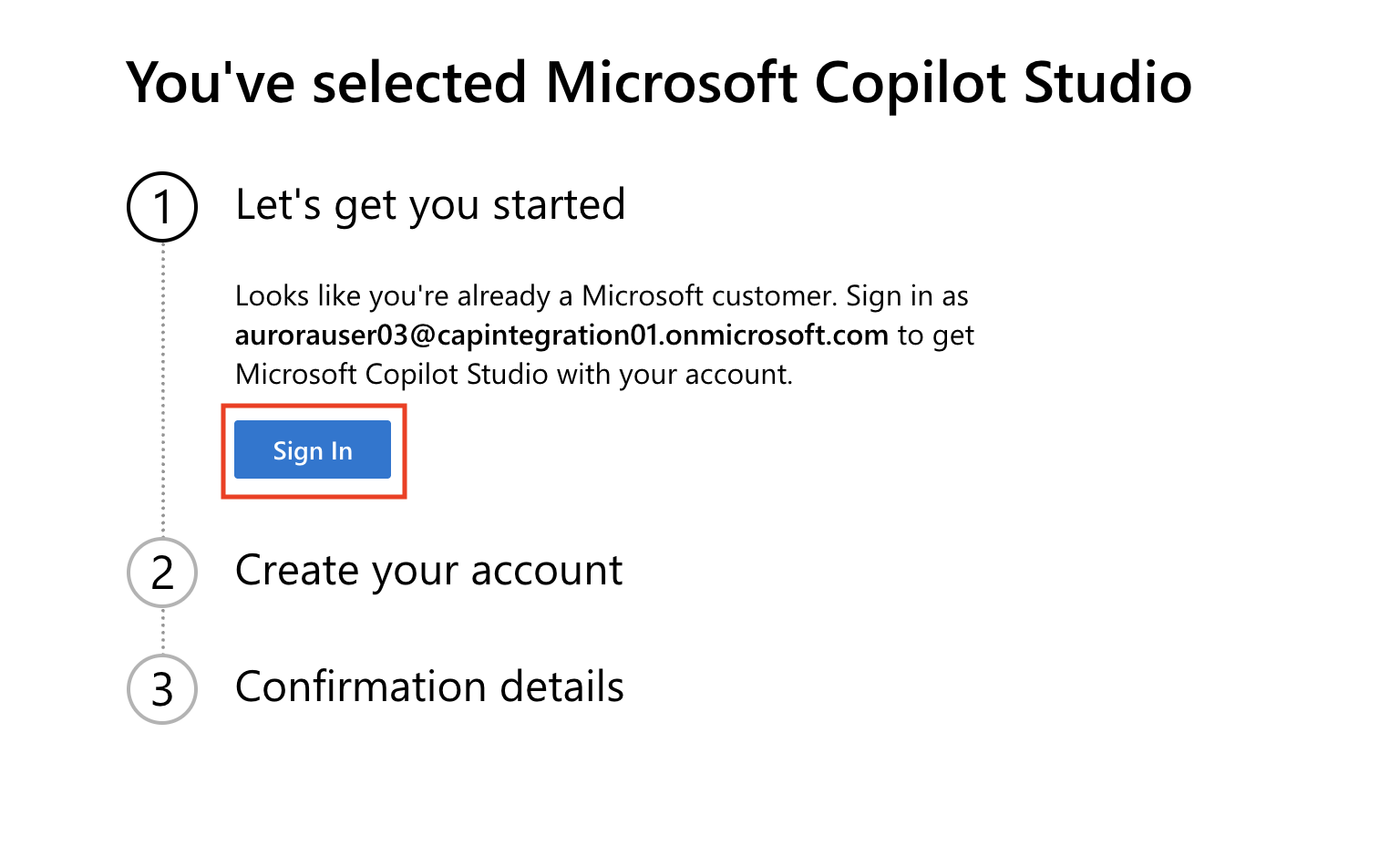
- Confirm that Copilot Studio recognizes the account, then select Sign in.
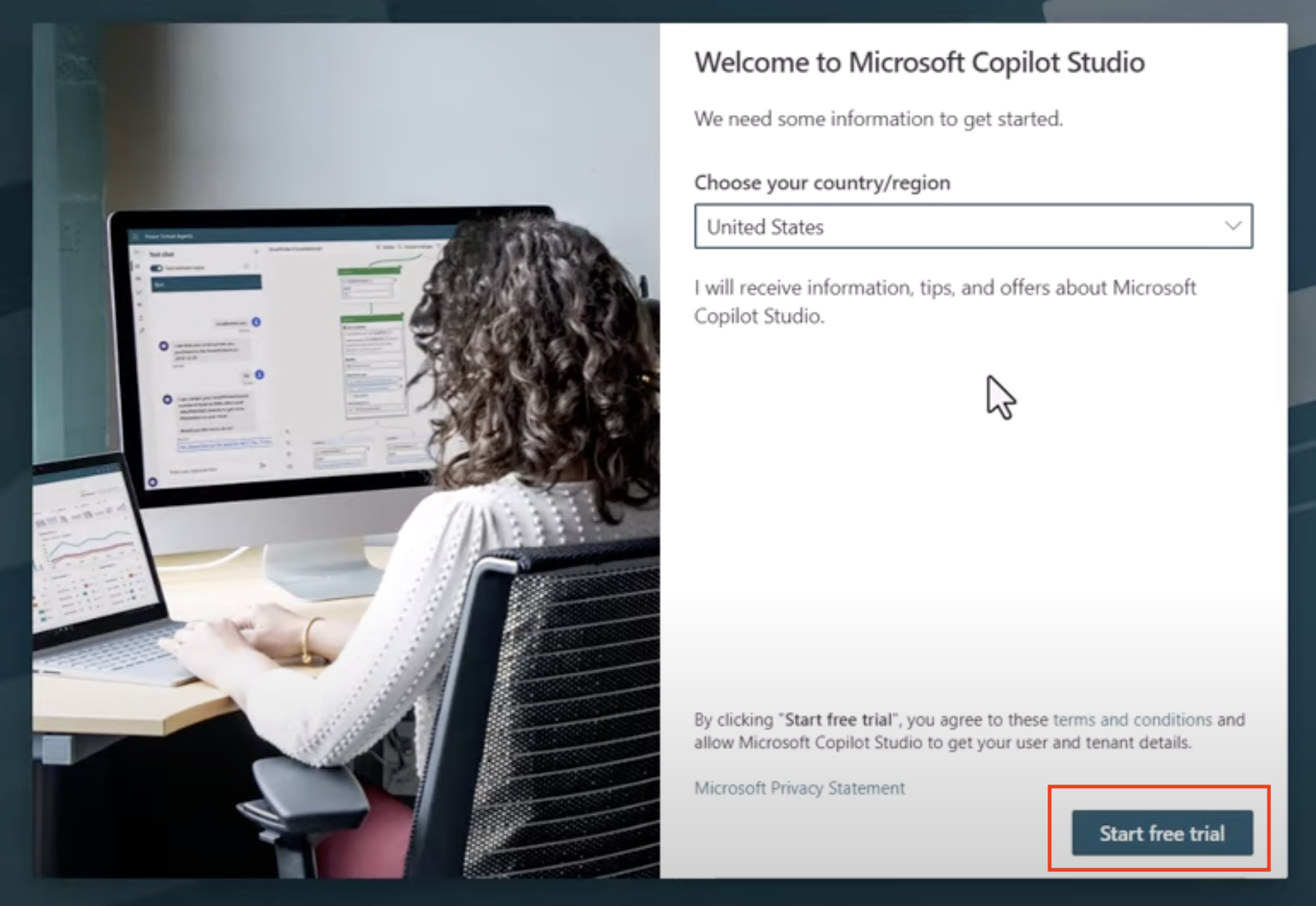
- Select Start free trial.
Trial notes
- The free trial gives you access to the full capabilities of Copilot Studio.
- As the trial expiration approaches, you will receive email notifications. You can extend it in 30-day increments, for up to 90 days of agent runtime.
- If your tenant admin has disabled self-service sign-up, you will see an error. In that case, ask your Microsoft 365 administrator to enable it again.
Step 3: Create a new developer environment
Sign up for the Power Apps Developer Plan
Sign up for the Power Apps Developer Plan with the same Microsoft 365 tenant you used in Step 1. This creates a free development environment where you can build and test with Copilot Studio.
-
Sign up from the Power Apps Developer Plan website.
- Enter your email address.
- Select the checkbox.
- Select Start free.
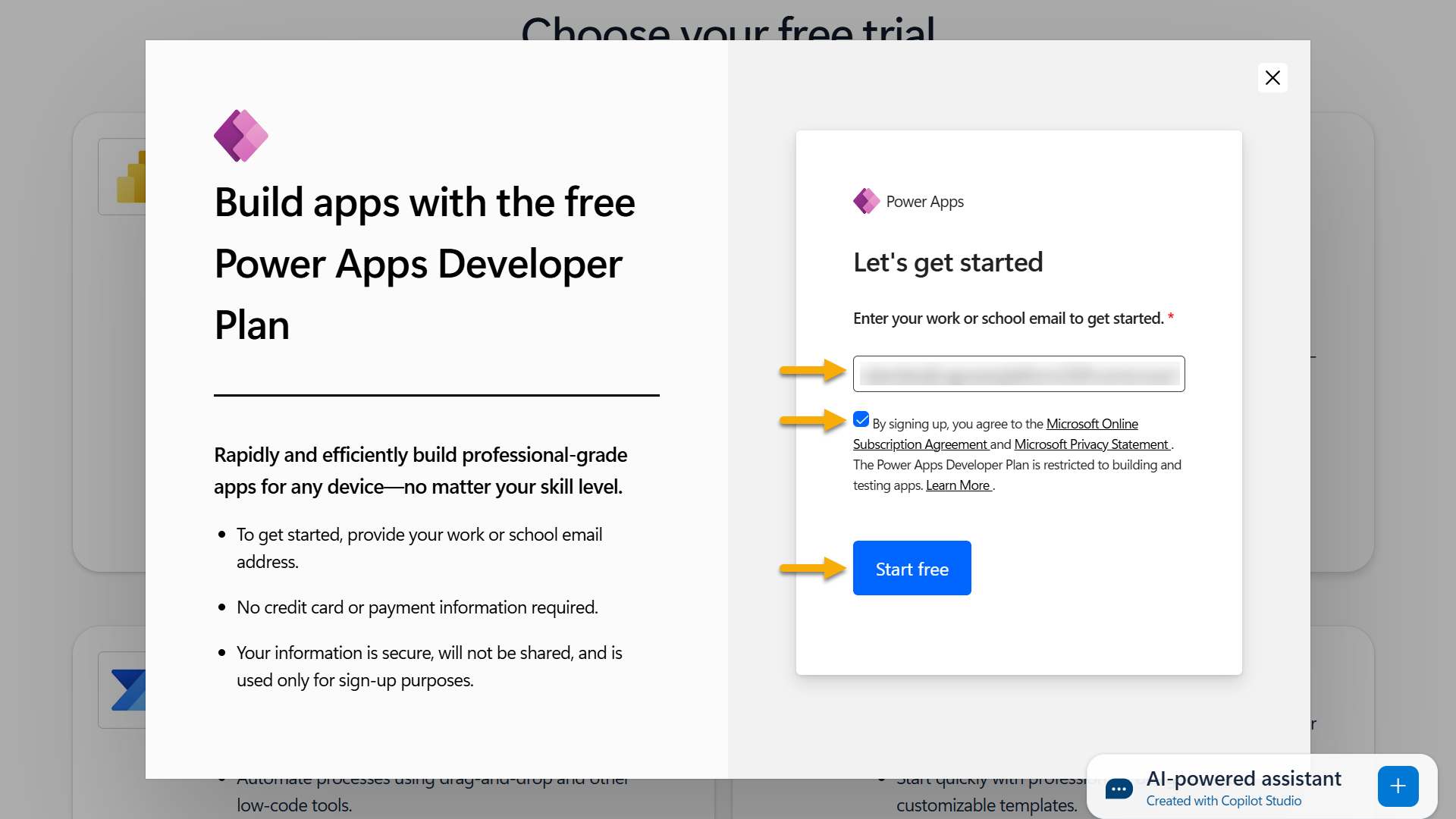
-
After Developer Plan sign-up is complete, you are redirected to Power Apps. The environment name is based on your user name; for example, it may appear as Adele Vance’s environment. If an environment with the same name already exists, the new developer environment is named something like Adele Vance’s (1).
You will use this developer environment in Copilot Studio as you complete the labs.
Note
If you are using an existing Microsoft 365 account and did not create a new account in Step 1, such as your account in your work organization, your IT admin or equivalent environment-management team may have disabled sign-up. In that case, contact your admin or create a test tenant by following Step 1.
When using an existing organizational environment, make sure the environment is not a managed environment. Restrictions in managed environments can prevent features such as adding Power Automate flows as agent tools from working correctly.
Step 4: Enable publishing permissions in the Copilot Studio trial
Recent changes to Copilot Studio trials mean that agent publishing is not allowed by default. To enable publishing, add yourself to the Copilot Studio Authors role in the Power Platform admin center.
First, you need a security group containing the people who should have publishing permissions. You will connect this group to the Copilot Studio Authors role.
- Go to the Microsoft 365 admin center.
- Expand the Teams & groups tab and select Active teams & groups.
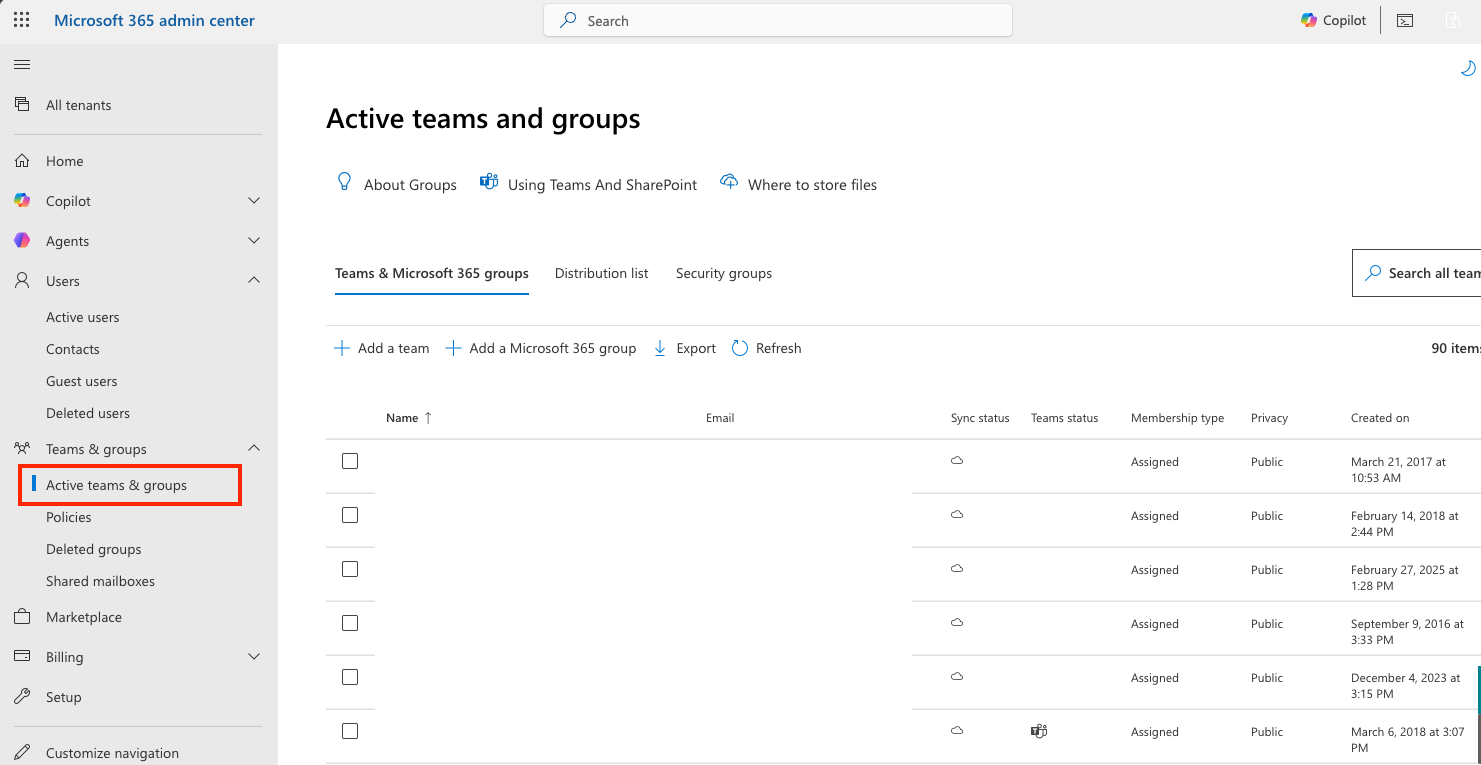
- Select the Security groups tab, then select Add a security group.
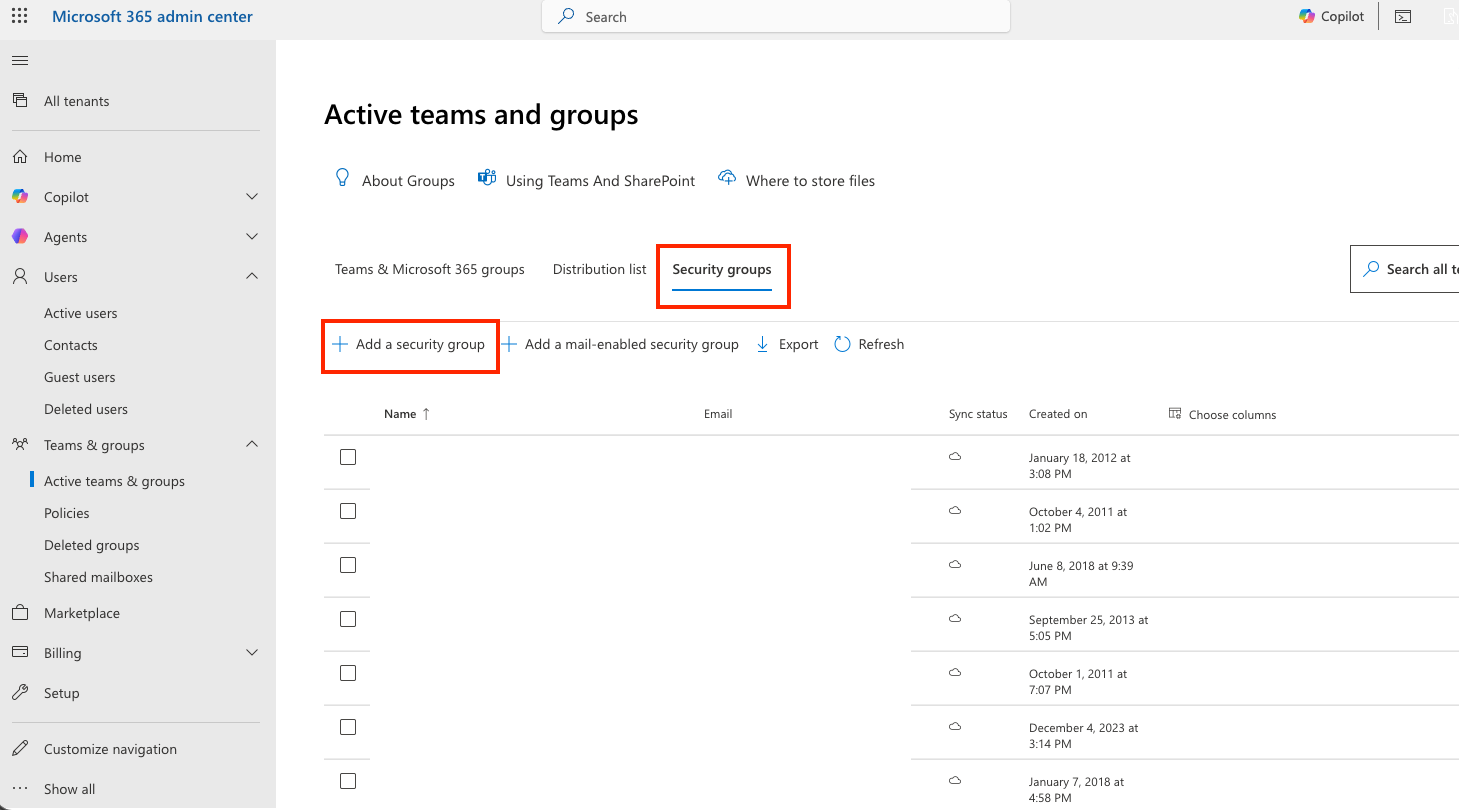
- Enter a security group name such as AgentCreators, then select Next.
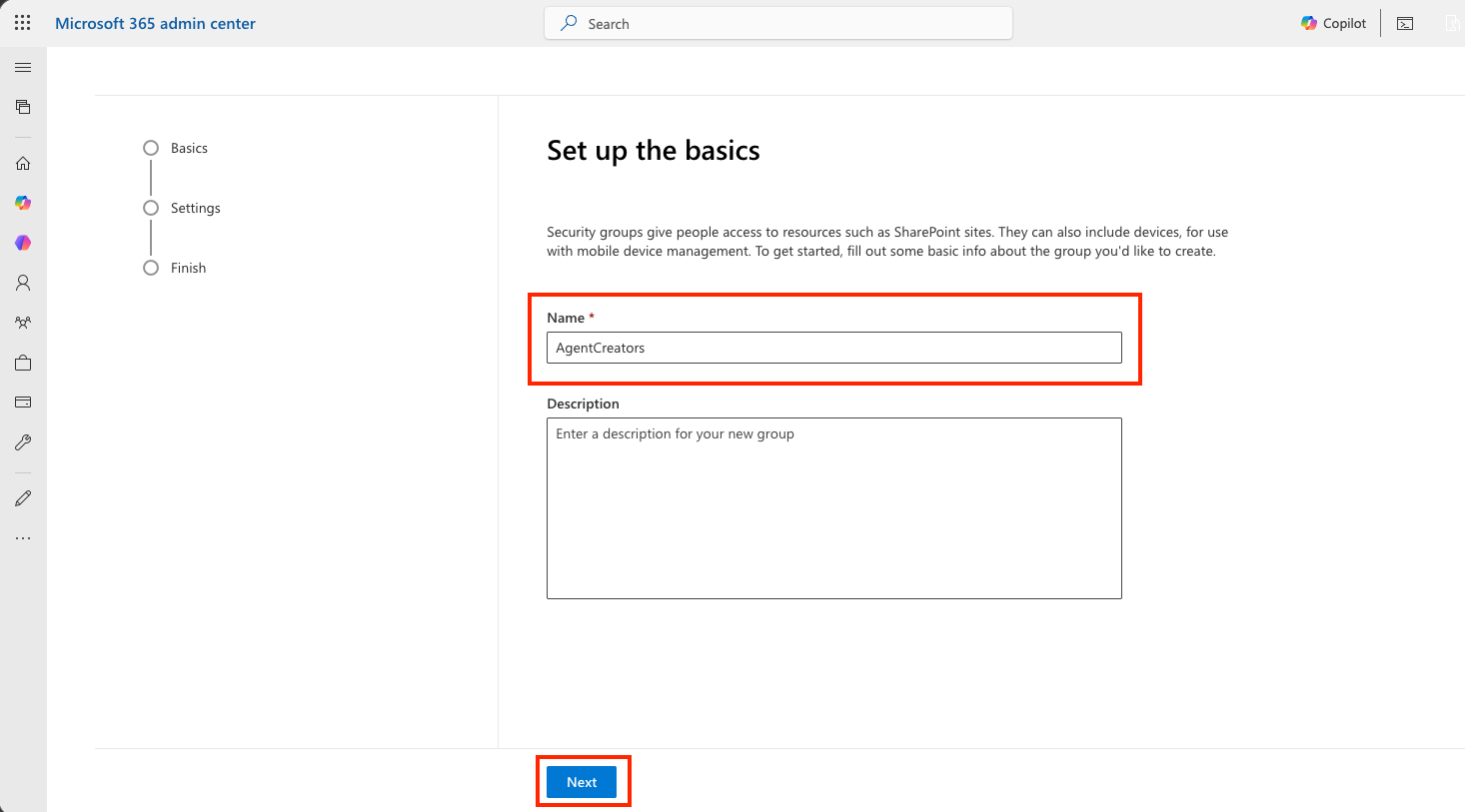
- Confirm the name, then select Create group.
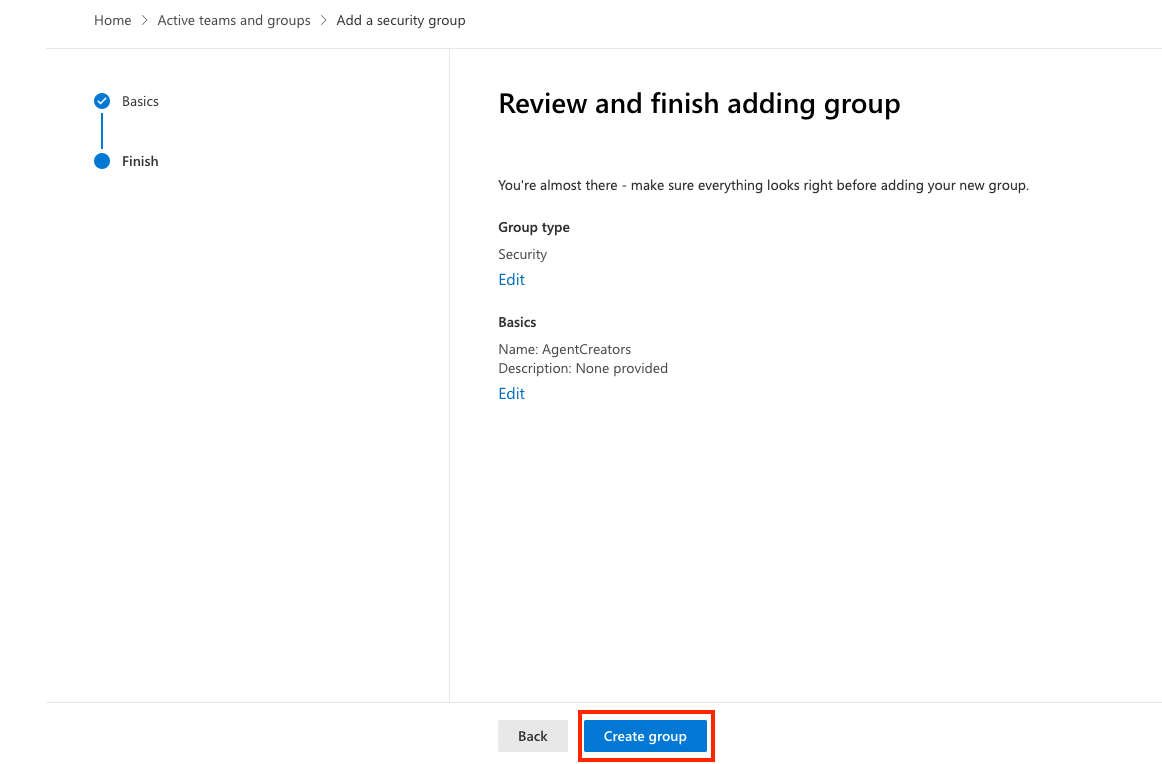
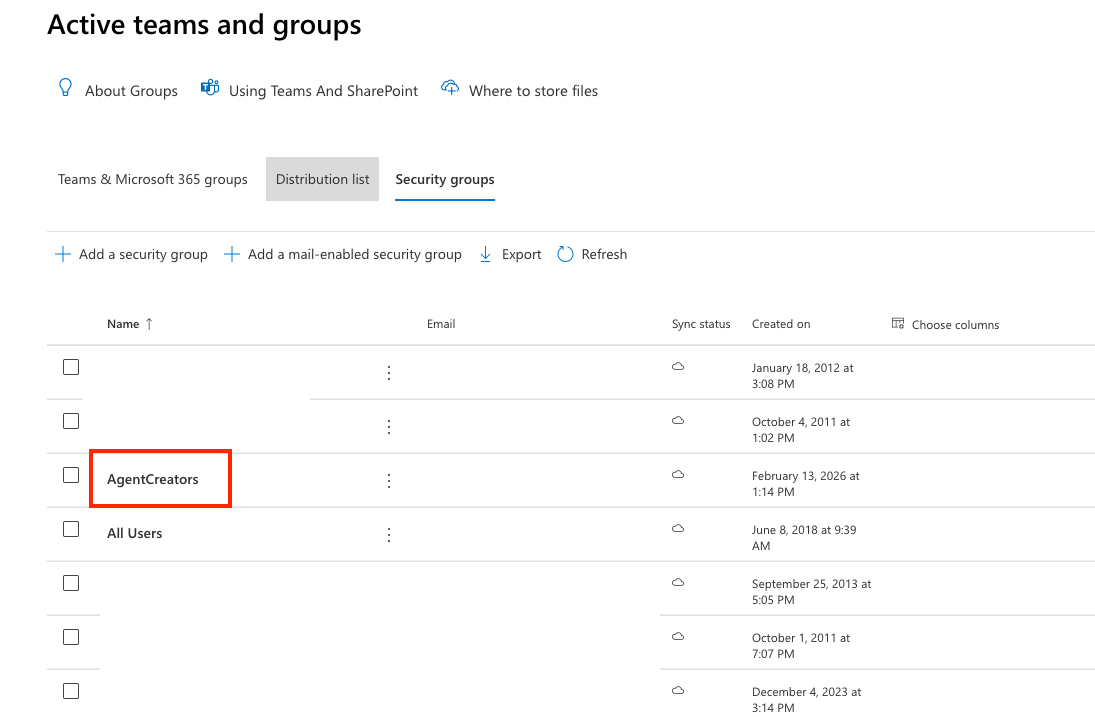
- Select the security group you just created from the list.
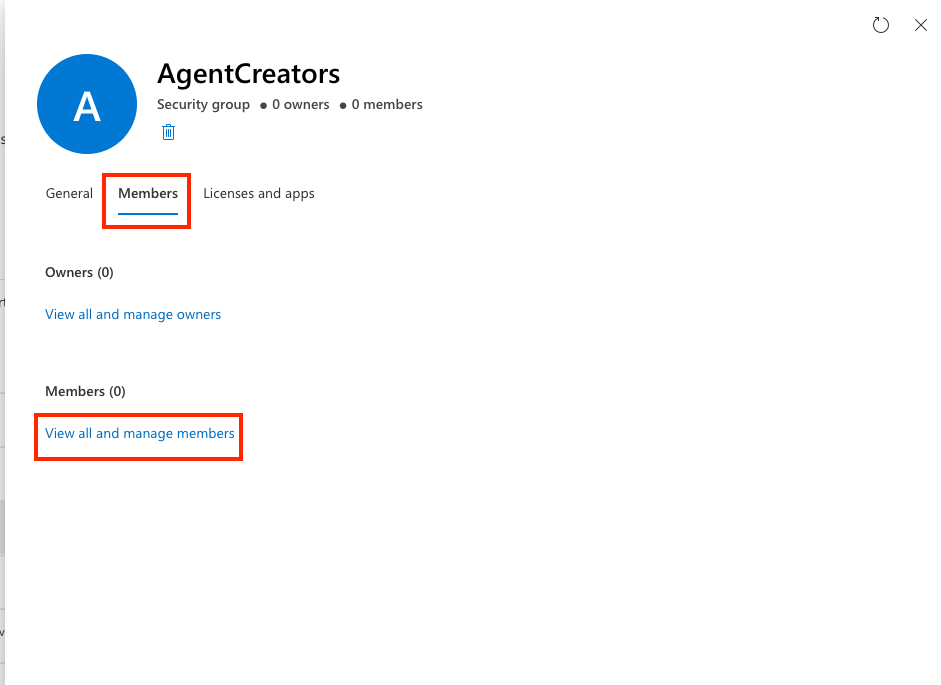
- Select the members tab, then select view all and manage members.
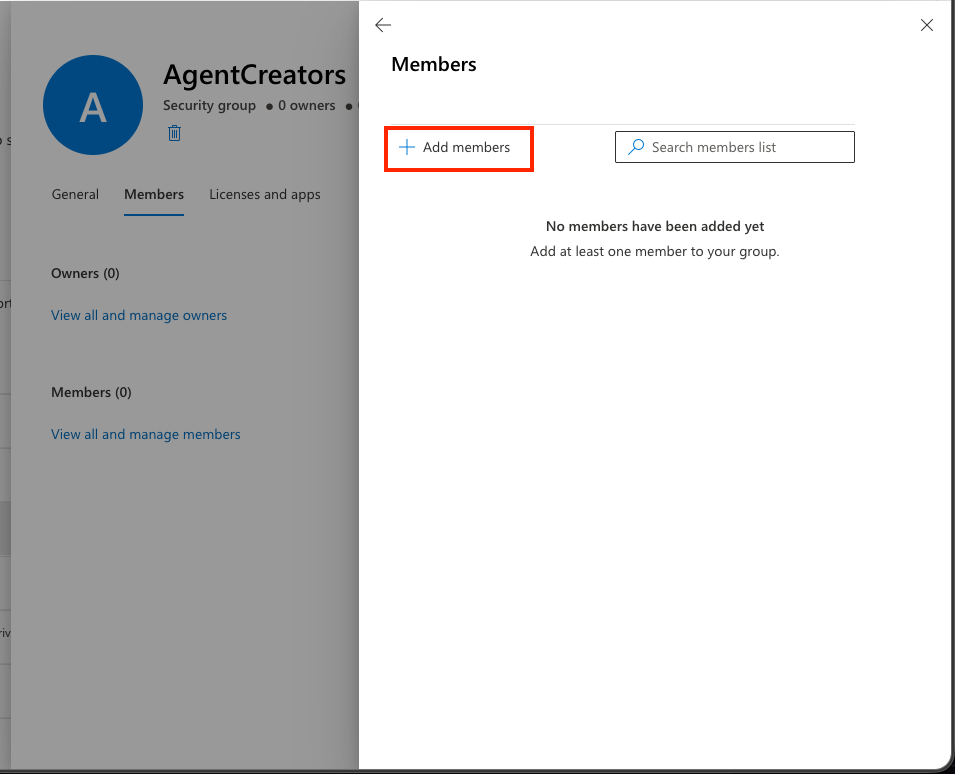
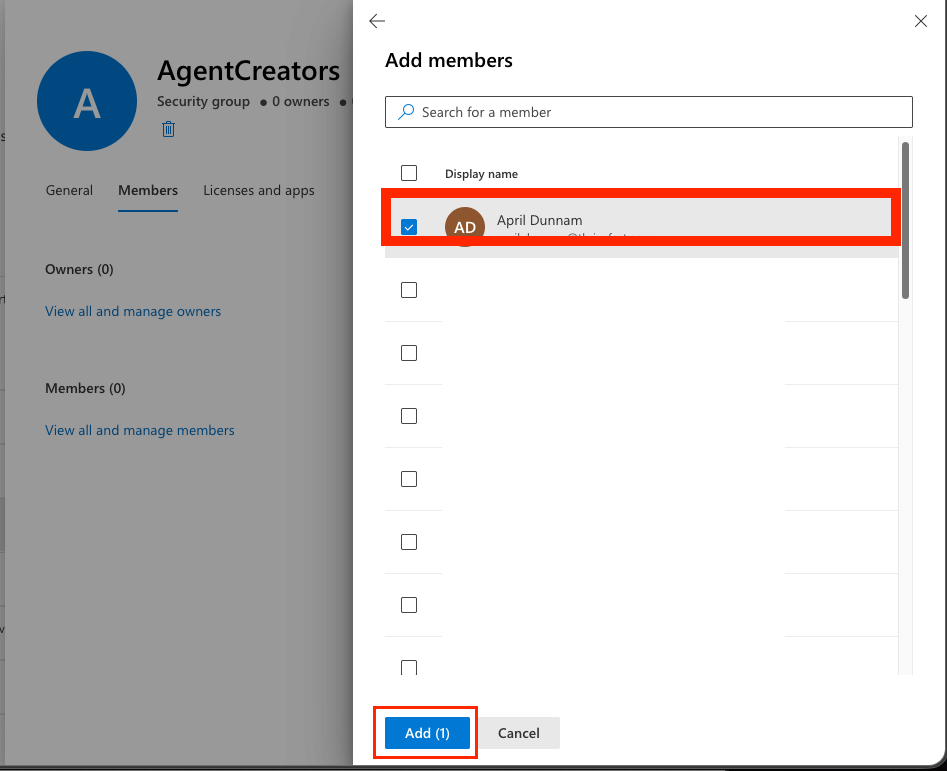
- Select add members.
- Select your name from the list, select Add, then select Add again.
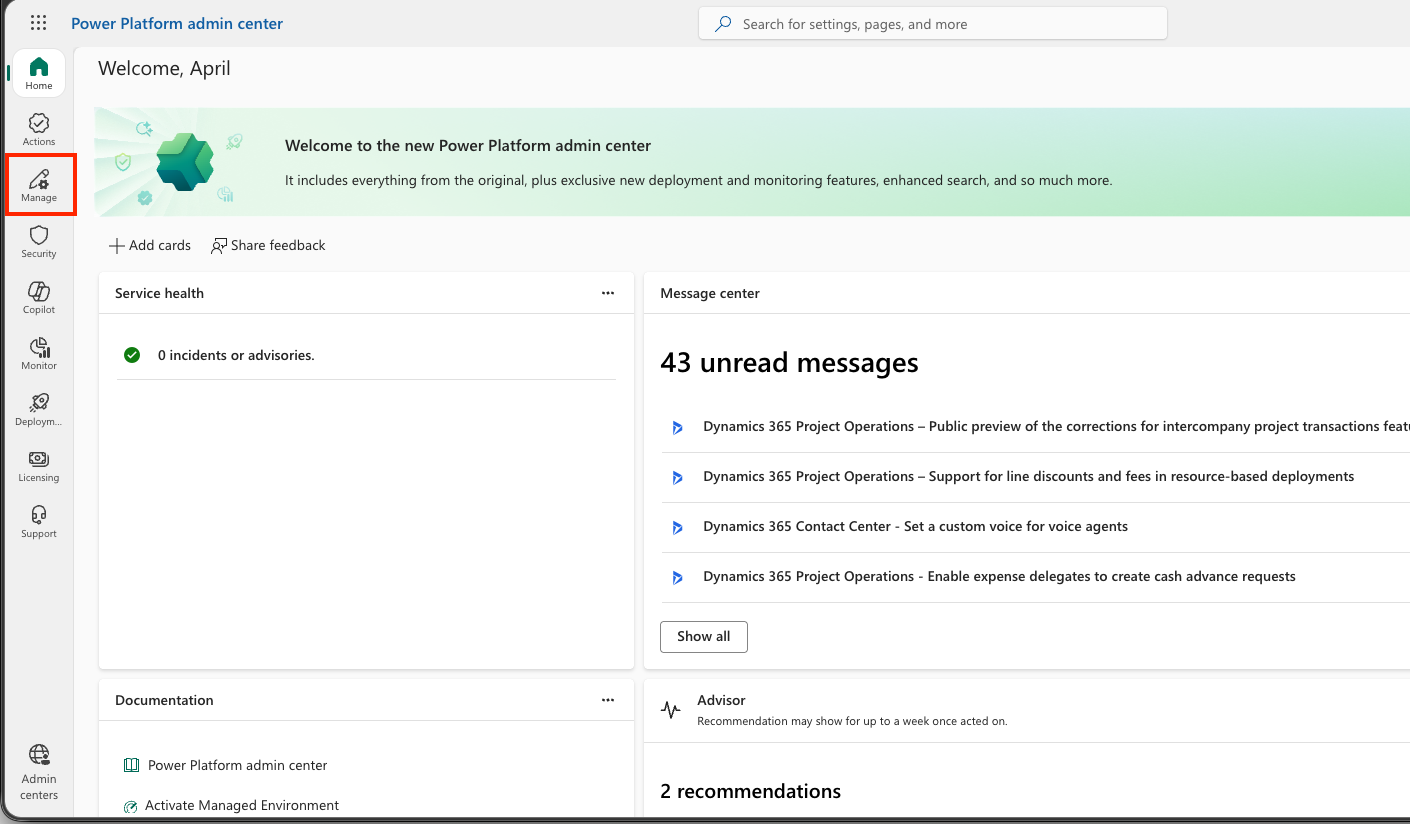
- Go to the Power Platform admin center.
- Select the manage tab.
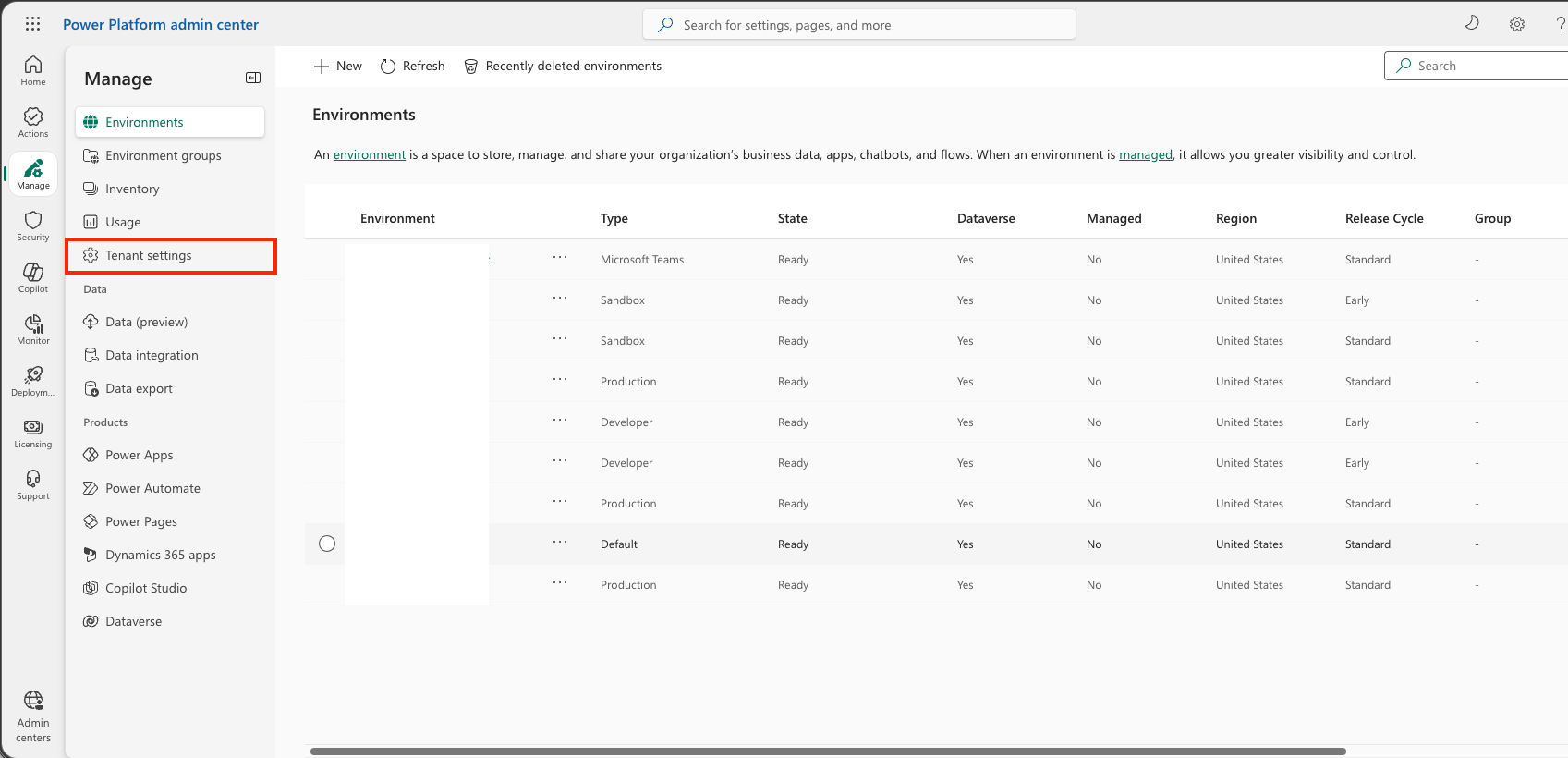
- Select the tenant settings tab.
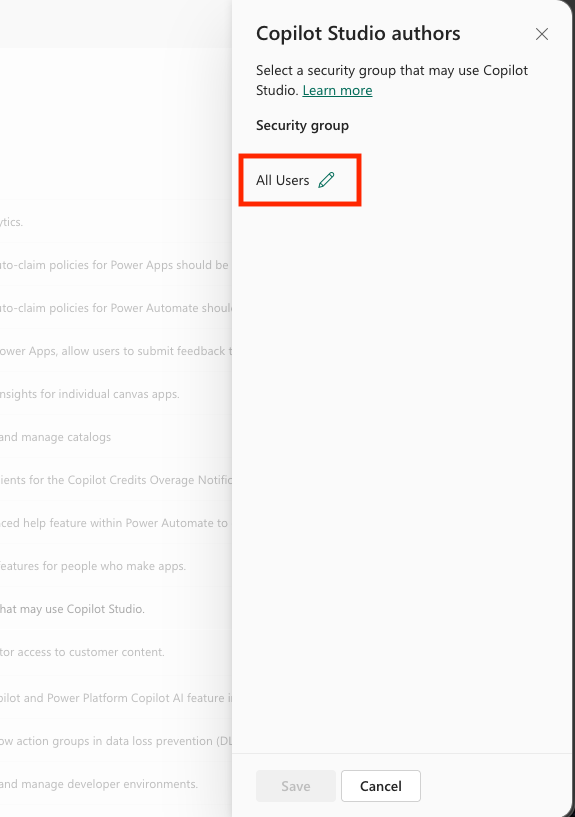
- Select the Copilot Studio authors option.
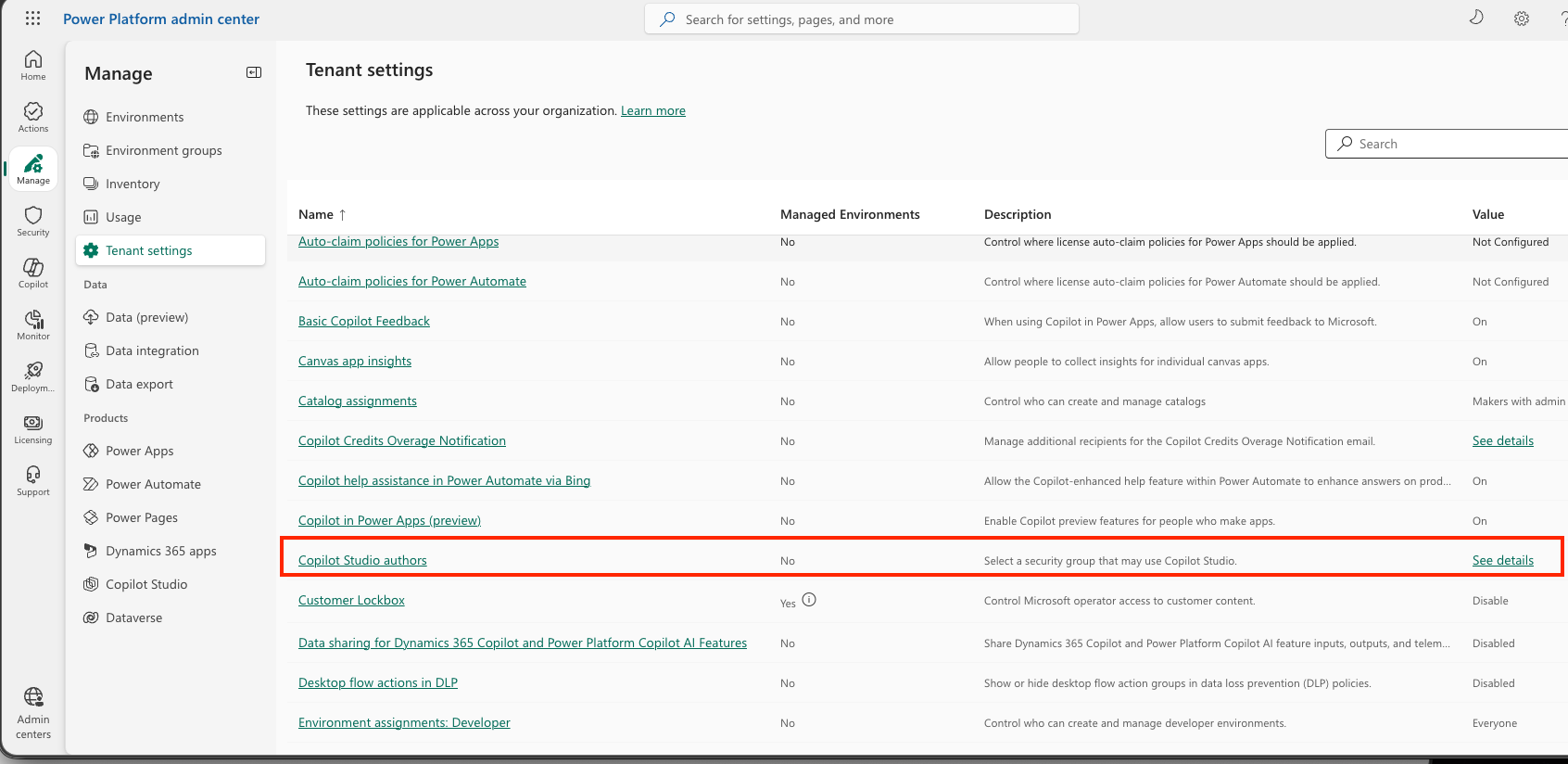
- In the Copilot Studio authors setting, select Edit (pencil icon).
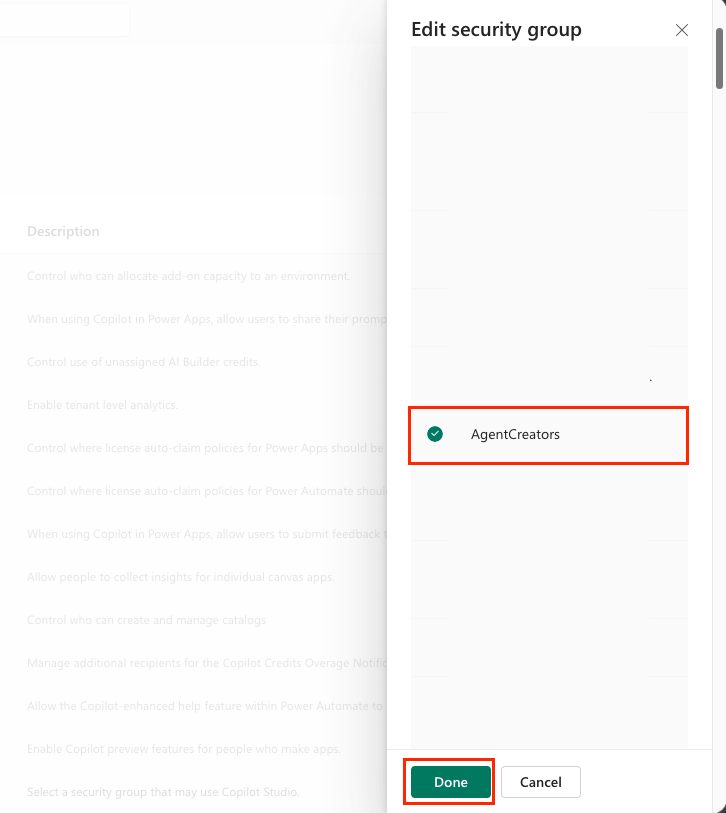
- Select the security group from the list, then select Done.
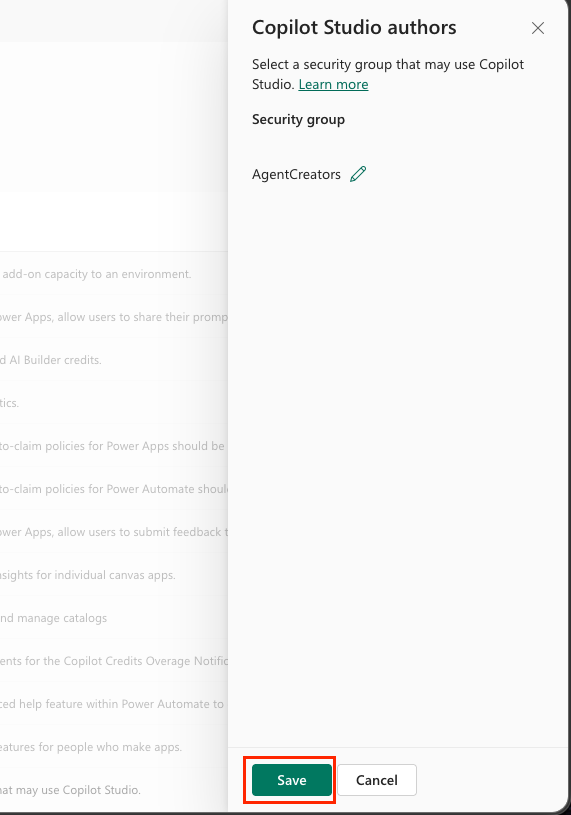
- Confirm that the security group is shown, then select Save.
Setup required for everyone
Whether you are using a trial environment or an existing environment, the following steps are required for everyone.
Step 5: Create a new SharePoint site
You need to create a new SharePoint site. This site will be used in a later Mission 06 when you add SharePoint as a knowledge source.
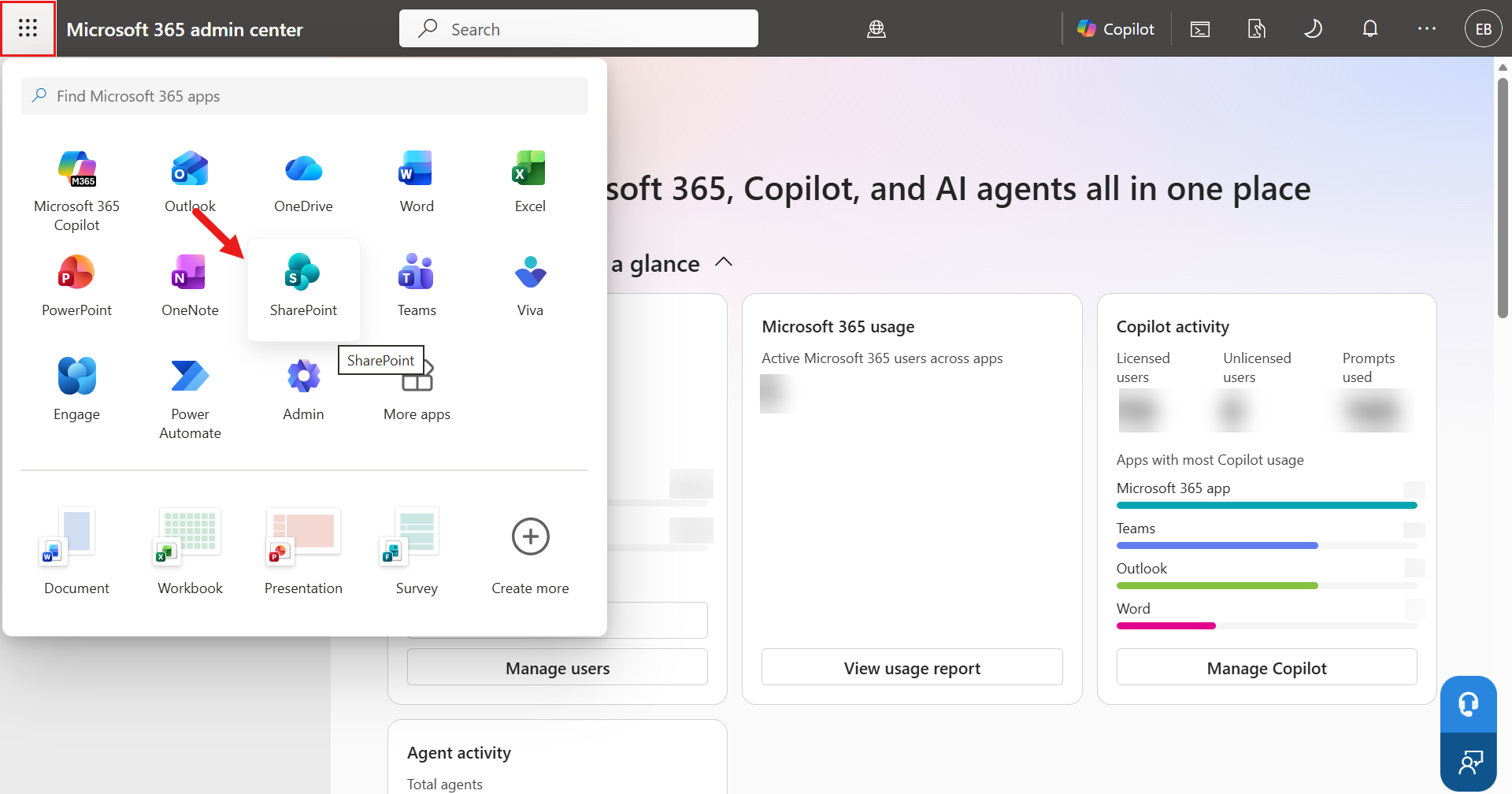
- In Power Apps or the Microsoft 365 admin center, select the App launcher (grid icon) to open the app menu, then select SharePoint.
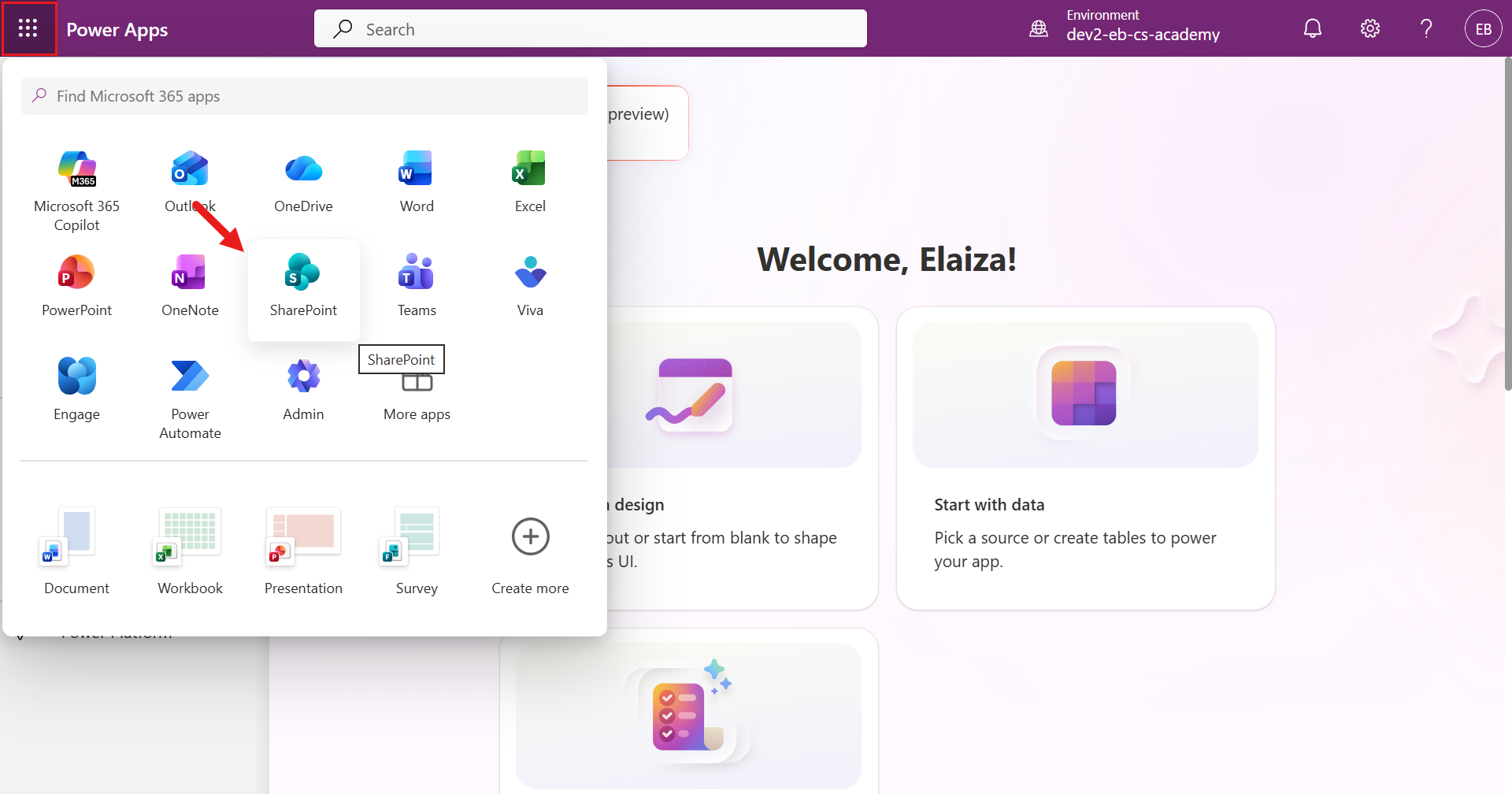
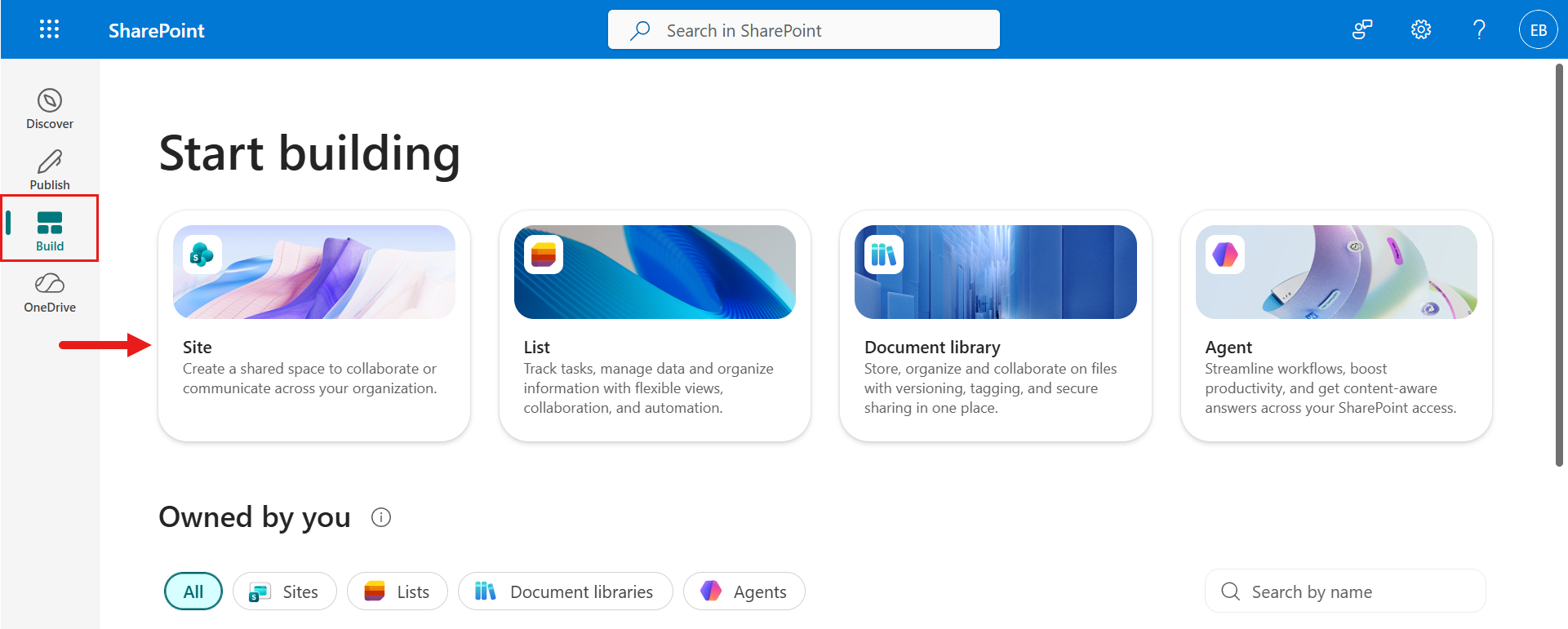
- When SharePoint loads, select Build from the left navigation menu, then select Site to create a new SharePoint site.
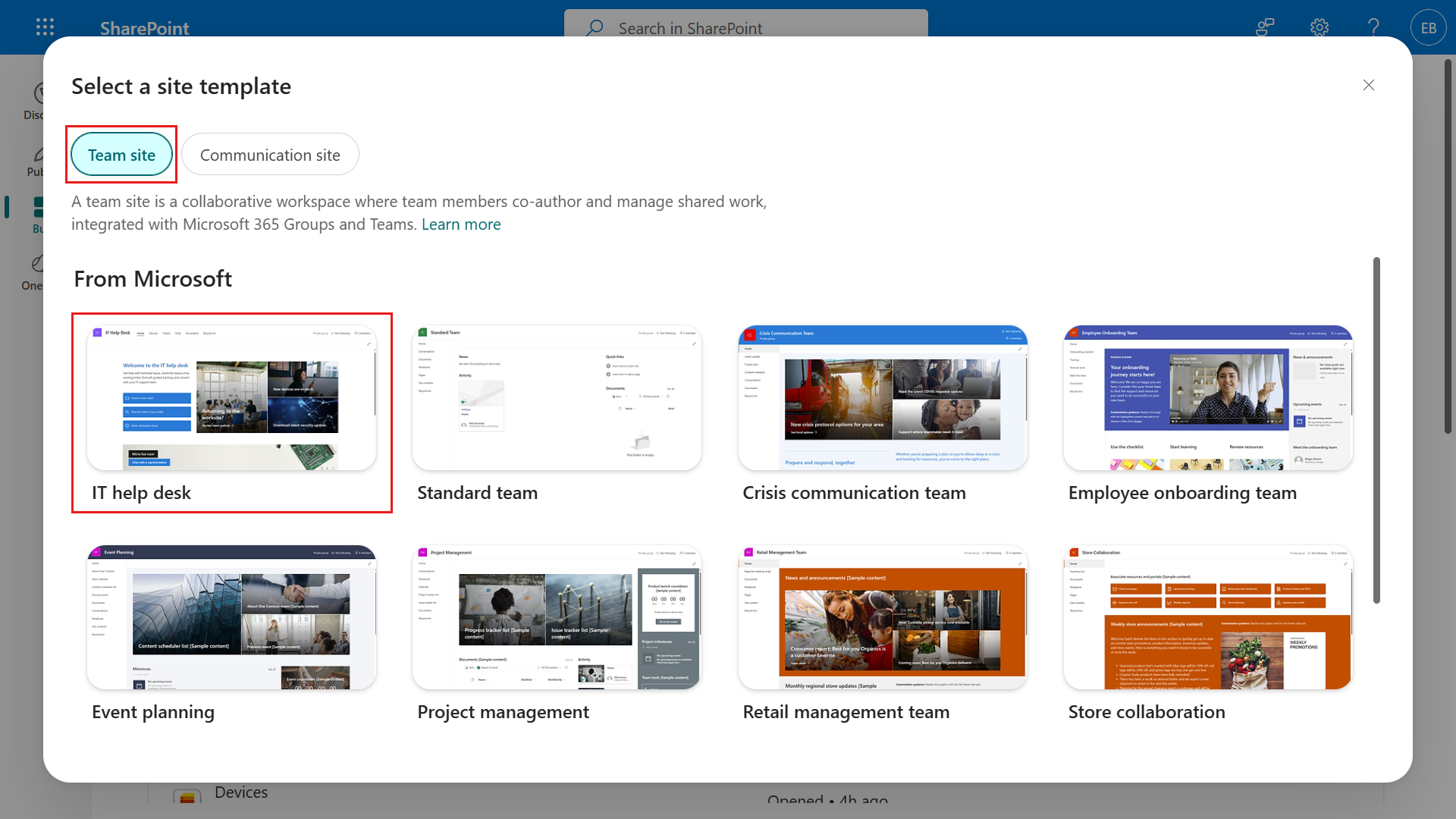
- A dialog appears to guide site creation. Under the Team site option, select IT help desk.
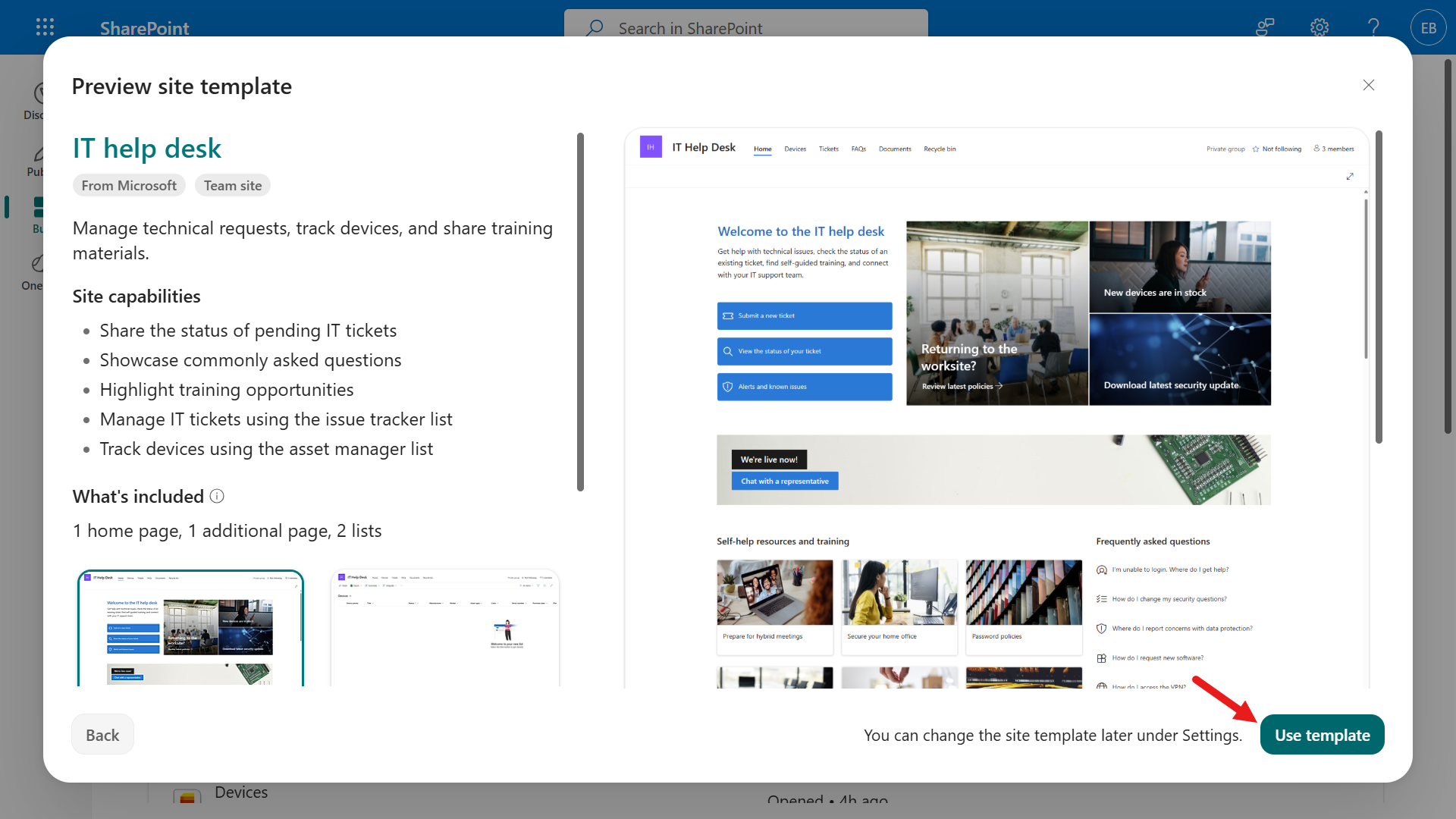
- Select Use template to create a new SharePoint site with the IT help desk template.
-
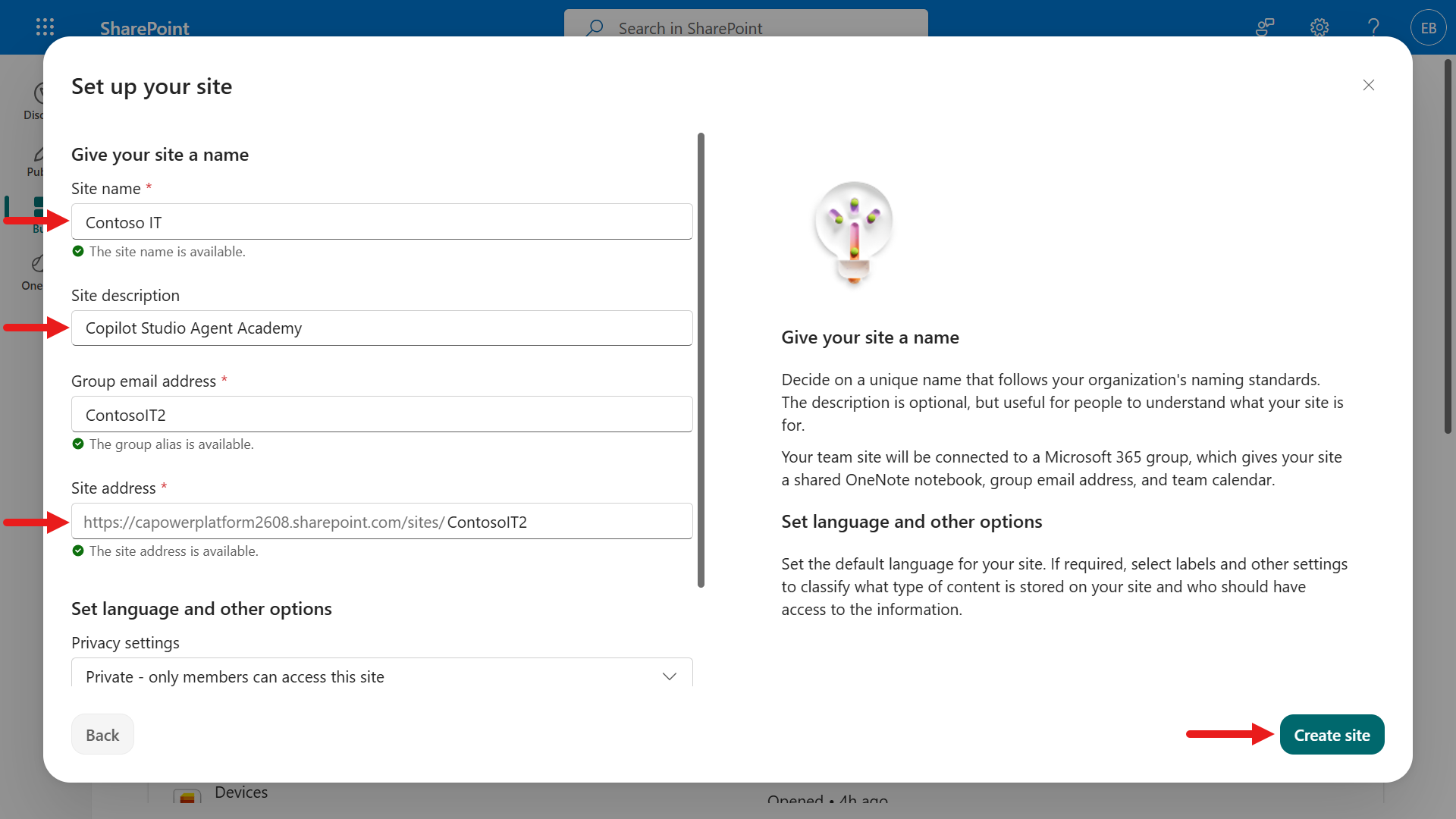
Enter the site information. Example values are shown below.
Field Value Site name Contoso IT Site description Copilot Studio Agent Academy Site address ContosoIT Select Create site.
-
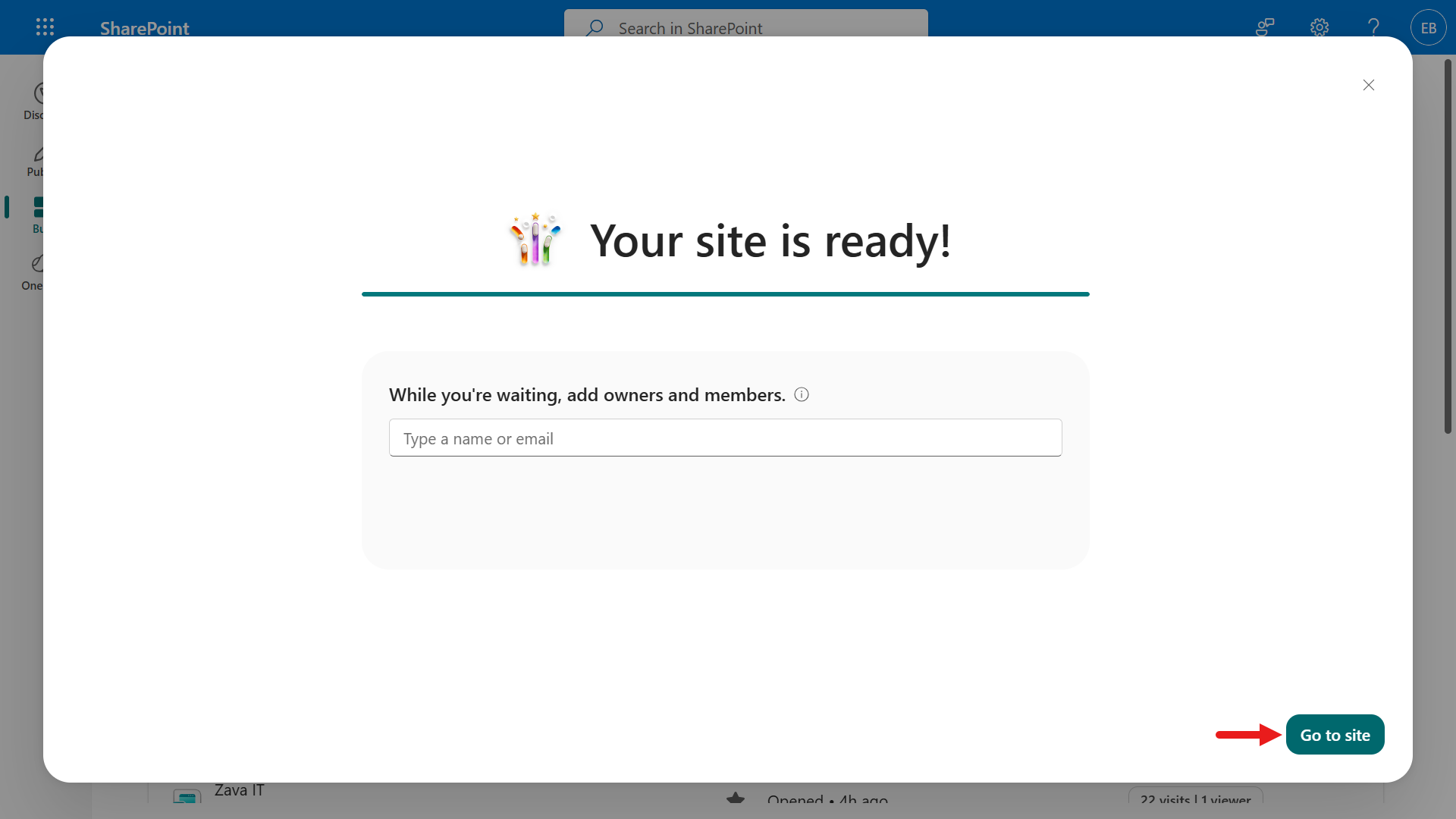
After selecting Create site, SharePoint may take a few seconds to finish provisioning. During this time, you can add users by entering email addresses in the Add members field if needed.
When you see the confirmation message that the site is ready, select Go to site.
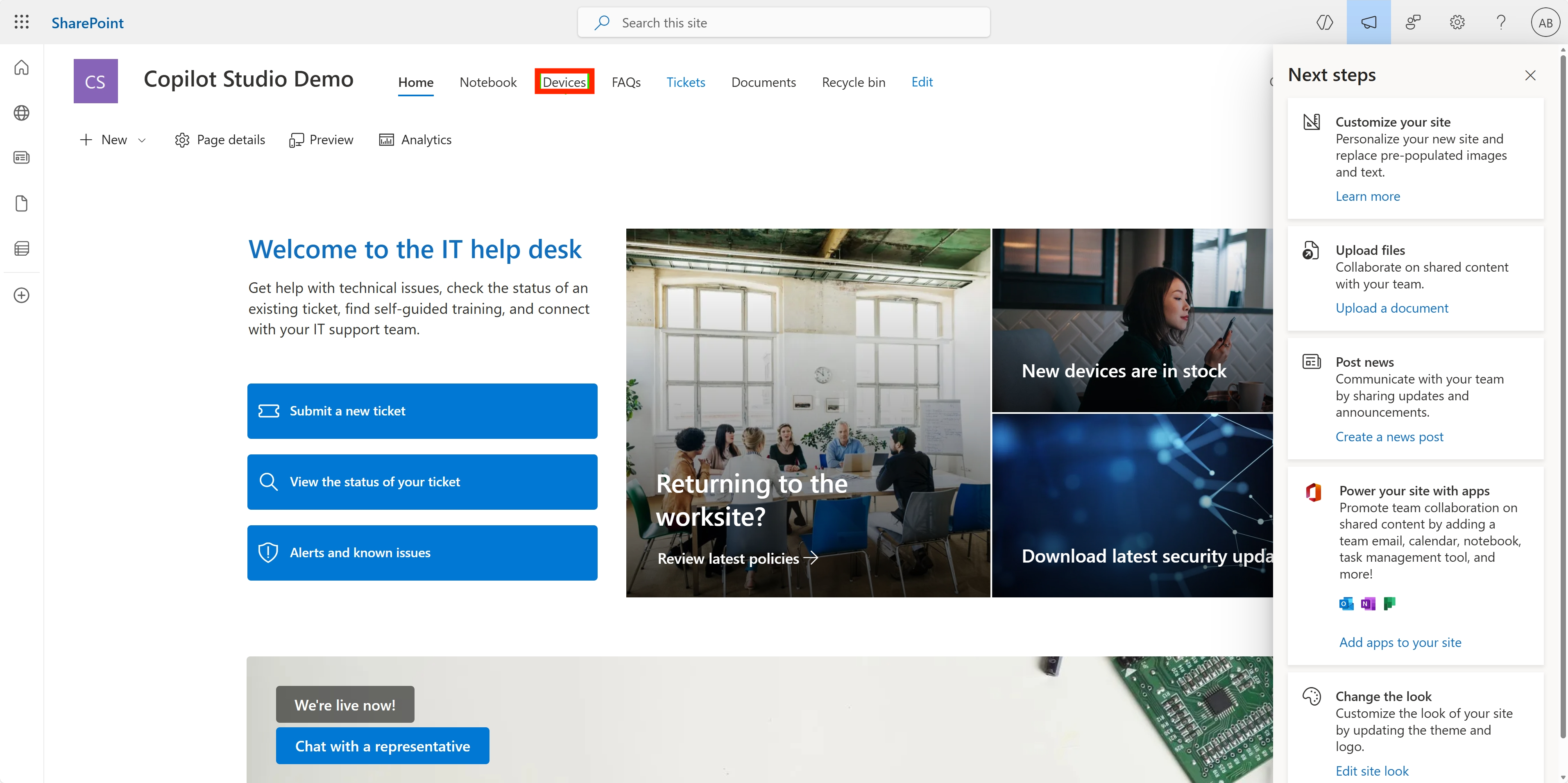
- When the SharePoint site home page loads, copy the SharePoint site URL.
- This template provides pages with sample data for several IT policies and two sample lists: Tickets and Devices.
Use the Devices SharePoint list
In Mission 07, you will use the Devices list.
Add a new column
In the Devices list, go to the far end of the columns and select + Add column.
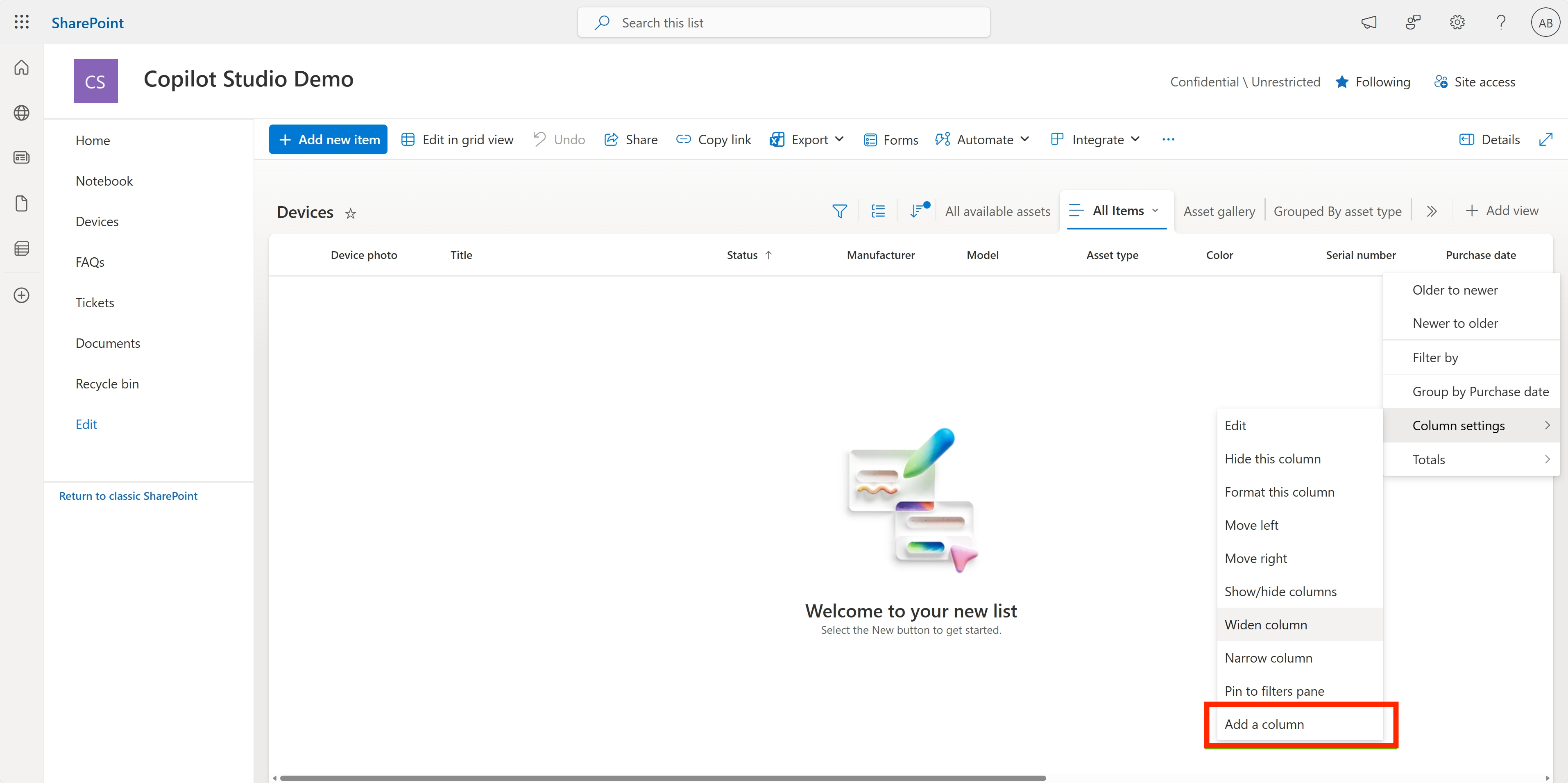
Select the hyperlink type, enter Image as the column name, then select add.
Create sample data in the Devices SharePoint list
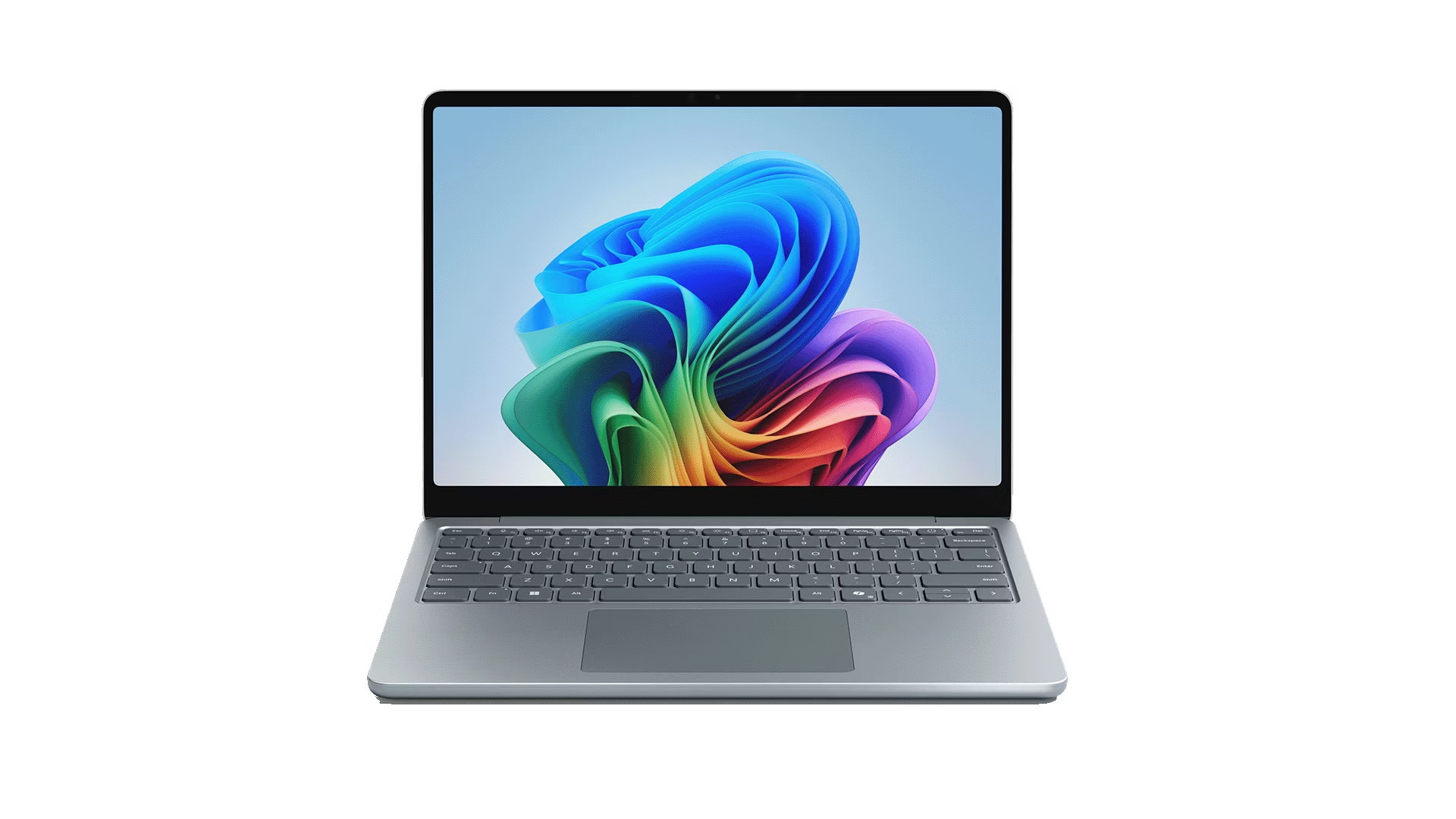
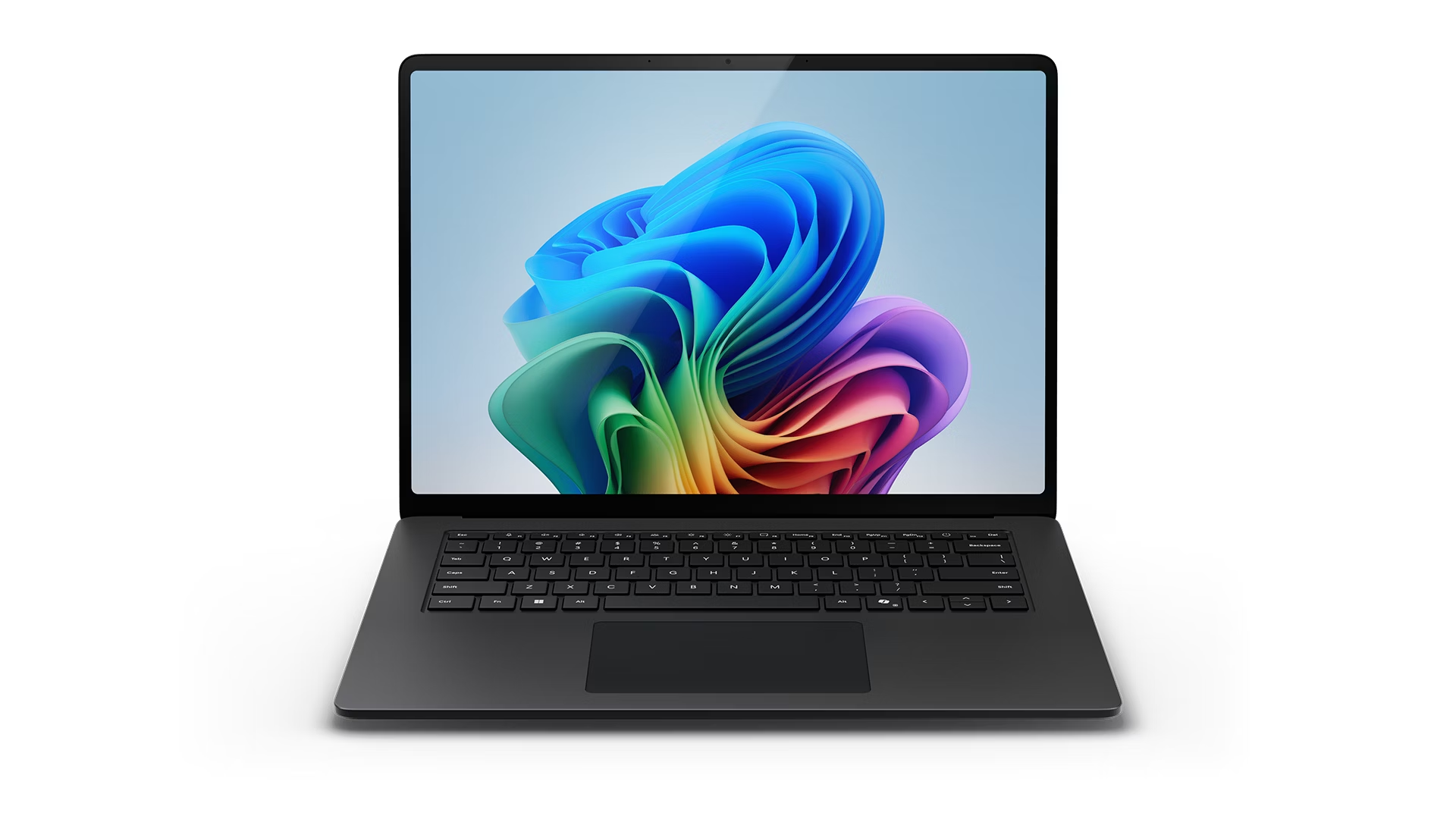
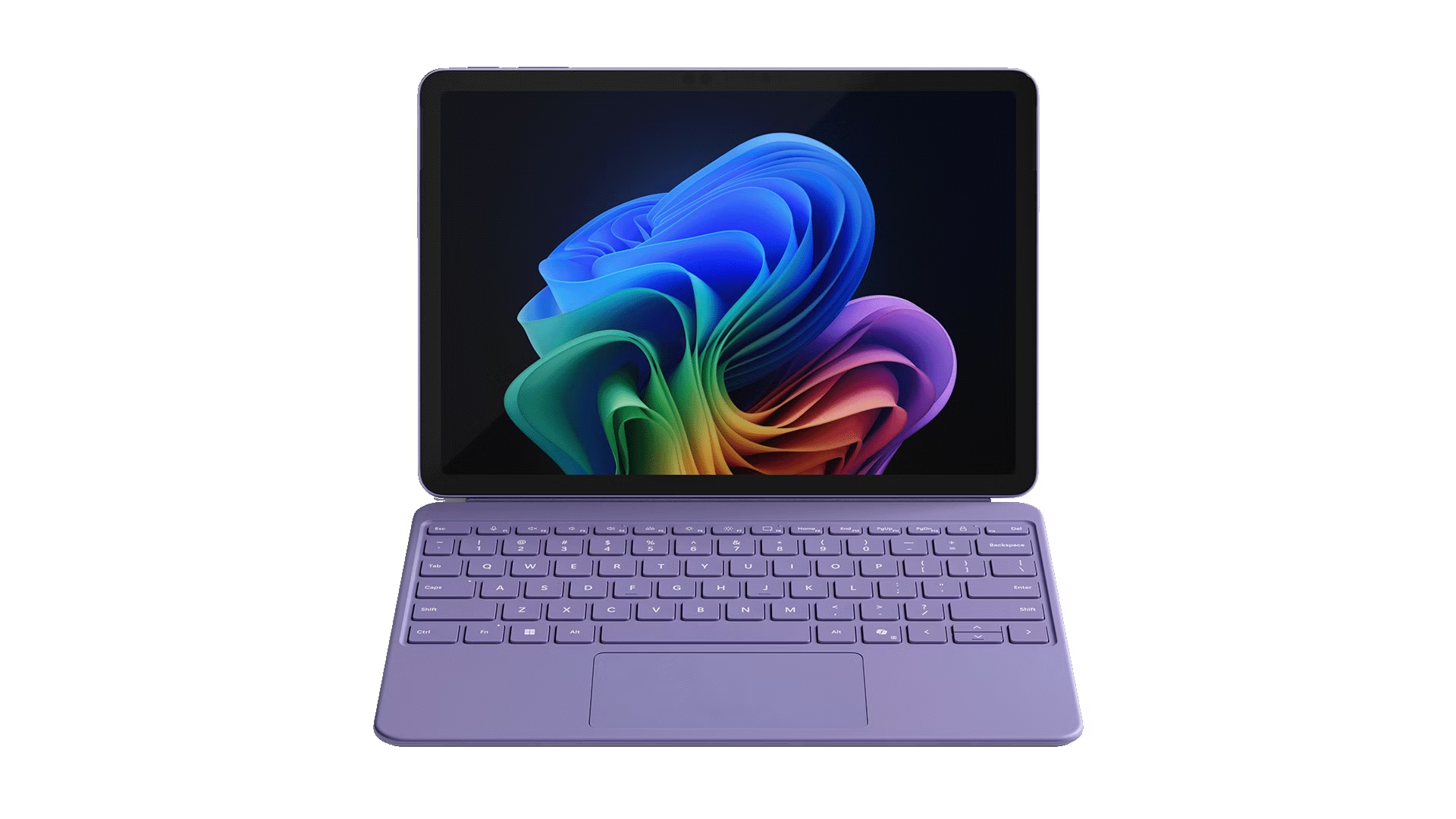
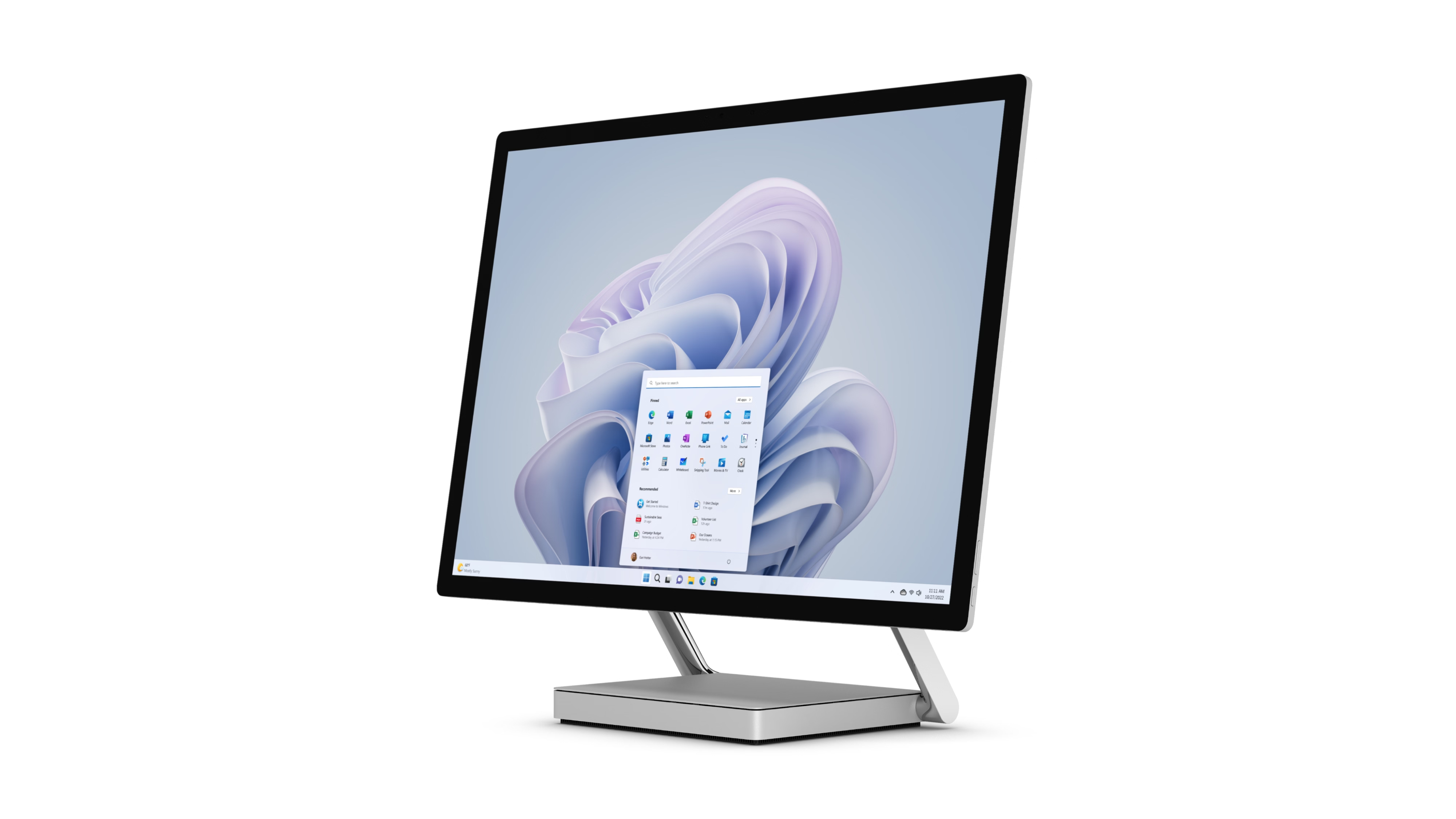
Populate this list with at least four sample data items, and make sure to include the additional column.
When entering sample data, fill in all of the following fields.
- Device photo - use the device images below
- Title
- Status
- Manufacturer
- Model
- Asset Type
- Color
- Serial Number
- Purchase Date
- Purchase Price
- Order #
- Image - use the links below
Use the links below from the original article to download the required device images.
| Device | URL |
|---|---|
| Surface Laptop 13 | Surface Laptop 13 image |
| Surface Laptop 15 | Surface Laptop 15 image |
| Surface Pro | Surface Pro image |
| Surface Studio | Surface Studio image |
Mission Complete
You have successfully completed the following tasks.
- Development environment: Set up a Microsoft 365 development environment.
- Copilot Studio access: Activated the Copilot Studio trial.
- SharePoint site: Created a site to use for agent grounding.
- Device data: Populated the Devices list for later missions.
Continue to Mission 01: Introduction to Agents.