Agent introduction
[Renewal] Explore the basic features of Copilot Studio - Introduction to the lab scenario and completed agent structure
Step 1: Agent introduction
Copilot Studio custom engine agent — Extend the blog posting agent
This integrated workshop extends the blog posting agent from the Copilot Studio lite lab into a custom engine agent that covers email sending, Teams posts, external MCP calls, Flows/Triggers, prompt tools, and Excel data usage all at once.
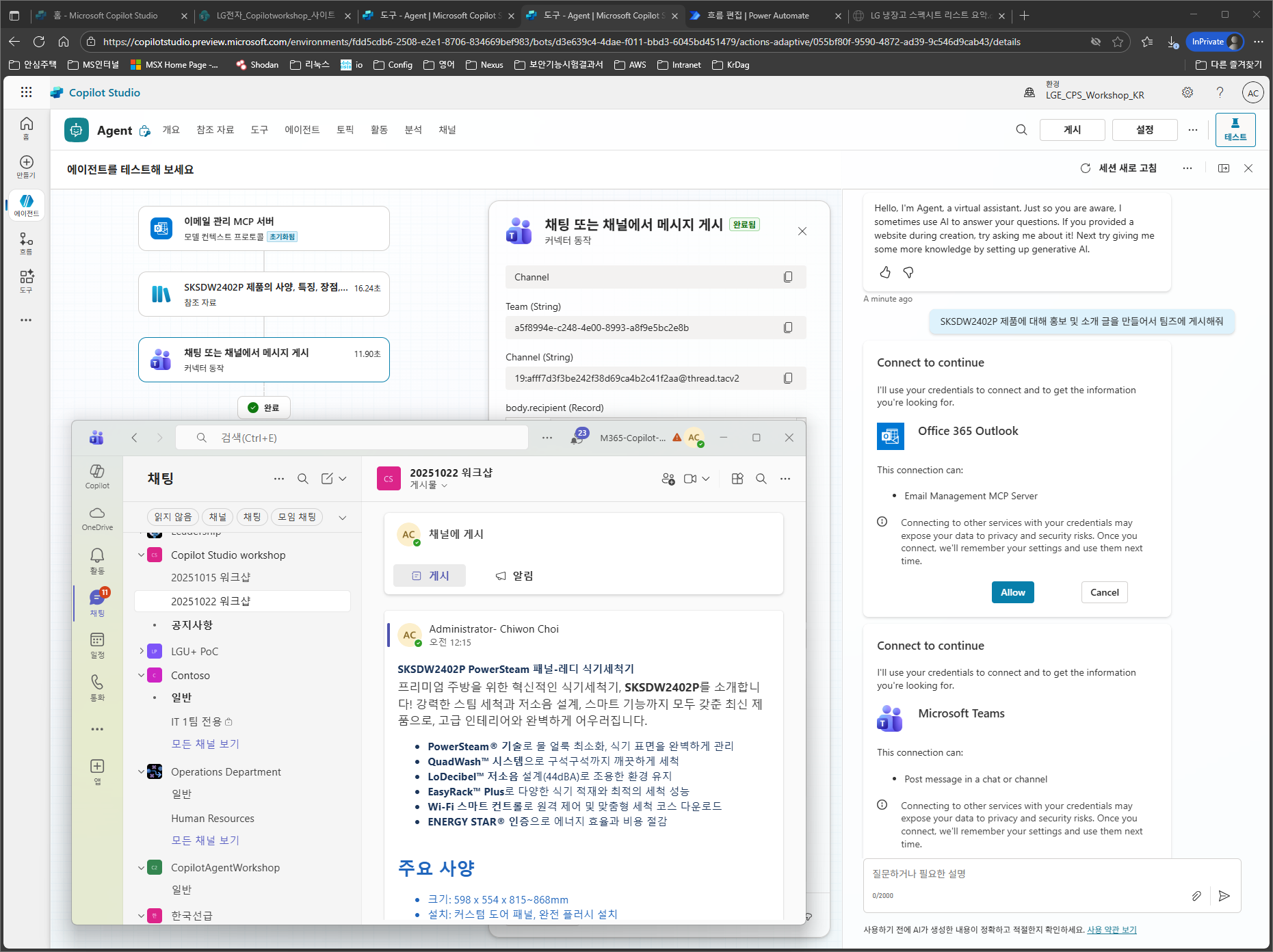
This workshop proceeds through the following tasks in order.
- Create an agent and configure basic Instructions
- Add Knowledge — SharePoint, web
- Add Tools — MCP tools, connectors, external (private) MCP
- Automation — Connect Power Automate Flows + Triggers
- Generate consistent HTML responses with a prompt tool
- Combine Excel-based data filtering + an analysis prompt
- Publish and deploy to Teams channels
✅ What is a custom engine agent?
| Item | Description |
|---|---|
| Definition | An agent that directly uses LLM orchestration inside Copilot Studio. It works as a combination of Instructions + tools + Knowledge |
| Difference from declarative agents | Declarative agents are lightweight agents that run on Microsoft 365 Copilot. Custom engine agents can freely configure their own model/tools/Flows |
| Advantages | Use rich tools such as MCP, connectors, Flows, prompts, and code interpreter. Deployable to Teams/Web/Custom channels |
| Example uses | Blog/newsletter writing, internal document search, appliance/IoT control, time-series data analysis, automated email sending, and more |
You can find details about the differences between custom engine agents and declarative agents in the workshop overview.
📋 Preview of next steps
| Step | Description | |
|---|---|---|
| ⚙️ | Step 2. Basic Instructions setup | Write the agent name, description, and basic Instructions |
| 📚 | Step 3. Add Knowledge | Connect SharePoint and web search |
| 🔗 | Step 4. Add MCP tools | Built-in MCP (email management) |
| 🔌 | Step 5. Connector (send email) | Add a general plugin connector |
| 🌐 | Step 6. External MCP tool | Connect a URL-based private MCP server |
| 🔁 | Step 7. Flow | Add a Power Automate Flow |
| ⏰ | Step 8. Trigger | Event-based automatic execution |
| 🤖 | Step 9. Prompt tool | Standardize HTML responses with AI Prompt |
| 📊 | Step 10. Excel data | Combine Excel filtering + analysis prompt |
| 🚀 | Step 11. Deployment | Publish and connect a Teams channel |
| ← Back to overview | Next: Step 2. Basic Instructions setup → |