Azure AI Search RAG
A Special Ops lab that uses Azure AI Search vector search to build RAG, enabling a Copilot Studio agent to respond based on organizational documents.
Translated article — This article is based on 🔎 Build a RAG Agent with Azure AI Search from the Copilot Studio Agent Academy. The original wording takes precedence.
🔎 Azure AI Search RAG
Agents, your objective in this mission, Operation Vector Vault, is to use RAG (Retrieval-Augmented Generation) based on Azure AI Search vector search so a Copilot Studio agent can answer from your organization’s real documents. You will create a search service, vectorize and index resume documents, and connect them to an HR Knowledge Agent so it can answer semantically rather than by keyword and cite its sources.
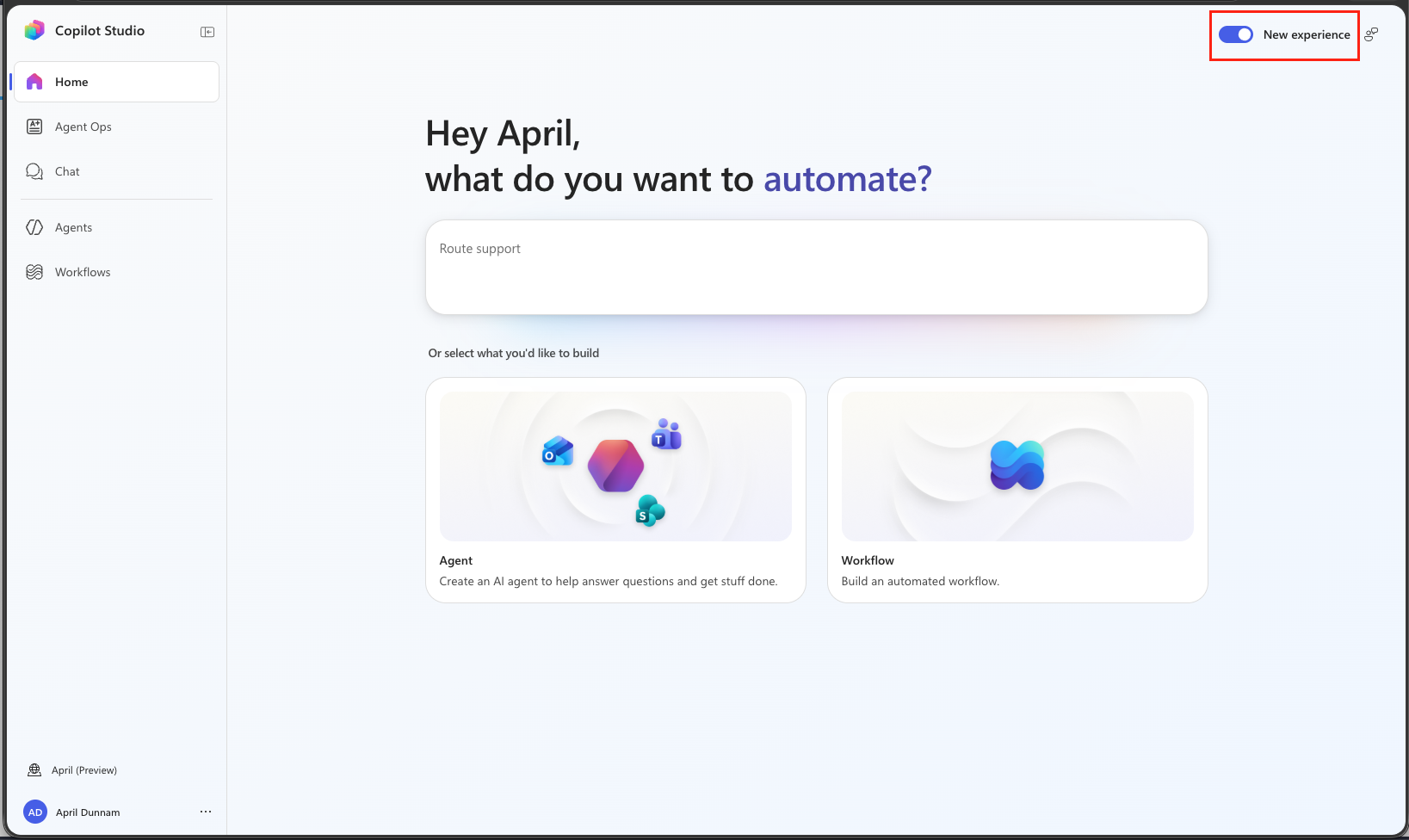
Important — this mission uses the GitHub Copilot harness: The Copilot Studio steps require an agent powered by the GitHub Copilot harness. Turn on New Experience before creating the agent.
Curriculum source: This mission was adapted from materials in Microsoft Copilot Developer Camp. Thanks to Paolo Pialorsi, who created the original curriculum, and to the Copilot Camp contributors. The Agent Academy version updates the lab for the GitHub Copilot harness and the Special Ops format.
🎯 Mission objectives
In this mission, you will learn how to:
- Create and populate an Azure AI Search vector index
- Connect Azure AI Search to a Copilot Studio agent
- Ground agent responses in your own documents
- Test semantic search and document source citation
❓ What is Retrieval-Augmented Generation (RAG)?
RAG is a technique that helps a model create more accurate and trustworthy responses by retrieving relevant information before generating an answer.
It has two core steps.
- Retrieval: Find relevant information in a large data store
- Generation: Generate an answer based on the retrieved results
This makes it especially useful for Q&A, research, and internal knowledge search scenarios where answers should be based on real documents rather than only the model’s internal memory.
🧠 Why vector search?
Vector search finds information by semantic similarity, not word matching. It converts documents into numeric vectors and finds content that is semantically close to the query, making it strong at:
- Semantic matching: Connecting the same concept even when the wording differs (for example, recruitment / hiring)
- Multilingual search: Finding equivalent meaning across languages
- Diverse content formats: Searching across text documents, PDFs, and other formats
It works as follows.
- Convert documents into vectors with an embedding model
- Store the vectors in an Azure AI Search index
- Convert the user query into a vector as well, then return semantically close results
For example, if you search for “software engineering skills,” it can find semantically similar candidates such as “programming expertise” or “development capabilities” even when the exact same words do not appear.
⚙️ Prerequisites
- A Microsoft Copilot Studio trial or paid account that can use the GitHub Copilot harness. If you do not have an account, see the course setup guide for free trial options.
- An Azure subscription with permissions to create resources (Azure AI Search, Storage, Azure OpenAI/Microsoft Foundry)
- Basic experience creating Copilot Studio agents and managing Azure resources
Important — GitHub Copilot harness billing: This mission uses the GitHub Copilot harness in Microsoft Copilot Studio, which is billed based on usage. Creating the agent and testing, evaluating, and using it in Preview may consume Copilot Credits. Before you begin, review the Copilot Credits billing overview.
🎯 Scenario
The Contoso HR team needs to handle a large volume of resumes across multiple formats and languages. Recruiters need an agent that can answer accurately from real resume documents when they ask natural-language questions such as “Spanish speaker + Python experience.” Your role is the agent builder who connects RAG with Azure AI Search.
🧪 Lab 1.1: Prepare the Azure AI Search service
Step 1 — Create an Azure AI Search service
Create an Azure AI Search service in the Azure Portal.
- Search for
Azure AI Searchfrom Create a resource - Select Azure AI Search, then Create
- Enter the values below, then select Review + Create
- Subscription: Your Azure subscription
- Resource group: An existing or new group (for example,
agent-academy-rg) - Service name: A globally unique name (for example,
agentacademy-ai-search) - Location: The same region as your other resources
- Pricing tier: Basic
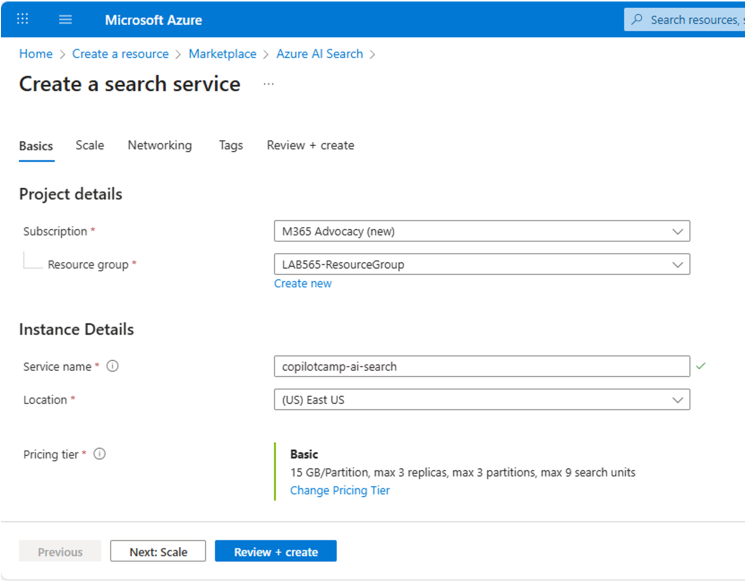
After creation, copy the values below.
- URL on Overview (search endpoint)
- Primary admin key under Settings → Keys
Tip: In Lab 1.3, you will need to paste the endpoint URL and admin key when creating the Azure AI Search connection in Copilot Studio, so keep them somewhere safe.
Step 2 — Create an Azure Storage account
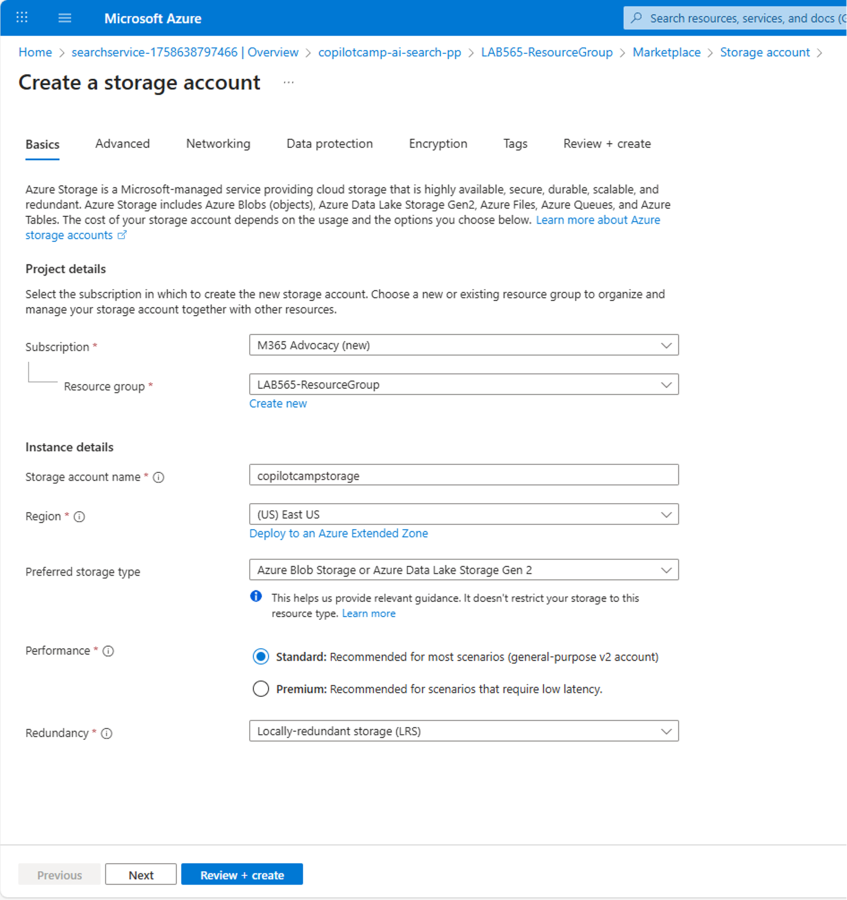
Create an Azure Storage account to store the documents before indexing.
- In the Azure Portal, select Create a resource → search for
Storage Account - Select Storage Account, then Create
- Enter the values below, then select Review + Create
- Subscription: Your Azure subscription
- Resource group: The same group as Azure AI Search
- Storage account name: A globally unique name (for example,
agentacademystorage) - Region: The same region as Azure AI Search
- Performance: Standard
- Redundancy: LRS
Step 3 — Deploy a text embedding model
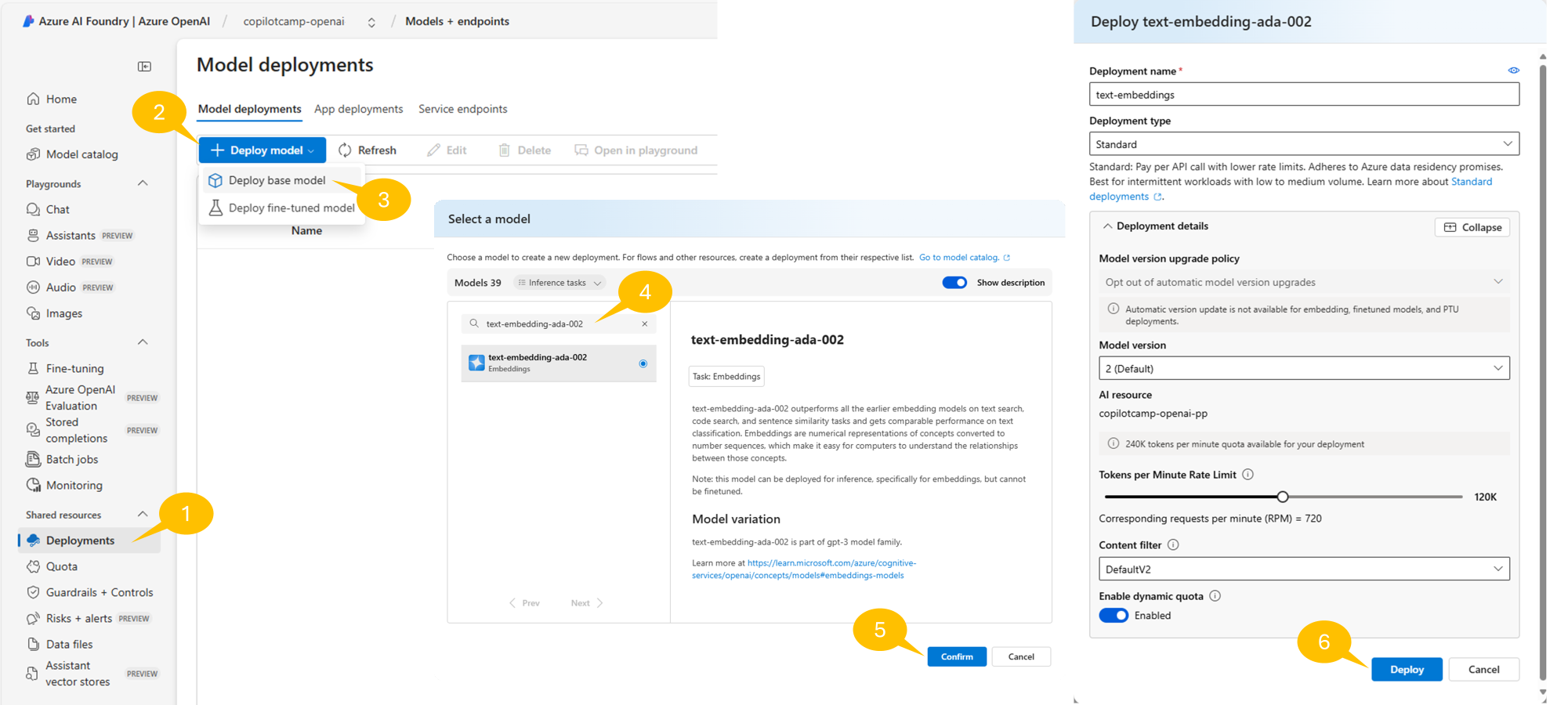
You need an embedding model for vector search.
- If you do not have an Azure OpenAI service, create one first (Standard S0 recommended).
- In Microsoft Foundry, select your Azure OpenAI instance.
- Go to Deployments → + Deploy model → Deploy base model
- Search for
text-embedding-ada-002, then select Confirm - Configure the deployment values
- Deployment name:
text-embeddings - Deployment type: Standard
- Model version: 2 (Default)
- Content Filter: DefaultV2
- Deployment name:
- Select Deploy and wait for completion
Role of text-embedding-ada-002: It converts text into semantic numeric vectors, allowing you to find semantically similar documents even across different languages and wording. Combined with Azure AI Search, it enables context-based search instead of exact keyword matching.
🧪 Lab 1.2: Create a search index and load data
Step 1 — Prepare sample documents
Download and extract the sample resume documents for the lab.
The sample documents include information such as candidate names/contact details, technical skills, work experience, education, language abilities, and certifications. Even when the documents are written in multiple languages, embeddings + a vector index make them searchable.
Step 2 — Upload sample documents to the Storage Account
- Open your Storage Account instance in the Azure Portal.
- Under Data storage on the left, select Containers
- Select + Container
- Enter
resumesas the container name, then select Create
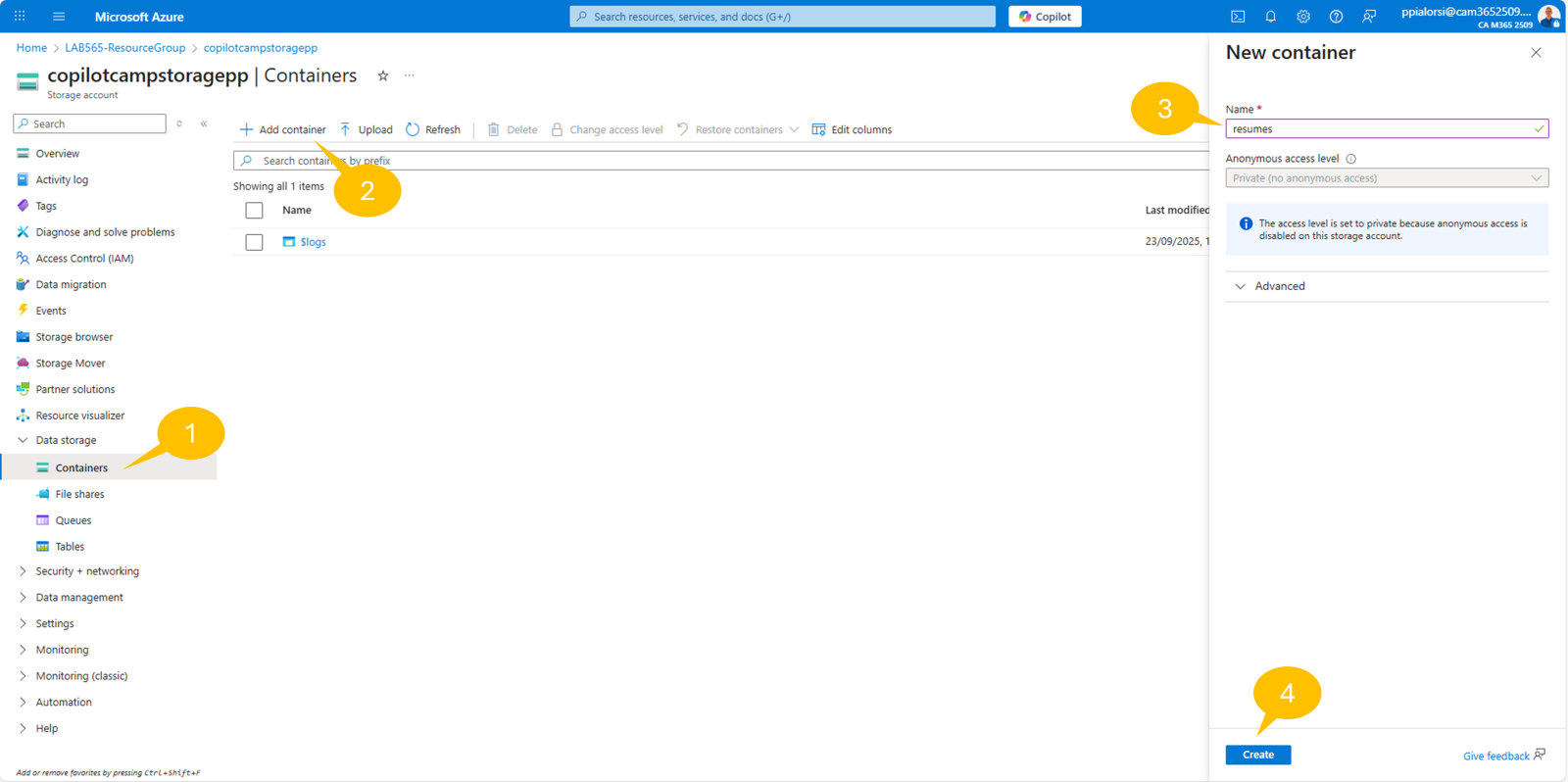
After creating the container, upload the files:
- Select Upload
- Drag and drop the resume files, or select them with Browse for files
- Select Upload and wait for the upload to complete
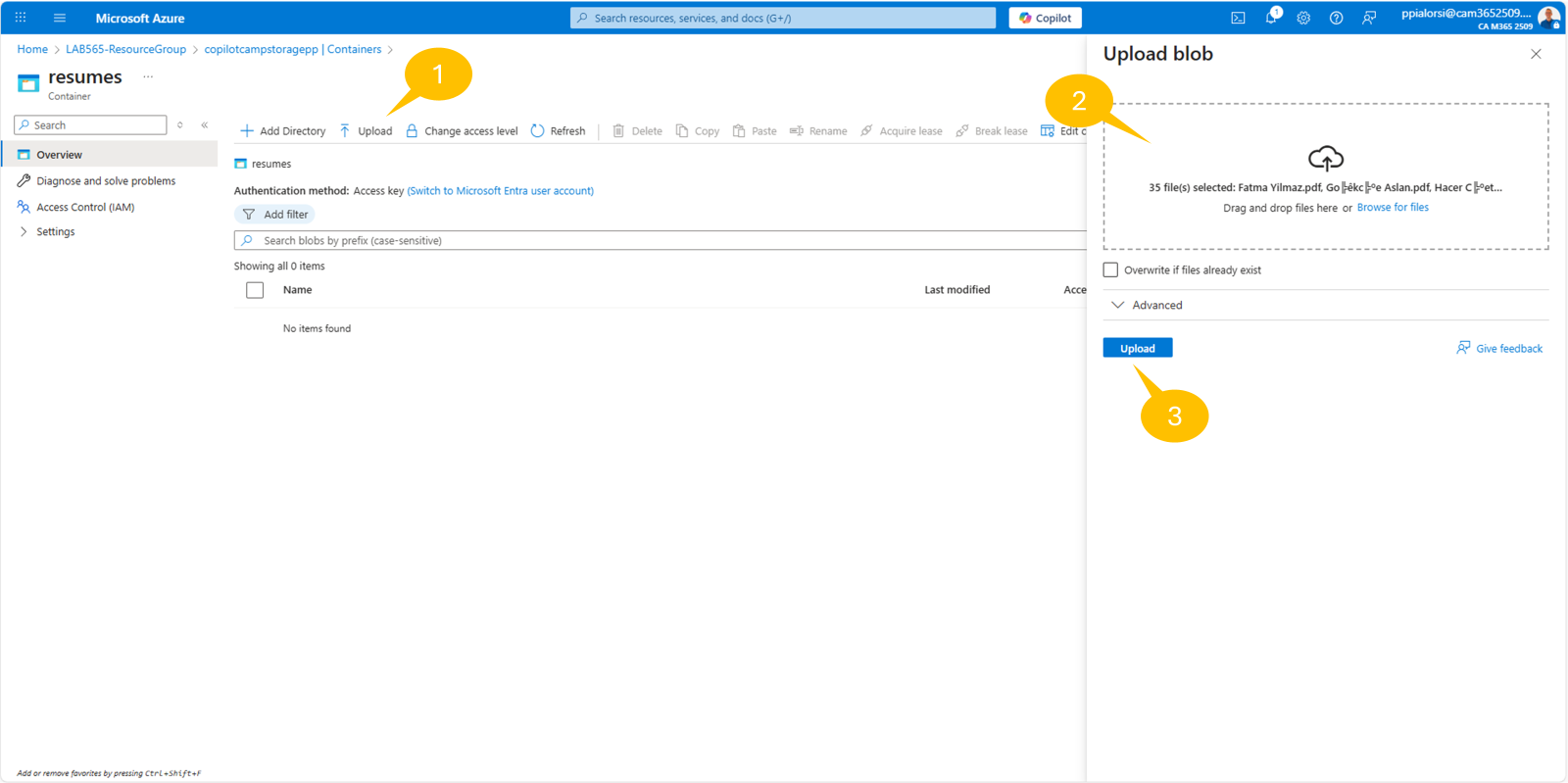
Step 3 — Populate the index with integrated vectorization
- Return to your Azure AI Search instance and select Import data (new) at the top
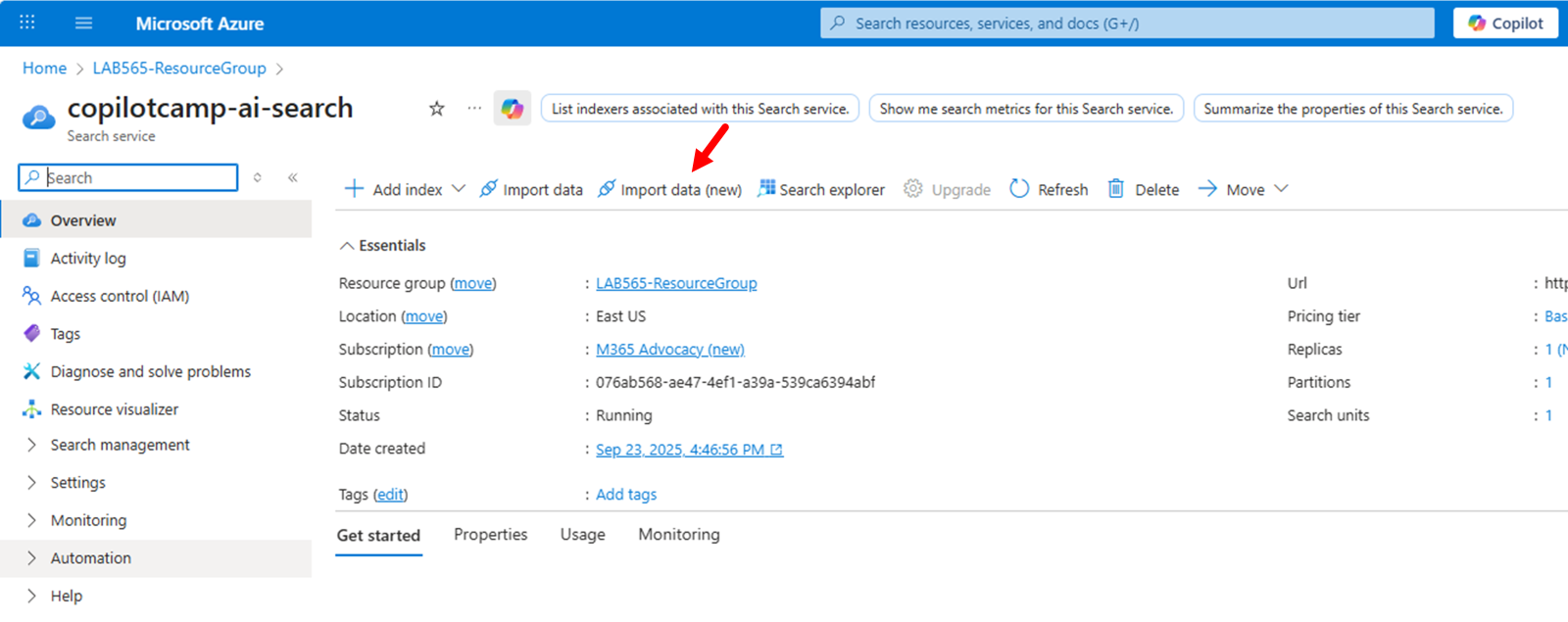
- Select Azure Blob Storage as the data source
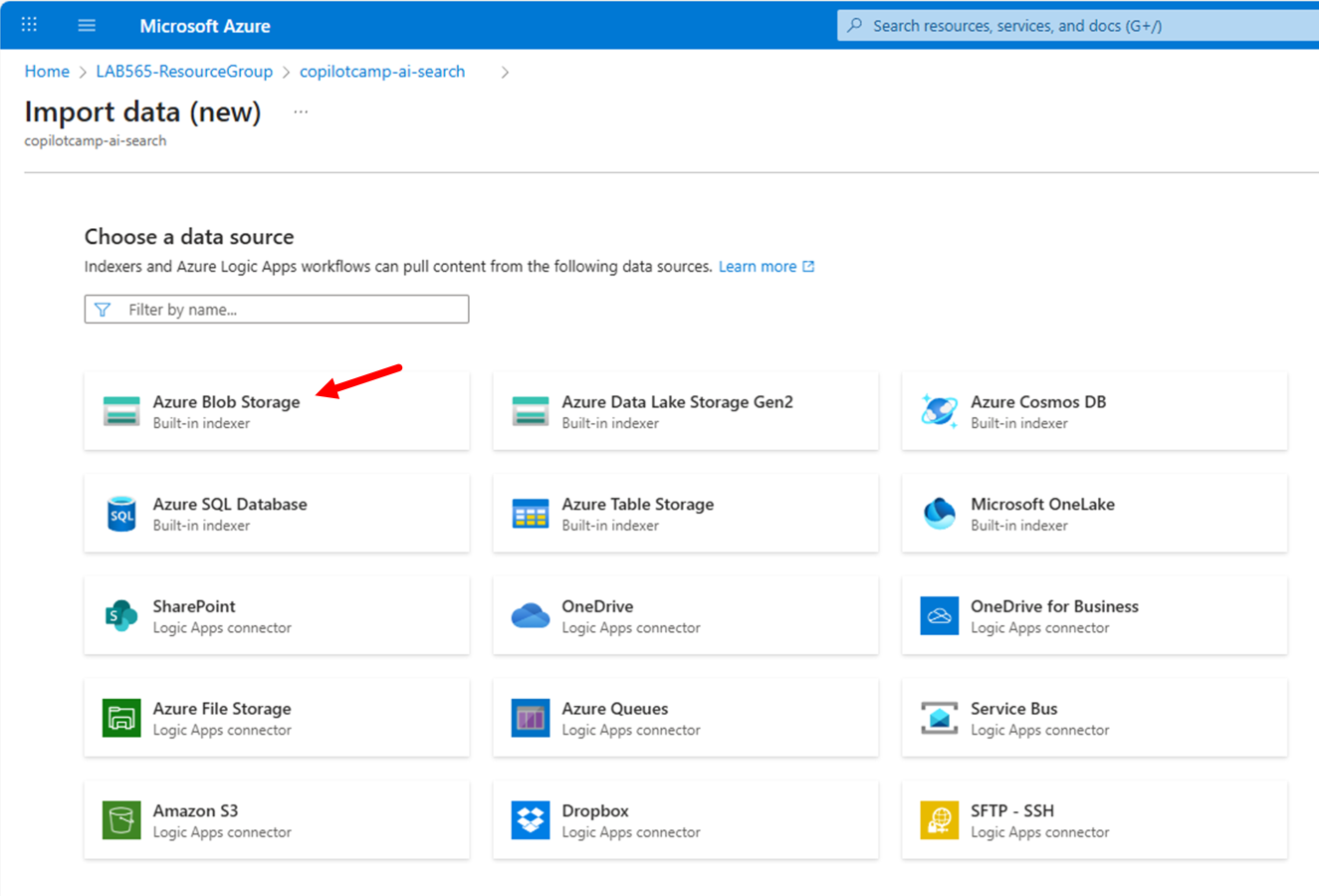
- Select RAG as the scenario
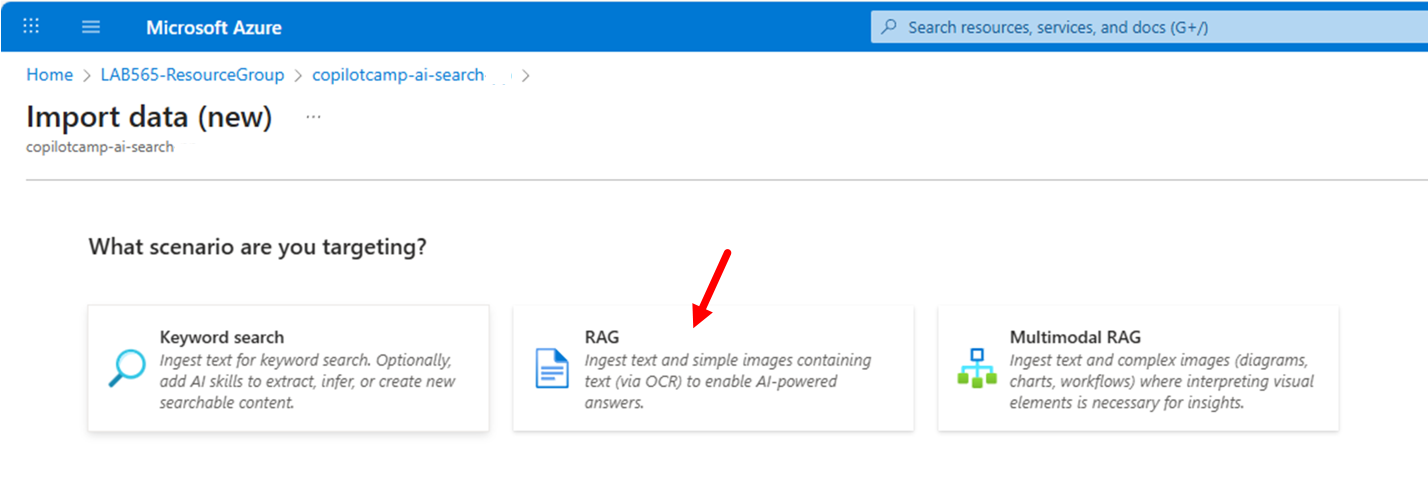
Configure it as follows.
- Azure Blob Storage
- Subscription: Your subscription
- Storage account: The account you created earlier
- Blob container: The container where you uploaded the resumes
- Blob folder: Leave blank if there is no folder structure
- Parsing mode: Default
- Vectorize your text
- Kind: Azure OpenAI
- Azure OpenAI service: Your instance
- Model deployment:
text-embeddings - Authentication type: API Key (default)
- Acknowledge the additional cost notice, then select Next
- Vectorize your images: Select Next if you do not need it
- Advanced ranking and relevancy: Keep defaults and select Next
- Review and create
- Enter a prefix for the index/indexer/data source/skill set (for example,
resumes) - Review the settings, then select Create
- Enter a prefix for the index/indexer/data source/skill set (for example,
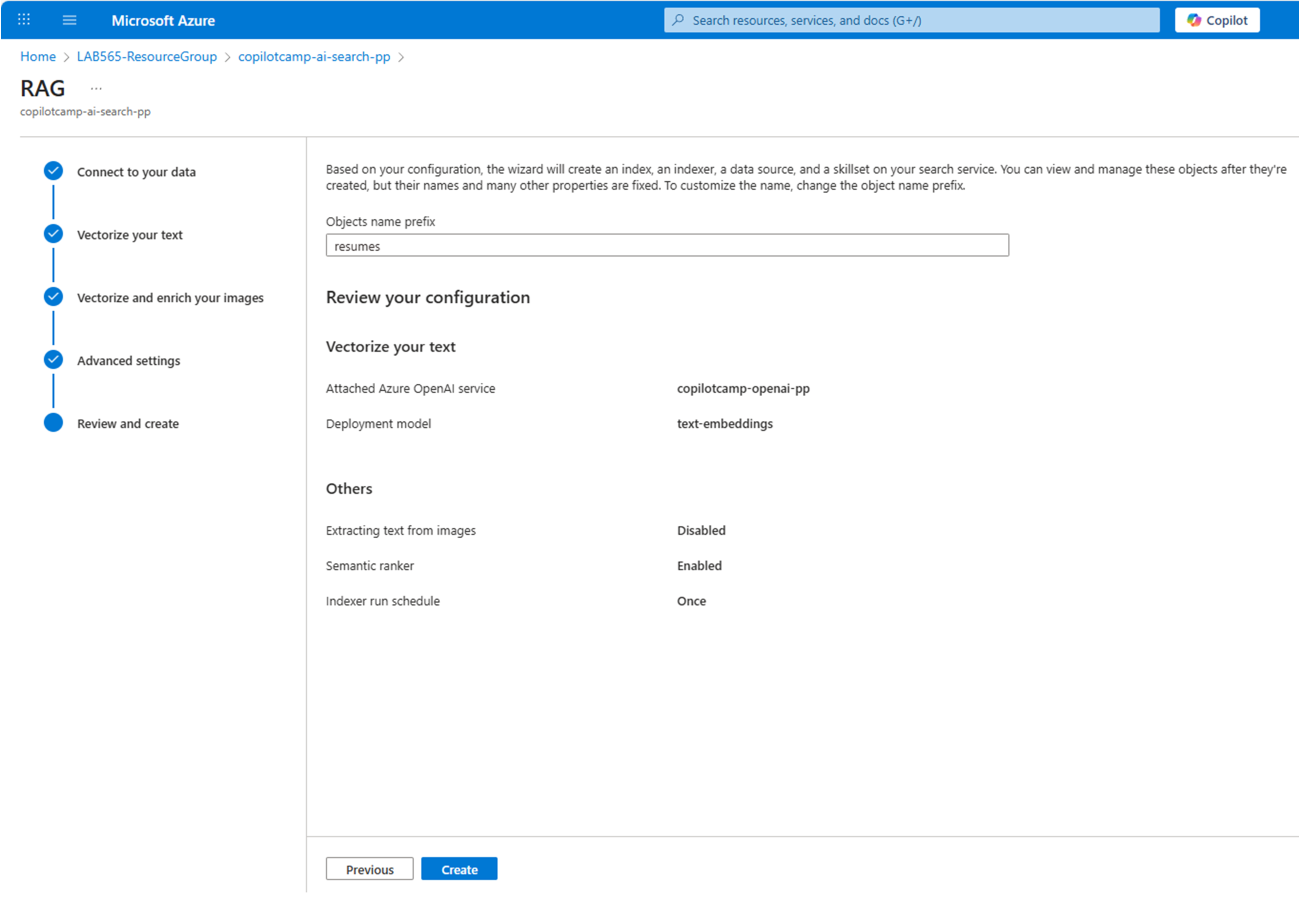
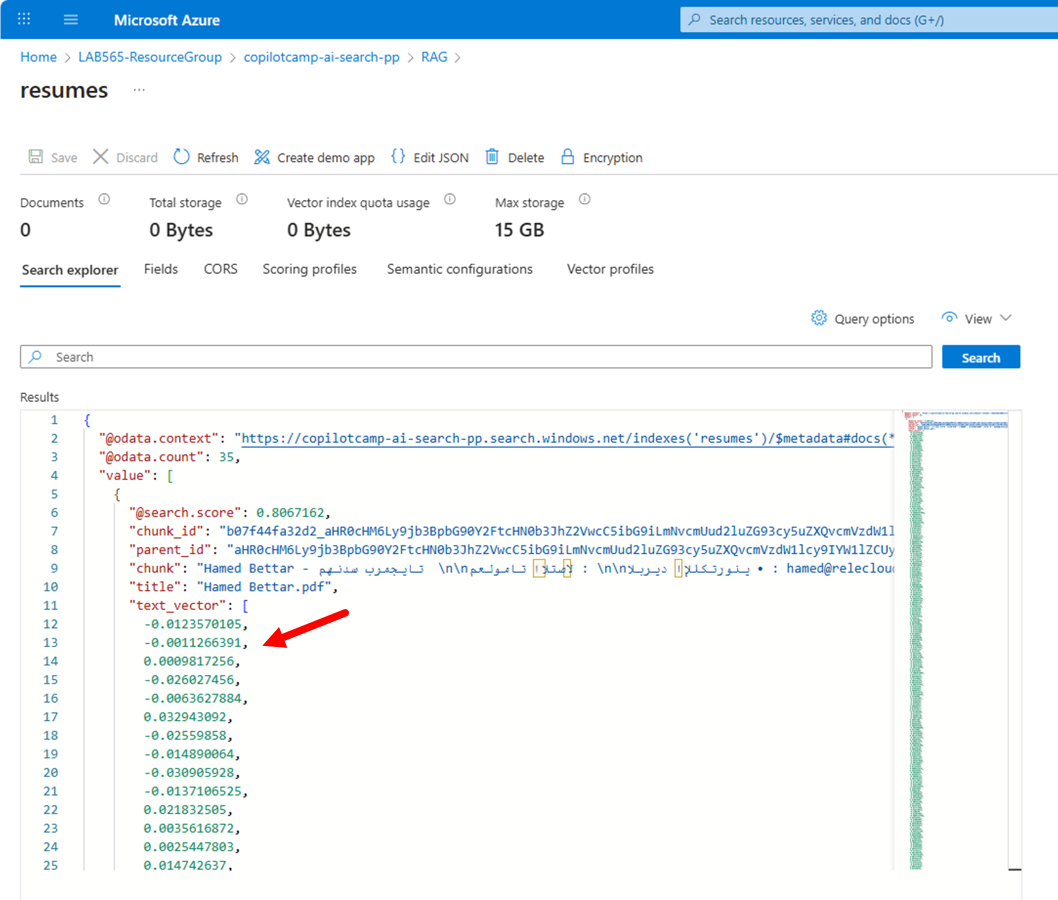
When creation completes, check the index with Start searching. You can see that a text_vector field has been created for each record and stores the embedding result.
🧪 Lab 1.3 — Build the RAG agent
Step 1 — Create the HR Knowledge Agent
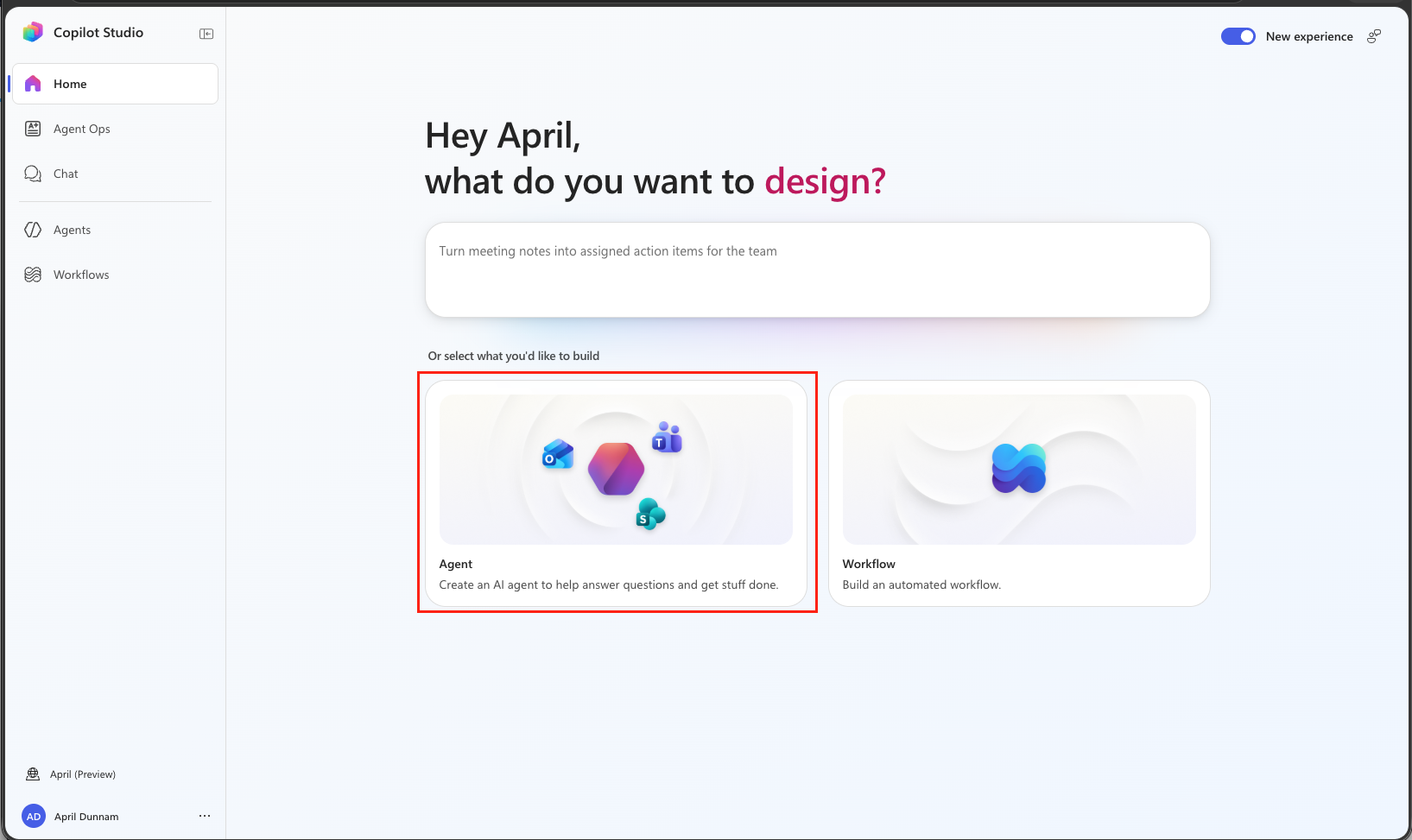
- Sign in to Microsoft Copilot Studio and confirm that New experience is turned on
- Select New Agent
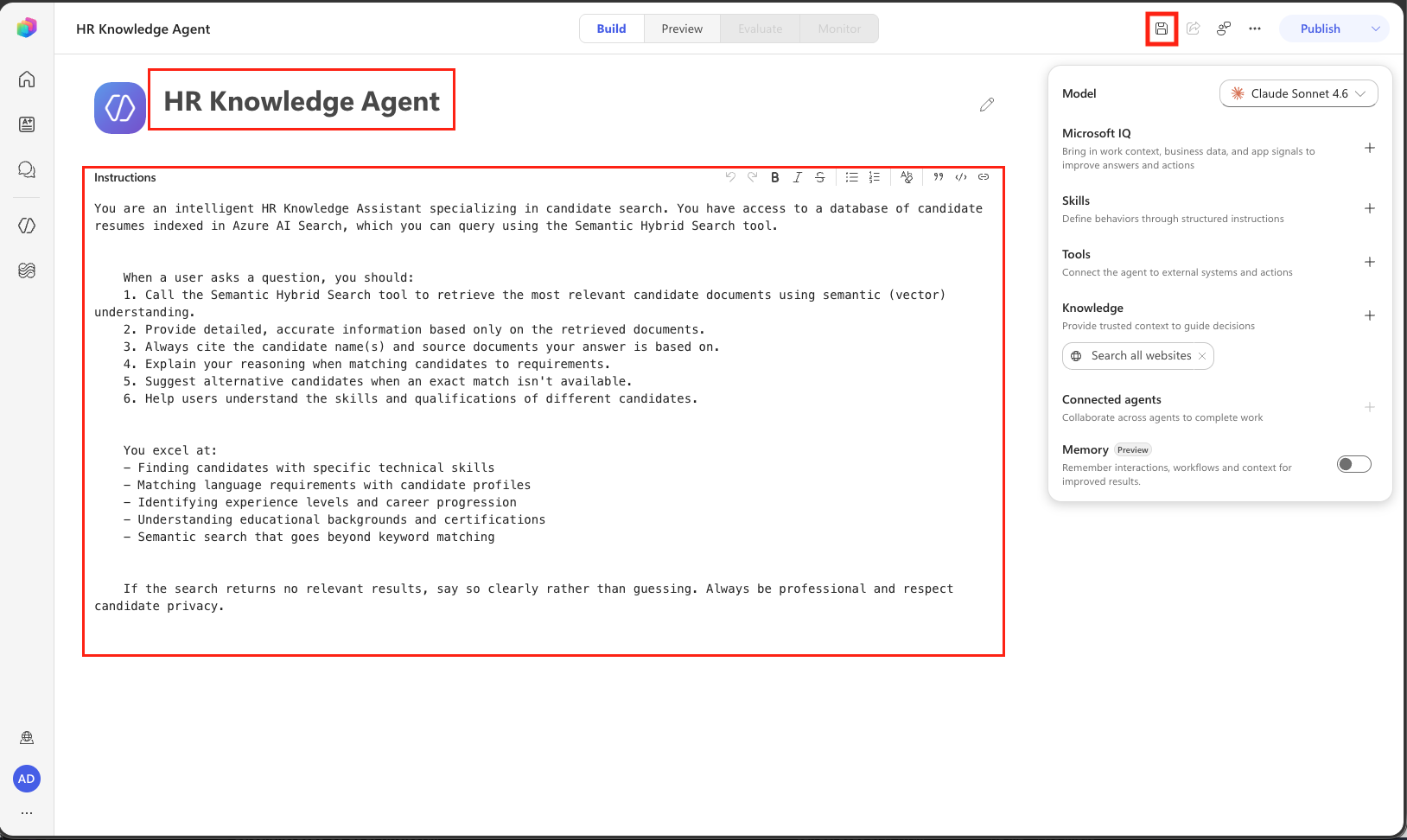
- Enter the name
HR Knowledge Agent
- Paste the text below into Instructions.
You are an intelligent HR Knowledge Assistant specializing in candidate search. You have access to a database of candidate resumes indexed in Azure AI Search, which you can query using the Semantic Hybrid Search tool.

When a user asks a question, you should:
1. Call the Semantic Hybrid Search tool to retrieve the most relevant candidate documents using semantic (vector) understanding.
2. Provide detailed, accurate information based only on the retrieved documents.
3. Always cite the candidate name(s) and source documents your answer is based on.
4. Explain your reasoning when matching candidates to requirements.
5. Suggest alternative candidates when an exact match isn't available.
6. Help users understand the skills and qualifications of different candidates.

You excel at:
- Finding candidates with specific technical skills
- Matching language requirements with candidate profiles
- Identifying experience levels and career progression
- Understanding educational backgrounds and certifications
- Semantic search that goes beyond keyword matching

If the search returns no relevant results, say so clearly rather than guessing. Always be professional and respect candidate privacy.
- Select Save in the upper-right corner
Step 2 — Connect Azure AI Search as a tool
Important: In agents powered by the GitHub Copilot harness, Azure AI Search is not a Knowledge source. The Add knowledge dialog shows only Public websites, SharePoint, and OneDrive. Azure AI Search must be connected as a Connector Tool so the agent can call it for search.
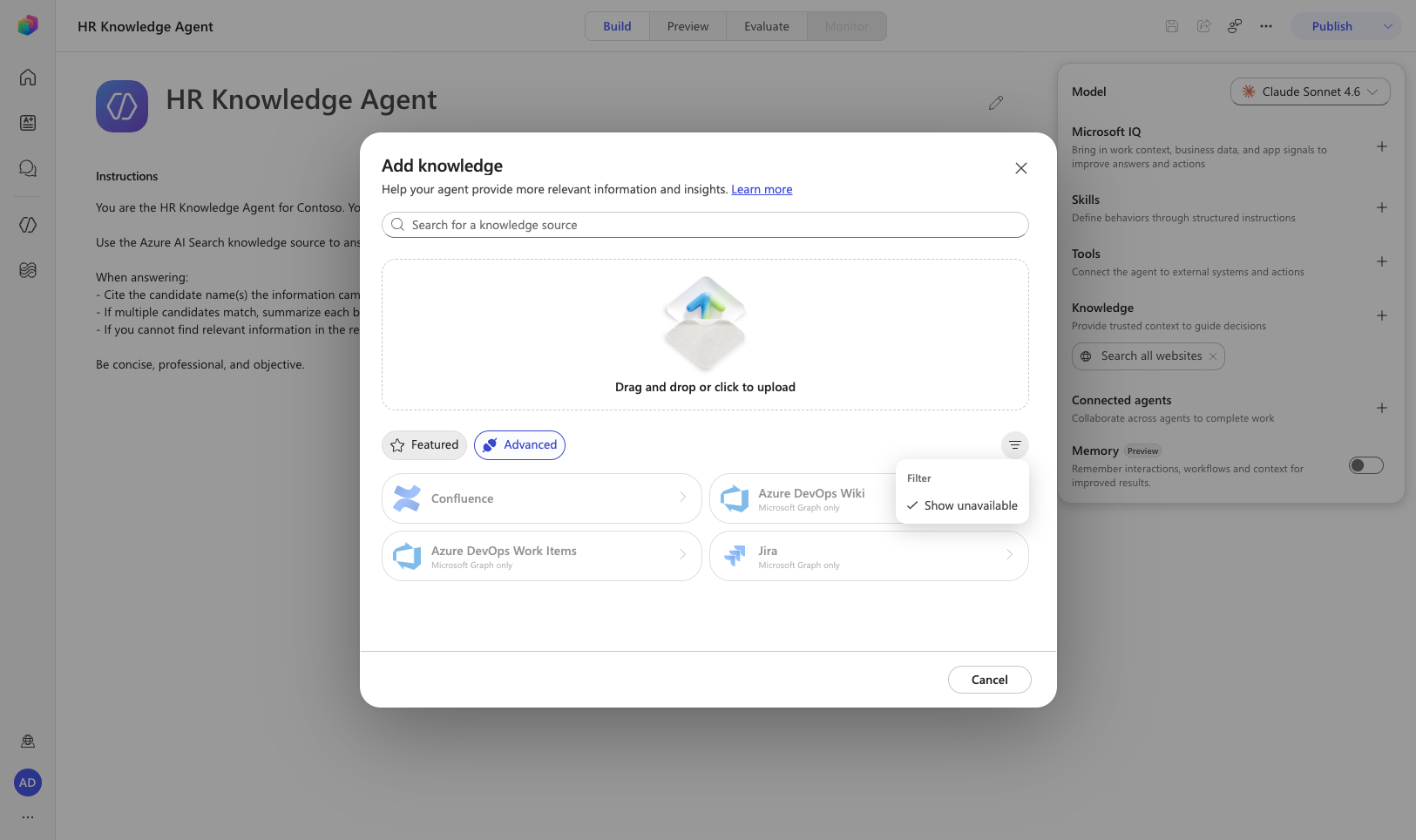
- In the Tools card on the right Agent configuration panel, select Add tool
- Search for
Azure AI Searchand review the connector action list- Semantic Hybrid Search
- Search vectors with natural language
- Get search indexes
- Get index statistics
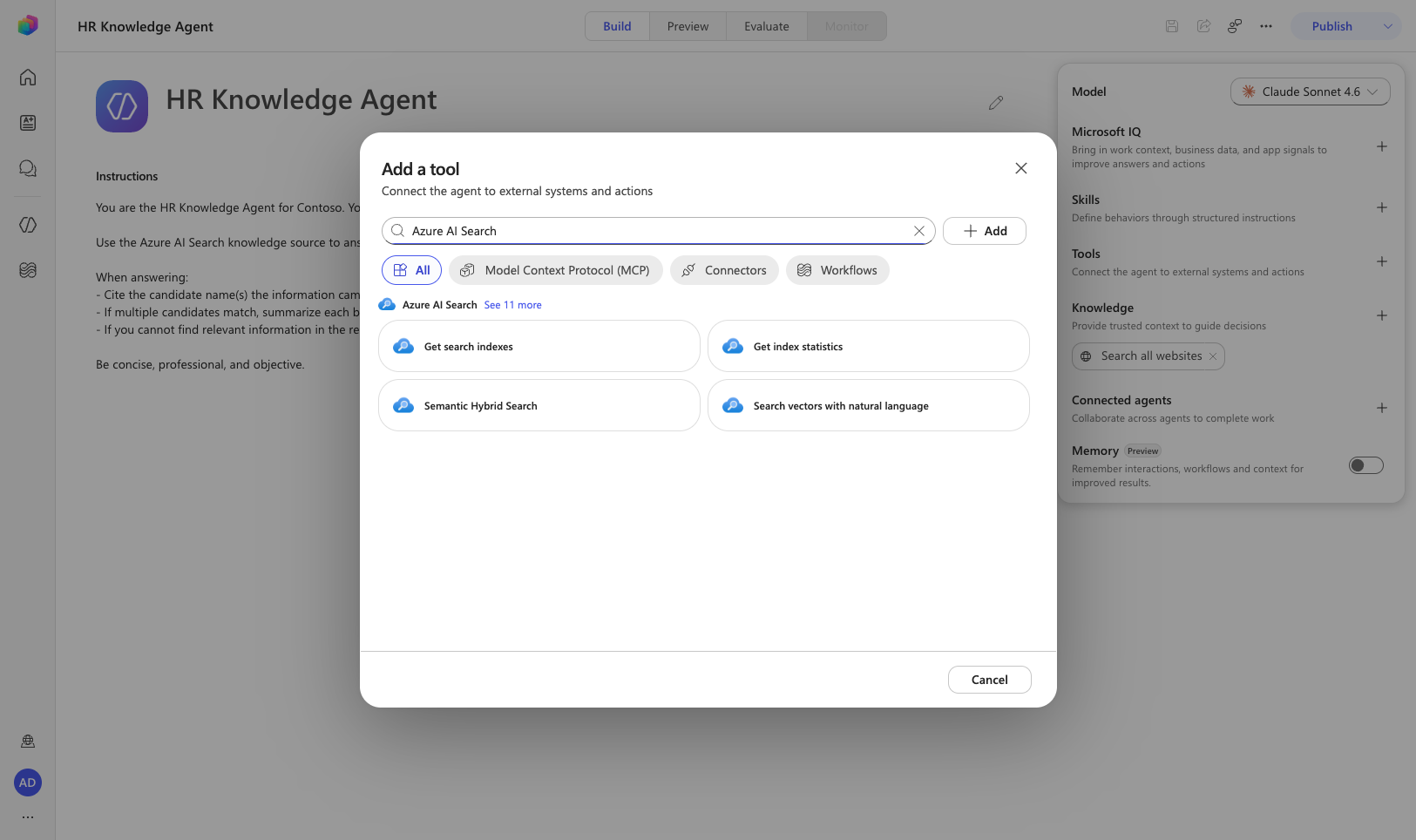
- Select Semantic Hybrid Search and Add. This action performs semantic hybrid search, combining vector search and keyword search against the index. If you need a pure vector query, Search vectors with natural language is also a good option.
- Open the added tool and configure Name/Description/Authentication mode (User or Maker) in Tool details
- Create the connector connection using the endpoint URL and admin key you saved in Lab 1.1, then specify the
resumesindex
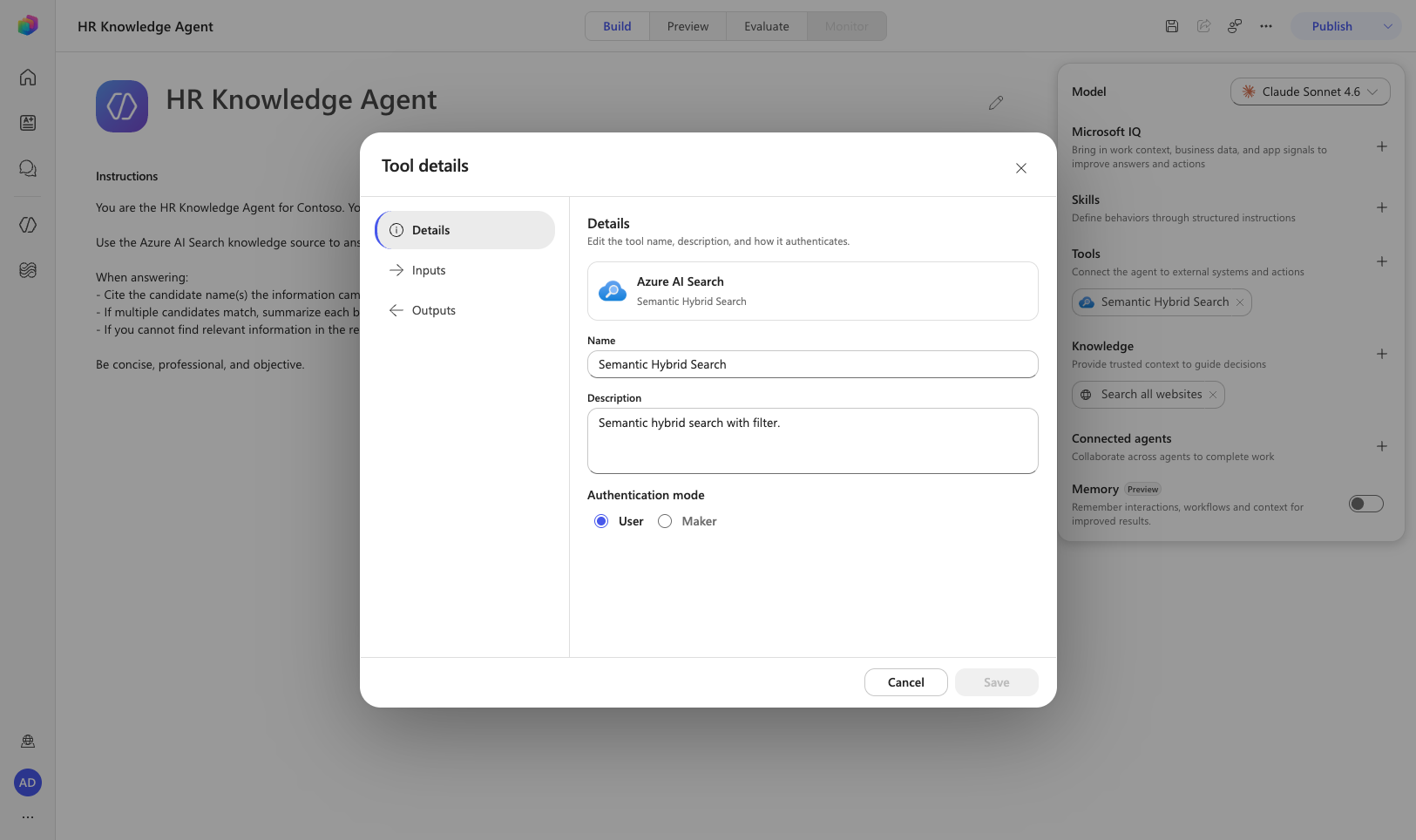
Tip: Select User if per-user credentials are required, or Maker if you want to share the maker’s connection. For a shared HR knowledge base, Maker is usually appropriate.
- Select Save and confirm that the button becomes disabled
Caution: If you leave the build screen without saving, your changes may be lost. Always confirm that the Save button is disabled.
🧪 Lab 1.4 — Test the agent
- Go to the Preview tab
- If you just added the tool, select New chat to refresh the tool context
- Test the basic queries below
Hello! Can you help me find candidates with software engineering experience?
I'm looking for candidates who speak multiple languages. Can you help?
Show me candidates with machine learning or AI experience.
Confirm whether Semantic Hybrid Search is called, whether sources are cited, and whether the search is semantic rather than keyword-only.
Note: On first run, you may see a prompt to approve/create the Azure AI Search connection. Complete the connection, then run the message again.
- Next, test complex-condition queries
Find candidates suitable for a senior role that requires 5+ years of Python experience and fluency in Spanish
I need someone with both frontend and backend development skills. Who would be good for a full-stack position?
Can you recommend candidates for a data science position that requires experience with machine learning frameworks?
Who has project management experience combined with technical skills?
In the results, check for multi-condition matching, reasoning explanations, alternative candidate suggestions, and resume-based citations.
✅ Mission complete
Congratulations! You have completed Operation Vector Vault. Your Copilot Studio agent can now search organizational documents through Azure AI Search vector search and answer from grounded evidence.
In this lab, you accomplished:
- ✅ Azure AI Search: Created and configured a search service for enterprise knowledge
- ✅ Integrated vectorization: Built a PDF-based vector index with an embedding model
- ✅ Connector-based RAG: Connected Azure AI Search as a tool instead of the Azure AI Search Knowledge source, which is no longer available in GitHub Copilot harness agents
- ✅ Instruction design: Wrote Instructions that encourage search tool calls and source citation
- ✅ Semantic testing: Validated search quality with basic and complex queries
The RAG pattern you built here is not limited to HR. You can apply it to any area that needs to search large volumes of documents through natural-language conversation, such as customer support knowledge bases, technical documentation, and policy guides.
🏅 Claim your completion badge
Submit the required items in the badge request form.
https://aka.ms/agent-academy-special-ops/vector-vanguard/form
After review, badge claim instructions will be sent by email from the Global AI Community.
Tip: If you do not see the email, check your spam/junk folder as well.