Mission 03: Multi-Agent Systems
Transform a single agent into a coordinated multi-agent system
Translated article — This article is based on 🚨 Mission 03: Multi-Agent Systems from the Copilot Studio Agent Academy. The original wording takes precedence.
🎥 Watch the walkthrough
🎯 Mission brief
Welcome back, Agent. In Mission 01, you built your main Hiring Agent, giving you a solid foundation for managing recruitment workflows. But one agent can only do so much.
Your assignment is Operation Symphony. You will transform a single agent into a multi-agent system, orchestrating a team of specialized agents that work together to handle complex hiring challenges. Think of it as upgrading from a solo operator to commanding a specialized task force.
Like a symphony orchestra where each musician plays their part in perfect harmony, you will add two critical specialists to your existing Hiring Agent: an Application Intake Agent that processes resumes automatically, and an Interview Prep Agent that creates comprehensive interview materials. These agents will work together seamlessly under your main orchestrator.
Note — If your Copilot Studio screen looks different from the screenshots in this lesson, turn off New Experience in the upper-right corner to switch back to the classic experience used here.
🔎 Learning objectives
In this mission, you will learn:
- When to use child agents and connected agents
- How to design scalable multi-agent architectures
- How to create child agents for focused tasks
- How to establish communication patterns between agents
- How to build the Application Intake Agent and Interview Prep Agent
🧠 What are connected agents?
In Copilot Studio, you are not limited to building a single, monolithic agent. You can create multi-agent systems: networks of specialized agents that work together to handle complex workflows.
Think of a real-world organization. Instead of one person doing everything, specialists excel at specific tasks and collaborate when needed.
Why multi-agent systems matter
- Scalability: Each agent can be developed, tested, and maintained independently by different teams.
- Specialization: Agents can focus on what they do best. For example, one agent can handle data processing, another user interaction, and another decision-making.
- Flexibility: You can mix and match agents, reuse them across projects, and evolve your system incrementally.
- Maintainability: Changes to one agent do not necessarily affect other agents, making updates safer and easier.
Real-world example: hiring process
In a hiring workflow, multiple agents can share responsibilities such as:
- Resume intake requires document parsing and data extraction skills.
- Scoring requires evaluating candidate resumes and matching them to job requirements.
- Interview preparation requires deep reasoning about candidate fit.
- Candidate communication requires empathetic communication skills.
Rather than building one massive agent that tries to handle all these different skills, you can create specialized agents for each area and orchestrate them together.
🔗 Child agents and connected agents: the key difference
Copilot Studio offers two ways to build multi-agent systems, each with distinct use cases.
↘️ Child agents
Child agents are lightweight specialists that run inside your main agent. Think of them as specialized teams within the same department.
Key technical details
- Child agents live within the parent agent and have a single configuration page.
- Tools and Knowledge are stored at the parent agent, but configured as “Available to” the child agent.
- Child agents share the topics of their parent agent. Topics can be referenced from child agent instructions.
- Child agents do not need separate publishing. Once created, they are automatically available within the parent agent. This makes testing easier because changes to parent and child agents can be performed in the same shared workspace.
Use child agents when
- A single team manages the entire solution
- You want to logically organize tools and knowledge into sub-agents
- You do not need separate authentication or deployment for each agent
- The agents do not need to be published separately or used independently
- You do not need to reuse agents across multiple solutions
Example: An IT help desk agent with child agents for:
- Password reset procedures
- Hardware troubleshooting
- Software installation guides
🔀 Connected agents
Connected agents are full-fledged, independent agents that your main agent can collaborate with. Think of them as separate departments working together on a project.
Key technical details
- Connected agents have their own topics and conversation flows. They operate independently with their own settings, logic, and deployment lifecycle.
- Connected agents must be published before they can be added to and used by other agents.
- During testing, changes to a connected agent must be published before the calling agent can use those changes.
Use connected agents when
- Multiple teams develop and maintain different agents independently
- Agents need their own settings, authentication, and deployment channels
- You want to publish and maintain agents separately with independent application lifecycle management (ALM) for each agent
- Agents should be reused across multiple solutions
Example: A customer service system that connects to:
- A separate billing agent maintained by the finance team
- A separate technical support agent maintained by the product team
- A separate returns agent maintained by the operations team
Tip — You can mix both approaches. For example, your main agent can connect to external agents from other teams while also having its own child agents for specialized internal tasks.
🎯 Multi-agent architecture patterns
When designing multi-agent systems, several patterns emerge based on how agents interact.
| Pattern | Description | Best fit |
|---|---|---|
| Hub and Spoke | A main orchestrator agent coordinates multiple specialized agents. The orchestrator handles user interaction and delegates tasks to child agents or connected agents. | Complex workflows where one agent coordinates specialized tasks |
| Pipeline | Agents pass work sequentially from one agent to the next, with each stage adding value before handing off to the next stage. | Linear processes such as application processing (intake -> screening -> interview -> decision) |
| Collaborative | Agents work together simultaneously on different aspects of the same problem, sharing context and results. | Complex analysis requiring multiple perspectives or areas of expertise |
Tip — You can also use a hybrid of two or more of these patterns.
💬 Agent communication and context sharing
When agents work together, they need to share information effectively. Copilot Studio supports this in the following ways.
Conversation history
By default, when a main agent calls a child agent or connected agent, it can pass along the conversation history. This gives the specialist agent full context about what the user has been discussing.
You can turn this off for security or performance reasons. For example, a specialist agent may only need to complete a specific task without the full conversation context. This can be a good way to defend against data leakage.
Explicit instructions
The main agent can give specific instructions to a child agent or connected agent. For example: “Process this resume and provide a technical summary for the Senior Developer role.”
Return values
Agents can return structured information to the calling agent, allowing the main agent to use that information in later steps or share it with other agents.
Dataverse integration
For more complex scenarios, agents can share information through Dataverse or other data stores, enabling persistent context sharing across multiple interactions.
↘️ Child agent: Application Intake Agent
Now let’s start building the multi-agent hiring system. The first specialist is the Application Intake Agent, a child agent that processes incoming resumes and candidate information.
---
config:
  layout: elk
  look: neo
---
flowchart TB
 subgraph People["People"]
    direction TB
        HiringManager["Hiring Manager"]
        Interviewers["Interviewers"]
  end
 subgraph Agents["Agents"]
    direction LR
        ApplicationIntakeAgent["Application Intake Agent<br>(Child)"]
        InterviewAgent["Interview Agent<br>(Connected)"]
        HRAgent["HR Agent"]
  end
    HiringManager -- Upload CV --> HRAgent
    HRAgent -- Upload Resume, Create Candidate, Match to Job Roles --> ApplicationIntakeAgent
    ApplicationIntakeAgent -- Create Resume, Upsert Candidate, Create Job Application --> Dataverse["Dataverse"]
    ApplicationIntakeAgent -- Store Resume file in file column --> Dataverse
    HiringManager -- Ask for summaries --> HRAgent
    Interviewers -- Request interview pack --> HRAgent
    HRAgent -- Generate interview pack and summarize data --> InterviewAgent
    InterviewAgent -- Read all Candidate, Resume, Job Roles, Evaluation Criteria Data --> Dataverse
     HiringManager:::person
     Interviewers:::person
     ApplicationIntakeAgent:::agent
     InterviewAgent:::agent
     HRAgent:::agent
     Dataverse:::data
    classDef person fill:#e6f0ff,stroke:#3b82f6,color:#0b3660
    classDef agent fill:#e8f9ef,stroke:#10b981,color:#064e3b
    classDef data  fill:#f3f4f6,stroke:#6b7280,color:#111827
🤝 Application Intake Agent responsibilities
- Parse resume content from PDFs provided via interactive chat. (In a future mission, you will learn how to process resumes autonomously.)
- Extract structured data such as name, skills, experience, and education.
- Match candidates to open roles based on qualifications and cover letter.
- Store candidate information in Dataverse for later processing.
- Deduplicate applications to avoid creating the same candidate twice, and match to existing records using the email address extracted from the resume.
⭐ Why this should be a child agent
The Application Intake Agent is a good fit as a child agent because:
- It is specialized for document processing and data extraction.
- It does not need separate publishing.
- It is part of the overall hiring solution managed by the same team.
- It focuses on a specific trigger, receiving a new resume, and is invoked by the Hiring Agent.
🔀 Connected agent: Interview Prep Agent
The second specialist is the Interview Prep Agent. This connected agent helps create comprehensive interview materials and evaluate candidate responses.
🤝 Interview Prep Agent responsibilities
- Create interview packs that include company information, role requirements, and evaluation criteria
- Generate interview questions tailored to specific roles and candidate backgrounds
- Answer general questions about job roles and applications for stakeholder communication
⭐ Why this should be a connected agent
The Interview Prep Agent works better as a connected agent because:
- The talent acquisition team may want to use it independently across multiple hiring processes.
- It needs its own knowledge base of interview best practices and evaluation criteria.
- Different hiring managers may want to customize its behavior for their teams.
- It can be reused for internal positions, not just external hiring.
🧪 Lab 3.1 - Adding the Application Intake Agent
Now let’s put theory into practice. Add your first child agent to the existing Hiring Agent.
Prerequisites to complete this mission
To complete this mission, you need:
- Mission 01 completed, with your Hiring Agent ready
3.1.1 Solution setup
- In Copilot Studio, select the ellipsis (…) below Tools in the left navigation.
-
Select Solutions.
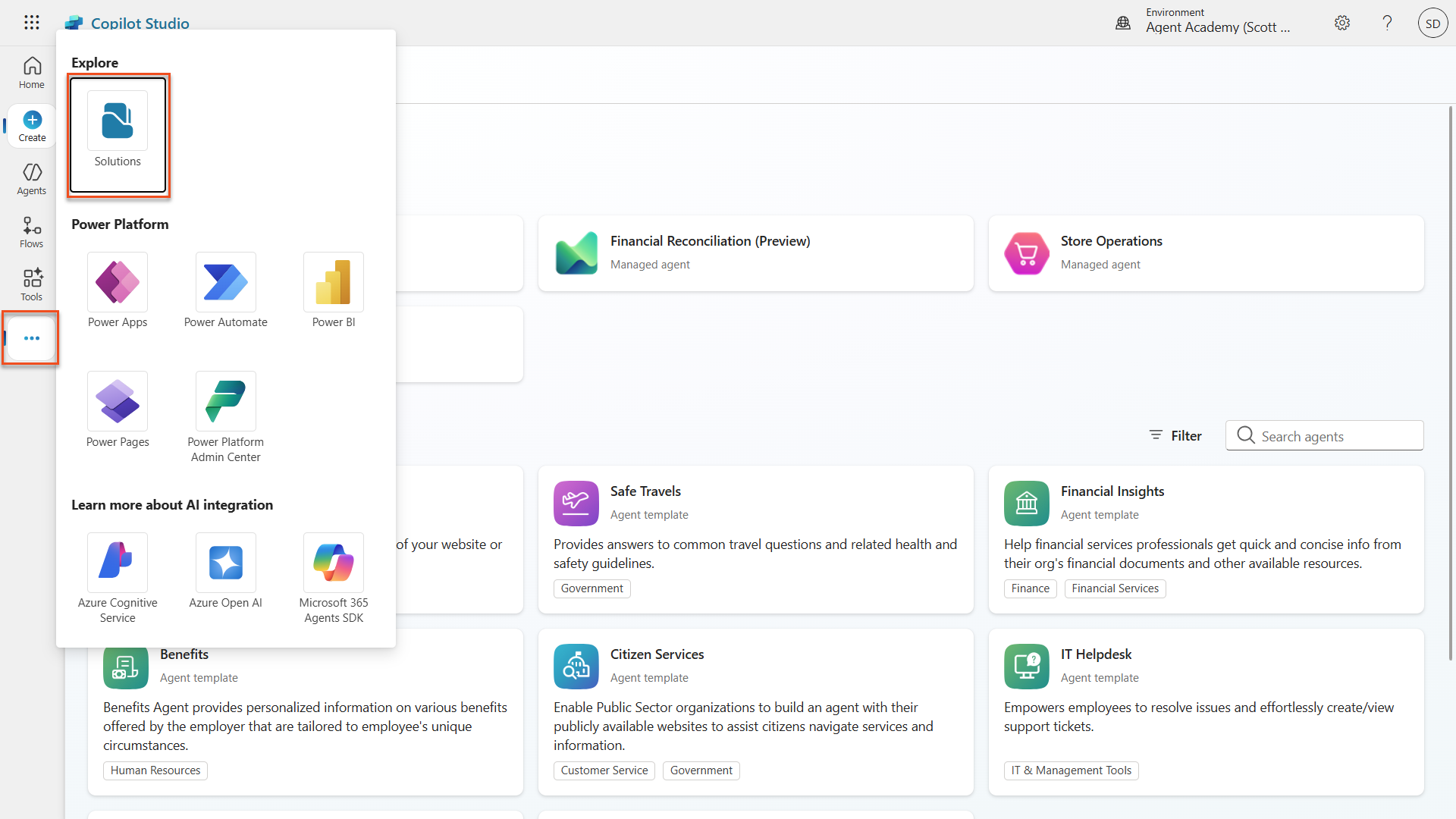
Select Solutions -
Locate the Operative solution, select the ellipsis (…) next to it, and choose Set preferred solution. In the dialog that appears, select Apply. This ensures that all work you perform from now on is added to this solution.
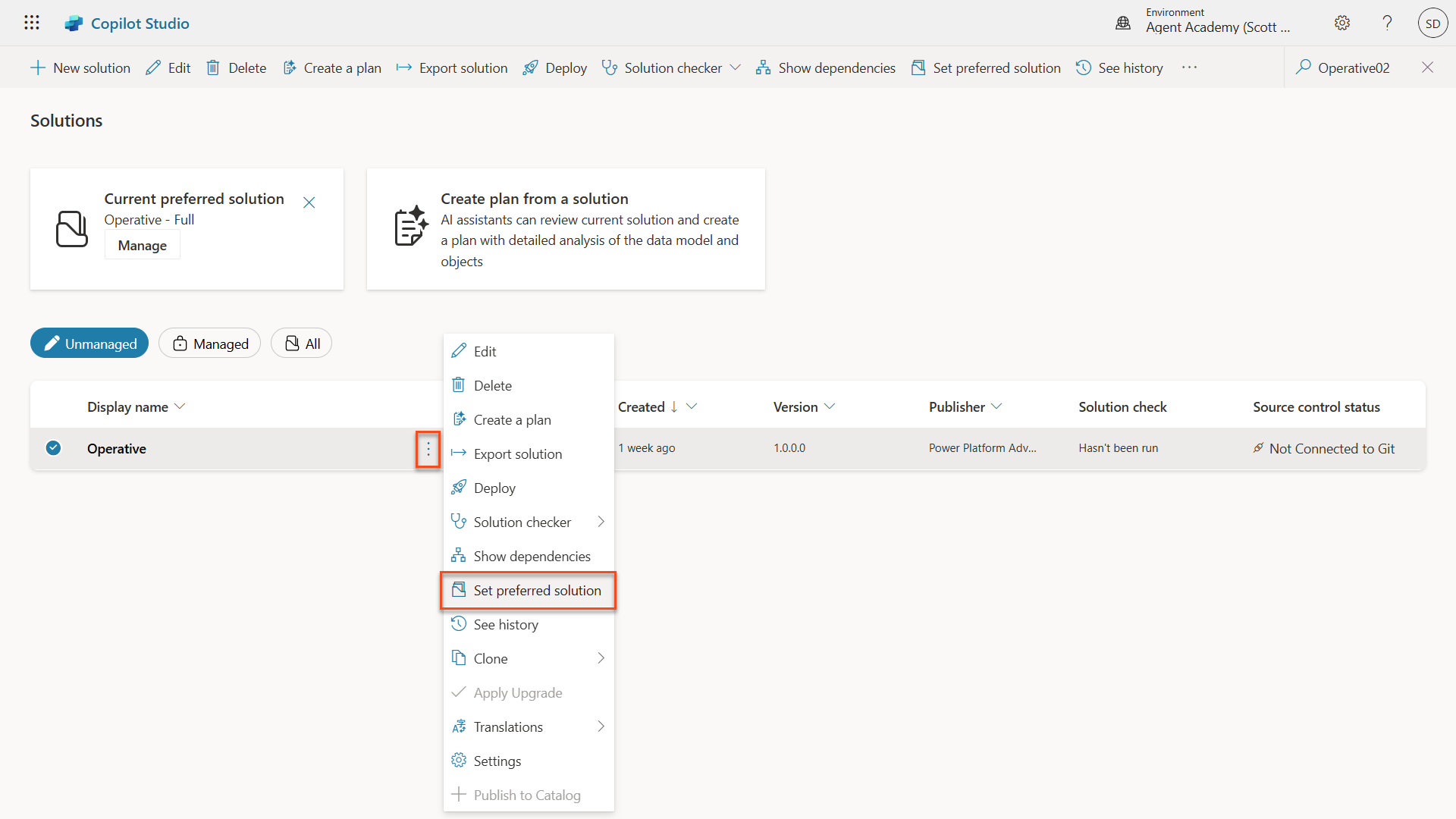
Set preferred solution
3.1.2 Configure the Hiring Agent’s agent instructions
- Navigate to Copilot Studio. Make sure your environment is selected in the Environment Picker in the upper-right corner.
- Open the Hiring Agent you created in Mission 01.
-
In the agent’s Overview tab, select Edit in the Instructions section.
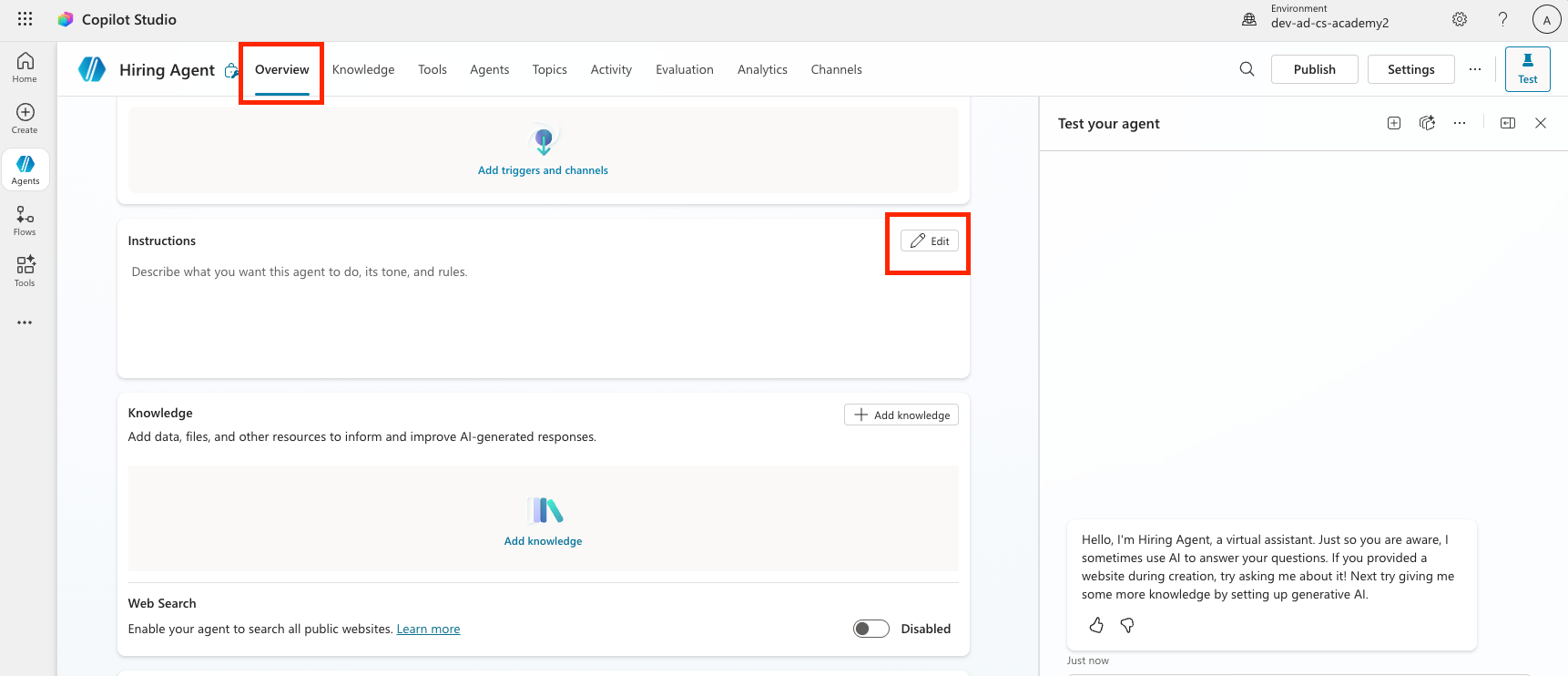
Edit Instructions Copy and paste the following instructions into the instructions input.
You are the central orchestrator for the hiring process. You coordinate activities, provide summaries, and delegate work to specialized agents. -
Select Save.
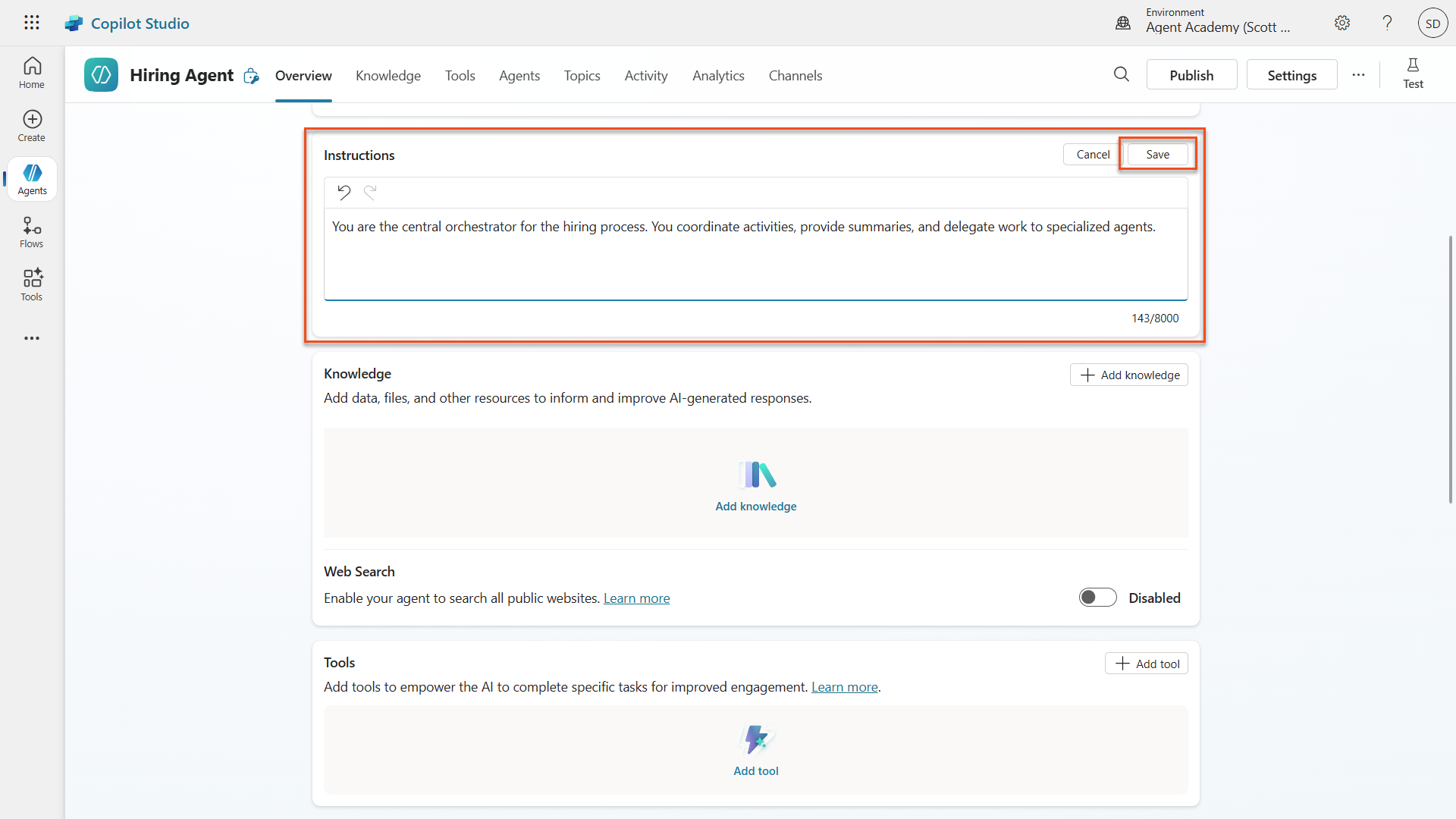
Hiring Agent instructions -
Select the Settings button in the upper-right corner of the screen.
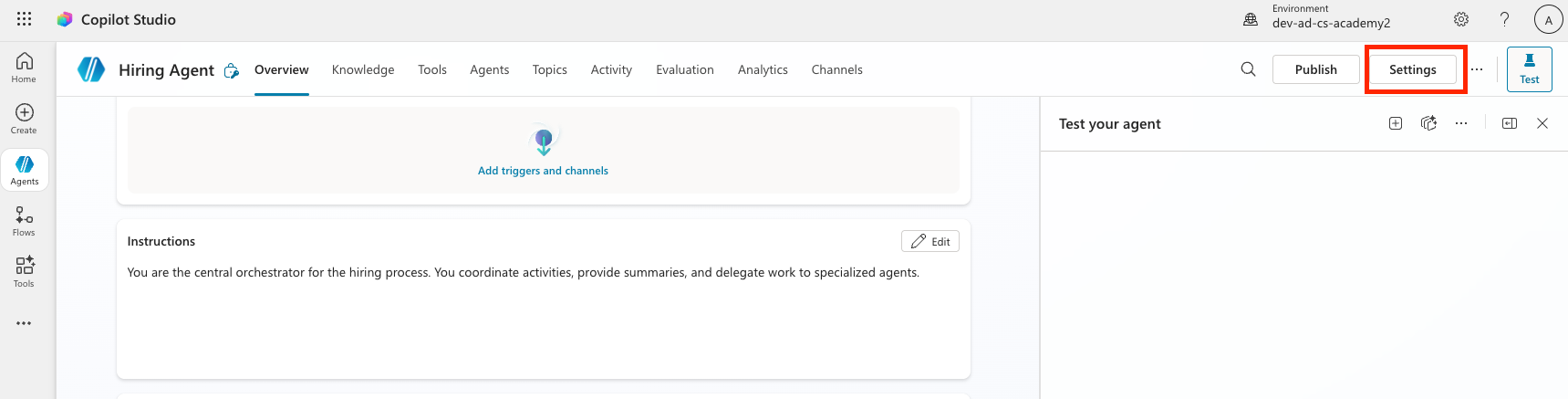
Settings -
Review the page and make sure the following settings are applied.
Setting Value Use generative AI orchestration for your agent’s responses Yes Deep Reasoning Off Let other agents connect to and use this one On Continue using retired models Off Content Moderation Moderate Collect user reactions to agent messages On Use general knowledge Off Use information from the Web Off File uploads On Code Interpreter Off 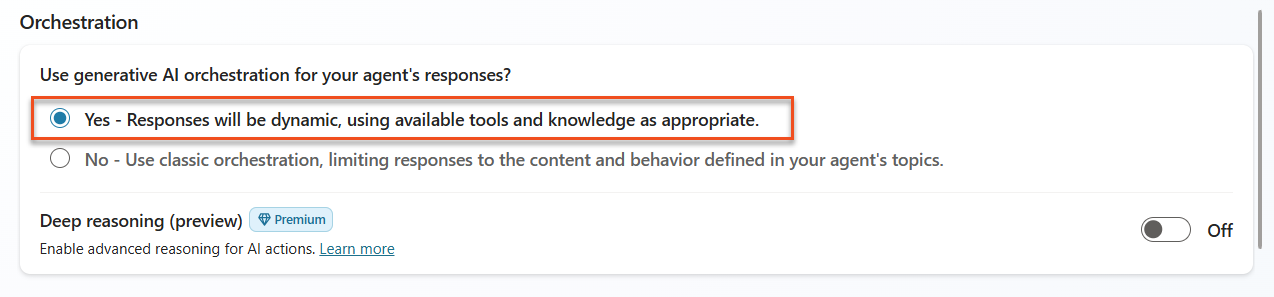
Use Generative Orchestration 
Set moderate moderation -
Click Save.
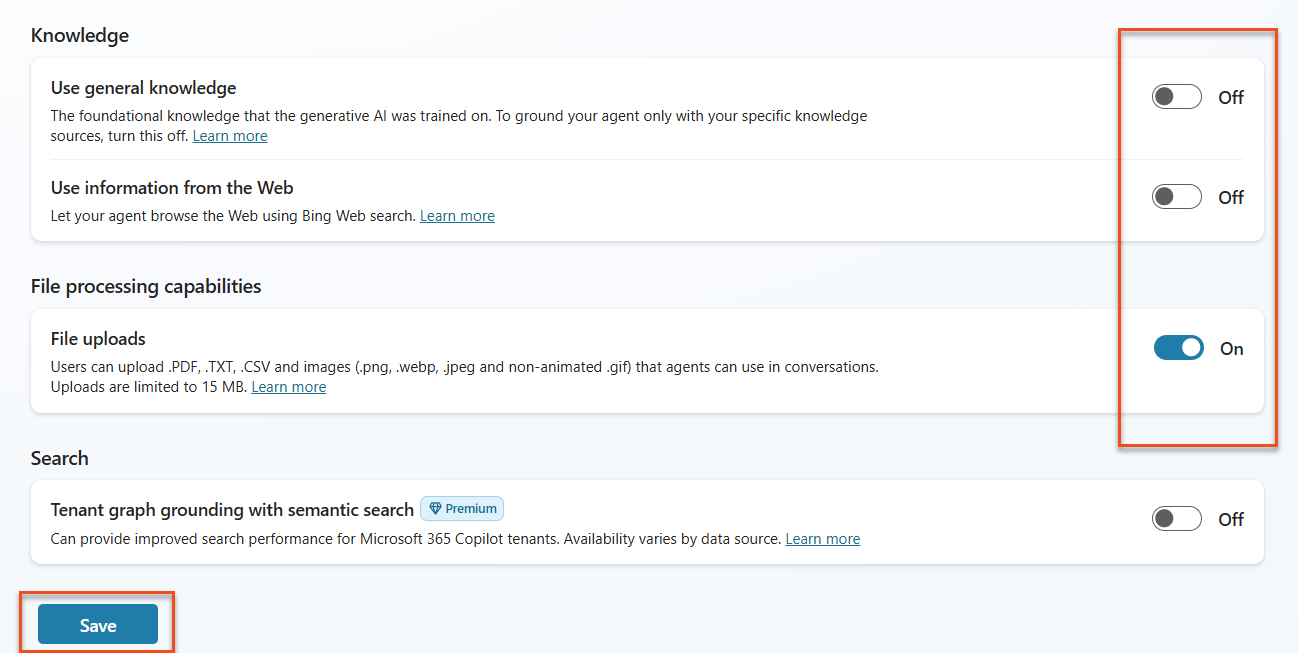
Knowledge and Web settings -
Click the X in the upper-right corner to close the settings menu.
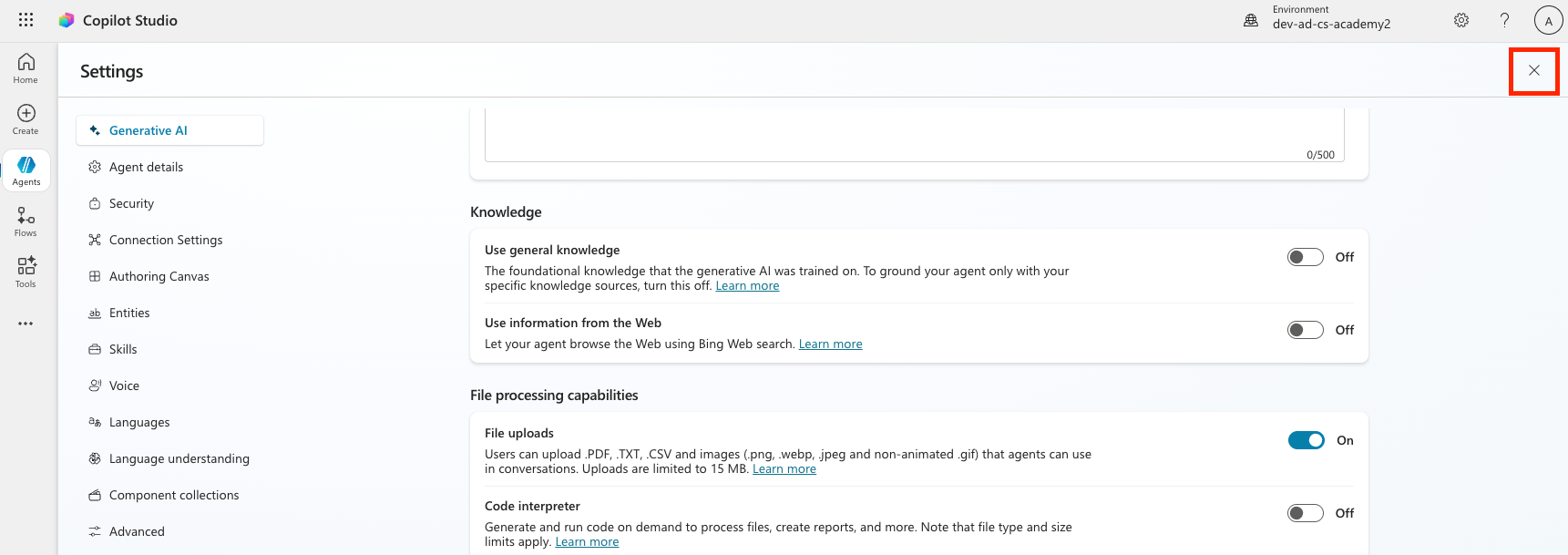
Close settings
3.1.3 Add the Application Intake child agent
-
Navigate to the Agents tab inside your Hiring Agent (this is where you add specialist agents) and select Add.
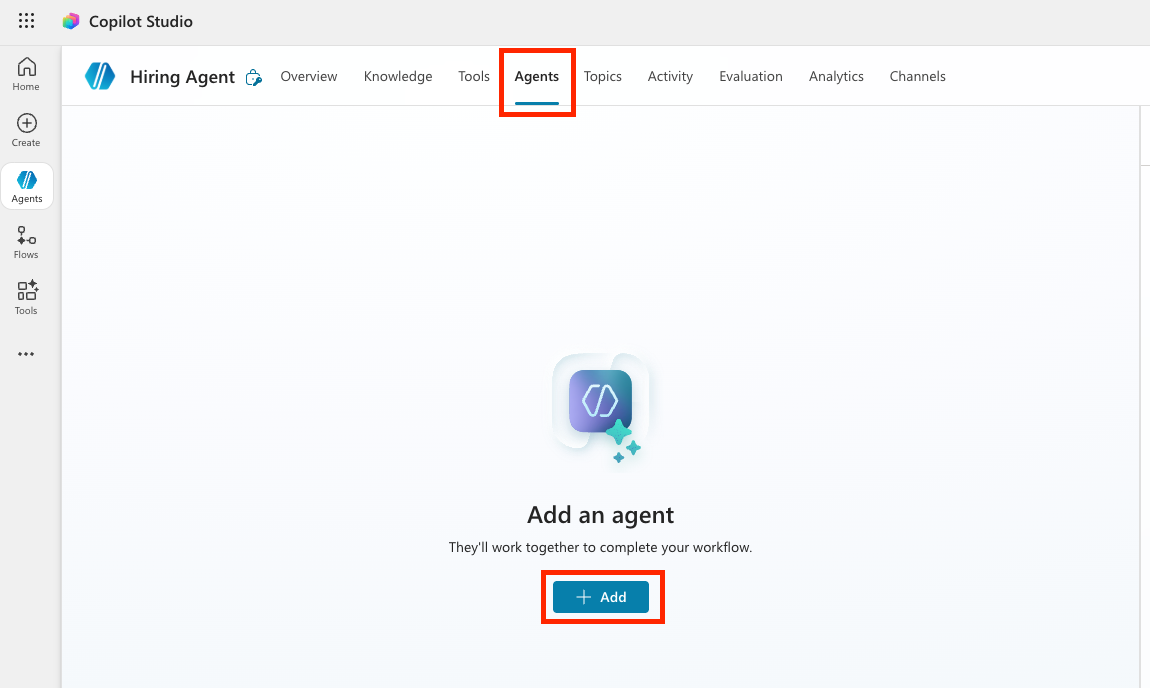
Add button -
Select New child agent.
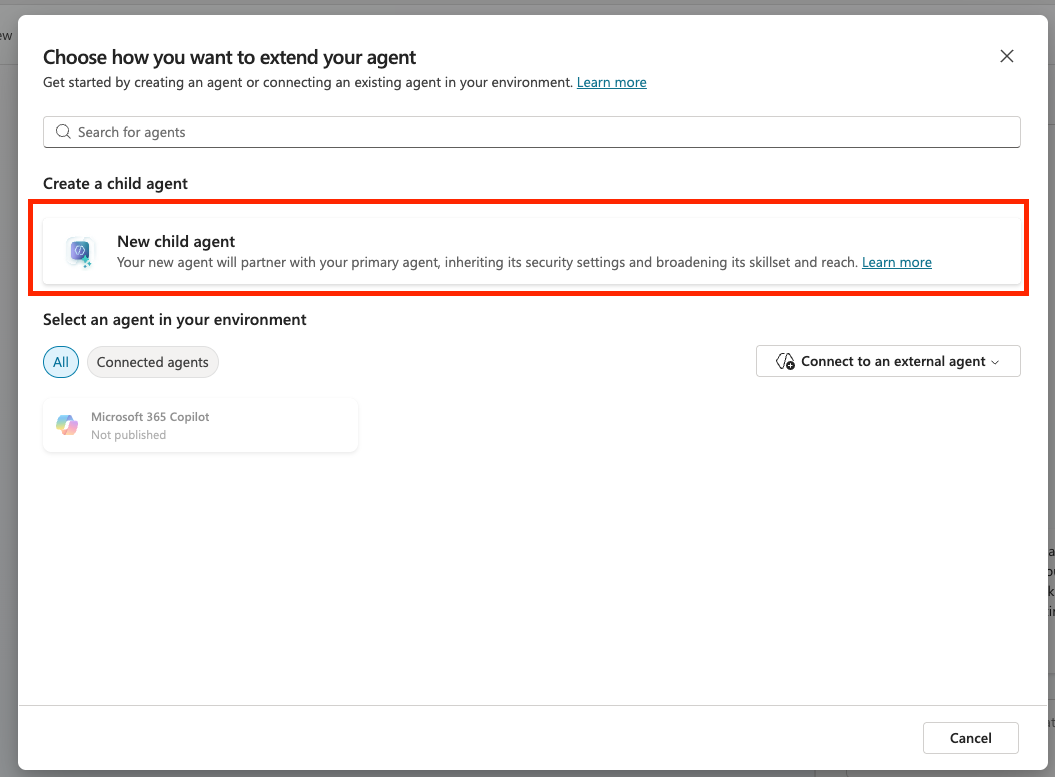
Add Child Agent - Name the agent
Application Intake Agent. - In the When will this be used? dropdown, select The agent chooses. These options are similar to the triggers you can configure for topics.
-
Set the Description to:
Processes incoming resumes and stores candidates in the system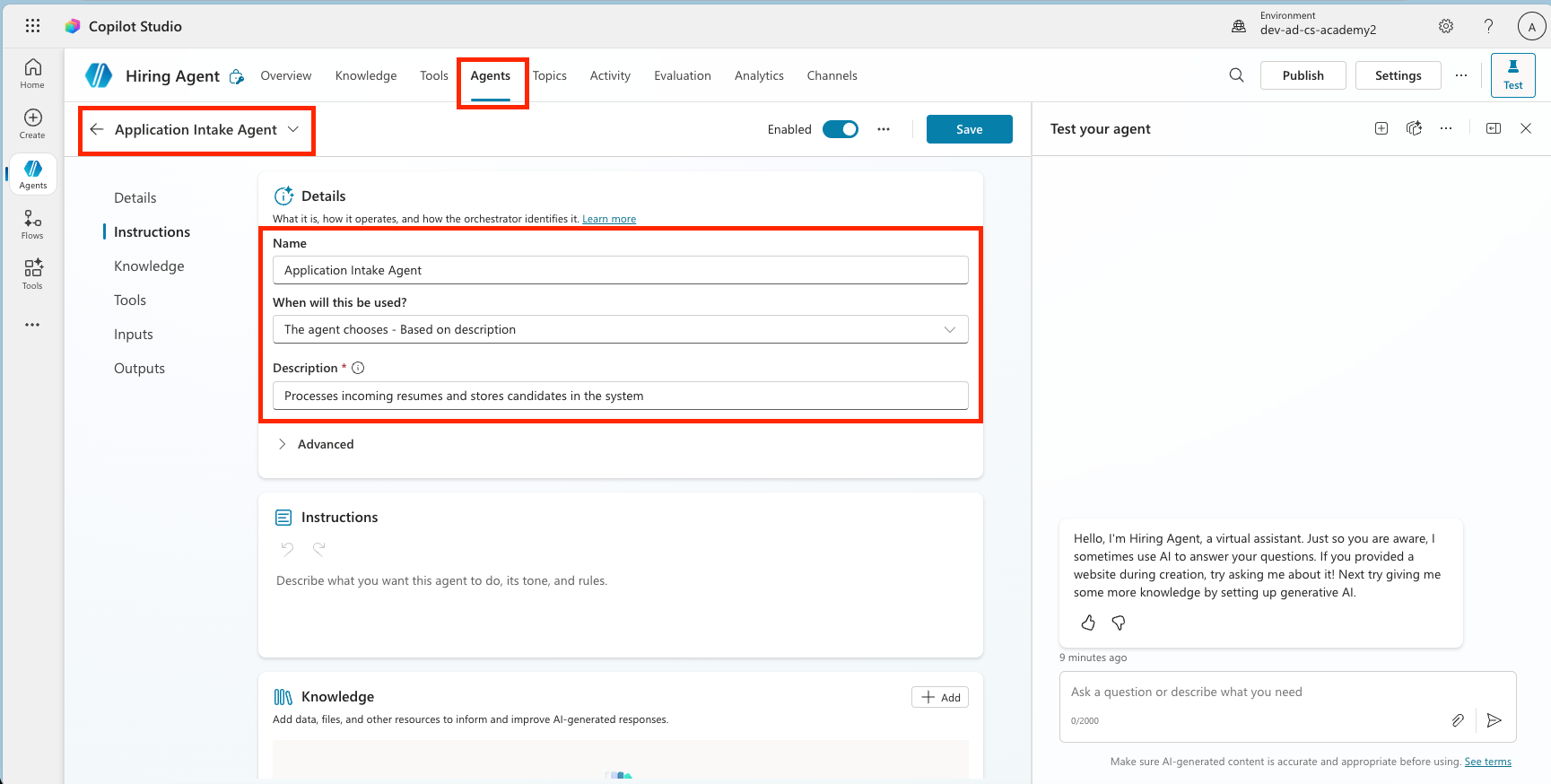
Application Intake Agent description -
Expand Advanced and set Priority to
10000. This ensures that later, the Interview Agent is used to answer general questions before this agent. You can also set a condition here, such as requiring at least one attachment.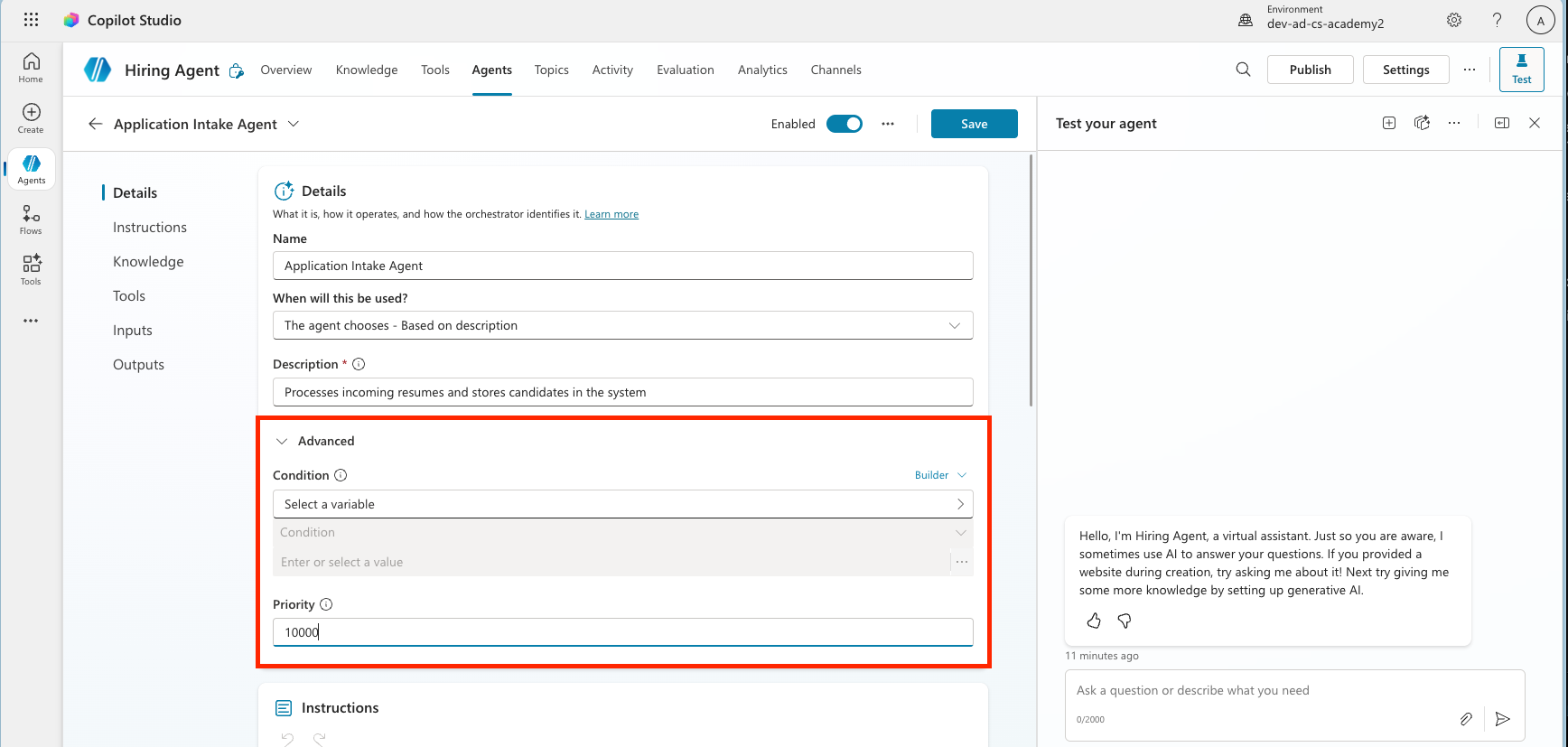
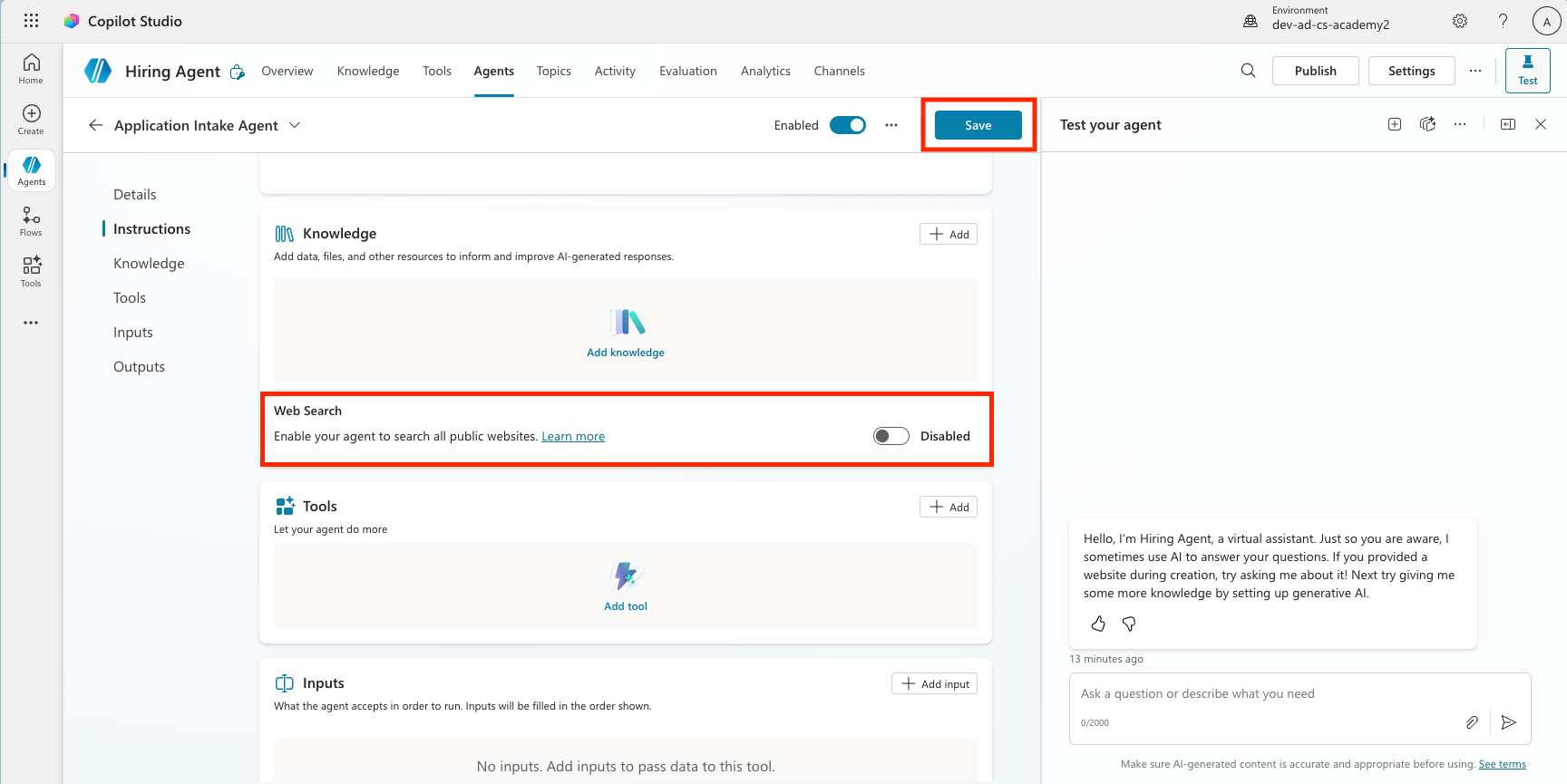
Priority - Make sure the Web Search toggle is set to Disabled. This is because you only want to use information provided by the parent agent.
-
Select Save.
Web Search
3.1.4 Configure the Resume Upload agent flow
Agents cannot perform actions unless they are given tools or topics.
For the Upload Resume step, you use Agent Flow tools rather than Topics because this multi-step backend process requires deterministic execution and integration with external systems. While Topics are best for guiding conversational dialogs, Agent Flows provide the structured automation needed to reliably handle file processing, data validation, and database upserts (insert new or update existing) without depending on user interaction.
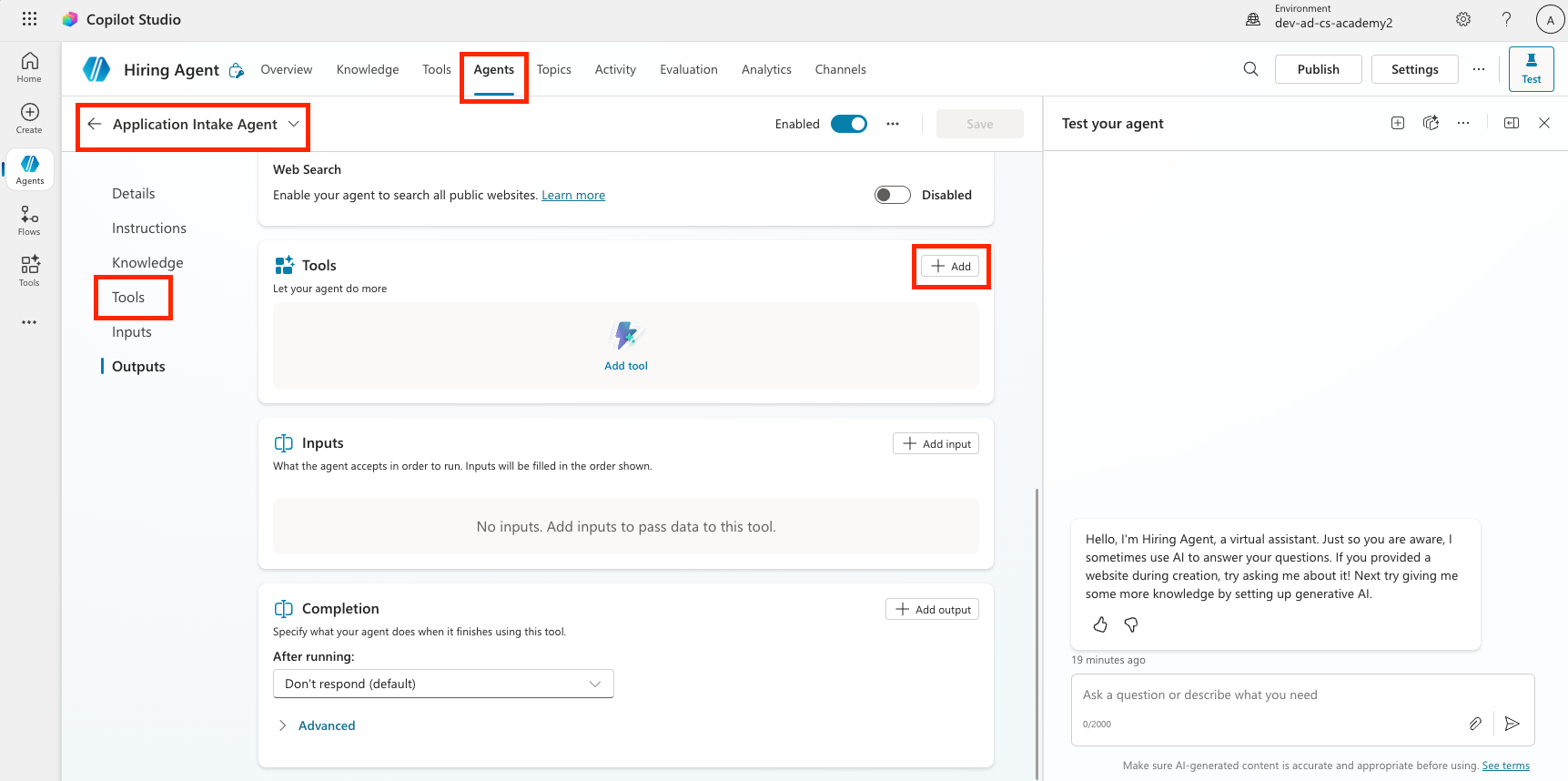
- Locate the Tools section inside the Application Intake Agent page. Important: This is not the parent agent’s Tools tab. You can find it by scrolling down below the child agent instructions.
-
Select + Add.
Add tool -
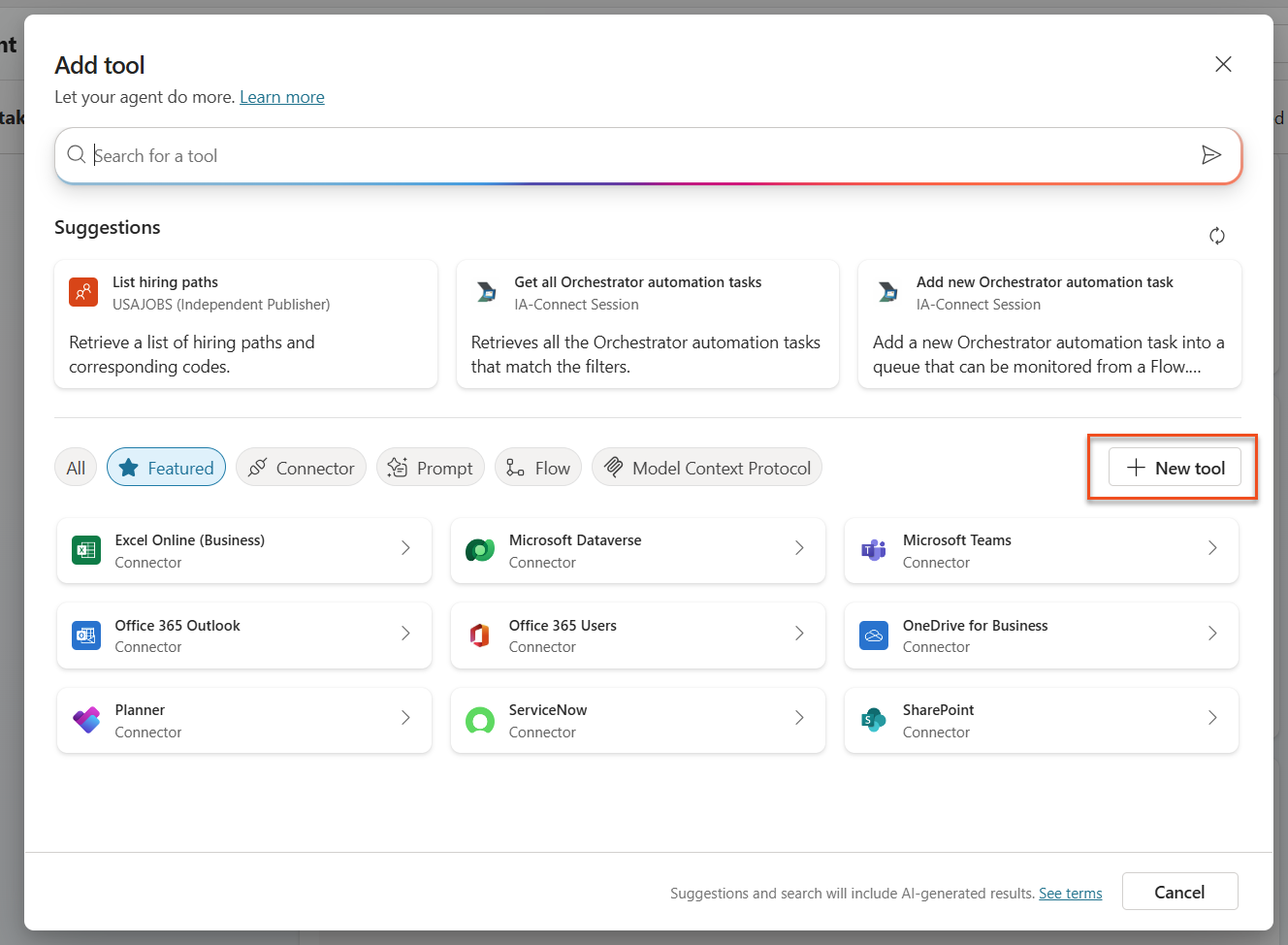
Select + New tool.
Add new tool -
Select Agent flow. The Agent Flow designer opens, where you will add the upload resume logic.
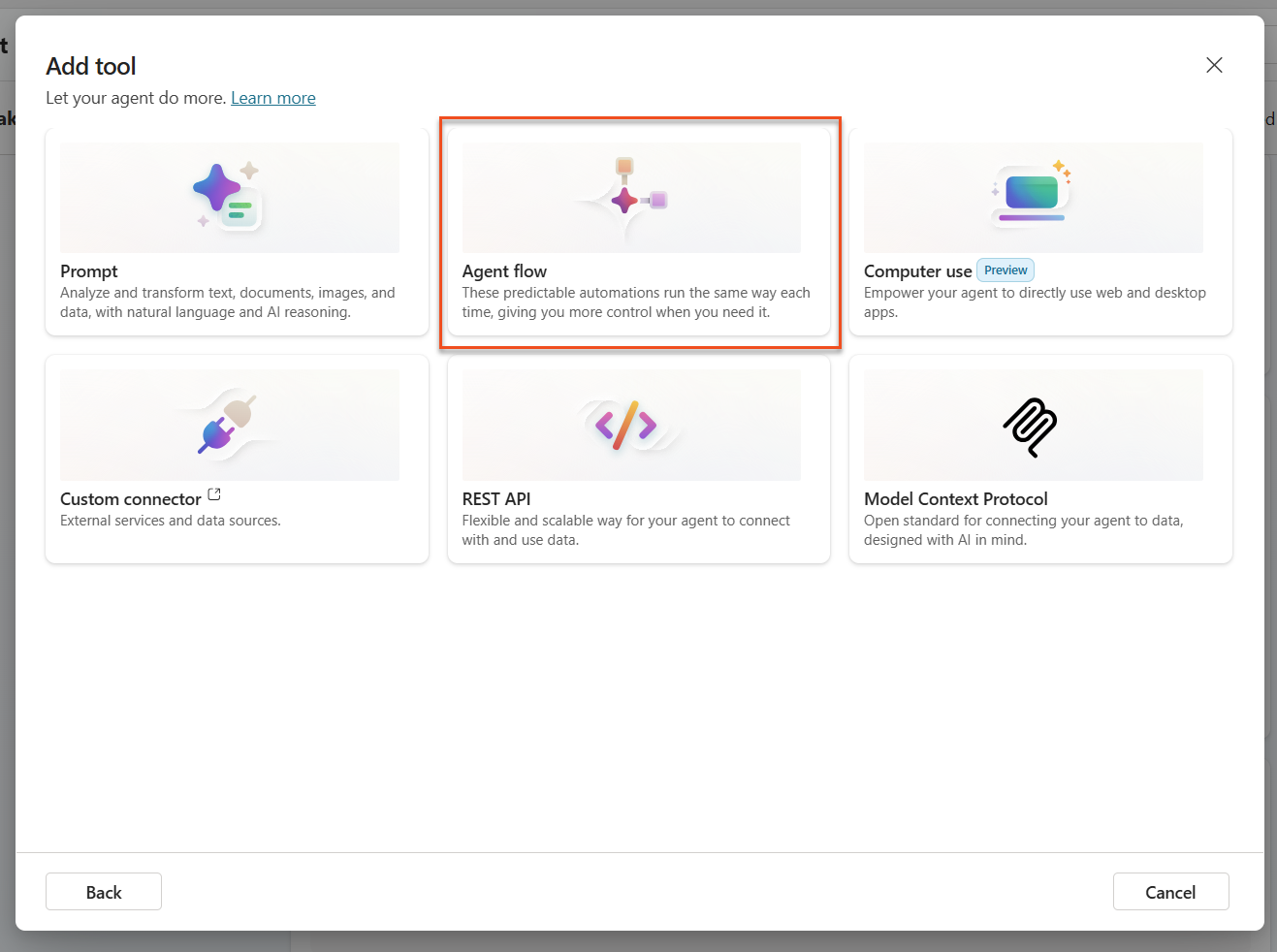
Add Agent Flow -
Select the When an agent calls the flow node, then select + Add an input.
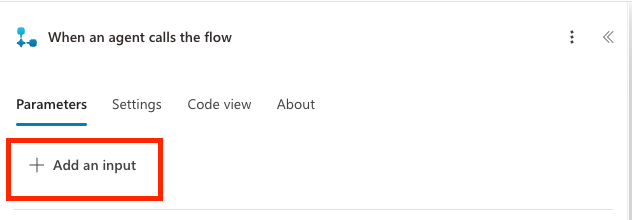
Add input -
Add inputs for each parameter in the table below. Select the appropriate input type shown in the table, and make sure to add both the name and the description. Including the description is important because it helps the agent know what to fill in for the input.
Type Name Description File ResumeThe Resume PDF fileText MessageExtract a cover letter style message from the context. The message must be less than 2000 characters.Text UserEmailThe email address that the Resume originated from. This will be the user uploading the resume in chat, or the from email address if received by email.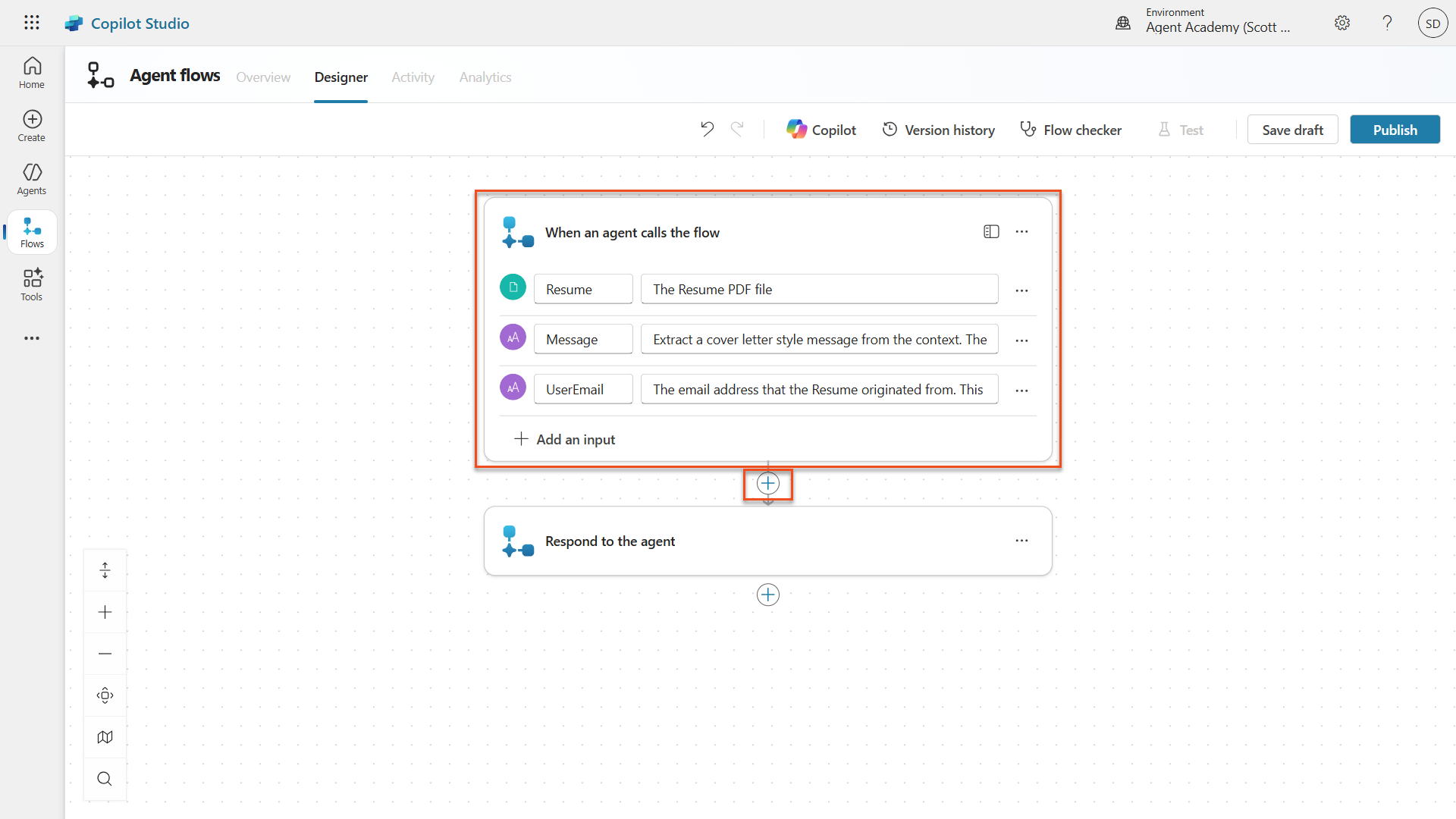
Configure input parameters -
Select the + icon below the When an agent calls the flow node, search for
Dataverse add, then select the Add a new row action in the Microsoft Dataverse section.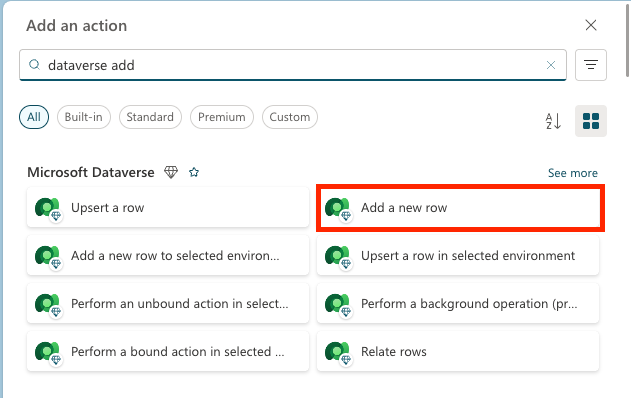
Add a new row node Note — After adding the action, you may be prompted to create a new connection to Dataverse. Enter any name for the connection and click add to create it.
-
Rename the node to Create Resume by selecting the Add a new row node and changing the tile name as shown.
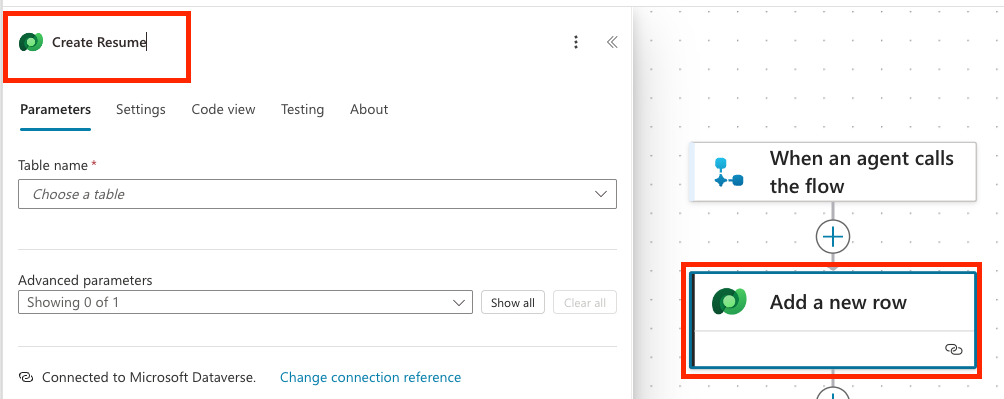
Rename node -
Set Table name to Resumes, then select Show all to display all parameters.
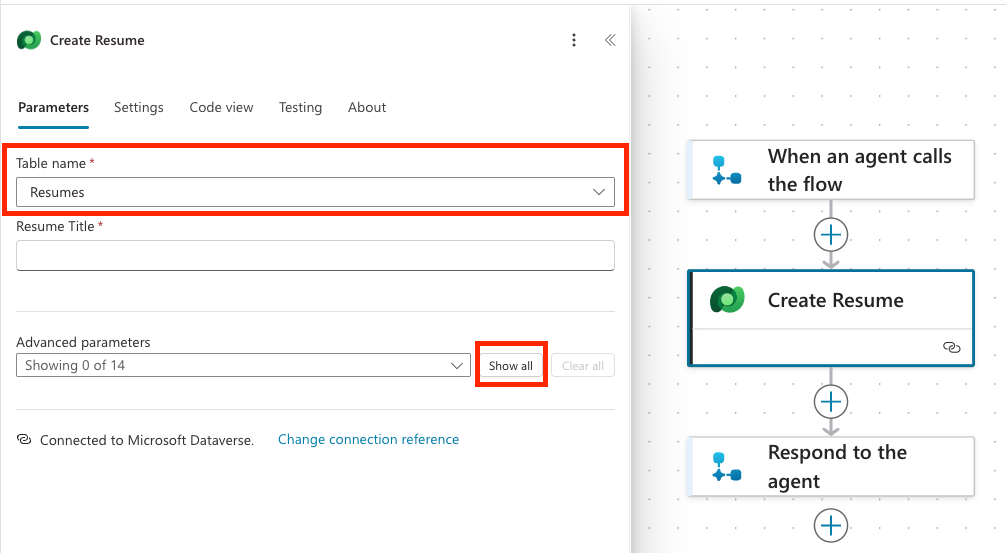
Show all -
Set the following properties.
Property How to Set Details / Expression Resume Title Dynamic data (thunderbolt icon) When an agent calls the flow → Resume name If you do not see the Resume name, make sure you configured the Resume parameter above as a data type. Cover letter Expression (fx icon) if(greater(length(triggerBody()?['text']), 2000), substring(triggerBody()?['text'], 0, 2000), triggerBody()?['text'])Source Email Address Dynamic data (thunderbolt icon) When an agent calls the flow → UserEmail Upload Date Expression (fx icon) utcNow()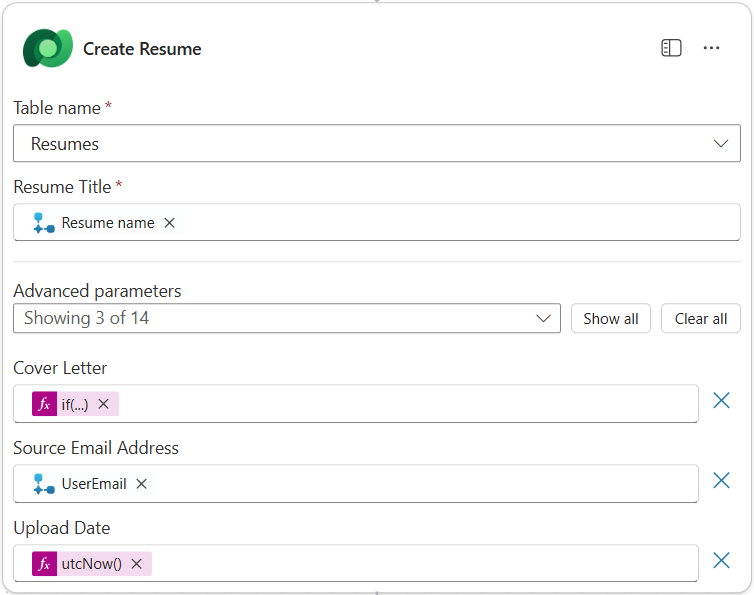
Edit properties -
Select the + icon below the Create Resume node, search for
Dataverse upload, then select the Upload a file or an image action.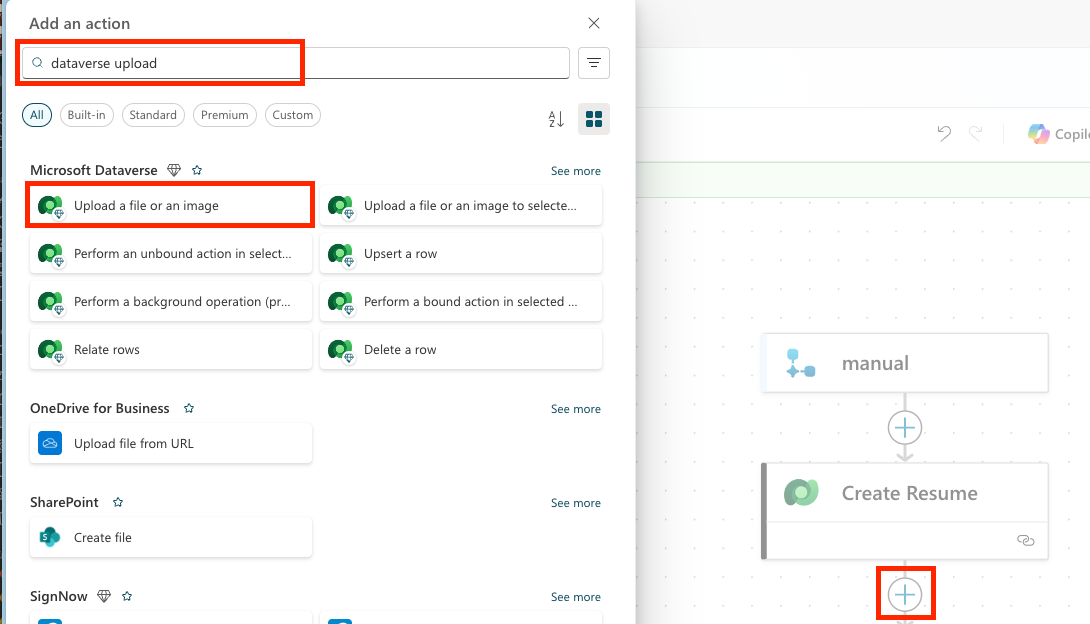
Upload select Important: Be careful not to select the Upload a file or an image to the selected environment action.
- Name the node Upload Resume File.
-
Set the following properties.
Property How to Set Details Content name Dynamic data (thunderbolt icon) When an agent calls the flow → Resume name Table name Select Resumes Row ID Dynamic data (thunderbolt icon) Create Resume → See more → Resume Column Name Select Resume PDF Content Dynamic data (thunderbolt icon) When an agent calls the flow → Resume contentBytes 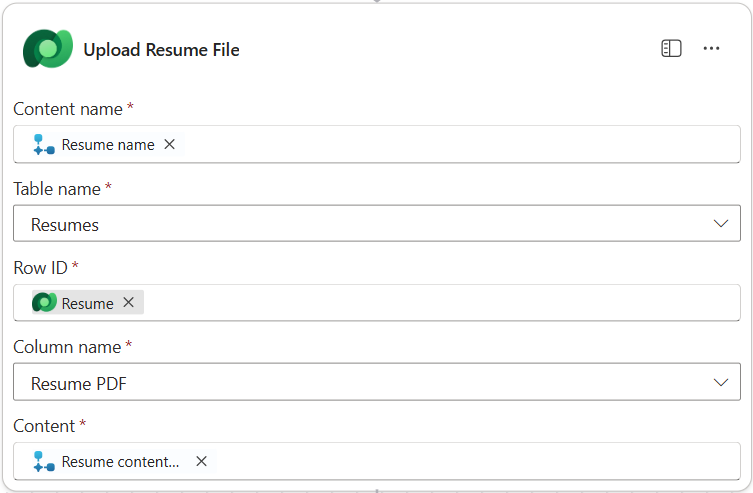
Set properties -
Select the Respond to the agent node, then select + Add an output. Create an output with the properties in the table below.
Property How to Set Details Type Select TextName Enter ResumeNumberValue Dynamic data (thunderbolt icon) Create Resume → See More → Resume Number Description Enter The [ResumeNumber] of the Resume created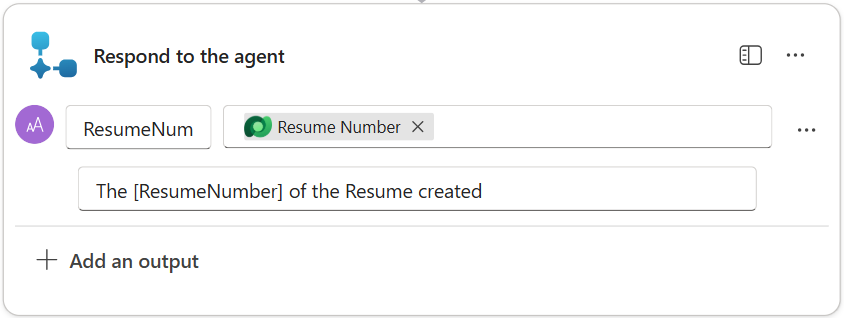
Set properties -
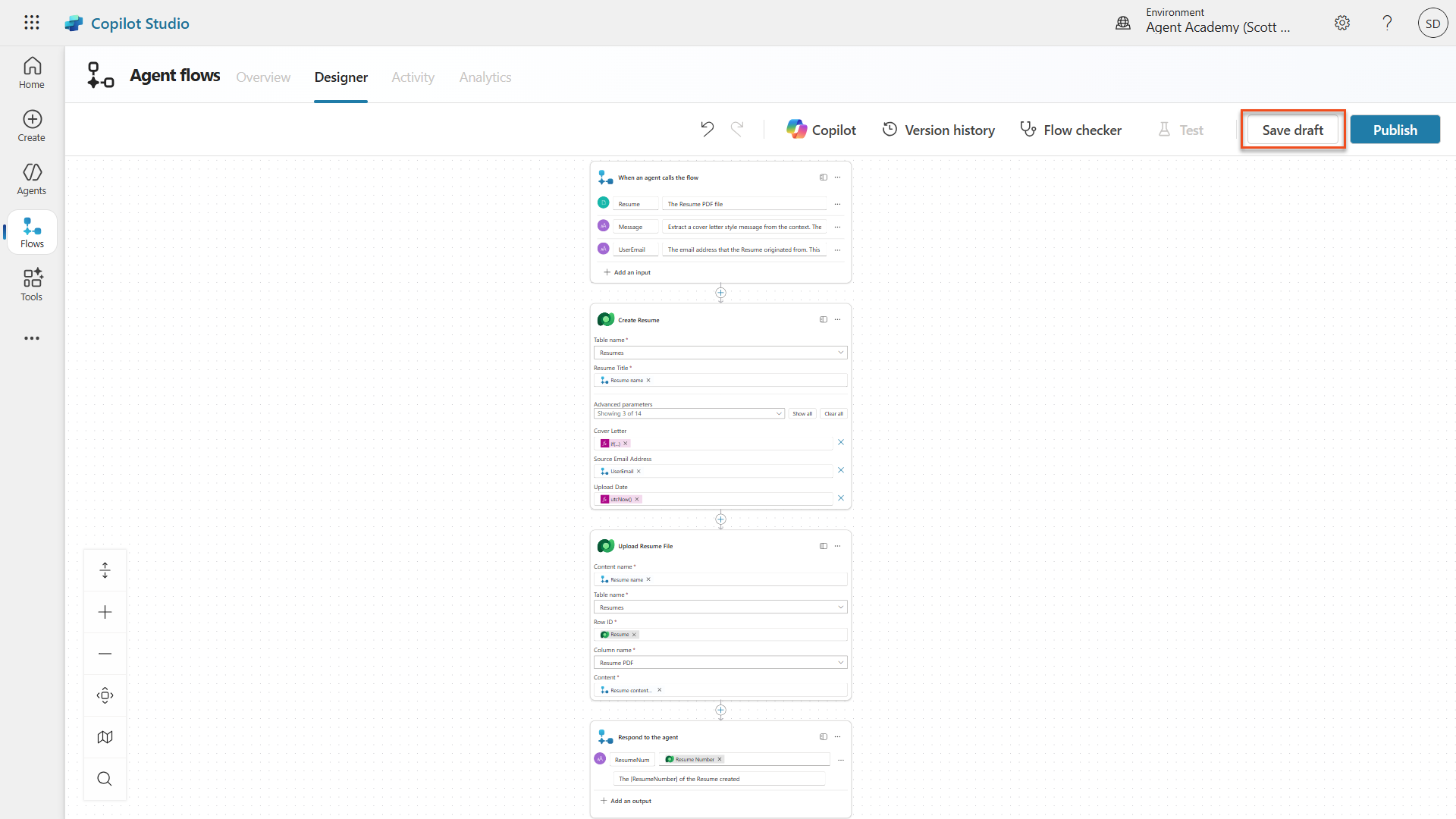
In the upper-right corner, select Save draft.
Save as draft -
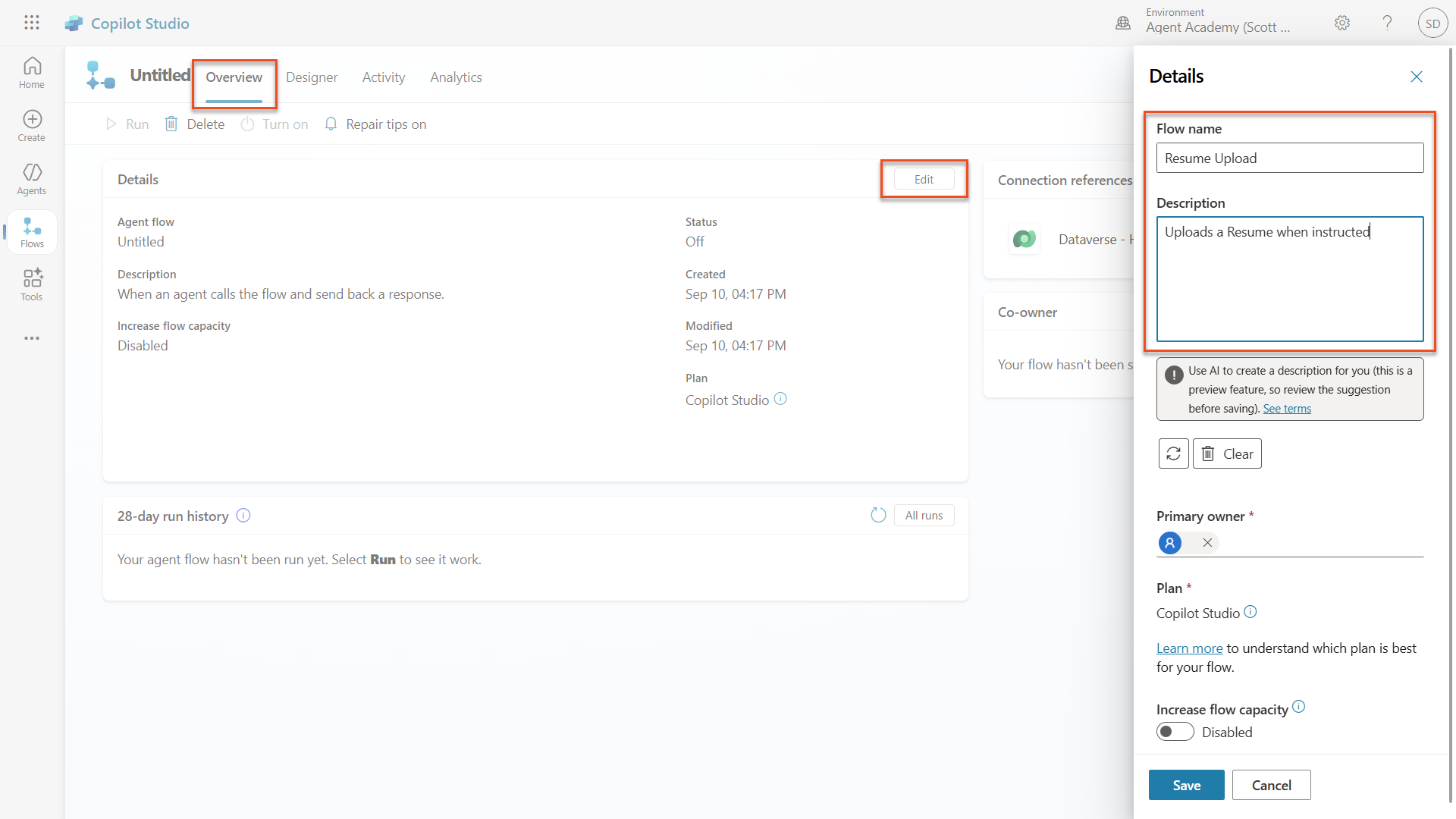
Select the Overview tab, then select Edit in the Details panel. Enter the name and description as shown below, then select Save.
- Flow name:
Resume Upload - Description:
Uploads a Resume when instructed
Rename agent flow - Flow name:
-
Select the Designer tab again, then select Publish.
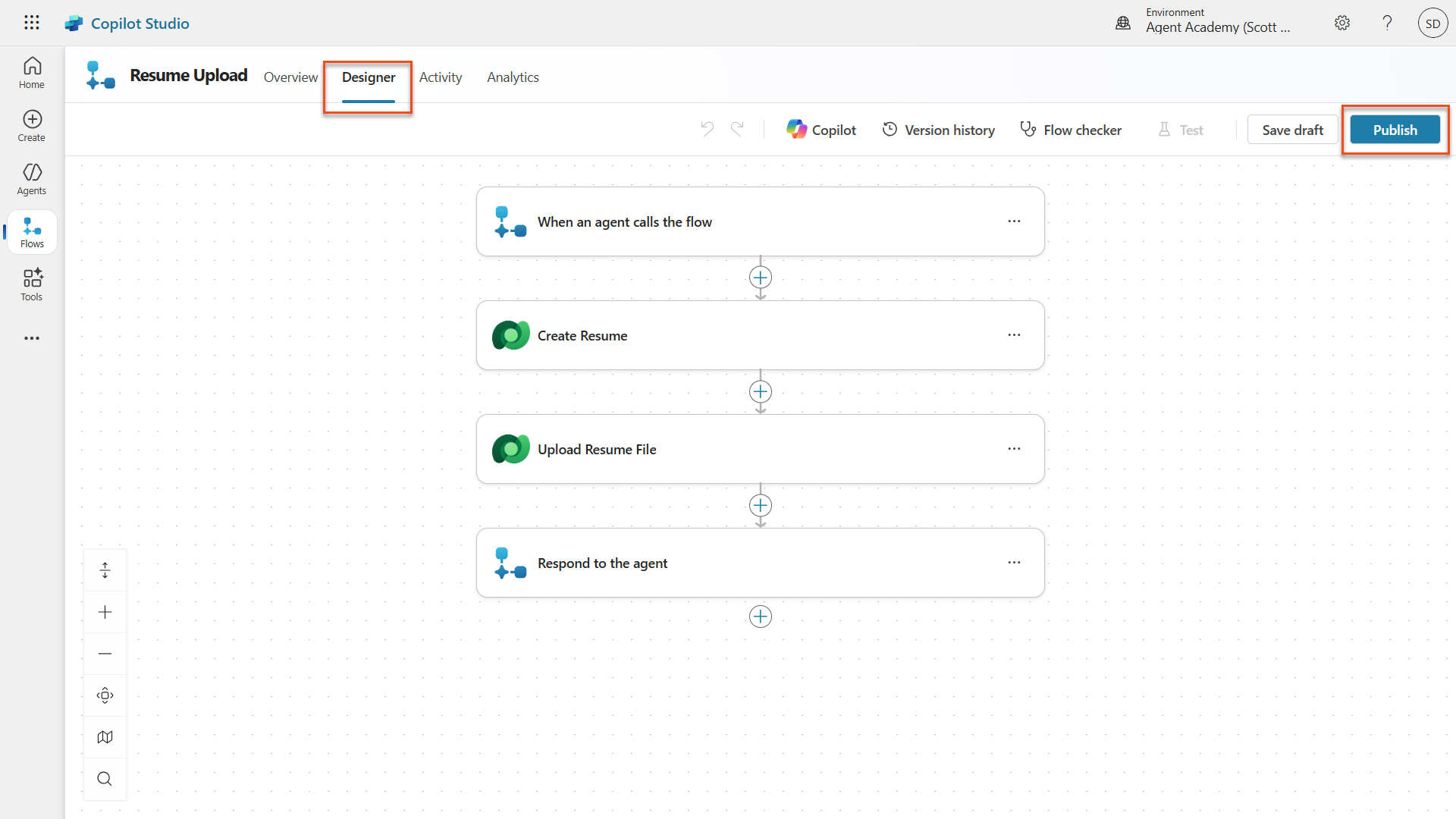
Publish
3.1.5 Connect the flow to your agent
Now connect the published flow to the Application Intake Agent.
Note — If you are using a managed environment, adding the flow as a tool may fail with a generic error. This is caused by the Solution-aware cloud flows sharing restriction being disabled. To fix this, go to Power Platform Admin Center → Environments → your environment → Edit Managed Environments → Manage Sharing → Power Automate, enable Solution-aware cloud flows, then save.
-
Return to the Hiring Agent and select the Agents tab. Open the Application Intake Agent, then locate the Tools panel.
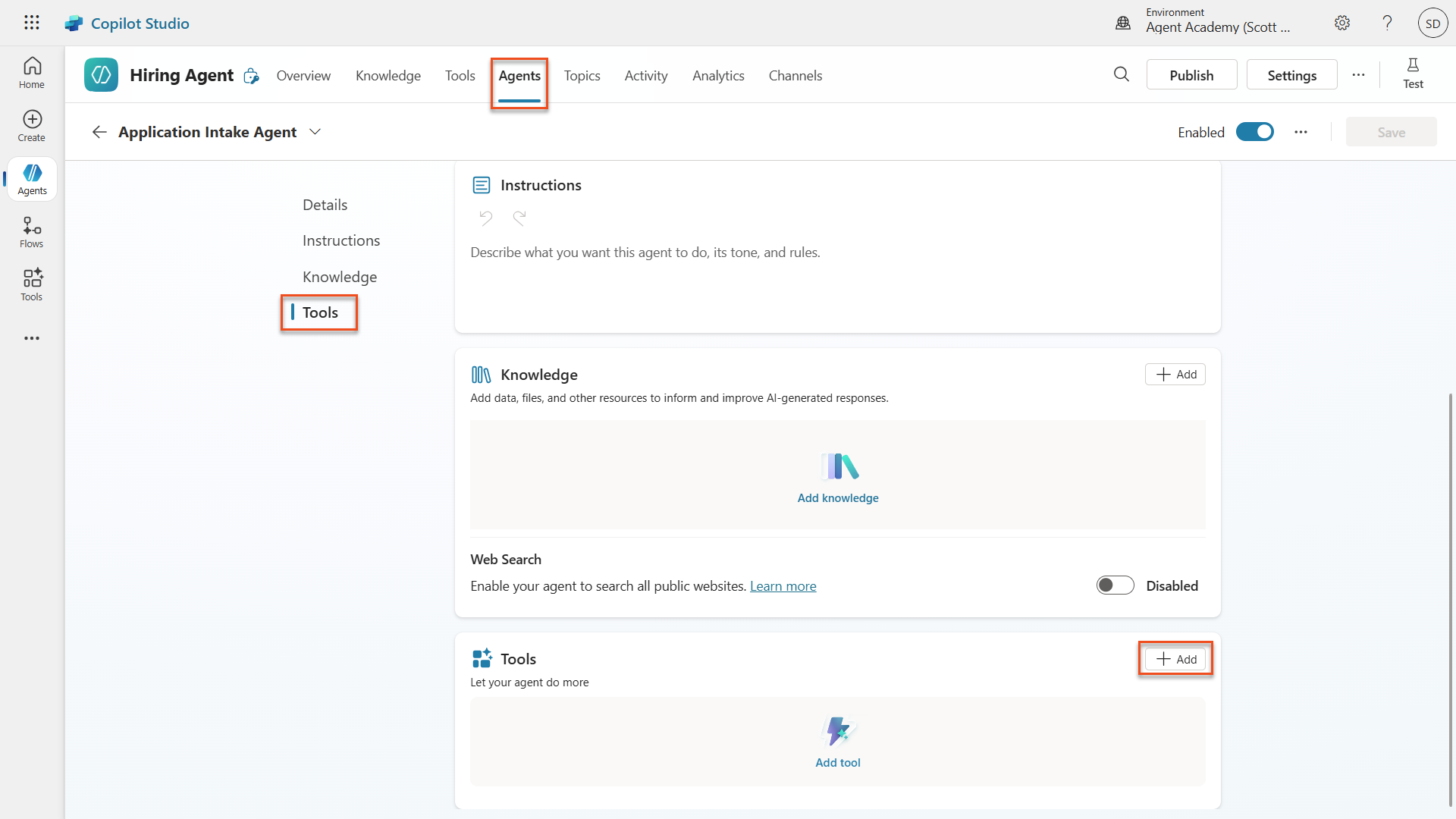
Add agent flow to agent -
Select + Add.
Add tool -
Select the Flow filter and search for
Resume Upload. Select the Resume Upload flow.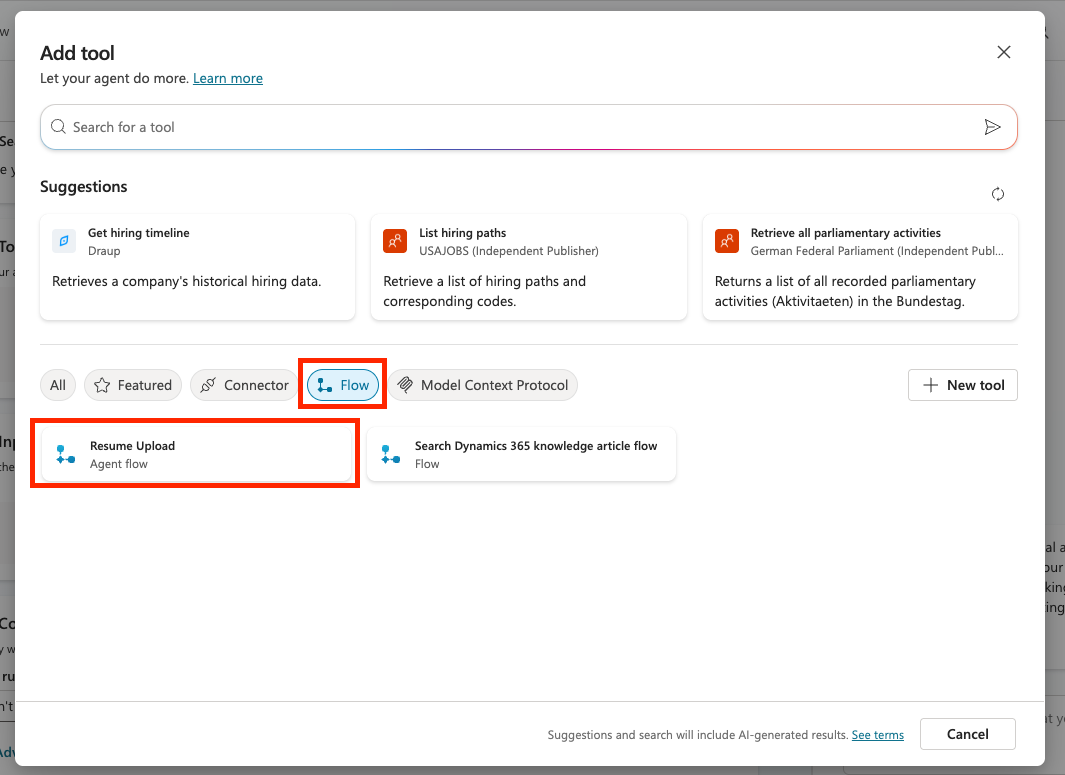
Select tool -
Select Add and configure.
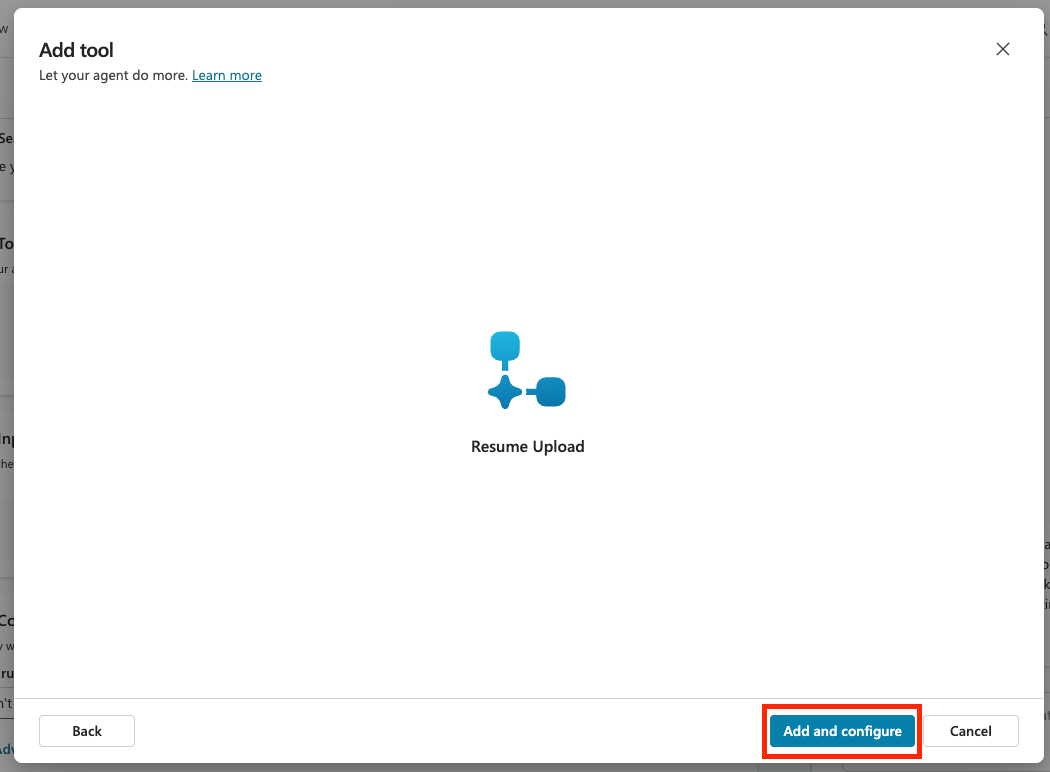
Add and configure -
Set the following parameters for the description and when the tool should be used.
Parameter Value Description Uploads a Resume when instructed. STRICT RULE: Only call this tool when referenced in the form "Resume Upload" and there are AttachmentsAdditional details → When this tool may be used only when referenced by topics or agents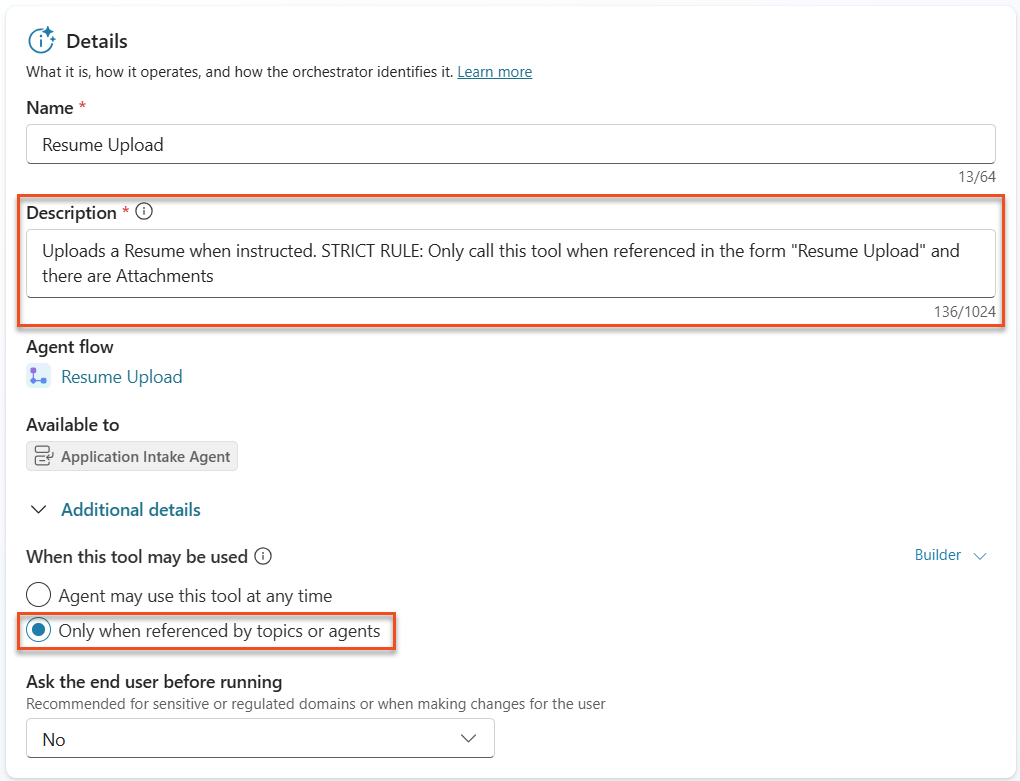
Resume Upload details 1 Note — This description tells the agent when it should call this tool. Notice the use of “STRICT RULE” in the description. This provides additional guardrails so the tool is used only when there are attachments and the conversation context is a resume upload. Choosing when this tool can be used is also important. Because you are building a multi-agent system with a child agent, this tool should be called only by the child agent, not by the main agent. Setting the value to “only when referenced by topics or agents” helps ensure this.
-
Scroll down to the inputs section, select Add Input, and add the following inputs.
Parameter Value Inputs → Add Input contentBytesInputs → Add Input name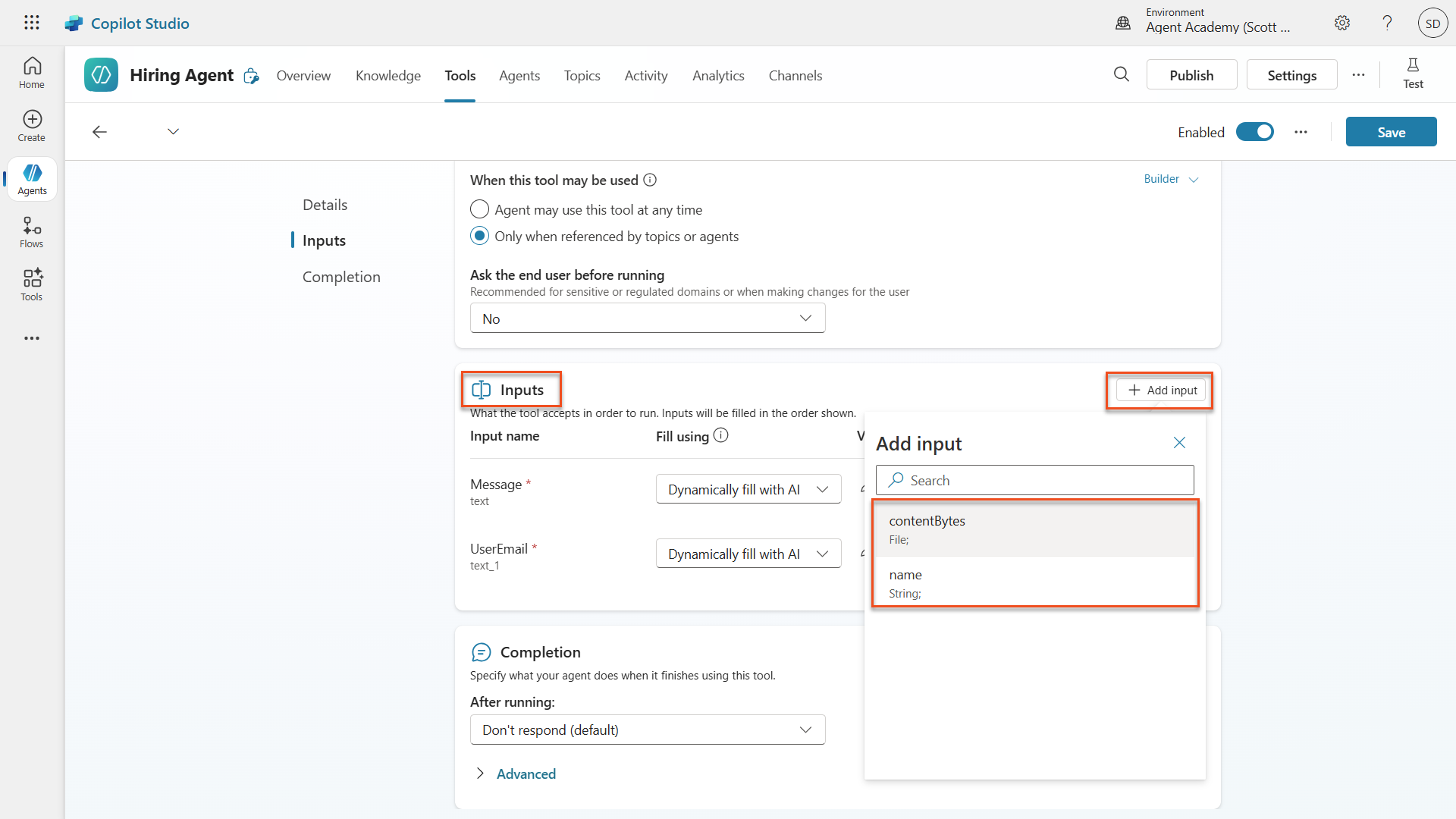
Add inputs - Now set the input properties. Start with the contentBytes input, which stores the actual resume file. In the Fill using dropdown next to the contentBytes input, select Custom value.
-
In the Value property, select the three dots (…) and select the Formula tab. Paste the following formula, which extracts the file from the chat, then click Insert.
First(System.Activity.Attachments).Content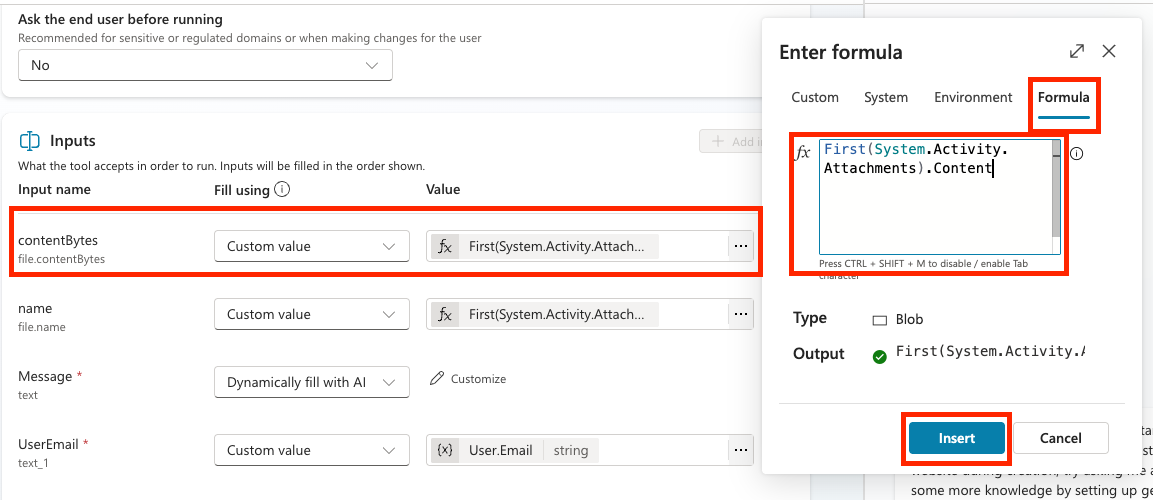
Content Bytes configuration - Next, configure the name input, which stores the resume file name. This value is also hardcoded, so in the Fill using column, select Custom value.
-
Select the three dots (…) in the Value column, paste the following formula, which extracts the file name from the chat, then click Insert.
First(System.Activity.Attachments).Name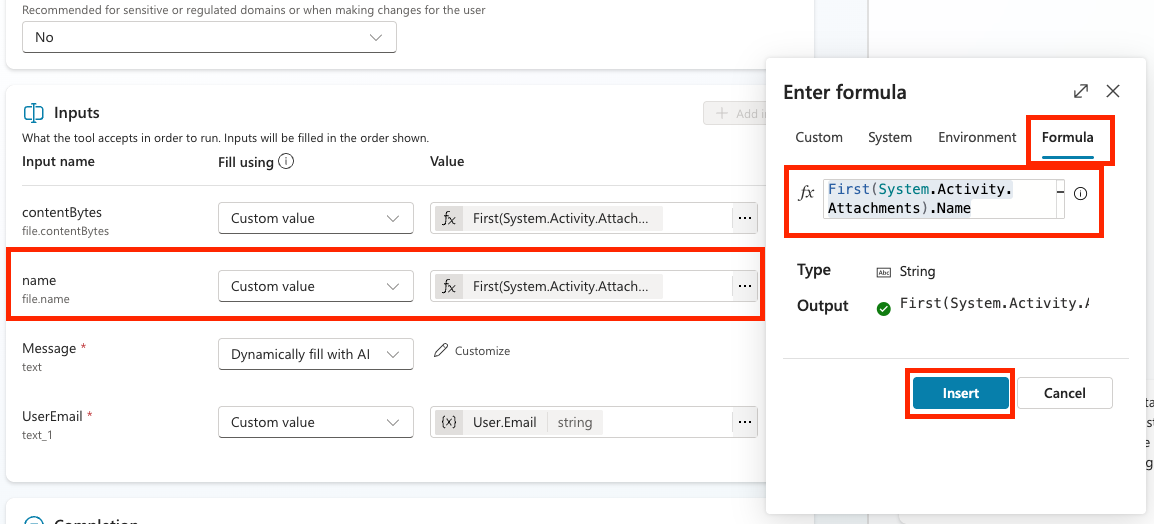
name configuration -
Now configure the Message input. You want AI to fill this one dynamically, so leave Fill using as-is. Select Customize in the Value column to provide more detail about how this input should be filled.
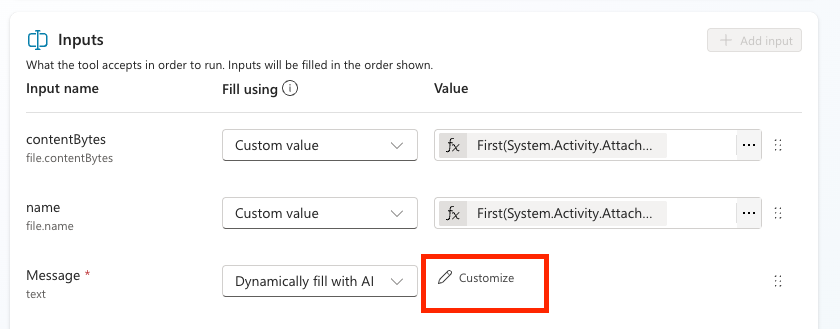
Message customization -
Enter the following in the input’s Description field.
Extract a cover letter style message from the context. Be sure to never prompt the user and create at least a minimal cover letter from the available context. STRICT RULE - the message must be less than 2000 characters.Note — Adding a description for dynamically filled inputs is a crucial step to help the agent understand how to fill the input correctly.
-
Expand the Advanced section to configure additional properties for this input. In the How many reprompts section, select Don’t repeat.
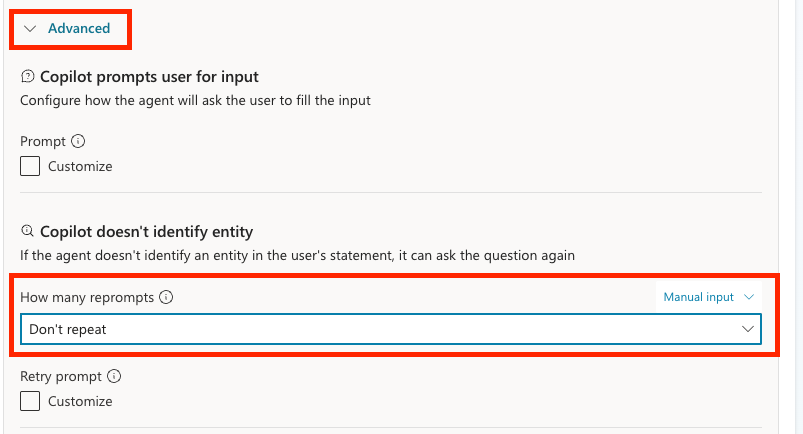
Reprompts Note — This setting helps customize the user experience so the agent does not ask the same question multiple times if it cannot identify the data it needs.
-
Scroll down to the No valid entity found section. In the Action if no entity found dropdown, select Set variable to value. In Default entity value, enter
Resume upload.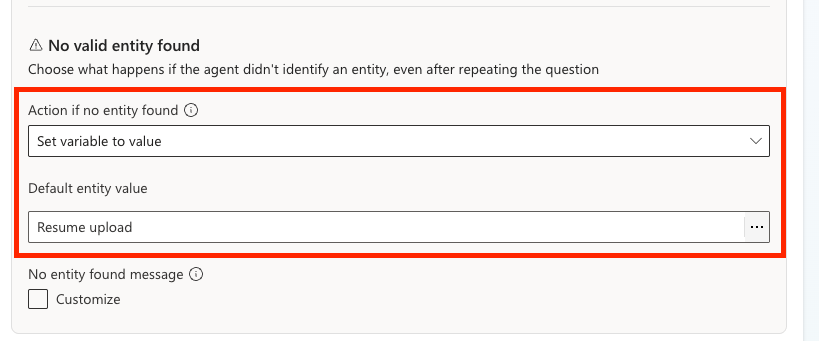
No entity found Note — This setting lets the agent use a hardcoded backup value if it cannot dynamically fill the Message input.
-
For the UserEmail input, select Custom value in the Fill using column, then select the three dots (…) in the Value column. Select the System tab and search for User. Select the User.Email variable to get the email address of the person using the agent.
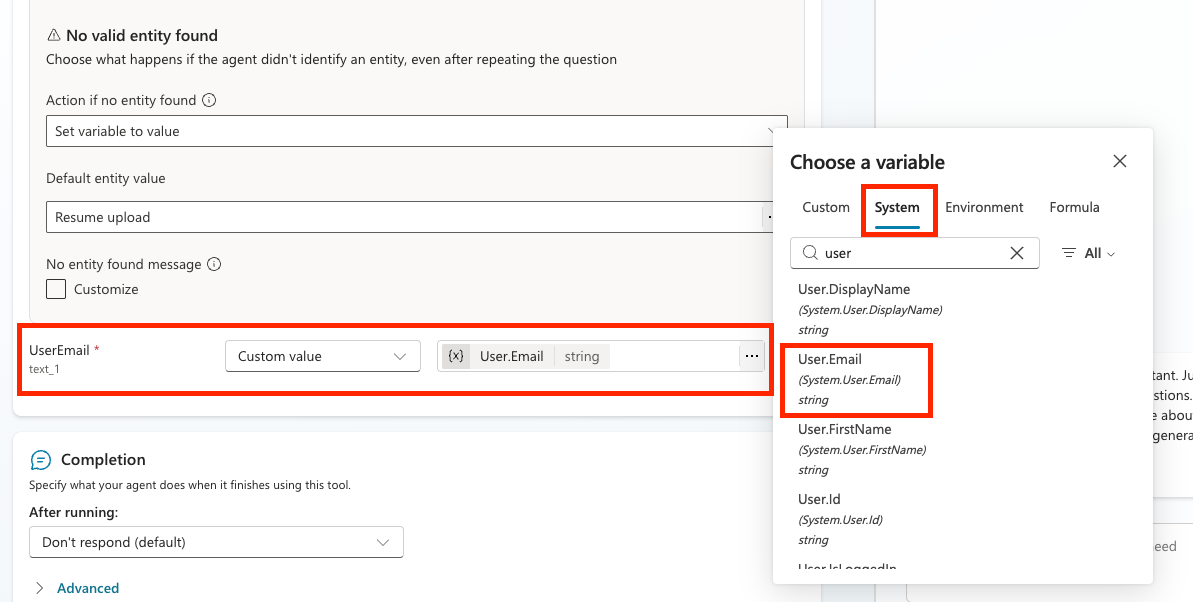
User Email configuration -
Select Save.
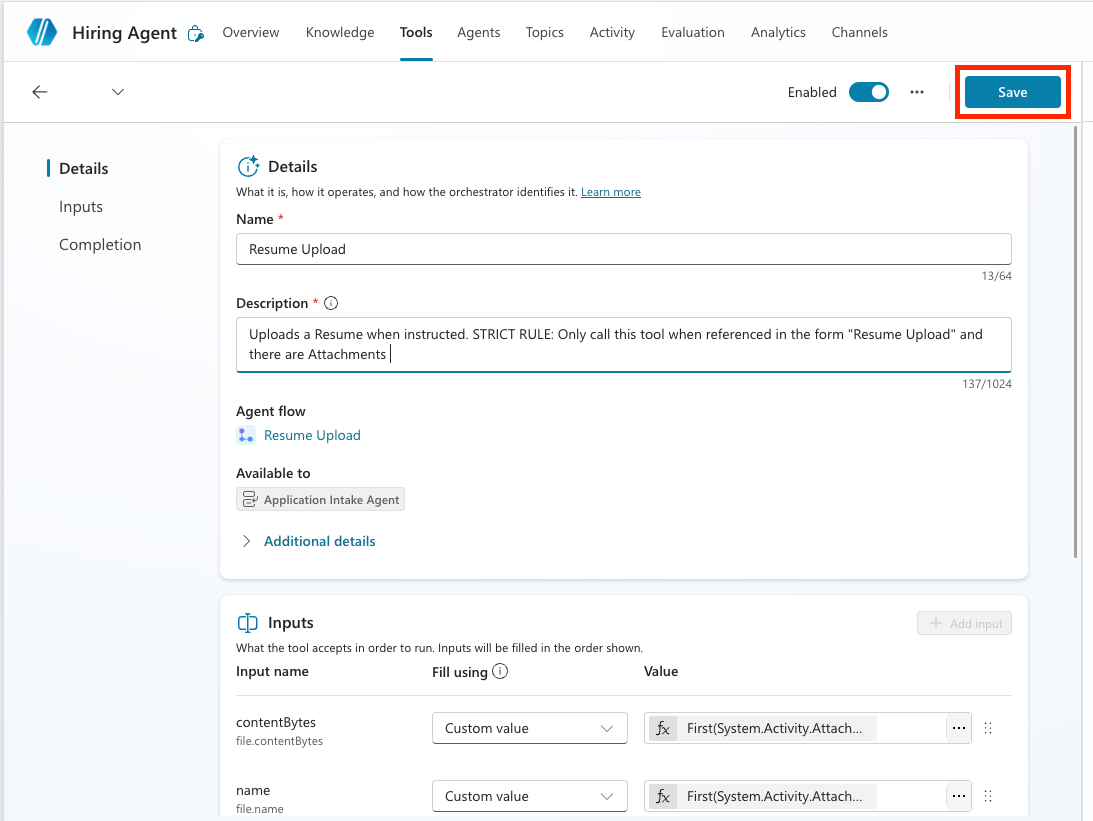
Save
3.1.6 Define agent instructions
- Move back to the Application Intake Agent by selecting the Agents tab, selecting Application Intake Agent, and locating the Instructions panel.
-
In the Instructions field, paste the following clear guidance for the child agent.
You are tasked with managing incoming Resumes, Candidate information, and creating Job Applications. Only use tools if the step exactly matches the defined process. Otherwise, indicate you cannot help. Process for Resume Upload via Chat 1. Upload Resume - Trigger only if /System.Activity.Attachments contains exactly one new resume. - If more than one file, instruct the user to upload one at a time and stop. - Call /Upload Resume once. Never upload more than once for the same message. 2. Post-Upload - Always output the [ResumeNumber] (R#####). -
Where the instructions include a slash (/), select the text after the slash and choose the resolved name. Do this for the following items.
System.Activity.Attachments(Variable)Upload Resume(Tool)
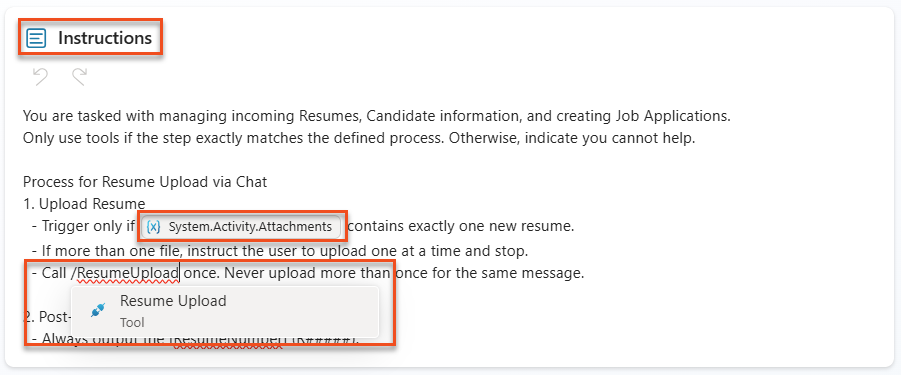
Edit instructions - Select Save.
3.1.7 Test your Application Intake Agent
Now call the child agent and verify that it follows the instructions.
- Download the test resumes.
- Select Test to open the test panel.
-
Upload two resumes in the test chat and enter the message
Process these resumes.- The agent should return a message similar to Only a single resume can be uploaded at a time. Please upload one resume to proceed. This means the instructions are working correctly, because you told the agent to process only one resume at a time.
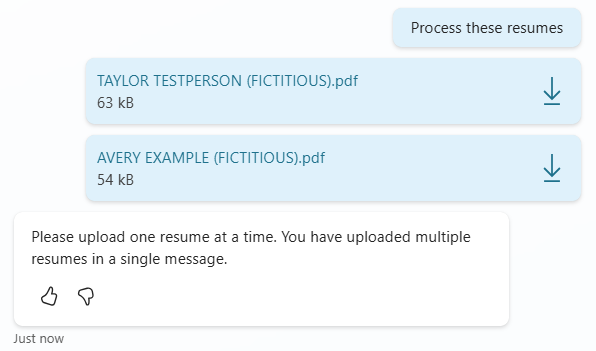
Test multiple uploads -
Now upload only one resume and enter the message
Process this resume.- The agent should show a message similar to The resume for Avery Example has been successfully uploaded. The resume number is R10026.
-
In the Activity map, you should see the Application Intake Agent handling the resume upload.
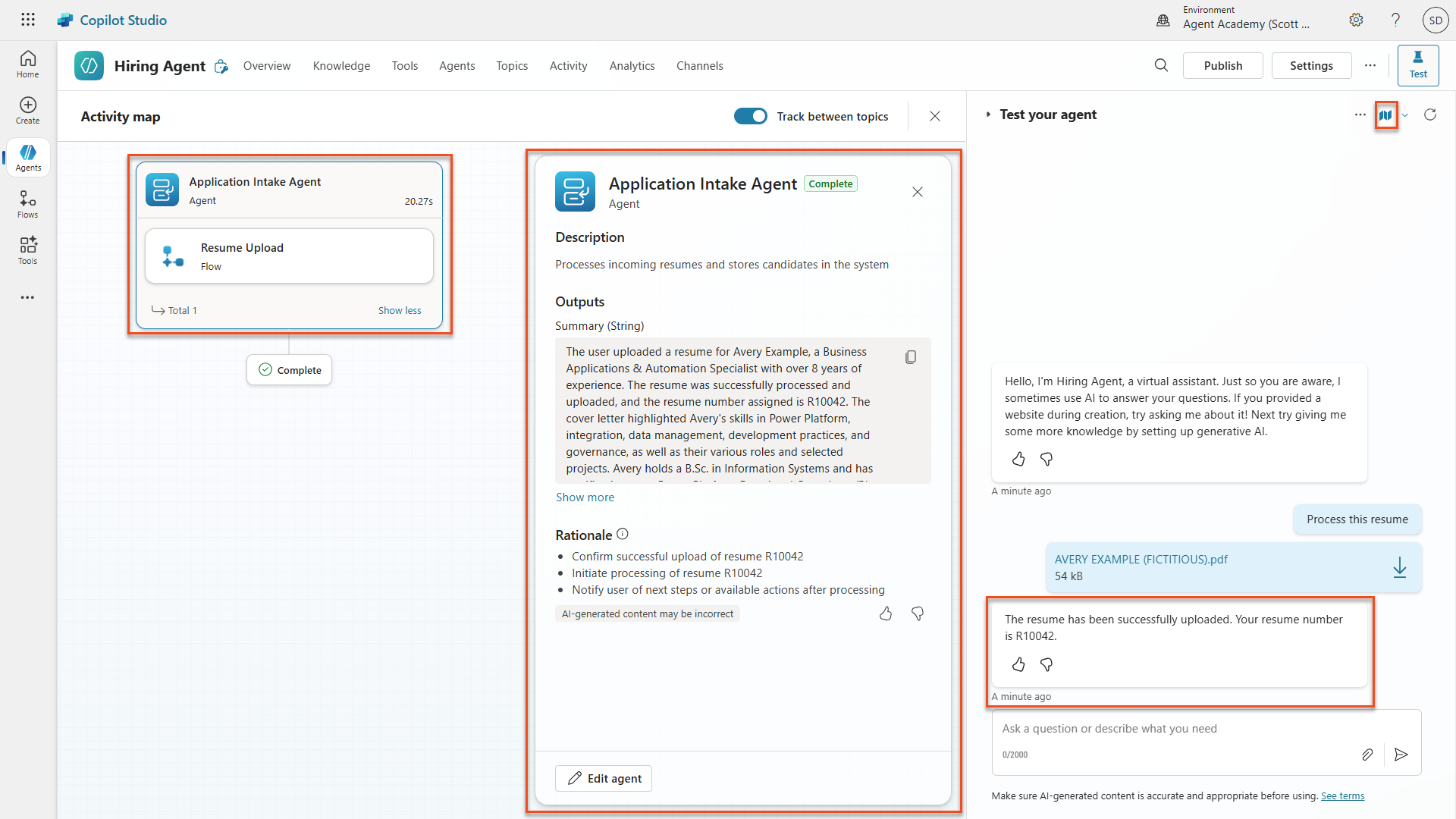
Resume Upload Activity Map - Go to make.powerapps.com and make sure your environment is selected in the Environment Picker in the upper-right corner.
-
Select Apps → Hiring Hub → ellipsis (…) menu → Play.
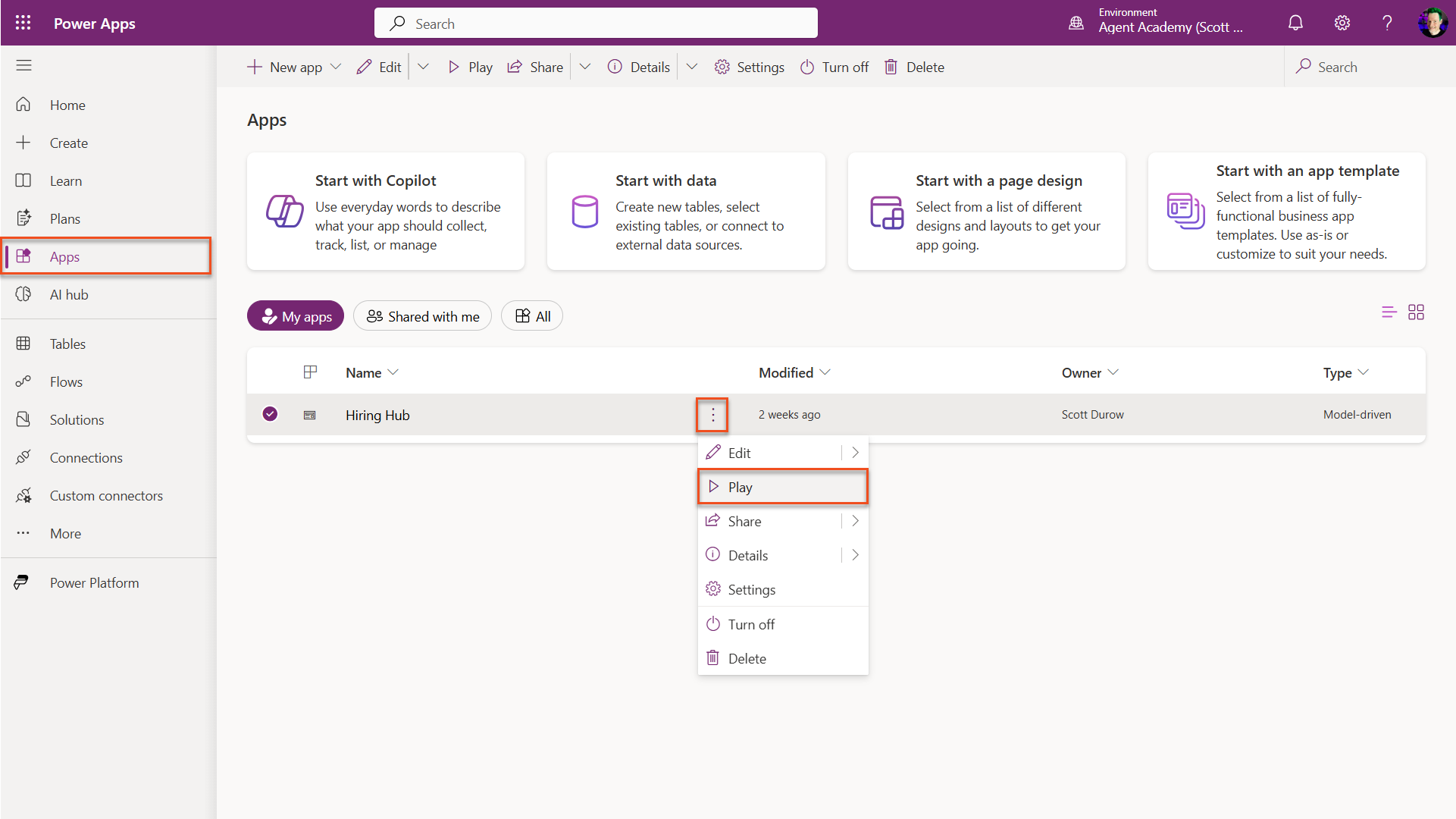
Open model-driven app Note — If the Play button is grayed out, it means you did not publish the solution in Mission 01. Select Solutions → Publish all customizations.
-
Go to Resumes and check that the resume file was uploaded and the cover letter was set accordingly.
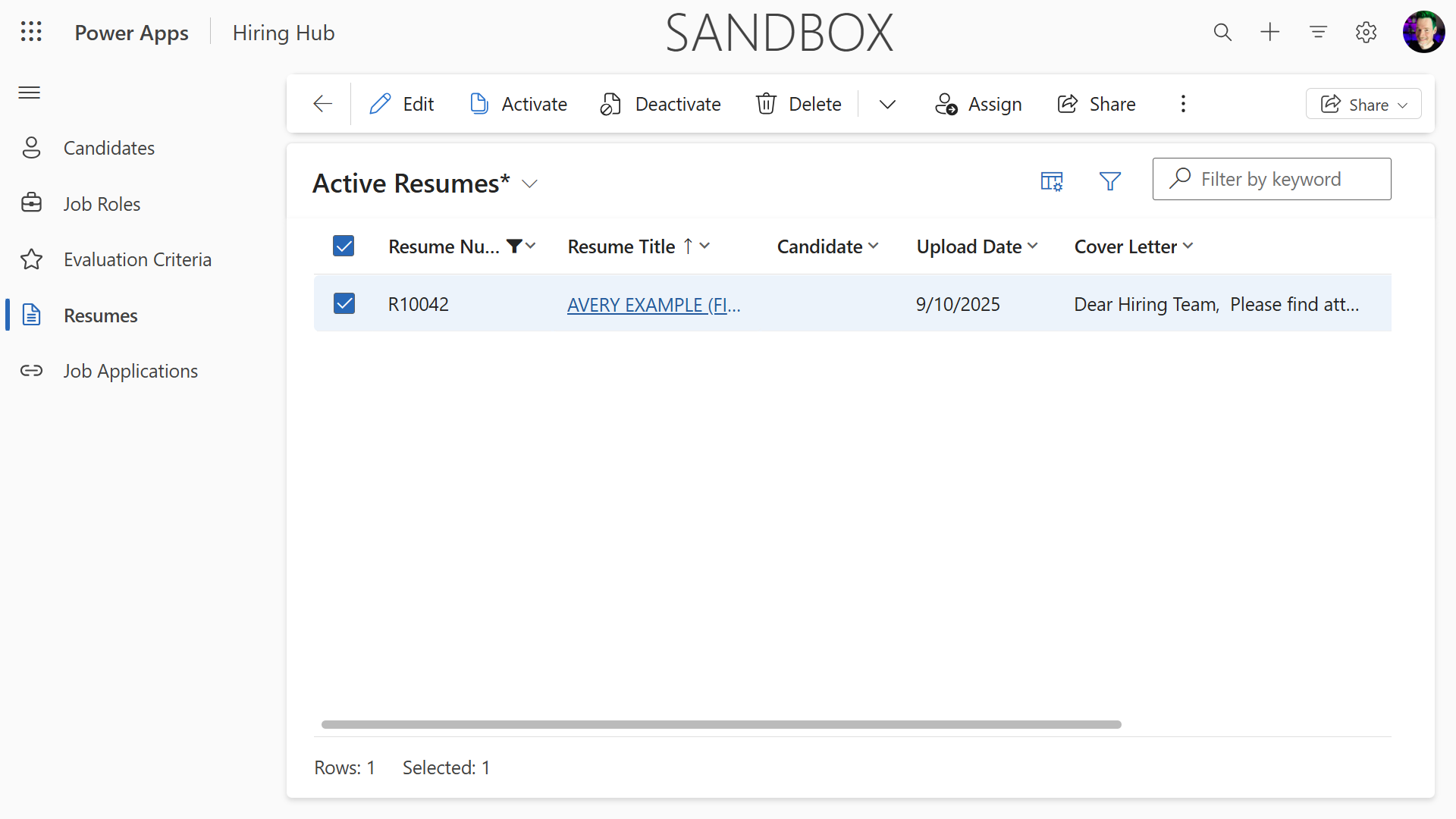
Resume uploaded to Dataverse
🧪 Lab 3.2 - Adding the Interview Prep connected agent
Now create the connected agent for interview preparation and add it to the existing Hiring Agent.
3.2.1 Create the connected Interview Agent
- Navigate to Copilot Studio. Make sure your environment is still selected in the Environment Picker in the upper-right corner.
-
In the left navigation, select the Agents tab, then select New Agent.
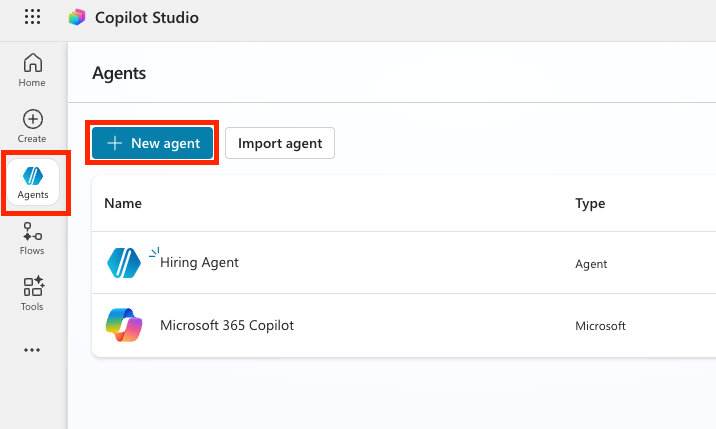
New Agent -
Select the Configure tab and enter the following properties.
- Name:
Interview Agent - Description:
Assists with the interview process.
- Name:
-
Instructions:
You are the Interview Agent. You help interviewers and hiring managers prepare for interviews. You never contact candidates. Use Knowledge to help with interview preparation. The only valid identifiers are: - ResumeNumber (ppa_resumenumber)→ format R##### - CandidateNumber (ppa_candidatenumber)→ format C##### - ApplicationNumber (ppa_applicationnumber)→ format A##### - JobRoleNumber (ppa_jobrolenumber)→ format J##### Examples you handle - Give me a summary of ... - Help me prepare to interview candidates for the Power Platform Developer role - Create interview assistance for the candidates for Power Platform Developer - Give targeted questions for Candidate Alex Johnson focusing on the criteria for the Job Application How to work: You are expected to ask clarification questions if required information for queries is not provided - If asked for interview help without providing a job role, ask for it - If asking for interview questions, ask for the candidate and job role if not provided. General behavior - Do not invent or guess facts - Be concise, professional, and evidence-based - Map strengths and risks to the highest-weight criteria - If data is missing (e.g., no resume), state what is missing and ask for clarification - Never address or message a candidate - Toggle Web Search to Disabled.
-
In the upper-right corner, select the three dots (…), then select Update advanced settings.
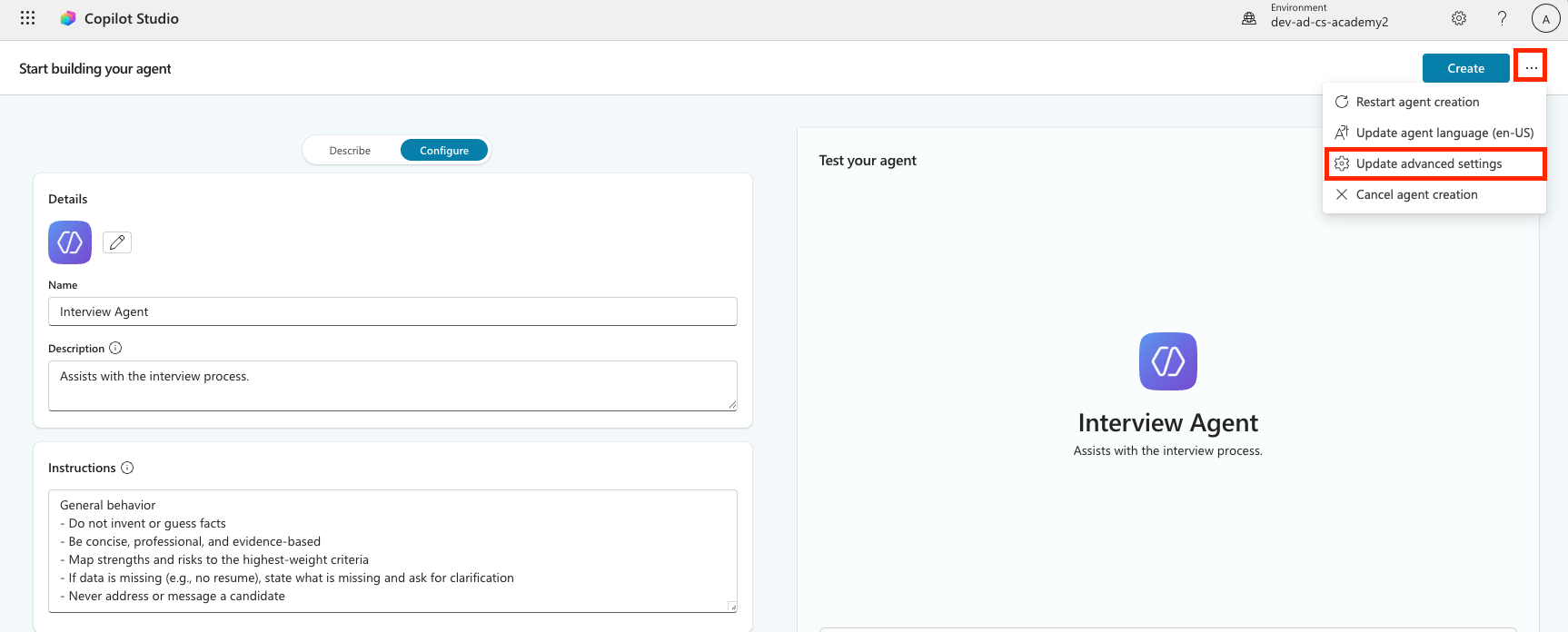
Advanced settings -
In the Solution dropdown, select Operative to make sure this is added to the correct solution, then select Update.
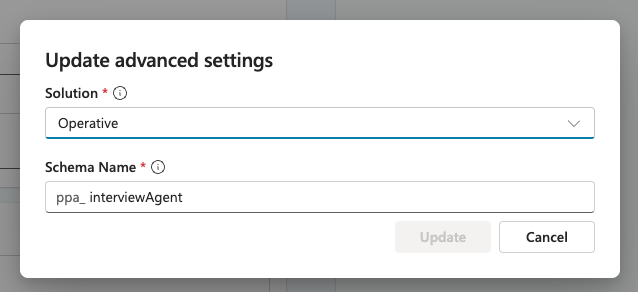
Update solution -
Select Create.
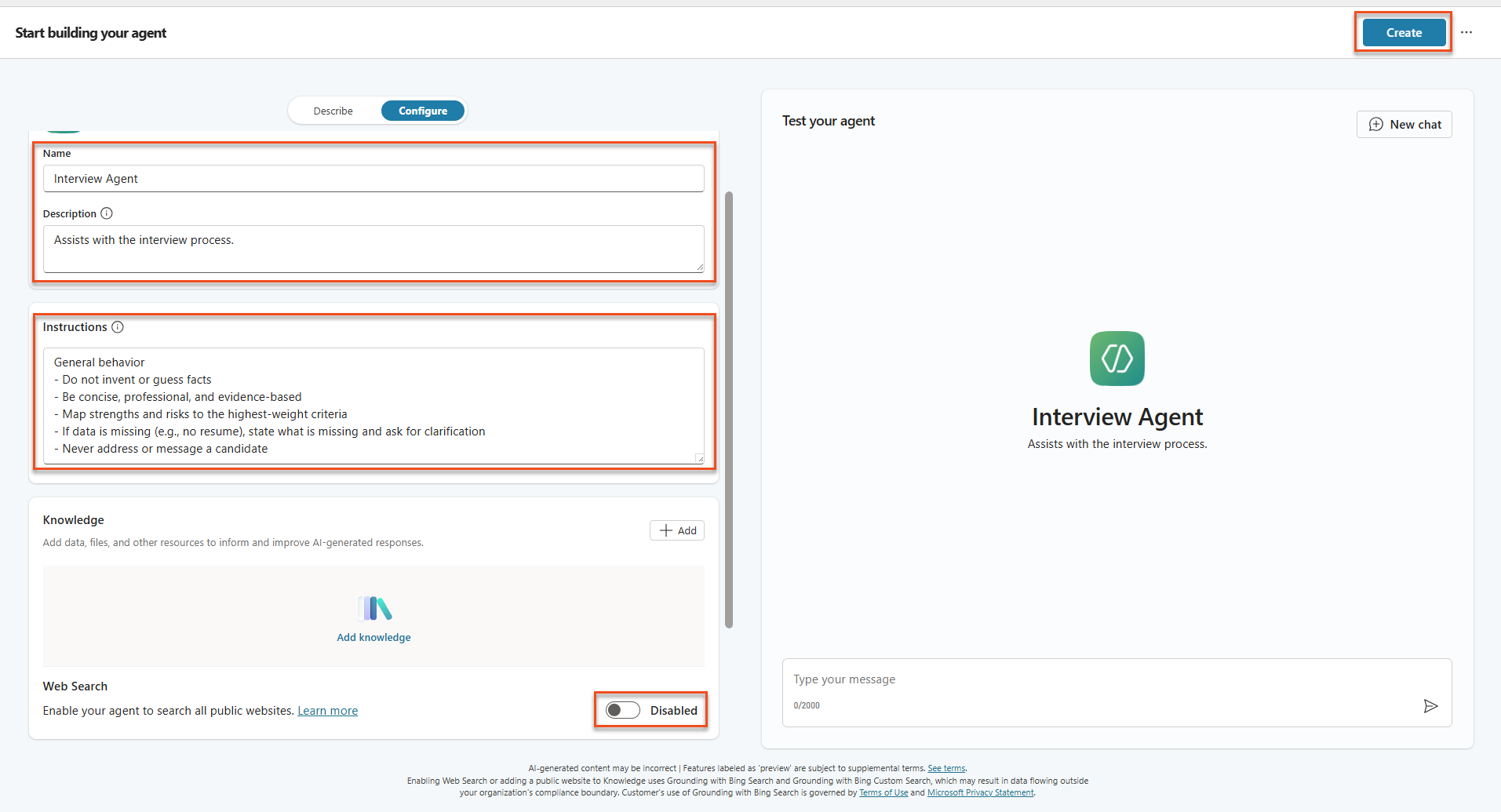
Create the Interview Agent
3.2.2 Configure data access and publish
-
In the Knowledge section, select + Add knowledge.
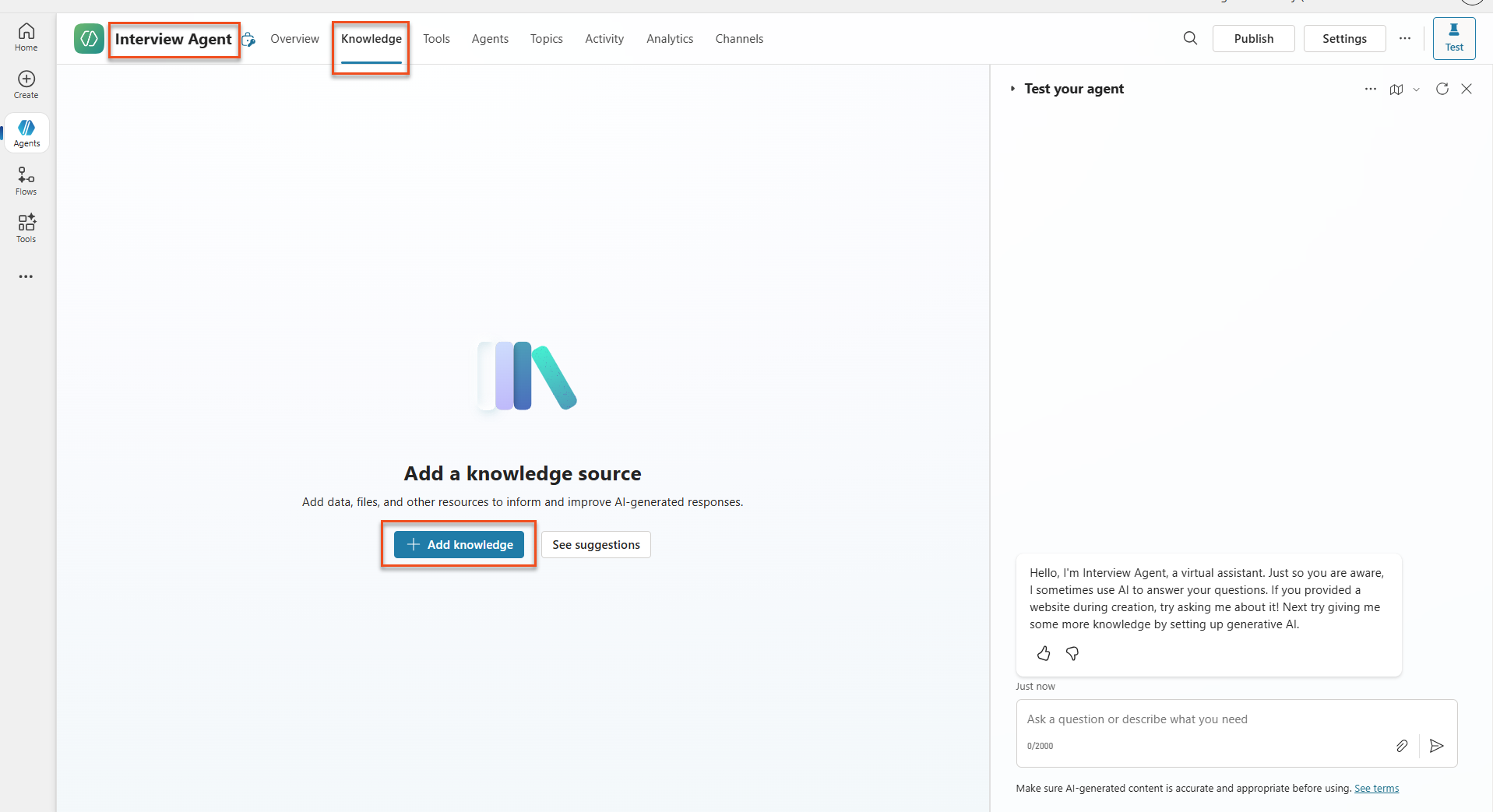
Add Knowledge -
Select Dataverse.
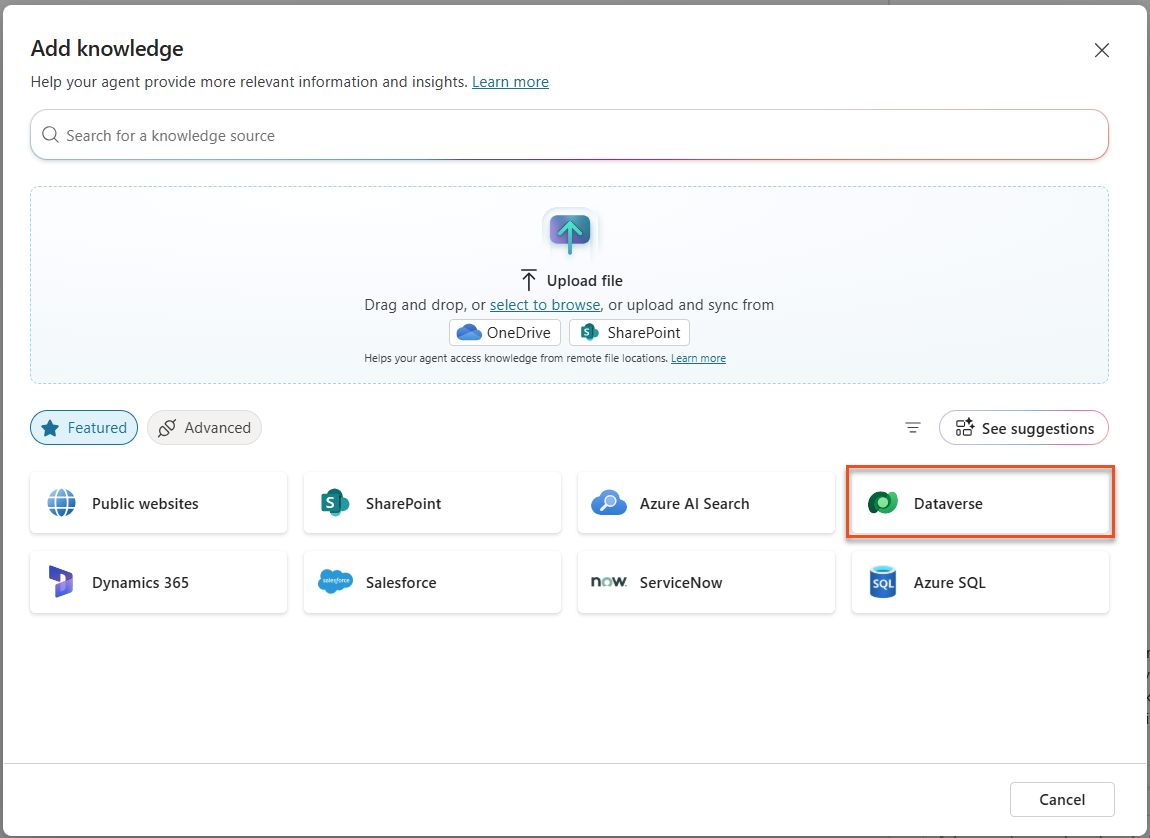
Select Dataverse - In the Search box, enter
ppa_. This is the prefix for the tables you imported previously in Module 01. - Select all five tables: Candidate, Evaluation Criteria, Job Application, Job Role, and Resume.
-
Select Add to agent.
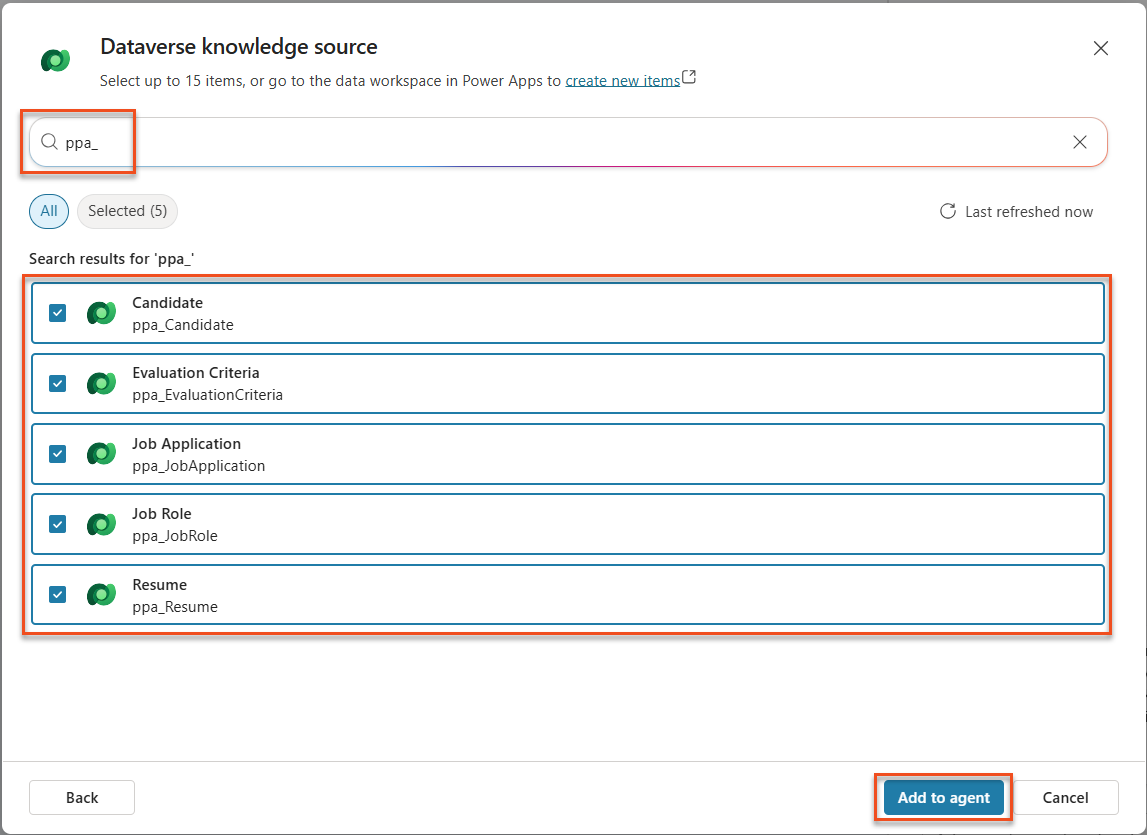
Select Dataverse tables -
Select the Settings button in the upper-right corner.
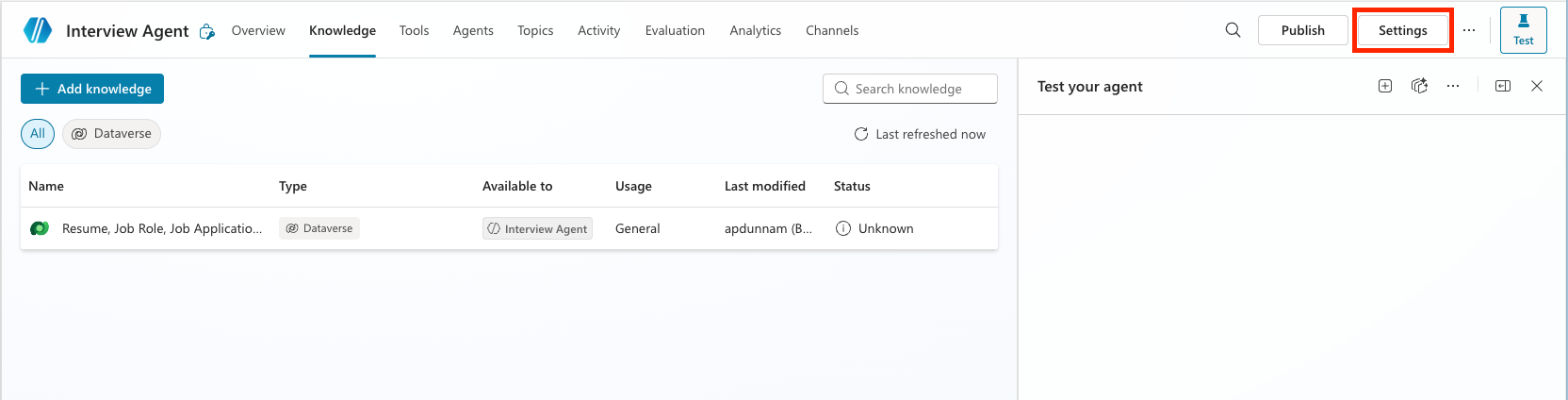
Settings -
Make sure the following settings are configured.
- Let other agents connect to and use this one:
On - Use general knowledge:
Off - File uploads:
Off - Content moderation level:
Medium
- Let other agents connect to and use this one:
-
Select Save, then select the X in the upper-right corner to close the settings menu.
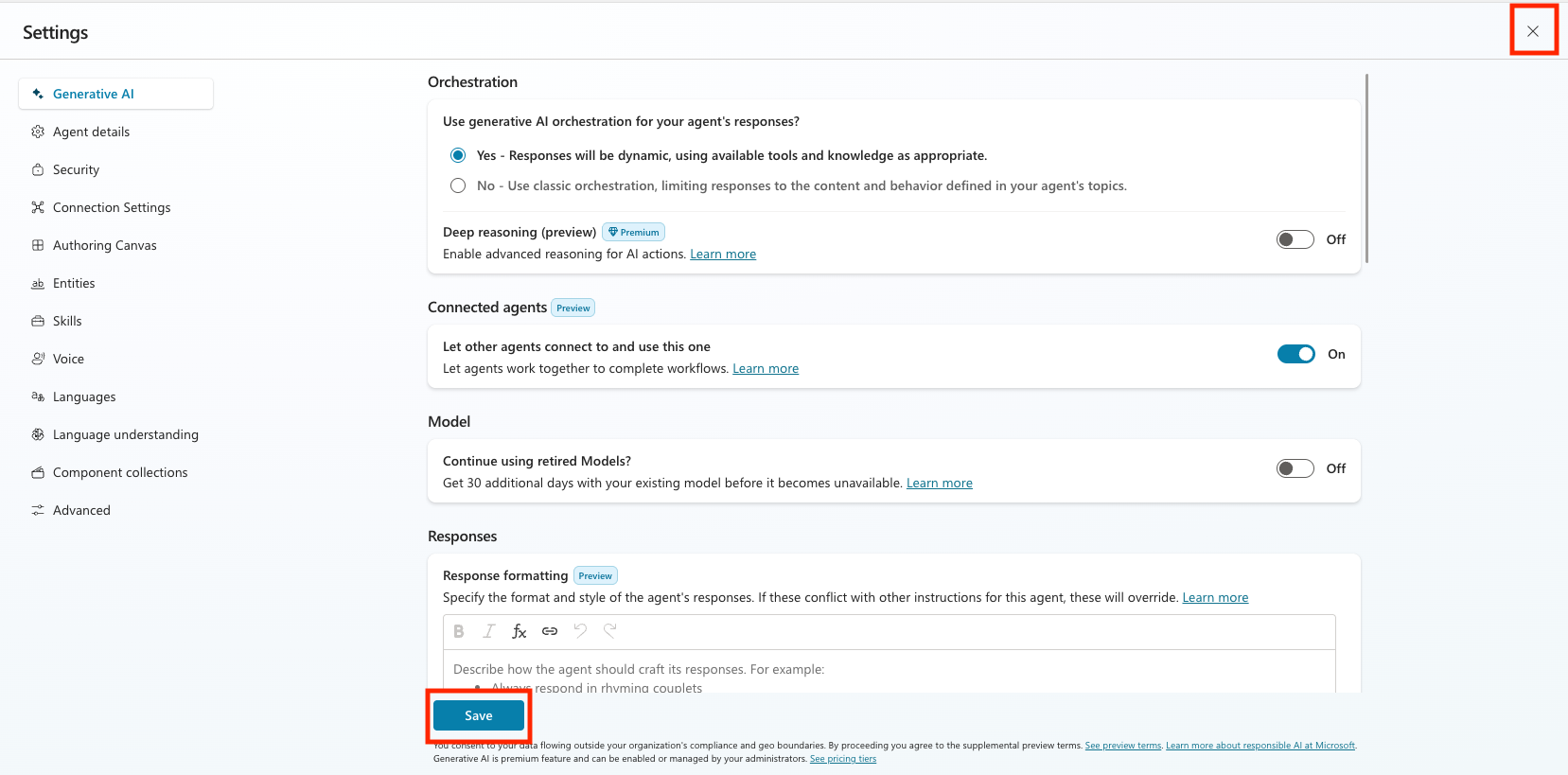
Settings configuration -
Select Publish and wait for publishing to complete.
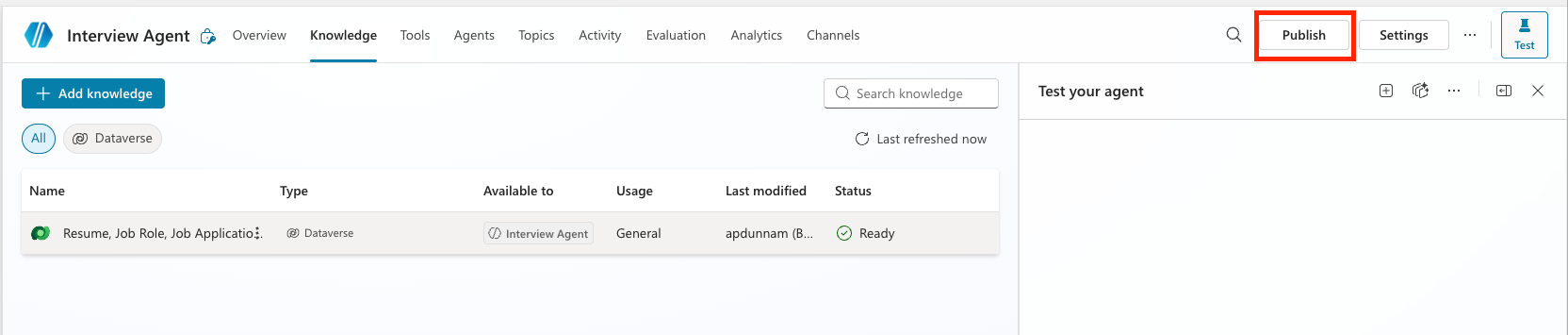
Publish
3.2.3 Connect the Interview Prep Agent to the Hiring Agent
- Return to the Hiring Agent.
- Select the Agents tab.
-
Select +Add an agent, then select Interview Agent.
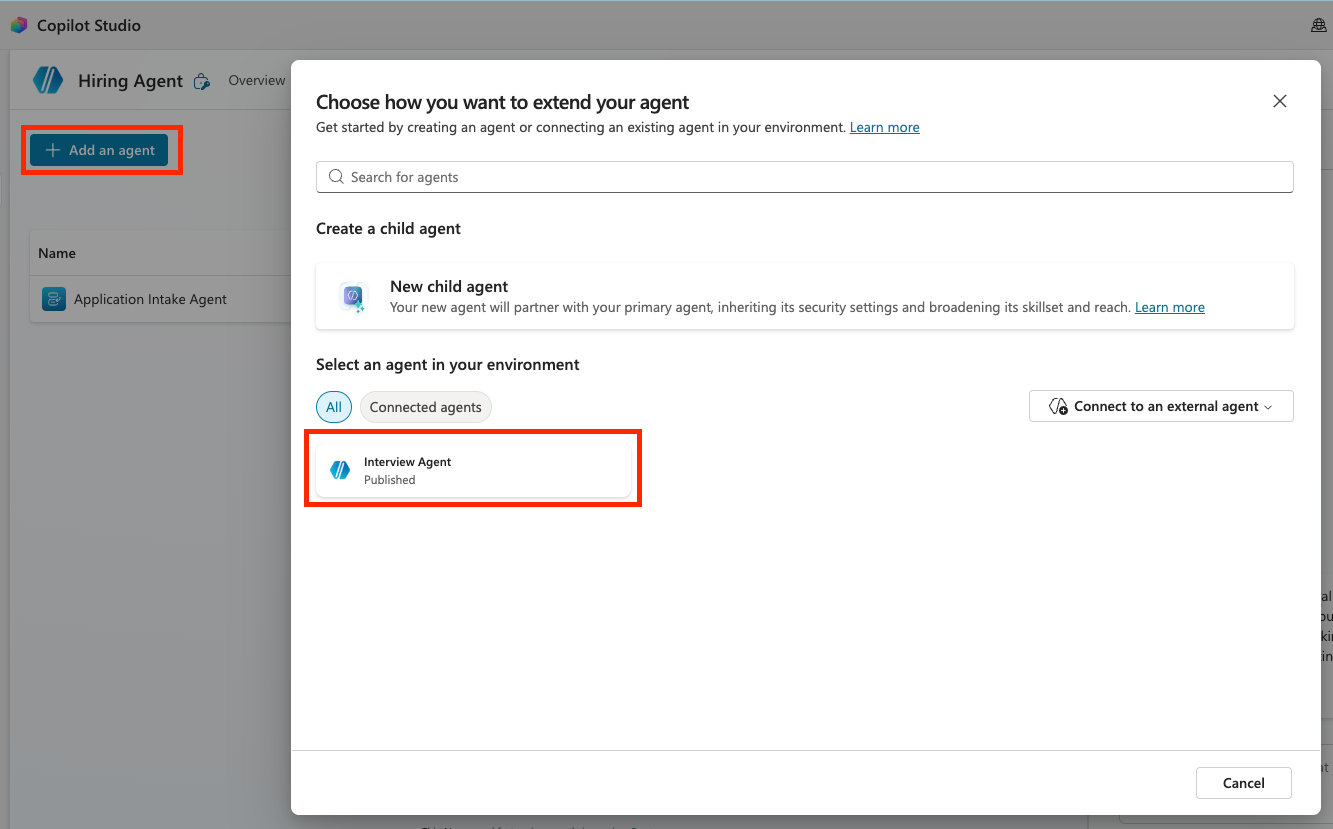
Select connected agent Note — If the Interview Agent is grayed out and cannot be selected, it has not been published yet. Go back to the Interview Agent and publish it first.
-
Set the Description to:
Assists with the interview process and provides information about Resumes, Candidates, Job Roles, and Evaluation Criteria.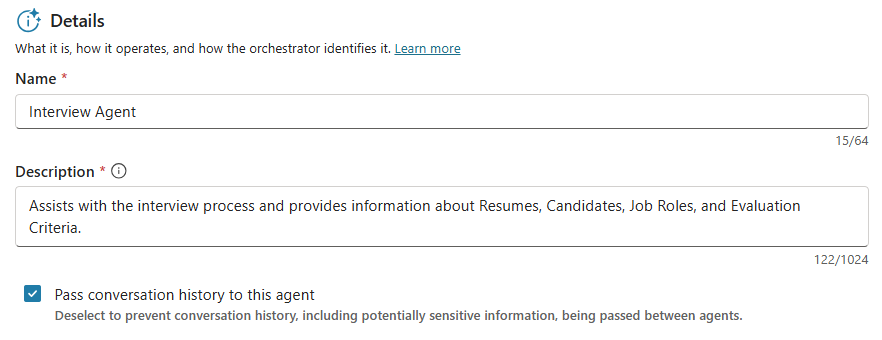
Connected Agent details Notice that Pass conversation history to this agent is checked. This allows the parent agent to provide full context to the connected agent.
- Select Add agent.
-
Make sure both Application Intake Agent and Interview Agent are displayed. Notice that one is a child agent and the other is a connected agent.
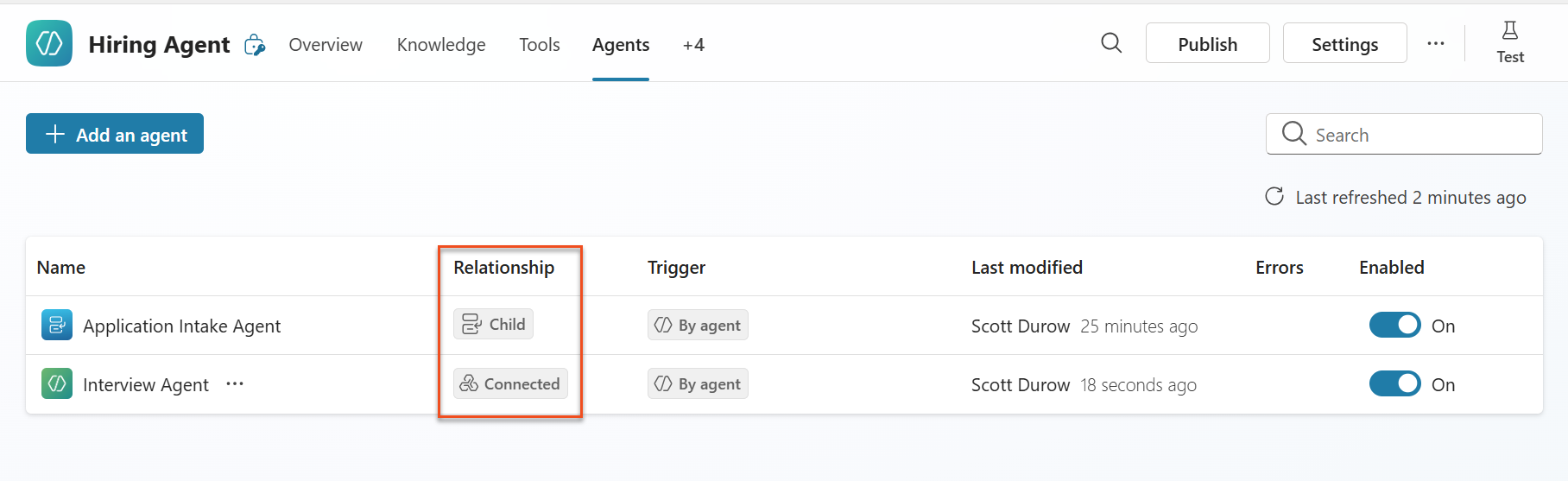
Child agent and connected agent
3.2.4 Test multi-agent collaboration
- Select Test to open the test panel.
-
Upload one test resume, and enter the following description that tells the parent agent what it can delegate to the connected agent.
Upload this resume, then show me open job roles, each with a description of the evaluation criteria, then use this to match the resume to at least one suitable job role even if not a perfect match.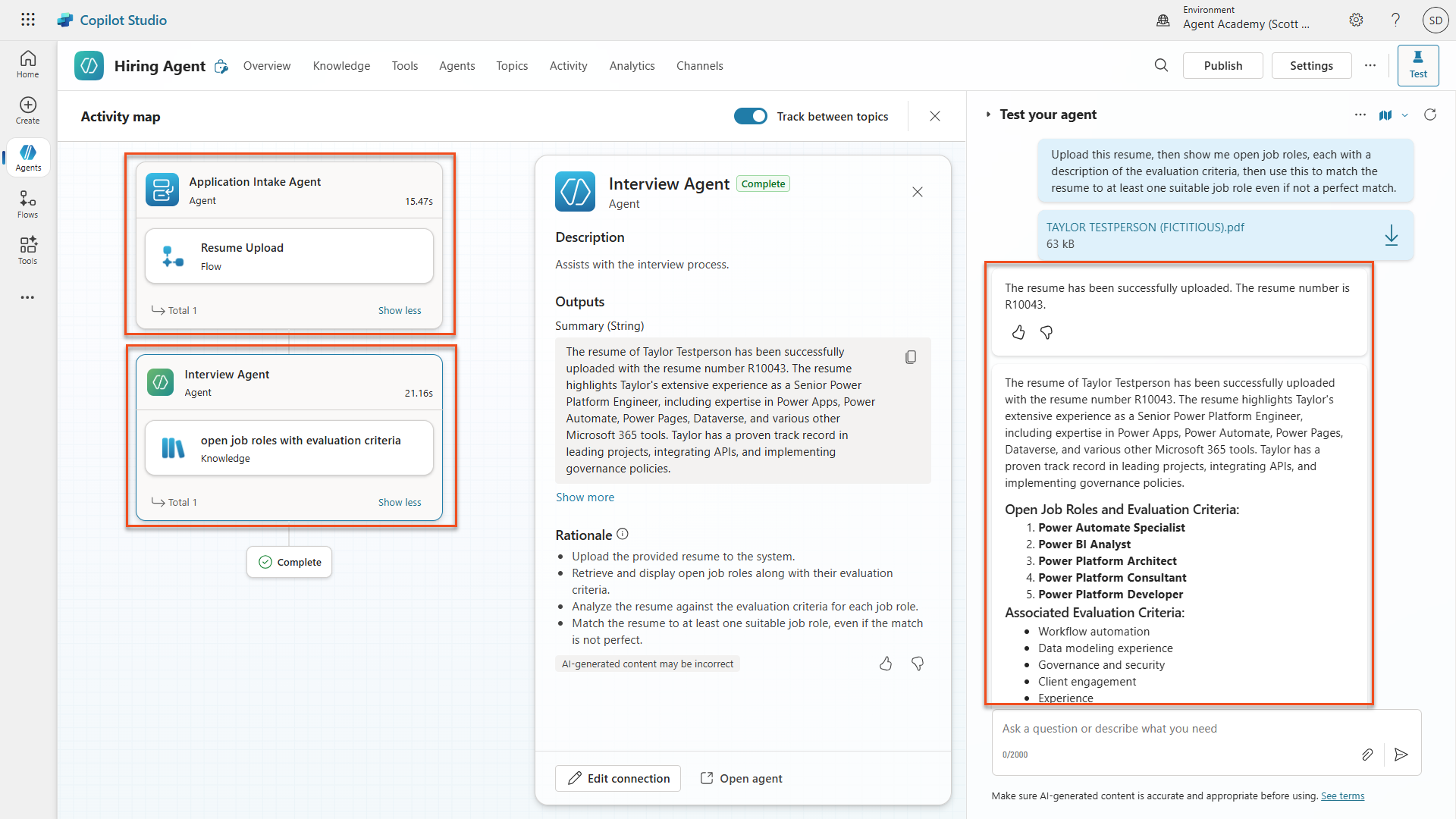
Multiple agents testing -
Notice how the Hiring Agent delegates the upload task to the child agent, then asks the Interview Agent to provide a summary and job role match using its knowledge. Try different ways of asking questions about Resumes, Job Roles, and Evaluation Criteria. Examples:
Give me a summary of active resumesSummarize resume R10044Which active resumes are suitable for the Power Platform Developer role?
🎉 Mission complete
Excellent work, Agent! Operation Symphony is now complete. You have successfully transformed a single Hiring Agent into a sophisticated multi-agent orchestra with specialized capabilities.
Here is what you accomplished in this mission.
✅ Multi-agent architecture mastery You now understand when to use child agents and connected agents, and how to design systems that scale.
✅ Application Intake child agent You added a specialized child agent to the Hiring Agent that processes resumes, extracts candidate data, and stores information in Dataverse.
✅ Interview Prep connected agent You built a reusable connected agent for interview preparation and successfully connected it to the Hiring Agent.
✅ Agent communication You saw how the main agent coordinates with specialist agents, shares context, and orchestrates complex workflows.
✅ Foundation for autonomy Your enhanced hiring system is now ready for the advanced features you will add in upcoming missions: autonomous triggers, content moderation, and deep reasoning.
🚀Next up: In the next mission, you will learn how to configure the agent to autonomously process resumes from email!
⏩ Move to Mission 04: Automate your agent with triggers
📚 Tactical resources
📖 Work with Dataverse in Copilot Studio