YAML Specialist
A hands-on lab for building and extending Copilot Studio agents entirely as code in VS Code using the YAML agent definition language. Covers AI-assisted YAML authoring with GitHub Copilot and specialized skills.
Translated article — This article is based on 🧬 YAML Specialist from the Copilot Studio Agent Academy. The original wording takes precedence.
🧬 YAML Specialist

Agents, your mission — should you choose to accept it — is to become a YAML Specialist. Become an operative who builds and extends Microsoft Copilot Studio agents entirely from Visual Studio Code using the Copilot Studio YAML agent definition language. Clone agents, author topics in raw YAML, connect knowledge sources, and push changes back to the cloud — all from your local command center. With GitHub Copilot as your handler, you can iterate faster than the web UI can keep up.
This mission mixes VS Code with the classic Copilot Studio experience
Microsoft Copilot Studio is rolling out a new authoring experience. The screenshots and web UI steps in this mission use the classic experience. If your screen looks different, turn off New Experience in the upper-right corner before continuing.
Mission objectives:
- Set up the Copilot Studio VS Code extension and clone an agent to your local machine
- Understand the YAML agent definition file structure, including topics, actions, triggers, and knowledge
- Write and edit YAML topics by hand with IntelliSense validation
- Use GitHub Copilot Agent Mode with specialized skills to generate and refine agent YAML
- Synchronize local changes back to Copilot Studio and test the agent in the cloud
⚙️ Prerequisites
This mission assumes you have completed the Operative course and have a working Copilot Studio environment. You also need the following installed:
- Visual Studio Code - Download and install from code.visualstudio.com
- Node.js (LTS) - Required by the Copilot Studio VS Code extension. Download it from nodejs.org. Choose the LTS version. Verify it in a terminal with
node --version.
Tip: If VS Code is already installed, you can install the GitHub Copilot and Copilot Studio extensions later during the lab. Each extension installation step is covered in the lab.
❓ What is YAML authoring for Copilot Studio?
What is YAML?
YAML is a simple text format for storing structured information. Think of it as a well-organized outline — instead of curly braces or angle brackets, YAML uses indentation (spaces) to show nesting. For example:
name: Travel Agent
language: English
settings:
  greeting: Hello! How can I help you travel safely?
  topics:
    - safety-tips
    - cultural-advice
Notice that settings is indented under the main level, while greeting and topics are indented further inside settings. That is the core pattern: name on the left, value on the right, separated by a colon, with indentation showing structure. YAML files use the .yaml or .yml extension. In Copilot Studio, every part of an agent — topics, tools, triggers, and settings — is stored in YAML files.
Every Copilot Studio agent has a definition: a set of YAML files that describes the agent’s personality, topics, tools, knowledge sources, and triggers. When you build an agent in the Copilot Studio web UI, you are actually editing these YAML files. The web canvas gives you a visual representation, but the source of truth is always YAML.
Tip: You can view the YAML behind any topic or tool directly from the web canvas. Open a topic and select Open code editor on the toolbar to see the raw YAML. This is a good way to learn the schema before moving to VS Code.
The Copilot Studio extension for Visual Studio Code gives you direct access to these agent definition files:
- Clone - Download an agent from the cloud to your local file system
- Edit - Edit topics, instructions, knowledge, and tools as structured YAML with IntelliSense
- Apply - Upload changes to the cloud for testing
- Version control - Manage agent definitions as code with Git
This is how professional agent developers work: they treat agent definitions as code, collaborate through pull requests, and iterate rapidly with AI assistance.
🆚 Web UI vs YAML authoring: when to use each
| Aspect | Web UI (Copilot Studio) | YAML Authoring (VS Code) |
|---|---|---|
| Best for | Visual exploration, quick prototypes | Large-scale development, team collaboration |
| Editing speed | Point-and-select, one node at a time | Full-text search and bulk edits across files |
| AI assistance | Copilot in the canvas | GitHub Copilot Agent Mode with specialized skills |
| Collaboration | One author per topic | Multiple developers through Git branches |
| Testing | Built-in test panel | Apply changes, then test in Copilot Studio |
| Learning curve | Low - visual and guided | Medium - requires familiarity with YAML and VS Code |
Tip: You do not have to choose only one. Many teams use the web UI for early prototypes and switch to YAML authoring for production-grade development. Changes made in the web UI can be downloaded with Get, and local YAML changes can be uploaded with Apply.
📁 Agent definition file structure
When you clone a Copilot Studio agent, the extension creates a structured directory on your machine:
my-agent/
├── actions/                  # Connectors
│   ├── DevOpsAction.mcs.yml
│   └── GetItems.mcs.yml
├── knowledge/files/          # Knowledge sources
│   ├── source1.mcs.yml
│   └── source2.mcs.yml
├── topics/                   # Conversation topics
│   ├── greeting.mcs.yml
│   ├── help.mcs.yml
│   └── escalate.mcs.yml
├── variables/                # Global variable definitions
│   └── UserCountry.mcs.yml
├── workflows/                # Agent tools and actions
│   └── GetDevOpsItems
│       ├── metadata.yaml
│       └── workflow.json
│   └── GetMeetings
│       ├── metadata.yaml
│       └── workflow.json
├── trigger/                  # Event triggers
│   └── welcometrigger.mcs.yml
├── agent.mcs.yml             # Main agent definition
├── icon.png                  # Agent icon
├── settings.mcs.yml          # Agent configuration settings
└── connectionreferences.mcs.yml  # Connection references used by connectors
Key files to know:
| File / Folder | Purpose |
|---|---|
agent.mcs.yml |
Main agent definition - name, description, instructions, and schema |
topics/ |
Each .mcs.yml file is a topic with triggers, actions, and conversation logic |
actions/ |
Connector tool definitions - connectors, REST APIs, MCP servers |
knowledge/files/ |
Uploaded knowledge documents |
variables/ |
Global variable definitions used across topics |
settings.mcs.yml |
Agent configuration and orchestration settings |
workflows/ |
Agent flows used as tools |
trigger/ |
Event-based triggers (schedules, conditions) |
connectionreferences.mcs.yml |
Connection references used by connectors and other actions |
🔧 YAML topic anatomy
Topics are the conversation building blocks of an agent. Each topic is an AdaptiveDialog written in YAML. Here is the anatomy of a simple greeting topic:
kind: AdaptiveDialog
beginDialog:
  kind: OnConversationStart
  id: main
  actions:
    - kind: SendActivity
      id: sendMessage_greeting
      activity:
        text:
          - Hello, I'm {System.Bot.Name}. How can I help?
        speak:
          - Hello and thank you for calling {System.Bot.Name}.
Key YAML elements:
kind- Node type (AdaptiveDialog,SendActivity,Question,ConditionGroup, etc.)id- Unique identifier for each nodeactions- Ordered list of steps the topic executesvariable- Variable assignment using theinit:Topic.VariableNamesyntaxentity- Entity type for question nodes (for example,BooleanPrebuiltEntity,StringPrebuiltEntity)condition- Power Fx expression for conditional logic (starts with=)
Questions and variables
- kind: Question
  id: question_askName
  alwaysPrompt: true
  variable: init:Topic.UserName
  prompt: What is your name?
  entity: StringPrebuiltEntity
Conditional logic with Power Fx
- kind: ConditionGroup
  id: condition_checkResponse
  conditions:
    - id: condition_yes
      condition: =Topic.Continue = true
      actions:
        - kind: SendActivity
          id: sendMessage_continue
          activity: Go ahead. I'm listening.
    - id: condition_no
      condition: =Topic.Continue = false
      actions:
        - kind: SendActivity
          id: sendMessage_goodbye
          activity: Goodbye! Have a great day.
Note: Power Fx expressions in conditions must be prefixed with =. This tells the YAML parser that the value is an expression, not a literal string.
Topic trigger types
Topics use different trigger types depending on when they should run:
OnConversationStart- Runs automatically once when the conversation starts. Used for greeting messages.OnRecognizedIntent- Runs when the user says something that matches a trigger phrase.OnActivity- Runs for a specific activity type, such asMessage. It can include aconditionproperty that controls execution based on runtime state.
Tip: Use OnActivity with condition when a topic should run based on runtime state, such as checking a global variable, rather than based on what the user said.
🧪 Lab 1.1 - Set up and clone the agent
In this section, you will create a travel agent in Copilot Studio and clone it to your local machine using the VS Code extension.
Lab 1.1: Create a solution and agent in Copilot Studio
First, create a dedicated solution and a blank travel agent. This gives you a real agent to use throughout the mission.
-
Go to Copilot Studio.
-
Check the environment selector in the upper-right corner and make sure the environment is correct.
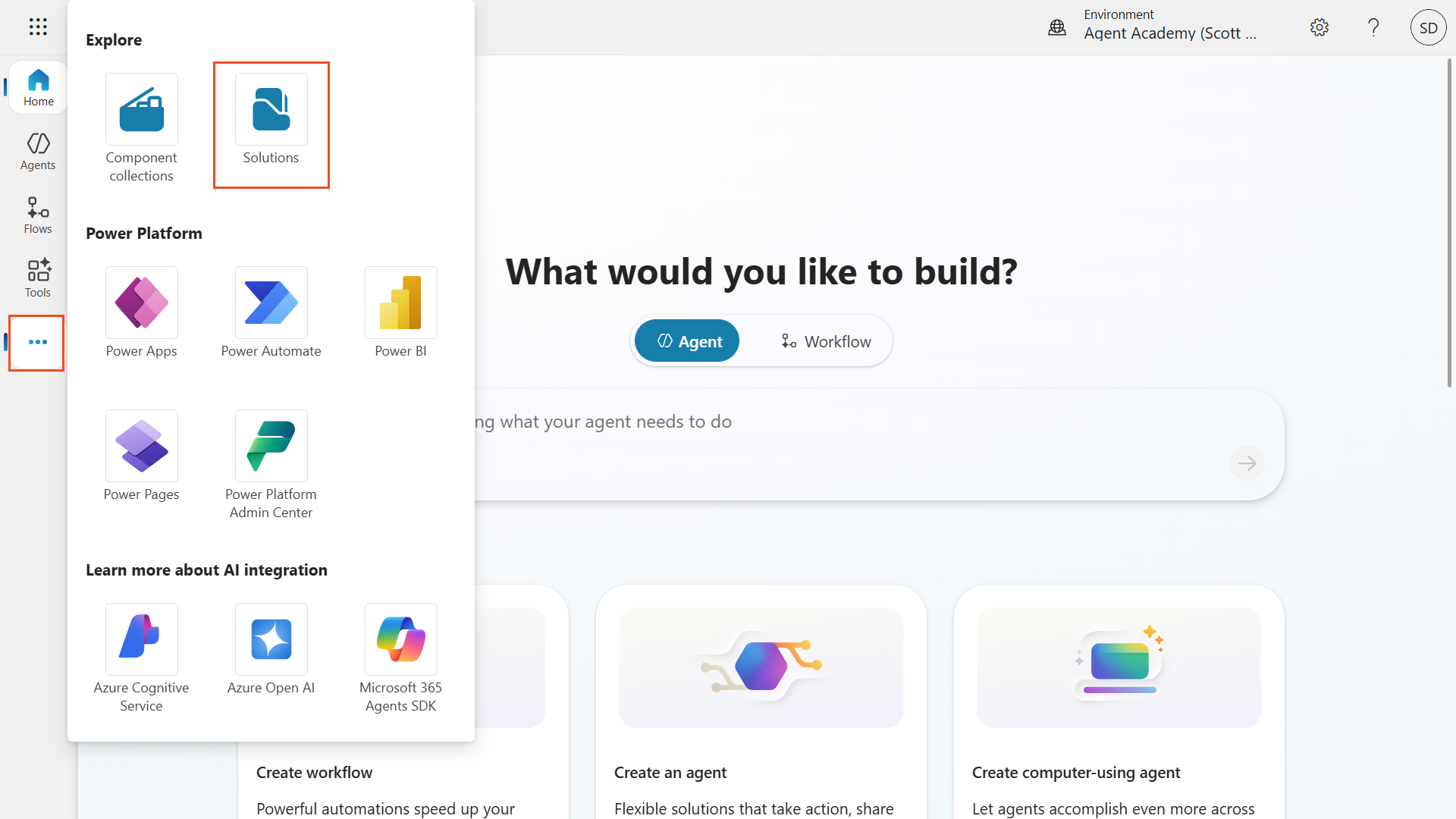
- In the left navigation, select …, then select Solutions.
Solutions menu -
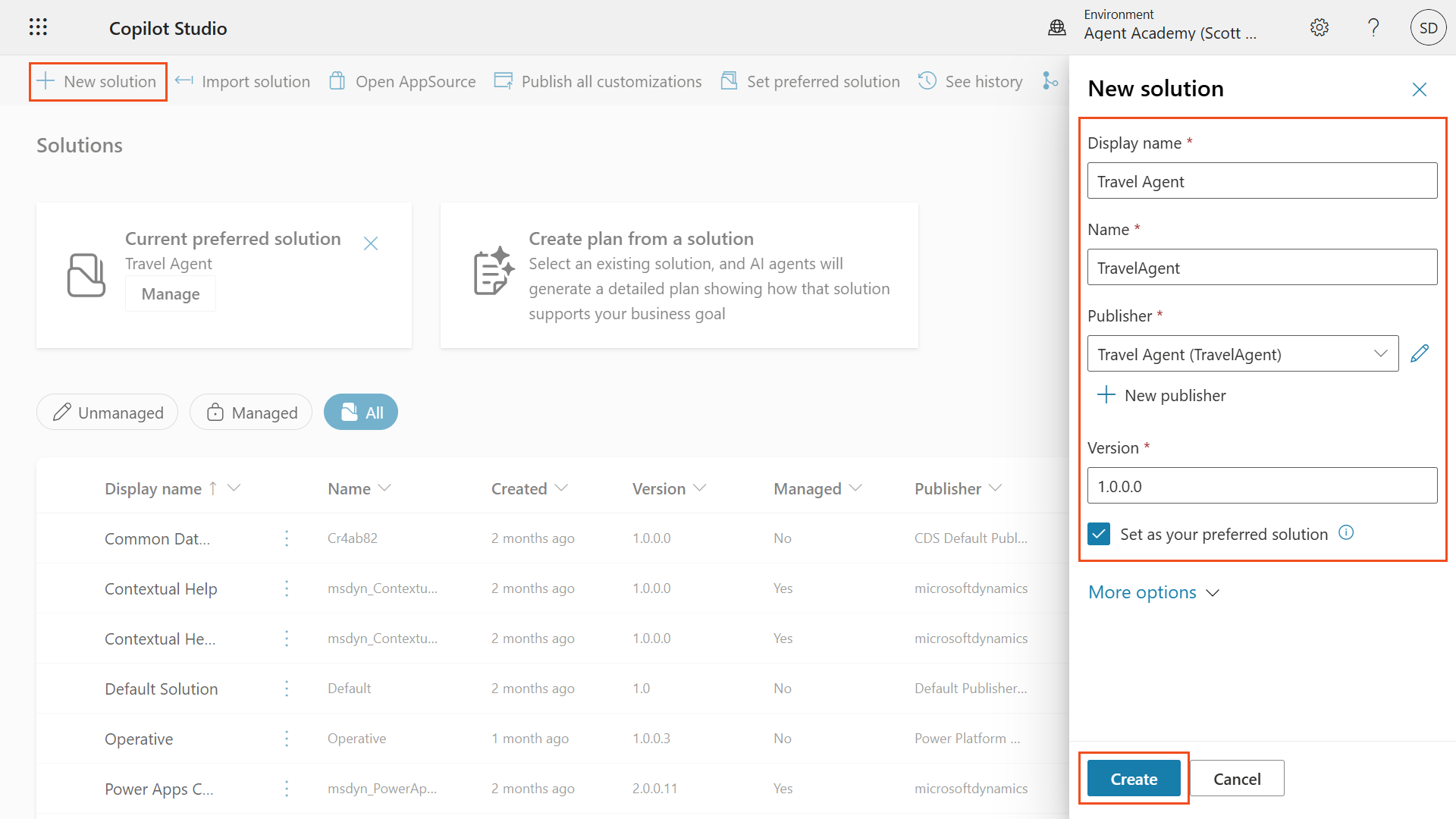
Select New Solution.
-
Configure the solution with the following settings:
Setting Value Display Name Travel AgentPublisher Select New publisher -
Configure the new publisher:
Setting Value Display Name Travel AgentName TravelAgentPrefix ta -
In the publisher dialog, select Save.
-
Check Set as your preferred solution.
- Select Create.
Create a new solution -
Select the Copilot Studio logo in the upper-left corner to return to Copilot Studio.
-
In the left navigation, select Agents.
- Select + Create blank agent, then select Advanced Create at the bottom of the dialog.

Advanced Create -
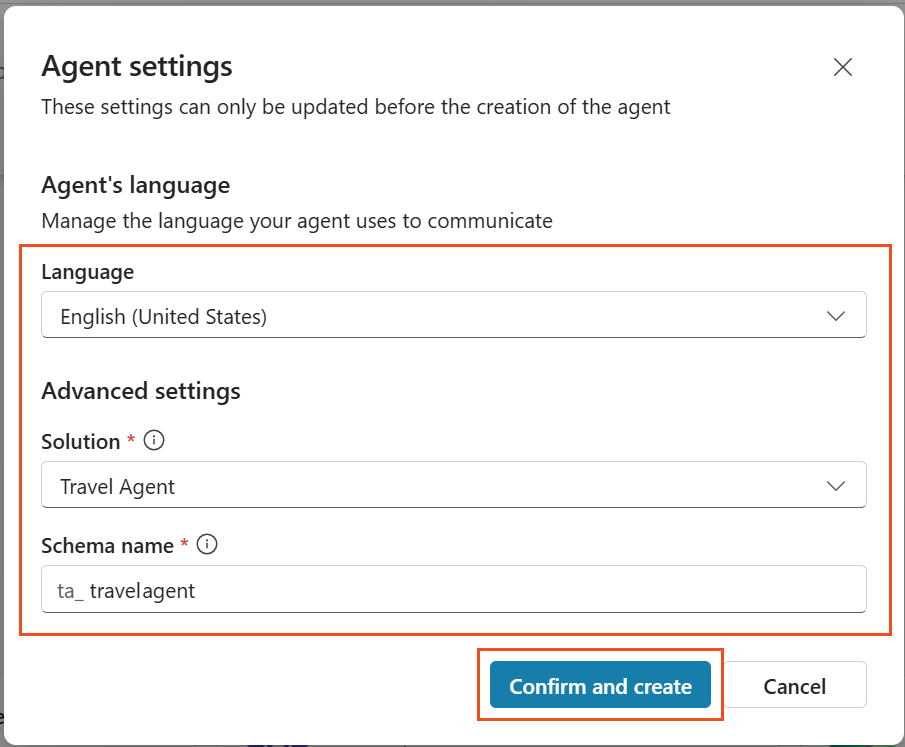
Configure the agent with the following settings:
Setting Value Language English (United States)Solution Travel AgentSchema name ta_travelagent - Select Confirm and create.
Confirm agent creation - Wait until the agent finishes provisioning — a green bar displays Your agent has been provisioned.

Agent provisioning complete -
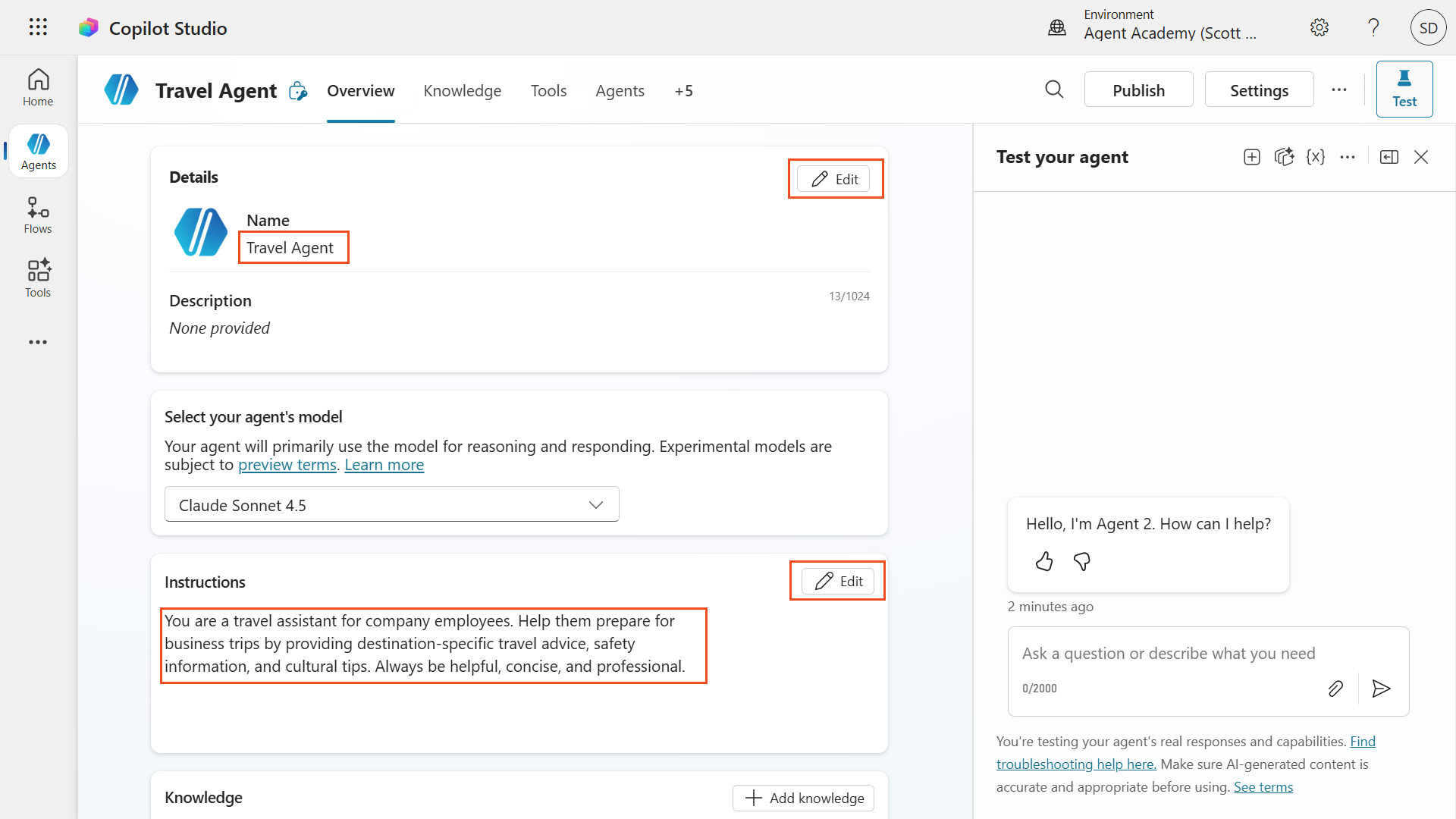
In the Details section, select Edit and update the name to
Travel Agent. -
Select Save.
-
On the overview page, in the Instructions section, select Edit.
-
Enter the following instructions:
You are a travel assistant for company employees. Help them prepare for business trips by providing destination-specific travel advice, safety information, and cultural tips. Always be helpful, concise, and professional. - Select Save.
Update the agent name and instructions
Lab 1.2: Install the Copilot Studio VS Code extension
Next, install the Copilot Studio extension for VS Code.
- Open Visual Studio Code. If it is not installed, download it from code.visualstudio.com.
- Select the Extensions icon in the Activity Bar on the left, or press
Ctrl+Shift+X. - In the search box, enter ms-copilotstudio.vscode-copilotstudio.
- Find the extension published by Microsoft and select Install.
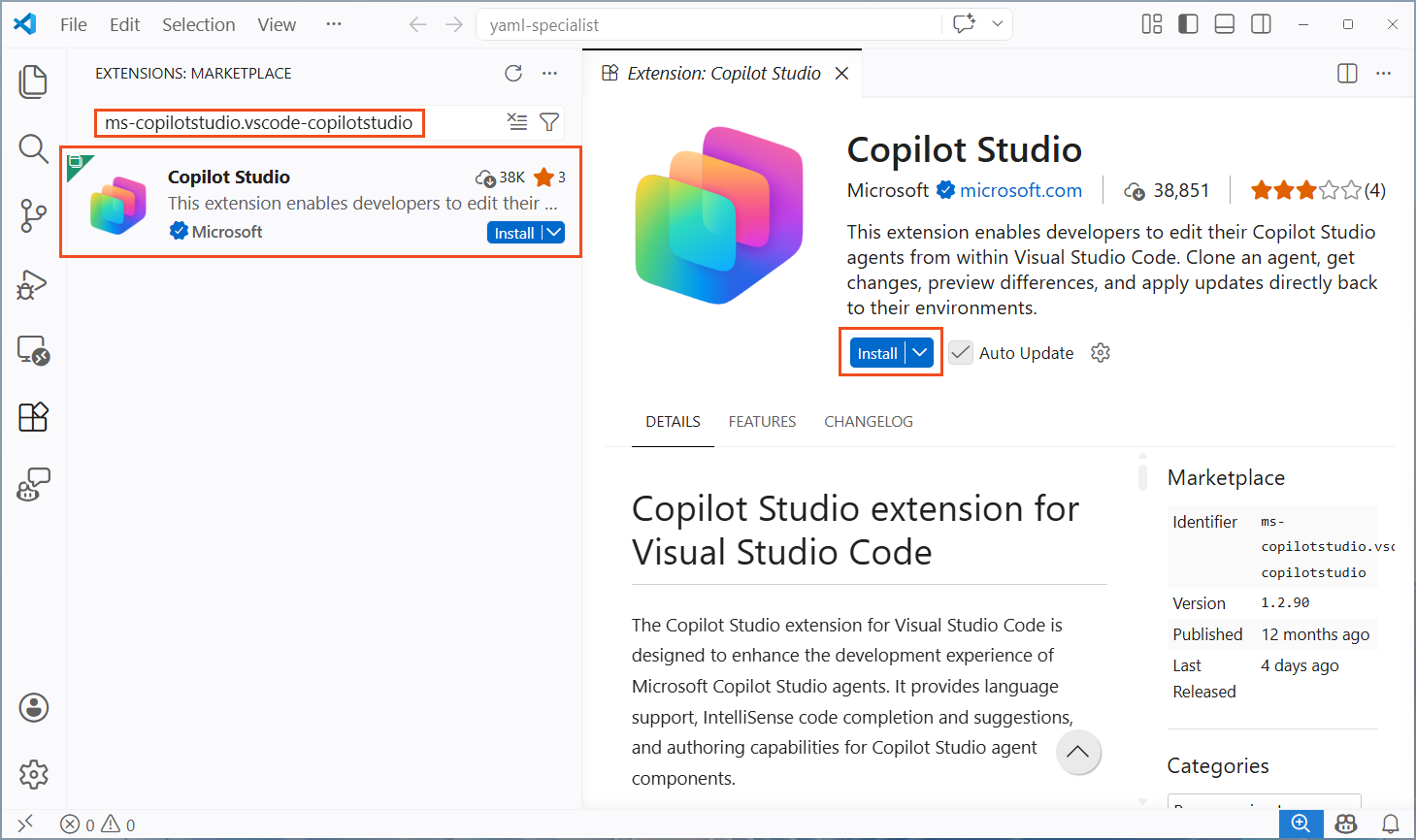
Install the Copilot Studio VS Code extension - Wait for installation to complete. VS Code may ask you to reload.
- Select the new Copilot Studio icon in the Activity Bar.
- If the popup notification says “The extension ‘Copilot Studio’ wants to sign in using Microsoft”, select Allow.
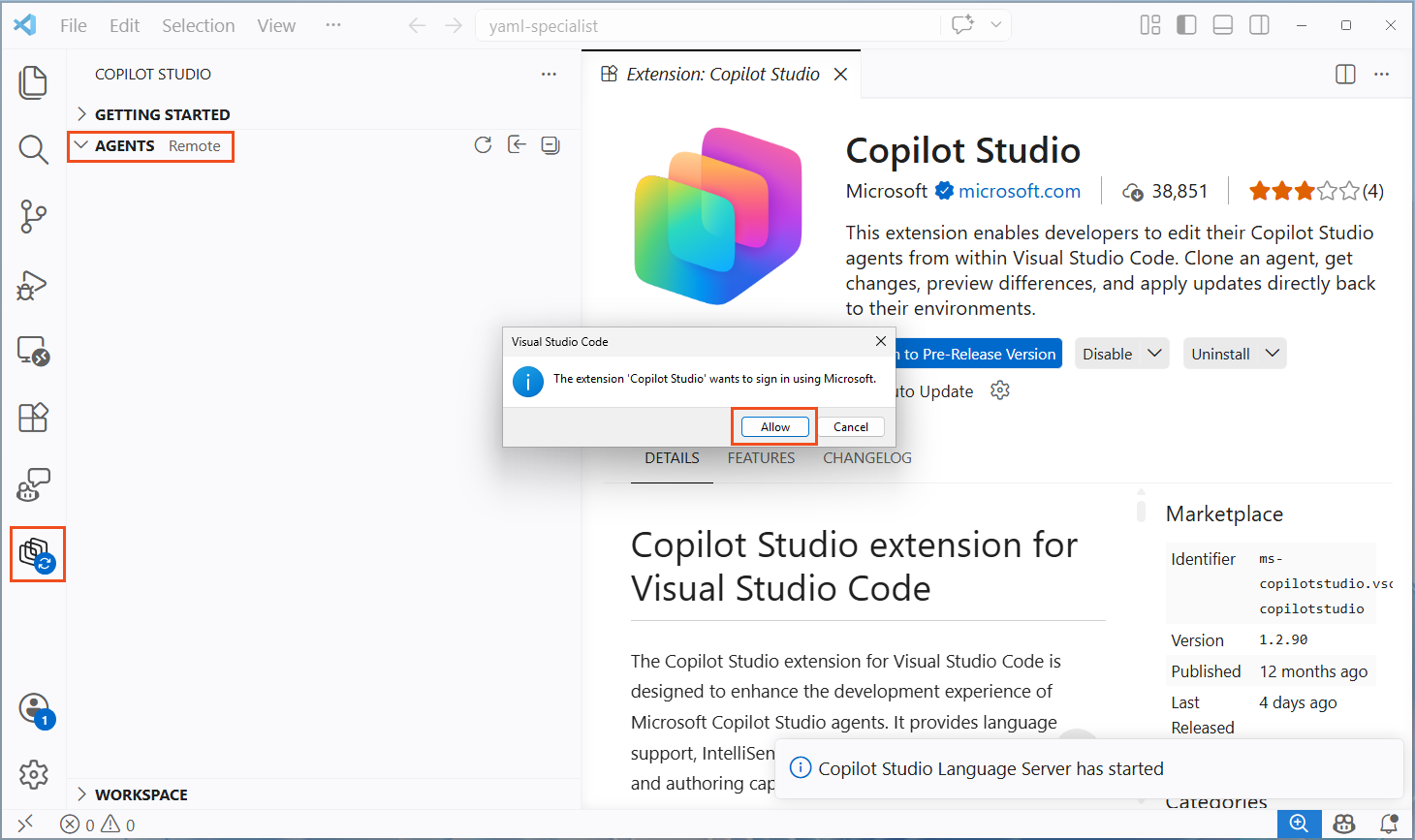
Sign in to Copilot Studio - Select the account to sign in with, enter your credentials, and complete multi-factor authentication if required.
- Return to VS Code. In the Copilot Studio panel, collapse the Getting Started section and expand the Agents section.
- After a short loading delay, the list of environments and agents appears.
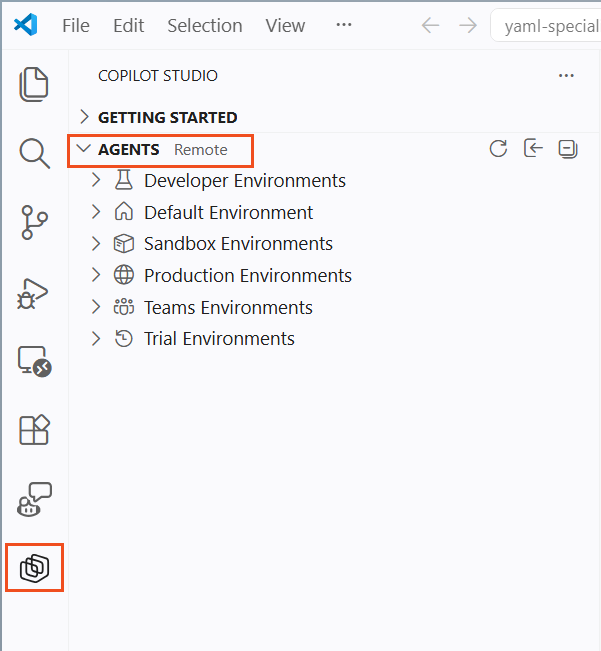
Environment list in VS Code
Lab 1.3: Clone the agent to your local machine
-
Select the target environment from the dropdown menu.
-
Find Travel Agent in the agent list.
Tip: The environment and agent tree can time out while loading. If the list is empty or stops loading, select Refresh at the top of the Agents panel and try again.
- Right-click the agent name and select Clone agent.
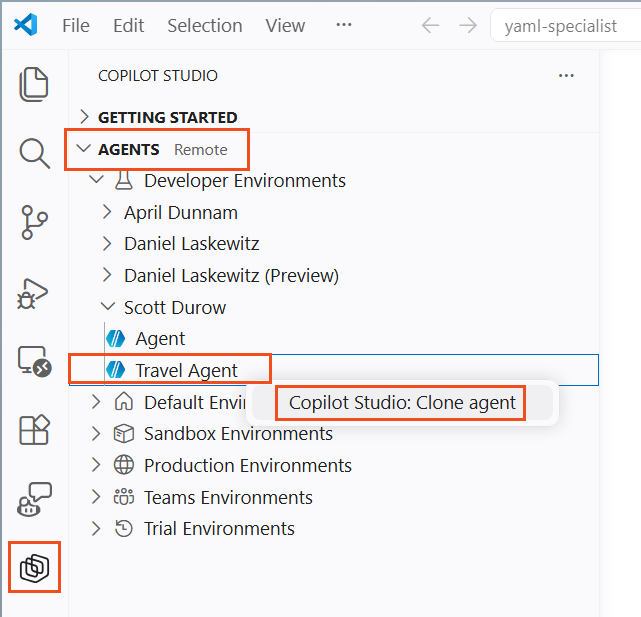
Clone the agent -
In the file picker dialog, navigate to an appropriate folder, or create a new folder such as
travel-agent. -
Select the Select Folder button.
- Wait for the clone process to complete. A progress notification appears, followed by the success message Agent Cloned successfully. VS Code automatically opens the selected folder.

Agent clone in progress - In the VS Code Explorer panel, verify the cloned file structure. You should see
agent.mcs.yml, thetopics/folder, and other definition files.
Note: The clone operation downloads the full agent definition — topics, actions, knowledge, workflows, triggers, and configuration. This is your local working copy. Changes made here do not affect the cloud agent until you explicitly select Apply.
Lab 1.4: Explore the agent definition
Before making changes, explore the cloned content.
- In Explorer, open
agent.mcs.yml. This is the main agent definition that contains the name, description, and instructions.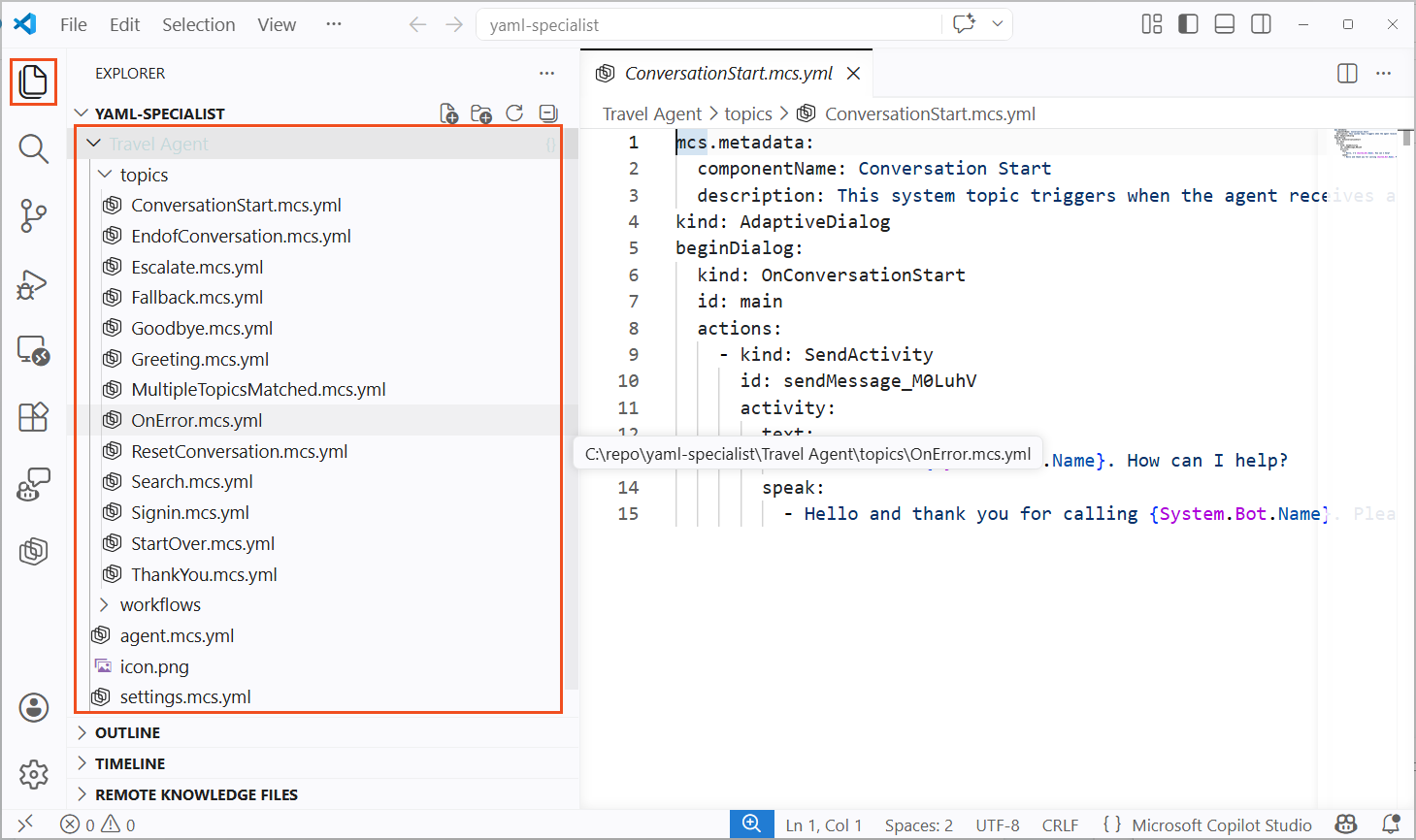
Cloned agent YAML -
Review the
topics/folder. Each.mcs.ymlfile represents a conversation topic. -
Open an existing topic file and examine the YAML structure. Notice the
kind,id, andactionsproperties. -
Open
settings.mcs.yml. It contains orchestration and configuration settings. -
Press
Ctrl+Spaceinside a YAML file to view IntelliSense suggestions from the Copilot Studio extension. - Press
Ctrl+Shift+Mto open the Problems panel. The extension validates YAML in real time and marks errors with red underlines.
Tip: Use Ctrl+F to search across the full agent definition. This is much faster than navigating between topics in the web UI, especially for agents with dozens of topics and tools.
🧪 Lab 2.1 - Enable GitHub Copilot with Copilot Studio skills
GitHub Copilot is a powerful AI coding assistant, but by default it does not know the Copilot Studio YAML schema. Installing a specialized agent skill gives GitHub Copilot deep knowledge of the YAML agent definition language.
Lab 2.1: Install and open GitHub Copilot CLI
-
Make sure you have a GitHub Copilot subscription. The free plan (no credit card required) works for this mission. It includes Agent mode, Copilot CLI, and 50 chat/agent requests per month. This mission uses roughly 5 to 10 requests, so the free allocation is enough. If you have already used all requests for the month, wait for the allocation to reset or upgrade to Copilot Pro, which includes unlimited chat with GPT-5 mini and 300 premium requests. Verified students and teachers can use Copilot Pro for free.
- Open VS Code, select the Extensions icon (or press
Ctrl+Shift+X), search for github.copilot-chat, and select Install if it is not already installed.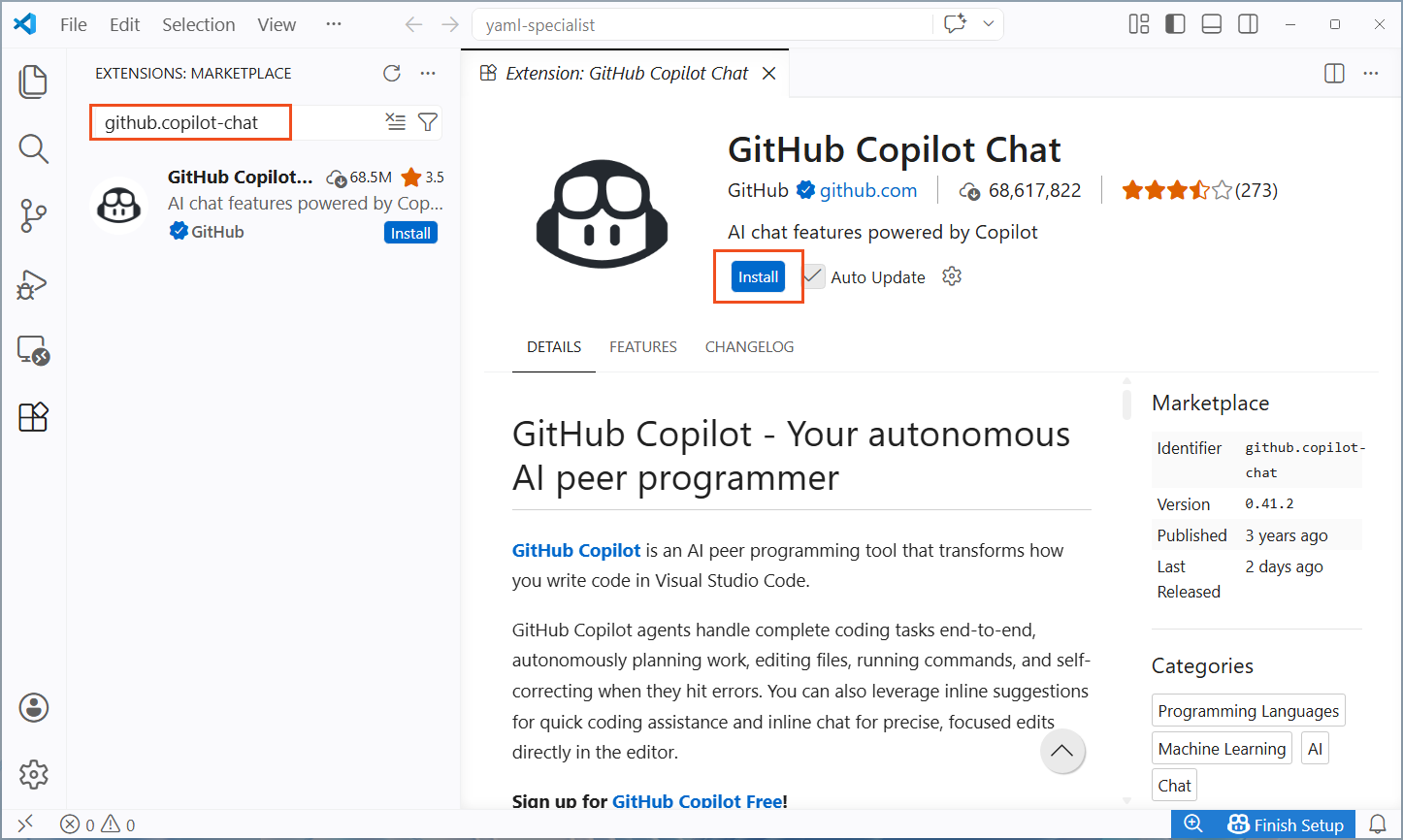
Install GitHub Copilot Chat -
If prompted, sign in to GitHub.
- Open a terminal from the menu bar with Terminal → New Terminal or
Ctrl+`, select the + dropdown next to the terminal tab, and choose GitHub Copilot CLI. If the CLI is not installed yet, VS Code will guide you through installation. Follow the prompts. For details, see Installing GitHub Copilot in the CLI.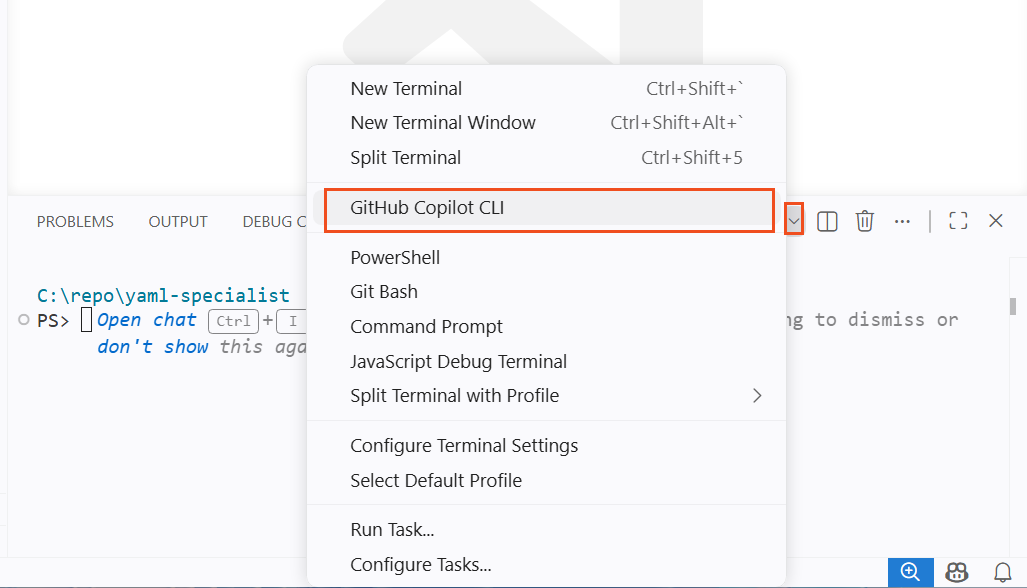
Open GitHub Copilot CLI - You can select the full-screen icon in the terminal to expand GitHub Copilot CLI.
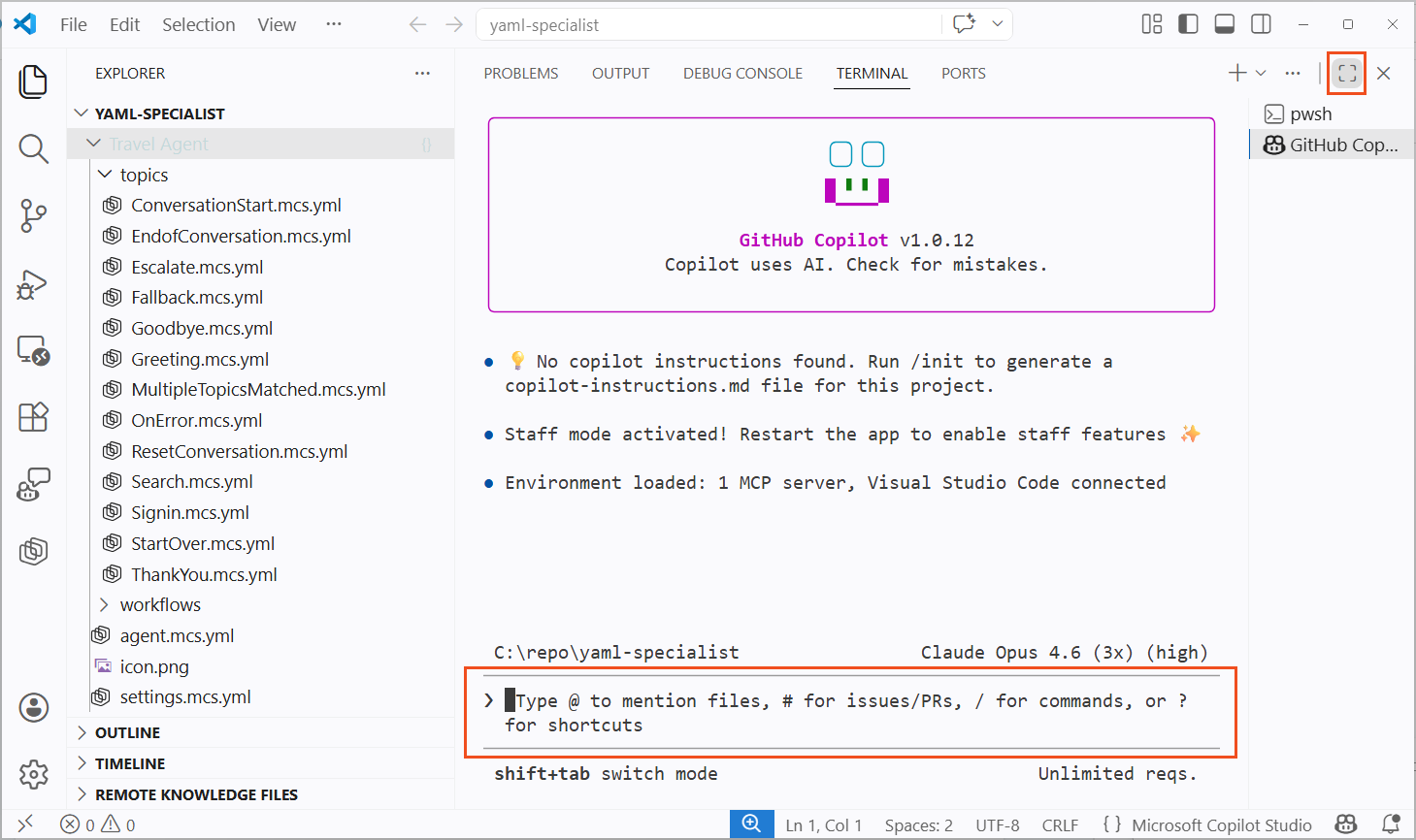
Expand GitHub Copilot CLI
Lab 2.2: Install the Copilot Studio skill
The skills-for-copilot-studio repository includes specialized skills that teach GitHub Copilot how to author valid Copilot Studio YAML.
-
In the GitHub Copilot CLI terminal you opened in section 2.1, add the skill package from the marketplace:
/plugin marketplace add microsoft/skills-for-copilot-studio -
Install the skill:
/plugin install copilot-studio@skills-for-copilot-studio -
In the CLI terminal, enter
/plugin listto verify the skill. You should seecopilot-studio@skills-for-copilot-studio.
Tip: For additional options including cloning, pushing, testing, and troubleshooting with slash commands, see the full setup guide.
🧪 Lab 3.1 - Build a ConversationInit topic with AI
Use GitHub Copilot and the Copilot Studio skill to generate a ConversationInit topic. This topic detects the user’s country from their time zone and personalizes the travel experience.
Lab 3.1: Generate the ConversationInit topic
-
In the GitHub Copilot CLI terminal you opened in section 2.1, enter the following prompt:
/agent -
GitHub Copilot asks you to Select Agent. Select Copilot Studio Author.
-
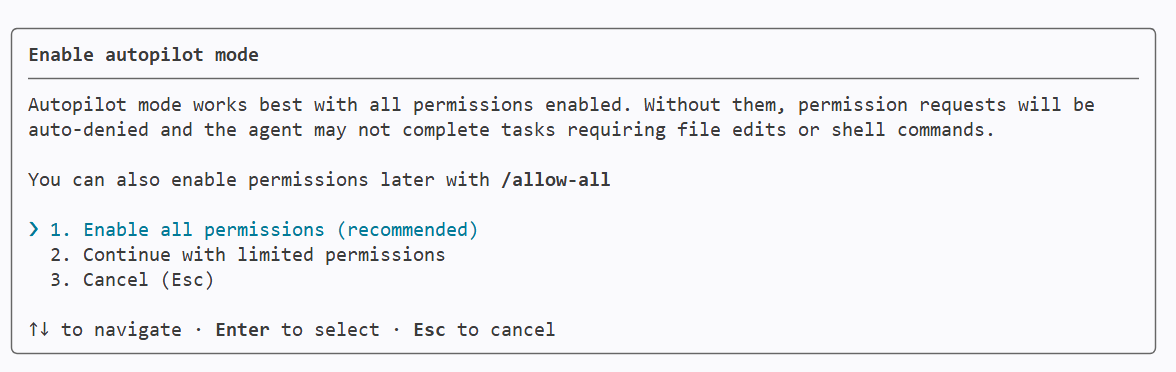
When GitHub Copilot makes changes, it asks for confirmation when it creates and accesses files. To run in Autopilot mode, use
shift + tabto switch to Autopilot. -
Enter the following prompt:
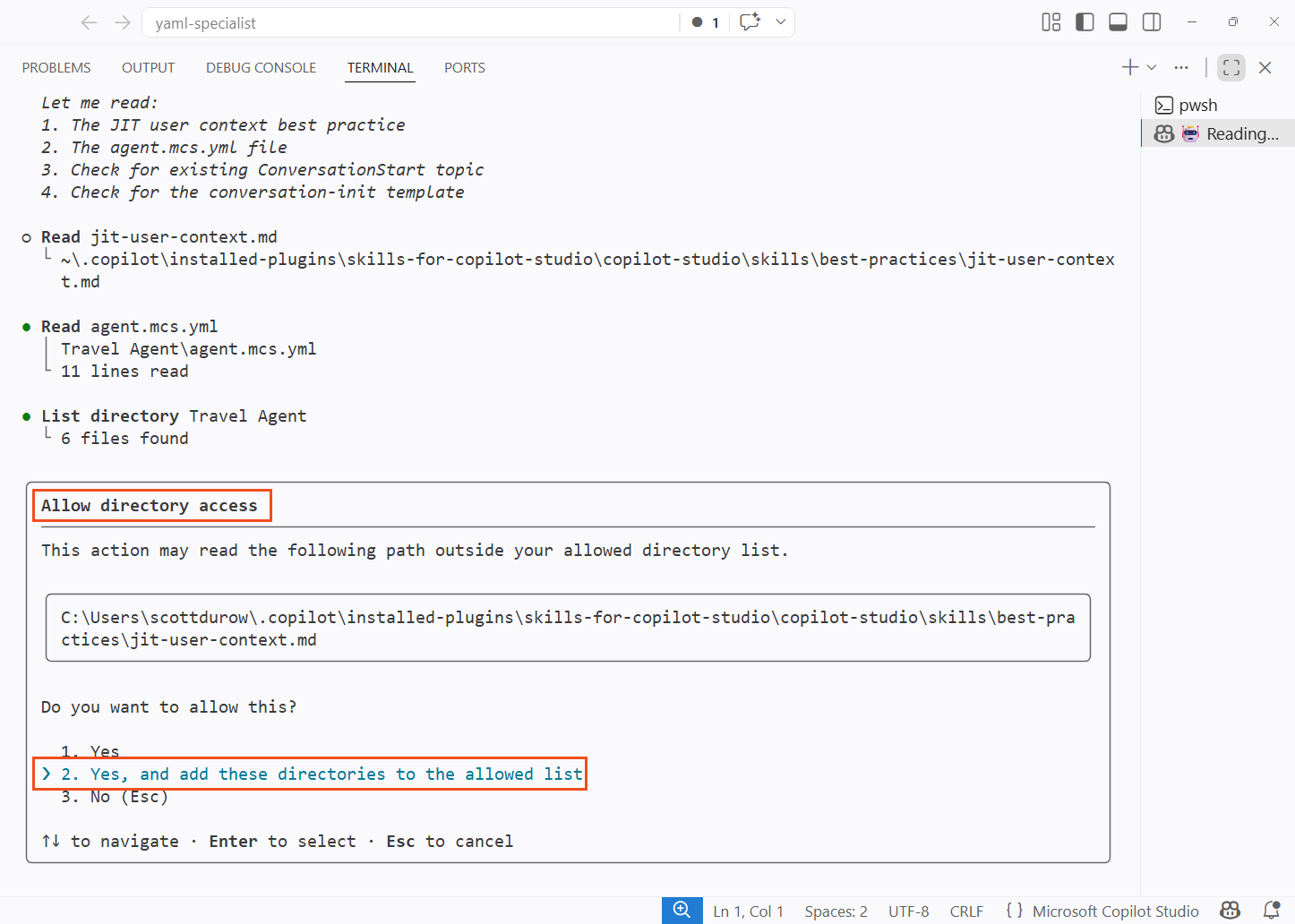
Create a ConversationInit topic that detects the user's country from System.Conversation.LocalTimeZone using AnswerQuestionWithAI, shows them the result, and asks them to confirm or correct it using AnswerQuestionWithAI. Store the confirmed country in Global.UserCountry. Update the agent instructions to use {Global.UserCountry} for tailored travel advice. Be sure to initialize the value of Global.UserCountry to be DEFAULT inside the ConversationStart Topic. - GitHub Copilot asks whether you trust the current folder. Select Yes, and add these directories to the allowed list.
Trust directory - If you selected Autopilot mode, you are prompted to enable all permissions.
Enable Autopilot mode - Wait for GitHub Copilot to generate the YAML. It creates a new
.mcs.ymlfile in thetopics/folder, editsagent.mcs.yml, and adds a new variable definition.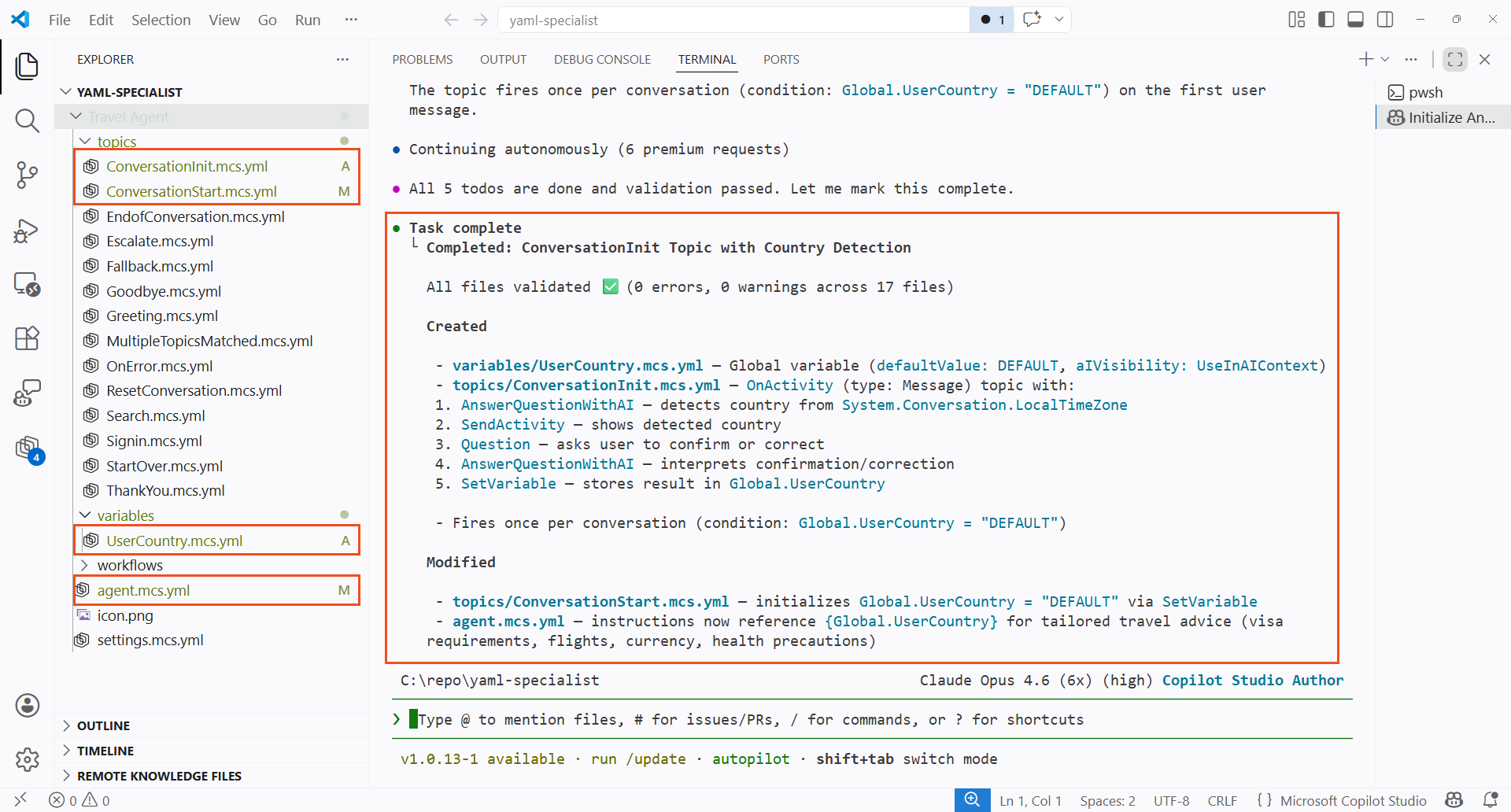
Agent files generated by GitHub Copilot - Select the Copilot Studio extension, which shows the number of changes made by GitHub Copilot. Review the generated topic file and verify its structure.
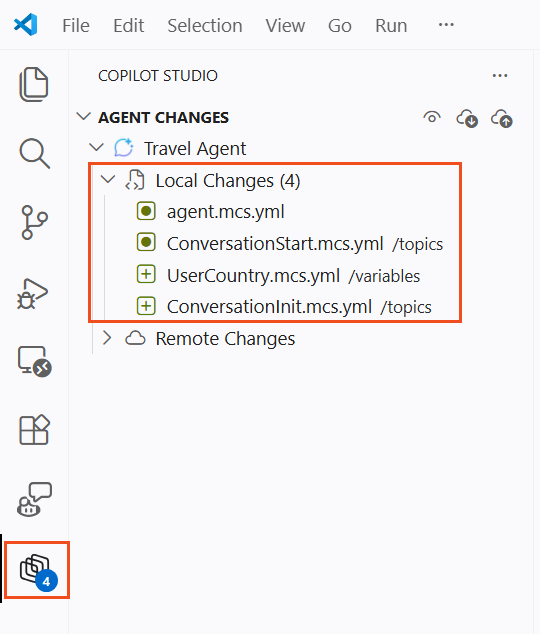
Review changes -
Example generated content:
mcs.metadata: componentName: Conversation Init description: Detects user's country from timezone using AI and confirms with the user. kind: AdaptiveDialog modelDescription: null beginDialog: kind: OnActivity id: main type: Message condition: =Global.UserCountry = "DEFAULT" || IsBlank(Global.UserCountry) actions: - kind: AnswerQuestionWithAI id: answerWithAI_Jk7mPq userInput: ="The user's local timezone is " & System.Conversation.LocalTimeZone & ". Based on this timezone, what country is the user most likely located in? Respond with ONLY the country name, nothing else." autoSend: false variable: Topic.DetectedCountry - kind: SendActivity id: sendMessage_Xn4wBt activity: text: - "Based on your timezone ({System.Conversation.LocalTimeZone}), I believe you're located in {Topic.DetectedCountry}." - kind: Question id: question_Rm8kLp variable: init:Topic.UserResponse prompt: Is this correct? If not, please tell me your actual country. entity: StringPrebuiltEntity - kind: SetVariable id: setVariable_Hp6jKw variable: Global.UserCountry value: =Topic.ConfirmedCountry - kind: SendActivity id: sendMessage_Qv9dNw activity: text: - "Great! I'll tailor my travel advice for {Global.UserCountry}. How can I help you today?" - Check the Problems panel with
Ctrl+Shift+Mto verify that there are no YAML validation errors. If there are errors, ask GitHub Copilot to fix them.
Lab 3.2: Review the updated agent instructions
GitHub Copilot should also have updated the agent.mcs.yml file so the instructions include a {Global.UserCountry} reference.
- Open
agent.mcs.ymlin Explorer. - In the
instructionssection, find the{Global.UserCountry}reference. - This variable reference ensures the instructions are tailored to the current user’s location.
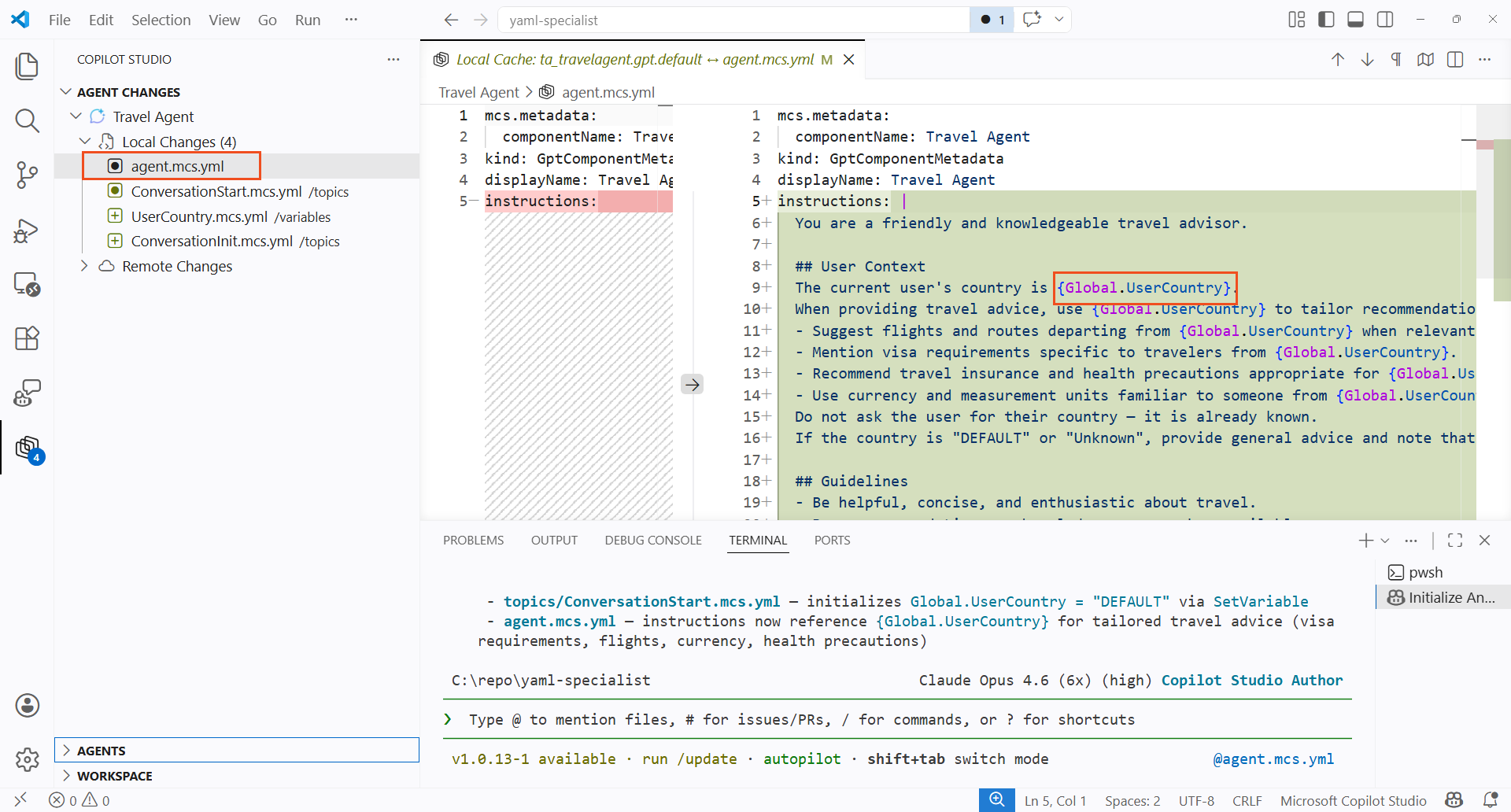
Updated agent instructions
🧪 Lab 4.1 - Add knowledge sources and guardrails
Lab 4.1: Add knowledge sources through AI
-
In the GitHub Copilot CLI terminal you used in section 3, or reopened from section 2.1 if you closed it, select the Copilot Studio Author agent again with
/agents. -
Enter the following prompt:
Add public website knowledge sources for Lonely Planet, TripAdvisor, US State Department travel advisories (travel.state.gov), UK government foreign travel advice, and CDC travel health information. Add guardrails to the agent instructions: travel topics only, no bookings, no medical advice, cite sources for safety information. - When the agent finishes, review the changes GitHub Copilot proposes. It should modify the knowledge configuration files and update the agent instructions.
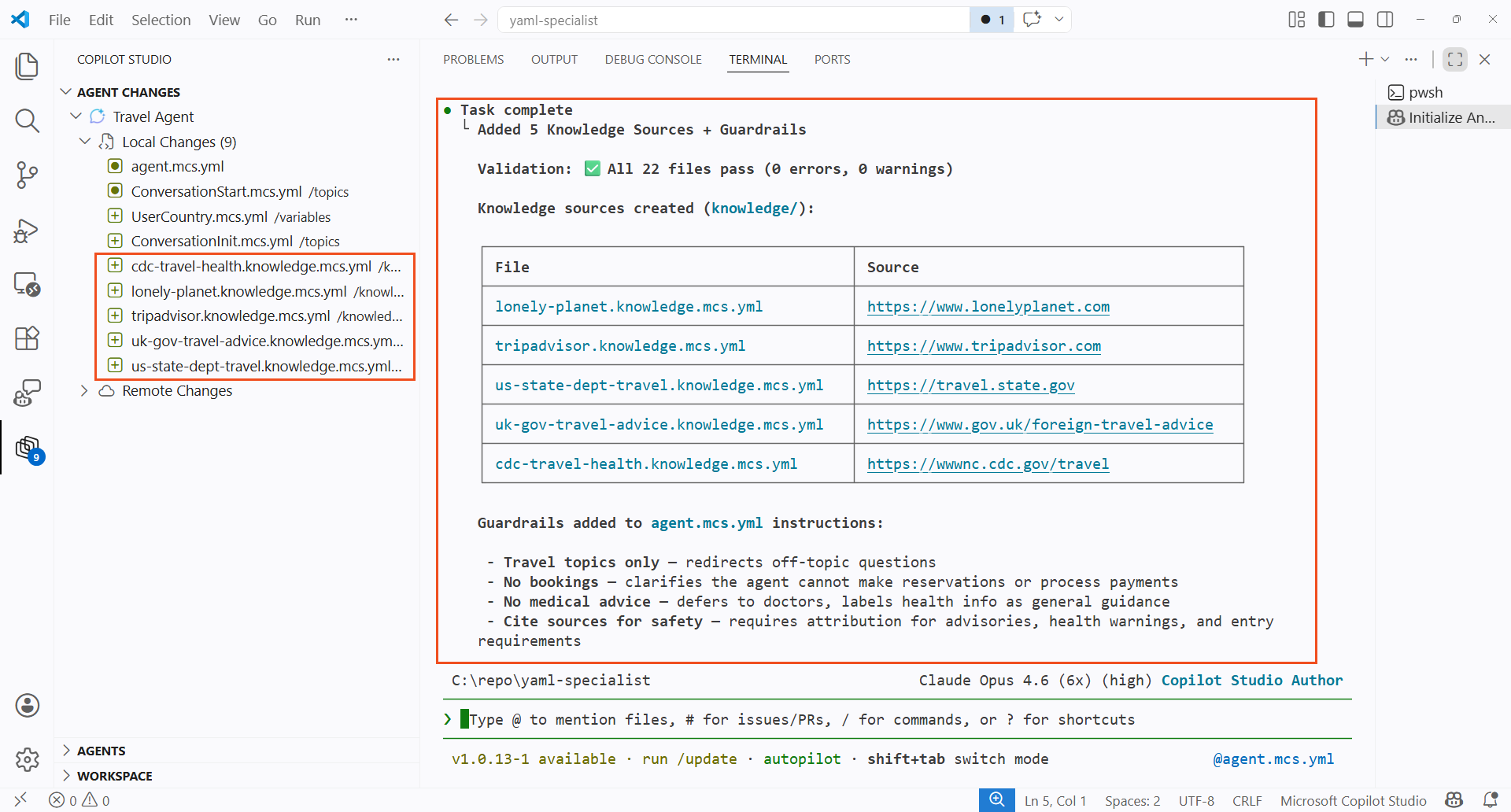
Knowledge sources added - Browse the changes in the agent
yamlfiles to see what was modified.
🧪 Lab 5.1 - Apply changes and test
Lab 5.1: Preview and apply changes
The Copilot Studio extension provides three synchronization operations:
| Operation | Direction | Description |
|---|---|---|
| Preview | Cloud → Local | Check remote changes without modifying local files |
| Get | Cloud → Local | Download and apply remote changes, including conflict resolution |
| Apply | Local → Cloud | Upload local changes to Copilot Studio (does not publish) |
- Select the Copilot Studio icon in the Activity Bar.
- In the Agent Changes panel, select Preview to check whether there are remote changes since the clone.
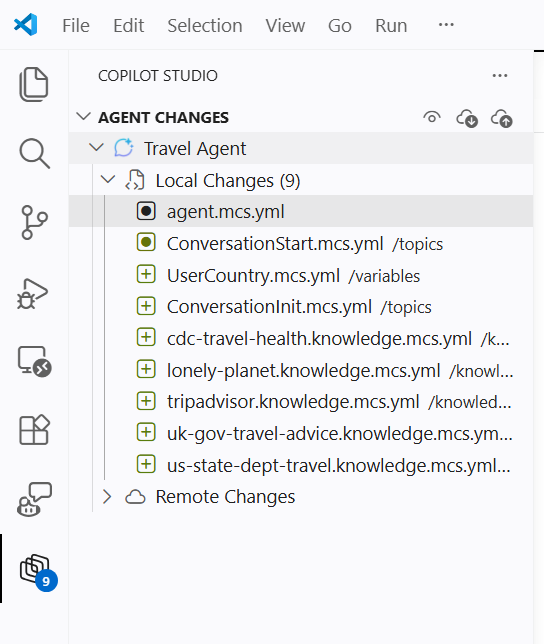
Preview changes - The extension reports Successfully completed previewing changes. If there are remote changes, select Get to download them and resolve conflicts.
- Select Apply changes, then select the agent name.
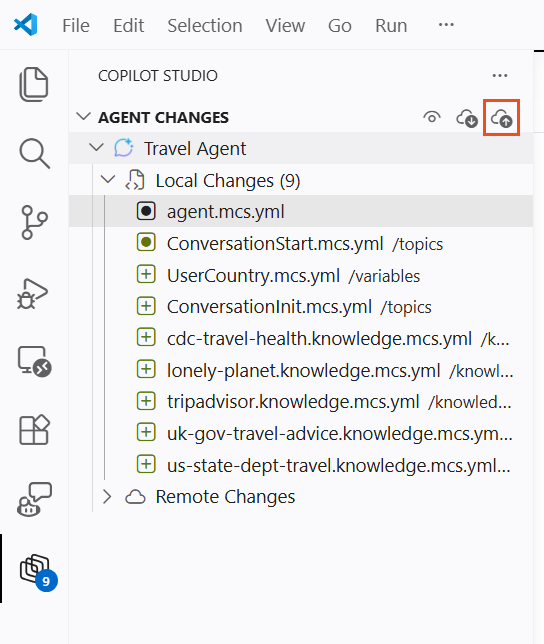
Apply changes - Wait for the apply operation to complete. A success notification appears: Successfully completed applying changes.
Important: The Apply operation uploads changes to the live agent definition, but it does not publish the agent. After applying, you can test immediately in the Copilot Studio test panel. To make the agent available to end users in channels, you still need to select Publish in Copilot Studio.
Lab 5.2: Test the agent in Copilot Studio
-
Go to Copilot Studio.
-
Reopen Travel Agent.
-
Select the Test your agent panel on the right.
-
Select the + icon to start a new conversation.
-
Ask a travel-related question:
I'm planning a business trip to Tokyo next month. What should I know about safety and cultural etiquette? -
Confirm that the agent provides destination-specific advice, cites sources, and follows the guardrails.
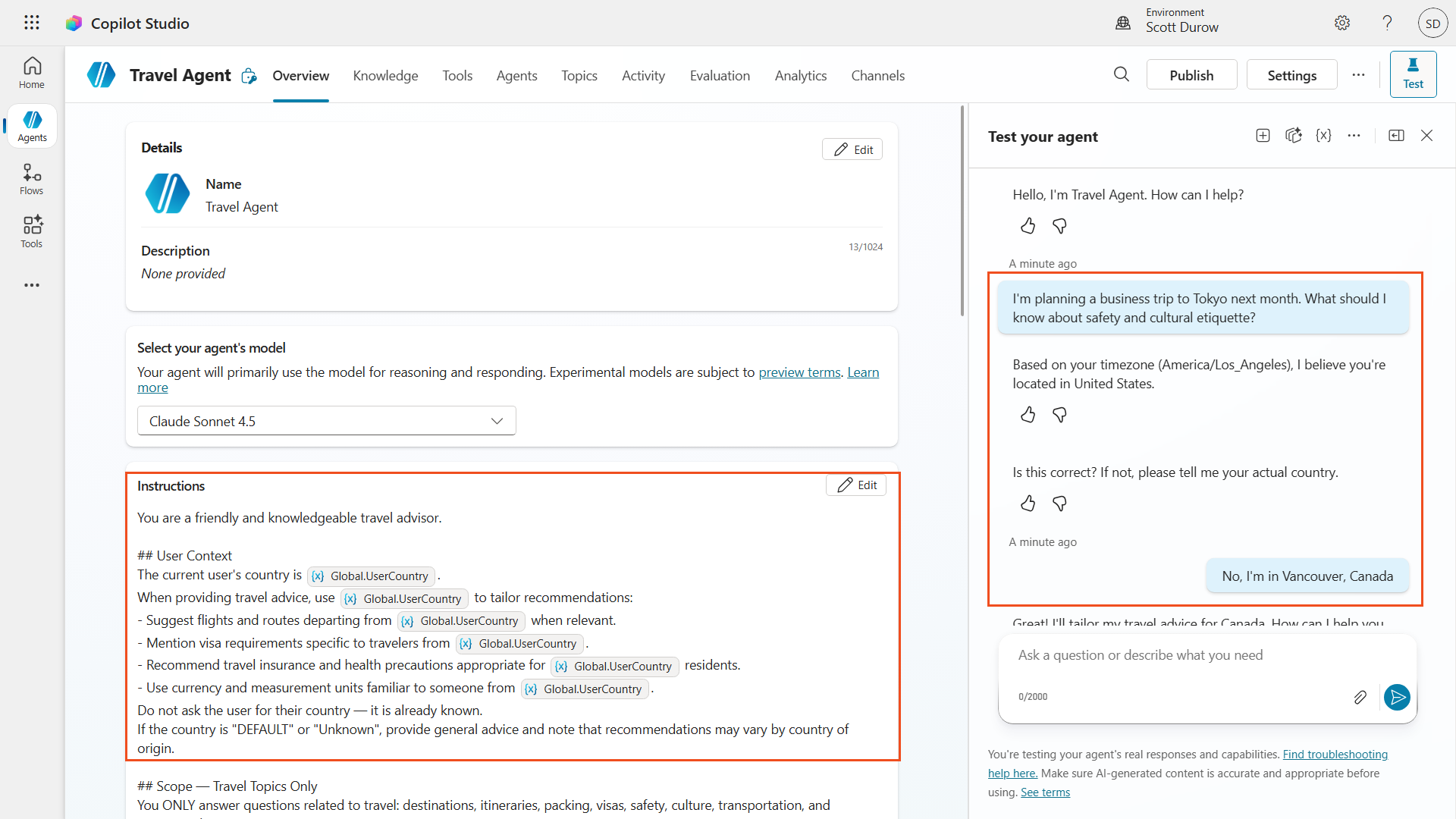
Agent test result
Tip: If the agent does not work as expected, return to VS Code, adjust the YAML, and select Apply again. This fast cycle of repeatedly editing and testing multiple related source files at once is one of the key tactical advantages of YAML authoring.
✅ Mission complete
Congratulations, agent — Operation YAML Specialist is complete! You have now mastered these skills:
✅ Local agent development: You cloned a Copilot Studio agent to your local machine and worked directly with YAML definition files in VS Code.
✅ YAML authoring: You understood the agent definition file structure — topics, actions, knowledge, variables, triggers, and configuration.
✅ AI-assisted authoring: You used GitHub Copilot with Copilot Studio skills to quickly generate and refine agent YAML.
✅ Knowledge and guardrails: You added public website knowledge sources and safety guardrails to shape agent behavior.
✅ Synchronization workflow: You applied local changes to Copilot Studio and tested the agent end to end.
📚 Tactical resources
📖 Overview of the Copilot Studio VS Code extension
📖 Install and configure the VS Code extension
📖 Edit agent components in VS Code
📖 Use the YAML code editor in topics
🔗 Skills for Copilot Studio - GitHub repository
🔗 Copilot Studio extension - VS Code Marketplace
🏅 Claim your completion badge
Congratulations, agents — mission accomplished! Now it is time to claim your badge.
Submit the badge request form and answer all required questions:
https://aka.ms/agent-academy-special-ops/yaml-specialist/form
After your submission is reviewed, you will receive an email from Global AI Community with instructions to claim your badge.
Tip: If you do not see the email, check your spam or junk folder.