Creating a Solution for Your Agent
Learn how to package your agent into a reusable solution for management and deployment across environments.
Translated article — This article is based on 🚨 Mission 04: Creating a Solution for Your Agent from the Copilot Studio Agent Academy. The original wording takes precedence.
Mission 04: Creating a Solution for Your Agent
🎥 Lab video
Mission brief
Welcome back, Recruit. In this mission, you will set up a solution, which is the deployment vehicle for the IT helpdesk agent you created with Microsoft Copilot Studio. Think of a solution as a digital briefcase that holds your agent and its related components.
Every agent needs a structured home, and a Power Platform solution provides exactly that: organization, portability, and operational readiness.
Now let’s start packaging.
Important This mission uses the classic Copilot Studio experience. If your Copilot Studio screens look different from the screenshots in this mission, turn off New Experience in the upper-right corner to switch to the classic experience used here.
Objectives
In this mission, you will learn how to:
- Understand what Power Platform solutions are and how they support agent development
- Understand why solutions help with agent organization and deployment
- Understand how a solution publisher identifies and manages components
- Understand how solutions move from development to production
- Create a publisher and custom solution for the IT helpdesk agent
What is a solution?
In Microsoft Power Platform, solutions are like containers or packages that hold all parts of your app or agent. For example, they can include tables, forms, flows, and custom logic. Solutions are essential to Application Lifecycle Management (ALM), and they help you manage apps and agents from idea to development, testing, deployment, and updates.
Every agent you create in Copilot Studio is stored in a Power Platform solution. By default, agents are created in the Default solution, but you can also create a new custom solution and build your agent inside it. That is exactly what you will learn in this lesson and hands-on lab 🤓
Traditionally, solutions were created in the Power Apps maker portal. This web-based interface lets you build and customize apps, configure Dataverse and flows, explore AI components, and more.
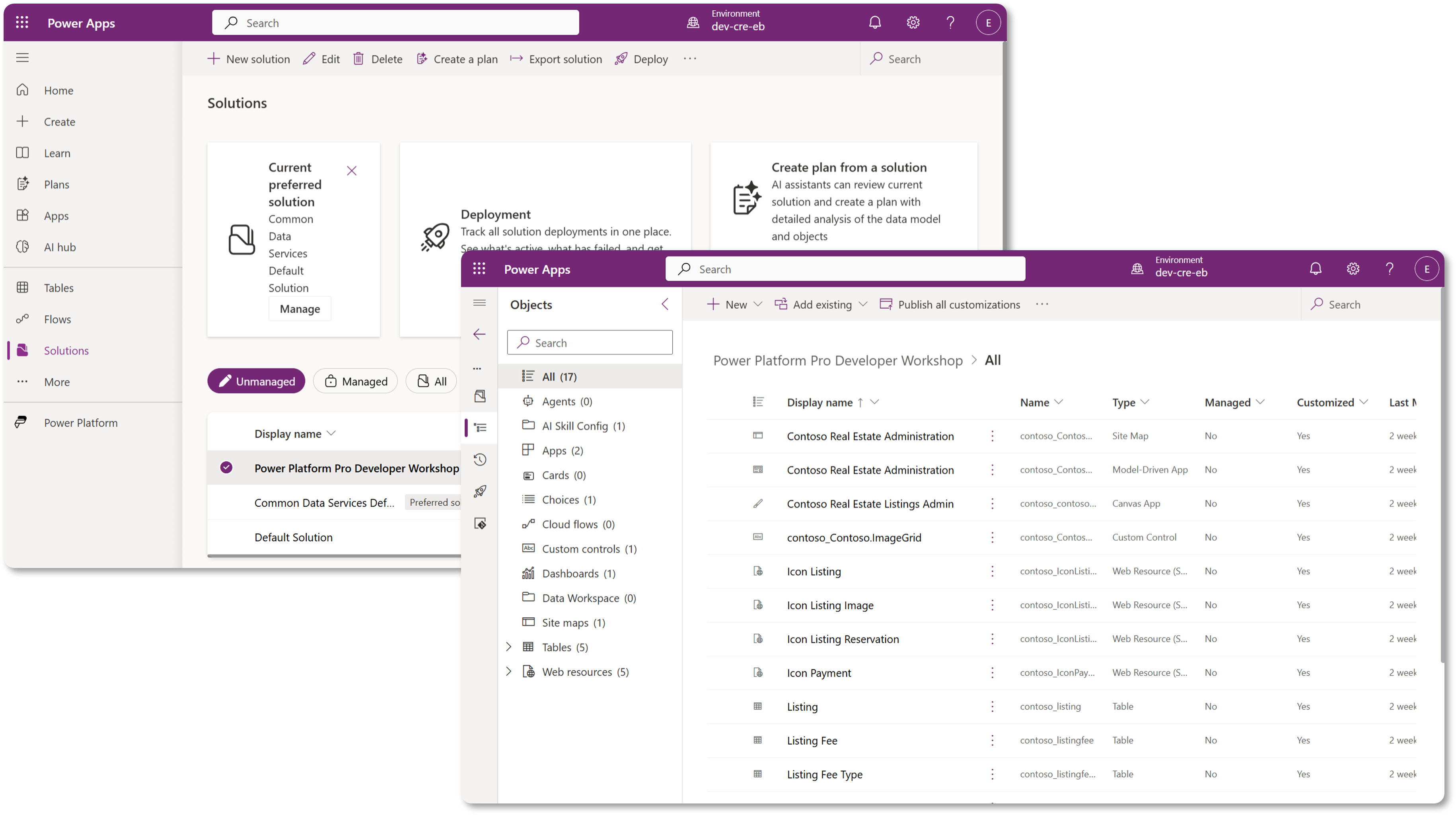
Copilot Studio now includes Solution Explorer, where you can manage solutions directly. You no longer need to switch to the Power Apps maker portal to manage solutions; you can do it right inside Copilot Studio 🪄
That means you can perform common solution tasks such as:
- Create a solution - Custom solutions let you export and import agents across environments.
- Set the default solution - Choose the solution where agents, apps, and other components are created by default.
- Add or remove components - Because your agent can reference other components such as environment variables or cloud flows, those components should be included in the solution too.
- Export a solution - Move the solution to another target environment.
- Import a solution - Bring in a solution created elsewhere, including solution upgrades or updates.
- Create and manage solution pipelines - Automate solution deployment across environments.
- Git integration - Developers can connect solutions to Git repositories for version control, collaboration, and ALM. This is designed for development environments only.
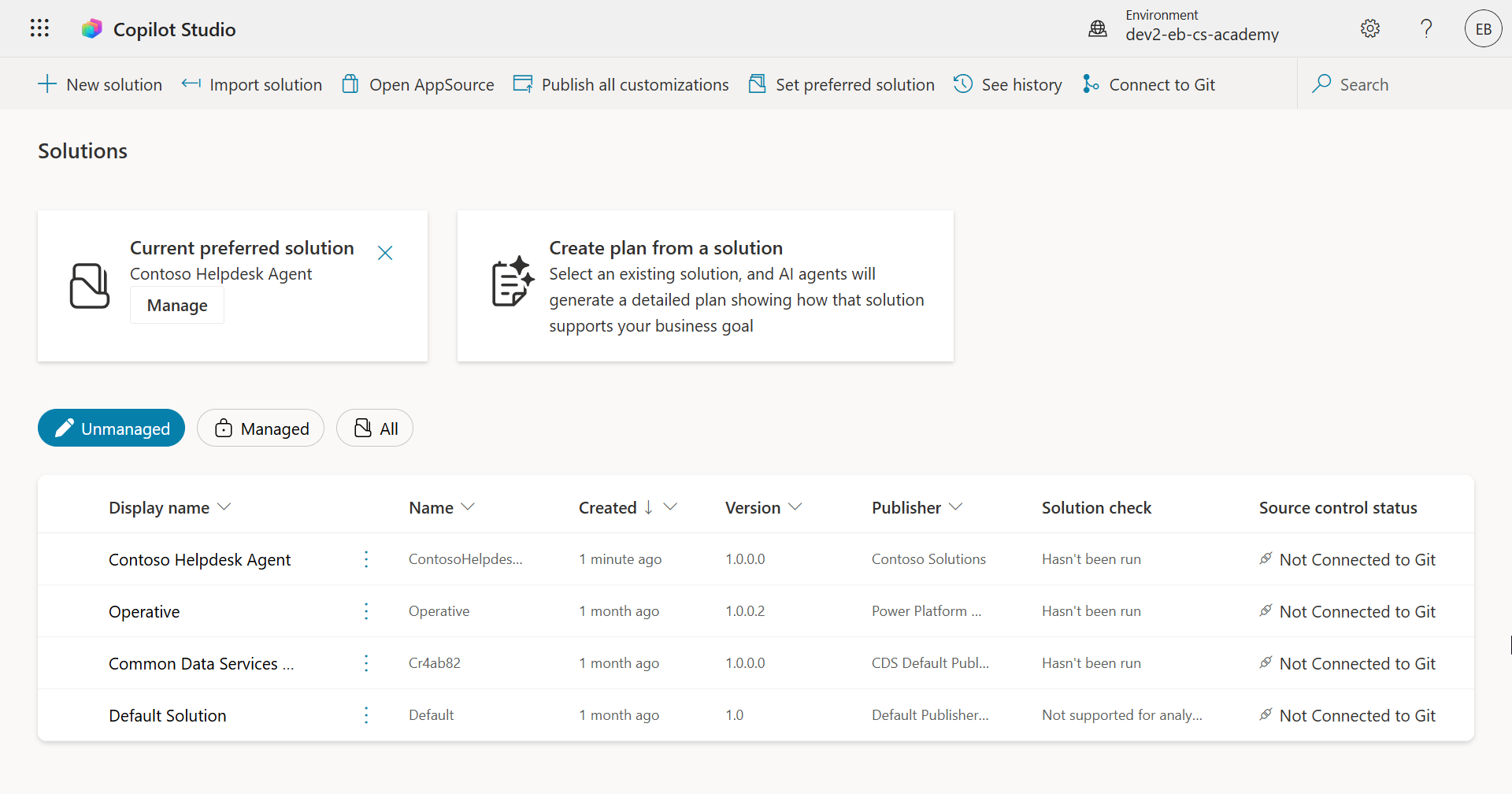
There are two types of solutions:
- Unmanaged solutions - Used during development. You can freely edit and customize them as needed.
- Managed solutions - Used when an app is ready to deploy to testing or production. They are locked to prevent accidental changes.
Why use solutions for agents?
Think of solutions as a toolbox. When you need to fix or build something (an agent) in another location (environment), you collect all the tools (components) you need and put them in the toolbox (solution). Then you take that toolbox to the new location (environment) and use the tools (components) to finish the job, or add new tools (components) to customize the agent or project you are building.
Note Your friendly cloud advocate Elaiza is dropping in for a moment to share a few words 🙋🏻♀️
In New Zealand, there is a saying: “Be a tidy Kiwi!” It encourages New Zealanders to dispose of rubbish properly and keep public spaces clean as part of caring for the environment 🥝 The same idea applies to agents. Keeping everything related to your agent organized and portable helps you maintain a tidy environment.
In the source (developer) environment, it is a good practice to create agents inside a dedicated solution. Solutions are valuable for several reasons.
🧩 Organized development
-
Keep your agent separate from the Default solution, which contains everything in the environment. All agent components are gathered in one place 🎯
-
Because everything your agent needs is inside the solution, it becomes easier to export and import to target environments 👉🏻 This is a healthy ALM habit.
🧩 Safer deployment
- You can export an app or agent as a managed solution and deploy it to another target environment such as testing or production, reducing the risk of accidental edits.
🧩 Version management
-
You can create patches (targeted fixes), updates (broader changes), and upgrades (solution replacement, usually for major changes and new features).
-
This helps you deploy changes in a controlled way.
🧩 Dependency management
- Solutions track which parts depend on other parts, helping prevent changes from breaking something unexpectedly.
🧩 Team collaboration
- Developers and makers can work together in unmanaged solutions during development, then hand off a managed solution for deployment.
Understanding solution publishers
A Solution Publisher in Power Platform is like a label or brand that identifies the person or organization that created or owns a solution. It is a small but important part of managing customizations for apps, agents, and flows, especially when working as a team or moving across environments.
When you create a solution, you must choose a publisher. The publisher defines:
-
The prefix added to all custom components (think tables, fields, and flows).
-
The name and contact information of the organization or person that owns the solution.
Why does it matter?
-
Easy identification - A prefix such as
new_orabc_helps you quickly identify which components belong to which solution or team. -
Avoid collisions - Even if two teams create a column called
status, prefixes such asteamA_statusandteamB_statusprevent name conflicts. -
Support ALM - When you move solutions from Dev to Test to Prod, the publisher helps track ownership and maintain consistency.
Example
Suppose you create a publisher named Contoso Solutions with the prefix cts_.
If you add a custom column called Priority, it is stored in the solution as cts_Priority.
Anyone viewing that column at the solution level in any environment can easily identify it as a column associated with Contoso Solutions.
Power Platform solution lifecycle
Now that you understand the purpose of a solution, let’s look at the lifecycle.
1. Create a solution in the Development environment - Start by creating a new solution in the Development environment.
2. Add components - Add apps, flows, tables, and other elements to the solution.
3. Export as a managed solution - Export as a managed solution and package it for deployment.
4. Import into the Test environment - Test the solution in a separate Test environment to make sure everything works as expected.
5. Import into the Production environment - Deploy the tested solution to the live Production environment.
6. Apply patches, updates, or upgrades - Use patches, updates, and upgrades to apply improvements or fixes. 🔁 Repeat the cycle!
Example
Suppose you are building an IT helpdesk agent that helps employees with device issues, network troubleshooting, printer setup, and more.
-
First, start in the Development environment with an unmanaged solution.
-
When it is ready, export it as a managed solution and import it into a target environment such as System Test or User Acceptance Testing (UAT).
-
After testing is complete, move it to the Production environment without touching the original development version.
Lab 04: Create a new solution
Now you will learn two things:
- Create a solution publisher
- Create a solution
Continuing from the earlier example, you will create a solution inside the dedicated Copilot Studio environment where you will build the IT helpdesk agent.
Let’s get started!
Prerequisites
Security roles
What you can do with Solution Explorer in Copilot Studio depends on your security role. If you do not have permission to manage solutions in the Power Apps admin center, you cannot perform those tasks inside Copilot Studio either.
To proceed smoothly, make sure you have the appropriate security roles and permissions. If you do not manage environments directly in your organization, contact the IT administrator (or equivalent team) that manages the tenant and environments.
The following security roles allow users to create solutions in their environment.
| Security role | Description |
|---|---|
| Environment Maker | Provides permissions to create, customize, and manage resources in a specific environment, including solutions. |
| System Customizer | Provides broader permissions than Environment Maker, including environment customization and security-role management. |
| System Administrator | Has the highest level of permissions and can manage every aspect of the environment, including creating and assigning security roles. |
Developer environment
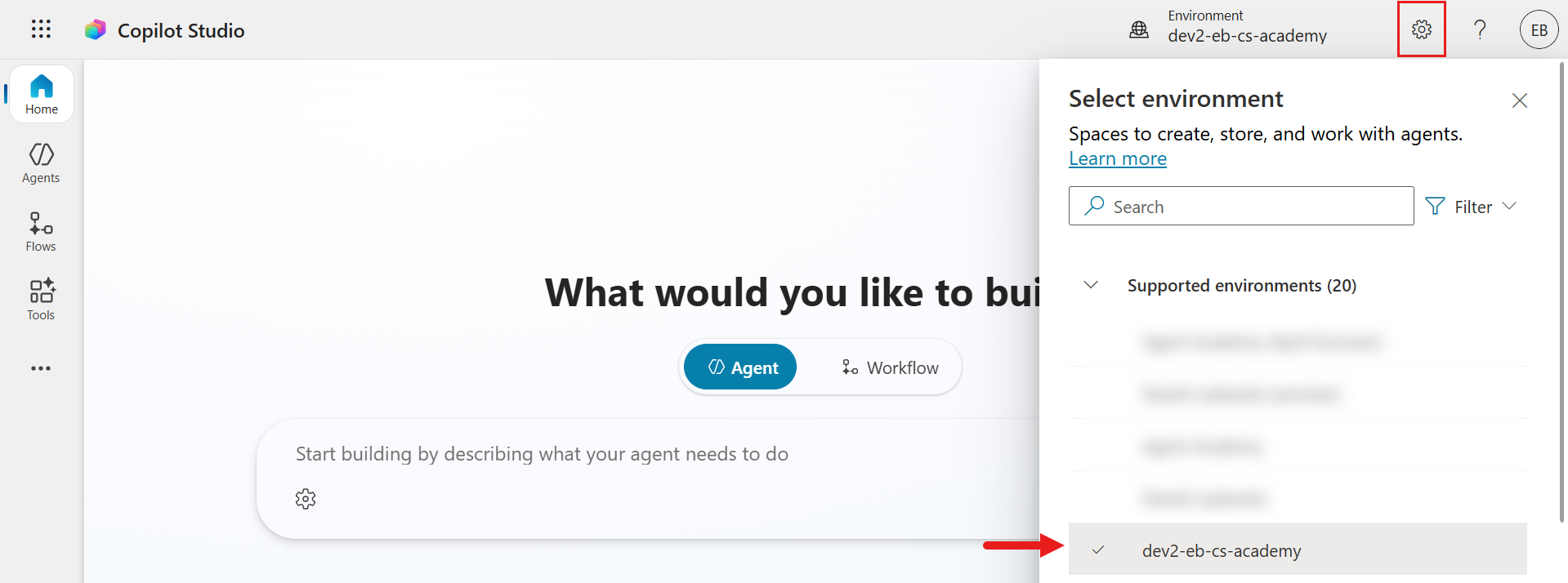
Caution: environment switching Make sure you switch to your dedicated developer environment. For details, see Lesson 00 - Course Setup - Step 3: Create new developer environment.
- In the Copilot Studio header, select Environment and switch from the default environment to your own environment, such as Adele Vance’s environment.
4.1 Create a solution publisher
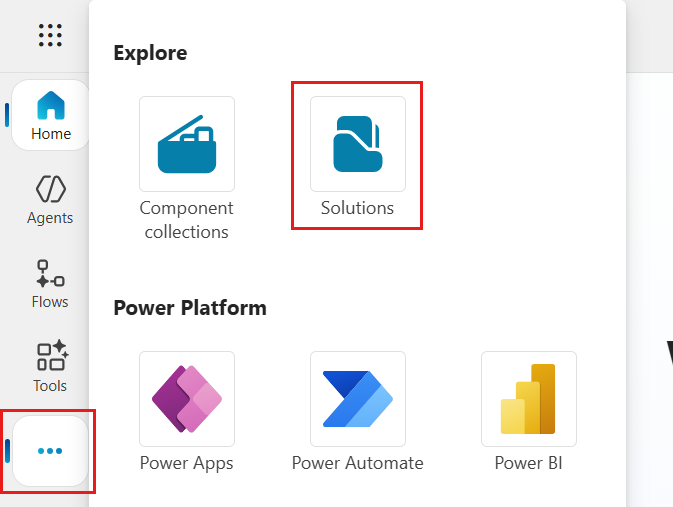
- In the Copilot Studio left menu, select the ellipsis icon (…). Under the Explore header, select Solutions.
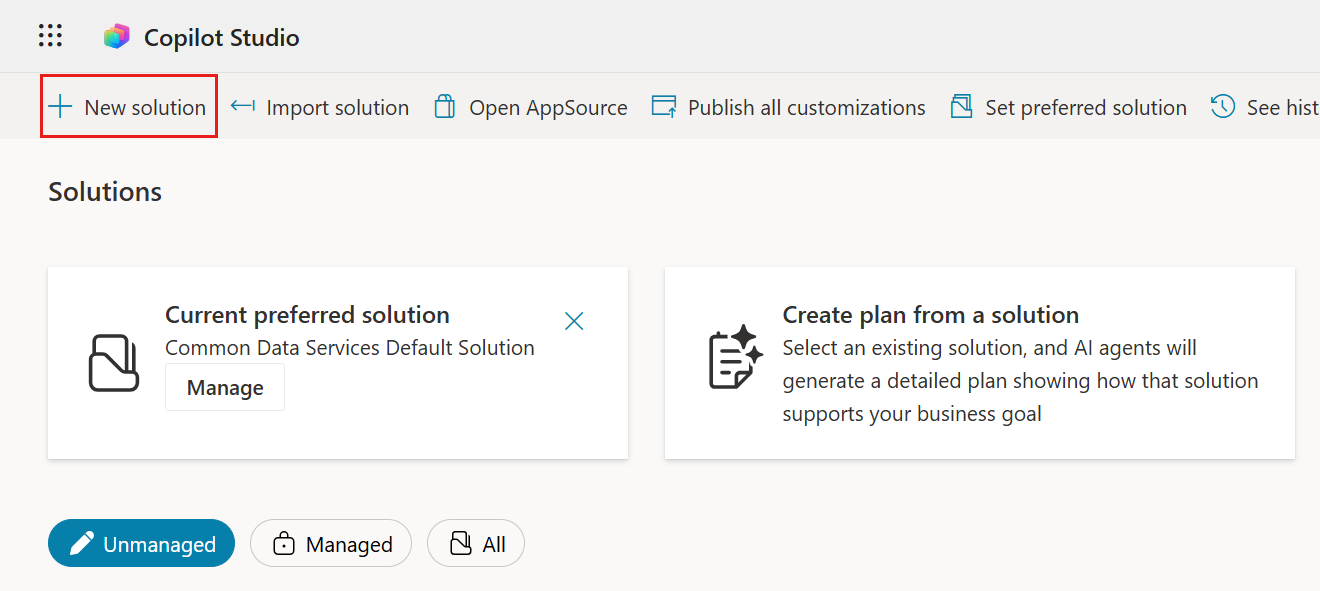
- Copilot Studio loads Solution Explorer. Select + New solution.
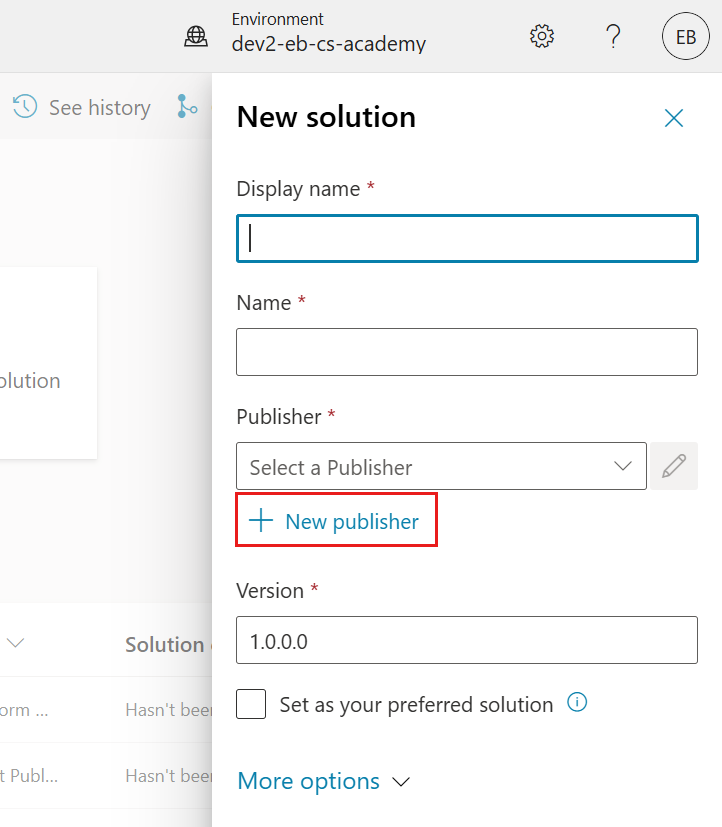
- The New solution pane appears, where you can define the solution details. First, you need to create a new publisher. Select + New publisher.
-
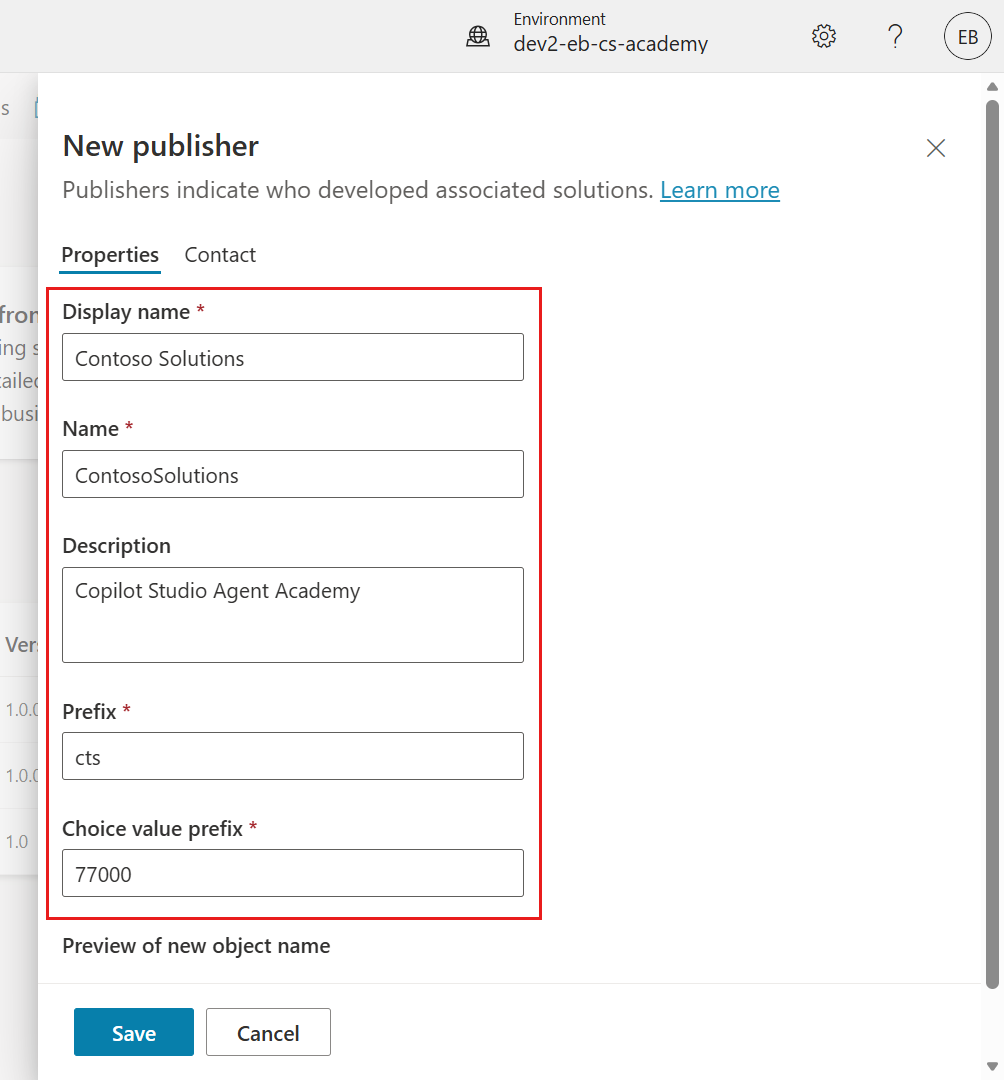
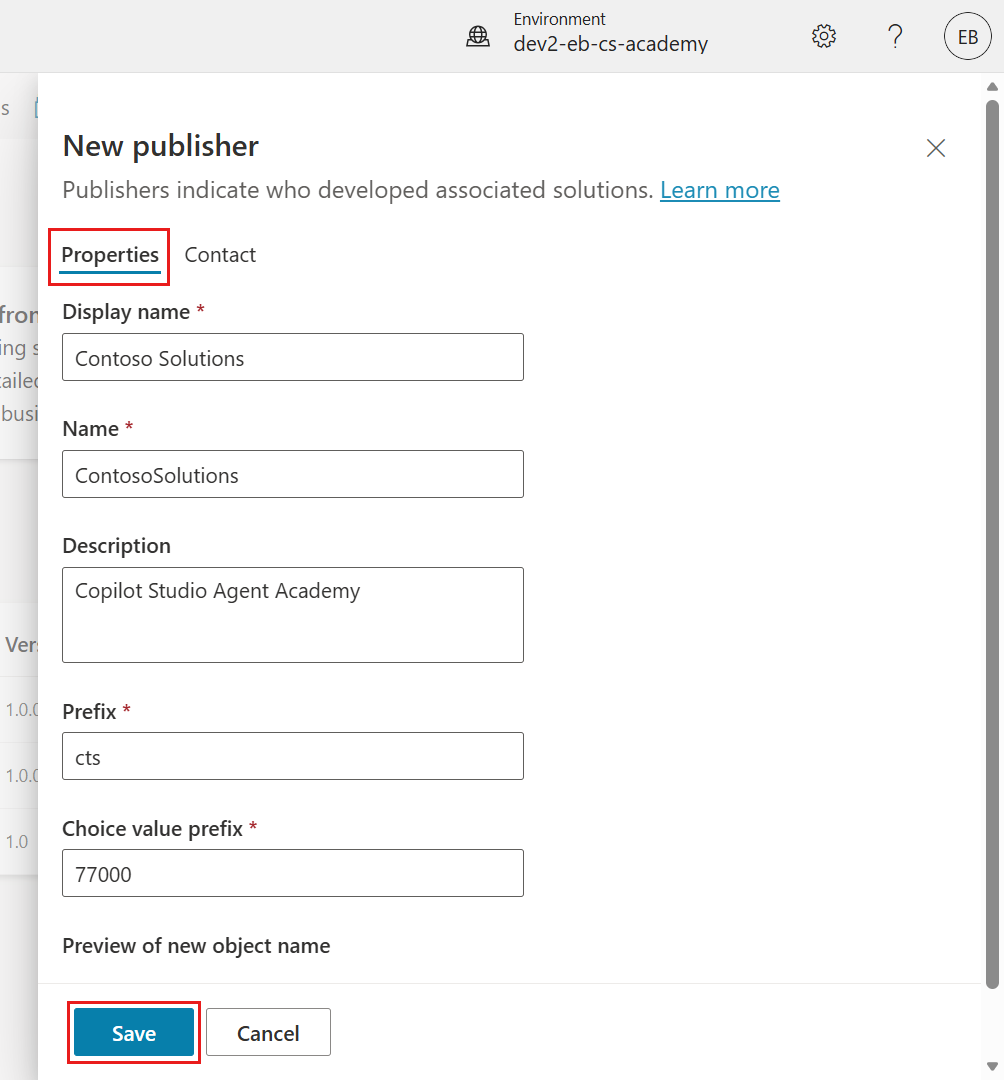
The Properties tab of the New publisher pane appears. On the Properties tab, you can fill in required and optional fields. Here you specify details for the publisher, which serves as a label or brand identifying the creator or owner of the solution.
Property Description Required Display name Display name of the publisher Yes Name Unique name and schema name of the publisher Yes Description Description of the solution’s purpose No Prefix Publisher prefix applied to newly created components Yes Choice value prefix Generates a number based on the publisher prefix. This number is used when adding options to choices and provides an indicator of which solution was used to add that option. Yes Copy and paste the following for Display name.
Contoso SolutionsCopy and paste the following for Name.
ContosoSolutionsCopy and paste the following for Description.
Copilot Studio Agent AcademyCopy and paste the following for Prefix.
ctsBy default, an integer value appears for Choice value prefix. Update that integer to the nearest thousand. For example, in the screenshot below, the initial value was
77074, so it was updated from77074to77000.
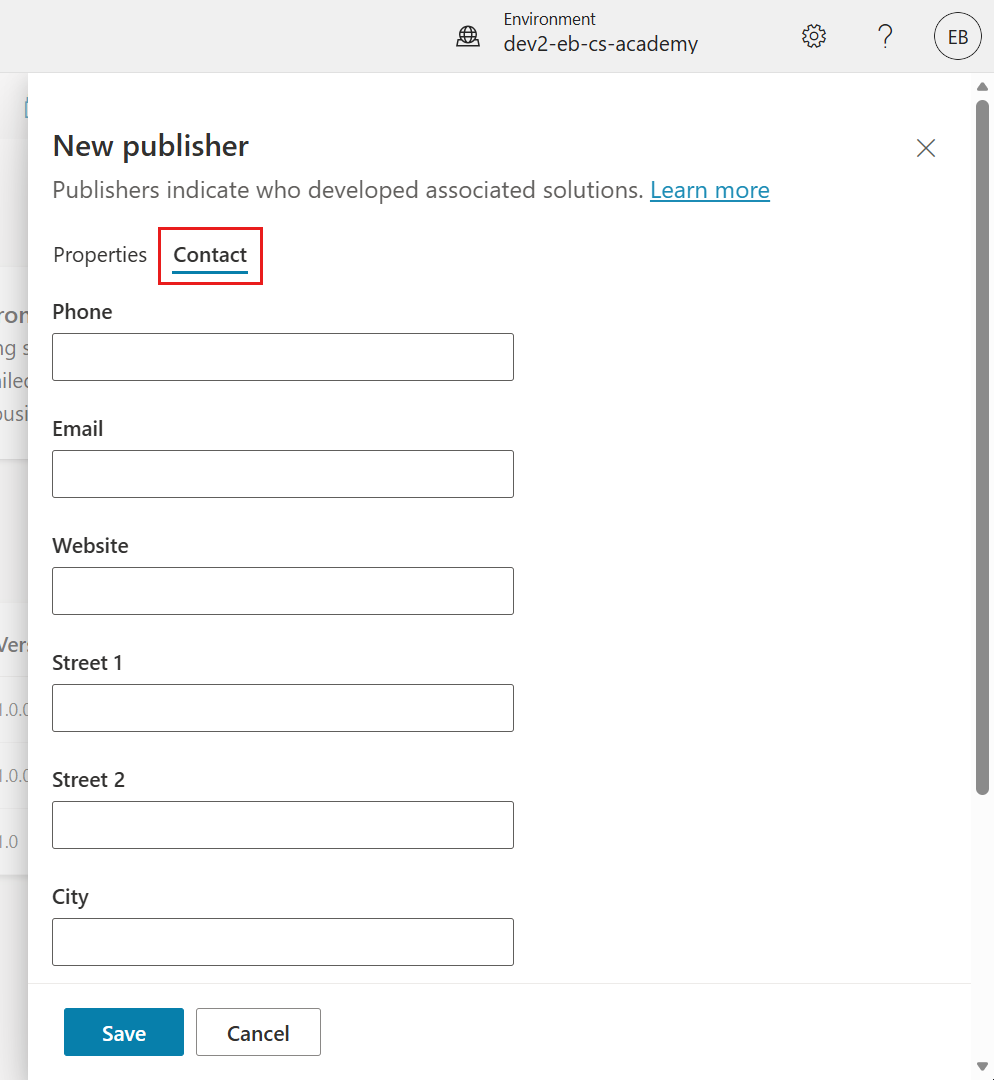
- To provide contact information for the solution, select the Contact tab and fill in the columns that appear.
- Select the Properties tab, then select Save to create the publisher.
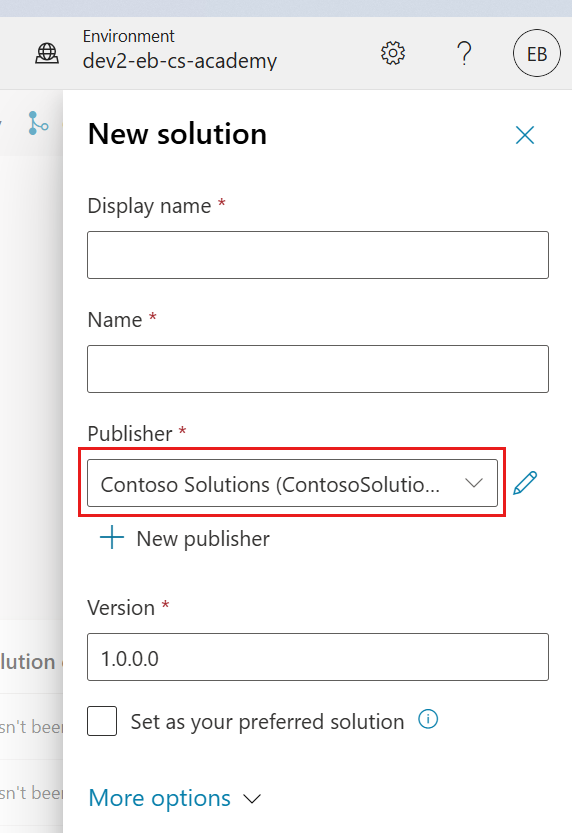
- The New publisher pane closes and returns you to the New solution pane with the publisher you just created selected.
High five — you have created a Solution Publisher! 🙌🏻 Next, you will learn how to create a new custom solution.
4.2 Create a new solution
-
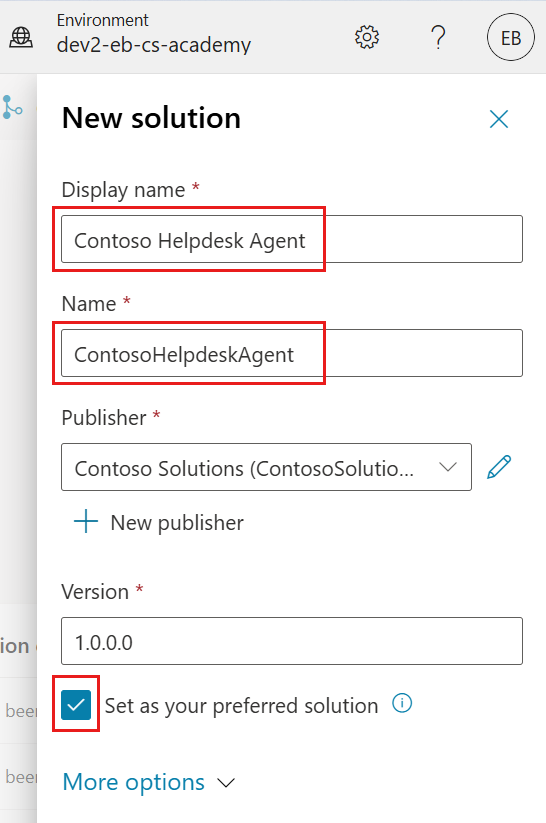
Now that you have created the publisher, you can complete the rest of the form in the New solution pane.
Copy and paste the following for Display name.
Contoso Helpdesk AgentCopy and paste the following for Name.
ContosoHelpdeskAgentBecause you are creating a new solution, the Version number defaults to
1.0.0.0.Select the Set as your preferred solution checkbox.
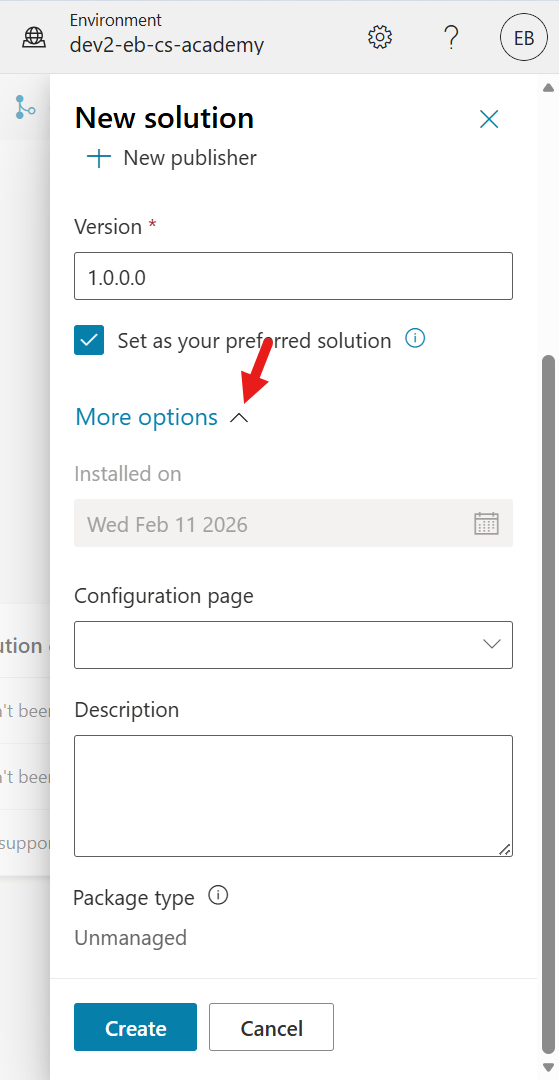
- Expand More options to view additional details you can provide.
-
The following items appear.
-
Installed on - The date the solution was installed.
-
Configuration page - Where developers configure an HTML web resource so users can interact with an app, agent, or tool. It appears in the Information section as a web page containing instructions or buttons. It is mainly used by companies or developers who create and share solutions with others.
-
Description - A description or high-level explanation of the solution or configuration page.
Leave these items blank for this lab.
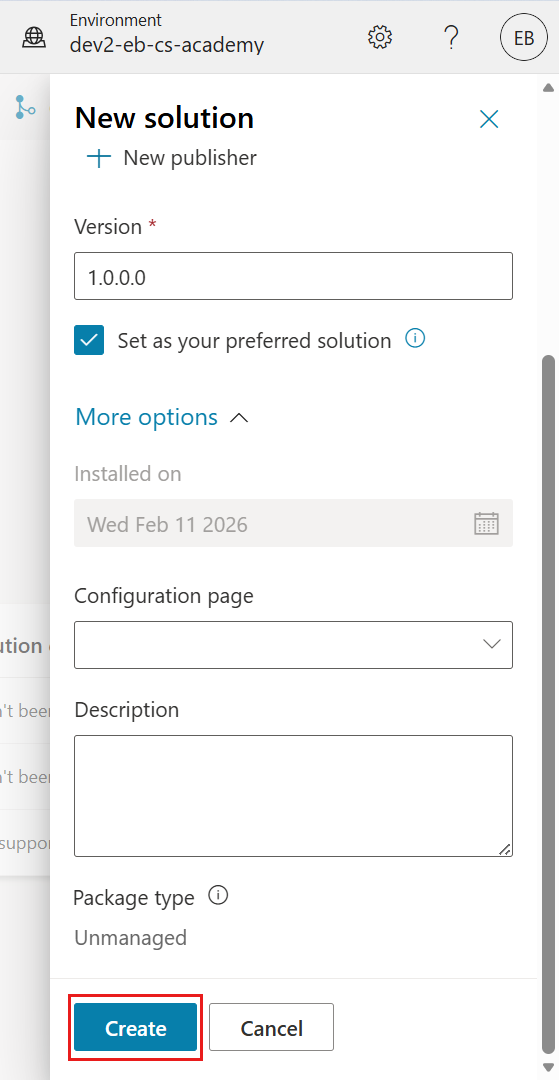
Select Create.
-
-
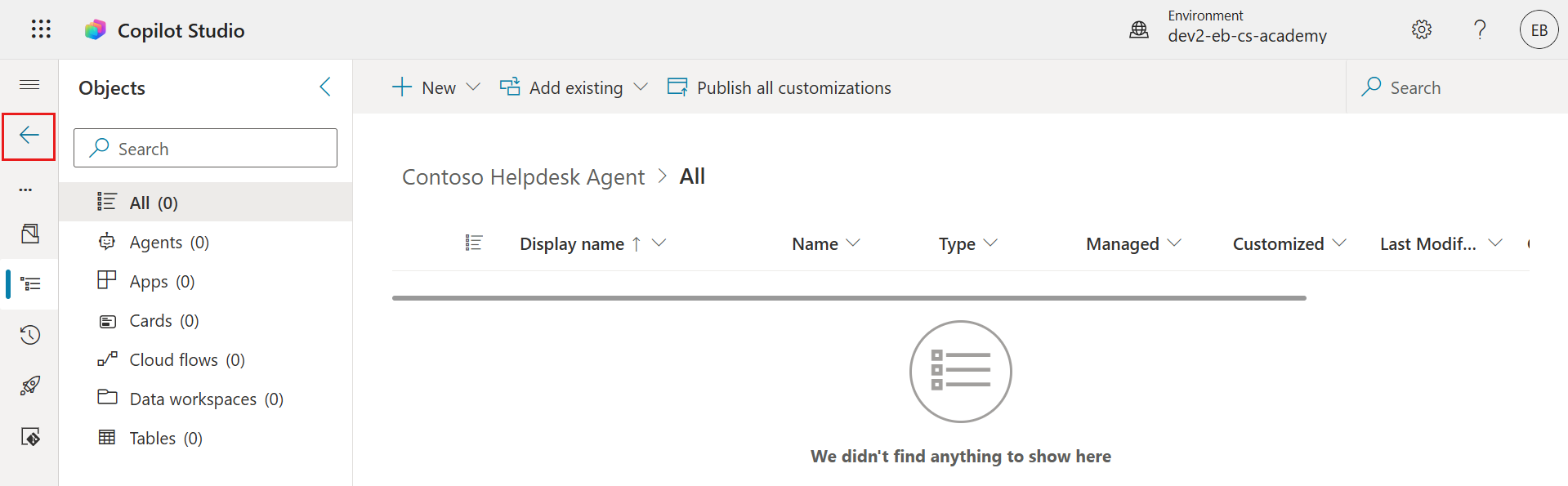
The Contoso Helpdesk Agent solution is now created. It has zero components until you create an agent in Copilot Studio.
Select Back to return to Solution Explorer.
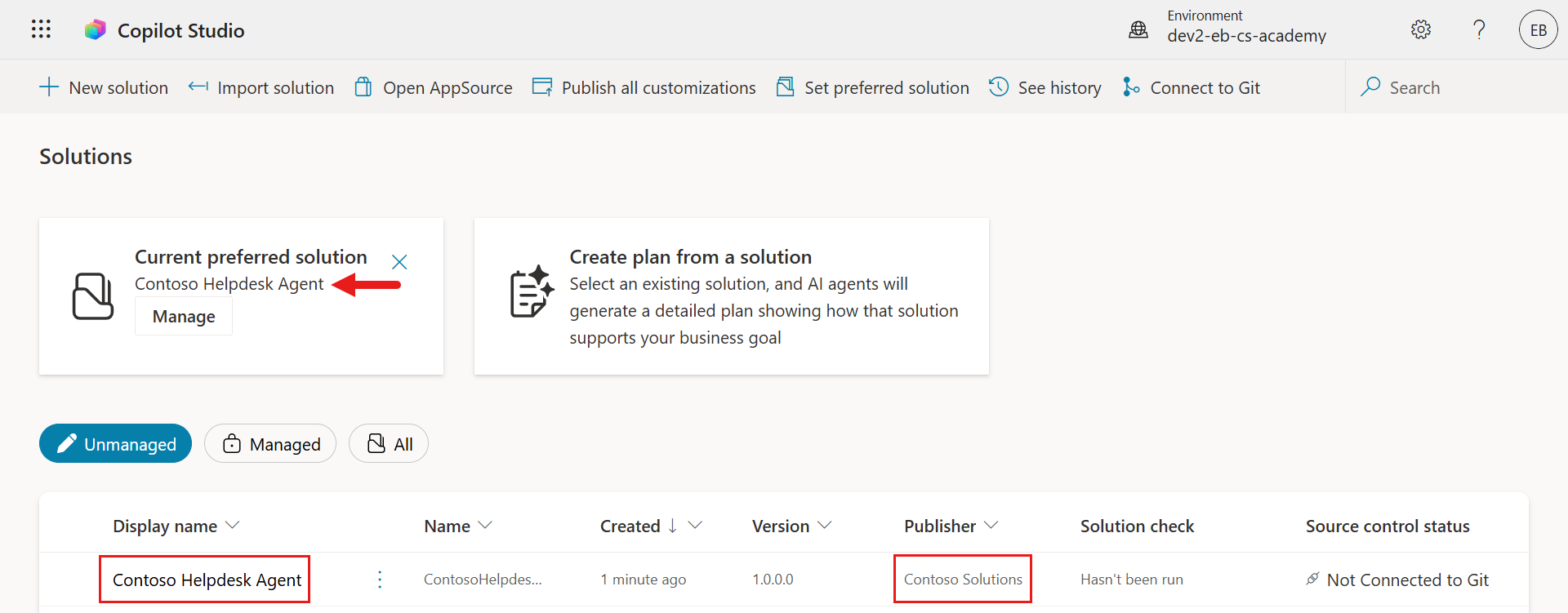
- Because you selected the Set as your preferred solution checkbox earlier, Contoso Helpdesk Agent now appears as the Current preferred solution.
Mission complete
Here is what you successfully completed:
- Solution publisher: Created a publisher with a custom prefix.
- Custom solution: Created a solution for Contoso Helpdesk Agent.
- Preferred solution: Set the solution as the default location for new components.
- Application lifecycle management: Laid the foundation for moving your agent across environments.
Next, continue to Mission 05: Using Prebuilt Agents.