Lab CWRK1 — Create your first Cowork skill
Covers the full process of creating a custom Agent Skill for Copilot Cowork, managing skills in the product, and authoring and uploading SKILL.md yourself.
▶ One-line summary — An Agent Skill is a structured instruction file that teaches Cowork “when and how” to execute a domain-specific workflow. In this lab, you will ① manage skills from Customize, ② create a skill with the native Add skill guided flow, and ③ author SKILL.md directly in VS Code and upload it.
Translated article — This article is based on Copilot Developer Camp — Lab CWRK1 from Microsoft. The original wording takes precedence. Complete Lab CWRK0 first as a prerequisite.
In this lab, you will learn how to create a custom Agent Skill for Copilot Cowork, manage skills inside the product, and publish a skill you created yourself.
At a high level, an Agent Skill is a structured instruction file that teaches Cowork when and how to execute a specific domain workflow. A skill is not a generic prompt. It includes intent signals, execution guidance, and output expectations, enabling Cowork to reliably select and run the right behavior for a given request.
By the end of this lab, you will be able to:
- Understand what skills are and when to create custom skills
- Manage built-in and custom skills from Customize
- Create a skill with the native Add skill guided flow
- Author, package, and upload a skill directly at a lower level with VS Code or similar tools
Exercise 1: Understand what an Agent Skill is
In this exercise, you will build a clear mental model of skills, where they fit in Cowork orchestration, and how they differ from plugins.
Step 1: Understand the role of skills in Cowork
Cowork uses skills as reusable execution patterns. During a task, Cowork loads one or more skills based on conversational intent, then executes a step-by-step workflow.
From a practical perspective, skills help Cowork:
- Recognize when a specialized workflow is needed
- Apply consistent instructions instead of ad hoc prompting
- Produce predictable outputs for recurring business tasks
Unlike one-off prompts, skills are durable assets that can be reused across conversations.
Step 2: Built-in skills vs. custom skills
Cowork already includes built-in skills for common work such as documents, communication, scheduling, and enterprise search. Create a custom skill when:
- You need organization-specific process logic
- Outputs require consistent formatting or governance
- You want to trigger a domain workflow with clear wording
Custom skills complement built-in skills. They do not replace everything Cowork does; instead, they extend Cowork with your business context.
Step 3: Distinguish skills from plugins
| Category | Role | Selection criteria |
|---|---|---|
| Skills | Define behavior and workflow instructions | When the primary goal is guided task execution |
| Plugins | Package integrations, connectors, and optional skill bundles | When the workflow requires an external system |
As a rule, take a skill-first approach, then add plugins/connectors when external system integration is needed.
Exercise 2: Manage skills from Customize
In this exercise, you will explore how to manage the skills available in Cowork.
Step 1: Open Customize
Open Microsoft 365 Copilot, switch to 1️⃣ Cowork, then select 2️⃣ Customize from the left navigation.
You will see two tabs:
- Plugins
- Skills
Select 3️⃣ Skills and check the following:
- Your skills — 4️⃣ Skills you created yourself or obtained through plugin packages
- Built-in — 5️⃣ Skills provided by Cowork out of the box
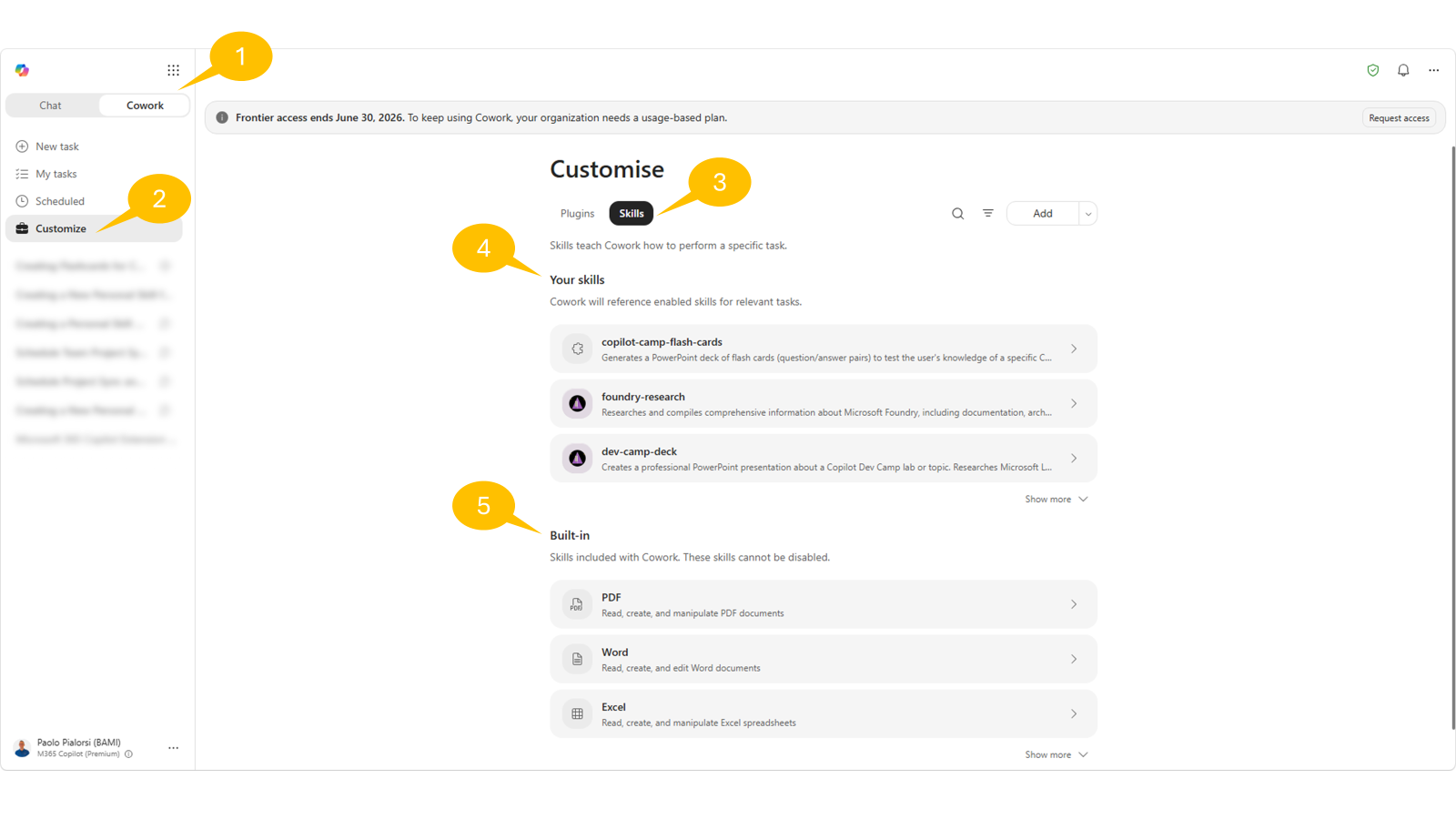
Use the search box and source filter to narrow results and quickly find a specific skill. Selecting a skill opens its detail page.
If you have a skill you created yourself, check whether you can perform these management actions:
- Edit instructions
- Open the file location in OneDrive
- Download the skill
- Share the skill
- Delete the skill
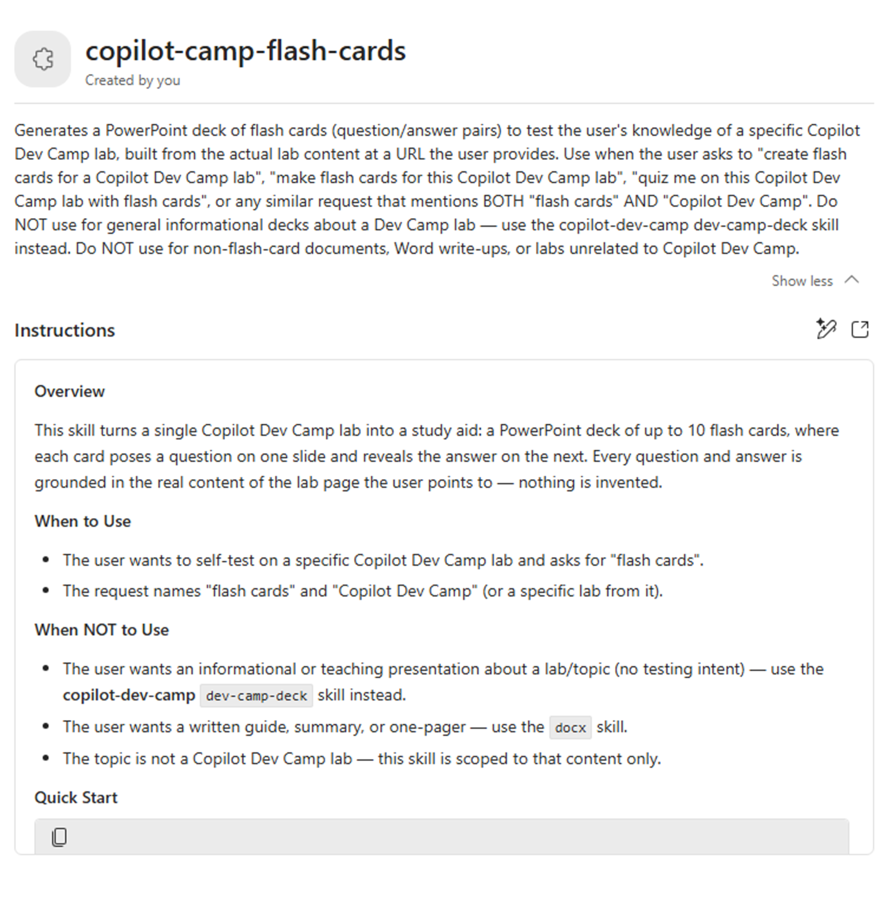
After editing, start a new conversation to test the behavior change.
Exercise 3: Create a skill with the native Add skill flow
In this exercise, you will use the guided authoring experience built into Customize → Skills.
Step 1: Start guided creation from Customize
From Customize → Skills, select Add → Create new.
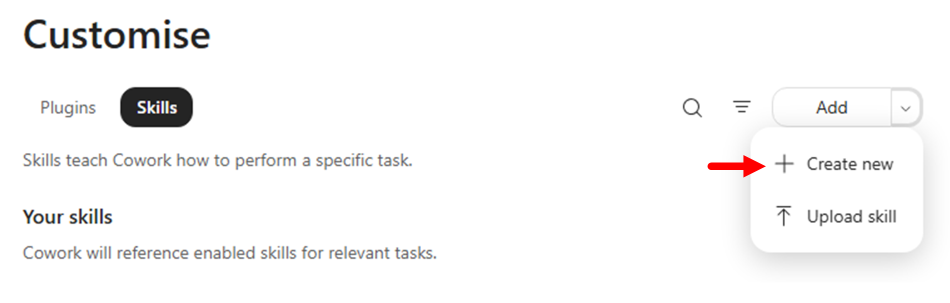
Caution — Creating and testing custom skills in Copilot Cowork consumes Copilot Credits.
Cowork opens a guided conversation to collect the skill definition. At this point, Cowork uses a native skill named Skill management to guide the new skill creation process.
Next, Cowork asks you to select the purpose of the skill. The options are:
| Purpose | Description |
|---|---|
| Writing & drafting | Generate recurring documents in the user’s tone and format |
| Summarizing & briefing | Condense meetings, email threads, documents, and channels into summaries with a consistent structure |
| Data & analysis | Organize data into standard layouts such as trackers, dashboards, and recurring metrics reports |
| Process automation | Run frequently performed multi-step routines — inbox triage, meeting prep, end-of-day wrap-up, and more |
| Describe another option | Freely describe the goal |
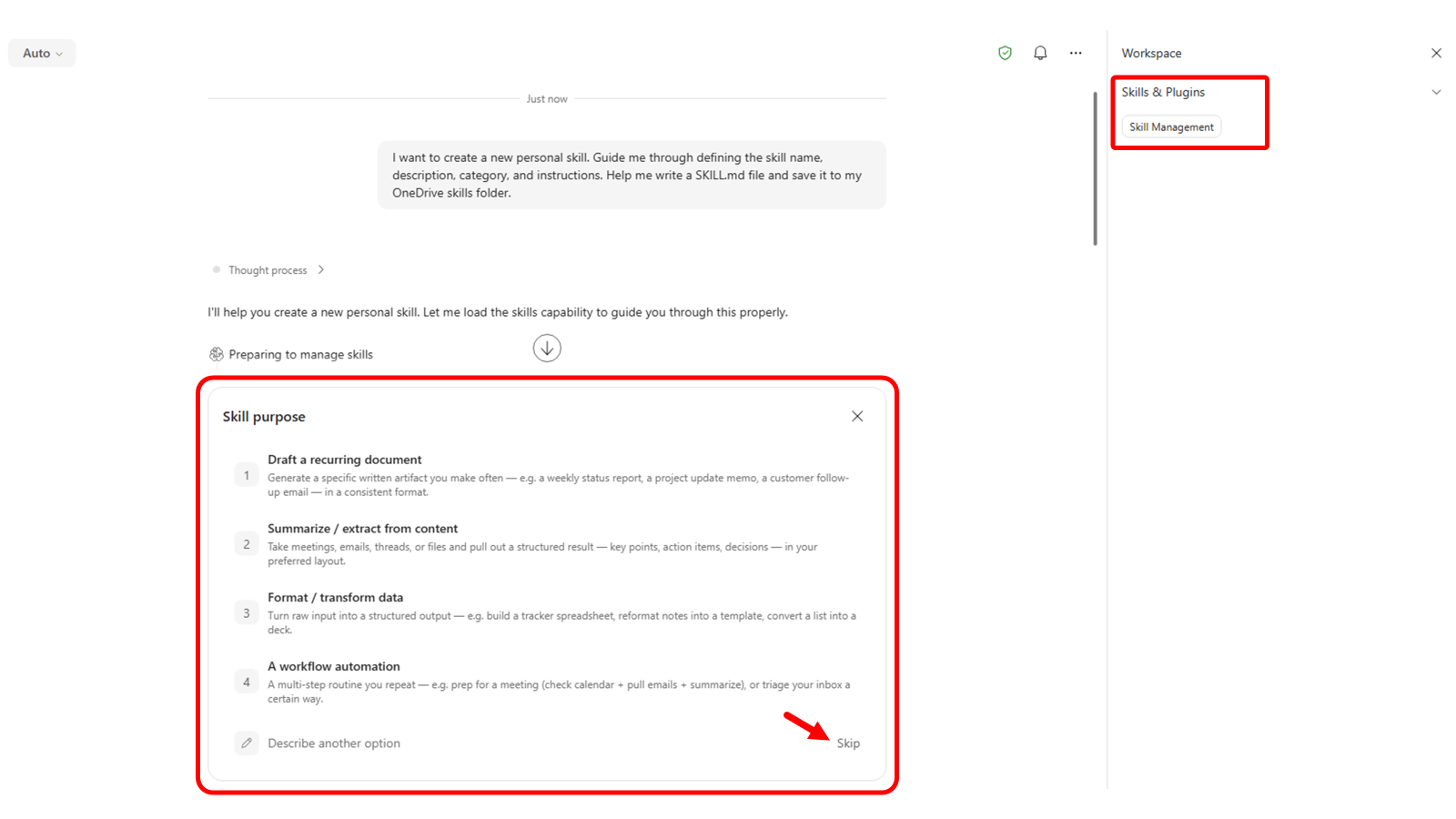
If you select Skip, you can provide free-text instructions for the custom skill.
For example, try using the following text:
Generate a set of flash cards in PowerPoint to test my knowledge about a specific lab of the Copilot Dev Camp.

Trigger this skill whenver the prompt includes "Create flash cards for a Copilot Dev Camp lab" or something similar, but still referring to "flash cards" and "Copilot Dev Camp".

The result should be a PowerPoint deck with no more than 10 flash cards based on the actual content of the lab referenced, as a URL, by the user. If there is no URL of the lab, ask the user to provide it.

Name the skill "copilot-flash-cards".
Cowork begins processing the request. It confirms the skill name, checks capacity in the Cowork profile, creates the skill and saves it to OneDrive for Business, validates it, and then creates a quality report.
Note — You can configure up to 50 custom skills per profile. When you create a new skill, Cowork checks whether you have reached the capacity limit.
You can test the skill directly in Cowork and refine it iteratively. For example, check the result with this prompt:
Test it with the following URL: https://microsoft.github.io/copilot-camp/pages/extend-m365-copilot/11-mcp-app/
Step 2: Save and check where it was saved
When you are satisfied with the skill, simply close the current session. Cowork saved the skill in the following folder in OneDrive for Business:
/Documents/Cowork/skills/<name-of-the-skill>
Browse OneDrive for Business and check the contents of the new skill folder.
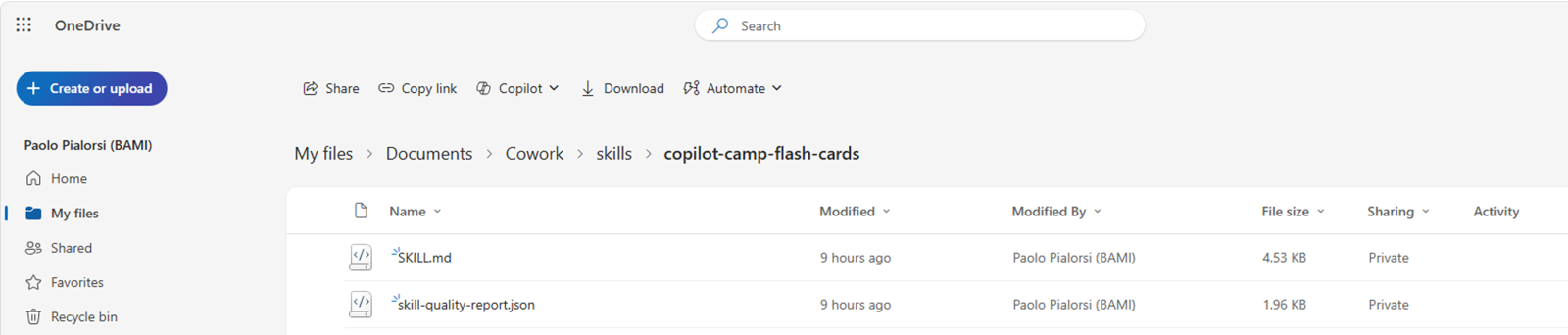
SKILL.md definition file and the skill quality report JSON file are savedStart a new Cowork task and test a prompt that should trigger the skill you just created.
Generate flash cards for the Copilot Dev Camp lab available at the following URL: https://microsoft.github.io/copilot-camp/pages/extend-m365-copilot/08-mcp-server/
Open Skills in the right side panel and confirm that your custom skill appears in the list of active skills used during execution.
If the skill is not activated, refine the description so it explains more specifically when Cowork should use this skill, then test again in a new conversation.
Exercise 4: Create a skill directly with VS Code
In this exercise, you will create a skill at a lower level by authoring the SKILL.md file yourself. Alternatively, you can download one of the many publicly available skills on the internet and upload it to Cowork. For example, search for a skill you want on Skills.sh.
Step 1: Create a skill folder and author SKILL.md
Create a new folder in the file system, such as weekly-status-mail. Open that folder in Visual Studio Code, then add an empty SKILL.md file in Explorer.
Open the file and add YAML front matter that includes name and description. Use the template below as a starting point.
---
name: weekly-status-mail
description: |
  Drafts a concise weekly status-update email to the user's team, covering open
  tasks, upcoming meetings, and action items, with light emoji formatting in the
  body. Use when the user asks to "draft my weekly status email", "write my weekly
  team update", "send my team the weekly status", "create my Monday status mail",
  "weekly status update for the team", or "recap this week for the team".
  Do NOT use for leadership or executive updates and cross-functional stakeholder
  communications — use stakeholder-comms instead. Do NOT use for one-off
  announcements or non-status emails — use the Outlook tools directly.
cowork:
  category: communication
  icon: Mail
---

## Overview

Produces a short, scannable weekly status email addressed to the user's team. It
gathers the user's open tasks, upcoming meetings, and outstanding action items
from Microsoft 365, then composes a friendly email with emoji section headers and
saves it as a **draft for review** — it never sends automatically.

## When to Use

- The user wants their recurring weekly status note to their team.
- The user asks to "recap this week" or "write my Monday update" for the team.
- The user wants open tasks, upcoming meetings, and action items rolled into one email.

## When NOT to Use

- Updates aimed at leadership, executives, or cross-functional stakeholders — use **stakeholder-comms** instead.
- One-off announcements, replies, or any non-status email — use the Outlook tools directly.
- A status *document* or spreadsheet rather than an email — use **docx** or **xlsx**.

## Quick Start

````
User: "Draft my weekly status email for the team"
1. Resolve the week window (today → next 7 days) and the team recipients.
2. Gather: open tasks, upcoming meetings, action items from M365.
3. Compose the email body with emoji section headers (concise bullets).
4. Save as a draft with CreateDraftMessage and show it for review.
````

## Core Instructions

### Step 1: Resolve recipients and time window
- Determine the week window: today through the next 7 days, in the user's local time zone.
- Resolve "the team" with people tools — `GetDirectReportsDetails` for the user's reports, or a team distribution list the user names. Never guess email addresses.
- If the team cannot be resolved, draft anyway with an empty To line and a clear `[Add team recipients]` note, and flag it for the user.

### Step 2: Gather open tasks
- Use `SearchM365` (sources: email, teams) for open/pending work, and `ListMessages` with `flagged_only=true` for follow-up flags.
- Include only items found in tool results. If none are found, write "Nothing outstanding to report."

### Step 3: Gather upcoming meetings
- Call `ListCalendarView` for the next 7 days; list notable meetings with day and time.
- Respect privacy: render `private`/`confidential` events as "Busy" or a time block — do not echo their subject lines.

### Step 4: Gather action items
- Pull action items from recent meeting recaps and recent email/Teams threads (`SearchM365`, recent `GetMeetingTranscript` when a relevant meeting exists).
- Attribute each item to an owner only when the source states it. Do not invent owners or due dates.

### Step 5: Compose and draft
- Build the body using the Output format below, with emoji section headers.
- Save the draft with `CreateDraftMessage` (To = resolved team, Subject = "Weekly Status — week of {date}").
- Present the draft to the user for review; do not send.

## Output

- **Format:** Email draft. Subject: `Weekly Status — week of {Mon DD}`.
- **Tone:** Warm, professional, concise. **Length:** roughly 120-200 words — scannable bullets, not paragraphs.
- **Body structure** (emoji headers, each section 2-5 bullets; omit a section's bullets and write "Nothing to report" when empty):

````
👋 Hi team — here's where things stand this week.

📋 Open Tasks
- {task} — {short status}

📅 Upcoming Meetings
- {Day, time} — {meeting}

✅ Action Items
- {action} — {owner, if known}

Thanks!
{User first name}
````

## Guardrails

- **Draft only — never auto-send.** Always use `CreateDraftMessage` and present the draft for the user to review and send themselves.
- **Ground every item in retrieved data.** If a search returns nothing for a section, say "Nothing to report" — never fabricate tasks, meetings, owners, or dates.
- **Resolve recipients via people tools**; never construct or guess email addresses. Confirm the team list with the user before they send.
- **Respect calendar privacy** — show private/confidential events as a time block, not their subject.
- **Keep it concise.** If a section has many items, surface the top few and note the rest exist rather than dumping everything.
- Use a light touch with emojis — section headers and the greeting, not every bullet.
You can download the full source code for this skill from SKILL.md on GitHub.
Important checkpoint
- Write
namein kebab-case - Confirm that
namematches the skill folder name - Describe trigger scenarios explicitly in
description
Step 2: Upload the skill to Cowork
In Cowork, open Customize → Skills and upload the package using the Upload skill option under the Add action.
After uploading, confirm that the included skill appears under Your skills.
If validation fails, check these common causes:
| Symptom | Cause |
|---|---|
| Upload failed | Missing SKILL.md |
| Parsing error | Invalid YAML front matter |
| Name conflict | name does not match the folder name |
| Name rejected | Violates kebab-case rules |
Step 3: Test end-to-end use
Start a new conversation and run a prompt that should activate the uploaded skill.
Draft my weekly status email
Check the side panel for activation, and verify that the output follows the expected workflow and format.
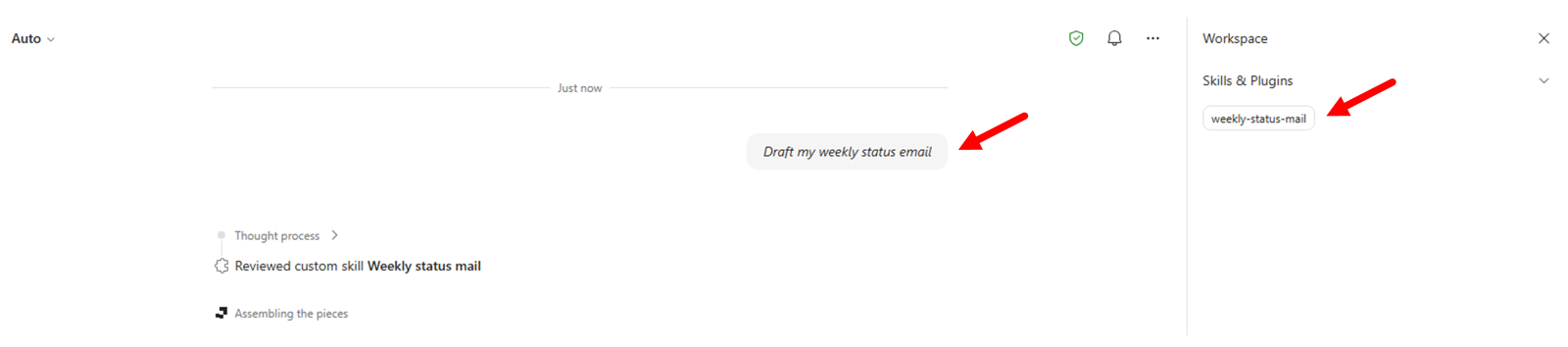
weekly-status-mail as an active skill🎉 Congratulations!
You have completed Lab CWRK1 — Create your first Cowork skill!
In the next lab, you will create your first plugin for Copilot Cowork.
👉 Lab CWRK2 — Create your first Cowork plugin