Mission 08: Enhance Prompts with Dataverse Grounding
Ground your agent in enterprise data for accurate responses
Translated article — This article is based on 🚨 Mission 08: Enhanced prompts with Dataverse grounding from the Copilot Studio Agent Academy. The original wording takes precedence.
🎯 Mission Overview
Welcome back, Operative. Your multi-agent hiring system is now up and running, but it needs an important enhancement: data grounding. The AI model needs real-time access to your organization’s structured data so it can make smarter decisions.
The current Summarize Resume prompt works with static knowledge. But what if it could dynamically access your job role database and provide accurate, up-to-date matches? What if it could understand evaluation criteria without hardcoding them?
In this mission, you will enhance your custom prompt with Dataverse grounding. That means connecting the prompt directly to a live data source. This evolves your agent from a static responder into a dynamic, data-driven system that adapts to changing business needs.
The objective of this mission is to integrate real-time job role and evaluation criteria data into the resume analysis workflow, creating a self-updating system that always reflects your organization’s current hiring requirements.
Note — If the screenshots in this lesson look different from your Copilot Studio screens, turn off New Experience in the upper-right corner to switch to the classic experience used here.
🔎 Learning objectives
In this mission, you will learn:
- How Dataverse grounding enhances custom prompts
- When to use data grounding instead of static instructions
- How to design prompts that dynamically reflect live data
- How to enhance the Summarize Resume flow with job role matching
🧠 Understanding Dataverse grounding for prompts
Dataverse grounding lets a custom prompt access live data from Dataverse tables when it processes a request. Instead of relying on static instructions, the prompt can reflect real-time information and make more grounded decisions.
Why Dataverse grounding matters
Traditional prompts operate with fixed instructions.
Match this candidate to these job roles: Developer, Manager, Analyst
With Dataverse grounding, the prompt references current data.
Match this candidate to available job roles from the Job Roles table,
considering current evaluation criteria and requirements
This approach provides key benefits:
- Dynamic updates: Job roles and criteria can change without editing the prompt
- Consistency: Every agent uses the same current data source
- Scalability: New roles and criteria become available automatically
- Accuracy: Decisions reflect current requirements using real-time data
How Dataverse grounding works
When you enable Dataverse grounding in a custom prompt, it works like this:
- Data selection: Select the Dataverse tables and columns to include. You can also select related tables that the system filters based on retrieved parent records.
- Context injection: The prompt automatically includes the retrieved data in the prompt context.
- Intelligent filtering: If you provide filters, the system includes only data relevant to the current request.
- Structured output: The prompt can reference the retrieved data and reason over the returned records to generate its output.
From static to dynamic: the advantage of grounding
Let’s look at the current Summarize Resume flow created in Mission 07 and see how Dataverse grounding turns it from a static approach into a dynamic intelligent system.
Current static approach: The existing prompt contains hardcoded evaluation criteria and predefined matching logic. This works, but you must manually update it whenever you add a new job role, change evaluation criteria, or shift company priorities.
Moving to Dataverse grounding: After adding Dataverse grounding, the Summarize Resume flow can:
- Access current job roles — query directly from the Job Roles table
- Use live evaluation criteria — use real-time criteria instead of static descriptions
- Provide accurate matching — make judgments based on current requirements
🎯 Dedicated prompt vs agent conversation
In Mission 03, you saw that the Interview Agent could match a candidate to job roles, but it required a complex user prompt like this:
Upload this resume, then show me open job roles,
each with a description of the evaluation criteria,
then use this to match the resume to at least one suitable
job role even if not a perfect match.
That approach can work, but a dedicated prompt with Dataverse grounding provides much greater benefits for a specific task.
Key advantages of a dedicated prompt
| Item | Agent conversation | Dedicated prompt |
|---|---|---|
| Consistency | Results vary depending on the user’s prompt-writing skill | Performs standardized processing every time |
| Specialization | General-purpose reasoning can miss business context | Purpose-built approach optimized for business logic |
| Automation | Requires human interaction and interpretation | Can trigger automation through structured JSON output |
⚙️ Understanding record retrieval settings
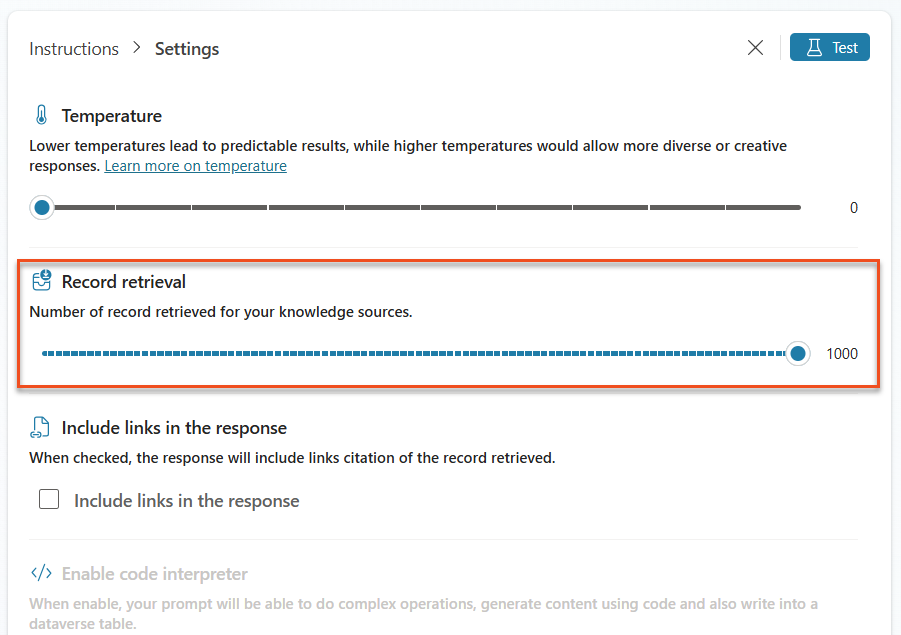
When configuring Dataverse grounding for a prompt, it is important to understand the Record retrieval setting. This setting controls how much data is provided to the AI model.
What is record retrieval?
Record retrieval determines the maximum number of records a prompt can retrieve from a Dataverse knowledge source (table) and include in the prompt context sent to the AI model.
Configuring record retrieval: finding the right balance
You can retrieve up to 1,000 records from Dataverse, but understanding when and how to adjust this setting is important for optimal prompt performance. The default limit is 30 and the maximum is 1000, which is appropriate for most scenarios with good filtering. Each retrieved record consumes tokens in the model’s context window, directly affecting cost, processing time, and response quality.
Dataverse grounding is not designed to process large datasets directly inside a prompt. Even if you raise the limit to 1,000, it may not be the right answer when dealing with thousands of records. The key is to use filtering strategically before the data reaches the AI model. Always filter by status, date range, category, or other relevant criteria so that only the most important records are included.
🧪 Lab 8 - Add Dataverse grounding to a prompt
Now it is time to upgrade the resume analysis capability. You will enhance the existing Summarize Resume flow with dynamic job role matching.
Prerequisites for completing this mission
-
You need the following:
- Complete Mission 07 so the resume analysis system is ready.
- Download sample resume documents from test Resumes.
8.1 Add Dataverse grounding to the prompt
You will work from the Summarize Resume prompt created in Mission 07. It currently only summarizes a resume, but now you will ground it in the current job roles in Dataverse so it always stays up to date.
First, inspect the Dataverse tables you will use for grounding.
-
Go to Power Apps, then use the Environment switcher in the upper-right corner of the navigation bar to select your environment.
-
Select Tables and find the Job Roles table.
-
Review the key columns used for grounding.
Column Purpose Job Role Number Unique identifier for role matching Job Title Display name of the role Description Detailed role requirements -
In the same way, review other tables such as Evaluation Criteria.
8.2 Add Dataverse grounding data to the prompt
-
Go to Copilot Studio, then use the Environment switcher in the upper-right corner of the navigation bar to select your environment.
-
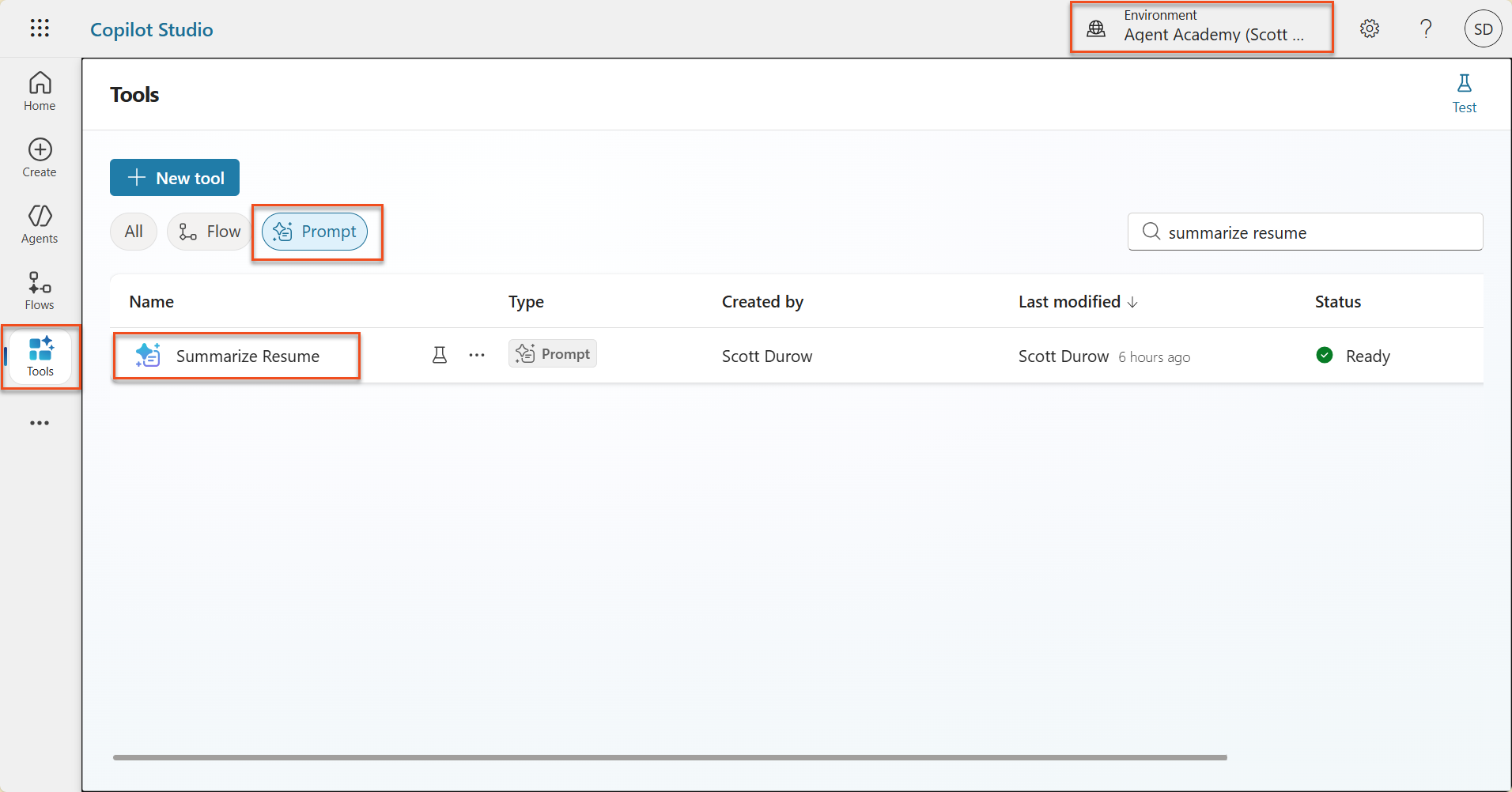
Select Tools from the left navigation menu.
-
Select Prompt and find the Summarize Resume prompt you created in Mission 07.
-
Select Edit to modify the prompt, then replace it with the enhanced version below.
Important — Make sure the Resume and Cover Letter parameters remain parameters.
You are tasked with extracting key candidate information from a resume and cover letter to facilitate matching with open job roles and creating a summary for application review. ### Instructions: 1. **Extract Candidate Details:** - Identify and extract the candidate's full name. - Extract contact information, specifically the email address. 2. **Analyze Resume and Cover Letter:** - Review the resume content to identify relevant skills, experience, and qualifications. - Review the cover letter to understand the candidate's motivation and suitability for the roles. 3. **Match Against Open Job Roles:** - Compare the extracted candidate information with the requirements and descriptions of the provided open job roles. - Use the job descriptions to assess potential fit. - Identify all roles that align with the candidate's cover letter and profile. You don't need to assess perfect suitability. - Provide reasoning for each match based on the specific job requirements. 4. **Create Candidate Summary:** - Summarize the candidate's profile as multiline text with the following sections: - Candidate name - Role(s) applied for if present - Contact and location - One-paragraph summary - Top skills (8–10) - Experience snapshot (last 2–3 roles with outcomes) - Key projects (1–3 with metrics) - Education and certifications - Availability and work authorization ### Output Format Provide the output in valid JSON format with the following structure: { "CandidateName": "string", "Email": "string", "MatchedRoles": [ { "JobRoleNumber": "ppa_jobrolenumber from grounded data", "RoleName": "ppa_jobtitle from grounded data", "Reasoning": "Detailed explanation based on job requirements" } ], "Summary": "string" } ### Guidelines - Extract information only from the provided resume and cover letter documents. - Ensure accuracy in identifying contact details. - Use the available job role data for matching decisions. - The summary should be concise but informative, suitable for quick application review. - If no suitable matches are found, indicate an empty list for MatchedRoles and explain briefly in the summary. ### Input Data Open Job Roles (ppa_jobrolenumber, ppa_jobtitle): /Job Role Resume: {Resume} Cover Letter: {CoverLetter} -
In the prompt editor, select + Add content, go to Dataverse → Job Role, and replace
/Job Role. Select the columns below, then select Add.-
Job Role Number
-
Job Title
-
Description
Tip — You can search by typing the table name directly.
-
-
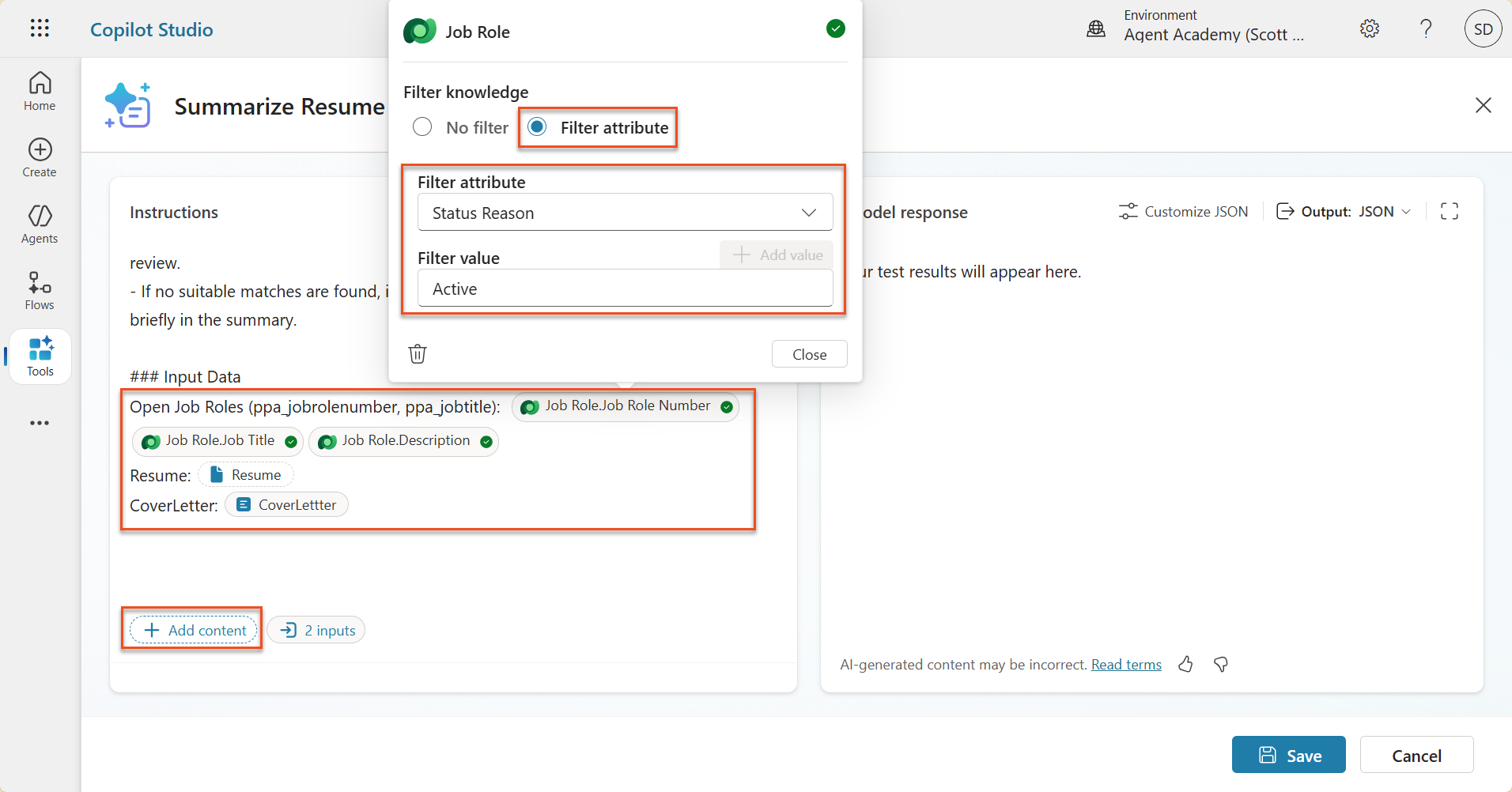
In the Job Role dialog, select the Filter attribute, select Status, and then enter Active as the Filter value.
<div class="info-box note" markdown="1">
**Tip** — You can also use **Add value** here to add input parameters. For example, if your prompt summarizes an existing record, you can pass in a Resume Number as a parameter and use it for filtering.
</div>
-
Next, add the related Dataverse table Evaluation Criteria. Select + Add content again and search for Job Roles. Instead of selecting columns from Job Role, expand Job Role (Evaluation Criteria), select the columns below, and then select Add.
-
Criteria Name
-
Description
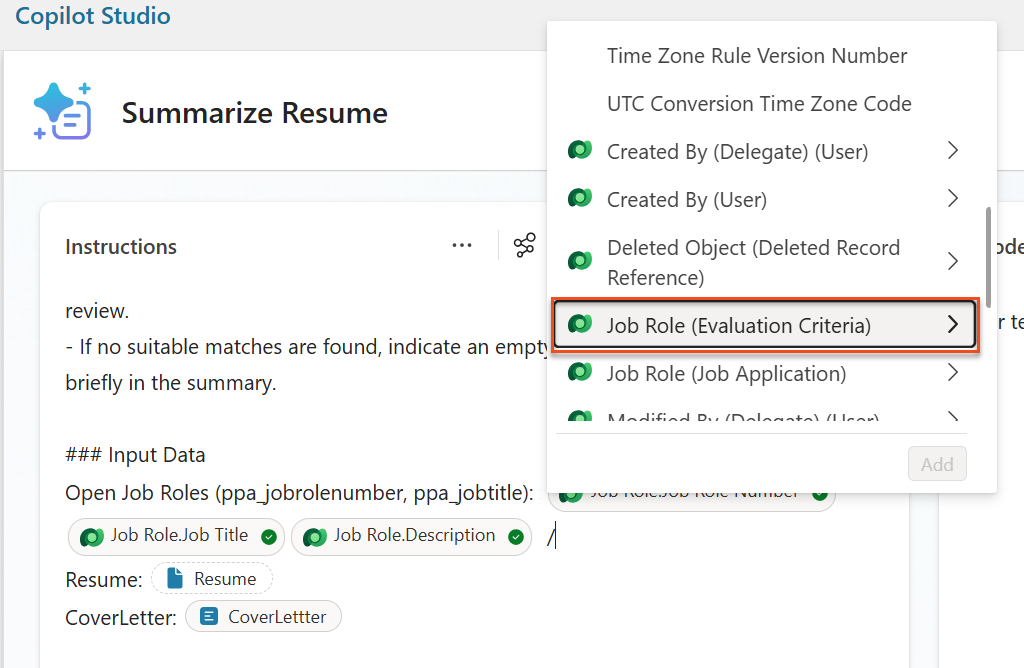
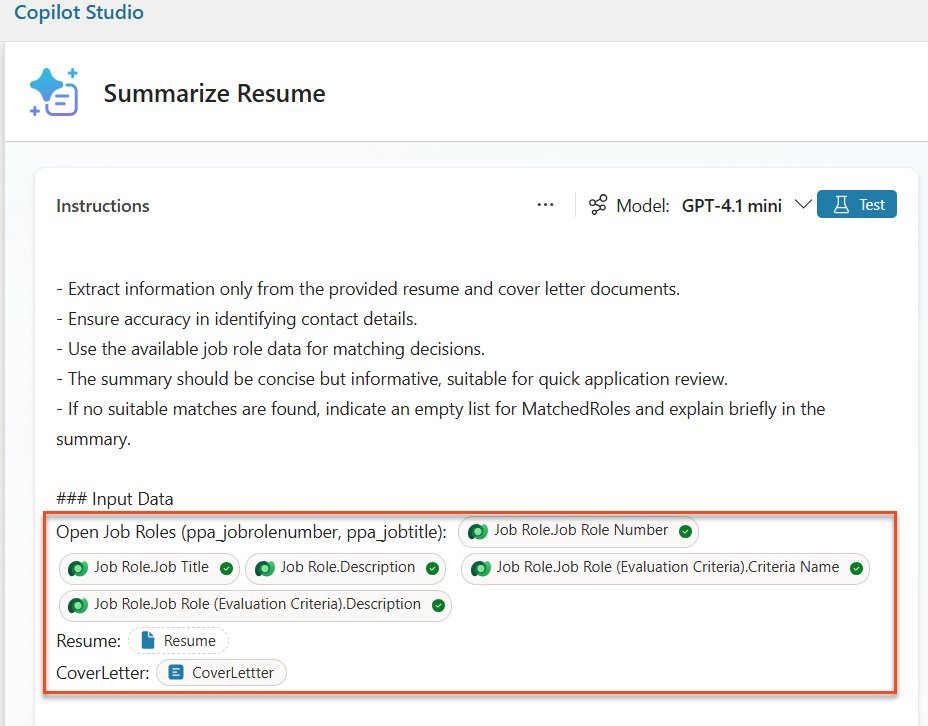
Tip — It is important to first select Job Role, then navigate to Job Role (Evaluation Criteria) in the menu to select the related Evaluation Criteria. This ensures only records associated with that Job Role are loaded.
-
-
In the Instructions pane, select the ellipsis (…) and then select Settings. Adjust Record retrieval to 1000 so the maximum number of Job Roles and Evaluation criteria can be included in the prompt.
8.3 Test the enhanced prompt
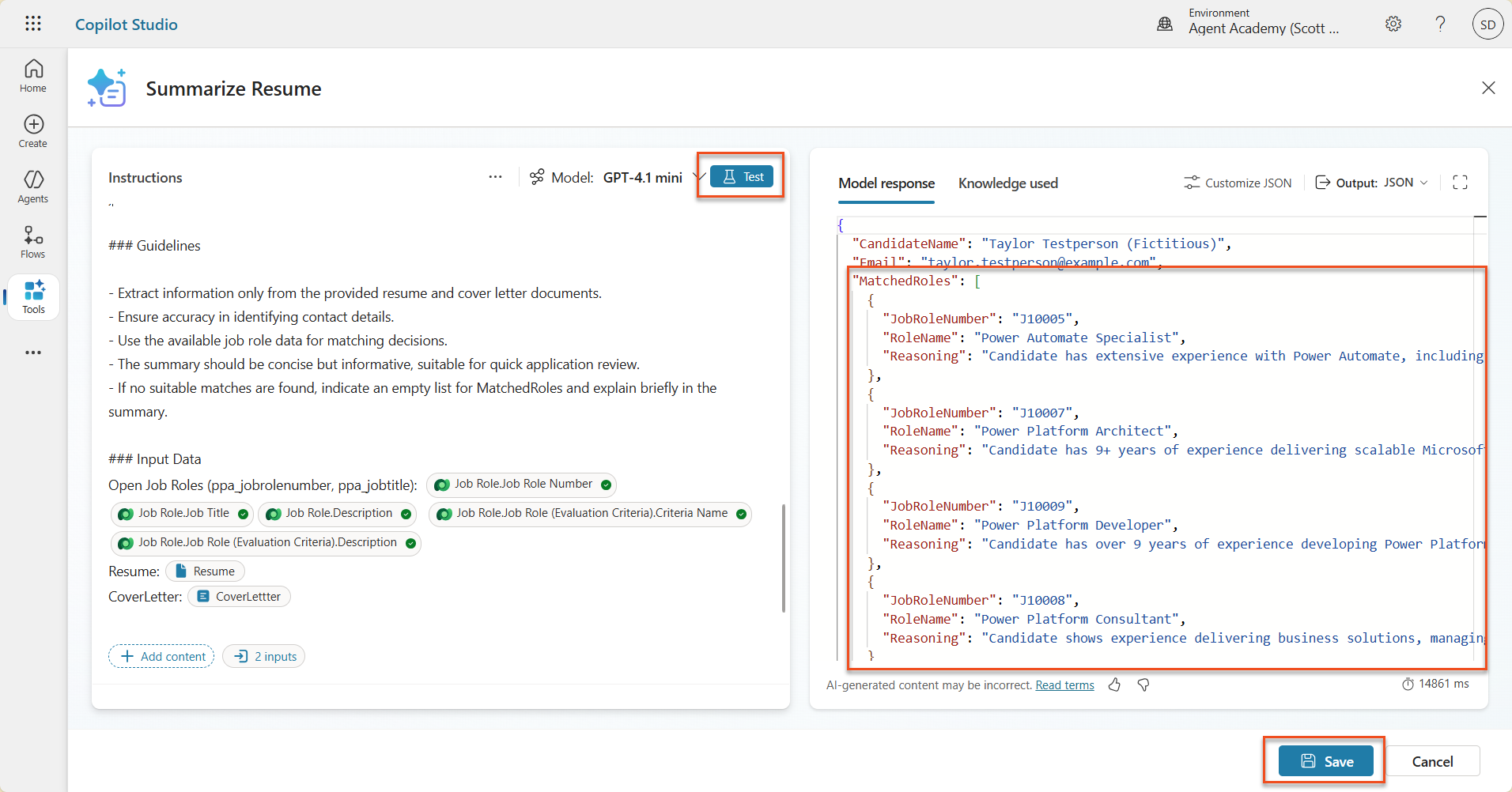
- Select the Resume parameter and upload the sample resume you used in Mission 07.
- Select Test.
- When the test runs, confirm that the JSON output now includes Matched Roles.
- Select the Knowledge used tab to review the Dataverse data merged into the prompt before execution.
- Save the updated prompt. Now, when the existing Summarize Resume Agent Flow calls this prompt, the system automatically includes this Dataverse data.
8.4 Add the Job Application Agent Flow
Create an Agent Flow so the Application Intake Agent can create Job Applications based on the suggested roles. The agent will call this tool for each suggested job role the candidate is interested in.
Tip: Agent Flow Expressions — Node names and expression inputs must match the instructions exactly, because expressions reference previous nodes by name. For a quick review, see the Recruit Agent Flow mission.
-
In Hiring Agent, select the Agents tab and open the Application Intake Agent child agent.
-
In the Tools panel, select + Add → + New tool → Agent Flow.
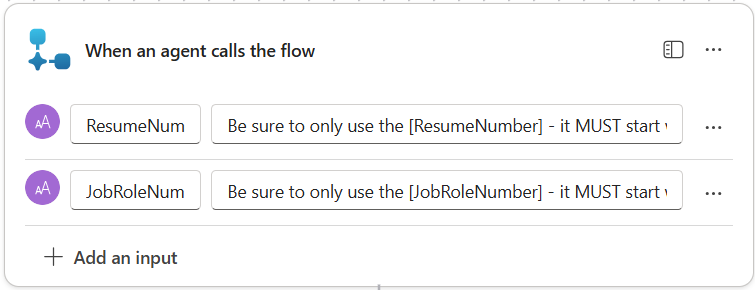
-
Select the When an agent calls the flow node, then use + Add an input to add the following parameters.
Type Name Description Text ResumeNumberYou must use only [ResumeNumber], and the value must start with the letter R Text JobRoleNumberYou must use only [JobRoleNumber], and the value must start with the letter J
-
Select the + Insert action icon below the first node, search for Dataverse, select See more, and find the List rows action.
-
Rename the node to
Get Resume, then set the following parameters.Property How to Set Value Table name Select Resumes Filter rows Dynamic data (thunderbolt icon) ppa_resumenumber eq 'ResumeNumber'Select and replace ResumeNumber with When an agent calls the flow → ResumeNumberRow count Enter 1
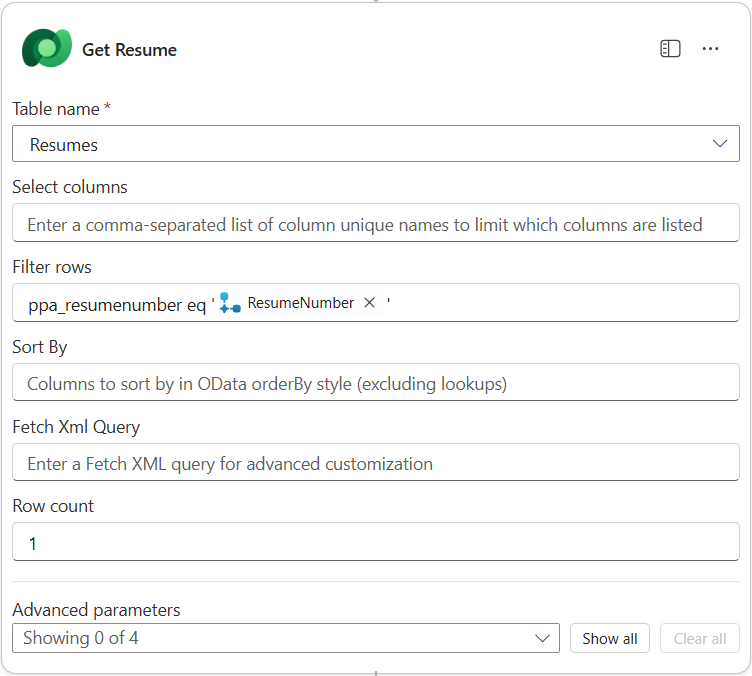
-
Now select the + Insert action icon below Get Resume, search for Dataverse, select See more, and find the List rows action.
-
Rename the node to
Get Job Role, then set the following parameters.Property How to Set Value Table name Select Job Roles Filter rows Dynamic data (thunderbolt icon) ppa_jobrolenumber eq 'JobRoleNumber'Select and replace JobRoleNumber with When an agent calls the flow → JobRoleNumberRow count Enter 1
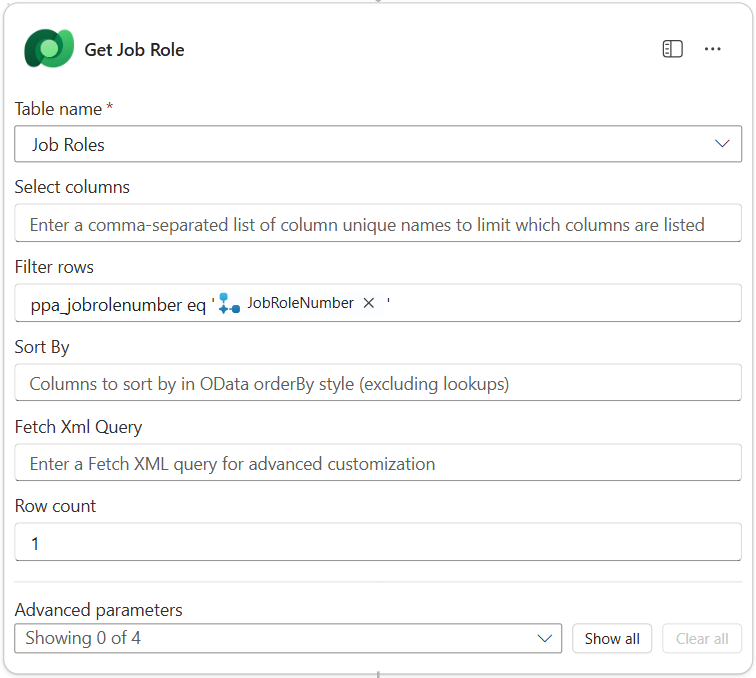
-
Now select the + Insert action icon below Get Job Role, search for Dataverse, select See more, and find the Add a new row action.
-
Rename the node to
Add Application, then set the following parameters.Property How to Set Value Table name Select Job Applications Candidate (Candidates) Expression (fx icon) concat('ppa_candidates/',first(outputs('Get_Resume')?['body/value'])?['_ppa_candidate_value'])Job Role (Job Roles) Expression (fx icon) concat('ppa_jobroles/',first(outputs('Get_Job_Role')?['body/value'])?['ppa_jobroleid'])Resume (Resumes) Expression (fx icon) concat('ppa_resumes/', first(outputs('Get_Resume')?['body/value'])?['ppa_resumeid'])Application Date (use Show all) Expression (fx icon) utcNow()
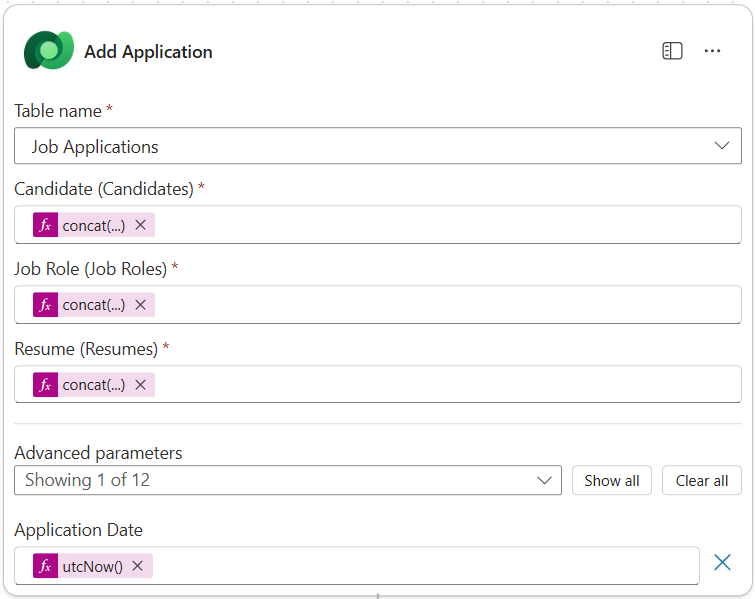
-
Select the Respond to the agent node, then select + Add an output.
Property How to Set Details Type Select TextName Enter ApplicationNumberValue Dynamic data (thunderbolt icon) Add Application → See More → Application Number Description Enter The [ApplicationNumber] of the Job Application created
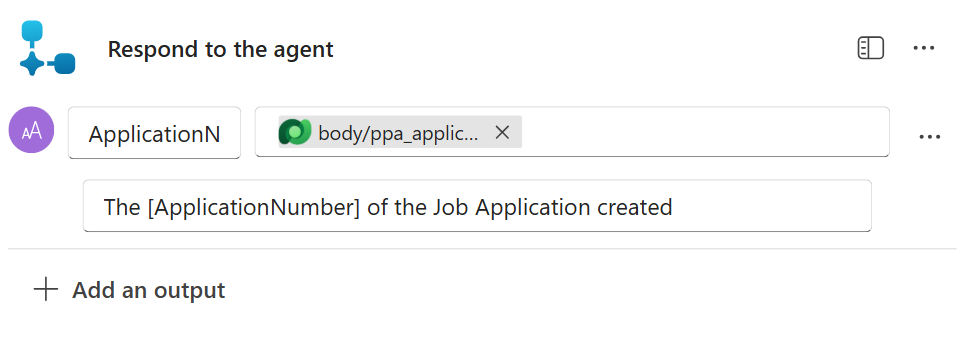
-
Select Save draft in the upper-right corner.
-
Select the Overview tab, then select Edit in the Details panel.
- Flow name:
Create Job Application - Description:
Creates a new job application when given [ResumeNumber] and [JobRoleNumber] - Save
- Flow name:
-
Return to the Designer tab and select Publish.
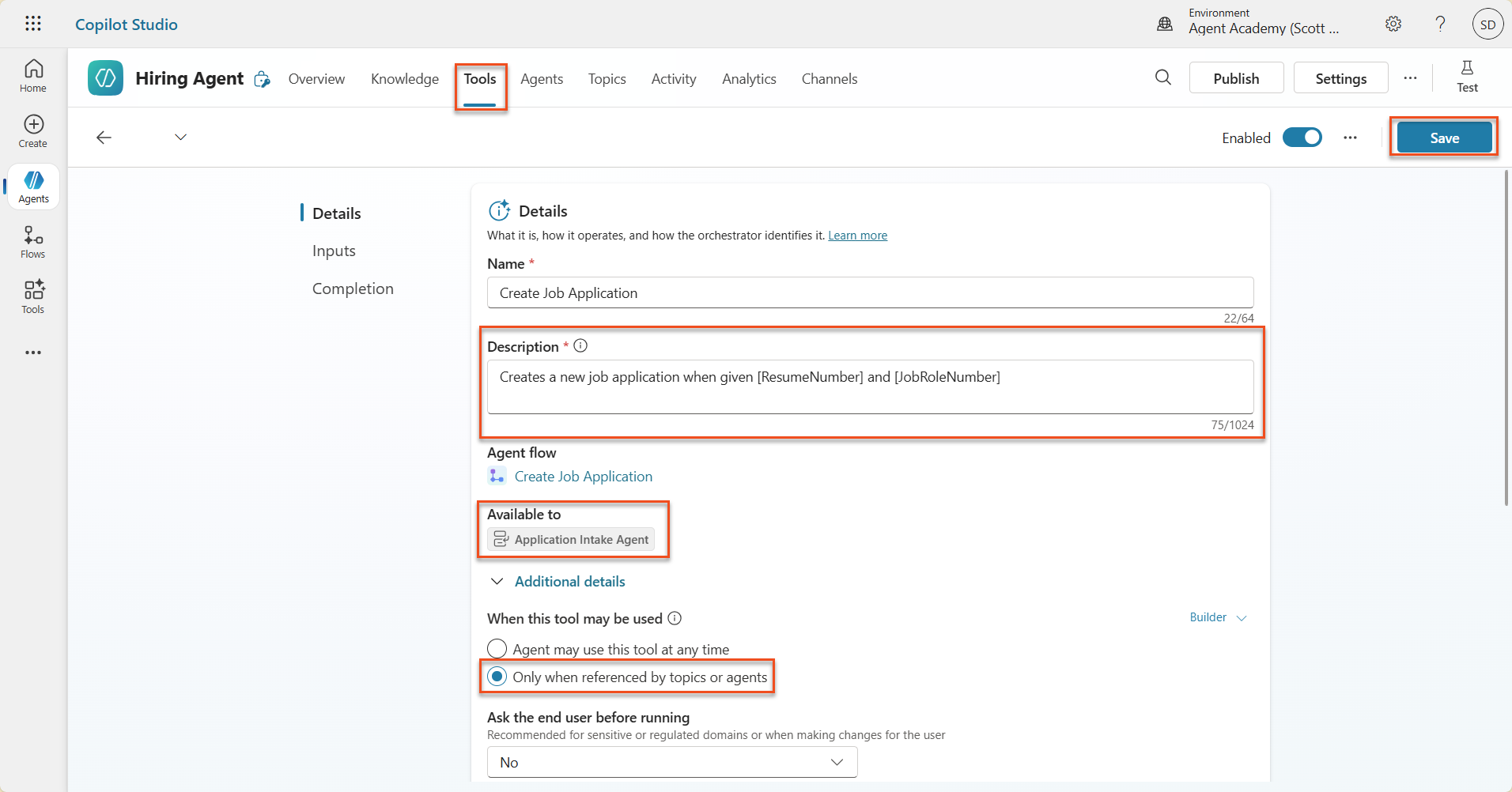
8.5 Add Create Job Application to the agent
Now connect the published flow to the Application Intake Agent.
-
Return to Hiring Agent and select the Agents tab. Open Application Intake Agent, then find the Tools panel.
-
Select + Add.
-
Select the Flow filter and search for
Create Job Application. Select the Create Job Application flow, then select Add and configure. -
Set the following parameters.
Parameter Value Description Creates a new job application when given [ResumeNumber] and [JobRoleNumber]Additional details → When this tool may be used Only when referenced by topics or agents -
Select Save.
8.6 Define agent instructions
To create Job Applications, you need to tell the agent when to use the new tool. Here, you will instruct it to confirm which suggested job roles the user wants to apply for, and then run the tool once for each role.
-
Go back into Application Intake Agent and find the Instructions panel.
-
Add the following clear guidance to the end of the existing instructions in the Instructions field.
3. Post Resume Upload - Respond with a formatted bullet list of [SuggestedJobRoles] the candidate could apply for. - Use the format: [JobRoleNumber] - [RoleDescription] - Ask the user to confirm which Job Roles to create applications for the candidate. - When the user has confirmed a set of [JobRoleNumber]s, move to the next step. 4. Post Upload - Application Creation - After the user confirms which [SuggestedJobRoles] for a specific [ResumeNumber]: E.g. "Apply [ResumeNumber] for the Job Roles [JobRoleNumber], [JobRoleNumber], [JobRoleNumber] E.g. "apply to all suggested job roles" - this implies use all the [JobRoleNumbers] - Loop over each [JobRoleNumber] and send with [ResumeNumber] to /Create Job Application - Summarize the Job Applications Created Strict Rules (that must never be broken) You must always follow these rules and never break them: 1. The only valid identifiers are: - ResumeNumber (ppa_resumenumber)→ format R##### - CandidateNumber (ppa_candidatenumber)→ format C##### - ApplicationNumber (ppa_applicationnumber)→ format A##### - JobRoleNumber (ppa_jobrolenumber)→ format J##### 2. Never guess or invent these values. 3. Always extract identifiers from the current context (conversation, data, or system output). -
Where the instructions include a slash (
/), select the text after/and choose the Create Job Application tool. -
Select Save.
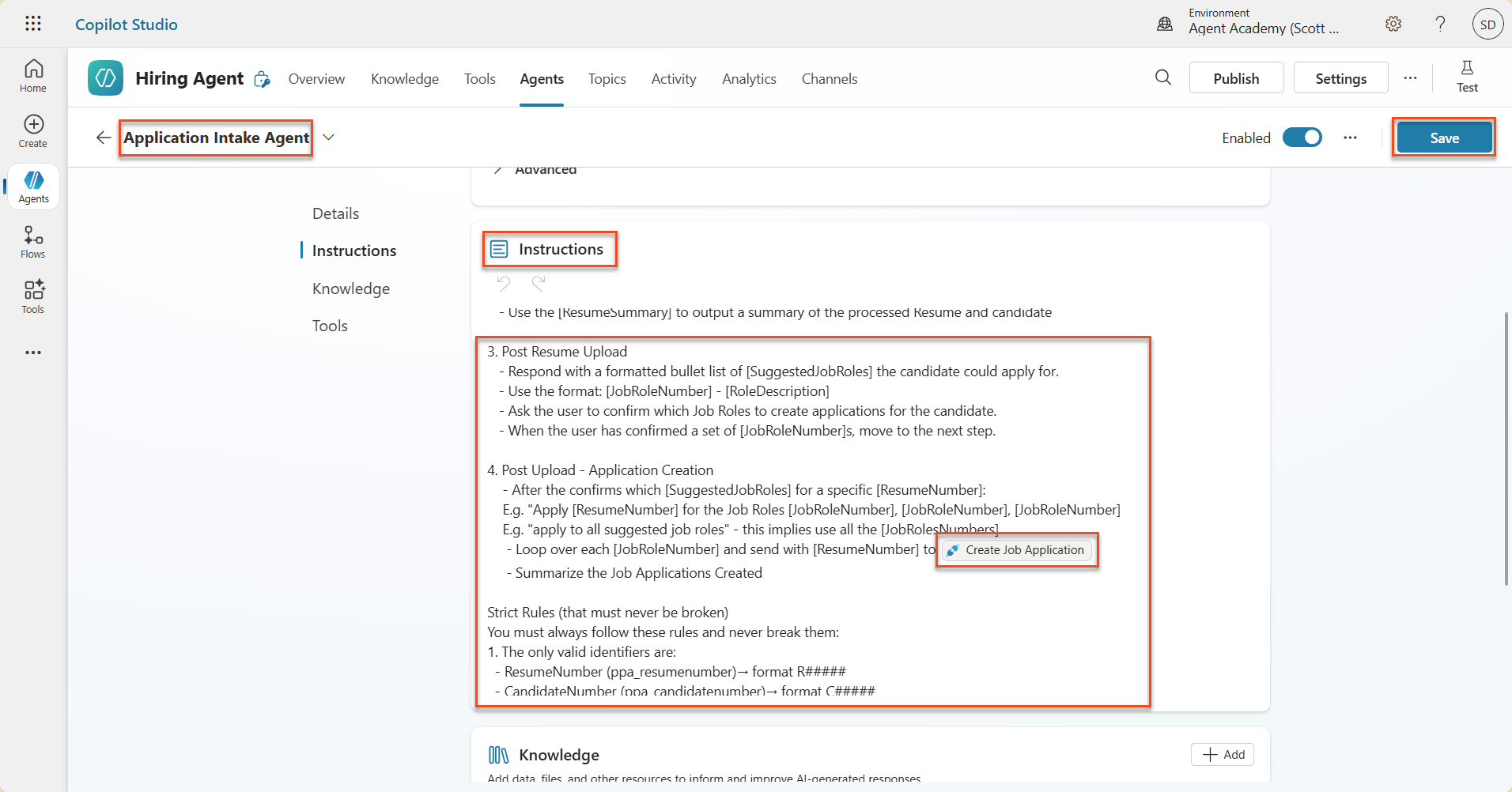
Tip: iterate over multiple items with Generative Orchestration — These instructions use generative orchestration to iterate over multiple rows and decide which steps and tools to use. Matched Job Roles are read automatically, and Application Intake Agent runs for each row. Welcome to the magical world of generative orchestration!
8.7 Test the agent
-
Open Hiring Agent in Copilot Studio.
-
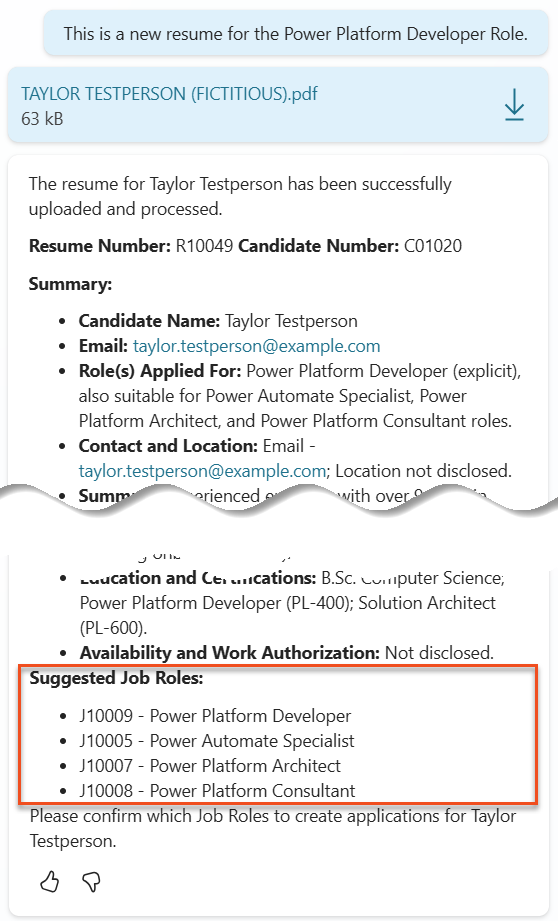
Upload a sample resume in the chat and enter the following.
This is a new resume for the Power Platform Developer Role. -
Confirm that the agent provides a list of Suggested Job Roles. Each item should include a Job Role number.
-
Next, specify which Job Applications this resume should be added to. Examples:
 "Apply for all of those job roles"
 "Apply for the J10009 Power Platform Developer role"
 "Apply for the Developer and Architect roles"
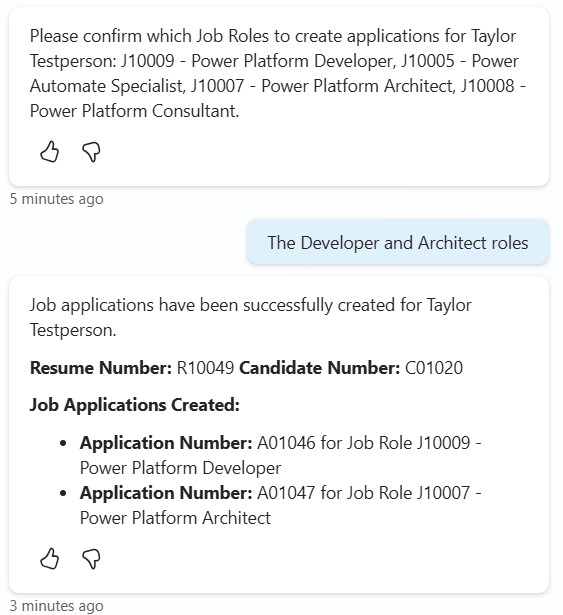
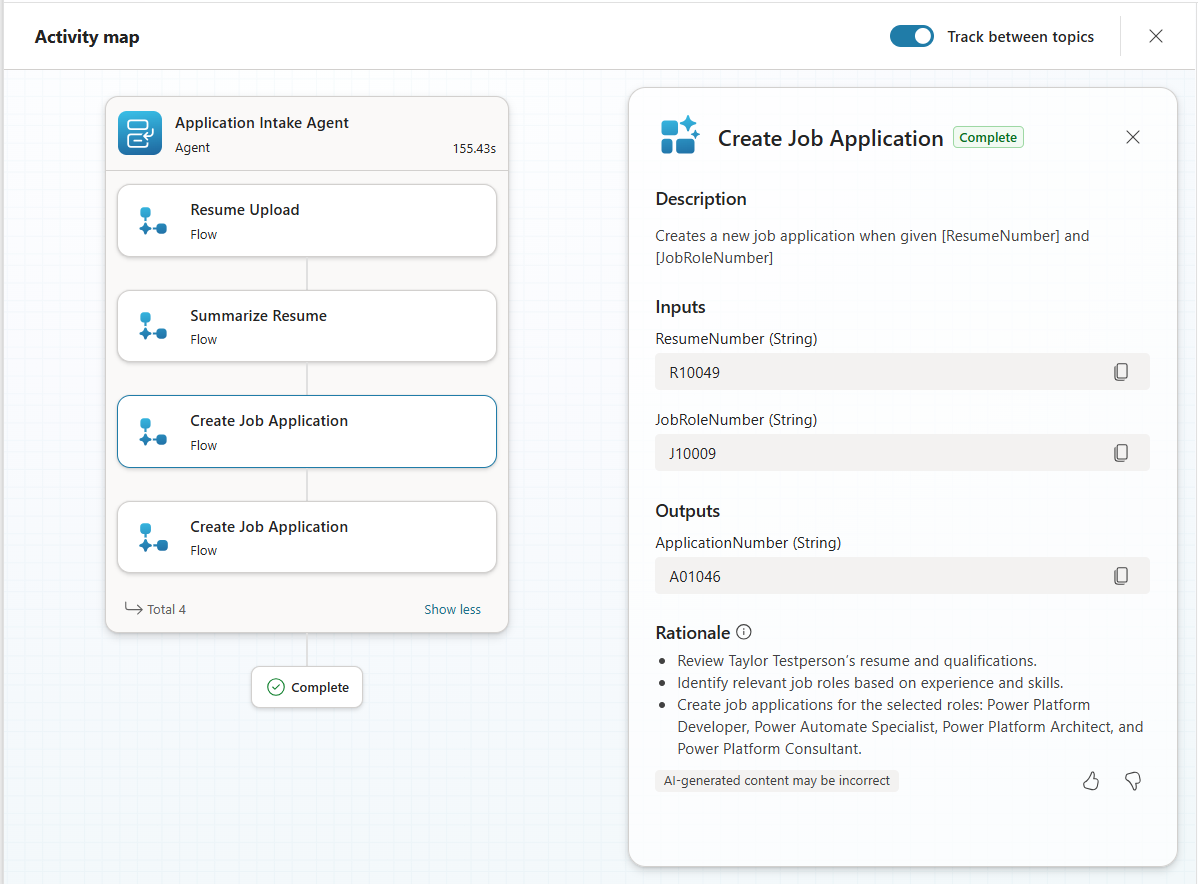
- The Create Job Application tool then runs for each specified job role. In the Activity map, you can see the Create Job Application tool execute for each requested Job Role.
🎉 Mission complete
Excellent work, Operative! Operation Grounding Control is now complete. You have successfully enhanced your AI capabilities with dynamic data grounding and built a truly intelligent hiring system.
In this mission, you accomplished the following:
✅ Dataverse grounding mastered
You now understand how to connect custom prompts to live data sources to deliver dynamic intelligence.
✅ Enhanced resume analysis
Your Summarize Resume flow can now access real-time job role data and evaluation criteria to perform accurate matching.
✅ Data-driven decision making
Your hiring agent can now automatically adapt to changing job requirements without manually updating the prompt.
✅ Job Application creation
The enhanced system can now create Job Applications and is ready for more complex workflow orchestration.
🚀 Next step: In the next mission, you will learn how to extend prompt capabilities to implement document generation.
⏩ Go to Mission 09: Document generation
📚 Tactical resources
📖 Use your own data in a prompt
📖 Work with Dataverse in Copilot Studio
📖 AI Builder custom prompts overview
📖 Power Platform AI Builder documentation
📖 Training: Create AI Builder prompts using your own Dataverse data