Using Prebuilt Agents
Learn how to use and customize template agents so you can get started faster.
Translated article — This article is based on 🧰 Mission 05: Using a Pre-Built Agent from the Copilot Studio Agent Academy. The original wording takes precedence.
Mission 05: Using a Prebuilt Agent
🎥 Lab video
Mission brief
Welcome to the next mission in Copilot Studio Agent Academy. This time, you will explore the world of intelligent, purpose-built prebuilt agents that Microsoft provides to help you deploy faster and see value sooner.
Instead of building everything from scratch, prebuilt agents, also called agent templates, give you ready-to-use scenarios that you can customize and deploy in minutes.
While you are preparing the Contoso IT helpdesk agent, another requirement comes in. Employees also need help preparing for business travel and finding travel policies. This is still employee support, but it has a clearly different purpose and knowledge domain. Instead of stretching the core responsibilities of the IT helpdesk agent, you can use an agent focused on the travel scenario.
In this mission, you will step away from the main helpdesk build for a moment and deploy the Safe Travels template. You will see how a prebuilt agent can quickly meet a new requirement while keeping each agent focused on a clear responsibility.
Important: This mission uses the classic Copilot Studio experience
If your Copilot Studio screens look different from the screenshots in this mission, turn off New Experience in the upper-right corner to switch back to the classic experience used here.
Objectives
In this mission, you will learn:
- Why prebuilt agents help you quickly start common business scenarios
- How to deploy the Safe Travels agent template
- How to customize an agent’s Knowledge
- How to test and publish a prebuilt agent
What are prebuilt agents?
Prebuilt agents are ready-to-use AI agents created by Microsoft. They:
- Cover common business needs such as travel, HR, and IT support.
- Include completed topics, trigger phrases, instructions, and sample knowledge.
- Can be edited, extended, and grounded with your own data as needed.
They are useful both for getting started quickly and for learning how agents are structured.
Lab 05: Start quickly with a prebuilt agent
In this lab, you will select and customize a prebuilt agent for the new travel-support requirement. The Safe Travels agent is not an extension of the Contoso IT helpdesk agent; it is a standalone, focused agent.
Let’s get started.
5.1 Launch Copilot Studio
-
Sign in with your Microsoft 365 work or school account.
5.2 Select the Safe Travels agent template
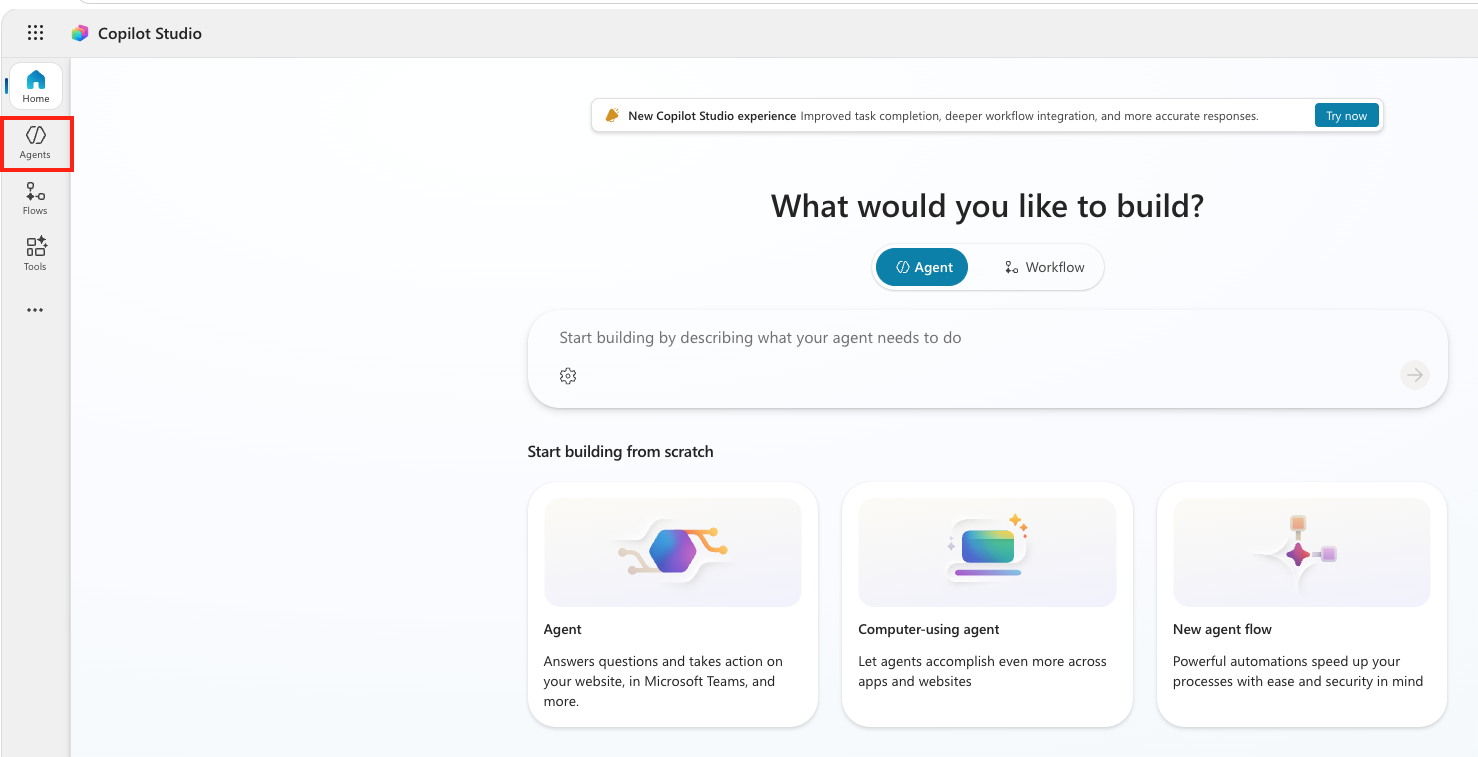
- In the left menu, select the Agents tab.
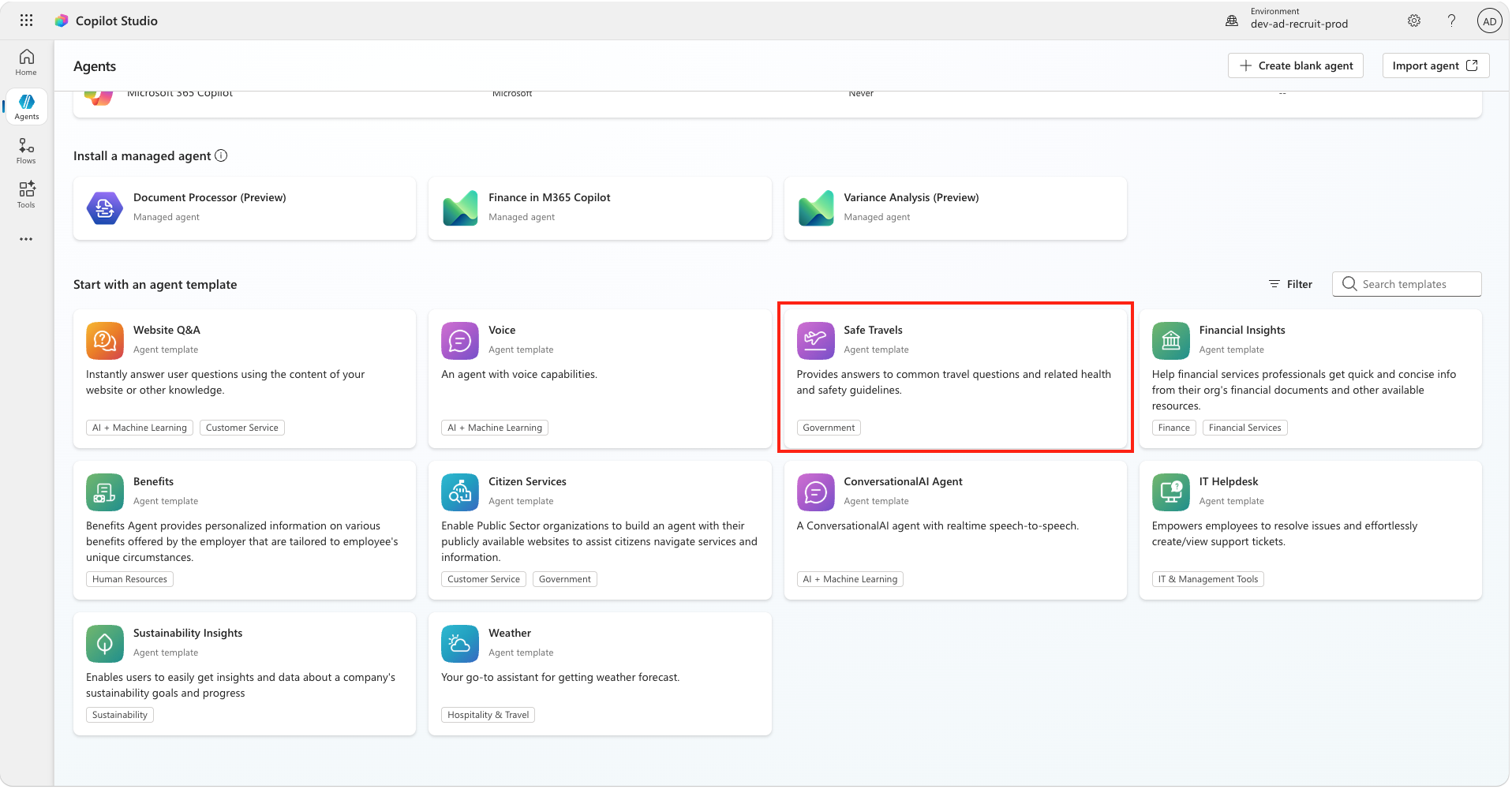
- Scroll down to the Start with an agent template section. Find and select the Safe Travels template.
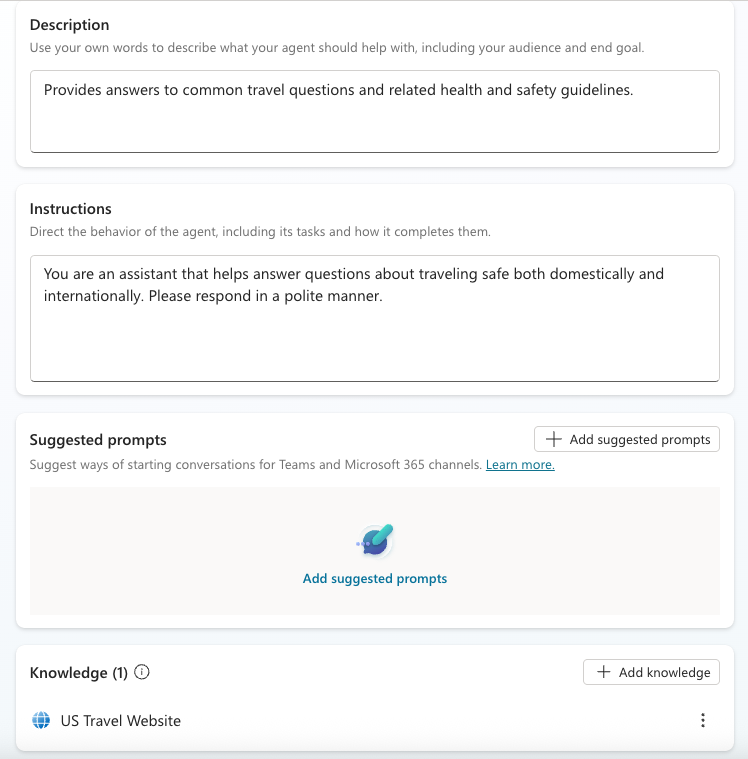
- Notice that this template already includes a description, instructions, and knowledge.
- Select Create.
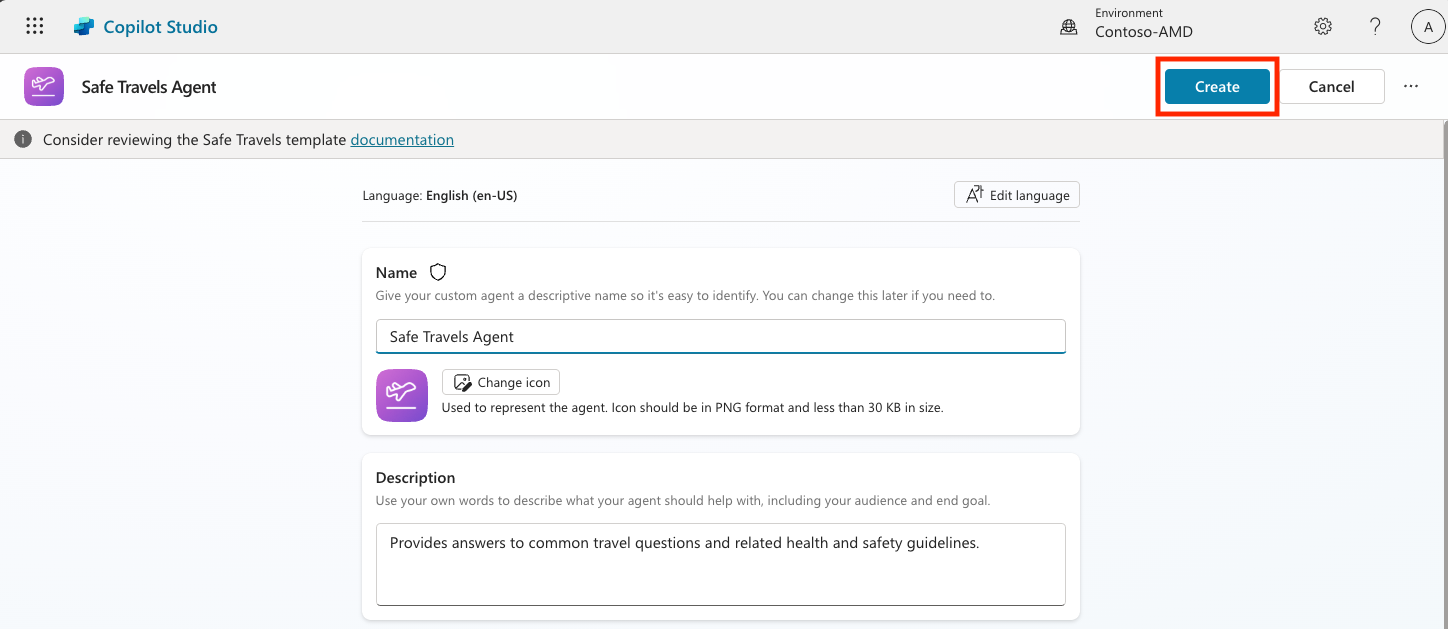
A new agent based on the Safe Travels configuration is created in the current environment.
5.3 Customize the agent
Now that the agent has been created, customize it for your organization.
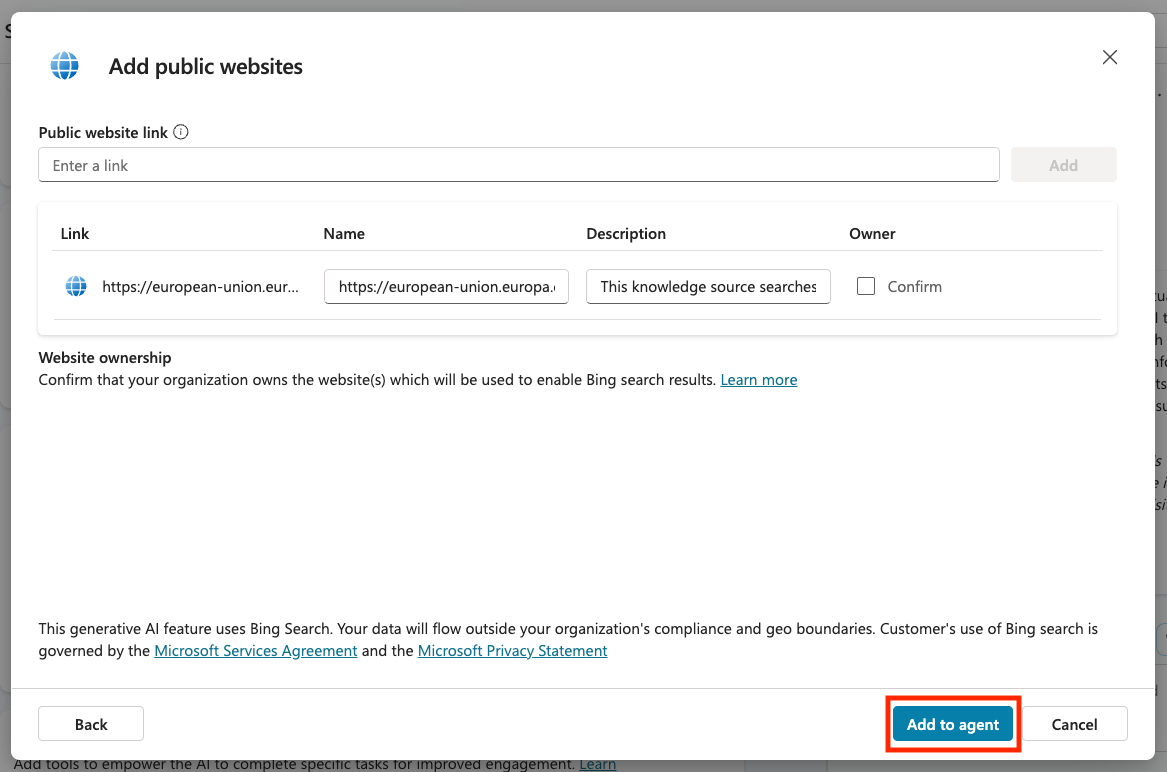
- Add another knowledge source so the agent can answer questions about travel in Europe. Scroll down to the Knowledge section and select Add knowledge.
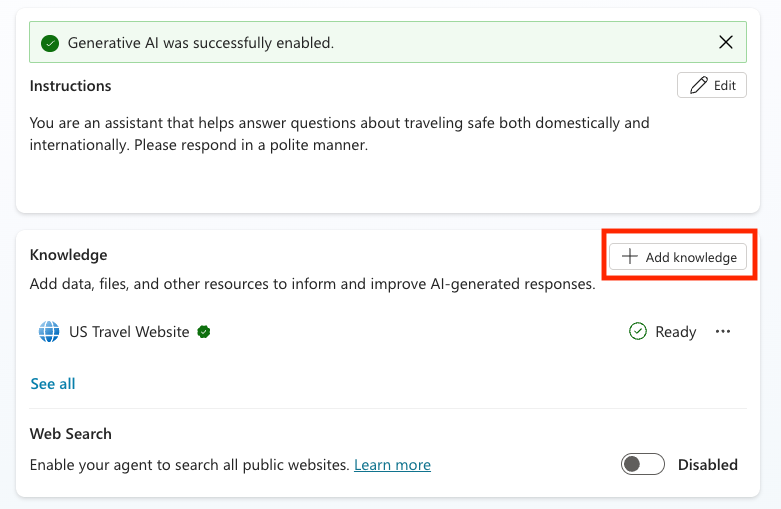
- Select Public websites.
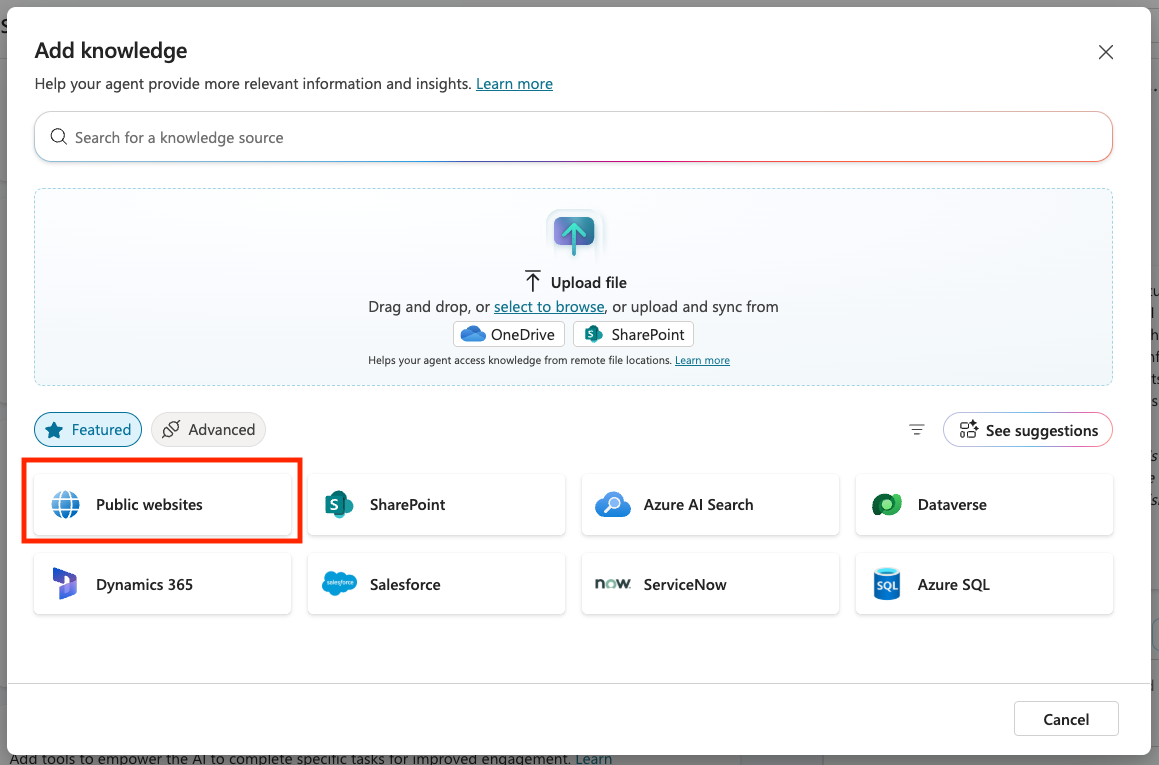
- Paste https://european-union.europa.eu/ into the input field and select Add.
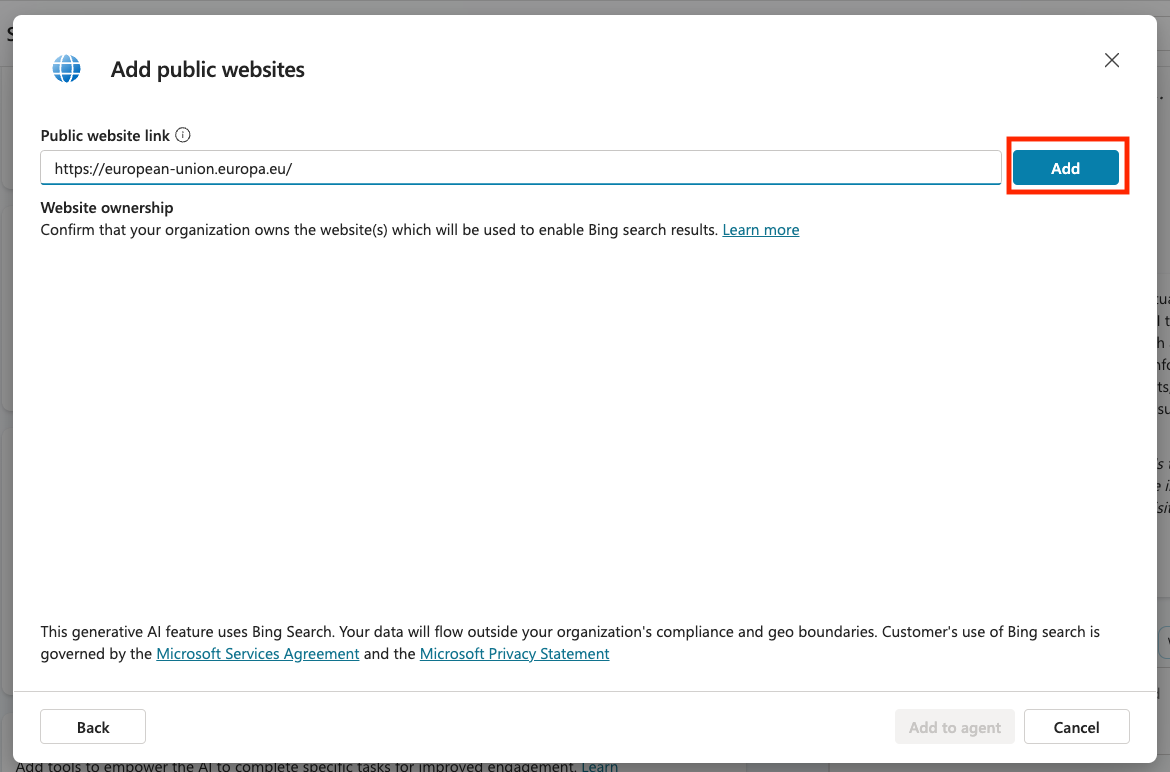
- Select Add to agent.
5.4 Test and publish
-
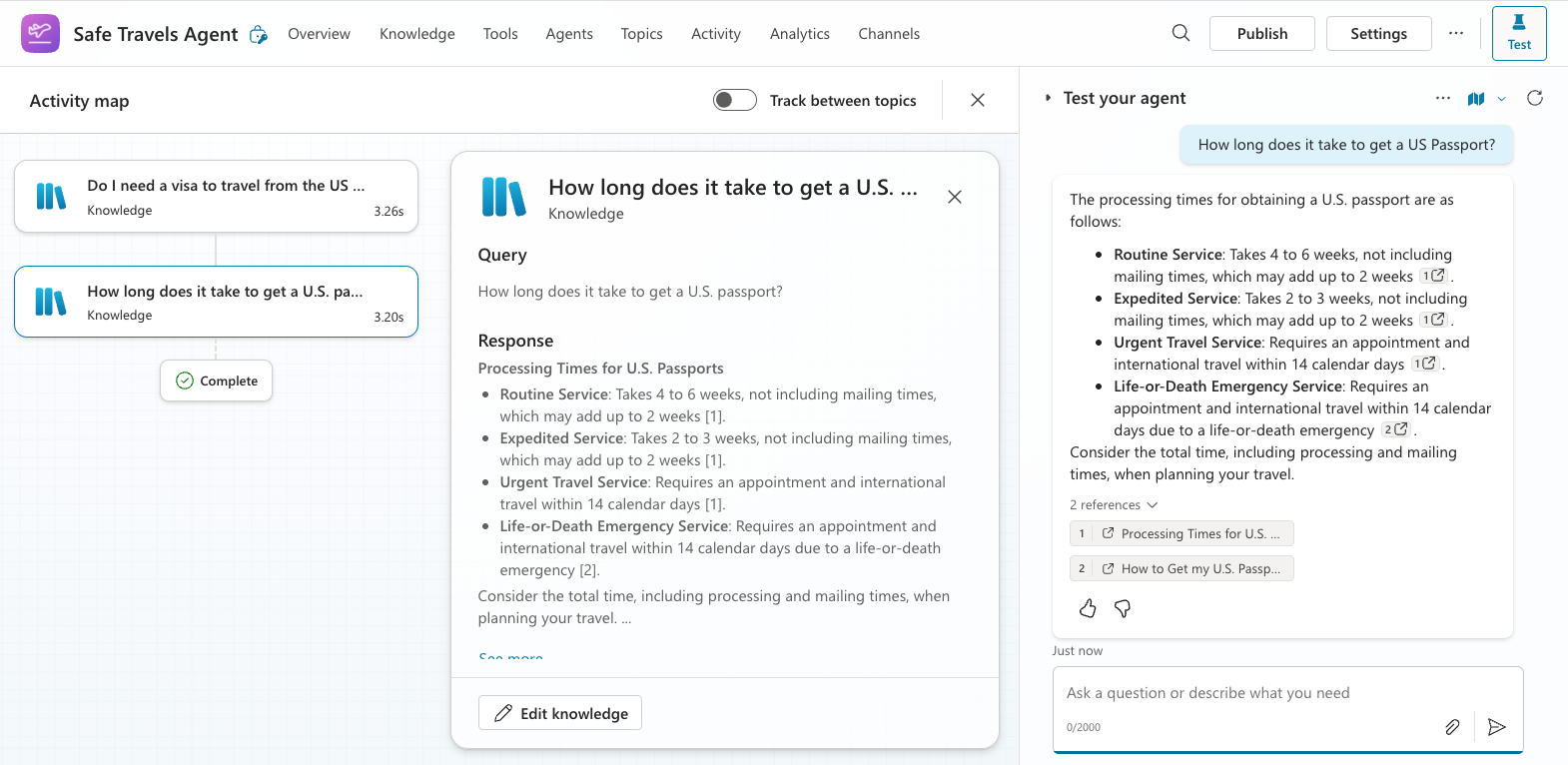
Select Test to open the test pane.
-
Try entering questions such as:
“Do I need a visa to travel from the US to Amsterdam?”“How long does it take to get a US Passport?”“Where is the closest US embassy in Valencia, Spain?”
-
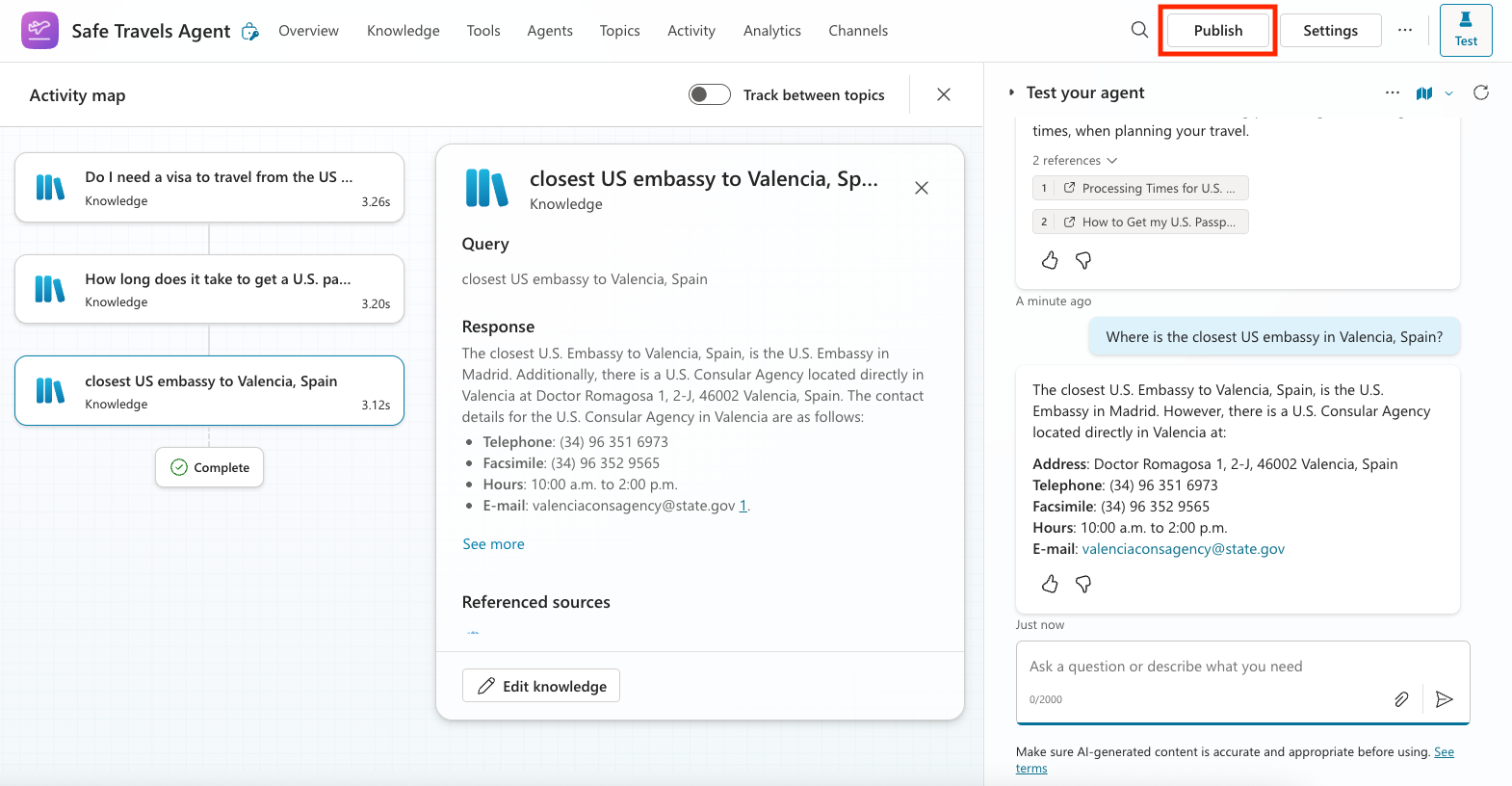
Confirm that the agent responds with accurate, helpful information, and review the Activity Map to see where the information came from.
- When you are ready, select Publish.
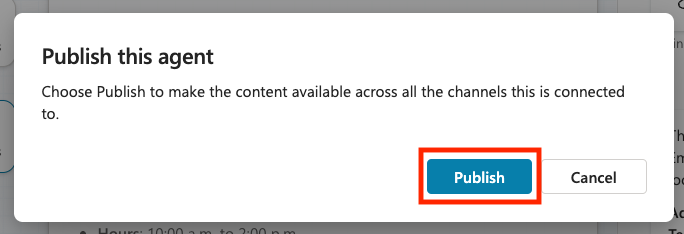
- In the dialog box, select Publish again.
- If needed, you can also add the agent to Microsoft Teams using the built-in Channels feature.
Note: 🧳 Bonus objective
Ground the Safe Travels agent with a SharePoint site or FAQ file so it can provide answers that better match your organization’s actual travel policies.
Mission complete
You have now successfully completed the following tasks.
- Template selection: Selected a prebuilt agent that fits a focused business need.
- Agent deployment: Deployed the Safe Travels template.
- Knowledge customization: Added a public website as a knowledge source.
- Testing and publishing: Tested and published the customized agent.
By using a focused agent for the travel-support requirement, you do not need to add unrelated responsibilities to the Contoso IT helpdesk agent. In the next mission, you will return to the main course scenario and build a custom helpdesk agent from scratch.
Next, continue to Mission 06: Build a Custom Agent.