Add Work IQ MCP tools
Fundamentals #3: Autonomous agent - Add Work IQ MCP tools
Step 3: Add Work IQ MCP tools
3. Add Work IQ MCP
Previous step: 2. Connect knowledge sources Next step: 4. Add ThinQ MCP tools
What is MCP (Model Context Protocol)?
MCP (Model Context Protocol) is an open protocol designed so AI agents can communicate with external tools, data sources, and services in a standardized way.
| Item | Description |
|---|---|
| Purpose | Provide a standard interface between AI models and external systems |
| Advantage | Add external service capabilities as agent Tools without code |
| Structure | MCP server exposes a list of Tools → agent calls them when needed |
| Examples | Home appliance product data lookup, business system integration, external API calls, etc. |
In Copilot Studio, you can add all tools provided by an MCP server to an agent by entering only the MCP server URL.
Introduction to Work IQ MCP
Work IQ MCP is an MCP server that can access work productivity data, such as schedules, to-dos, meetings, and team status.
When connected to an agent, it can understand the user’s work context and autonomously process multi-step workflows by combining multiple tools.
| Item | Details |
|---|---|
| Capabilities provided | Schedule lookup, to-do management, team member status, work notifications, etc. |
| Connection method | Can be added easily through the catalog, like adding a Tool |
| Key learning point #1 | How to configure a multi-step workflow using only Instructions |
| Key learning point #2 | Use Microsoft 365 Copilot enterprise search when Knowledge alone is insufficient for answers (implement fallback) |
1. Connect the Work IQ MCP server
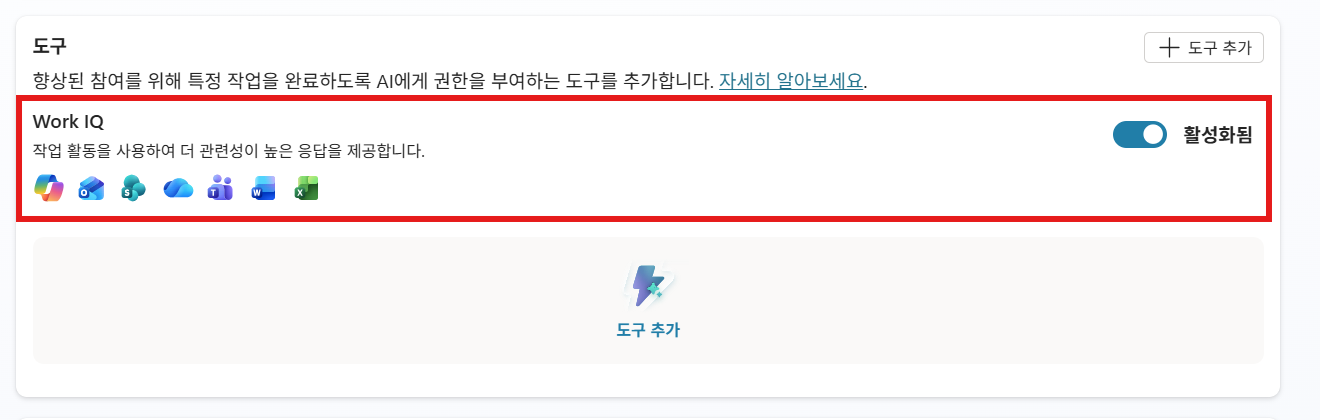
1-1. Enable Work IQ
Enable Work IQ under Tools on the agent Overview screen. When this feature is enabled, the agent can use Work IQ enterprise search during fallback to find information that is not in the Knowledge source.
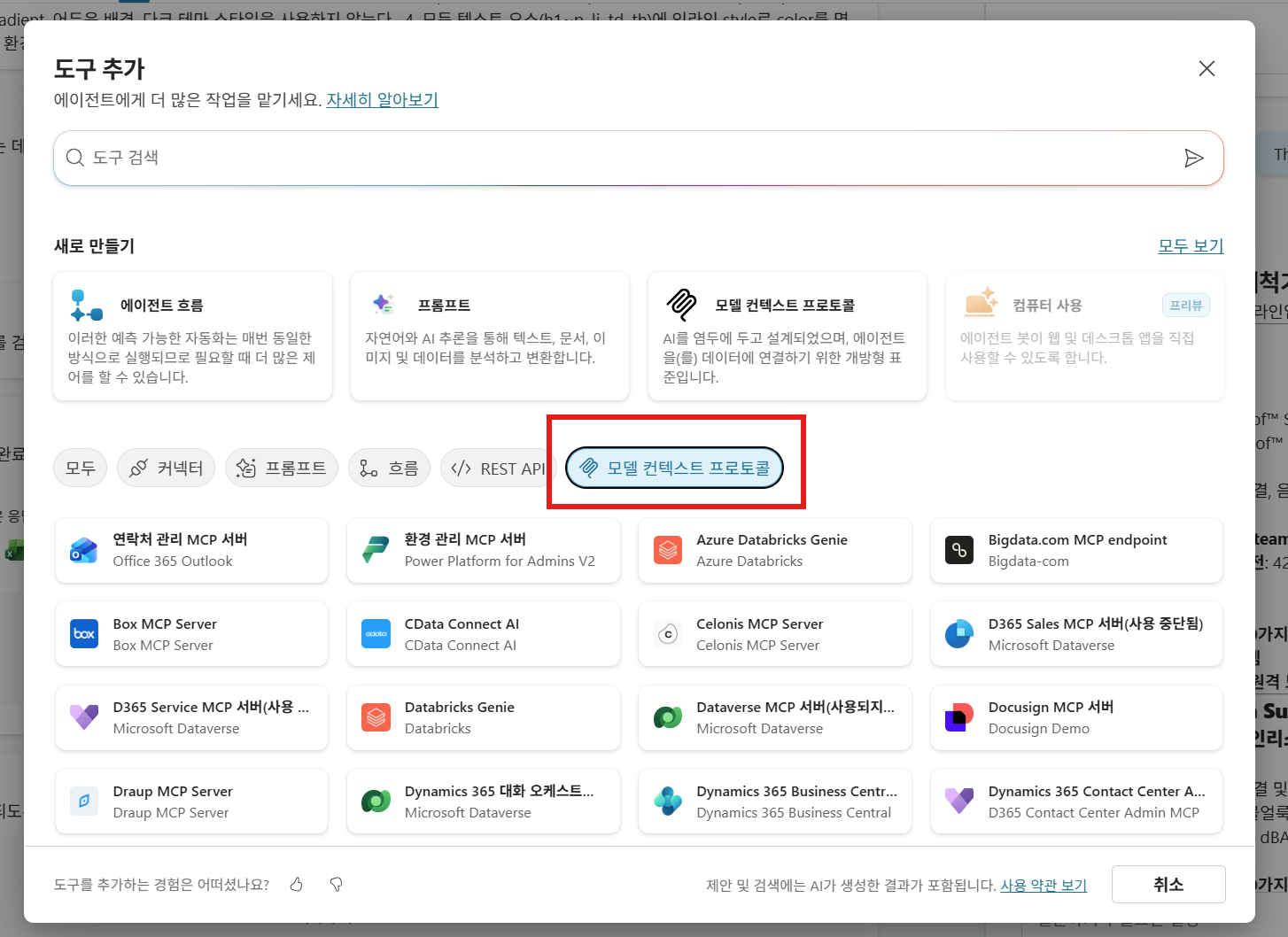
1-2. Add the Work IQ Mail tool
Next, select the Tools section at the top → + Add tool → the MCP tab.
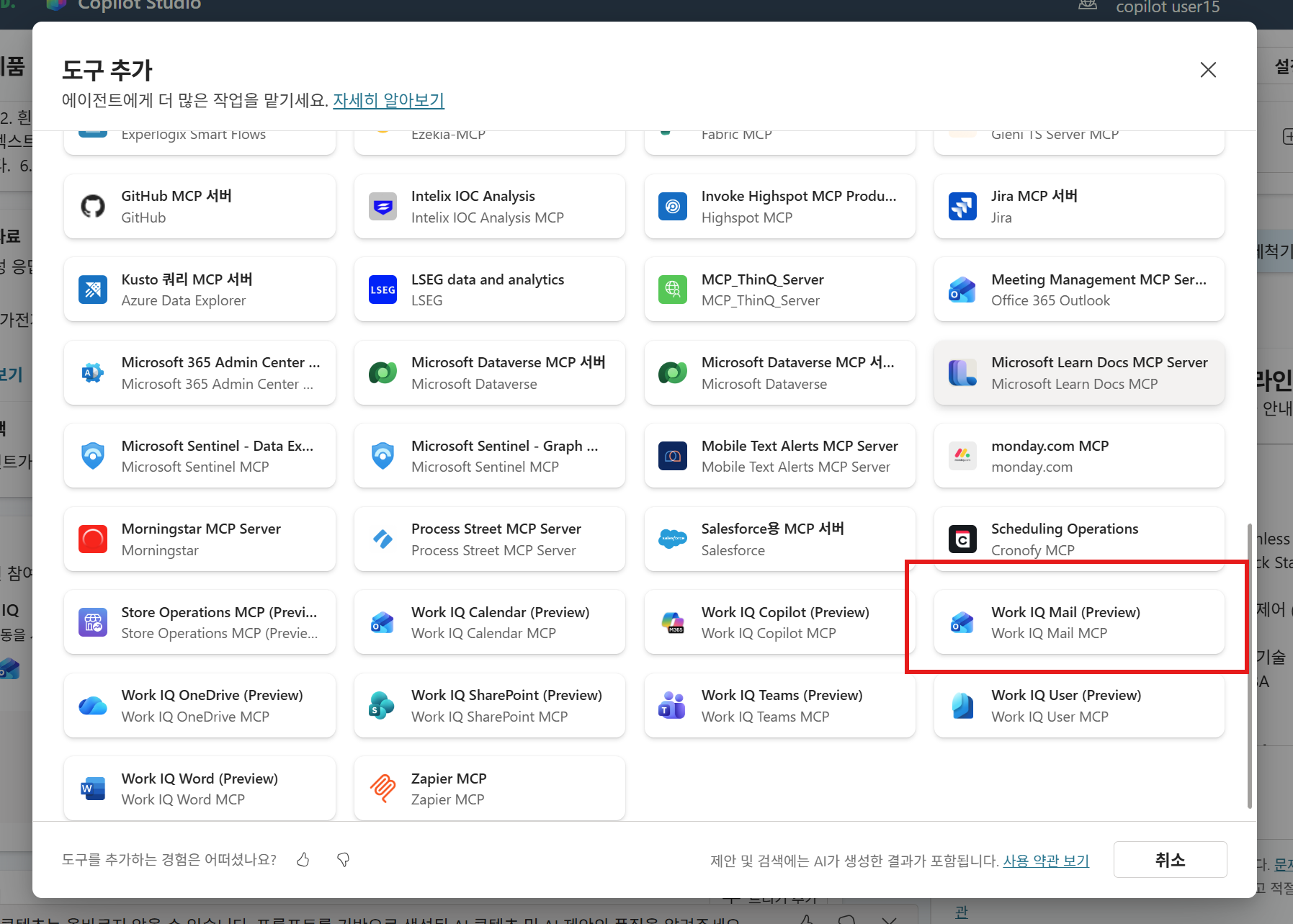
1-3. Select the WorkIQ Mail MCP tool
Scroll down and select the WorkIQ Mail MCP tool provided by Microsoft by default.
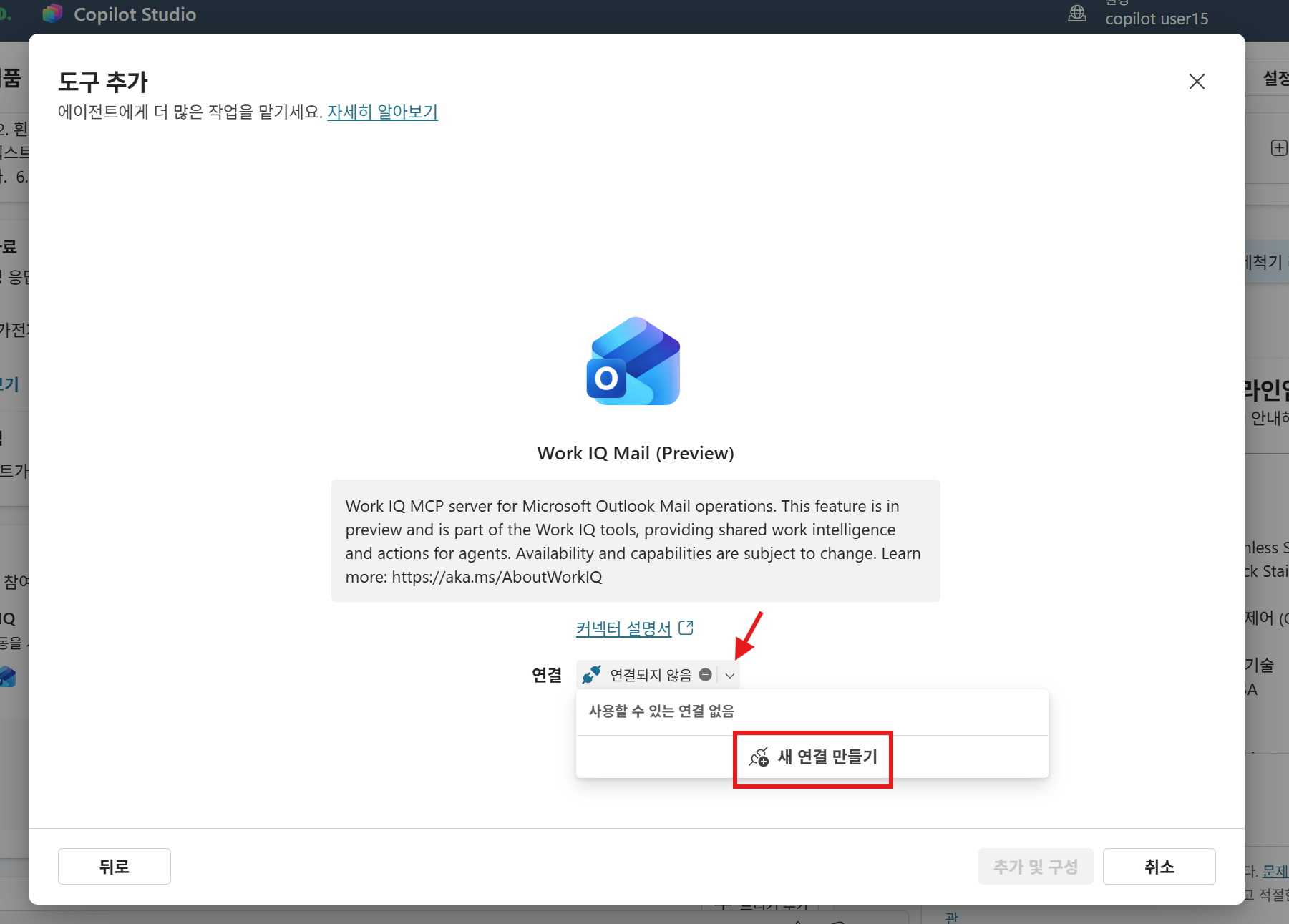
1-4. Enter connection information
On the first connection, a new connection is required to use the tool, as shown below.
Follow the guide and click Connect step by step, complete the connection based on the currently signed-in information, and finally select Add and configure.
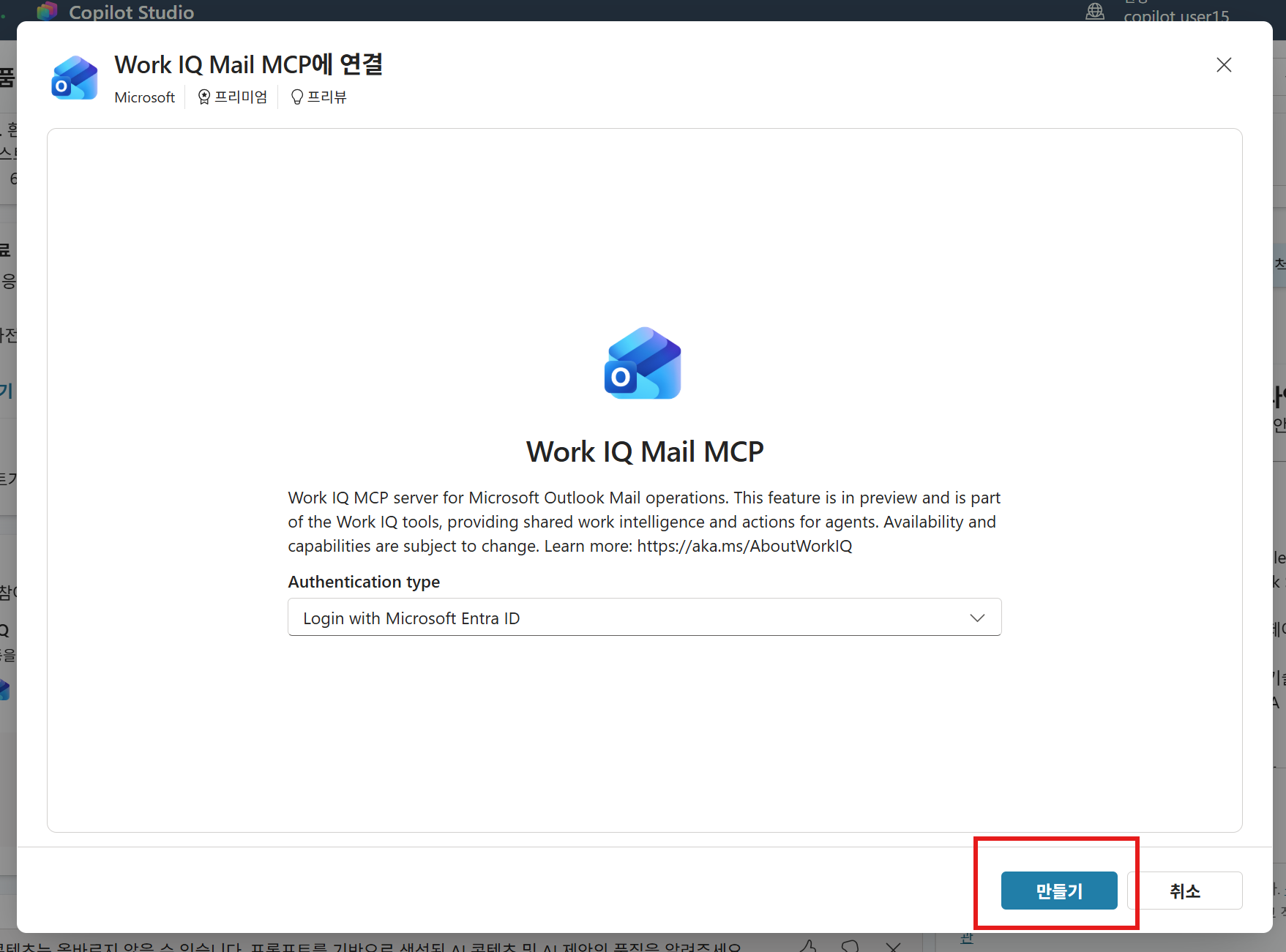
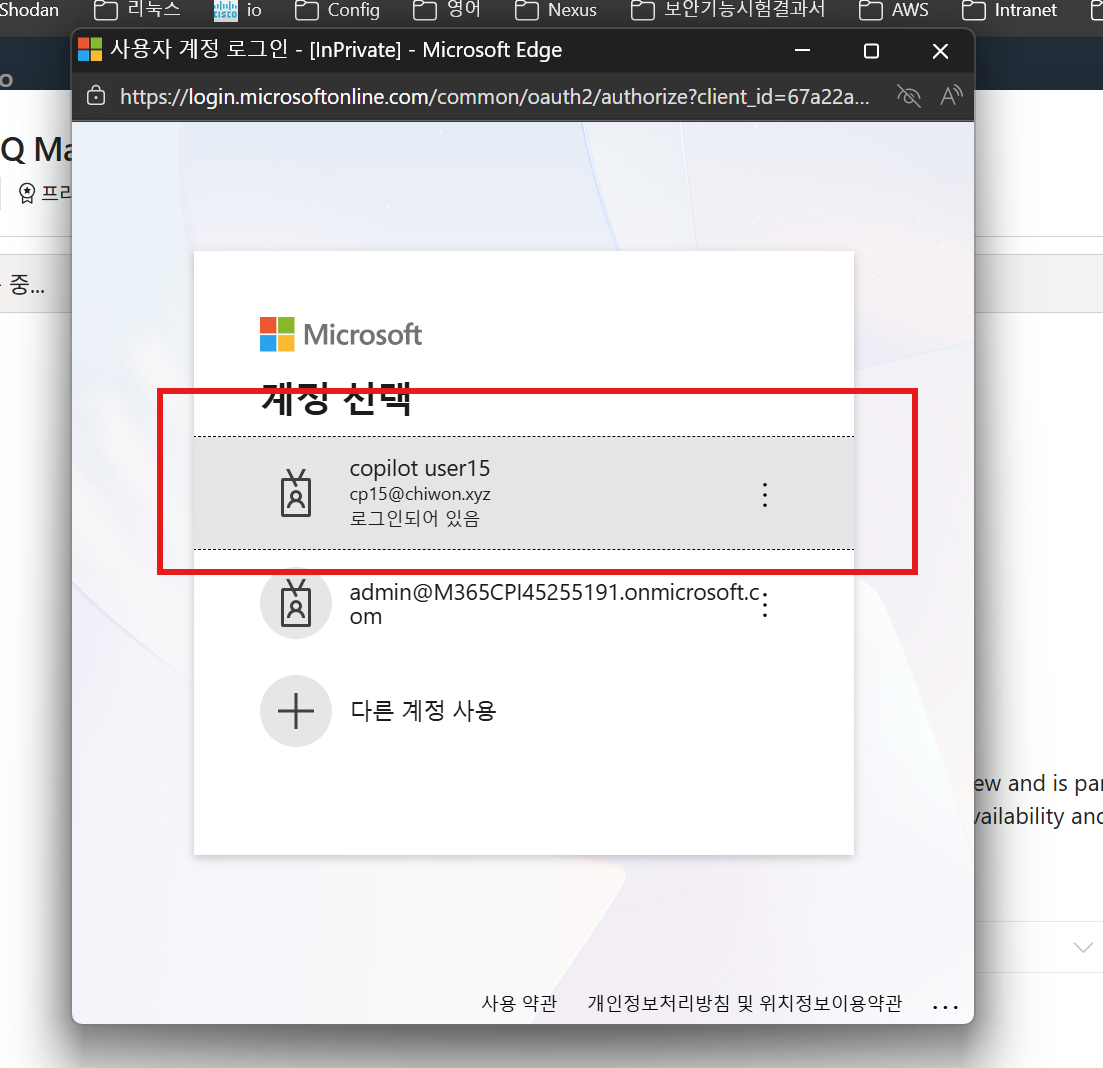
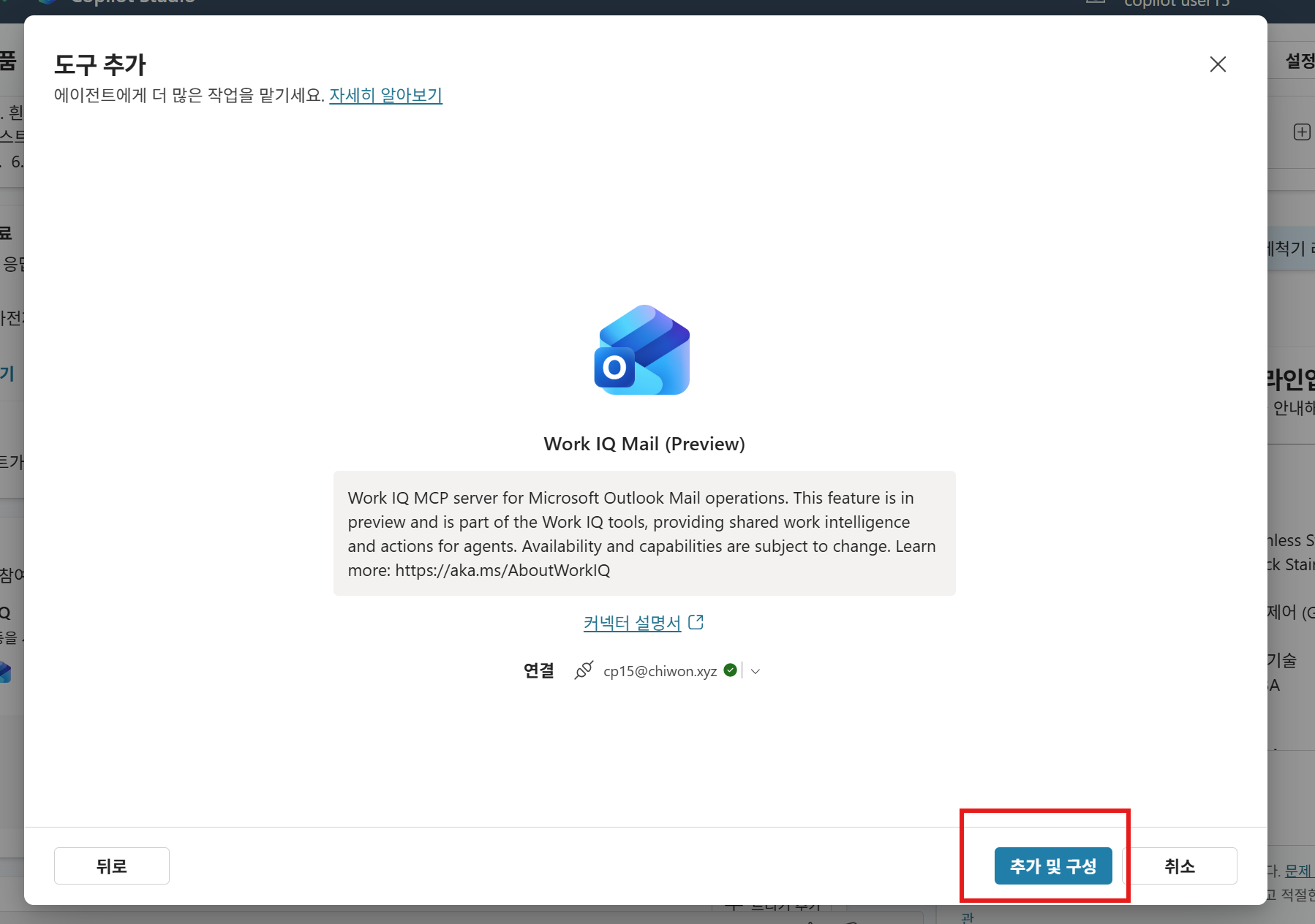
1-5. Review and select the tool list
When the connection succeeds, the list of tools available from the MCP server appears as shown below. By default, all tools are available.
However, you can disable specific tools as needed. In this workshop, keep all tools enabled.
| Tool example | Description |
|---|---|
AddDraftAttachments |
Add attachments to a draft |
UpdateDraft |
Update a draft |
SendEmailWithAttachments |
Send email with attachments |
SearchMessagesQueryParameters |
Search email based on a search query |
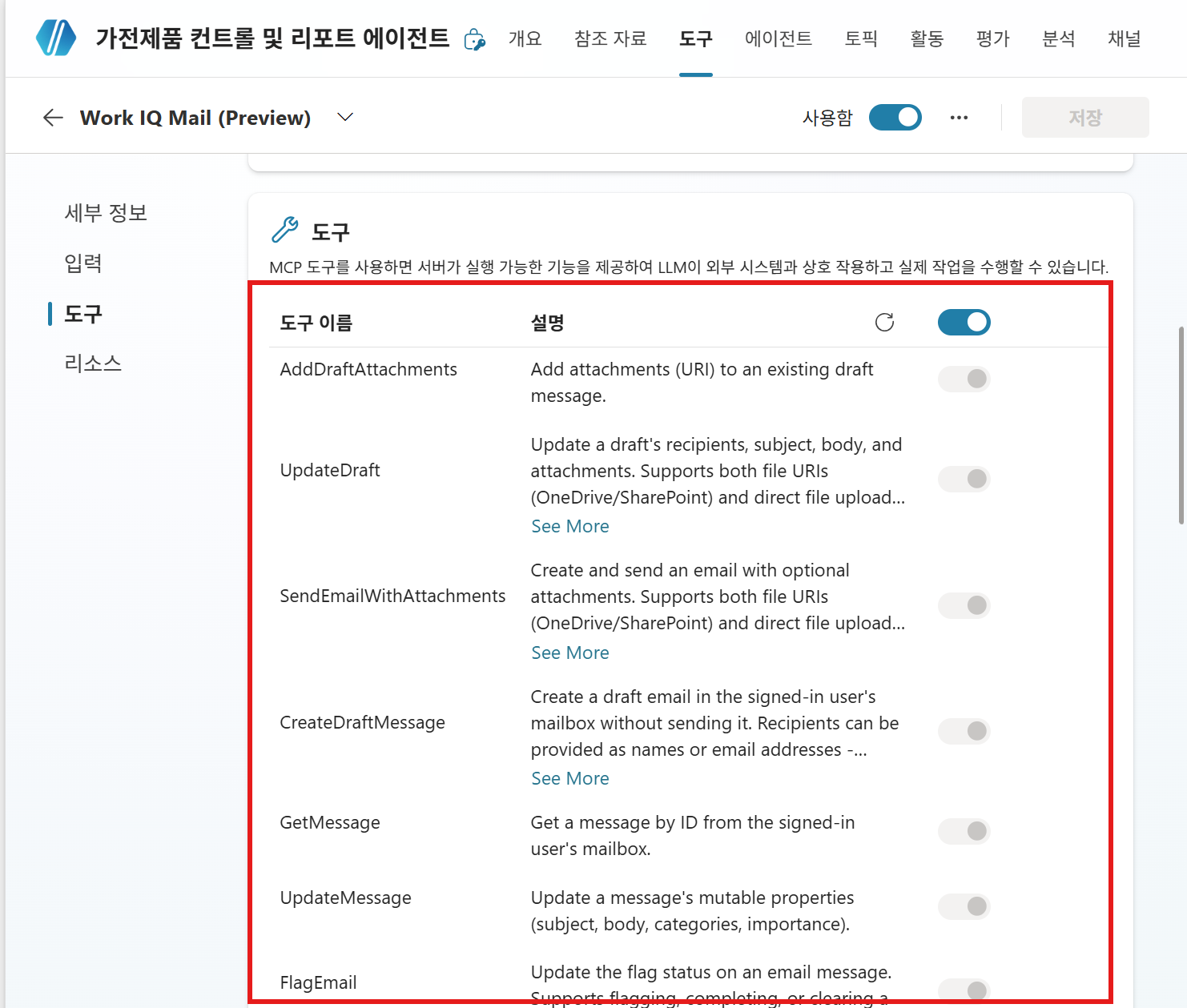
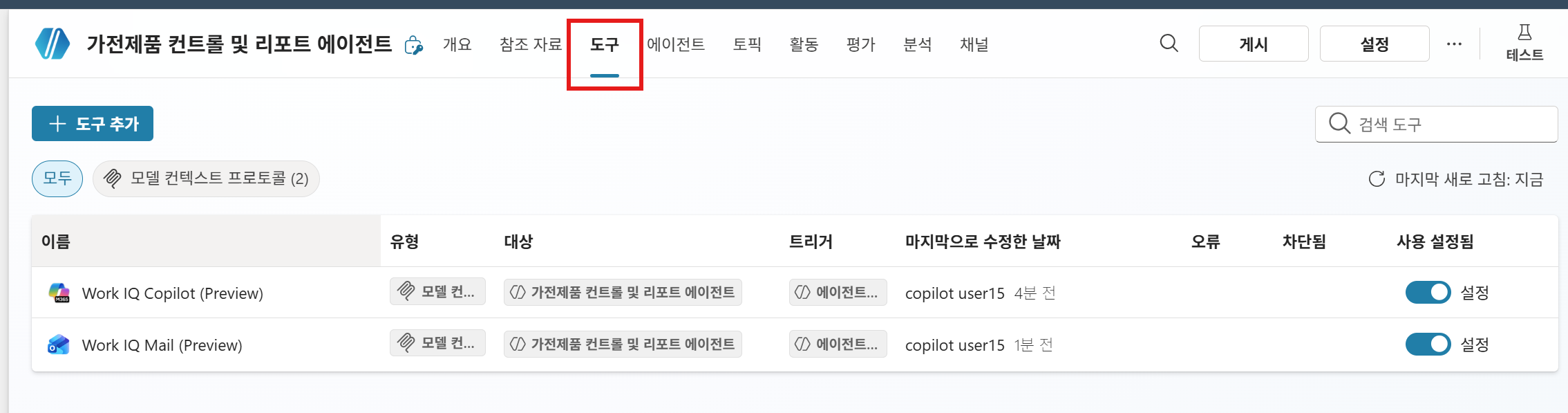
After reviewing the tool list, click the Tools button at the top to go back. You can see that Work IQ Mail and Copilot tools have been added to the list of currently available tools.
2. Configure an Instructions-based workflow
This is the key part of this step.
See how to configure a multi-step workflow using only agent Instructions, without Power Automate Flows.
Existing approach vs. Instructions-based approach
| Item | Existing Flow approach | Instructions-based approach (this workshop) |
|---|---|---|
| Workflow definition location | Power Automate Flow canvas | Agent Instructions |
| Conditional branching | Condition cards (If/Else) | Natural-language condition descriptions in Instructions |
| Tool call order | Flow step order | Instructions such as “When ~, do ~ first” |
| Variable passing | Flow variables | Agent manages automatically through conversation context |
| Maintenance | Edit Flow | Modify Instructions text |
2-1. Add a workflow scenario to the Instructions
Add the following content to the ## Tool usage principles section of the agent Instructions.
## Work support workflow
### 📅 When the user asks for a summary of today's work:
If the user asks for "today's schedule," "summarize email work," or similar requests, proceed in the following order.
1. Search email using the Work IQ Mail tool.
2. If the email content includes inquiries or collaboration requests related to dishwashers or refrigerators, collect and provide basic information that can be used to answer and make decisions through the knowledge sources.
3. Combine the retrieved information and respond in a "Today's work briefing" format.
4. If the content is insufficient, use Work IQ Copilot to collect information through additional queries.

### 📧 When the user asks to send a work report email:
If the user asks to send a work report email, proceed in the following order.
1. Look up tasks to do through the "summary of today's work" procedure.
2. Based on the retrieved content, draft the report email and ask the user to confirm it.
3. If the user approves, send the email using the Work IQ Mail tool.
Important! When sending email, you must comply with the **email sending rules**.
💡 Understand the core principle
The agent reads the Instructions and decides and executes the workflow that matches the user’s request on its own.
If there is an instruction that says “call the tools in the order 1 → 2 → 3,” the agent follows that order even without a separate Flow.
This is the core of generative orchestration.
3. Check behavior
In the test panel on the right, test the following scenarios in order.
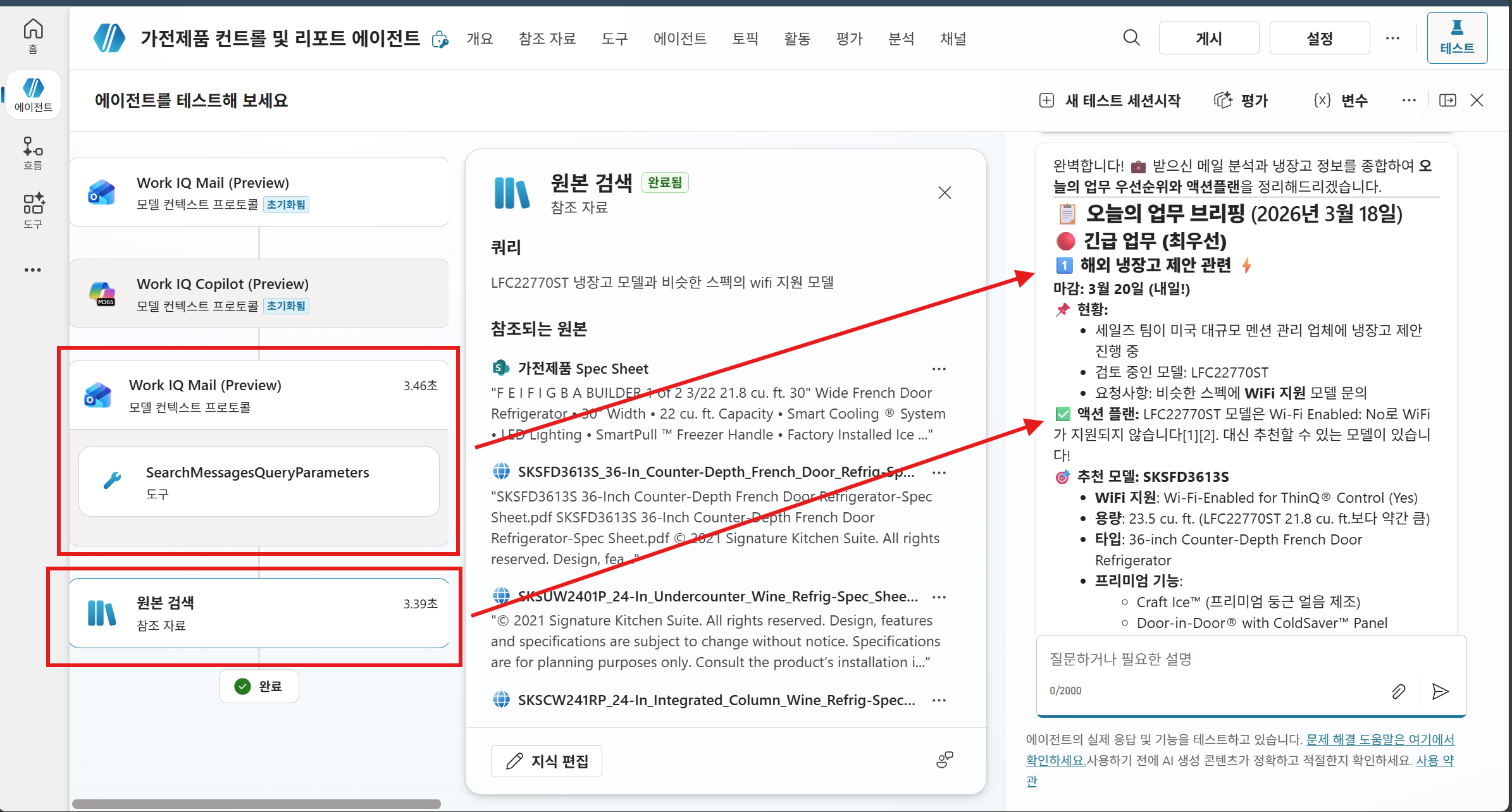
Scenario — today’s work briefing:
Summarize priorities and an action plan based on the emails I have received so far
→ The agent searches emails and suggests importance levels and an action plan based on the email content. When needed, it also uses internal search to suggest supporting data for decision-making.
Scenario 2 — work report email:
Report this week's work status by email to my team leader (manager@company.com)
→ The agent should follow the flow: look up to-dos and schedules → draft the email → get user confirmation → send.
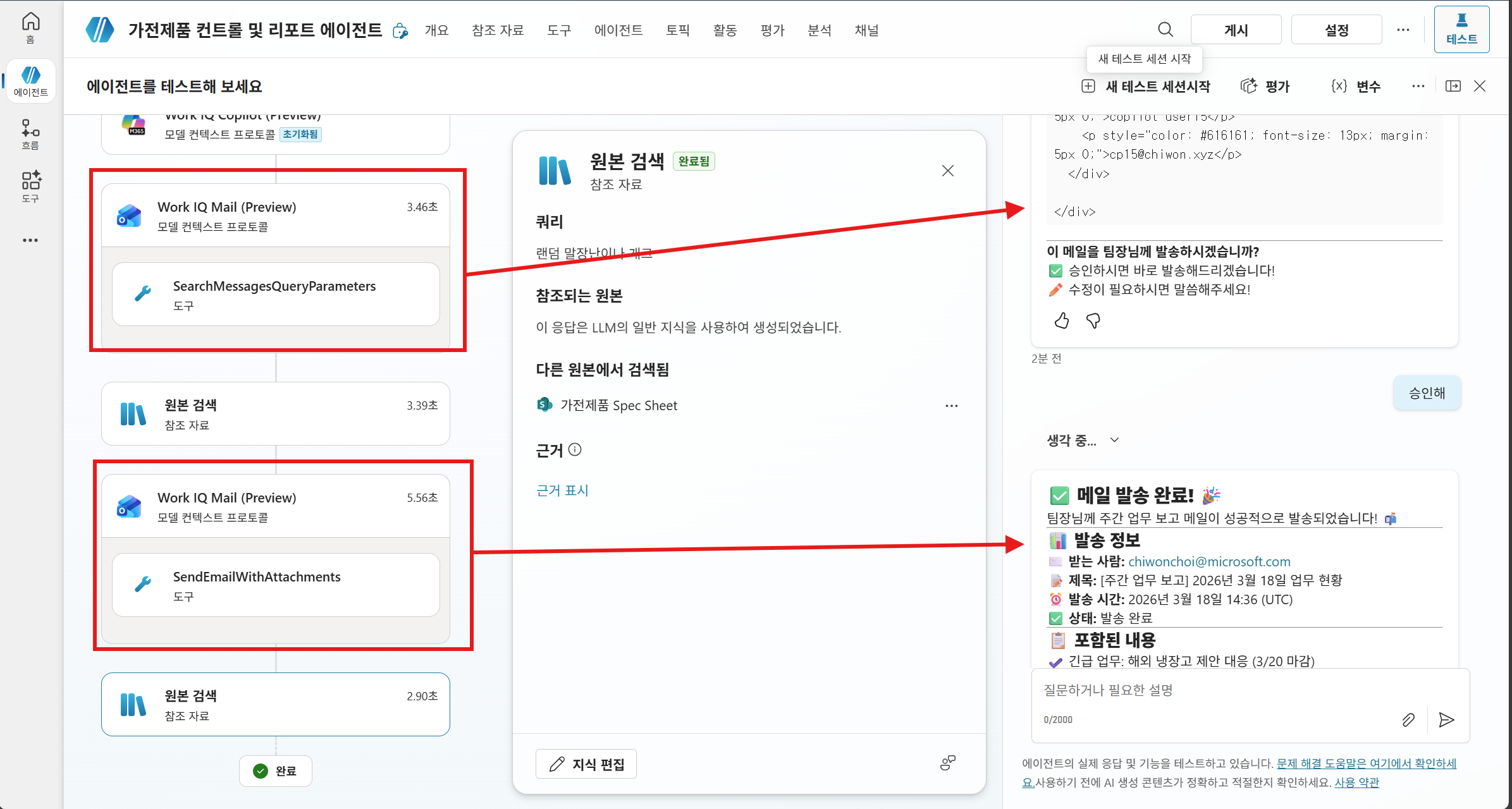
Learning point: Even though you did not create a Power Automate Flow, the agent performed multi-step tasks in order using only the workflow description in the Instructions. The more specific the Instructions are, the better the quality of the agent’s autonomous orchestration.
Next step: 4. Add ThinQ MCP tools
| ← Previous: Step 2. Connect knowledge sources | Next: Step 4. Add an external MCP tool → |