Lab CWRK3 — Add Entra SSO authentication to a Cowork plugin
Connect the authentication-required Zava Claims MCP server to a Cowork plugin and configure, step by step, how to pass user tokens through Microsoft Entra SSO without secrets.
▶ One-line summary — Connect the Zava Claims MCP server from Lab E10 to a Cowork plugin and authenticate it with Microsoft Entra SSO. Users keep using their existing Microsoft 365 credentials, with no extra sign-in prompts and no plaintext secrets. The manifest contains only the reference ID for OAuthPluginVault.
Translated article — This article is based on Copilot Developer Camp — Lab CWRK3 from Microsoft. The original wording takes precedence.
The pattern used here applies unchanged to any API protected by Entra. Register the app → create an SSO authentication configuration → update the app registration with the new URI → point the plugin to it. The Zava claims scenario is just a concrete example.
Prerequisites
- Access to the Azure Portal with permissions to manage app registrations
- Access to the Teams Developer Portal
- Access to Copilot Cowork
Why this lab matters
Most organizations keep sensitive data behind authenticated APIs — things like insurance claim records, financial transactions, or patient data. To extract that data into a useful form, teams often repeat the same cycle every time: manual export → copy/paste → spreadsheet formatting by hand.
This lab solves three problems at once.
- Frictionless secure access — Users authenticate once with Microsoft Entra SSO. There are no client secrets, API keys in configuration files, or extra sign-in prompts. After that, tokens flow silently, and access rights are governed by existing Entra ID policies.
- A skill that transforms data consistently — Users do not need to remember formatting rules or calculation logic. That knowledge is encoded in a Cowork skill. The skill takes raw claims data and creates a structured Excel report with the same calculations every time.
- Reusable value across teams — This is the real payoff. Once you create the skill, any department can use it. Does Finance want the same data in its own format? Does Legal want a compliance view? Create a new skill or reuse the existing one. The secure MCP connection and plugin infrastructure stay the same. One investment, many consumers.
Zava Insurance provides claims data through an authenticated MCP server. After connecting Cowork to that server with SSO, a skill transforms the raw data into a formatted Excel report.
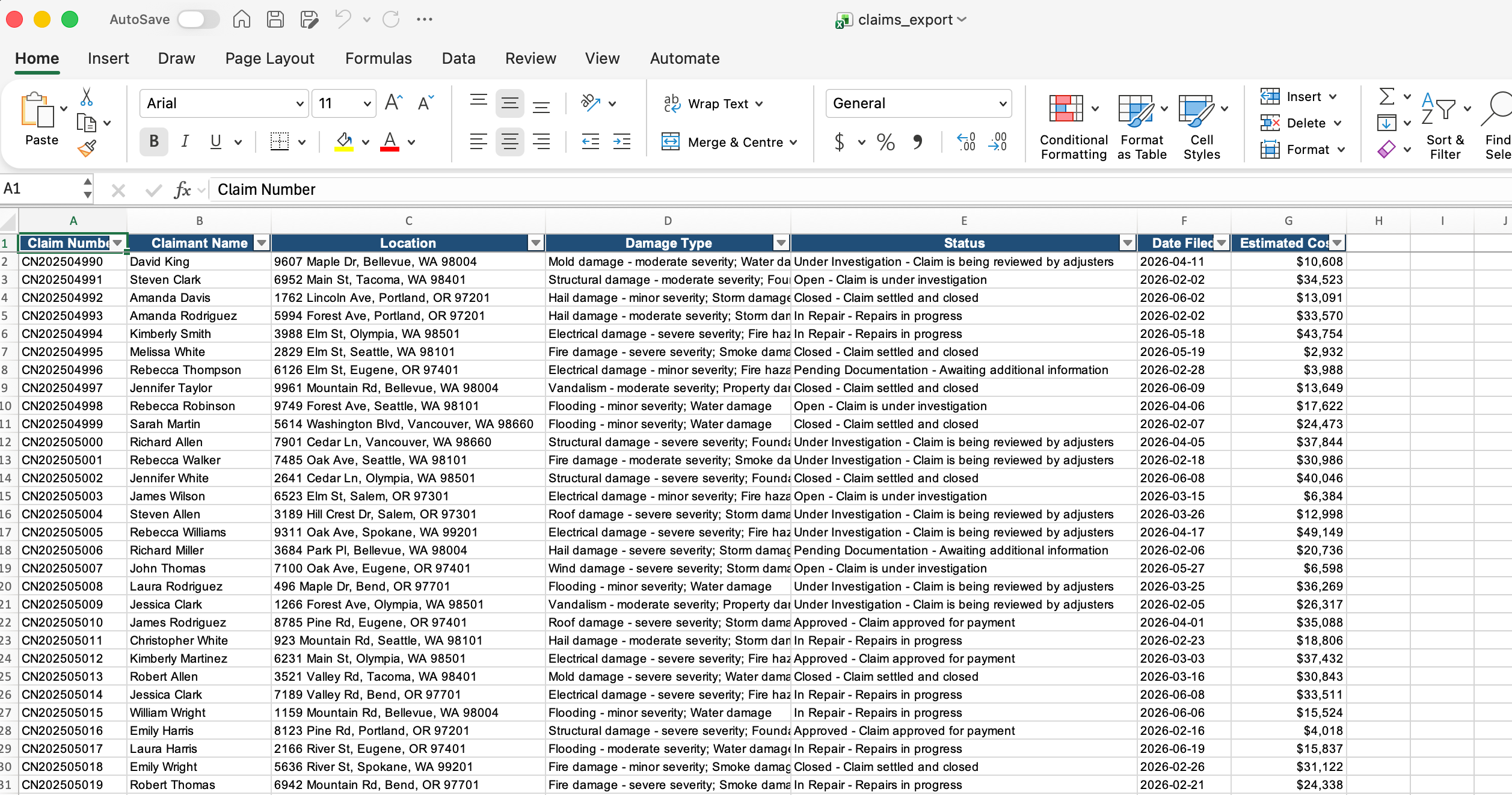
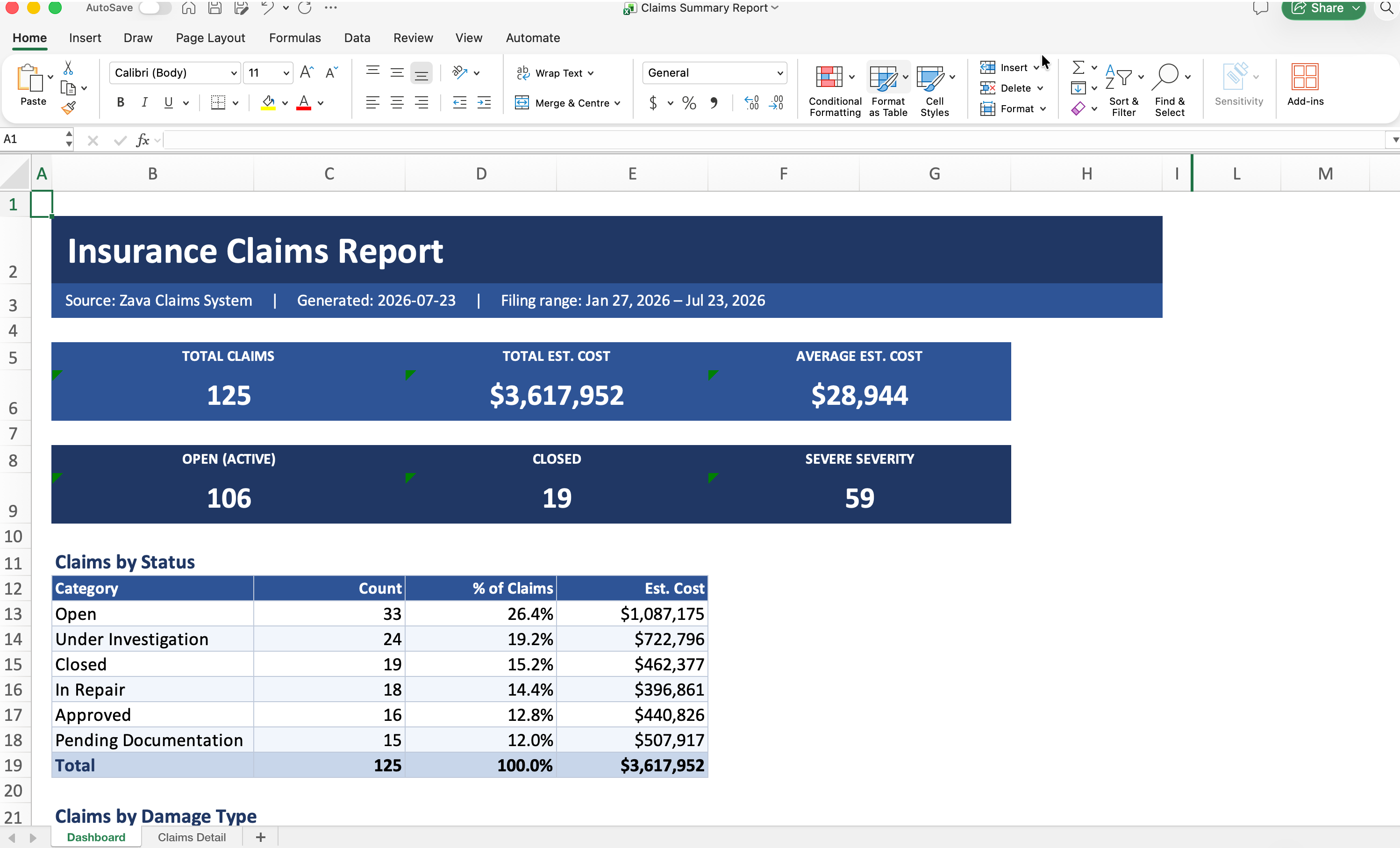
How the pieces fit together
Before jumping into the steps, let’s understand what you are building. The token flow looks like this.
| # | Flow | Description |
|---|---|---|
| 1 | User → Copilot | Calls the plugin |
| 2 | Copilot → Enterprise Token Store | “Give me a token for this authentication configuration ID” |
| 3 | Token Store → Microsoft Entra ID | Requests an on-behalf-of SSO token |
| 4 | Entra ID → Token Store | Issues an access token (audience = my API) |
| 5 | Token Store → Copilot | Passes the access token |
| 6 | Copilot → My MCP server / API | API call + ** |
| 7 | Inside the API | Validates the token (audience · scope · issuer) |
| 8 | API → Copilot → User | Response data → formatted answer |
You need to configure three things.
| Component | Role | Configuration location |
|---|---|---|
| Entra app registration | Defines the API identity, scopes, and allowed callers | Azure Portal / Entra admin center |
| Authentication configuration (SSO registration) | Specifies how the token store obtains tokens for your API | Teams Developer Portal |
| API token validation | Accepts and validates incoming tokens | Environment configuration in server code |
Exercise 1: Prepare the project
In this exercise, you will run the authenticated MCP server and get the plugin source code that will connect through SSO.
Step 1: Get the MCP server code
If you already have the Zava MCP server from Lab E10, go to that directory. If not, clone the repository.
git clone https://github.com/microsoft/copilot-camp.git
cd copilot-camp/src/extend-m365-copilot/path-e-lab10-mcp-auth/zava-mcp-server
npm install
Open this folder in VS Code.
code .
This window is the MCP server window. Keep it open until the lab is complete.
Step 2: Run the server and Dev Tunnel
You need to expose the server through a public URL so Cowork can reach it.
-
In one terminal, start Azurite, the local storage emulator.
npm run start:azurite -
Load the sample data if you have not already done so.
npm run init-data -
In the VS Code terminal panel, select the Ports tab, forward port
3001, right-click the address, and set Port Visibility → Public. Copy the tunnel URL. -
Build and start the MCP server.
 npm run build
 npm run start:mcp-http
Open http://127.0.0.1:3001/health. If the response shows "authentication": "OAuth enabled", it is working.
Save the tunnel URL — You will use it several times later in the lab. Example: https://abc123def456.use.devtunnels.ms
Step 3: Get the plugin source
The plugin code is in src/cowork/zava-claims-sso in the same repository. Open it in a separate VS Code window; keep the first window running the MCP server.
cd copilot-camp/src/cowork/zava-claims-sso
code .
The structure is:
zava-claims-sso/
├── manifest.json
├── color.png
├── outline.png
├── package.json
└── skills/
    └── zava-claims-export/
        └── SKILL.md
This is a standard Cowork plugin consisting of a manifest, icons, and one skill that knows how to turn raw claims data into a formatted Excel report.
Step 4: Update the plugin’s MCP server URL
Open manifest.json, find the agentConnectors section, and replace mcpServerUrl with your Dev Tunnel URL + /mcp/messages.
"mcpServerUrl": "https://<YOUR_DEVTUNNEL>.devtunnels.ms/mcp/messages"
Do not touch the authorization section yet — you will handle it in Exercise 3.
Exercise 2: Create an Entra SSO app registration
This is the identity plumbing work. You tell Microsoft Entra, “This is my API, these people can call it, and this scope is required.” If you already have the Entra app registration from Lab E10, you can reuse it — just make sure the redirect URI and scope are configured as shown below.
Step 1: Register an app in Entra ID
- Go to Azure Portal → Microsoft Entra ID → App registrations
- Click New registration
- Configure it as follows.
- Name:
Zava Claims MCP Server(or reuse the existing registration from Lab E10) - Supported account types: Accounts in any organizational directory (Any Microsoft Entra ID tenant — Multitenant)
- Redirect URI: Platform = Web, URI =
https://teams.microsoft.com/api/platform/v1.0/oAuthConsentRedirect
- Name:
- Click Register
- Copy the Application (client) ID — you will need it in the next step
Why multitenant? — Making it multitenant allows users from any Microsoft 365 organization to authenticate. For an internal-only scenario, you can restrict it to your tenant later.
Step 2: Create an SSO registration in the Teams Developer Portal
Before exposing an API scope, you need the Application ID URI generated by the Teams Developer Portal. This URI becomes your API’s identity, so get the value here before setting it in Entra.
- Go to Teams Developer Portal → Tools → Microsoft Entra SSO client ID registration
- Click Register client ID (or New client registration if there is an existing registration)
- Enter the following.
- Registration name:
zava-cowork-sso - Base URL:
https://<YOUR_DEVTUNNEL>.devtunnels.ms/mcp/messages(tunnel URL + path) - Restrict usage by organization: Any Microsoft 365 organization
- Restrict usage by Teams app: Any Teams app (only for testing and store validation)
- Client (application) ID: Paste the client ID from the Entra app registration
- Registration name:
- Click Save
- Copy the Application ID URI generated by the portal
Do not skip copying the Application ID URI — You need it in the next step when configuring “Expose an API” in the Entra app registration. It is the URI that tokens will be issued for.
Step 3: Expose the API with the Application ID URI
Now configure the Entra app to use the Teams Developer Portal Application ID URI and expose a scope.
- In Azure Portal, go to your app registration
- Go to Expose an API
- Click Add next to Application ID URI. Replace the default with the Application ID URI copied in Step 2
- Click Save
- Click Add a scope:
- Scope name:
access_as_user - Who can consent: Admins and users
- Admin consent display name:
Access Zava Claims - Admin consent description:
Allows the app to access Zava Claims data on behalf of the signed-in user - User consent display name:
Access Zava Claims - User consent description:
Allows this app to access your Zava Claims data on your behalf - State: Enabled
- Scope name:
- Click Add scope
-
Click Add a client application and add:
ab3be6b7-f5df-413d-ac2d-abf1e3fd9c0bSelect the
access_as_userscope checkbox and click Add application
What is that client ID? — ab3be6b7-f5df-413d-ac2d-abf1e3fd9c0b is the Microsoft Enterprise token store. This is the service Cowork uses to obtain tokens on behalf of users, and it is always this value (hard-coded by Microsoft).
The full scope value becomes <APPLICATION_ID_URI>/access_as_user. Copy it for the next step.
Step 4: Complete the SSO registration with the scope
- Go to Teams Developer Portal → Tools → Microsoft Entra SSO client ID registration
- Open the
zava-cowork-ssoregistration - Paste the full scope value from the previous step into the Scope field (for example,
<APPLICATION_ID_URI>/access_as_user) - Click Save
- Copy the Microsoft Entra SSO registration ID — this is the reference ID for
OAuthPluginVault
This reference ID goes into the plugin manifest. There are no secrets in the code — only a pointer to where the real credentials live.
Exercise 3: Apply authentication to the plugin
Moving from anonymous to authenticated access takes just three edits.
Step 1: Put the reference ID into manifest.json
Open manifest.json in the zava-claims-sso folder and replace the placeholder in the authorization section of agentConnectors.
"authorization": {
    "type": "OAuthPluginVault",
    "referenceId": "<YOUR_SSO_REGISTRATION_ID>"
}
Because type is already OAuthPluginVault, you only need to fill in the actual Microsoft Entra SSO registration ID.
Step 2: Package the plugin
Compress the contents of the plugin folder, not the folder itself.
# macOS / Linux
npm run package:unix
# Windows
npm run package
A zava-claims-cowork-plugin.zip file is created at the root level containing manifest.json, the icons, and the skills/ folder.
Validate before upload — Extract the archive and confirm that manifest.json is at the root (not inside a child folder). A nested folder structure causes upload failures.
Exercise 4: Test the authenticated plugin in Cowork
Now it is time to verify the behavior. Configure the MCP server to accept SSO tokens, then upload and test the plugin.
Step 1: Update the MCP server environment for SSO
Go to the Zava MCP server directory and update env/.env.dev with the SSO values.
# OAuth 2.0 Resource Server
OAUTH_ACCEPTED_ISSUERS=https://login.microsoftonline.com/common/v2.0
OAUTH_ACCEPTED_AUDIENCES=<APPLICATION_ID_URI_FROM_TEAMS_PORTAL>
OAUTH_REQUIRED_SCOPES=<FULL_SCOPE_VALUE>
OAUTH_VALIDATE_ISSUER=false
OAUTH_ACCEPTED_TENANT_IDS=<YOUR_TENANT_ID>
OAUTH_JWKS_URIS=https://login.microsoftonline.com/common/discovery/v2.0/keys

# Authorization endpoints for MCP client discovery
OAUTH_AUTHORIZATION_ENDPOINT=https://login.microsoftonline.com/common/oauth2/v2.0/authorize
OAUTH_TOKEN_ENDPOINT=https://login.microsoftonline.com/common/oauth2/v2.0/token

# Server
RESOURCE_IDENTIFIER=https://<YOUR_DEVTUNNEL>.devtunnels.ms
SERVER_BASE_URL=https://<YOUR_DEVTUNNEL>.devtunnels.ms
PORT=3001
HOST=127.0.0.1
NODE_ENV=development

# CORS (comma-separated origins)
ADDITIONAL_ALLOWED_ORIGINS=http://localhost:6274,https://<YOUR_DEVTUNNEL>.devtunnels.ms

# Azure Table Storage (Azurite for local dev)
AZURE_STORAGE_CONNECTION_STRING="UseDevelopmentStorage=true"
Replace the placeholders with these values.
| Placeholder | Value |
|---|---|
<APPLICATION_ID_URI_FROM_TEAMS_PORTAL> |
The Application ID URI generated in Exercise 2, Step 2 |
<FULL_SCOPE_VALUE> |
The full scope from Exercise 2, Step 3 (for example, <APPLICATION_ID_URI>/access_as_user) |
<YOUR_TENANT_ID> |
Your Microsoft 365 tenant ID |
<YOUR_DEVTUNNEL> |
Dev Tunnel URL (without a trailing slash) |
Single audience — Because you set the Teams Developer Portal Application ID URI directly in the Entra app instead of the default api://<client-id>, tokens always arrive with that single audience. You do not need to list multiple values.
After updating, restart the MCP server.
npm run build
npm run start:mcp-http
Step 2: Upload the plugin to Cowork
- Open Copilot Cowork
- Click the + icon
- Scroll down and select Customize (manage skills and plugins)
- Upload
zava-claims-cowork-plugin.zipfrom the Customize page
There is no separate connection step. Cowork recognizes the plugin immediately after upload.
Step 3: Test with a prompt that requires authentication
Enter this prompt in Cowork.
Create a claims report in Excel
Cowork displays a tool approval dialog. This is the first-time consent step that allows Cowork to call tools on the MCP server on your behalf. Click Approve to continue.
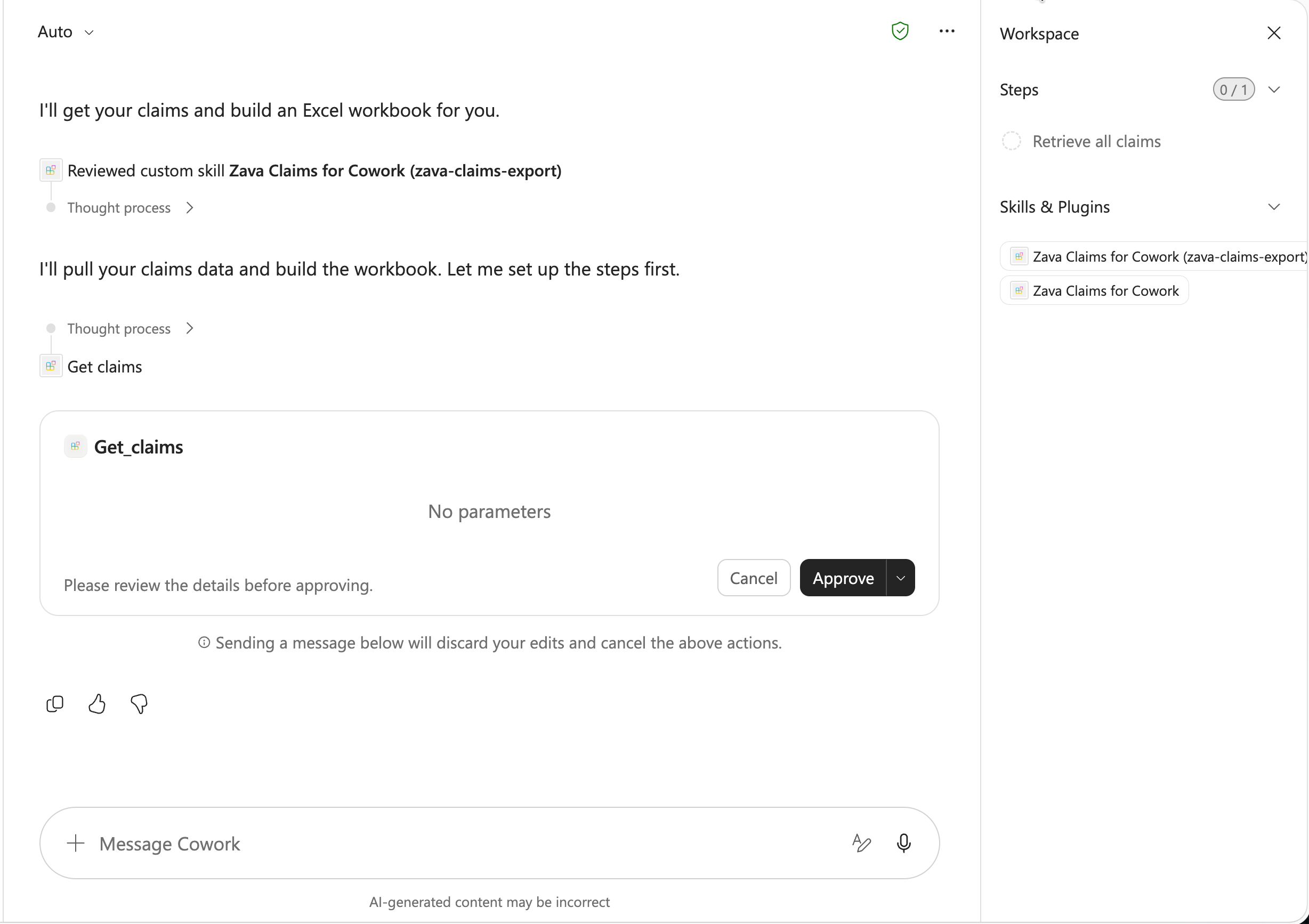
After approval, the flow completes end to end. Cowork authenticates with SSO → calls the Zava MCP server with a valid token → retrieves claims data → the skill transforms it into a formatted Excel report. You get only the finished result, with no manual export or reformatting.
If sign-in fails, check three things.
- Is the Dev Tunnel still running and set to Public?
- Does
OAUTH_ACCEPTED_AUDIENCESin.env.devmatch the Application ID URI from the Teams Developer Portal? - Is the redirect URI
https://teams.microsoft.com/api/platform/v1.0/oAuthConsentRedirectconfigured in the Entra app’s Authentication section?
🎉 Congratulations!
You have completed Lab CWRK3 — Add Entra SSO authentication to a Cowork plugin!
You have now completed the full Copilot Cowork developer lab series (CWRK0–CWRK3). 👉 Back to the beginning of the Cowork lab series