Power Platform CLI MCP Server
A hands-on lab that connects the Power Platform CLI and GitHub Copilot through MCP to manage tenants with natural-language commands. Covers environment management, governance analysis, and AI-driven strategy.
Translated article — This article is based on ⚡ Power Platform CLI MCP Server from the Copilot Studio Agent Academy. The original wording takes precedence.
⚡ Power Platform CLI MCP Server

Agents, in this mission you will use the Model Context Protocol (MCP) to establish a secure command channel between the Power Platform CLI and an AI copilot. No need to memorize complex command syntax. Give commands in natural language, and your AI handler translates them into precise actions for environments, tenant settings, and governance policies. 🎯
Mission objectives:
- Establish the Power Platform CLI MCP server as a command relay in Visual Studio Code and GitHub Copilot
- Deploy AI-powered natural-language operations across your Power Platform tenant
- Run reconnaissance on tenant configuration and extract strategic governance intel
- Apply enterprise-grade governance best practices across the organization
Prerequisites: Power Platform administrator access, Visual Studio Code, and the GitHub Copilot extension.
❓ What is Microsoft Power Platform CLI?
Every agent needs a reliable tool. Microsoft Power Platform CLI is a powerful command-line interface that helps developers and ISVs perform operations across Microsoft Power Platform. You can use it to manage and automate:
- Environment lifecycle - Create, manage, and configure Power Platform environments
- Authentication - Handle secure connections and authentication profiles for multiple tenants
- Microsoft Dataverse environments - Work with data, tables, and configuration
- Solution packages - Import, export, and manage Power Platform solutions
- Power Pages - Configure and deploy Power Pages websites
- Code components - Create and manage custom PCF controls
- And much more - Additional capabilities for comprehensive Power Platform development
🧪 Lab 1.1 - Install the Power Platform CLI
The .NET Tool installation method lets you deploy Power Platform CLI commands for PowerShell and CMD shells on Windows.
✅ Prerequisites
- .NET 10.0 or later installed (Download .NET)
- An internet connection to download NuGet packages
🚀 Installation steps
There are two ways to use the Power Platform CLI MCP server:
- Install the CLI globally so you can run the
paccommand from any directory in Command Prompt or PowerShell. - Or use the
dnxcommand to run the MCP server directly without a global installation. For the full experience, however, we recommend installing the CLI globally.
-
Deploy the CLI globally using the .NET tool install command:
dotnet tool install --global Microsoft.PowerApps.CLI.Tool -
Validate the deployment by checking the version:
pacYou should see output similar to this:
Microsoft PowerPlatform CLI
Version: 2.4.1+g3799f3e (.NET 10.0.0)
🔧 Tool management
Upgrade to the latest version:
dotnet tool update --global Microsoft.PowerApps.CLI.Tool
Uninstall:
dotnet tool uninstall --global Microsoft.PowerApps.CLI.Tool
📁 File location
Power Platform CLI executable location:
%USERPROFILE%\.dotnet\tools
This location is automatically added to the system PATH, so you can run the pac command from any directory.
🧪 Lab 2.1 - Configure the Power Platform CLI MCP server
Power Platform CLI (version 1.44+) includes a built-in Model Context Protocol (MCP) server, a direct communication link between AI assistants and Power Platform environments. This integration lets you issue commands in natural language from MCP-compatible applications such as VS Code Copilot, Visual Studio, and more.
🚀 What is MCP integration?
The MCP server exposes Power Platform CLI commands as tools that an AI assistant can call on your behalf. Instead of memorizing complex CLI syntax, describe your mission objective in natural language and the AI runs the appropriate command.
Key benefits:
- Natural-language interface - Issue commands in plain English instead of complex CLI syntax
- Intelligent command selection - The AI handler chooses the right command based on your intent
- Context-aware assistance - Get operational support without leaving your command center
- Selective tool access - Control which CLI commands are exposed for operational security
📋 Supported operations
The MCP server currently supports 20+ Power Platform CLI commands:
- Environment management - List, create, and manage Power Platform environments
- Solution operations - Import, export, and package solutions
- Authentication - Handle authentication profiles and tenant connections
- Dataverse operations - Work with tables, data, and configuration
- Power Pages - Manage website deployments and configuration
- Component management - Handle PCF controls and other components
⚙️ Setting up PAC CLI MCP
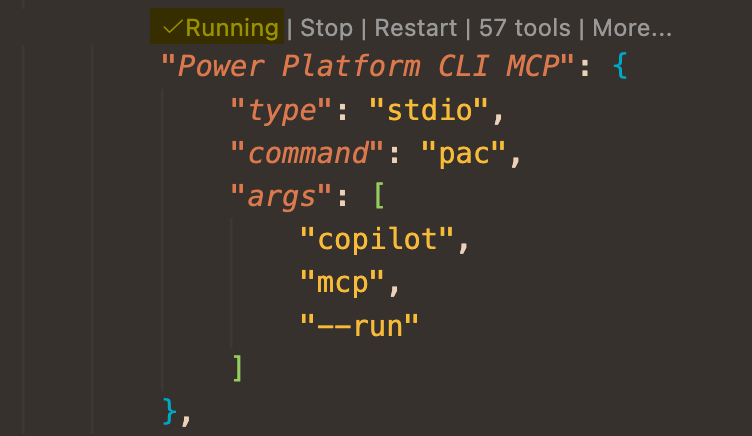
Establish the MCP connection in Visual Studio Code
To connect the Power Platform CLI MCP server in Visual Studio Code:
- Open the Visual Studio Code command palette (Windows/Linux:
ctrl+shift+P, Mac:cmd+shift+P) - Search for “MCP” and select
MCP: Add Server - Select
Command (stdio) -
Paste the following command:
pac copilot mcp --run -
Enter a server name, for example:
Power Platform CLI MCP
This adds and runs the MCP server in the Visual Studio Code MCP configuration.
🛡️ Security and tool selection
Operational security comes first. MCP integration lets you selectively enable specific CLI commands, giving you full control over what the AI can do.
Best practices:
- Enable only the commands needed for the mission
- Review tool permissions before granting access
- Use environment-specific configurations for different tasks
- Monitor MCP server logs for every executed command
🔧 Troubleshooting
Common issues:
- MCP server not found
- Use
pac copilot mcpto verify the path topac-mcp.exe - Confirm that Power Platform CLI version 1.44+ is installed
- Use
- Authentication errors
- Run
pac auth listto verify authentication profiles - If needed, set up authentication with
pac auth create
- Run
- Tool access warnings
- Check MCP-related messages in the VS Code Output window
- Verify tool permissions in the MCP server configuration
🧪 Lab 3.1 - Get tenant settings best-practice advice
Now it is time to go deeper. Tenant settings are the foundation of your organization’s Power Platform security posture. In this mission, you will use Visual Studio Code and GitHub Copilot with the Power Platform CLI MCP server to analyze your tenant and extract strategic governance intelligence.
✅ Prerequisites
Required equipment
- Power Platform CLI (version 1.44+) - Follow the deployment steps in the Install the Power Platform CLI section above.
- Visual Studio Code - Download from code.visualstudio.com
- GitHub Copilot extension - Install from the VS Code Extensions marketplace
Authentication setup
- Power Platform authentication profile - Establish a secure connection to your Power Platform tenant using
pac auth create - Admin permissions - Power Platform administrator permissions are required to view and modify tenant settings
MCP configuration
- Power Platform CLI MCP server - Follow the full installation guidance in the ⚙️ PAC CLI MCP setup section above.
Verification steps
-
Verify Power Platform CLI deployment:
pac --version -
Check authentication status:
pac auth list -
Confirm MCP server location:
pac copilot mcp -
Test the command center:
- Open VS Code
- Confirm that the Power Platform CLI MCP server appears in the MCP configuration
- Confirm that GitHub Copilot is active
🎯 Tactical advantages of CLI-based tenant settings management
These are the key advantages of managing tenant settings through the CLI instead of using only the Admin Center:
Comprehensive settings access
The Power Platform Admin Center does not expose every available tenant setting in the UI. With pac admin list-tenant-settings, you can access the complete tenant configuration set, including settings that are not visible in the web portal.
Bulk operations
Instead of manually clicking through dozens of settings in the Admin Center, you can update multiple tenant settings through the CLI in a single pass. This is critical when configuring a new tenant, standardizing settings across multiple environments, or rolling out organization-wide policy changes.
Version control and documentation
Downloading tenant settings as a JSON file with pac admin list-tenant-settings --settings-file lets you:
- Track changes over time with version control systems such as Git
- Maintain configuration snapshots for compliance audits
- Document tenant configuration as code
- Compare settings across environments or points in time
Automation and DevOps integration
You can integrate CLI commands into automated deployment pipelines:
- Apply consistent tenant configuration across development, staging, and production
- Include tenant settings as part of your infrastructure-as-code strategy
- Automate compliance checks and policy enforcement
- Eliminate human error from configuration management
Disaster recovery
Tenant settings documented in JSON format provide a reliable fallback that can be restored quickly if an issue occurs.
🤖 Bringing in the AI handler
The Power Platform CLI MCP server transforms tenant settings management by removing the need to memorize complex command syntax and parameter combinations.
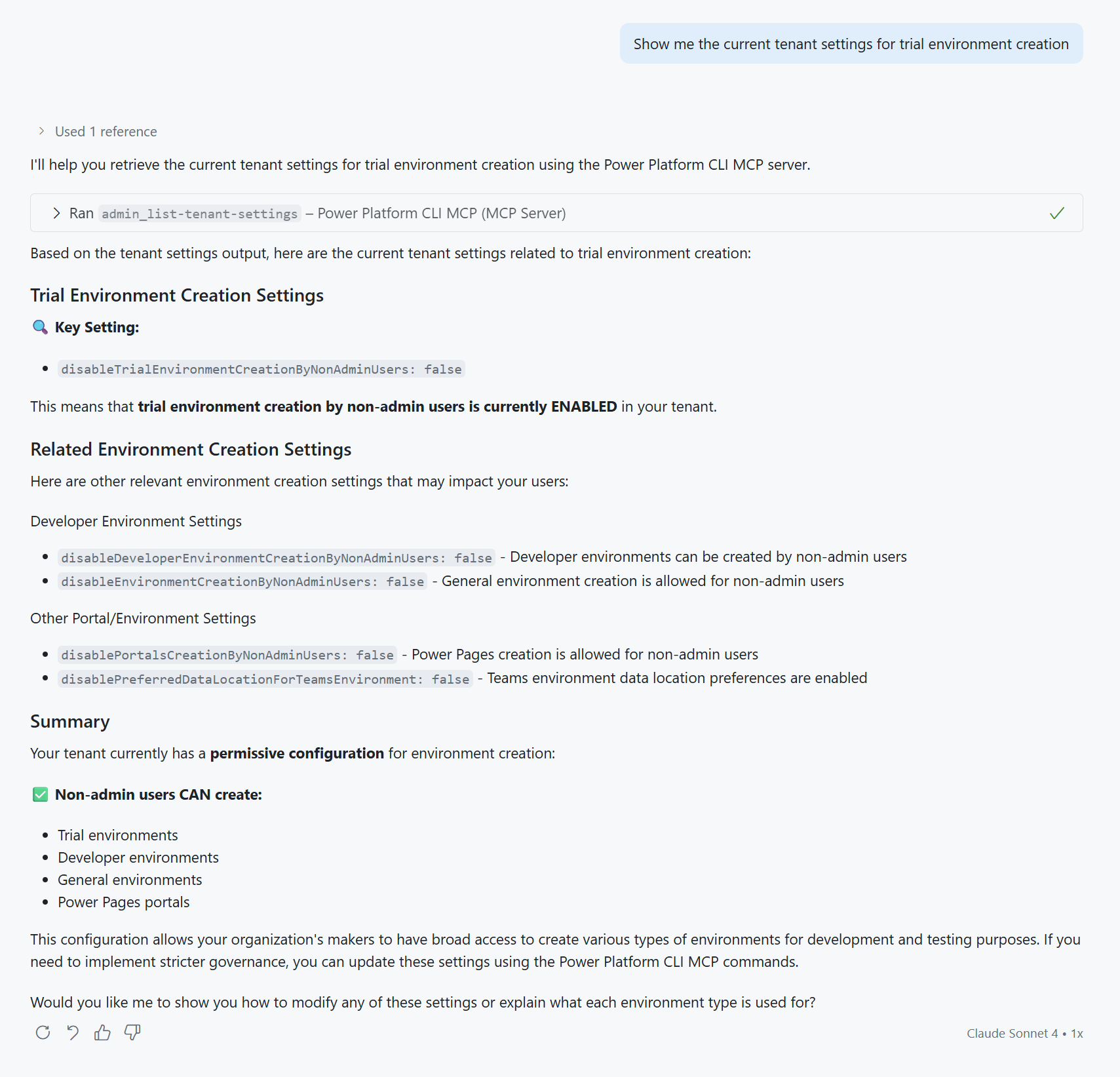
Example 1: Recon — View current tenant settings
Instead of memorizing the exact CLI syntax for extracting tenant settings, you can ask for specific intelligence:
Show me the current tenant settings for trial environment creation
Example output:
Example 2: Execution — Update tenant settings
Instead of finding the right parameters for environment creation restrictions, describe the policy change you want:
Update my tenant to restrict developer environment creation to admins only
Example output:
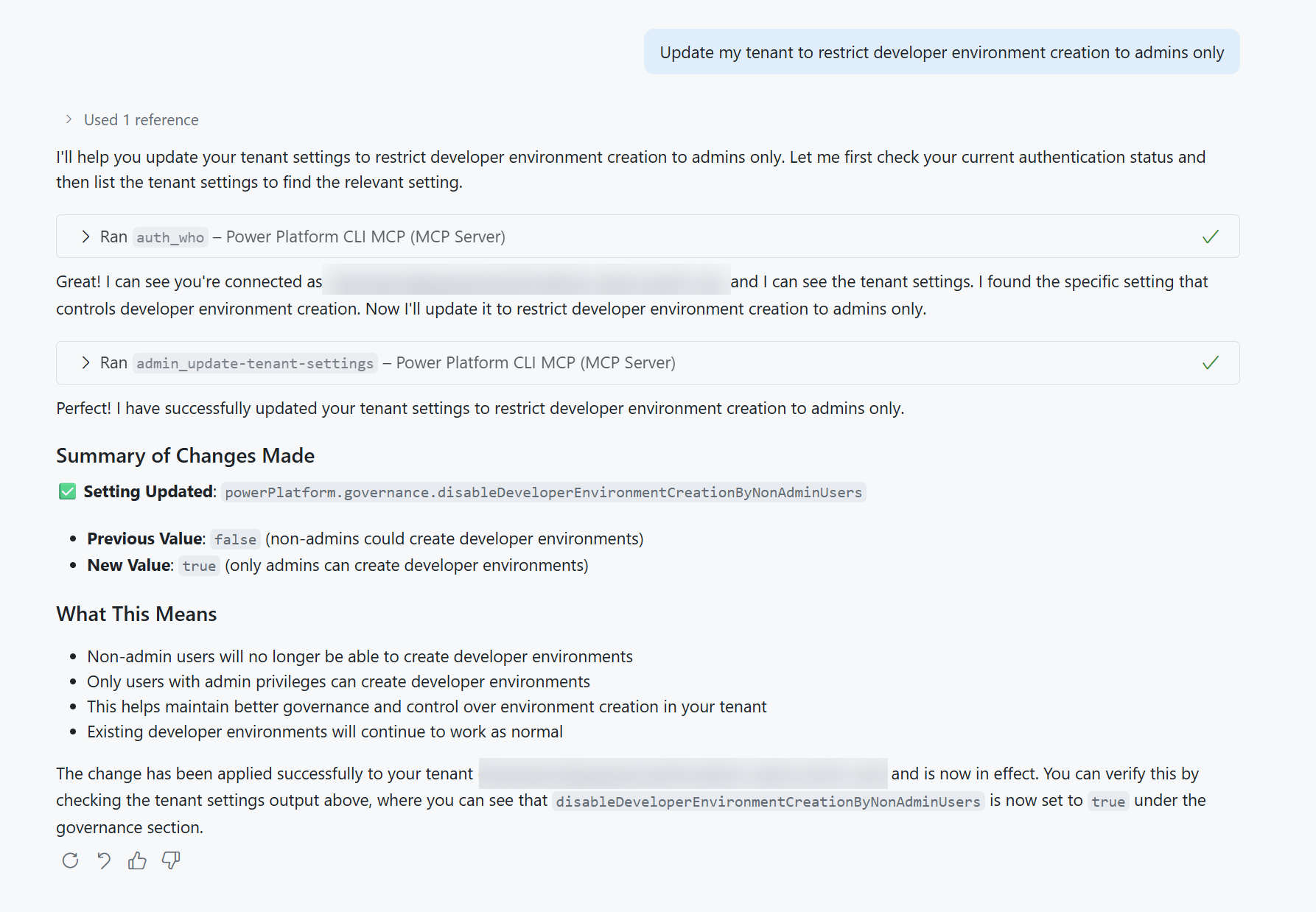
GitHub Copilot runs the appropriate CLI command on your behalf.
💡 Strategic advice for tenant settings
Updating tenant settings one by one can be useful, but the real power of combining Power Platform CLI with AI appears when you need to develop a comprehensive governance strategy for your organization or clients.
Try the following prompt in GitHub Copilot:
Analyze my current Power Platform tenant settings and provide a strategic governance improvement plan. Please provide:

1. An assessment of my current tenant configuration against Microsoft's recommended best practices
2. A prioritized list of settings that should be updated for better security, governance, and user experience
3. A phased implementation roadmap for the next 3-6 months with:
   - Priority levels (Critical/High/Medium/Low) for each change
   - Risk assessment and business impact for each setting
   - Recommended implementation sequence
   - Communication considerations for stakeholders
4. Specific CLI commands I can use to implement each recommended change
5. Key monitoring points to track after implementation

Focus on enterprise governance, security compliance, and developer productivity optimization. Provide the plan as structured guidance rather than creating files or executing commands.
📊 Field report: Tenant analysis results
When this comprehensive prompt was applied to an actual Power Platform tenant, GitHub Copilot generated a detailed strategic governance improvement plan. The full field report was saved as a markdown document: View the Power Platform governance plan.
Warning: The generated plan may need review and validation against your specific organizational requirements, but it provides a tactical foundation that would typically require hours of research, documentation review, and strategic planning. This shows how AI can compress governance planning from days to minutes.
✅ Mission complete
Congratulations, agent — mission complete! You established a secure command channel between the Power Platform CLI and GitHub Copilot using the Model Context Protocol.
In this mission, you accomplished:
✅ CLI deployment: Installed and configured the Power Platform CLI as a .NET global tool.
✅ MCP integration: Connected the Power Platform CLI MCP server to Visual Studio Code for natural-language operations.
✅ Tenant reconnaissance: Analyzed tenant settings and environment configuration with AI-powered commands.
✅ Governance strategy: Used AI to generate a comprehensive governance improvement plan from real tenant data.
🏅 Claim your completion badge
Submit the badge request form and answer all required questions:
https://aka.ms/agent-academy-special-ops/cli-mcp/form
After your submission is reviewed, you will receive an email from Global AI Community with instructions to claim your badge.
Tip: If you do not see the email, check your spam or junk folder.
📚 Tactical resources
🧪 Power Platform governance plan example — Field report for a strategic governance improvement plan generated using AI
📖 Add MCP servers in Visual Studio Code