Mission 09: Generate a Candidate Interview Questions Document
Implement document generation from AI prompts
Translated article — This article is based on 🚨 Mission 09: Generate a Candidate Interview Questions Document from the Copilot Studio Agent Academy. The original wording takes precedence.
🎯 Mission Briefing
Welcome, Operative. In the previous missions, you saw the power of prompts. You learned how to analyze multimodal documents and ground prompts with Dataverse data. Now it is time to unlock another prompt capability: document generation.
This operation is called Operation Doc Assembly. In this task, you will use a prompt to create a Word document with interview preparation questions, then call that document from your agent.
Note — If the screenshots in this lesson look different from your Copilot Studio screens, turn off New Experience in the upper-right corner to switch to the classic experience used here.
🔎 Objectives
In this mission, you will learn how to:
- Configure a prompt to output a Word document
- Format a Word template for use in a prompt
- Run a prompt from an agent
🧪 Lab 9 - Generate an interview document
When a job application is added, you want to automate the process of preparing a detailed interview document. This should be a Word document that summarizes key candidate information such as name, current role, and experience; role information such as job title and requirements; and generates specific, tailored interview questions based on the candidate’s background and the role they applied for.
Prerequisites for completing this mission
-
Before starting this mission, you need the following:
- Complete Mission 08, have your agent ready, and understand Dataverse grounding.
9.1 Create the prompt
The first objective is to create a prompt that can analyze a job posting and candidate profile and generate tailored interview questions.
-
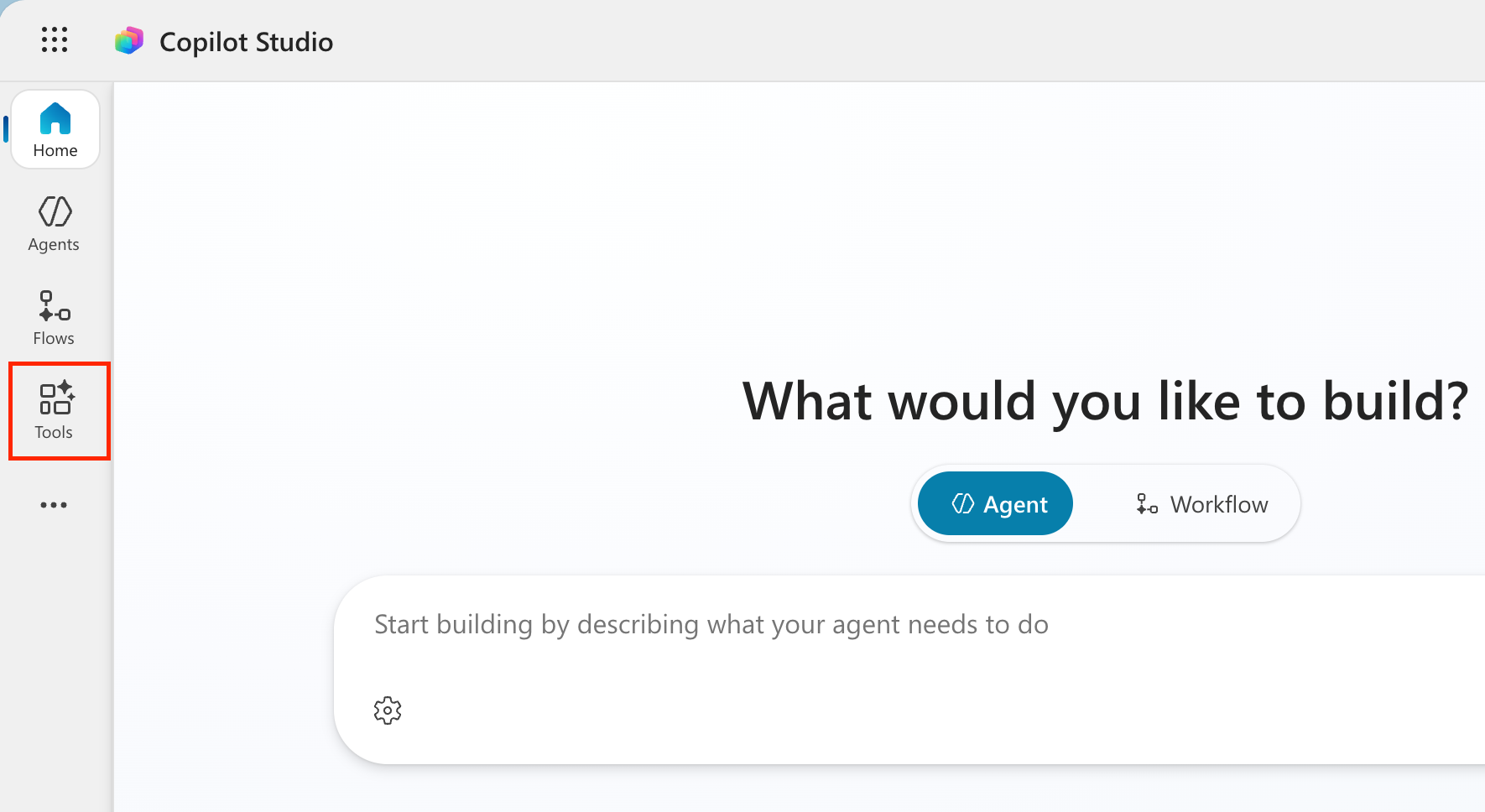
Sign in to Copilot Studio, then select Tools from the left navigation.
-
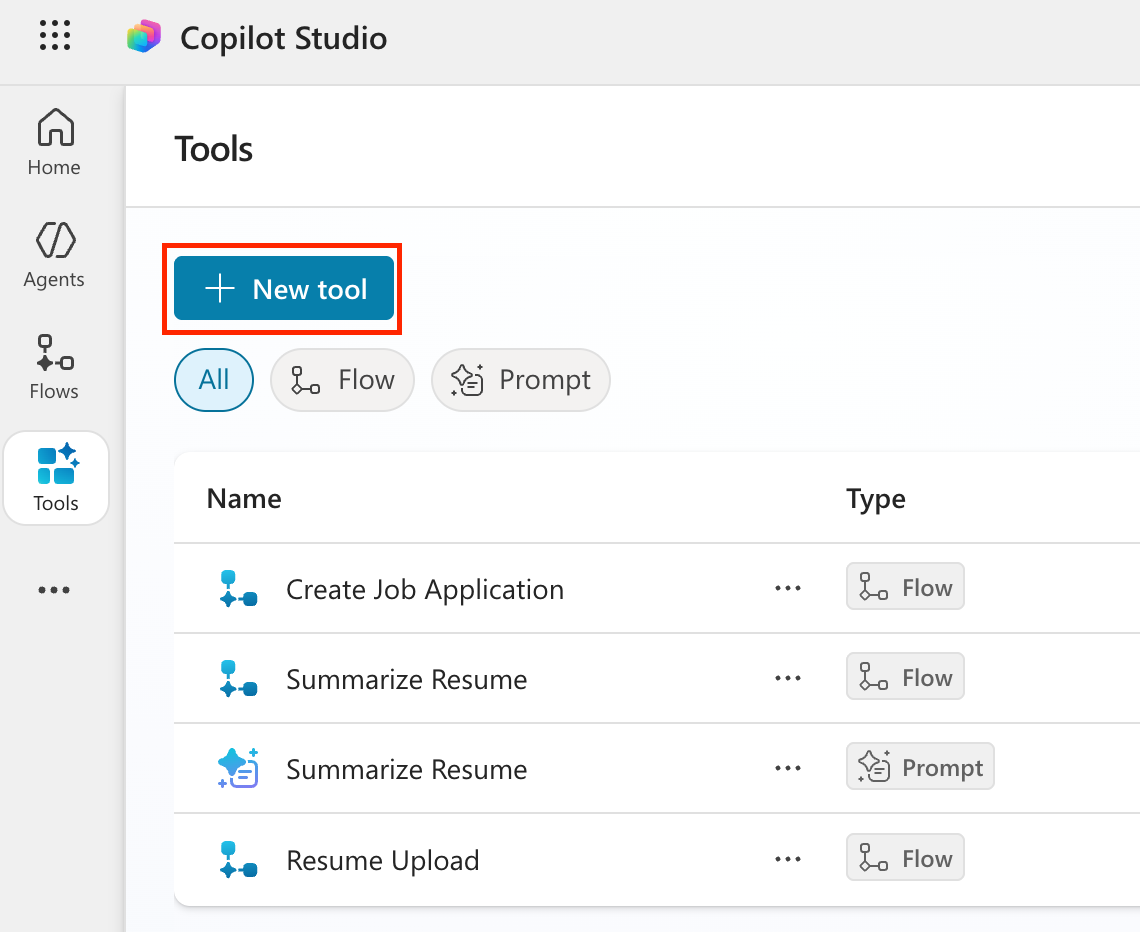
Select the + New tool button.
-
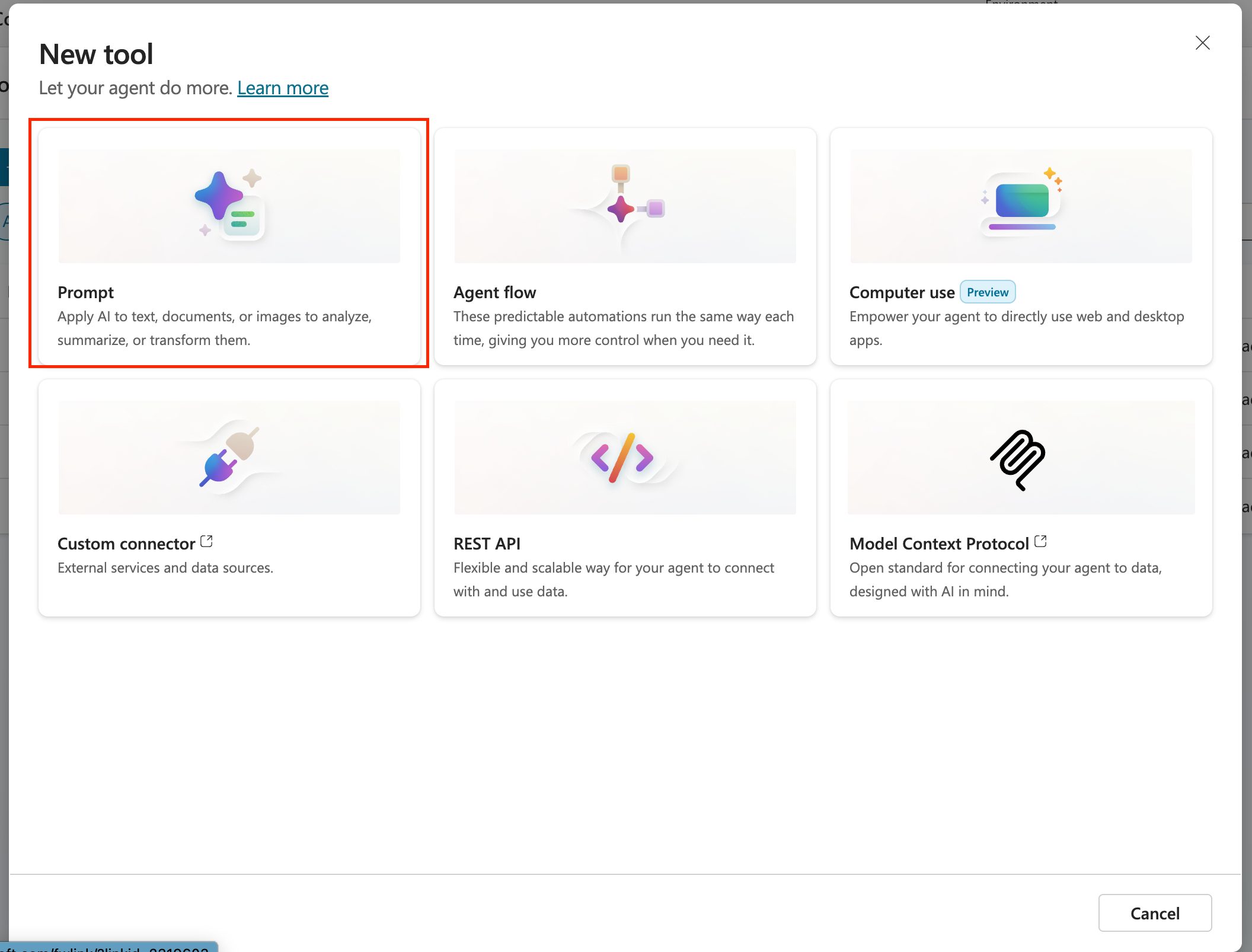
Select Prompt.
-
Rename the default timestamp name (for example, Custom prompt 09/04/2025, 04:59:11 PM) to
Interview Question Document Prep.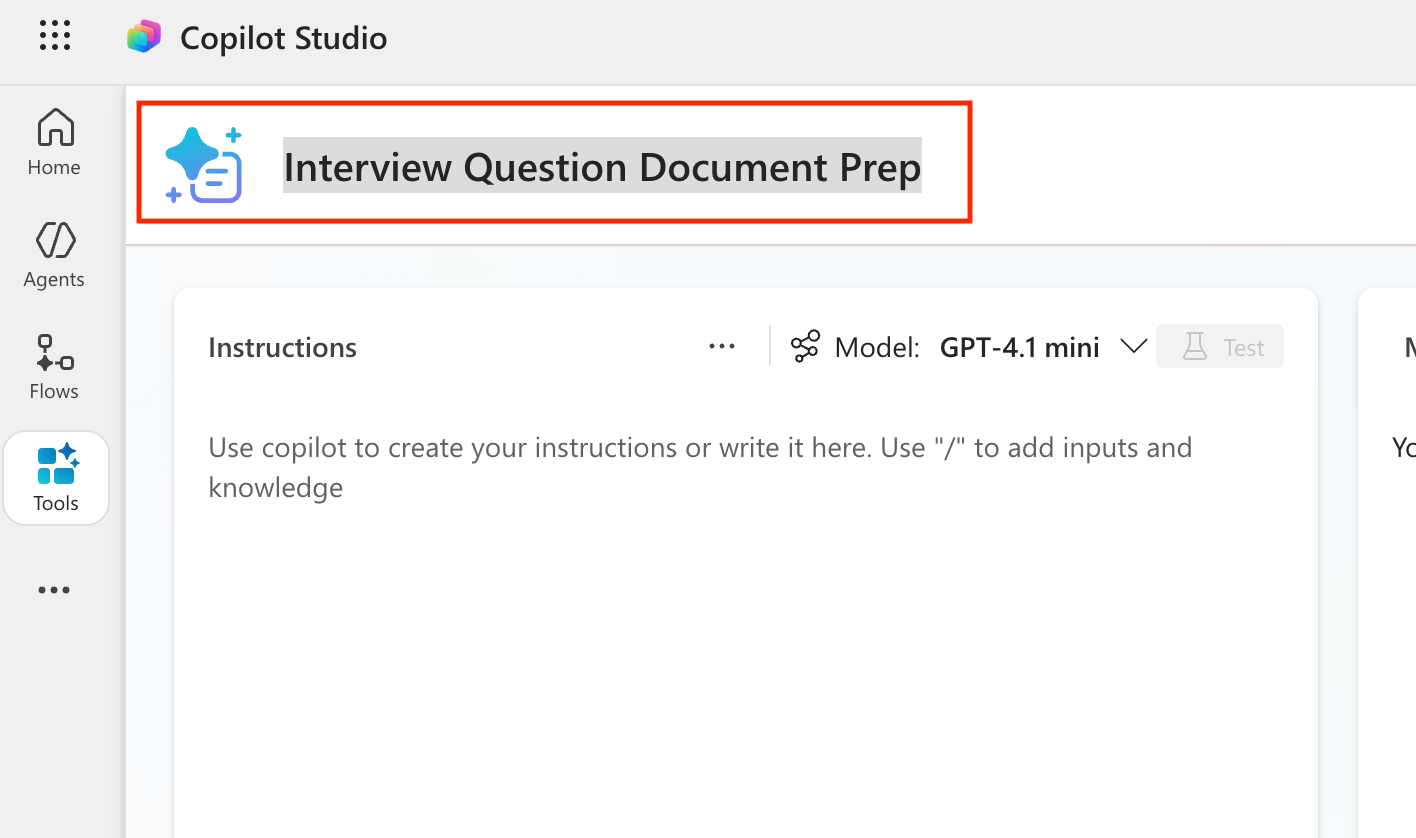
-
Add the following prompt to the Instructions field.
You are tasked with evaluating a candidate’s resume against a specific job listing description and generating a targeted set of interview questions to support structured candidate screening. ### Instructions 1. **Extract Candidate Details:** - Identify and extract the candidate’s full name. - Extract contact information, specifically the email address. - Identify the candidate’s current or most recent job title. - Extract location if present. - Estimate total years of experience only if supported by resume dates. 2. **Analyze the Job Listing Description:** - Review the job description to identify: - Must-have requirements - Nice-to-have requirements - Key responsibilities - Required tools and technologies - Treat must-have requirements as the highest priority for evaluation. 3. **Evaluate Resume Against Job Requirements:** - Compare the resume content against each must-have requirement. - For each requirement, determine: - Evidence level: Strong, Moderate, Weak, or Missing - A confidence score from 0–100 - Supporting evidence using short phrases grounded in the resume text only - Do not infer or invent experience. 4. **Assess Overall Candidate Fit:** - Identify: - Top strengths (up to 5) - Key gaps (up to 5) - Risks or concerns only when supported by missing or unclear evidence - Provide a concise one-paragraph summary suitable for recruiter review. 5. **Generate Interview Questions (Exactly 10):** - Generate exactly 10 interview questions based on the job requirements and resume evaluation. - Distribute the questions as follows: - 5 Core Requirement Questions focused on the most critical must-have requirements. - 3 Gap or Clarification Questions targeting weak, missing, or ambiguous areas. - 2 Scenario-Based Questions derived directly from key job responsibilities. - Avoid generic or culture-only questions unless explicitly required by the job description. **Interview Question Requirements:** - Each question must include: - The interview question - The job requirement it maps to - Questions must be specific, non-duplicative, and grounded in the provided inputs. - Produce questions in numbered format (1, 2, 3) ### Input Data Application Number: /ApplicationNumber Candidate Details (Name, Email): /CandidateDetails Resume Details: /Resume Details Job Details (Job Number, Title, Description and Requirements): /JobDetails Evaluation Criteria (Weighting, Evaluation Criteria): /Criteria -
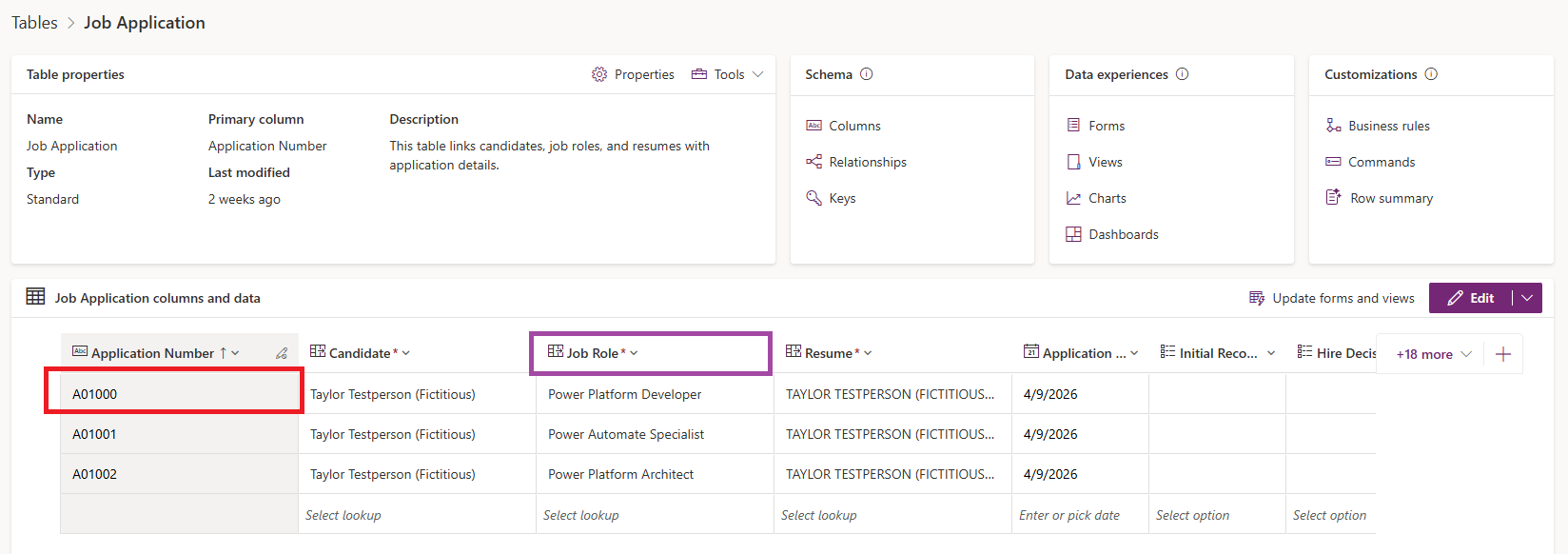
In a new tab, go to make.powerapps.com and find the Job Application table. Note one job application number from that table to use for testing.
-
Return to the prompt and scroll down to the prompt’s input data section. Find the /ApplicationNumber text, delete it, and type a slash (/) to open the add input panel. Configure the input as follows.
Parameter Name Type Sample Data ApplicationNumber Text Enter the job application number you copied in the previous step -
Now that you have an input for passing the Job Application number, use Dataverse Grounding to retrieve the other related information this prompt needs from Dataverse.
Tip — If you want to understand Dataverse Grounding more deeply, be sure to complete Module 8.
In the prompt’s Input Data section, find the remaining slashes and replace them according to the table below to configure Dataverse grounding.
Parameter Name Table Columns Filter attribute Filter value CandidateDetails Dataverse -> Job Application -> Candidate (Candidate) Candidate Name, Email Application Number Add Value -> Application Number ResumeDetails Dataverse -> Job Application -> Resume (Resume) Cover Letter, Resume Number, Resume Title, Summary Application Number Add Value -> Application Number JobDetails Dataverse -> Job Application -> Job Role (Job Role) Description, Job Role Number, Job Title Application Number Add Value -> Application Number Evaluation Criteria Dataverse -> Job Application -> Job Role (Job Role) -> Job Role (Evaluation Criteria) Criteria Name, Description, Weighting Application Number Add Value -> Application Number When the input section is complete, it should look similar to the screenshot below.
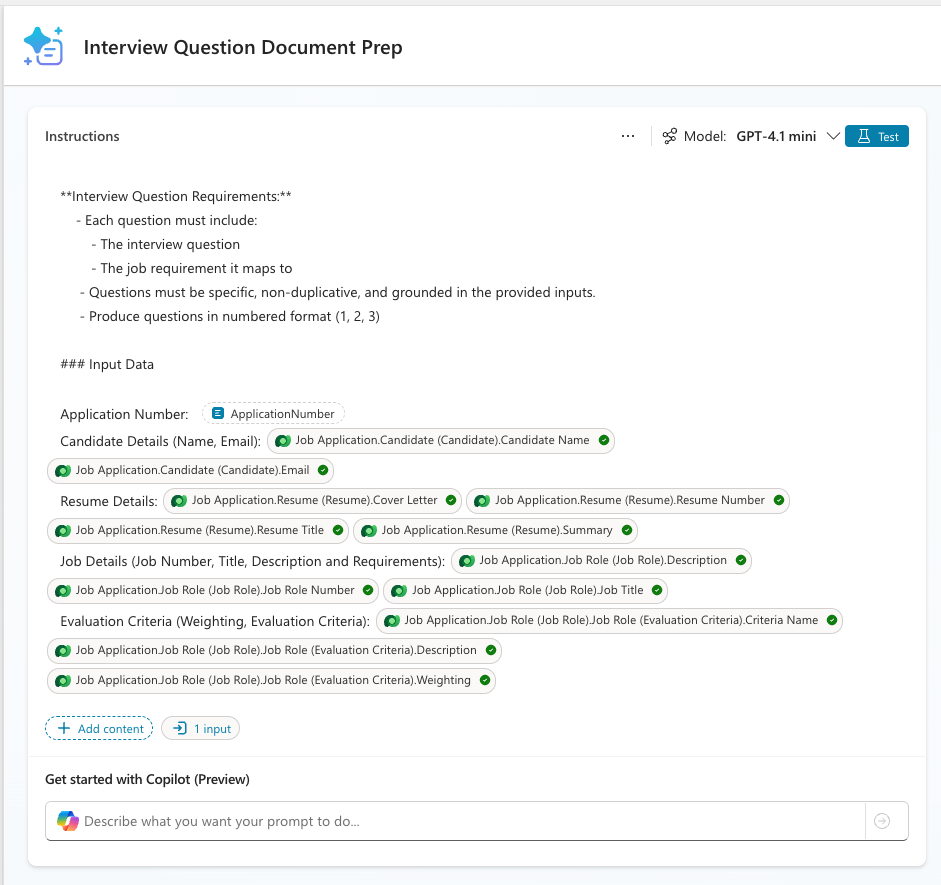
-
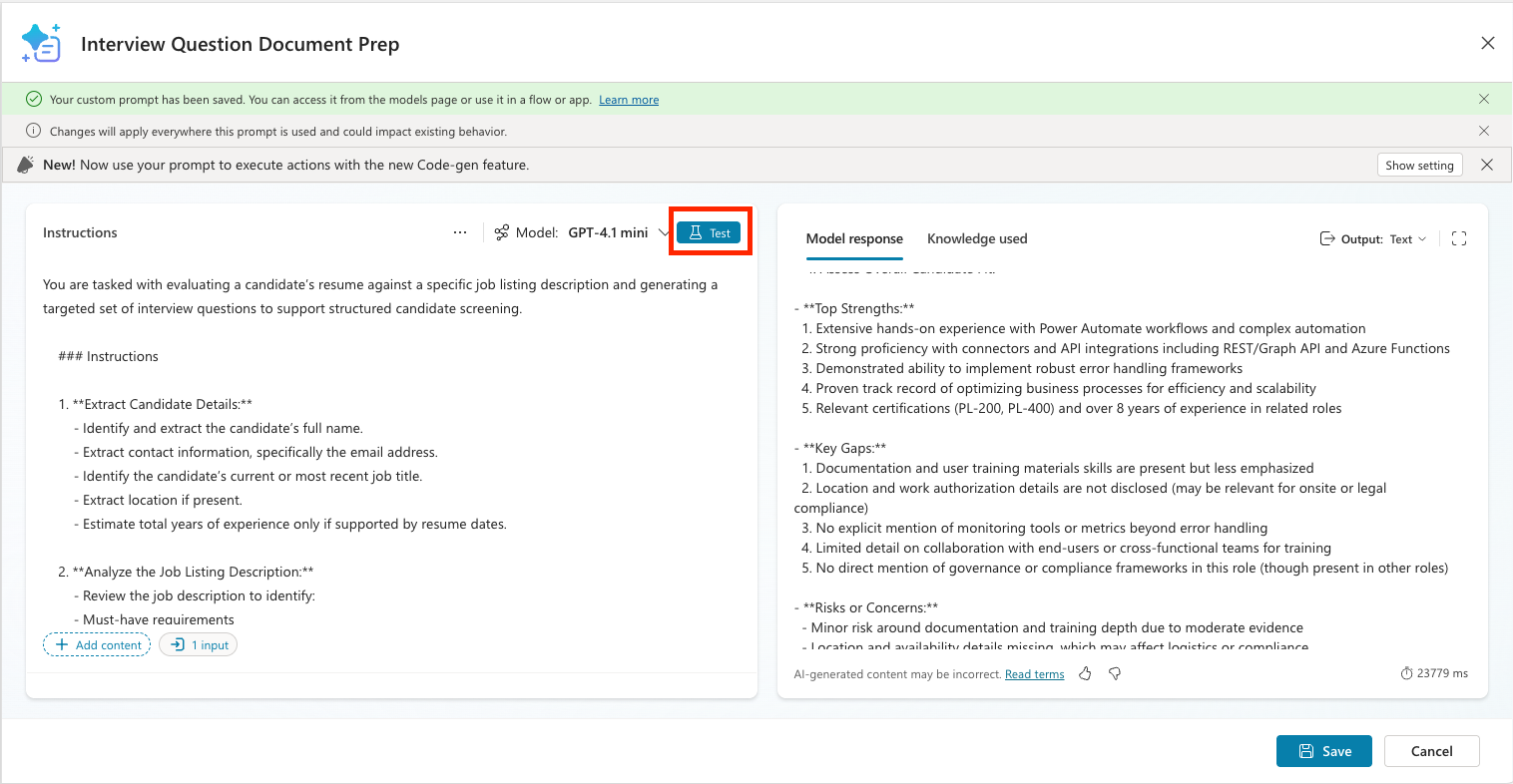
Testing as you go is always a good practice. Select Test to confirm that the prompt shows an initial text output and retrieves the correct information from Dataverse.
-
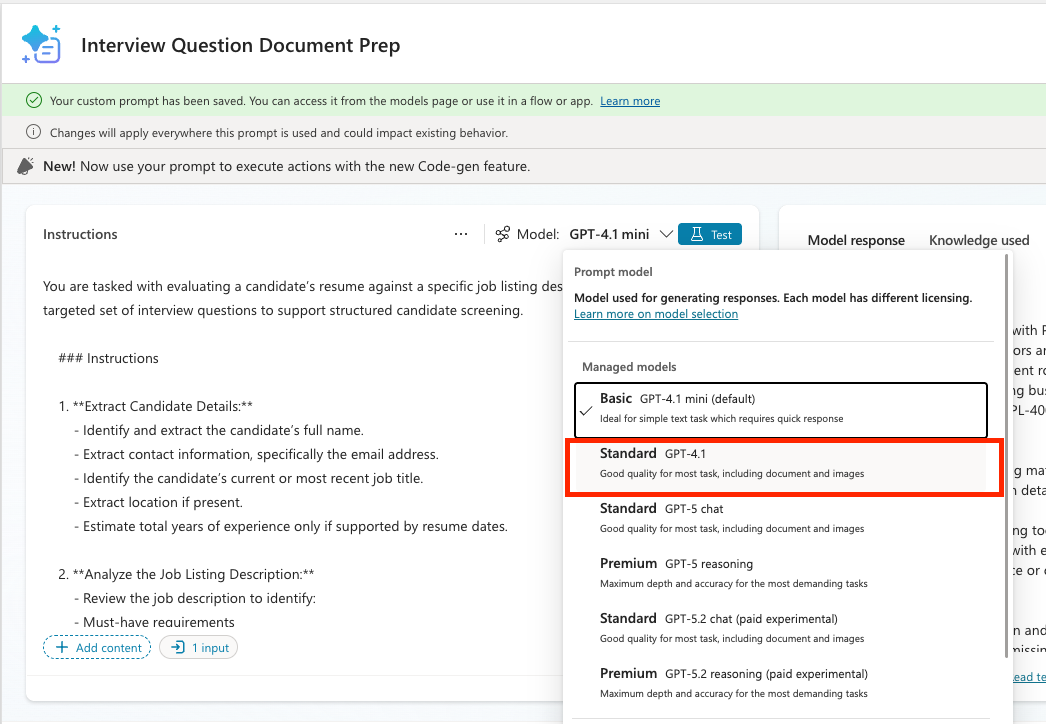
To make this prompt generate a document, you must change the prompt model to one that supports multimodal input and output. Select the model dropdown and change it to GPT-4.1.
-
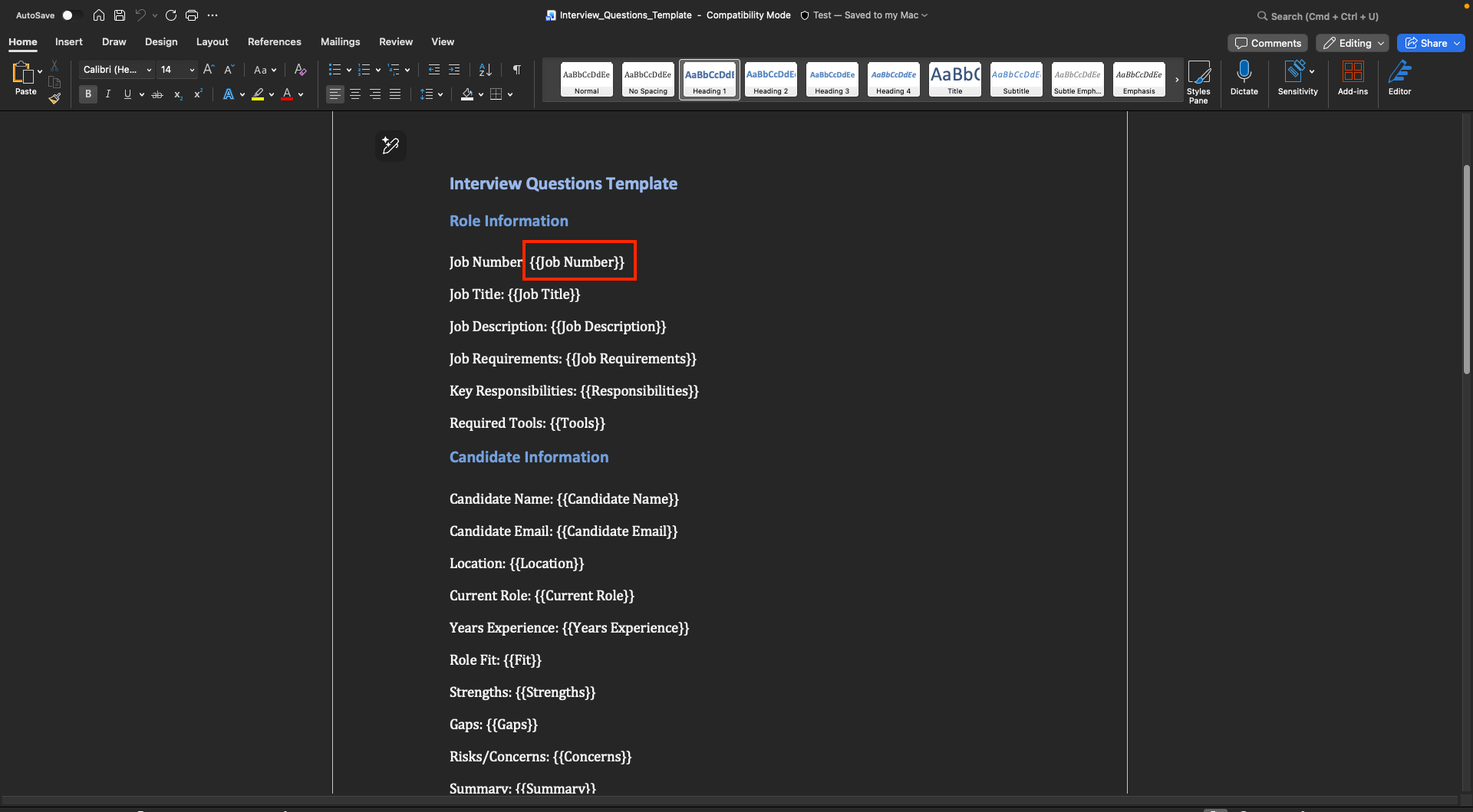
To have the prompt fill a Word document as output, you need a Word template where the content will be inserted. A template is provided for you. Download the template file here, then open it.
Note — The template itself is a basic Word document. The key point here is how to add placeholders where the prompt should insert text. Wherever the prompt needs to insert text, add placeholder text for the item you want to fill and wrap it in double curly braces, such as ``, as shown below.
-
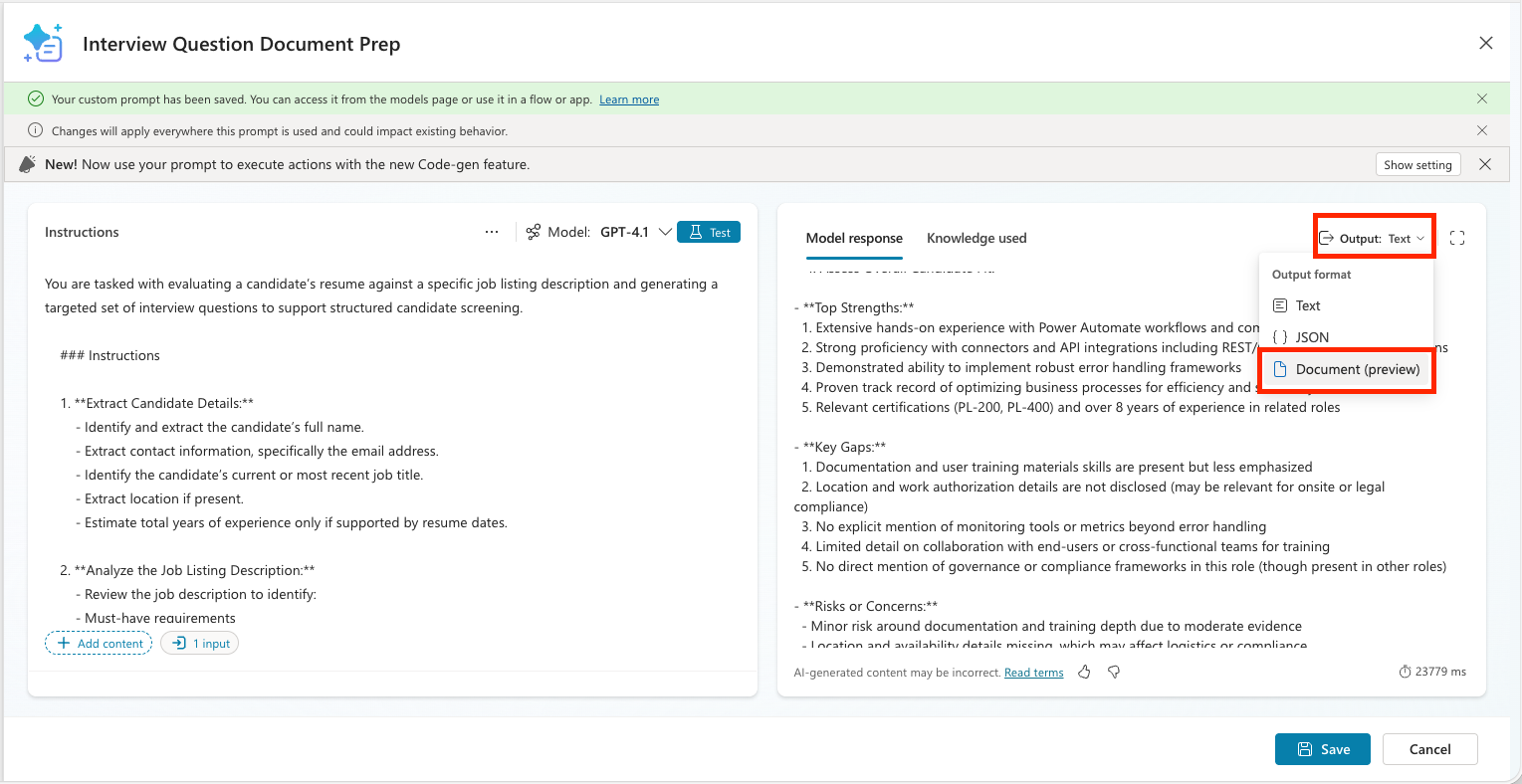
So far, you have created a prompt that generates text output. To change it to Word document output, select the Output dropdown in the upper-right corner of the results panel and choose Document (preview).
-
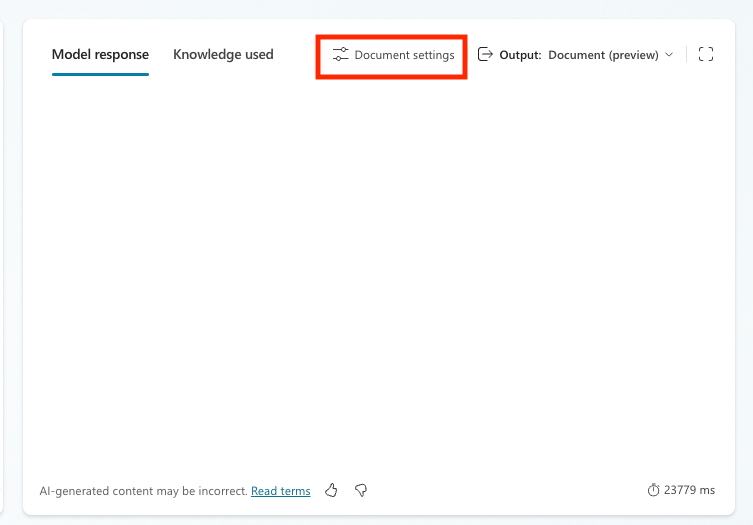
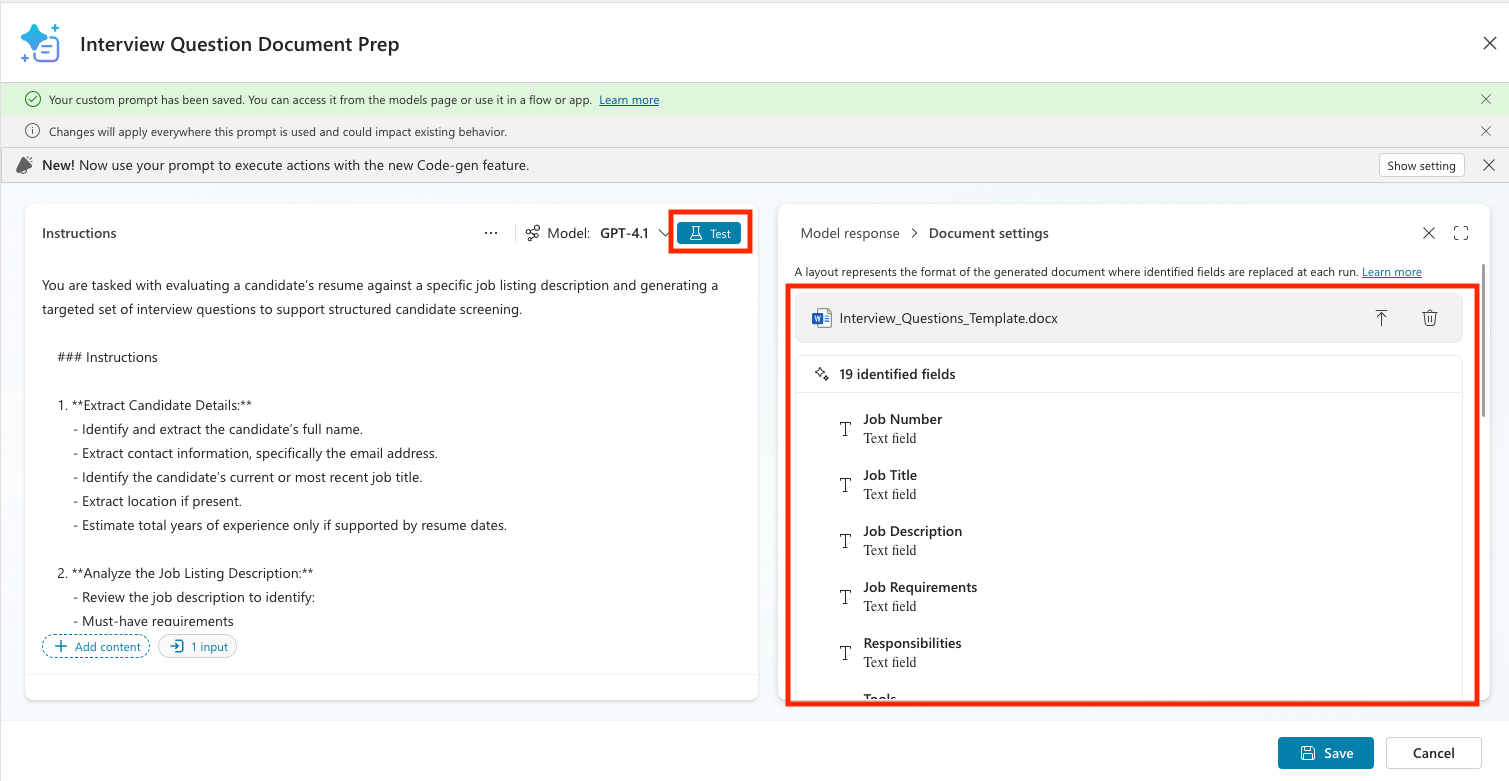
To connect the template file to the prompt, select the Document settings button, then drag and drop the downloaded file or browse to upload it.
-
After uploading the file, it should recognize 19 identified fields (identified by finding all curly-brace placeholders). Select the test button again to confirm that the prompt outputs a Word document.
-
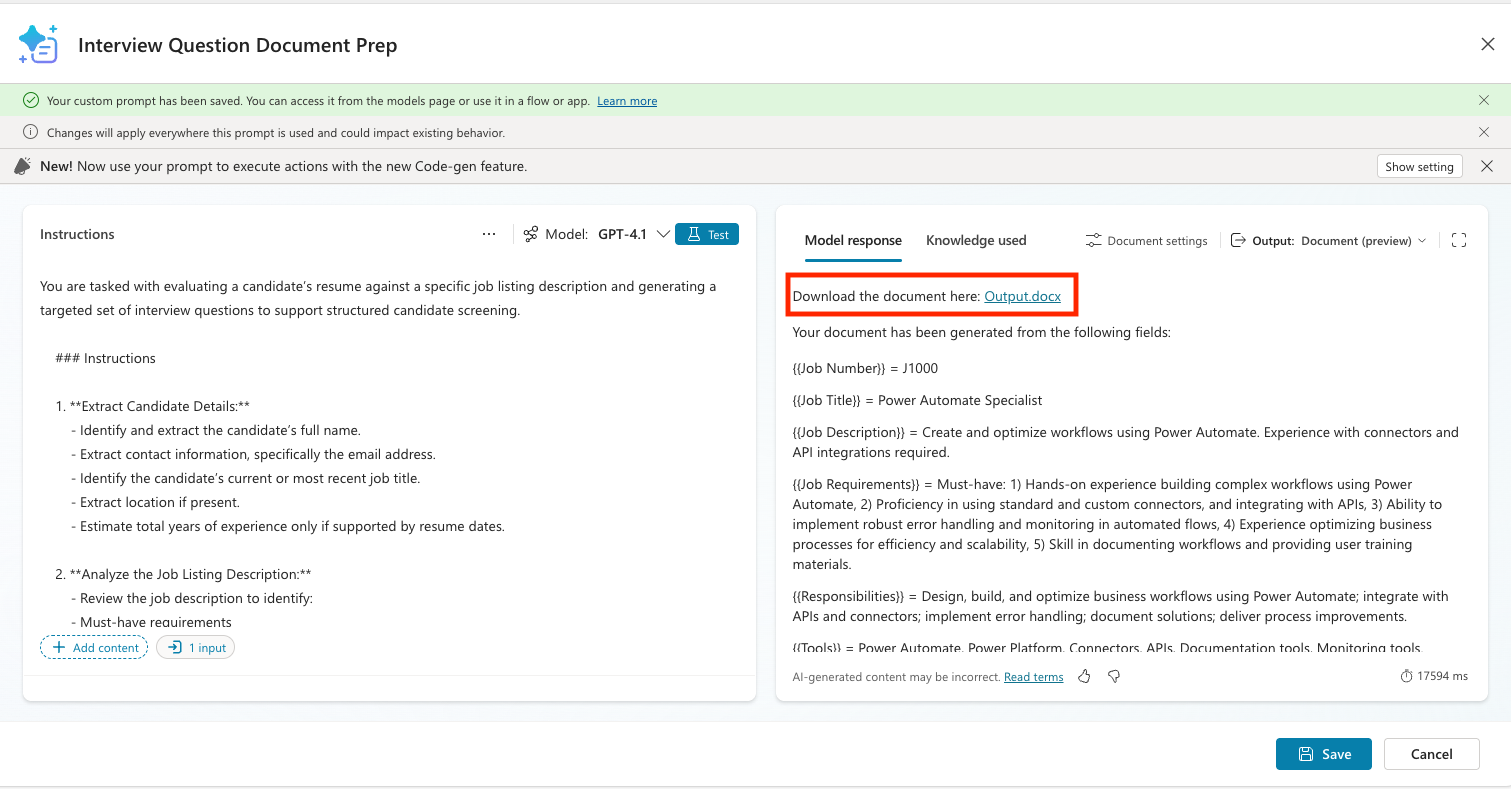
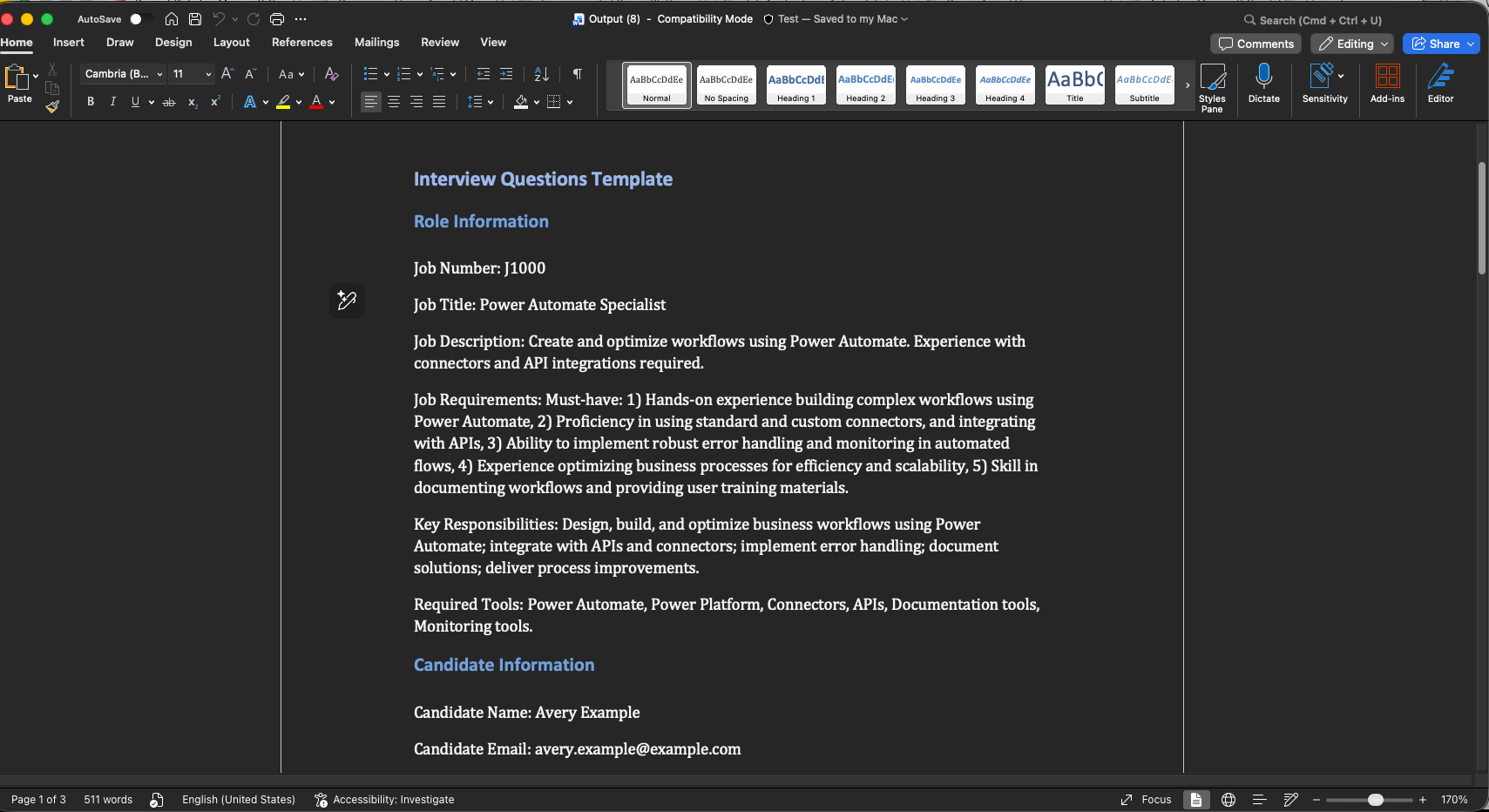
You should see a response similar to the following. A link to download the document appears at the top. Select the link and confirm that the document is filled correctly.
-
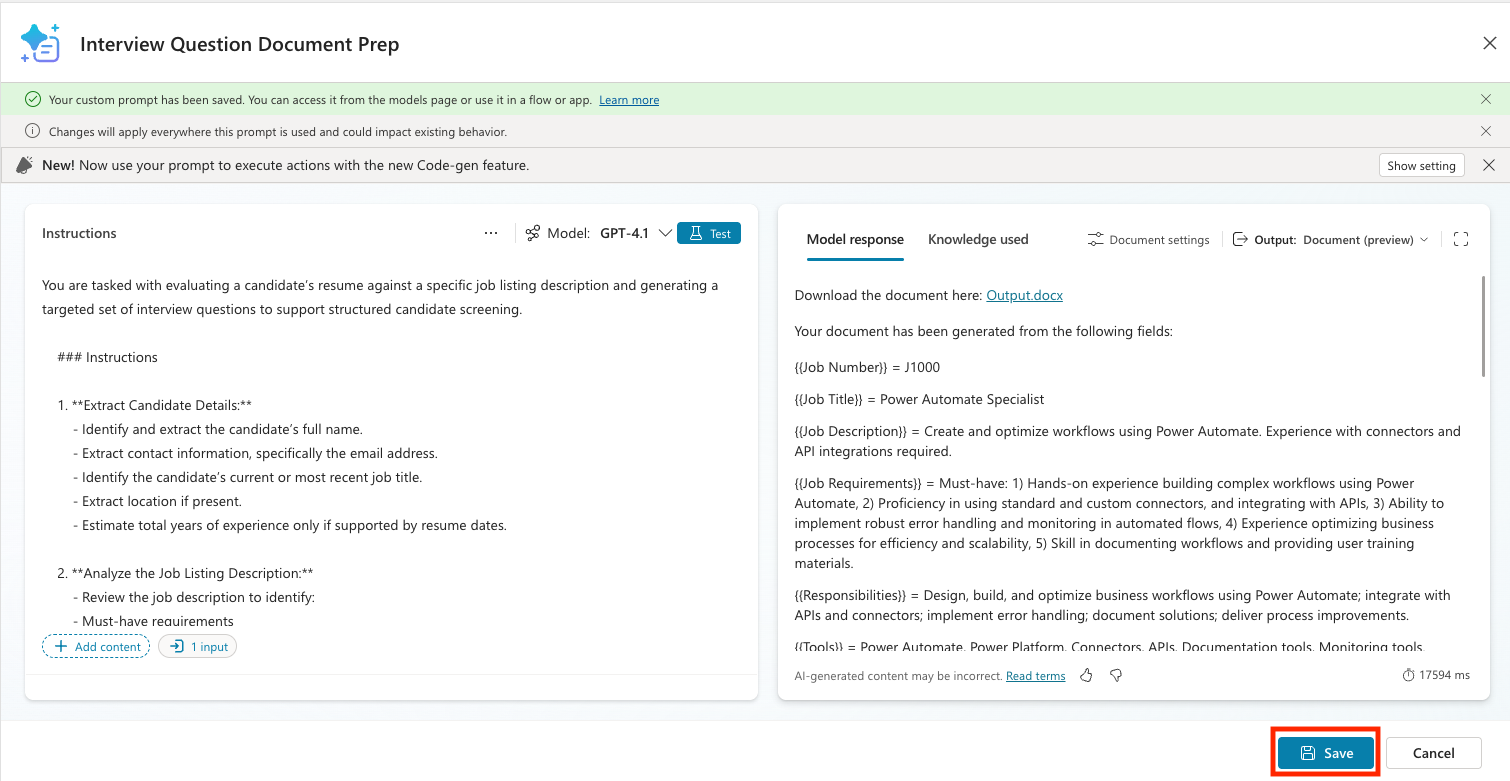
Click Save to save the new prompt.
9.2 Create an agent flow that calls the prompt
Now connect the prompt to your agent. To do this, you need to add an agent flow that calls the prompt and returns the file to the agent.
You may wonder why this step is required and why the agent does not call the prompt directly. Currently, it is difficult to reliably retrieve a file’s contentBytes—the actual file content—and return it from the agent as a file item. Using an agent flow lets you extract the file predictably and return it to the agent.
Now create the agent flow.
-
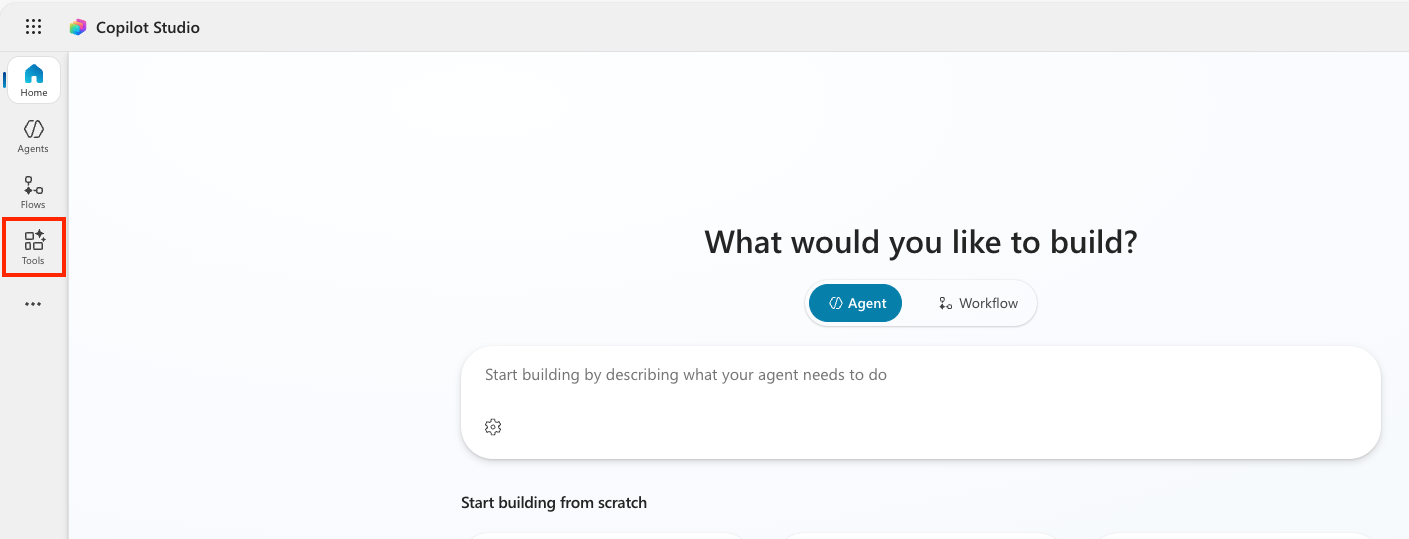
In Copilot Studio, select the Tools tab.
-
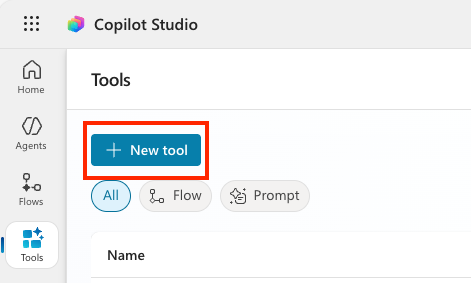
Select the New tool button.
-
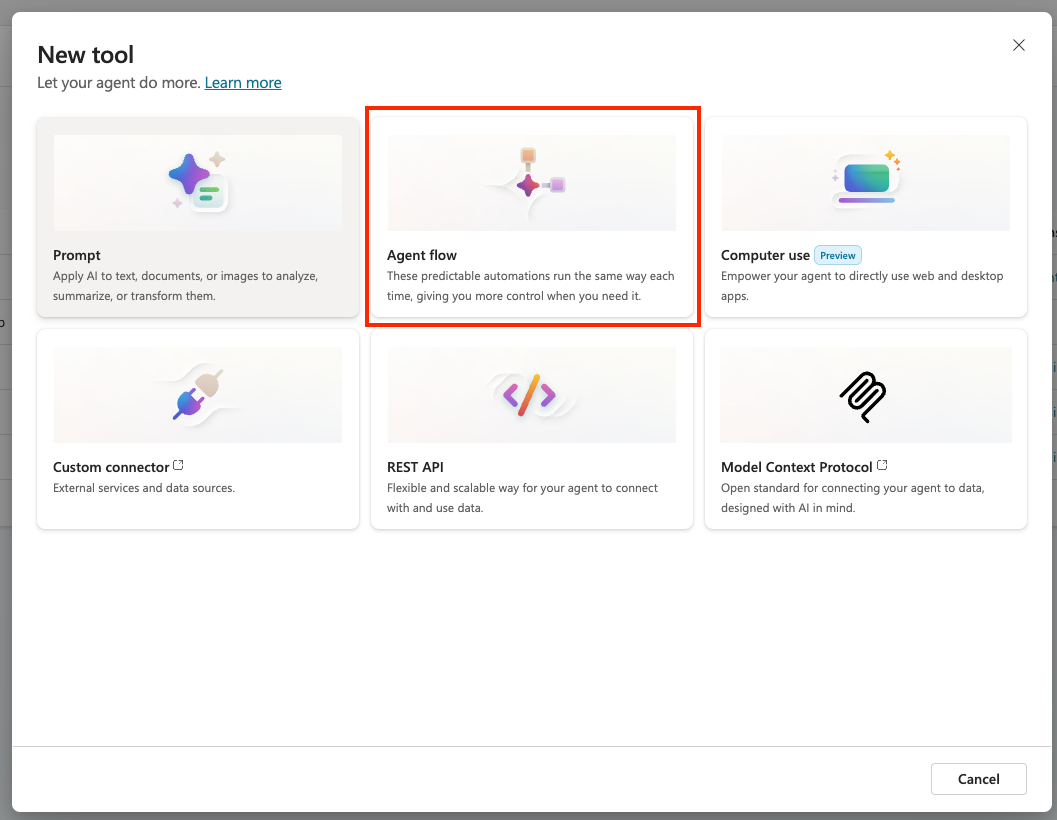
Select the Agent Flow option.
-
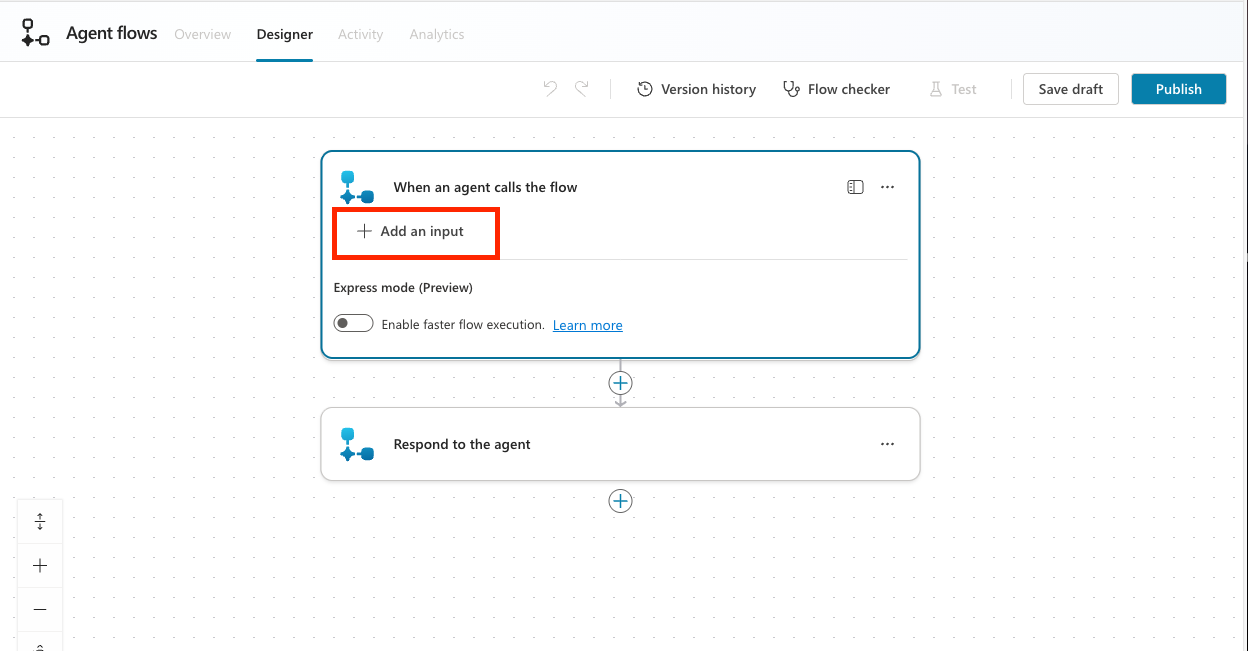
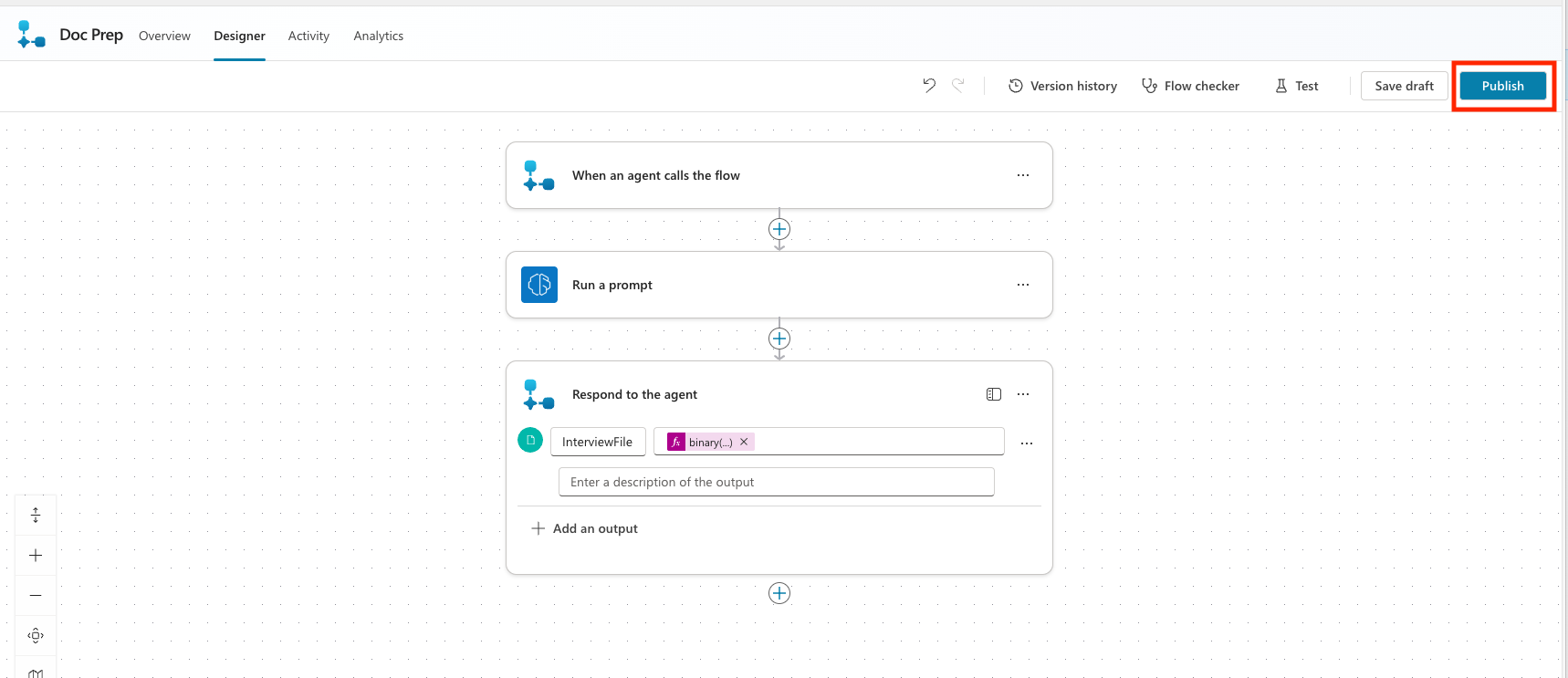
Click the When an agent calls the flow trigger to expand it, then select the Add an input button.
-
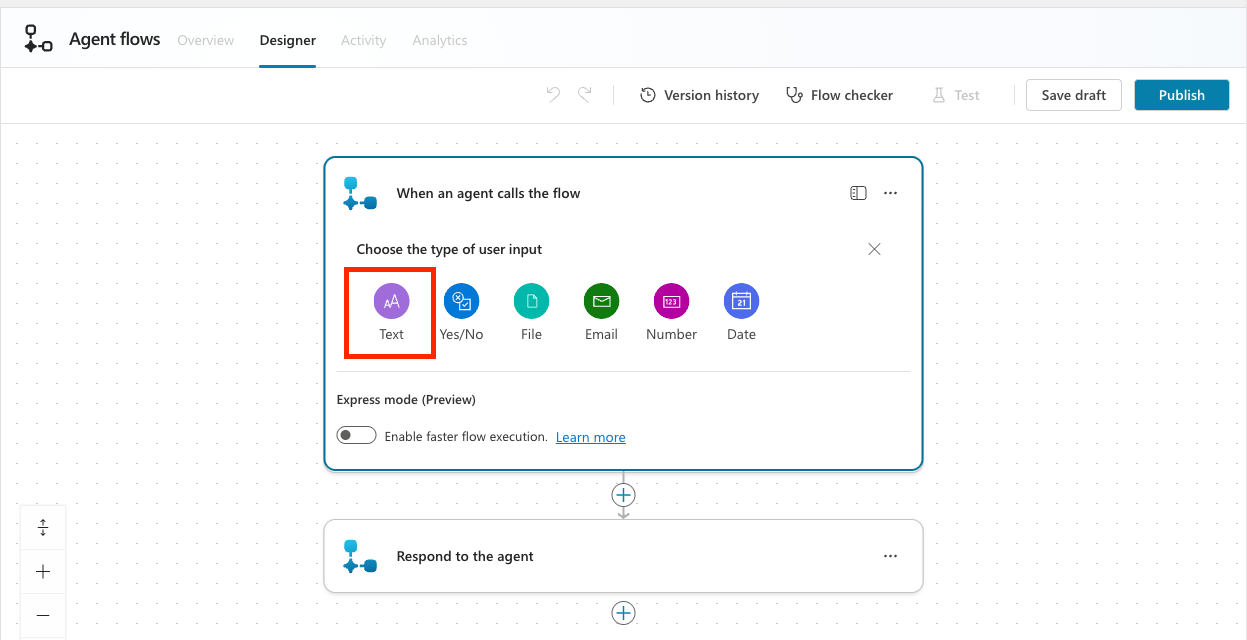
Select Text as the user input type.
-
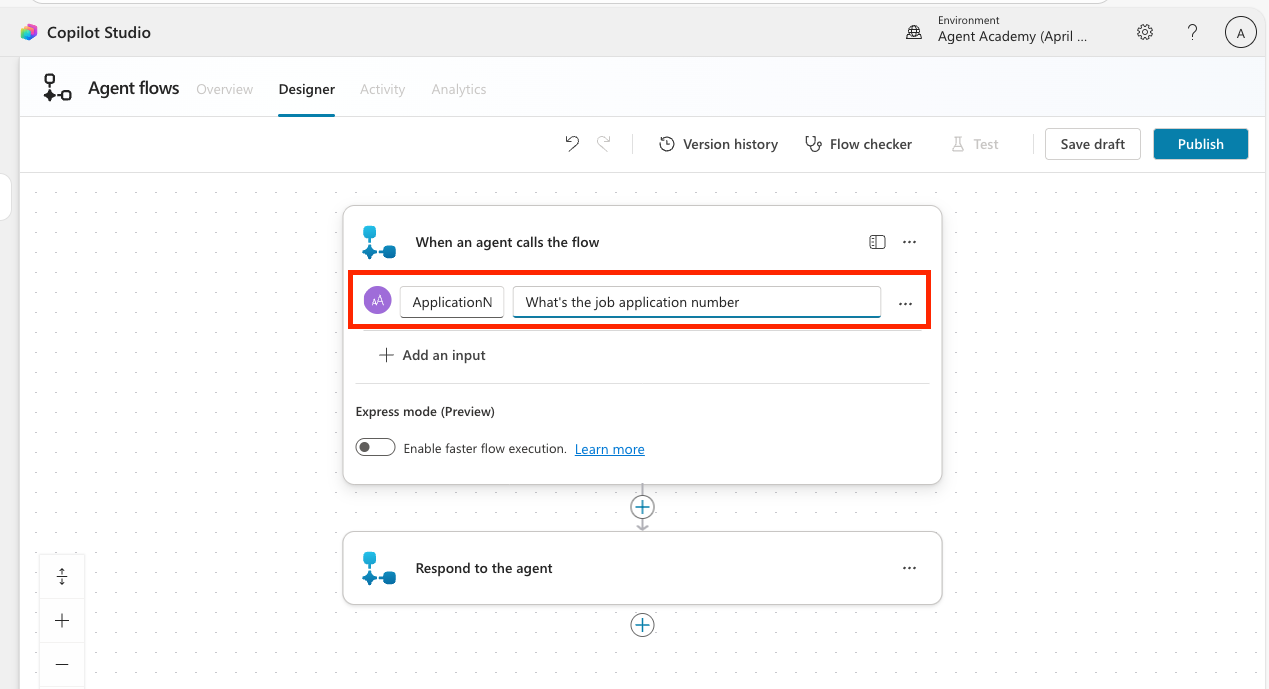
Set the input name to ApplicationNumber and enter What’s the job application number as the description.
-
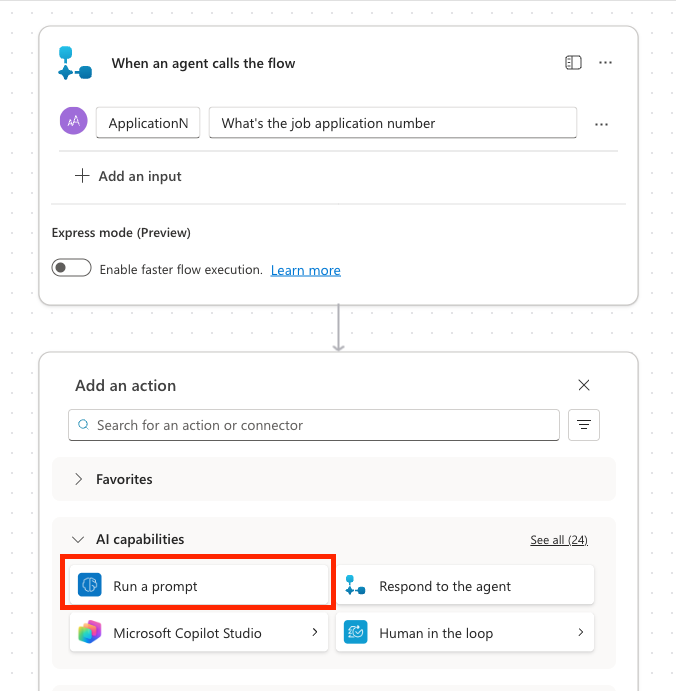
Select the + plus button below the When an agent calls the flow trigger and add the Run a prompt action.
-
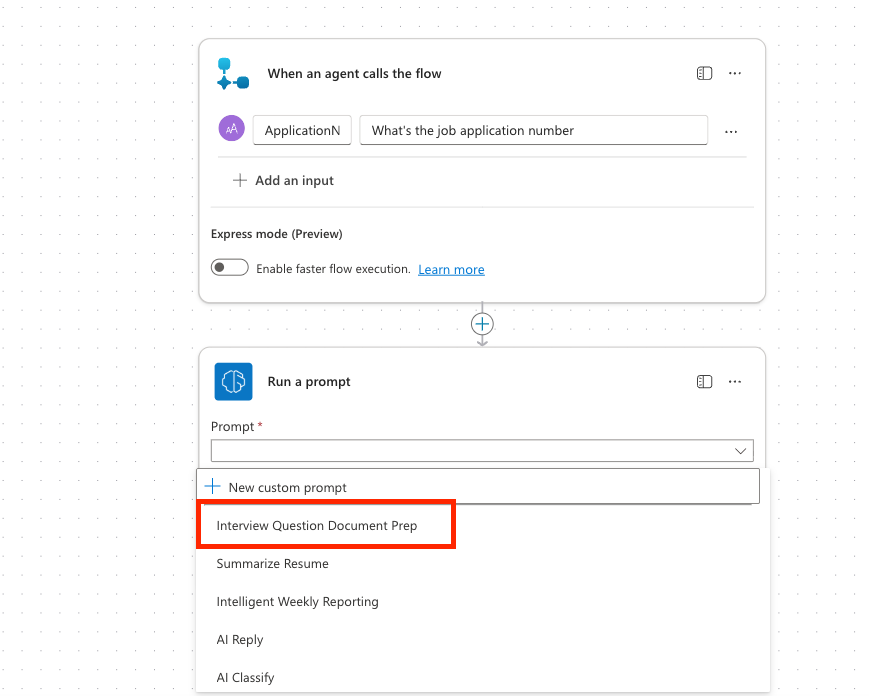
Select the Interview Question Document Prep prompt from the dropdown list.
-
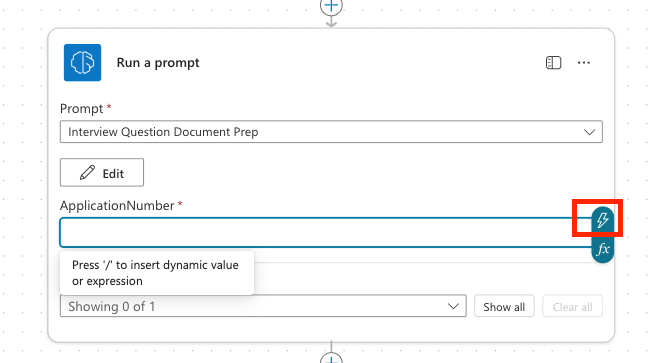
Click the ApplicationNumber input field and select the lightning bolt icon.
-
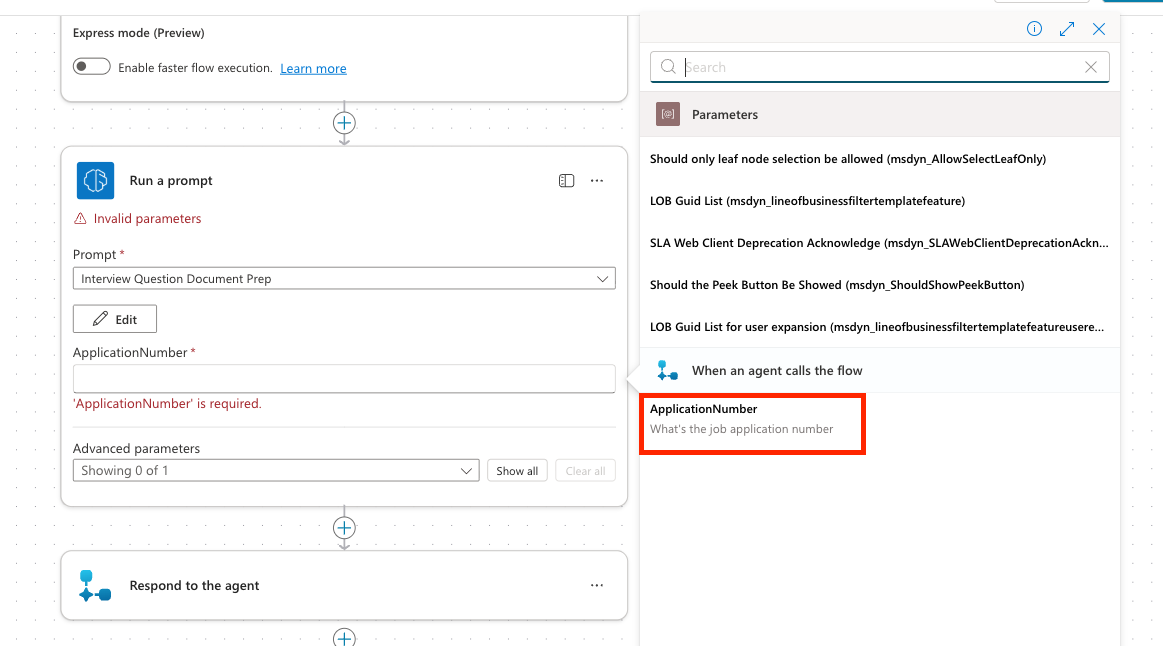
Select the ApplicationNumber input you created earlier.
-
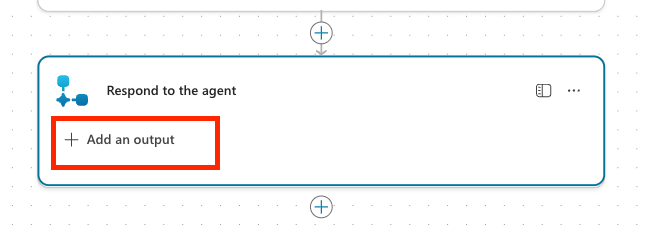
Expand the Respond to the agent action, then select Add an output.
-
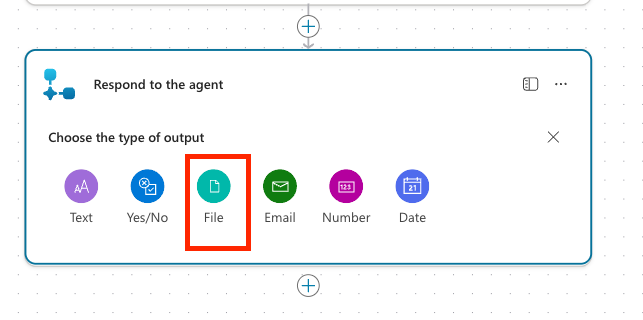
Select File from the output type list.
-
Set the property name to InterviewFile. For the value, click the fx icon, enter the following formula, and select Add.
binary(outputs('Run_a_prompt')?['body/responsev2/predictionOutput/documentOutput/contentBytes'])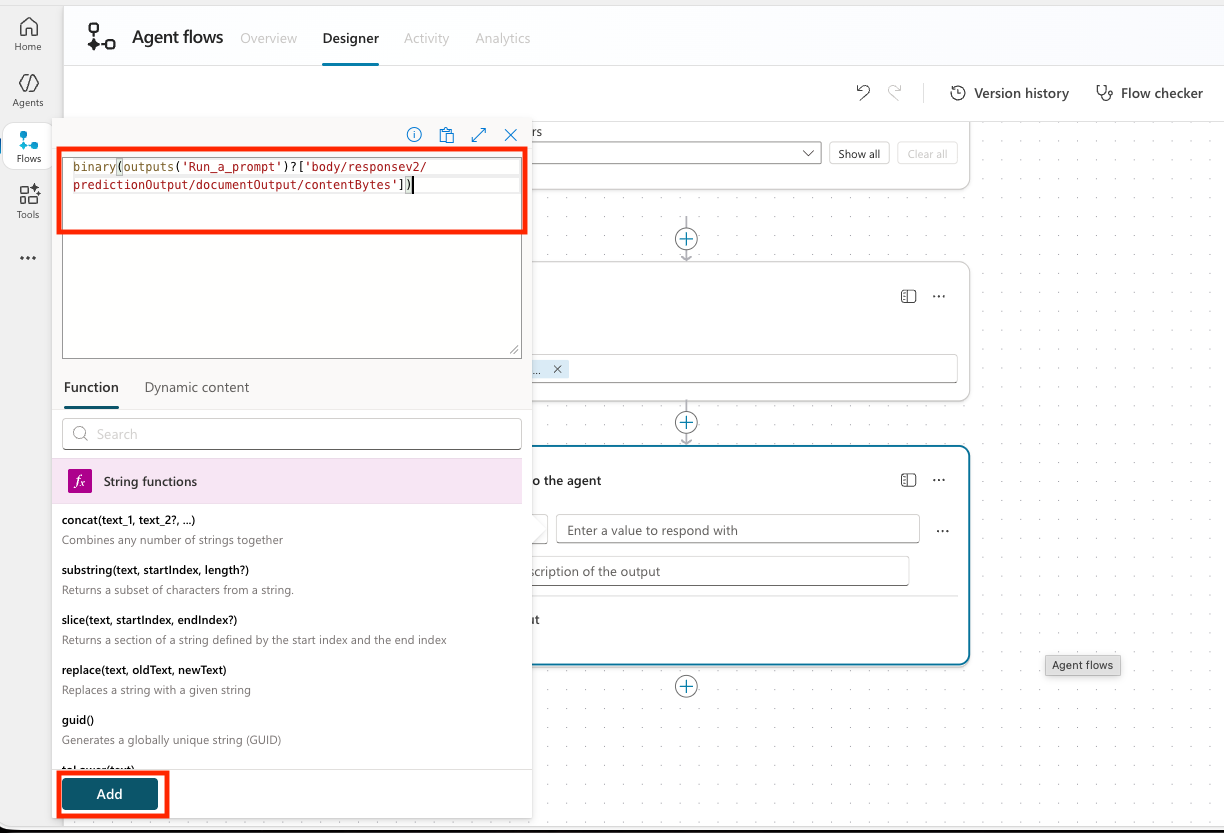
Note — This formula is required to process the output correctly, extract the file, and return it to the agent.
-
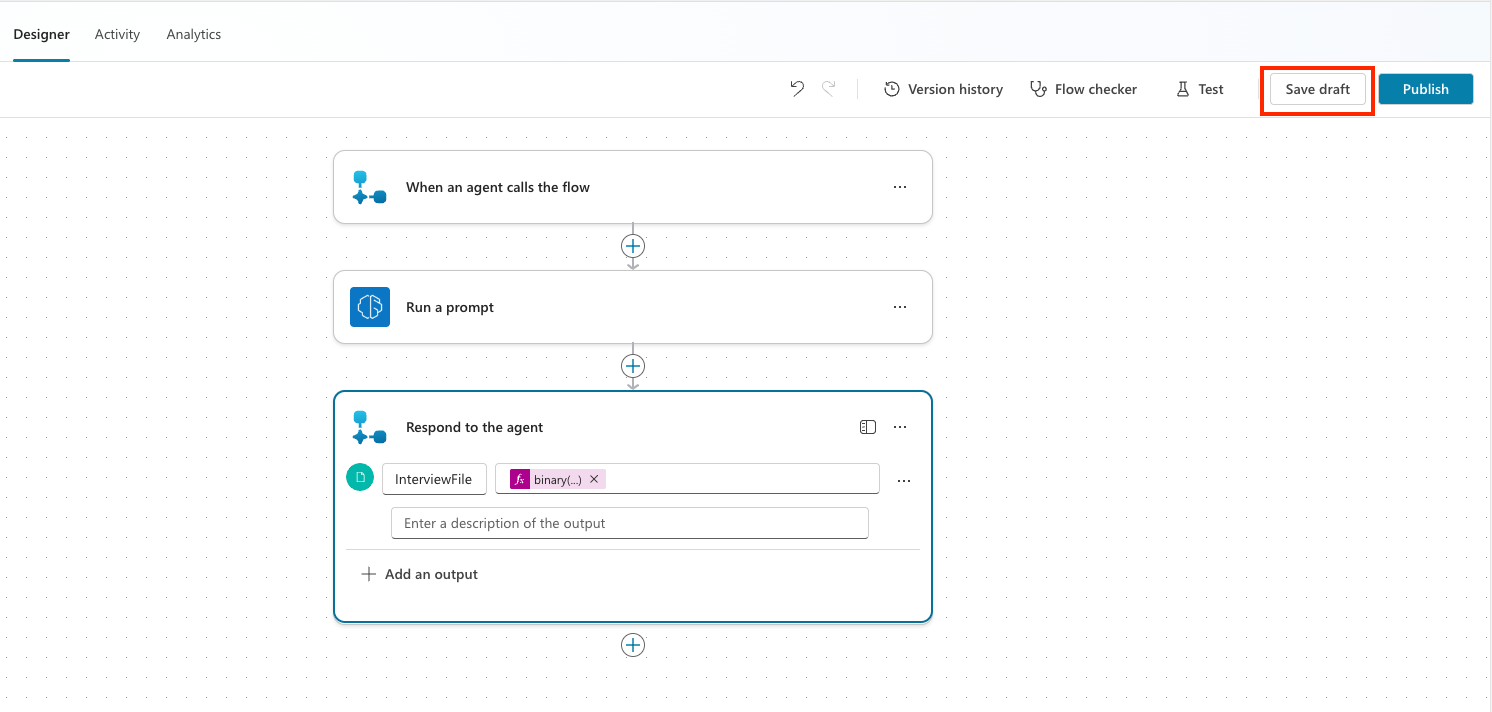
Select Save Draft to save the flow.
-
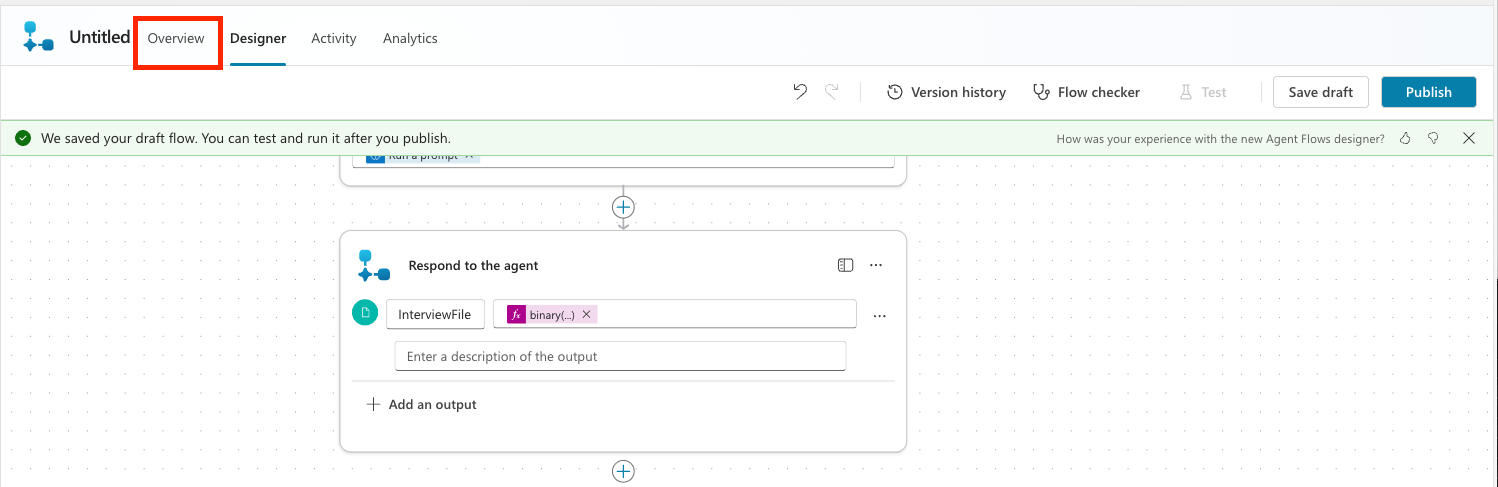
Select the Overview tab.
-
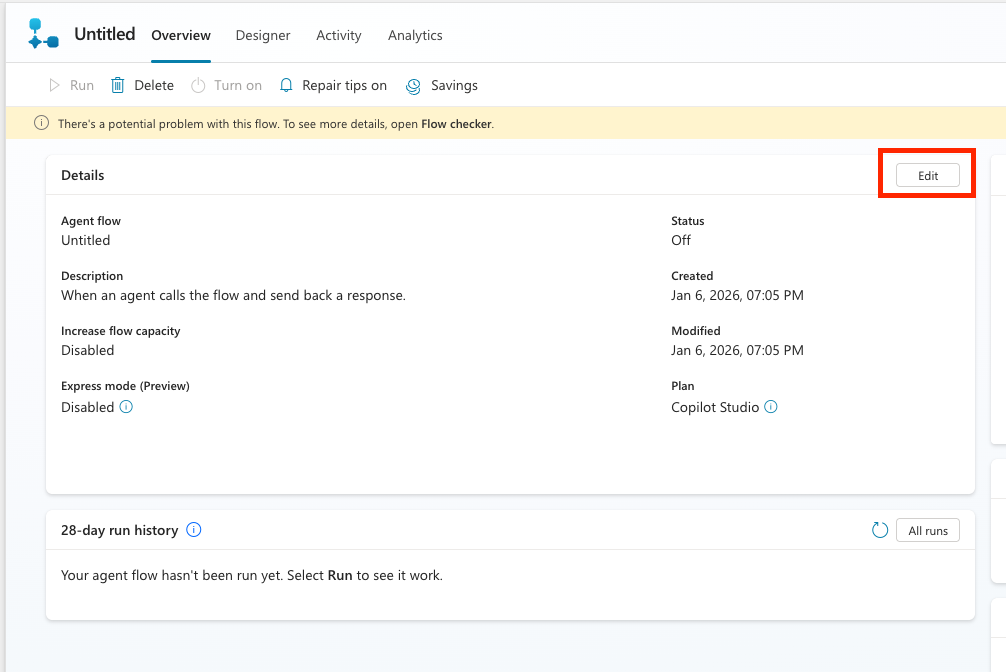
Select the Edit button next to Details.
-
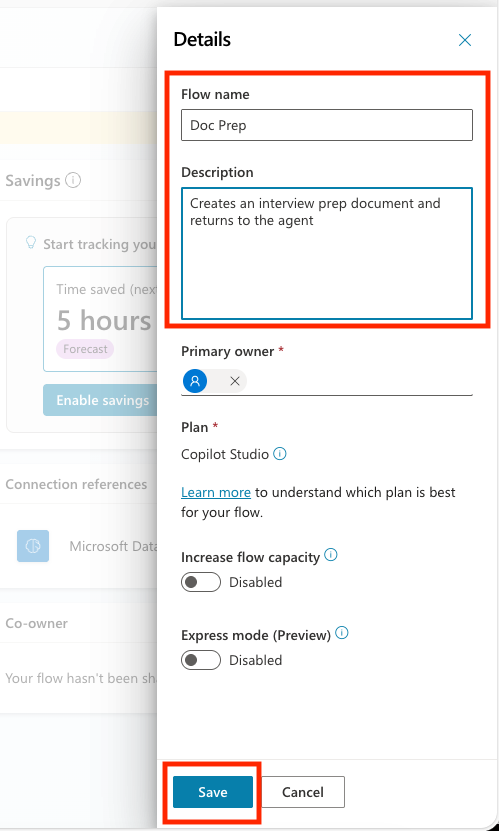
Enter Doc Prep for Flow name and Creates an interview prep document and returns to the agent for description, then click Save.
-
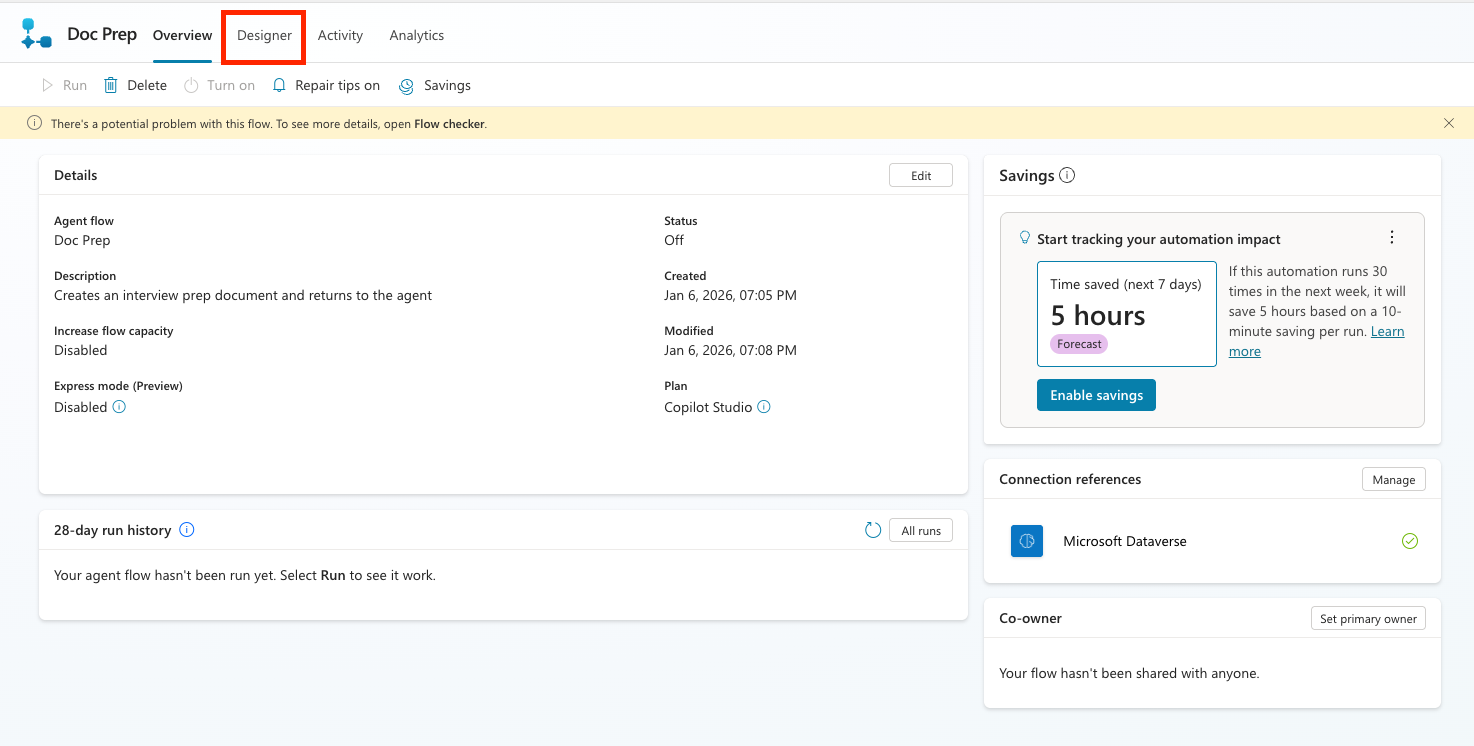
Select the Designer tab.
-
Select the Publish button to publish the flow.
9.3 Create a topic
Now add a topic to connect all of this to the agent.
The reason you need a topic instead of adding this work to the agent instructions is that, currently, a topic is the only way to guarantee that the file object is returned every time.
Now create the topic.
-
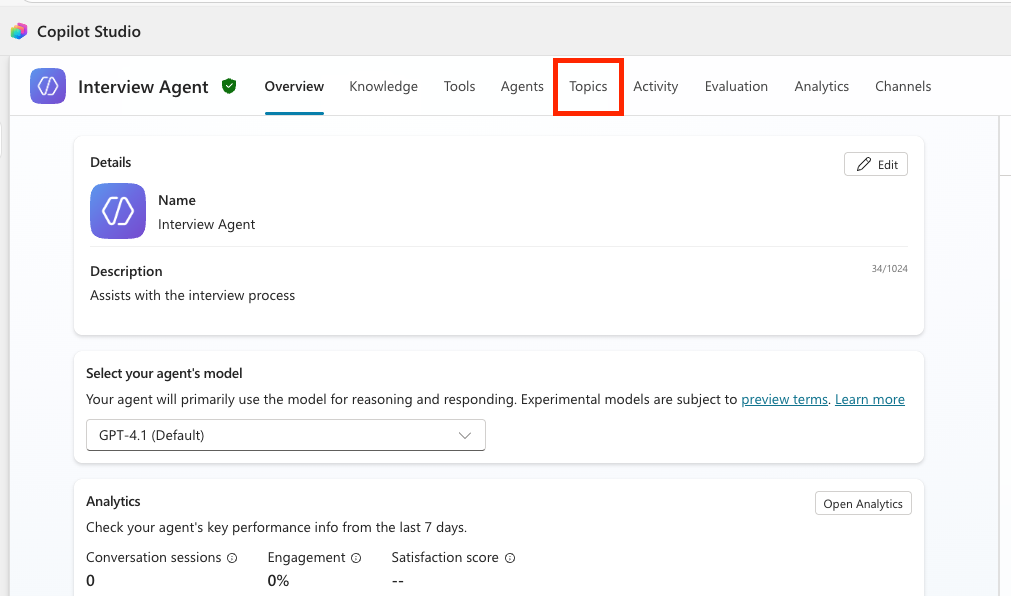
In Copilot Studio, click the Agents tab, select Interview Agent, and then select the Topics tab.
-
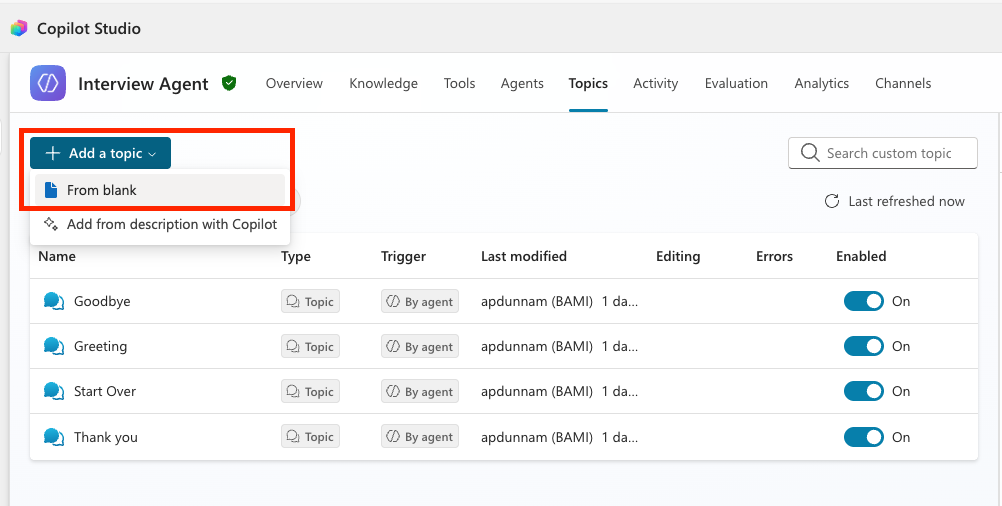
Select the Add a Topic button and choose From blank.
-
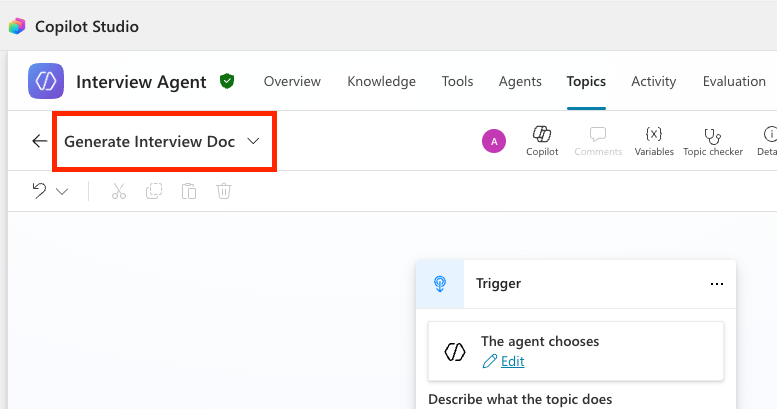
Rename the Topic name from “Untitled” to Generate Interview Doc.
-
In Topic Trigger, enter the following in description.
This topic generates an interview prep document with applicant details, role details and interview questions.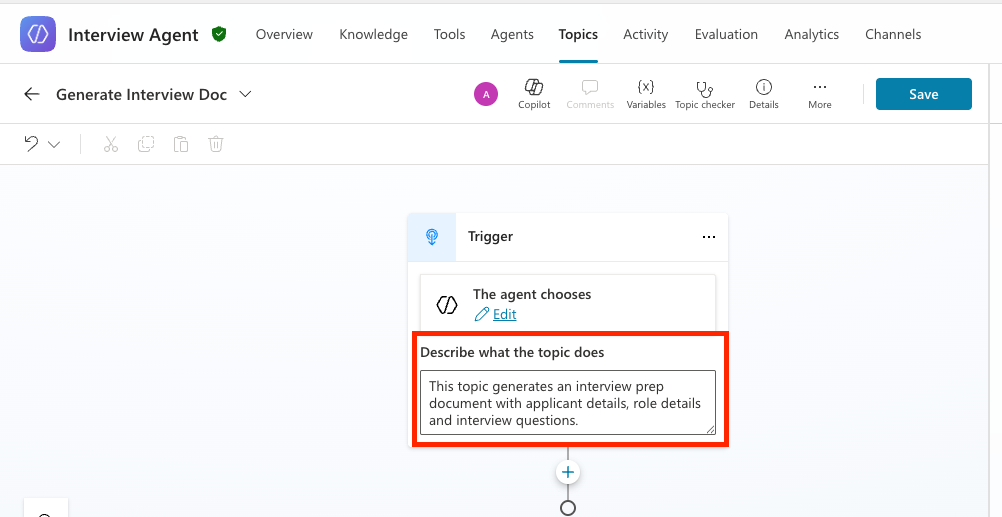
-
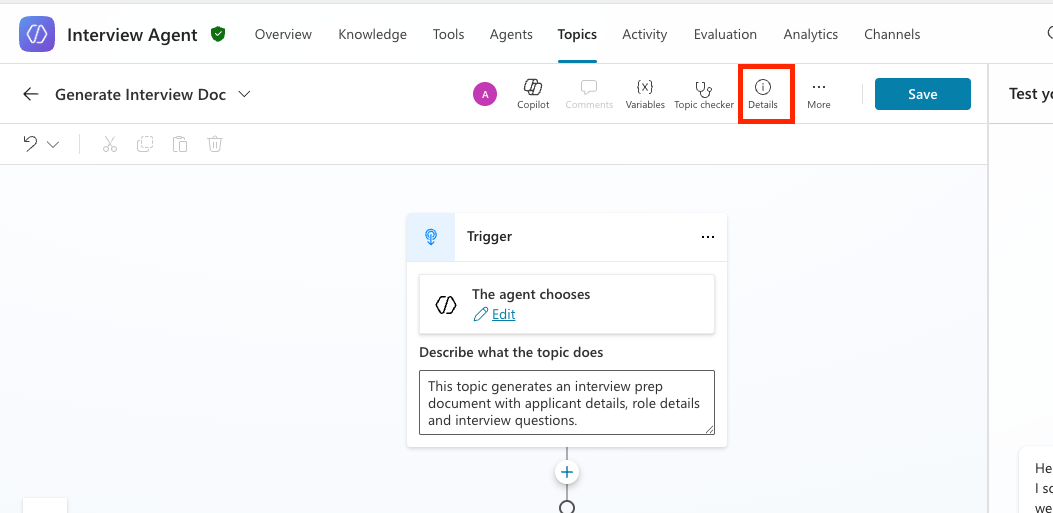
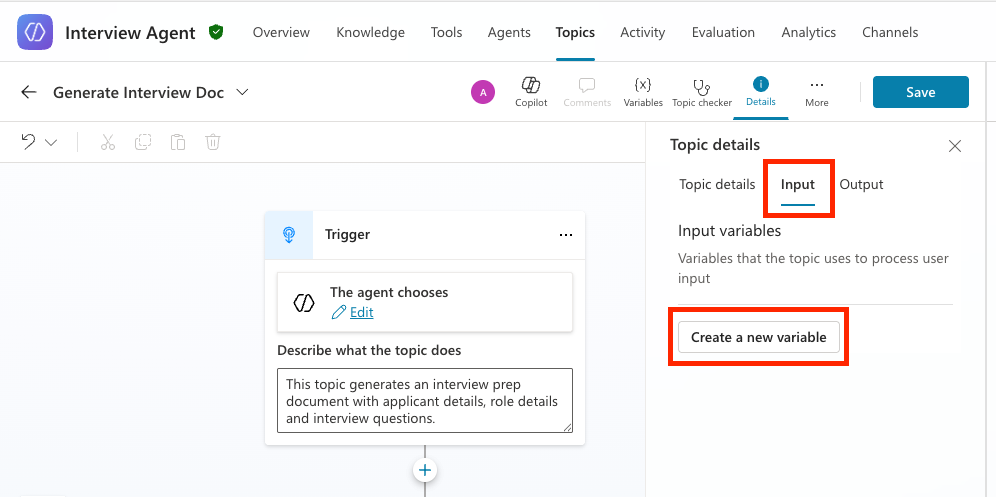
This topic must be able to receive the Job Application Number for generating the interview prep file. To do that, use Copilot Studio’s AI-powered slot filling. This lets the language model’s generative orchestration identify the value that should be brought into the topic.
To do this, select the Details button in the topic.
-
In the details panel, select the Input tab, then select Create a new variable.
-
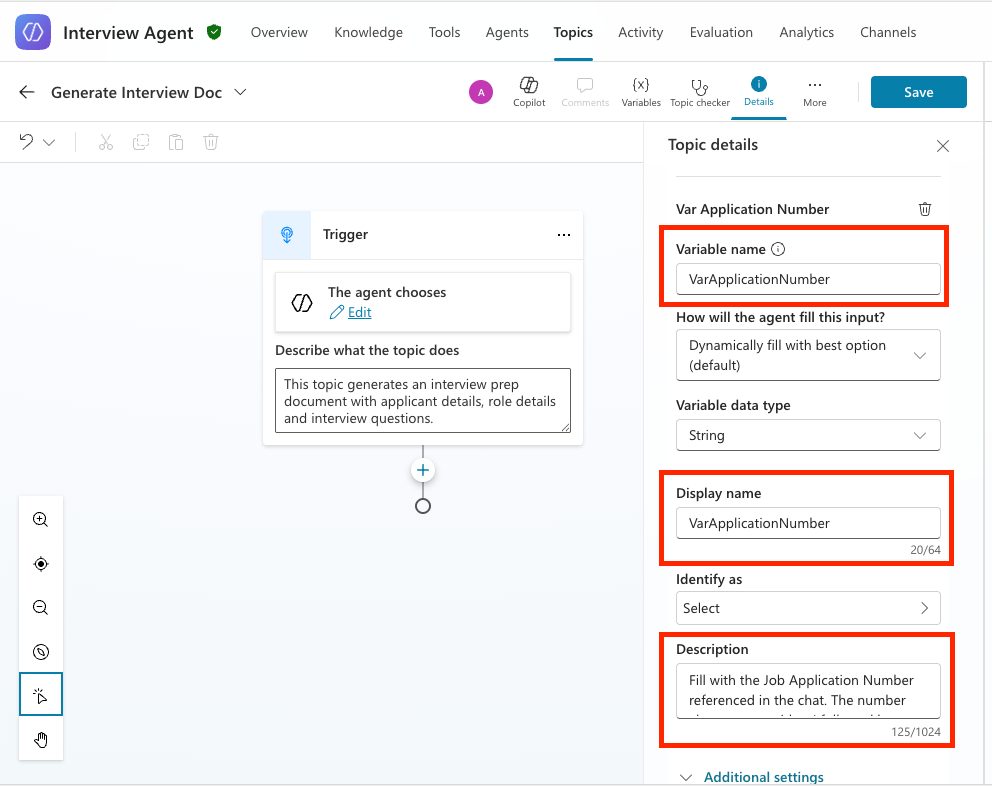
Change Variable name to VarApplicationNumber. In Description, enter the following.
Fill with the Job Application Number referenced in the chat. The number always starts with a A followed by at least 5 digits.Leave all other properties unchanged.
-
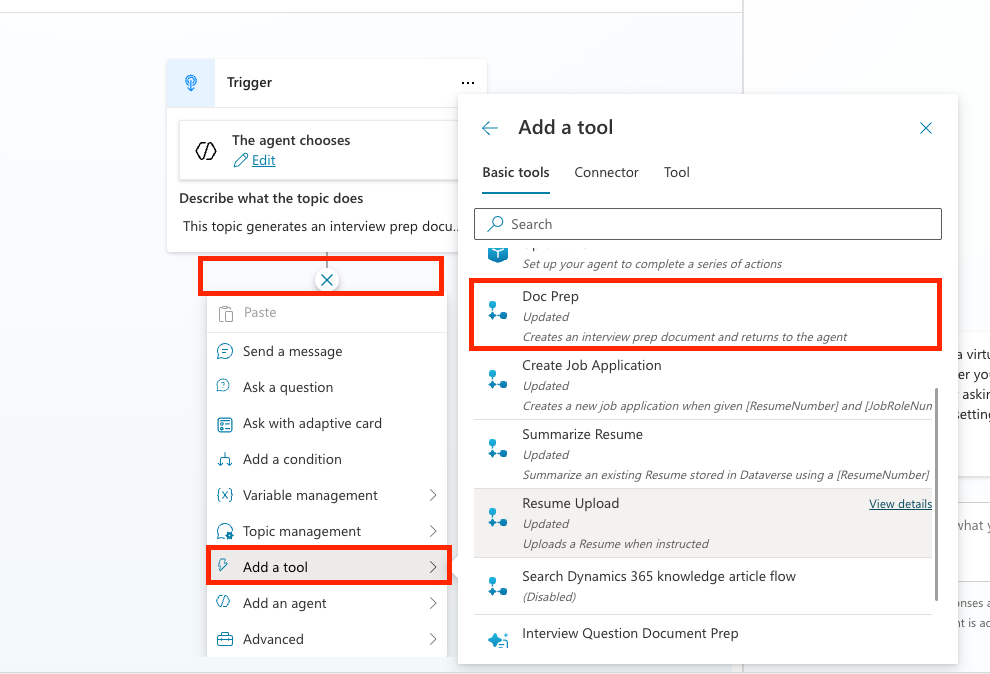
Select the + plus icon after the trigger, choose Add a Tool, find the Doc Prep flow you created earlier in the list, and select it.
-
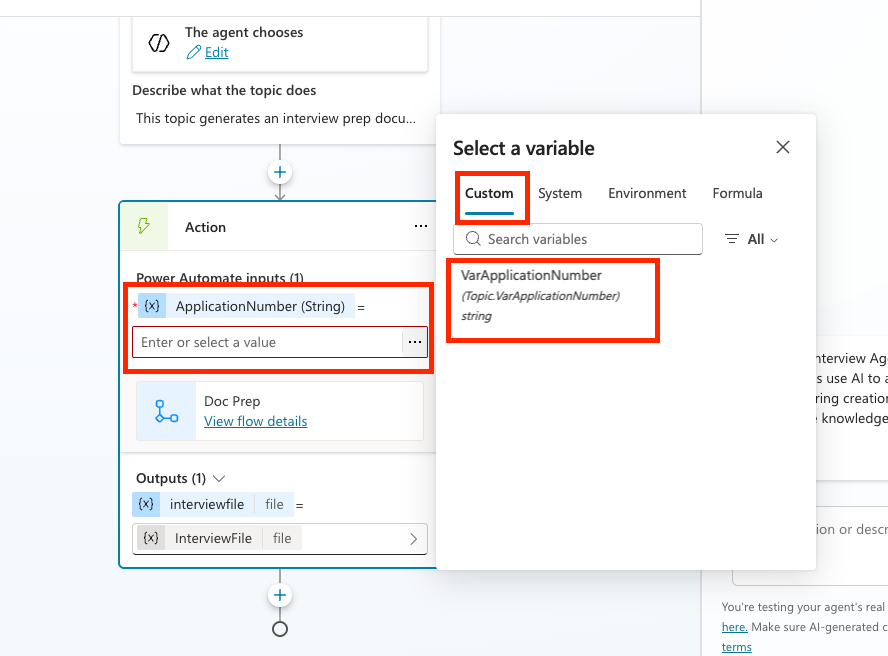
Click the action’s ApplicationNumber input field, select … three dots, and choose the VarApplicationNumber variable to map it to the input.
-
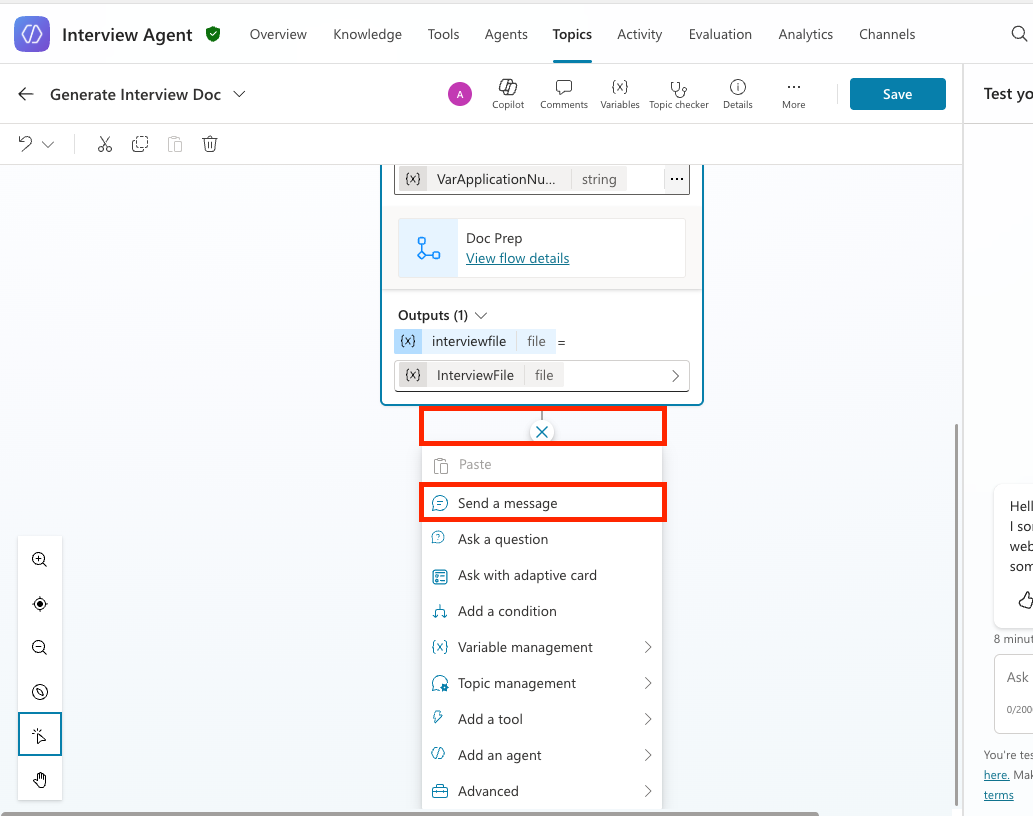
Now add a message node to return the file to the user. Click the + plus icon below the action you just added and select Send a message.
-
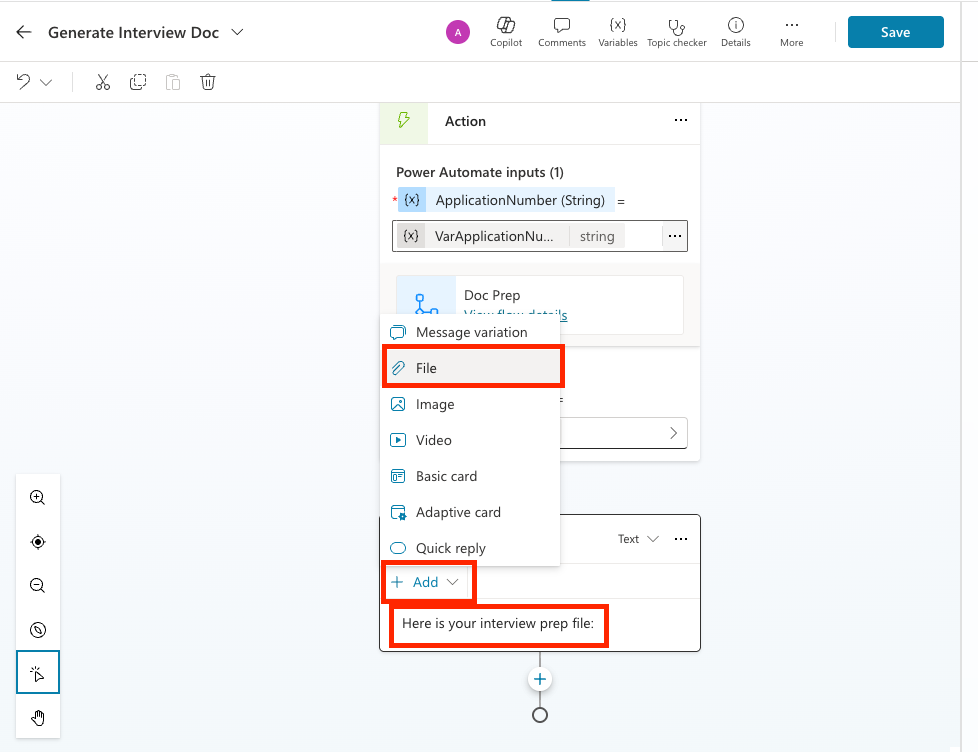
Enter Here is your interview prep file: in the text box. Then click the Add button and select the File option.
-
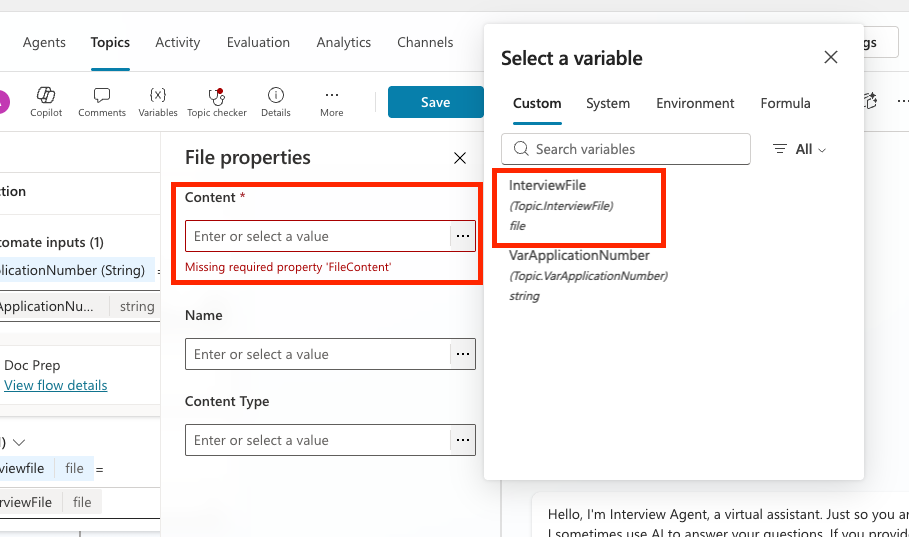
Click the Content input field, select … three dots, and choose the InterviewFile property.
-
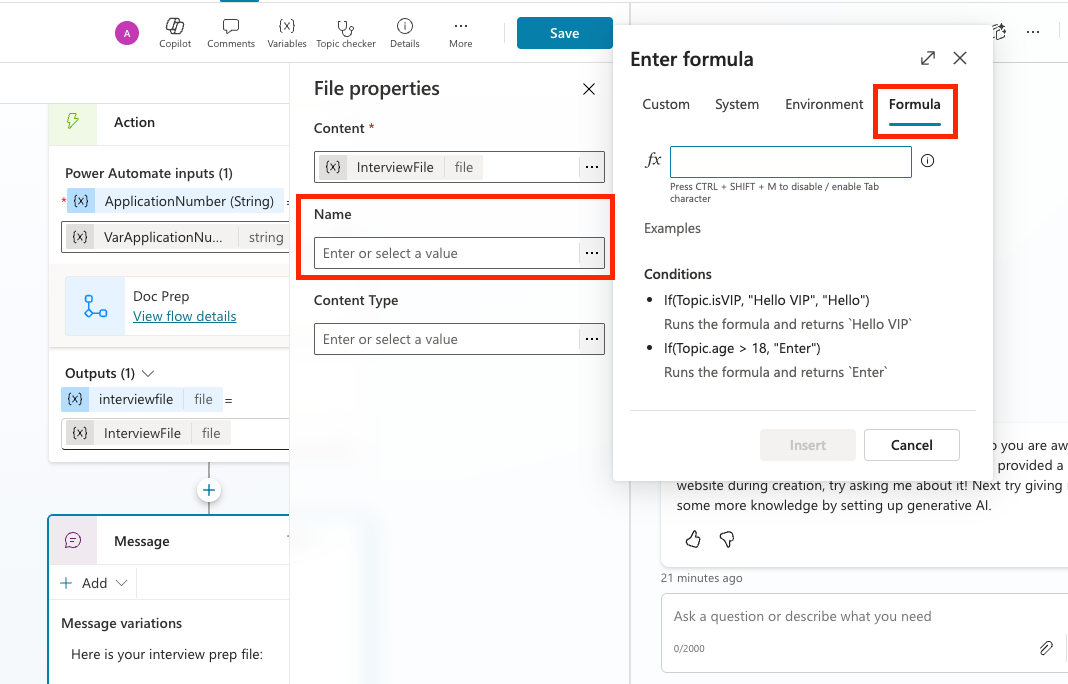
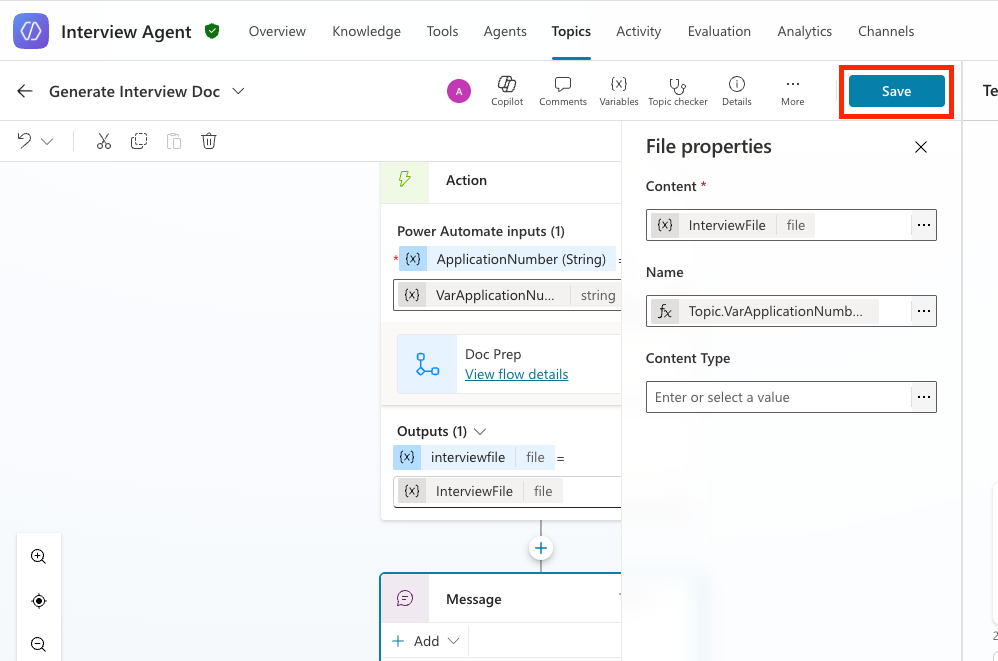
Click the Name input field, select … three dots, and then select the Formula tab.
-
Enter the following formula in the formula pane and select Insert.
Topic.VarApplicationNumber&"InterviewPrep.docx"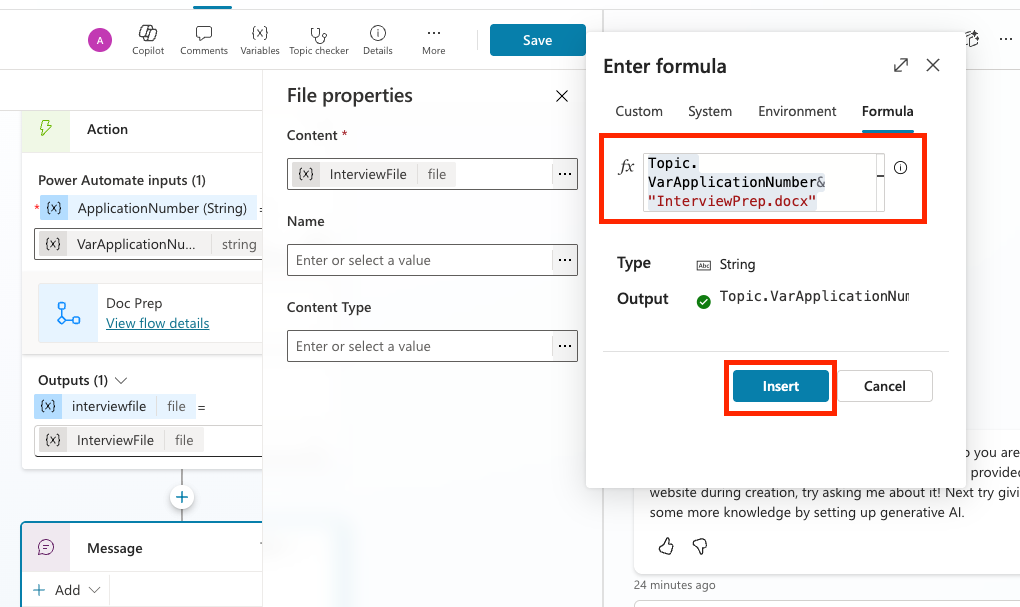
-
Select Save to save the topic.
-
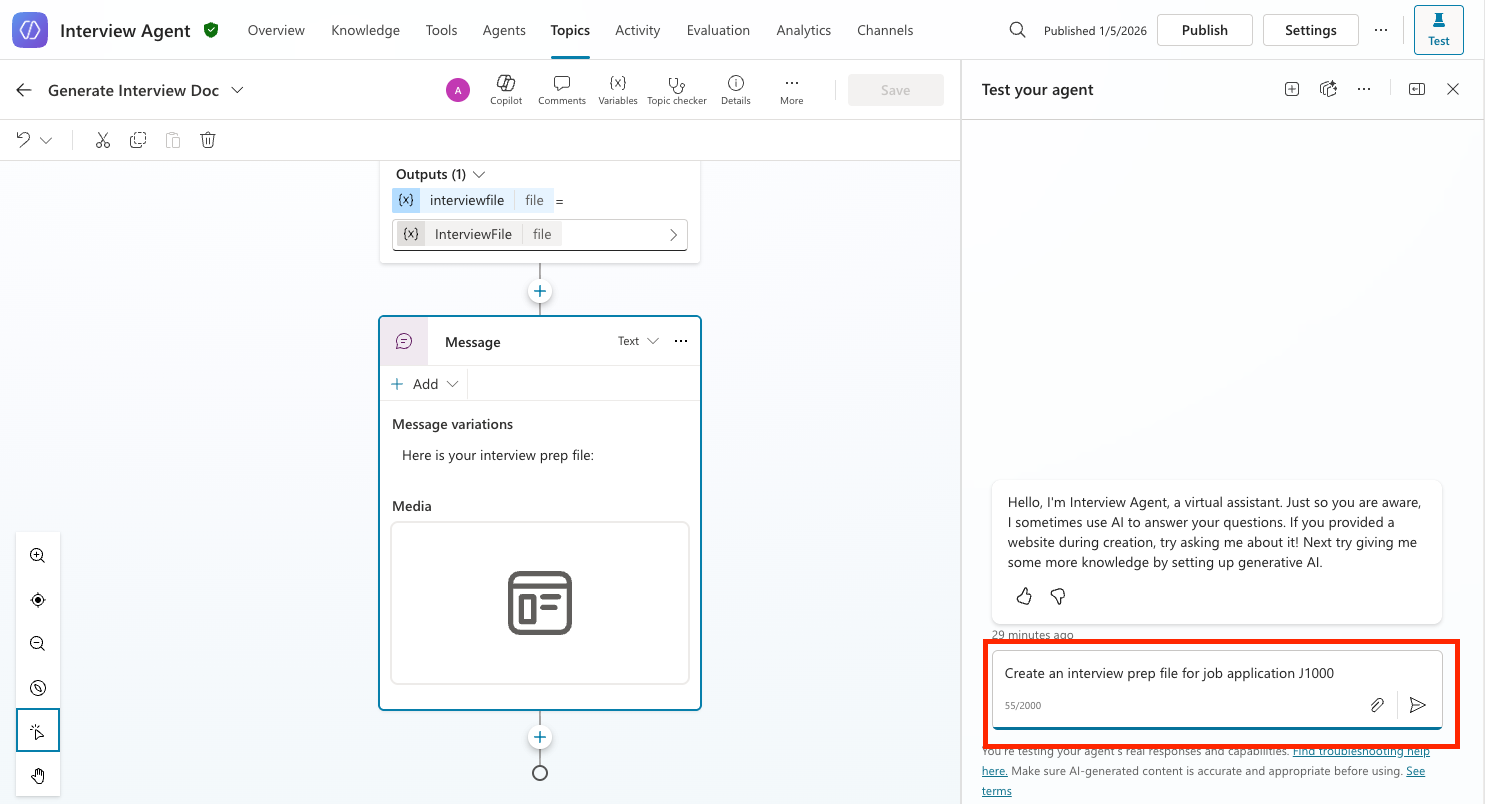
Now test whether the new topic works correctly. Open the test panel and enter the following (the example says A01001; replace it with an appropriate job application number from your Job Application table).
Create an interview prep file for job application A01001Press Enter.
-
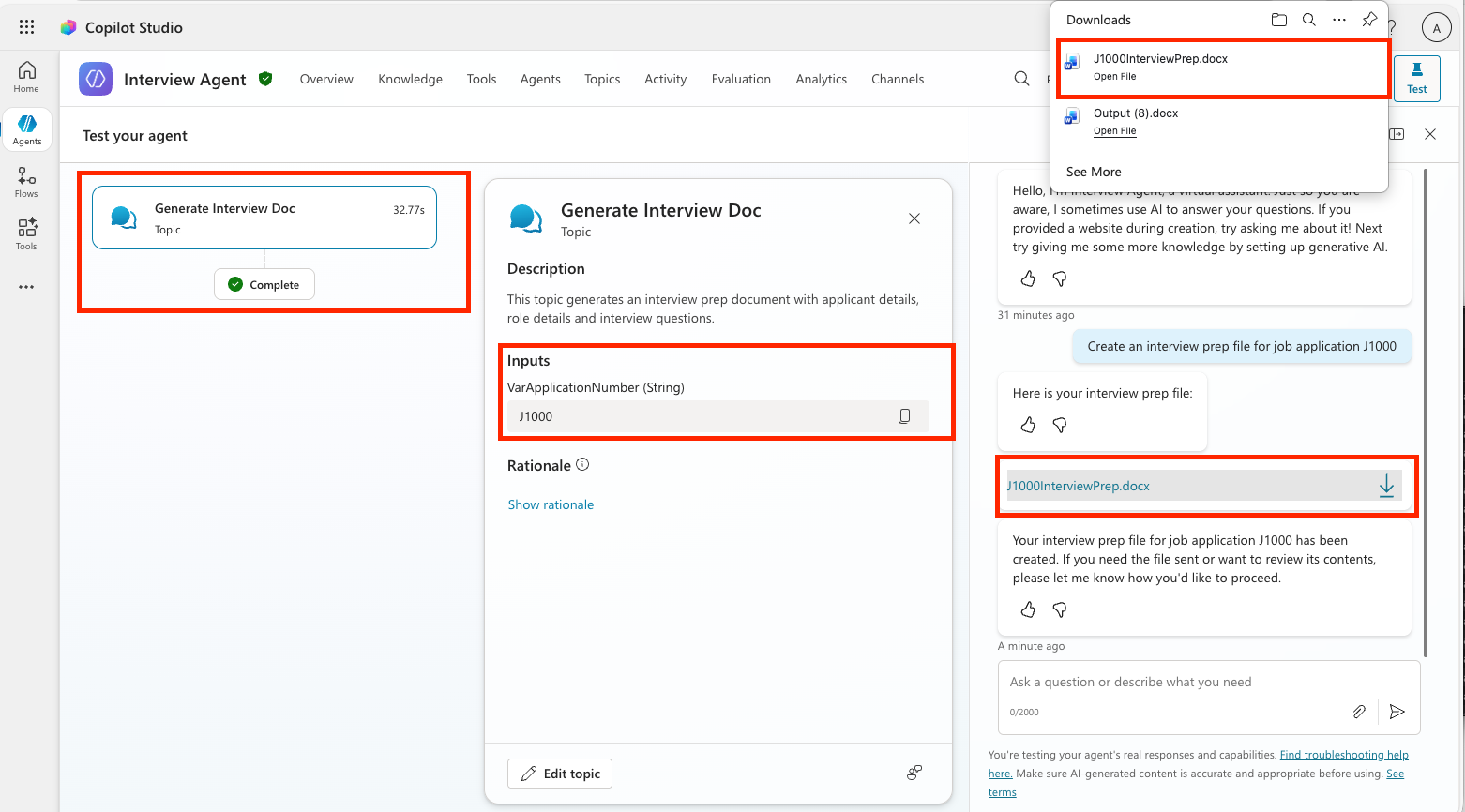
Confirm that the topic is called, the application number is passed, the flow runs, and the file is returned. Click the document link and confirm that the interview prep document downloads to your local drive.
-
Open the document and confirm that it is filled correctly.
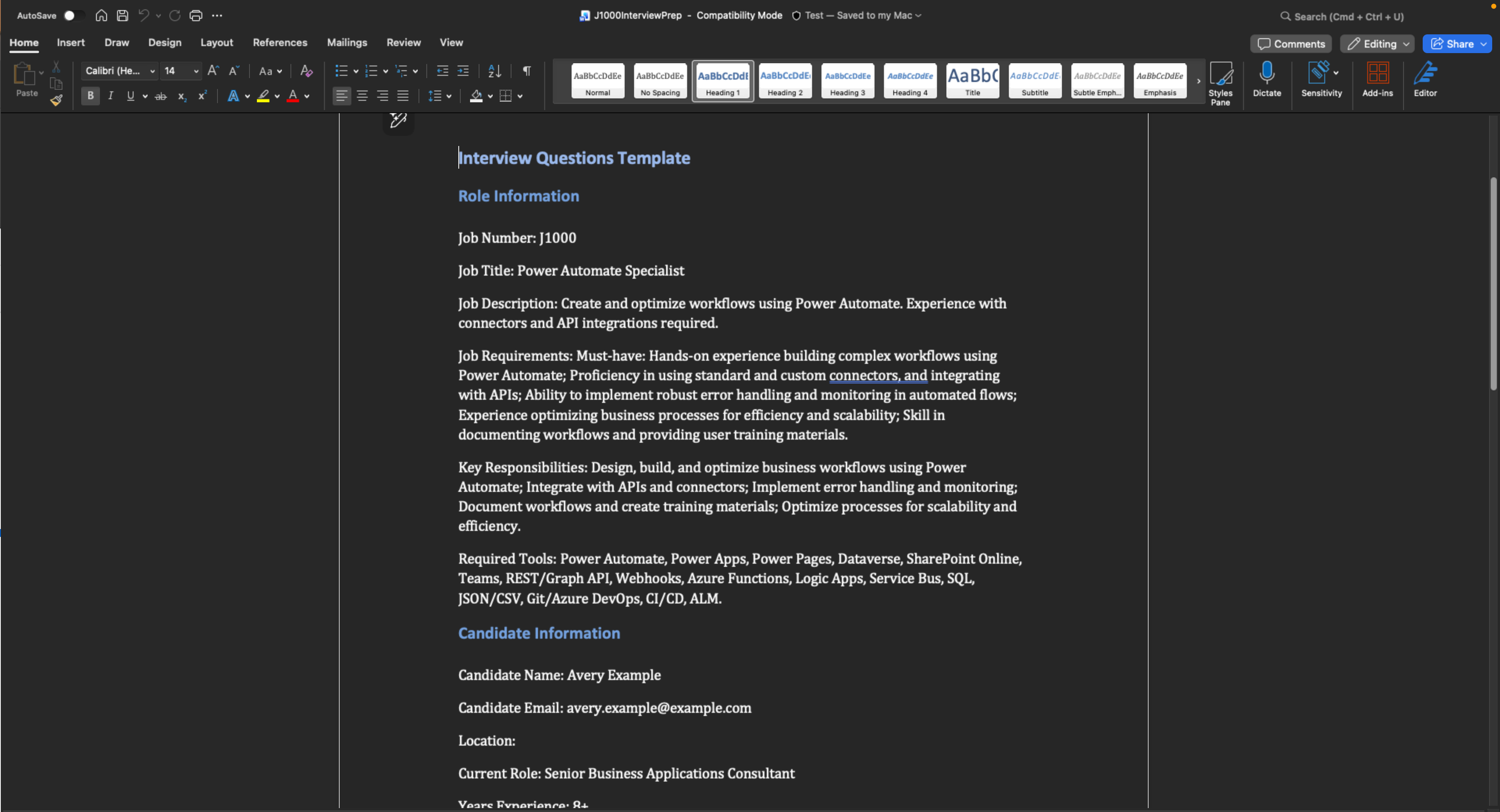
Congratulations! You have successfully added document generation to your agent.
🎉 Mission complete
Well done, Operative! Operation Doc Assembly is now complete. You have successfully enhanced your agent with document generation.
🚀 Next step: In the next mission, you will learn how to use the power of MCP servers to add interview scheduling and planning capabilities.
⏩ Go to Mission 10: MCP integration.
📚 Tactical resources
📖 Use your own data in a prompt
📖 Work with Dataverse in Copilot Studio
📖 AI Builder custom prompts overview
📖 Training: Create AI Builder prompts using your own Dataverse data