Part 3 · Add connectors and MCP (Mail · OneDrive)
Add the tools needed for sending email and attaching links with minimal curation.
6. Add connectors and MCP (Mail · OneDrive)
▶ Goal: Attach the tools needed to actually perform the tasks encoded in the skills (sending email and attaching links). Use minimal curation (no overlapping tools, Part 2, Chapter 3).
6.1 Tools to add
| Tool | Purpose | Notes |
|---|---|---|
| Work IQ Mail (MCP) | Create and send email drafts | Use only one mail tool |
| OneDrive (MCP) | Attach the dashboard as a link | Avoid token explosion from direct attachments (Base64) |
| (Automatic) code interpreter | Analyze Excel and generate HTML | New core capability; no separate connector required |
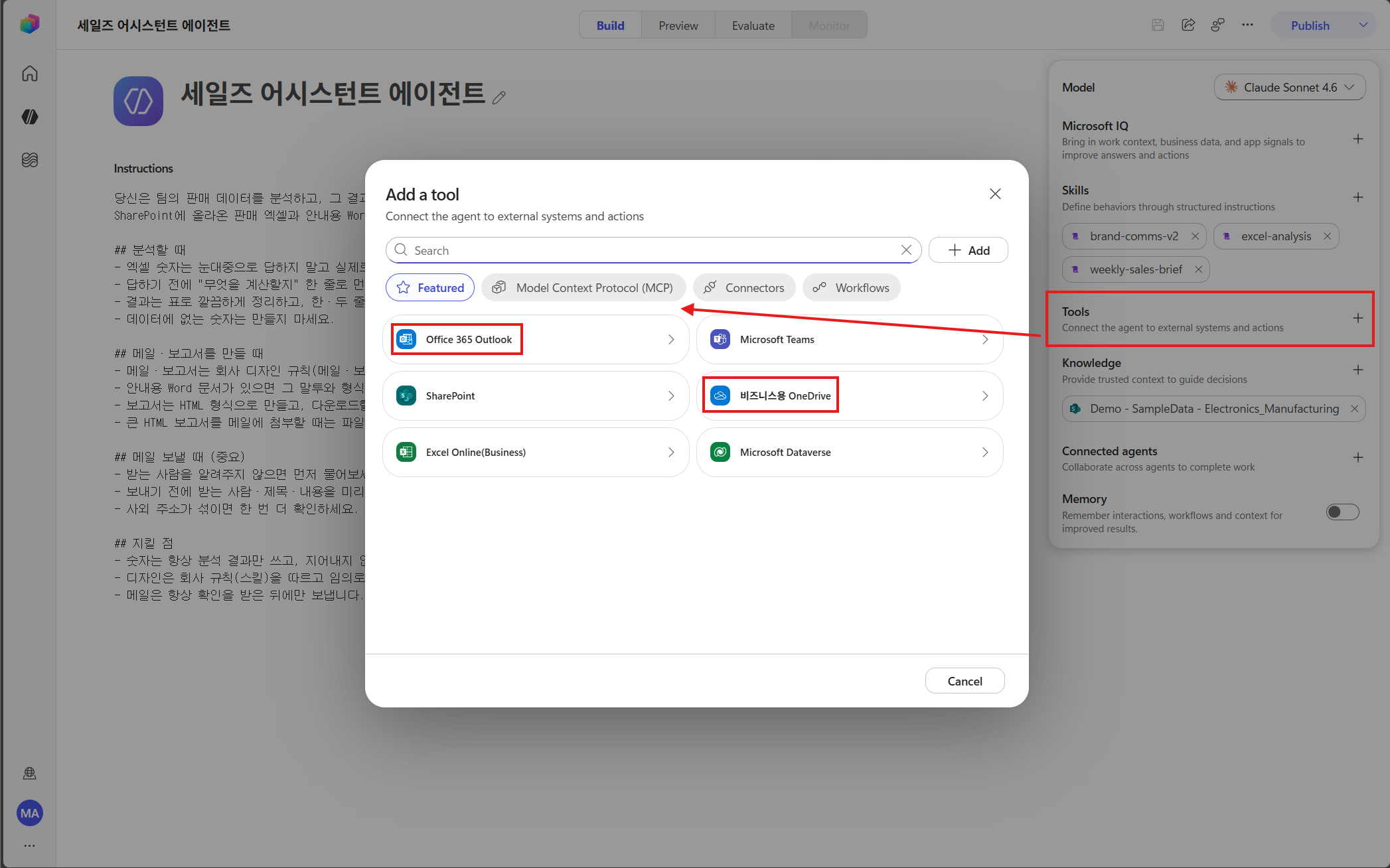
- In Tools → Add a tool, choose Office 365 Outlook and OneDrive for Business.
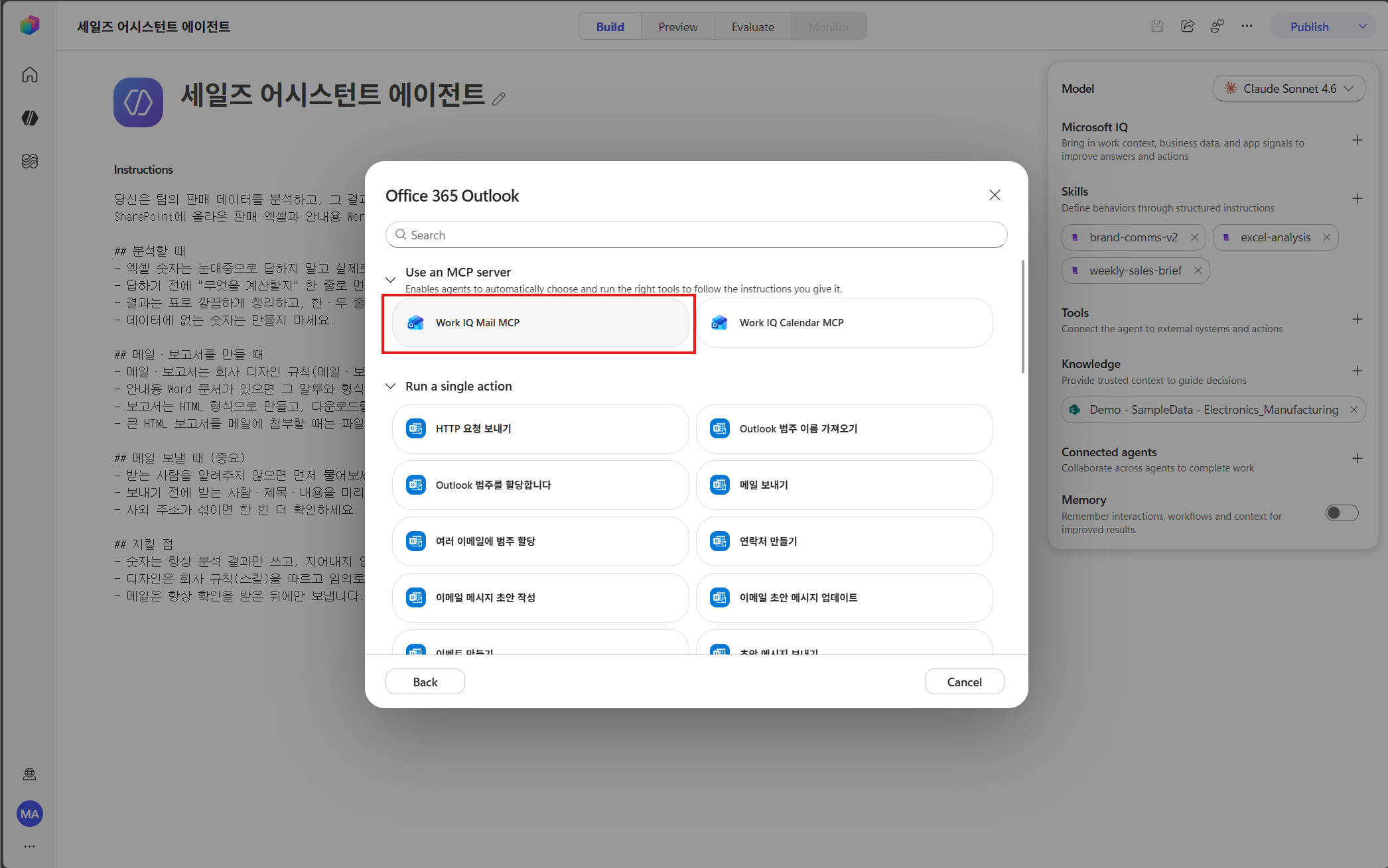
- In Office 365 Outlook, select Use an MCP server → Work IQ Mail MCP (as an MCP server, not a one-off action).
6.2 Steps
- On the Build page, go to Tools → Add tool.
- Add Mail MCP → connect it (sign in / consent to permissions).
- Add OneDrive MCP → connect it.
- Confirm that the tools are visible in the session.
6.3 Tool tips (Part 2, Chapter 3)
- Do not add overlapping tools — If you attach two mail connectors, the agent gets confused every time. Use only Mail MCP.
- Do not add tools for things code can do — docx/pptx/HTML generation is covered by the code interpreter → no document-generation connector needed.
- Use OneDrive to avoid attachment-token issues — If you attach HTML directly, Base64 conversion can blow up the token count. Upload → attach link is the standard pattern (encoded in the email/report skill).
Checkpoint: If the OneDrive tool is not visible when the session starts, reconnect the MCP. If email attachments fail, check the tool connection first.