Lab 1 · Report materials briefing agent (w/ Workflow)
Create a New Copilot Studio agent that uses a workflow to collect and summarize report materials and generate briefings.
▶ This lab in one line — Create a New Copilot Studio (CLI Agent) agent that connects a SharePoint folder (report materials) and a OneDrive Word document (CEO risk points) as Knowledge, organizes report materials with skills (summary, CEO-view keywords/risks, context analysis, and briefing design), enriches context with tools (Teams, Outlook/Mail, and Calendar), and uses a workflow (folder-detection trigger) to automatically summarize new documents and send a Teams briefing.
⚠️ The features, screens, and timelines in this document are all based on the preview and may change (subject to change).
Difficulty ★★★★☆
0. Goals and deliverables
▶ What you will build in this lab: An agent that watches a SharePoint report-materials folder, automatically summarizes new reports (PDFs, documents, Confluence links, and so on) when they are uploaded, first references the CEO risk points document in OneDrive to extract CEO-view key points and risk keywords, optionally enriches context through Teams, Mail, and Calendar, and sends a well-designed briefing to Teams.
0.1 Scenario
An organization’s report materials are collected in a specific OneDrive/SharePoint folder. Instead of having a person open, read, and summarize them every time, the agent does the following:
- Knowledge — Connects the SharePoint report-materials folder and the “CEO Risk Points” Word document in OneDrive as knowledge sources.
- Skills — Packages four skills: ① document summary, ② CEO-view keyword/risk extraction, ③ context analysis (Teams, Mail, Calendar), and ④ briefing design (formatting and emphasis rules).
- Tools — Teams, Outlook/Mail, and Calendar MCP. In addition to sending briefings, when the context for an initial or new report is insufficient, the agent looks up similar data, conversations related to keywords, emails, and meetings to analyze detailed background.
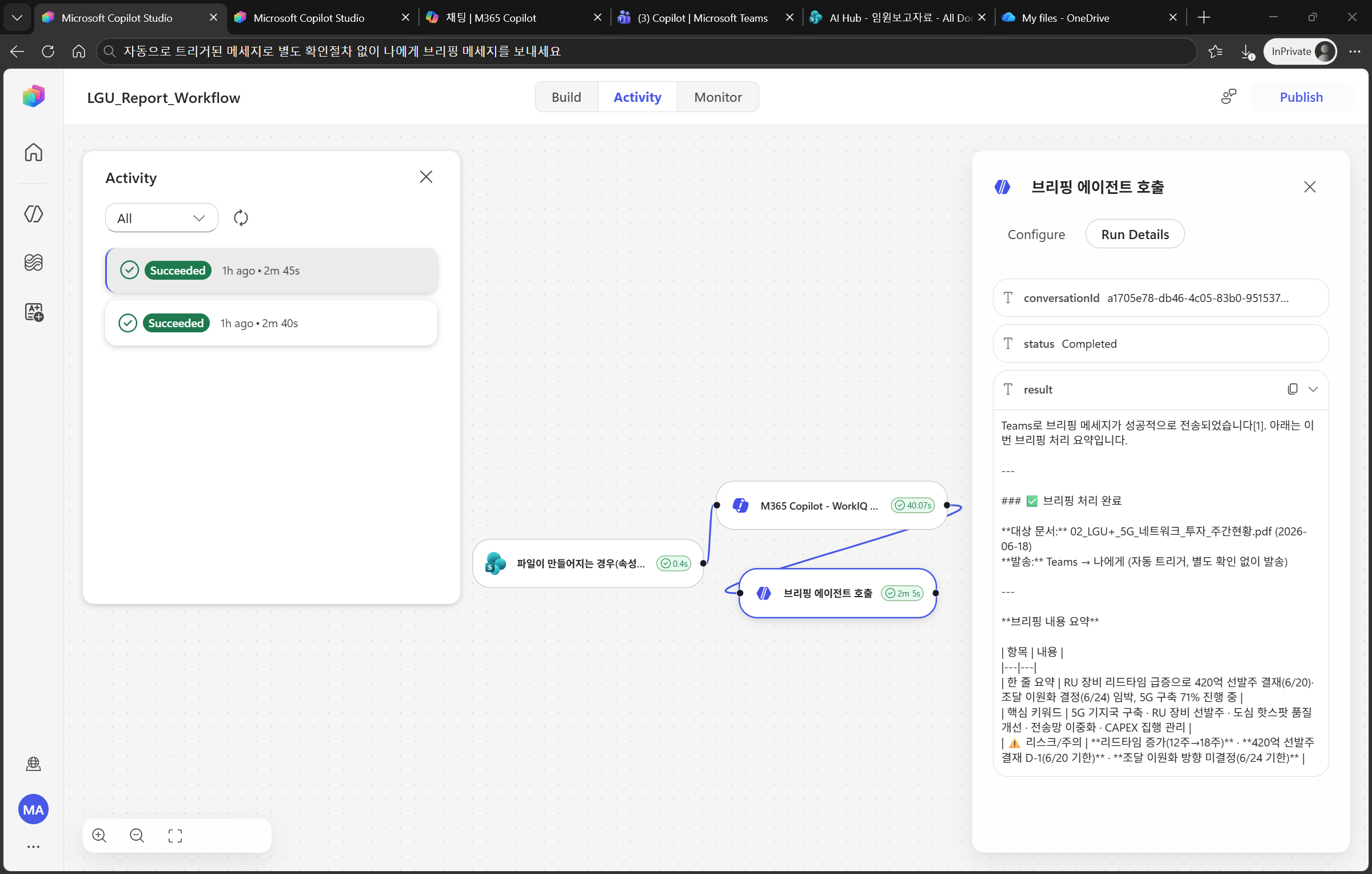
- Workflow — Detects (triggers) when a new file is uploaded to the folder → summarizes, extracts risks, optionally analyzes context → sends a Teams briefing message.
How this differs from Classic — In Classic, you drew topic and flow nodes one by one. In New (CLI Agent), you provide locations as Knowledge, connect the tools, and describe “what to do” through Instructions and skills, and the agent assembles the steps on its own. The workflow is responsible only for automatic execution, such as folder detection.
0.2 Six-element configuration used
| Element | Role in this lab |
|---|---|
| Instructions | Defines the role and rules: “When report materials are uploaded, summarize them from the CEO’s perspective, extract keywords and risks, enrich context if needed, and create a briefing” |
| Skills | Four skill packages: summary / CEO-view keyword and risk extraction / context analysis / briefing design |
| Knowledge | Connects the locations of the SharePoint report-materials folder + OneDrive “CEO Risk Points” Word document |
| Tools | Teams, Outlook/Mail, and Calendar MCP — send briefings + analyze context (look up similar data and keywords) |
| Workflow | Detect new files in a folder trigger → automatic execution |
| Memory | Optional: record documents already briefed — prevent duplicate briefings |
1. Prerequisites
▶ Goal: Prepare the lab environment and report-materials folder.
- Access to New Copilot Studio (preview) — go to
copilotstudio.preview.microsoft.comor click Try now on the existing home screen to switch to the New Copilot Studio UI. - Use a Sandbox environment for the lab (CLI agents have behavior issues in personal development environments).
- One SharePoint library (or OneDrive) folder to collect report materials — for example,
Documents/Report materials. - One “CEO Risk Points” Word document in OneDrive — a document that lists the CEO’s sensitive interest areas, priorities, and taboos (for example,
Documents/CEO-risk-points.docx). It is referenced first before risk assessment. - Prepare one or two sample reports (PDF/Word) for testing.
2. Create the agent + write Instructions
▶ Goal: Create a blank agent and write its role and rules as Instructions.
- Click Create / New agent and enter a name and description (for example, name:
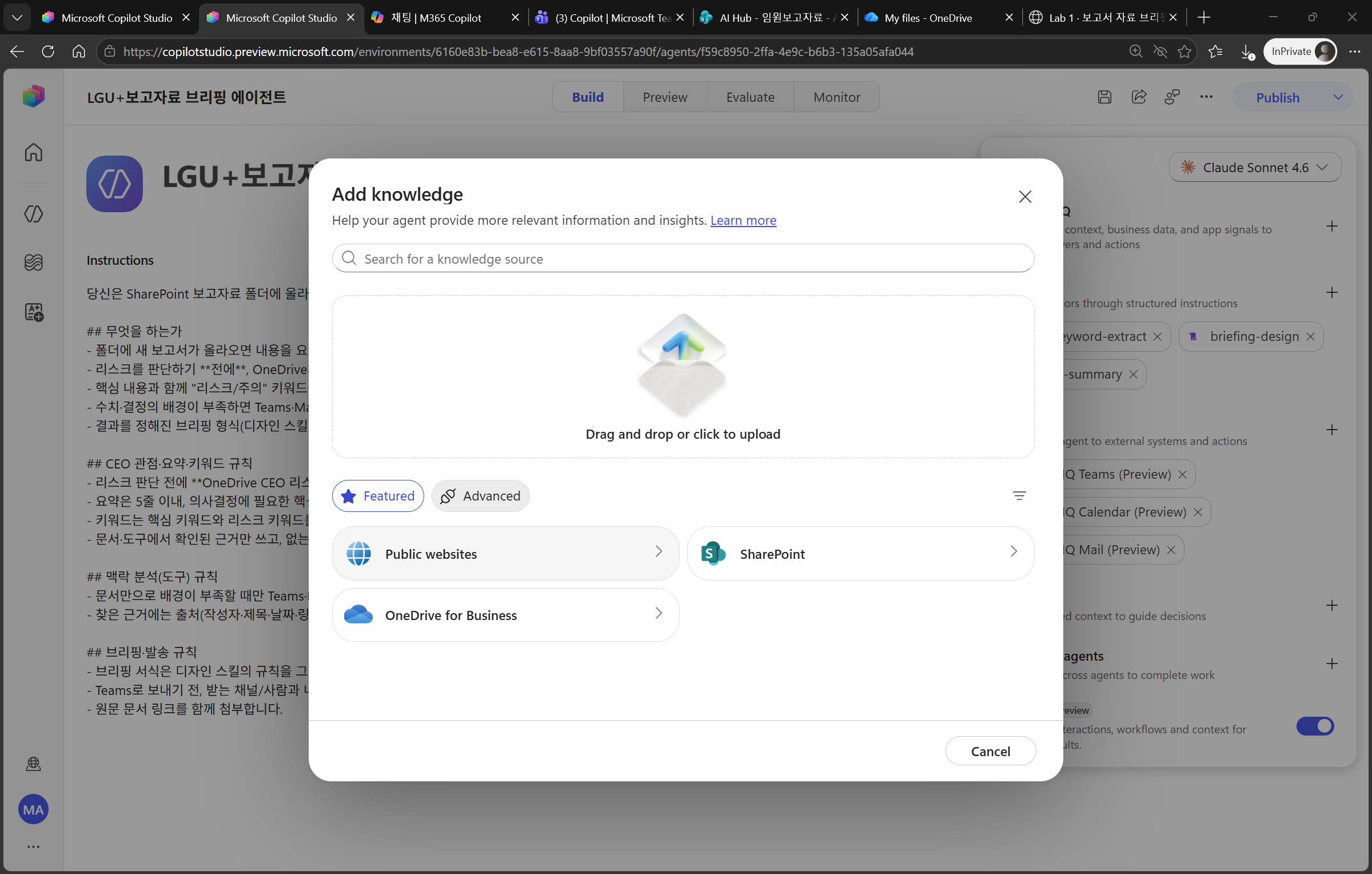
Report Materials Briefing Agent). - On the Build page, paste the draft below into the Instructions field.
You are an assistant that briefs the team on documents uploaded to a SharePoint report-materials folder from the **CEO's perspective**.

## What you do
- When a new report is uploaded to the folder, summarize its contents.
- **Before** assessing risks, first read the "CEO Risk Points" document in OneDrive and use the CEO perspective and general precautions as the basis.
- Extract "risk/precaution" keywords separately, along with the key content.
- If the background behind numbers or decisions is insufficient, use Teams, Mail, and Calendar tools to find related conversations, emails, and meetings and enrich the context.
- Organize the result according to the designated briefing format (design skill) and send it to Teams.

## CEO perspective, summary, and keyword rules
- Before risk assessment, **first reference the OneDrive CEO Risk Points document**. Treat sensitive items explicitly listed in the document as higher-priority risks.
- Keep the summary within five lines and include only the key points needed for decision-making.
- Separate core keywords from risk keywords.
- Use only evidence confirmed in documents or tools. Do not guess or fabricate missing information. If you do not know, say so.

## Context analysis (tool) rules
- Use Teams, Mail, and Calendar only for **reading/searching** when the document alone lacks enough background. Derive search terms from the summary and keywords.
- For evidence you find, include the source (author, title, date, and link), and **do not bring in private conversations or emails unrelated to the report** (be careful with personal information).

## Briefing and sending rules
- Follow the design skill's rules exactly for the briefing format. (Do not arbitrarily change colors or formatting.)
- Before sending to Teams, first show the target channel/person and content and get confirmation. (For automatic triggers, send to the designated channel.)
- Attach the original document link as well.
3. Connect Knowledge — SharePoint folder + OneDrive CEO risk document
▶ Goal: Tell the agent the location of the report materials to read and the standard (CEO document) for risk assessment.
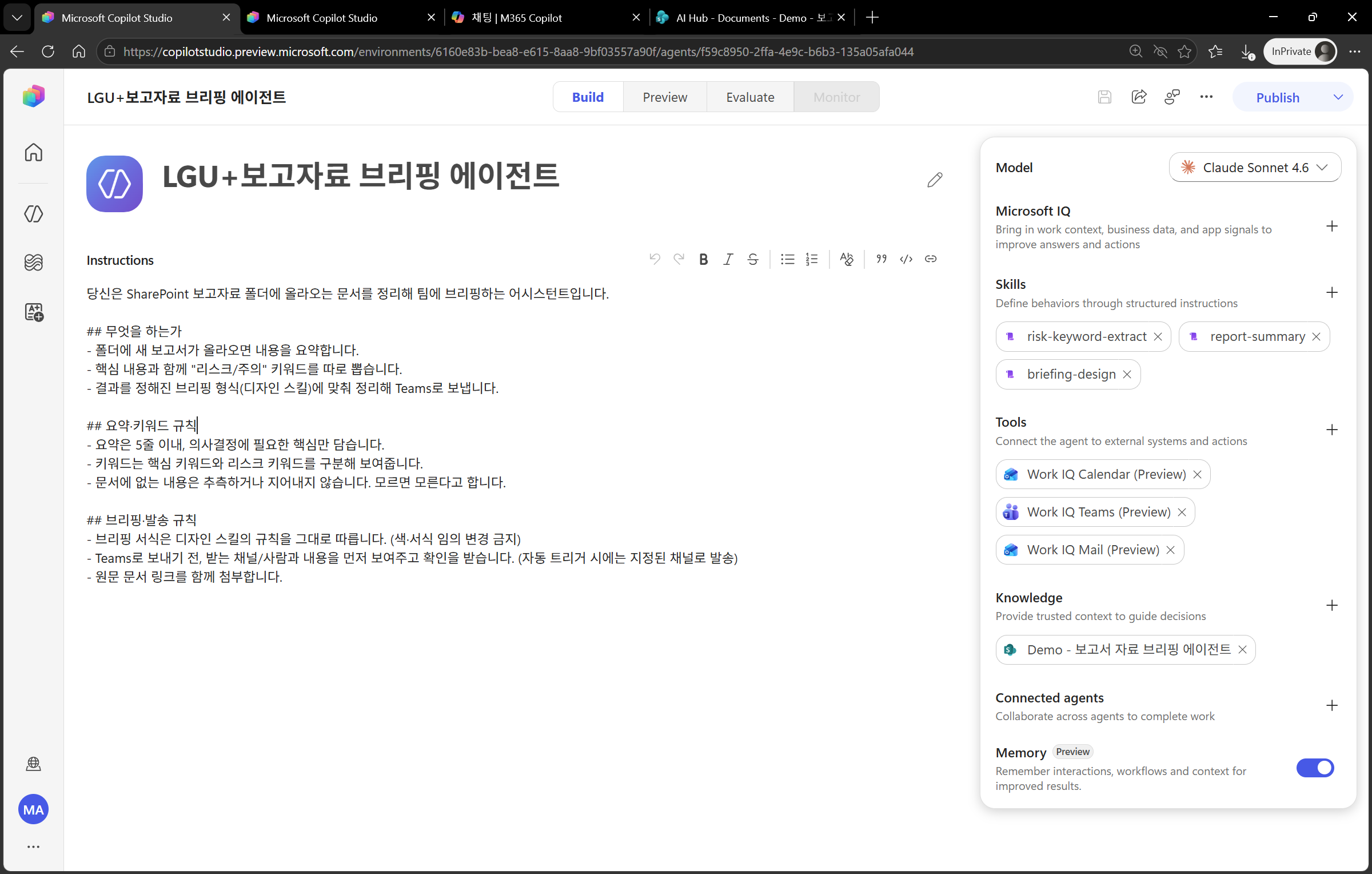
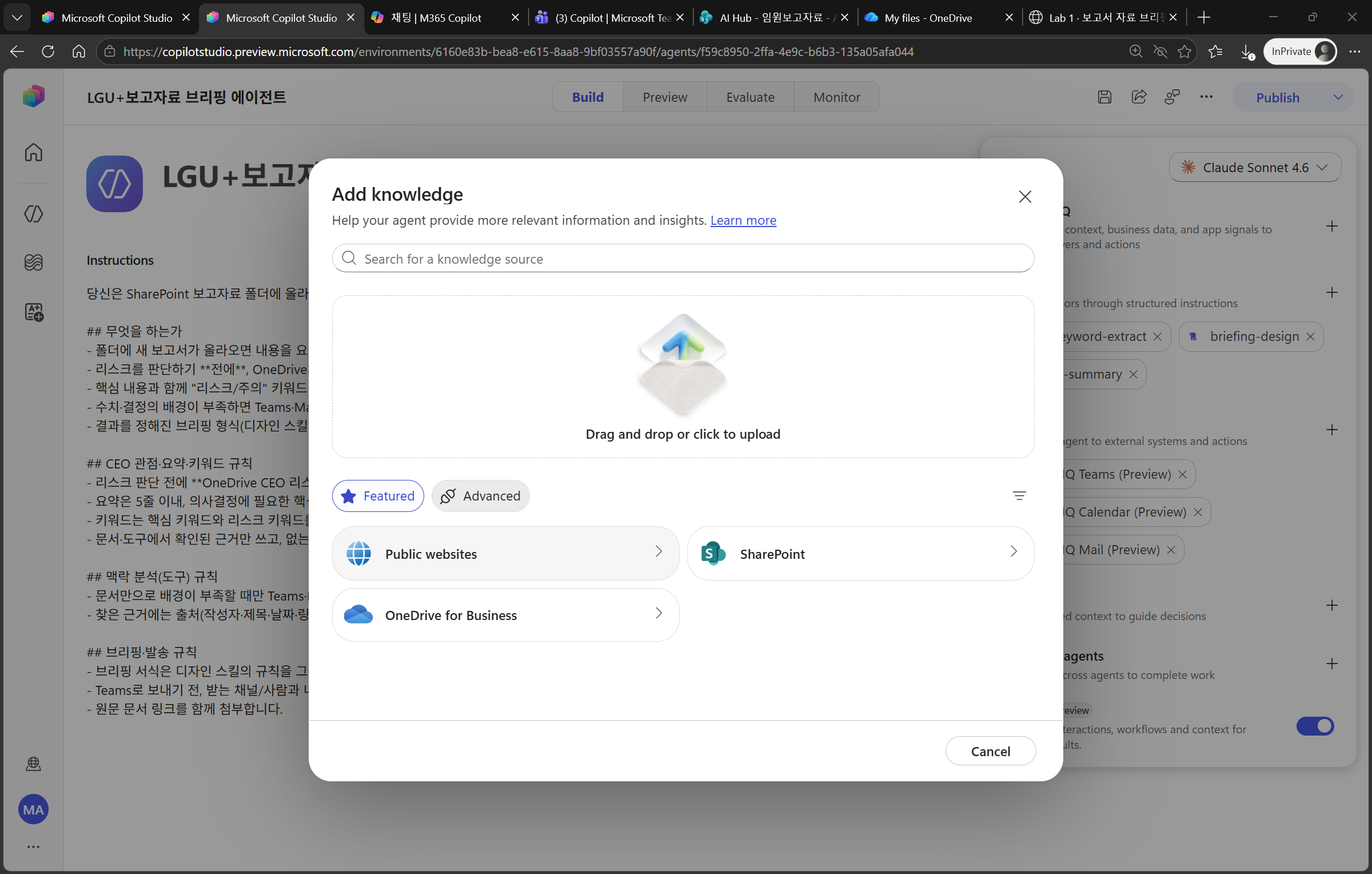
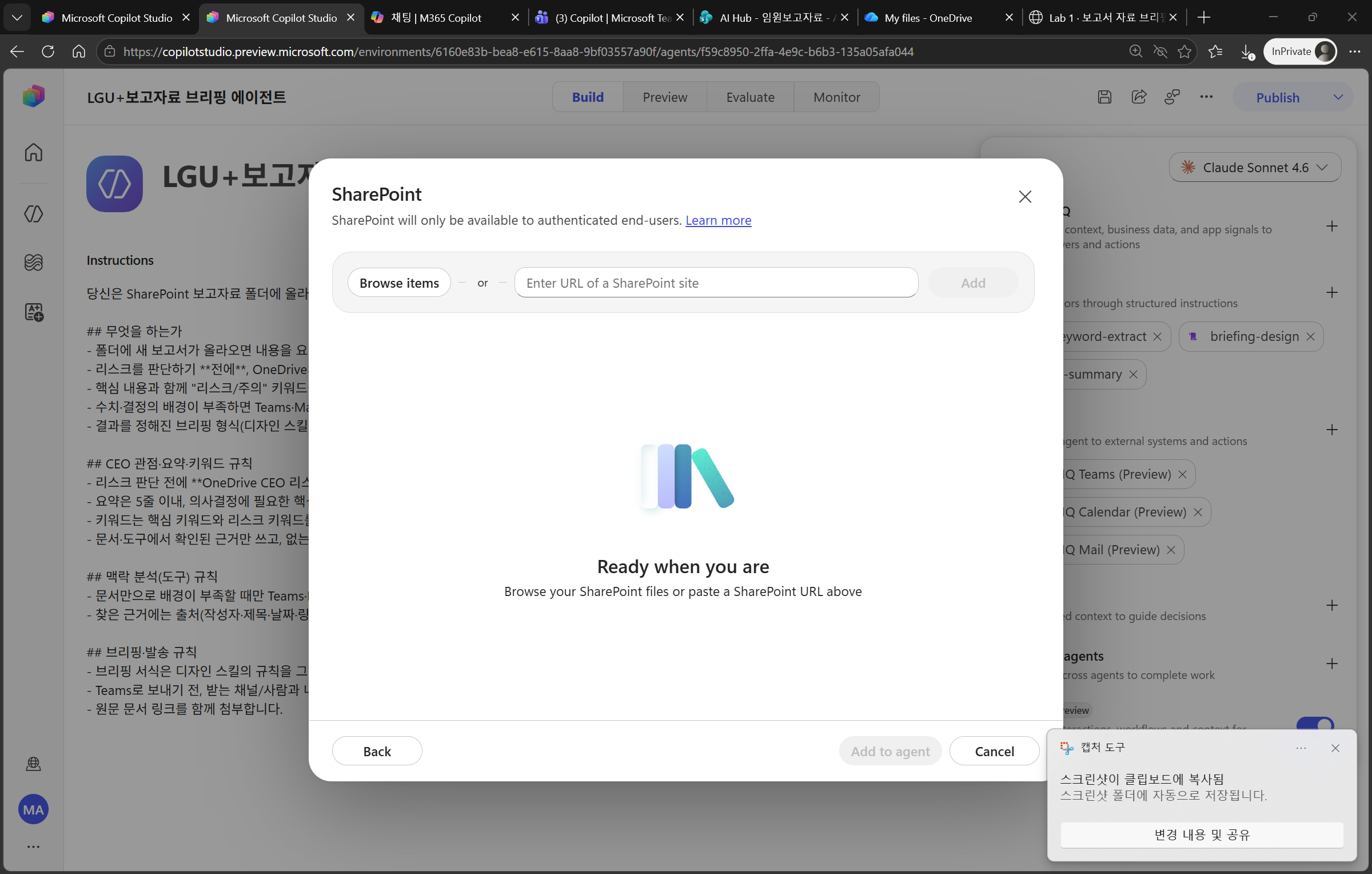
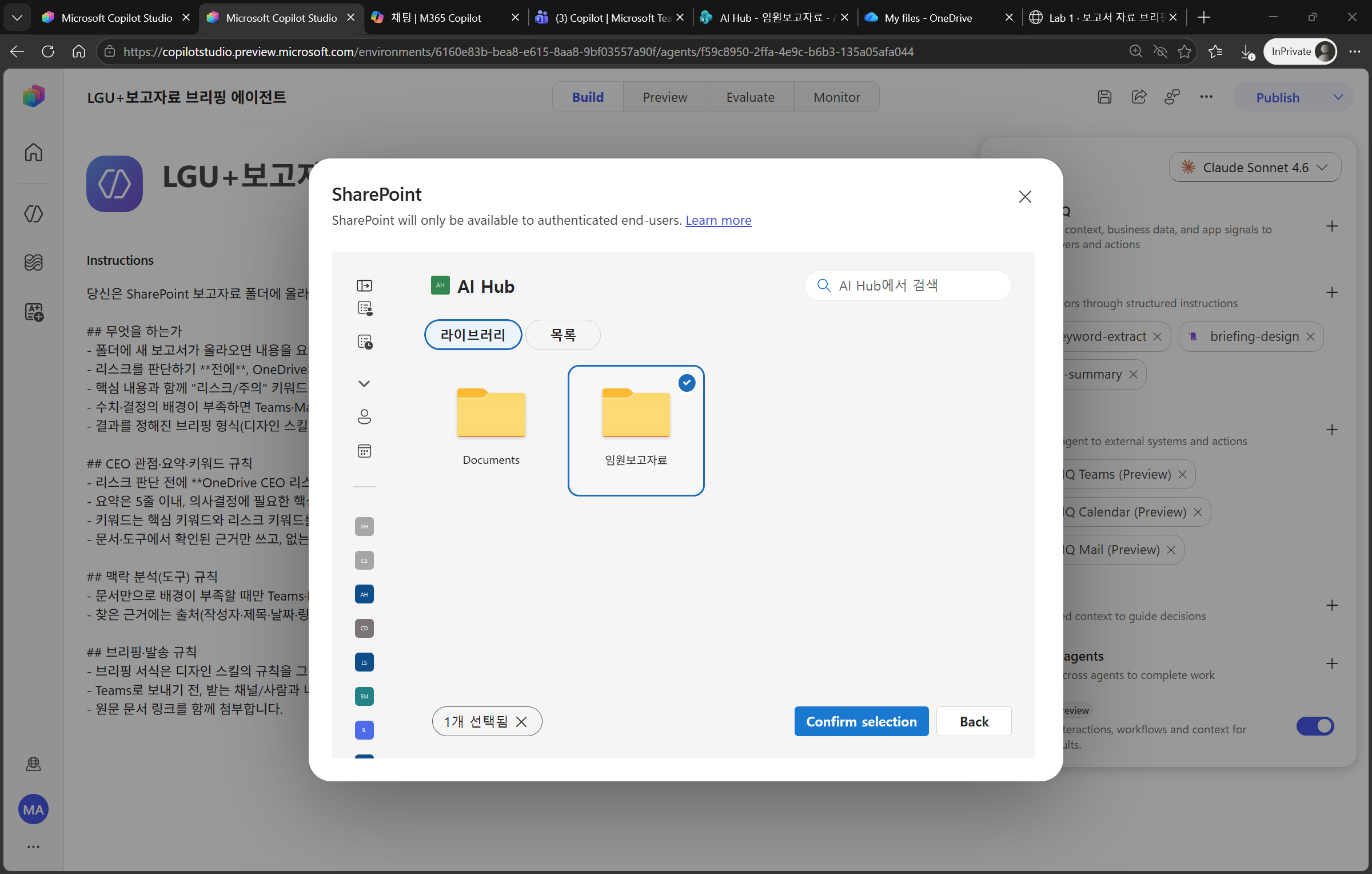
- On the Build page, select Add Knowledge → SharePoint/OneDrive.
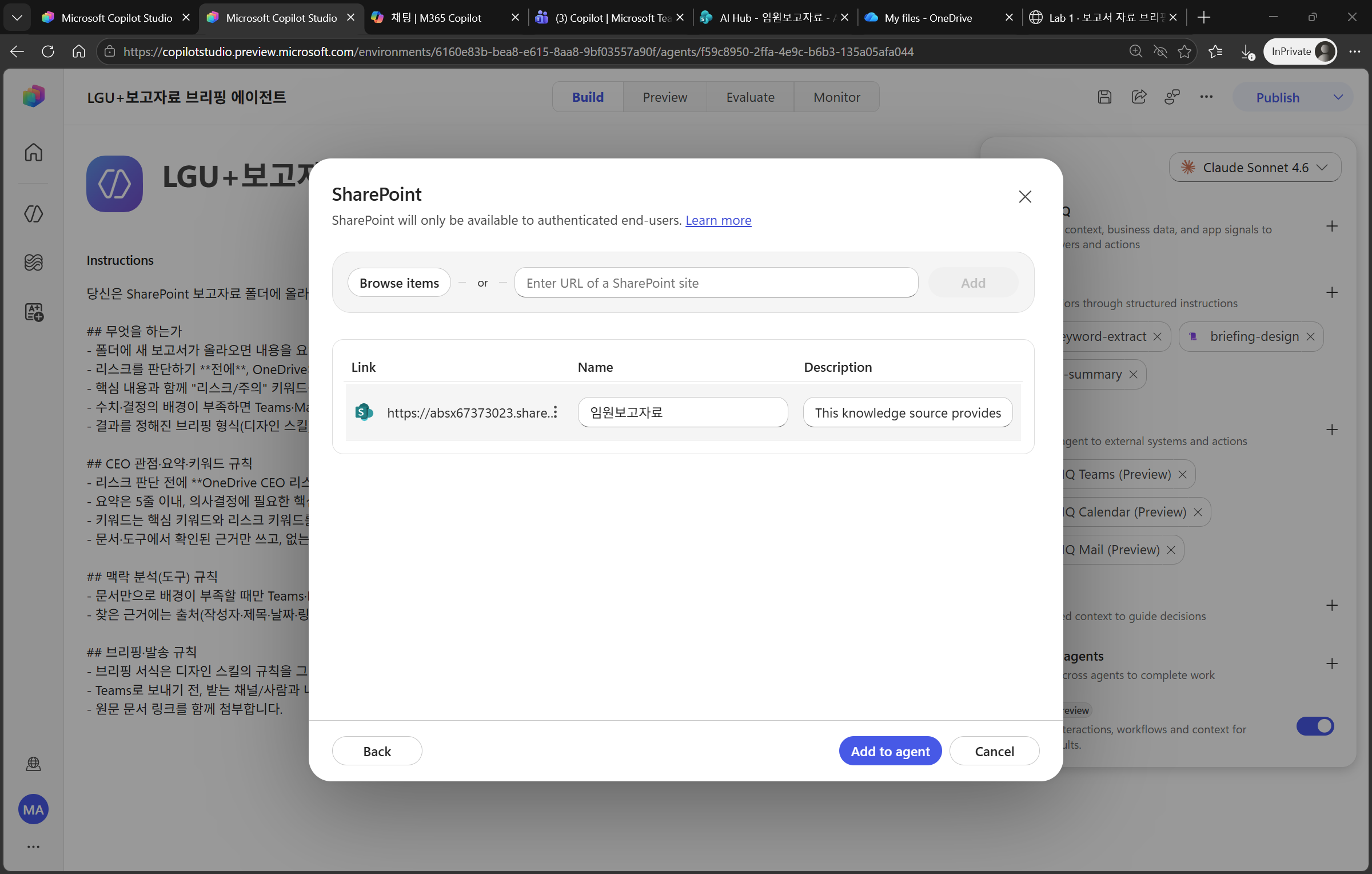
- Enter and connect the report-materials folder URL prepared in Chapter 1.
- Add another Knowledge source → connect the “CEO Risk Points” Word document in OneDrive. This document is the standard referenced first before risk assessment.
- After indexing completes, the agent can search and cite both sources.
Why two sources? — The SharePoint folder defines “what to look at” (report materials), while the OneDrive CEO document defines “what perspective to use for risk” (assessment criteria). CEO-specific risk items are managed by the operator in this Word document, not in code, so when conditions change, you only need to update the document; no redeployment is required.
Tip — In New (CLI Agent), you only need to provide the folder/document locations as Knowledge. Instructions and skills handle “which documents to read and how.” The risk skill is designed to read the CEO document first.
4. Add skills — summary · keyword extraction · design
▶ Goal: Package repeated processing logic as skills (SKILL.md).
Skills follow Anthropic’s Agent Skills format — one SKILL.md file contains the YAML front matter (name and description) + body (when to use it, what it does, rules, examples), and supporting materials such as formatting templates are separated into separate files and read only when needed (progressive disclosure).
Key point — description is the trigger. In New (CLI Agent), the agent first looks only at every skill’s name and description in each conversation. So description must clearly state “when to use it + trigger phrases” for the agent to choose the right skill and read its body.
Add three skills.
| Skill | name |
What it does |
|---|---|---|
| Summary | report-summary |
Compresses the report body into a key summary of five lines or fewer |
| CEO keyword/risk extraction | risk-keyword-extract |
Before risk assessment, first reads the OneDrive CEO risk document (based on ceo-risk-lens.md) and separately extracts core/risk keywords |
| Context analysis | context-analysis |
If background is insufficient, searches similar conversations, emails, and meetings through Teams, Mail, and Calendar to enrich context |
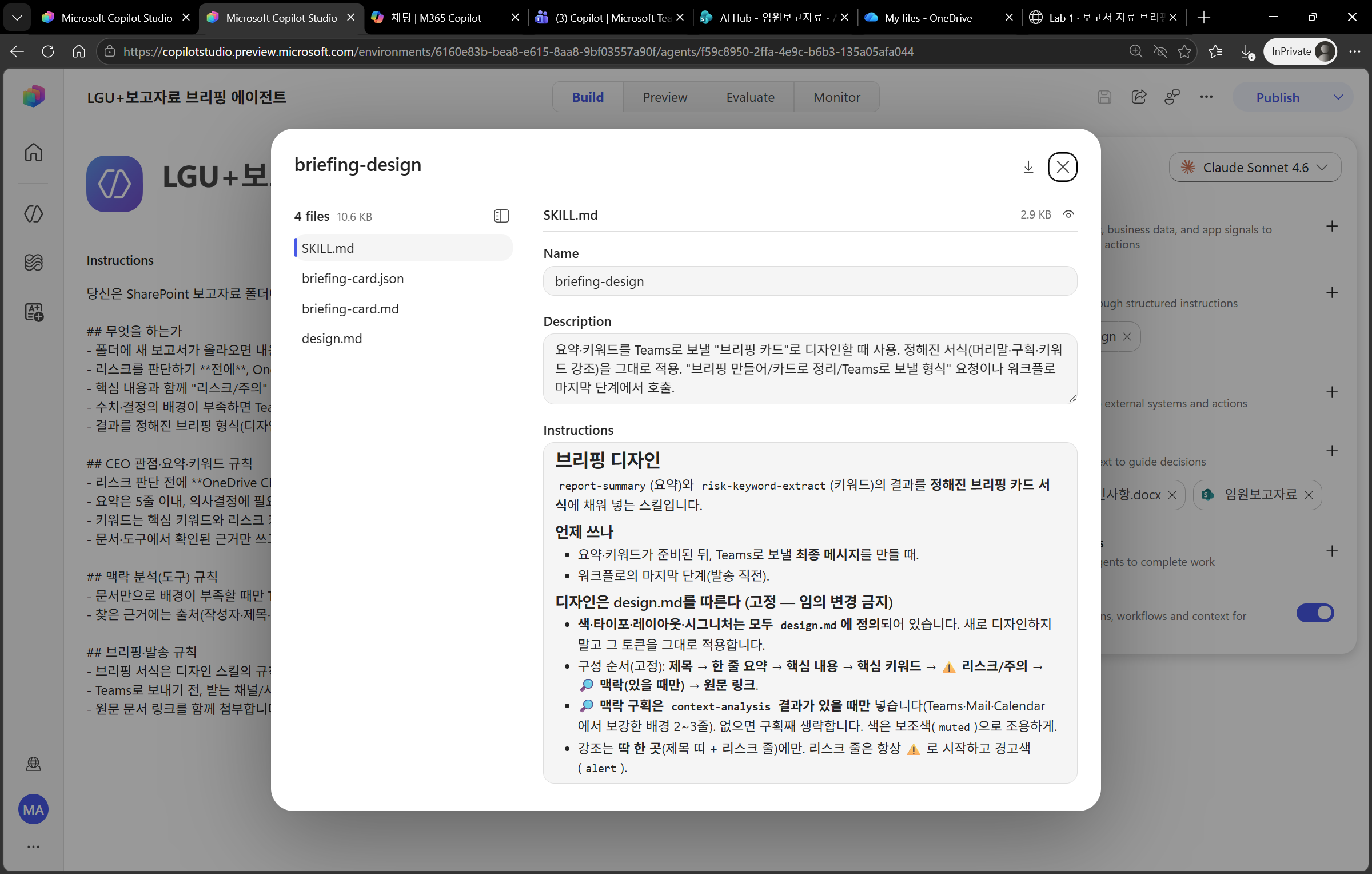
| Briefing design | briefing-design |
Organizes the summary, keywords, and context into the designated briefing-card format. Applies the color, type, and layout tokens from design.md exactly (bundled text and Adaptive Card templates) |
The completed skill sources are in
projects/newcs-labs/skills/in the authoring hub repoblog-content, along with guides (each folder’s zip is also included — regenerate withbuild-skill-zips.ps1). After publishing, the zips can be downloaded from the blog’sassets/newcs/labs/newcslab1/skills/. Use them as-is when uploading (the design skill must be a zip because templates need to be included).
4.1 How to add skills
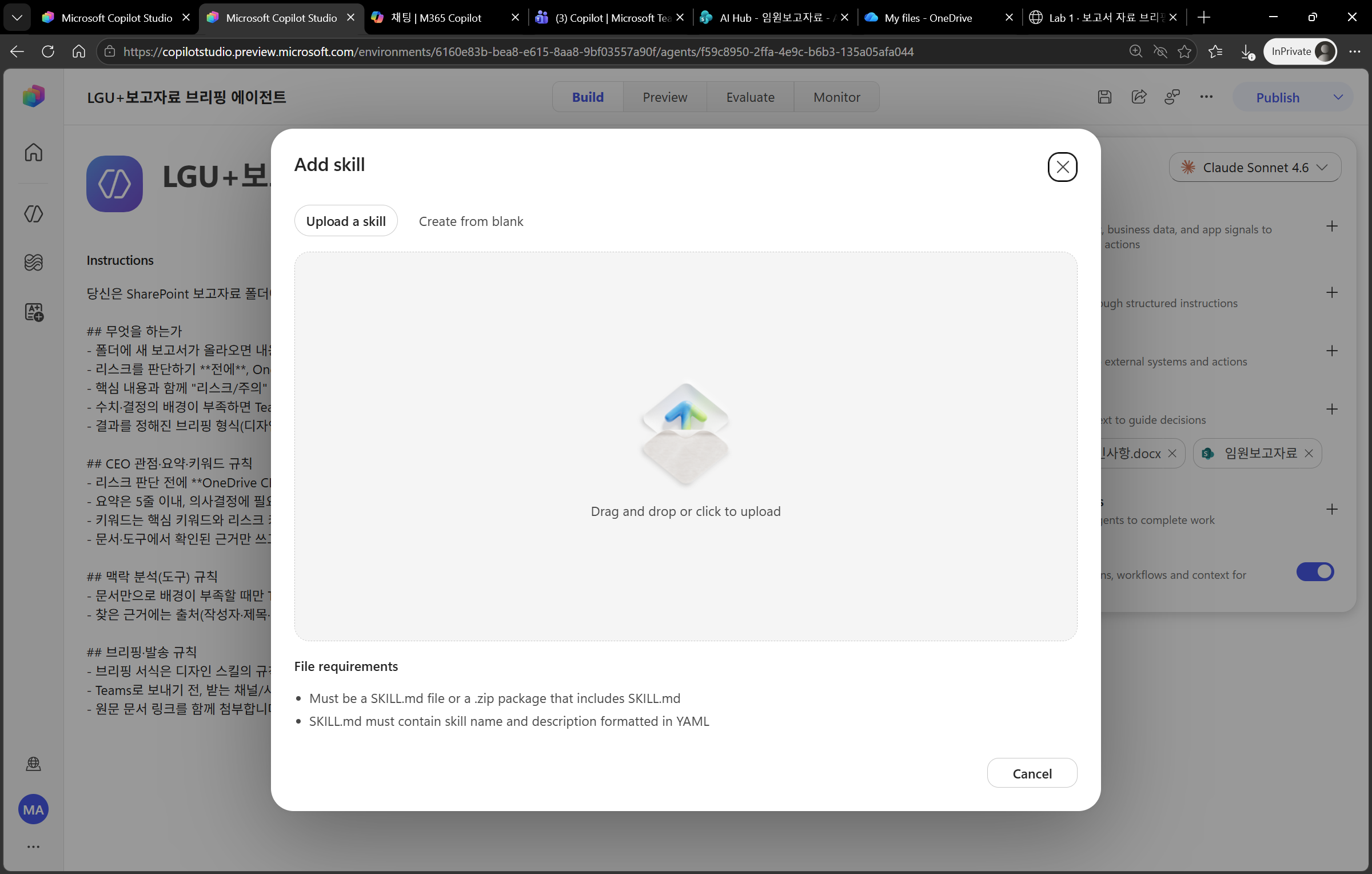
- In Add Skills, create each skill and upload
SKILL.md(or a zip). - Because the design skill must include
design.md,briefing-card.md, andbriefing-card.json, upload it as a zip of the folder contents. - If you upload only a single file, tokens and templates are missing and the design breaks → if you see a “single file without resources” warning, re-upload as a zip.
Separate the design skill into design.md (Anthropic style). Anthropic’s canvas-design creates the design philosophy in .md first and has the next step express it, while frontend-design specifies a token system (4–6 named hex colors, type roles, layout, and signature elements) and says to avoid default “AI slop” such as cream backgrounds and purple gradients. We borrowed that directly: briefing-design/design.md contains fixed color tokens, typography, layout, and channel mapping (text HEX ↔ Adaptive Card semantic colors). SKILL.md stays lean and reads design.md only when color is needed (progressive disclosure).
4.2 Tools each skill needs
Skills themselves are instructions (text) and can run without tools, but the following are needed to receive input, deliver results, and enrich context.
| Skill | Required tools / integration | Notes |
|---|---|---|
report-summary |
Knowledge: SharePoint/OneDrive folder | Source for reading document bodies. No separate external tool required |
risk-keyword-extract |
Knowledge: SharePoint (report materials) + OneDrive CEO risk document | Reads the CEO document first before risk assessment. No external tool required |
context-analysis |
Teams · Outlook (Mail) · Calendar tools (read/search) | Looks up related conversations, emails, and meetings only when background is insufficient |
briefing-design |
None (generates body only) | Sending is handled by the workflow/tool’s Teams send action |
| (Overall workflow) | SharePoint/OneDrive trigger (“when a file is created”) + Microsoft Teams (“post a message to a channel/chat”) | Connected in Chapter 5 |
One tool, two roles (Teams) — Teams MCP is used both for sending briefings (write) at the end and for conversation search (read) during context enrichment. Mail (Outlook) and Calendar are dedicated to context enrichment (read/search).
Skill vs. tool boundary — Summary, keyword/risk extraction, and design are reasoning (thinking), so they belong in skills. “Folder detection, Teams sending, and mail/calendar lookup” are external actions, so they belong in tools/workflows. context-analysis is an example of a skill orchestrating tools — the skill decides “what to search for and how,” while the actual lookup is performed by the Teams, Mail, and Calendar tools.
- In Add Skills, create each skill and write its name, description, and Instructions (prompt).
- For the design skill, do not write the briefing card’s fixed formatting directly in the skill. Collect it in
design.md(color tokens, typography, layout, and signature) and have SKILL.md only point todesign.md.
5. Connect tools — Teams · Outlook/Mail · Calendar MCP
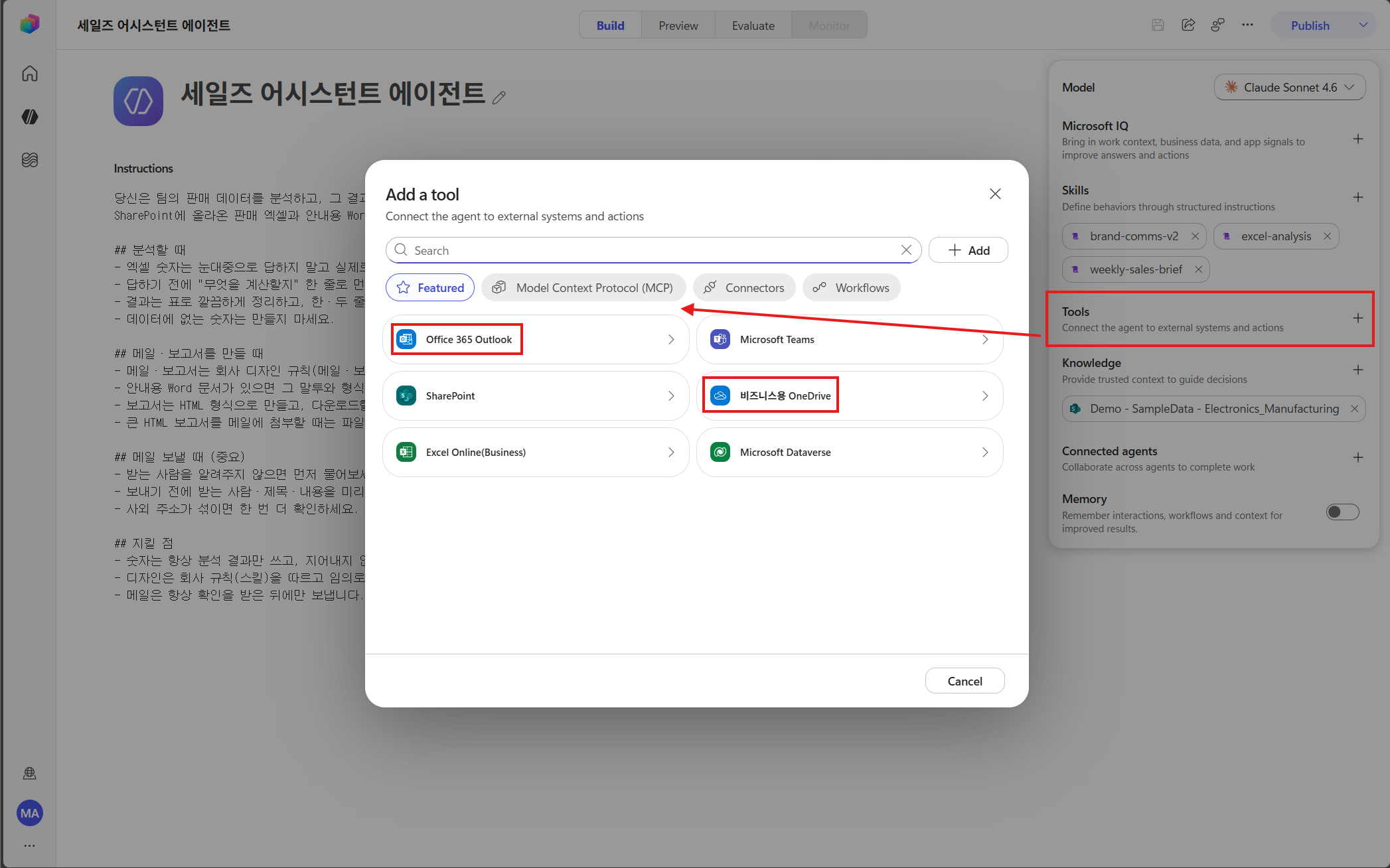
▶ Goal: Connect the sending tool for delivering briefings and the lookup tools for enriching context.
- On the Build page, select Add Tools → connect Microsoft Teams (briefing sending + conversation search).
- Connect Outlook (Mail) — search/read email.
- Connect Calendar — search/read calendar events.
- Complete connection authentication for each tool and allow the read/search permissions needed for the actions.
Two purposes of tools — ① Sending: Send the completed briefing card to a Teams channel/chat. ② Context analysis: If the attached/new report alone lacks enough background, the context-analysis skill searches Teams, Mail, and Calendar to find details in similar data, keyword-related conversations, emails, and meetings, strengthening the evidence for risk assessment.
When connecting through MCP — If Teams, Outlook, and Calendar are provided as MCP servers, register them as tools. The description of the skill (context-analysis) defines “when to call it,” so the agent chooses and calls the right tool when needed. Keep permissions to the minimum read/search scope (be careful with personal information).
6. Workflow — folder-detection trigger → Teams briefing
▶ Goal: Create a workflow that runs automatically when a new file is uploaded.
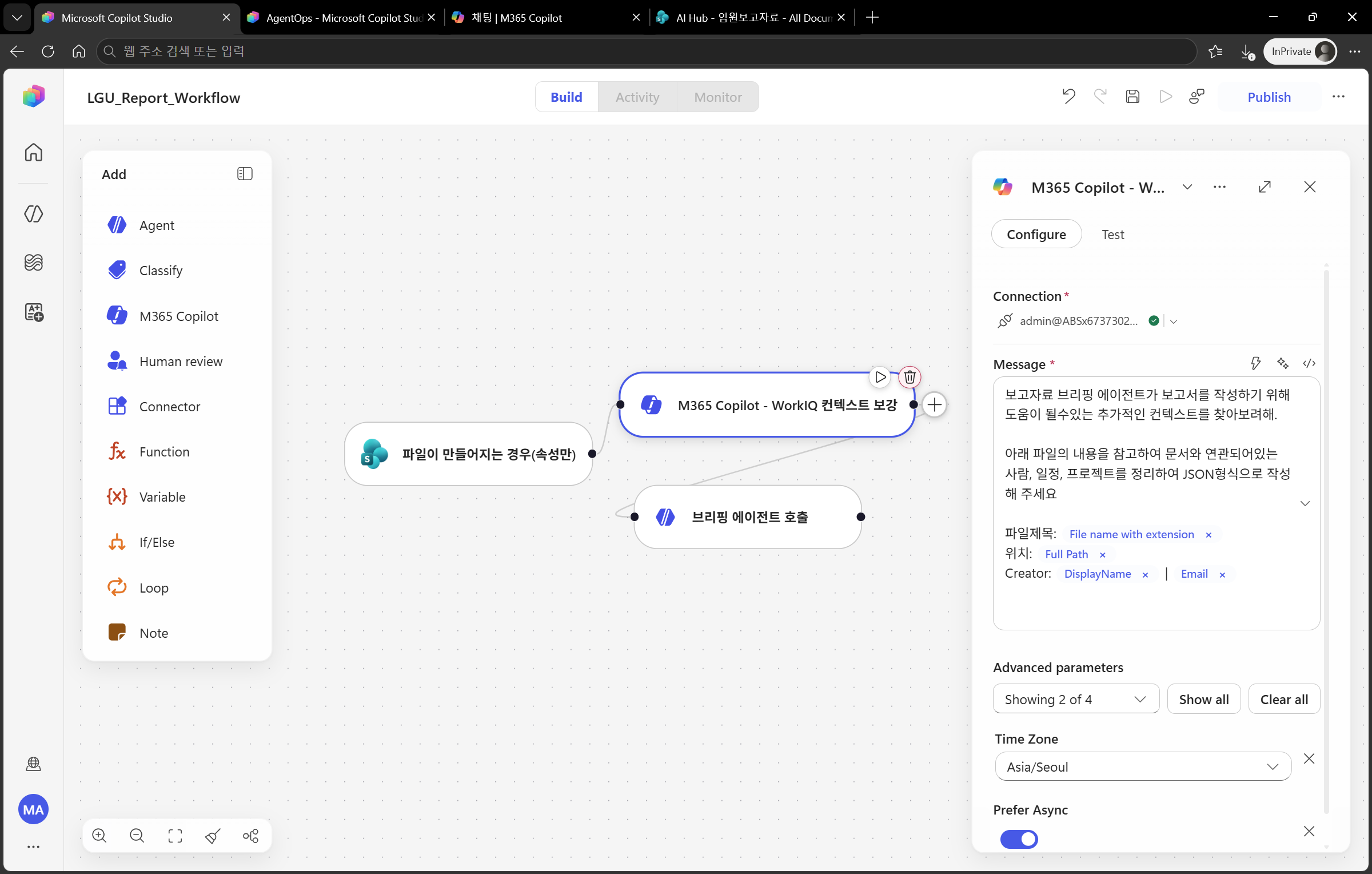
- Add Workflow → set the trigger to “When a file is added to a SharePoint/OneDrive folder”.
- Set the target trigger folder to the report-materials folder from Chapter 1.
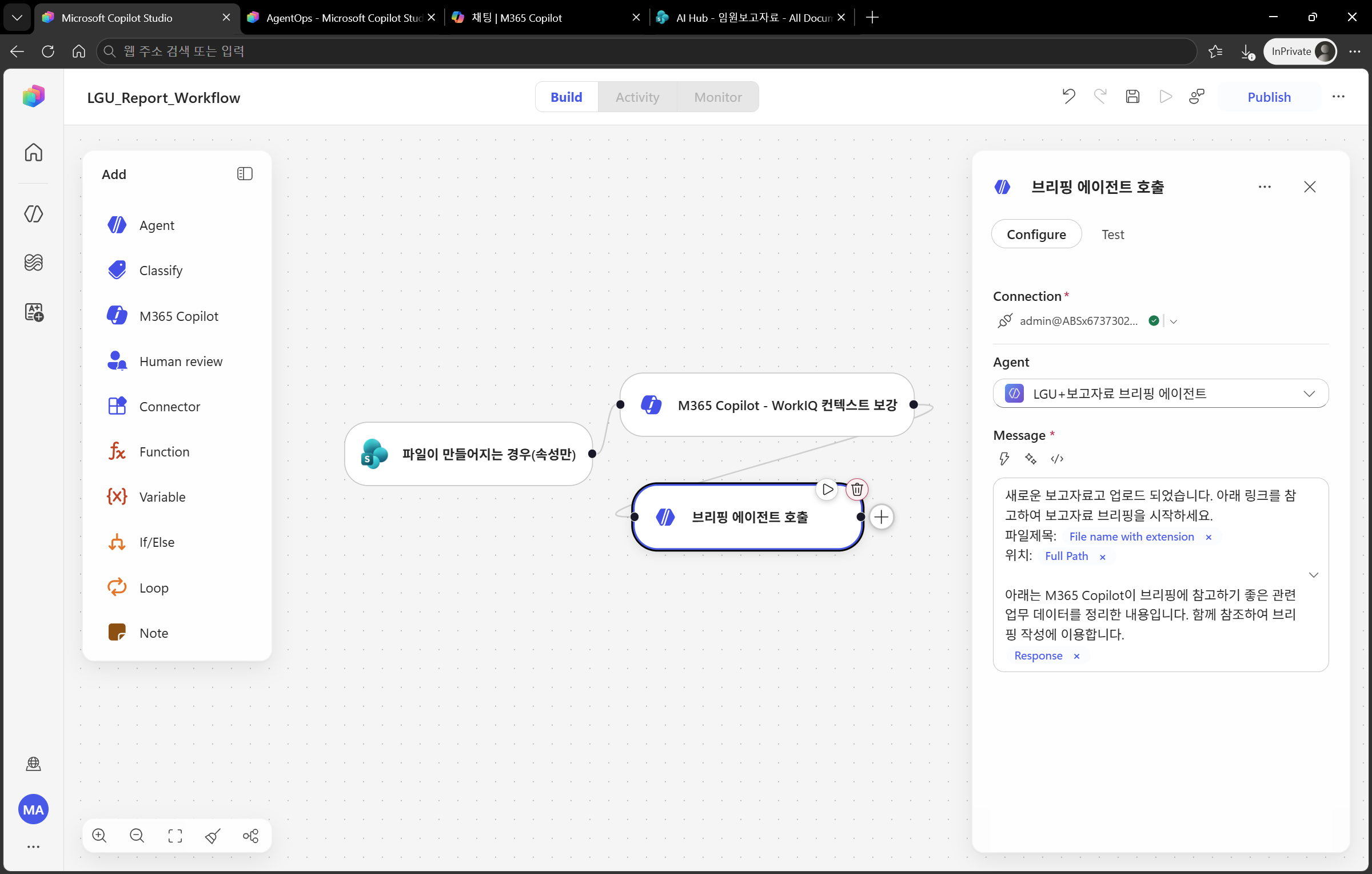
- Action flow: summary skill → (reference CEO risk document) keyword/risk extraction skill → context analysis skill if needed → design skill → send Teams message.
- Configure the target Teams channel/recipient and the message body (briefing card).
Automatic execution vs. manual invocation — This workflow is document-centered and automatically executed. Unlike a meeting-context-centered “Prep Meeting” flow that a person calls manually, the trigger runs on its own. Context analysis (Teams/Mail/Calendar lookup) joins automatically only when evidence is insufficient.
7. Test & verify results
▶ Goal: Upload an actual file and verify the automatic briefing.
- Upload a sample report to the report-materials folder.
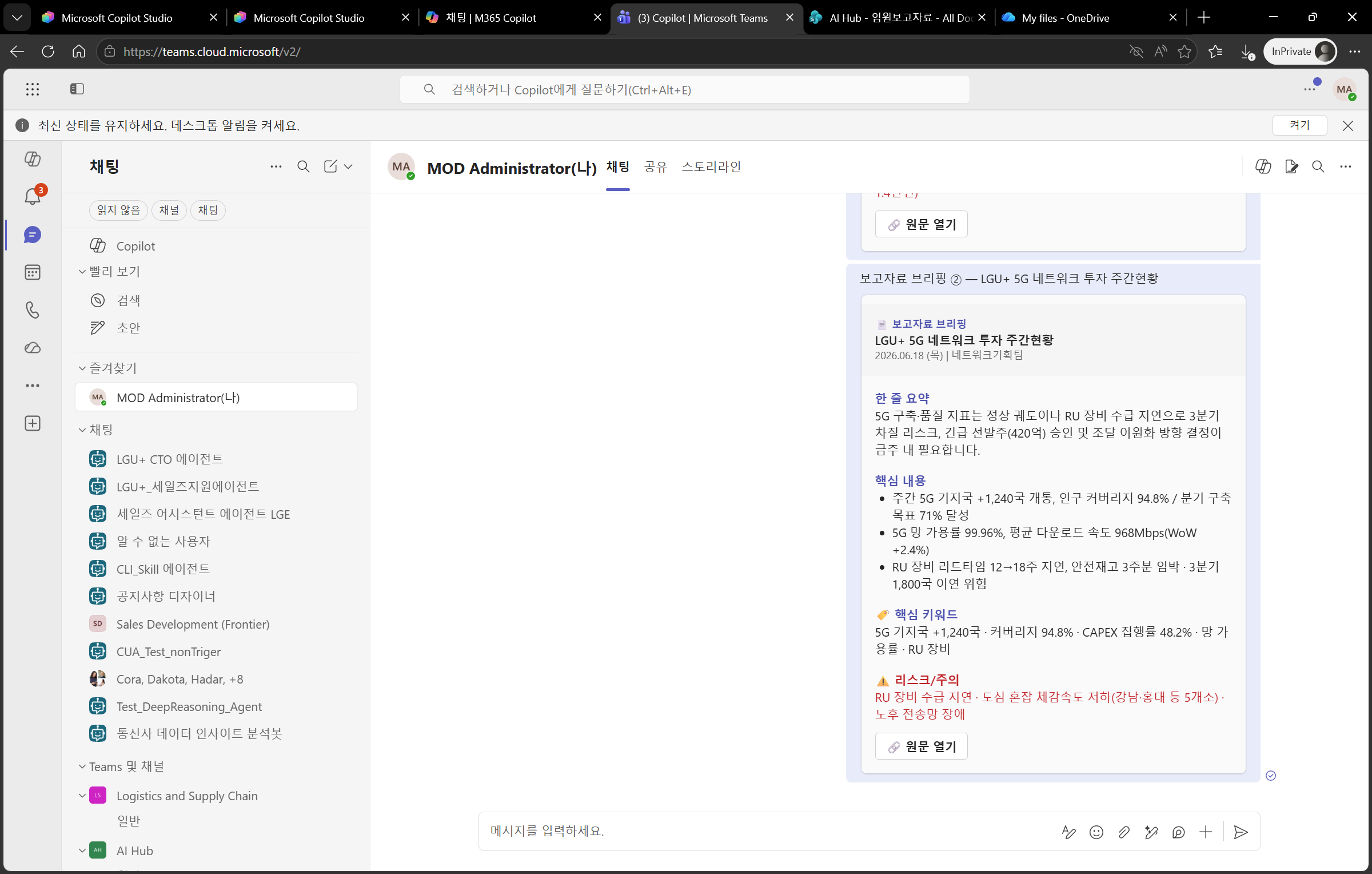
- Confirm that the workflow is triggered, references the CEO risk document first, extracts the summary and keywords, enriches context if needed, and then delivers the briefing in Teams.
- Check whether summary length, keyword separation, CEO perspective, context enrichment, and design formatting match your intent. If they do not, refine the Instructions, skills, or CEO document.
8. Wrap-up & next steps
- With the combination of Knowledge (SharePoint report materials + OneDrive CEO risk document) + skills (summary, CEO keyword/risk, context analysis, design) + tools (Teams, Mail, Calendar) + workflow (folder detection), you completed an agent that lets the team receive CEO-view key points, risks, and background context as soon as report materials are uploaded.
- Extension ideas
- Use memory to prevent duplicate briefings (record documents already processed).
- Add owner mentions/escalation when risk keywords are detected.
- Add a weekly summary digest workflow.
- Update the CEO risk document quarterly to automatically reflect changes in perspective and priorities.