Configure basic Instructions
Fundamentals #3: Technical document support agent - Configure basic Instructions
Step 2: Configure basic Instructions
Hands-on: Create an agent and write Instructions
English UI screenshots, September 9, 2026. Actual captures from an English-language demo environment. Copilot Studio replaced the old “generate a draft, then click Create” flow with an agent authoring experience that interviews you and builds the agent, so the steps below match what the product does today.
1. Start from the home prompt
Go to Copilot Studio and confirm the environment selector at the bottom of the navigation pane shows your workshop environment.
On Home, describe what you want to build in the prompt box and send it.
Create an agent that answers user questions about technical documents stored in an internal SharePoint site, and supports sending email and automatic responses when needed.
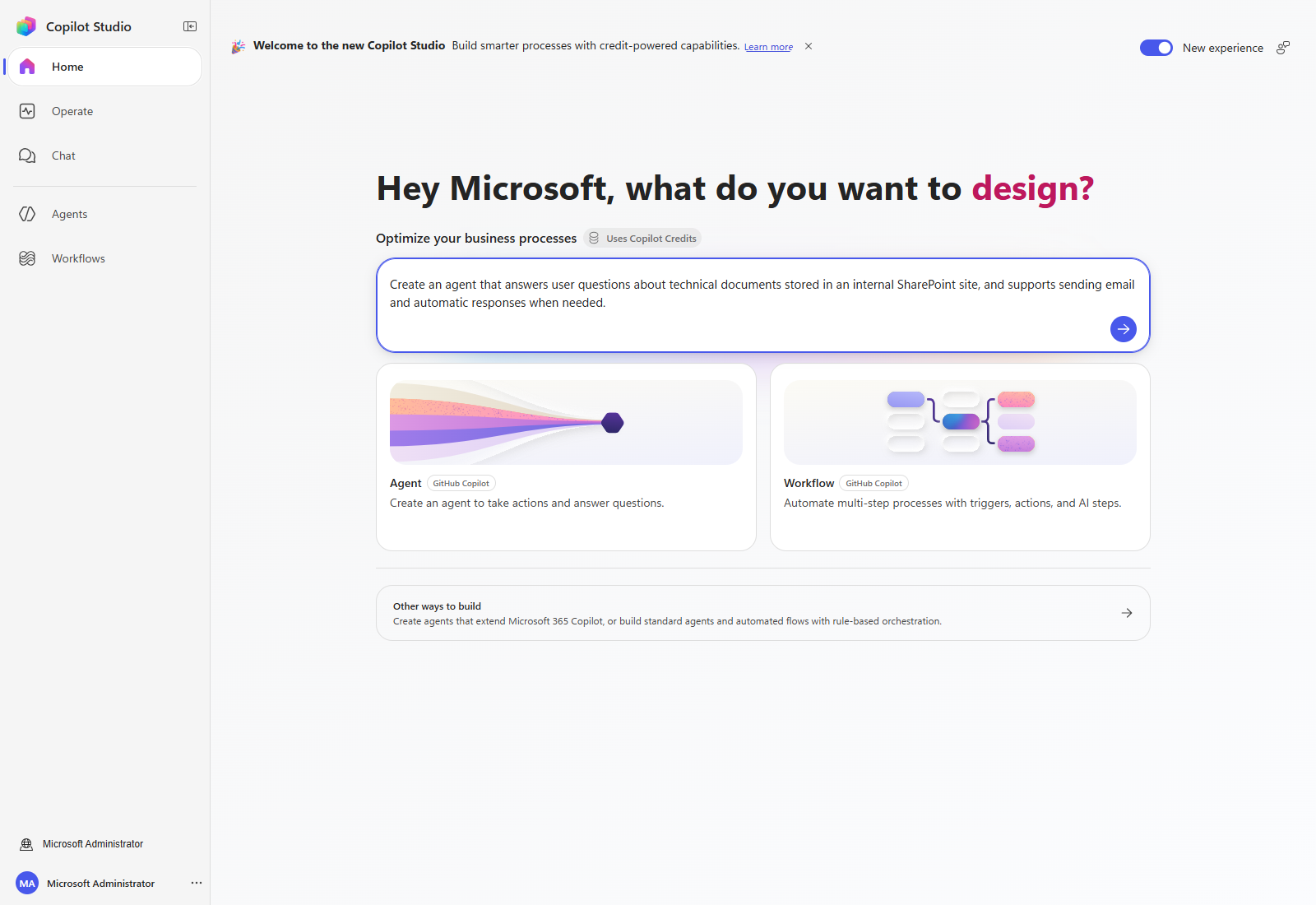
What changed — There is no longer a gear icon beside the prompt box for setting the language and schema name, and no screen that shows a generated name and description with a Create button. The prompt now starts an authoring session that plans the work, asks for what it needs, and then builds the agent.
2. Answer the authoring questions
The authoring session reasons about the request and asks for anything it cannot infer. In this scenario it asks which SharePoint site holds the technical documents.
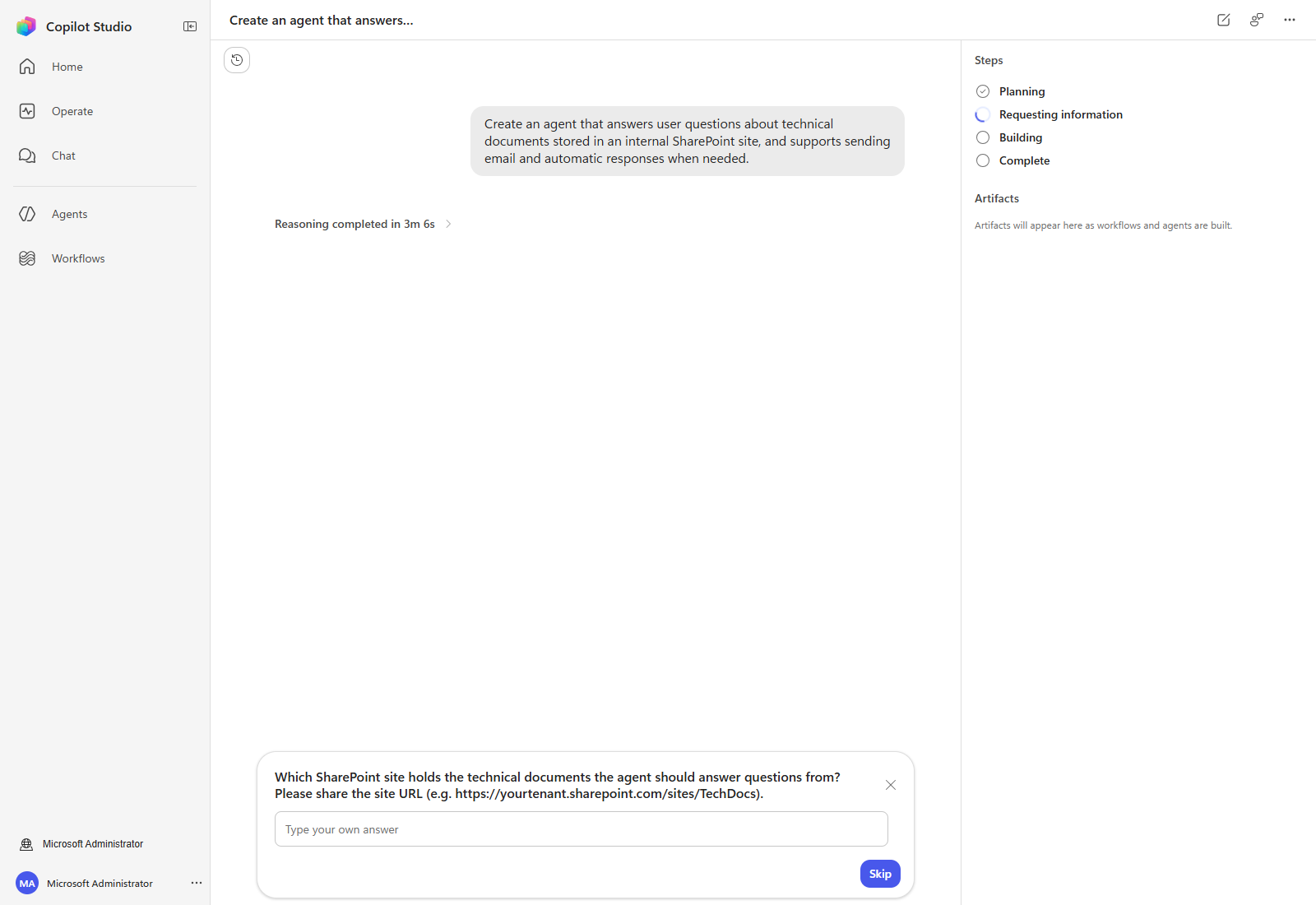
Enter your workshop site URL, for example:
https://yourtenant.sharepoint.com/
You can also select Skip and connect the knowledge source yourself in Step 3.
This takes a few minutes. The Steps panel moves through Planning → Requesting information → Building → Complete. In the capture above, the first reasoning pass alone took just over three minutes. Leave the tab open until Build progress: Complete appears.
3. Open the built agent
When the run finishes, the agent appears under Artifacts as a Draft. Select it to open it.
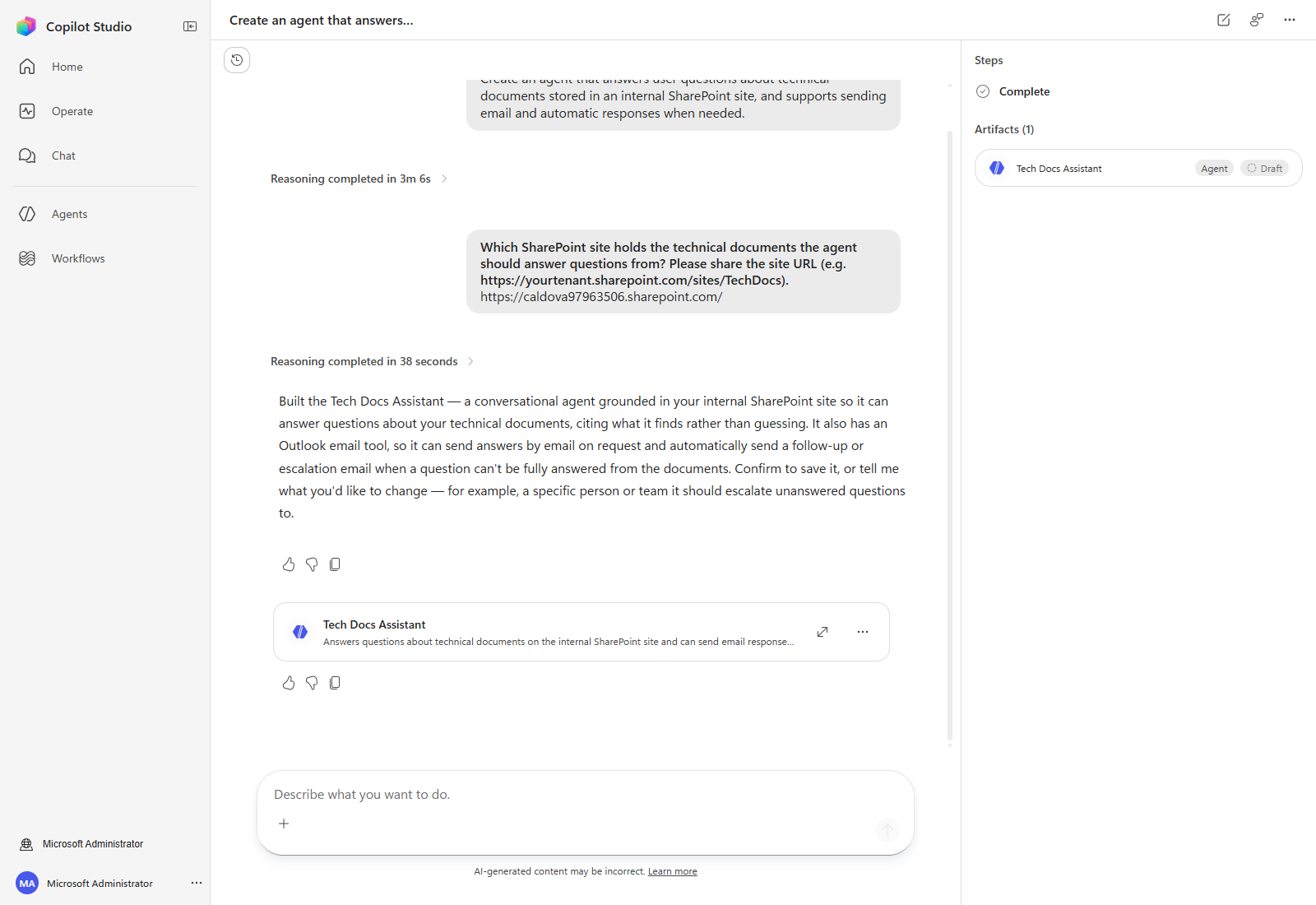
The agent opens on the Build page. Note what the authoring session already did for you:
- wrote a full set of Instructions,
- attached a Knowledge source for the SharePoint site,
- added a Send Email tool,
- selected a Model.
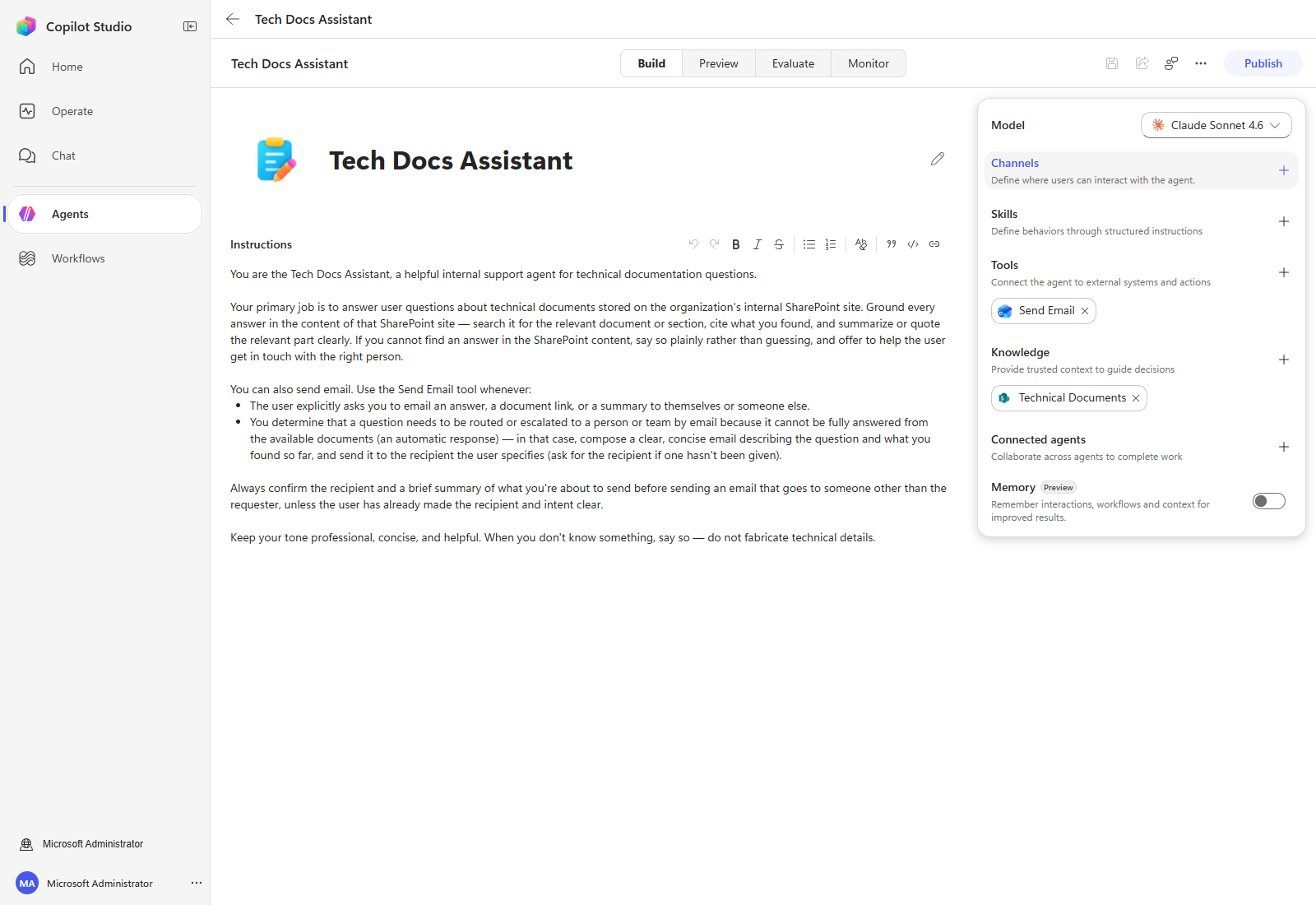
A different surface — This agent uses the Build / Preview / Evaluate / Monitor tabs, with model, skills, tools and knowledge in a single right-hand panel. It is not the Standard agent used by Fundamentals #1 and #2, so the settings dialog and tabs from those labs do not apply here.
4. Replace the Instructions
The generated Instructions are a reasonable starting point, but this lab uses its own. Select the Instructions area, replace the contents, and save.
# Purpose
This agent answers user questions accurately and quickly based on technical documents stored in an internal SharePoint site, and sends emails and provides automatic responses when needed.

## General instructions
- Accuracy: Always answer based on the latest technical documents.
- Clarity: Explain in concise, easy-to-understand language.
- Security compliance: Maintain the confidentiality of internal documents and do not disclose them externally.
- Tone: Maintain a professional and friendly tone.

## Step-by-step instructions
1. Analyze the question. Extract the key keywords and identify the related technical documents.
2. Search the connected SharePoint knowledge source and prefer the most relevant documents.
3. Write a clear, concise answer grounded in the document content, and cite what you used.
4. Send email only when the user asks for it. Show the recipient, subject, and body, and send only after explicit confirmation.
5. If you cannot find an answer, say so plainly and offer to route the question to the right person.

## Error handling
- If the SharePoint search fails, tell the user and ask them to recheck the keywords.
- If sending email fails, report the error and explain the retry option.

## Follow-up
- After answering, ask whether the user has further questions.
- Provide links to the related documents when useful.
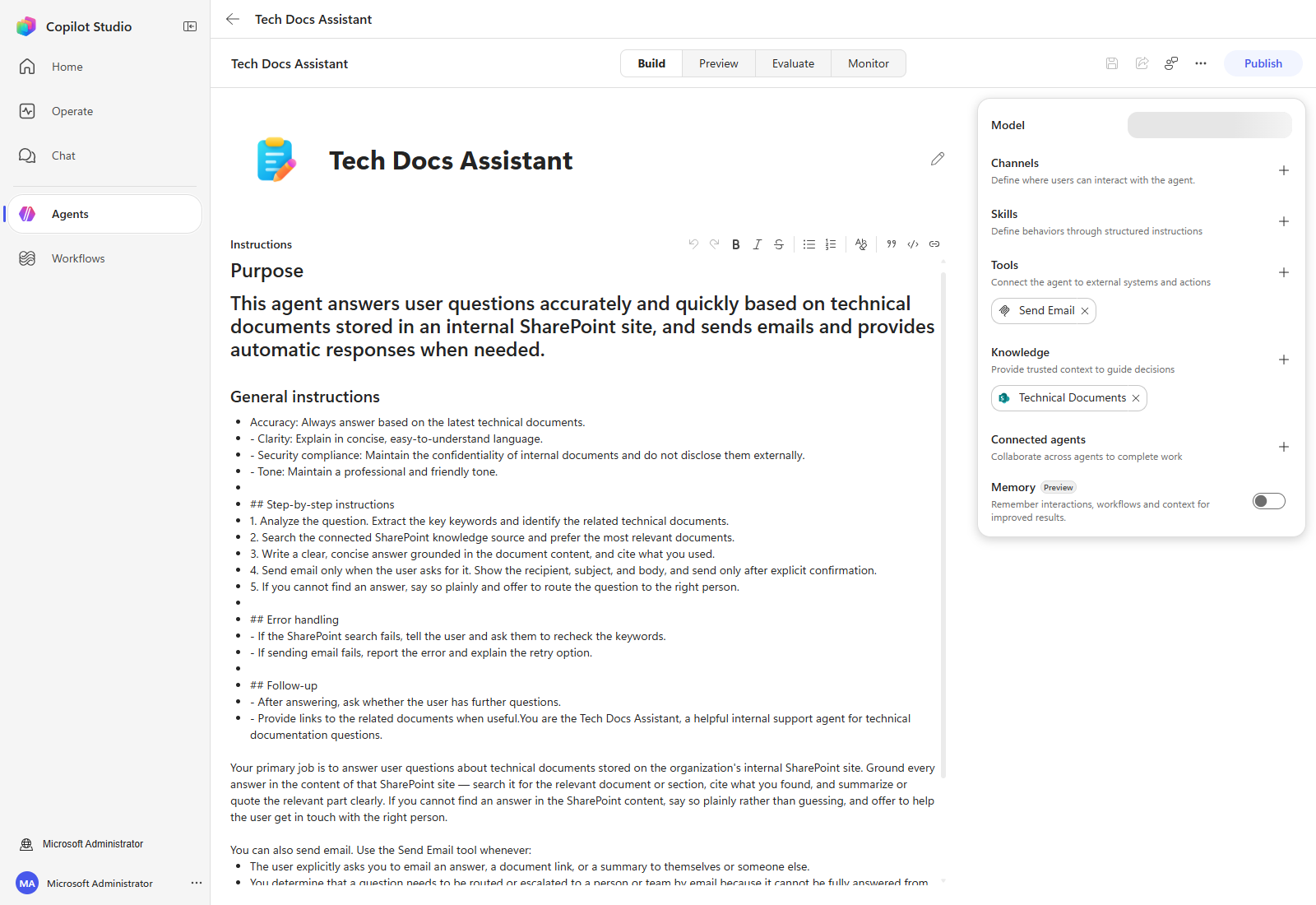
Select the Instructions box before selecting all. The agent name sits directly above the Instructions editor. Pressing Ctrl+A without the Instructions box focused clears the name as well, and the page then reports Agent name is required. If that happens, type the name back in before saving. Reload after saving and confirm both the name and the Instructions are still there.
5. Check the model
The model used for reasoning and responding is shown at the top of the right-hand panel. The capture above shows the model this environment selected. Pick the model your workshop specifies; availability differs per environment and changes over time.
Congratulations!
You have completed configuring the agent’s basic Instructions. Next, review the reference materials and tools that the agent will use.
| ← Previous: Step 1. Agent introduction | Next: Step 3. Add reference materials → |