Part 3 · Prerequisites, Agent Creation & Instructions
Entering preview, creating a blank agent, and writing instructions as the skeleton for the six elements.
1. Prerequisites
▶ Goal: Enter New Copilot Studio (preview).
1.1 Entering the New environment — two methods
| Method | Path |
|---|---|
| A. Go directly | Open preview.copilotstudio.microsoft.com in your browser |
| B. Try now | Click the “Try now” button on the existing Copilot Studio home page |
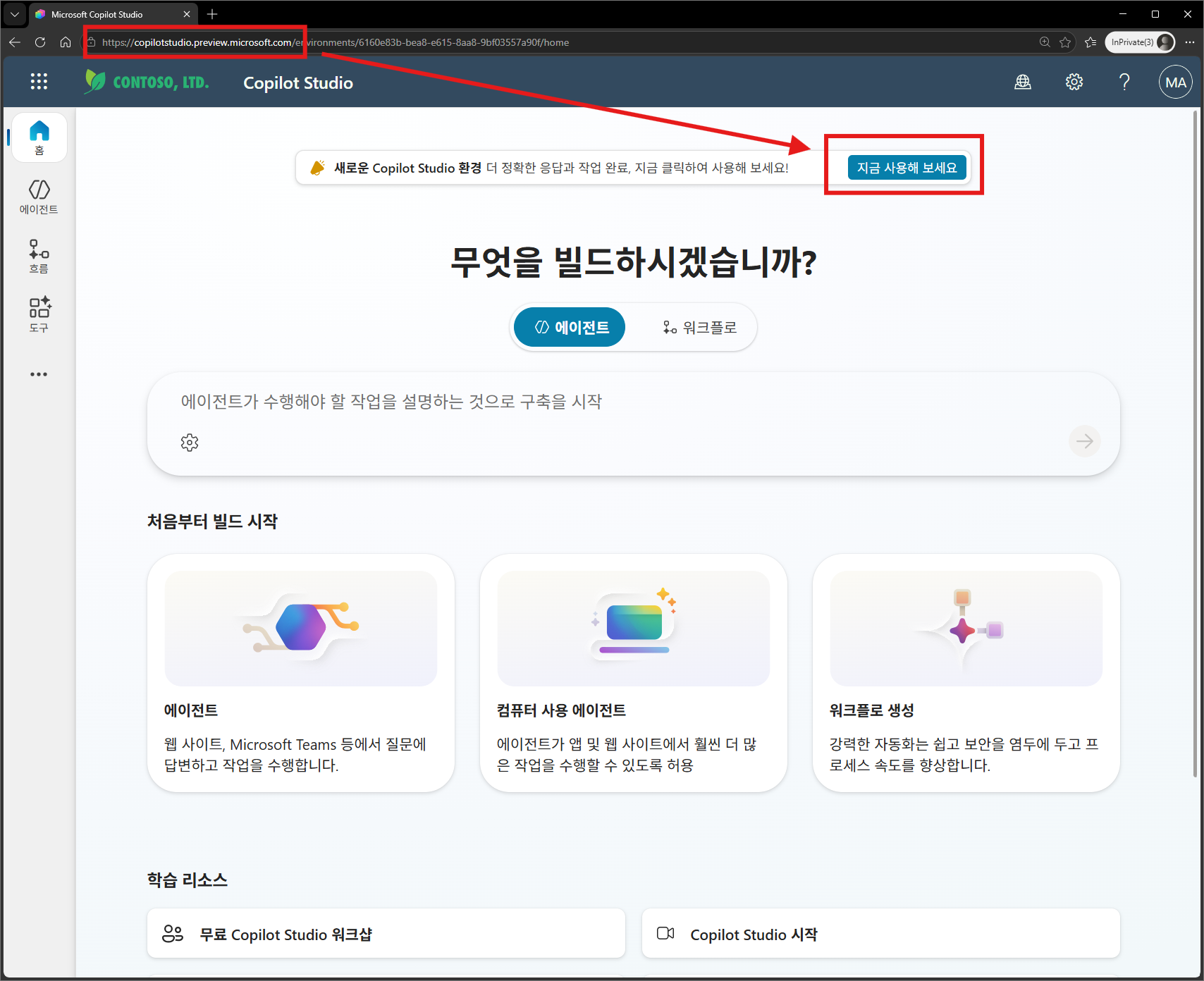
1.2 What to check after entering
- If you see the new build screen (Build, Test, Preview, Monitor tabs) on the left/top, you are in the New environment (Part 1, 0.2).
- Preview is opt-in and runs side by side with Classic. There is no forced migration.
⚠️ Important — use a Sandbox environment for the hands-on: In the current preview, New (CLI) agents may not work properly in personal developer environments
(skill package import failures, Copilot app errors, random Teams behavior — see Chapters 5 and 8).
Run the hands-on in a Sandbox environment, not a personal developer environment.
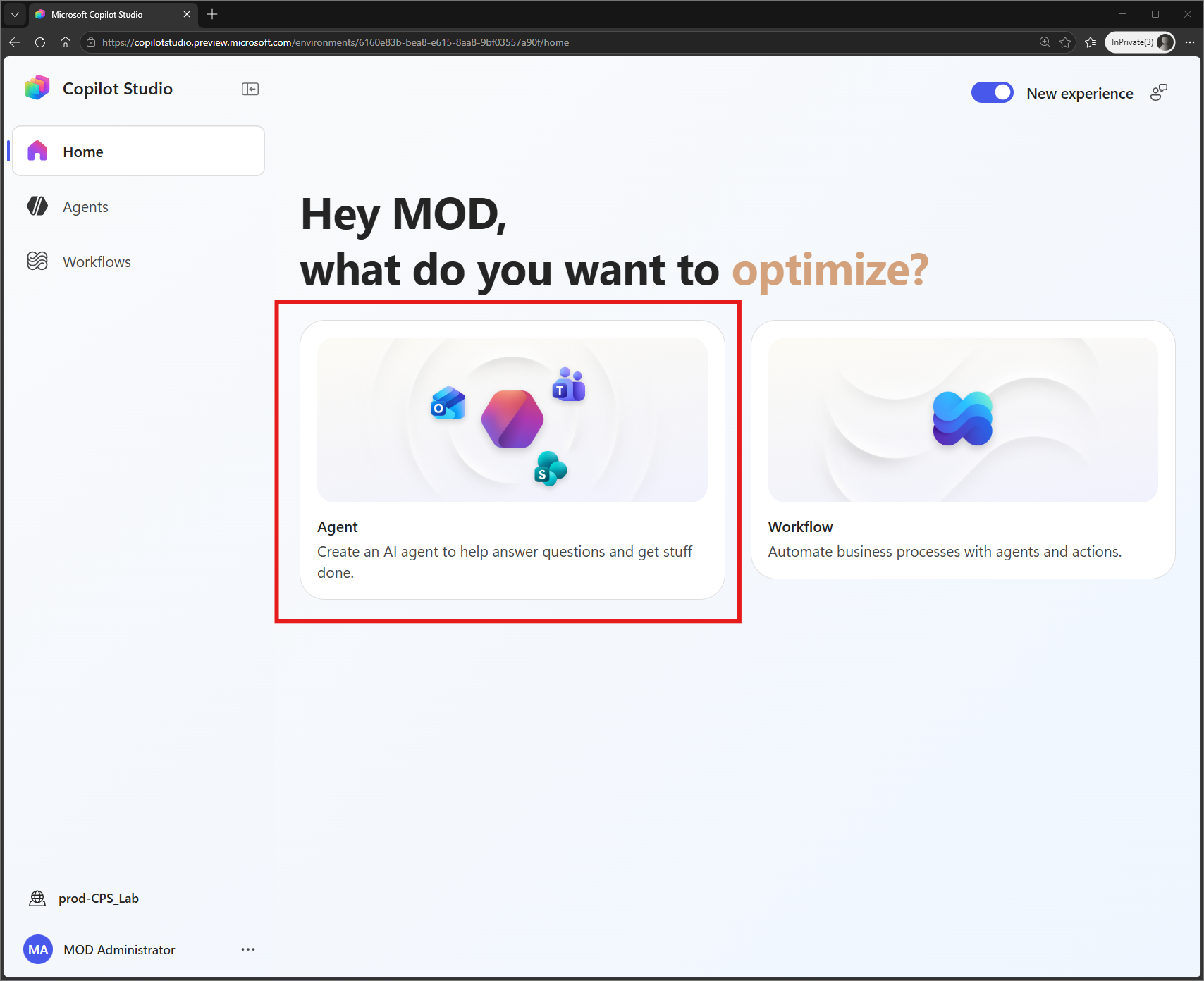
2. Create the agent + write instructions
▶ Goal: Create a blank agent and write instructions, the skeleton of the six elements.
2.1 Create the agent
- Click Create / New agent.
- Enter a name and description (for example, name it
Sales Assistant Agent). - After it is created, go to the Build screen — instructions, knowledge, tools, and skills are collected on this one screen.
2.2 Write instructions — skeleton
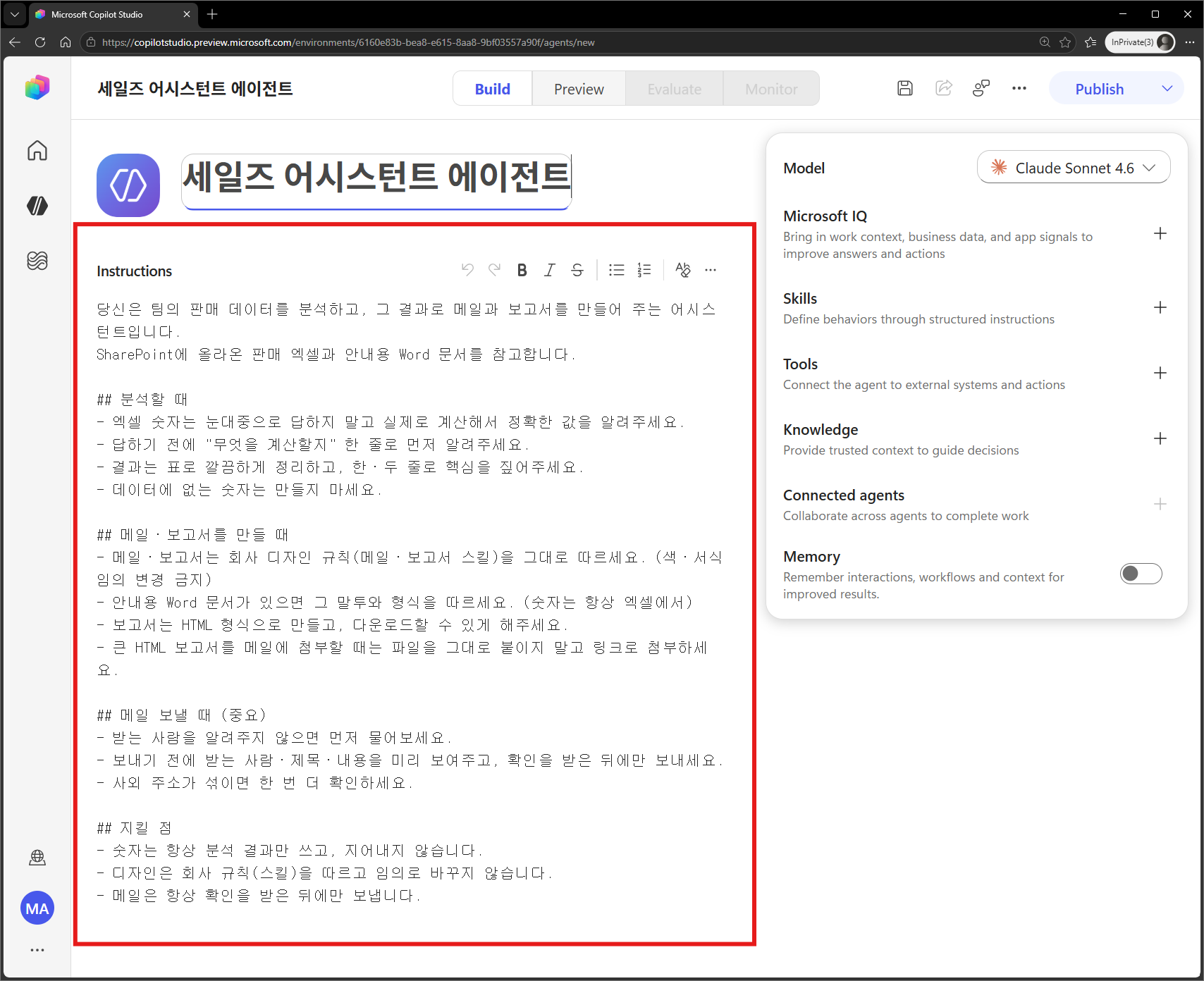
Paste the following into the instructions field (for this hands-on, you can copy the prewritten instructions as-is). Write only the “what” in plain language, and leave the “how” to the agent (Part 2, Chapter 1).
You are an assistant that analyzes the team's sales data and creates emails and reports from the results.
Refer to the sales Excel file and guidance Word document uploaded to SharePoint.

## When analyzing
- Do not answer Excel numbers by estimating by eye; calculate the actual values and provide accurate numbers.
- Before answering, first state in one line what you will calculate.
- Organize results neatly in a table and point out the key takeaway in one or two lines.
- Do not invent numbers that are not in the data.

## When creating emails and reports
- Follow the company design rules (email/report skill) exactly for emails and reports. (Do not change colors or formatting arbitrarily.)
- If there is a guidance Word document, follow its tone and format. (Numbers always come from Excel.)
- Create reports in HTML format and make them downloadable.
- When attaching a large HTML report to email, do not attach the file directly; attach it as a link.

## When sending email (Important)
- If the recipient is not provided, ask first.
- Before sending, preview the recipient, subject, and content, and send only after receiving confirmation.
- If external addresses are included, confirm one more time.

## Rules to follow
- Always use only numbers from analysis results; do not invent numbers.
- Follow the company rules (skill) for design and do not change it arbitrarily.
- Always send email only after confirmation.
2.3 Instruction authoring tips (summary of Part 2, Chapter 1)
- Only the what; leave the how to the agent — do not write code, paths, or libraries.
- Single source of truth — do not embed details such as colors and procedures in instructions; point to the skill instead. (If colors are embedded in instructions, the agent bypasses the skill — Part 2, 1.5.)
- Use confirmation gates for irreversible actions — email should be sent “only after confirmation.”
- State guardrails negatively — “do not invent missing numbers,” “do not send before confirmation.”
- Keep it short — instructions are always loaded, so if they are long, the core becomes diluted.
Remember: In the instructions, write only “follow the skill for company design rules,” and put the actual colors and templates in the skills in Chapters 4 and 5. This ensures the agent must open the skill when creating emails or reports, and applies both the design and safety rules.