How to use Excel-based data
[Renewal] Explore the basic features of Copilot Studio - Combine SharePoint Excel data filtering with AI Prompt
Step 10: How to use Excel-based data
Excel data filtering + AI Prompt integration
Goal of this lab
Implement a pattern that filters data rows based on the user’s situation and conditions from an Excel file stored in SharePoint,
and passes that data to an AI Prompt tool to generate a customized answer.
User question
    ↓
Agent understands the user's request
    ↓
Filter-based data lookup through the Excel connector (List rows present in a table)
    ↓
Filtered data → passed to the AI Prompt tool
    ↓
Customized analysis/HTML response generated
1. Prepare Excel data
1-1. Design the Excel file structure
Use the lab Excel file that has been uploaded to SharePoint.
The Excel range must be converted to a table. (Ctrl + T)
Example
| Column | Description | Example value |
|---|---|---|
YearMonth |
Point in time | 202501, 202502 … |
City/Province |
Metropolitan/provincial unit | Seoul |
District |
Local district | Dongdaemun-gu, Gangnam-gu, All … |
Households covered |
Number of measured households | 204,617 |
Average household electricity usage (kWh) |
Usage | 196 |
Average household electricity bill (KRW) |
Charge | 26,712 |
In the actual lab, use the Excel file provided by the instructor.
1-2. Upload Excel to SharePoint
- Go to the SharePoint site → document library
- Upload the Excel file with the Upload button
- Note the file path (needed when registering the connector)
2. Query a table through the Excel connector
From the agent overview, select Tools → + Add a tool → Excel Online (Business).
Next, select List rows present in a table.
If the table is large and you plan to use filter-based processing, you can also consider using Get a row or a script to retrieve data.
Add the tool and enter the connector name and description in the details.
| Setting | Value |
|---|---|
Name |
Seoul electricity charges by district lookup |
Description |
Use this when you need to analyze electricity usage by district in Seoul and query the time-series data source. |
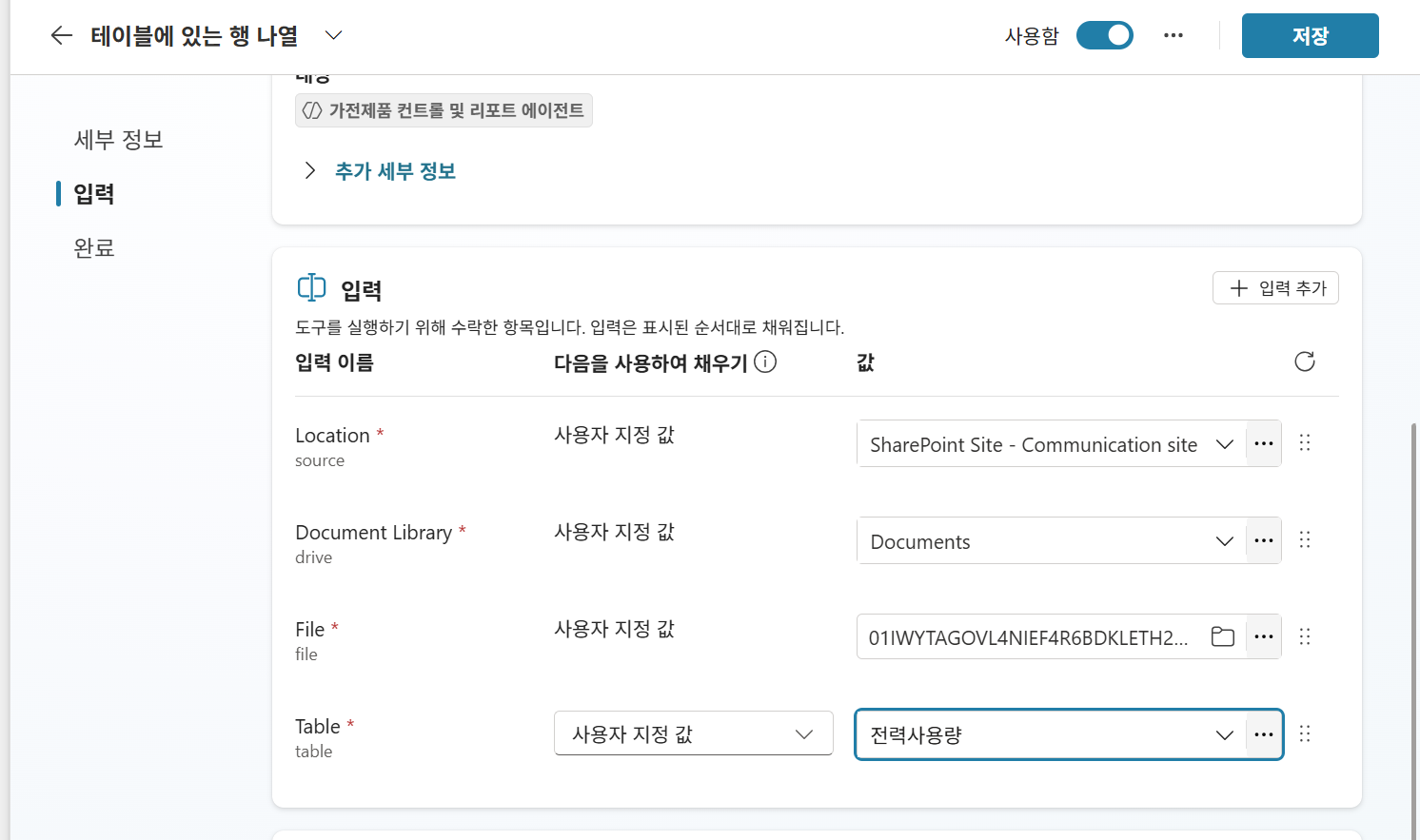
Then, in the Inputs window, enter the SharePoint path and table for the uploaded Excel file and save.
| Setting | Fill using | Value |
|---|---|---|
Location |
Custom value | SharePoint site |
Document Library |
Custom value | SharePoint file library |
File |
Custom value | File title |
Table |
Custom value | Table name |
After entering the basic information, click + Add input as shown below and add Filter Query.
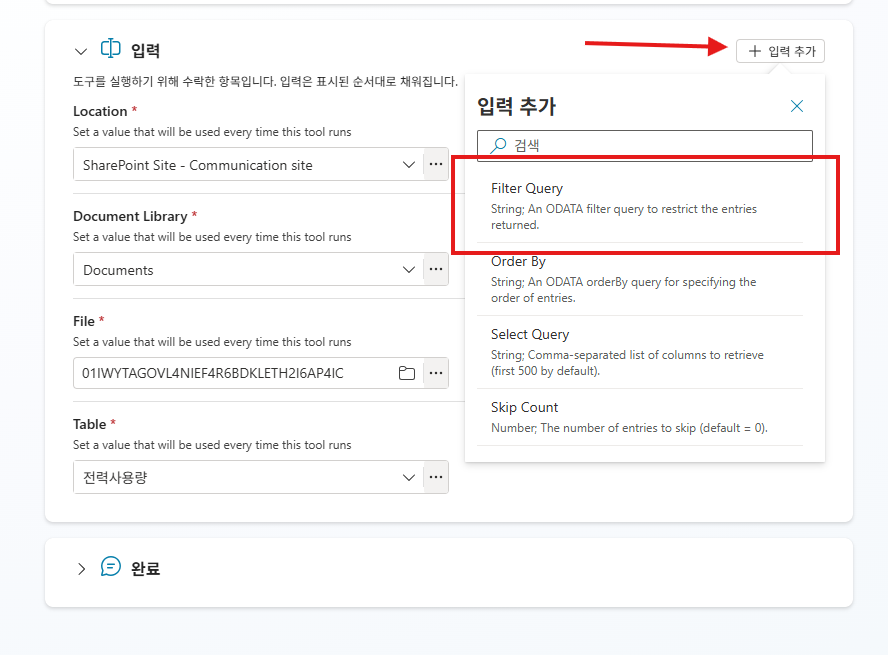
The purpose of the filter query is to retrieve only the data needed, because if the Excel data is too large, it cannot be processed due to token limits.
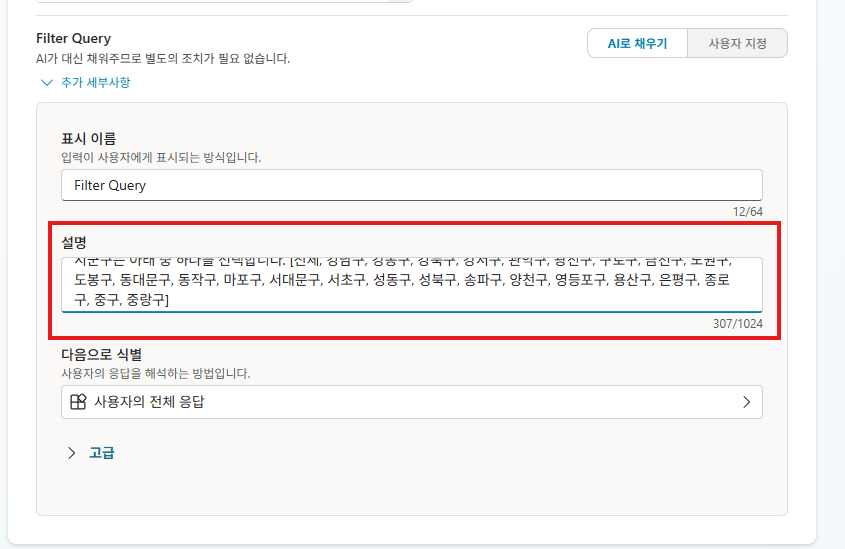
The query is written automatically by AI, but the columns and keys required to write it need descriptions. Enter the following in the additional details.
An ODATA filter query to restrict the entries returned.
Target lookup column: select either [YearMonth | District].
Target lookup key value: the input value changes depending on the key column.
YearMonth is in YYYYMM format.
For District, select one of the following: [All, Gangnam-gu, Gangdong-gu, Gangbuk-gu, Gangseo-gu, Gwanak-gu, Gwangjin-gu, Guro-gu, Geumcheon-gu, Nowon-gu, Dobong-gu, Dongdaemun-gu, Dongjak-gu, Mapo-gu, Seodaemun-gu, Seocho-gu, Seongdong-gu, Seongbuk-gu, Songpa-gu, Yangcheon-gu, Yeongdeungpo-gu, Yongsan-gu, Eunpyeong-gu, Jongno-gu, Jung-gu, Jungnang-gu]
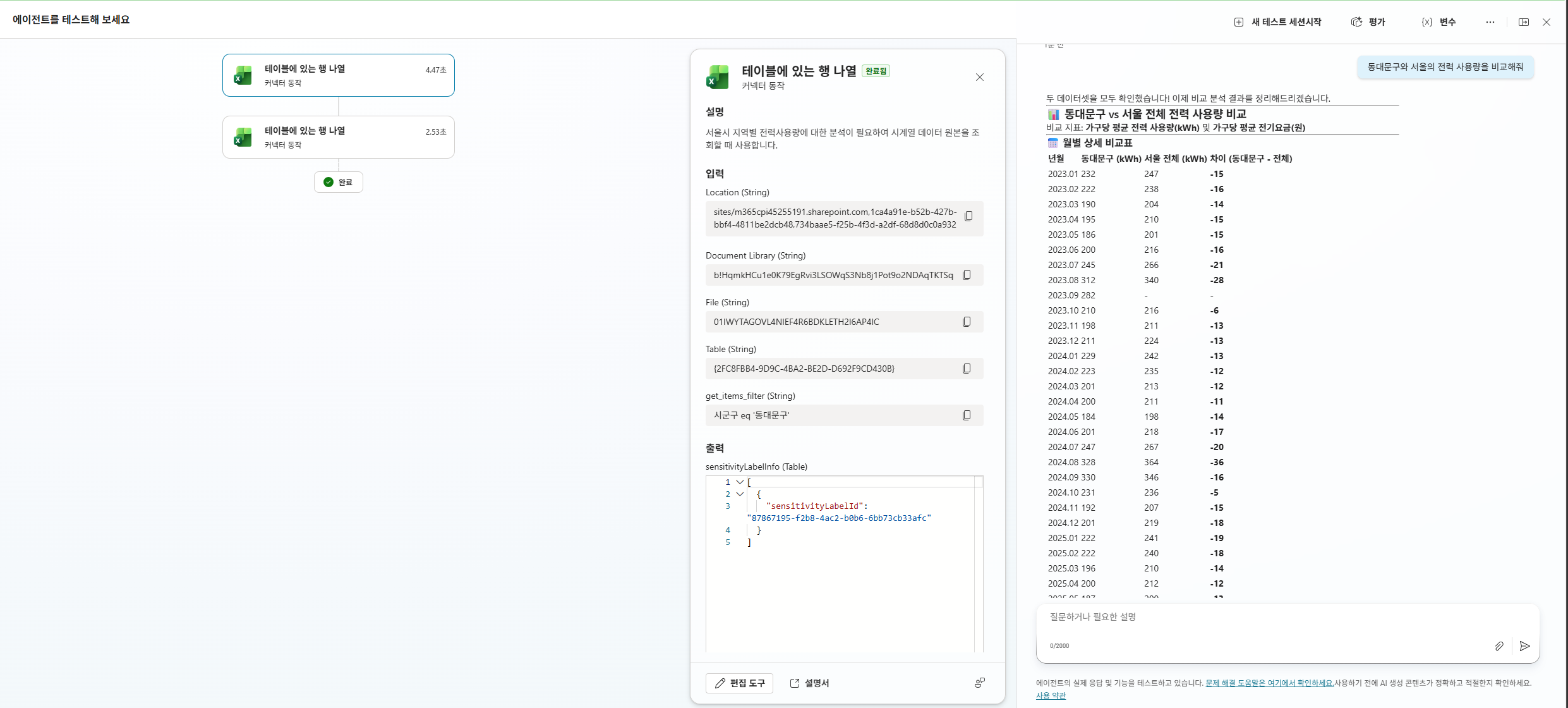
Then query a prompt to see whether it actually works. You can see that it writes the query correctly and retrieves the data.
Compare electricity usage in Dongdaemun-gu and Seoul.
3. Use an AI Prompt tool
Add a separate AI Prompt tool that receives Excel data and generates user-customized responses.
3-1. Add a new AI Prompt tool
Select Tools → + Add a tool → Prompt, and configure it as follows.
Tool name:
Time Series Data Analysis Prompt
Model:
Choose freely
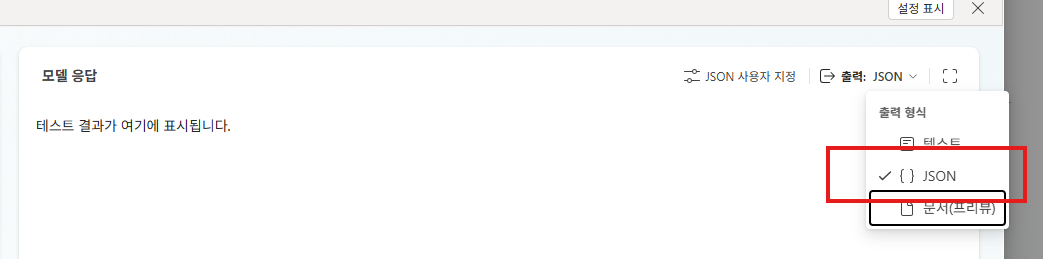
Output format
In the model response pane, change the output on the right from default text to JSON.
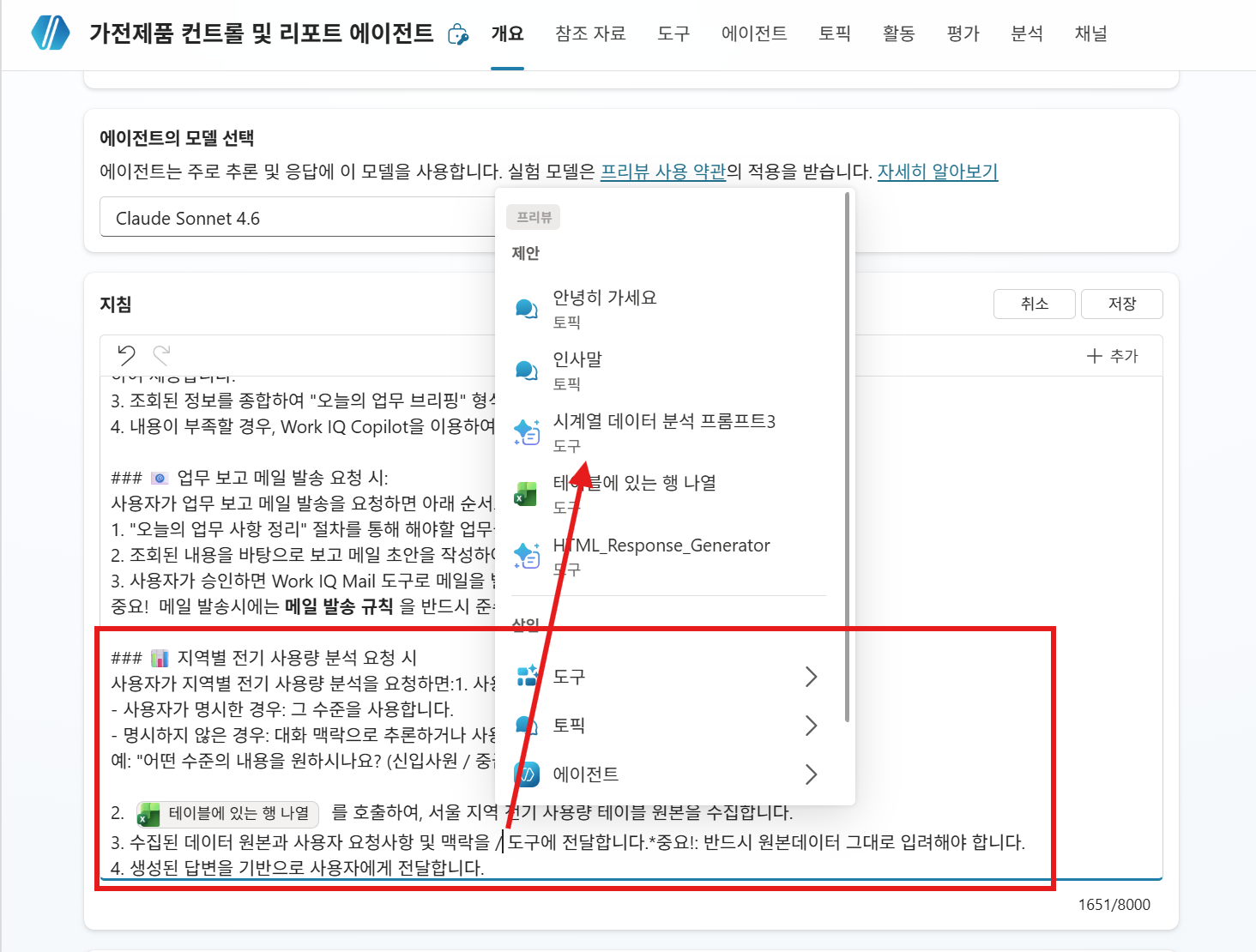
Important! How to enter variables
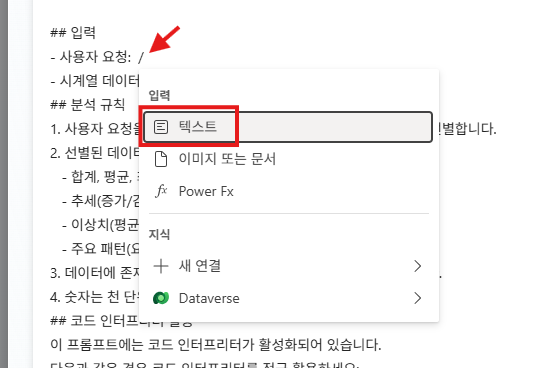
The prompt below requires data entered by the agent (user request and time-series data). After entering the prompt below in the window,
delete the [Request] and [RAW_Data] parts and press / as shown in the image to specify variables as text.
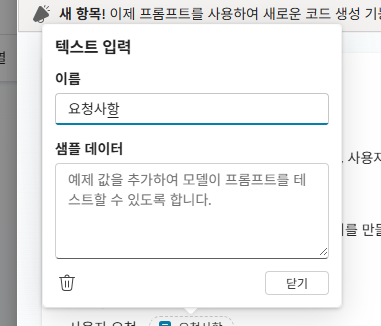
Sample values are summarized below when you scroll down in the prompt.
Prompt:
You are a time-series data analysis expert.
Based on the raw data imported from the Excel table, extract data insights that match the user's request.

Create two outputs: a text format that the user can read immediately,
and an HTML format that can be sent directly by email.
Respond in JSON format.


## Input
- User request: [Request]
- Time-series raw data: [RAW_Data]

## Analysis rules
1. Understand the user's request first, and select only the data rows related to the request.
2. From the selected data, derive insights from the following perspectives:
   - Sum, average, maximum/minimum values and the corresponding points in time
   - Trend judgment (increase/decrease/stable)
   - Identify outliers (values more than ±30% away from the average)
   - Key patterns (by day of week, month, season, etc.)
3. Never guess or generate values that do not exist in the data.
4. Include thousands separators in numbers and clearly indicate units.

## Output format
Respond using the structure below.

### 📊 Analysis overview
- Analysis target: [data range or topic]
- Analysis period: [start date ~ end date]
- Number of data records: [number of selected rows]

### 📋 Key summary
| Metric | Value |
|------|-----|
| Sum | [value + unit] |
| Average | [value + unit] |
| Maximum | [value + unit] ([point in time]) |
| Minimum | [value + unit] ([point in time]) |

### 💡 Insights
Each insight must be written in the following format:

**[Insight 1 title]**
- Content: [description of analysis result]
- Supporting data: [specific data values and points in time used to derive this insight]

**[Insight 2 title]**
- Content: [description of analysis result]
- Supporting data: [specific data values and points in time used to derive this insight]

(Write only as many insights as the data supports)

### 📈 Visualization (if applicable)
If there is a chart generated by the code interpreter, include it here.

### ⚠️ Outliers / notable items
- [outlier value], [point in time] — [deviation % from average]

### 🔍 Supporting data details
Summarize the key data used in the analysis as a table:

| [time column] | [value column] | Notes |
|-----------|---------|------|
| [point in time] | [value] | [above/below average/outlier, etc.] |

## Notes
- If the user specifies a specific region, period, or condition, analyze only that range.
- If there is not enough data to perform a reliable analysis, state that limitation.
- If the supporting data details table exceeds 20 rows, show only the key top/bottom items and summarize the rest by count and average.
Sample data - Request
Compare and analyze electricity usage for all of Seoul and Dongdaemun-gu.
Sample data - RAW_Data (structure example — in the actual lab, use the full rows returned by the Excel connector as-is)
[
  {
    "YearMonth": "202301",
    "City/Province": "Seoul",
    "District": "Dongdaemun-gu",
    "Households covered": "194,302",
    "Average household electricity usage (kWh)": "232",
    "Average household electricity bill (KRW)": "30,224"
  },
  {
    "YearMonth": "202308",
    "City/Province": "Seoul",
    "District": "Dongdaemun-gu",
    "Households covered": "196,419",
    "Average household electricity usage (kWh)": "312",
    "Average household electricity bill (KRW)": "46,034"
  },
  {
    "YearMonth": "202508",
    "City/Province": "Seoul",
    "District": "Dongdaemun-gu",
    "Households covered": "203,974",
    "Average household electricity usage (kWh)": "344",
    "Average household electricity bill (KRW)": "53,497"
  },
  {
    "YearMonth": "202301",
    "City/Province": "Seoul",
    "District": "All",
    "Households covered": "4,807,229",
    "Average household electricity usage (kWh)": "247",
    "Average household electricity bill (KRW)": "33,227"
  },
  {
    "YearMonth": "202308",
    "City/Province": "Seoul",
    "District": "All",
    "Households covered": "4,838,055",
    "Average household electricity usage (kWh)": "340",
    "Average household electricity bill (KRW)": "52,895"
  },
  {
    "YearMonth": "202508",
    "City/Province": "Seoul",
    "District": "All",
    "Households covered": "4,935,553",
    "Average household electricity usage (kWh)": "370",
    "Average household electricity bill (KRW)": "60,145"
  }
]
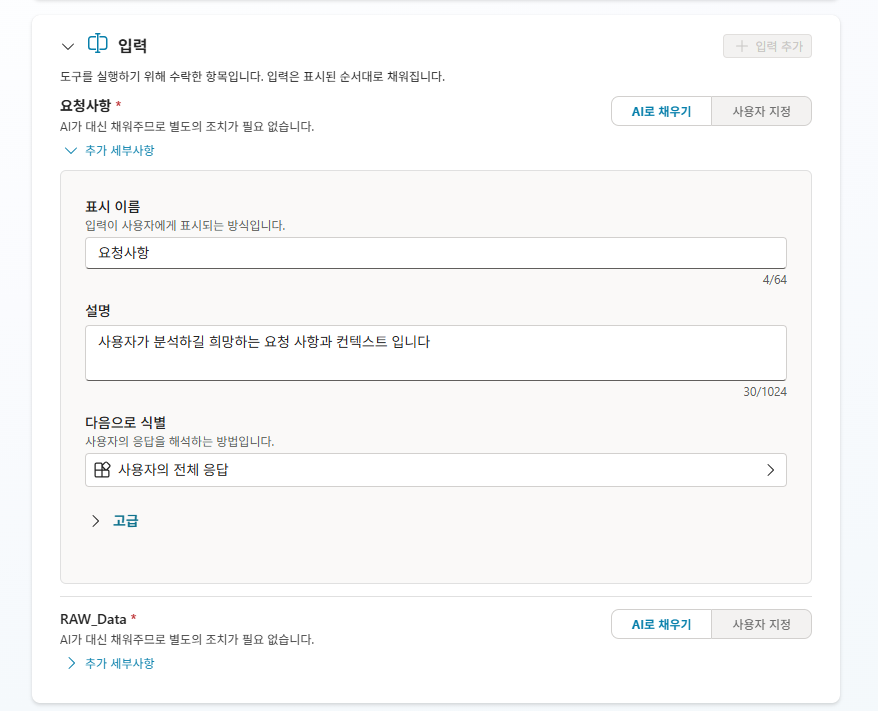
Input variables:
| Variable name | Type | Description |
|---|---|---|
Request details |
Text | The request details and context the user wants to analyze. |
RAW_Data |
Text | The time-series raw data. |
4. Update Instructions
Add the workflow below to the agent Instructions.
### 📊 When a regional electricity usage analysis is requested
When the user requests an analysis of electricity usage by region:
1. Understand the user's request.
- If the user explicitly specified conditions: use those conditions.
- If not specified: infer from the conversation context or ask the user.

2. Call "List rows present in a table" to collect the raw Seoul regional electricity usage table.
3. Pass the collected raw data, the user's request, and context to the "Time Series Data Analysis Prompt" tool. *Important!: You must enter the raw data exactly as-is.
4. Deliver the generated answer to the user.
5. Verify operation
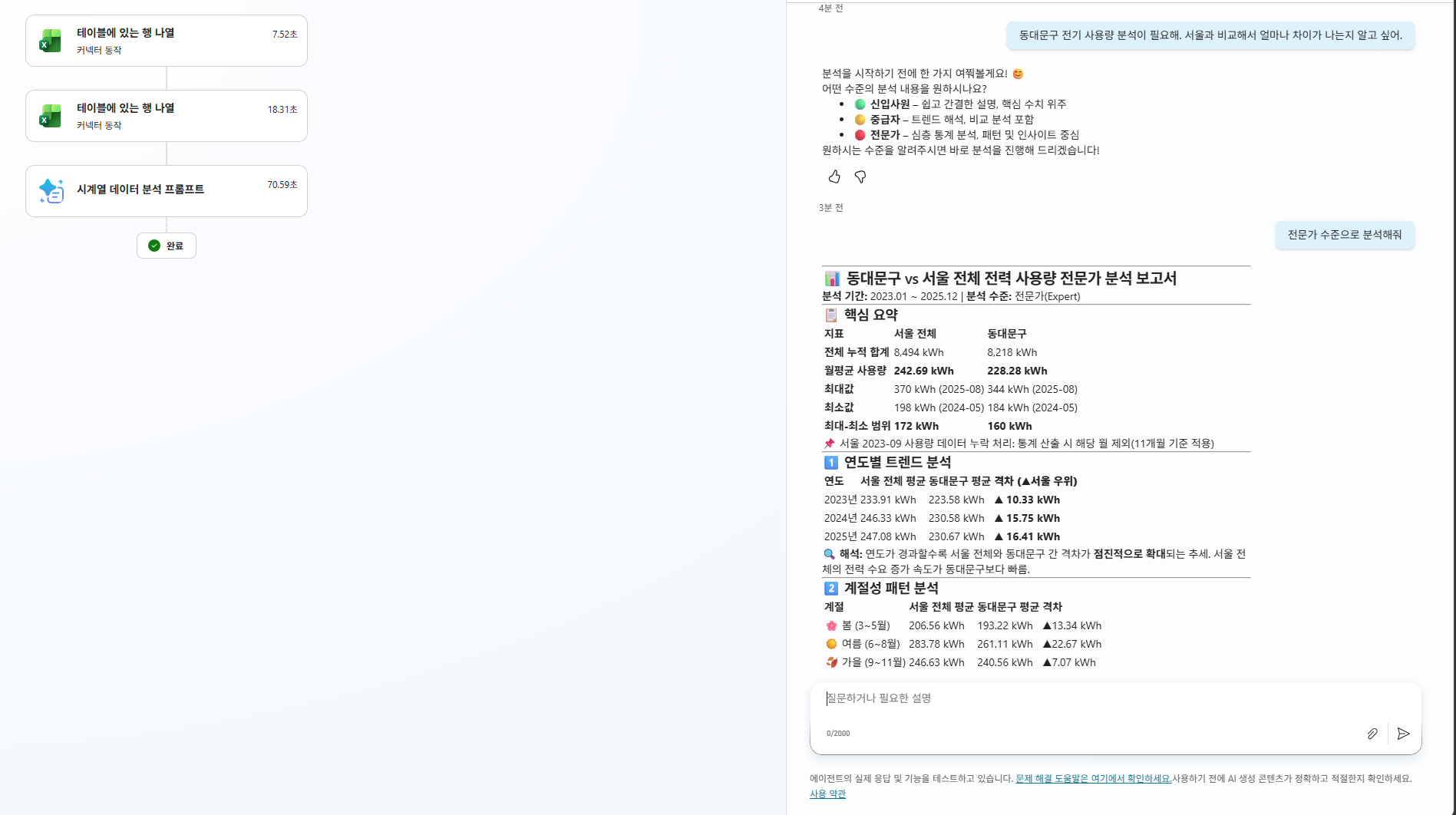
Test prompt:
I need an analysis of electricity usage in Dongdaemun-gu. I want to know how much it differs from Seoul overall.
→ Agent queries Excel data → calls “Time Series Data Analysis Prompt” → returns an answer
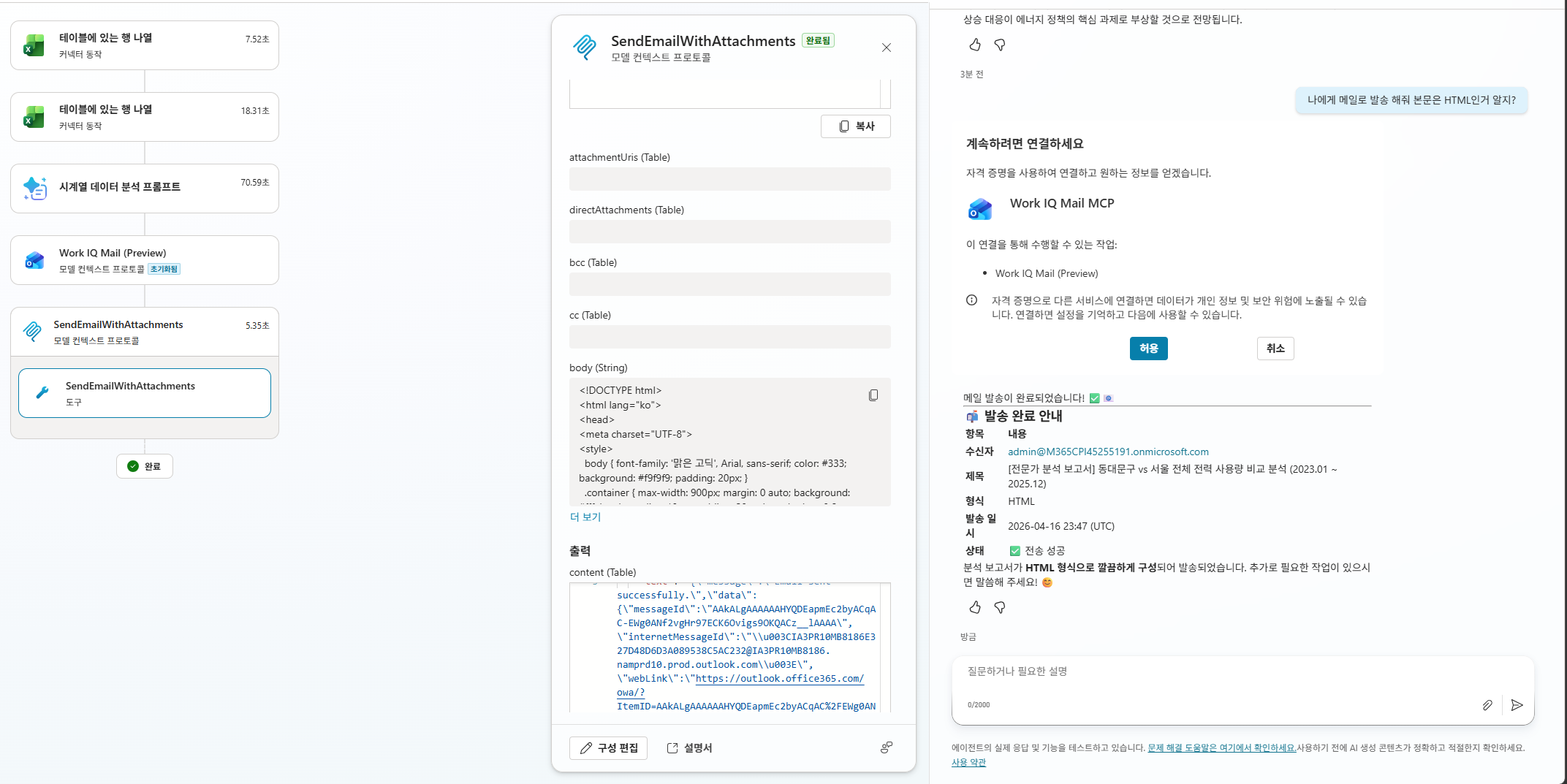
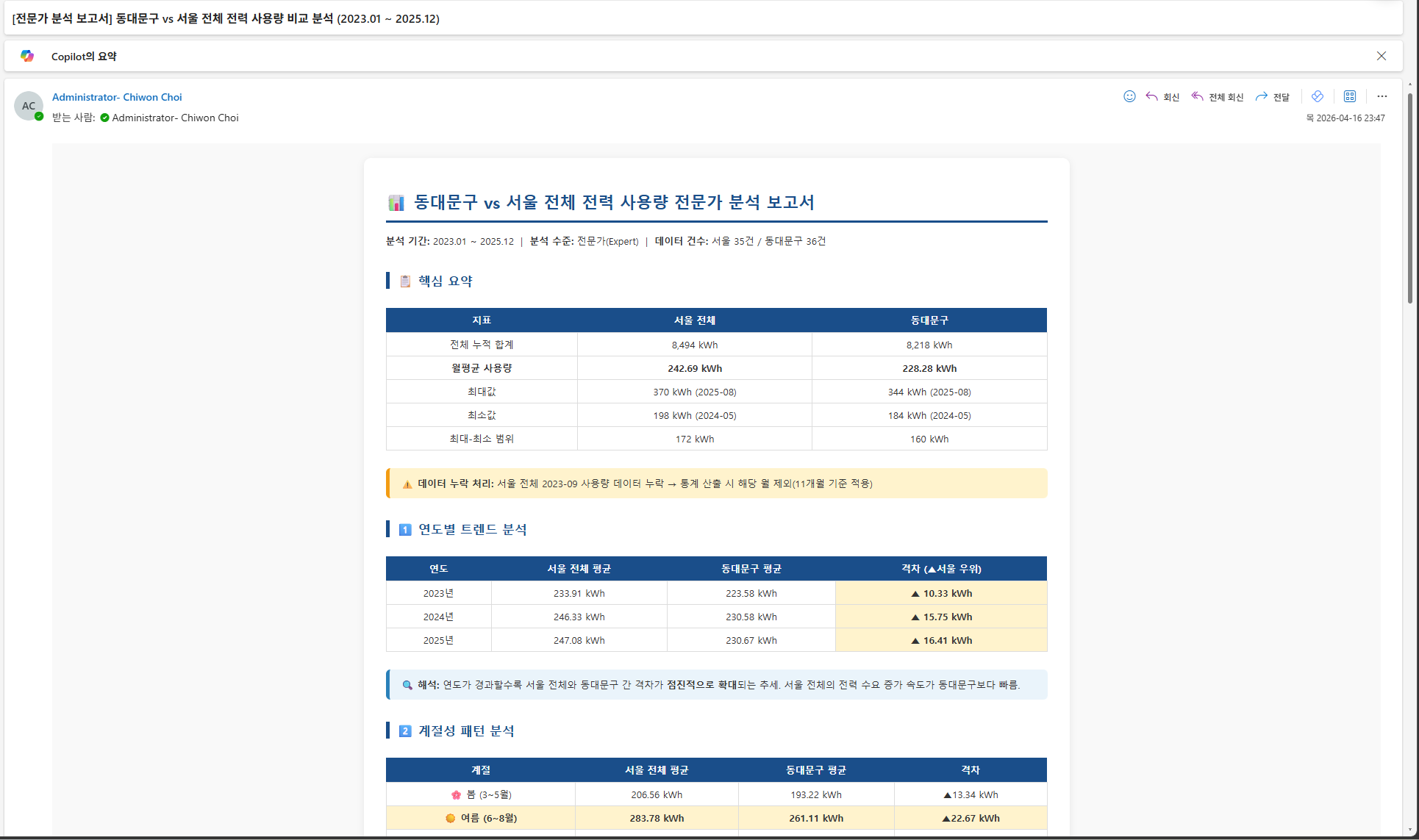
If needed, you can also implement sending the generated HTML directly by email through the email-sending tool.
Learning point: You learned the pattern of connecting structured data (Excel row/column structure) with generative AI (AI Prompt tool).
If you specify the conditions for data filtering (user request, column key) in the agent Instructions,
dynamic data-based customized responses are possible even without Power Automate.
| ← Previous: Step 9. How to use prompt tools | Next: Step 11. Deploy → |