Add MCP tools
[Renewal] Explore the basic features of Copilot Studio - Add a built-in MCP (mail) tool
Step 4: Add MCP tools
Add tools to the agent #1 (MCP tools)
✅ The role of Tools in Copilot Studio
Tools are additional capabilities that extend what an agent can do by default. Simply put, they are the element that upgrades an agent from a conversational AI into an AI that can execute work.
1. Core roles of Tools
| Role | Description |
|---|---|
| Connect external services | Call CRM, ERP, databases, and APIs |
| Automate work | Send emails, create schedules, write reports |
| Process data | Analyze Excel files, summarize PDFs, transform data |
| Integrate systems | Integrate with Microsoft 365, Teams, and Power Automate |
2. Why are they needed?
- By default, an agent is a conversational AI → it cannot query data or execute system commands
- When you connect tools, the agent can execute real tasks
3. Understand through examples
- Without tools
“Tell me this week’s sales” → Agent: “I can’t access the data directly.”
- With tools connected
“Tell me this week’s sales” → Agent: (calls ERP API) → “This week’s sales are $120,000.”
4. What is MCP?
Model Context Protocol (MCP) is an open standard for exposing a set of related tools through a single server. Instead of adding one action at a time, you add the server once and then choose which of its tools the agent may call.
| Connector action | MCP server | |
|---|---|---|
| Granularity | One action per tool | Many tools behind one entry |
| Descriptions | You usually write them | Supplied by the server |
| Maintenance | You update each action | The server owner updates the catalog |
Lab
English UI screenshots, September 10, 2026. Actual captures from an English-language demo environment. Two things changed since this lab was first written:
- The old Email Management MCP Server entry is gone. Outlook mail operations now live in the Mail MCP server.
- Tools are added from the Tools section of the agent configuration panel on the Build page, not from a separate Tools tab.
Nothing was sent. This lab is scoped to draft creation, so no mail left the demo tenant.
1. Open the tool catalog
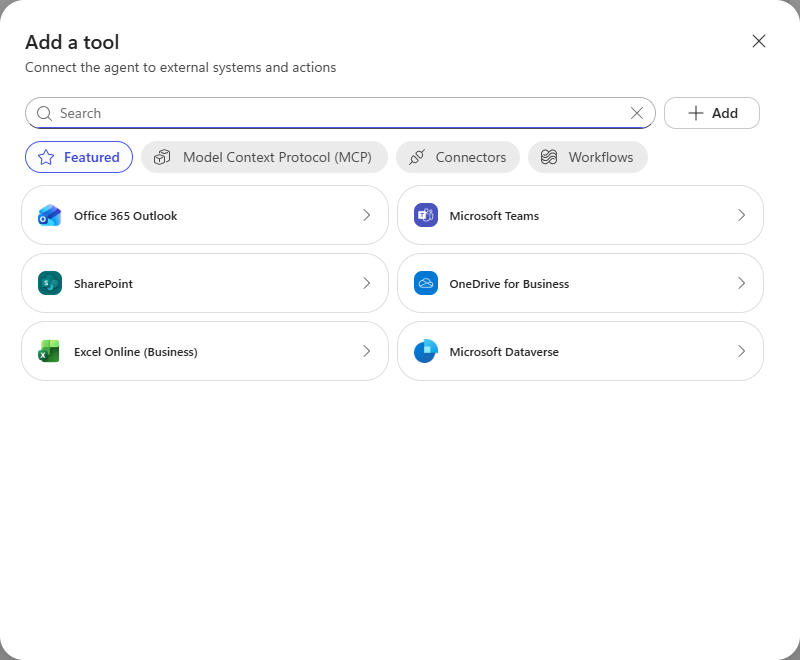
On the Build page, select + beside Tools. The catalog opens on Featured, which lists the most common Microsoft 365 connectors.
Switch to Model Context Protocol (MCP) to see the MCP servers available in the environment.
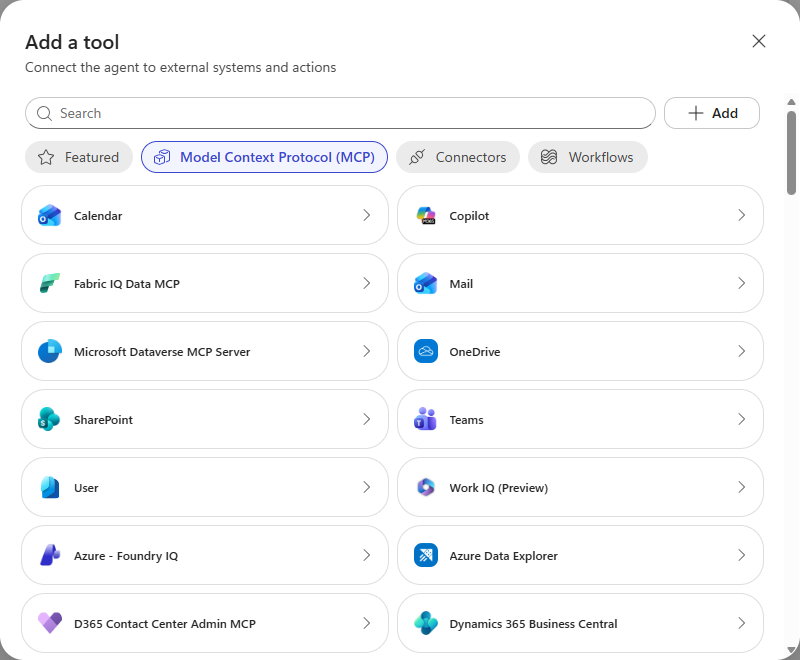
Select Mail.
2. Choose the connection
The server needs a connection to act on a mailbox. If you have already signed in during this workshop, the existing connection is offered with a green check; otherwise create a new one and complete the sign-in prompt.
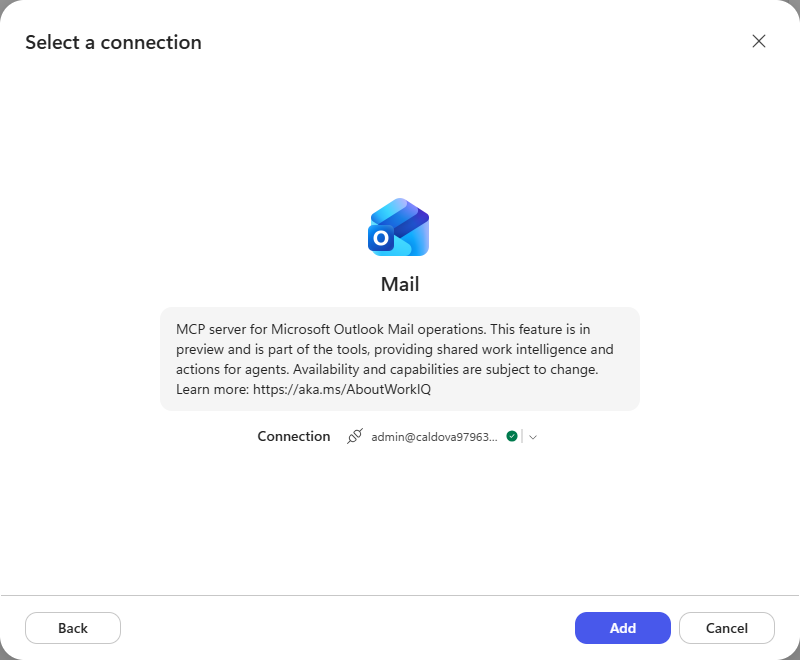
Select Add. Mail now appears under Tools in the configuration panel.
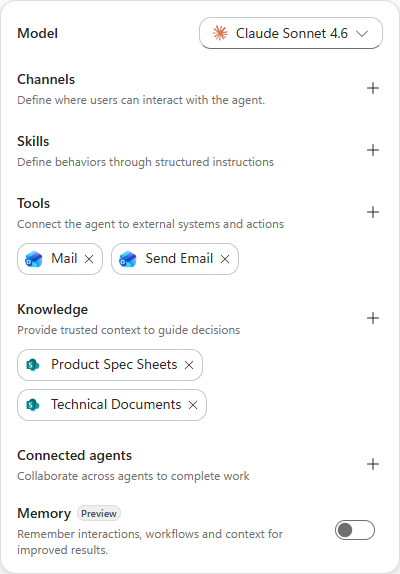
3. Review what the server exposes
Select Mail to open its settings. The Tools tab lists every operation the server offers, each with a description written by the server owner.
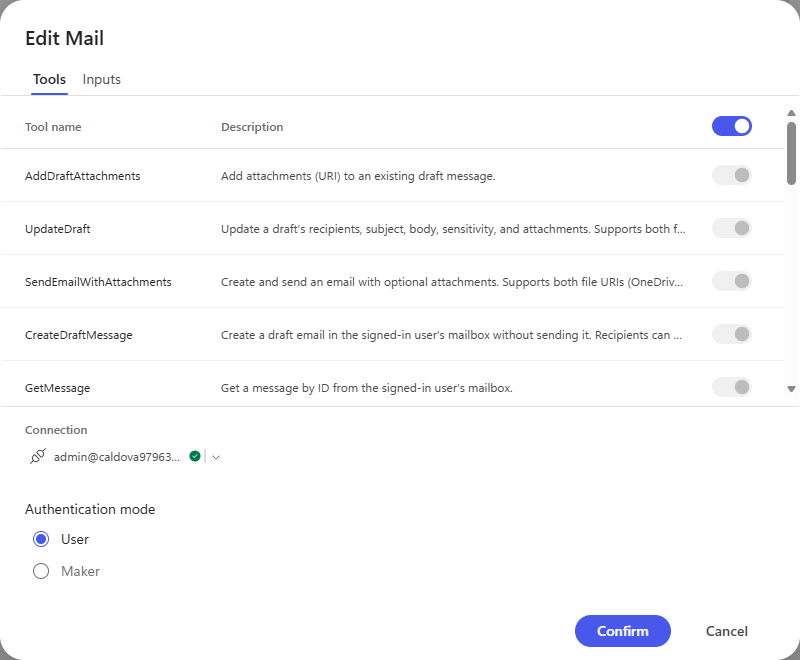
You do not write these descriptions. The agent reads the server’s own descriptions when it decides which tool to call, which is the main practical difference from a connector action, where the description is yours to write.
4. Enable only the tools you need
Turn off Enable all tools at the top of the list. The individual switches become selectable. Turn off everything except the one operation this lab uses — CreateDraftMessage.
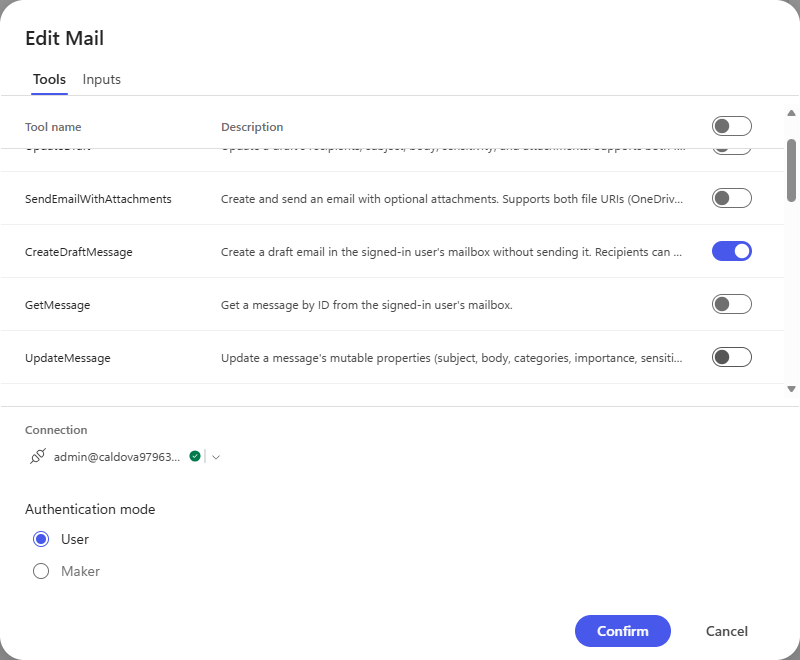
Scoping is a safety control, not just tidiness. The Mail server also exposes
SendEmailWithAttachments, DeleteMessage and ForwardMessage. Leaving them enabled means a
misread instruction can send or delete real mail. Enabling only CreateDraftMessage means the worst
case is an unwanted draft.
5. Set the authentication mode
Below the tool list, Authentication mode offers User or Maker.
| Mode | Who the tool runs as | Use it when |
|---|---|---|
| User (default) | The person talking to the agent | The agent should act with each user’s own permissions — read their mailbox, send as them |
| Maker | The account that built the agent | Access must be limited to one service account, for example a shared SAP or database login |
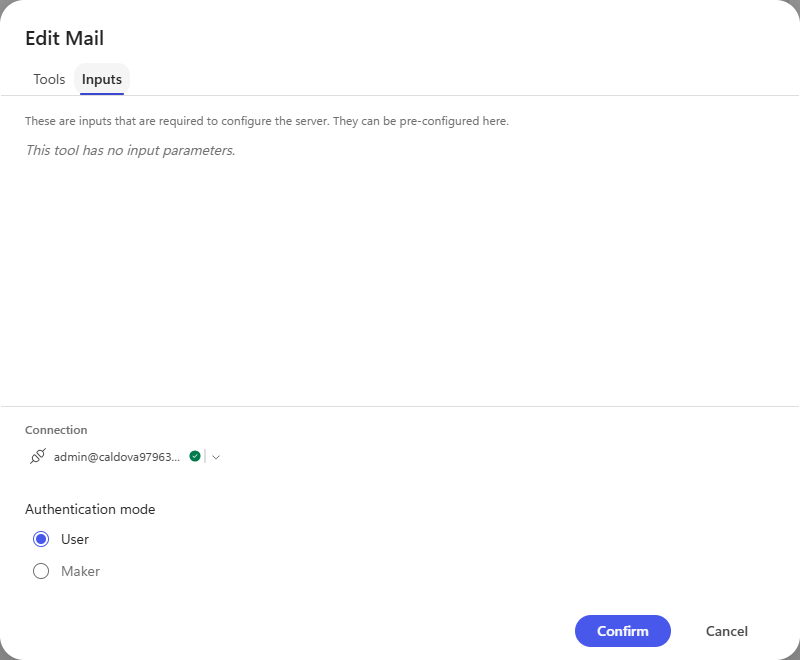
Select Confirm, then Save on the agent toolbar.
Reload and re-check. Tool scoping is one of the settings that can look saved and silently revert. Refresh the page, reopen Mail, and confirm only CreateDraftMessage is still on. The capture above was verified this way.
6. Test the tool
Open the Preview tab and ask for something that needs both the Knowledge source and the tool.
Draft an email to <your address> summarising the dishwasher spec sheet. Create it as a draft only - do not send it.
Before the tool runs, the agent stops and asks for permission, naming the exact operation it wants to perform.
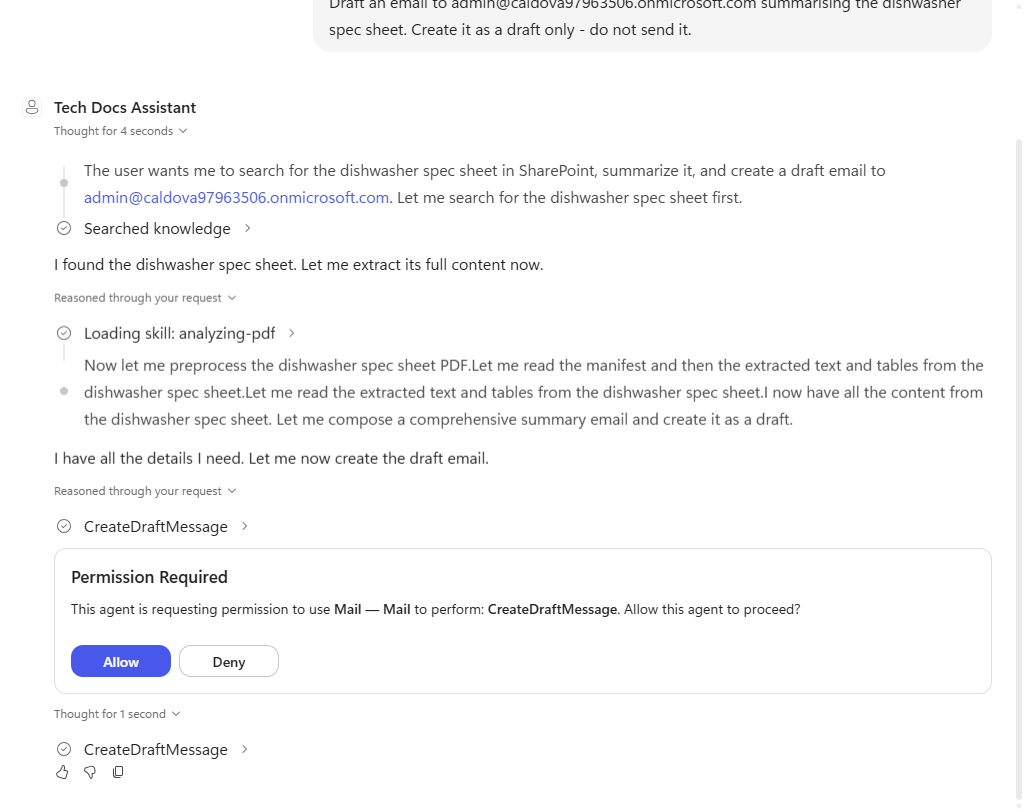
Select Allow. The agent reads the spec sheet from SharePoint, composes the summary, creates the draft in the mailbox, and reports what it wrote — with a citation back to the source PDF.
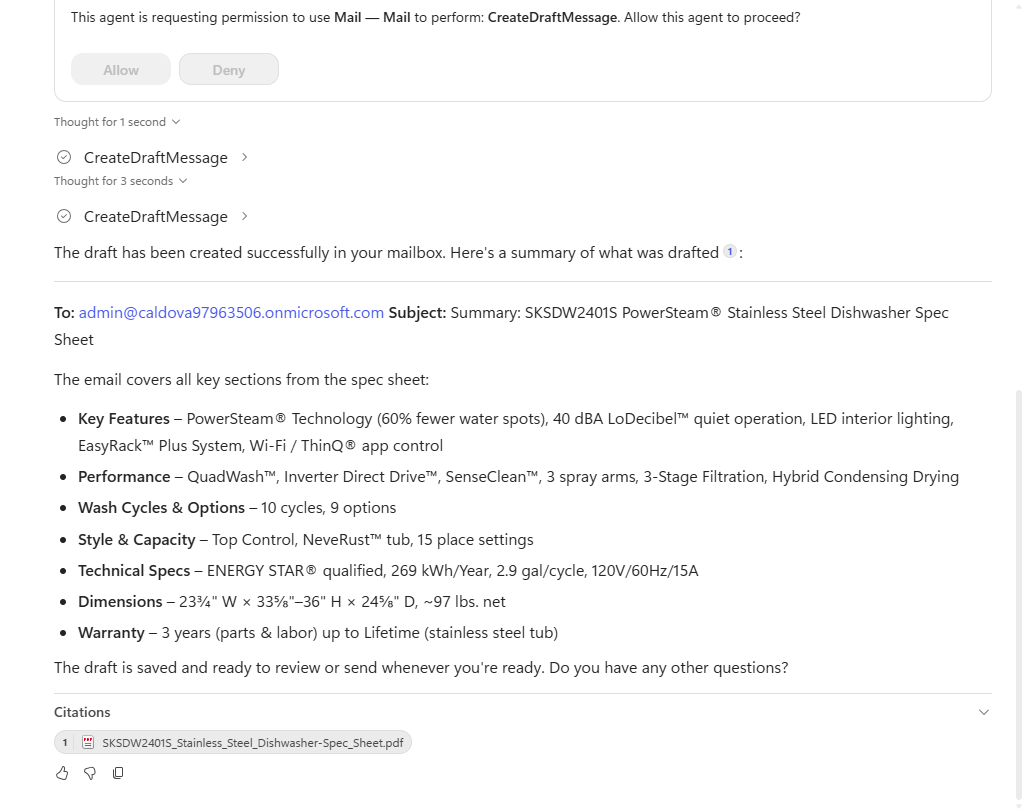
The permission prompt is per operation. It names the server and the tool
(Mail — Mail, CreateDraftMessage), so a user can tell the difference between drafting and
sending before approving.
With this, the agent can use additional actions through tools.
Next, add email and Teams post tools using standard connectors.
| ← Previous: Step 3. Add Knowledge | Next: Step 5. Add connector (send email) → |