Out of Office Vacation Handoff — Vacation Handoff Mission
Delegate your full pre-vacation handoff checklist to Cowork in one conversation, then set up an automated weekly check
Mission: Operation Clean Getaway Delegate everything you need to handle before vacation to Copilot Cowork in one conversation, so nothing falls through the cracks while you are away.
🔍 Problem
Vacation is supposed to be time off, but preparing for it is not. Most people rush to write an out-of-office (OOF) message five minutes before leaving, decline meetings from their phone at the airport, and leave coworkers guessing who owns what.
OOF preparation usually includes:
- Writing OOO automatic replies in Outlook settings
- Reviewing the calendar one meeting at a time to decline or delegate meetings
- Creating a handoff summary document from scratch
- Sending a “I’m going on vacation” Teams message to the team
- Doing all of this with a brain that is already in vacation mode
Copilot Cowork handles this full flow. Describe the outcome you want (“I’m taking a week off; please prepare everything”), and it creates a plan, works through each step, and asks for approval before sending or changing anything.
📋 Finished output
When you complete this mission, Copilot Cowork will:
- ✅ Set Outlook OOF automatic replies (with approval)
- ✅ Suggest calendar actions for upcoming meetings (decline, delegate, reschedule)
- ✅ Draft a Teams message summarizing who owns what
- ✅ Provide a step-by-step audit trail of every action performed
⚙️ Prerequisites
- Microsoft 365 Copilot license: required to access Copilot Cowork (details)
- Microsoft 365 license: for Outlook, Teams, and Microsoft Planner integration
- Anthropic models enabled: enabled by an admin in the Microsoft 365 admin center
- Copilot Cowork access: provided through the Microsoft 365 Frontier program
📝 Real data vs. seeded data
Copilot Cowork works best when it reads your real M365 environment: real email, tasks, and calendar. If you run this lab with real active work, the output will be specific and immediately useful.
If you are using a demo tenant or clean environment, the seeded data in Lab 1 provides realistic work items. The tasks and emails are designed to include overdue items, risky deadlines, and easy-to-forget details.
🎯 Scenario
You are a project manager at Zava, a midsize technology consulting company. You are taking a week off next Monday through Friday. It is Thursday afternoon, and you have about 30 minutes before you leave work. You have active projects, meetings on next week’s calendar, and teammates who need to know what will happen while you are away. You hand the full pre-departure checklist to Copilot Cowork and head out.
🧪 Lab 1.1 — Seed your M365 environment
Note: If you have real active work and data to use, skip this step and go directly to Lab 2.1.
This step sets up realistic data for Copilot Cowork to discover across four M365 surfaces: Planner, Outlook, Teams, and calendar. The more you seed, the richer the output becomes.
✅ 1.2 — Add tasks to Planner (or To Do)
Add the following tasks to the Zava PM Tasks plan (create it if it does not exist). If you do not have Planner, add them to Microsoft To Do. Some are designed to land during your vacation week, some are already overdue, and some are due shortly after you return.
Note: In the due dates, “OOO Monday” means the first Monday you are away, and “Return +1” means the Tuesday after you return. Set the dates based on next week.
| Task | Due date | Priority | Notes |
|---|---|---|---|
| Send revised project timeline to Morgan Connors — Clearwater | OOO Monday | Urgent | Should have gone out last Friday |
| Review and approve Phase 3 kickoff deck — Northgate | OOO Tuesday | High | Priya needs sign-off before Thursday presentation |
| Submit Q4 resource forecast to Finance | OOO Wednesday | High | Finance close — cannot slip |
| Contract renewal follow-up — Summit Financial | OOO Thursday | Medium | Legal is waiting for approval email |
| Draft UAT feedback summary — Summit Financial | OOO Friday | High | Jordan Lee owns UAT; summary template needed |
| Complete annual compliance training | OOO Wednesday | Medium | Already 3 days overdue. Auto-flagged at 7 days |
| Draft May all-hands agenda | Return +1 | Medium | Priya needs it by first day back |
| Update project risk log — Clearwater | Return +2 | Low | Add budget-overrun flag before steering committee |
Tip: You do not need to enter all eight. Four or five are enough to produce meaningful risk items.
📧 1.3 — Create draft emails in Outlook
Create the following three emails in the Outlook Drafts folder. Do not send them; leave them as drafts. Copilot Cowork will find them and mark them as “items to send before leaving.”
- Draft 1 — To: yourself / Subject:
Revised Project Timeline — Clearwater Health Intranet/ Body: revised schedule reflecting a two-week extension due to content freeze (content approval 5/9, development complete 5/23, UAT 5/26–30, launch 6/6). - Draft 2 — To: yourself / Subject:
Contract Renewal — Approval to Proceed/ Body: confirmation to proceed with the discussed terms, request for both legal teams to participate, target signature date 5/15. - Draft 3 — To: yourself / Subject:
Q2 Resource Forecast — Draft for Review/ Body: request for review before submission to Finance; two inputs needed (add 0.5 FTE through June due to Clearwater contract extension, sign-off needed for one new Q3 hire); request review by tomorrow EOD; submit Wednesday.
💬 1.4 — Seed a Teams thread
Post the following message under your name in a Teams channel you use (or create a Zava PM Team channel). It simulates an unresolved thread that needs a response before you leave.
Quick question — did we get final sign-off on the Phase 3 budget? Dana was supposed to confirm last week, but I don’t see it in email. We need to know before Thursday’s scope review.
Leave it unanswered. Copilot Cowork will find it and flag it as an open item.
📅 1.5 — Add meetings to your calendar
Add the following five meetings to next Monday through Friday in your Outlook calendar. Replace attendee names with real people in your organization, or use your own email if you are in a demo tenant.
| Day | Time | Meeting | Attendees |
|---|---|---|---|
| Monday | 10:00–10:30 | Clearwater Health — Weekly check-in | You + customer lead |
| Tuesday | 9:00–9:30 | Phase 3 scope review | You + Priya + Marcus |
| Wednesday | 15:00–15:30 | Summit Financial — UAT review | You + Jordan + customer lead |
| Thursday | 14:00–15:00 | 1:1 with Priya Nair | You + Priya |
| Friday | 11:00–12:00 | Zava PM team retro | You + full PM team |
Caution: Before adding events, replace all attendee names and email addresses with real people in your organization. Copilot Cowork will draft decline and delegation messages to them, so fake addresses will bounce.
🗓️ 1.6 — Add a PTO block to your calendar
This is the event that Copilot Cowork’s scheduled automation will eventually detect.
- Title:
[your name] PTO — Out of Office - Date: next Monday through Friday (all day, shown as Out of Office)
- Notes:
Returning [next Monday]. No email access.
🧪 Lab 2.1 — Copilot Cowork discovery
Here, instead of telling Cowork what the projects are, ask it to look across your M365 data and discover them on its own. This is the step where it finds what must be wrapped up before you leave.
- Go to m365.cloud.microsoft or open the desktop app.
-
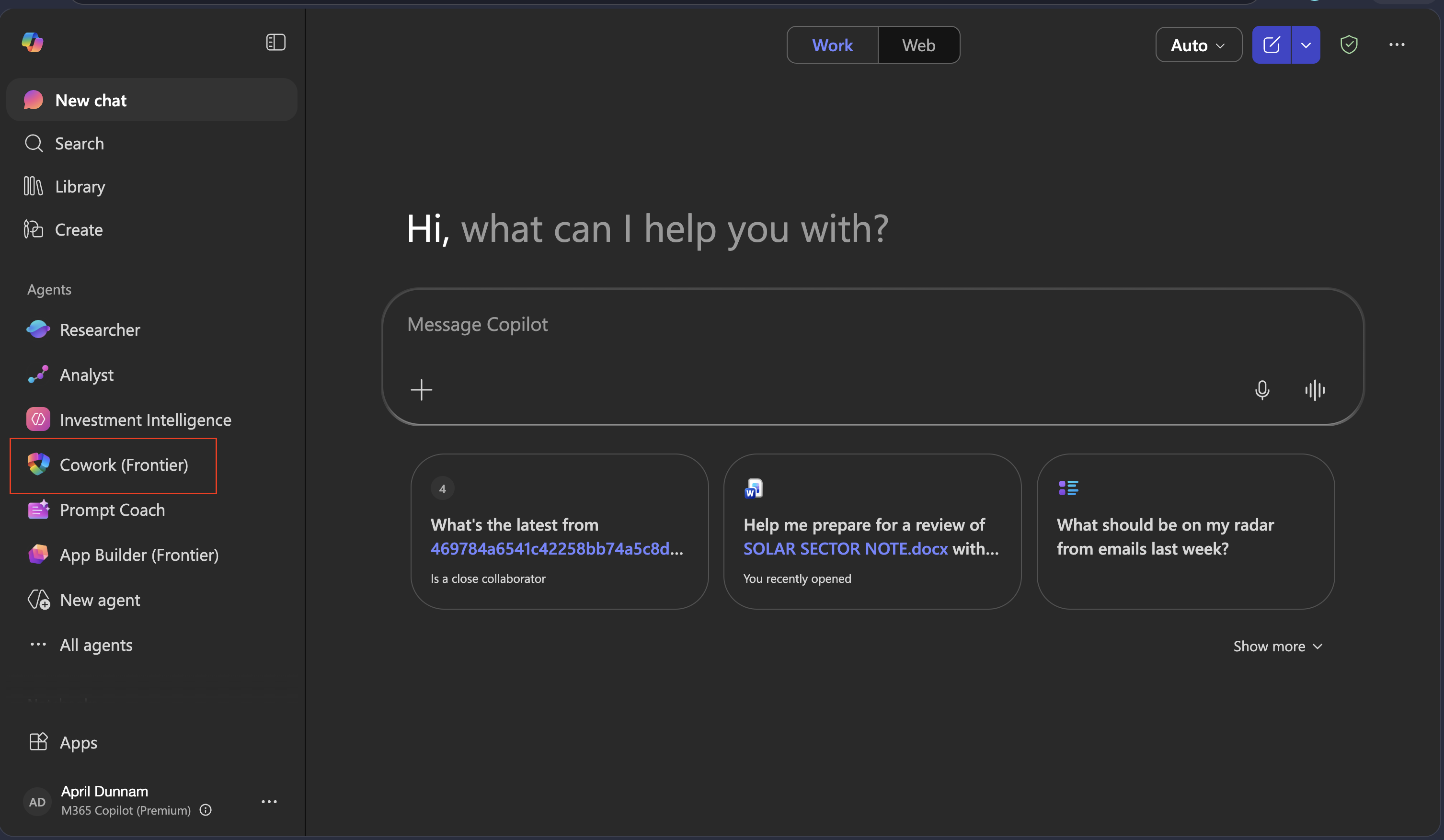
In the left sidebar, under Agents, select Cowork.
-
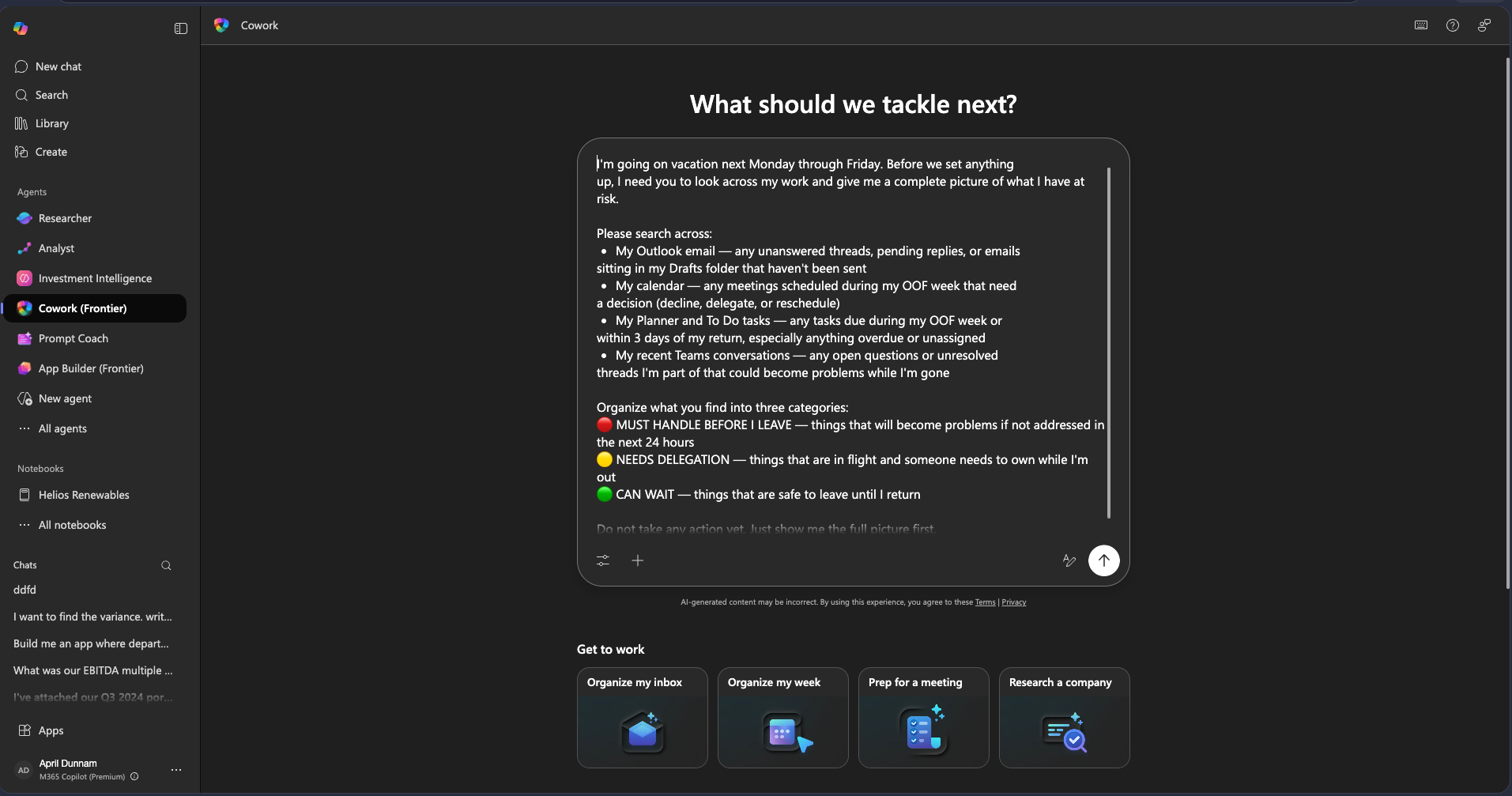
Do not attach files. You want Copilot Cowork to read live M365 data: email, calendar, tasks, and Teams. Paste and send the following prompt.
I am going on vacation next Monday through Friday. Before setting anything up, look across all my work and show me the full picture of what is at risk. Please search: - My Outlook email — unanswered threads, pending replies, and unsent email still in the Drafts folder - My calendar — meetings during my absence week that need a decision (decline, delegate, or reschedule) - My Planner and To Do tasks — tasks due during my absence week or within three days after I return, especially overdue or unassigned items - Recent Teams conversations — unresolved questions or threads I participated in that could become problems while I am away Classify the items you find into three categories: 🔴 Must handle before I leave — will cause problems if not handled within 24 hours 🟡 Needs delegation — in progress and someone must own it while I am away 🟢 Can wait — safe to handle after I return Do not take any action yet. First, only show me the full picture.Note: The phrase “Do not take any action yet” is important. It keeps this as a pure discovery step where you can see every discovered item before execution.
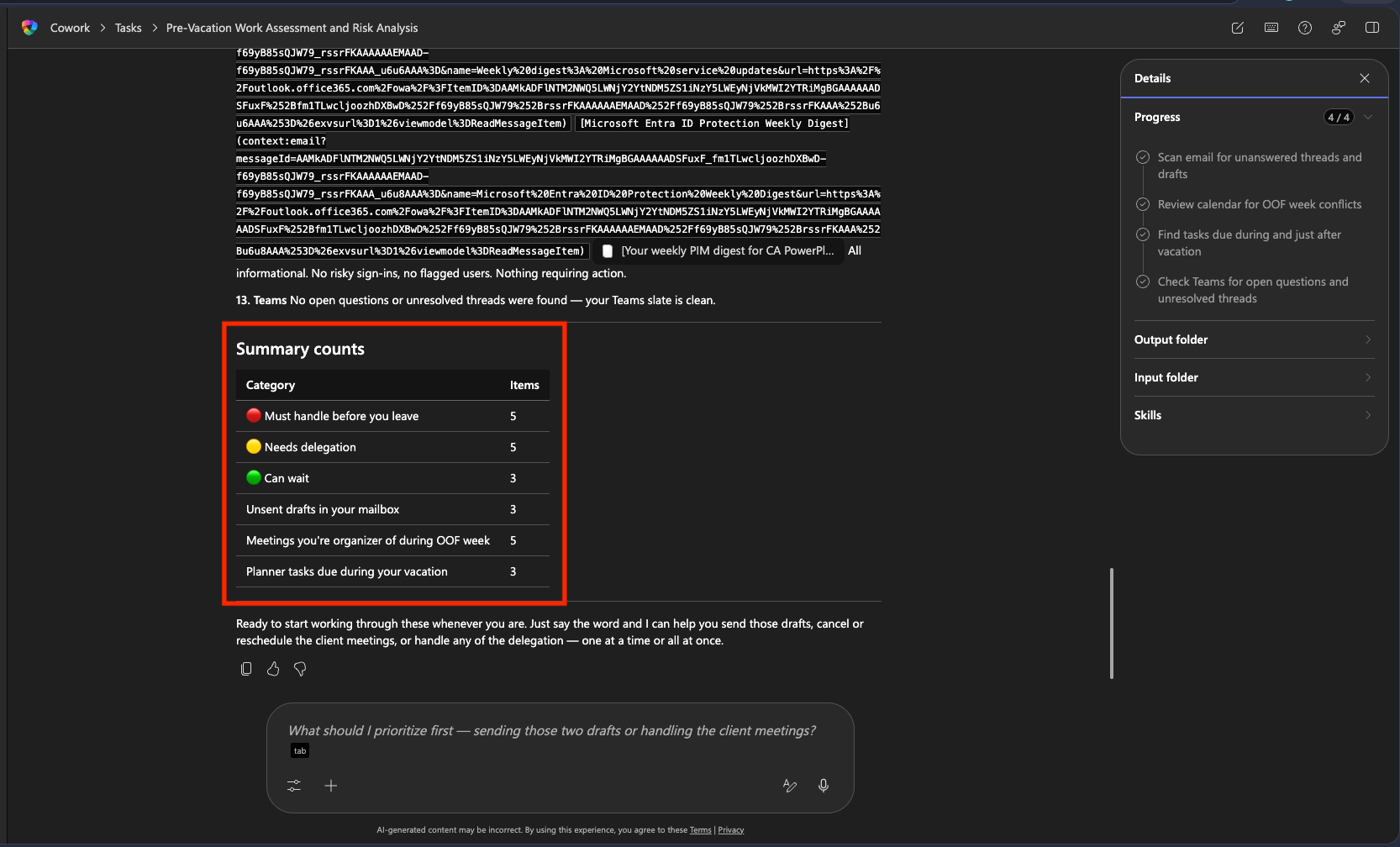
Copilot Cowork returns a risk report structured into three categories. Review whether all relevant items (real work or the seeded data you added) are reflected.
🧪 Lab 3.1 — Execution
Now that you have the full picture, hand the action items to Copilot Cowork.
-
Send the following prompt.
This looks right. Please handle everything. Show me everything before I leave, and get my approval before sending or posting anything. -
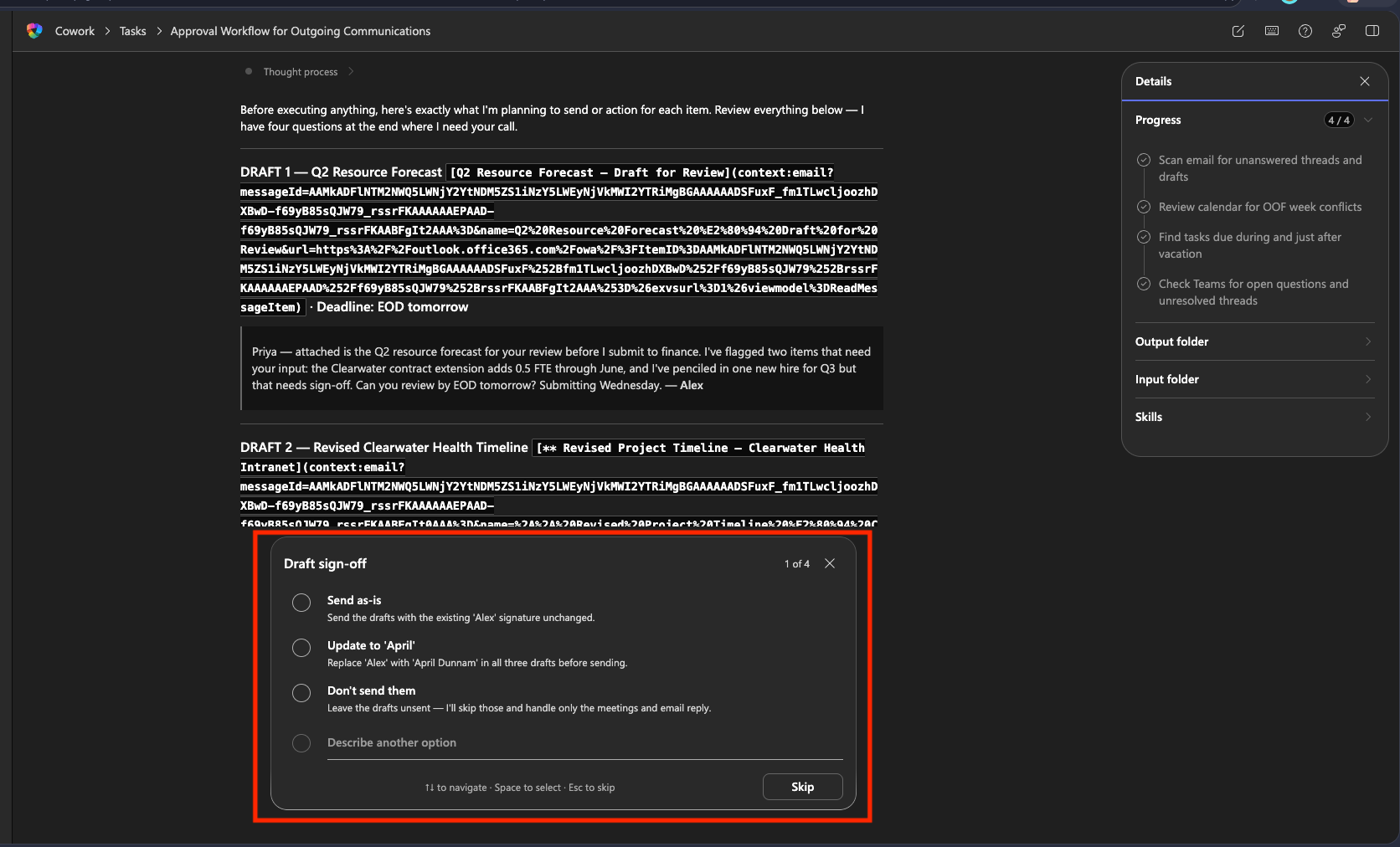
Copilot Cowork shows a structured plan and then executes step by step, waiting for approval before each action. When it finds a draft email and asks for permission to send it, select Send as is.
-
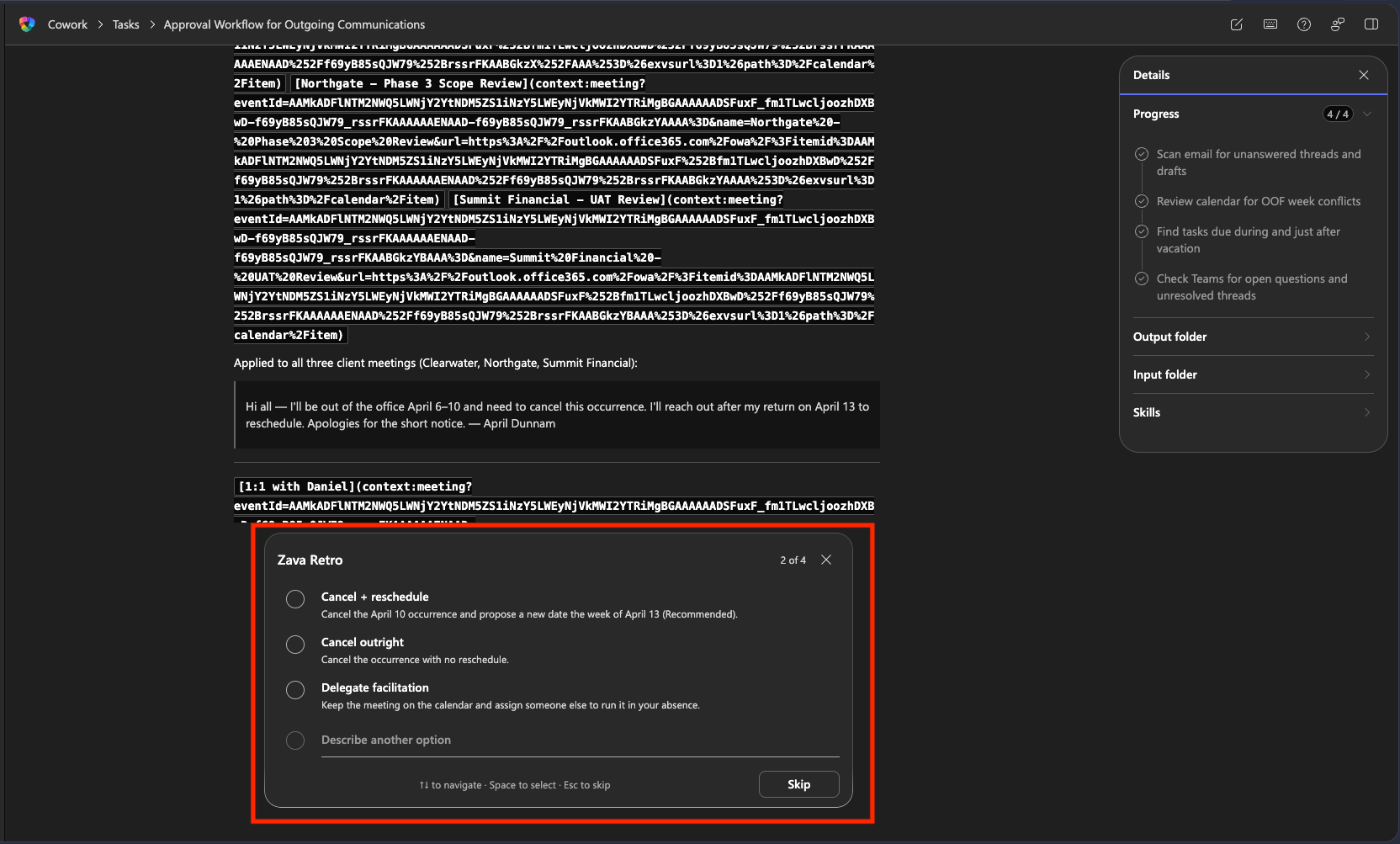
For a conflicting meeting, Cowork asks whether to reschedule, cancel, or delegate. Select cancel outright and click Next.
-
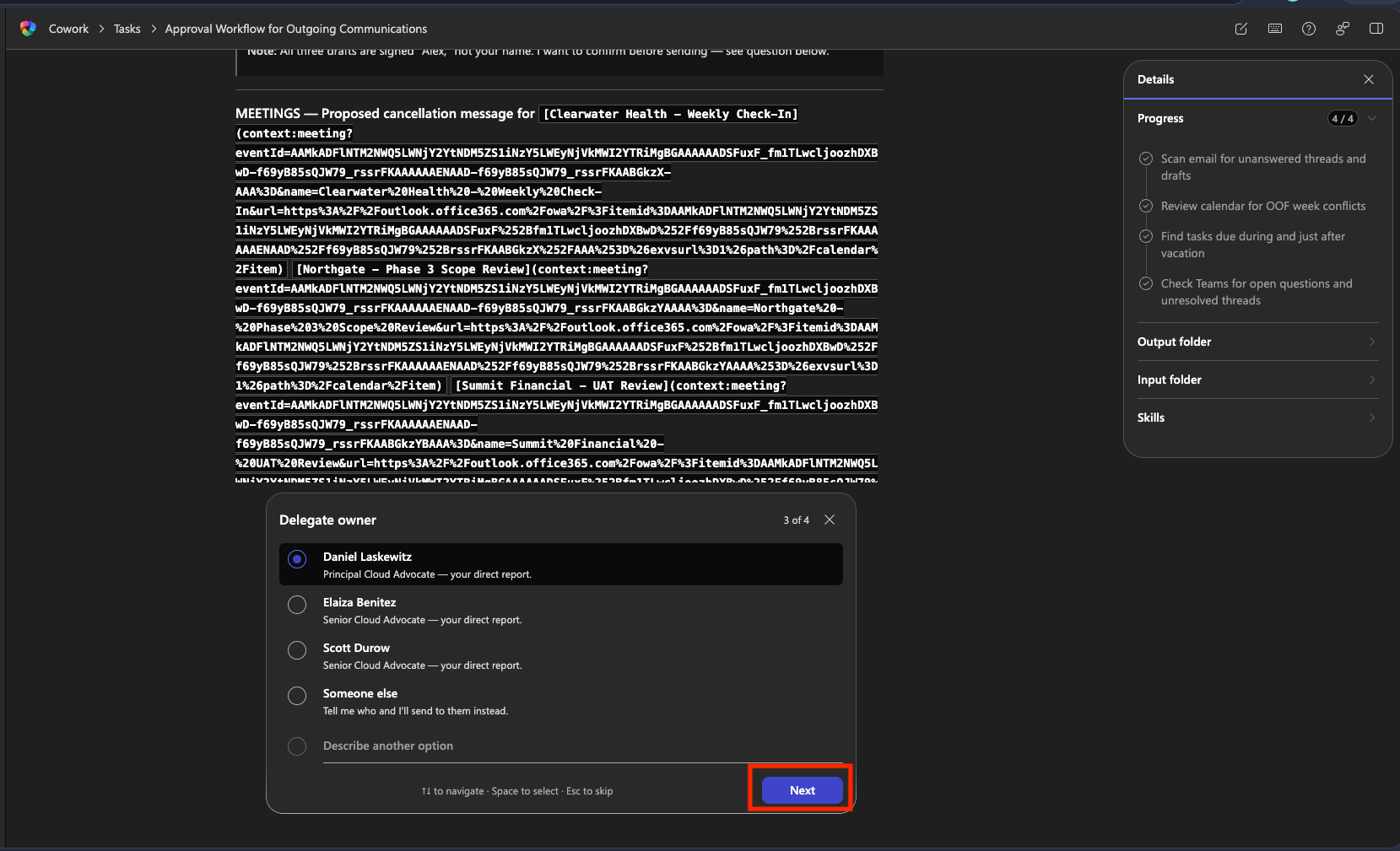
For tasks due while you are away, Cowork asks you to choose a delegate from the team list. Select one person and click Next.
-
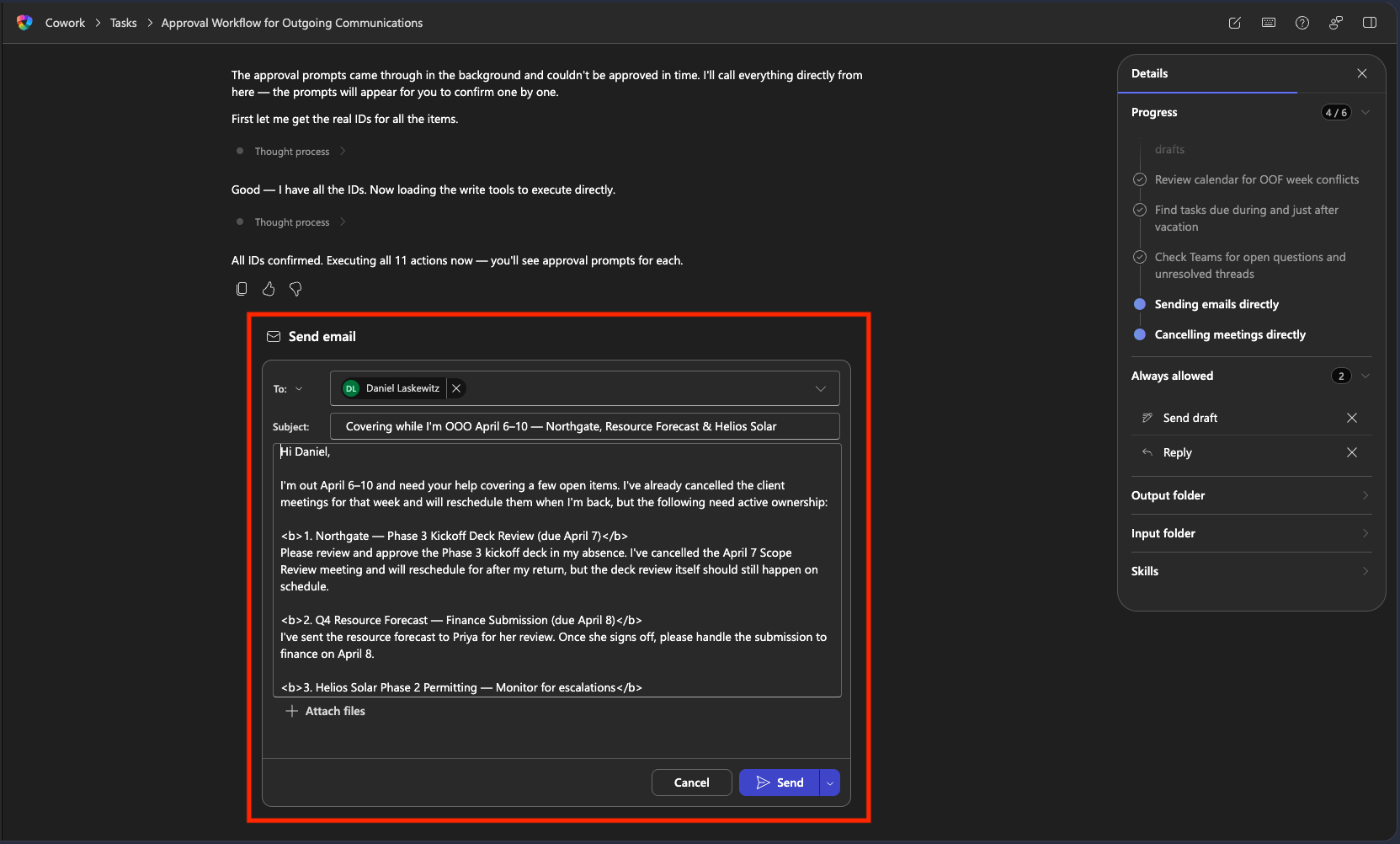
With the selected person as delegate, Cowork drafts an email listing the tasks and deadlines. Review it and click Send.
-
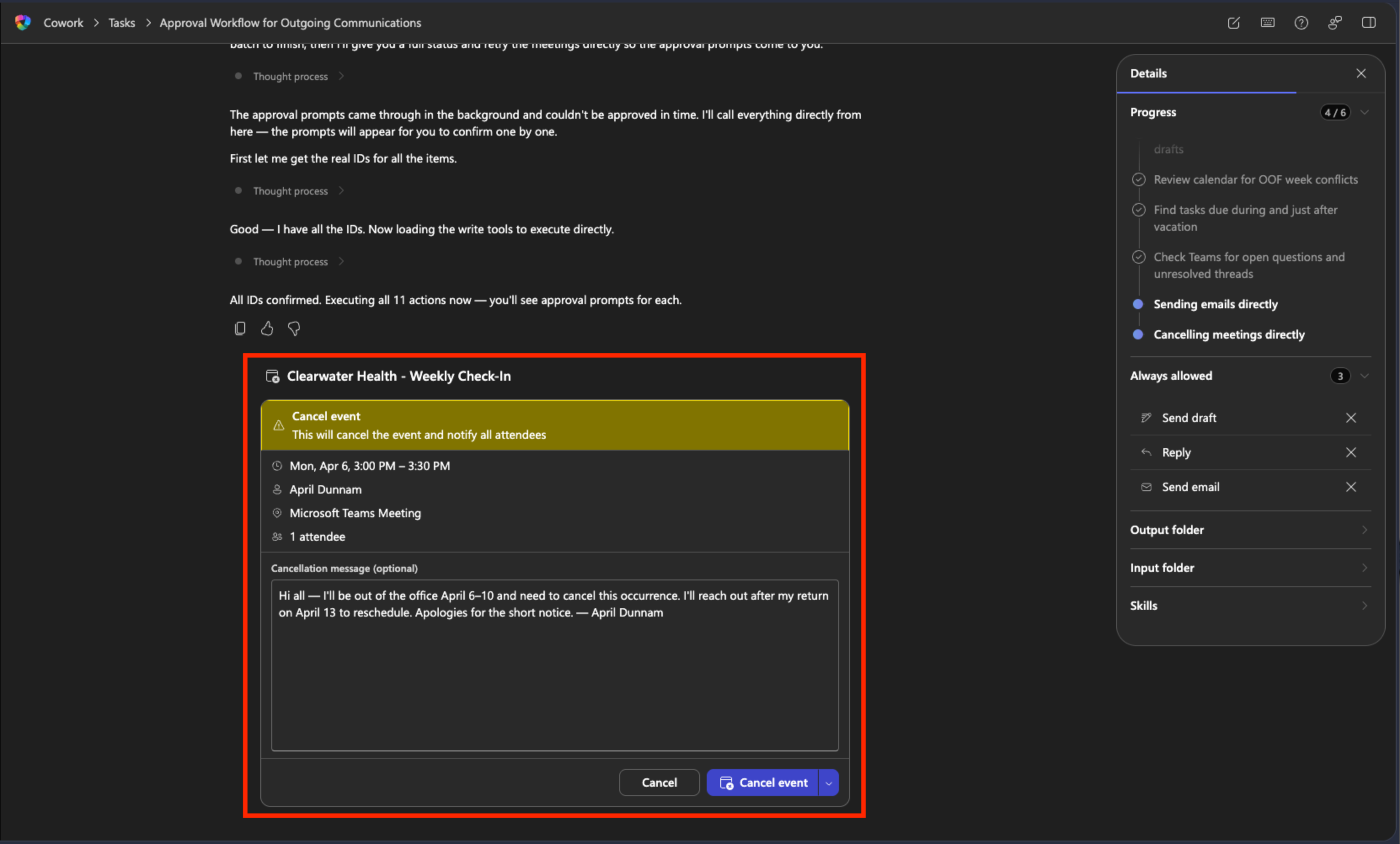
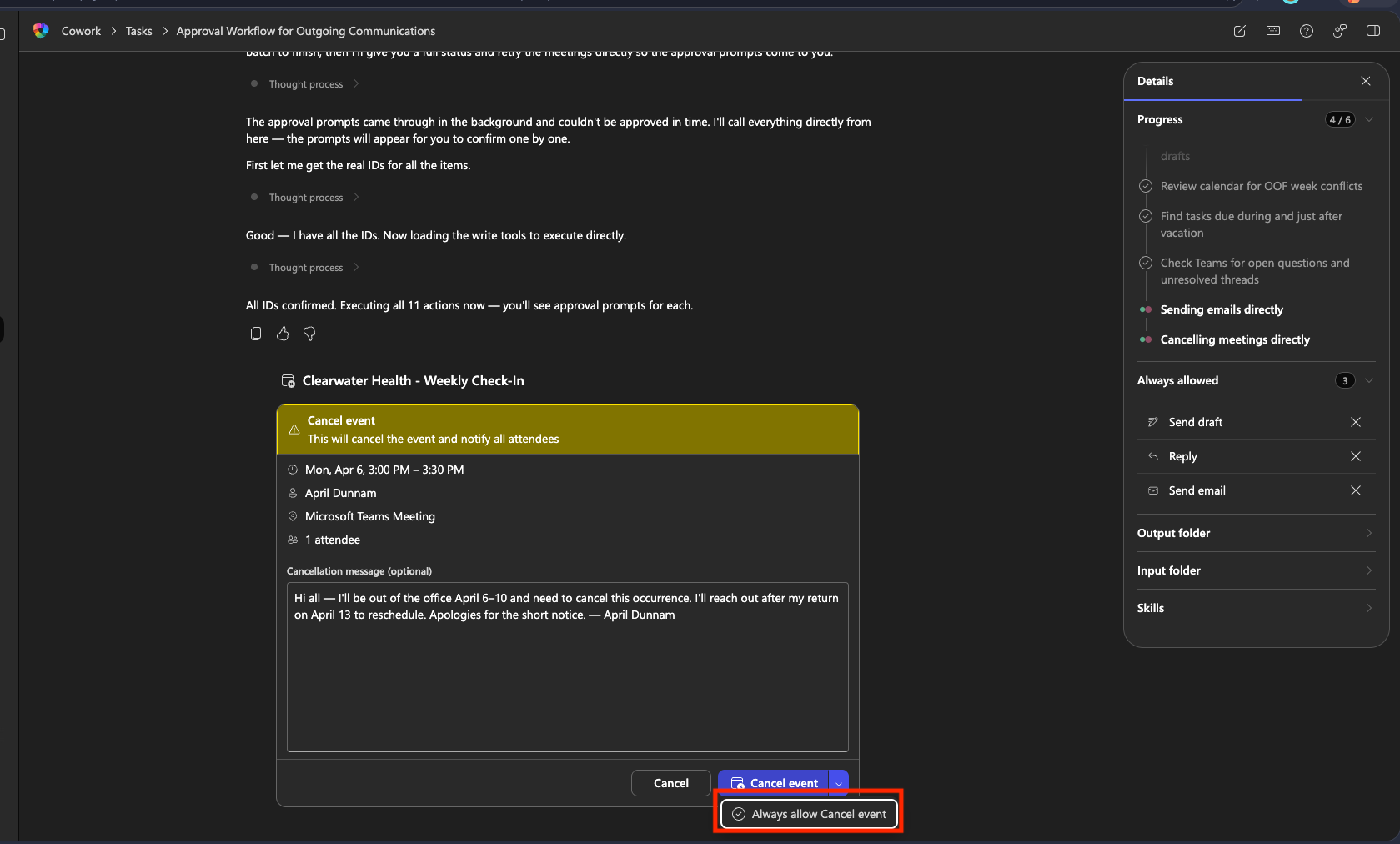
Next, it cancels conflicting events one by one. Review the draft message and cancellation reason.
-
The dropdown next to Cancel includes the option “always allow cancel event.” This grants permission to cancel subsequent events discovered in this flow without asking every time.
-
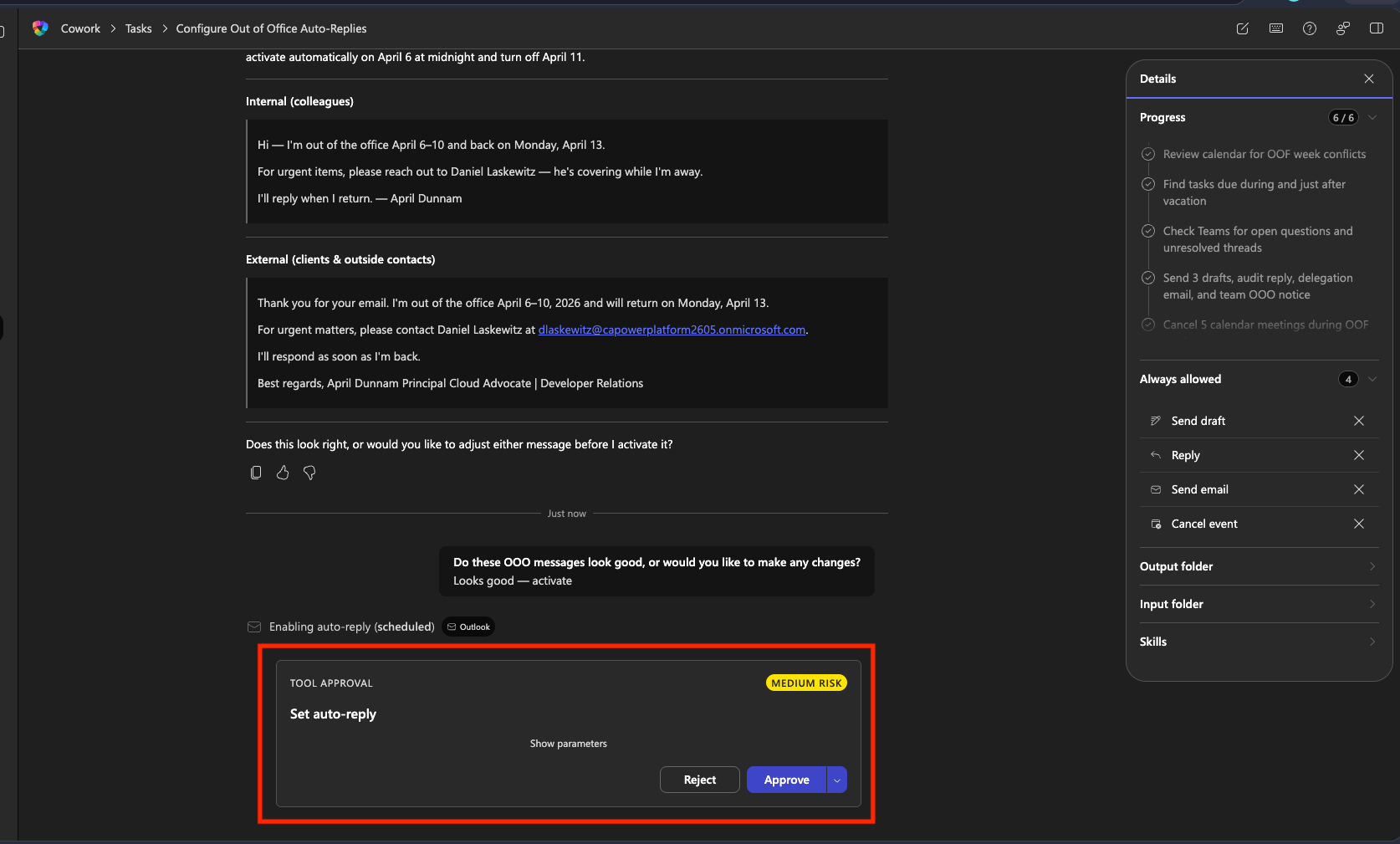
Copilot Cowork writes separate external and internal out-of-office messages and presents them for review. Check the risk level and set it to Approve.
-
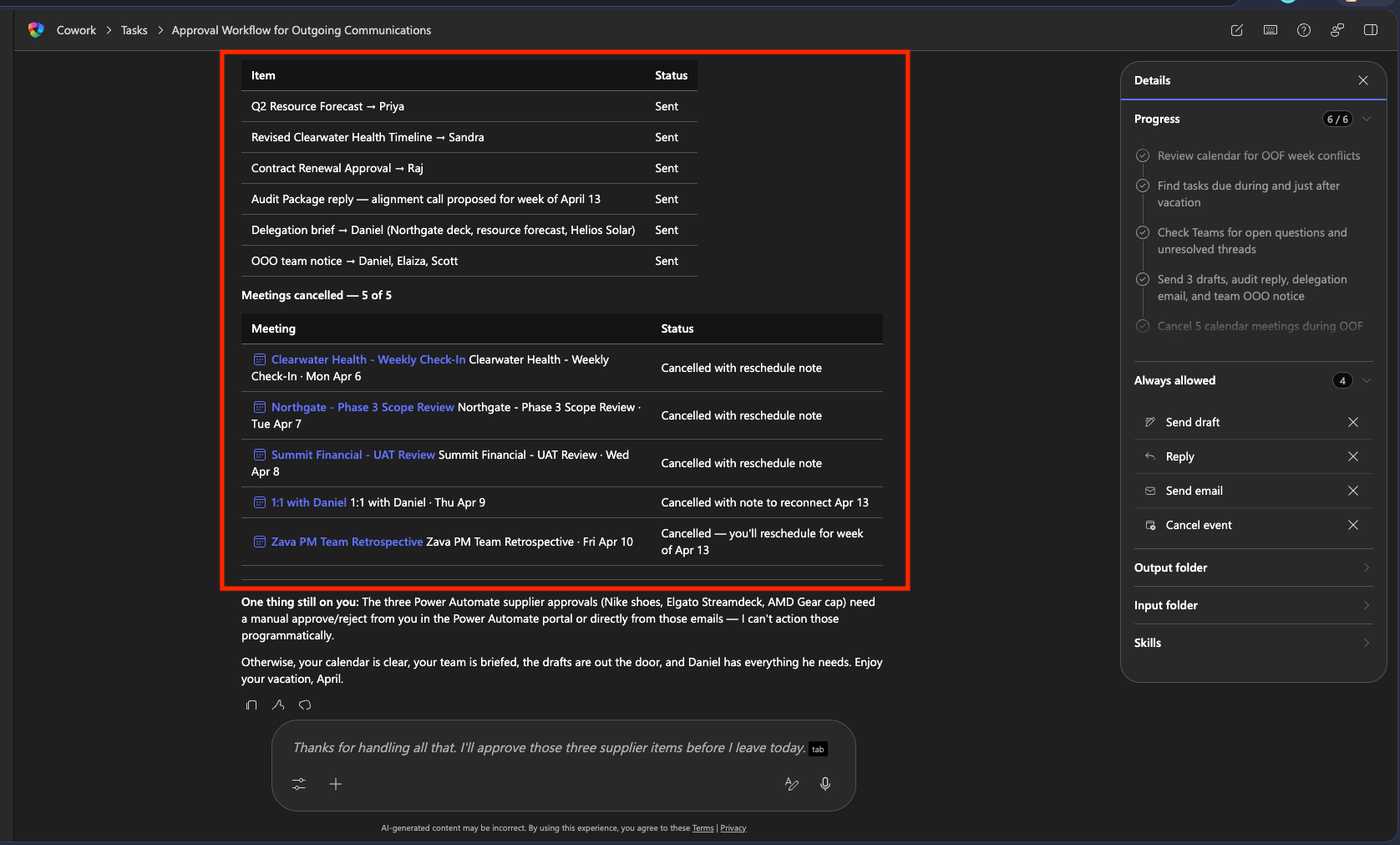
When it is complete, it provides a summary of every action taken.
🧪 Bonus lab — Set up an automatic two-day check
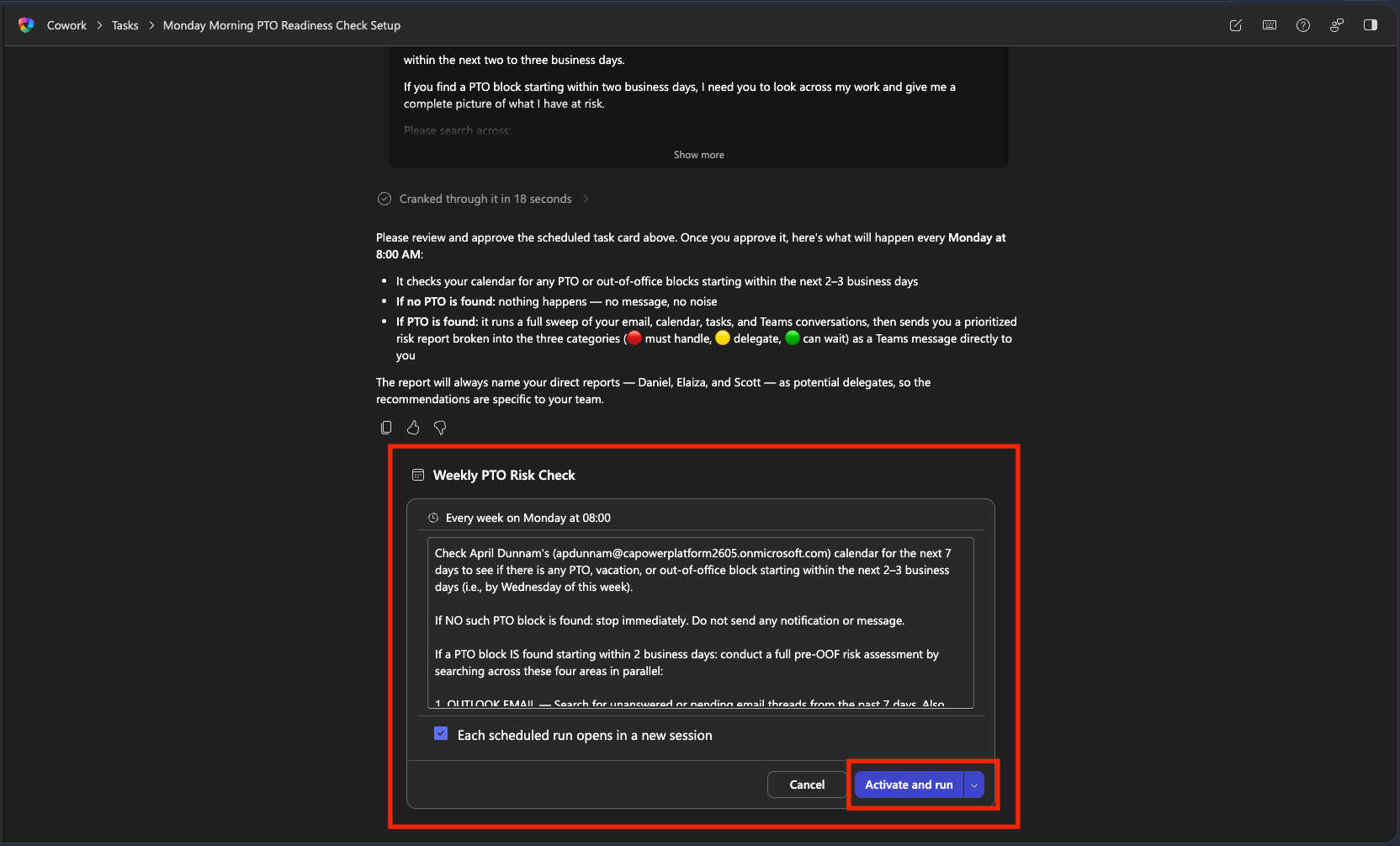
Now set it up to run on a schedule. Copilot Cowork will check your calendar every Monday morning. If it finds a PTO block starting within two business days, it runs the discovery pass and brings you a report.
-
In a new Cowork conversation, send the following message.
I want to set up a recurring schedule check. Every Monday morning at 8:00, look at next week's calendar
and check whether there is any PTO, vacation, or out-of-office block starting within 2–3 business days.

If you find a PTO block starting within two business days, look across all my work and
show me the full picture of what is at risk.

Please search:
- My Outlook email — unanswered threads, pending replies, and unsent email still in the Drafts folder
- My calendar — meetings during my absence week that need a decision
- My Planner and To Do tasks — tasks due during my absence week or within three days after I return, especially overdue or unassigned items
- Recent Teams conversations — unresolved questions or threads

Classify the items you find into three categories:
🔴 Must handle before I leave  🟡 Needs delegation  🟢 Can wait

If there is no upcoming PTO: do nothing and do not notify me.

Set this up as a recurring scheduled prompt.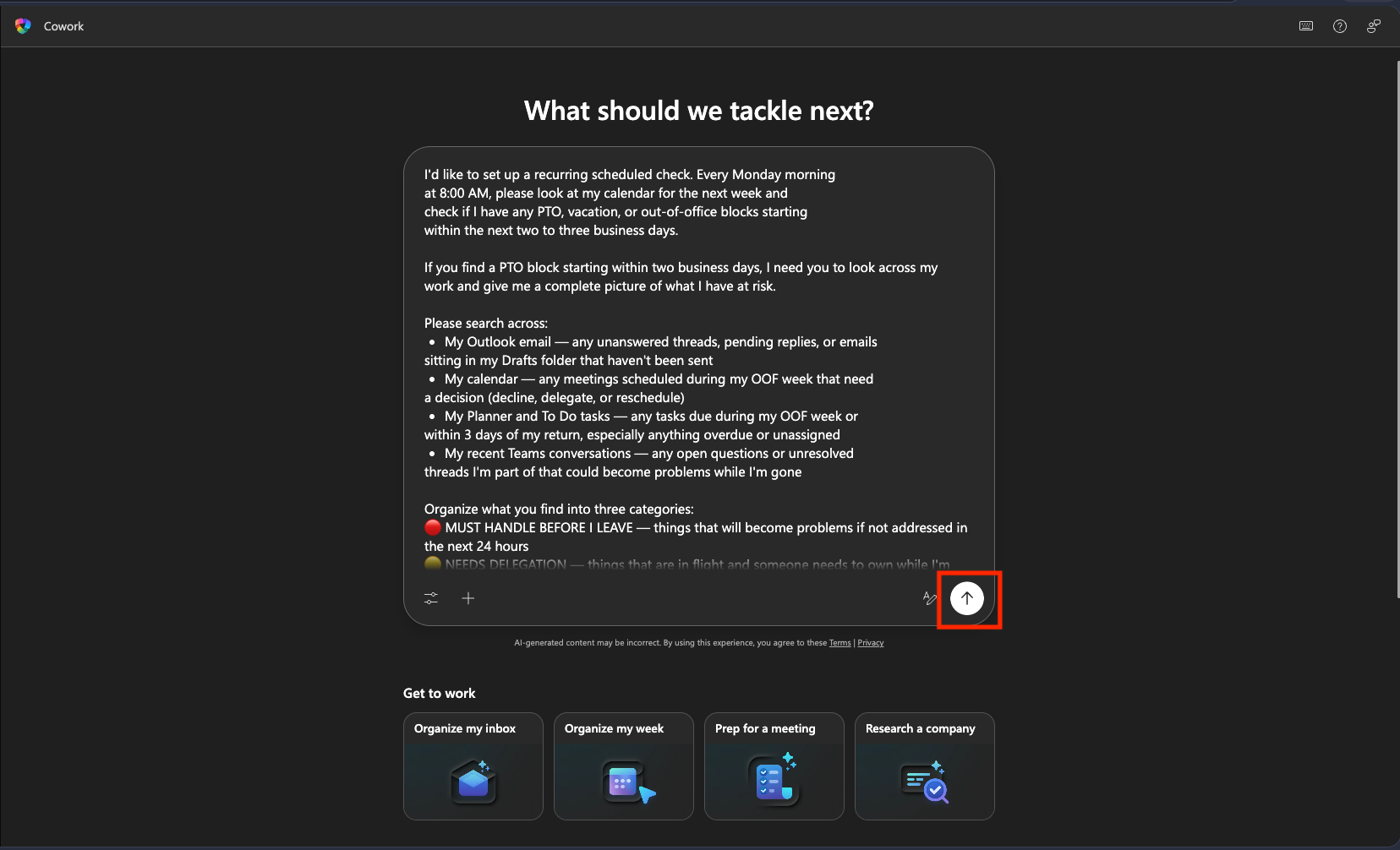
-
Copilot Cowork presents the scheduled automation review panel. Confirm it has everything you need and click Activate and run. You can run it immediately to verify the output.
- Watch it collect risk-check items. The Details panel shows a “Scheduled” header and Active On indicator, telling you this is a recurring automation.
-
Because the goal is automatic execution, if Cowork asks whether to post an evaluation to Teams, select Always allow post message so it does not ask every time.
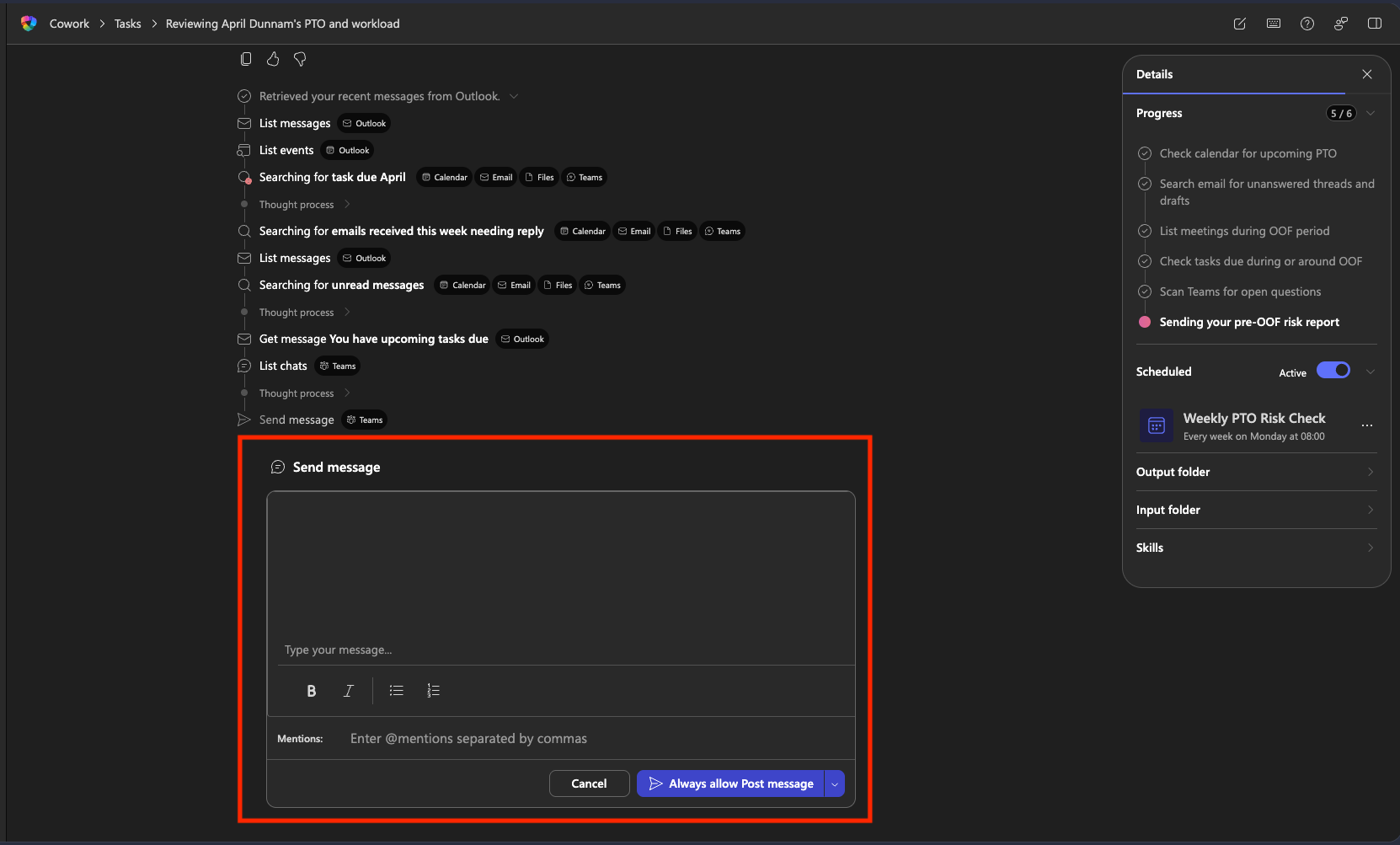
- Review the result. The scheduled task now runs automatically every Monday morning.
🏆 Mission complete
Operation Clean Getaway complete!
What you created:
- ✅ Pre-execution discovery: scans the live M365 environment and identifies risk items without manual cleanup
- ✅ Approval at every step: nothing is sent, posted, or changed without user sign-off
- ✅ Automatic Monday check: checks the calendar every Monday morning and, if upcoming PTO exists, runs a discovery report on its own
- ✅ Reusable pattern: discovery-first prompts and scheduled checks can be used across recurring personal workflows, not only OOO preparation
🏅 Get your badge
After completing the mission, you can request your badge: badge request form
Translated article — This article is based on Out of Office Vacation Handoff from Microsoft Agent Academy. Images link to assets from the original site. Refer to the original for the latest content and lab assets. Original source: https://microsoft.github.io/agent-academy/cowork-collective/out-of-office-prep/