Publish and deploy
Fundamentals #1: Blog Post Agent - Publish and deploy
Step 5: Publish and deploy
 # Publish and deploy the agent
If you completed steps 1 through 4 and the agent works correctly in the test panel, now deploy this agent so it can be used in Teams.
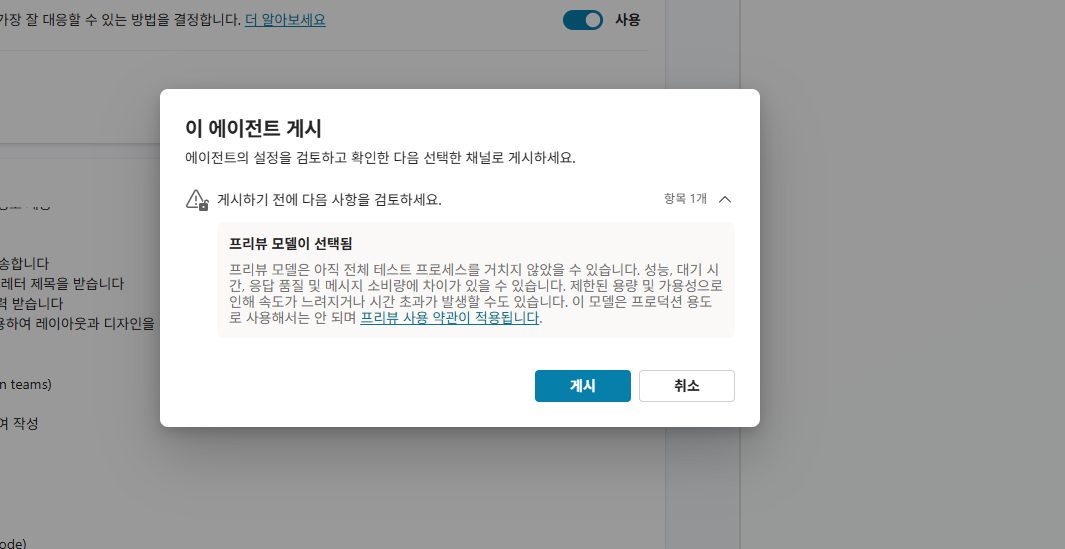
Publish the agent
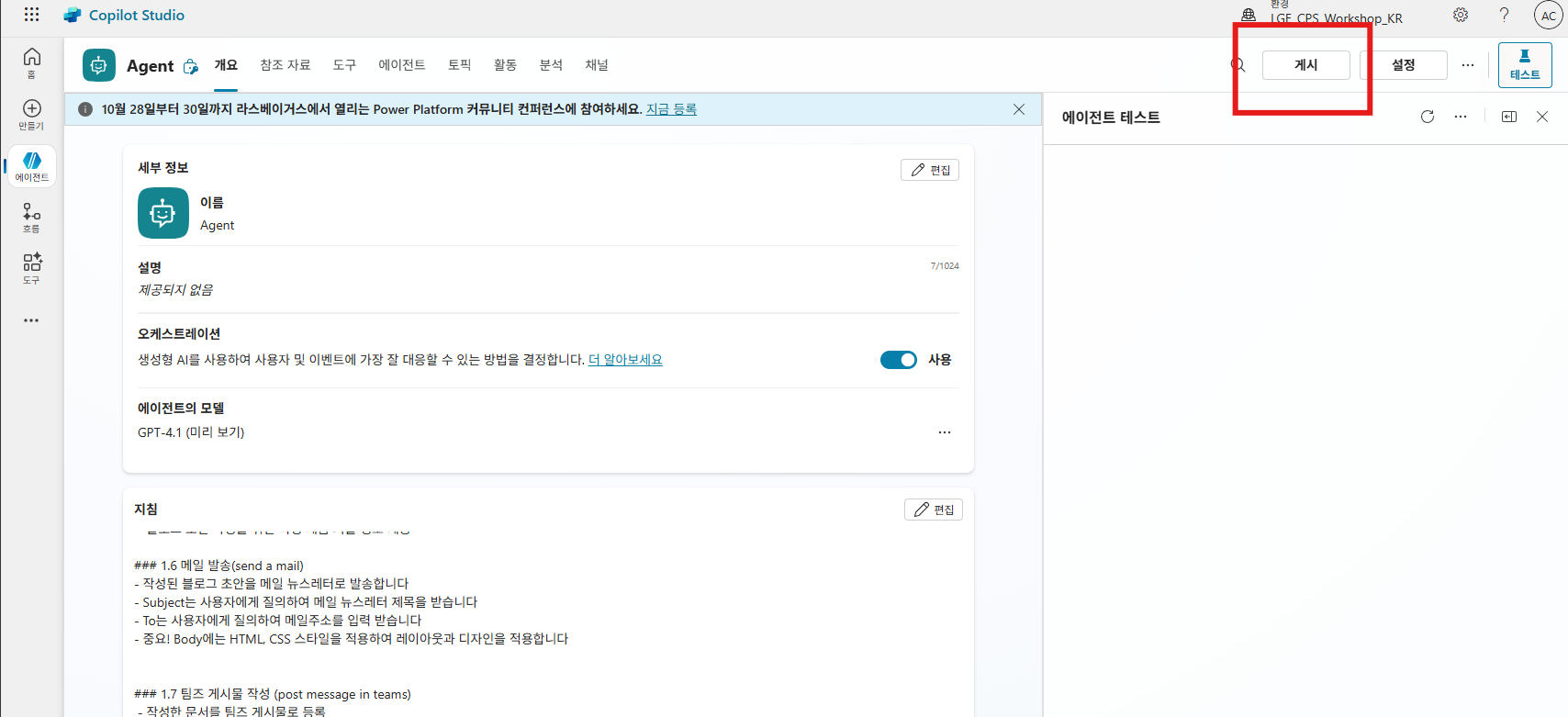
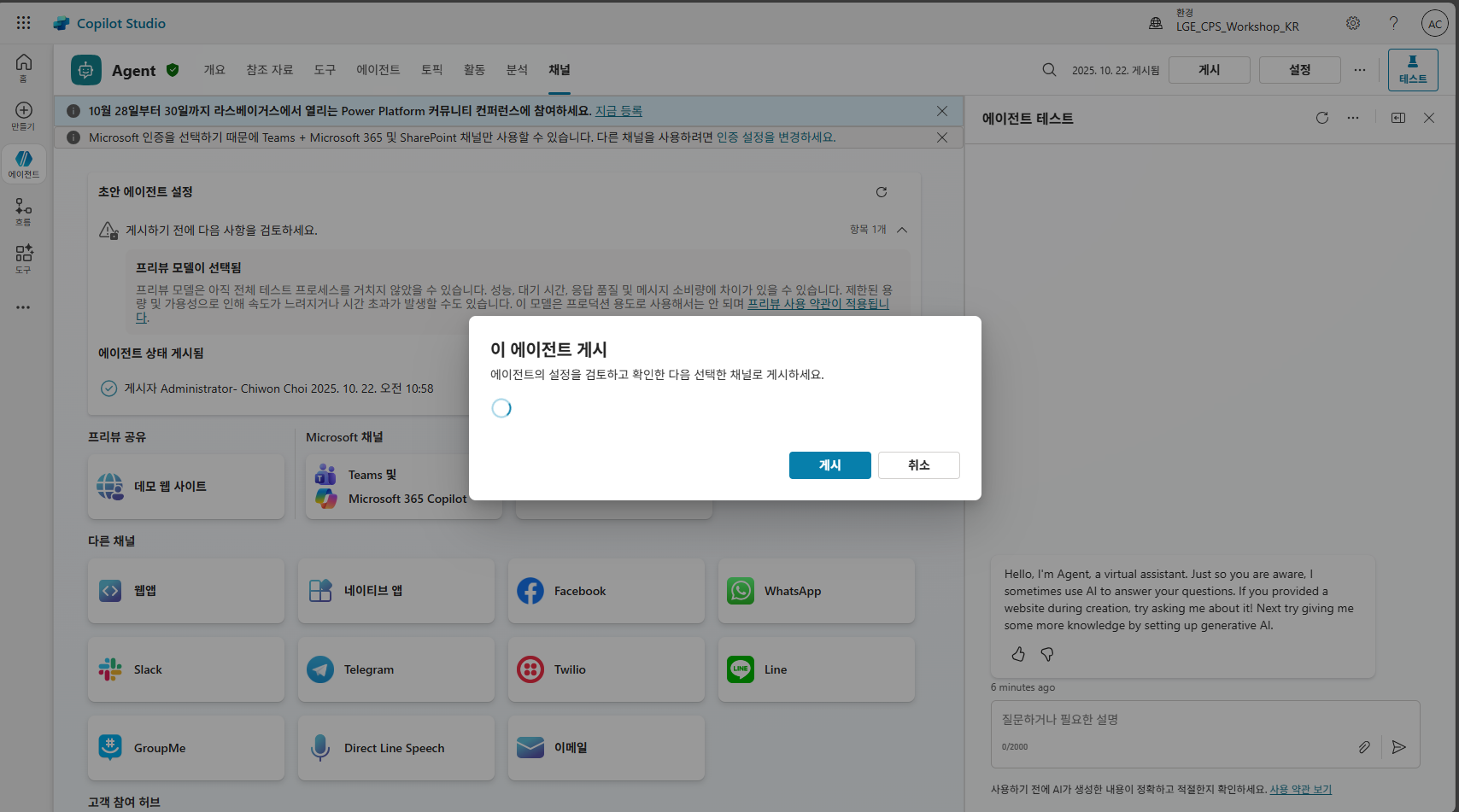
For the configured agent, select the [Publish] button in the upper-right corner to publish it.
Add an agent channel
After publishing is complete, choose the channel where users will enter prompts for this agent.
Select the Channels tab in the upper-right corner to move there.
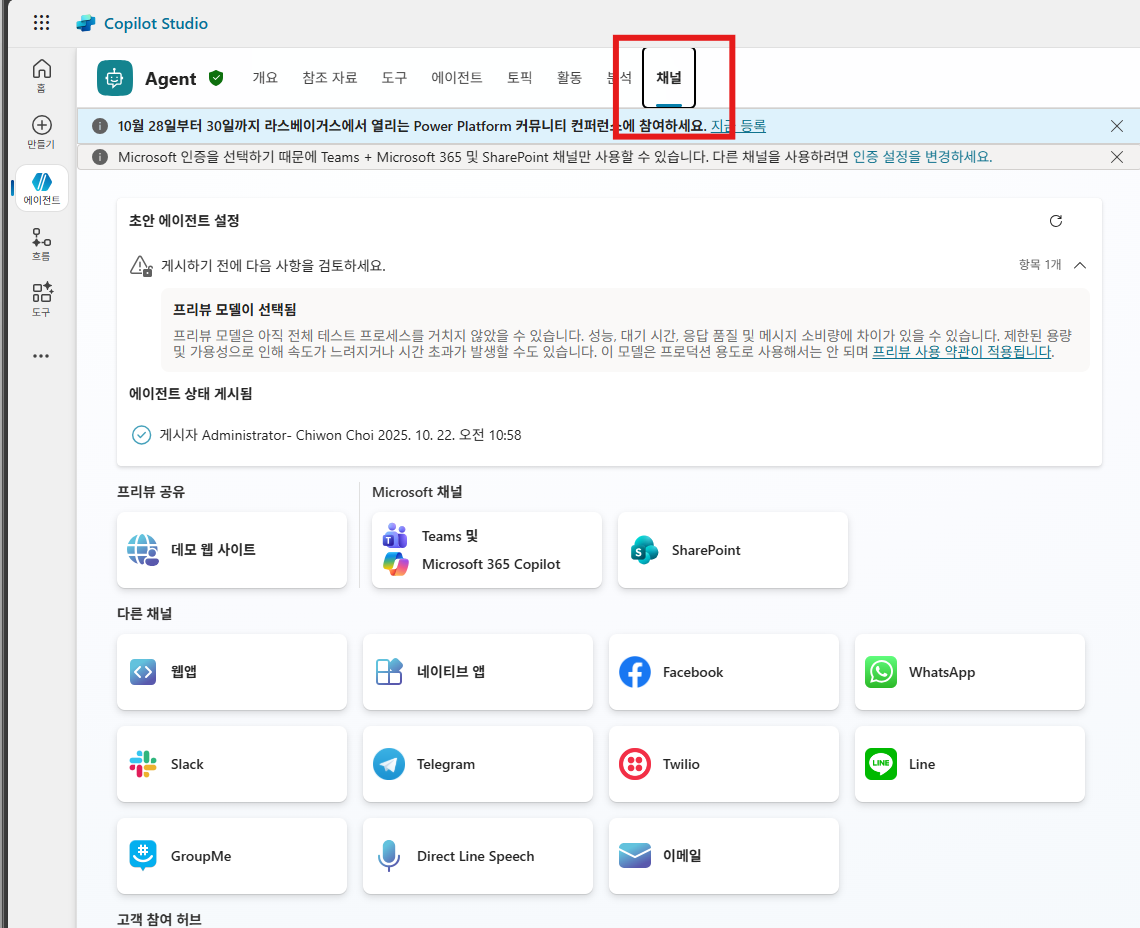
Copilot Studio provides channels so agents can be used from various interfaces, including Teams and the Microsoft 365 Copilot app.
Because the goal of this workshop is to deploy the agent to Teams and the Copilot app, select Teams and Microsoft 365 Copilot under Microsoft channels.
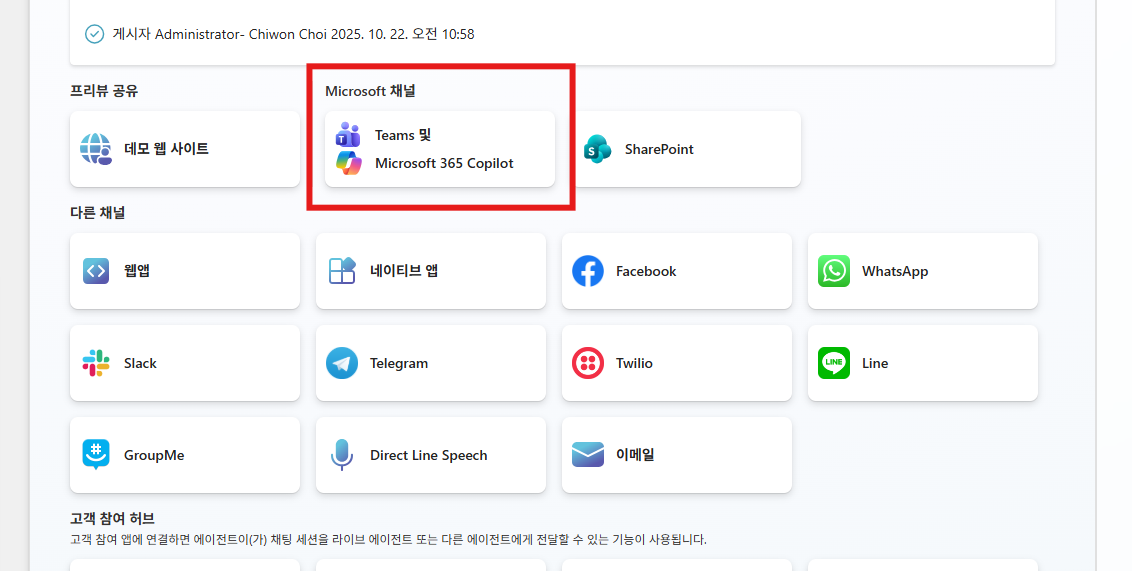
When you select Teams and Microsoft 365 Copilot, channel add details appear in the right pane.
Check that Turn on Microsoft 365 is selected, then select Add channel.
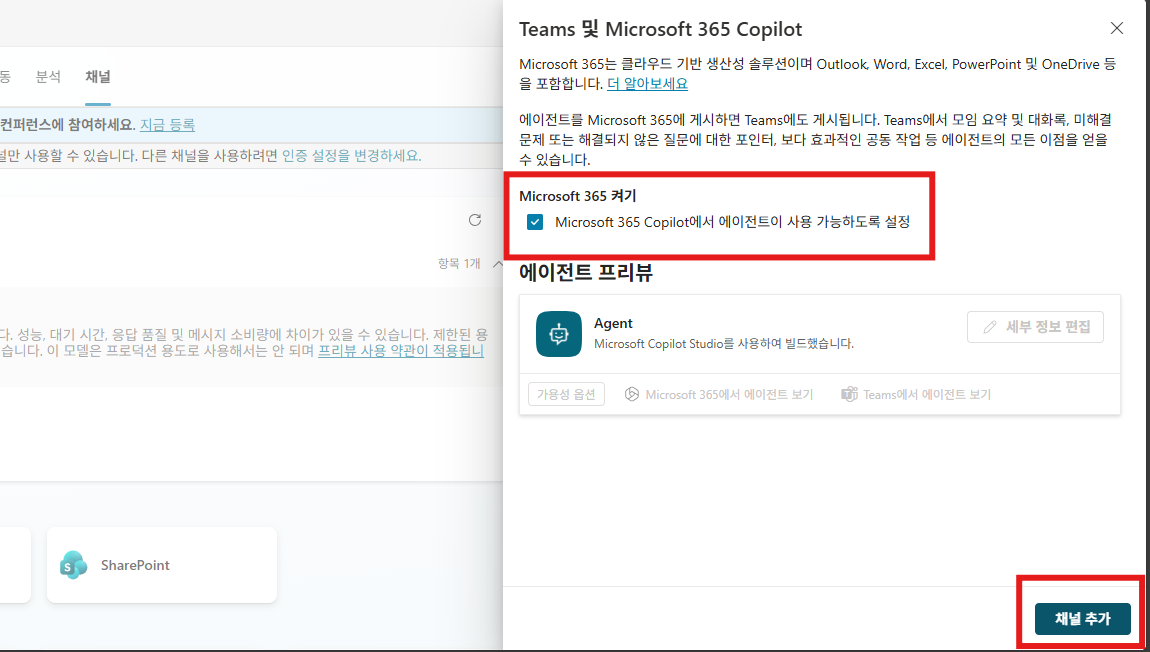
After adding the channel, close the pane and publish the agent again.
Change the channel sharing policy
After the channel is added and published, this agent can be used in Teams.
However, the default setting allows only the maker to use it, so configure sharing options in Settings.
Go back to Teams and Microsoft 365 Copilot under Microsoft channels and select Availability options.
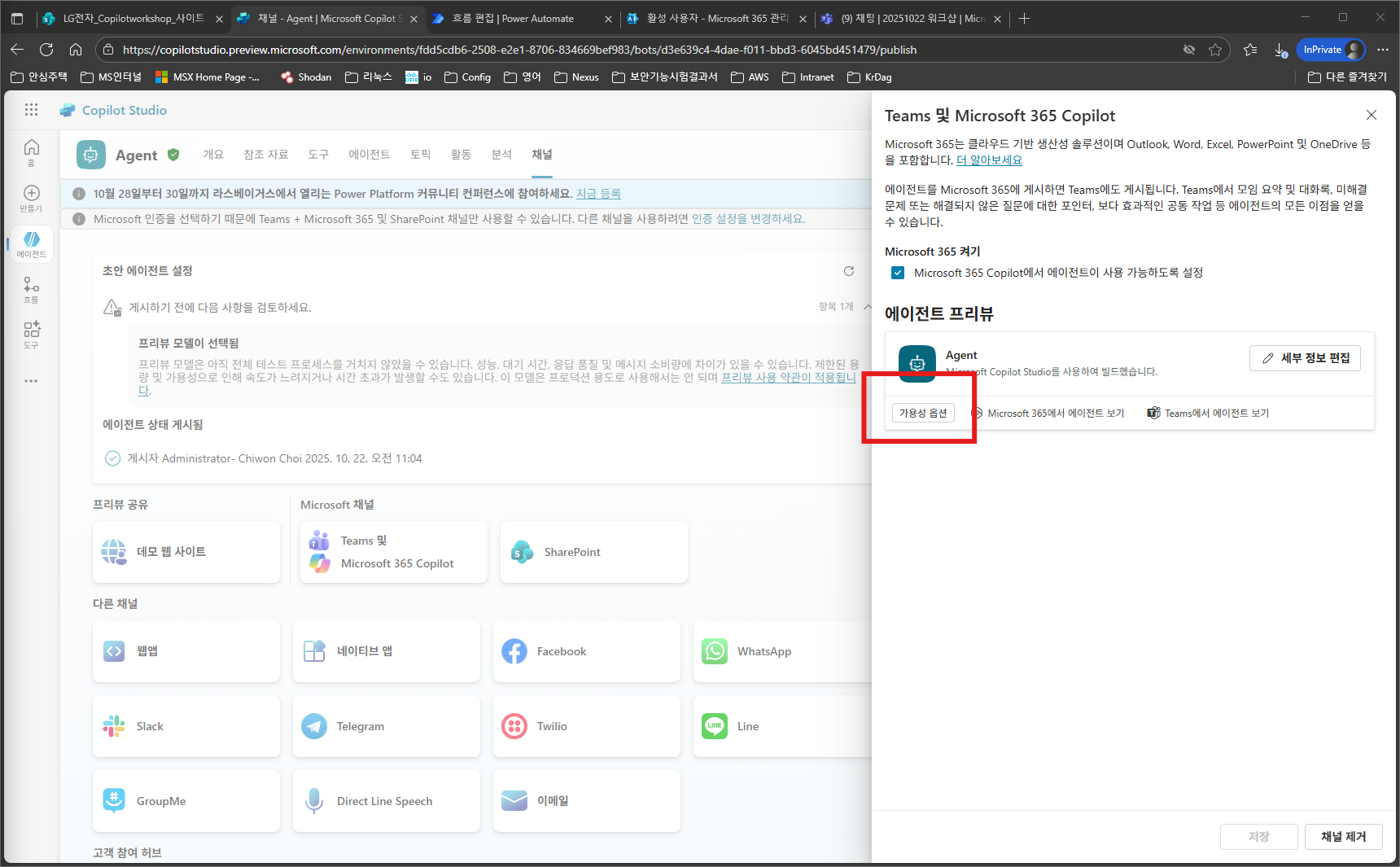
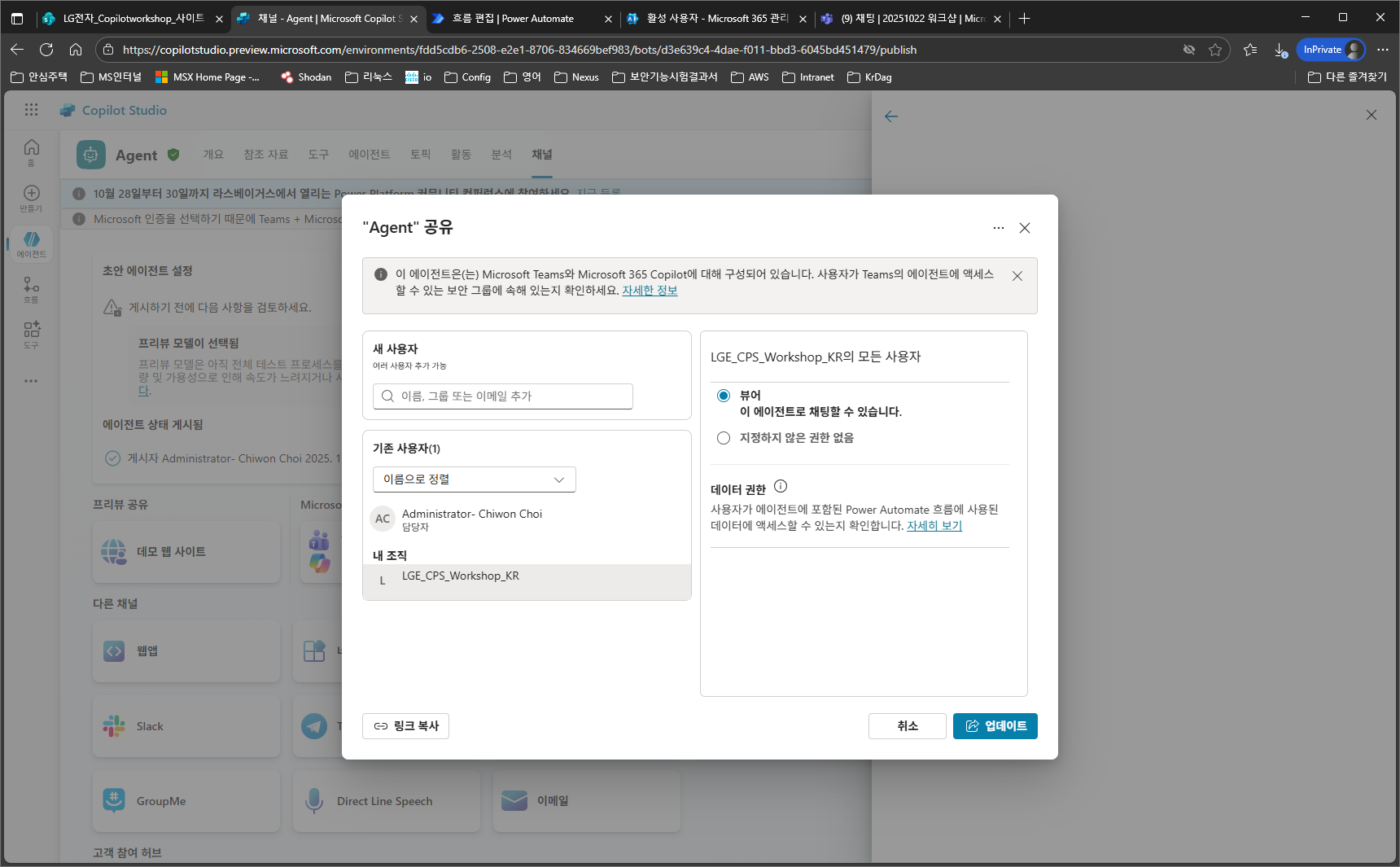
Next, click the Manage sharing button.
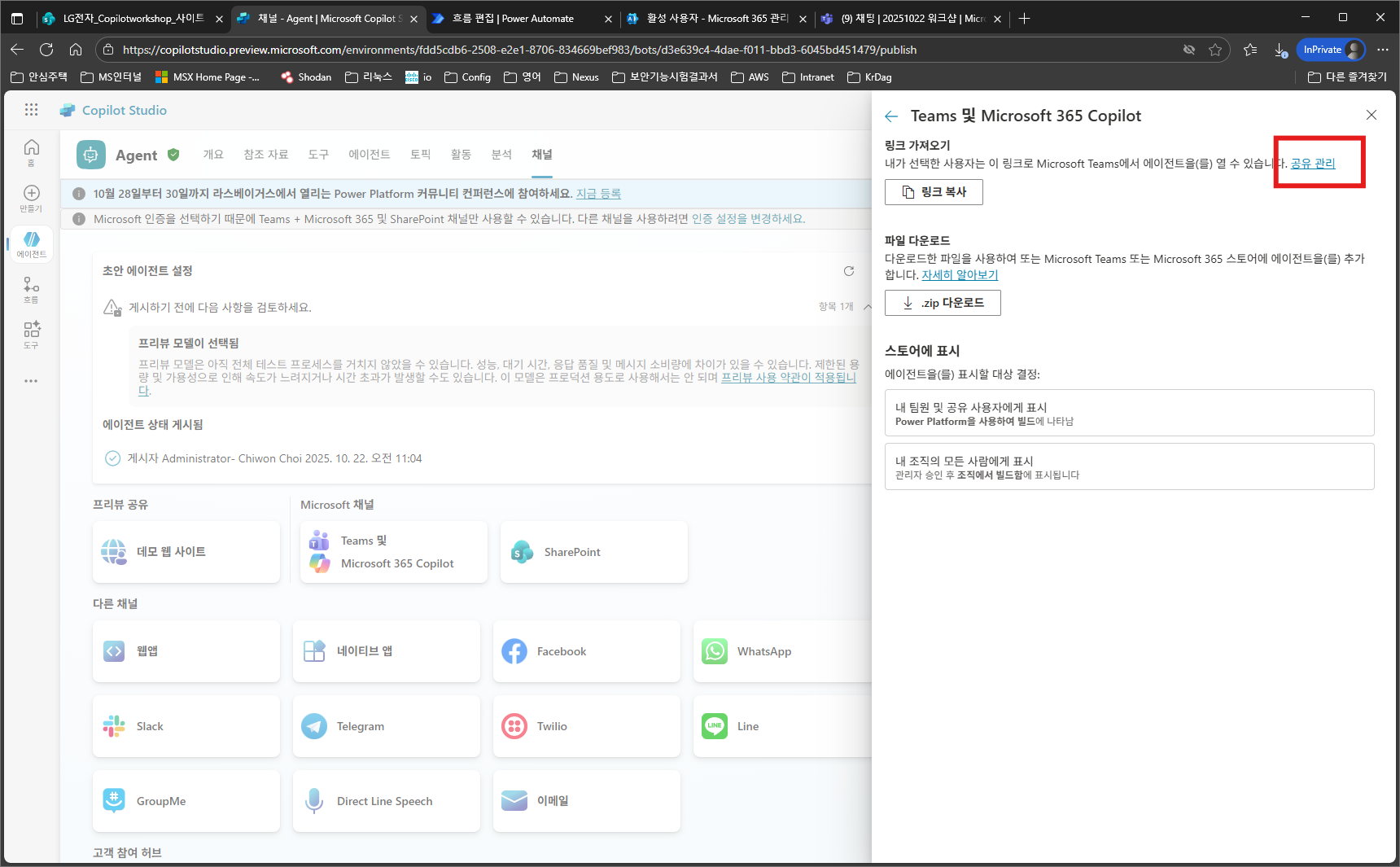
Then select My organization, assign Viewer permissions, and click Update.
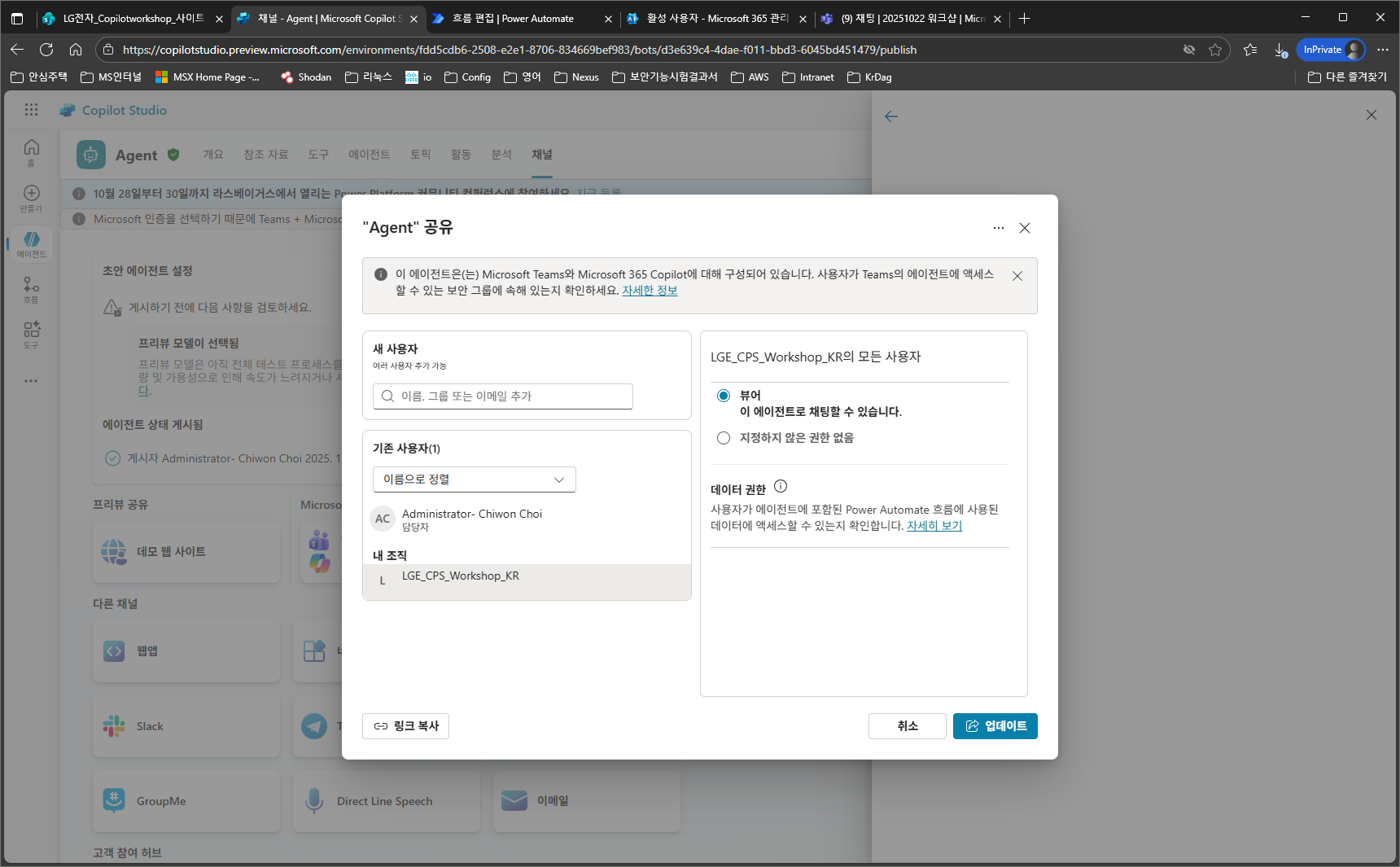
After the update is complete, return to Availability options and select Copy link. When you share that link in a browser or Teams, people in your organization, including you, can use the agent.
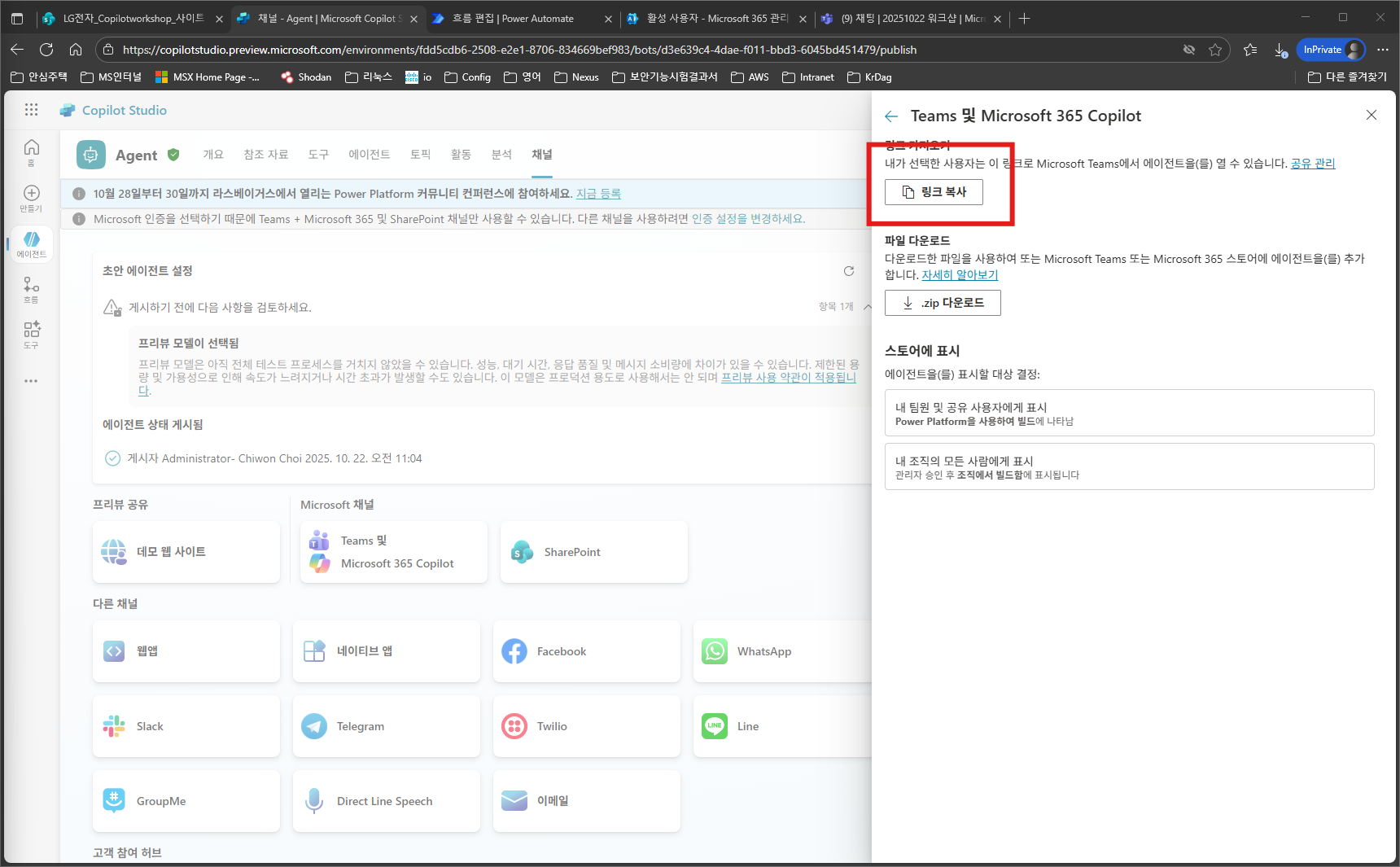
The Show in store feature makes the agent you built appear in the Teams and Copilot app stores.
Show to my teammates and shared users does not require separate approval,
but Show to everyone in my org is deployed after IT admin approval.
For the workshop, post the copied link in your Teams chat with yourself, then click the link.
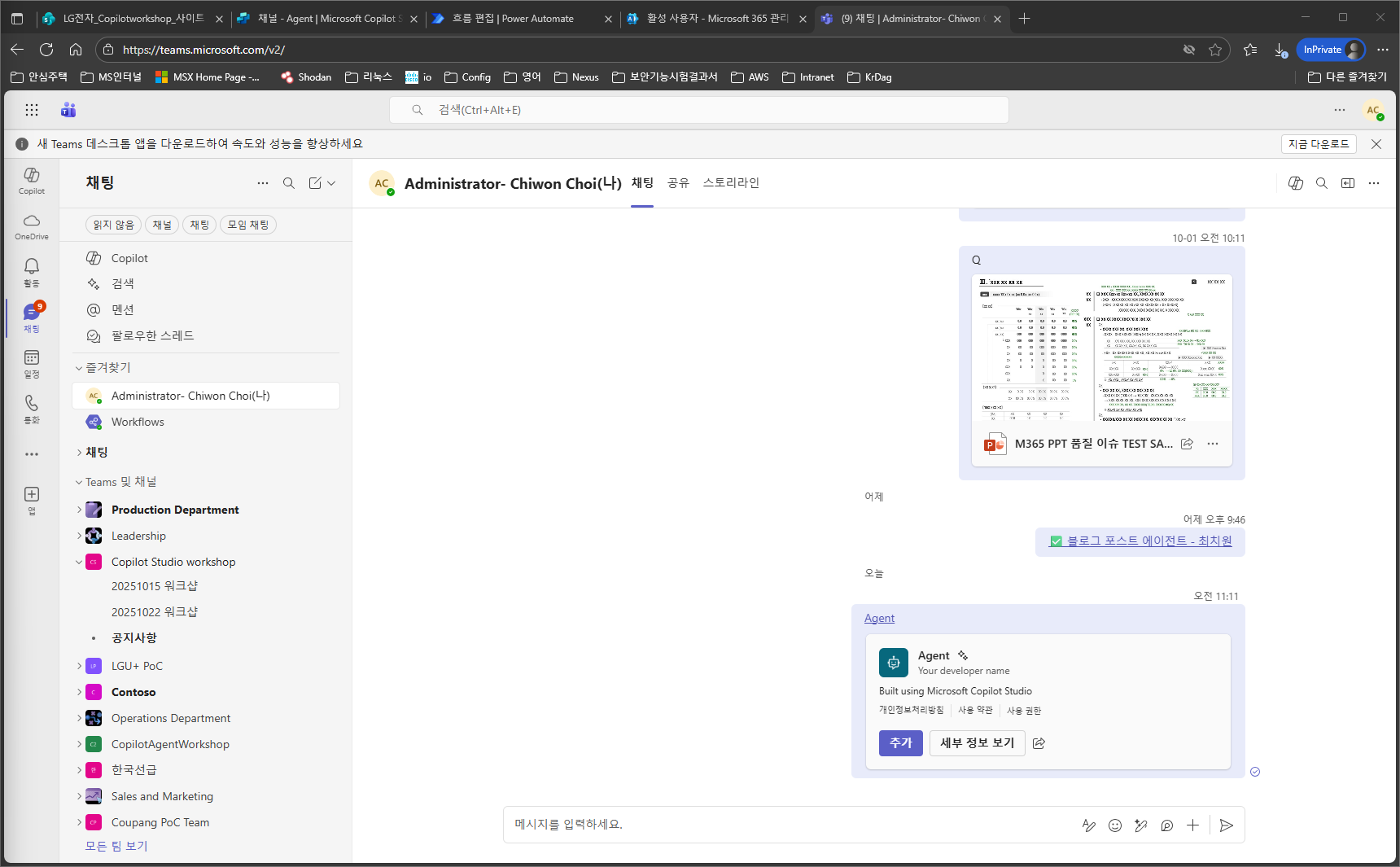
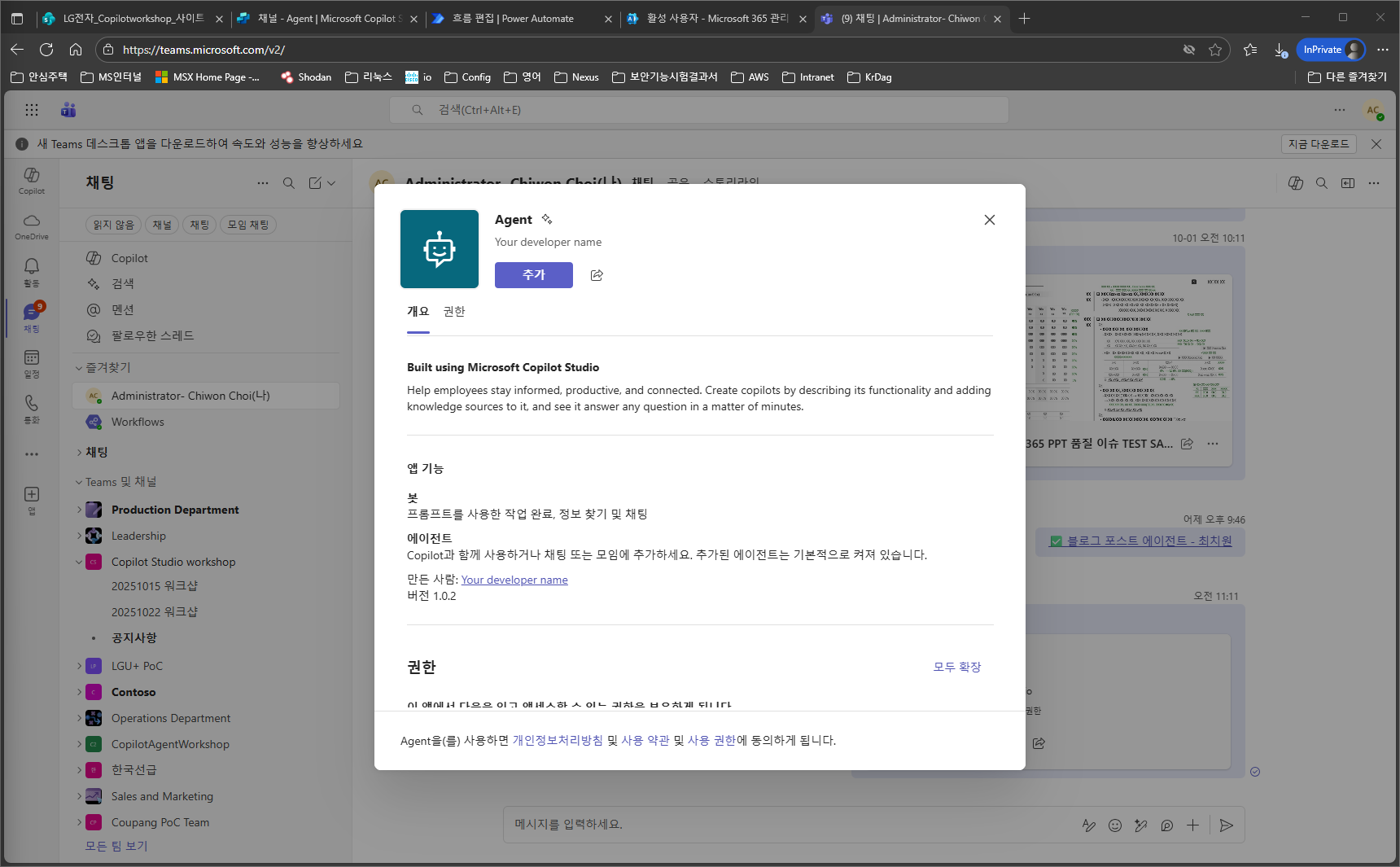
When you click the link, the following appears. Click the [Add] button.
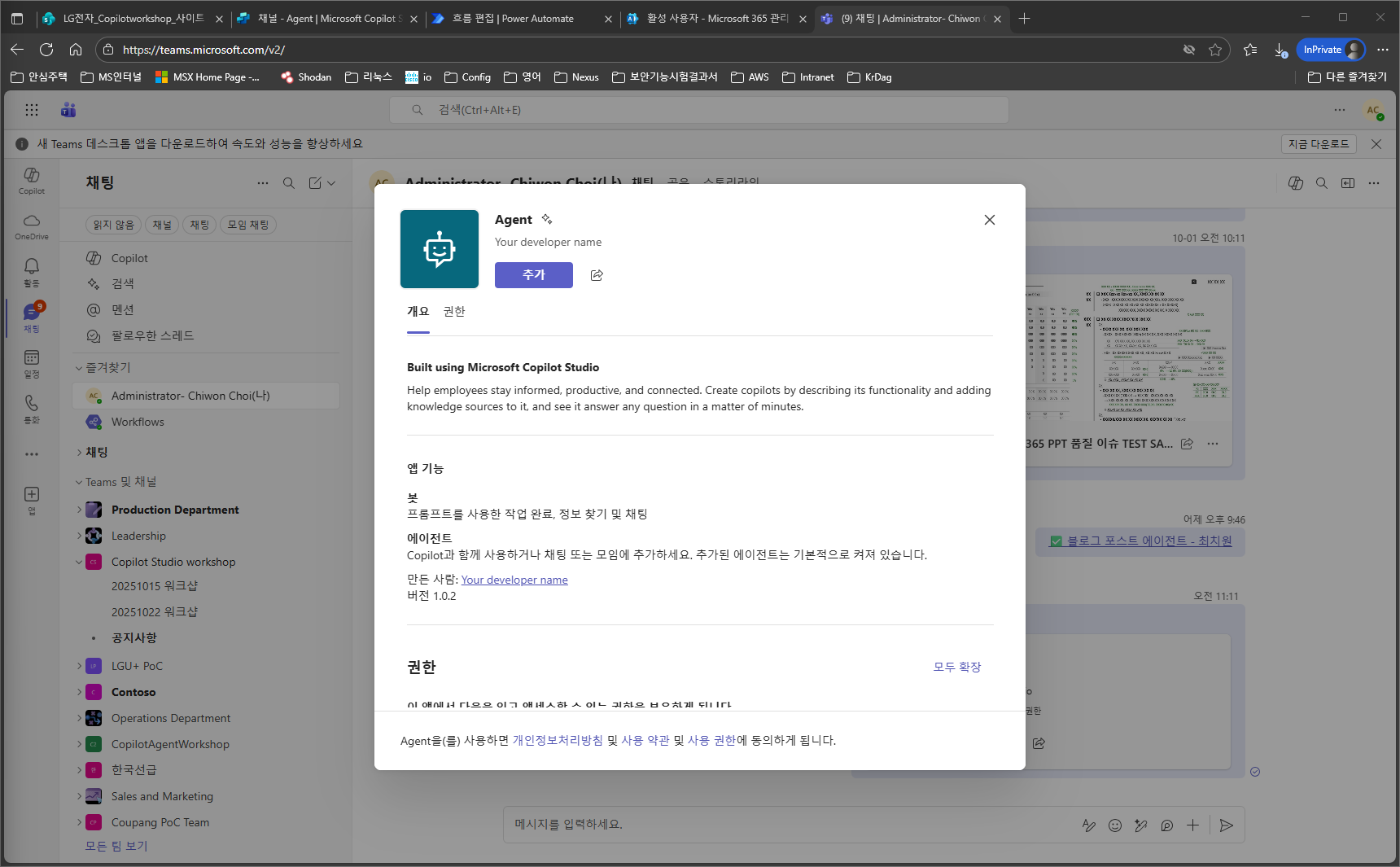
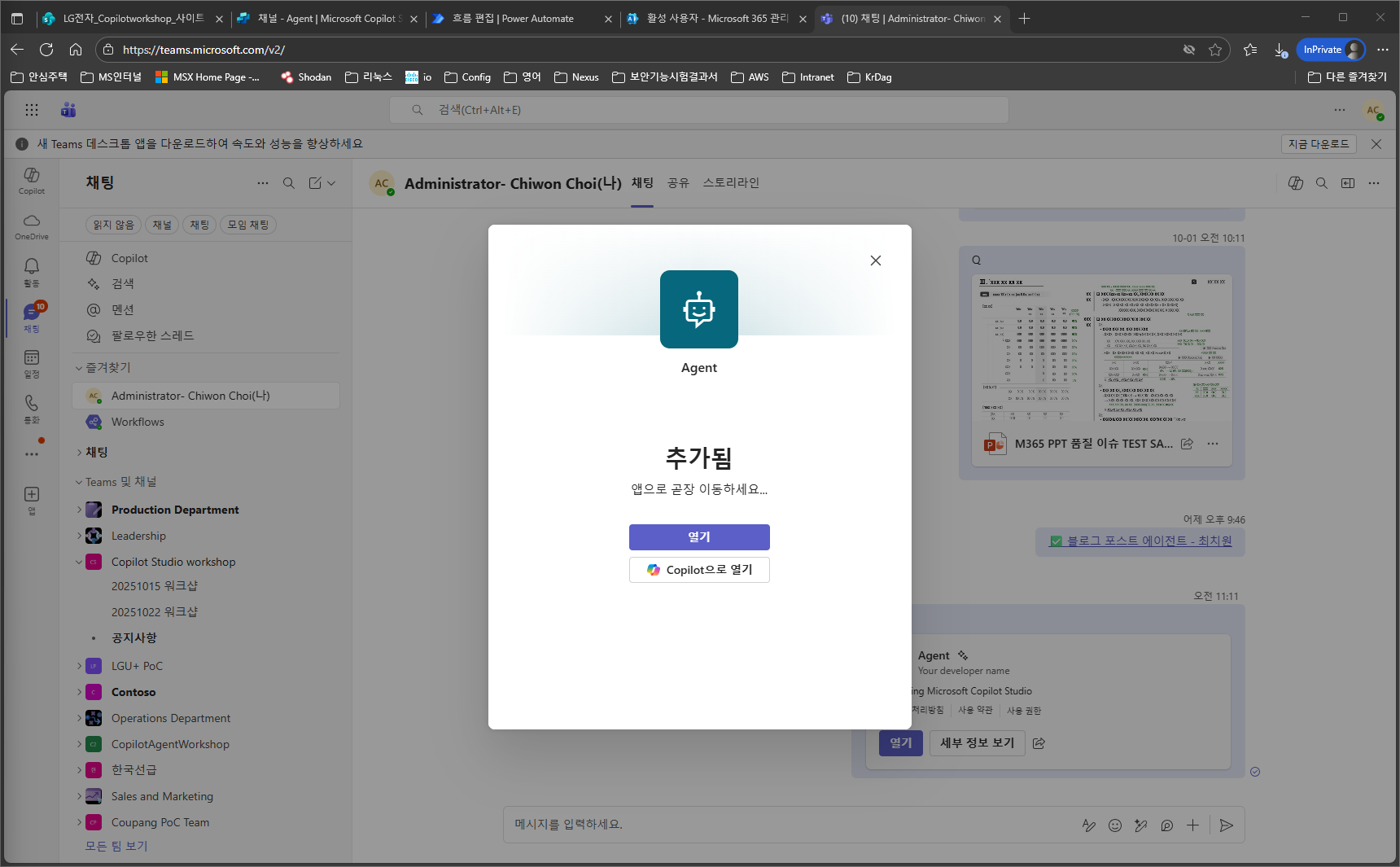
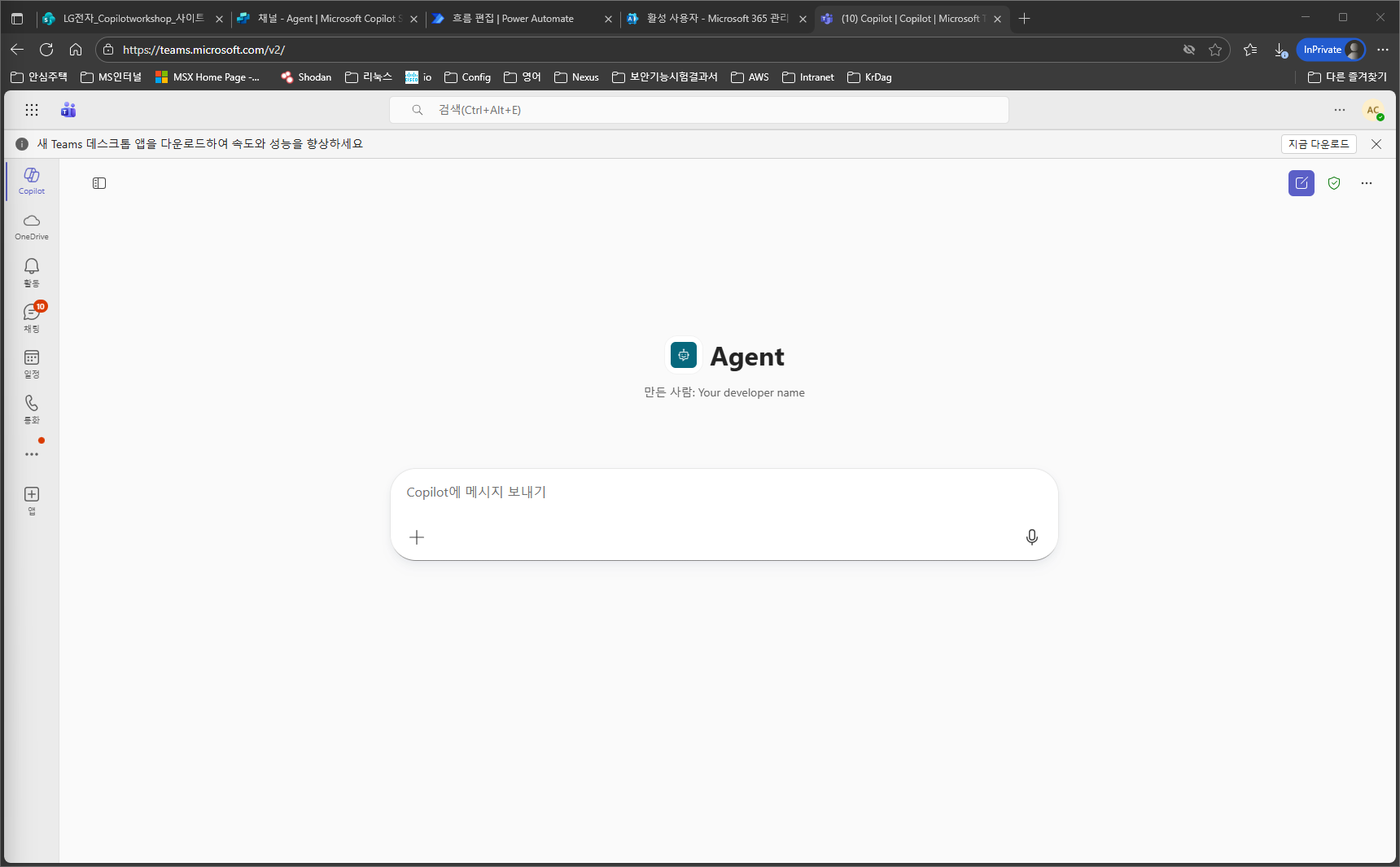
After it is added, select Open in Copilot to run the agent in the Copilot experience.
Test
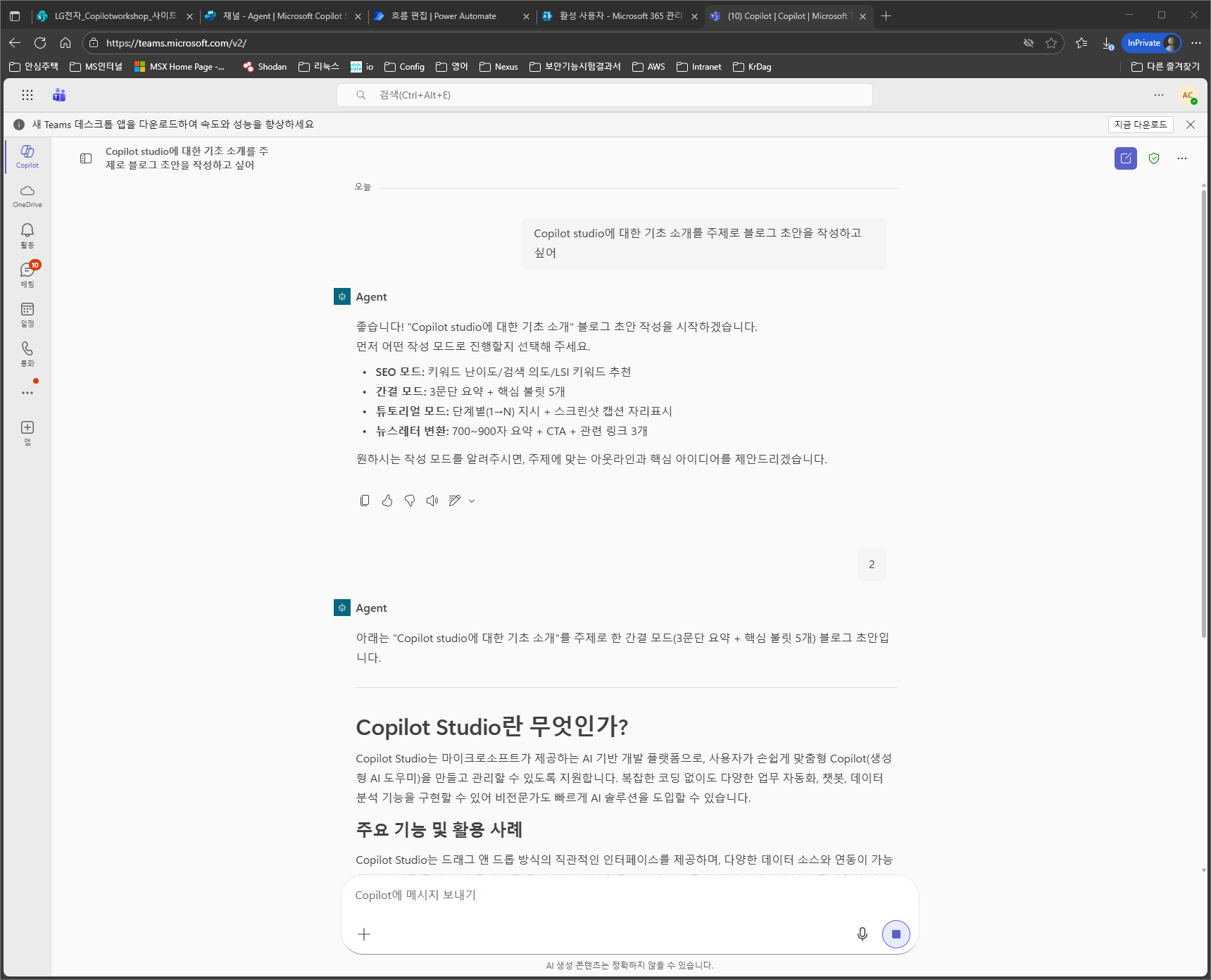
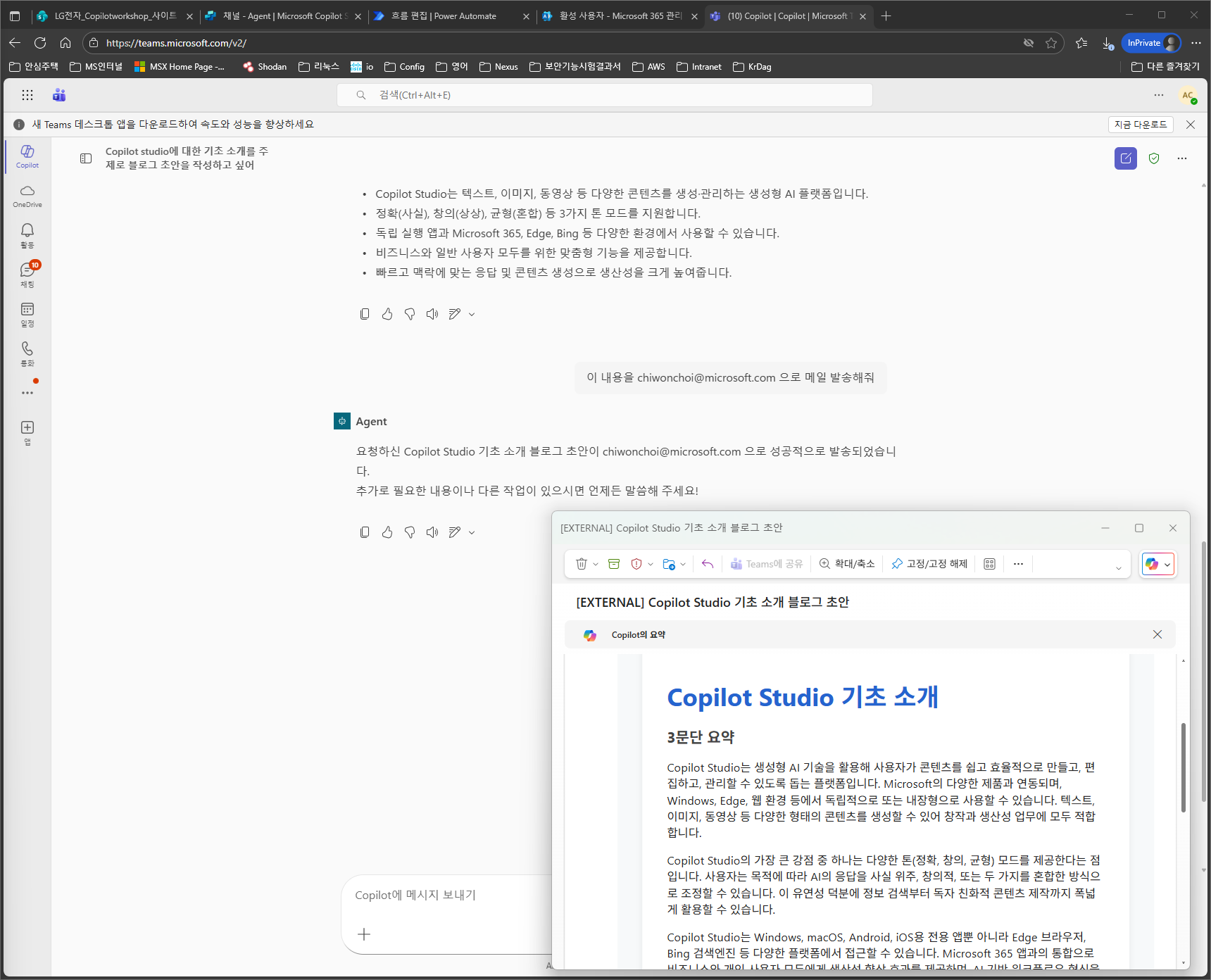
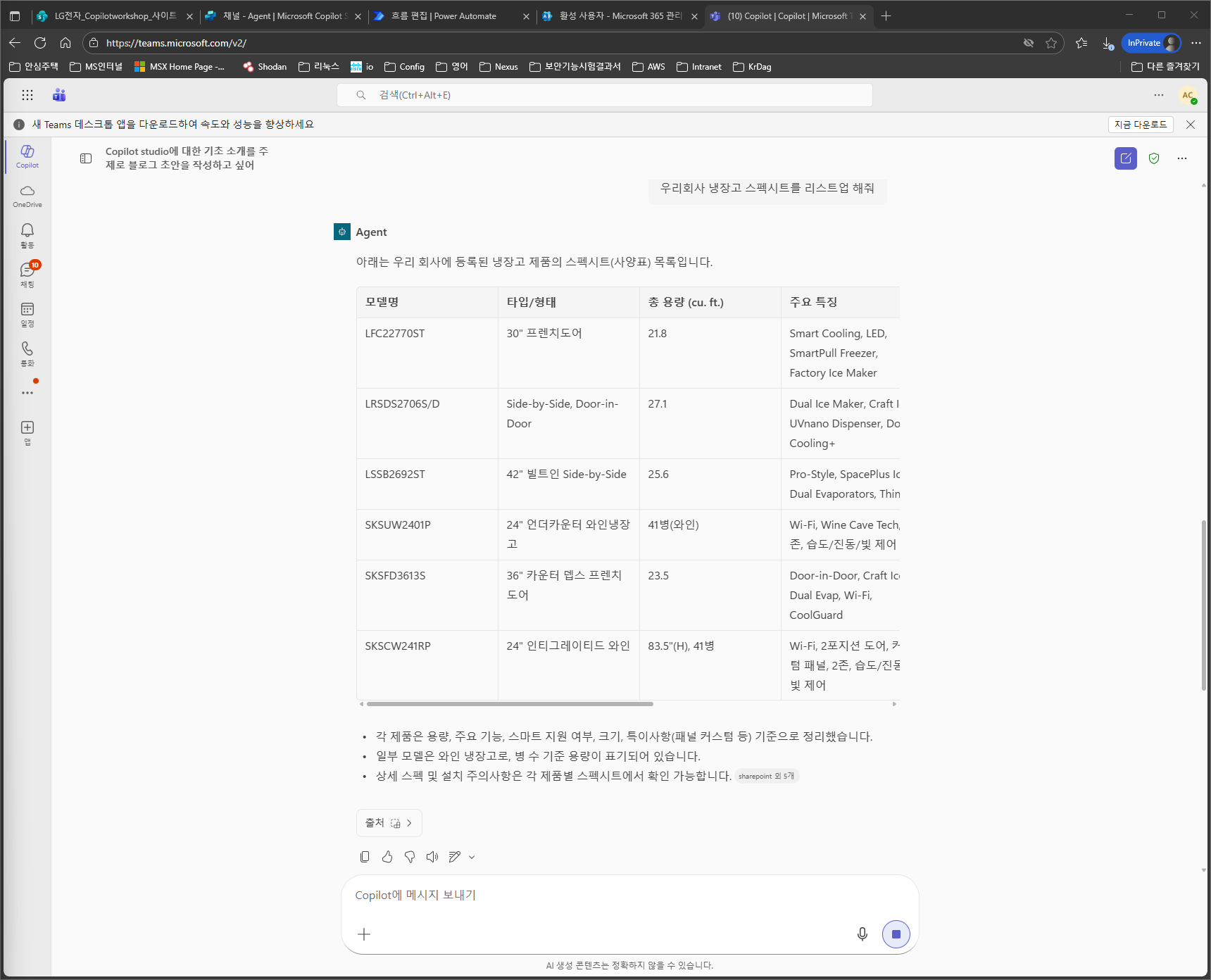
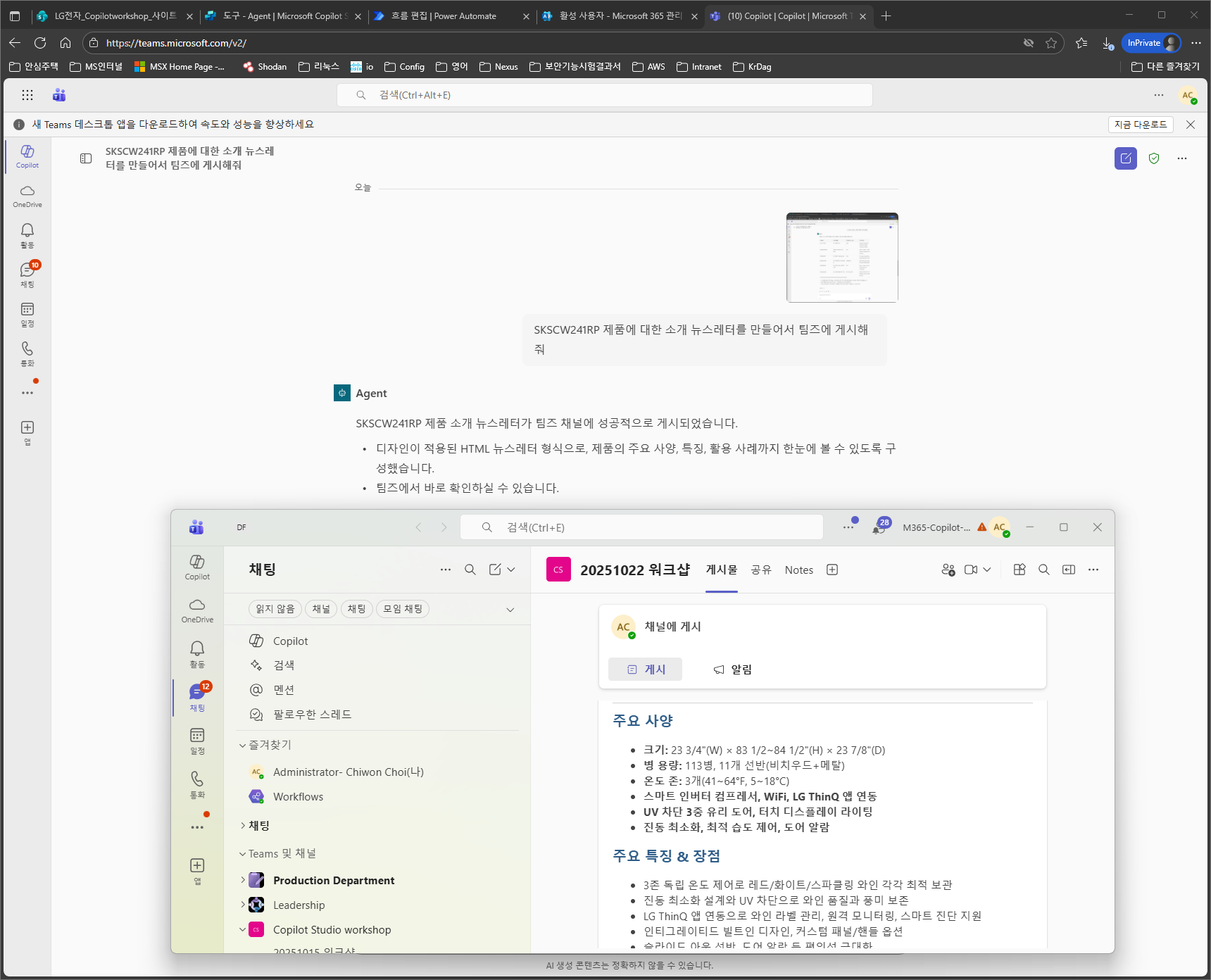
Use the following prompts to test whether the agent works as expected in the actual scenarios.
I want to write a blog draft introducing the basics of Copilot Studio
Send this content by email to chiwonchoi@microsoft.com
List our company's refrigerator spec sheets
Create an introduction newsletter for the SKSCW241RP product and post it to Teams
Congratulations! You have developed an agent that uses various Microsoft 365 tools and knowledge through a custom engine agent.
| ← Previous: Step 4. Tools: plugin connector | Back to overview |