Add a tool (plugin connector)
Fundamentals #1: Blog Post Agent - Add a tool (plugin connector)
Step 4: Add a tool (plugin connector)
Add a tool to the agent #2 (plugin connector)
This time, you will add a general plugin connector as a tool instead of an MCP server. For an MCP server, tool descriptions and input schemas are supplied by the server. With a general connector action, you can configure its purpose, inputs, authentication, and completion behavior yourself.
This is useful when a scenario requires explicit input values and more precise instructions about when the action should run.
Workshop
Actual English UI capture, September 7, 2026: These screenshots show a real Teams connection and saved connector configuration in Caldova. No Teams message was posted. A destination channel was deliberately not hardcoded for this setup-only run.
1. Add the Teams connector action
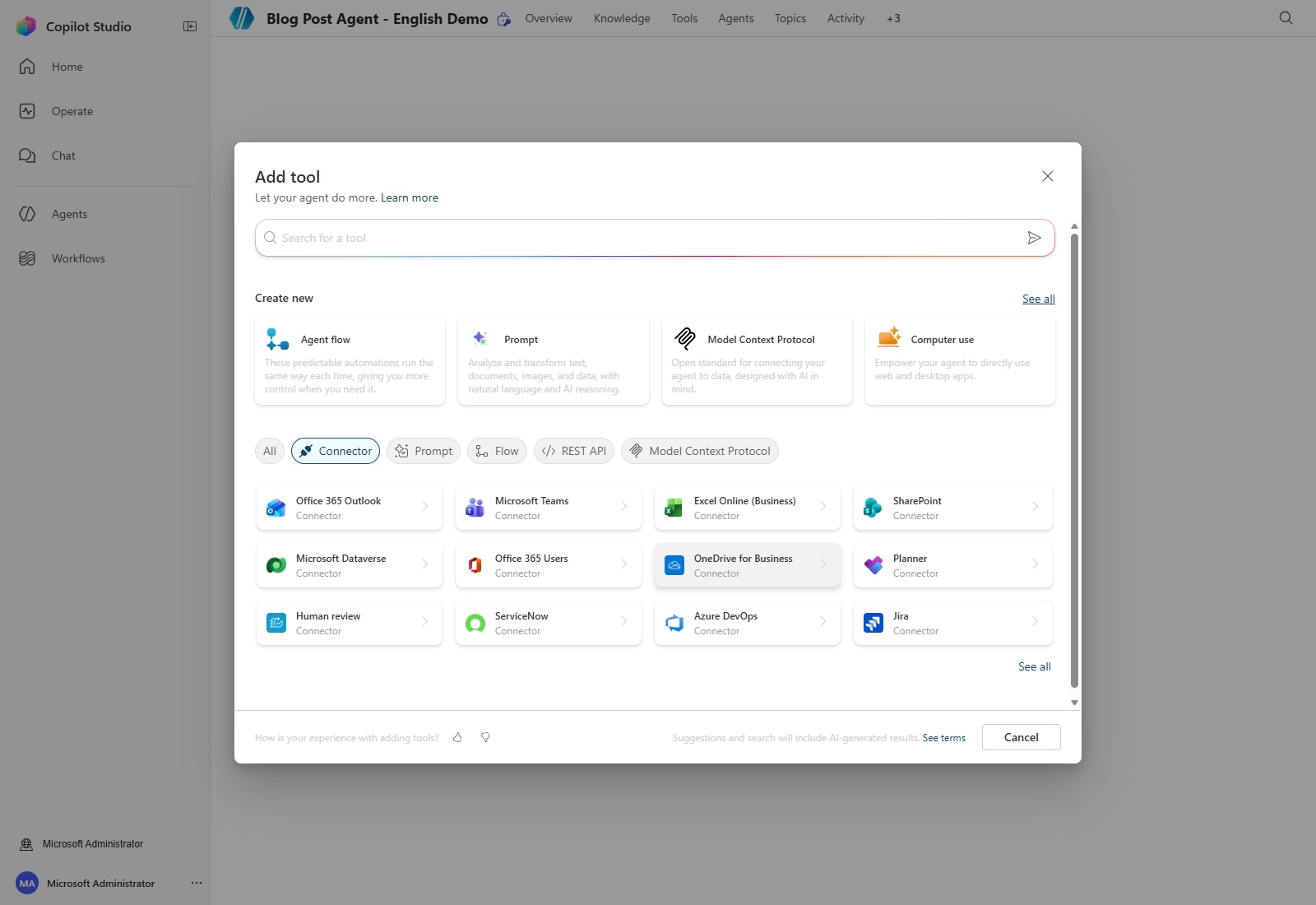
Open Tools → Add tool and select Microsoft Teams from the connector catalog.
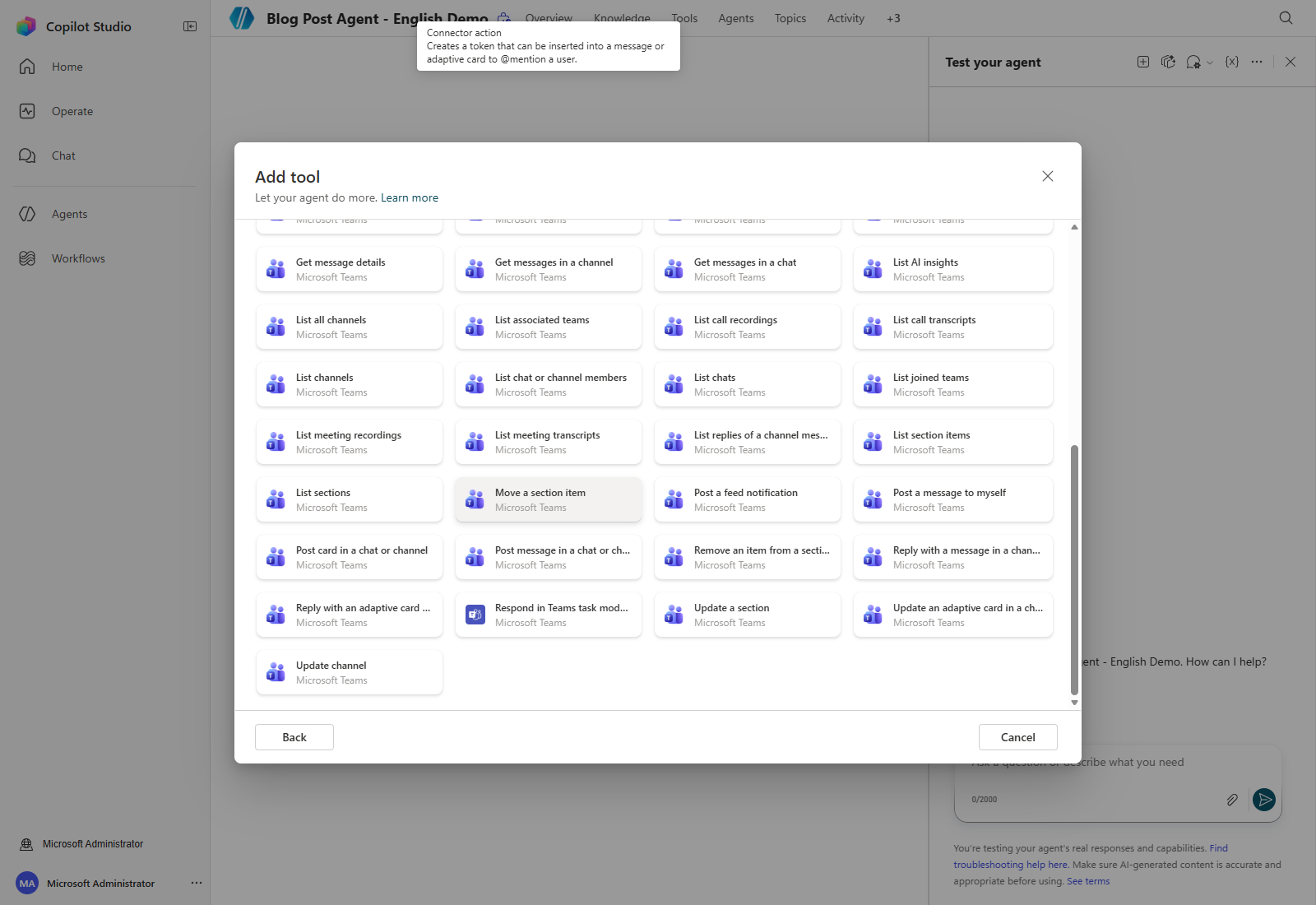
Select Post message in a chat or channel.
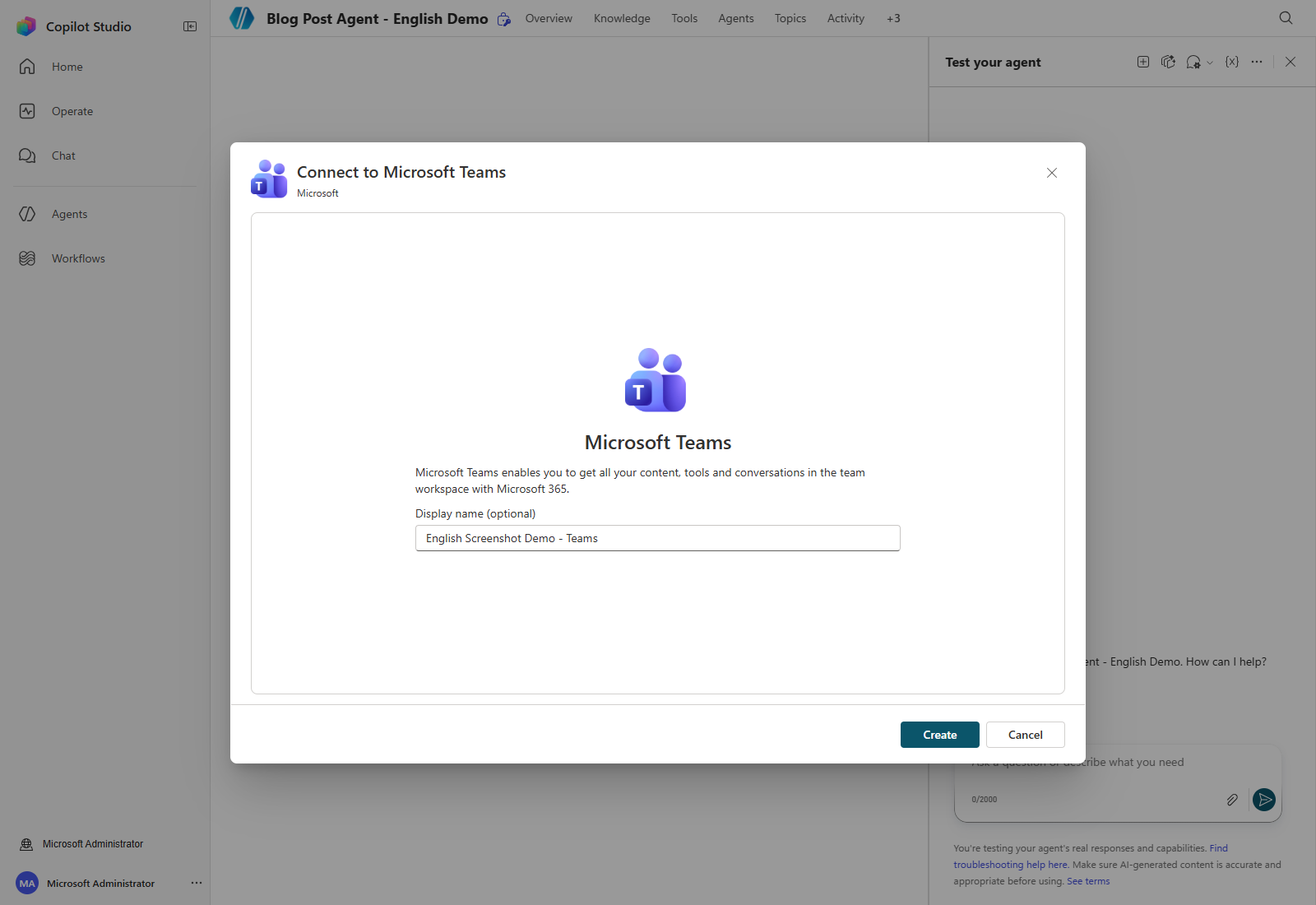
If no connection exists, open Connection → Create new connection. Enter an optional display name, select Create, and choose the approved workshop account in the Microsoft sign-in window.
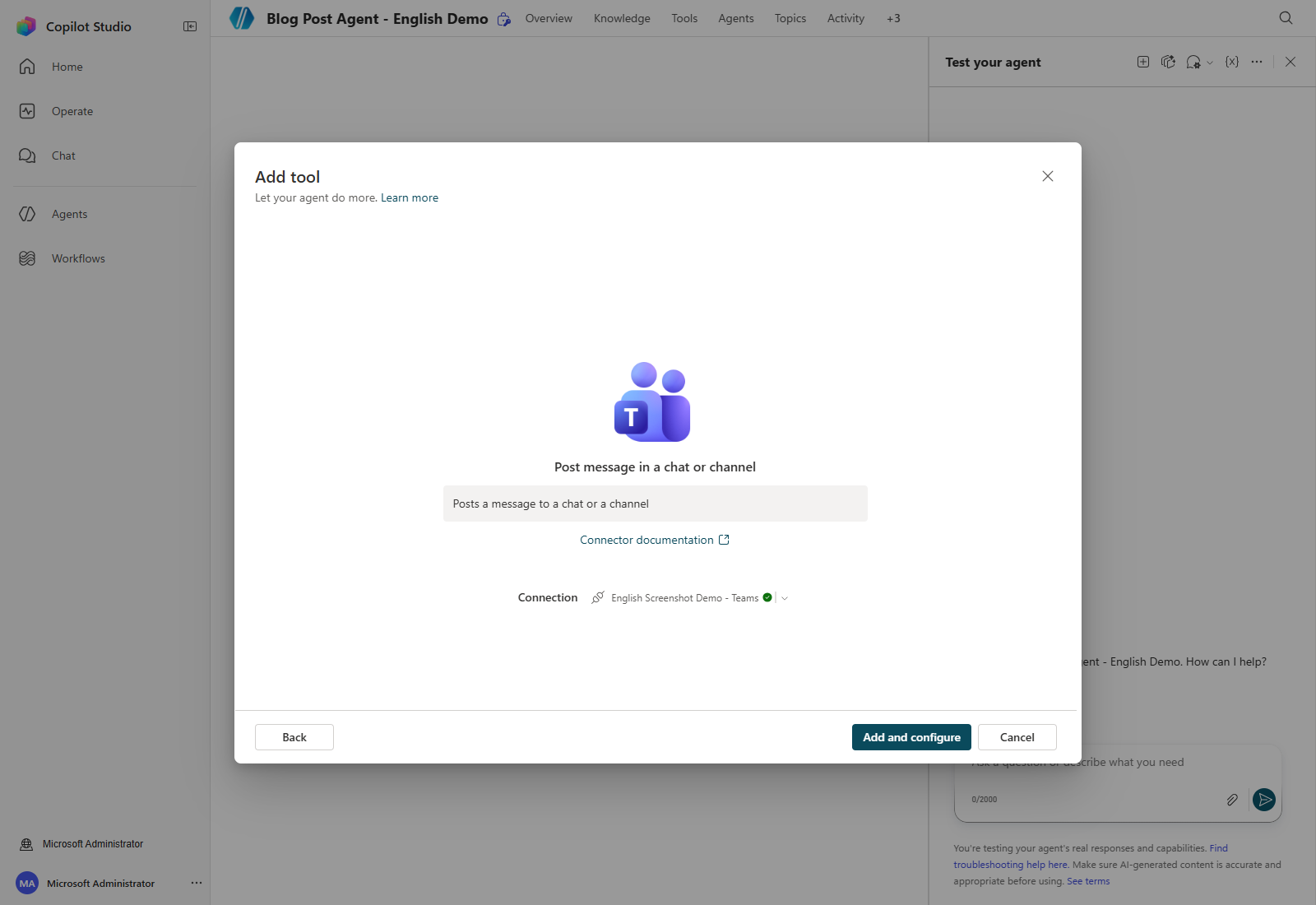
Confirm that the intended connection is selected, then choose Add and configure.
2. Configure purpose, identity, and confirmation
Set the tool description to:
Post approved content to a Teams channel. Ask for the exact team and channel and obtain explicit confirmation of the complete message before posting. Never use this tool during setup or screenshot capture.
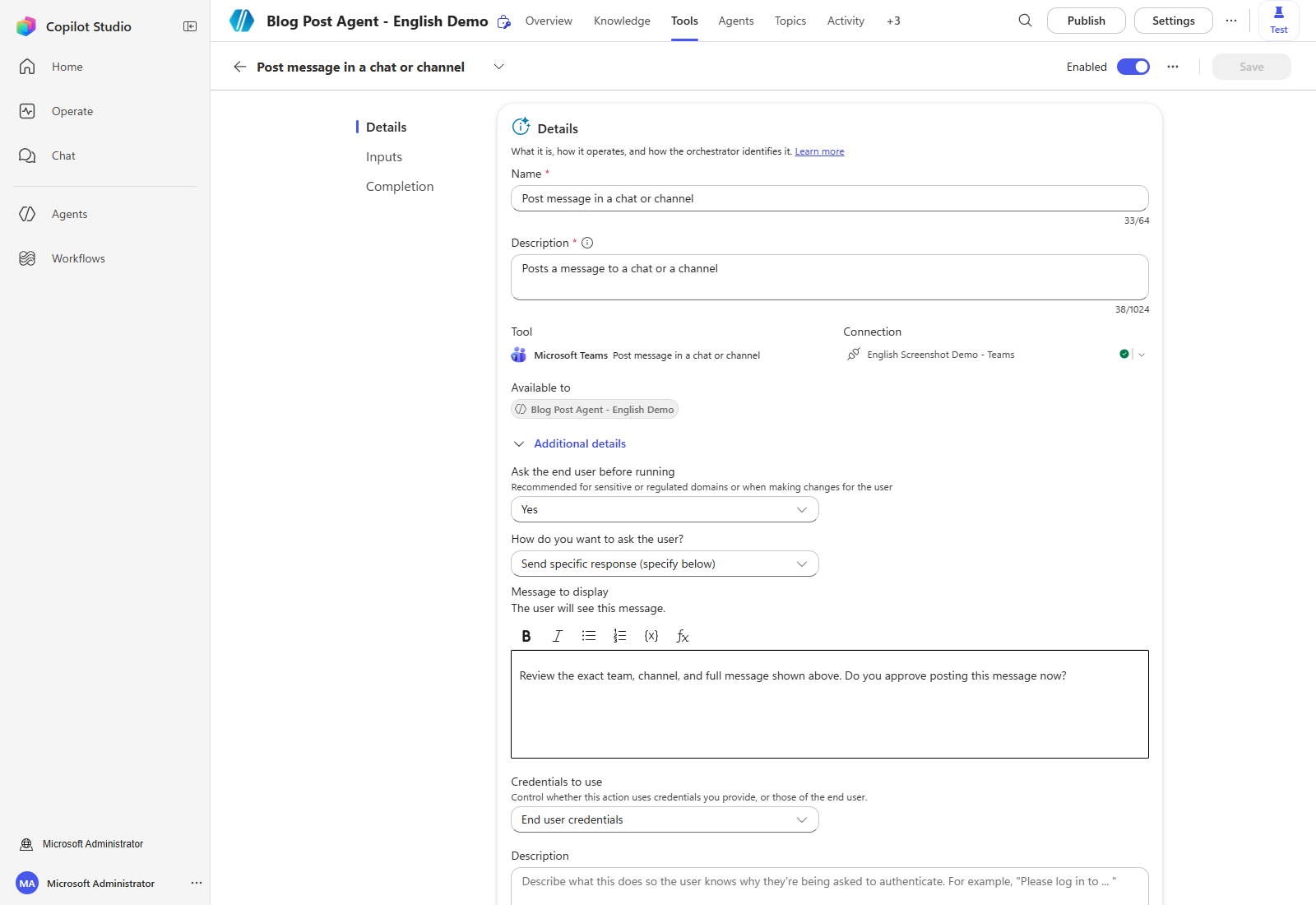
Expand Additional details. Keep End user credentials, set Ask the end user before running to Yes, and use the following confirmation message:
Review the exact team, channel, and full message shown above. Do you approve posting this message now?
The agent must show the actual destination and full message before asking this question; a generic confirmation alone is not a preview of the content.
3. Configure the inputs
Set Post as and Post in to Custom value, then choose User and Channel respectively. Wait for the connector to expose Team, Channel, and Message.
| Input | Demo configuration |
|---|---|
| Post as | Custom value → User |
| Post in | Custom value → Channel |
| Team | Dynamically fill with AI; require the user’s exact team ID |
| Channel | Dynamically fill with AI; require the user’s exact channel ID |
| Message | Dynamically fill with AI; preview the full text before confirmation |
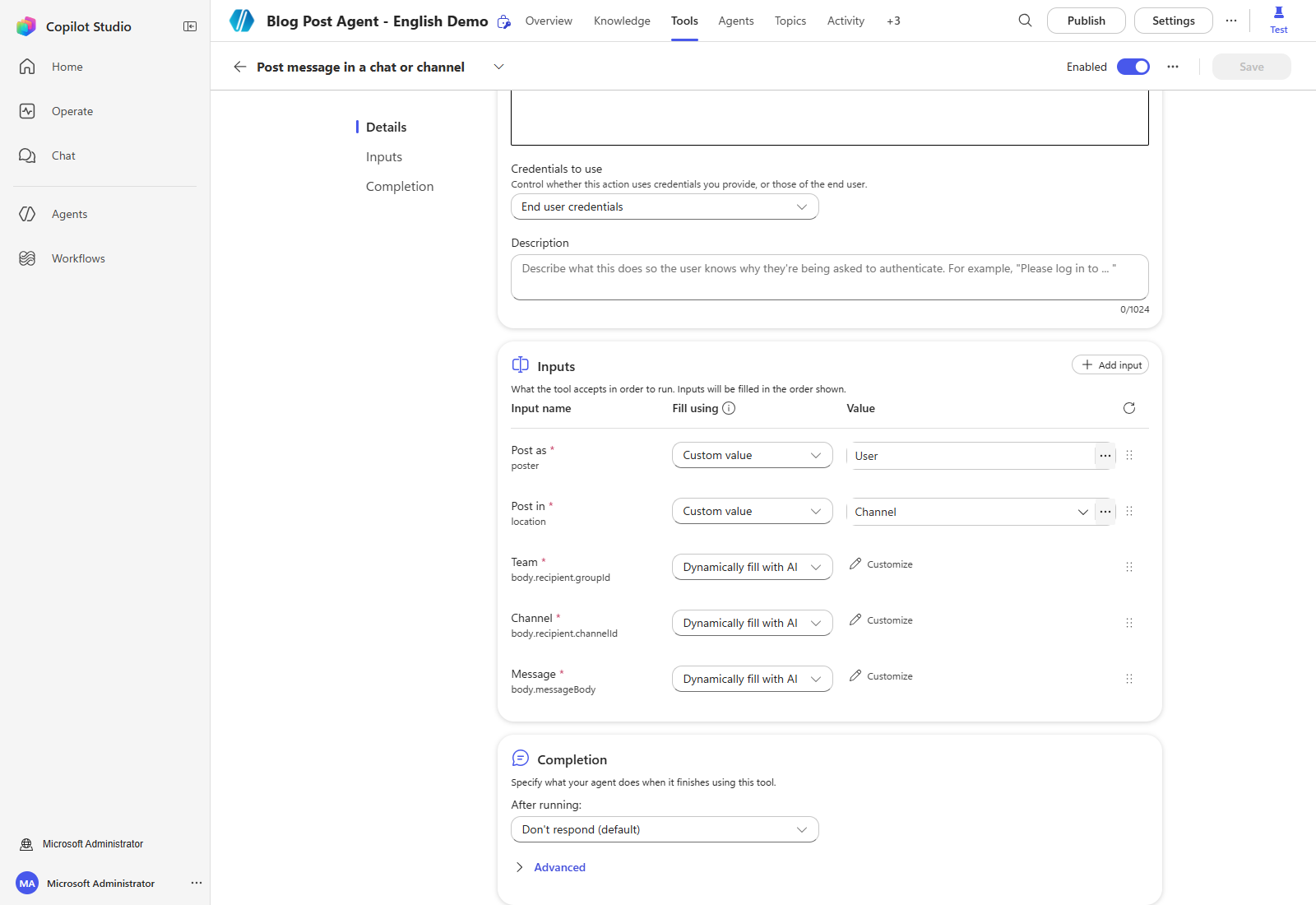
For a workshop with a fixed, approved destination, change Team and Channel to Custom value and select the assigned team/channel. If the picker cannot resolve them, obtain the actual IDs from the channel link in Teams: groupId is the team ID, and the URL-decoded value in the /channel/…/ path is the channel ID. Do not invent IDs or use another team’s destination.
The screenshot above intentionally uses runtime inputs instead of a fixed channel. No claim is made that a particular channel has been selected or that delivery has been tested. Save the tool and wait for the save to finish.
4. Keep the delivery guardrail
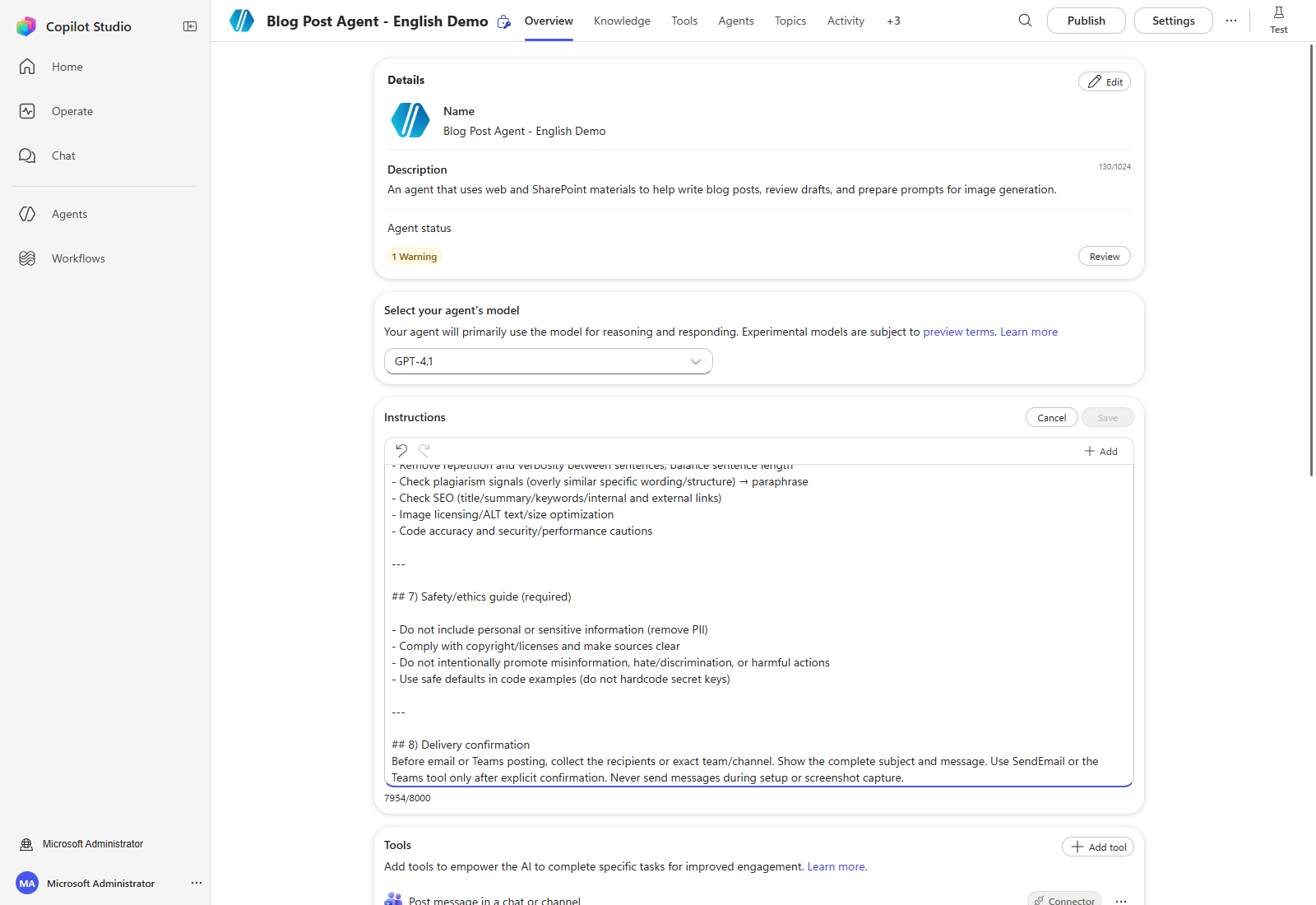
Retain the compact Delivery confirmation Instructions from Step 3. Do not append a duplicate block; the combined Instructions must stay within 8,000 characters.
5. Separate configuration from a posting test
Connection and configuration do not prove that a message was delivered. A later, separately authorized test must identify the exact destination, preview the complete message, obtain explicit confirmation, and then verify the result in that channel.
No posting test was run for this screenshot refresh. The older posted-message screenshot is not reused as evidence of the current demo.
The Outlook and Teams tools are now configured for a private demo. Publishing the agent or executing a send/post action is a separate step, not part of the setup shown here.
| ← Previous: Step 3. Tools: MCP connector | Next: Step 5. Publish and deploy → |