Mission 05: Understanding Agent Models and Response Formatting
Customize the agent model for maximum impact and engagement
Translated article — This article is based on 🚨 Mission 05: Understanding Agent Models and Response Formatting from the Copilot Studio Agent Academy. The original wording takes precedence.
🎯 Mission brief
Welcome back, Agent. In Mission 02, you learned how strong Instructions shape an agent’s behavior.
Now it is time to choose its brain.
In Operation Archetype, you will learn how to select the right AI model for your agent and how to test the effect of model changes on response quality, structure, and depth. Different models can respond faster or slower, be more concise or more detailed, and handle complex reasoning in different ways. You will also learn how to design response formatting that lands better from a human perspective.
By the end of this mission, you will be able to choose a model confidently for your scenario and validate that choice by comparing the results.
🔎 Objectives
In this mission, you will learn how to:
- Understand and select the best AI model for your agent’s use case
- Compare the capabilities and performance characteristics of different models
- Switch the model used by your agent
- Configure response formatting to improve readability and user experience
- Test and evaluate differences in output when the model changes
🤔 What is an agent model?
An agent model is the underlying generative AI engine that powers a Copilot agent’s responses. In Copilot Studio, you can choose which model your agent uses, so you can take advantage of different strengths depending on the scenario, such as speed, output quality, or cost. The model you choose determines how the agent thinks and responds. For example, one model may respond faster, another may produce more detailed answers, and another may be better at complex reasoning.
🎭 Why does this matter?
Choosing the right model helps your agent perform optimally for its use case. Each model has its own capabilities and specialties, so aligning the model with your requirements, such as fast answers versus deep analysis, can improve user satisfaction and help manage cost.
🪁 Available models
Copilot Studio supports OpenAI models and Anthropic models. Each model is shown with category tags and availability tags.
Model use categories
Each model is designed for specific types of work. Choosing the right model improves your agent’s performance. For example, you might use a Deep model for complex decision-making and a General model for broad conversational topics.
The table below summarizes model tags, strengths, and key considerations - source.
| Tag | Description | Strengths | Latency | Cost | Reasoning depth |
|---|---|---|---|---|---|
| Deep | Optimized for careful multi-step reasoning and tool-supported workflows. | Complex analysis, multi-hop reasoning, policy and contract analysis, troubleshooting that spans multiple system steps, and long-form document synthesis with citations | Highest | Highest | Multi-step, tool-rich |
| Auto | Optimized for coverage across mixed workloads and dynamically routes queries. | Helpdesk and employee agents with mixed intents, combinations of knowledge and tasks, and tier-0 customer support with unpredictable complexity | Variable | Variable | Multi-step, tool-rich |
| General | Optimized for speed and cost in everyday chat and light grounding. | Drafting, rewriting, summarization, translation, FAQ-style grounded answers, and simple task automation | Lowest | Lowest | Shallow-to-moderate |
Model availability
Models are released in stages. You can explore cutting-edge options such as Experimental or Preview models, or use stable and well-tested Generally Available models.
The table below explains availability tags - source.
| Tag | Description |
|---|---|
| Experimental | Intended for experimentation and not recommended for production use. Preview terms apply, and availability and quality may be limited. See Limitations of experimental and preview models. |
| Preview | Intended to become a generally available model later, but currently not recommended for production use. Preview terms apply, and availability and quality may be limited. See Limitations of experimental and preview models. |
| No tag | Generally available. These models can be used for scale and production purposes. In most cases, generally available models do not have availability or quality limitations, although some may have constraints such as regional availability. |
| Default | The default model for all agents, usually the strongest generally available model. As newer and more powerful models become generally available, the default model is upgraded periodically. If the selected model is turned off or unavailable, the agent also uses the default model as a fallback. |
| Retired | When a new model becomes the default, the previous default model is retired. It remains available for up to one month after retirement. For more information, see Continue using a retired AI model. |
Review the public model availability list supported by Copilot Studio regularly.
OpenAI models
AI capabilities are evolving quickly, and Copilot Studio keeps pace by offering a range of Azure OpenAI models. As of 2025, the main options are OpenAI’s GPT-4.1 and the latest GPT-5 family of models. The table below summarizes the main choices and the best fit for each.
| Model Version | Category | Availability (United States) | Key Strengths | Ideal Use Cases |
|---|---|---|---|---|
| GPT-4.1 | General | Default | Provides higher accuracy and reasoning performance than GPT-4o, and excels at complex text analysis (text-only model). | Analysis of detailed documents such as policies and reports, complex knowledge-base Q&A, and scenarios where precision matters |
| GPT‑5 Chat | General | GA | Advanced conversational capability with strong context retention, producing human-like conversations. | Employee self-service chatbots, IT/HR helpdesk assistants, and interactive agents that need natural, human-like responses |
| GPT‑5 Auto | Auto | Preview | Optimized for multi-step workflow orchestration and can automate tasks across multiple systems, not just simple chat. | End-to-end process automation such as ticket creation through resolution, multi-step task sequences across apps, and digital project manager scenarios |
| GPT‑5 Reasoning | Deep | Preview | - The latest model optimized for complex reasoning (trained through October 2024) - High scores in document understanding and response accuracy | Advanced reasoning tasks that require top-tier analysis, such as large-scale planning and complex data interpretation. Because this is a Preview model, use it carefully in testing. |
| GPT‑5.2 Chat | General | Experimental | A newer experimental conversational model with improved context awareness and broad task capability. | General-purpose Q&A and conversational work that benefits from the latest model capabilities, and complex chatbot interactions where improved performance helps |
| GPT‑5.2 Reasoning | Deep | Experimental | An experimental top-tier reasoning model that provides maximum depth and accuracy for complex tasks. | Extremely difficult analytical queries or decision support that requires the highest precision, such as sophisticated strategy planning or high-risk data analysis |
Warning —
- Experimental/Preview models such as GPT-5 Auto are provided so you can test new capabilities before they are production-ready. Testing coverage may be limited, and performance variability may be higher.
- These models are not recommended for production use because of instability, including variable quality, latency, and even possible time-outs. Always review the limitations of Preview models, and consider using them only in noncritical environments such as Sandbox or Developer environments. Even if you publish an agent that uses an Experimental model, usage continues to be charged at that model’s defined rate.
Anthropic models (external)
Two Anthropic models are available.
- Claude Sonnet 4.5 is Anthropic’s latest coding- and agent-focused model.
- Claude Opus 4.1 is a reasoning-focused model.
The default model for new agents in Copilot Studio is still OpenAI, and you can choose one of these models when needed.
Both models are offered in Microsoft Copilot Studio as opt-in preview (Frontier Program) models, not as General Availability (GA) models. In other words, they are for early experimentation. The table below compares the status, strengths, and ideal use cases of each model in the Copilot Studio context.
| Model Version | Category | Availability (United States) | Key Strengths | Ideal Use Cases |
|---|---|---|---|---|
| Claude Sonnet 4.5 | General | Preview | Excellent for code-related tasks and complex agent workflows, with strong tool use and step-by-step reasoning. | Advanced software development support such as code generation and debugging, multi-step autonomous agent building, and work that requires integration with external tools or systems |
| Claude Opus 4.1 | Deep | Experimental | Specialized for intensive analysis and structured problem-solving. | Deep data analysis and research projects, and complex reasoning scenarios where thoroughness matters, such as compliance audits or sophisticated planning |
Warning —
- Remember that these are external models. Anthropic models are hosted outside Microsoft, and makers must review and accept Anthropic’s terms and data processing practices before using them. They are also offered for early access and feedback before general release, so production use is not recommended.
- Because capacity and availability are limited, you may experience slowdowns or time-outs, and there is no guarantee that these models will continue to be supported in the future. Administrators can control access to this feature, which you will cover shortly in this mission.
🔢 Context length and training data
All of the models above can handle large context windows. For example, GPT-4.1 supports up to 128K tokens of context. They were also trained on data up to mid-2024 (GPT-5 was trained on somewhat more recent data), so they may not know information after that point. This helps you understand the model’s knowledge limits when generating answers.
🔧 Change and update the agent model
By default, a new Copilot agent starts with the GPT-4.1 model, which is optimized as a balanced choice for most scenarios.
You can change the default model at any time from the Select your agent’s model section on the agent’s Overview tab by using the dropdown.
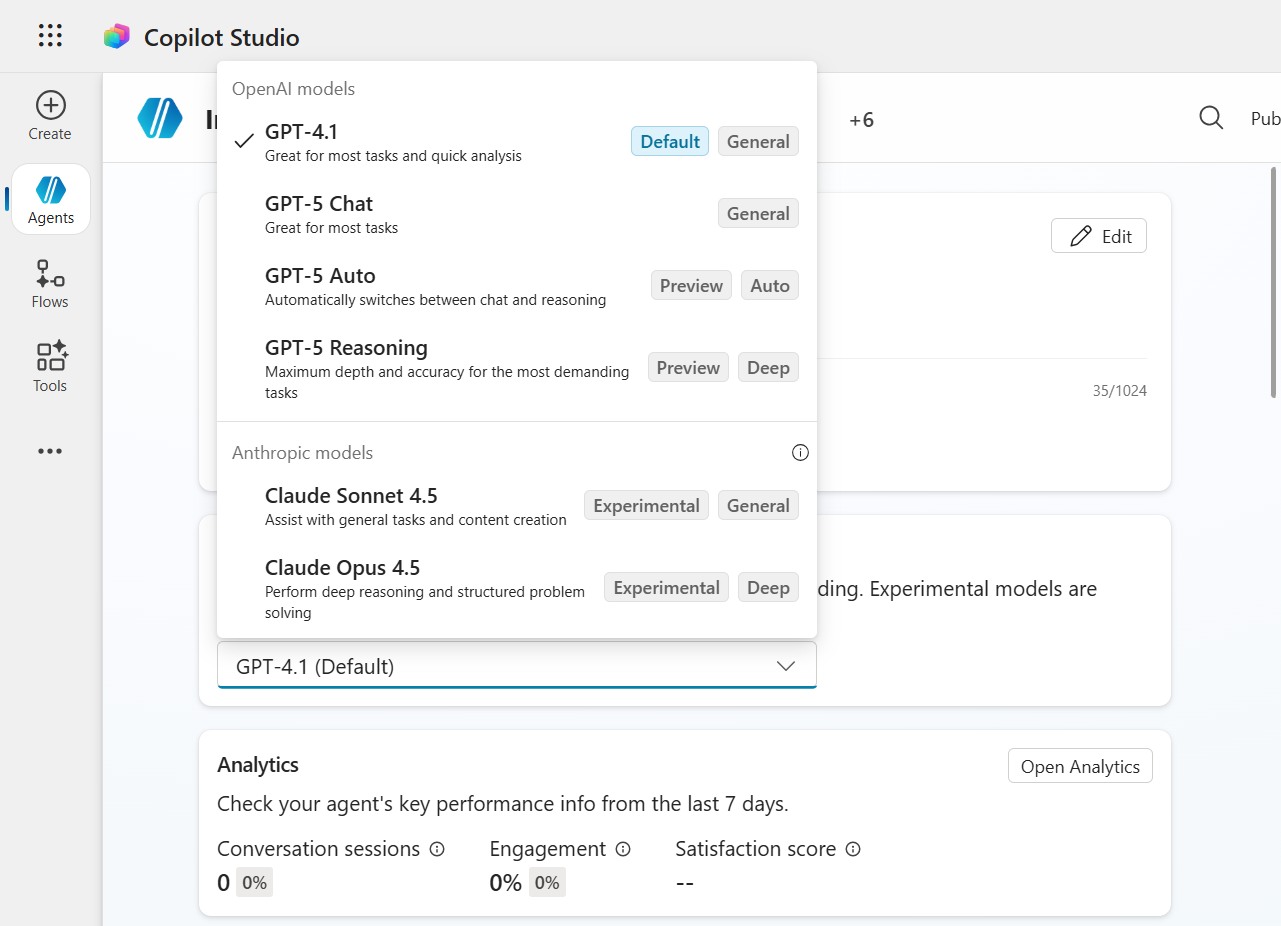
This flexibility lets you experiment with different models even after the agent is created. For example, you can switch to an experimental model and evaluate whether answer quality improves in your scenario.
📶 Model updates and retired models
Microsoft periodically upgrades available models to newer versions. In particular, in December 2025, several models became available in early-release cycle environments.
- GPT-5.2 Chat
- GPT-5.2 Reasoning
Agents using GPT-5.1 were automatically moved to GPT-5.2. For more information, see the announcement blog post.
Note — Check Model updates regularly to stay aware of model updates from Microsoft.
If your agent was using the retired GPT-4o model, it would have been moved transparently to GPT-4.1, the default OpenAI model.
🧶 Why can you keep using a “Retired” model?
When AI model upgrades happen automatically, Copilot Studio provides a continuity safeguard. After an upgrade, you may need to keep the previous model for a short time.
For example, you may need to preserve compatibility, meet compliance requirements, or avoid fully switching until you have sufficiently evaluated the solution’s behavior on the new model. Microsoft accounts for that reality by allowing retired models to continue being used for up to 30 days after automatic upgrade.
-
Compatibility: The new model’s output format or content may differ. If downstream systems or prompts expect the previous model’s style, you may need time to adjust your logic. During the grace period, you can operate on the familiar model while updating and testing the agent for the new model in a controlled way, without disrupting the user experience.
-
Compliance and data policies: Some organizations have strict review processes for AI models. A new experimental model may not yet be approved, or its data processing behavior may differ, such as using datacenters in another region. If these concerns apply, administrators may delay the switch until compliance review is complete.
-
Specific business needs: During important events such as product launches or demos, stability may matter more than new capabilities. During this period, you can keep the previous model to avoid unexpected changes.
🌳 How to use a retired model
On the agent’s Settings page, go to the Generative AI tab and the Model section. You will see a toggle called “Continue using retired models”. This option becomes available when a model update is rolled out.
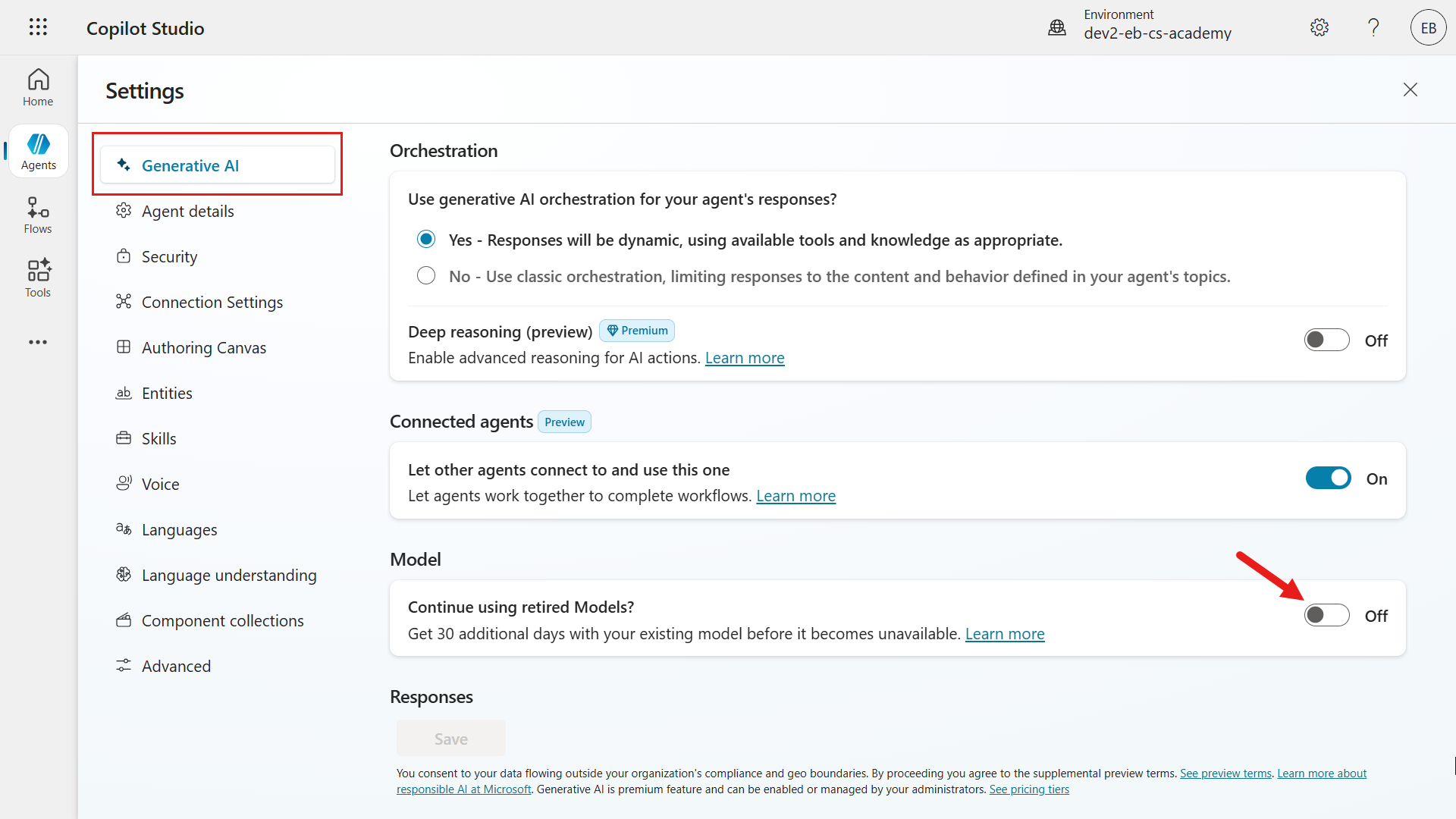
When you turn on this feature, the agent stays on the previous model version for 30 days. During that time, you can switch between the previous model and the new model, compare responses, and transition gradually. After 30 days, the previous model is fully removed from the service, so plan to move to the new model before then. In practice, this feature acts as a buffer that supports a smoother transition.
Example
Suppose your agent was using GPT-4o and was upgraded to GPT-4.1. If the AI’s tone changed or it started using wording that does not match your existing conversation style, you could turn on “use retired model” to temporarily return to GPT-4o.
Then, over the next few weeks, you can update your prompts or Instructions to match the GPT-4.1 style, for example by adding an instruction such as “Keep responses concise.” After testing GPT-4.1 thoroughly in a safe environment and gaining confidence, turn off the retired model toggle. This gives end users a consistent experience during the transition period.
🔐 Admin controls for AI model selection
Not every copilot environment allows every model choice by default. Tenant administrators control organization-level settings, which is especially important for experimental models. Organizations may want to restrict who can use Preview AI models because they can process data outside specific regions or behave differently from standard models.
The following are the main admin controls that affect model selection for makers and developers.
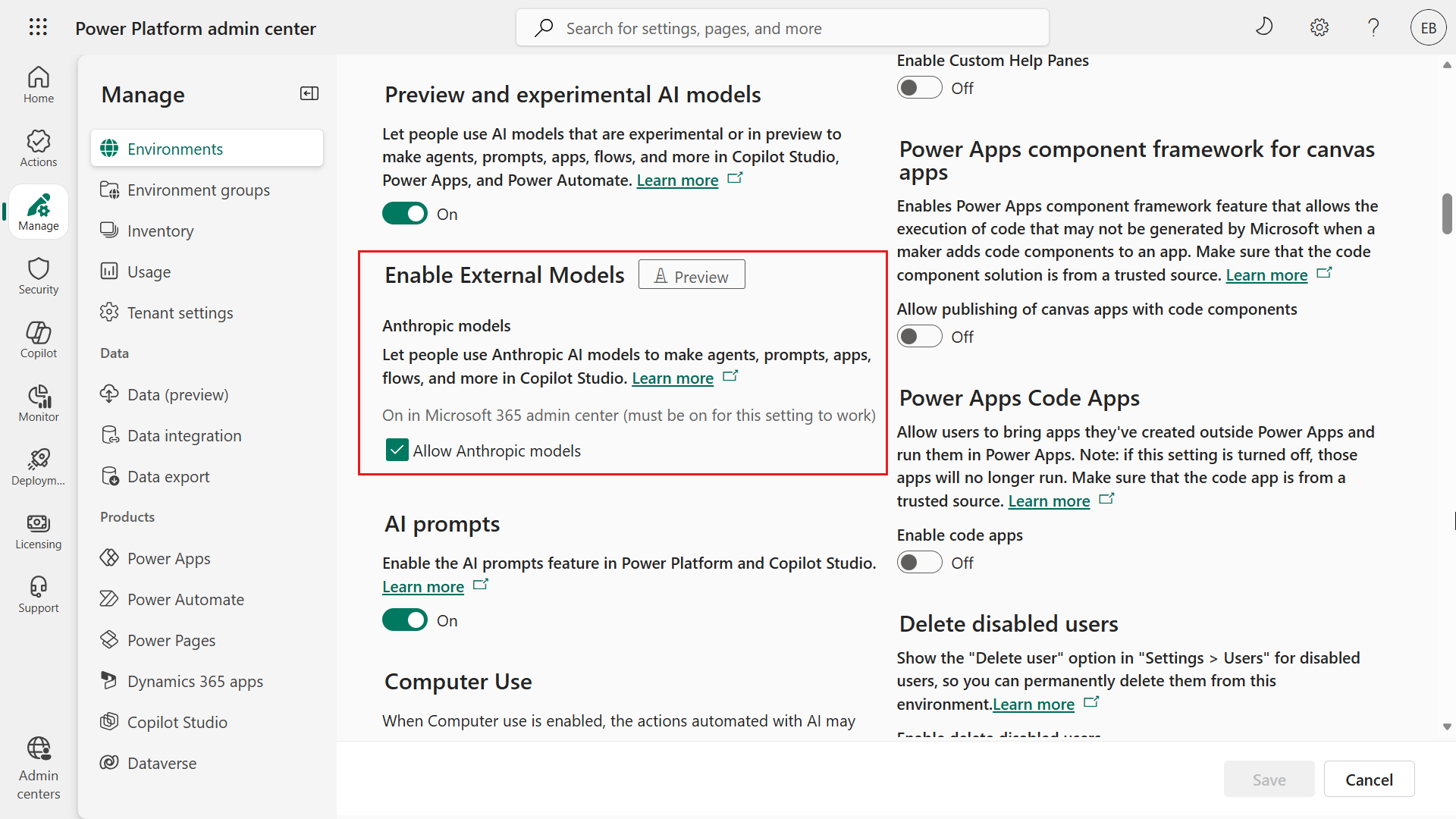
- Enable Anthropic as a Microsoft subprocessor subject to the above terms: An administrator with the Global administrator role must enable Enable Anthropic as a Microsoft subprocessor subject to the above terms in the Microsoft 365 Admin Center. If this setting is off, only OpenAI models are available.
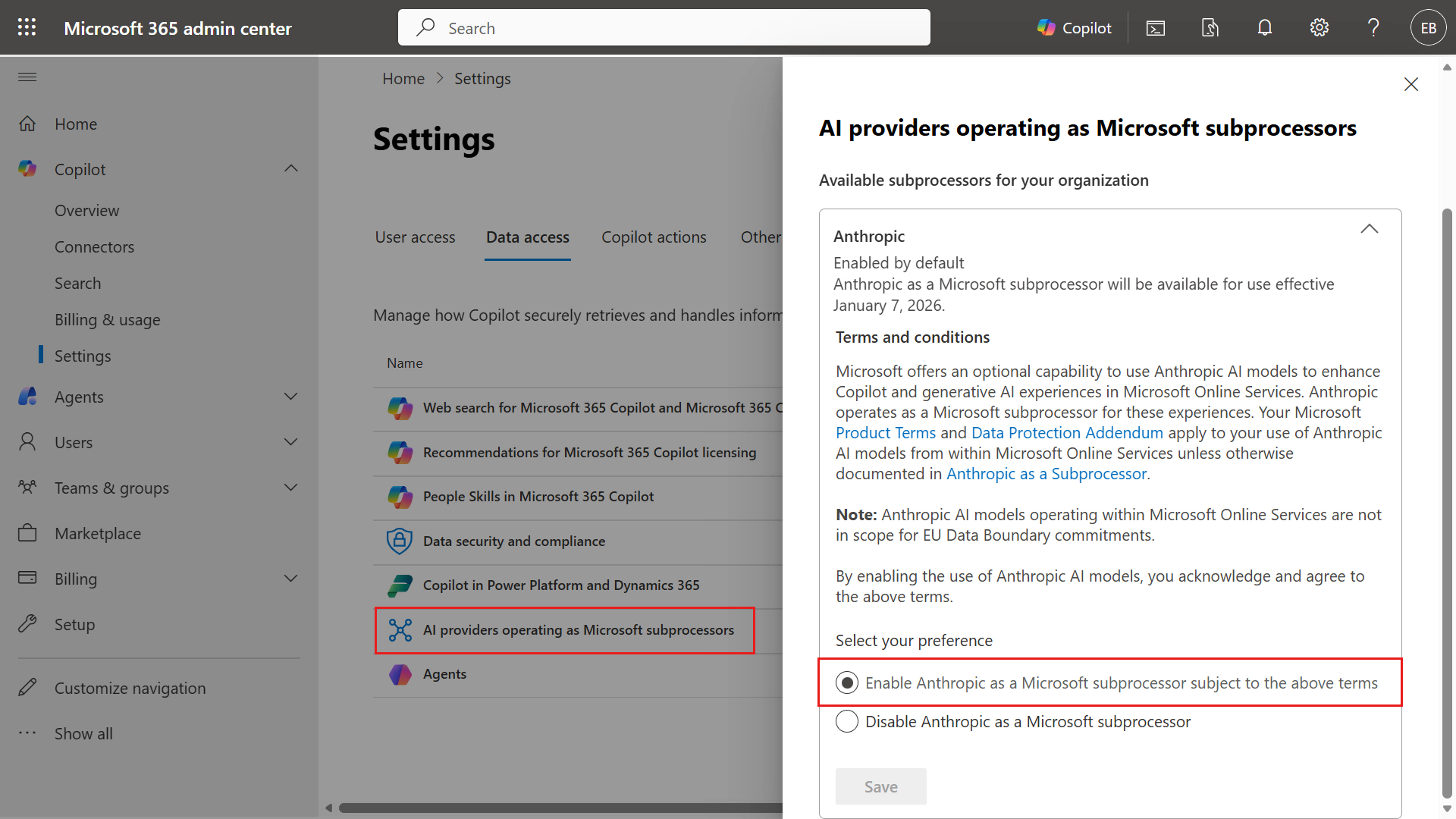
Administrators can also toggle whether external models are allowed for specific environments in the Power Platform admin center.
-
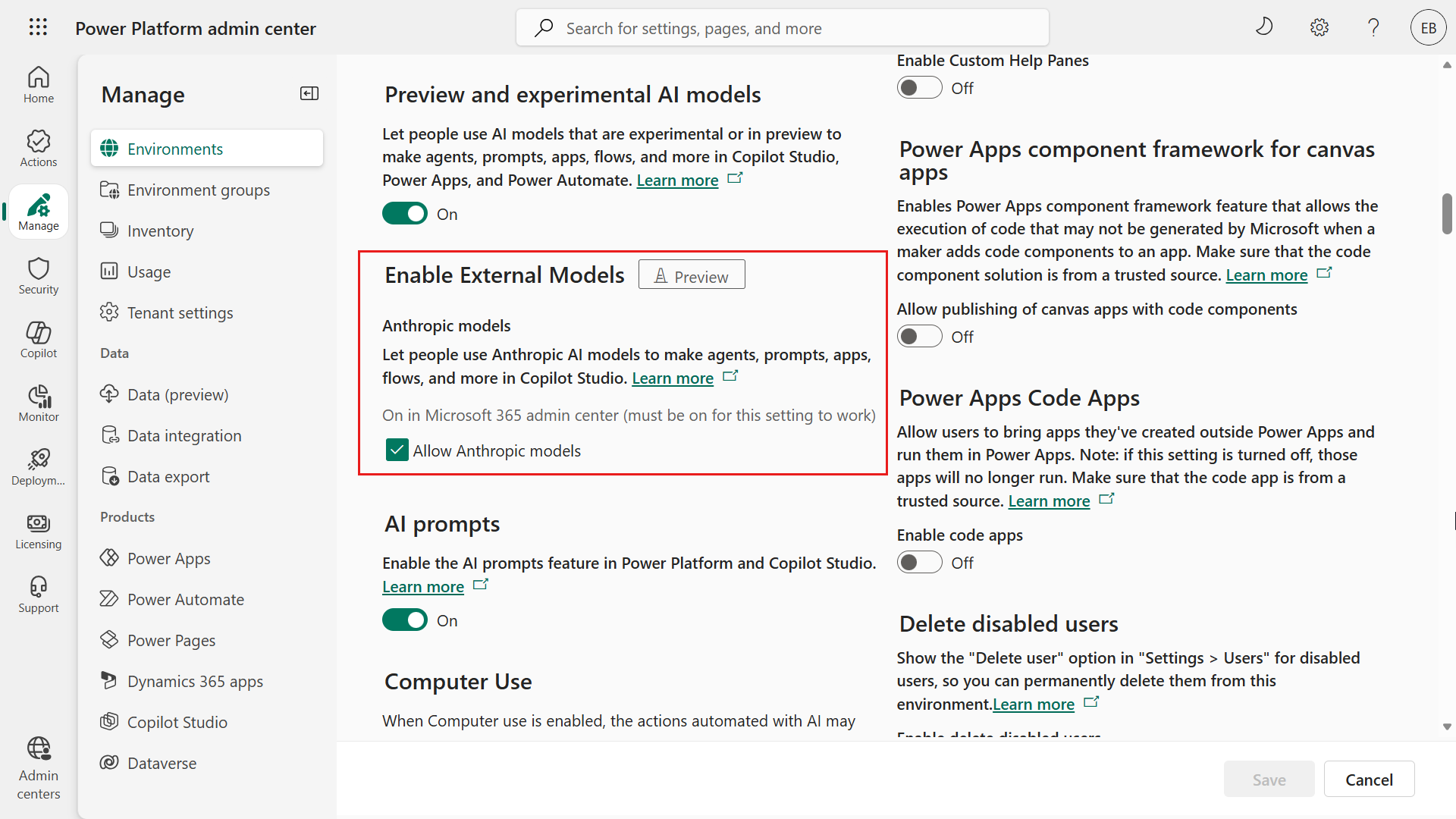
Allow Preview (Experimental) models to be used in Copilot Studio environments: Administrators can toggle whether preview and experimental AI models can be used in specific environments. If this setting is off, makers and developers see only generally available models such as GPT-4.1 in the dropdown.
To use GPT-5 or future preview models, an administrator must turn this setting on for the environment.
-
Move data across regions: Experimental models may not run in the same regional datacenters as standard models, so enabling them often requires allowing data movement across regions. Environment settings in the Power Platform admin center include an option called Move data across regions, and administrators must enable it to use Experimental models. This setting acknowledges that data processed by those models may leave the organization’s geographic boundary.
For example, if an environment is in Europe and an Experimental model is hosted only in a US datacenter, this setting must be enabled so data can move. If it is off, Copilot cannot use that model.
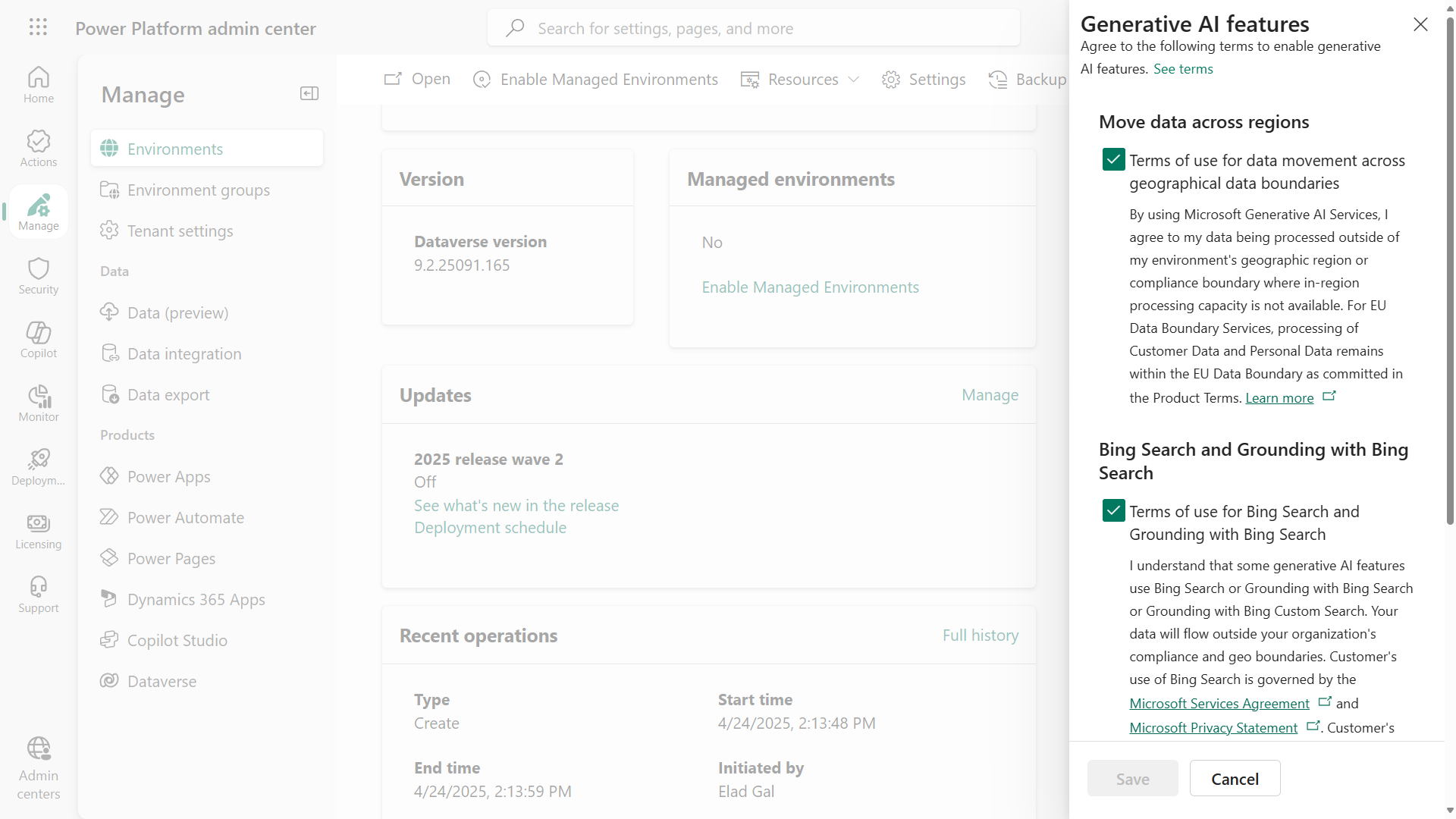
These admin settings ensure that the organization remains in control of sensitive factors such as data residency and feature stability. If you are a developer building an agent and you do not see a GPT-5 preview model option, or you see a warning that generative AI cannot be used, your administrator may have disabled experimental models or not allowed data movement across regions. If you need experimental capabilities, ask your tenant administrator to adjust the environment settings.
The table below summarizes the quick reference for admin controls related to model selection.
| Admin Setting | Effect on Model selection | Setting location |
|---|---|---|
| Enable Anthropic as a Microsoft subprocessor | When Enabled, users can connect Anthropic external models to agents created in Copilot Studio. When Disabled, only OpenAI models can be used. | Microsoft 365 Admin Center |
| Allow Preview & Experimental Models | When ON, makers can select Preview/Experimental AI models such as GPT-5 Chat for the agent. When OFF, only production-ready models are available. | Power Platform admin center |
| Move Data Across Regions | Must be ON when Experimental models are enabled. Allows the agent’s data to be processed and stored outside the home region. If this setting is OFF, models that require cross-region data flow are blocked, and as a result the agent’s generative AI capabilities cannot be used. This setting is managed by tenant administrators in the Power Platform admin centre. | Power Platform admin center |
Tip —
- If you are an admin concerned about data compliance, disable Anthropic models and turn off preview models and cross-region data movement.
- If you are a developer in a highly regulated industry environment, you may need to use only General Availability (GA) models until you have clearance to use Preview models (OpenAI) or external Preview models (Anthropic).
🔠 Response Formatting
After you choose the right model and provide good Instructions to decide what the agent should say, focus on how the answer should look when it reaches the user.
In Copilot Studio, Response Formatting means defining the style and structure of AI responses. For example, you can control whether text appears in bold or italics, whether links are included, and whether dynamic content or expressions are inserted.
🖼️ Why does Response Formatting matter?
The key is readability and user experience. Even a correct answer can confuse or frustrate users if it is an unstructured block of text. Consistent formatting makes important information stand out and makes answers easier to scan quickly.
For example:
- bold text can emphasize important numbers or terms.
- lists can break complex instructions into steps.
- hyperlinks can direct users to additional resources without making the answer too long.
Formatting choices should also reflect your brand’s style and tone. For example, a formal agent may avoid emojis and use bold text for emphasis, while a more playful agent may use italics to highlight light jokes or friendly phrasing.
Generative answer nodes in Copilot Studio let you configure which formatting elements are allowed in responses. Let’s look at the available options and how to use them effectively.
🖌️ Available formatting options
Copilot Studio generative answers support a subset of Markdown for rich text. The following are the main formatting elements you can use in AI responses and what they do.
| Formatting Option | Purpose and Effect | Example Usage |
|---|---|---|
| Bold | Makes important words or phrases stand out. Use it to emphasize key information or important values. | “Your account balance is $1,250.” - the amount is bold, so it stands out immediately. |
| Italics | Adds softer emphasis or marks special terms. Often used for document titles or to emphasize a phrase. | “Please provide additional details for verification.” - “additional details” appears in italics, making it look like a prompt or placeholder. |
| Hyperlinks | Inserts clickable links into response text. Useful for sending users to external documents, an internal knowledge base, or detailed references. | “Refer to our Microsoft Surface Warranty and Protection Plans for more details.” - the text “Microsoft Surface Warranty and Protection Plans” links to a web page. |
| Power Fx expressions | Inserts dynamic content or logic-based text into responses. Power Fx can retrieve variable values, perform calculations, and enforce formatting, including validation regex. This lets part of the response be determined by real-time data or conditions. | “Today is Text(Now(), "dddd, mmmm d, yyyy").” - this example uses a Power Fx formula to insert the current date in a long format such as Friday, October 3, 2025. Expressions can also format numbers or ensure output follows a specific pattern. |
Tip — Always test response formatting in the Copilot Studio test pane. Enter sample user questions and check that the agent’s response appears in the expected format. If the result is unexpected, such as Markdown syntax appearing as raw text, you may need to adjust the Instructions. Sometimes the model behaves “safely” by showing raw Markdown syntax such as asterisks because it is unsure whether formatting is allowed. Make the formatting Instructions clearer and keep testing until you are satisfied.
⭐ Response formatting best practices
Now that you know what you can do, let’s look at what you should do to make AI responses clear and effective. The following best practices are for developers designing agent behavior.
-
Keep style consistent: Use a consistent format for similar response types.
For example, you can give an instruction such as:
Term in bold, followed by a colon, then the definition in regular text.Use the same pattern every time you explain a definition.
Or, when the agent lists multiple options, have it always use a bullet list instead of sometimes using bullets and sometimes paragraphs.
Consistency helps users understand the response structure quickly. You can enforce it in Instructions, for example:
"Always answer with bullet points when listing options." -
Use emphasis sparingly and meaningfully: Apply bold only to the most important information users must not miss. One or two words or a short phrase is usually enough. If you bold an entire paragraph or large block of text, the emphasis loses its effect.
Use italics for secondary emphasis or elements such as example inputs and notes. For example, showing an error message or user-provided text in italics can distinguish it from the rest of the agent’s output.
-
Use lists for structure: If an answer contains multiple pieces of information or a step-by-step procedure, do not bury them in a sentence. Use a numbered list (1, 2, 3, …) when order matters, and bullet points for unordered sets such as product features.
-
Consider tone along with formatting: Formatting should complement the agent’s tone. If the agent persona is very formal, avoid exclamation points and overly casual emphasis. If the agent is friendlier, occasional bold phrasing such as “Great choice!” can work. Tone is primarily driven by language, but formatting can amplify it. A friendly, conversational agent can use emoticons or emojis when appropriate, but they must fit the use case and be used sparingly.
-
Check hyperlink text: When including hyperlinks in responses, make sure the link text describes where the link goes. This looks more professional and also helps accessibility.
For example, instead of
"download the report here", it is better to link “Quarterly Report” in"download the Quarterly Report". Check that the URL is correct, and if it is an internal site, confirm that users have access. -
Use Power Fx for dynamic formatting: A particularly powerful technique for developers is combining generative answers with Power Fx expressions to refine output.
Suppose the initial response is
"Your order total is 1250 usd.”You can use a Power Fx formula to turn the number into US currency format and replace"usd"with the dollar sign, producing"$1,250.00".For example, you can use this formula:
"$" & Text(ThisItem.OrderTotal, "[$-en-US]#,##0.00")This formula guarantees US-style number formatting with commas and two decimal places.
Similarly, if generative AI provides a date in an undesirable format, a Power Fx expression can reformat it. In essence, you can post-process the AI’s text to enforce the strict pattern you want.
-
Prioritize readability: After applying all of the above, always read the output from the user’s perspective. Can they find the key point easily? Is the response unnecessarily long? In many cases, less is more. If the AI tends to be too verbose, consider instructing it to answer more concisely or limiting the answer scope.
Conversely, if answers are too short or lack detail, add Instructions requesting more explanation or examples.
Formatting can only do so much; content quality still has to support it. A good balance is a short answer that addresses the question, followed by a hyperlink or option for more information. For example:
"Your password was reset successfully. You will receive a confirmation email shortly. If you did not request this, please head to [https://support.example.com](https://support.microsoft.com)."This wording is clear, and additional information (support contact) is provided as a hyperlink instead of a long paragraph.
In summary, formatting should increase clarity rather than distract. Users should be able to glance at the agent’s response and quickly find what they need. Developers should use Response Formatting under the Generative AI tab in the agent’s Settings to refine output. Always test with a range of questions to make sure formatting holds, and adjust Instructions as needed.
🧪 Exercise 5 - Select models for the Interview Agent
In this exercise, you will ask the same questions to three different models and compare the responses and formatting. Look for differences in:
- Depth
- Structure
- Tone
- Specificity
🧪 Exercise 5.1 - Response formatting for the Interview Agent
-
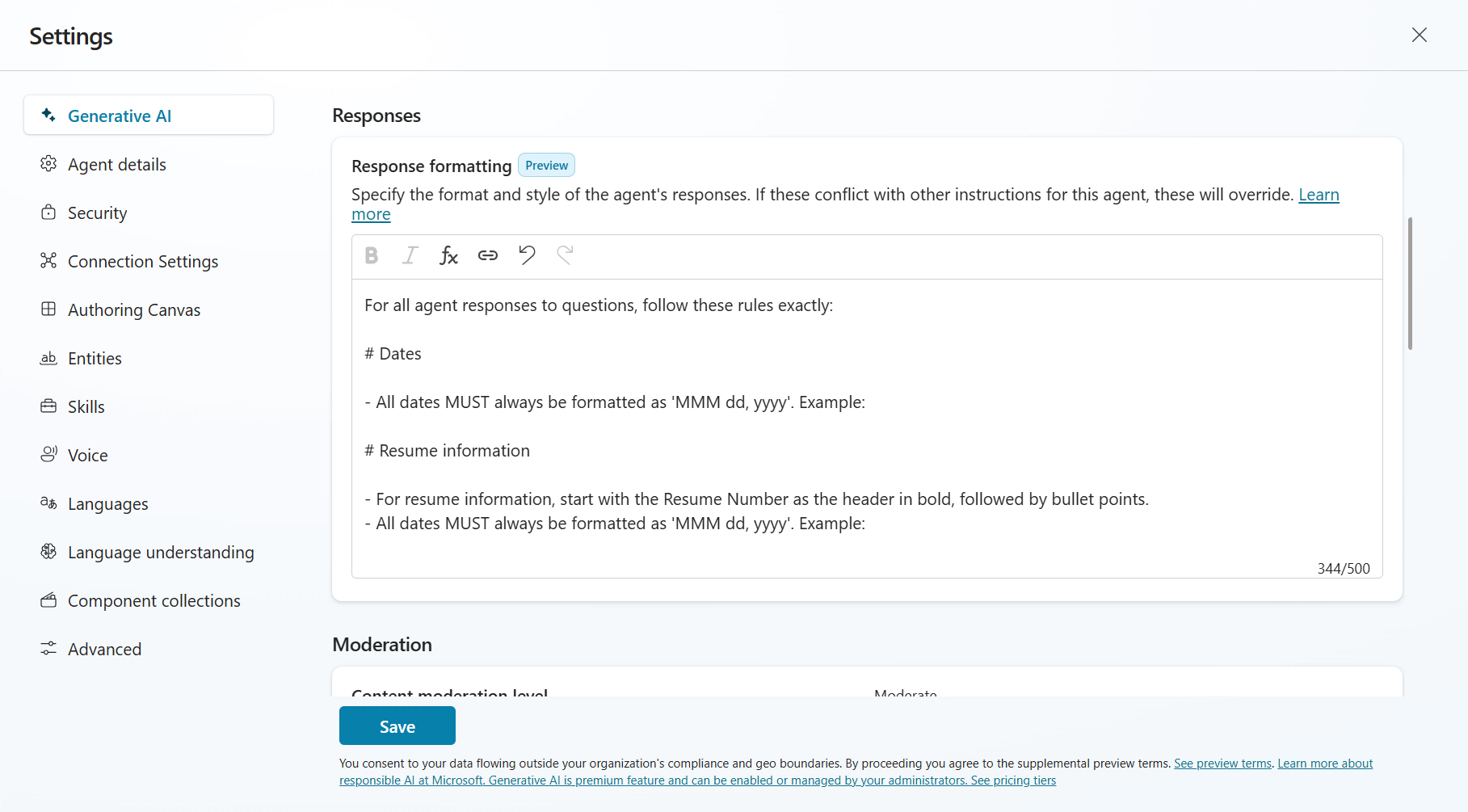
In Interview Agent’s Settings, scroll down to the Response formatting section and update the Instructions. Use the following as formatting Instructions.
 For all agent responses to questions, follow these rules exactly:

 # Dates

 - All dates MUST always be formatted as 'MMM dd, yyyy'. Example:

 # Resume information

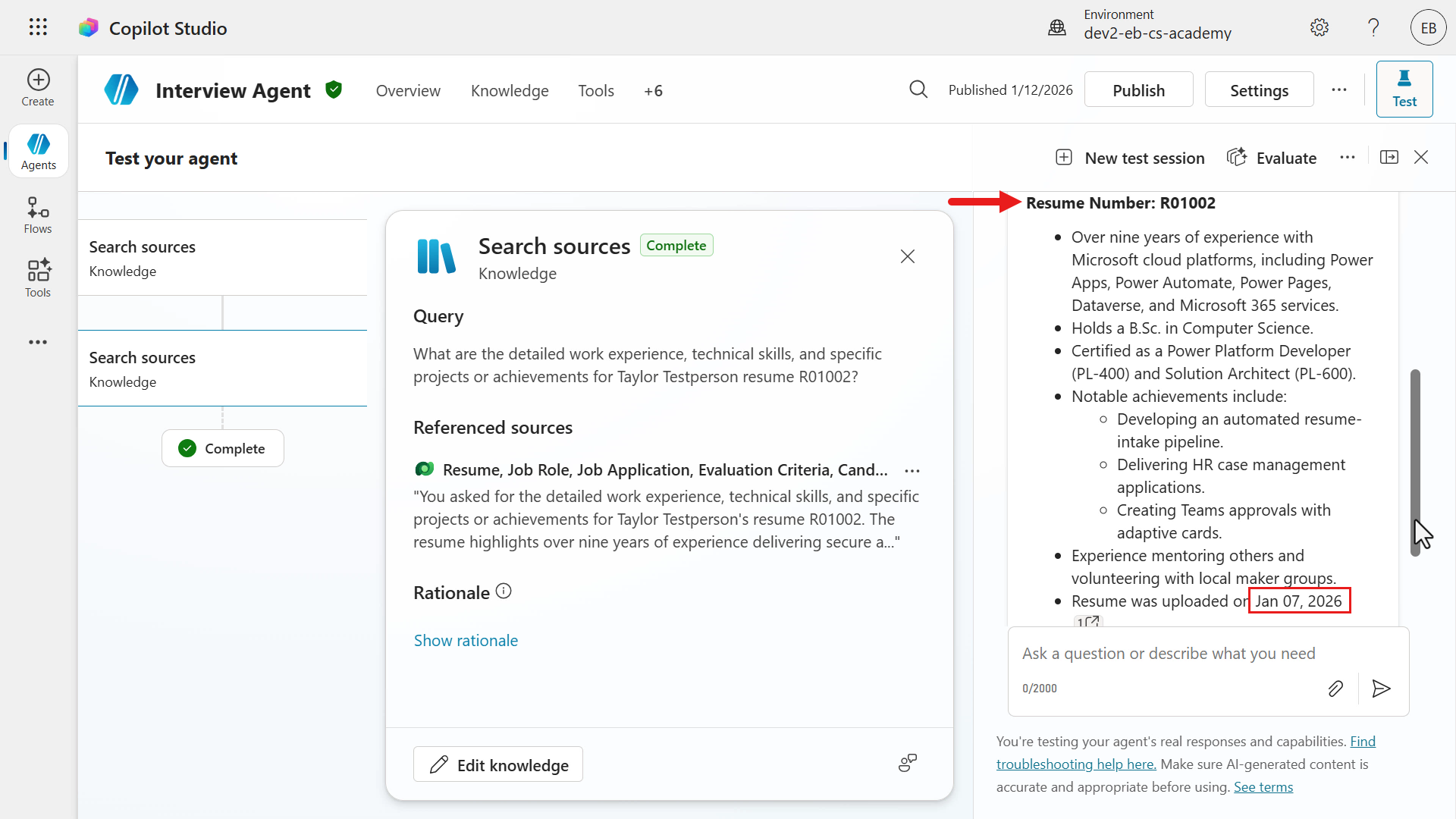
 - For resume information, start with the Resume Number as the header in bold, followed by bullet points.
 - All dates MUST always be formatted as 'MMM dd, yyyy'. Example:
-
Add a Power Fx formula to the two date format examples in the Instructions. Click after the first
Example:and select the Power Fx icon. Copy and paste the formula below, then select Insert.Text(DateTimeValue("2026-01-06T13:45:54Z"), "MMM dd, yyyy")
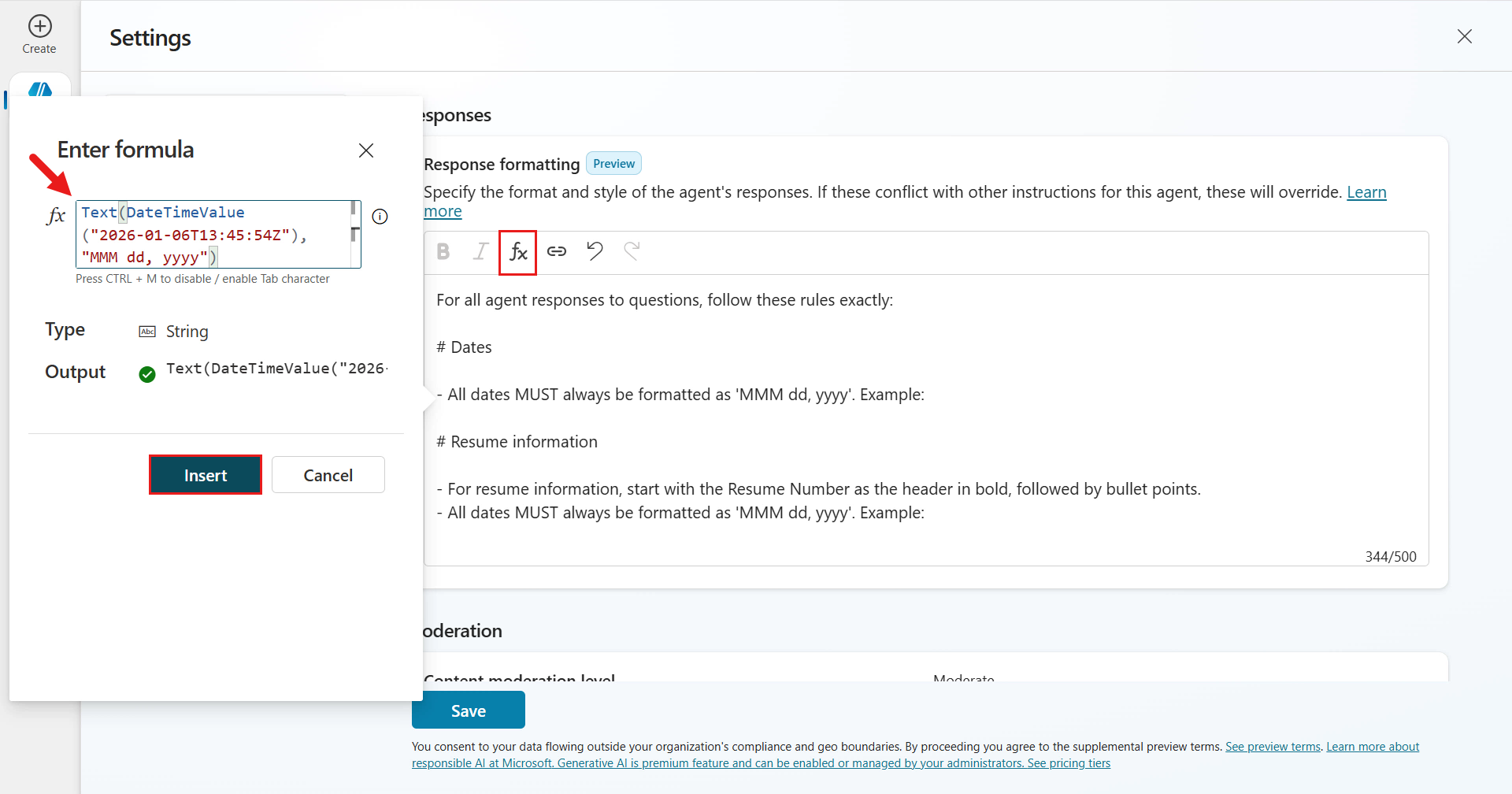
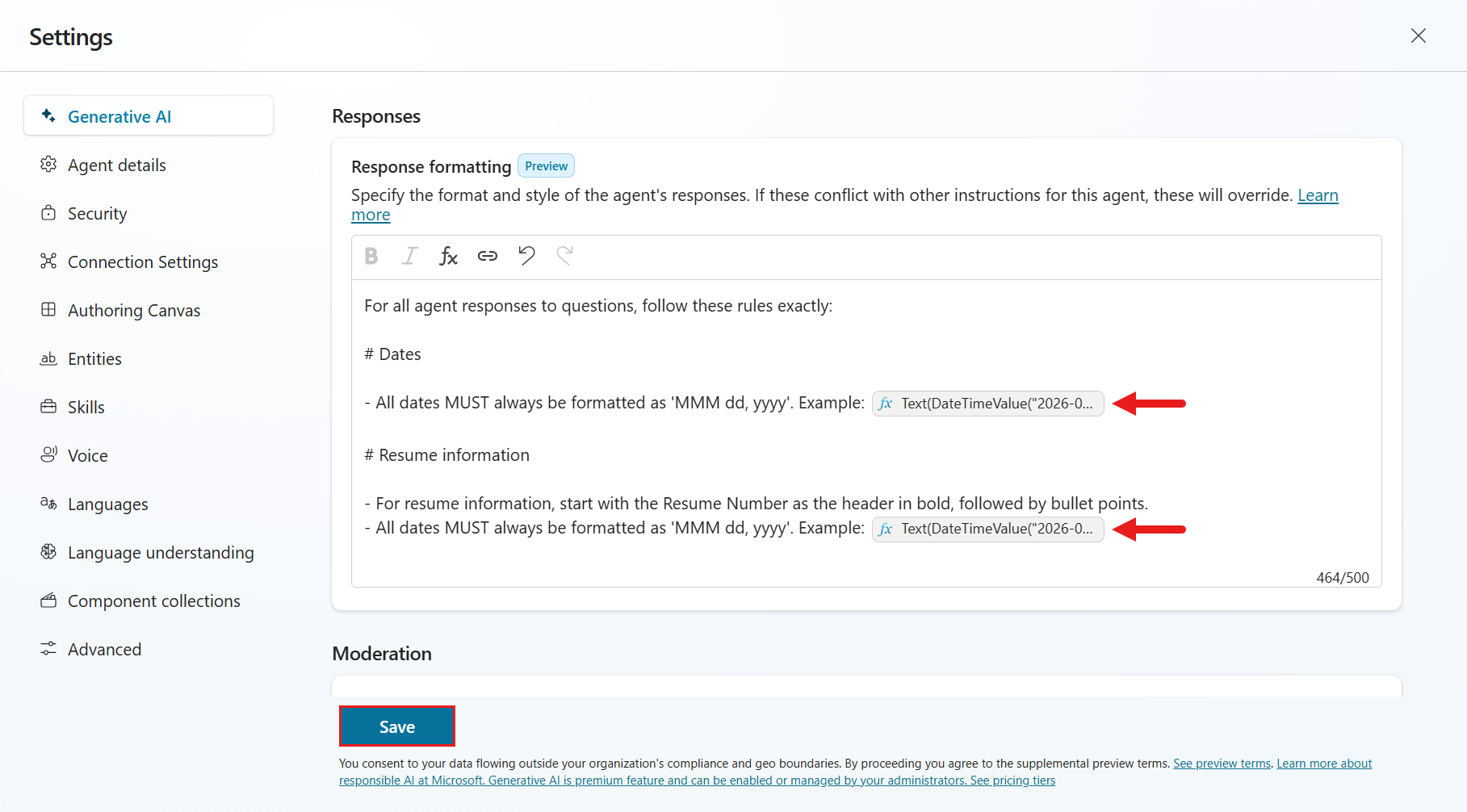
- You can see that the formula has been added to the first example. Repeat the same steps for the second
Example:: copy and paste the Power Fx formula, select Insert, then select Save to save the response formatting settings.
- Exit Settings.
🧪 Exercise 5.2 - Compare model responses and formatting
Now compare responses from the default GPT-4.1 model, the GPT-5 Chat preview model, and the Claude Sonnet 4.5 experimental model.
Warning: responses may vary between test sessions — The selected generative AI model dynamically generates responses rather than returning fixed responses, so the response can vary slightly in each conversation during a test session.
-
Start a new test session in Interview Agent and enter the question below. Use a Resume Number value from an existing active resume in the Hiring Hub model-driven app.
Summarize the key qualifications, experience, and skills of the candidate whose resume is identified as R#####. Focus on education, work history, relevant skills, and any notable achievements or certifications.
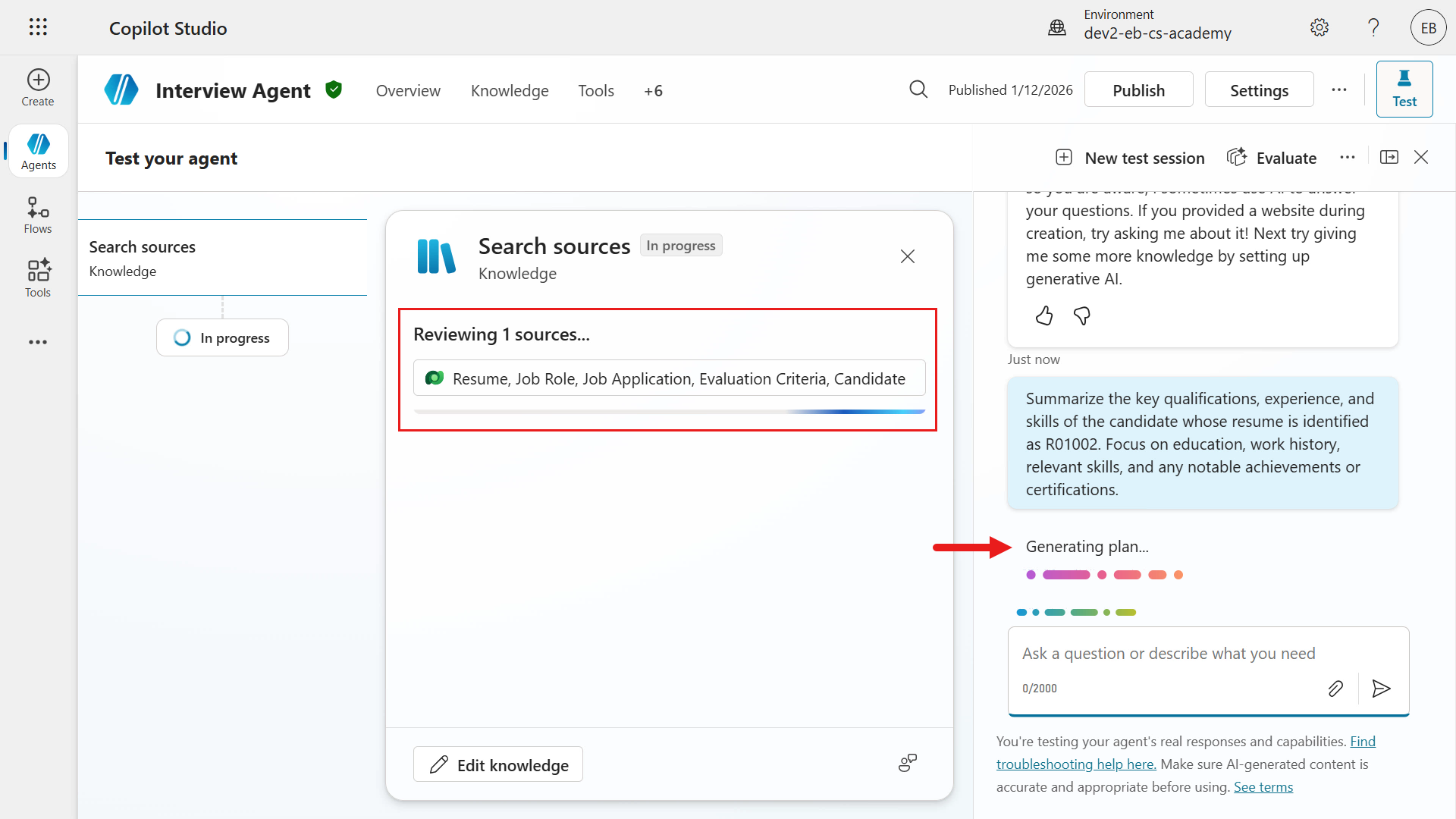
You can see the model searching through the Dataverse Knowledge source you configured. That setup is covered in the original Mission 03: Multi-Agent Systems.
- The resume summary is then displayed. Check how well it follows the response formatting. The output starts with the Resume Number in bold, followed by bullet points.
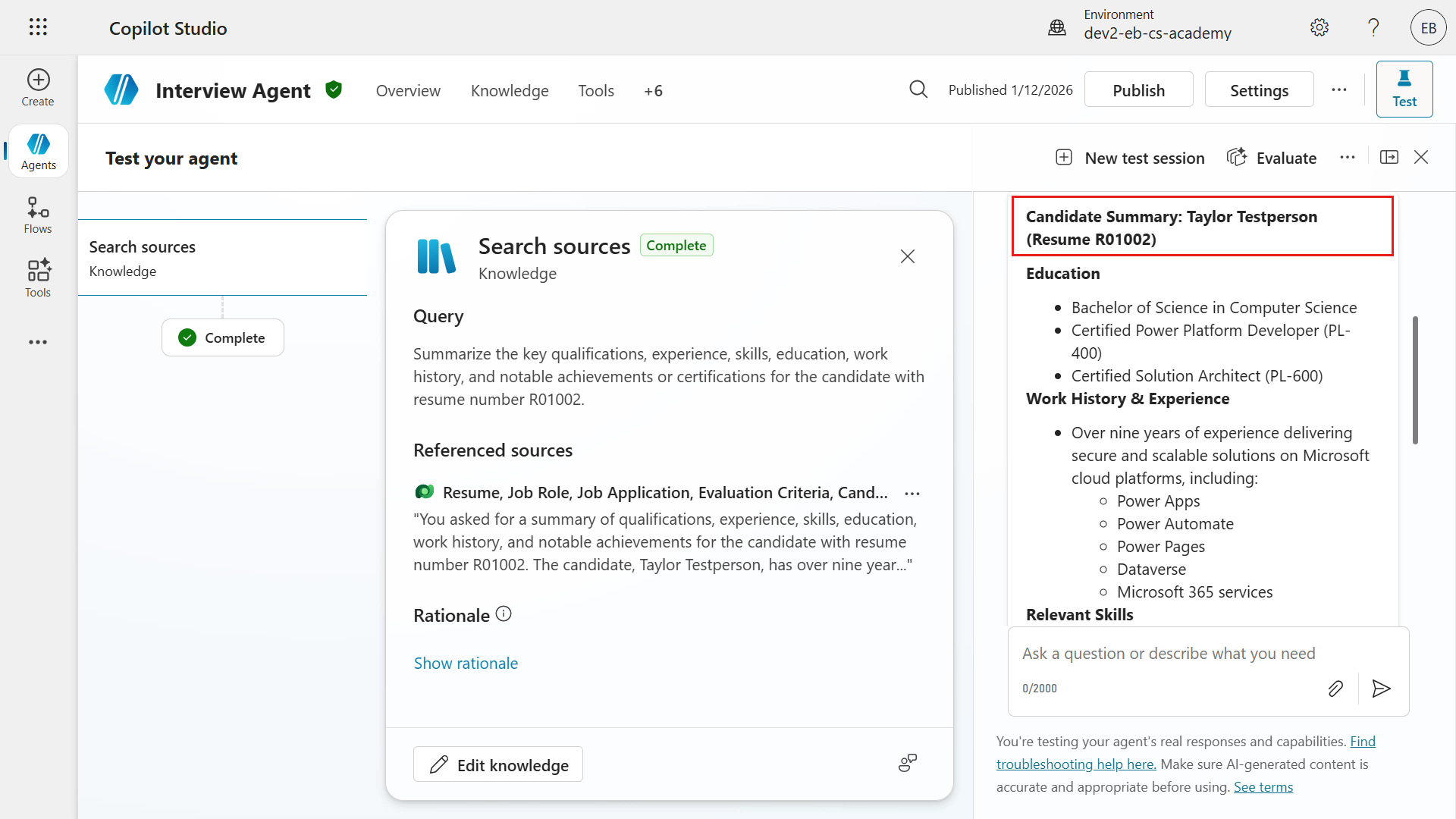
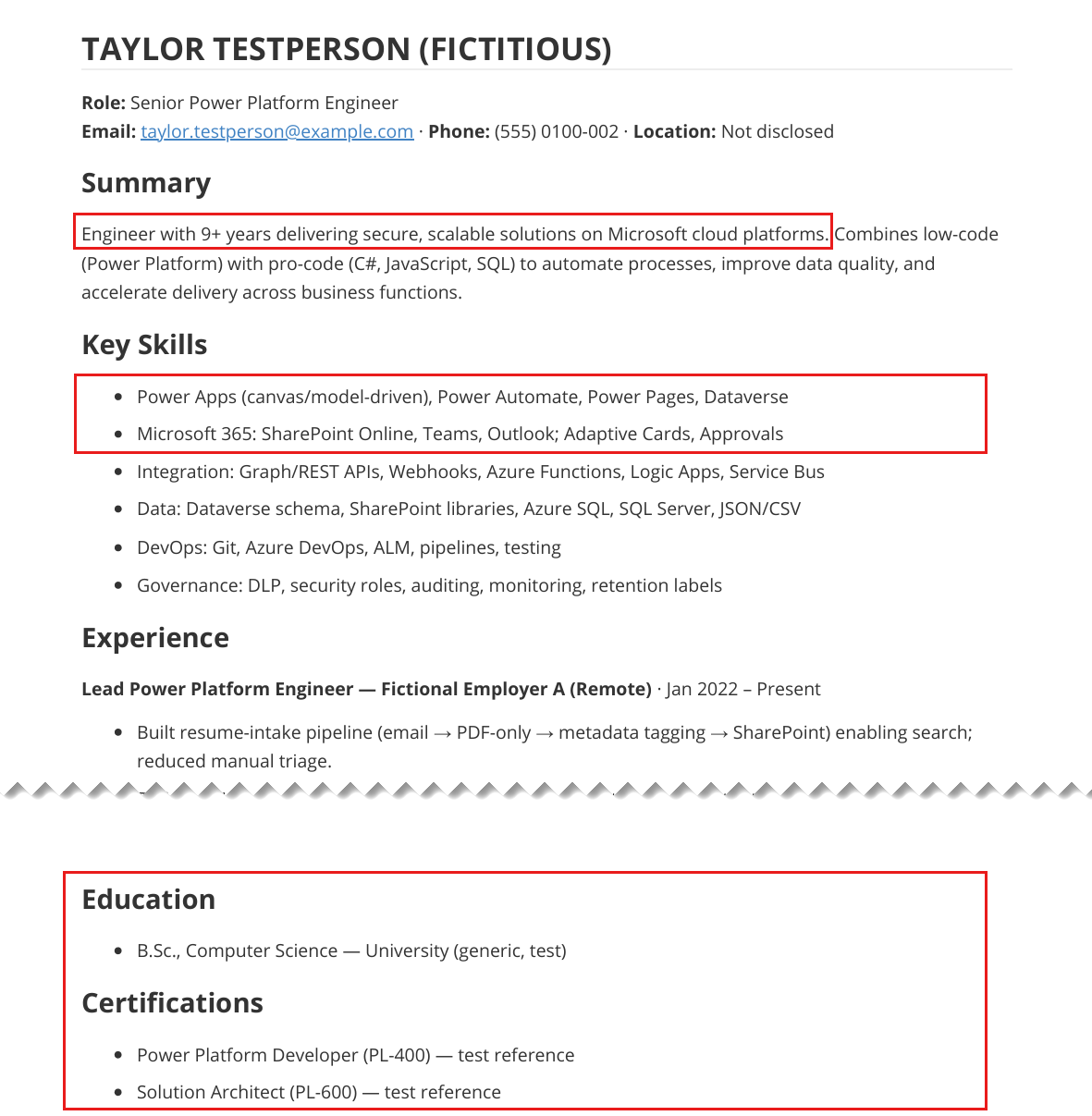
It is also a good idea to verify that the agent’s response matches the Dataverse resume row and the PDF file contents.
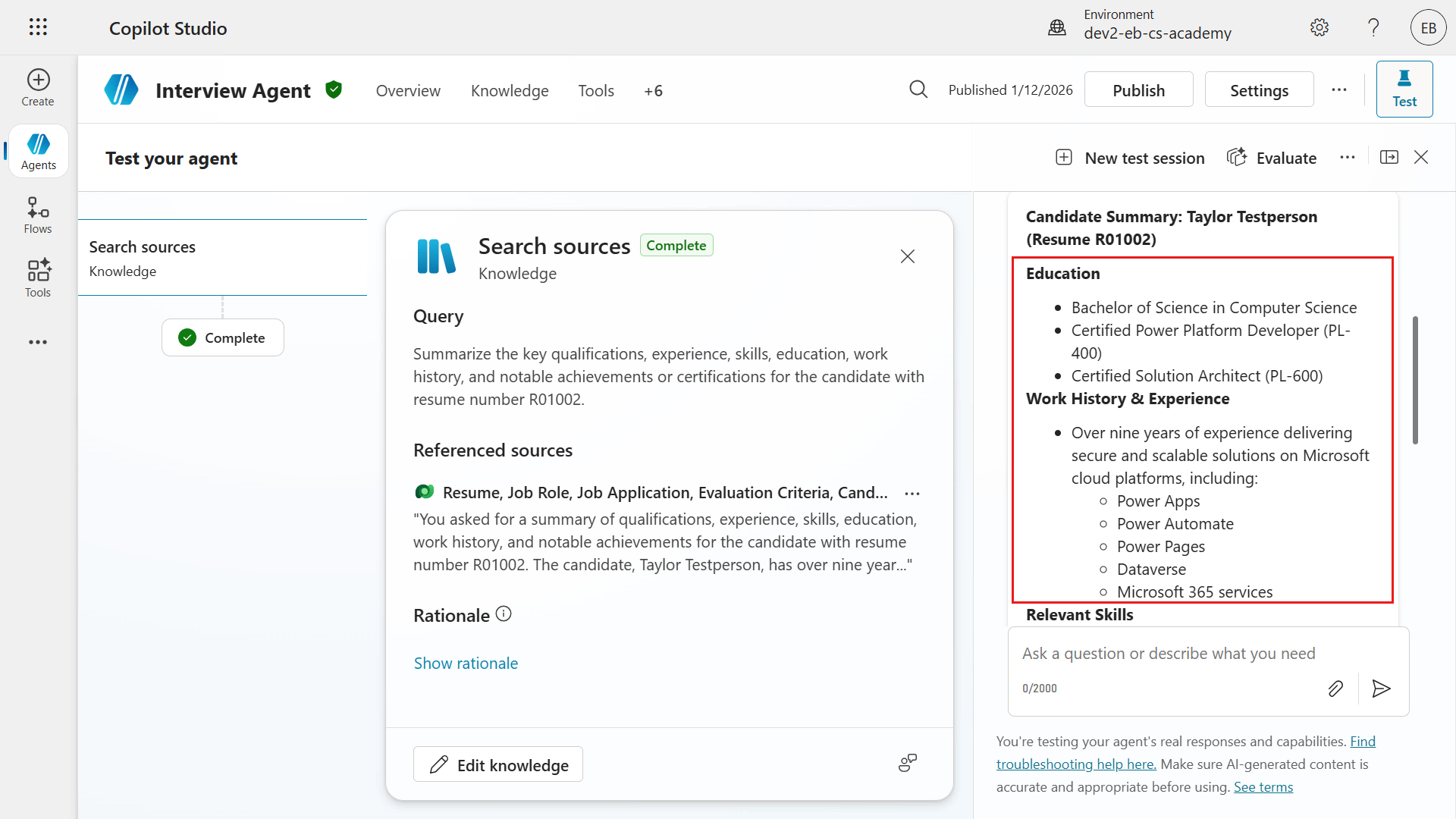
When you review the linked Resume file, the skills returned by the model are accurate. The certification information also matches the Resume file. Great.
-
Next, verify whether the agent follows the date format. Enter the question below.
When was the upload date?
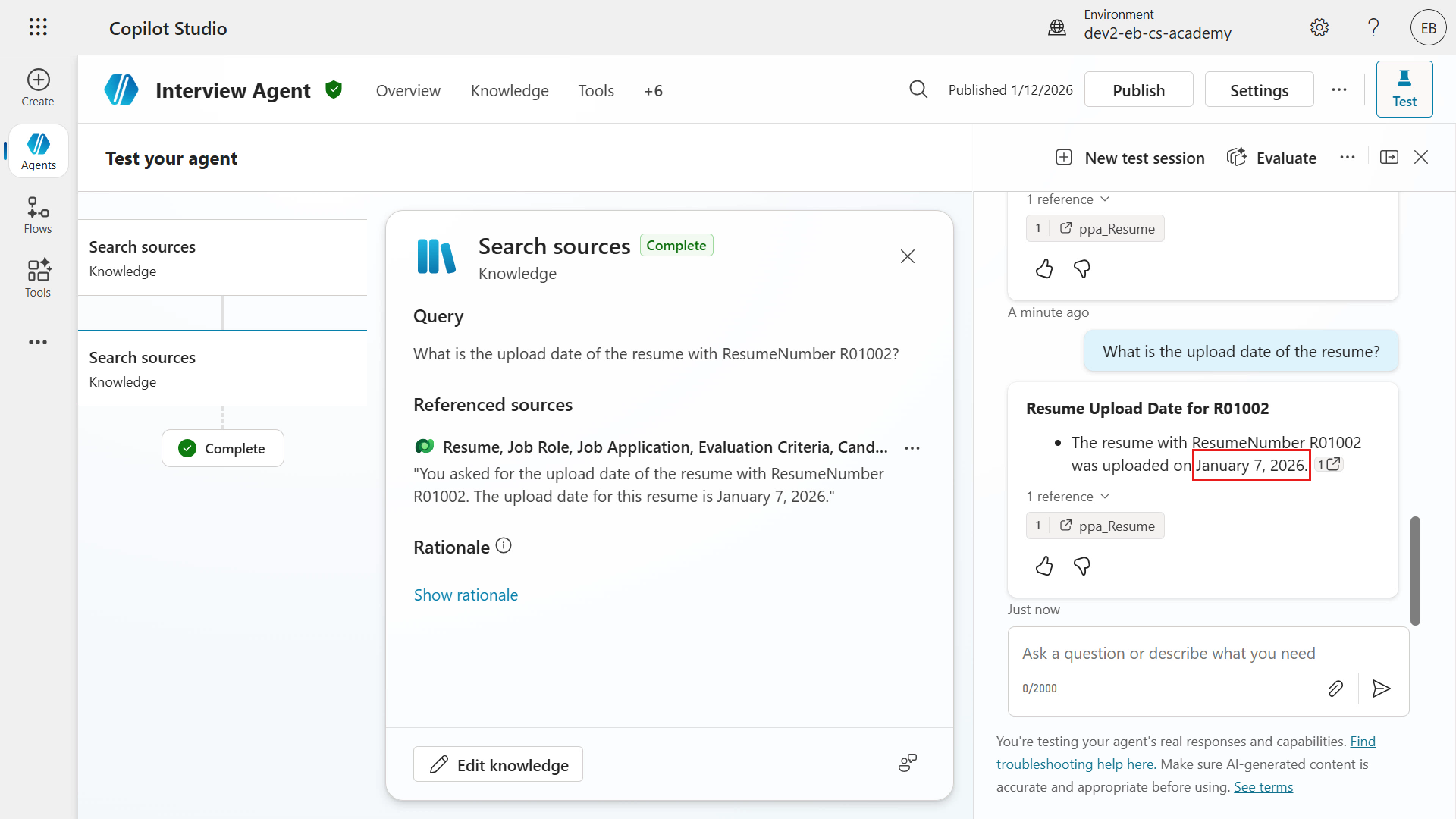
You can see that this model did not follow the date format exactly.
-
Now ask another question to suggest interview questions based on the evaluation criteria for a job role, and to provide possible answers as well. Enter the question below.
Can you provide suggestions of questions to ask in an interview for the Power Platform developer role (Job role number J1004) based on its associated evaluation criteria? Can you also please provide what the answers may be for each question?
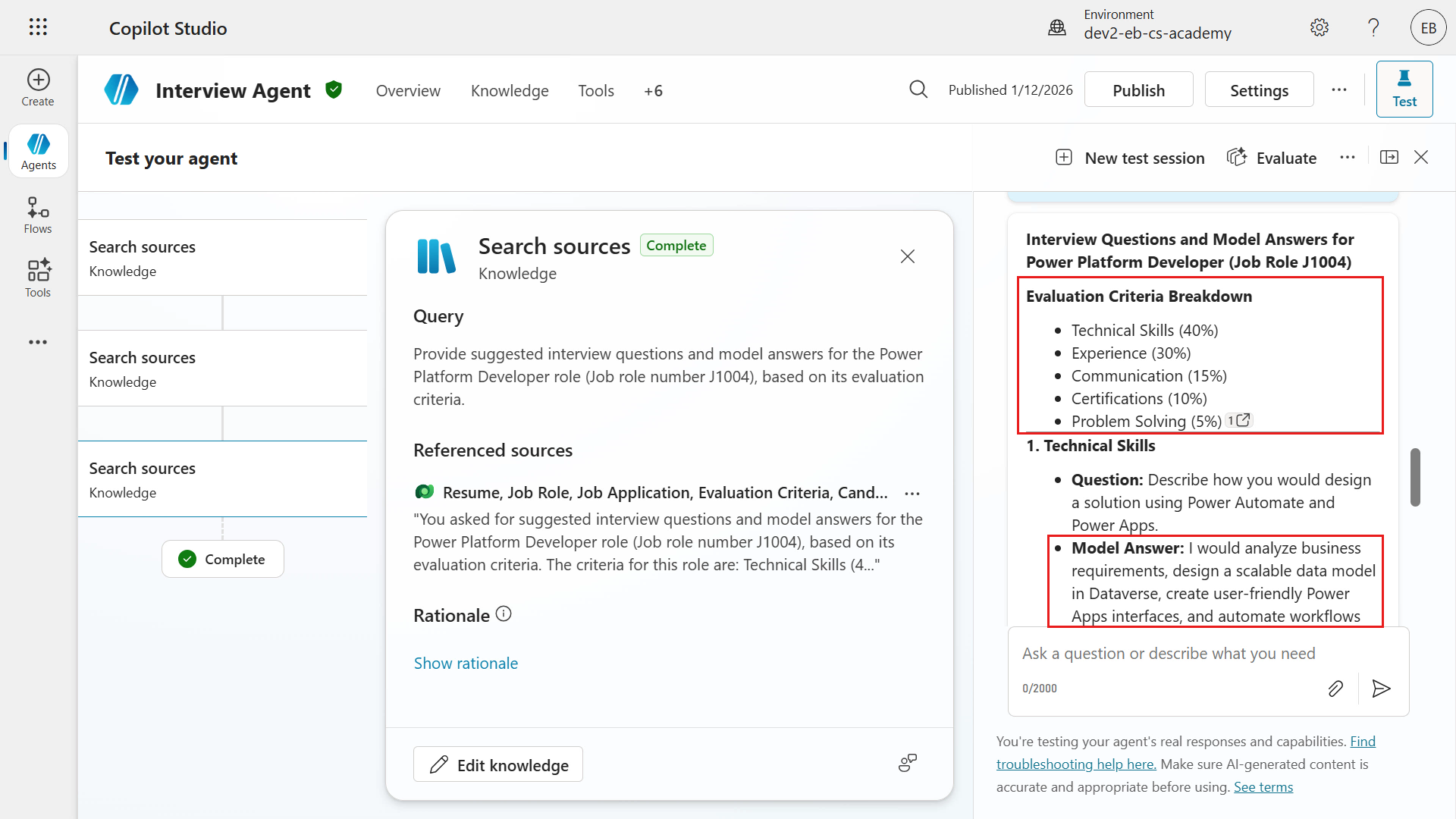
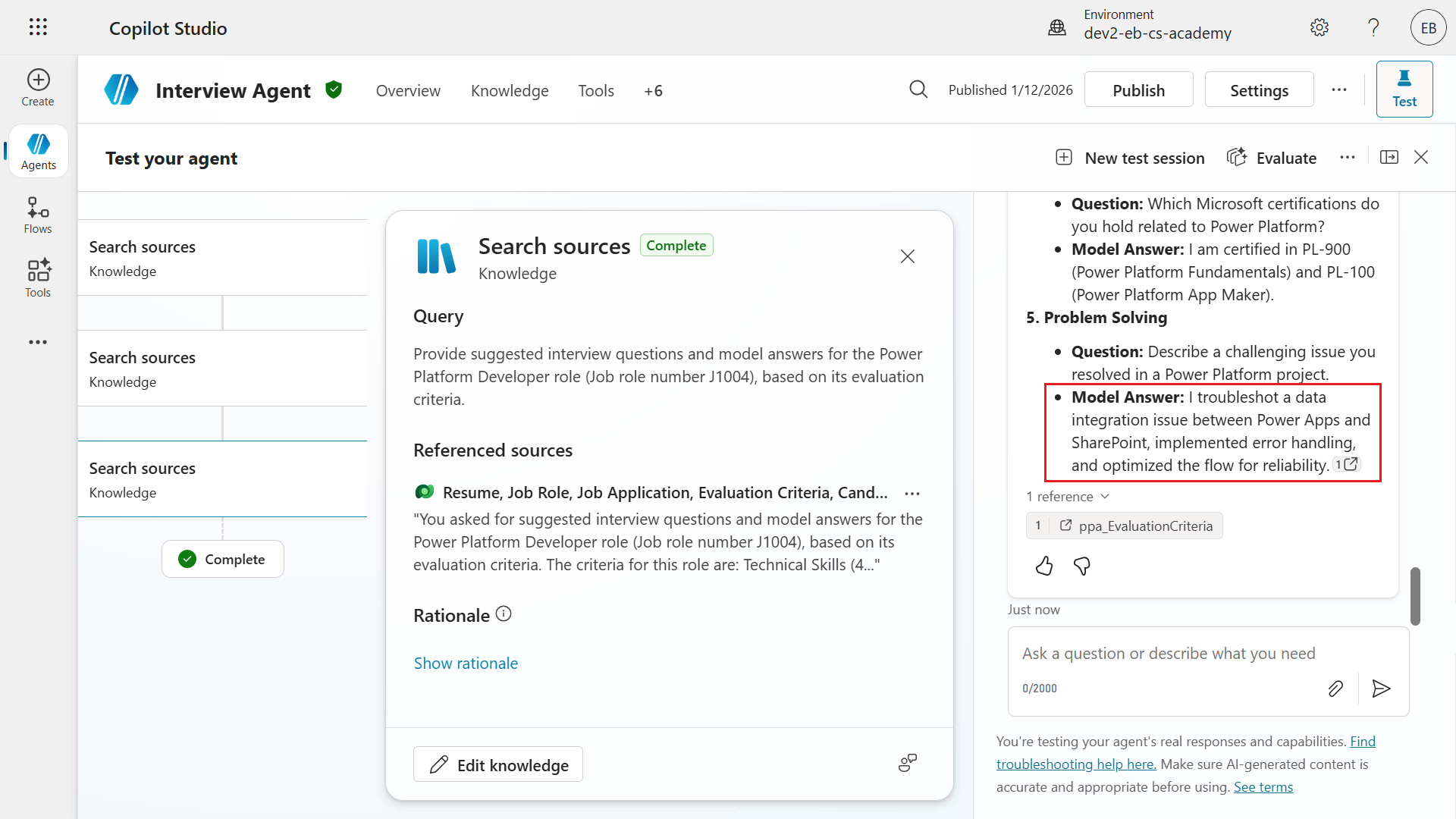
The returned response first lists the evaluation criteria for the Power Platform Developer role, as defined in the Dataverse Job Role row. Each criterion includes a percentage weight. It then lists questions for each criterion, followed by a Model Answer. Notice that the answers are in first person, describing the expected answer a candidate might give to the question.
- The response is organized under criteria, question, and answer.
- Criteria:
- Indicates the criterion being evaluated.
- Question:
- The interview question being evaluated.
- Model Answer:
- This subsection lists the points the agent considers a strong acceptable answer from the candidate’s response.
- Criteria:
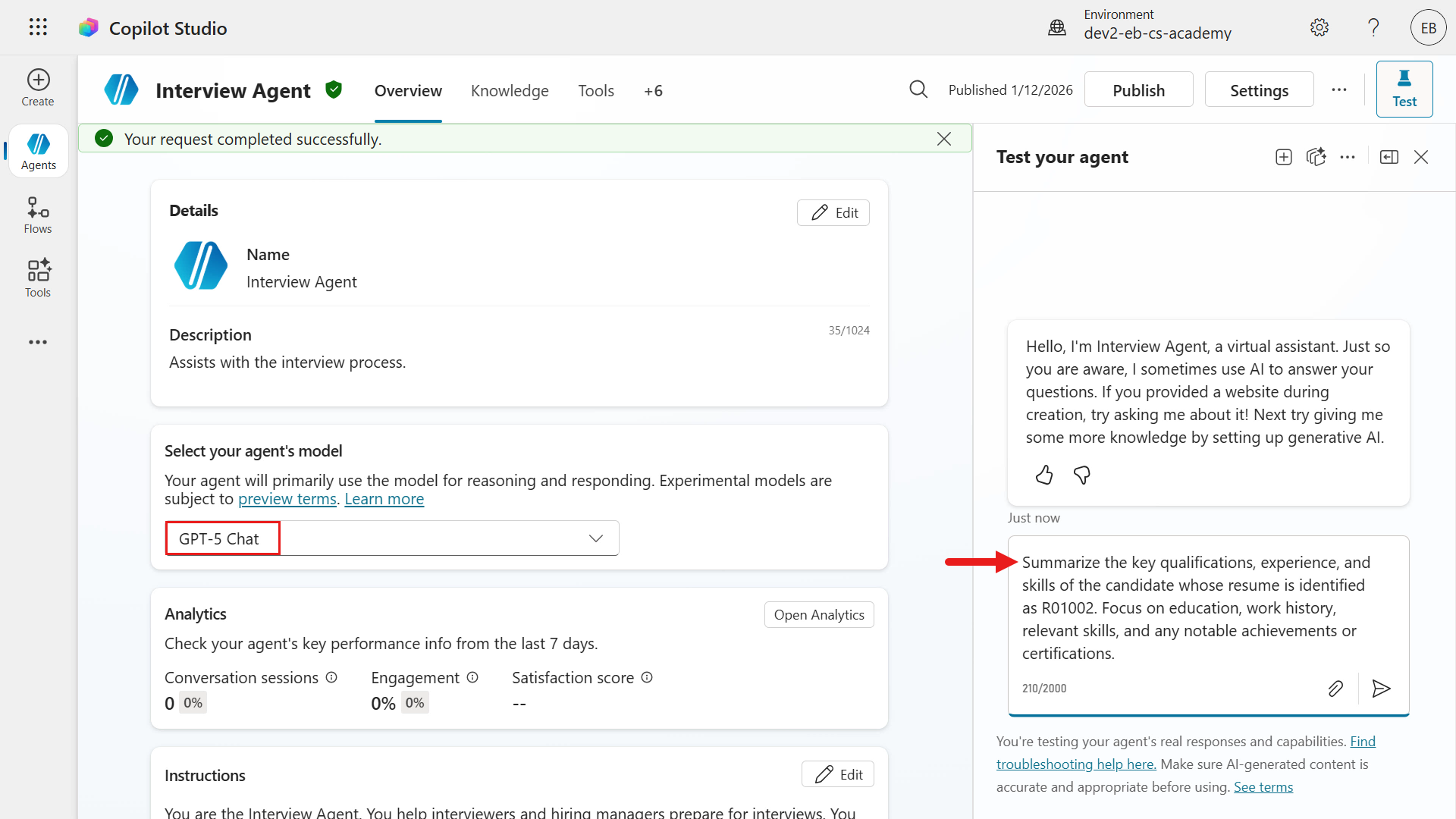
- Now change the agent’s model. On the Overview tab, select the chevron icon, then select GPT-5 Chat from the list of OpenAI models.
After a moment, you will see a confirmation that the agent model has been updated. Start a new test session to test this model’s responses.
Enter the question below. Use a Resume Number value from an existing active resume in the Hiring Hub model-driven app.
```text
Summarize the key qualifications, experience, and skills of the candidate whose resume is identified as R#####. Focus on education, work history, relevant skills, and any notable achievements or certifications.
```
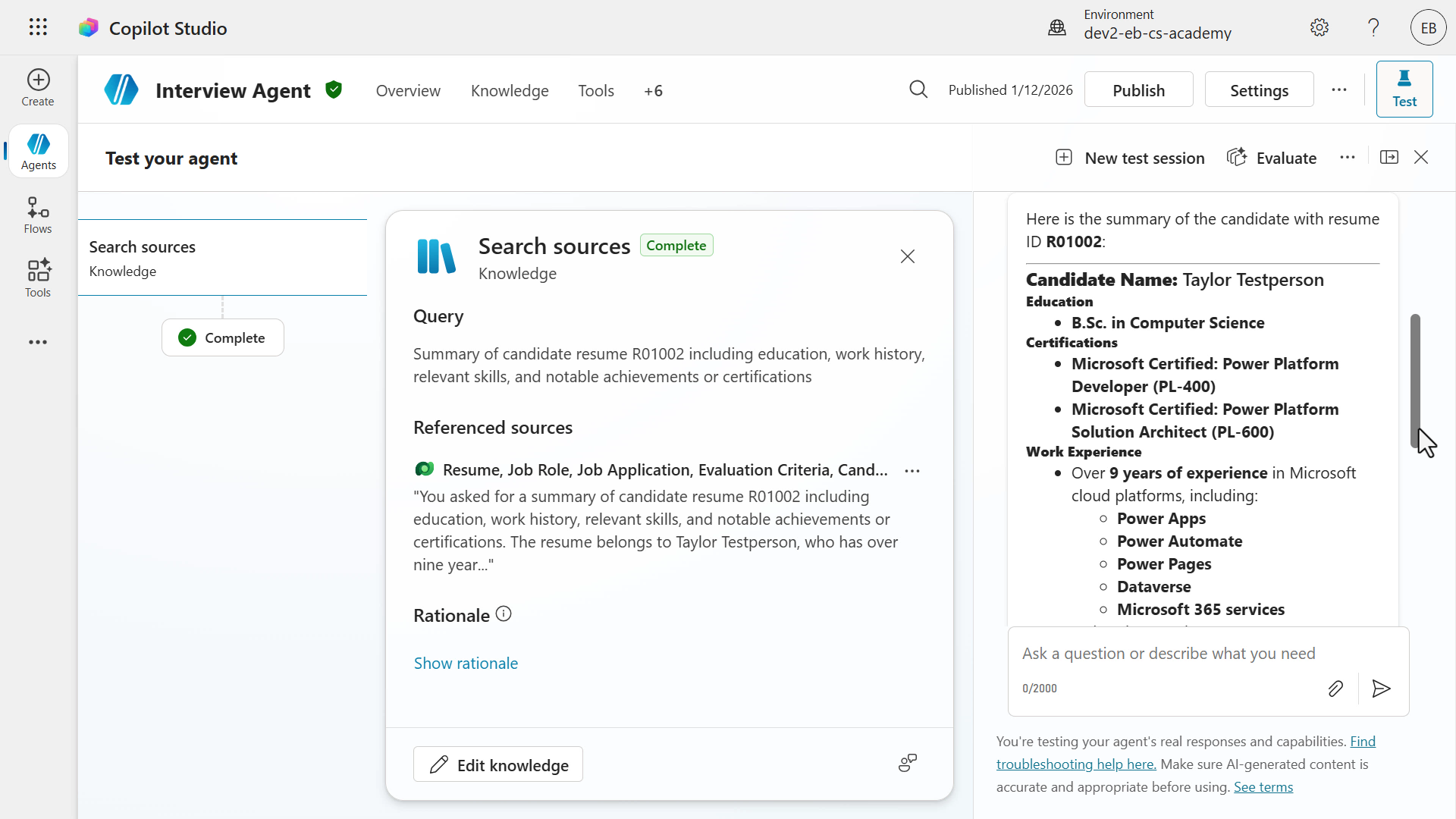
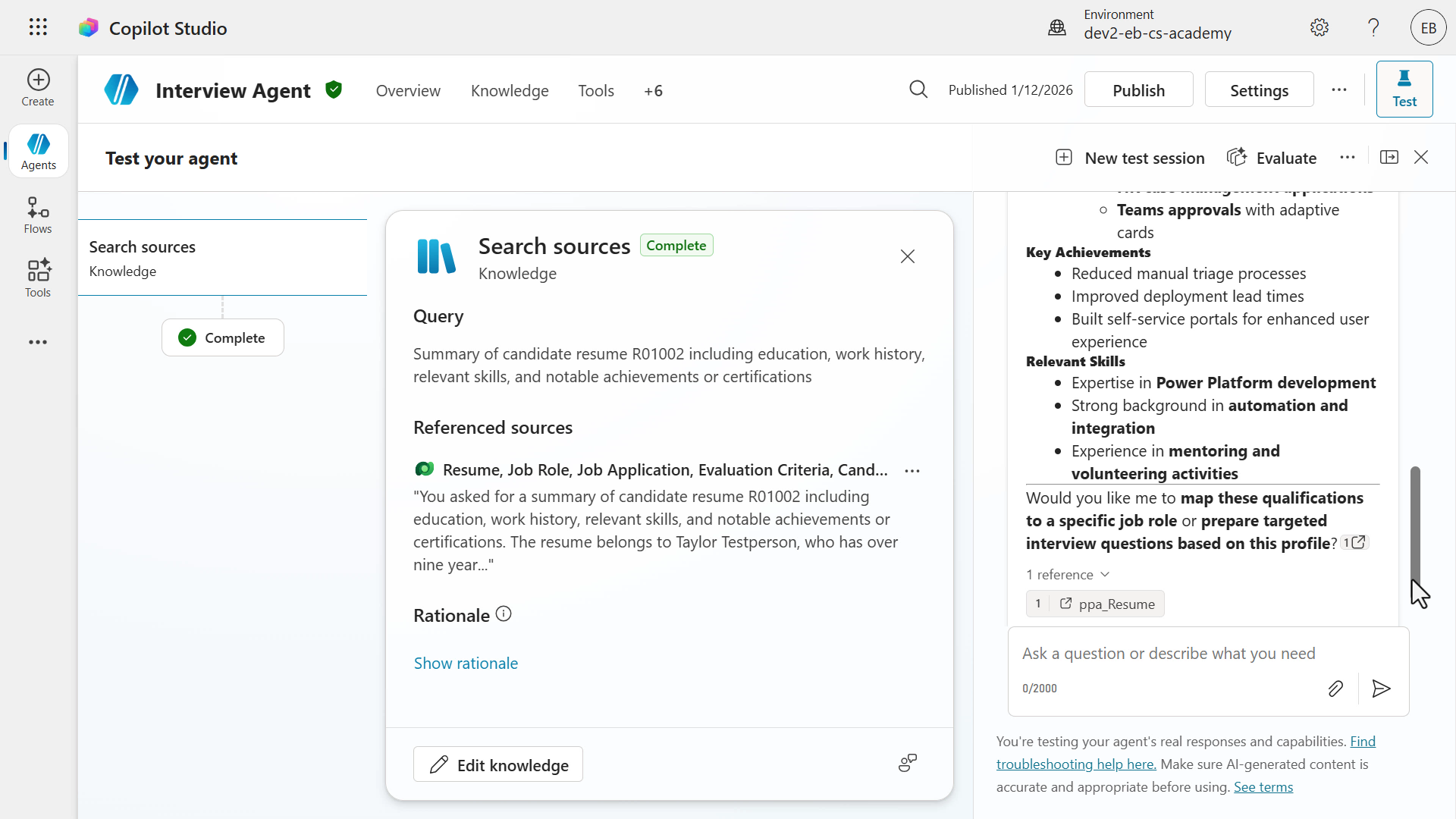
- The summarized resume response is returned. Notice that the information is slightly different from the previous model’s response, and that it also suggests how it can help next.
-
Now check whether this model follows the date-format Instructions better than the previous model. Enter the question below.
When was the upload date?
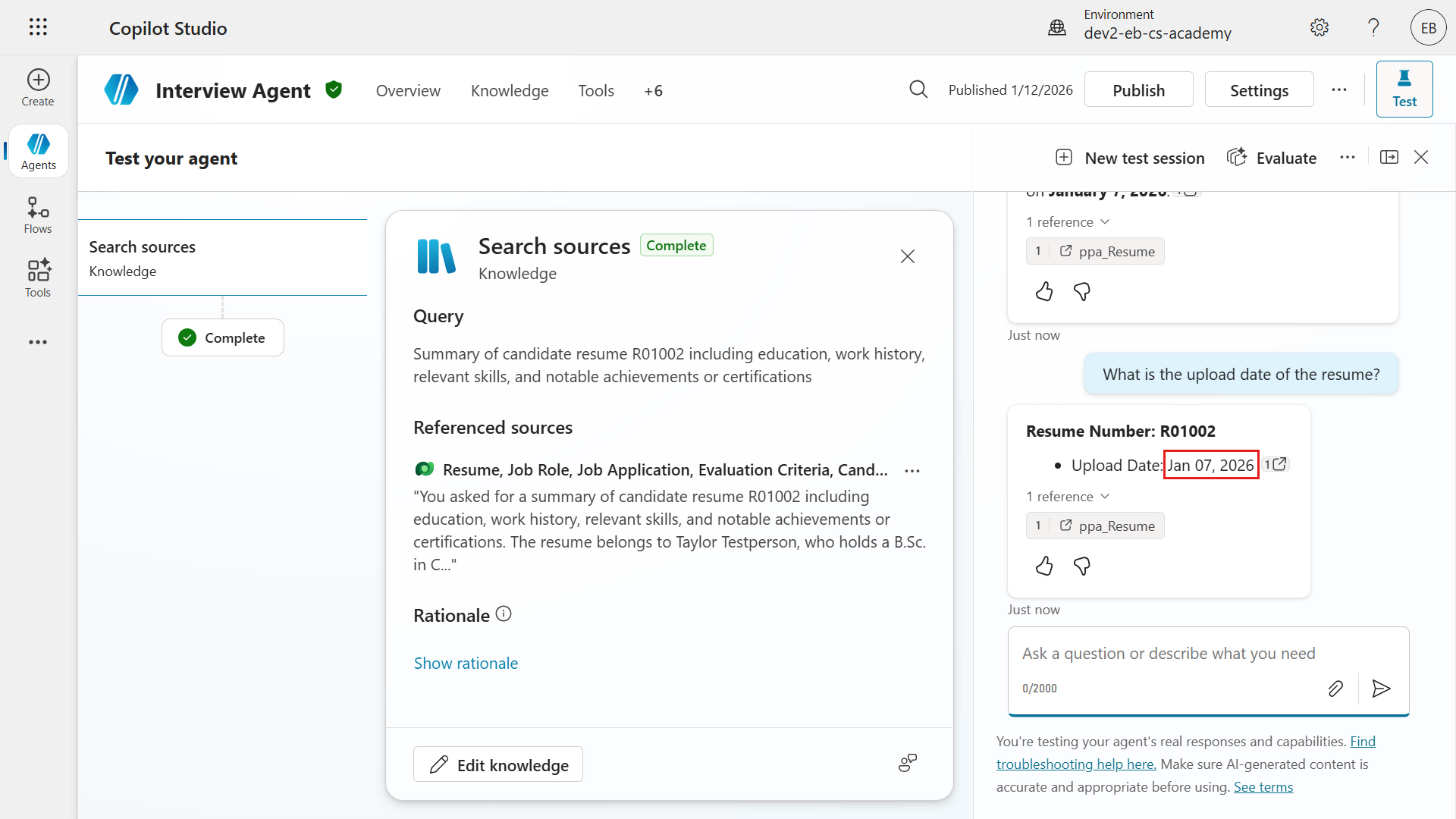
This time, you can see that the model followed the date format correctly.
-
Ask the same third question again to get a list of interview questions and possible answers based on the job role’s evaluation criteria. Enter the question below.
Can you provide suggestions of questions to ask in an interview for the Power Platform developer role (Job role number J1004) based on its associated evaluation criteria? Can you also please provide what the answers may be for each question?
Similar to the previous model, the returned response first lists the evaluation criteria for the Power Platform Developer role and their percentage weights. This time, it also includes some explanation for each criterion. It again lists questions for each criterion, followed by Model Answer. The answers are in first person, describing the expected answers a candidate might give.
This model also suggests interview questions for each criterion, along with potential answers the candidate might provide during the interview.
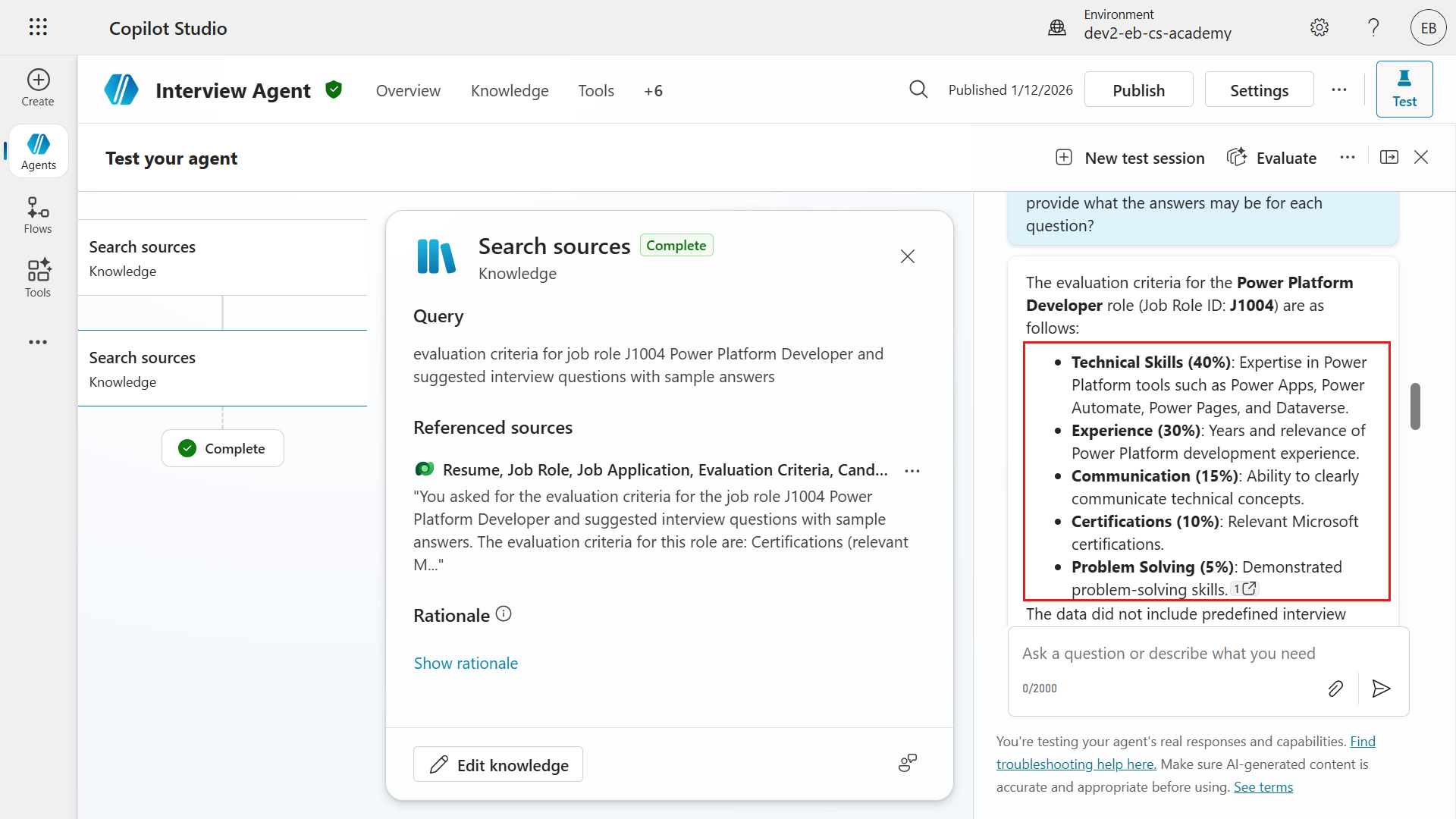
- This model also suggests how to tailor the questions to the resume and includes references to the resume.
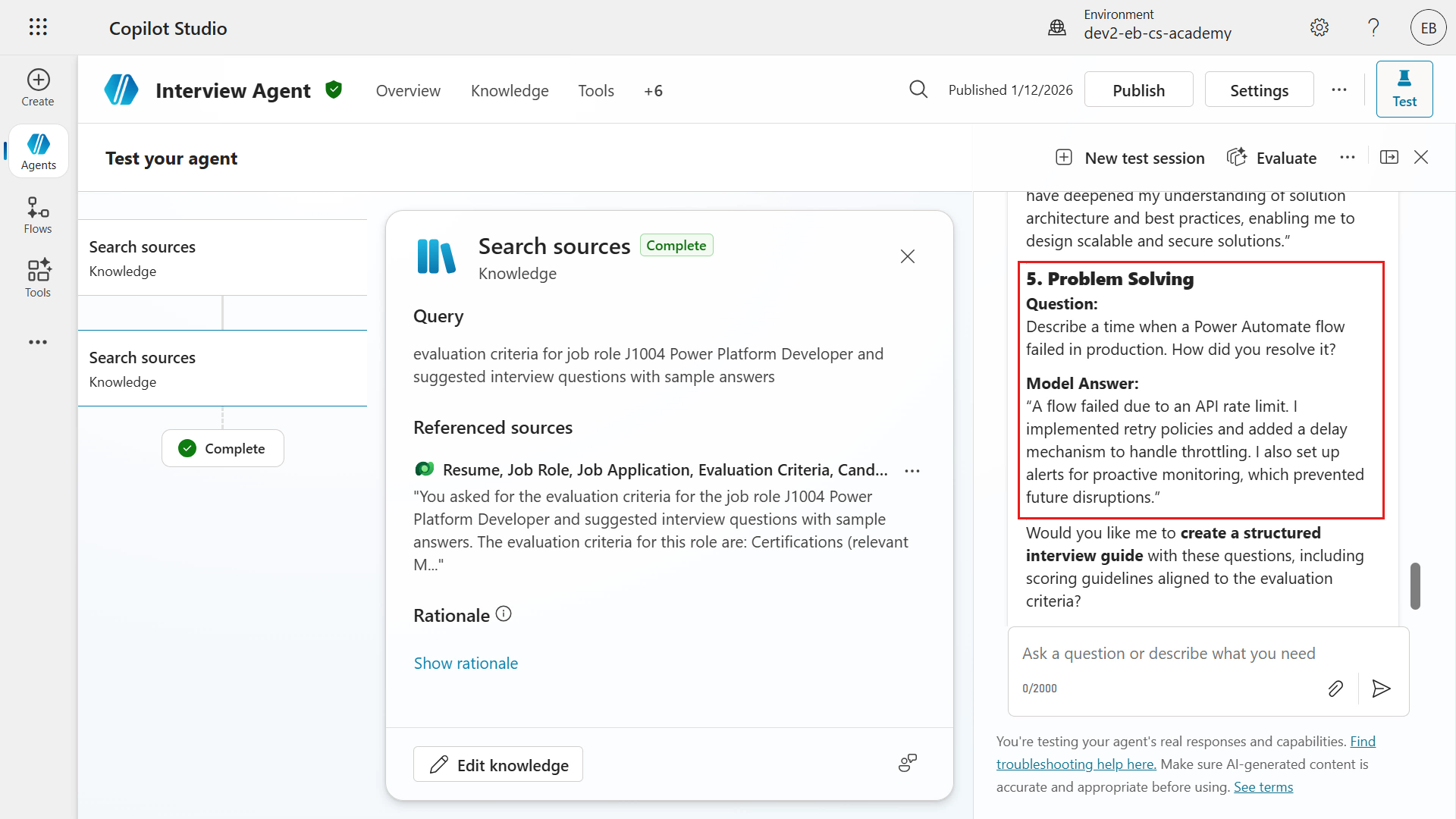
- Now change the agent’s model to one of the external models.
Important — Based on the admin control settings described earlier in this mission, make sure Allow Preview & Experimental Models and Allow External Models are enabled.
If you do not have administrator permissions and cannot enable those settings, you can skip the remaining hands-on steps in this exercise.
On the Overview tab, select the chevron icon, then select Claude Sonnet 4.5 (Experimental) from the list of Anthropic models.
After a moment, you will see a confirmation that the agent model has been updated. Start a new test session to test this model’s responses.
-
Enter the question below. Use a Resume Number value from an existing active resume in the Hiring Hub model-driven app.
Summarize the key qualifications, experience, and skills of the candidate whose resume is identified as R#####. Focus on education, work history, relevant skills, and any notable achievements or certifications.
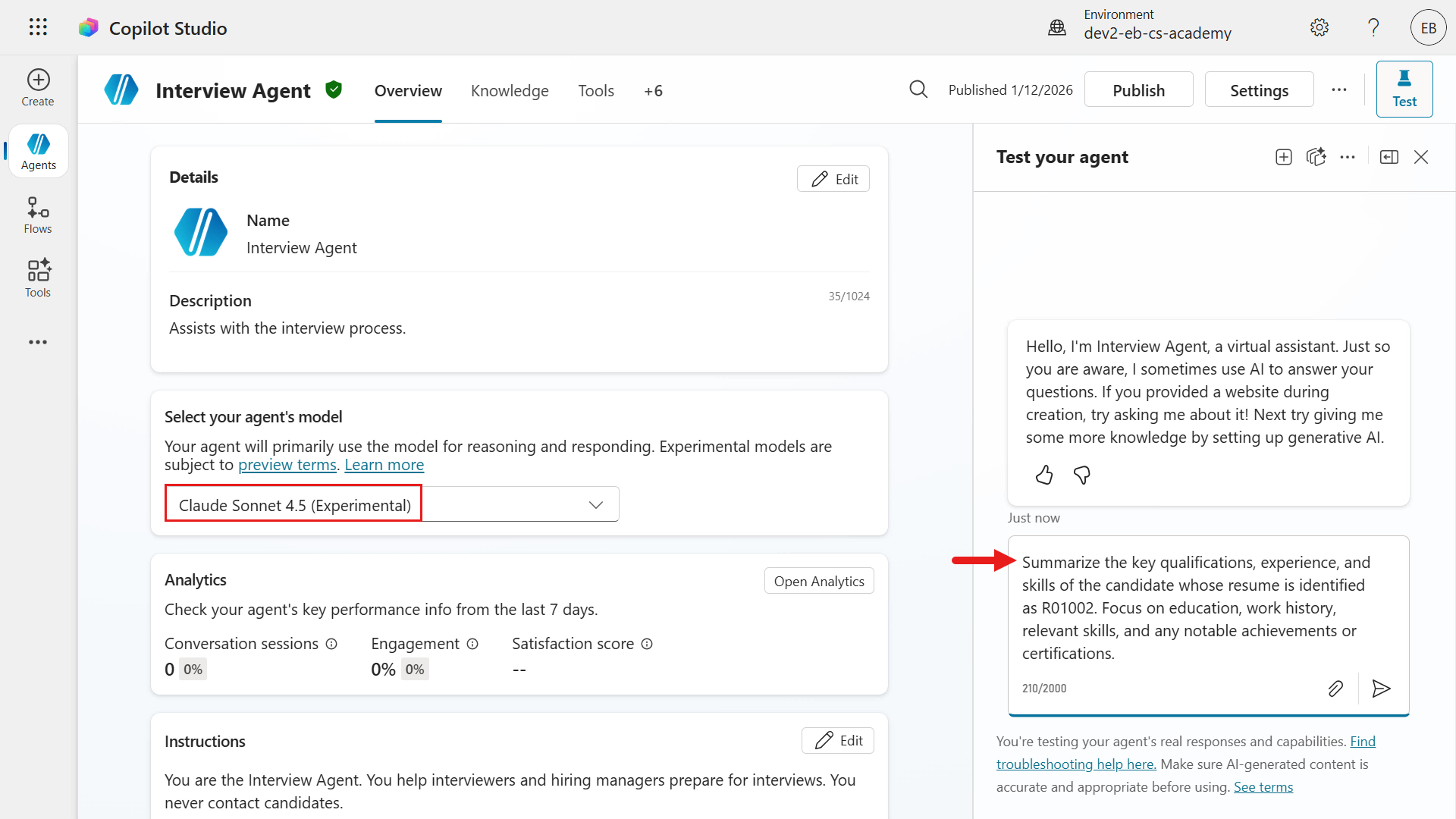
You can also see the model’s thought process while it generates a response.
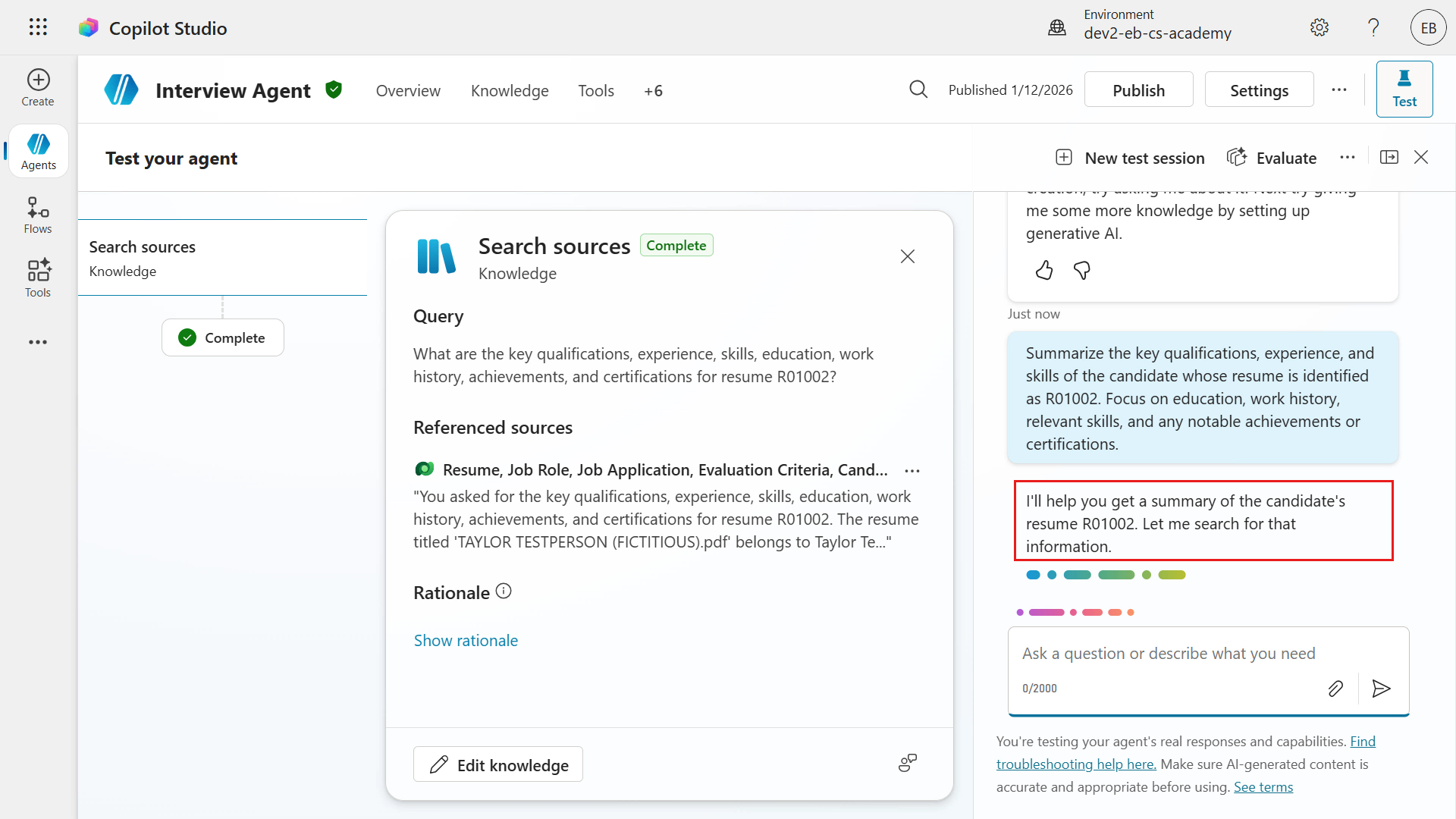
- This response is more concise and includes a date in the summary. Notice that the date format is applied correctly.
-
Because you tested the previous two models with the same criteria, ask the same second question again to check that the date format is applied correctly.
When was the upload date?
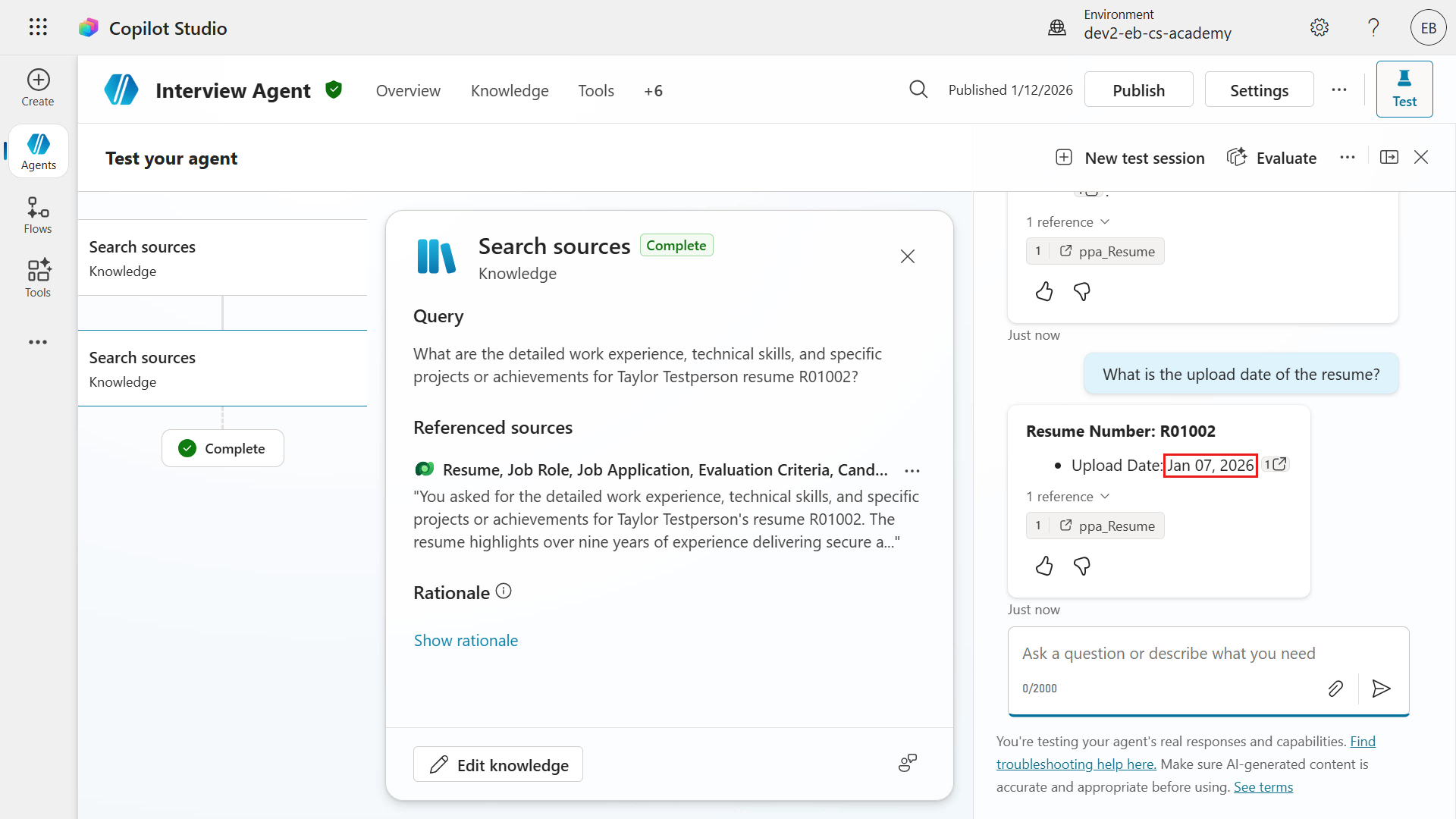
You can see that the date format was followed correctly.
-
Finally, ask the same third question again to get interview questions and possible answers based on the job role’s evaluation criteria. Enter the question below.
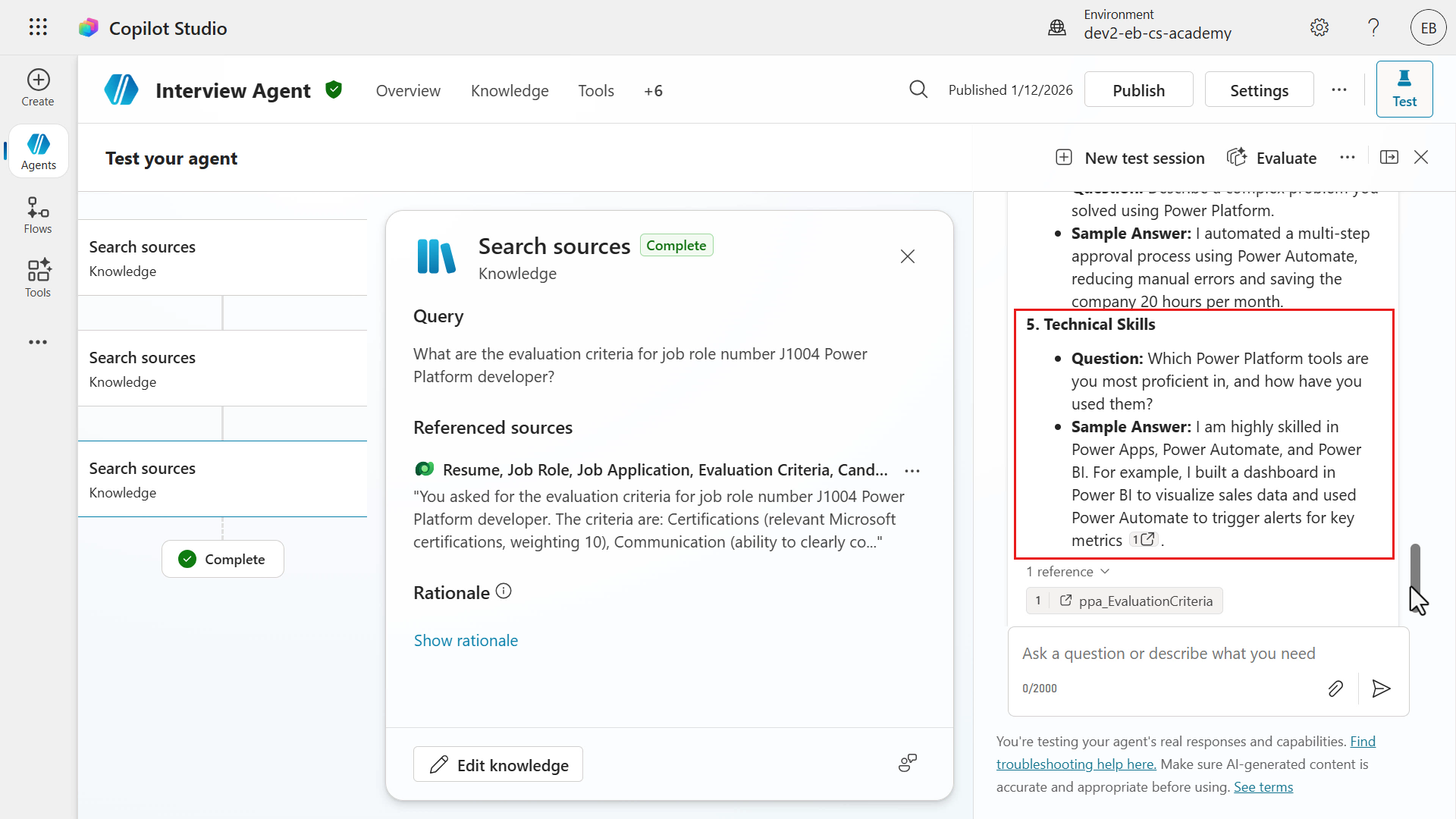
Can you provide suggestions of questions to ask in an interview for the Power Platform developer role (Job role number J1004) based on its associated evaluation criteria? Can you also please provide what the answers may be for each question?
The response includes a list of suggested interview questions grouped by the criteria defined in the Job Role Dataverse row, together with potential answers the candidate might provide during the interview.
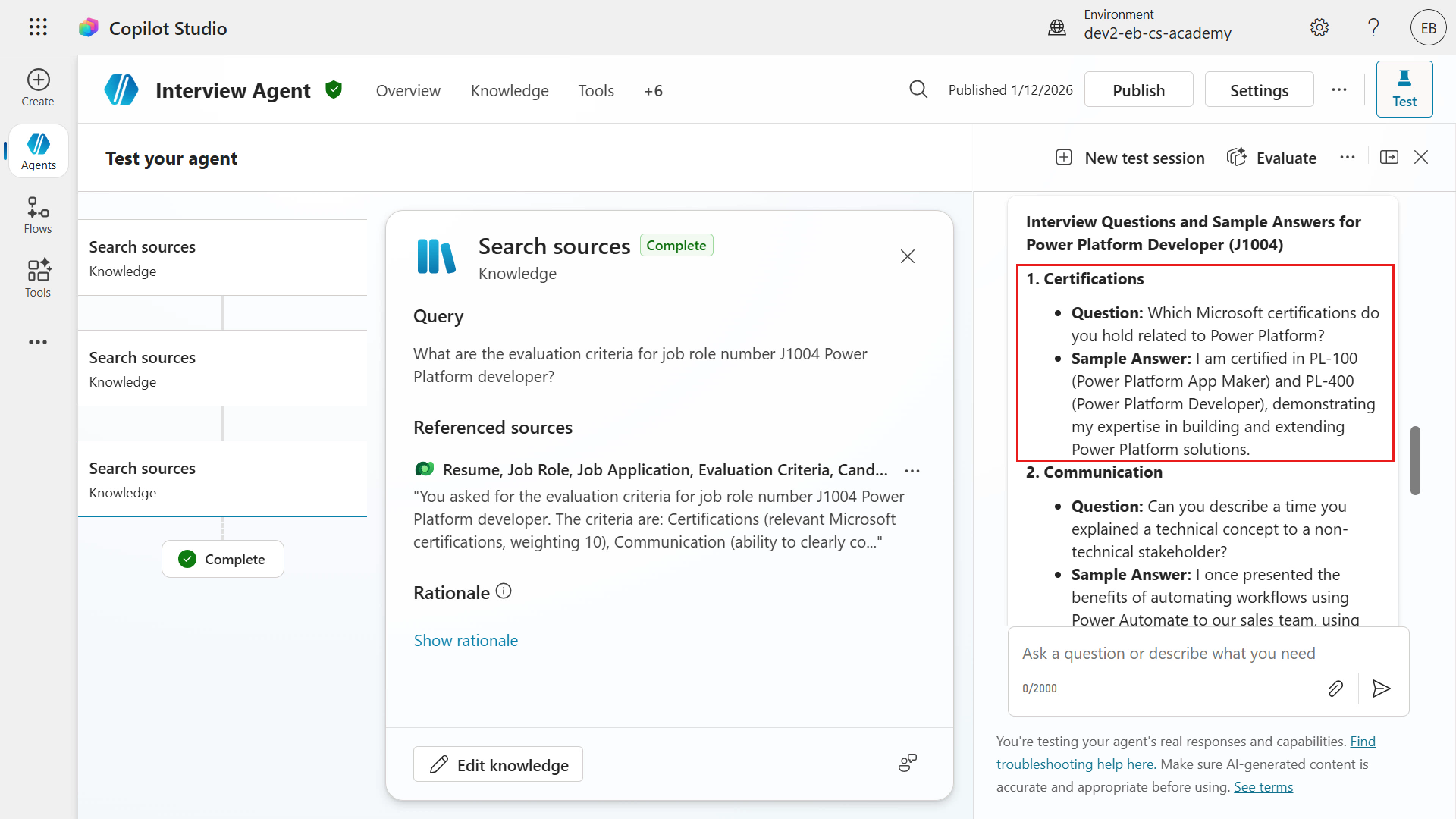
This completes the exercise!
Note — model exploration — Experiment with different models. Some models are stronger at reasoning, some are stronger at creativity, and models such as Anthropic can be especially good at following detailed response Instructions. It is important to test multiple models to find the best fit for your scenario.
✅ Mission complete
Congratulations! 👏🏻 Excellent work, Operative.
You learned about response formatting, the strengths of different available models, and how those choices affect agent output. With this knowledge, the Interview Agent can use the power of the selected model to respond more effectively to questions and requests.
You have now completed Lab 05 - Understanding Agent Models. Select the link below to move to the next mission.
⏭️ Continue to the next mission: AI Safety and Content Moderation
📚 Tactical resources
📖 Multi-agent orchestration and more: Copilot Studio announcements
📖 Choose an external model as the primary AI model
📖 Connect to Anthropic’s AI models
📖 Allow external large language models (LLMs) for generative responses
📖 Move data across regions for Copilots and generative AI features