Add Knowledge
[Renewal] Explore the basic features of Copilot Studio - Connect Knowledge such as SharePoint and web sources
Step 3: Add Knowledge
Add Knowledge to the agent
In this lab, configure Knowledge so the agent can answer from PDF spec sheets stored in SharePoint.
📚 The role of Knowledge in Copilot Studio
In Copilot Studio, Knowledge is a core feature that helps agents generate accurate and reliable answers based on internal company documents or external information.
| Item | Description |
|---|---|
| Definition | External information sources such as connected documents, webpages, and data that the agent can reference when generating answers |
| Key capability | Helps generate accurate and grounded answers to user questions |
| Formats | Supports documents in various formats such as PDF, HTML, Word, Excel, and web links |
| Examples | - Search manuals stored in SharePoint - Summarize internal reports - Provide insights based on statistical data |
| Importance | Without Knowledge, the agent answers only from general knowledge, making it difficult to provide company-specific information |
| Configuration location | Added from the Knowledge section of the agent configuration panel |
📥 Knowledge data source types available in Copilot Studio
| Category | Data source | Description |
|---|---|---|
| Document-based | Uploaded files such as PDF, Word, and Excel | Uploaded to Dataverse, automatically indexed, and searchable |
| Cloud storage | SharePoint, OneDrive for Business | Can directly reference document stores within the organization |
| Web-based | Public website URLs | References webpage content through search |
| Enterprise systems | Salesforce, ServiceNow, Confluence, ZenDesk, etc. | References knowledge bases or ticket information from external systems through real-time connectors |
| Table data | Dataverse tables, Azure SQL | Supports question answering based on structured table data |
| API-based | External HTTP APIs, YAML definitions | Supports real-time API calls through the OnKnowledgeRequested trigger |
Lab
English UI screenshots, September 10, 2026. Actual captures from an English-language demo environment. This lab continues on the agent built in Step 2, which uses the Build / Preview / Evaluate / Monitor surface. Knowledge is managed from the configuration panel on the right of the Build page, not from a separate Knowledge tab.
1. Review what the agent already has
Open the agent and look at the Knowledge section in the right-hand configuration panel. The authoring session in Step 2 already attached a source for the SharePoint site you supplied.
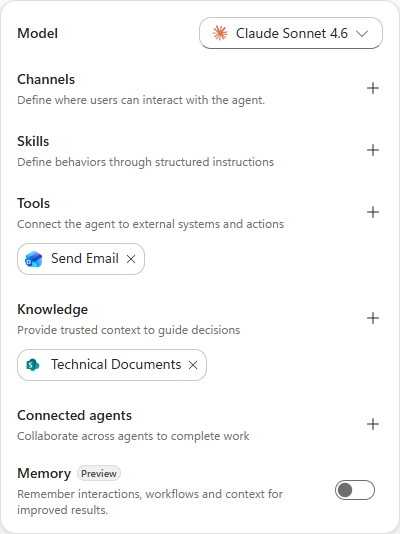
Select an existing source to inspect it. Each source carries a Name, a Description, the Knowledge URL it points at, and a Status chip that reads Ready once indexing succeeds.
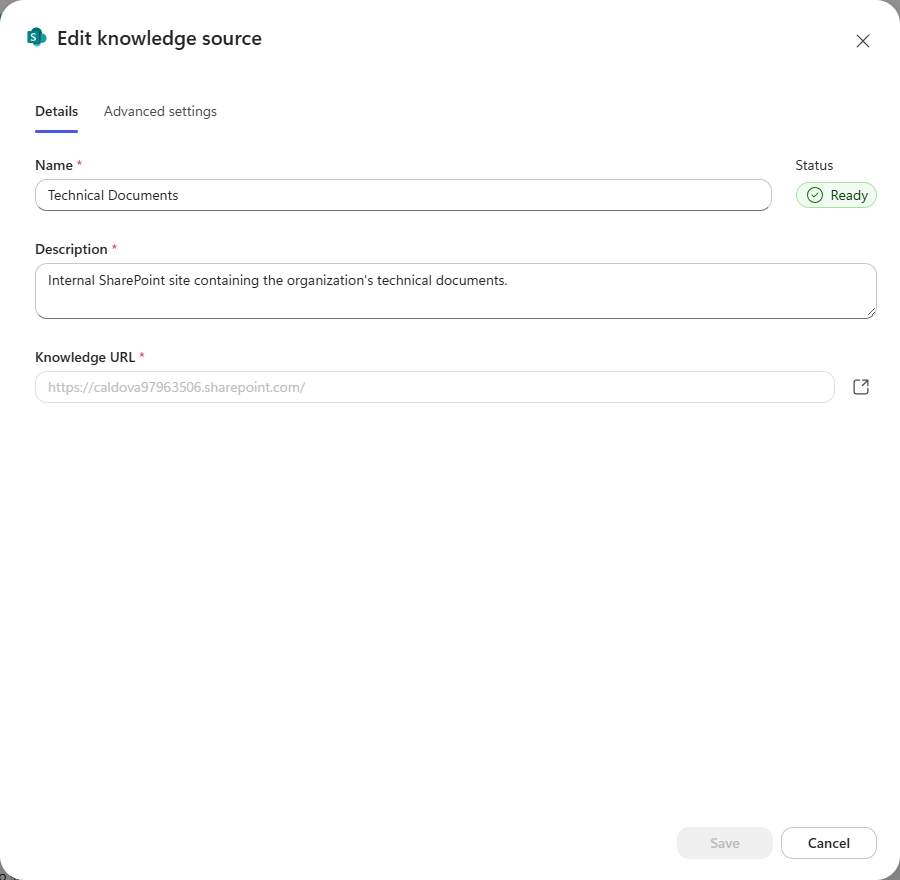
The URL is fixed after creation. The Knowledge URL field is read-only in the edit dialog. To point at a different location, add a new source and remove the old one.
2. Add a SharePoint source
Select + beside Knowledge. The catalog opens with a file drop zone at the top and the featured source types below.
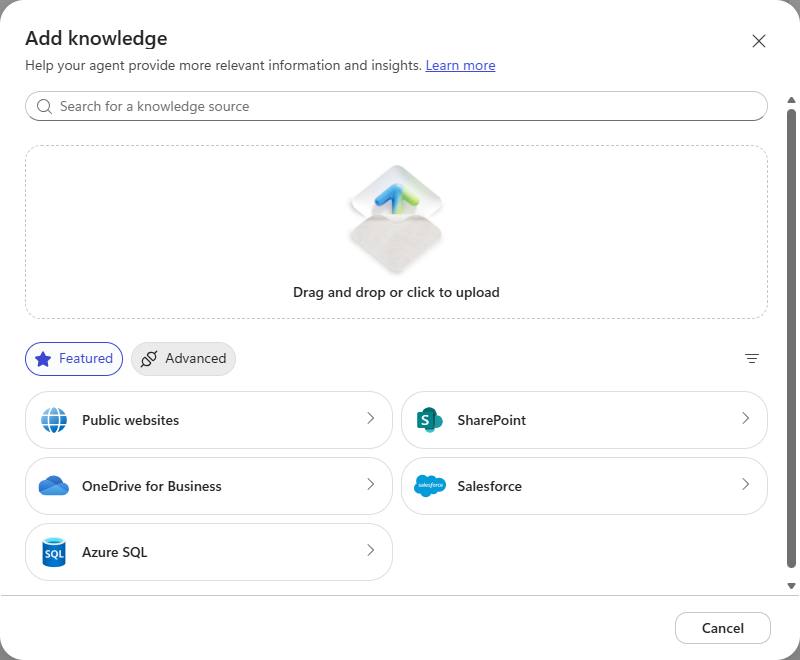
Choose SharePoint. You can either paste a site URL or browse for the item.
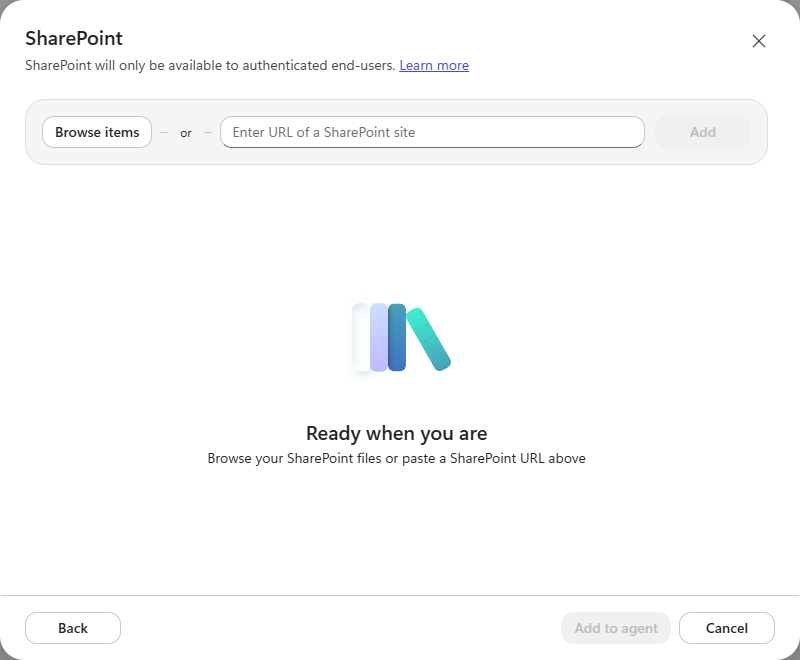
Point at a folder, not the whole tenant. A source scoped to one library folder gives the agent a much smaller, cleaner search surface than the root site, and it keeps answers on topic.
3. Browse to the workshop folder
Select Browse items. The SharePoint file picker opens inside the dialog.
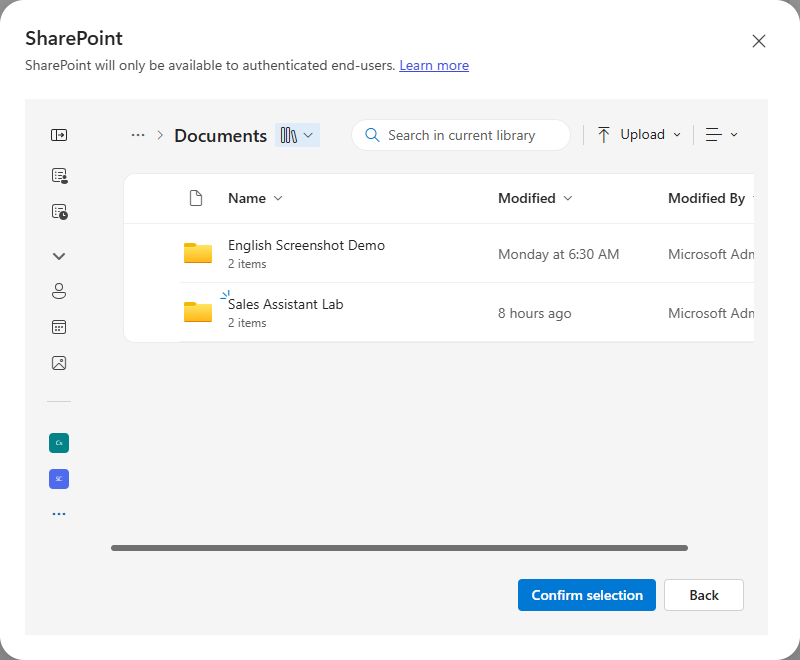
Tick the folder that holds the workshop spec sheets, then select Confirm selection.
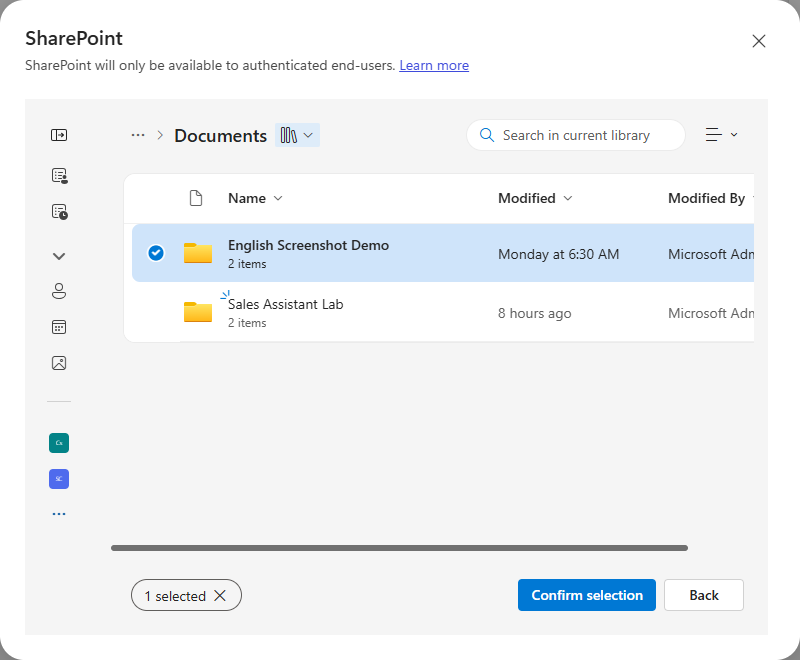
4. Name and describe the source
The picker fills in a default name and description. Replace both — the agent reads the description when it decides whether a source is relevant, so describe what the folder actually contains.
Name
Product Spec Sheets

Description
Spec sheet PDFs for refrigerators and dishwashers. Filenames follow model-name_product-type_spec-sheet, for example LSSB2692ST_Core_Refrig-Spec_Sheet.
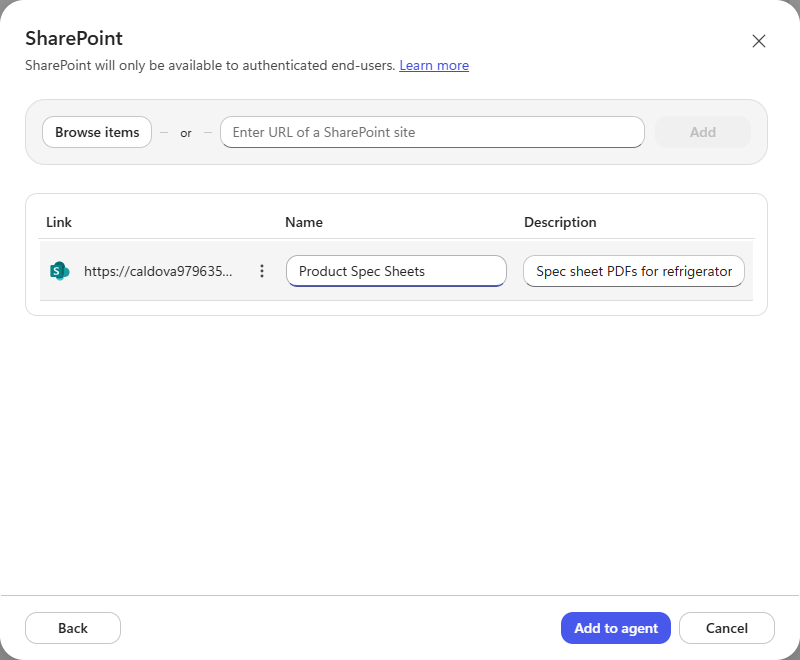
Select Add to agent, then Save on the agent toolbar.
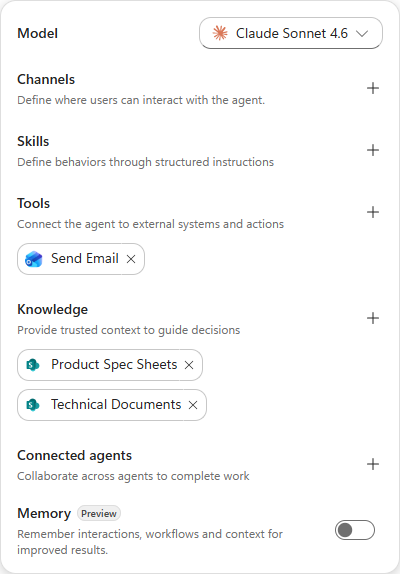
Reload before you trust the save. Saves on this surface can appear to succeed and then revert. Refresh the page and confirm the new source is still listed under Knowledge before moving on.
5. Test that answers are grounded
Open the Preview tab and ask a question that can only be answered from the documents.
What refrigerator spec sheets do we have, and what capacity does the LSSB2692ST have?
The agent searches the source, reads the PDF, answers with the figures from the document, and lists the files it used under Citations.
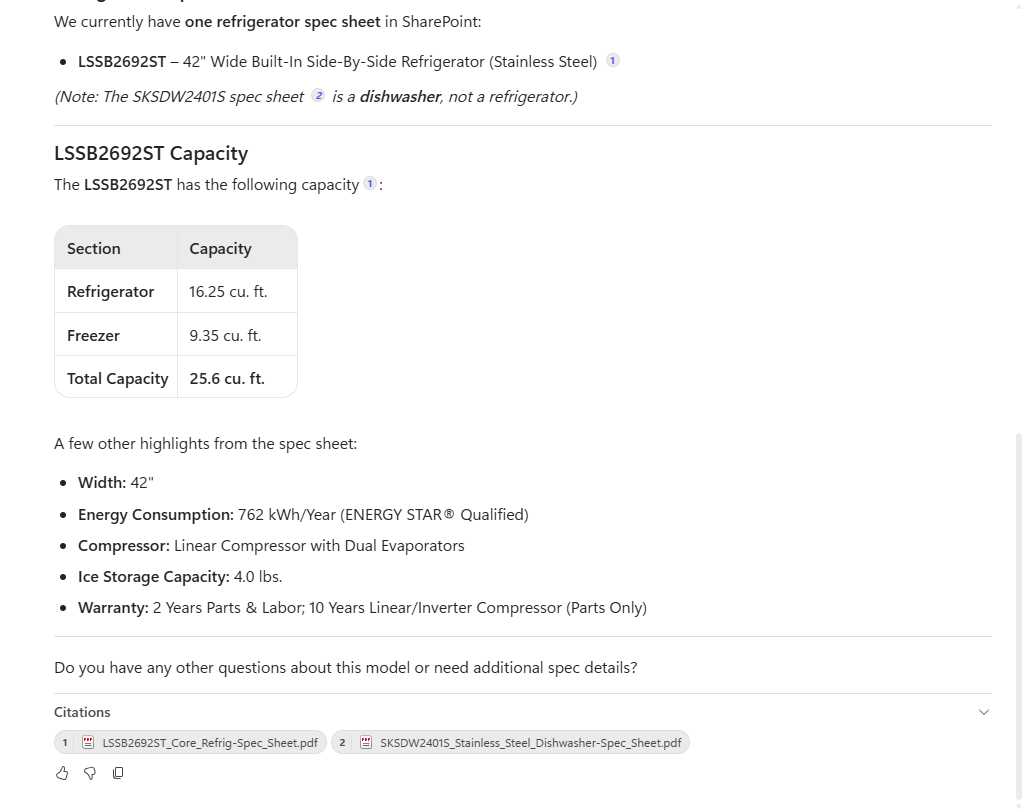
Citations are the check that matters. If an answer arrives with no citation, it did not come from your Knowledge source. Confirm the source status is Ready, that the folder is the one you intended, and that the description tells the agent what lives there.
Important! SharePoint Knowledge searches document content based on Microsoft Search. It is effective for text-centric retrieval, but when Excel data analysis is required, the structural limitations of LLMs and RAG prevent it from providing accurate answers.
If you need to generate answers by referencing Excel data, see the Excel data reference session at the end of the workshop.
Congratulations!
By adding Knowledge, you have finished configuring the agent to answer questions about internal company data.
Next, practice adding tools so the agent can send email and create Teams posts.
| ← Previous: Step 2. Configure basic Instructions | Next: Step 4. Add MCP tools → |