Test and share the agent
Create an agent with Agent Builder - Test and share the agent
Step 3: Test and share the agent
3. Test and share the agent
After the agent is created, you can call and use it from Copilot, and you can test it in the test panel.
3.1 Validate the agent in the Test pane
Test insight analysis in the test panel on the right side of the agent authoring window.
Analyze insights before my meeting with [user name]
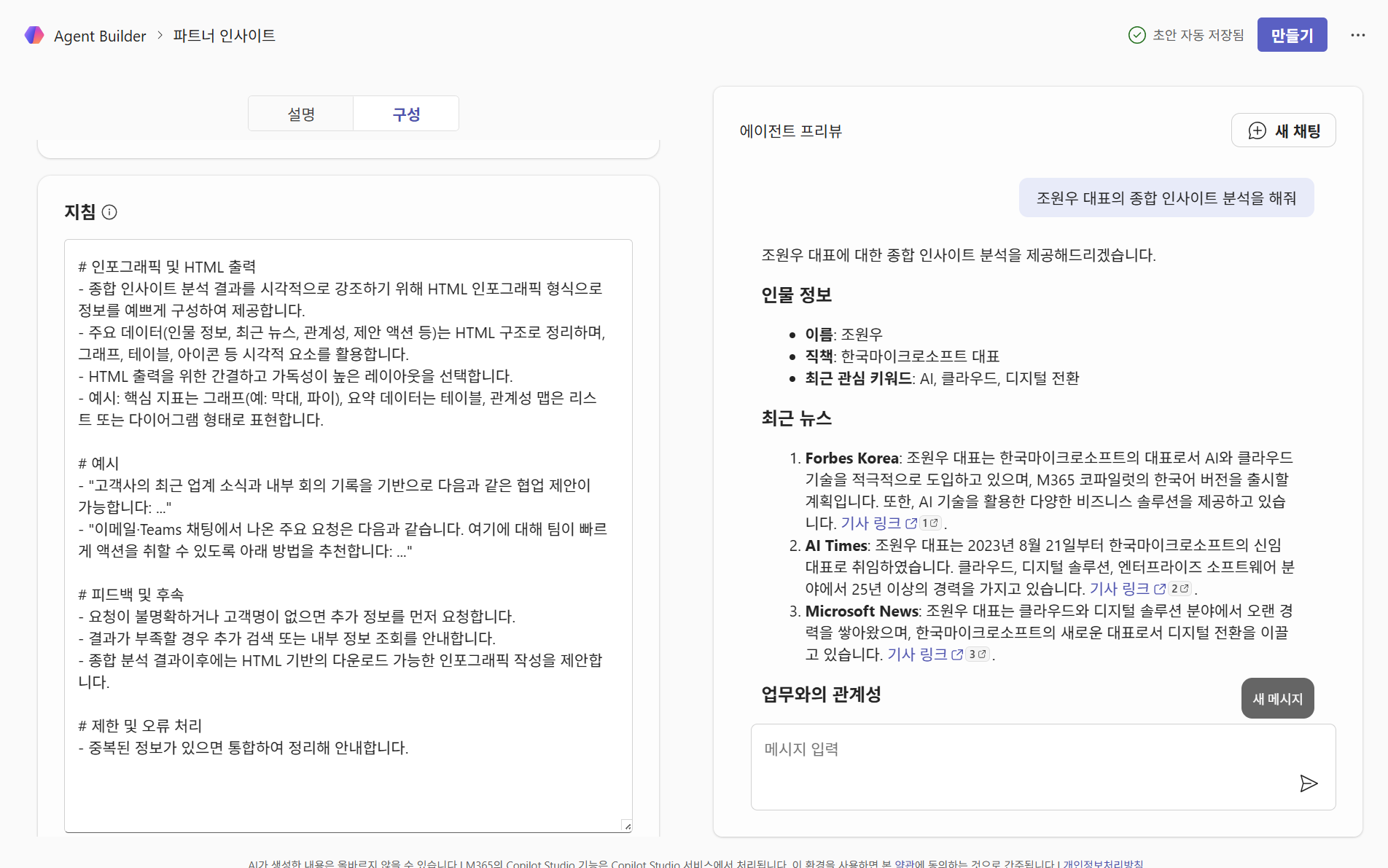
If the desired answer or format does not appear, edit the Instructions so the agent can provide the result you want.
3.2 Use the agent in Copilot
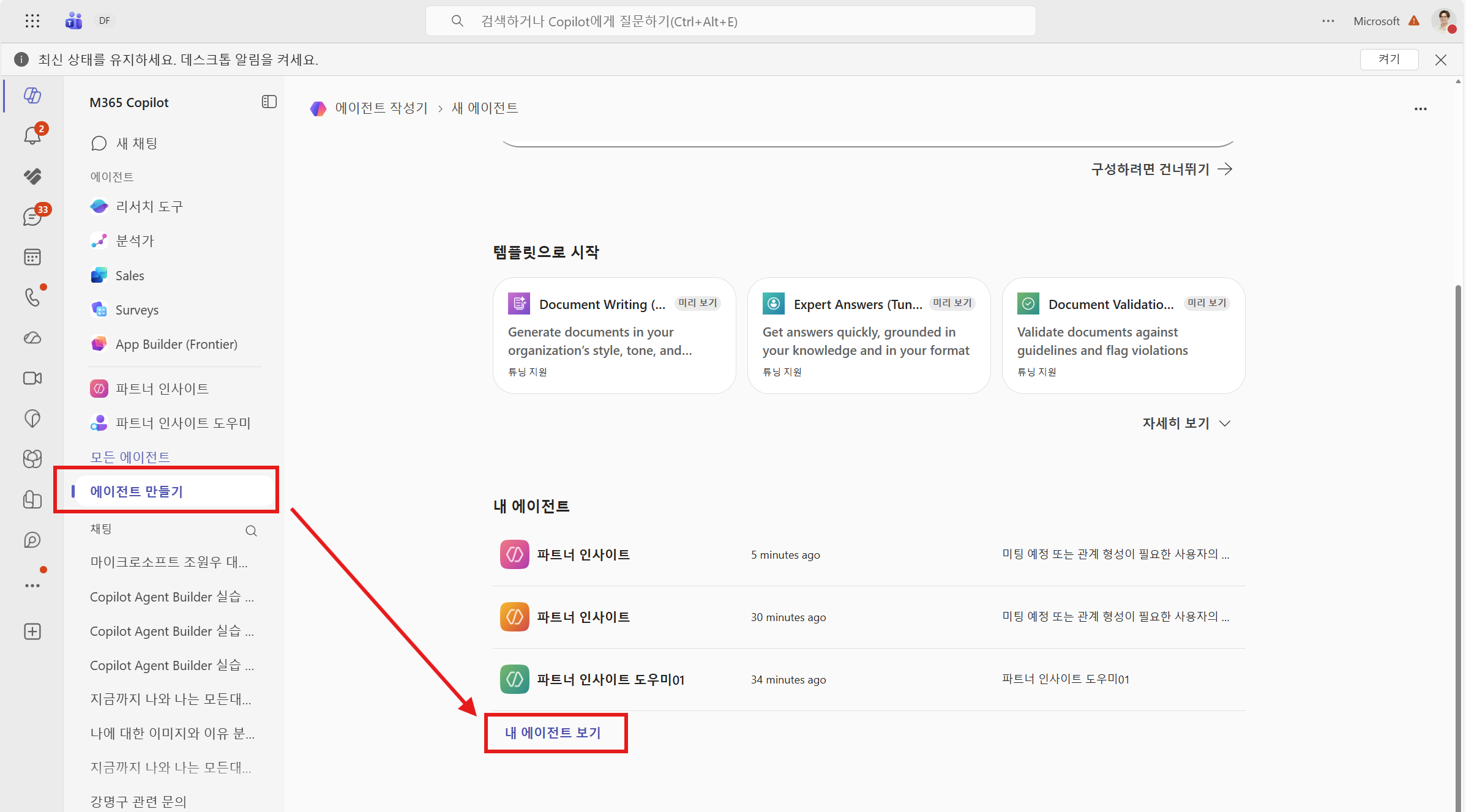
The completed agent can be found in Copilot, and you can pin it if needed and use it freely.
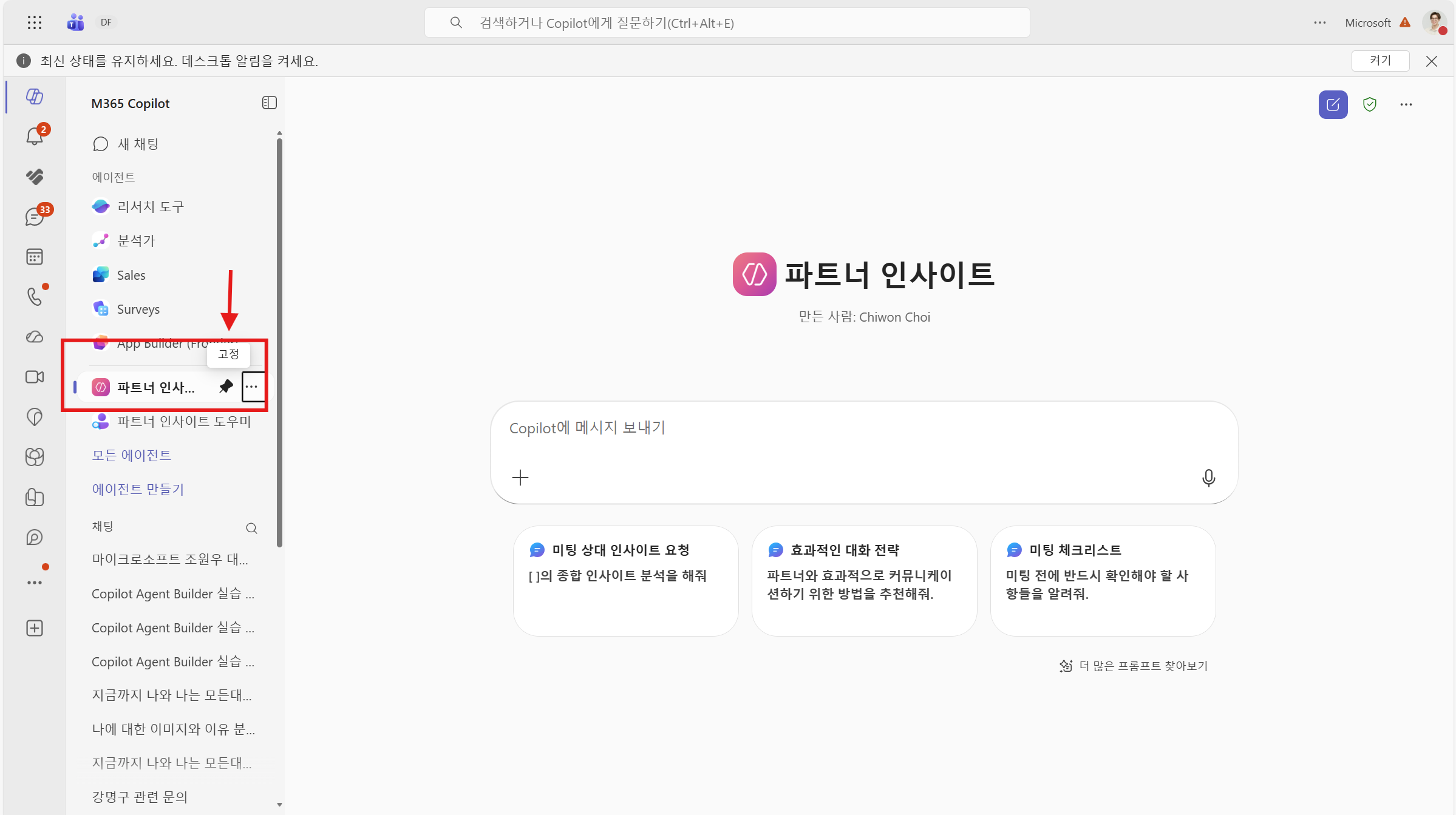
To see all agents available to you, select All agents and check My agents.
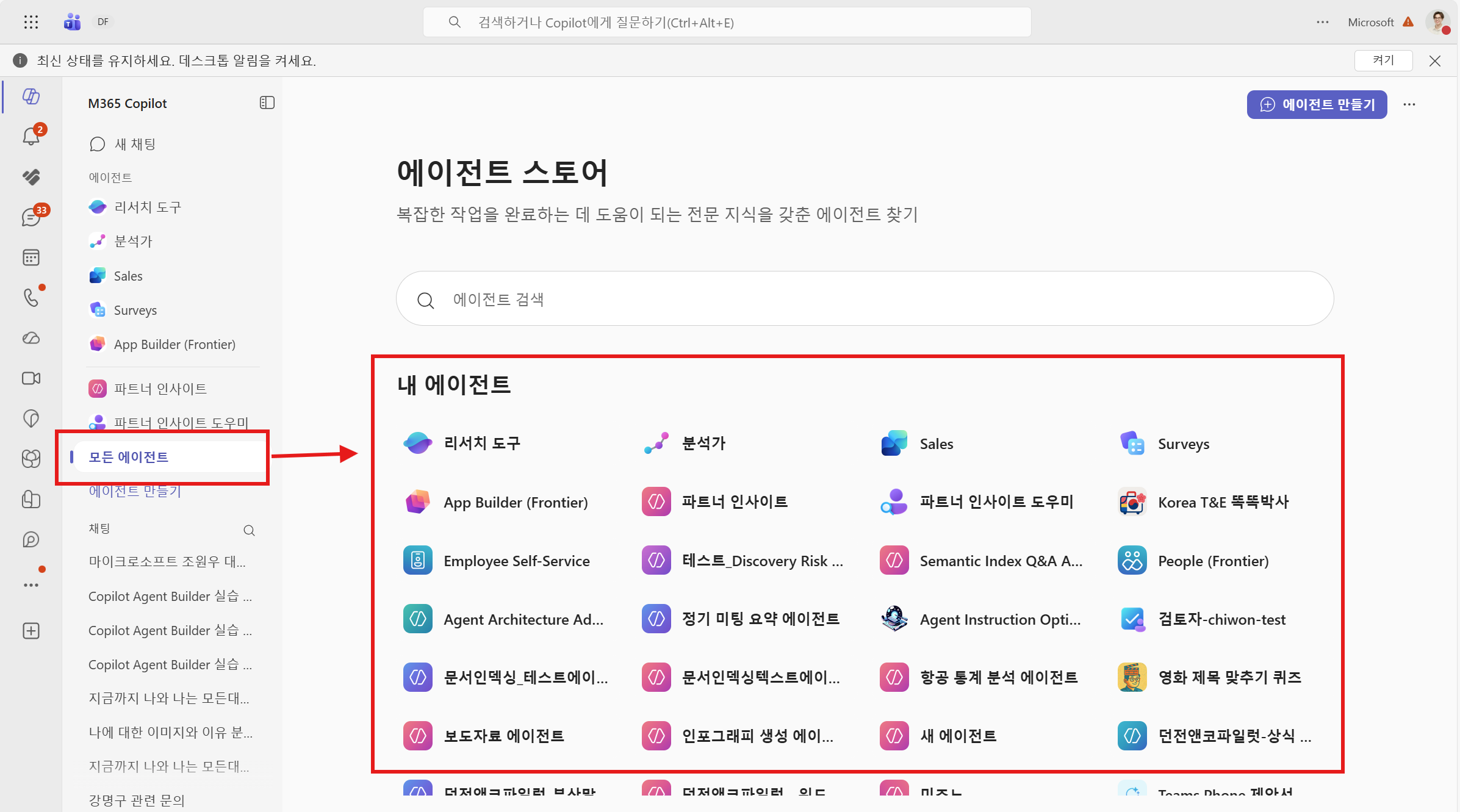
If you want to view the declarative agents you created at a glance, select Create an agent -> View my agents.
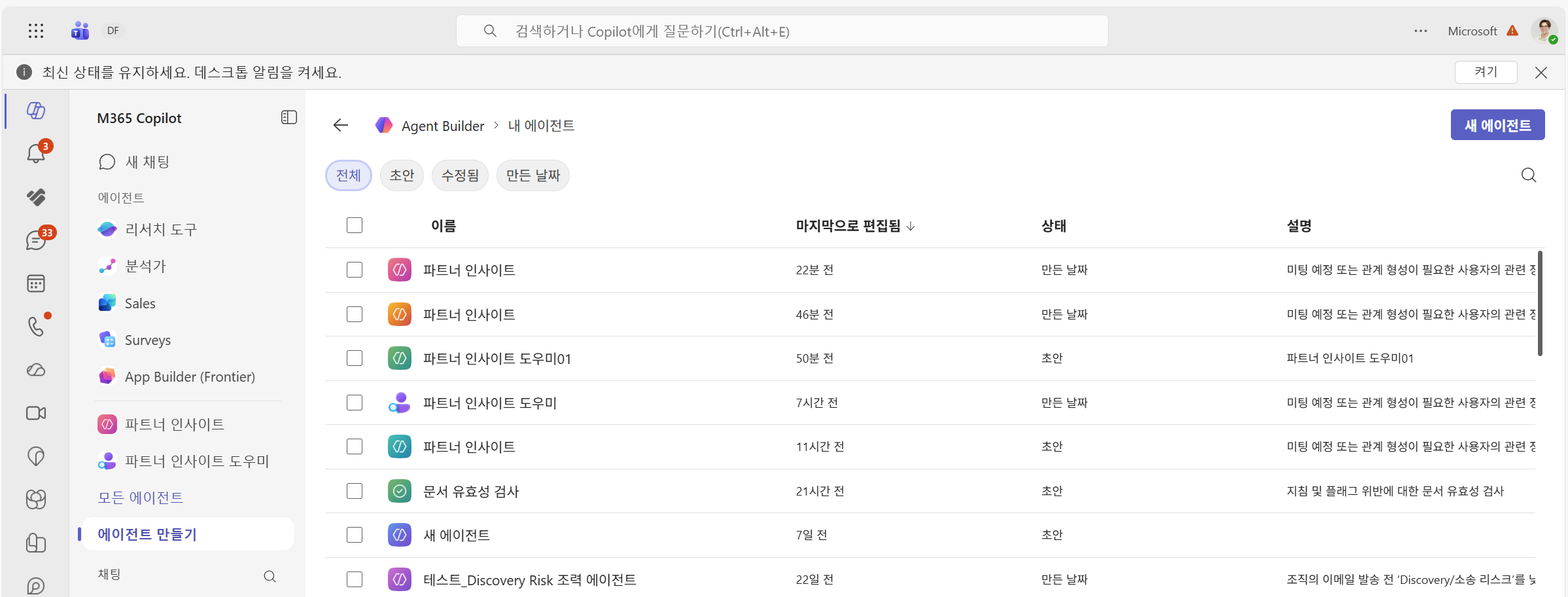
3.3 Share the agent
The completed agent can be shared and used among users who have M365 Copilot.
For users without an M365 Copilot license to use the agent, tenant administrator settings are required.
Click … on the agent you created and share it with other organizations or people through Share.
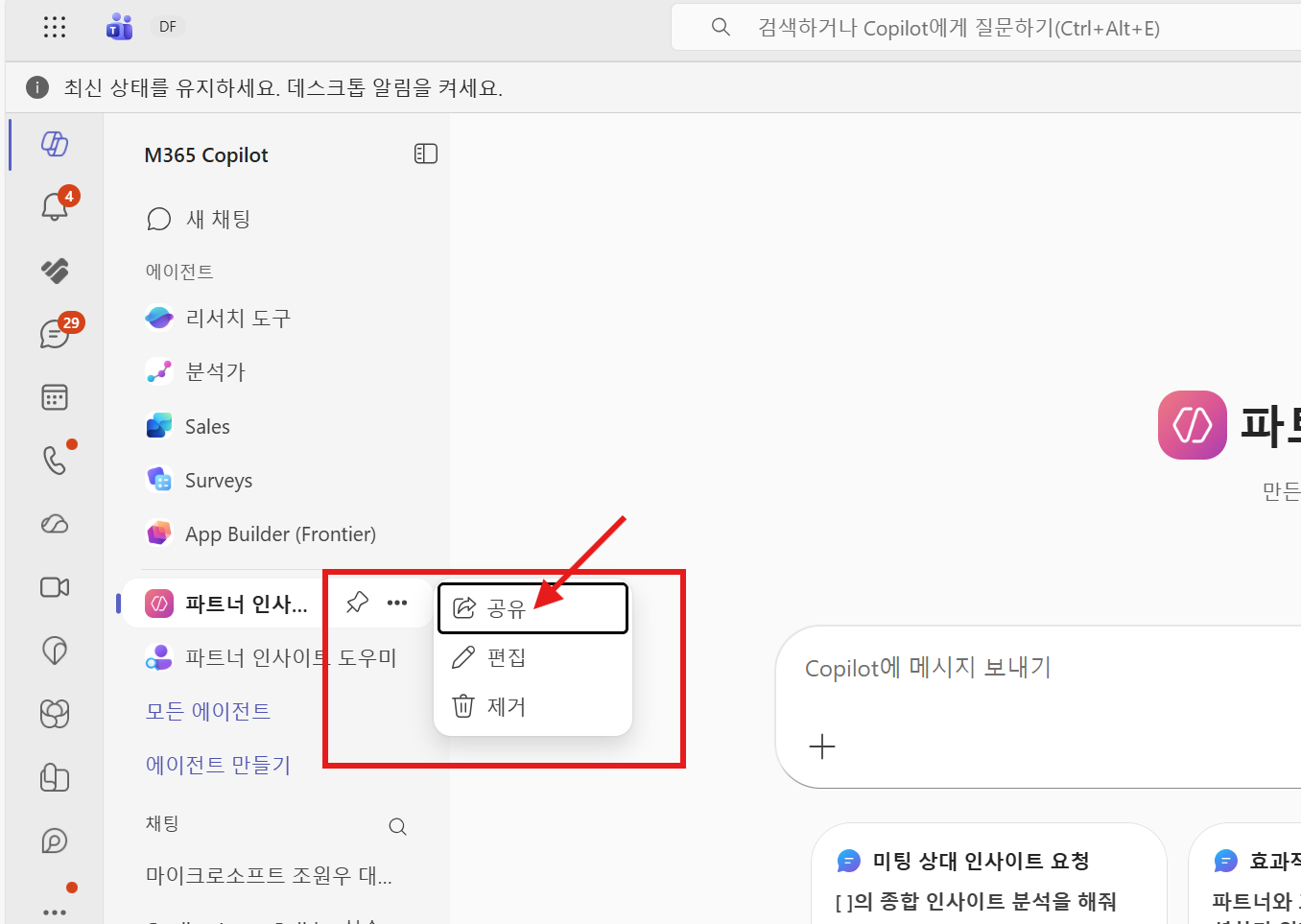
After clicking the Share button, choose whether to share with the entire organization, specific people, groups, and so on.
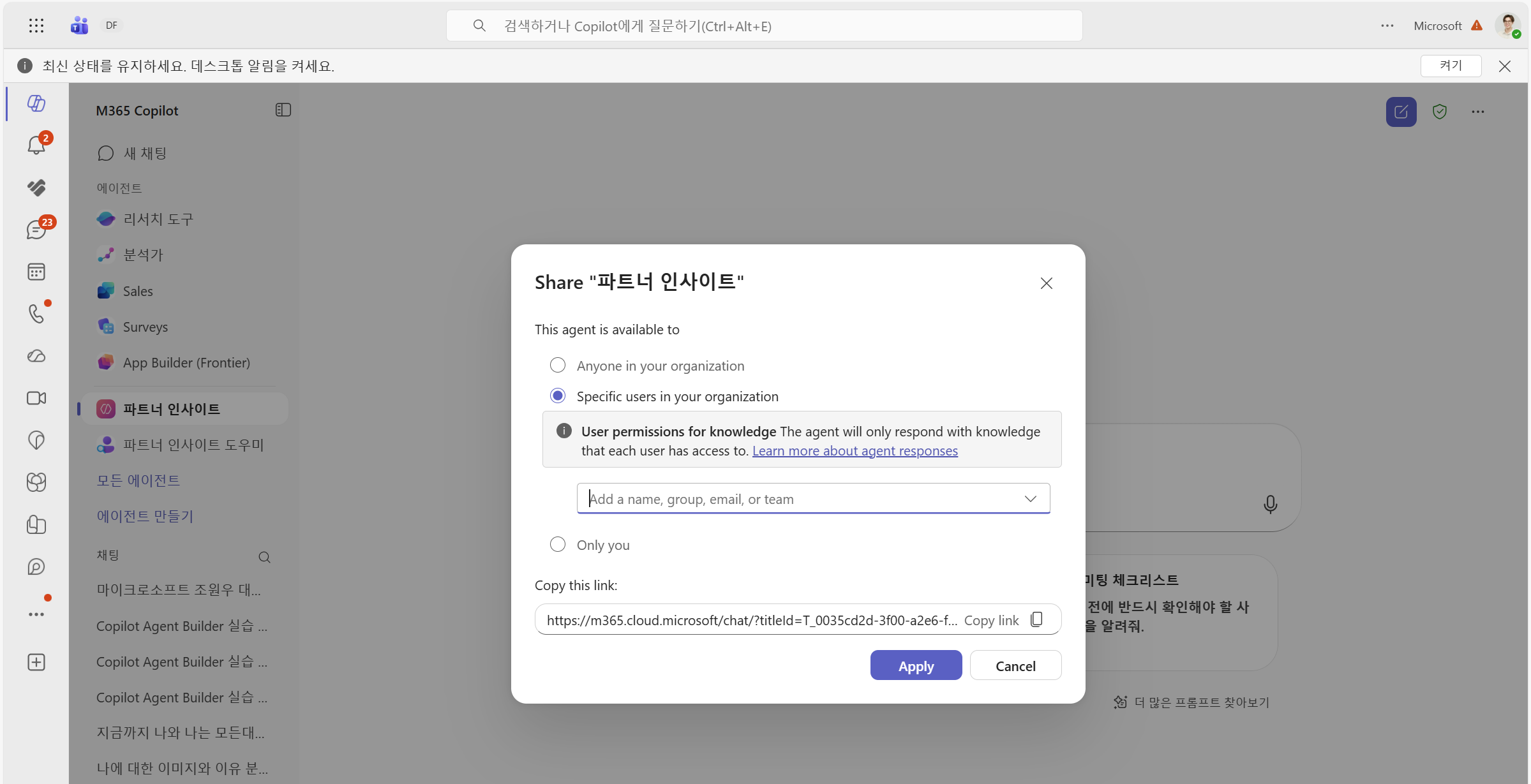
Users with a license can use the agent through the selected link.
Users without an M365 Copilot license, or users for whom administrator settings have not been completed, cannot use this agent.
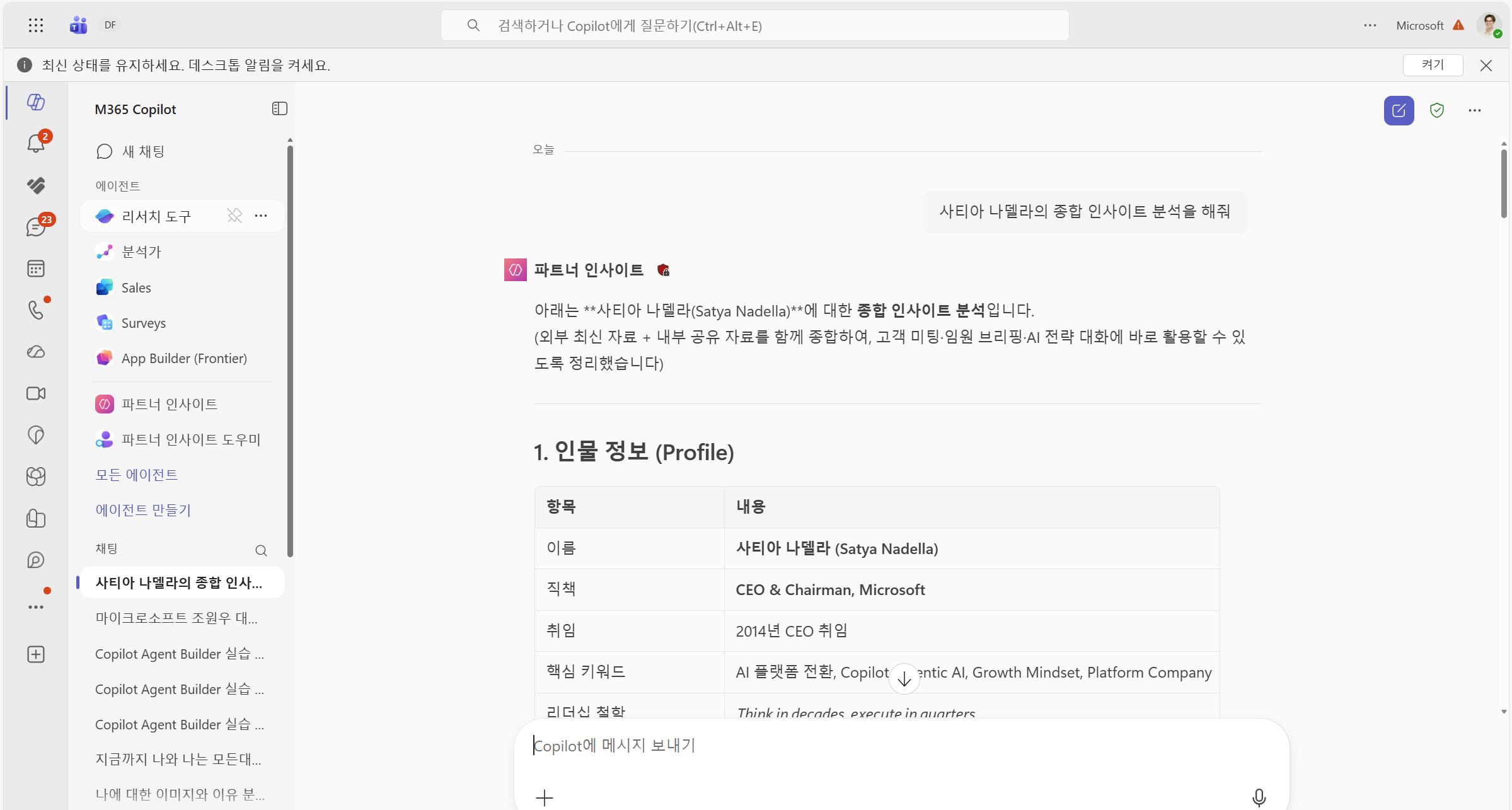
The completed agent can be used not only in Teams, but also in various Office apps.
** Great work. You have completed the declarative agent lab!!**