Mission 10: Integrate with MCP Servers
Integrate with built-in MCP servers
Translated article — This article is based on 🚨 Mission 10: Integrate with MCP Servers from the Copilot Studio Agent Academy. The original wording takes precedence.
🎯 Mission brief
Welcome, Operative. In previous missions, you saw how powerful prompts can be. You learned about multimodal document analysis, grounding prompts with Dataverse data, and generating documents. Now you will use another advanced capability: MCP (Model Context Protocol) server integration.
This mission is called Operation MCP Rendezvous. In this operation, you will connect the Agent to external MCP servers to extend its capabilities and enable it to schedule interview prep meetings.
Note — If the screenshots in this lab look different from your Copilot Studio experience, turn off New Experience in the upper-right corner and switch to the classic experience used here.
🔎 Learning objectives
In this mission, you will learn how to:
- Understand and use the Model Context Protocol (MCP) standard
- Integrate MCP servers with a Copilot Studio Agent by using Agent 365
- Connect a Copilot Studio Agent to an MCP server
- Use MCP server capabilities from within an Agent
🔌 What is MCP?
MCP (Model Context Protocol) is an open standard that enables AI assistants to connect securely to external data sources and tools. Think of MCP as the USB-C for AI integrations. Just as USB-C provides a universal connector for a wide range of devices and peripherals, MCP provides a standardized way for AI systems to connect to services, databases, and applications.
Before USB-C, every device had its own proprietary connector (think of all those different charging cables). Similarly, before MCP, connecting an AI Agent to external systems required a separate custom integration for each service. MCP solves this by providing a universal plug-and-play protocol.
✨ Key benefits of MCP
- Universal connectivity: One standard protocol works across many AI platforms and data sources.
- Secure access: Built-in authentication and permission controls protect your data.
- Extensibility: Add new capabilities to your Agent without rewriting its core logic.
- Interoperability: MCP servers can work with multiple AI assistants and applications.
In this mission, you will use MCP to connect a Copilot Studio Agent to external services, dramatically expanding what the Agent can do beyond its built-in capabilities.
🛠️ What role does Agent 365 play?
Agent 365 is Microsoft’s comprehensive platform for managing and scaling AI Agents at enterprise scale. It assigns each AI Agent a unique Microsoft Entra Agent ID so identity, lifecycle, and access can be managed, and it provides the infrastructure for securely connecting Agents to business systems through MCP servers.
Agent 365 is the enterprise control plane for AI Agents. It handles security, governance, and visibility while enabling Agents to interact with Microsoft 365 and business applications through standardized MCP tooling servers.
👥 How Agent 365 supports different roles
Agent 365 meets the needs of everyone involved in the Agent ecosystem.
- IT administrators: Monitor Agent activity, apply policies, and manage threats through the Microsoft 365 admin center.
- Security teams: Apply enterprise-grade controls for identity, authentication, and compliance through Microsoft Purview and Defender integrations.
- Developers: Build and extend Agents in Copilot Studio or Azure AI Foundry by using integrated SDKs, prebuilt MCP servers, and frameworks.
- Business decision makers: Deploy Agents securely and measure their impact on productivity and business outcomes.
- Information workers: Collaborate naturally with Agents to improve productivity.
🔧 Agent 365 tooling servers for MCP integration
Agent 365 provides enterprise-grade MCP servers that allow Agents to access business systems in a secure and controlled way. These include the following.
Prebuilt MCP servers for Microsoft 365 and business applications:
- Outlook Calendar: Create, update, and manage calendar events
- Outlook Mail: Send, read, and search email
- Teams: Create chats, post messages, and manage channels
- SharePoint & OneDrive: Upload files, manage lists, and search documents
- Word: Create and edit documents, and add comments
- Dataverse & Dynamics 365: Perform CRUD operations on business data
- User Profile: Look up user information, managers, and direct reports
- Copilot Search: Chat with Microsoft 365 Copilot and generate responses grounded in files
Enterprise security and governance:
- Centralized control: Manage all MCP servers through the Microsoft 365 admin center, and allow or block servers across the organization.
- Scoped permissions: Agents access only the resources they need based on Microsoft Entra scopes.
- Complete visibility: Monitor and audit all tool calls by using Microsoft Defender Advanced Hunting.
- Policy enforcement: Apply DLP, MIP, rate limiting, and security scanning at runtime.
- Threat protection: Detect and respond to attacks targeting Agents through Microsoft Defender integration.
Create custom MCP servers:
- Use the MCP Management Server to build scenario-specific servers. It is an API-first tool for creating custom MCP servers.
- Connect to 1,500+ Power Platform connectors such as ServiceNow and JIRA.
- Integrate Microsoft Graph APIs, REST APIs, and Dataverse custom APIs.
- Publish and certify custom servers for your organization.
- Help ISVs build and publish certified servers.
Developer experience:
- Available in both Copilot Studio (low-code) and Azure AI Foundry (pro-code).
- Built into the Agent 365 SDK for seamless integration.
- Provides Visual Studio Code integration for creating and testing custom MCP servers.
- Provides a consistent, standardized interface across all tooling servers.
💡 Why this matters for Agents
Agent 365 turns MCP from an open standard into an enterprise-ready platform. This gives Agents the following benefits.
- Deterministic, auditable actions - Every tool call is tracked and controlled.
- Production-grade reliability - Every MCP server is rigorously tested for accuracy, latency, and reliability.
- Built-in security - Enterprise controls are built in from the start, not bolted on after the fact.
- Fast development - Use prebuilt servers for common scenarios and easy customization for specialized needs.
- Unified management - Manage every Agent from one control plane, no matter where it was created.
🎯 What this mission focuses on
Agent 365 provides a comprehensive platform for Agent management, governance, and custom MCP server development, but this mission focuses on using prebuilt MCP servers in Copilot Studio.
You will learn how to connect ready-to-use tooling servers such as Outlook Calendar and Teams to your Agent, and how to have it perform real actions in Microsoft 365 applications without building custom integrations yourself. Think of this as learning to use the tools already in your toolbox before you start building your own.
🧪 Exercise 10 - Add MCP servers to schedule an interview prep meeting
Important — To complete this exercise, you must join the Frontier preview program to get early access to Microsoft Agent 365. Frontier gives you hands-on access to Microsoft’s latest AI innovations. Frontier previews are subject to existing preview terms in customer agreements. These features are still in development, so availability and functionality may change over time.
If you do not have access to the Frontier program, you can skip this exercise and still earn the Operative badge.
Exercise 10.1: Add MCP servers to the Interview Agent
Warning — In this exercise, you will learn how to add two MCP servers: Work IQ User (Preview) and Work IQ Calendar (Preview) MCP. For the exercise to work correctly, the following items must already be configured in your tenant.
- The user account must have a manager configured. You can configure this in the M365 Admin Center.
- You must have at least one event on your calendar in the next 24 hours, because you will test the MCP server by asking “Get my meetings for today”.
- Your tenant must have one additional user created so you can invite that user to the interview prep meeting. (How to create a user in M365)
- A mailbox must be provisioned for that additional user, and it is helpful to configure working days and working hours for the user.
To add an MCP server to an Agent, you only need to add one tool per MCP server. This is different from connector tools, where you must add a separate tool for each connector action. The ability to add a single tool that handles multiple actions is one of the things that makes MCP servers much easier to work with.
Add the Work IQ User (Preview) MCP Server
- Open Copilot Studio and open the Interview Agent you created earlier.
-
Select Tools in the top navigation.

-
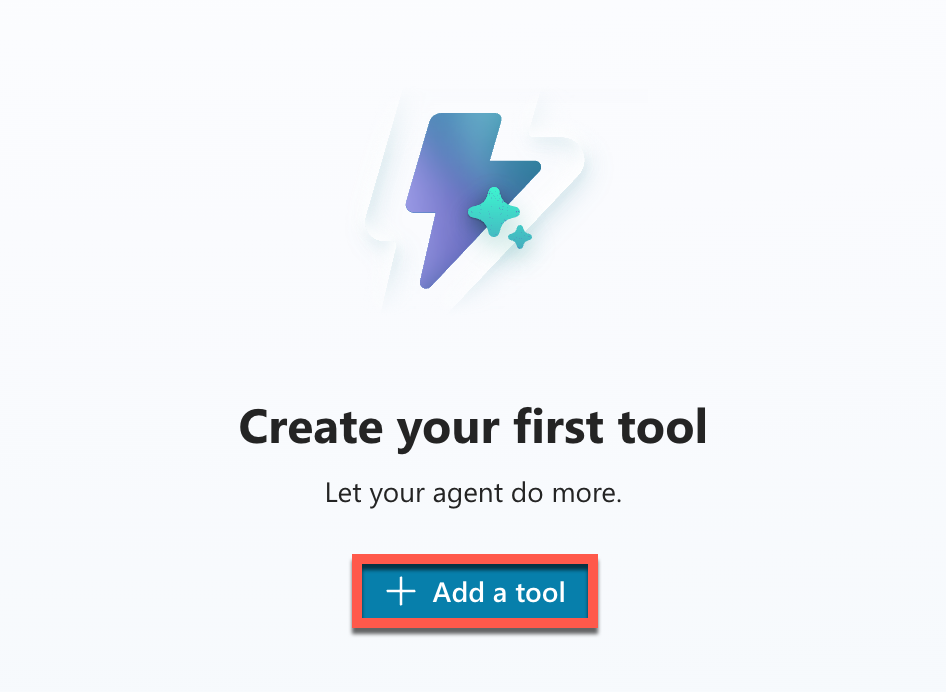
Select Add a tool to start adding the MCP Server.
-
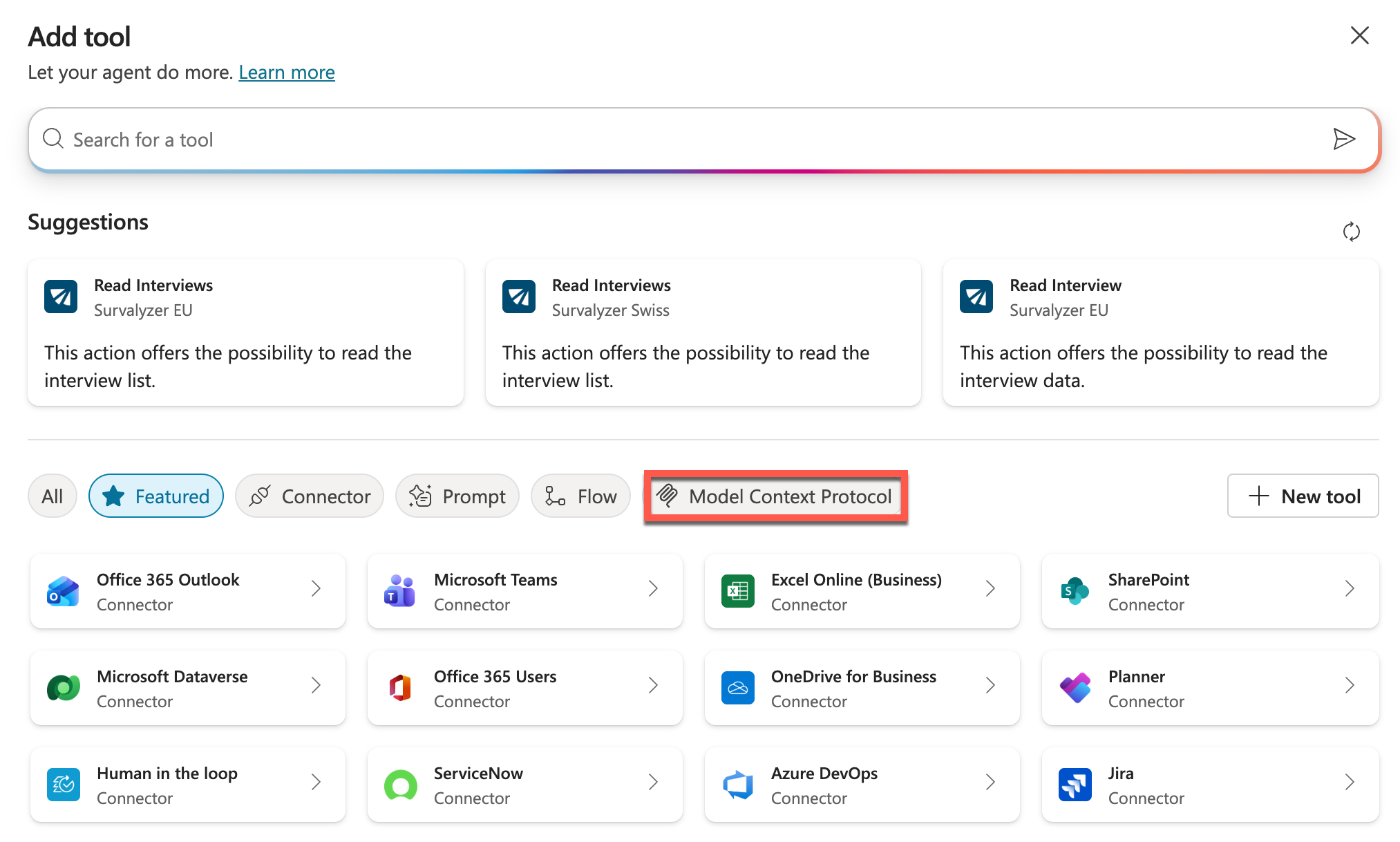
In the filters, select Model Context Protocol to show only MCP Server tools.
-
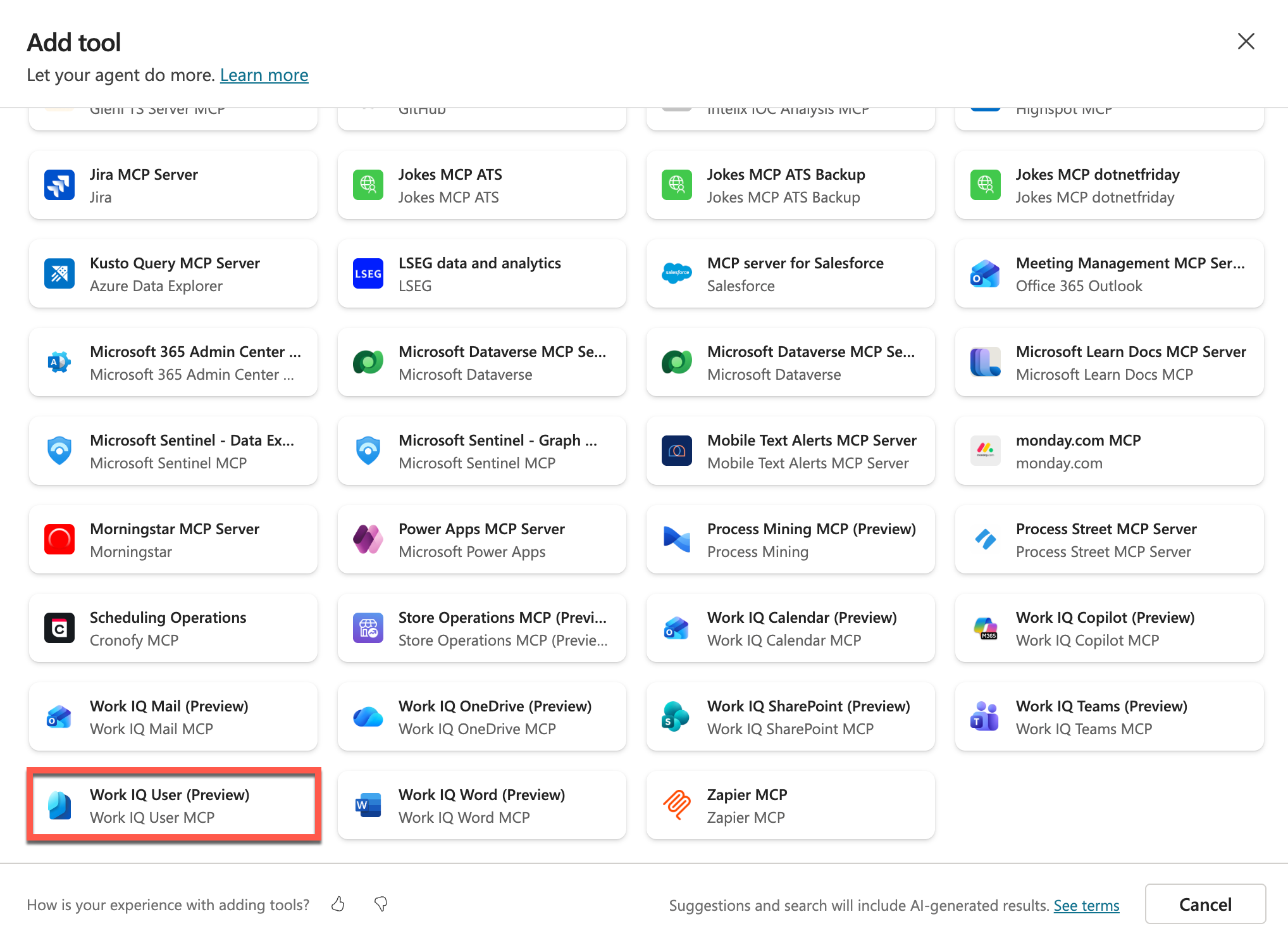
In the tool list, select Work IQ User (Preview).
-
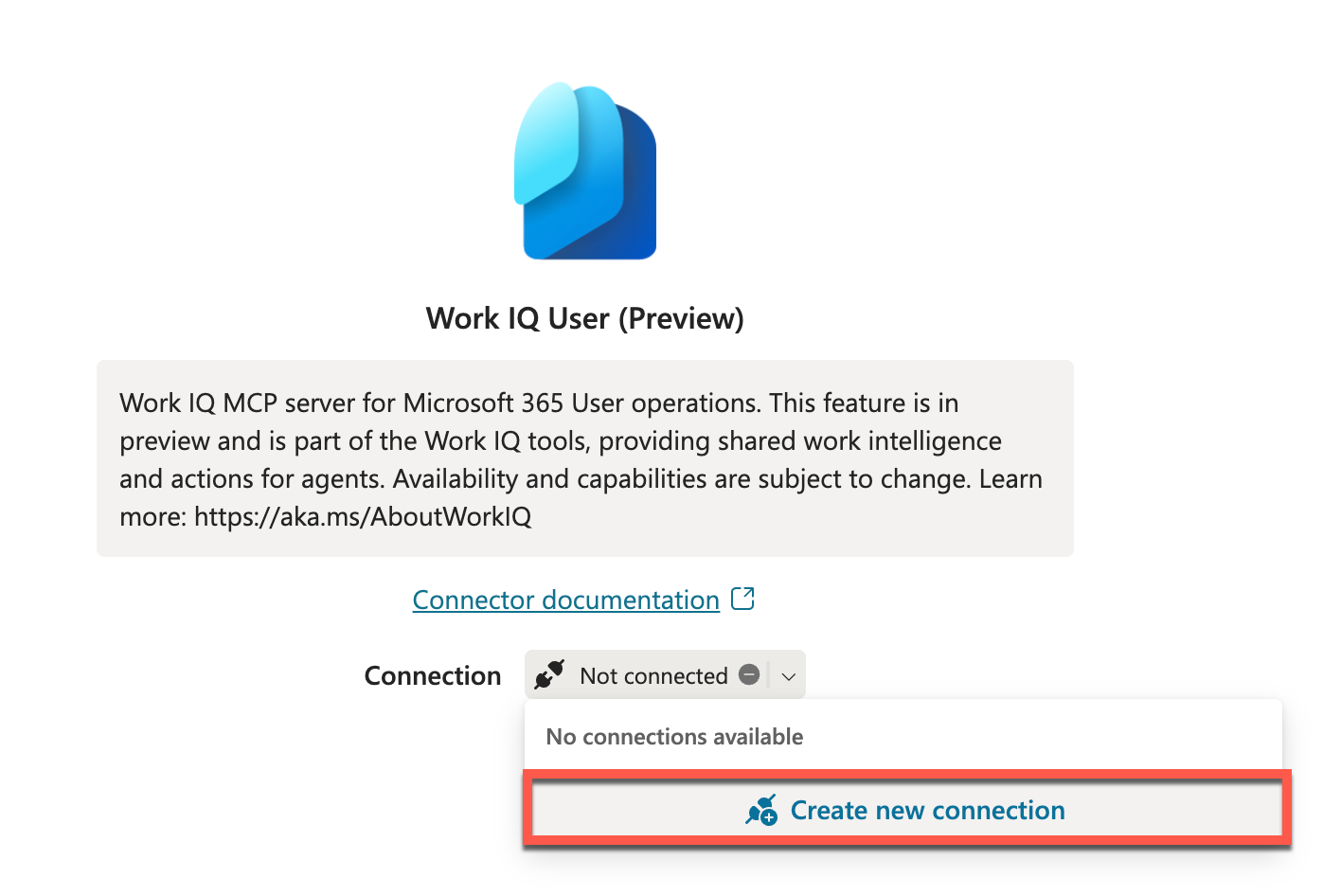
In the connection dropdown, select Create new connection.
-
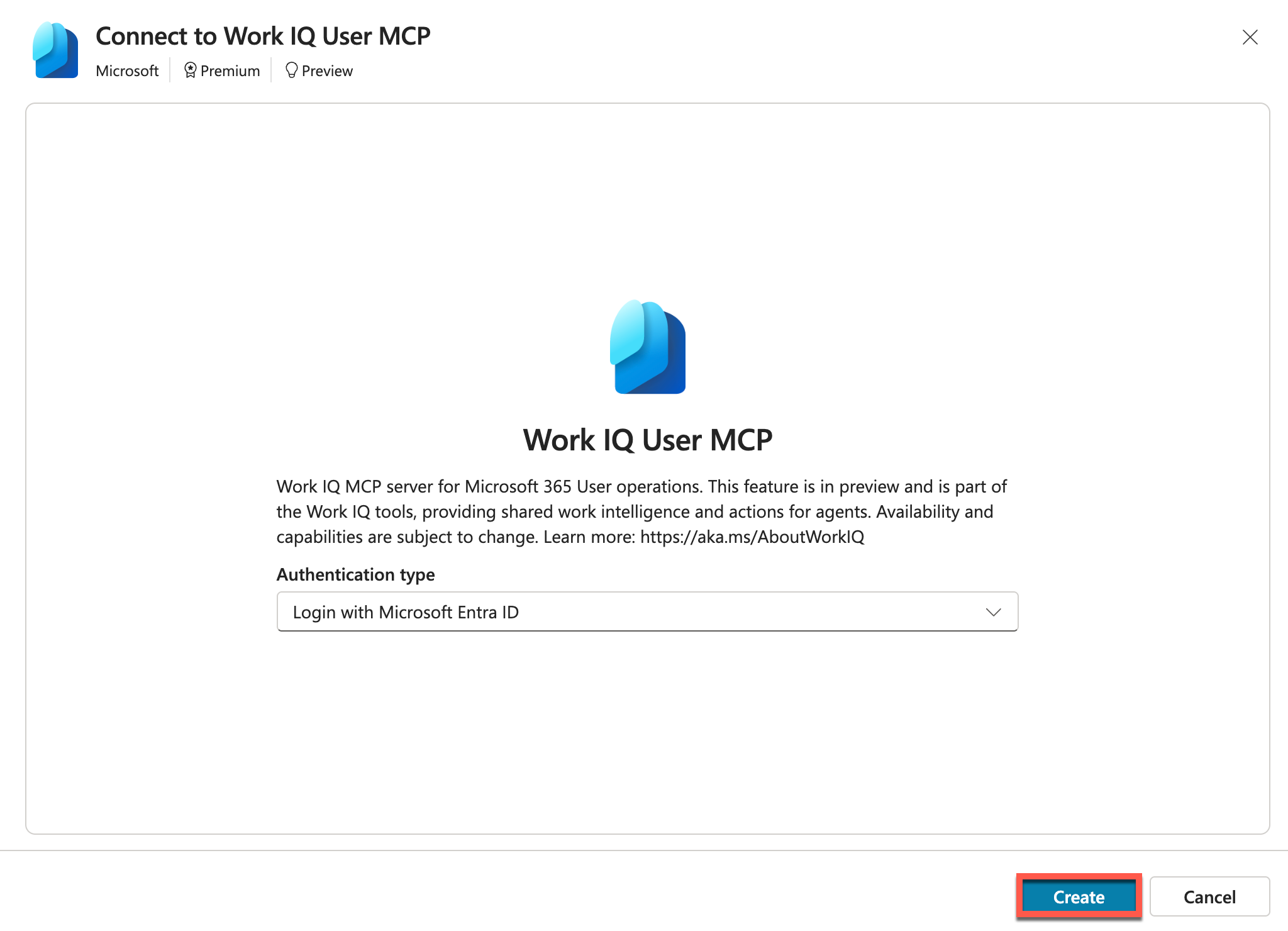
Select Create to start the connection creation process.
- In the account selection pop-up, select your account to create the connection.
-
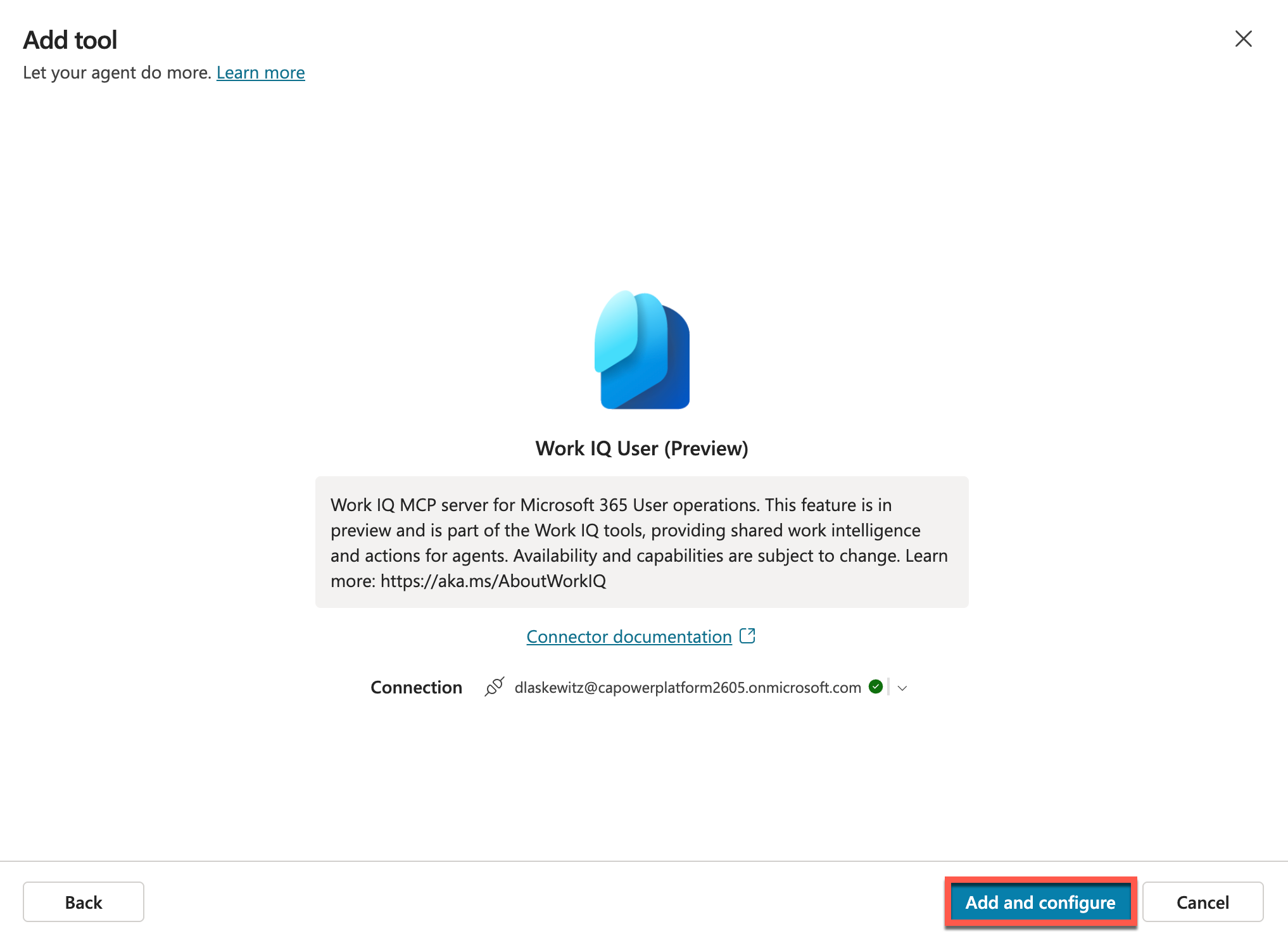
After you select the account, the following screen appears. Select Add and configure to add Work IQ User (Preview) to the Interview Agent.
-
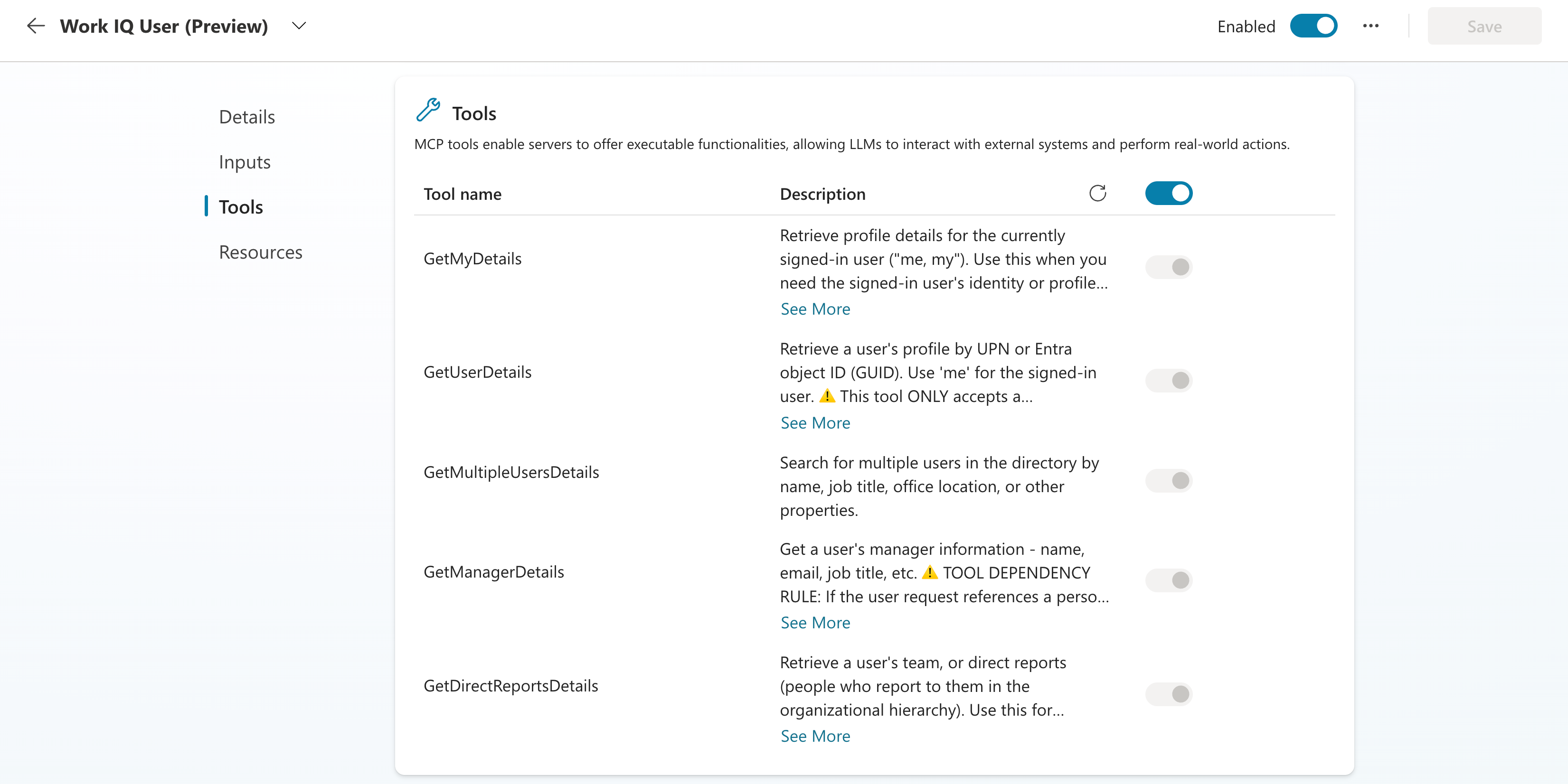
On the tool overview page, scroll down to see the MCP tools included in the MCP server.
- Next, select Test to test the newly added tool.
-
In the test pane, send the following prompt to the Agent.
Who is my manager? -
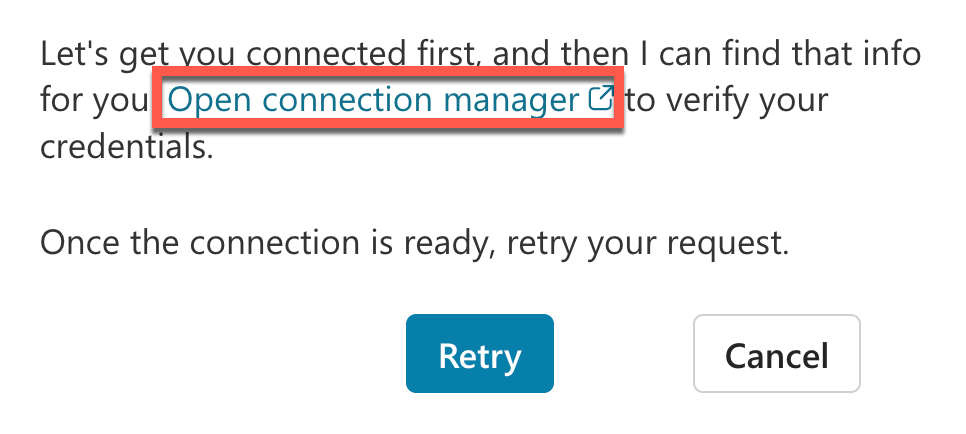
The Agent first prompts you to connect. Select Open connection manager to confirm your credentials.
-
On the Manage your connections page, select Connect next to the Work IQ User MCP connection to set up the connection.

-
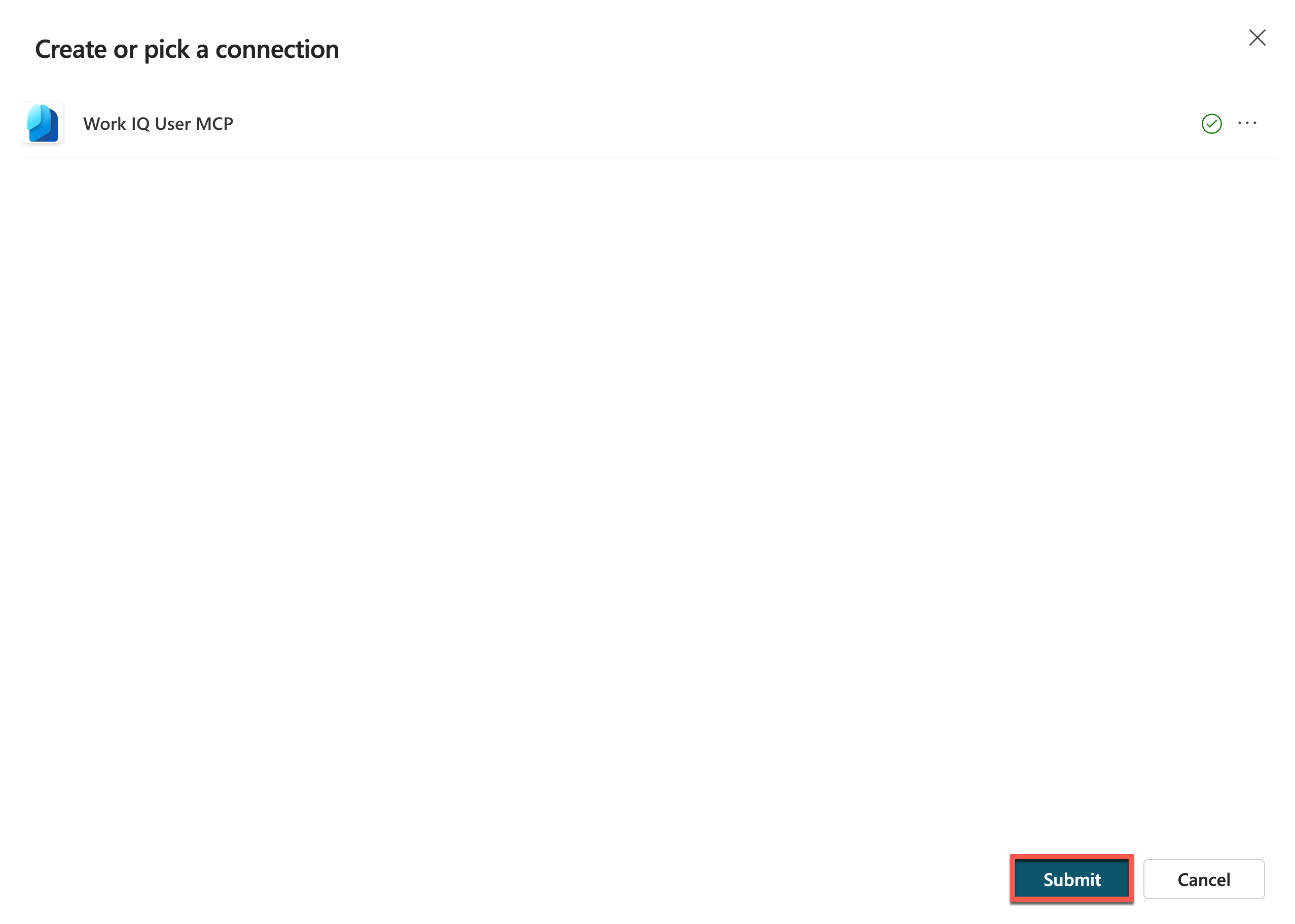
In the Create or pick a connection dialog, confirm that the Work IQ User MCP connection has a green check mark, and then select Submit. After submitting, return to the test pane and select Retry to continue.
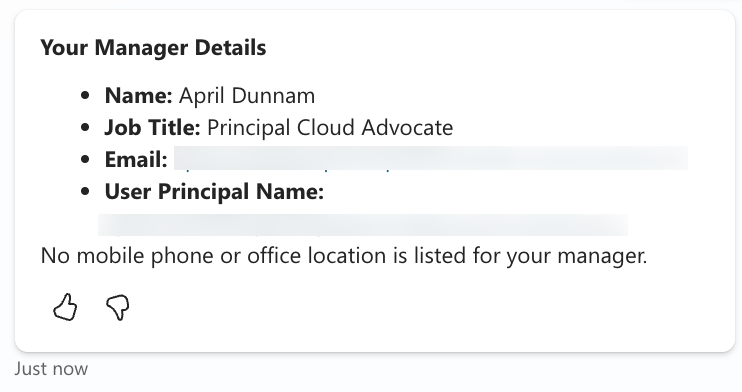
Next, the Agent’s response appears. If everything went well, you should see a result similar to the following.
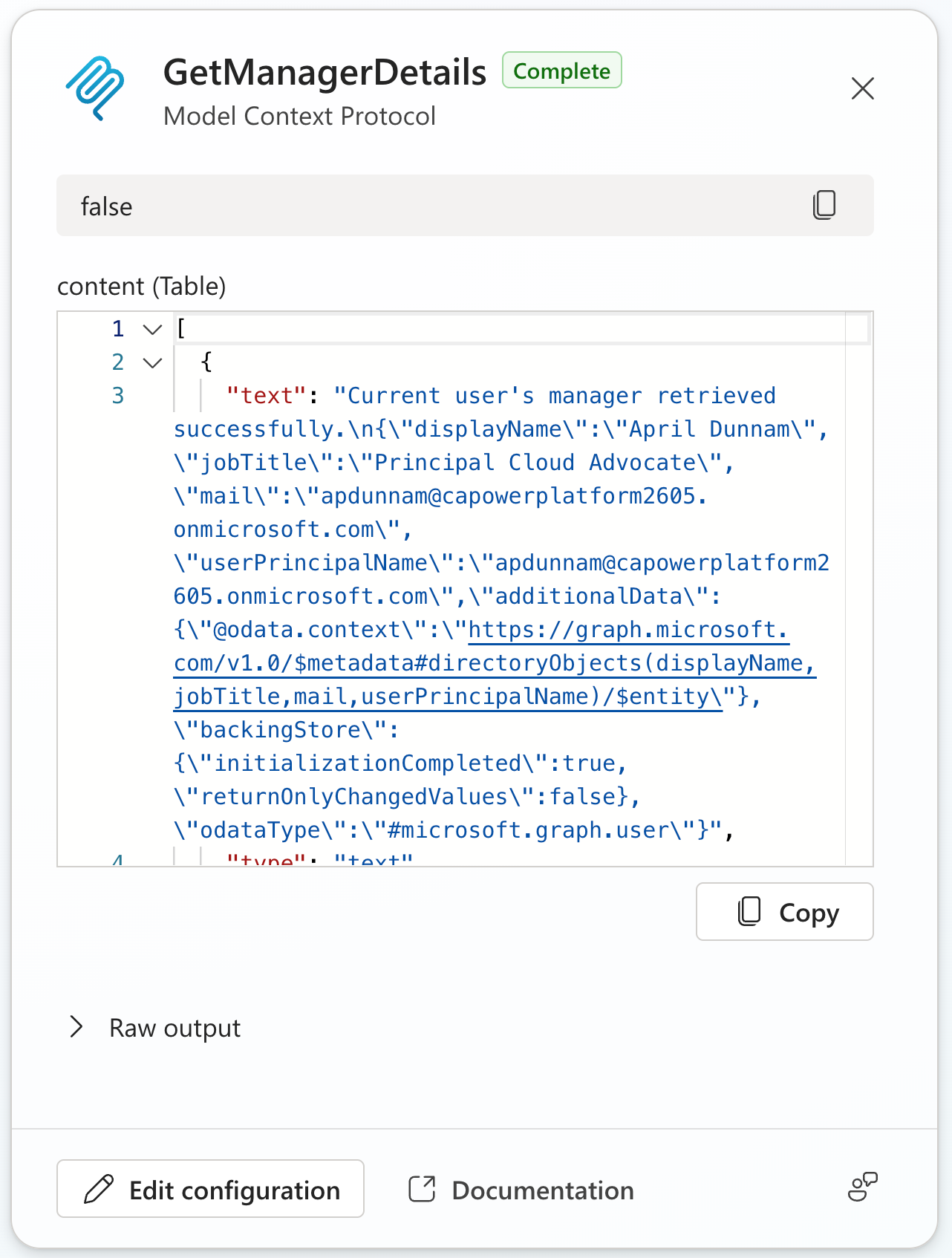
On the left side of the Test your agent pane, you can see that the Agent initialized the MCP server and called the getMyManager MCP tool. You can also view details about what the Agent sent to and received from the MCP tool.
You have completed the first part of the exercise. You can now ask questions about users in your tenant, such as:
- Who is my manager?
- Who are my direct reports?
- What is Daniel Laskewitz’s job role?
- And many more…
If you want, you can try other tools now. When you are ready, let’s add another MCP server.
Add the Work IQ Calendar (Preview) MCP server
In the previous section, you added Work IQ User (Preview), which lets you work with user details in your tenant. This is useful when you plan meetings, for example, because Agent users usually do not include an email address or user principal name in prompts when they want to schedule a meeting. Instead, they send prompts such as:
meeting with Daniel Laskewitz tomorrow
To add this capability, you need to add another MCP server: Work IQ Calendar (Preview) MCP server. The following steps are very similar to the previous section, so follow along.
- Select Tools in the top navigation.
- Select Add a tool.
- Select Model Context Protocol to filter the tools.
-
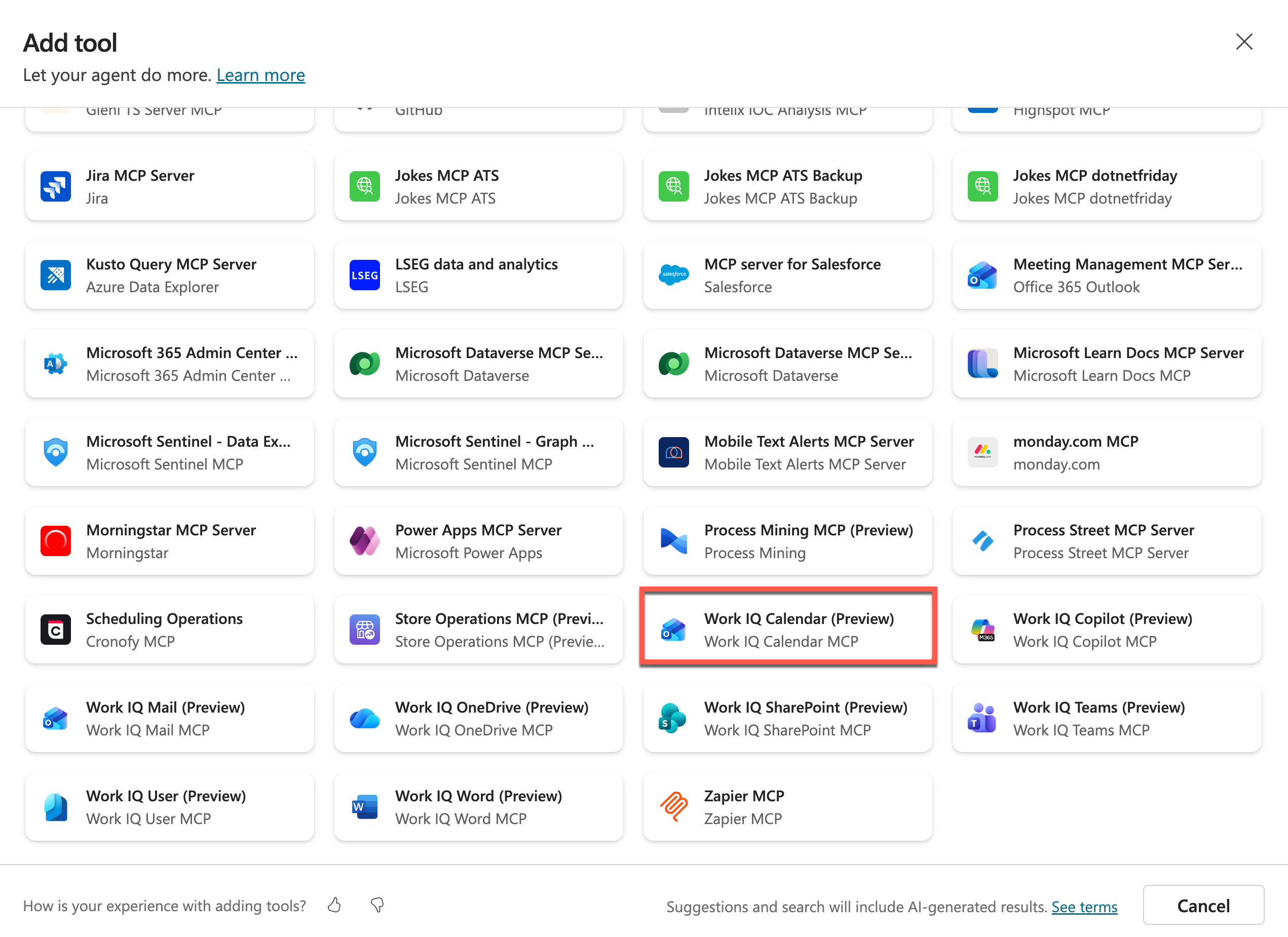
Scroll down and select Work IQ Calendar (Preview) MCP Server.
-
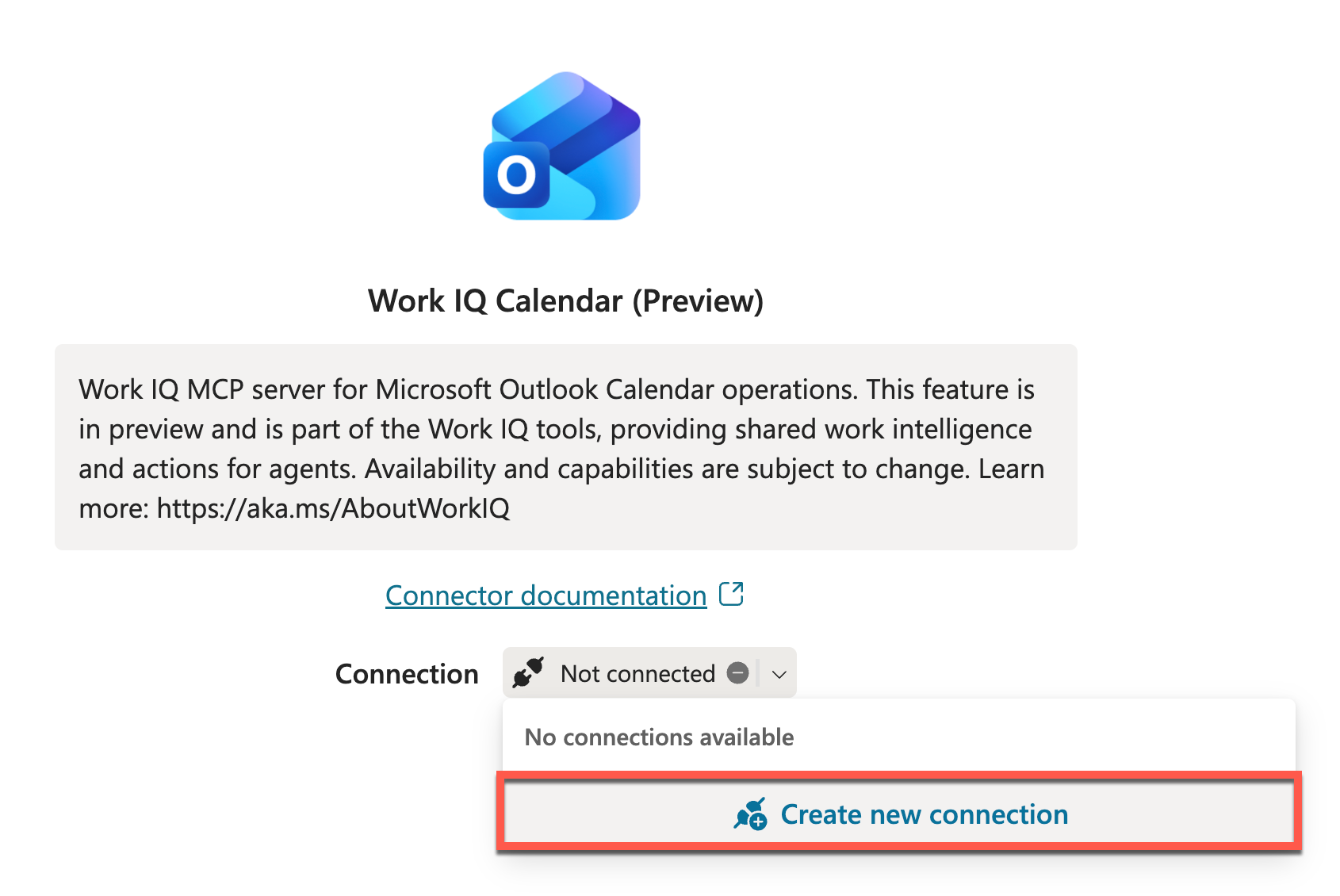
In the connection dropdown, select Create new connection.
-
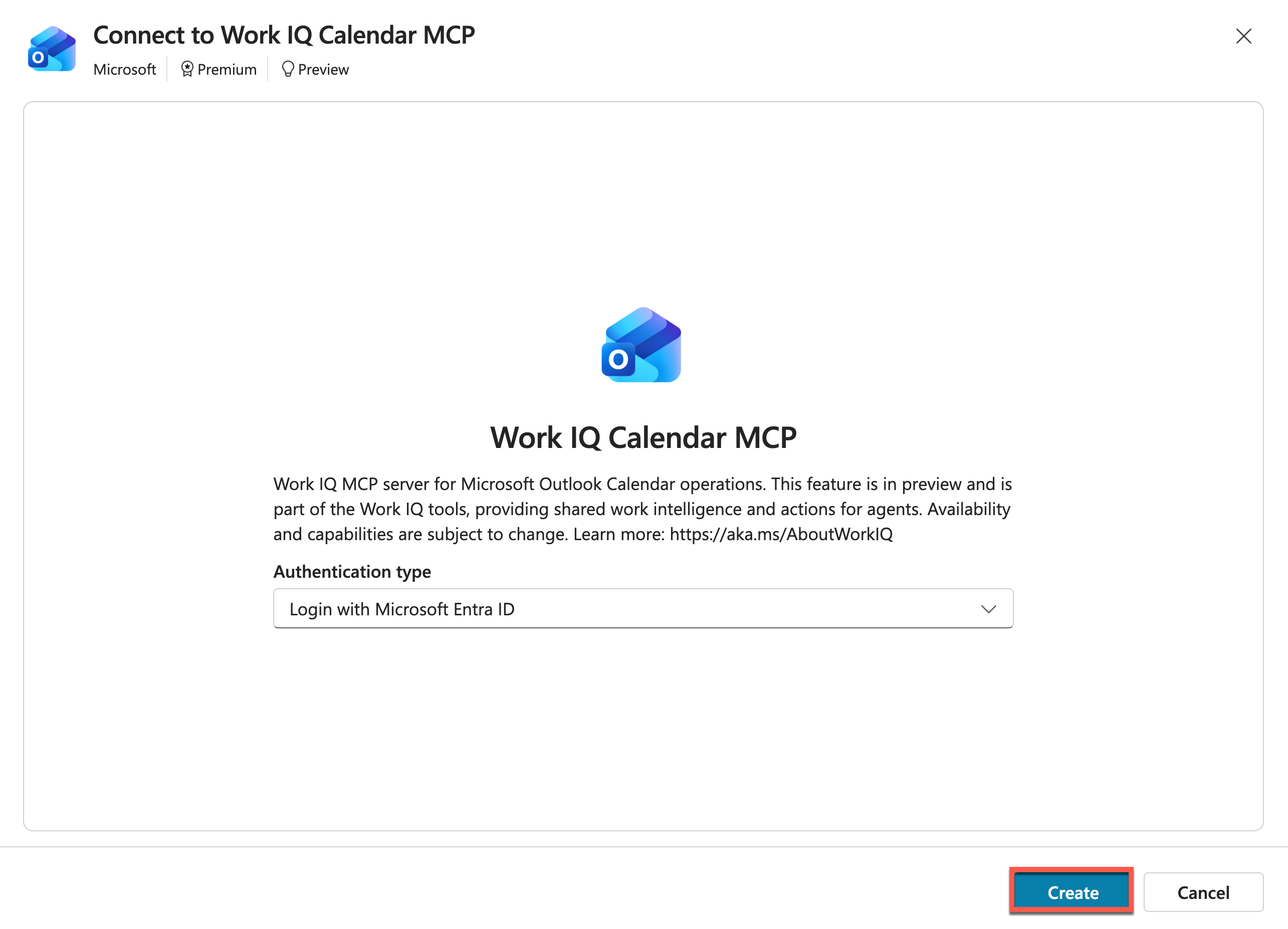
Select Create to start the connection process.
- In the account selection pop-up, select your account to create the connection.
-
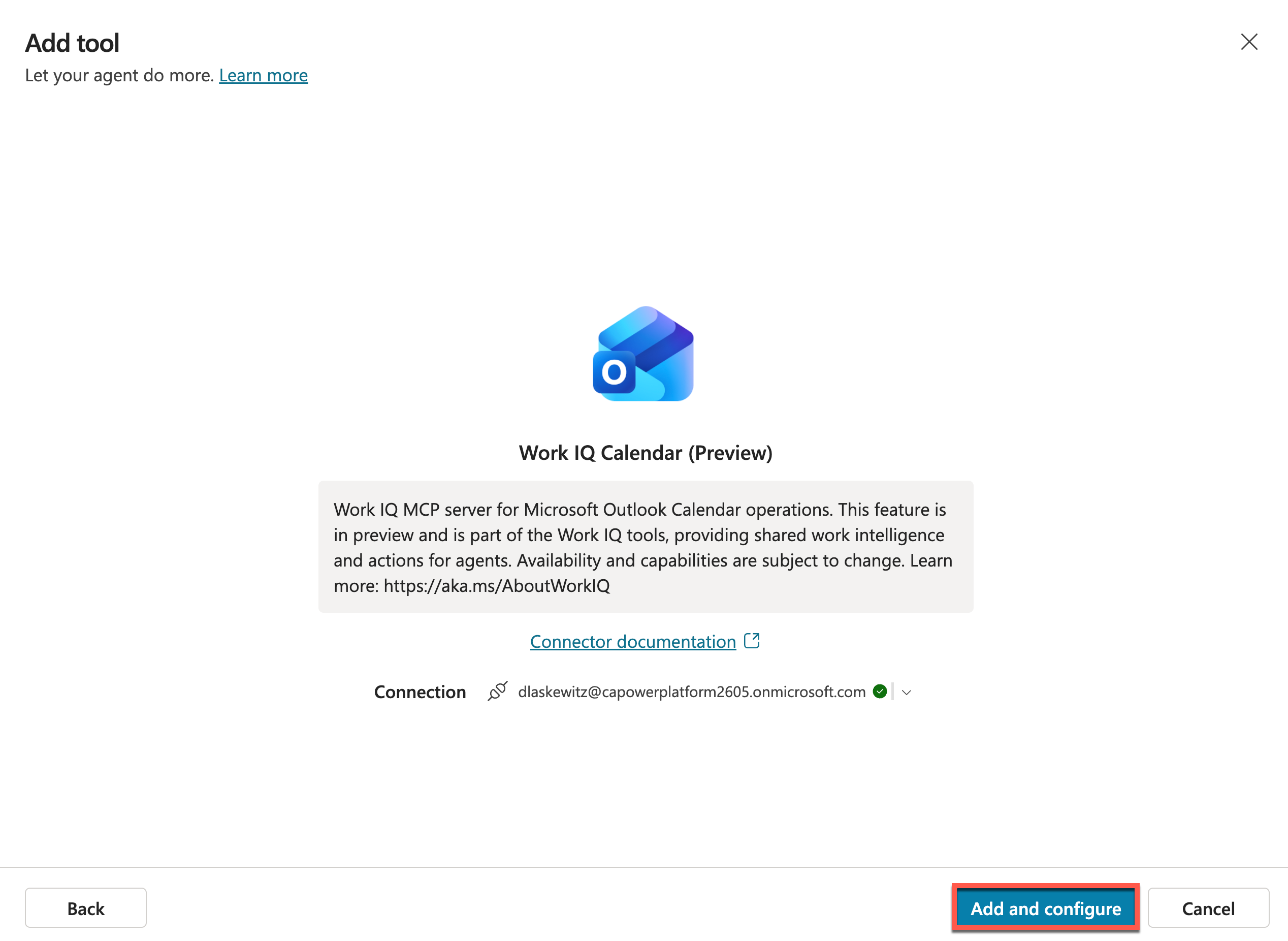
Select Add and configure to add the Work IQ Calendar (Preview) MCP server to the Interview Agent.
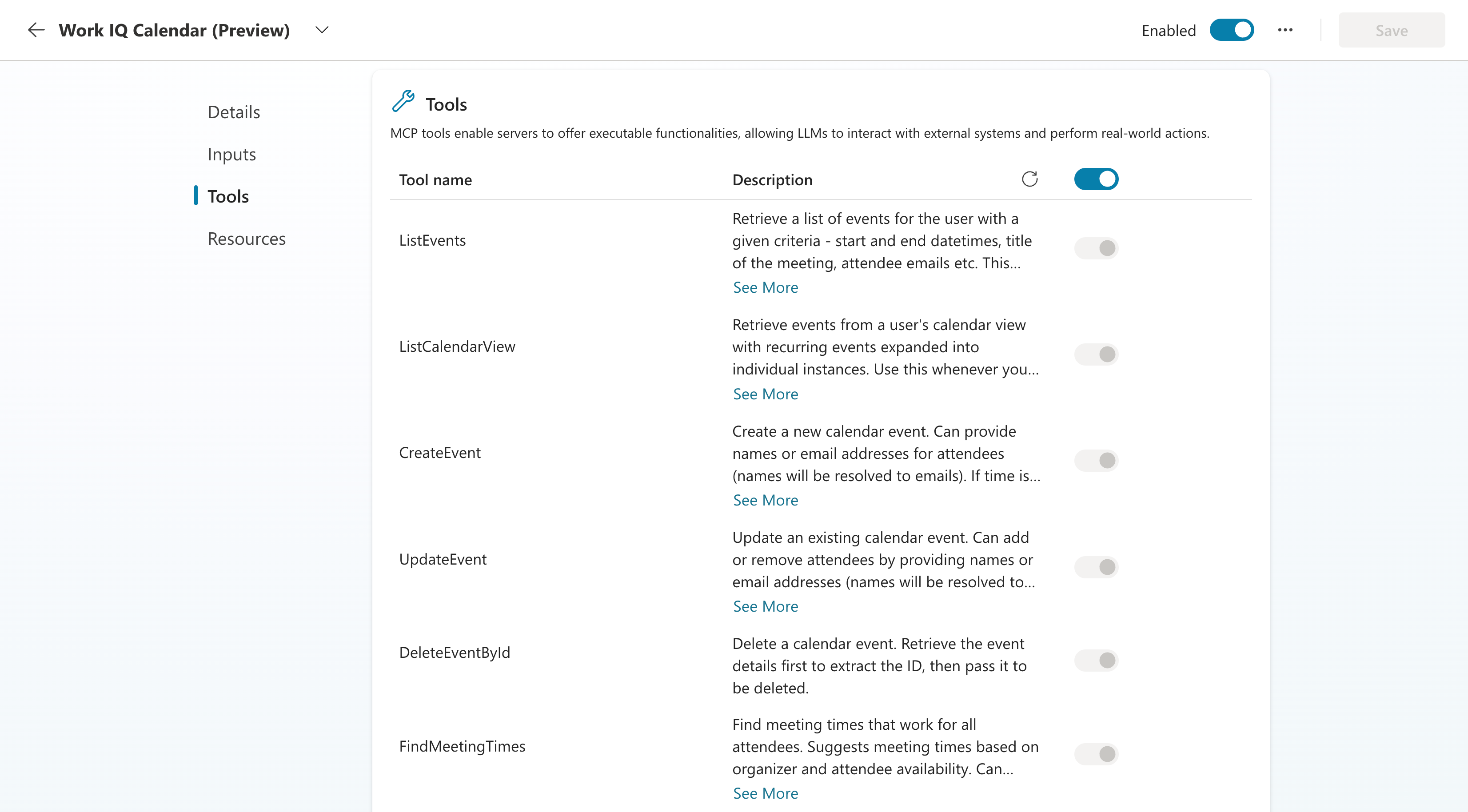
Now scroll down again to see the tools for the Work IQ Calendar (Preview) MCP server.
Now let’s test this MCP server.
-
Enter the following prompt.
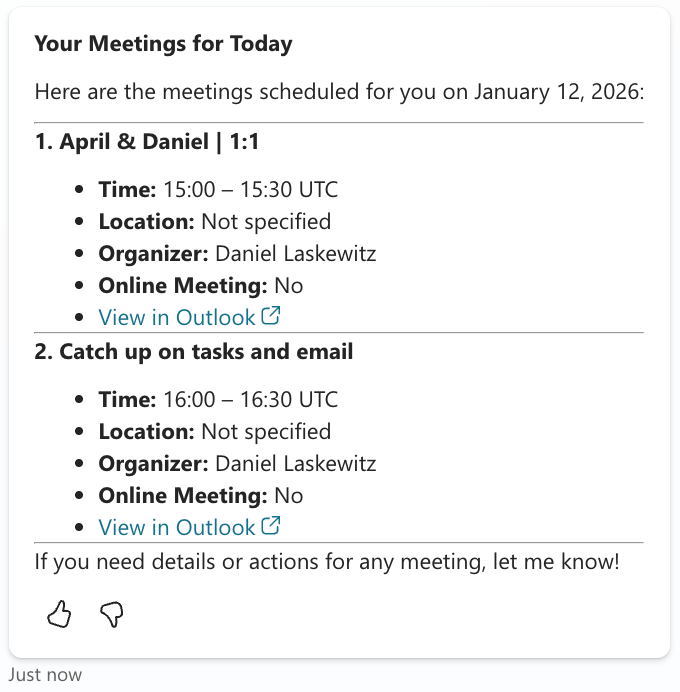
Get my meetings for today -
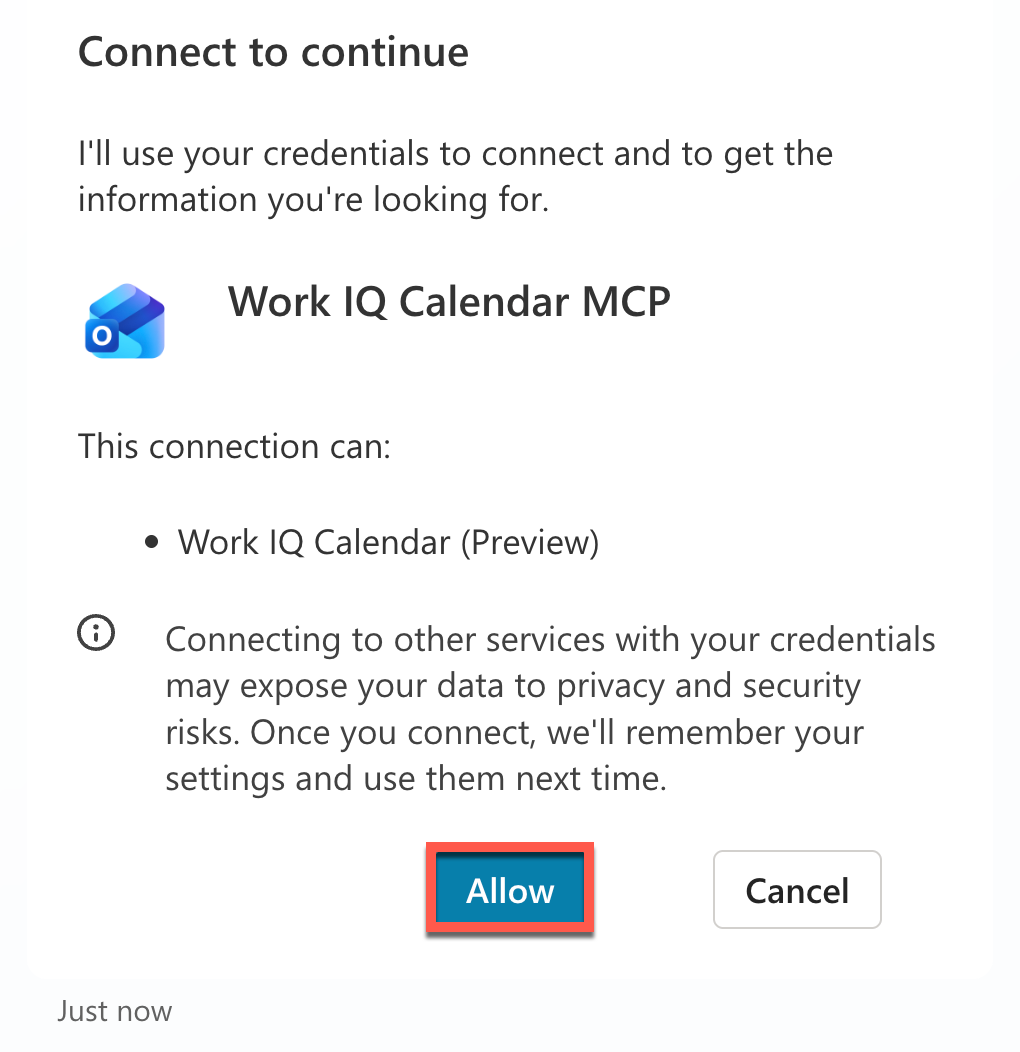
The Agent displays a consent card. Select Allow to consent to the MCP server using your data.
-
The response then displays the list of meetings on your calendar for today.
Exercise 10.2: Plan an interview prep meeting
Now you have confirmed that both MCP servers work. But what we really want to do is plan an interview prep meeting. Let’s verify that it works in practice.
-
Select New test session to start a new test session.

-
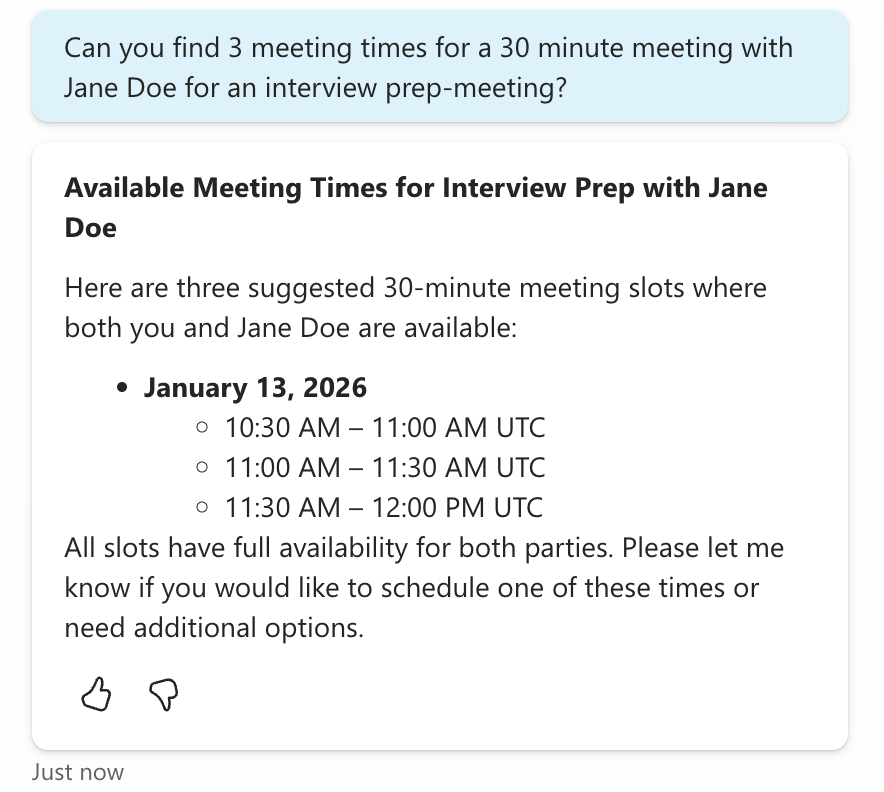
Enter the following prompt.
Can you find 3 meeting times for a 30 minute meeting with Jane Doe for an interview prep-meeting?This calls the findMeetingTimes MCP tool, checks both the Agent user’s and Jane Doe’s calendars, and finds possible times based on their availability. It then responds with three suggested meeting times.
You can also see which tools were called in the test pane.
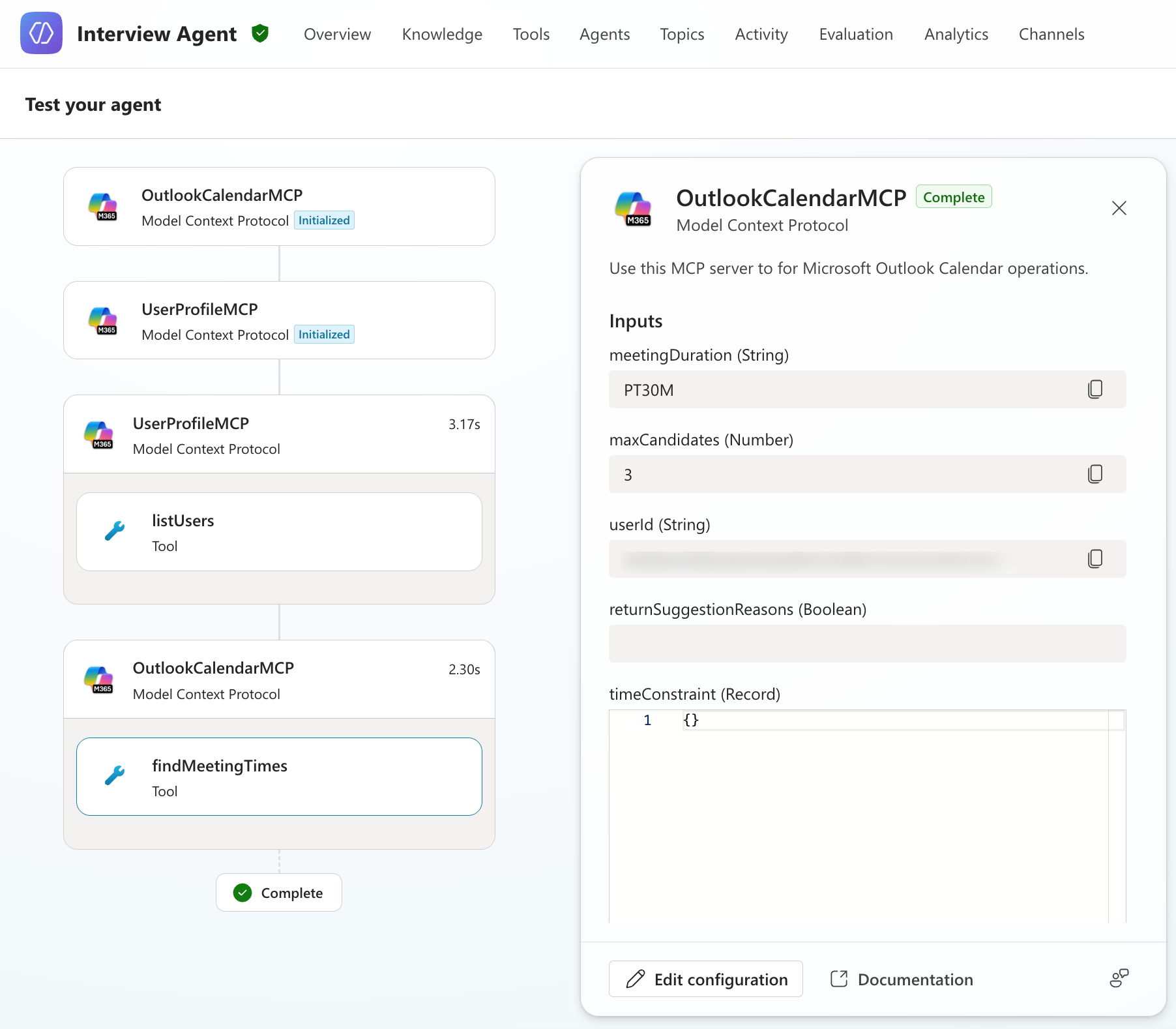
To schedule the actual meeting, you now need to respond to the Agent once more.
-
Enter the following prompt (replace the time with one of the meeting slots suggested by the Agent).
Please schedule the one on 10:30 AM UTCThis calls the createEvent MCP tool and schedules the meeting.
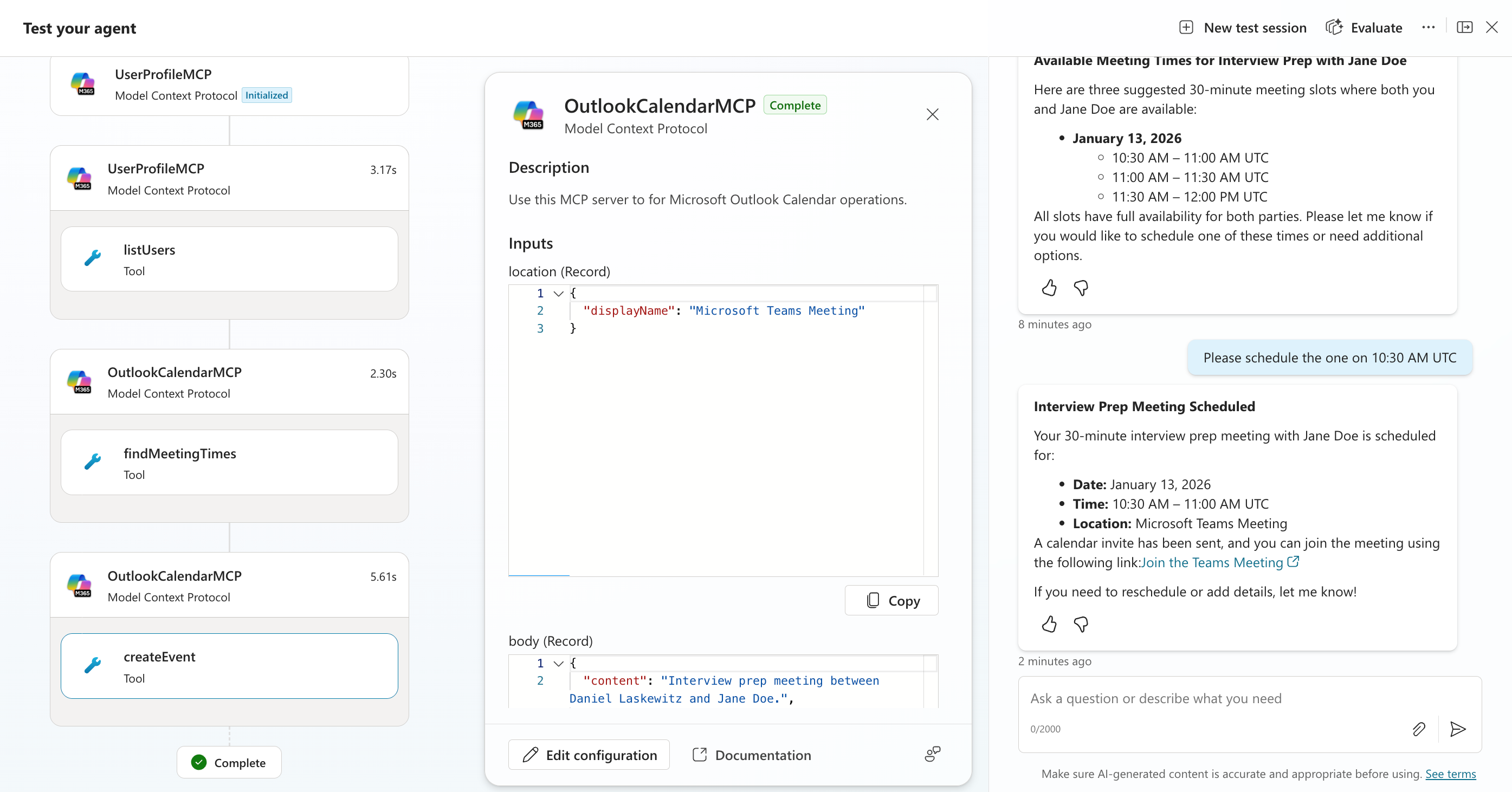
Jane Doe’s mailbox shows a meeting request like the following.

This completes the exercise. I hope it showed you how useful MCP servers can be in an Agent.
🎉 Mission complete
Excellent work, Operative! Operation MCP Rendezvous is now complete. You successfully integrated external MCP servers with your Copilot Studio Agent, unlocking powerful new capabilities that extend what the Agent can do.
🚀 Next step: In the next mission, you will learn how to collect and analyze user feedback to continuously improve Agent performance.
⏩ Go to Mission 11: Collect feedback from users
📚 Tactical resources
📖 Microsoft Copilot Studio ❤️ MCP Lab
📖 Model Context Protocol - Getting Started
📖 Extend agents with MCP in Copilot Studio
📖 Microsoft Agent 365 Overview
📖 Microsoft Agent 365 Tooling Servers Overview