Lab CWRK0 — Copilot Cowork setup and extensibility
Learn what Copilot Cowork is, how to prepare your tenant, and which options are available for extending Cowork to fit your organization. (Copilot Developer Camp)
▶ One-line summary — Copilot Cowork is an agent built not for “conversation,” but for execution. In this lab, you will understand Cowork’s operating model, configure the tenant prerequisites (licensing, usage-based billing, and the Anthropic subprocessor), and compare the two extensibility options: Skills and Plugins.
Translated article — This article is based on Copilot Developer Camp — Lab CWRK0 from Microsoft. The original wording takes precedence.
In this lab, you will learn what Copilot Cowork is, how to prepare your tenant for Cowork, and which extensibility options are available to tailor Cowork to your organization’s needs.
At a high level, Cowork orchestrates multi-step work across Microsoft 365, spanning communication, scheduling, document creation, research, and automation. Cowork interacts with Microsoft 365 through Work IQ, which is part of the Microsoft IQ platform. Unlike a pure Q&A experience, Cowork turns intent into action while keeping the user in control.
Note — To learn more about Work IQ, see the Copilot Dev Camp Work IQ lab.
Exercise 1: Understand what Copilot Cowork is
In this exercise, you will explore Cowork’s core experience and understand how it differs from chat-only AI assistants.
Copilot Cowork is designed for execution, not conversation. Instead of only answering prompts, Cowork interprets a goal → decomposes it into work items → selects the required skills → coordinates actions across Microsoft 365 workloads such as Outlook, Teams, Word, Excel, PowerPoint, and enterprise search. Its operating model is goal-driven orchestration. The user states the intent, Cowork plans and executes, and the user can review each step as it progresses.
The biggest advantage of this model is practical productivity amplification. Cowork handles multi-step, cross-app workflows that would normally require context switching, manual copy/paste, and repeated coordination. At the same time, for sensitive work, an approval process keeps humans in control. In other words, you can delegate more operational work without losing visibility, governance, or trust.
Organizations need Cowork because modern work is fragmented across tools, messages, meetings, and documents, while speed and consistency of execution have become more important than ever. Cowork addresses this by converting intent into trustworthy action within the existing Microsoft 365 security, identity, and compliance boundaries. In this lab, you will first understand the foundation, then configure tenant prerequisites, and finally explore extensibility options for adapting Cowork to business processes.
Note — To learn more about Copilot Cowork from an end-user perspective, also see the Agent Academy Cowork Collective mission.
Step 1: Review what Cowork can do
Review the capabilities described in Copilot Cowork overview. At the time of writing, the key capabilities include:
- Communication tasks (email, Teams messages)
- Meeting and scheduling tasks (booking, updates, resolving calendar conflicts)
- Document and file tasks (Word, Excel, PowerPoint, PDF)
- Research and enterprise search (across Microsoft 365 data)
- Scheduled prompts (recurring automation)
- And much more…
This aligns with the product vision introduced in Copilot Cowork: A new way of getting work done: moving from intent to action.
From an interaction-model perspective, Cowork is designed not to return a one-off answer, but to execute a sequence of actions. It drafts and sends communications, creates files, organizes meetings, and combines context from email, chat, files, and meetings into one coherent execution plan.
One of the biggest benefits is continuity of work. Instead of manually moving between Outlook, Teams, OneDrive, SharePoint, and Office apps, you can delegate the end-to-end flow to Cowork and supervise only the checkpoints. Context switching is reduced, and users can focus on higher-value decisions.
Cowork keeps the user in control. For high-impact tasks, it pauses before execution and asks for approval. This pattern is critical for enterprise trust. Users review, approve, or reject intent and retain accountability while gaining the benefits of automation.
At the organizational level, Cowork’s purpose is not to replace people, but to amplify execution capacity with auditable, policy-compliant automation that can be extended with skills and plugins.
Exercise 2: Prepare your tenant for Copilot Cowork
In this exercise, you will configure the key tenant prerequisites required to enable Cowork safely.
Step 1: Review prerequisites
Use Get started with Copilot Cowork to confirm the following prerequisites:
- A valid Microsoft 365 tenant for experimentation and learning — a developer tenant created through the Microsoft 365 Developer Program is also supported
- A tenant administrator account for managing some settings
- An active Microsoft 365 Copilot license for each user
- Cowork availability in the tenant
- Usage-based billing enabled for Cowork
- Anthropic enabled as a subprocessor in the tenant, or GPT 5.5 selected instead for Frontier tenants
- Access through a supported client/browser (web, desktop app, mobile)
Anthropic subprocessor requirement — Cowork uses Anthropic models as subprocessors in Microsoft 365 Copilot. Make sure this requirement is included in your compliance and legal review process before broad rollout. Frontier tenants can also use GPT 5.5 as an alternative. For supported models, see Model selection for Copilot Cowork.
Step 2: Configure Copilot Credits and usage-based billing
In the Microsoft 365 admin center, open the usage-based billing cost management page and configure your billing strategy based on Copilot Credits usage-based billing and cost management.
At a minimum, define the following:
| Item | Details |
|---|---|
| Billing mode | Prepaid credits / pay-as-you-go / use existing capacity |
| Azure subscription connection | Connect a subscription for billing at scale |
| Spending policies and limits | Organizational spending policies and caps |
| Budget guardrails | Alerts and hard caps |
Pilot first recommended — Start with a controlled pilot audience and strict spending policies. Review actual consumption trends and cost drivers, then expand gradually.
Step 3: Assign pilot users and validate access
Assign a pilot group, then ask pilot users to open Cowork and verify the following:
- They can start a conversation
- They can run at least one task that requires approval
- They can view task history and scheduled tasks
If a user cannot access Cowork, re-check licensing, billing configuration, and tenant-level enablement.
Exercise 3: Start using Copilot Cowork
In this exercise, you will use Cowork directly in the product UI to observe the execution model and validate approval controls for sensitive work.
Step 1: Start Copilot Cowork
Open Microsoft 365 Copilot and select Cowork from the toggle next to Chat at the top.
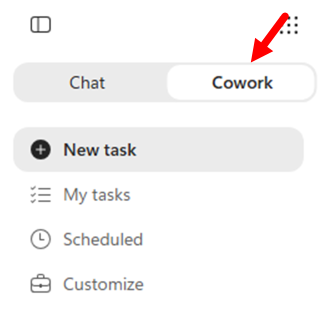
Cowork is organized around delegated execution. Describe the outcome you want, and Cowork plans and performs work across Microsoft 365.
The left navigation includes these key items:
| Menu | Description |
|---|---|
| New task | Start a Cowork execution from scratch with a new prompt |
| My tasks | Find and quickly reopen previous tasks |
| Scheduled | Review and manage recurring or scheduled Cowork tasks |
| Customize | Manage available plugins and skills |
Step 2: Observe the execution model
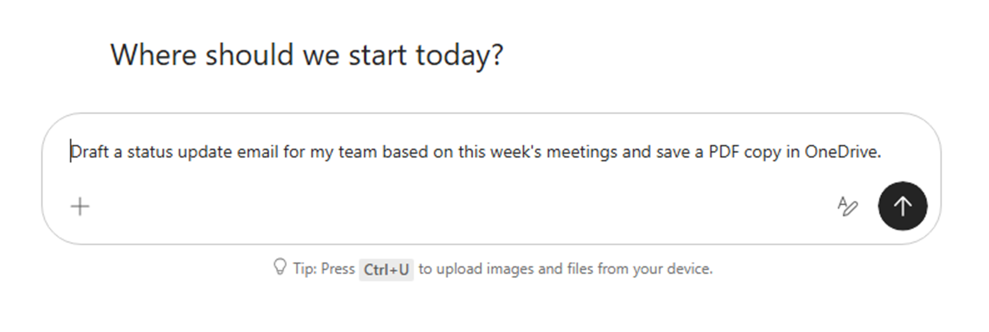
From the Cowork home page, try running a simple prompt like this:
Draft a status update email for my team based on this week's meetings and save a PDF copy in OneDrive.
Example:
Draft a status update email for my team based on this week's meetings and save a PDF copy in OneDrive.
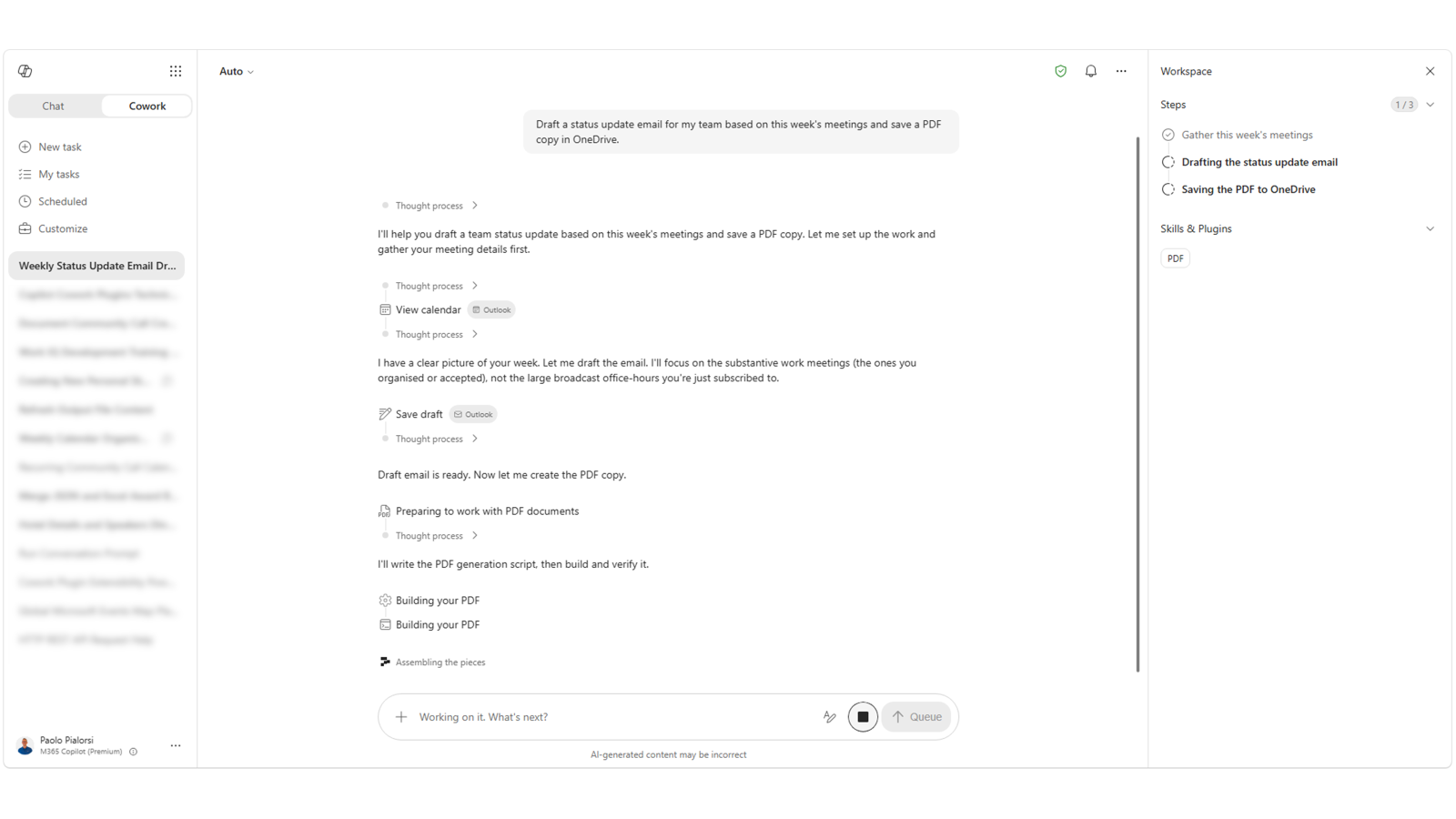
While Cowork runs, observe the step-by-step execution process, loaded skills, and approval gates before sensitive actions such as sending or publishing.
When the task completes, you can see a recap of all actions and steps that were performed.
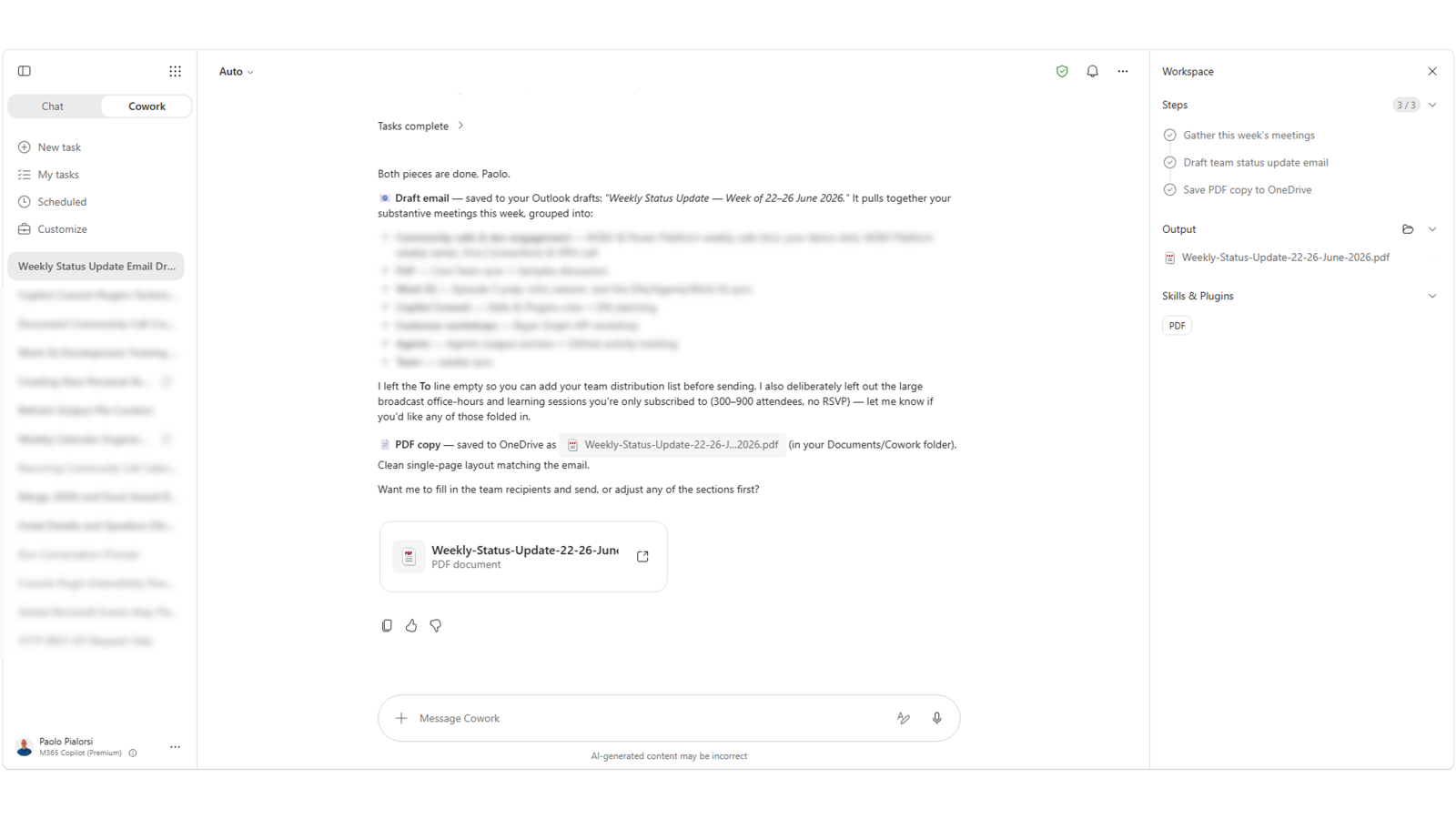
As you can see, Cowork performed multiple actions in sequence. It created an email draft, generated a PDF, and saved it to OneDrive for Business. The entire process runs asynchronously, so you can continue doing other work in the meantime.
Step 3: Test approval controls
Ask Cowork to perform a sensitive action:
Schedule a 30-minute project sync with my team tomorrow and send a confirmation message in Teams.
Example:
Schedule a 30-minute project sync with my team tomorrow and send a confirmation message in Teams.
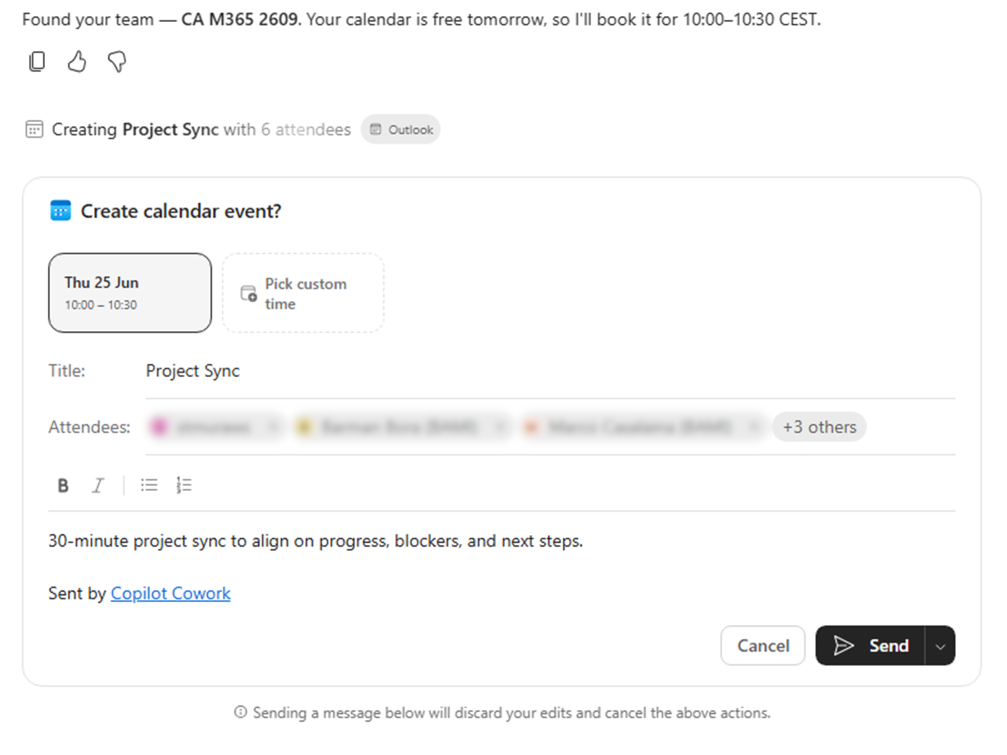
Confirm that Cowork asks for explicit approval before the sensitive action is performed.
Exercise 4: Review Cowork extensibility options
This lab series about Cowork focuses on the extensibility model. In this exercise, you will compare the major extensibility options and enable an existing plugin.
Step 1: Open Customize
In Cowork, select Customize from the left navigation. There are two core tabs:
- Plugins — Installed, discoverable, and shared plugins
- Skills — Built-in skills and custom skills
Before continuing, keep the following comparison in mind:
| Category | Skills | Plugins |
|---|---|---|
| Definition | Task instructions and behavior patterns that guide how Cowork performs a specific type of work | Packaged integrations/connectors that add capabilities or external data sources |
| When to use | When you need to shape behavior and task logic | When you need to connect tools, systems, or specialized capabilities |
Cowork already includes a rich set of built-in skills — Word, Excel, PowerPoint, PDF, Email, Scheduling, Calendar Management, Meetings, Daily Briefing, Enterprise Search, Deep Research, Communications, Adaptive Cards, and more. Cowork activates these skills automatically based on the conversation context, and you can see which skills were used in the Skills section of the side panel.
Note — To learn more about Cowork skills, see Cowork skills.
The Microsoft plugins currently included with Cowork are:
- Dynamics 365 Customer Service
- Dynamics 365 ERP
- Dynamics 365 Sales
- Fabric IQ
In addition to these Microsoft plugins, the Microsoft 365 App Store already has a broad and growing catalog of third-party partner plugins.
🎉 Congratulations!
You have completed Lab CWRK0 — Copilot Cowork setup and extensibility!
In the next lab, you will create your first skill for Copilot Cowork.
👉 Lab CWRK1 — Create your first Cowork skill