Add an external MCP tool
Basics #3: Autonomous agent - Add an external MCP tool
Step 4: Add an external MCP tool
3. Add an external MCP tool: overseas news lookup MCP
Previous step: 3. Add the Work IQ MCP tool Next step: 5. Add an AI Prompt tool
In Copilot Studio, you can also add private or internal MCP servers that are not provided in catalog form, as in the previous lab. By entering the URL and authentication token in the GUI, you can add all tools exposed by that server to the agent.
In this lab, you will connect a private MCP server, External News MCP, to the agent and use it as a tool for retrieving overseas news information by keyword and region.
This MCP server was built using the API provided by NewsAPI.org.
It was developed by Microsoft Korea and is deployed to Azure Container Apps, so the service may be unavailable depending on resource conditions.
If the connection is not stable, we recommend following the guide to deploy the News API MCP server yourself and then connecting to your own deployment.
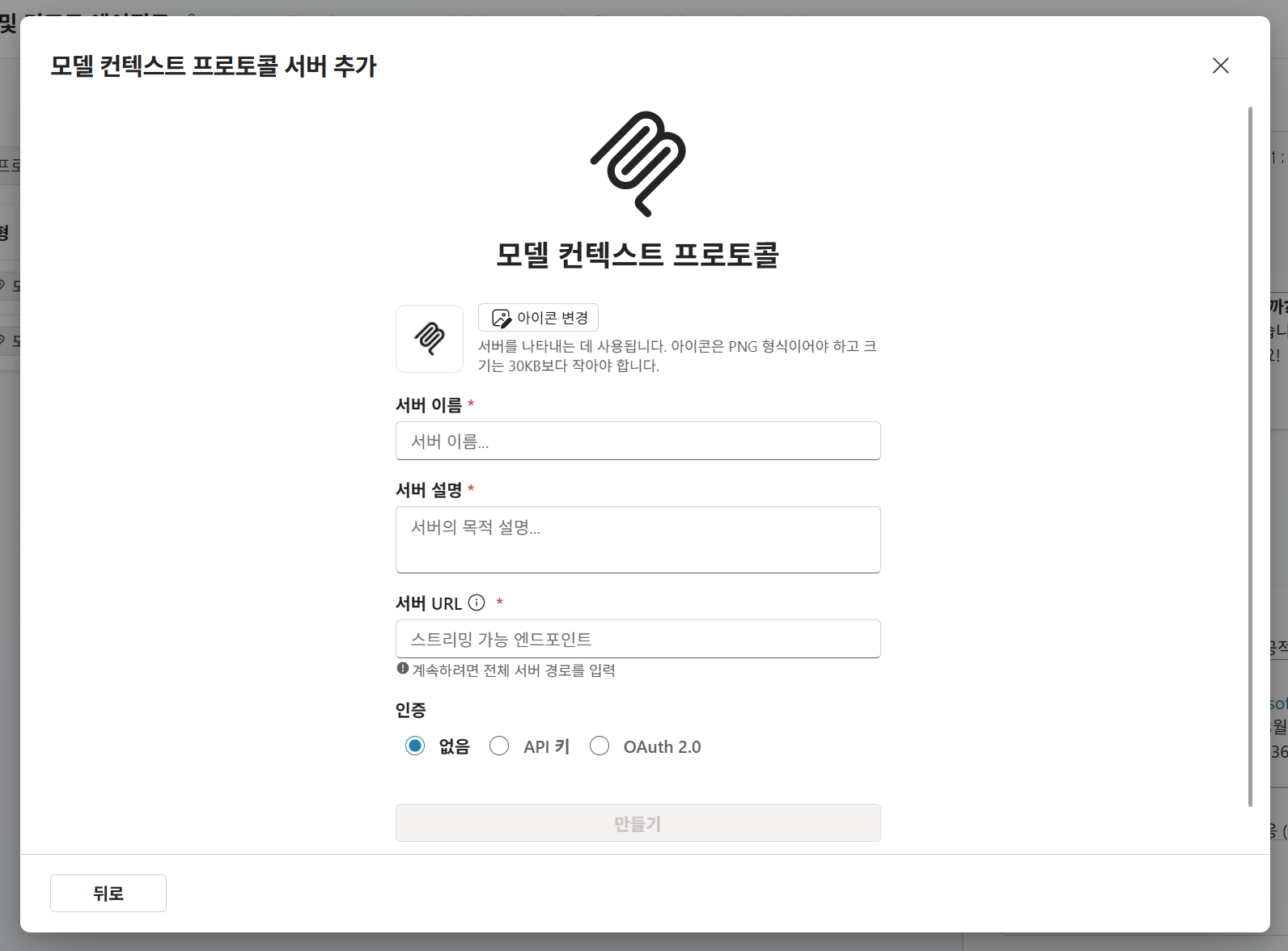
Introducing News API MCP
News API MCP is a custom MCP server based on the NewsAPI.org API.
You can use this MCP server to retrieve news information from around the world.
When it is connected to an agent, the agent automatically calls News API MCP when users ask for news information in natural language, then responds with and configures the relevant information.
| Item | Details |
|---|---|
| Language | Python 3.12 |
| Transport | stdio + Streamable HTTP |
| Authentication | News API Key (x-news-api-key header) |
| Deployment | azd up → Azure Container Apps |
Tools
| Tool name | Description |
|---|---|
search-news |
Search news articles by keyword |
get-top-headlines |
Top headlines by country/category |
get-news-sources |
Retrieve a list of news sources |
📄 Details: News-api-mcp/README.md
1. Start adding the MCP tool
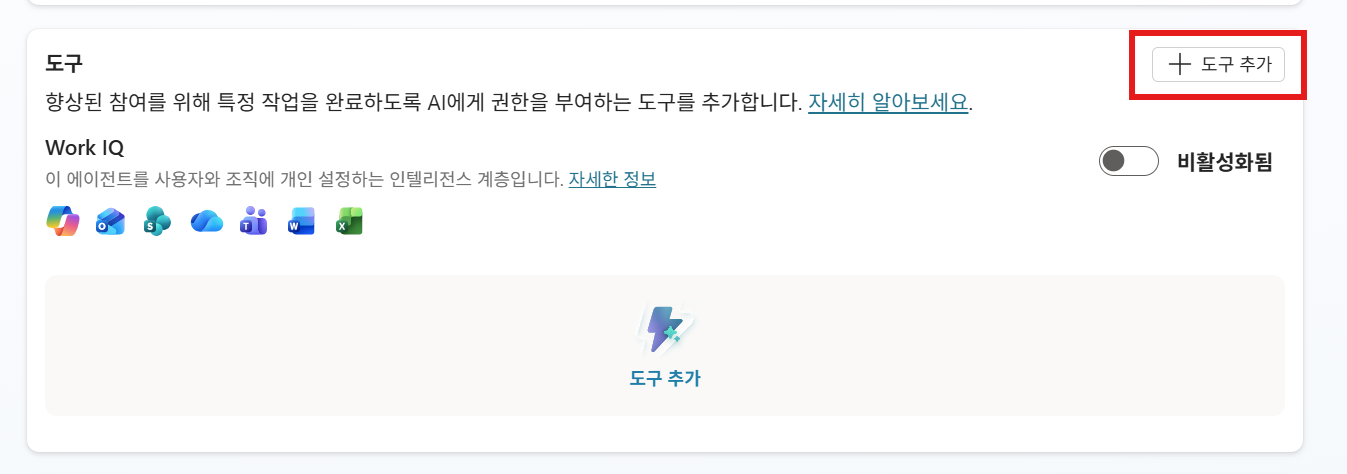
On the agent overview page, go to the Tools section and click + Add a tool.
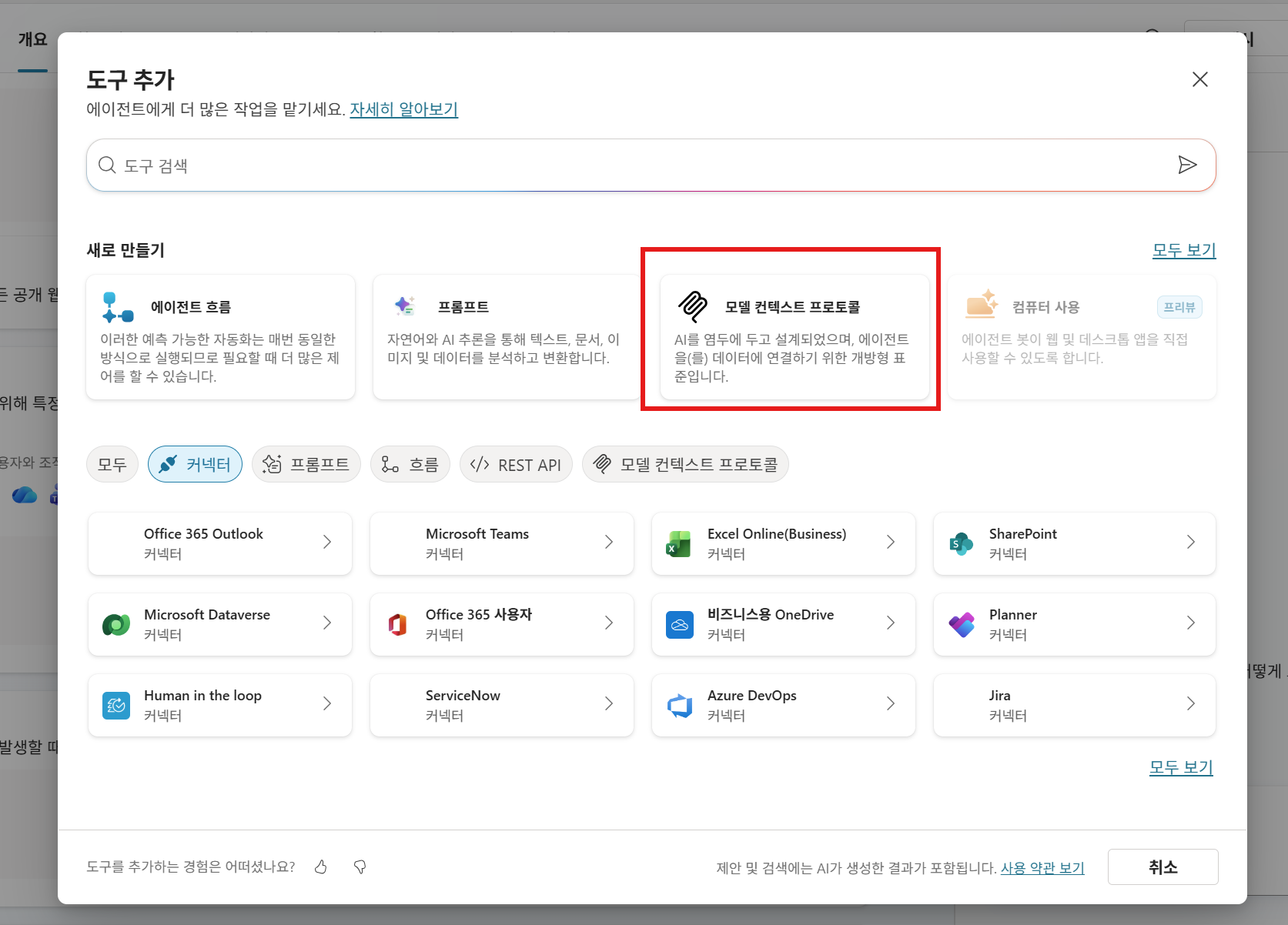
In the add tool popup, select the MCP tab or the Model Context Protocol (MCP) option.
2. Connect the ThinQ MCP server
2-1. Enter the server URL and information
Enter the ThinQ MCP server URL for the lab below.
Important! This MCP server was built using the API provided by NewsAPI.org.
It was developed by Microsoft Korea and is deployed to Azure Container Apps, so the service may be unavailable depending on resource conditions.
If the connection is not stable, we recommend following the guide to deploy the News API MCP server yourself and then connecting to your own deployment.
| Item | Value | Description |
|---|---|---|
| Server name | News_API_MCP_[Name] |
Name used to identify the tool in the agent |
| Server description | An MCP (Model Context Protocol) server that lets an AI agent search and use news from around the world. It provides news article search, top headline lookup, and news source listing through News API. |
Description used to identify the tool in the agent. Describe the tools and scenarios provided by this MCP server in detail so the agent works correctly. |
| Server URL | https://newsapi-mcp-python.politeglacier-1c138199.koreacentral.azurecontainerapps.io/mcp |
Endpoint URL of the demo news api MCP server |
| Authentication | API key |
Uses an API key issued by newsapi.org. |
| Authentication type | Header |
Authenticates by including the API key in an HTTP request header. |
| Header name | x-news-api-key |
HTTP header name used to pass the API key. |
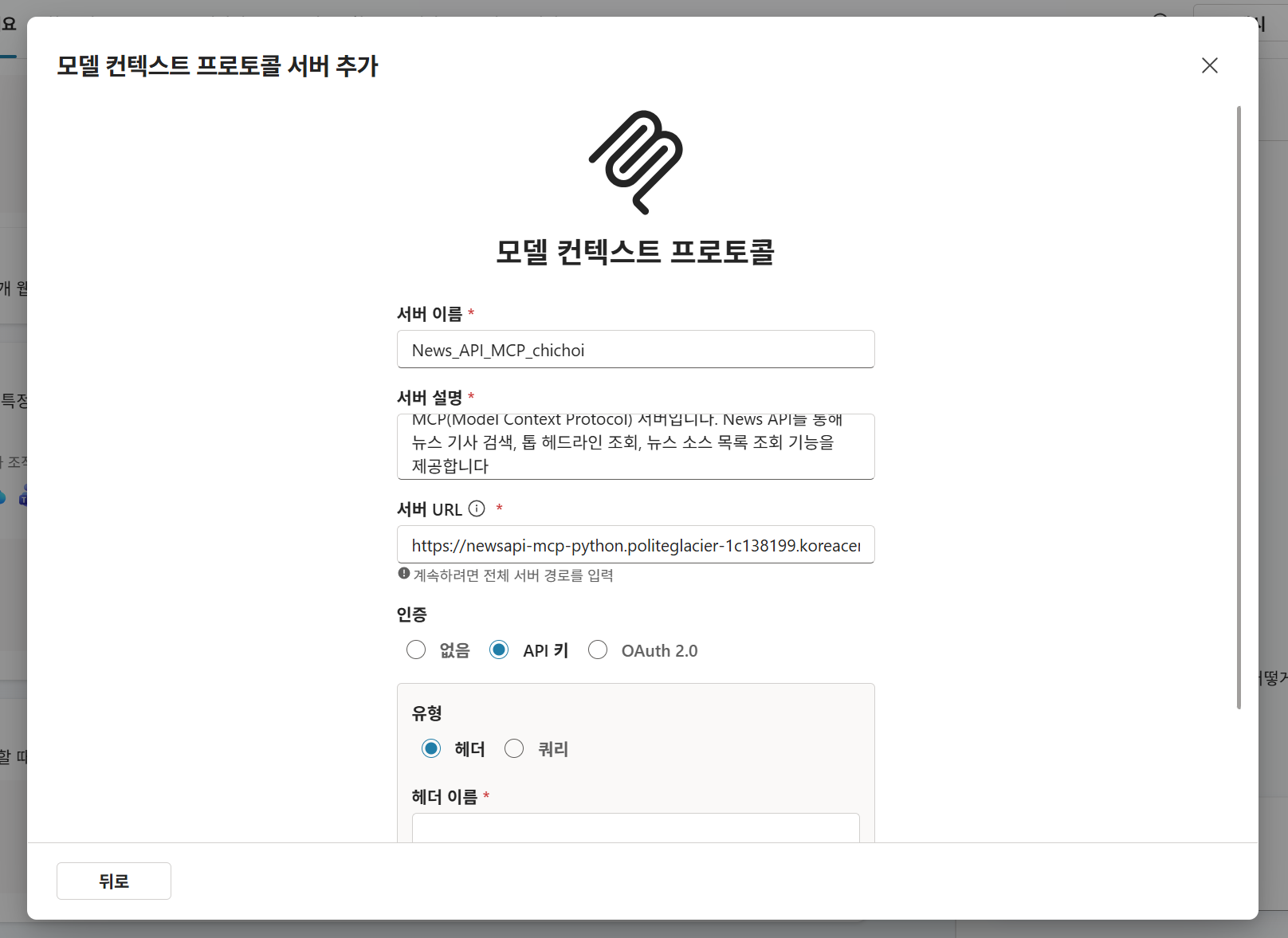
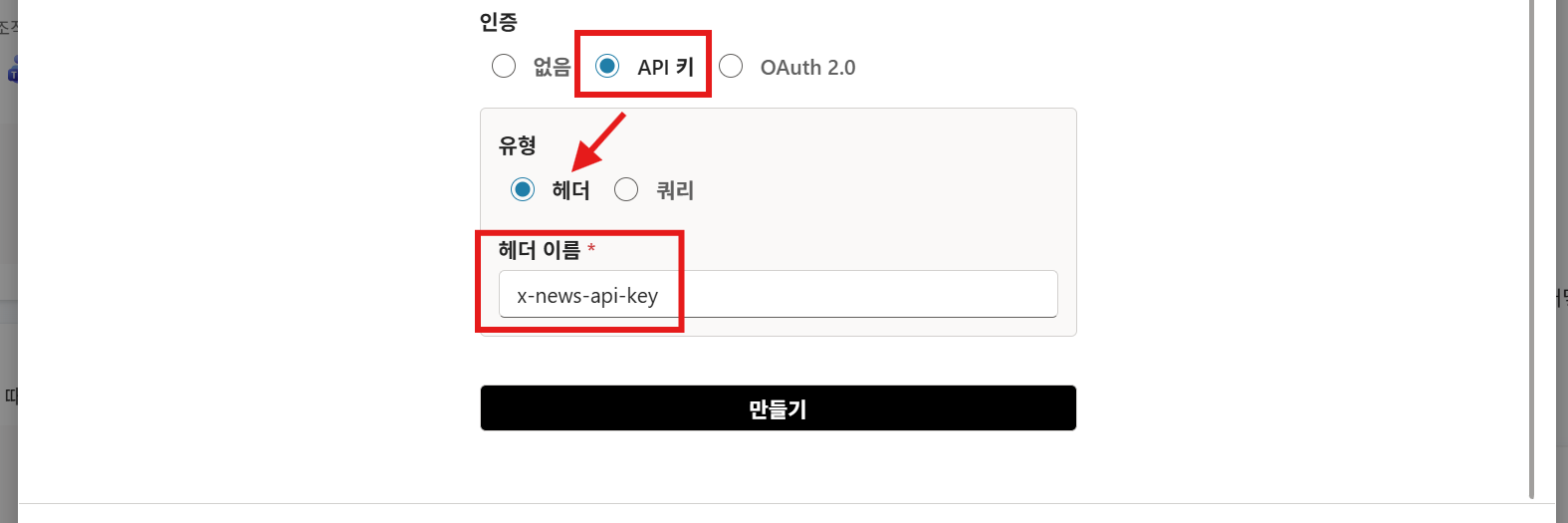
The server URL and information may vary depending on your lab environment.
When you finish entering the information, click Create to connect the ThinQ MCP server to the agent.
2-2. Confirm the connection
When the connection window appears, create a new connection in the order shown below.
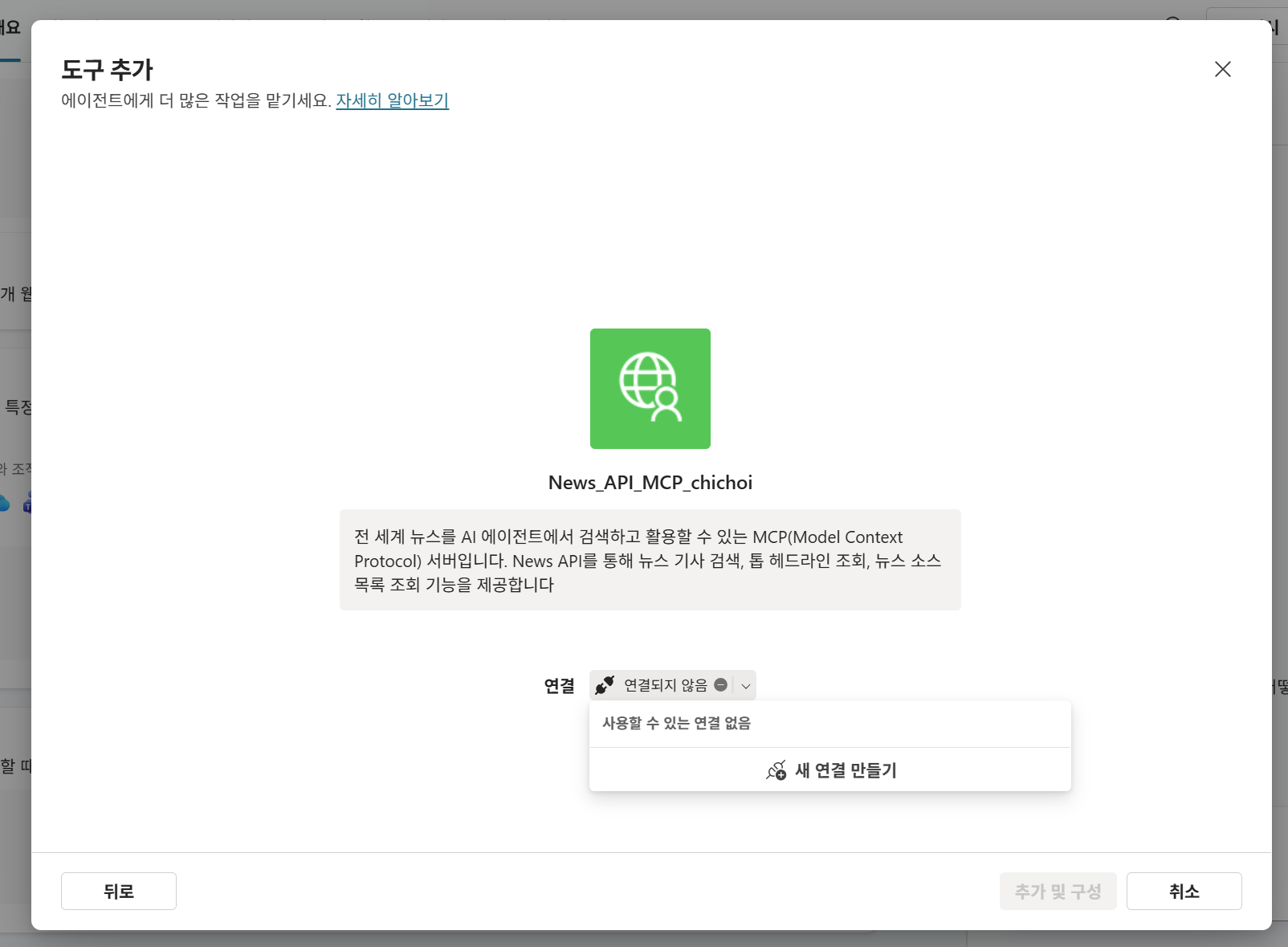
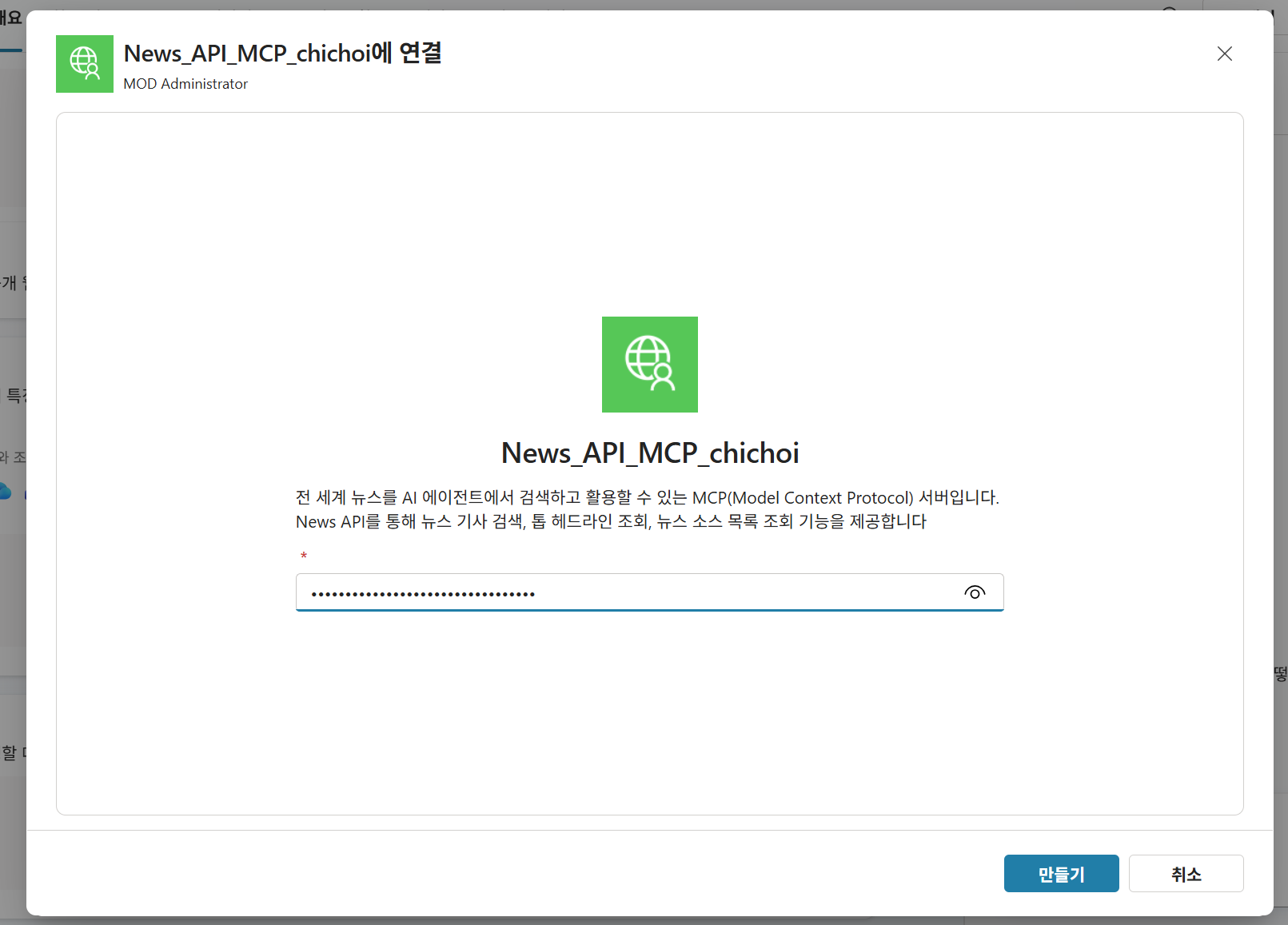
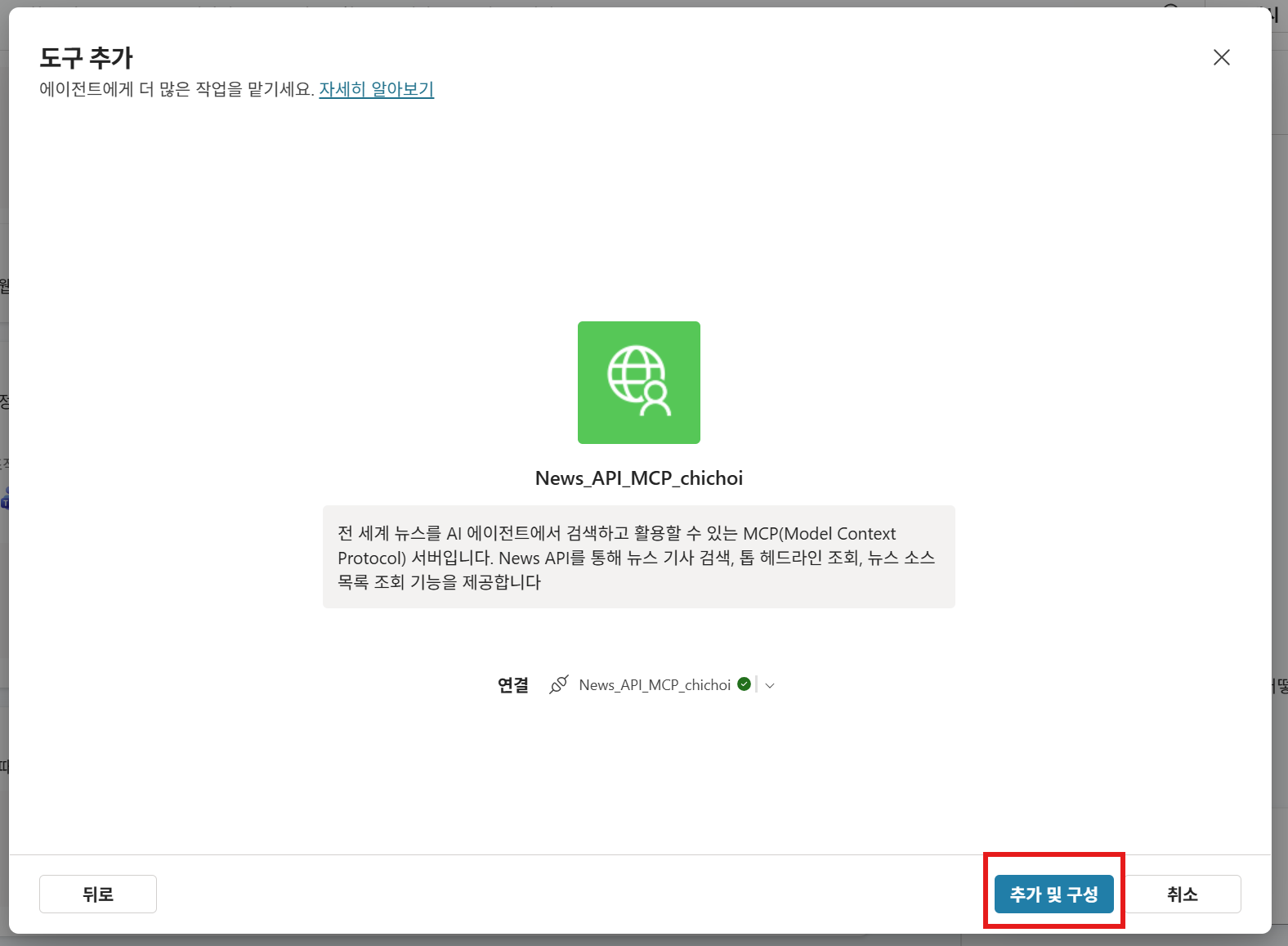
After the connection is complete, click Add and configure.
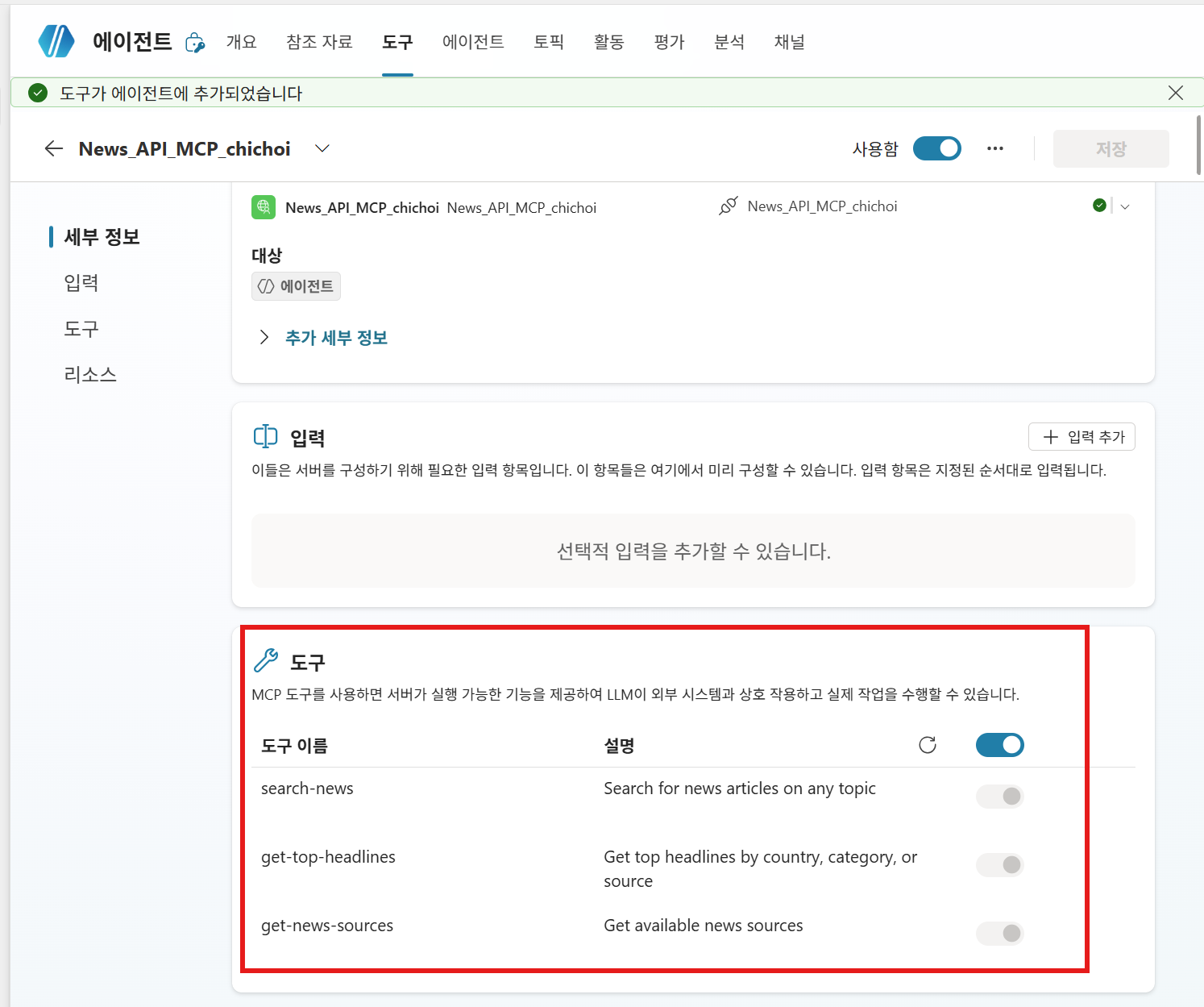
When it is complete, the tool list exposed by the ThinQ MCP server is displayed.
| Tool name | Description |
|---|---|
search-news |
Search news articles by keyword |
get-top-headlines |
Top headlines by country/category |
get-news-sources |
Retrieve a list of news sources |
3. Update Instructions
After News API MCP is added, you need to update the Instructions so the agent can use this tool. In this lab, the Instructions already include how to use MCP tools.
4. Verify behavior
To run MCP, first go to Settings → Connection settings in the upper-right corner and allow the connection for the added MCP.
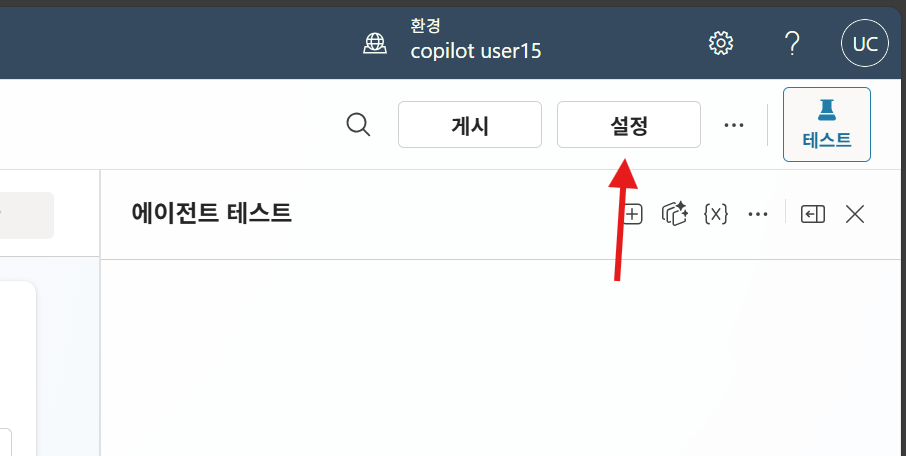
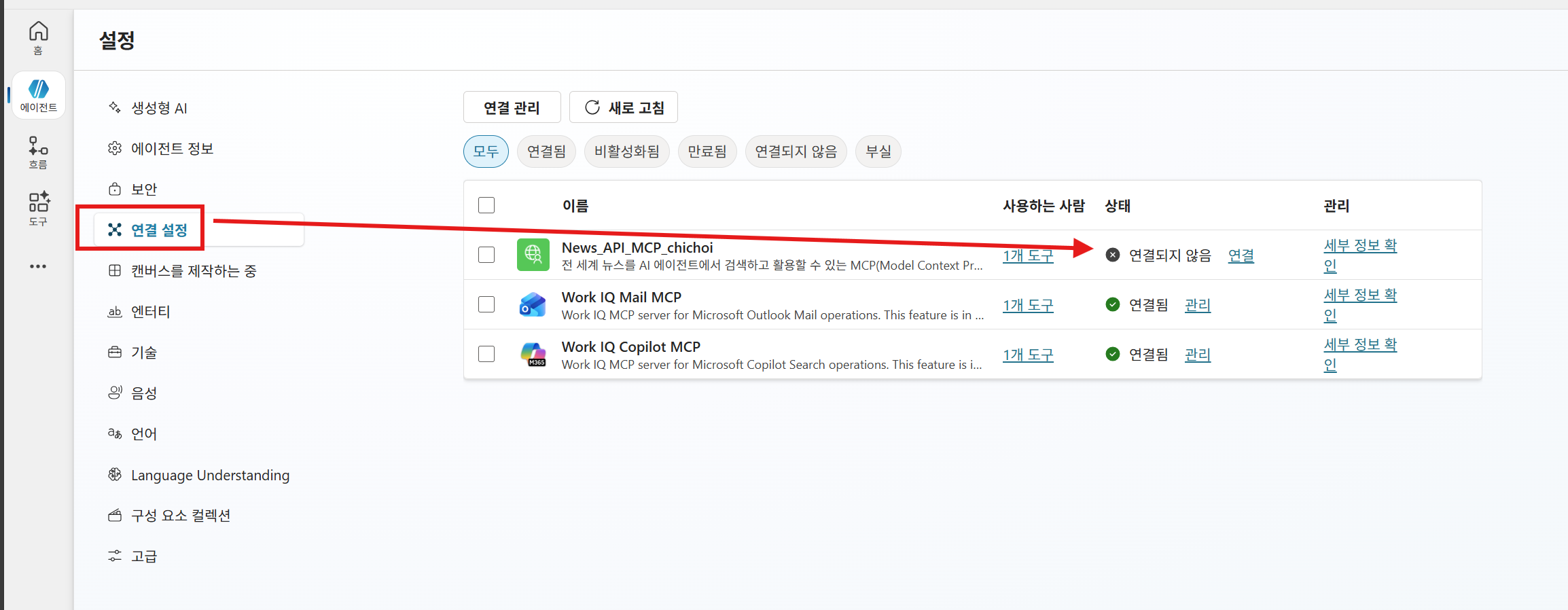
After the connection is complete, close the settings window and enter the following questions in the test panel on the right to verify that ThinQ MCP works.
List the home appliances I own
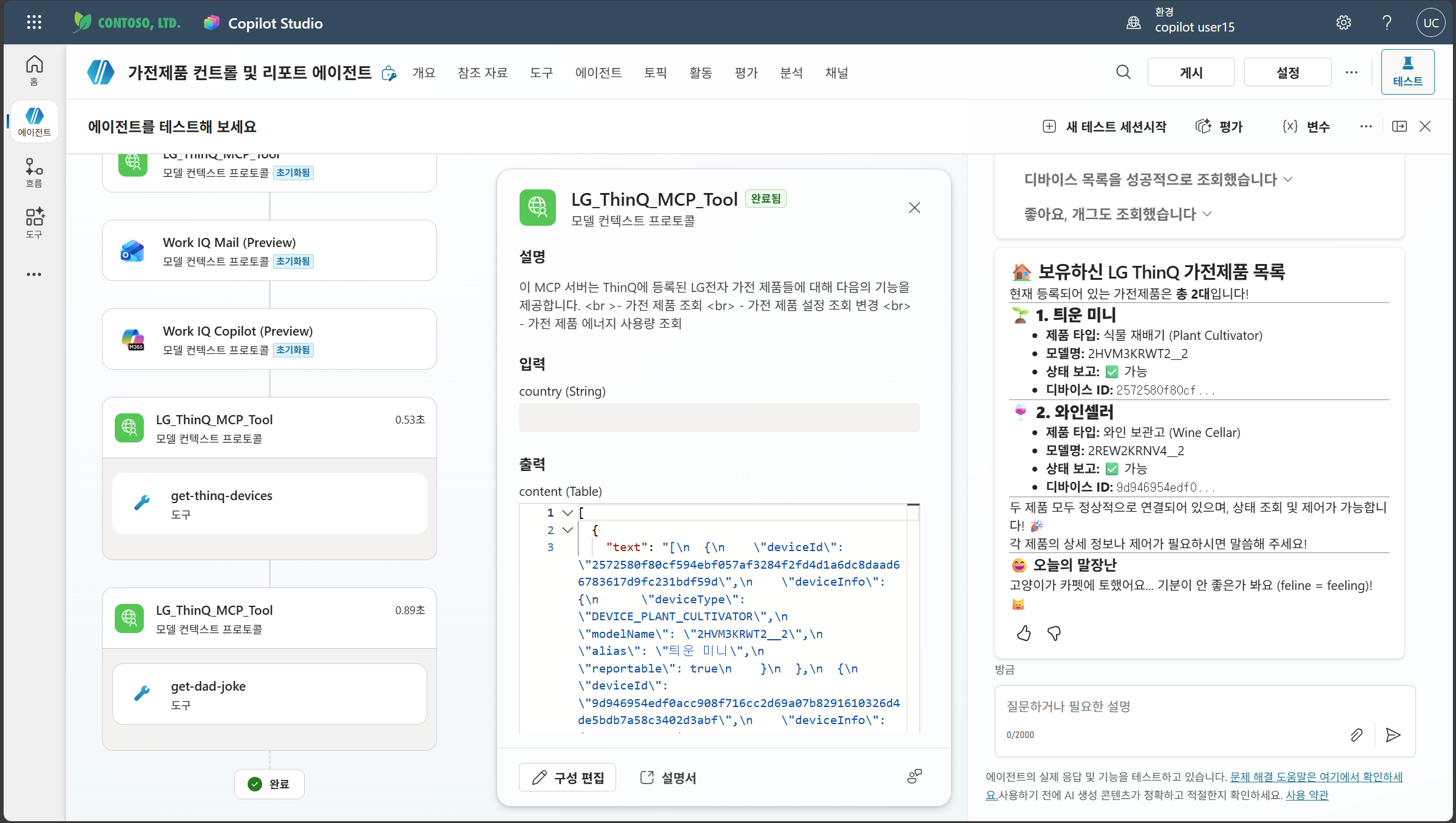
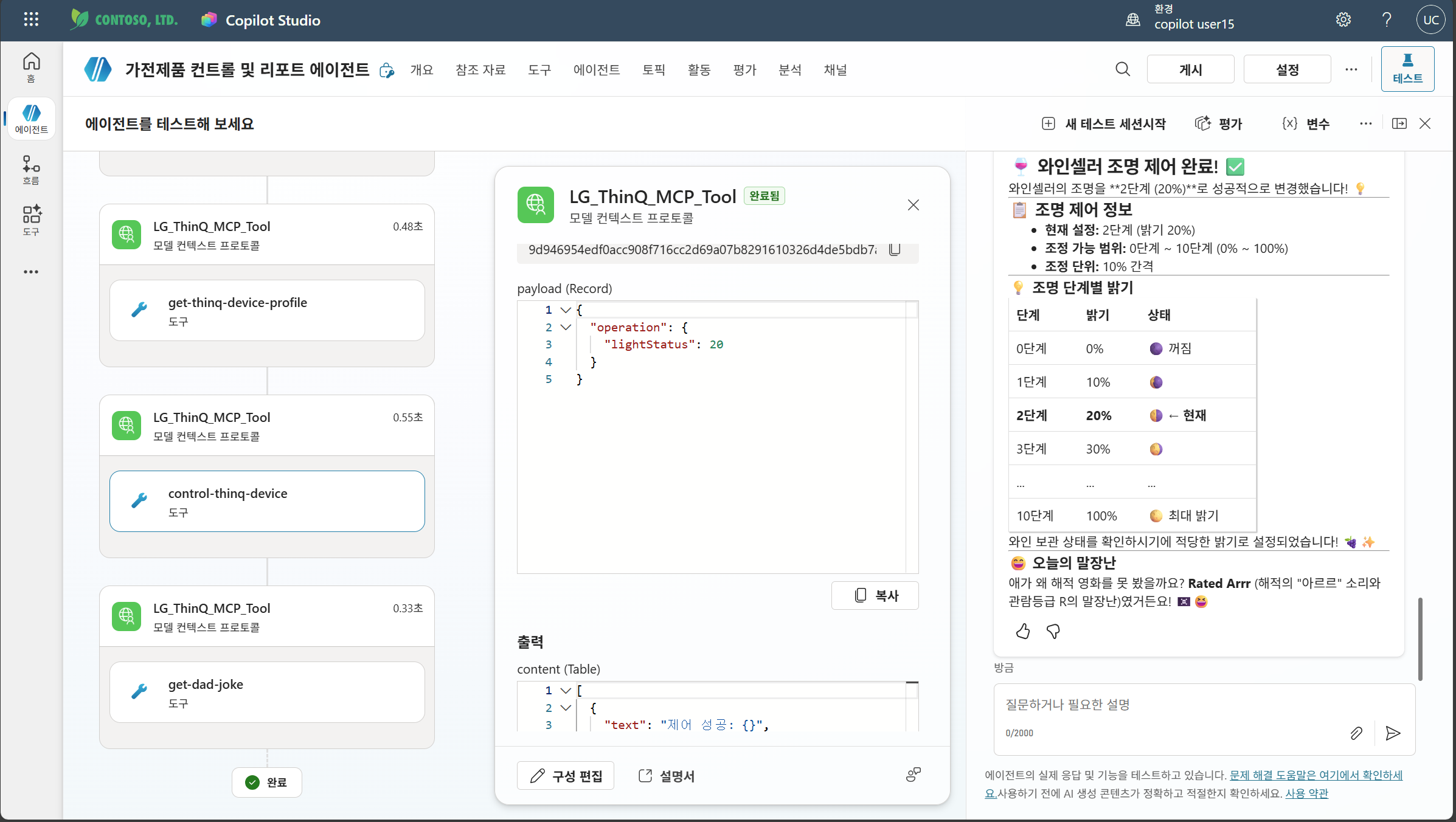
Change the wine cellar light to level 2
Tell me the daily energy usage of the wine cellar
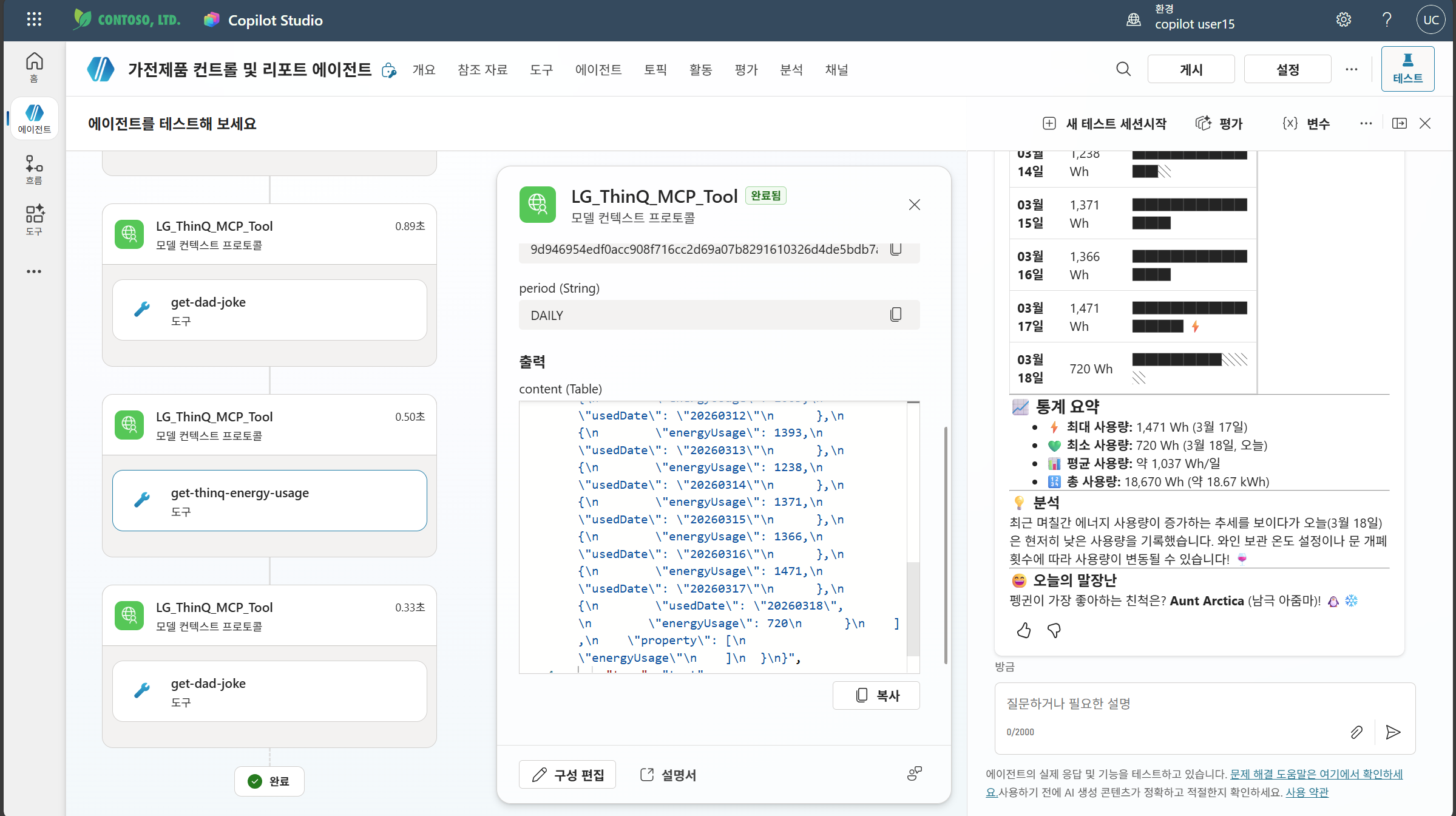 If the agent calls the ThinQ MCP tool and responds with product information, Step 4 is complete.
Learning point: You connected an external data source as an agent tool just by registering an MCP server URL, without writing a single line of code. This pattern applies to any MCP server in the same way.
Next step: 5. Add an AI Prompt tool
| ← Previous: Step 3. Work IQ MCP | Next: Step 5. AI Prompt tool → |