Add Triggers
[Renewal] Explore the basic features of Copilot Studio - Automatic execution with event-based triggers
Step 8: Add Triggers
Add a Trigger (automatic execution) to the agent
⏰ What is a Trigger?
A Trigger is an entry point that lets an agent (or flow) run automatically when a specific event occurs, even without direct chat input from the user.
| Trigger type | Description | Example |
|---|---|---|
| Schedule/timer | Runs automatically at a set time or interval | Daily 9 AM work briefing |
| Event-based | Runs when an event occurs, such as receiving email or adding a SharePoint item | Classify and summarize when a new email arrives |
| Form/workflow | Called from form submission, approval requests, and similar processes | Vacation request form submission |
A Trigger is generally defined as the first action in a Power Automate flow and used by connecting it to the agent’s Flow tool.
Lab scenario
Extend the Send email and notification flow created in the previous step,
so that when a specific event (for example, a new email arrives or a scheduled time is reached) occurs, the flow automatically sends an email and posts a notification to a Teams channel without the user calling it directly.
This step is based on the flow created in Step 7. Connector-centric flow.
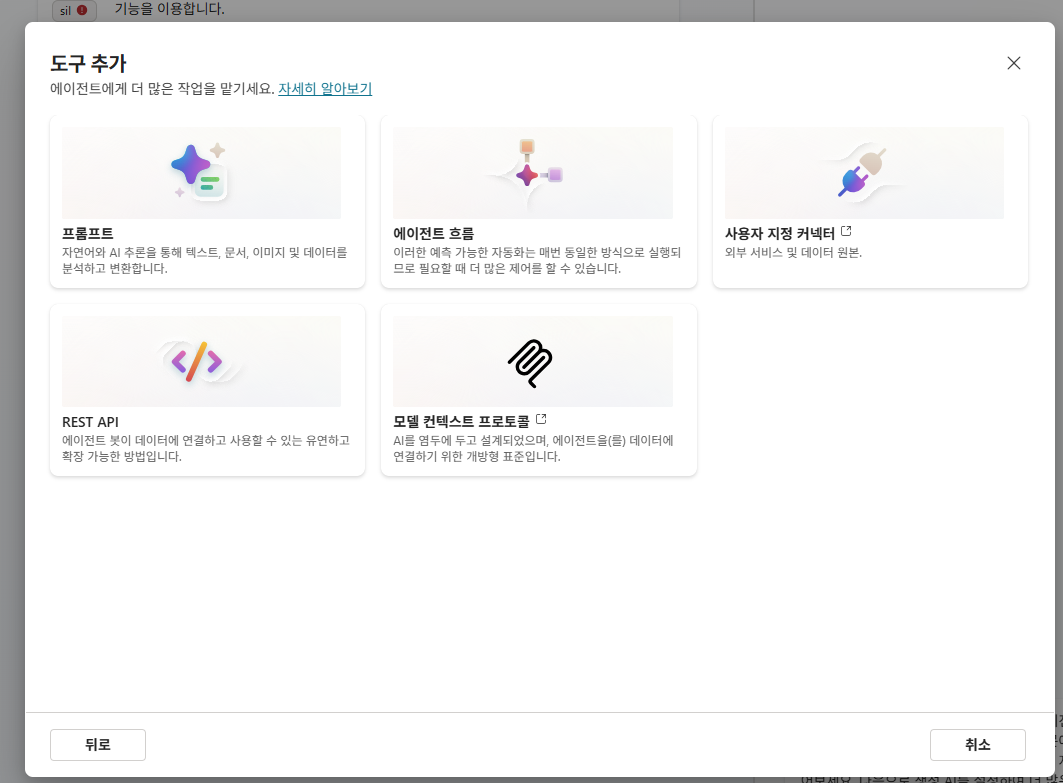
1. Create a new trigger flow
Go to the flow designer and add a new flow.
Select Overview → + Add a tool → + New tool → Agent flow, or select a new automated cloud flow in the Power Automate portal.
2. Select a Trigger
Change the first action of the flow to a trigger.
Representative trigger examples are as follows.
| Trigger | Connector | Description |
|---|---|---|
| When a new email arrives (V3) | Office 365 Outlook | Runs when a new email arrives in the inbox |
| Recurrence | Schedule | Runs on a set interval (days/hours/minutes) |
| When an item is created | SharePoint | Runs when a new item is added to a specific library |
| When a new message is received | Microsoft Teams | Runs when a message is received in a channel/chat |
In this lab, use the Recurrence trigger so the flow runs automatically every day at a set time.
| Item | Value |
|---|---|
| Frequency | Day |
| Interval | 1 |
| Start time | Desired time (for example: 09:00) |
| Time zone | (UTC+09:00) Seoul |
3. Configure follow-up actions
As the actions after the trigger, add the Send an email (V2) and Microsoft Teams - Post message in a chat or channel actions used in the previous step in the same way.
Dynamically populate input variables so that an email and Teams message are posted automatically when the trigger fires.
The procedures for variable mapping, CC, and applying an HTML body are the same as those covered in Step 7. Connector-centric flow.
| Parameter | Value |
|---|---|
| Name | Daily work notification trigger flow |
| Description | Runs automatically every day at a set time to send a work notification email and create a Teams channel post. |
| To | Email address of the person in charge of the work |
| Subject | [Daily work notification] {{Date}} |
| Body | Daily work summary in HTML format |
| Channel Message | “Today’s work notification has arrived.” + part of Body |
4. Publish and activate
Click the Publish or Save button at the top of the flow designer to activate the flow.
From the moment it is activated, the flow runs automatically whenever the trigger condition is met.
⚠️ After publishing a trigger flow, make sure it is On. The trigger will not fire if it is inactive.
5. Verify operation
- Recurrence trigger: Wait until the next scheduled run time, then check whether it ran successfully in Power Automate Run history.
- Event trigger (email/SharePoint, etc.): Send a test email or add an item to verify that the trigger fires immediately.
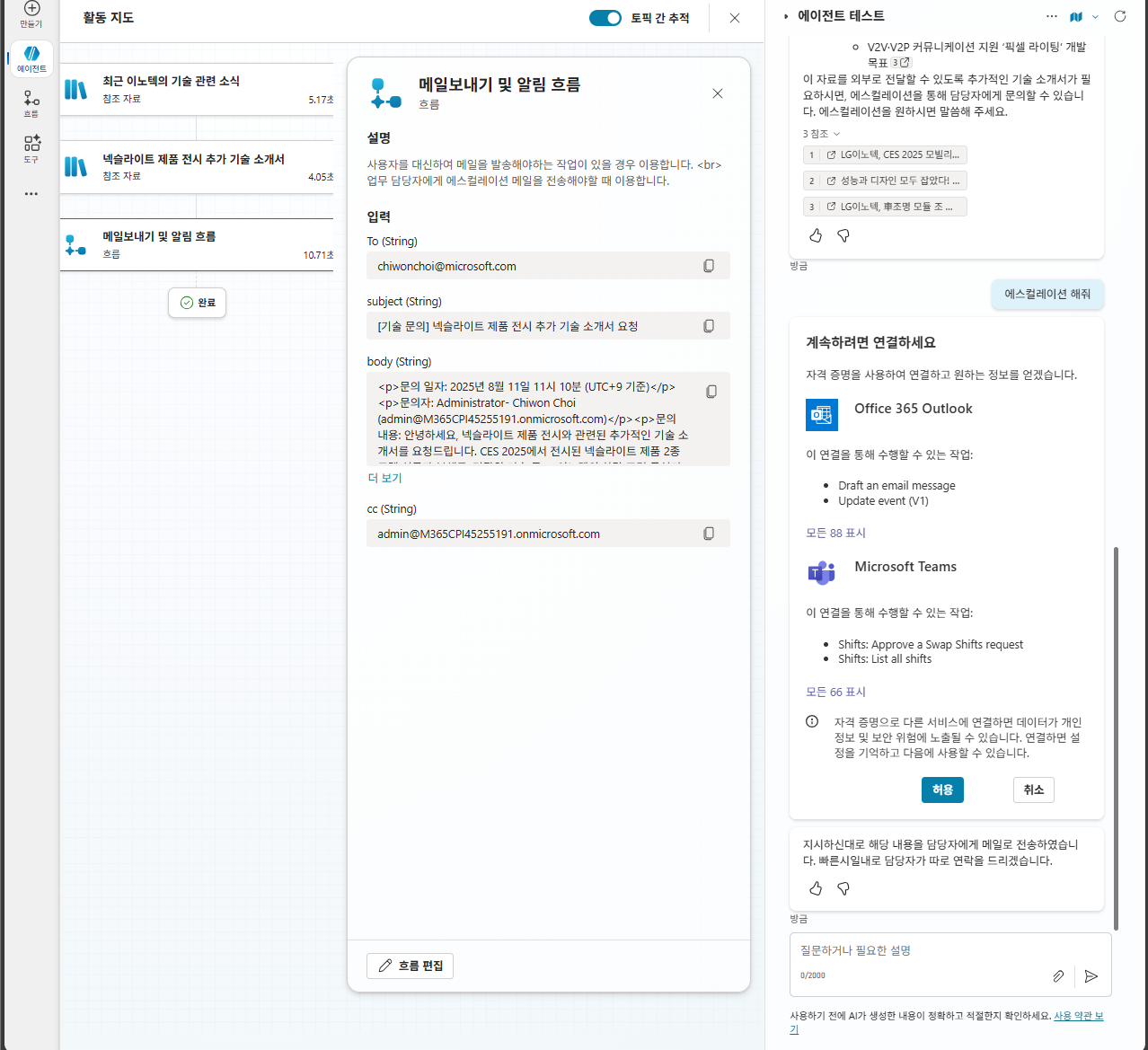
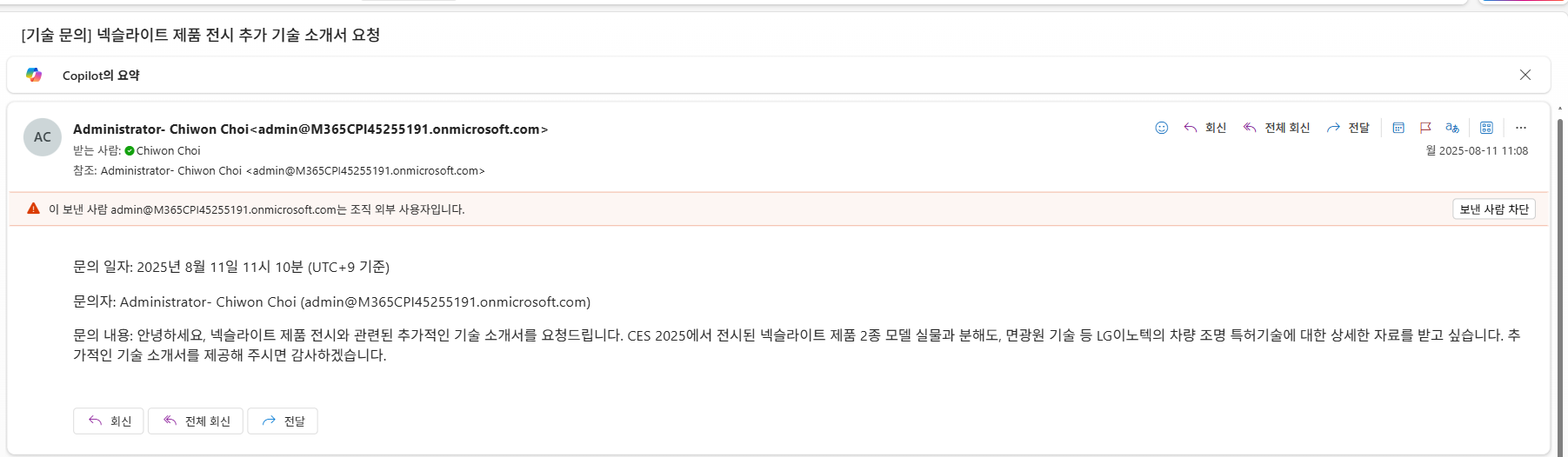
Learning point: A Trigger is an entry point that lets an agent/flow run automatically without a user call.
If you change the first action of a flow registered as an agent tool to a trigger, you can use the same automation logic both manually and automatically.
| ← Previous: Step 7. Connector-centric flow | Next: Step 9. How to use prompt tools → |