Lab 3 · Connect an MCP server through a VNet private endpoint
A complete lab for securely connecting Copilot Studio, through Power Platform VNet support, to an MCP server behind a private endpoint in an Azure Virtual Network (Part 1 server deployment/testing + Part 2 VNet connection).
📎 Original author and source
Translated article — This article is based on fooshen/MCPwithVnet from GitHub · fooshen/MCPwithVnet. Author: fooshen (Foo Shen). The original repository is licensed under the MIT License; for the latest and most accurate content and screenshots, see the original source.
- Original author: fooshen (Foo Shen)
- Original repository: fooshen/MCPwithVnet ↗
- Introduction (README): README.md ↗
- Part 1 — Deploy and test the MCP server: MCPServer.md ↗
- Part 2 — Power Platform ↔ VNet connection: VNET.md ↗
- License: MIT
The images in the body below use screenshots from the original author’s repository as-is. Check the original repository for the latest screens.
Difficulty ★★★★☆ · Power Platform administrator · Azure networking
0. Introduction — connecting Copilot Studio to an MCP server through VNet
This guide explains step by step how Copilot Studio securely connects to an MCP server located behind a private endpoint in an Azure Virtual Network (VNet).
Microsoft Copilot Studio is built directly on Microsoft Power Platform. This means it inherits the same enterprise-grade security, governance, compliance, and networking controls already validated at scale by organizations around the world. When Copilot Studio connects to an MCP server, it does so through Power Platform’s Custom Connector framework. MCP defines the protocol and tool semantics, but transport, authentication, and governance all operate at the connector layer. As a result, every MCP tool benefits from the robust controls enterprises trust today: secure authentication flows, network isolation, DLP enforcement, ALM pipelines, and centralized administrative governance.
This guide uses an MCP server connection as the example, but the same steps also apply to other supported connector connections in Power Platform and apply equally to Power Apps and Power Automate.
References
- Power Platform Virtual Network support — overview
- Power Platform Virtual Network support — whitepaper
- Power Platform Virtual Network support — setup guide
- Troubleshooting tips
Why this matters
Modern agents increasingly need access to internal systems, such as inventory, finance, operations, and line-of-business (LOB) APIs. These systems are usually inside a VNet, behind private endpoints, and exposing them publicly is not an option.
By placing the MCP server behind a private endpoint and using Power Platform VNet support, you get:
- Zero public exposure
- The MCP server never touches the public internet.
- Only the Power Platform managed runtime through a delegated subnet can access it.
- Enterprise-grade network isolation — traffic flows entirely through:
- Private endpoints
- Private DNS zones
- VNet ↔ VNet routing when needed
What this guide covers
- Deploy a sample MCP server to Azure Functions
- Secure it with a private endpoint
- Configure Power Platform to reach it through a delegated VNet
Prerequisites
- Visual Studio Code (optional — for creating and deploying the sample MCP server)
- Power Platform environment
- Azure subscription in the same tenant as Power Platform
- PowerShell
Before you start
- If you do not already have an environment, create a Power Platform environment. You can create Production, Sandbox, and Developer environments. Trial environments do not support VNet.
- Enable the Managed Environment feature for that environment.
Important — check the Azure region first. You must first identify which Azure region your Power Platform environment is in.
- Check with PowerShell Get-EnvironmentRegion, or
- In the maker portal, go to Azure Synapse Link (if it is not in the navigation, search for it under “More” → “Discover All”) and click New Link to display the current Azure region.
In the original example, the environment is in Australia Southeast. A Power Platform environment can belong to a geography that maps to one or more Azure regions. For example, if the environment is in the Australia geography, the region might be Australia East or Australia Southeast. See the supported regions documentation for the mapped region list. If you need to move an existing environment to a different region, contact Microsoft Support.
To specify a region when creating a new environment, use the RegionName parameter of PowerShell New-AdminPowerAppEnvironment, or use the Power Platform API.

Part 1 · Deploy an MCP server to Azure Functions and test it in Copilot Studio
In this example, you use Visual Studio Code to create a very basic, no-frills HelloWorld MCP server in C# and deploy it to Azure Function.
If you already have an MCP server to use or are using a different sample, you can skip Part 1. This part is not about writing an MCP server itself; it is a quick path to the VNet part when you do not already have a server. For examples of writing an MCP server on Azure Functions, see Tutorial: Host an MCP server on Azure Functions and mcp-dotnet-samples.
Requirements: Visual Studio Code · Azure subscription · Power Platform environment with Copilot Studio.
Create a simple Hello World MCP server in C#
- Install the Azure Functions extension in Visual Studio Code.
- Press
Ctrl+Shift+PorF1and select Azure Functions: Create New Project.


- Create a new folder named
HelloWorldMCPServer. - For runtime, choose C# → .NET 8.0 Isolated LTS; for project template, choose McpToolTrigger.
This uses the Azure Functions MCP Extension project scaffolding, which sets up everything needed to create MCP tool endpoints. For details, see the documentation.
- Use
SayHelloas the function name andfsdemoas the example namespace. - The default MCP server file is created. To simplify testing, change
webhookAuthorizationLevelto Anonymous inhost.json, and modify the instructions and serverName properties ofHelloWorldMCPServer.
{
  "version": "2.0",
  "logging": {
    "applicationInsights": {
      "samplingSettings": {
        "isEnabled": true,
        "excludedTypes": "Request"
      },
      "enableLiveMetricsFilters": true
    }
  },
  "extensions": {
    "mcp": {
      "instructions": "Greet the user with a simple 'Hello, World!' message.",
      "serverName": "HelloWorldMCPServer",
      "serverVersion": "2.0.0",
      "encryptClientState": true,
      "messageOptions": {
        "useAbsoluteUriForEndpoint": false
      },
      "system": {
        "webhookAuthorizationLevel": "Anonymous"
      }
    }
  }
}
- This sample has only one tool (
SayHello), which greets the user with “Hello {user}! This is an MCP Tool.” OpenSayHello.csand add a timestamp to the response. Thanks to Azure Function MCP Extension scaffolding, you only need to add the McpToolTrigger and McpToolProperty attributes.
using Microsoft.Azure.Functions.Worker;
using Microsoft.Azure.Functions.Worker.Extensions.Mcp;
using Microsoft.Extensions.Logging;

namespace fsdemo;

public class SayHello
{
    private ILogger<SayHello> _logger;

    public SayHello(ILogger<SayHello> logger)
    {
        _logger = logger;
    }

    [Function(nameof(SayHello))]
    public object Run(
        [McpToolTrigger("Say Hello", "Responds to the user with a hello message.")] ToolInvocationContext context,
        [McpToolProperty("Name", "The name of the person to greet.")] string? name
    )
    {
        _logger.LogInformation("C# MCP tool trigger function processed a request.");
        return new
        {
            content = new[]
            {
                new
                {
                    type = "text",
                    text = $"Hello, {name ?? "world"}! This is an MCP Tool! Time now is {DateTime.Now}"
                }
            }
        };
    }
}
Do not return a raw string. The default function returns a raw string, but you need to change it to return a JSON object. Copilot Studio uses a diff-style renderer for raw strings, so if you see strikethrough formatting such as “Hello, this is MCP tool. ~Time now is {now}~”, it means the tool is returning a raw string.
-
Local test: Press
F5and select “Use Local Emulator” in the prompt to set up the local emulator (Azurite) for Azure Blob Storage. IfAzureWebJobStorageconnection validation fails, click “Run Emulator” to start it. Wait for the build to complete. -
Confirm that the local server is running.

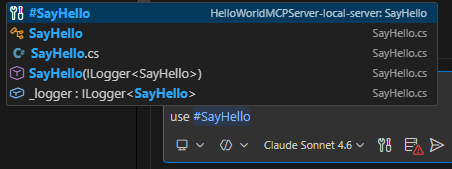
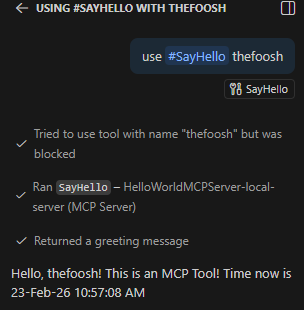
- In GitHub Copilot Chat in VS Code, enter
use #SayHello, select the SayHello tool, and add the user name as a parameter to test locally. When prompted, select “Allow” (if you do not, the call is blocked).
Deploy to Function Apps
- Deploy to Azure Function.
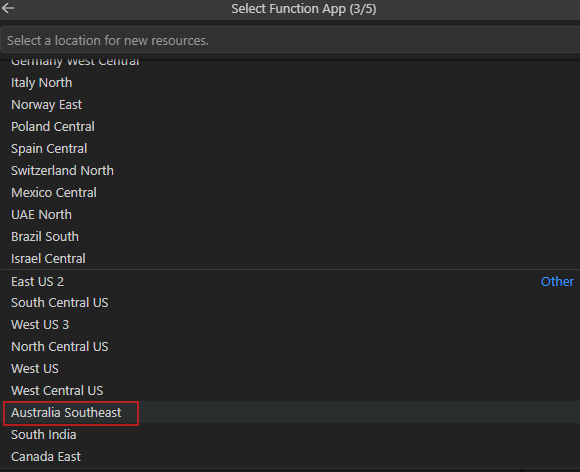
Ctrl+Shift+P/F1→ select “Azure Functions: Deploy to Function Apps…“. - Select ”+ Create new function app…“ (or use an existing app). However, the Function App must be in the same region as the Power Platform environment. Enter a name (for example,
HelloWorldMCPDemo), and if creating a new app, select the same region as the environment (the original example uses Australia Southeast).
- Select “.NET 8 Isolated” and the resource authentication type Secrets (needed to communicate with Blob Storage and App Insights).
Do not create the Azure Function on the Consumption plan. Use another plan such as Flex Consumption. The Consumption plan does not support Virtual Network integration, so it cannot be used in this lab. For networking features by plan, see the documentation.
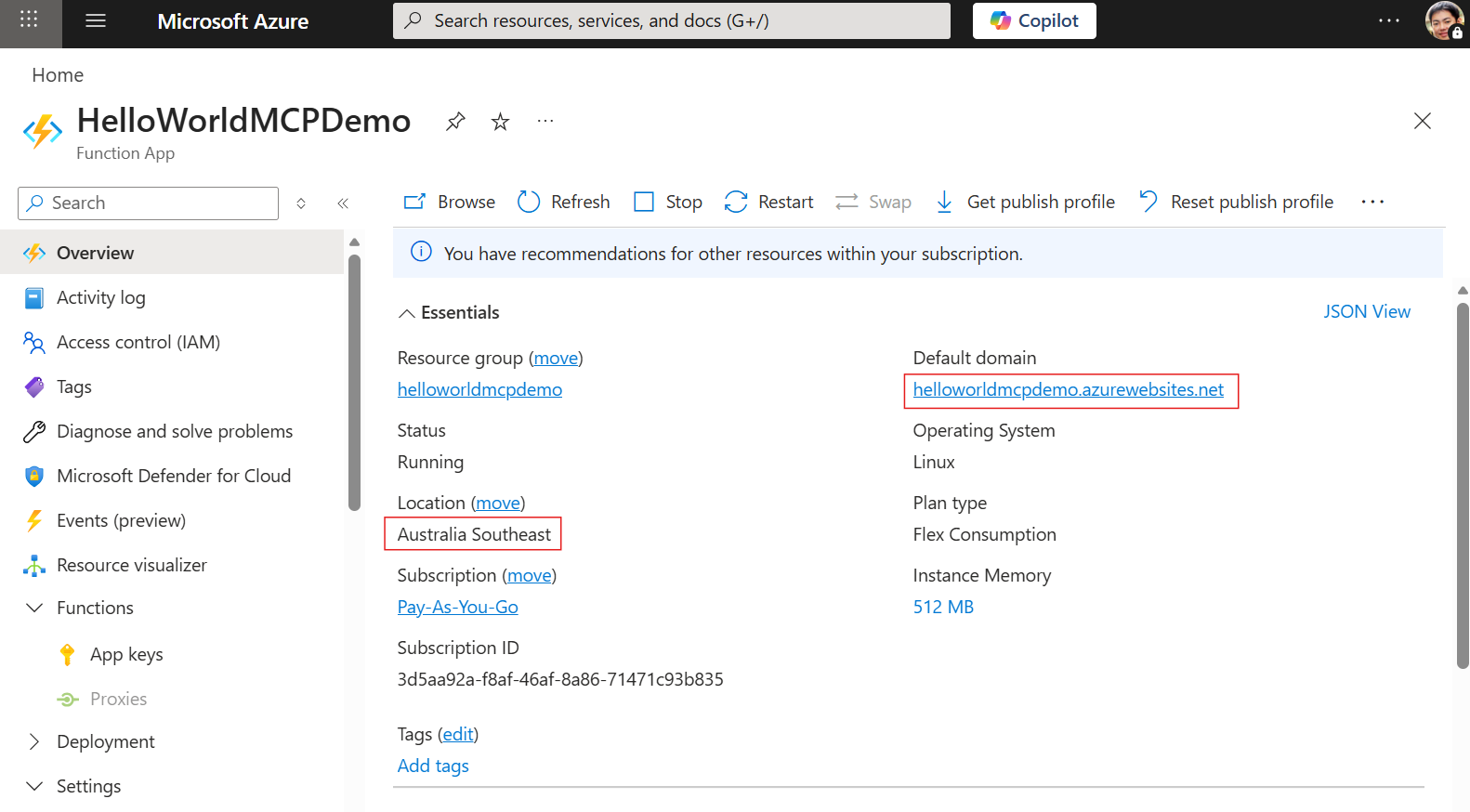
- In the Azure Portal, confirm that the Function App is running and note the domain URL and region.
Test in Copilot Studio
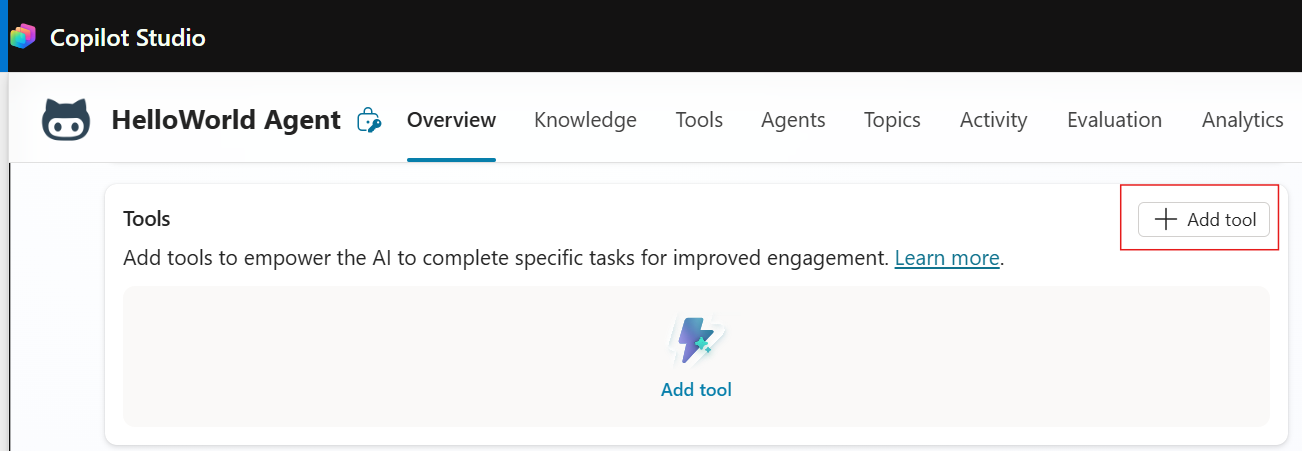
- Test the MCP tool in Copilot Studio. Make sure you are in the correct environment where you will set up the VNet connection. In the test agent, click Tools → “+ Add Tool”.
- In the “Add Tool” dialog, select “Model Context Protocol”.
- Enter the server name and description. For Server URL, enter the Function App URL in the format
https://<functionapp>/runtime/webhooks/mcp(you can check the URL in VS Code’smcp.json).
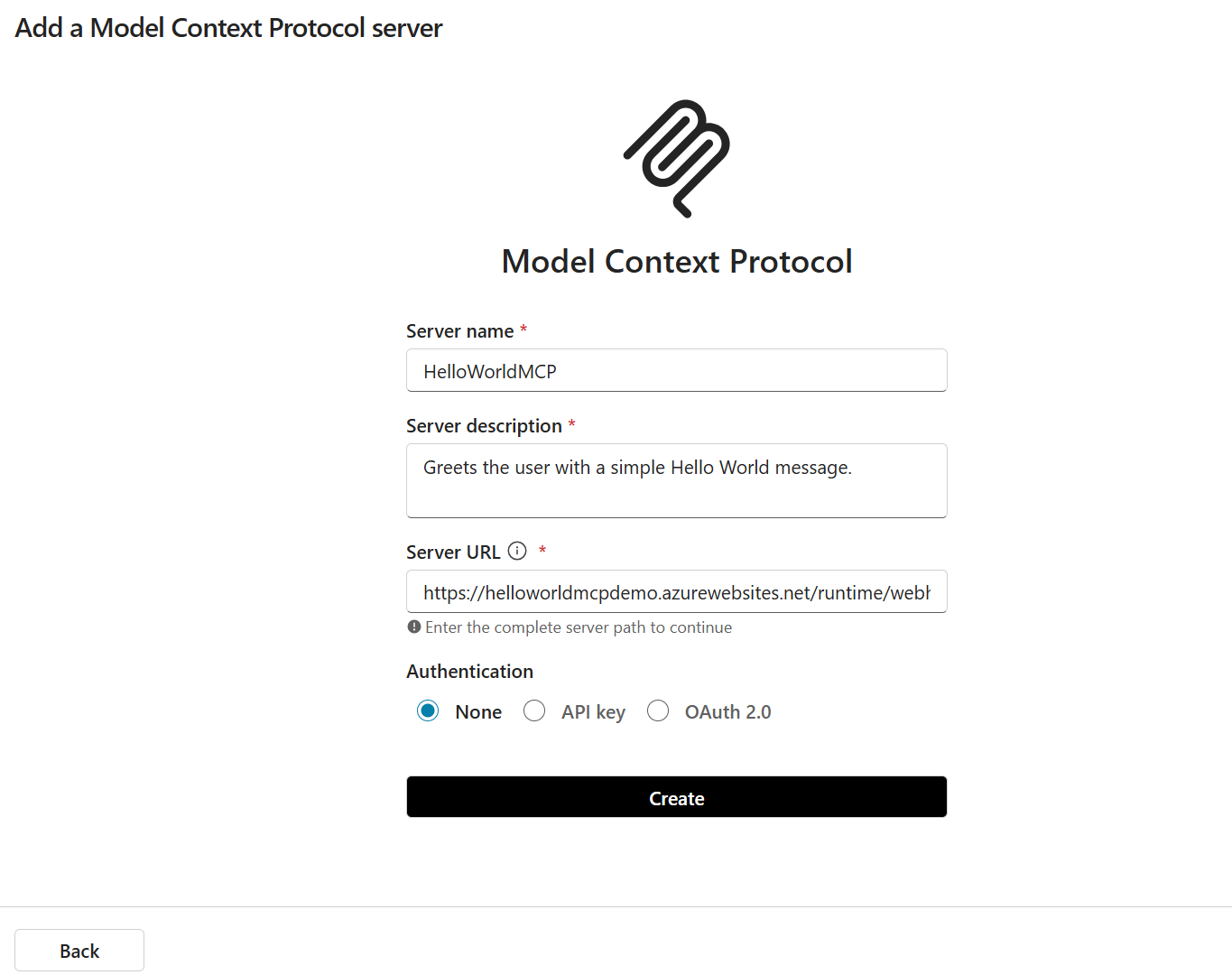
Azure Function MCP Extension projects are always created as http-streamable. The SSE protocol is no longer used in MCP (deprecated). Azure Functions uses the /mcp path for Streamable HTTP and the /mcp/sse path for SSE.
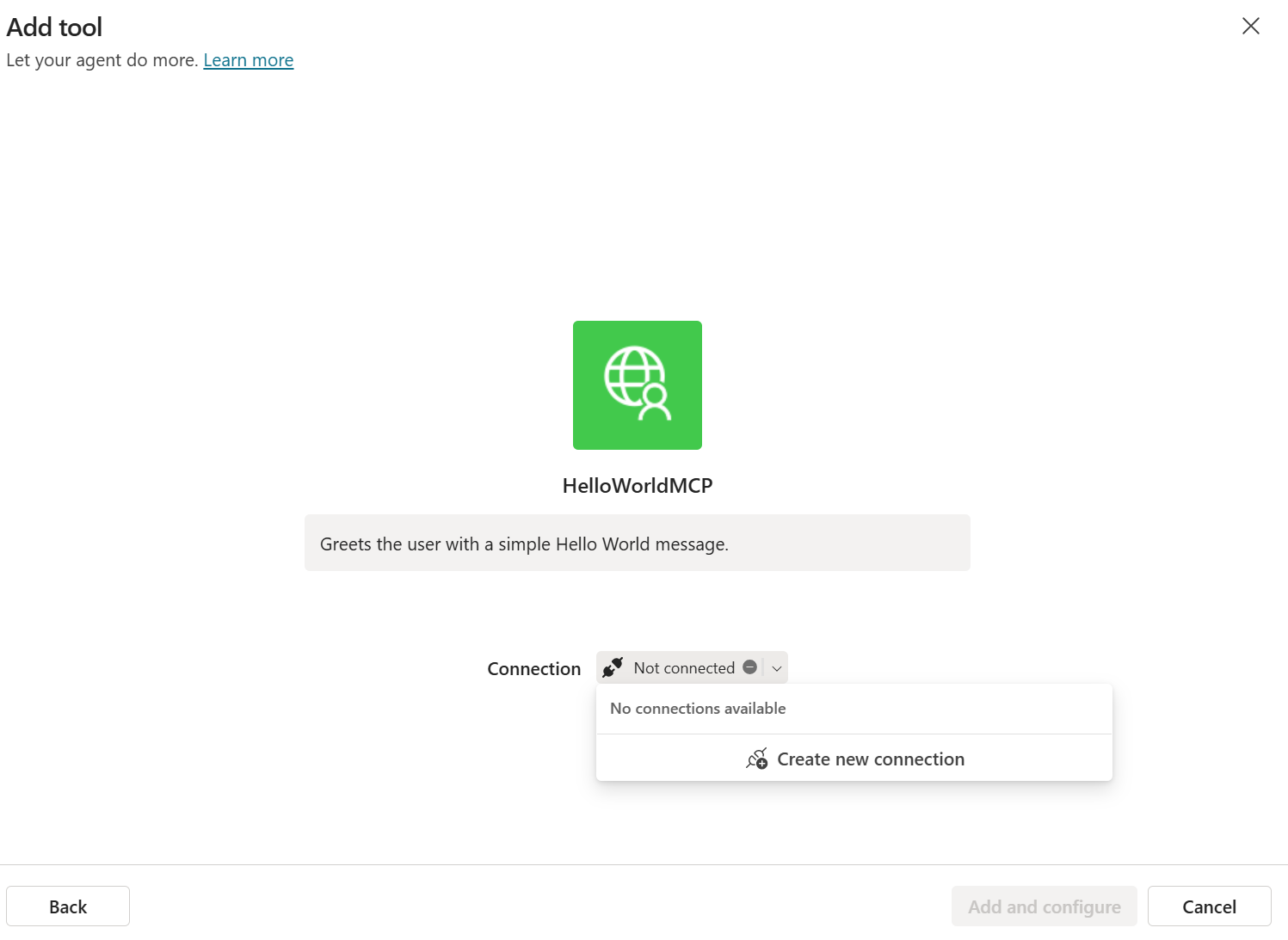
- When prompted to create a connection, click “Create new connection” → “Add and configure”.
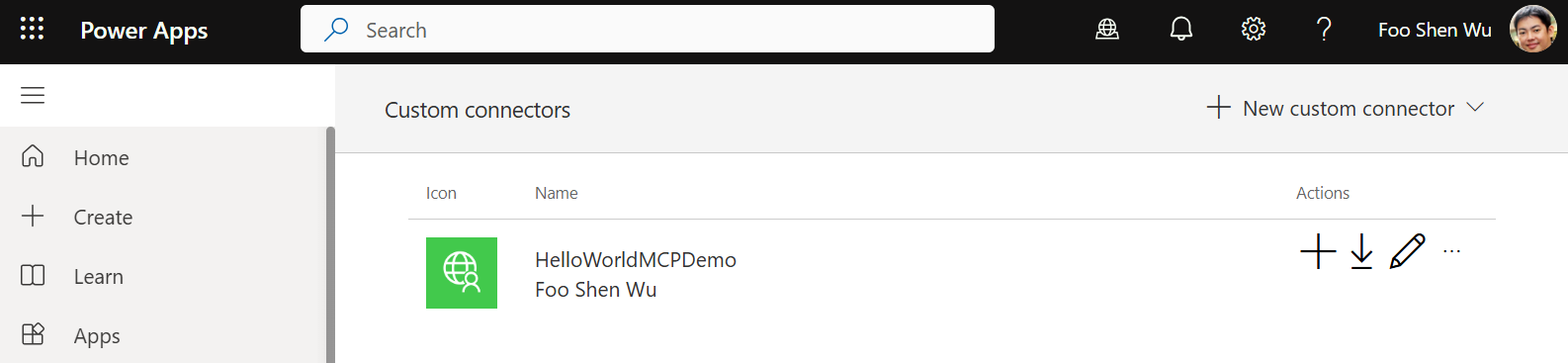
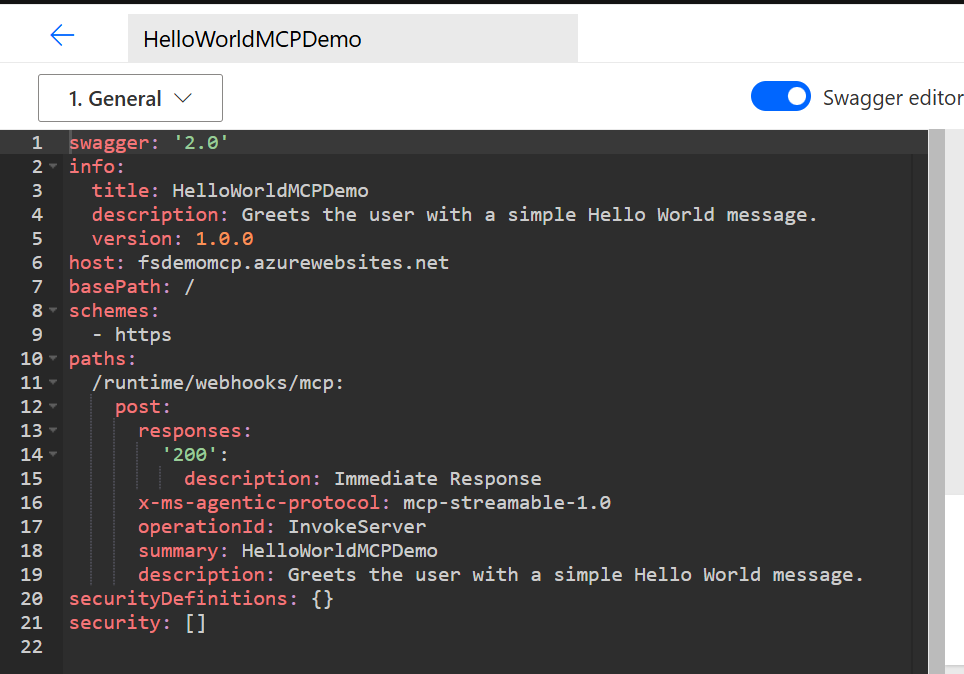
- Now go to Custom Connectors at https://make.powerapps.com, and the MCP tool appears as a custom connector. Switch to Swagger view to check the
x-agentic-protocolattribute.
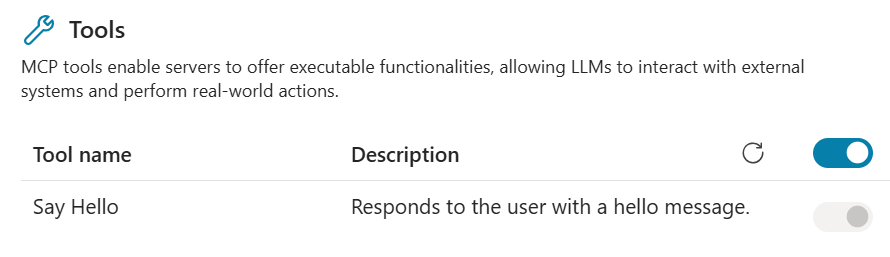
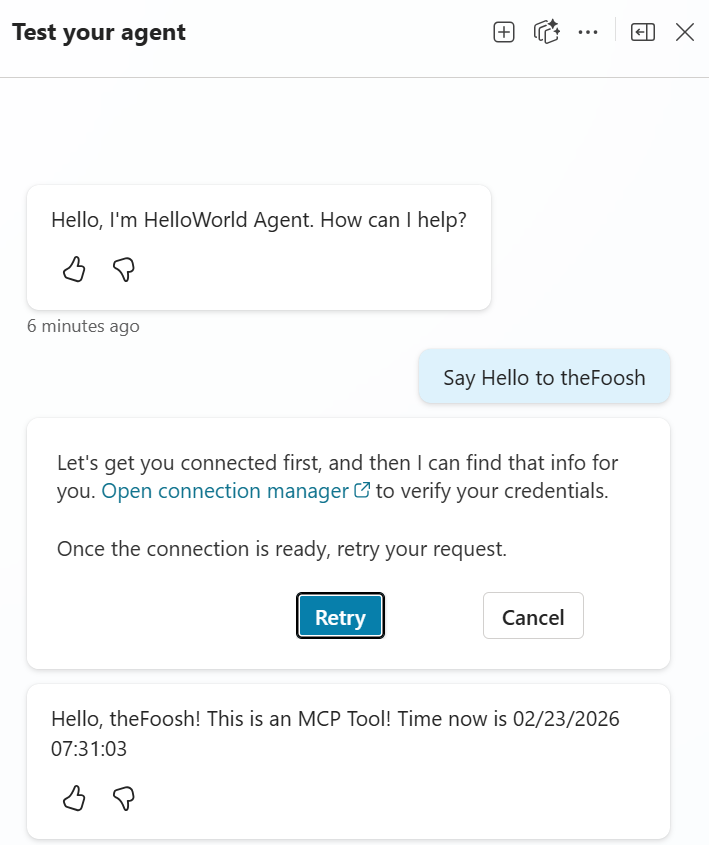
- Back in Copilot Studio, the “Say Hello” tool is searchable. In the Test Pane, prompt it to greet using a user name and test it (a connection-selection prompt may appear).
- You have now confirmed that the MCP server is running and connected to Copilot Studio. Next, remove public access from the MCP server.
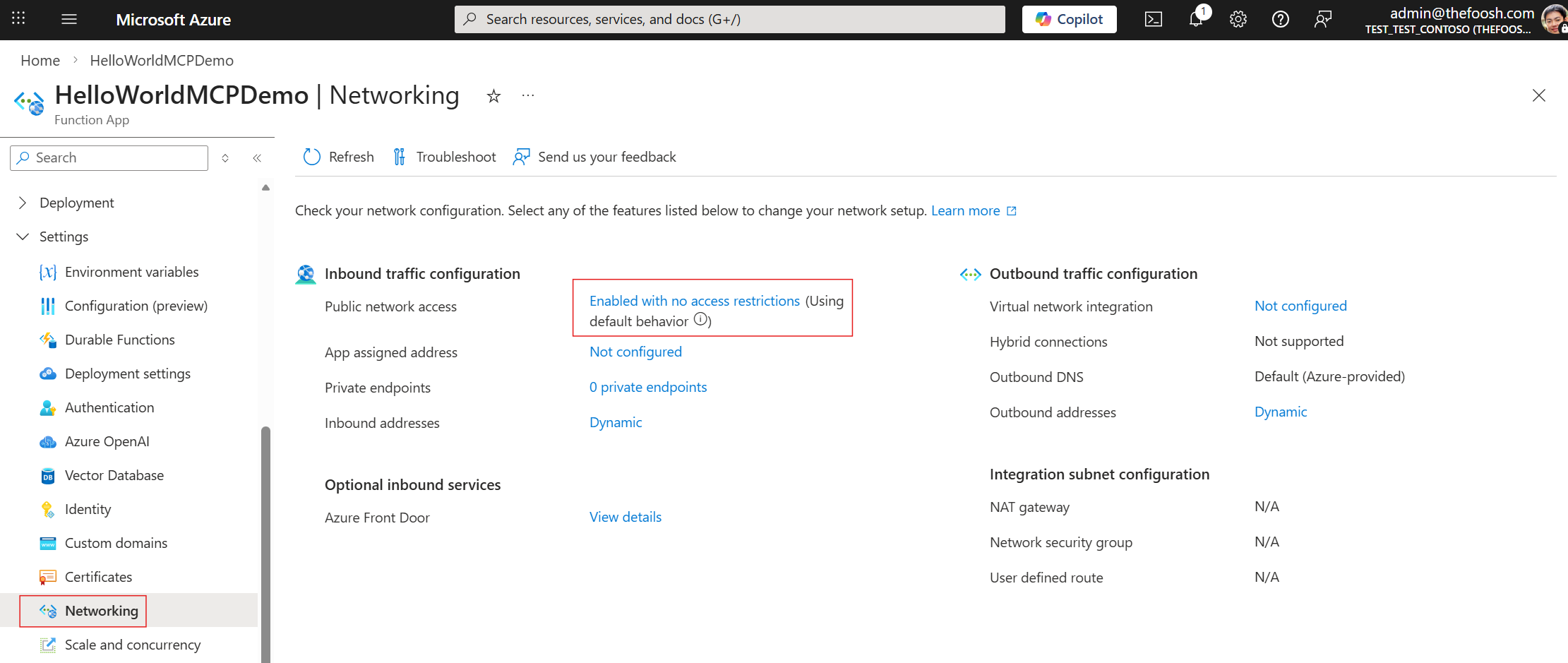
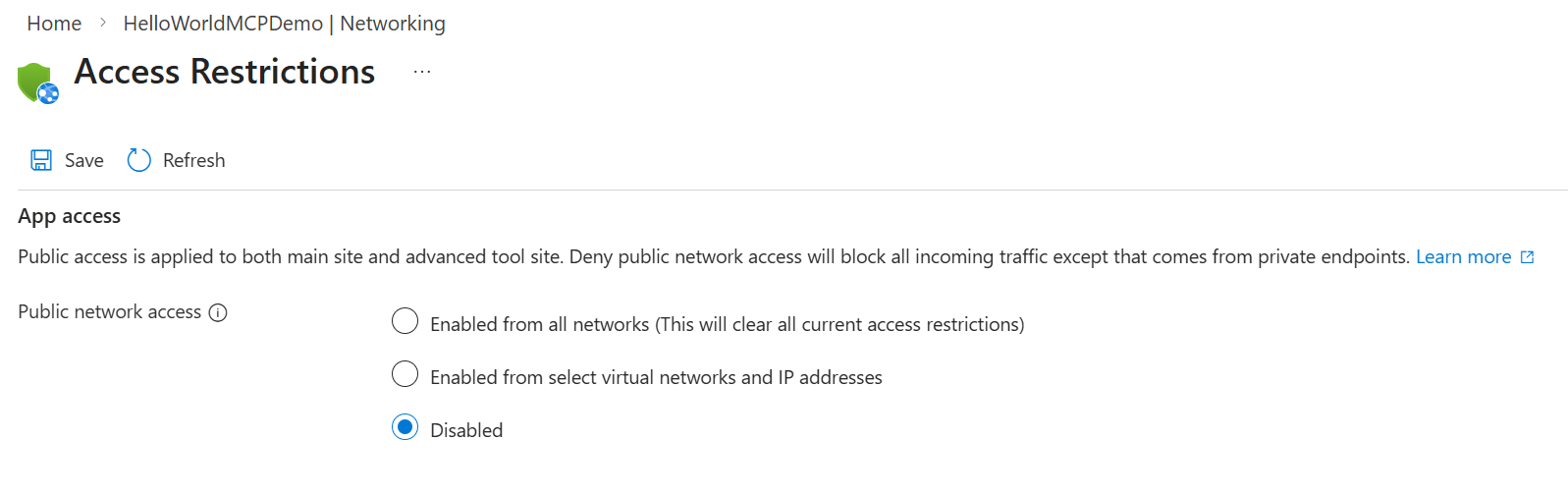
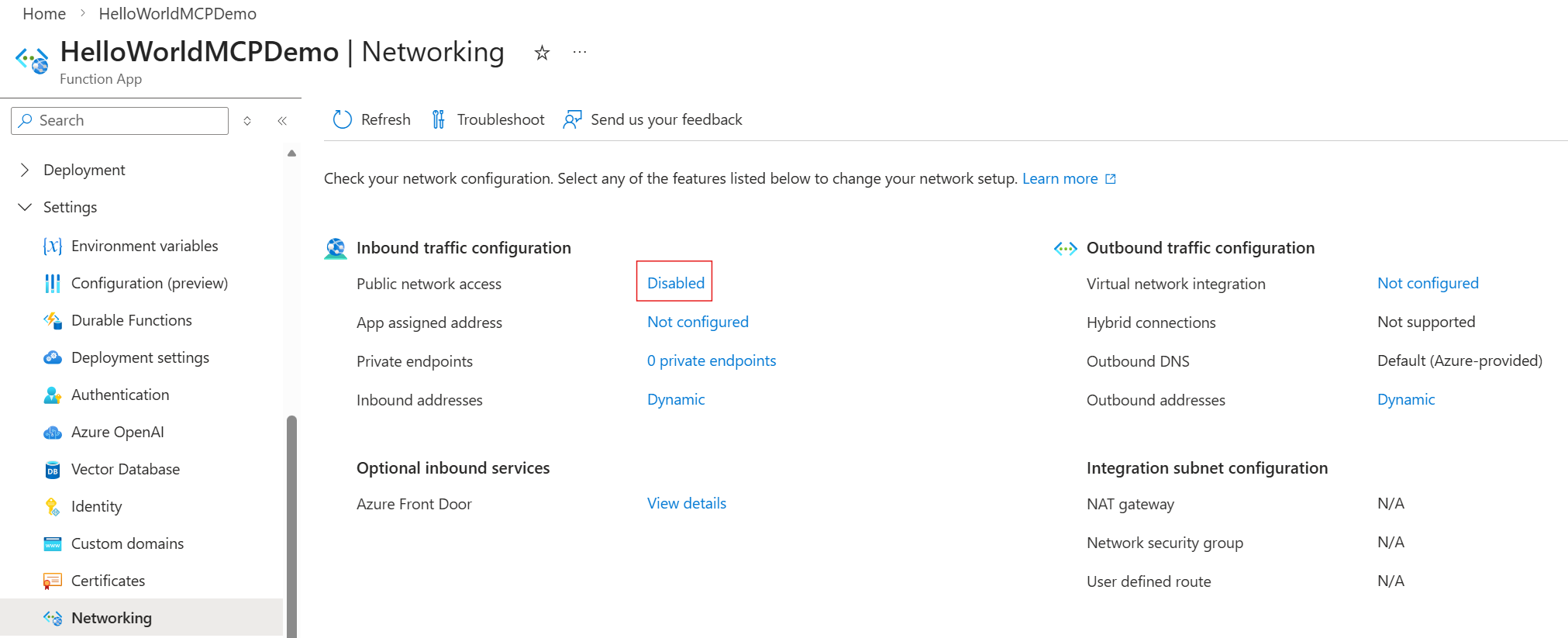
- In the Azure Function App, go to Settings → Networking. Public network access is enabled. Click “Enabled with no access restrictions”, change it to Disabled, and click Save (agree to the change with the checkbox). The Function App can no longer be accessed through the public network.
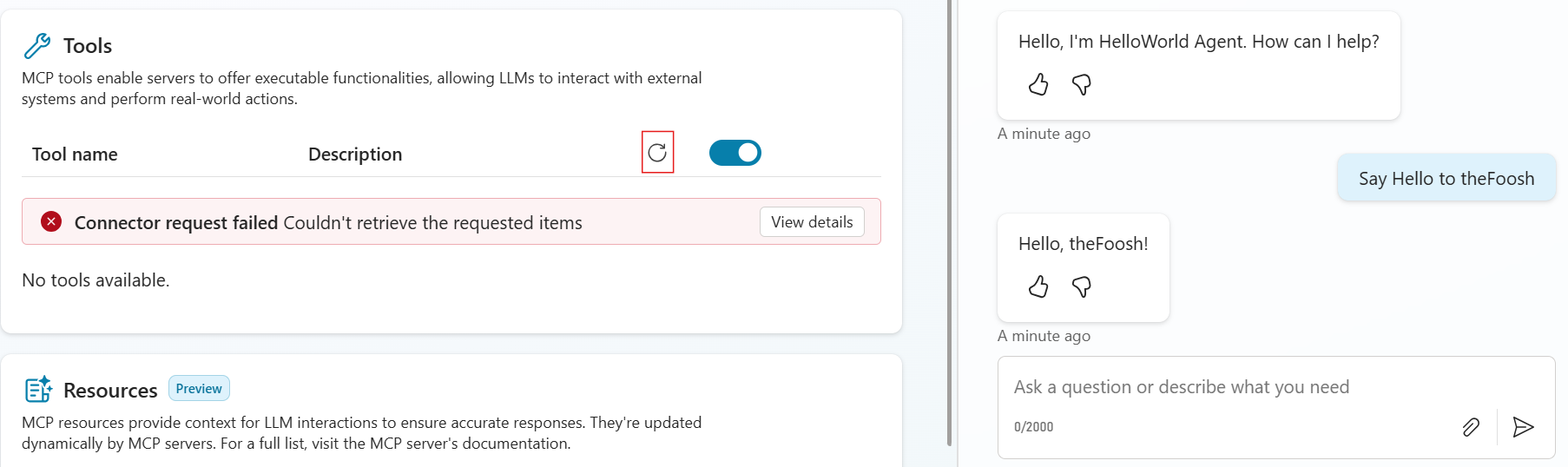
- Back in Copilot Studio, refresh the tool list. It fails to fetch the tool list with a “Connector request failed” error. In chat testing, you get a generic Hello instead of the MCP tool response — confirming that disabling public network access prevents the connection.
- Now continue to Part 2.
Part 2 · Configure and connect Power Platform to VNet
You have deployed and connected the MCP server to Azure Function and disabled public access. Now configure the environment to keep accessing the MCP server through a private endpoint via VNet.
Configure Azure Virtual Network
- In your Azure subscription, create a new Virtual Network resource.
- Give it a name and select the region corresponding to the Power Platform environment (for example,
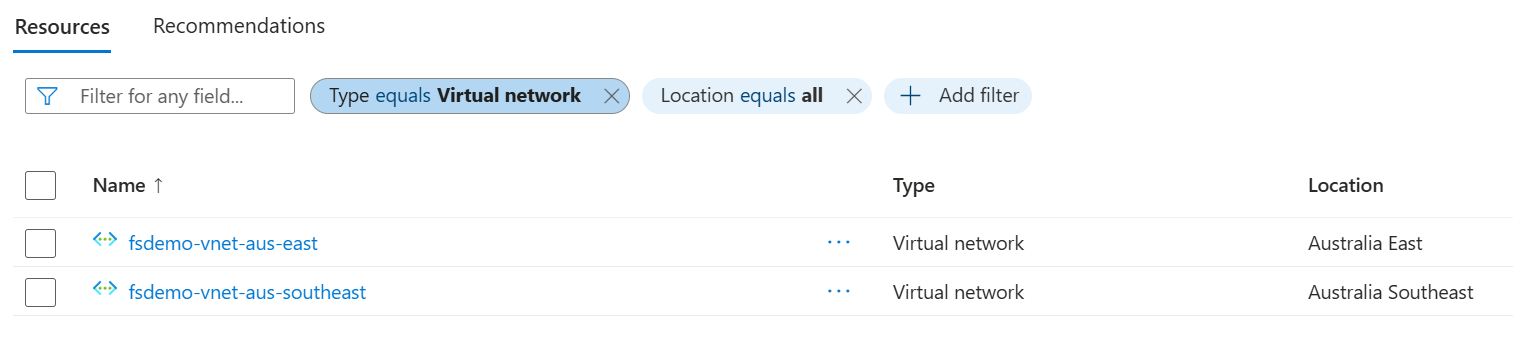
mydemo-vnet-australiasoutheast). In the minimal example, Azure Bastion, Firewall, and similar resources are not required. If the Power Platform geography has more than one region, you must create one VNet per region. The original example (Australia) maps to two regions,australiaeastandaustraliasoutheast, so two VNets are created.
- Create subnets to delegate for Power Platform in the VNet. The default VNet (same region as the environment;
australiasoutheastin the example) needs at least two subnets — Subnet1 (for example,fsdemomcp-subnet) for the MCP server in Azure Function, and Subnet2 (for example,pp-vnet) for Power Platform.
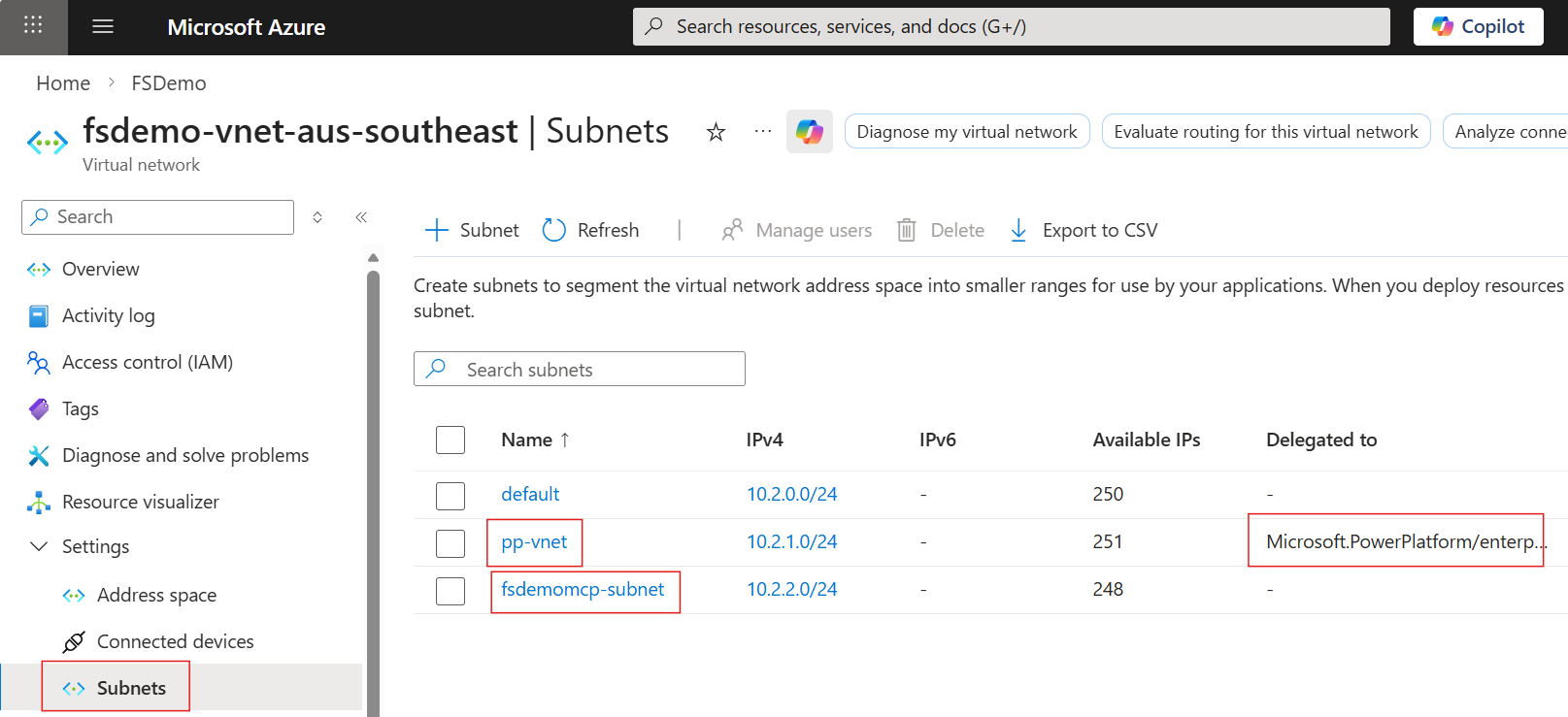
Subnet size matters. For guidance on estimating subnet size, see the documentation. Rule of thumb: plan for 25–30 IP addresses for a typical production environment. Do not share a production environment’s VNet policy with other environments.
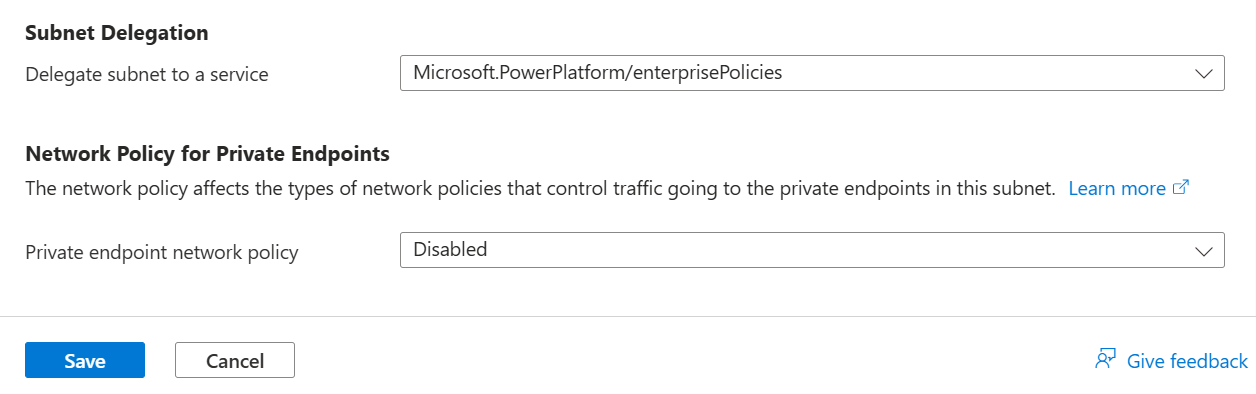
- A very important step — the Power Platform delegated subnet must not be shared or used for any other purpose. Set “Subnet Delegation” for the second subnet,
pp-vnet, toMicrosoft.PowerPlatform/enterprisePolicies. This lets Power Platform manage this subnet and run containers from the delegated subnet at runtime to connect to resources in the same VNet.
- Return to the
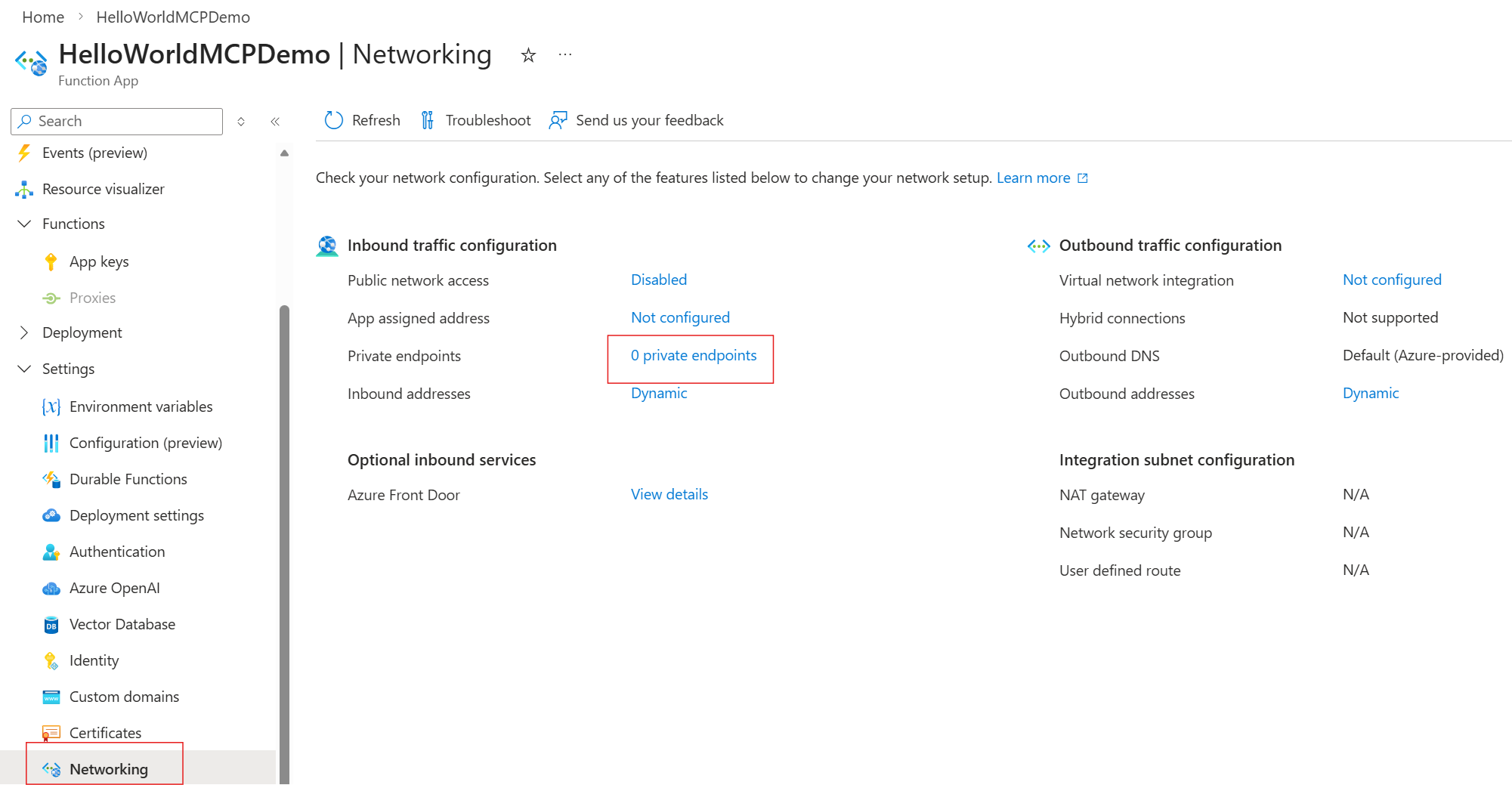
HelloWorldMCPDemoFunction App, go to Settings → Network, and click private endpoints to create one.
- Click ”+ Add”, choose Express or Advanced, give it a name, and select the VNet and subnet created in Step 3. Do not use the subnet delegated to Power Platform.
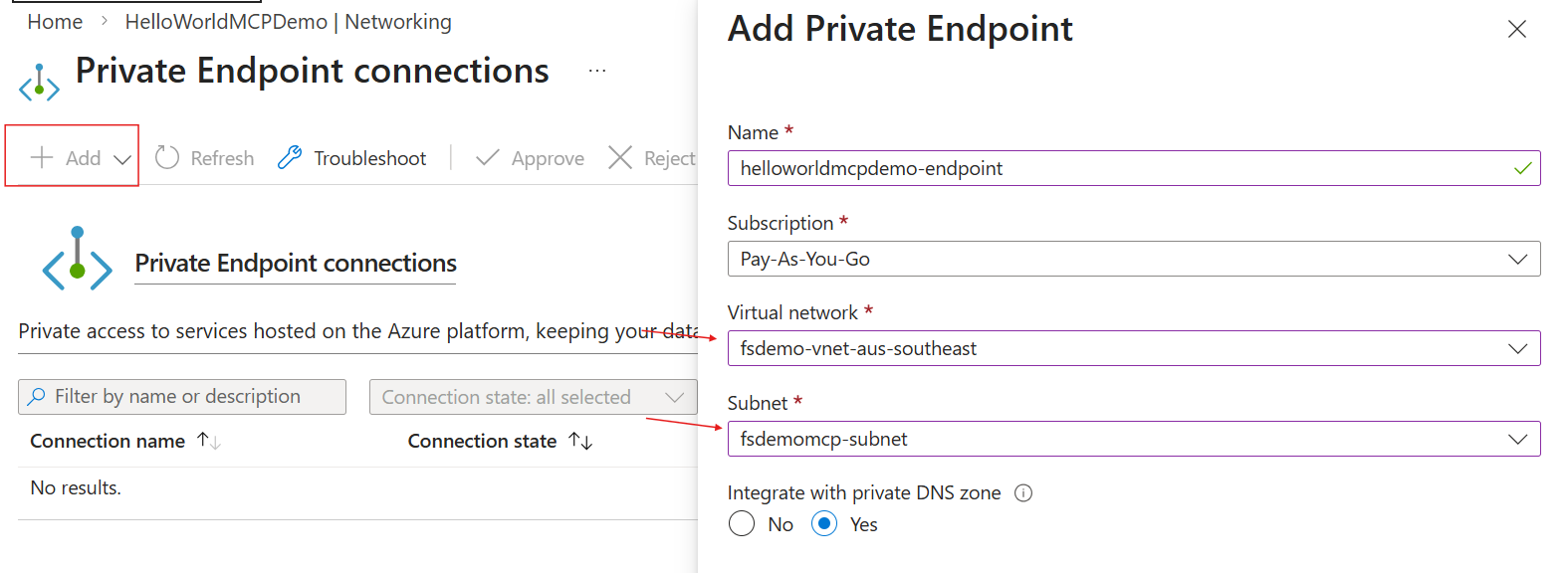
- The MCP server Function App now has a private endpoint inside this VNet. Click the private endpoint name.
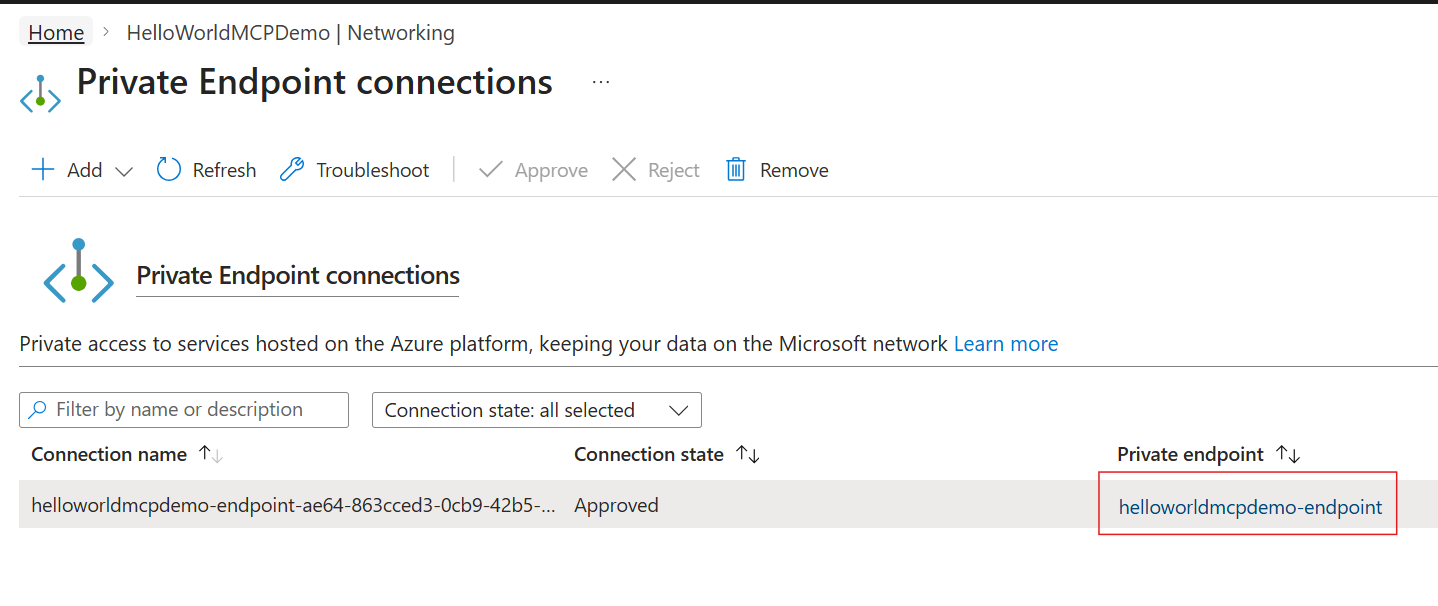
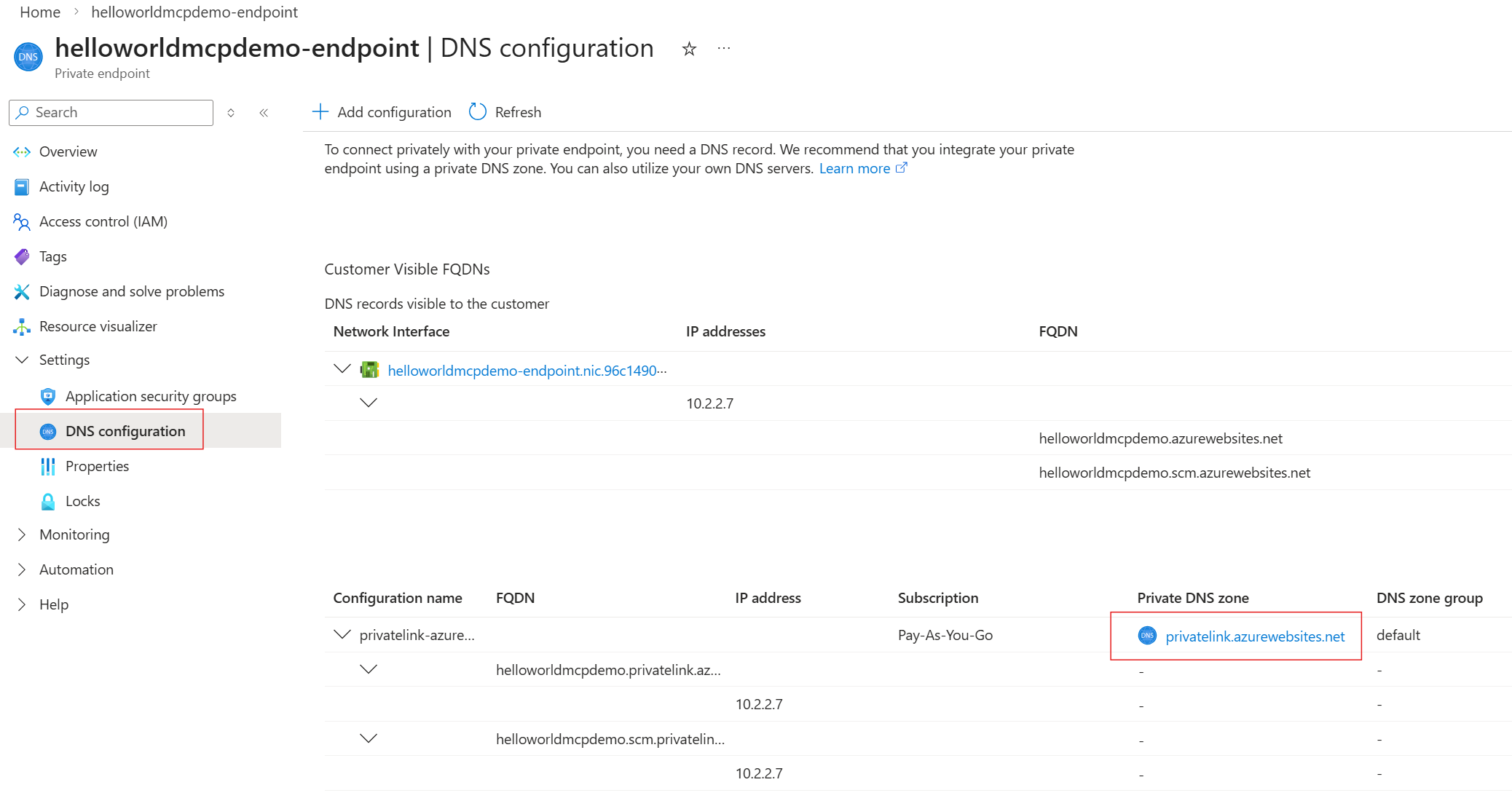
- In the private endpoint settings, go to “DNS configuration”. A Private DNS zone has been created. Click the Private DNS Zone (
privatelink.azurewebsites.net).
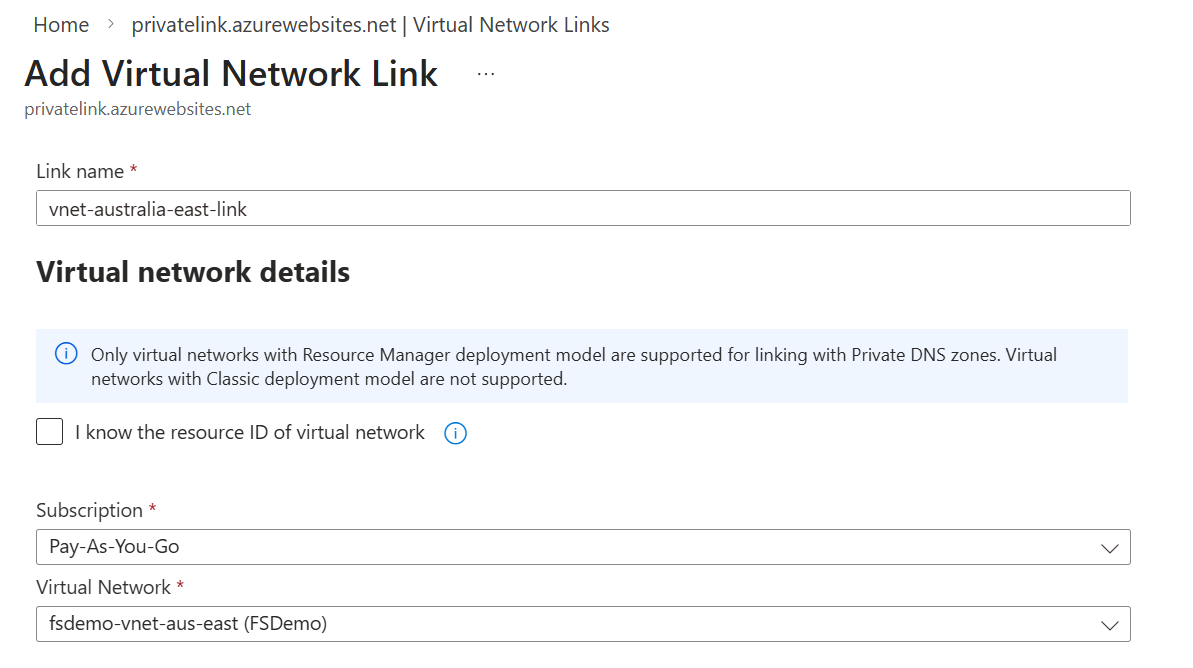
- In the Private DNS Zone, go to DNS Management → “Virtual Network Links” and connect the VNet in the other region to this zone. Click ”+ Add”.
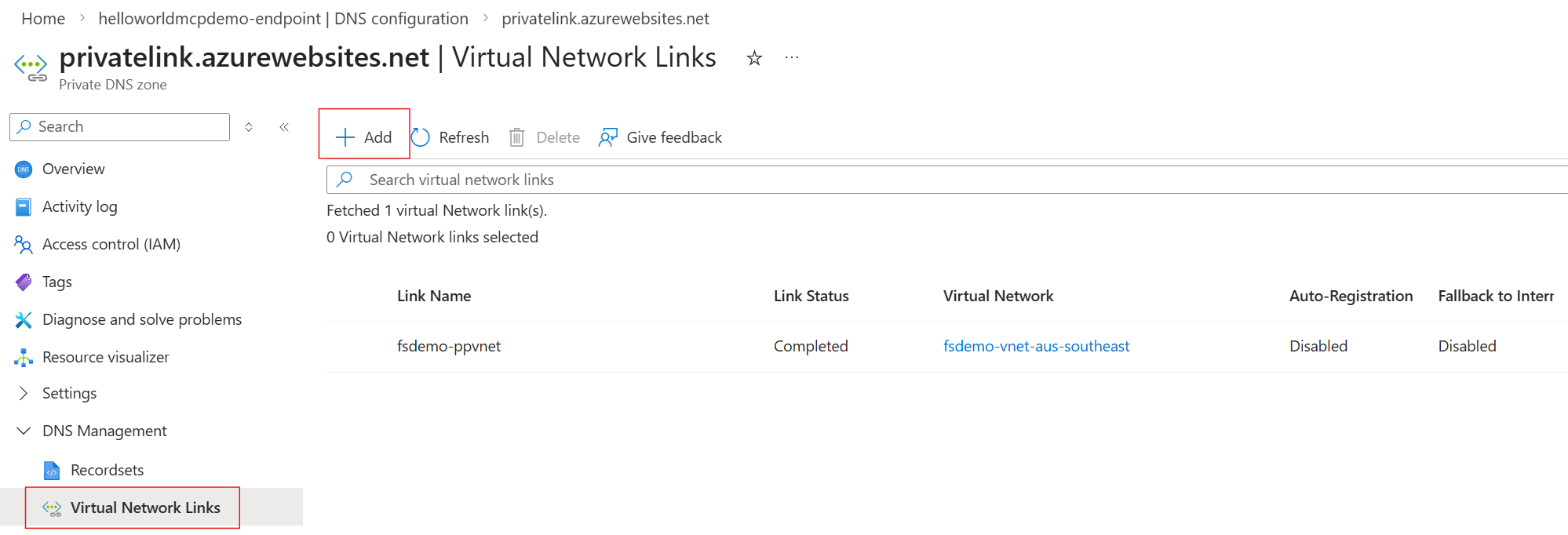
- Specify a link name and select the other subnet. In the original example, the environment is in the Australia geography (
australiaeastandaustraliasoutheastregions), so a VNet was created in each region, while the Function App, private endpoint, and Private DNS Zone are in southeast (the environment region). Connect theaustraliaeastsubnet to this Private DNS Zone (reference).
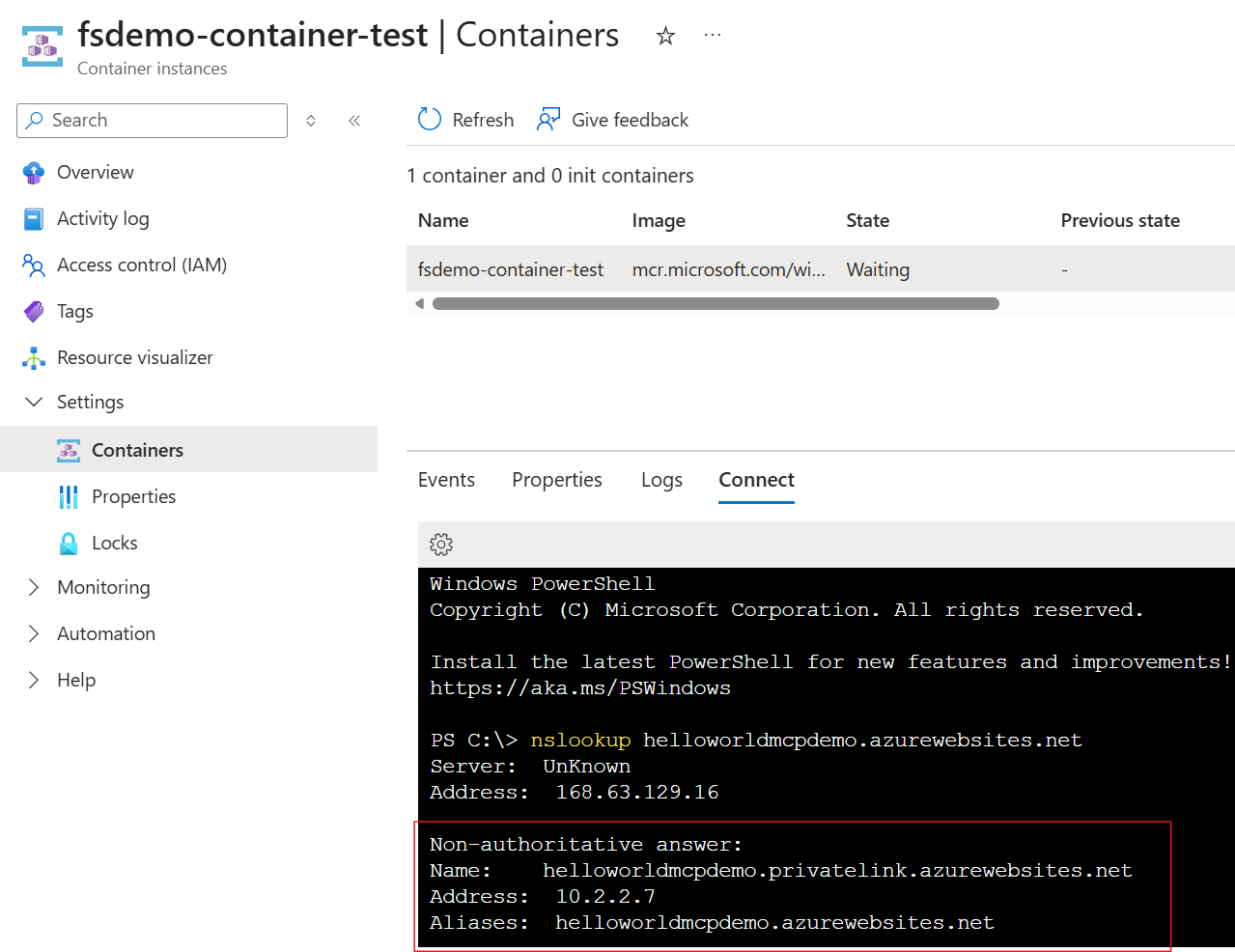
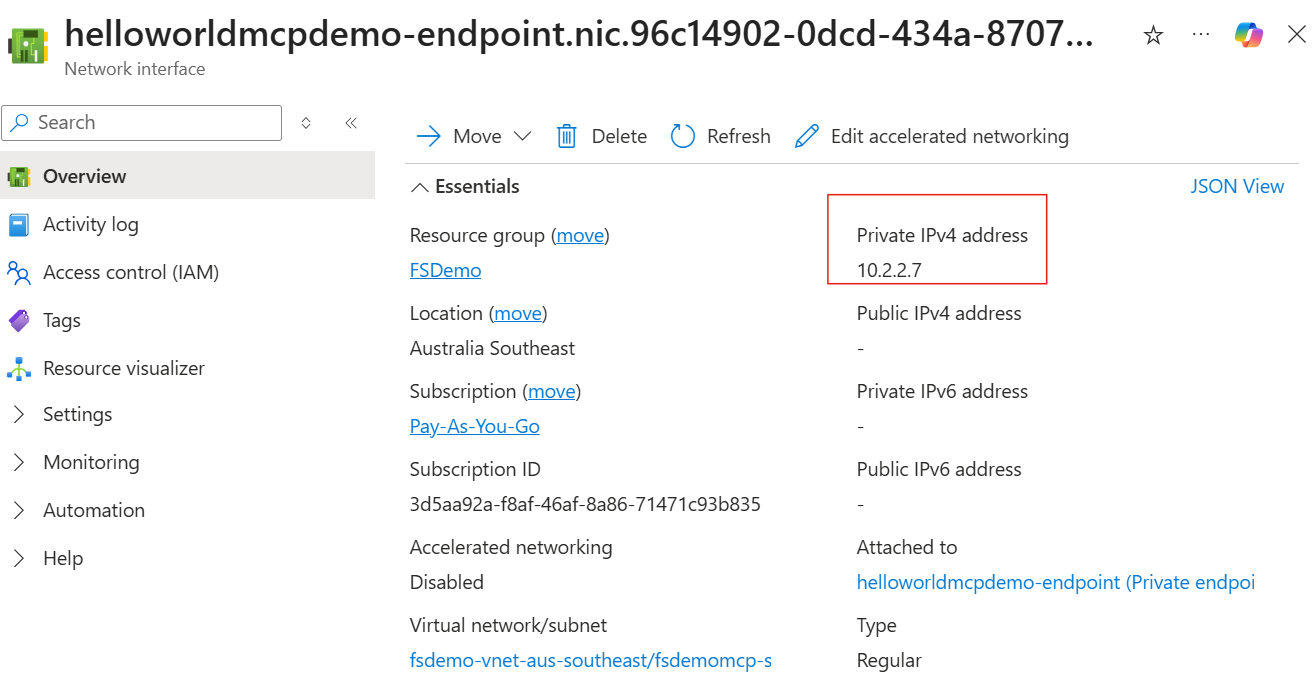
- The MCP server Function App now has a private endpoint enabled and can be reached within the same VNet. You can quickly verify from a VM/container in the same VNet by running
nslookupagainst the Function App domain (in the original example, it resolves to10.2.2.7, which corresponds to the private endpoint).
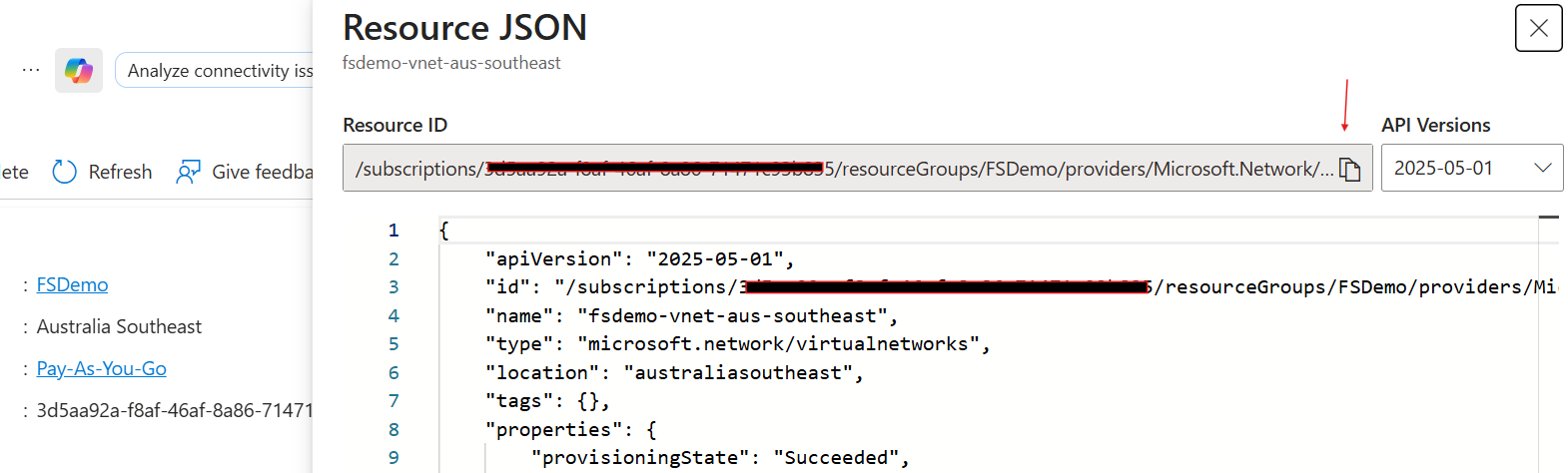
- Next, create an Enterprise Policy and connect Power Platform to it. Prepare the Azure subscription ID (GUID), the resource group name that contains the VNet, and the Resource IDs of all VNets (one per region). You can copy the subscription ID and Resource ID from the VNet resource’s JSON View.

- Run the following in PowerShell.
Install-Module Microsoft.PowerPlatform.EnterprisePolicies
Import-Module Microsoft.PowerPlatform.EnterprisePolicies
New-SubnetInjectionEnterprisePolicy -SubscriptionId "YourAzureSubscriptionId" -ResourceGroupName "YourAzureResourceGroupName" -PolicyName "giveThePolicyAName" -PolicyLocation "australia" -VirtualNetworkId "resourceIdForVNet1" -SubnetName "pp-vnet" -VirtualNetworkId2 "ResourceIdForVNet2" -SubnetName2 "pp-vnet"
New-SubnetInjectionEnterprisePolicy parameters
SubscriptionId— the GUID value copied in the previous stepResourceGroupName— the display name (string) of the Azure resource group containing the VNetPolicyName— policy name (string, for example,PowerPlatformVNetPolicyTest)VirtualNetworkId,VirtualNetworkId2— Resource ID of each VNet (the first one is the VNet in the same region as the Power Platform environment)SubnetName,SubnetName2— name of the subnet delegated for Power Platform in each VNet (Step 5)- Optional: if you have multiple subscriptions or sign-ins, add
-ForceAuthto force the selector.
- Check the status with
Get-SubnetInjectionEnterprisePolicy -SubscriptionId "YourSubscriptionId"(optionally-ForceAuth) and copy the ResourceId of the Enterprise Policy.
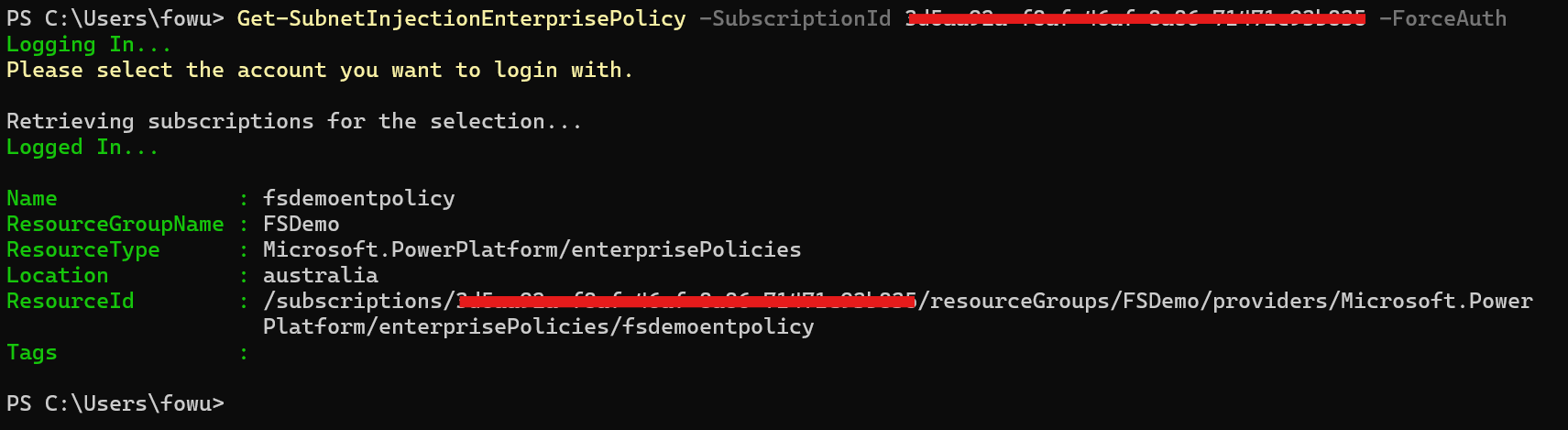
To remove the policy, use Remove-SubnetInjectionPolicy.
Remove-SubnetInjectionPolicy -PolicyResourceId "yourEnterprisePolicyResourceId"
- After the policy is created, add the environment to this policy. You can do this with PowerShell or in the Power Platform admin center (PPAC).
PowerShell — add the environment to the policy with Enable-SubnetInjection:
Enable-SubnetInjection -EnvironmentId "YourEnvironmentId" -PolicyArmId "yourEnterprisePolicyResourceId"
To remove the environment, use Disable-SubnetInjection:
Disable-SubnetInjection -EnvironmentId "YourEnvironmentId"
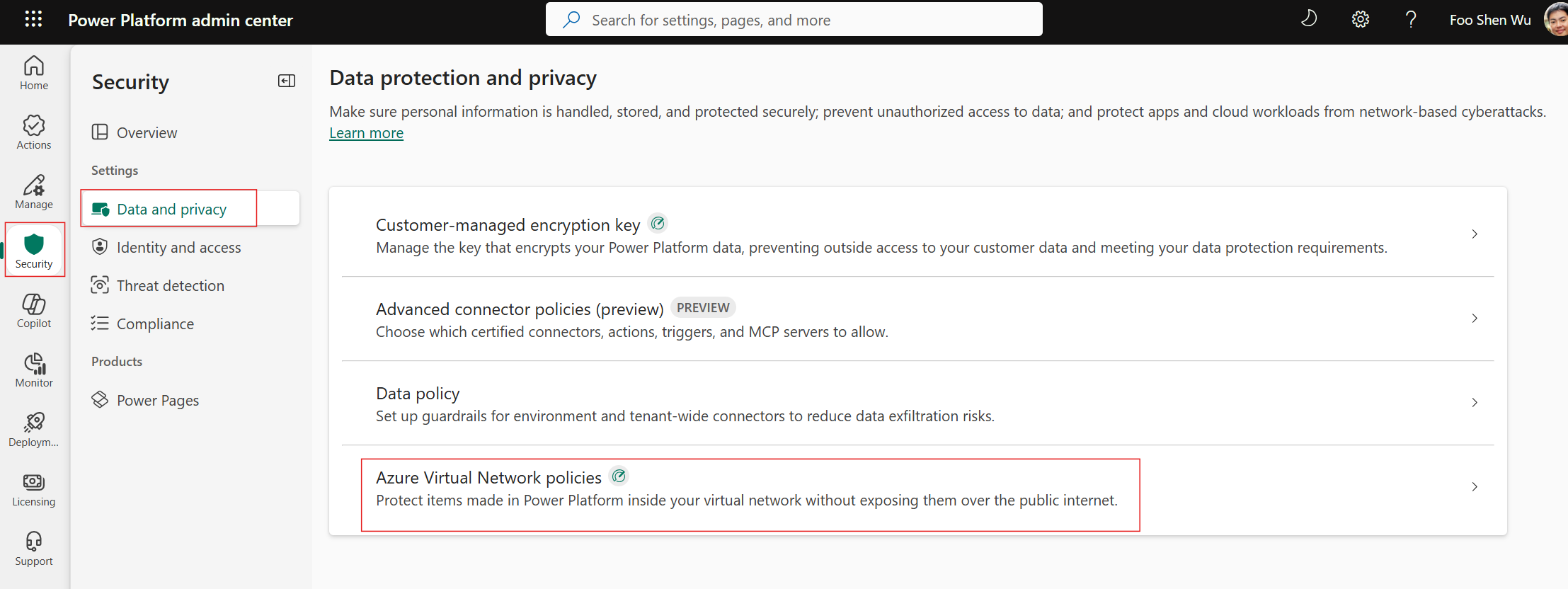
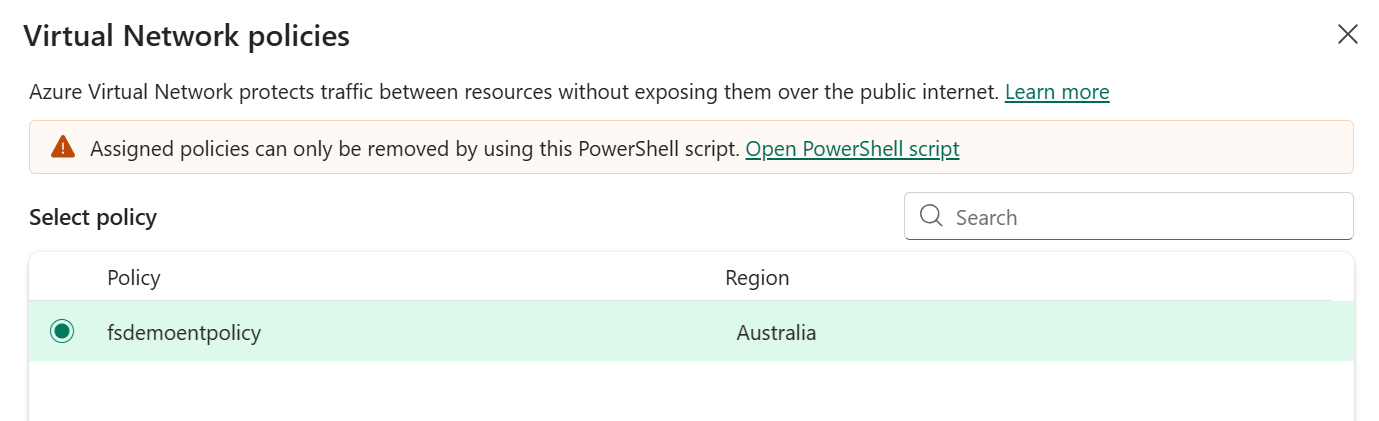
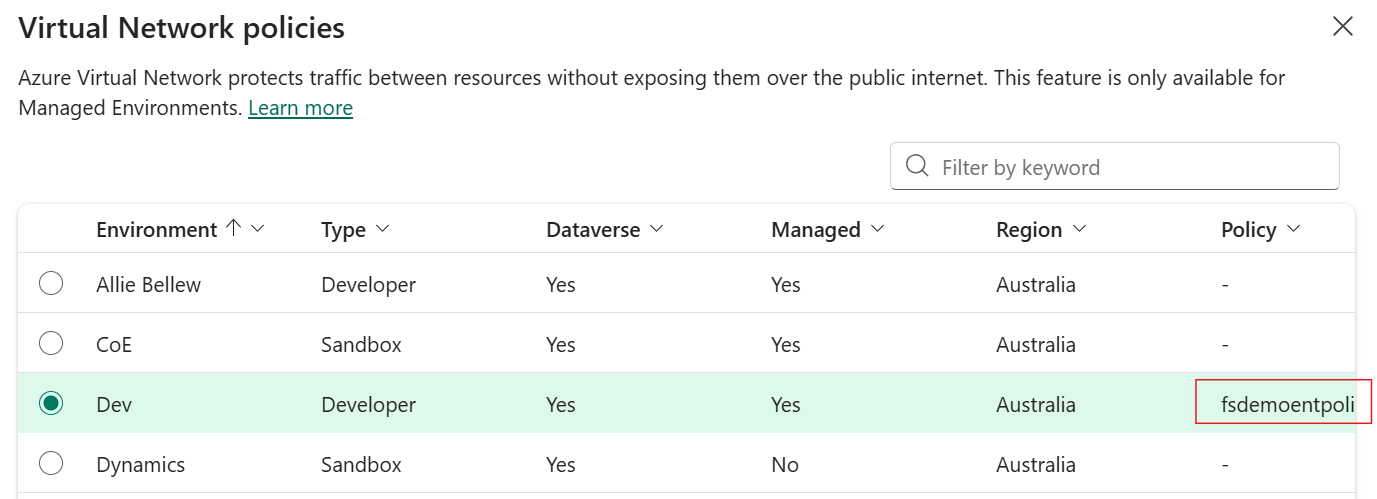
If using PPAC — go to “Security” → “Data and privacy” → “Azure Virtual Network policies”, select the desired Power Platform environment, and click Next. You can then assign the Enterprise Policy name you just created. After a few seconds, once the environment is assigned successfully, refresh the page and confirm that the policy name is connected to the environment.
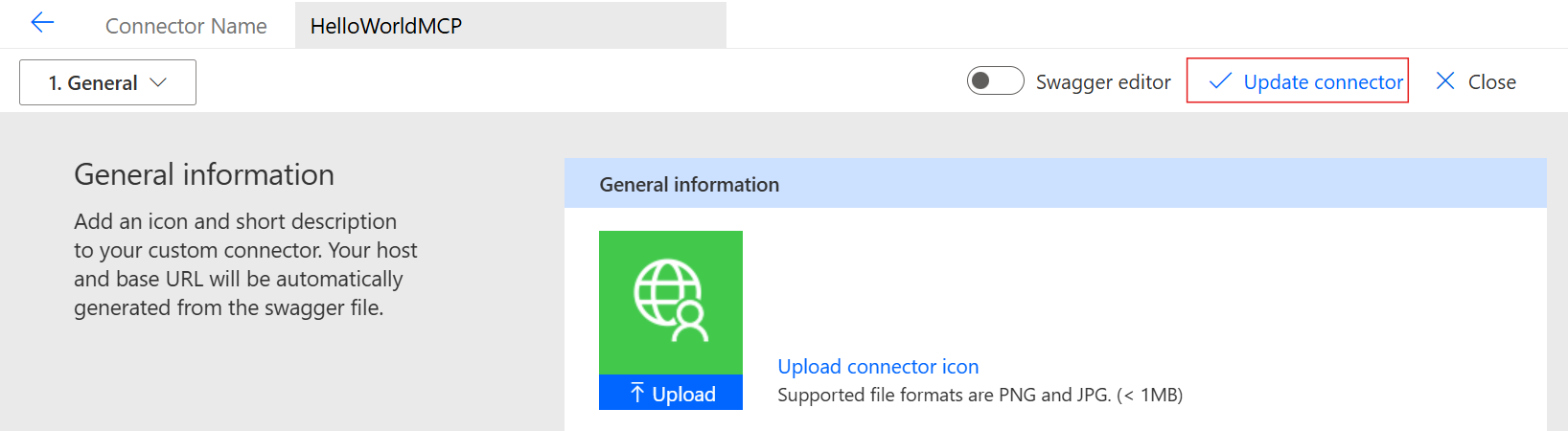
- If you created the MCP tool before the Enterprise Policy was assigned to the environment, you may need to save the underlying custom connector again. Go to Custom Connector, edit it, and click “Update custom connector”.
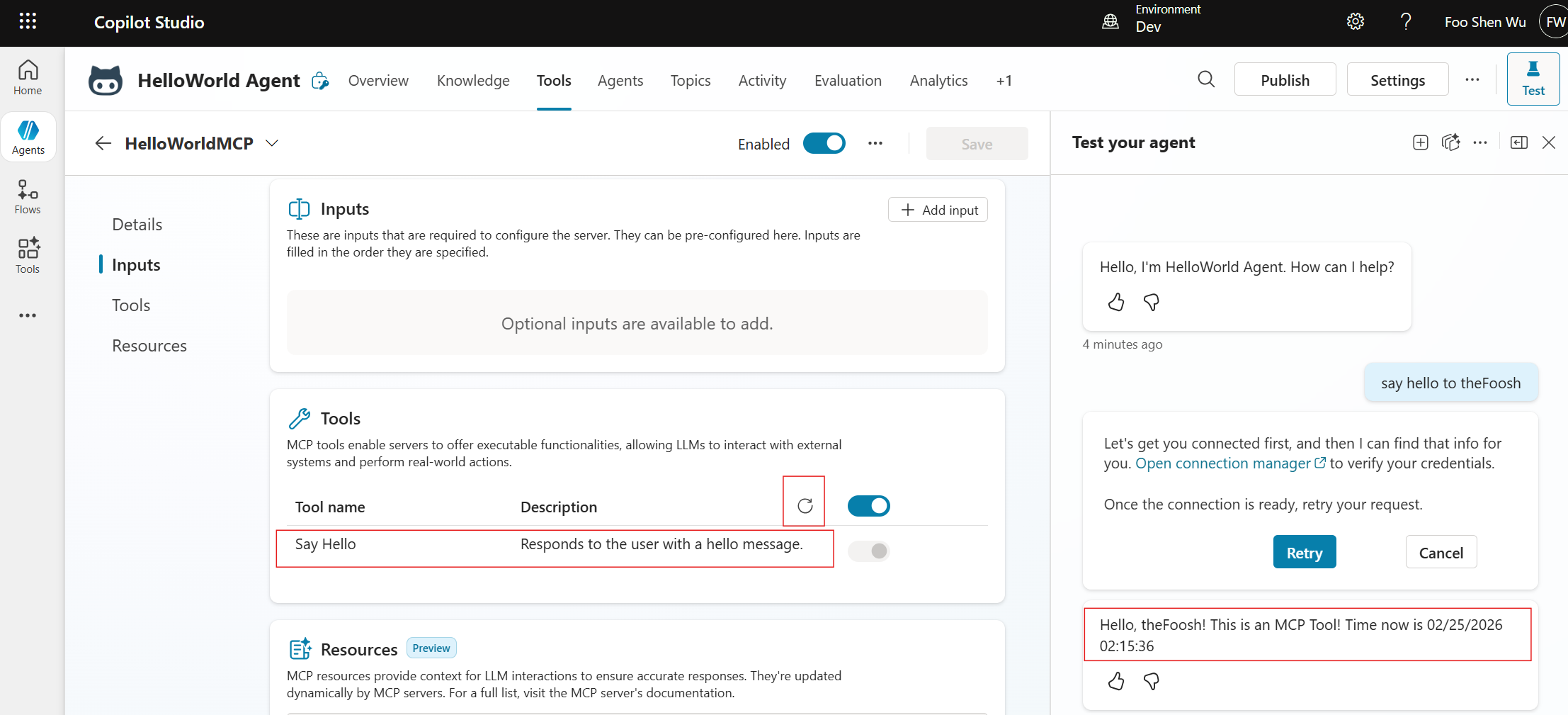
- Now try again in Copilot Studio. Refresh the tool list, and the connection and tool list should resolve correctly. You should also receive the MCP tool response from the Test Pane prompt. At this point, the connection may be stale, so you may see a prompt to reselect it in the connection manager and retry.
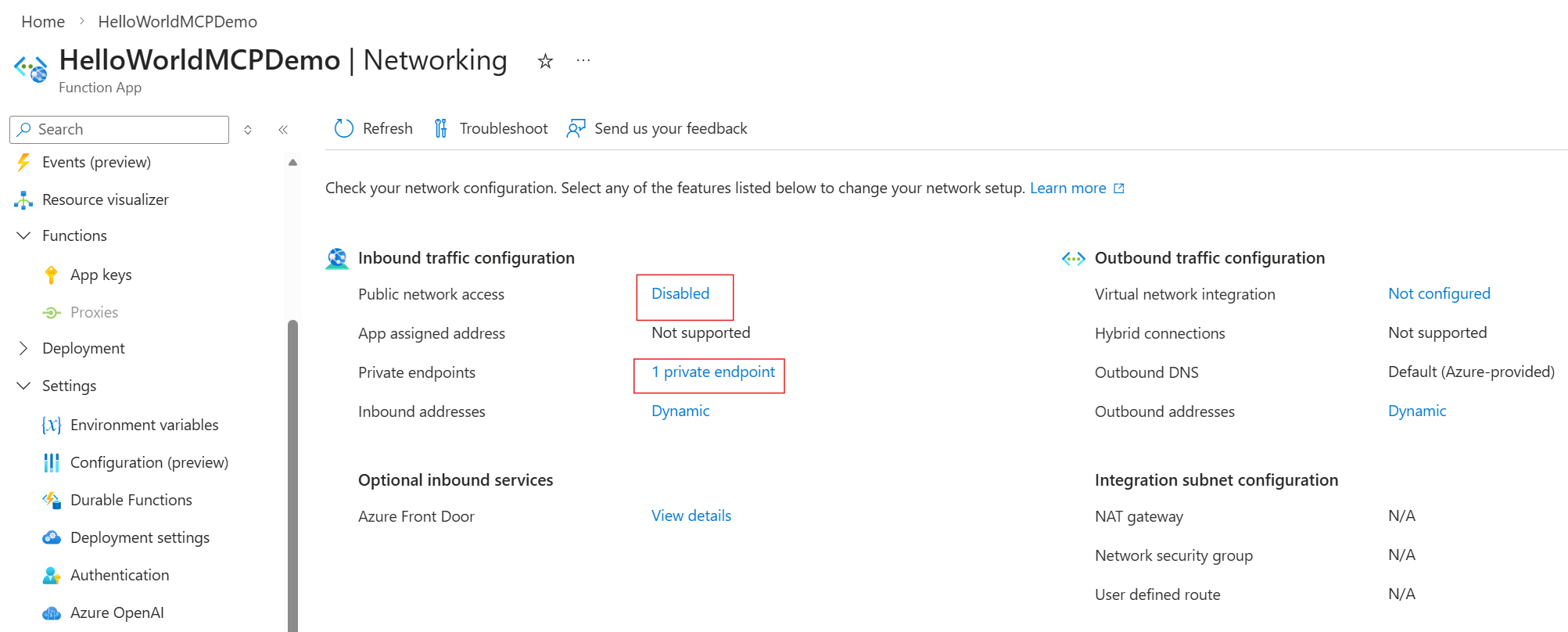
- Back in the MCP server Function App, confirm that it is using the private endpoint while public network access is disabled.
Note — When you assign a Power Platform environment to an Enterprise Policy, all supported connectors use the delegated VNet. If you also need to connect to internet resources with the same connectors in the same environment, you must configure additional resources in the VNet, such as a Network Security Group or NAT Gateway. For details, see the Virtual Network support whitepaper.
References
- Power Platform Virtual Network support — overview
- Power Platform Virtual Network support — whitepaper
- Power Platform Virtual Network support — setup guide
- Troubleshooting tips
Original author: fooshen (Foo Shen) · fooshen/MCPwithVnet (MIT License). Translated article — based on fooshen/MCPwithVnet from GitHub · fooshen/MCPwithVnet.