Add connector (post Teams channel message)
[Renewal] Explore the basic features of Copilot Studio - Add a standard connector action (Teams channel post example)
Step 5: Add connector
Add tools to the agent #2 (connector action)
This time, add a standard connector action as a tool rather than an MCP server.
An MCP server ships with its own descriptions for the server and every tool it exposes, so there is nothing to write. A connector action gives you one operation and expects you to describe it — more work, but it lets you say precisely when the agent should use it.
💡 This step uses the Microsoft Teams → Post message in a chat or channel action as the example. Adding Office 365 Outlook → Send an email (V2) follows exactly the same procedure.
Lab
English UI screenshots, September 10, 2026. Actual captures from an English-language demo environment. This lab continues on the agent from Step 4.
Nothing was posted. The final permission prompt in this lab was answered with Deny, so no message was published to any Teams channel.
1. Add the connector action
On the Build page, select + beside Tools, then select Microsoft Teams. The connector opens with its MCP server at the top and its individual actions below.
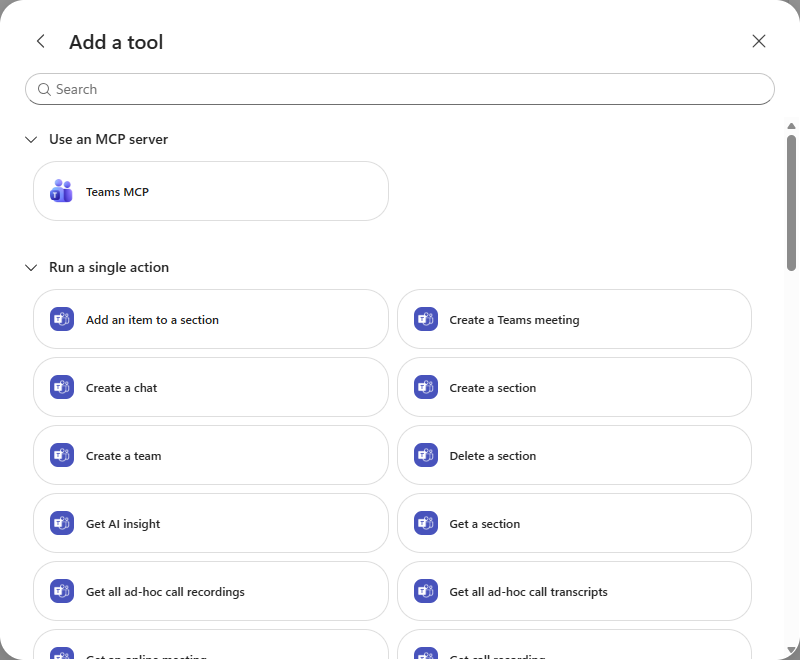
MCP server or single action? The same connector now offers both. Pick the MCP server when you want the whole capability set with descriptions maintained for you. Pick a single action when you want exactly one operation and full control over how it is described.
Search for Post message and select Post message in a chat or channel.
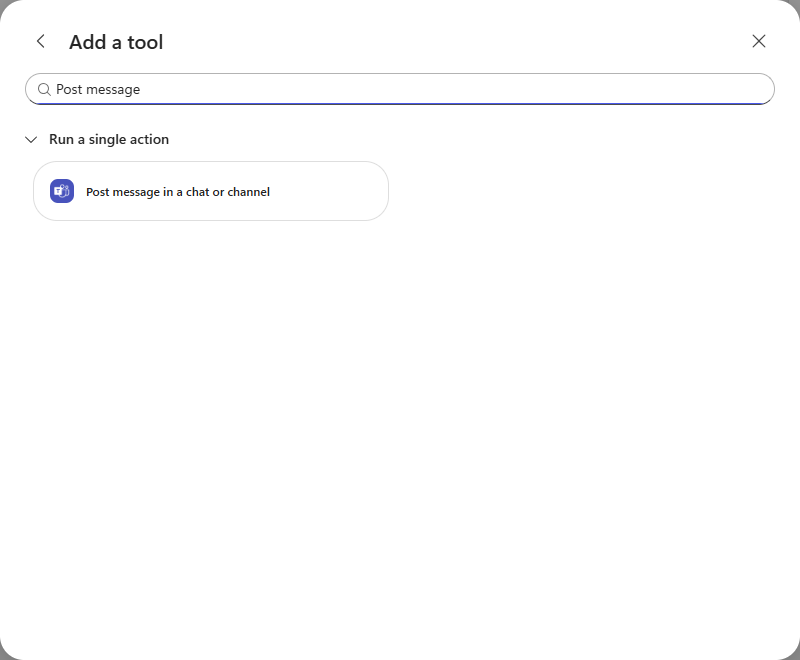
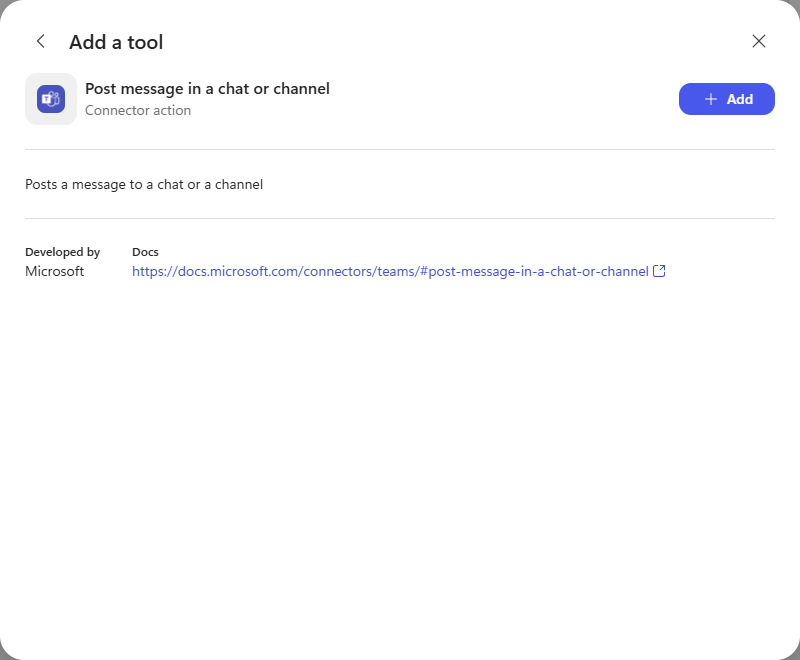
The action’s summary page shows what it does, who publishes it, and a link to its documentation. Select Add.
2. Describe the tool
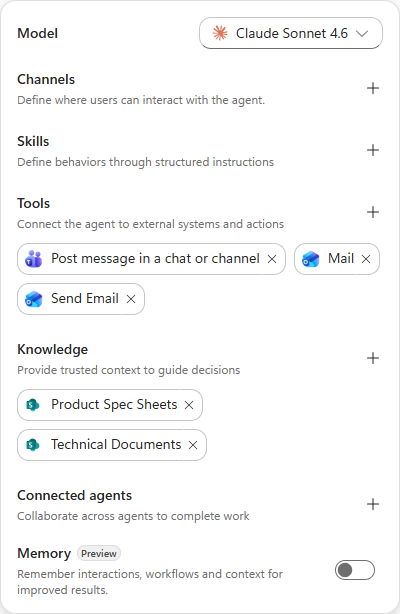
Select the new tool in the configuration panel to open Tool details. Unlike the MCP server, the name and description are yours to edit.
Use this tool when the user asks to post or publish a message to Teams or a Teams channel. Write the Message as HTML.
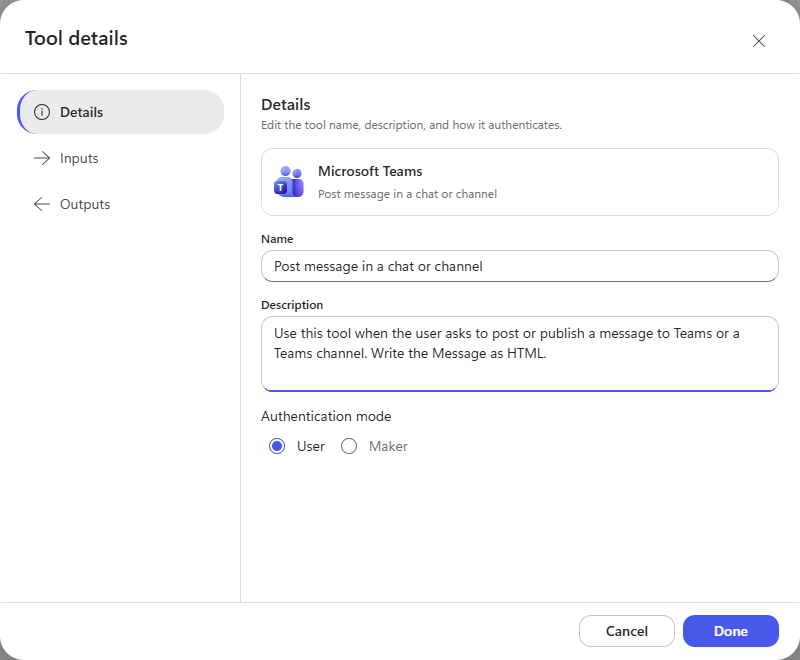
The description is the routing rule. The agent reads it to decide whether this tool fits the request. Name the trigger words a user would actually say (“post”, “publish”, “to Teams”), not just what the API does.
Authentication mode works the same as it does for an MCP server: User runs the action as the person talking to the agent, Maker runs it as the account that built the agent.
3. Review the inputs
Open the Inputs tab. Each input has a name, a description, and a How is this filled? choice.
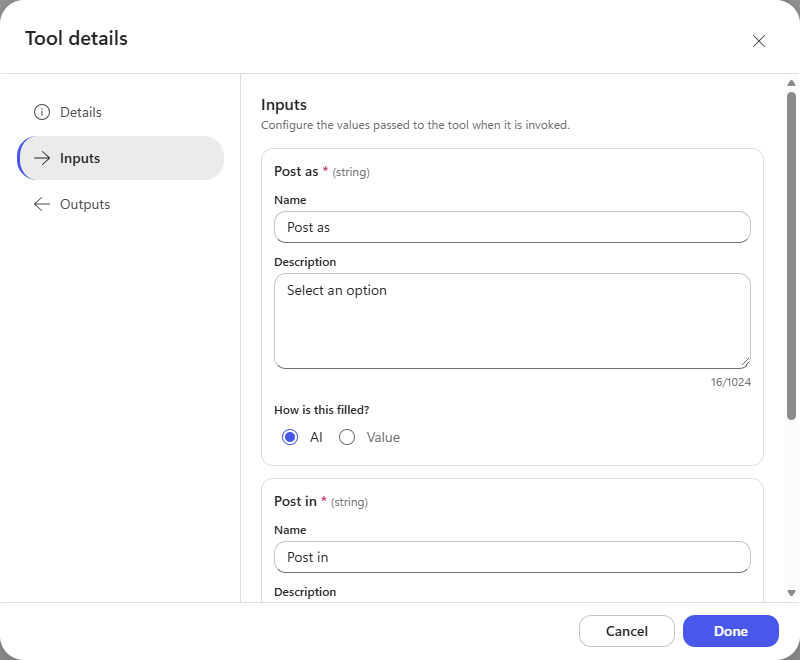
| Setting | What it does |
|---|---|
| AI | The agent works the value out at run time from the conversation |
| Value | The input is bound to a variable you select or create |
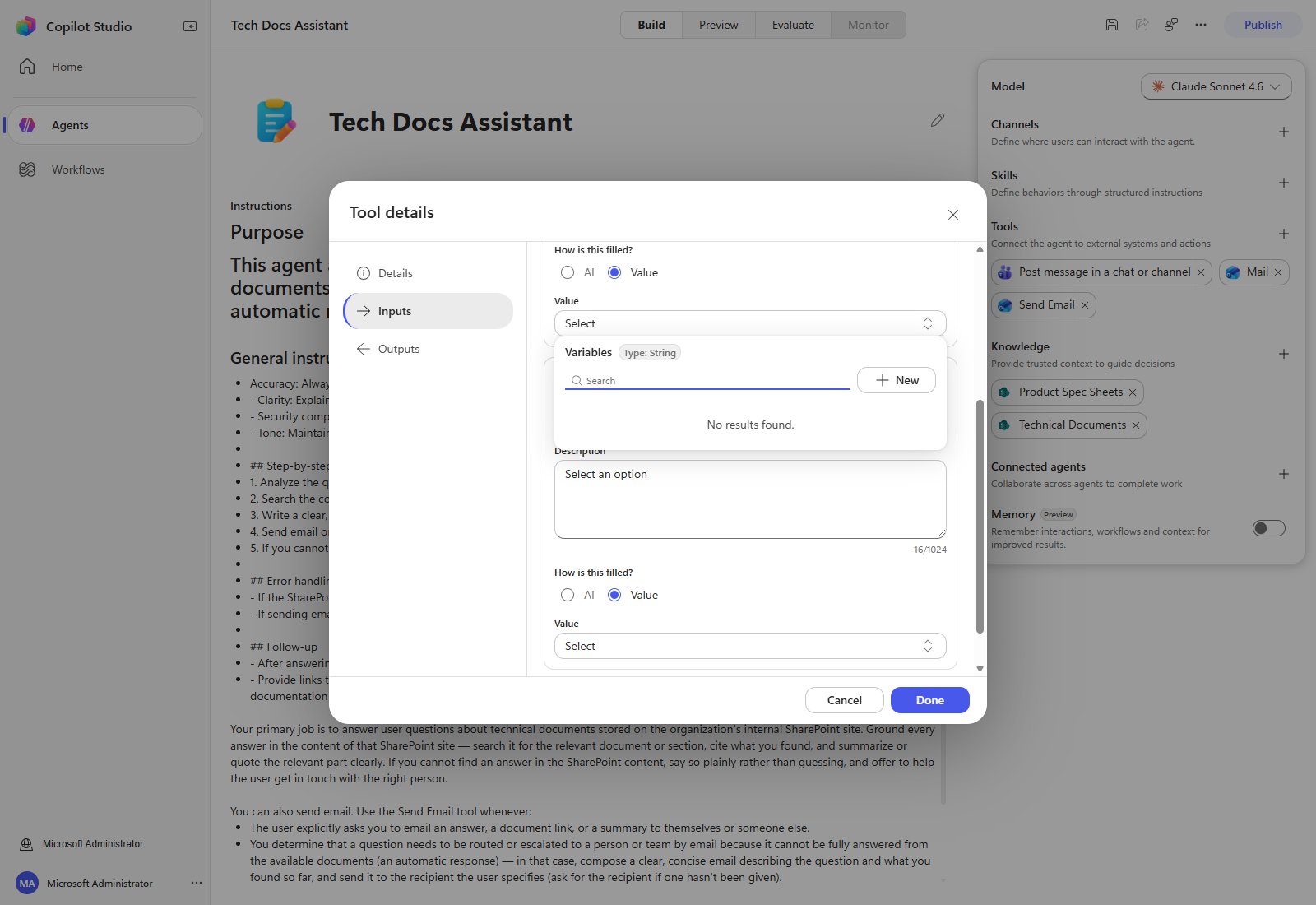
This changed. Earlier versions of this lab asked you to switch Post as and Post in to a custom value and choose User and Channel from a dropdown, which then revealed Team, Channel and Message fields. That dropdown no longer exists. Value now opens a variable picker, so the only literal way to pin a channel is to create a variable and bind it. Leaving both inputs on AI is the straightforward path, and it is what the test below uses.
Leave Post as and Post in on AI, select Done, then Save on the agent toolbar.
No more copying channel IDs. The old lab had you open Teams, copy a channel link, and pull the
groupId and the 19:...@thread.tacv2 channel ID out of the URL by hand. With AI-filled
inputs the agent resolves the team and channel itself, as the test below shows.
4. Test it
Open the Preview tab and ask for a post.
Post "Hello, nice to meet you" to the General channel of the Sales team in Teams.
The agent plans the work: list the teams you belong to, list that team’s channels, then post. It asks permission before each operation, naming the exact action.
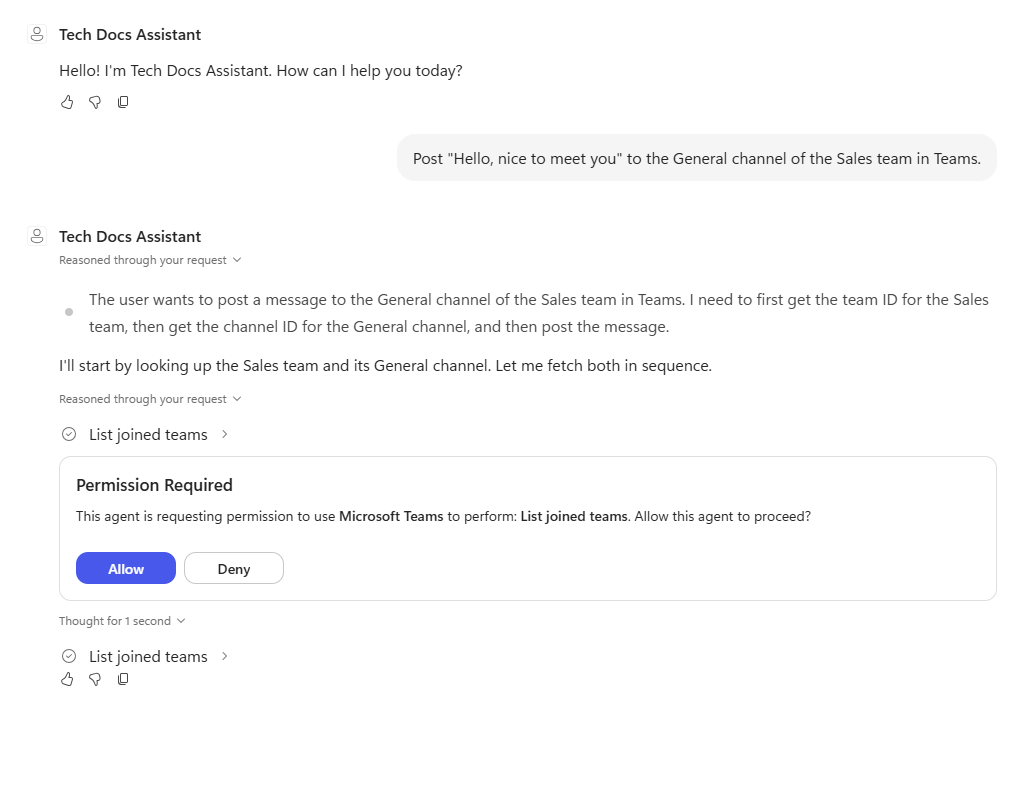
After the read-only lookups it reports what it found — here it matched “Sales” to the Commercial Sales team and located its General channel — and then asks for the one permission that actually writes.
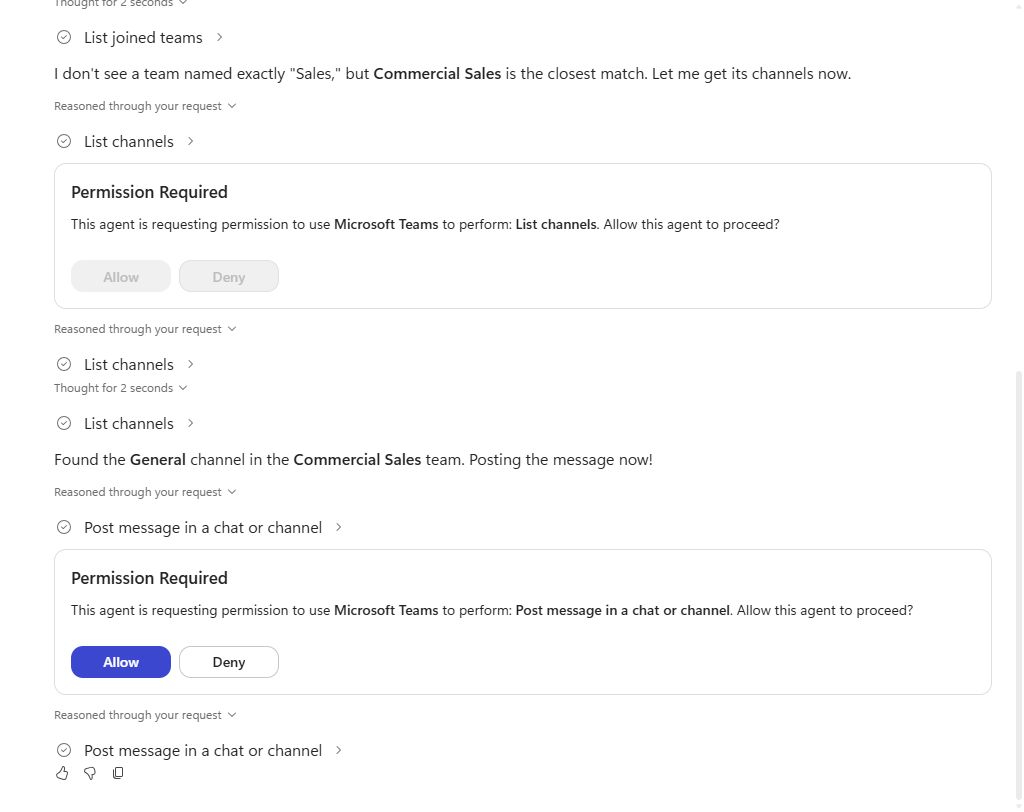
Selecting Allow publishes the post. In the capture below Deny was selected instead, and the agent reports that it could not complete the action.
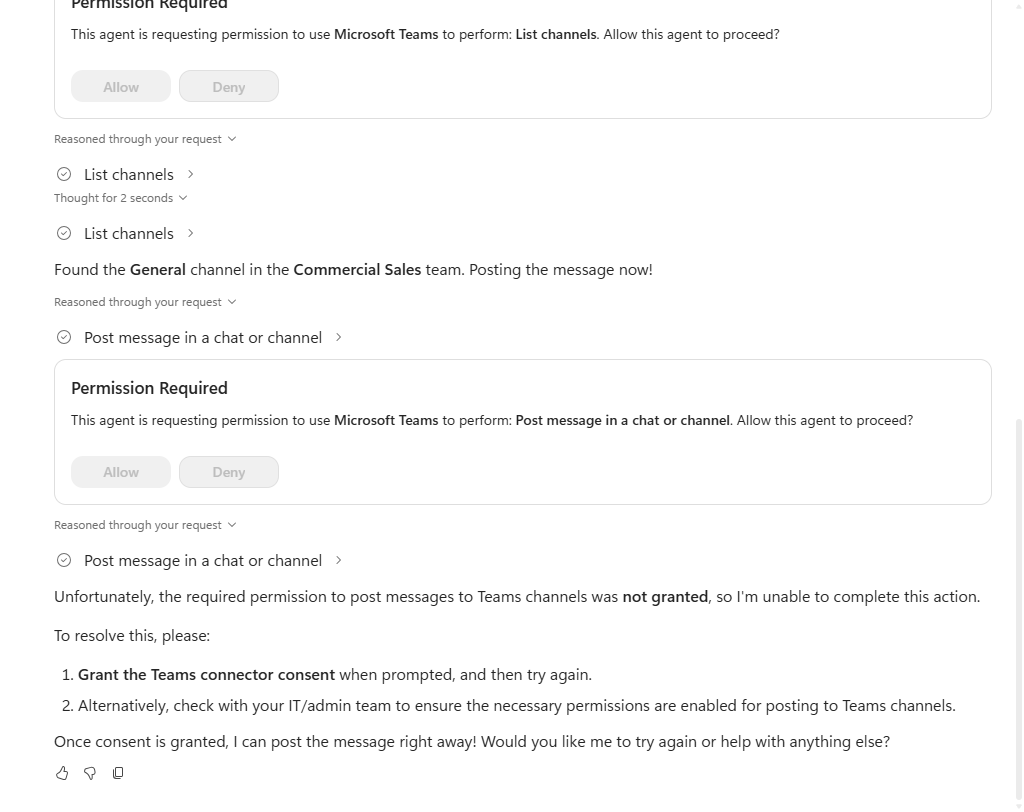
Read and write are separate approvals. List joined teams and List channels only read; only
Post message in a chat or channel publishes. Approving the lookups and then denying the post is a
safe way to check the agent picked the right team and channel before anything goes live.
Congratulations! By adding tools, you have finished configuring the agent so it can draft email and post to Teams. Next, connect an external MCP server directly by URL to add a private MCP tool.
| ← Previous: Step 4. Add MCP tools | Next: Step 6. Add external MCP tools → |