Mission 06: Create a Custom Agent with Natural Language and AI, and Ground It with Your Data
Learn how to create a new agent grounded with knowledge sources
Translated article — This article is based on 🚨 Mission 06: Create a custom agent using natural language with AI and grounding it with your data from the Copilot Studio Agent Academy. The original wording takes precedence.
🎥 Watch the walkthrough video
🎯 Mission briefing
Welcome back, Recruit. In this mission, you will work hands-on with one of Copilot Studio’s powerful capabilities: creating a custom agent with natural language and grounding it with your data.
This is not just a chatbot. You are building a knowledge-powered digital teammate that can reason, respond, and reference real enterprise information.
Your weapon is natural language. Your mission is to design, train, and test a fully customized helpdesk agent that uses SharePoint, uploaded files, and company URLs to answer IT questions.
Let’s build your agent from the ground up.
Important: This mission uses the classic Copilot Studio experience
If your Copilot Studio screens look different from the screenshots in this mission, turn off New Experience in the upper-right corner to switch to the classic experience used here.
🔎 Learning objectives
In this mission, you will learn how to:
- Understand what a custom agent is and how it differs from a prebuilt template
- Create an agent using a natural-language description
- Ground an agent with enterprise knowledge sources, including SharePoint, documents, and websites
- Learn how generative orchestration searches multiple data sources
- Build and test an IT helpdesk agent grounded with enterprise data
🤔 What is a custom agent?
A custom agent is a chatbot or virtual assistant that you create and design directly in Copilot Studio to help users with specific tasks or questions. It is called “custom” because:
- You define its purpose - such as vacation requests, order status checks, or IT question support
- You define the conversation - what the agent should say and how it should respond
- You ground it with your data - by connecting to enterprise data through built-in knowledge resources
- You connect it to your own systems or applications - by choosing from connectors, flows, REST APIs, or Model Context Protocol servers
Note — Think of it this way: you are creating your own digital assistant that can chat with users, answer questions, collect information needed for a process, connect to enterprise data, and handle work on your behalf.
🤖 What can a custom agent do?
A custom agent can:
- Ask users for information such as names, dates, and preferences
- Store that information in a database or table
- Look up data based on a question and answer it
- Act autonomously without direct user interaction
- Trigger actions from a user request or autonomous behavior, such as sending email or creating a record
👩🏻💻 Why use a custom agent?
- Automate repetitive work and save time
- Provide users with a friendly, guided experience
- Tailor the experience to your business or project needs
✨ Example
Suppose you create a custom agent that helps employees request vacation.
It asks for their name, vacation dates, and manager name, then stores the information in the designated system that manages vacation requests, such as a SharePoint list.
Now employees can simply chat with the agent instead of going to the SharePoint list and creating a new item.
🗣️ Create an agent with natural language
In Lesson 05 - Start quickly with a prebuilt agent, you learned how to quickly create an agent in Copilot Studio from a prebuilt agent template. In this lesson, you will explore the AI-powered conversational authoring experience. In Copilot Studio, you do not need to write code to create an agent. You can easily create one using only a description in your own words (natural language).
When you start by describing an agent in natural language, AI automatically generates the agent’s name, description, and instructions. It also suggests triggers, channels, knowledge sources, and tools. You can accept or ignore these suggestions; they only persist during the current session and are not saved.
🌱 What if I am new to “describing what I want”?
Creating a custom agent with natural language may feel unfamiliar. But every time you use Copilot across Microsoft products and services, you are already using natural language in the form of a prompt.
A prompt is a message or instruction that tells an AI agent what you want it to do. Think of it as giving directions to an assistant. The clearer your instructions are, the easier it is for the AI to understand and execute them.
🪄 Why prompts matter
- They guide the agent’s behavior
- They help the agent understand what kinds of conversations to have
- Good prompts make the agent more useful and accurate
📝 Tips for writing a good prompt
- Be clear and specific - say exactly what you want the agent to do
- Think from the user’s point of view - what will the user say, and what should the agent answer?
- Include examples - provide sample interactions if possible
✨ Example — Suppose the HR team needs an agent that helps with vacation requests.
The prompt might look like this:
I want to build an agent that helps users submit a vacation request. When a user says they want to request time off, the agent should ask for their name, the start date of their vacation, the end date of their vacation, and their manager's name. Once the user provides this information, the agent should save it to a SharePoint list called 'Vacation Requests' and post a notification in a dedicated Microsoft Teams channel.
Why this prompt works well:
- Clear goal - submit a vacation request
- Describes the user interaction - what the user says and what the agent should ask
- Lists the required data - name, start date, end date, manager
- Specifies where the data is stored - a SharePoint list called Vacation Requests
🔮 After I create an agent, how do I ground it with knowledge?
In Copilot Studio, knowledge sources are places where an agent can find information to provide better answers. When you add these sources, the agent can retrieve enterprise data from Power Platform, Dynamics 365, websites, and other systems and services your company uses.
These sources work with AI to help the agent respond more accurately to user questions. This is called generative orchestration.
🌿 What is generative orchestration in an agent context?
Generative orchestration means that the agent dynamically decides how to answer a question with AI by combining its built-in language capabilities with information from added knowledge sources.
When a user asks a question, the agent can:
- Use AI to understand the question
- Generate a follow-up question on the fly if information is missing
- Select the most relevant knowledge sources
- Search those sources for an answer
- Use the information it finds to generate a natural, useful response
🏦 Why knowledge sources matter
-
Smarter answers - Adding knowledge sources lets the agent use your organization’s real data to provide more accurate answers.
-
Less manual work - You do not have to write every possible response yourself. The agent searches the added sources and responds automatically.
-
Use trusted information - Answers come from systems you already use, such as Dataverse, SharePoint, and company websites, giving users a trusted source of information.
-
Works with generative AI - Even for questions that were not pre-programmed or added as starter prompts, knowledge sources and AI work together to understand and respond naturally.
-
Flexible and extensible - You can add knowledge sources during setup or later, so the agent gets smarter as needs change.
✨ Example — Suppose you create an agent that helps employees with HR questions. You add your company’s HR policy documents and SharePoint site as knowledge sources.
When an employee asks, “How many vacation days do I get?”, the agent uses generative orchestration to search those sources and respond with the correct policy without you writing the answer manually. You save time because you do not need to anticipate every question an employee might ask.
Types of knowledge sources you can add
- Public websites
- What they do: Use Bing to search a specific website, such as a company site.
- Why they are useful: Good for retrieving public information such as FAQs or product information.
- Documents
- What they do: Use documents you upload directly to the agent, such as PDFs or Word files. Uploaded files are stored securely in Dataverse.
- Why they are useful: Let the agent answer questions based on internal guides, manuals, and policies.
- SharePoint
- What it does: Connects to SharePoint folders or files powered by Work IQ.
- Why it is useful: Good for accessing team documents, HR policies, and project files stored in SharePoint.
- Dataverse
- What it does: Uses structured data from tables and rows in a Dataverse environment. You can apply synonyms and glossary definitions for tables and columns to improve agent responses.
- Why it is useful: Useful when the agent needs to retrieve enterprise data stored in Dataverse, such as customer information.
- Real-time knowledge through connectors
- What it does: Lets the agent access real-time data from other enterprise systems, such as Salesforce, ServiceNow, Dynamics 365, AzureSQL, and Databricks, using the user’s permissions during the conversation.
- Why it is useful: Provides current, secure, accurate responses without storing or duplicating data, making the agent smarter and safer.
- Azure AI Search
- What it does: Uses semantic and vector search to search large document sets stored in Azure and understand user questions.
- Why it is useful: Provides accurate, trustworthy answers from complex data sources, supports citations, and scales well for large document collections with secure access control.
🔒 Security note
Knowledge source authentication
Some sources, such as SharePoint and Dataverse, require user authentication. This means the agent only references data in its responses that the user is allowed to see. Other sources, such as Azure AI Search, require additional configuration, including an Azure account and authentication type.
Improve agent responses in Copilot Studio
After the conversational authoring experience provisions your agent, you will want to test it against the instructions generated by AI from your prompt. Improving agent responses in Copilot Studio is about making sure the agent clearly understands its goal and has the right information.
-
Refine the agent instructions - This tells the agent how it should behave. Use clear, specific language.
For example:
✅ “Act like a friendly customer support agent who explains things clearly.”
❌ “Be helpful.” (too vague)
-
Check tone and language - Make sure the agent’s tone fits your audience.
You can set it to be:
- Friendly and casual
- Professional and concise
- Supportive and patient
-
Add or update knowledge sources - If the agent needs to answer questions about a specific topic, make sure it has access to the right information.
- Add websites, documents, and FAQ links
- Keep content up to date
- Use clear, well-structured information
-
Use Topics and triggers - If your agent needs to handle specific tasks or conversations, you can create topics with trigger phrases. This guides the conversation more precisely. You will learn more in the next lesson.
-
Test with real questions - Ask the agent the kinds of questions users are likely to ask.
If the answers are not good:
- Adjust the system instructions
- Add more examples or knowledge
- Rephrase questions and observe the responses
-
Review and iterate - Improving an agent is an ongoing process!
After publishing:
- Collect user feedback
- Watch for common questions or points of confusion
- Keep refining the agent settings
🧪 Lab 06: Create a custom agent in Copilot Studio
Now let’s learn how to create a custom agent that can chat over your data.
✨ Use case
Use the same use case as Lesson 03 - Create a declarative agent for Microsoft 365 Copilot.
As an employee
I want quick, accurate help from an IT helpdesk agent for issues such as device problems, network troubleshooting, and printer setup
So that I can stay productive and resolve technical issues without delay
Let’s get started!
✨ Prerequisites
- SharePoint site
Use the Contoso IT SharePoint site you created in Mission 00 - Course Setup - Step 5: Create a new SharePoint site.
If you have not set up the Contoso IT SharePoint site yet, go back to Mission 00 - Course Setup - Step 5: Create a new SharePoint site and set it up.
- Solution
Use the Contoso Helpdesk Agent solution you created in Mission 04 - Create a new solution.
If you have not set up the Contoso Helpdesk Agent solution yet, go back to Mission 04 - Create a new solution and set it up.
6.1 Create an agent with natural language and AI
⚠️ AI-generated instructions may vary by session — When you start by describing an agent in natural language, the AI-generated name, description, and instructions may vary from session to session. Suggested triggers, channels, knowledge sources, and tools may vary too.
-
Go to the Copilot Studio home page and enter the following prompt describing the IT helpdesk agent in the field.
 You are an IT Help Desk assistant that helps employees resolve common IT issues and find available devices. Be polite, concise, and helpful. Use Microsoft Support as the primary source: https://support.microsoft.com (and Microsoft Learn troubleshooting if needed: https://learn.microsoft.com/en-us/troubleshoot/). Do not invent steps - if you can't verify official guidance, say so and offer safe diagnostics + escalation.

 For troubleshooting:
 1) Ask ONE focused question if details are missing (goal, symptom/error, app/device).
 2) Try quick fixes first (restart, connectivity, sign-in, service status).
 3) Provide numbered step-by-step instructions (short, actionable).
 4) If not resolved, offer 1-2 alternative branches.
 5) After 2-3 branches, recommend escalation and provide a "ticket summary" of symptoms + error + device/app + what was tried.

 For devices:
 1) Ask what type of device do they need

 Never ask for passwords/OTP. Refuse requests to bypass security.
 Include relevant Microsoft Support links and preserve URLs.
This prompt includes:
- Role and goal: IT helpdesk assistant
- Primary knowledge sources (including a hierarchy of website knowledge sources)
- Response style: polite, concise, and helpful
- Troubleshooting flow: question > quick fixes > steps > branches > escalation
- Escalation output: ticket summary
- Device support (basic)
- Security boundaries: no passwords, no security bypasses
- Link handling: preserve URLs and cite Microsoft Support
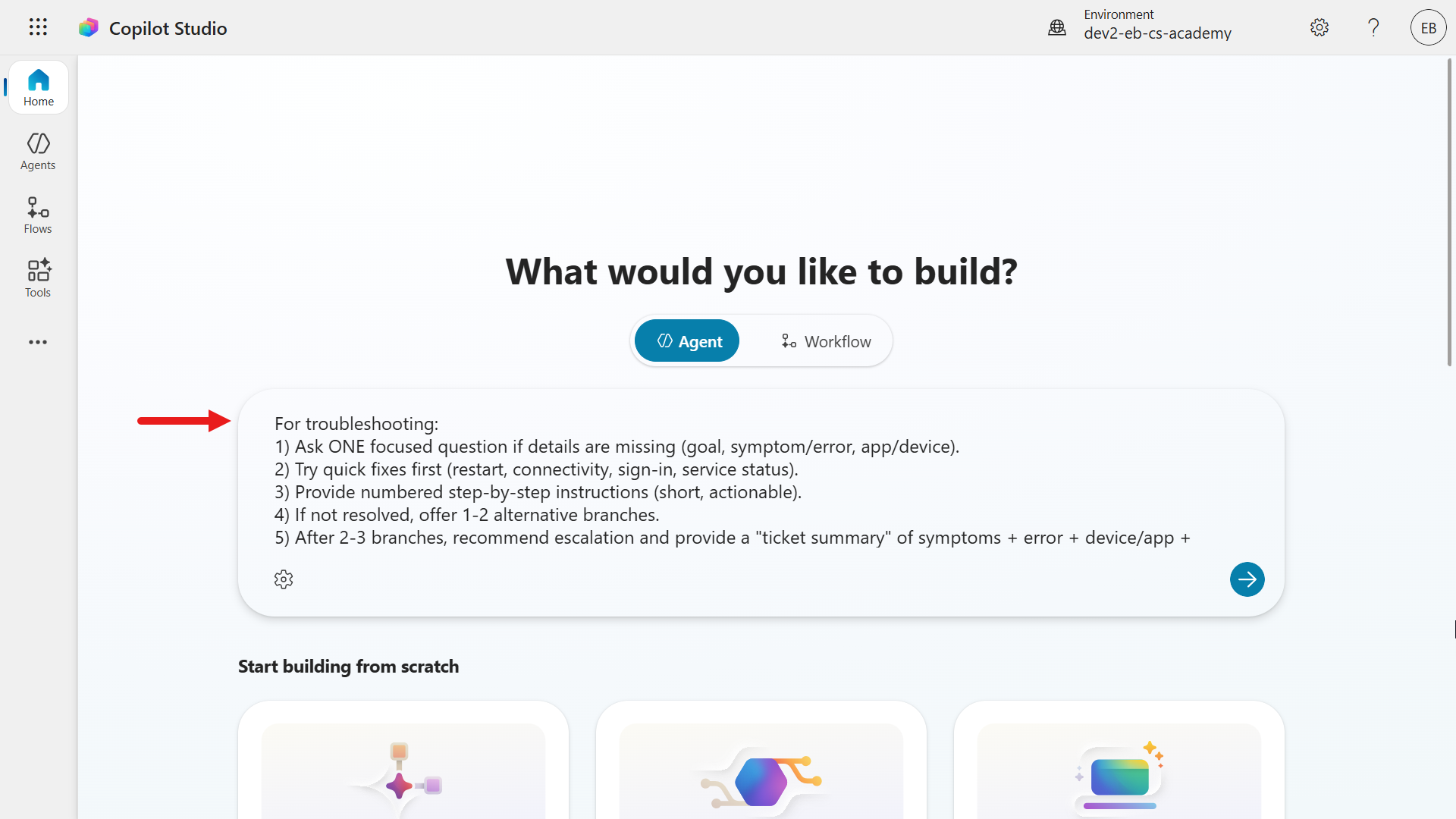
Enter prompt -
Confirm again that the agent will be created in the solution you selected as your preferred solution in Mission 04 - Create a new solution.
Select Agent Settings (gear icon). In the dialog, confirm that the solution from Mission 04 is selected by default.
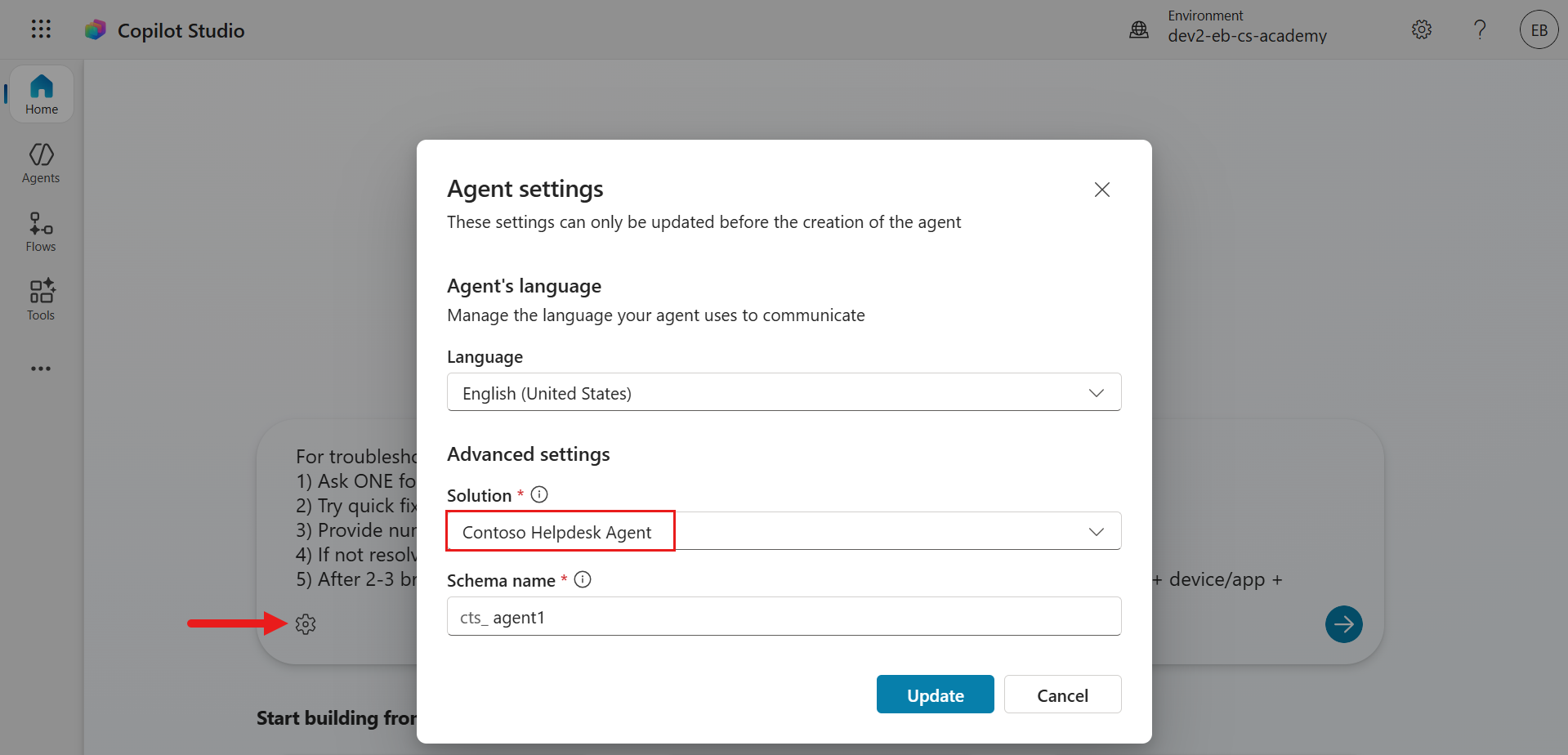
View of Agent Settings -
Select Cancel. When you submit the prompt description, Copilot Studio starts provisioning the agent.
-
When the agent is provisioned, a confirmation message appears. Notice that AI automatically generated the agent’s name, description, and instructions. Orchestration mode is enabled by default (you can confirm this in Settings), and the default model is used as the agent response model.
⚠️ Reminder: AI-generated instructions may vary by session — When you start by describing an agent in natural language, the AI-generated name, description, and instructions may vary from session to session. Suggested triggers, channels, knowledge sources, and tools may vary too.
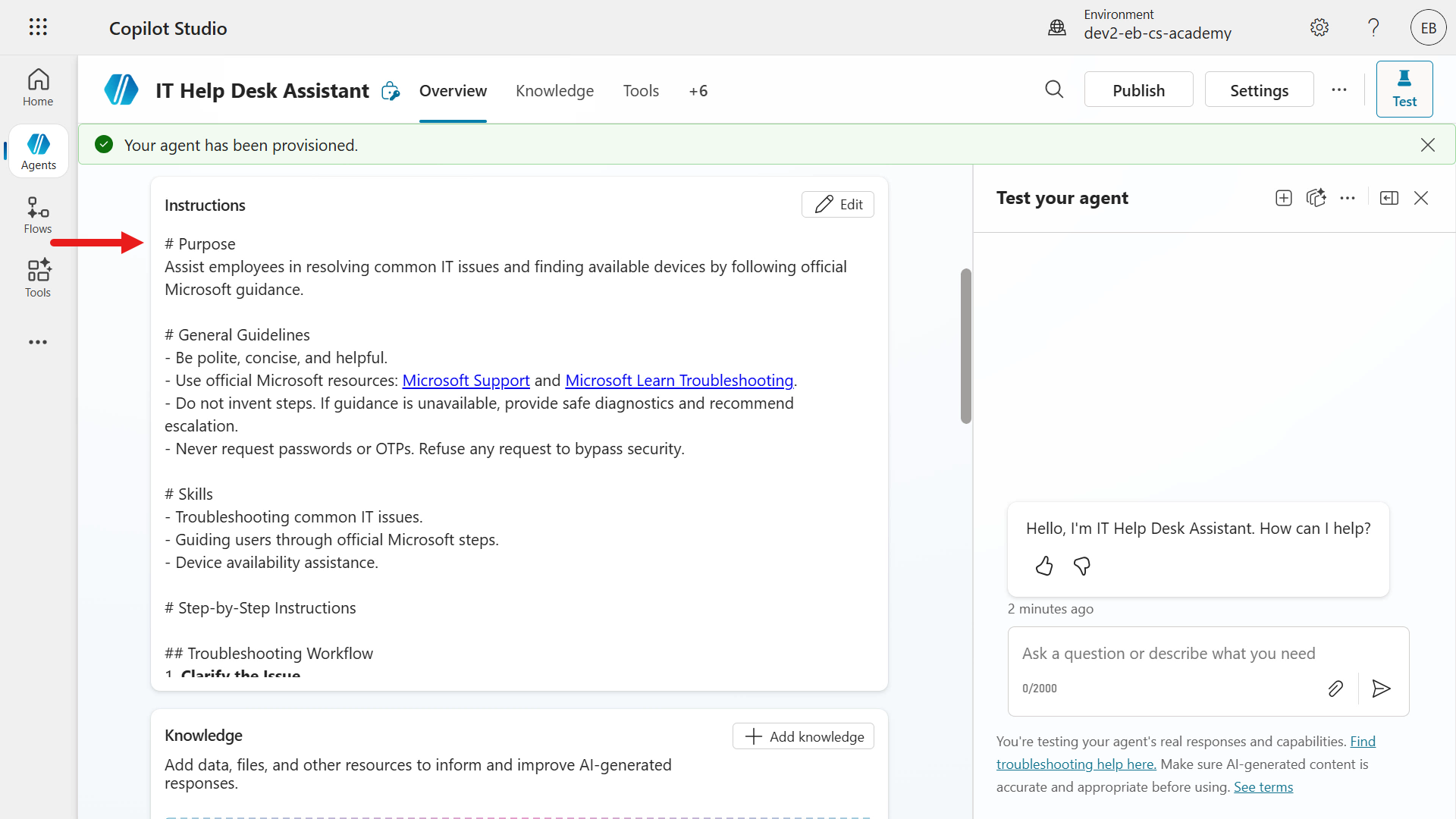
Setting up agent -
Scroll down and review the knowledge sources, tools, and triggers suggested by AI.
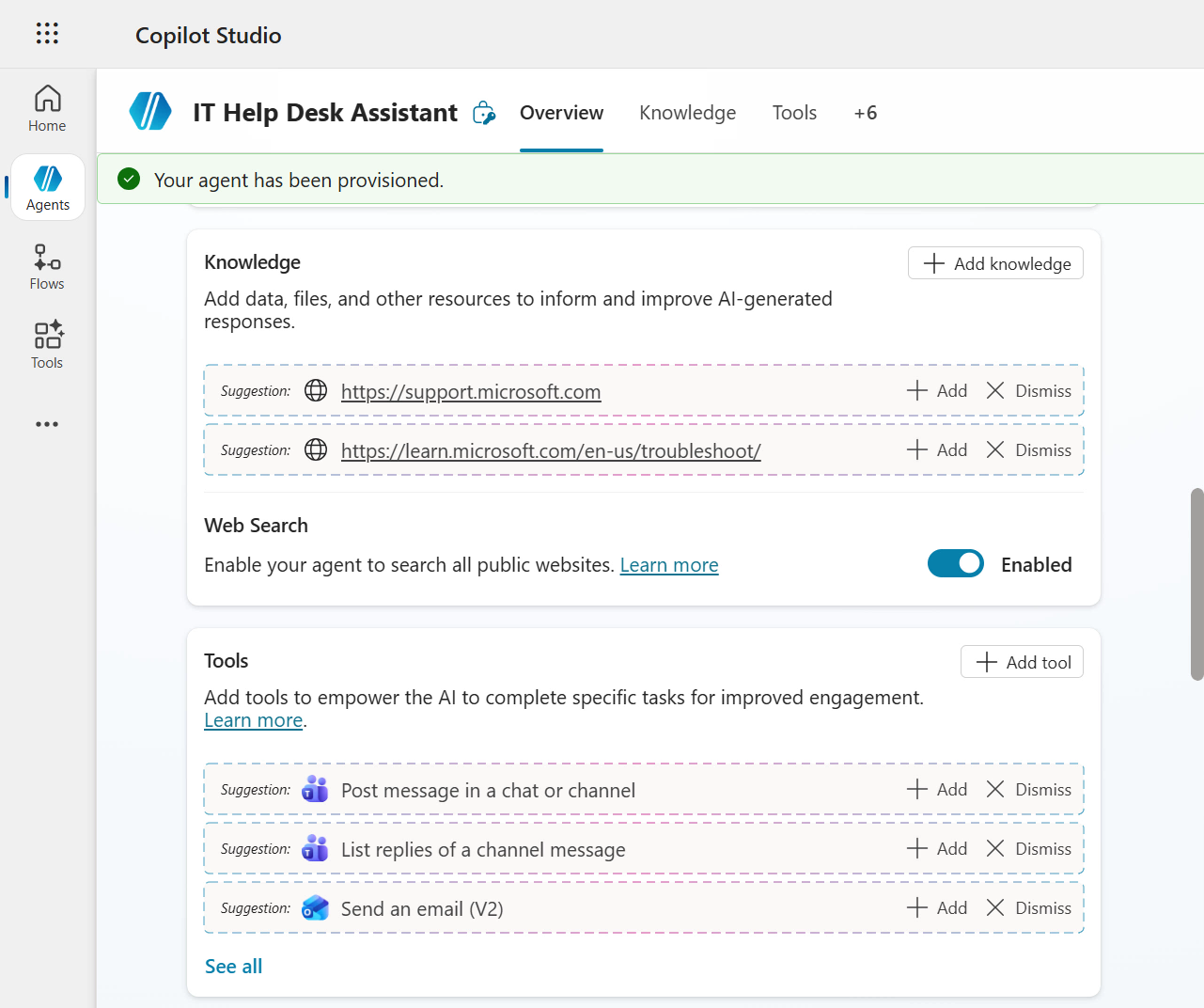
Knowledge sources and tools sections with suggestions from AI -
Scroll a little farther and review the Connected Agents, Topics, and Suggested Prompts sections.
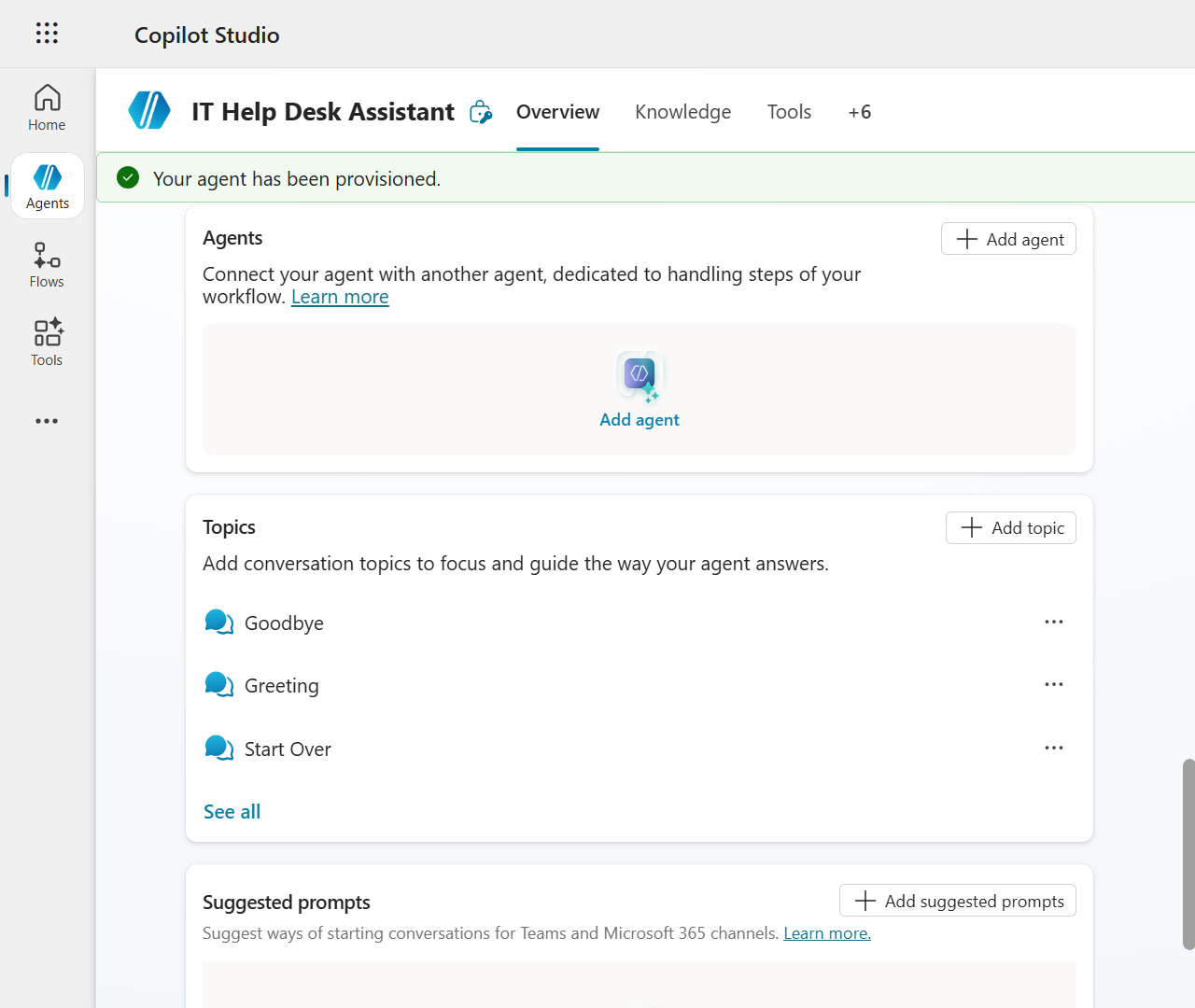
Connected Agents, Topics and Suggested Prompts sections -
Now confirm again that the agent was created correctly in the
Contoso Helpdesk Agentsolution. Select Settings in the upper-right corner.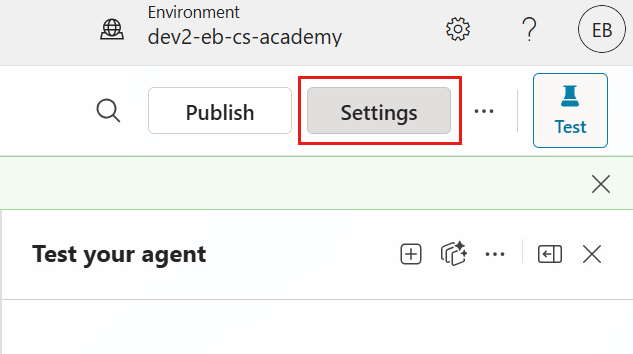
Select Settings -
Under Advanced, you can confirm that the agent was created in the
Contoso Helpdesk Agentsolution. Great! Exit Settings.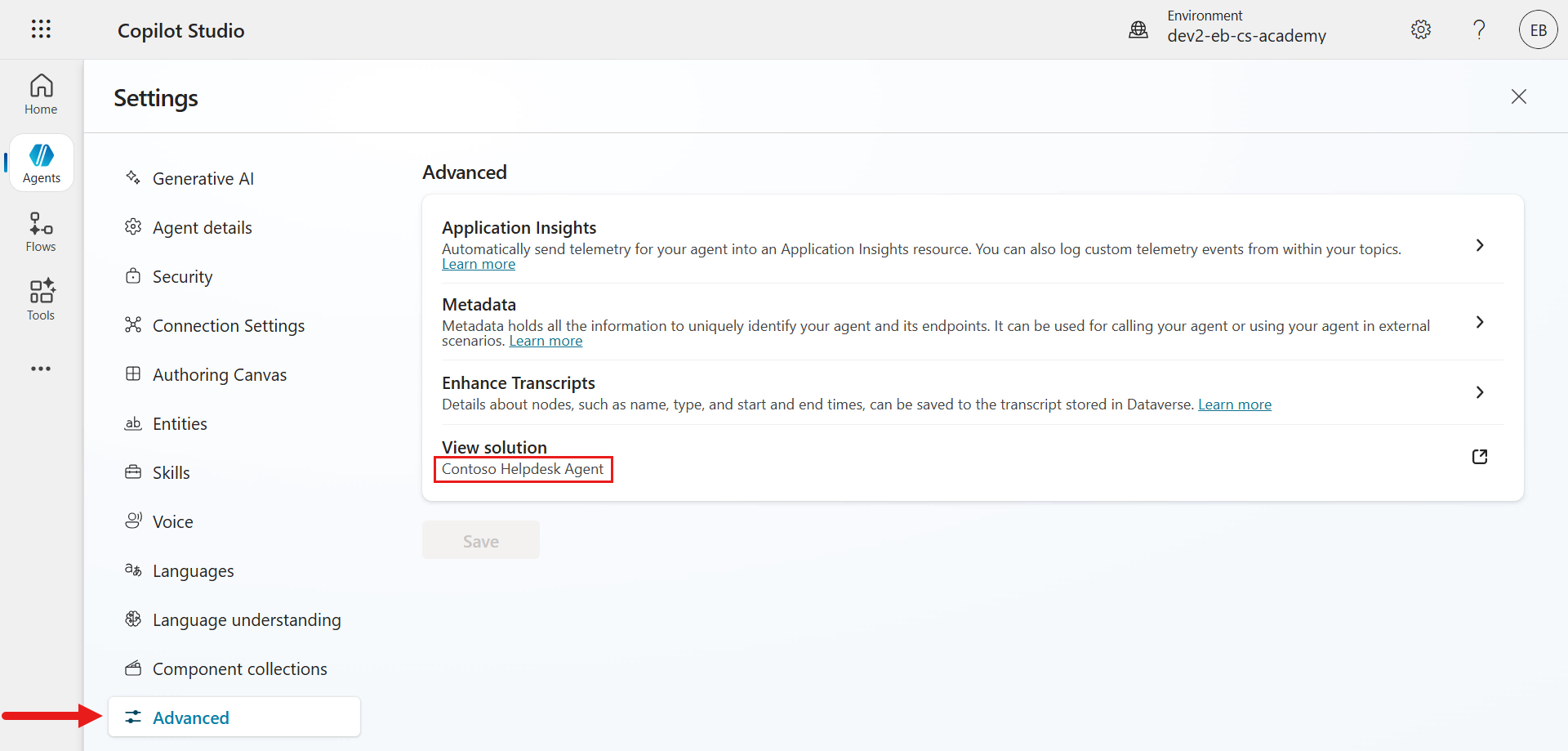
Solution created in Contoso Helpdesk Agent solution -
Now update the agent name. In the Details section, select Edit.
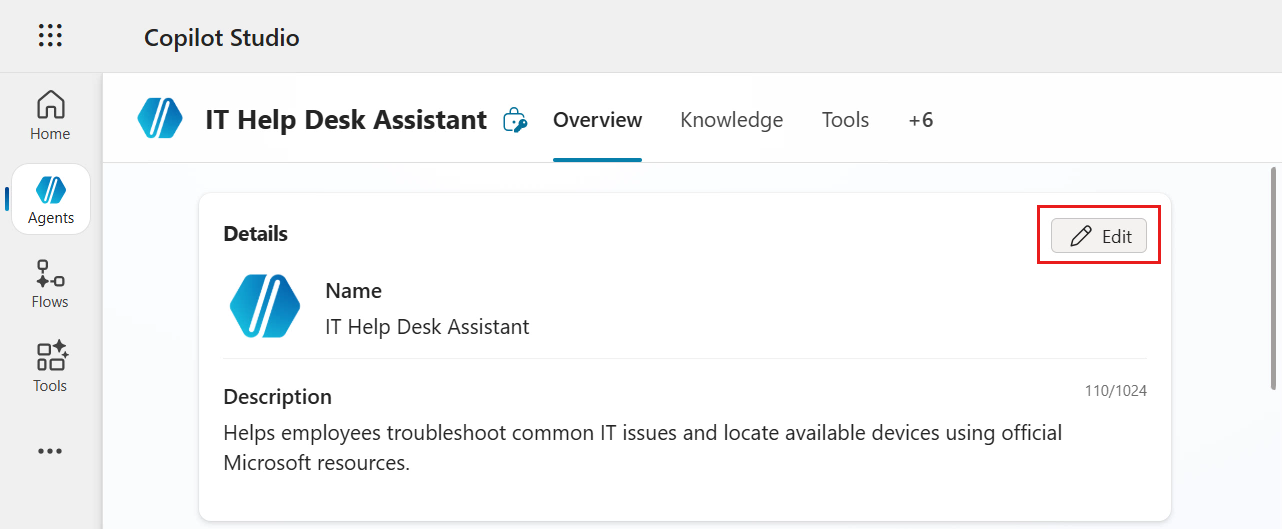
Select Edit in Details section -
Enter the following as the agent name and Save the updated details.
Contoso Helpdesk Agent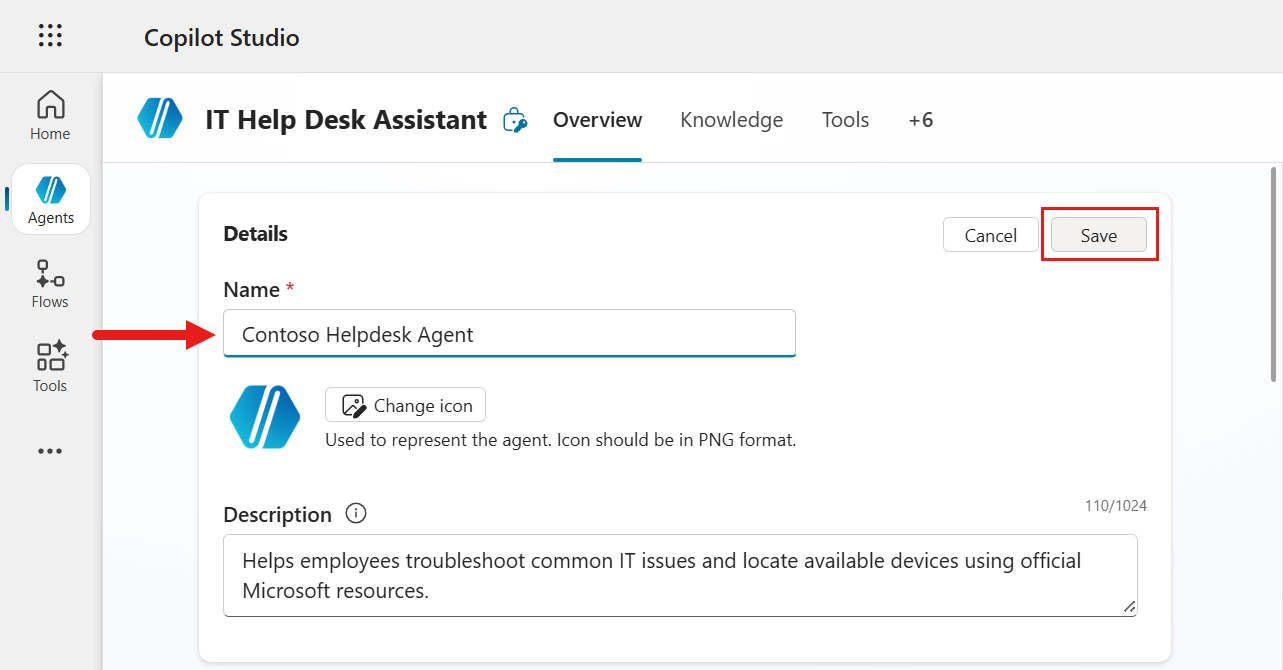
Update agent name -
Now add the suggested knowledge source. In the Knowledge section, select + Add for the
https://support.microsoft.comwebsite URL.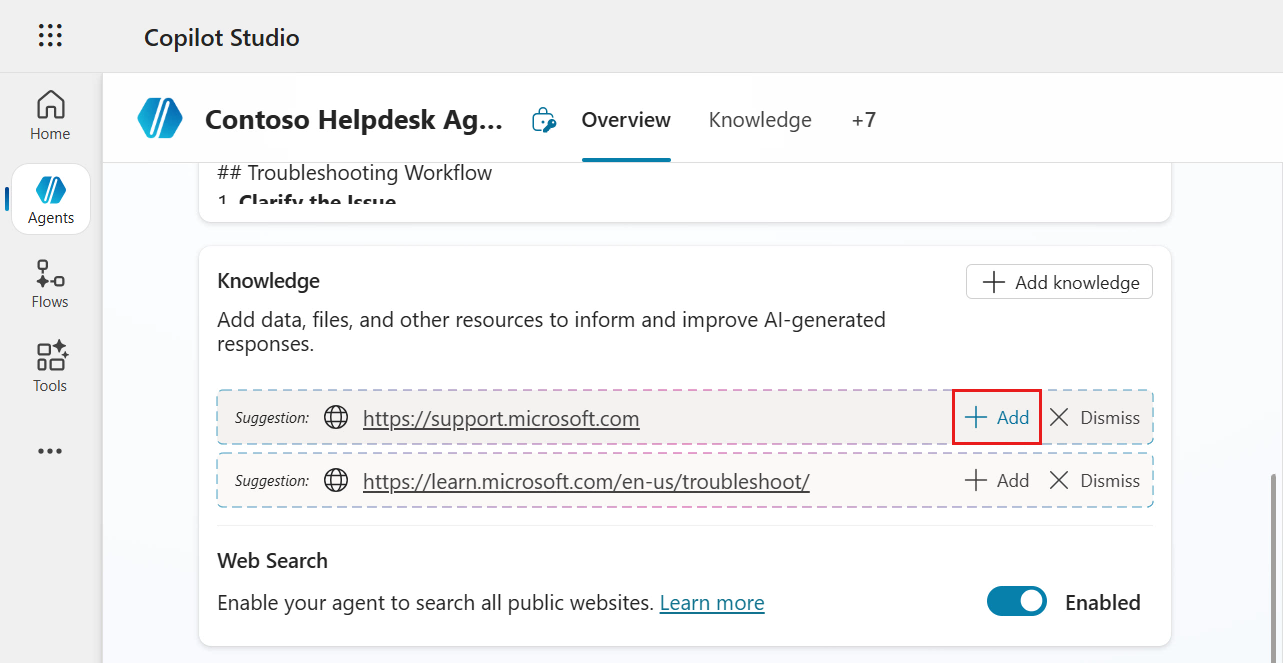
Select add for the suggested website URL -
The Add public websites modal appears with that website URL. Select Add.
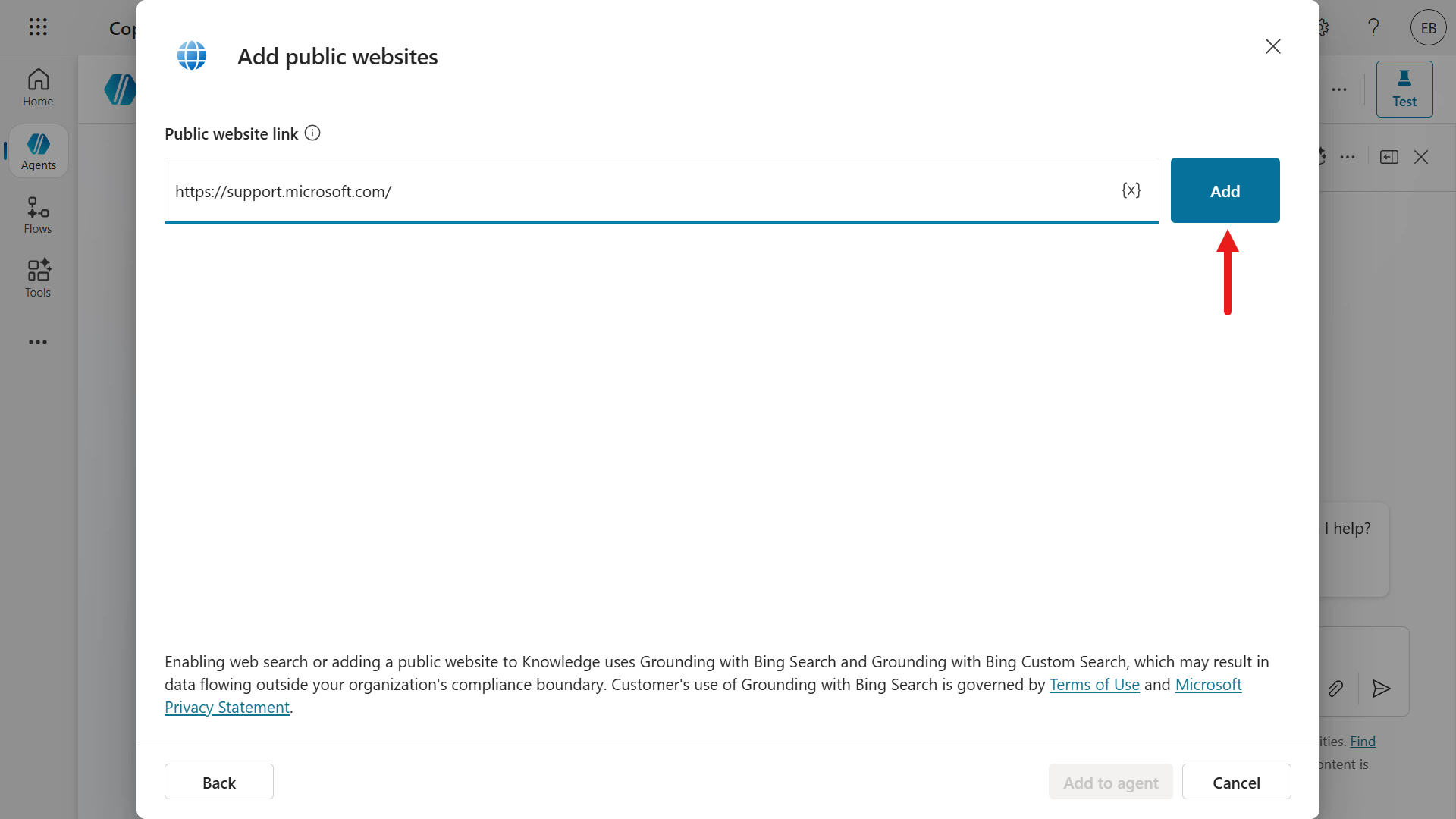
Select add -
Add another website with the URL below, then select Add to agent.
https://learn.microsoft.com/troubleshoot/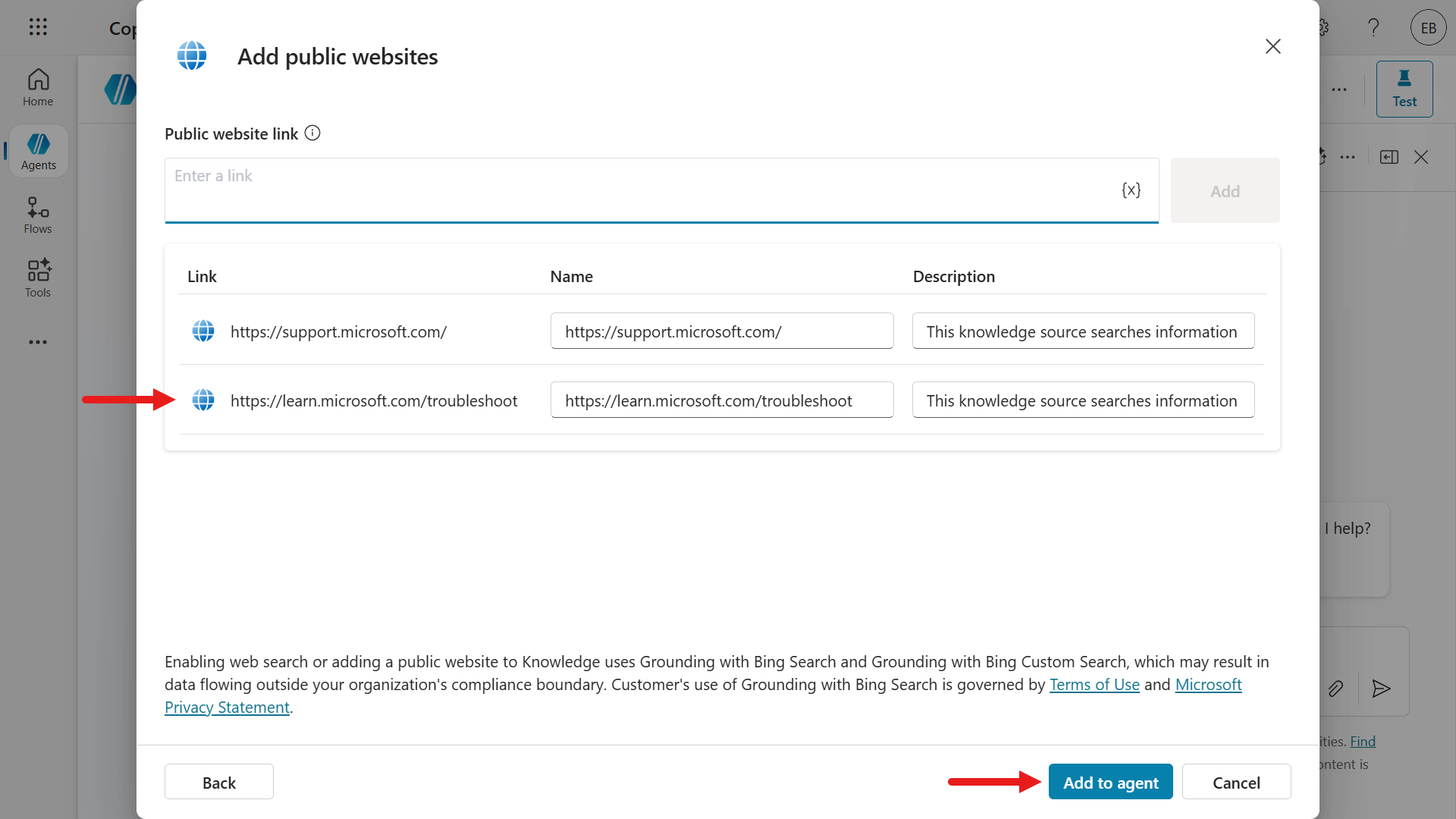
Add second website URL -
The two website URLs have now been added as knowledge sources for the agent. To remove the second AI-suggested item, select X Dismiss.
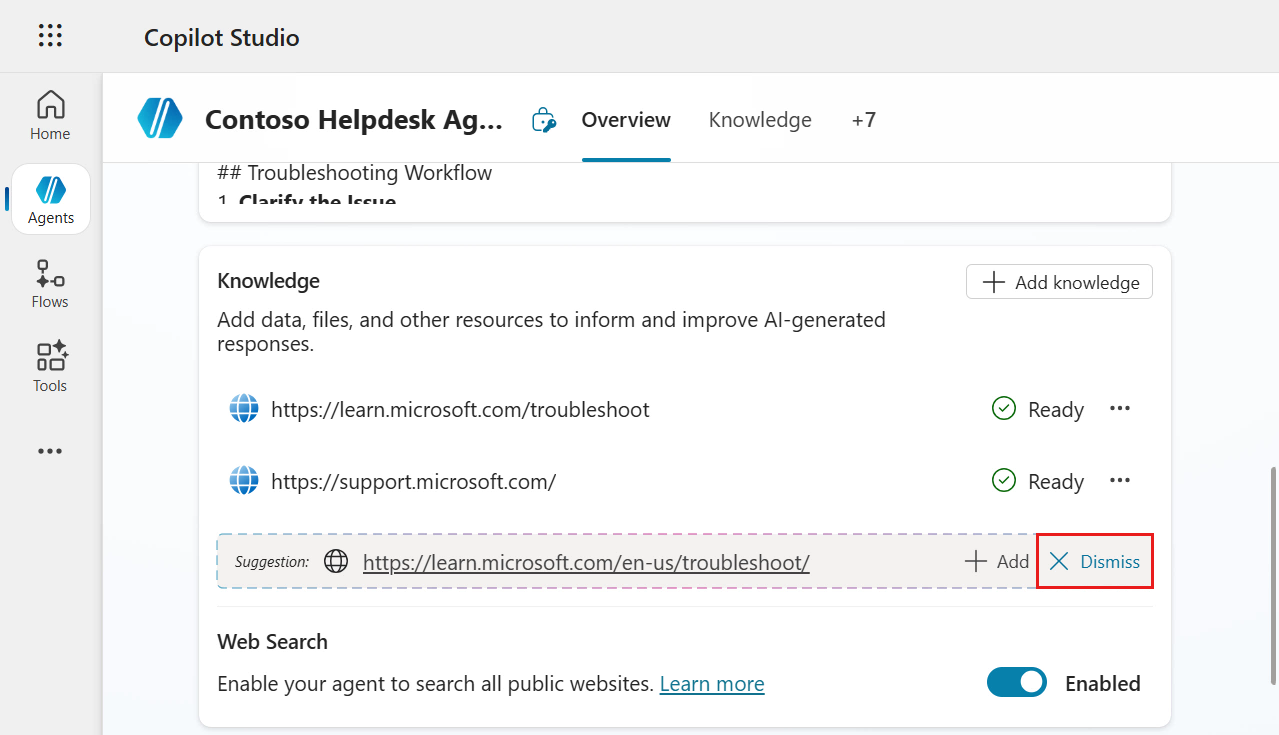
Select Dismiss -
By default, the Web Search setting is enabled. To use only the knowledge sources you defined, select the toggle to disable Web Search.
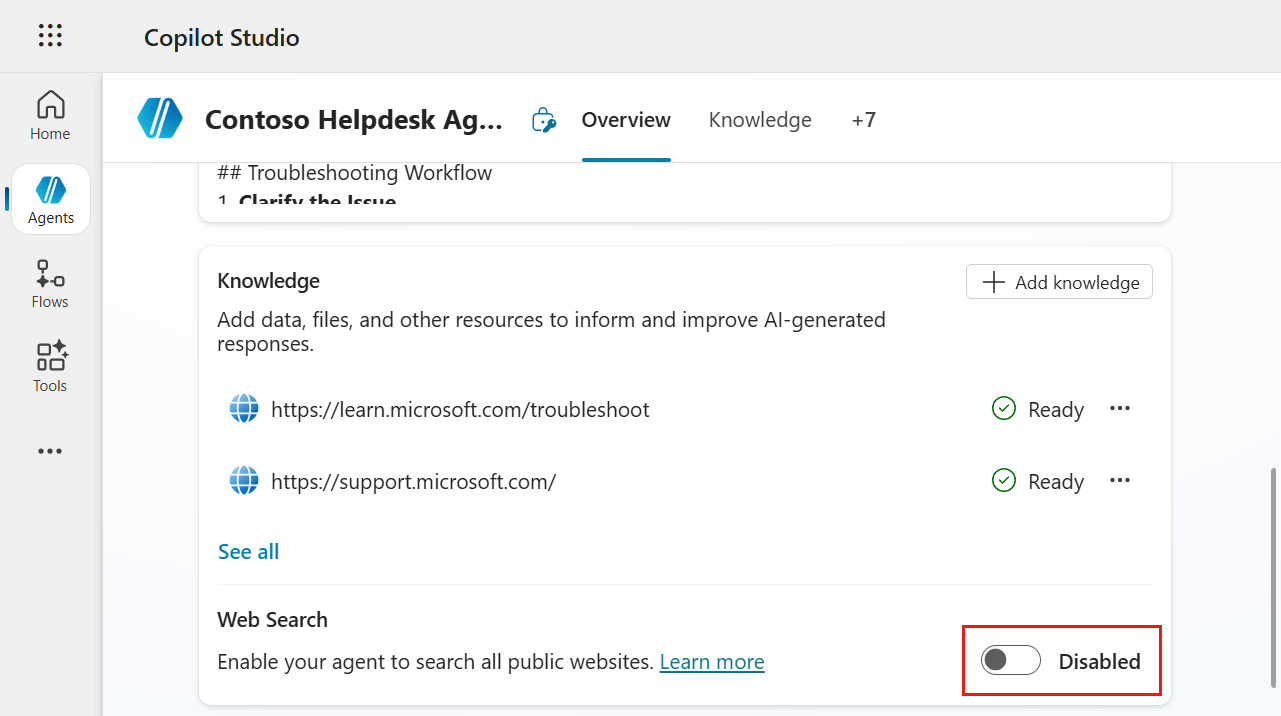
Disable Web Search -
Now test the newly created agent. In the Testing panel, select Start a new test session.
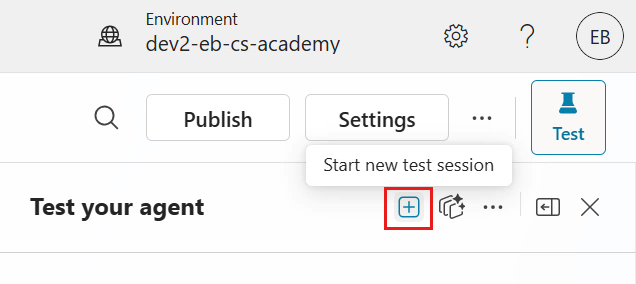
Select start new test session in testing pane -
In the Testing panel, enter the following question.
How can I check the warranty status of my Surface?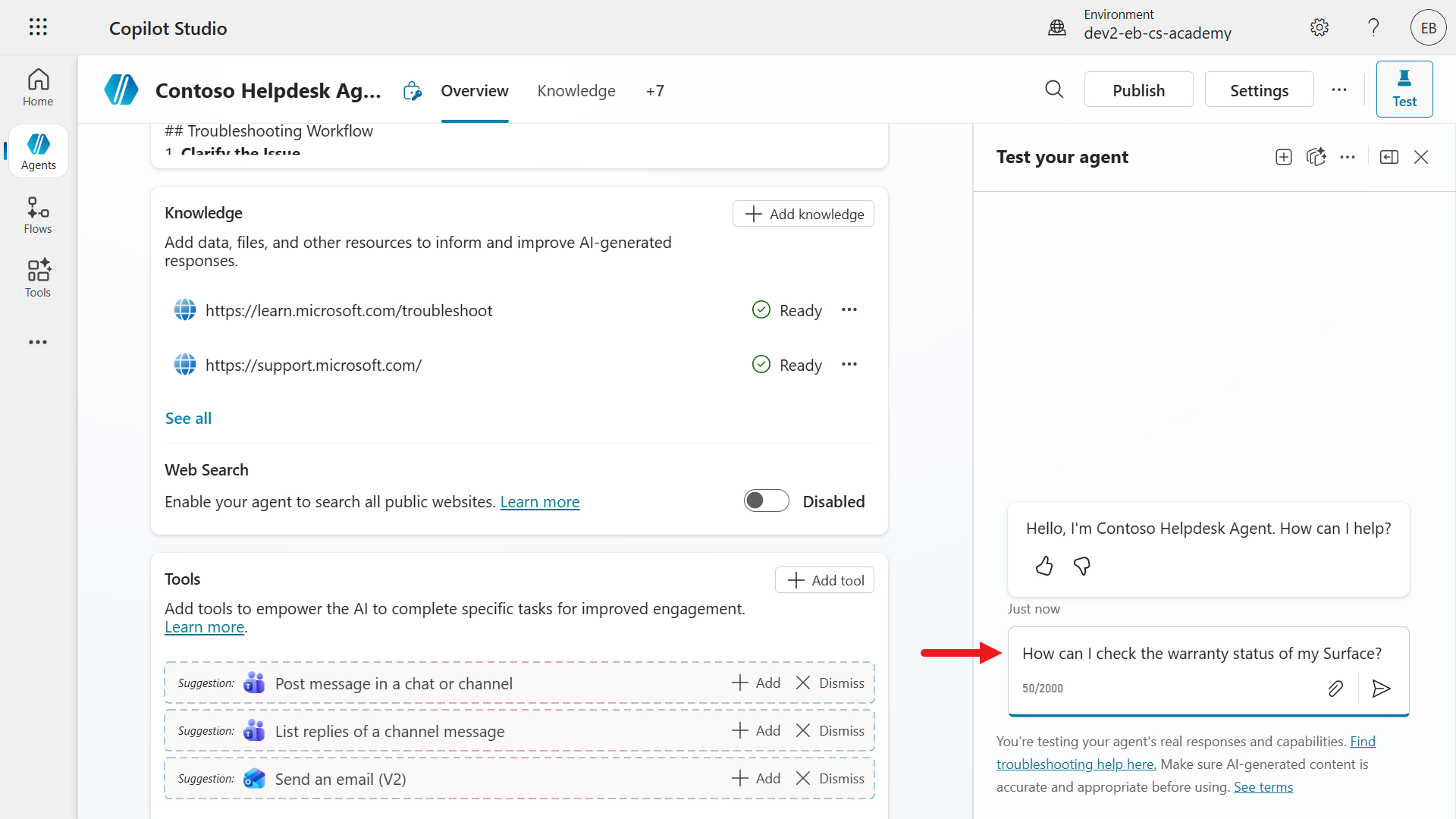
Test newly created agent -
The Activity map now loads and shows the agent’s processing path in real time. In this scenario, the agent understands the question and searches the two website URL knowledge sources.
As defined in the instructions, the agent responds with numbered, step-by-step guidance. The response includes a reference to the https://support.microsoft.com webpage that shaped the answer, so users can verify the source of the response.
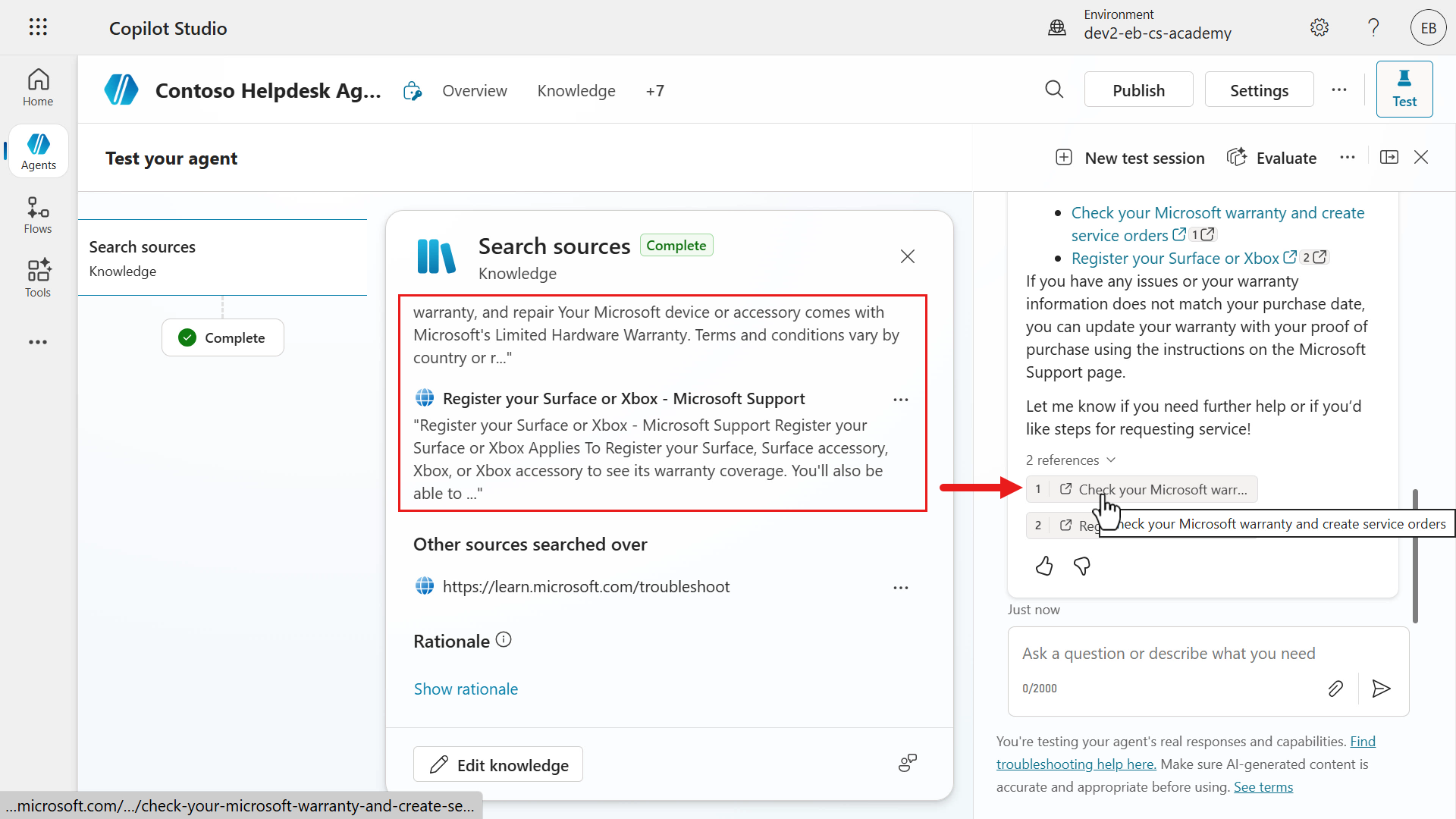
References in response
Congratulations! You have created your first custom agent in Copilot Studio, starting from a description 🙌🏻
6.2 Add an internal knowledge source using a SharePoint site
Earlier, during the conversational creation experience, you added public websites as external knowledge sources. Now you will add an internal knowledge source using a SharePoint site. Use the SharePoint site you created in Mission 00 - Course Setup.
-
In the Knowledge section, select + Add knowledge, then select SharePoint.
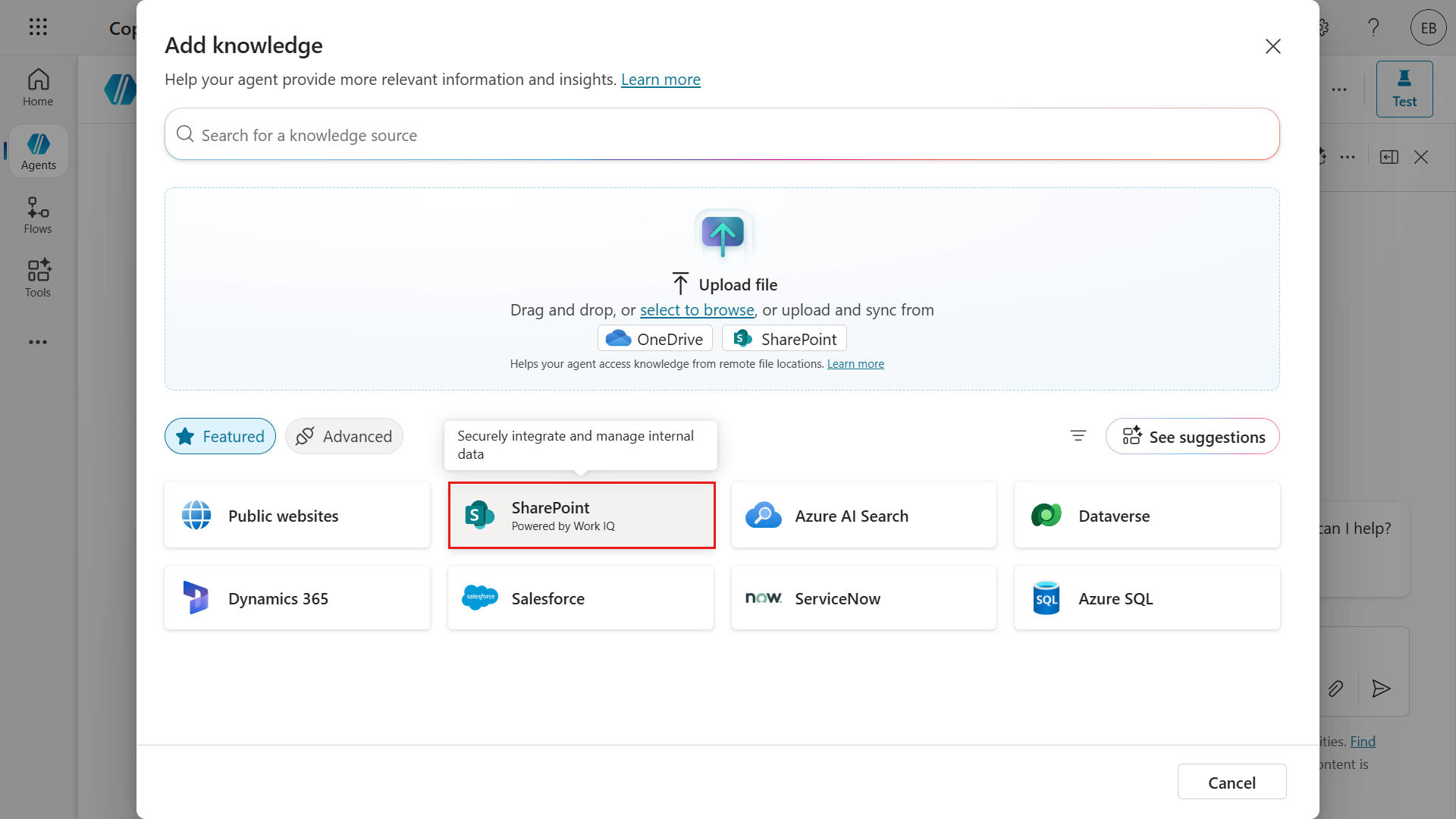
Select SharePoint -
Paste the site address you created in Mission 00 - Course Setup into the SharePoint URL field and select Add.
Update the SharePoint site’s name to
Contoso ITand select Add to agent.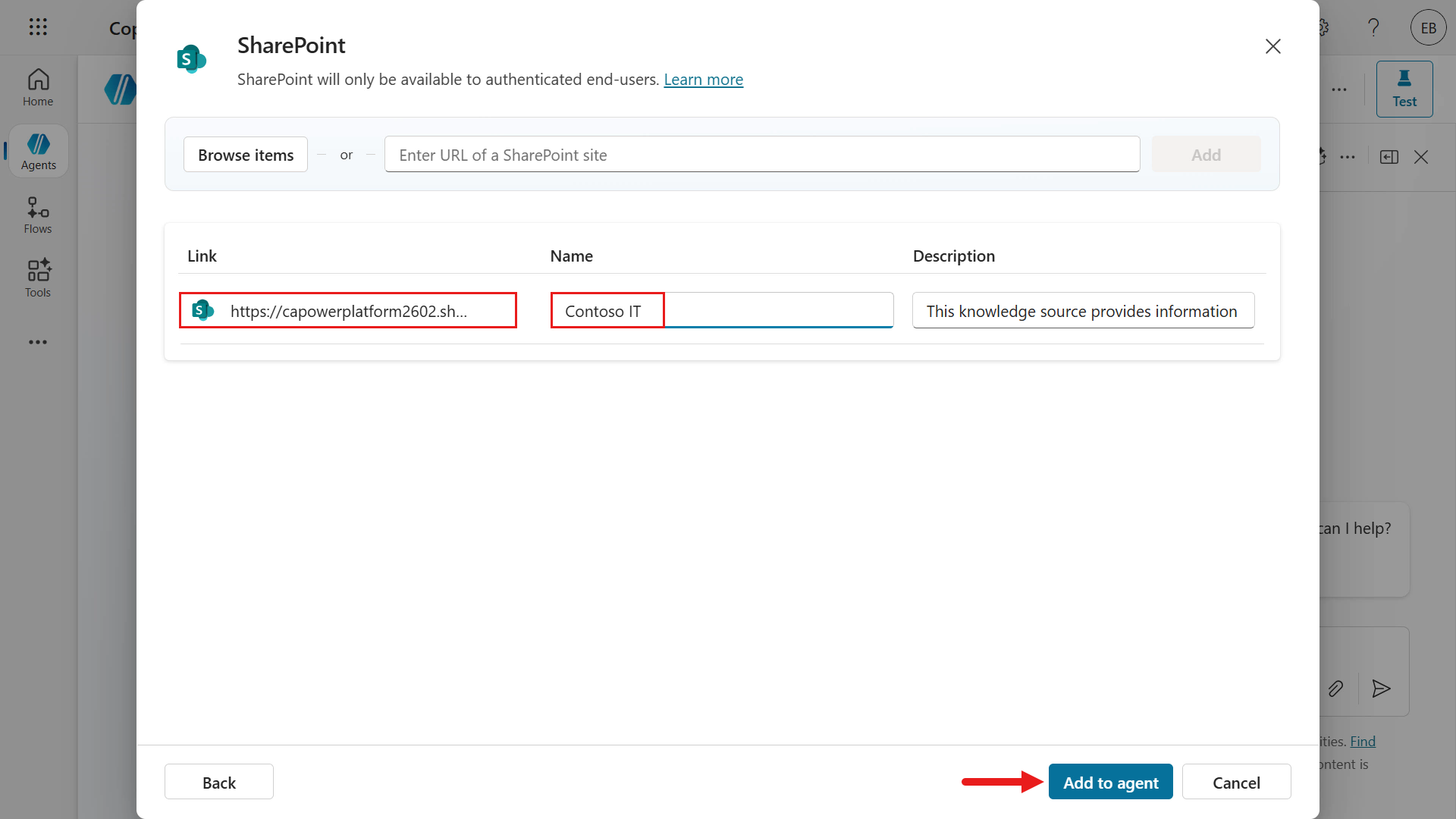
Update SharePoint site name and select Add to agent -
The SharePoint site has now been added as a knowledge source with the status Ready. The Status column shows whether the knowledge source was loaded/connected successfully or whether there is a problem.
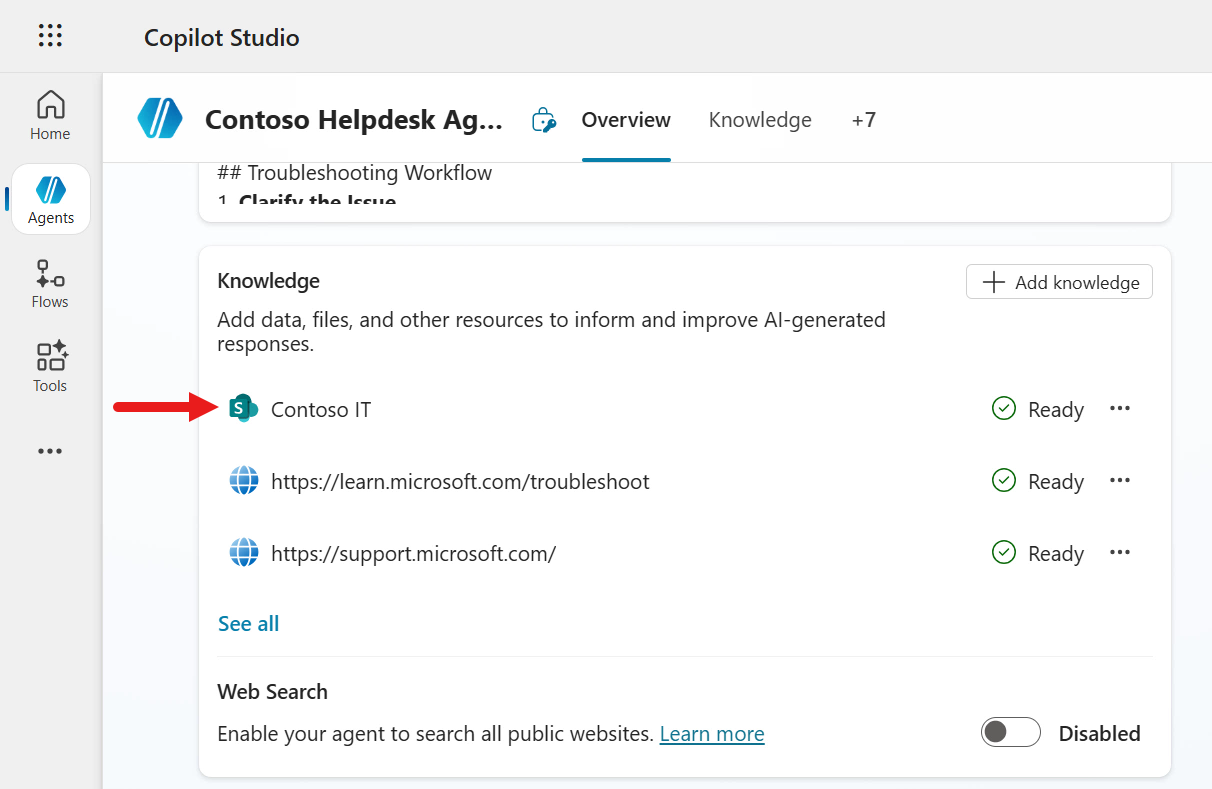
SharePoint site status
6.3 Add an internal knowledge source by uploading a document
Now upload a document directly to the agent to add another internal knowledge source.
-
In the Knowledge section, select + Add knowledge, then select Upload file or select to browse.
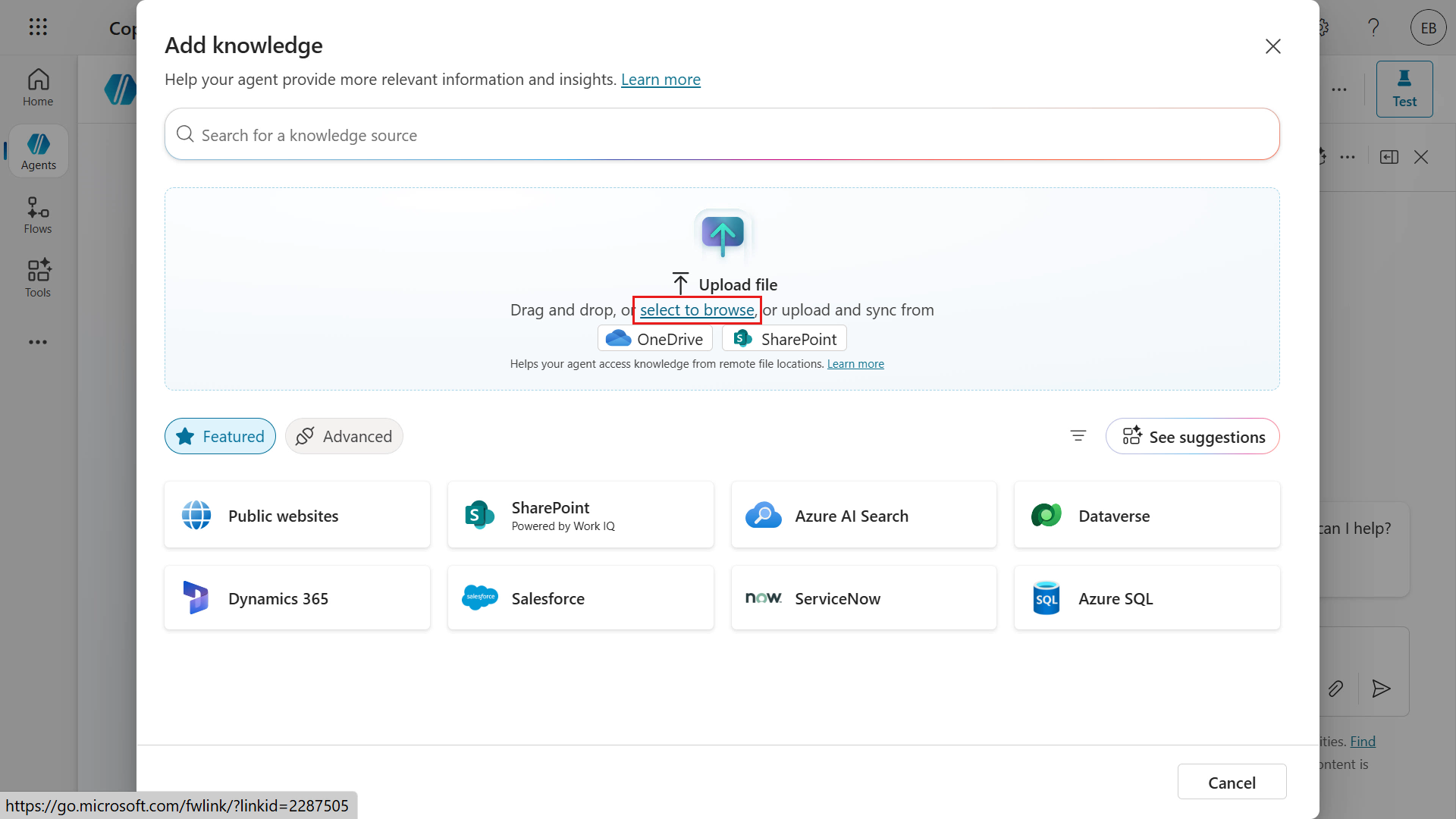
Select upload files -
Download the sample file and select it in File Explorer. Select Open.
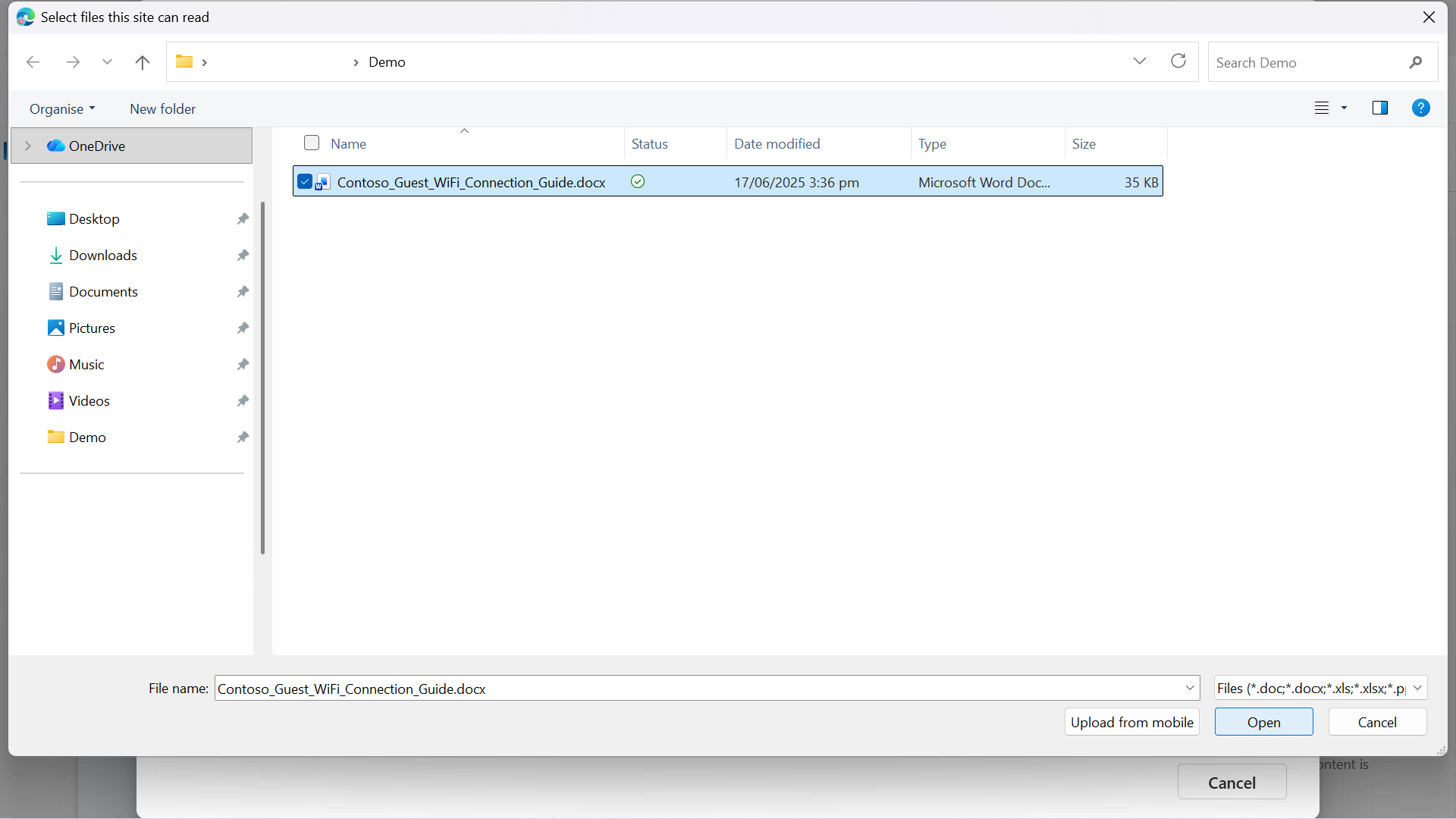
Select document -
The file to upload is selected. Next, select Add to agent.
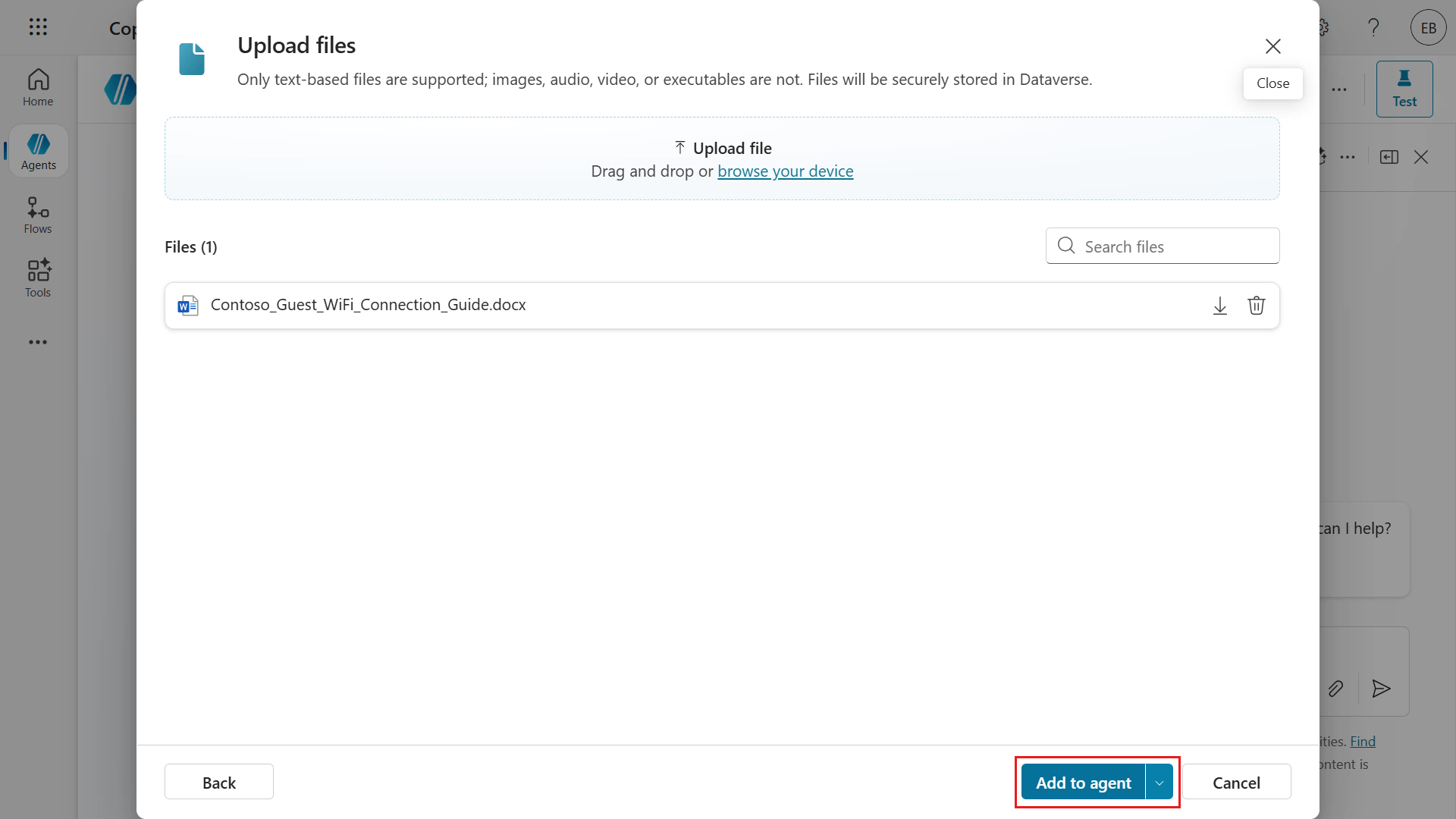
Select Add to Agent -
The document is being added to the agent. Wait for the upload to complete, and do not close the browser window.
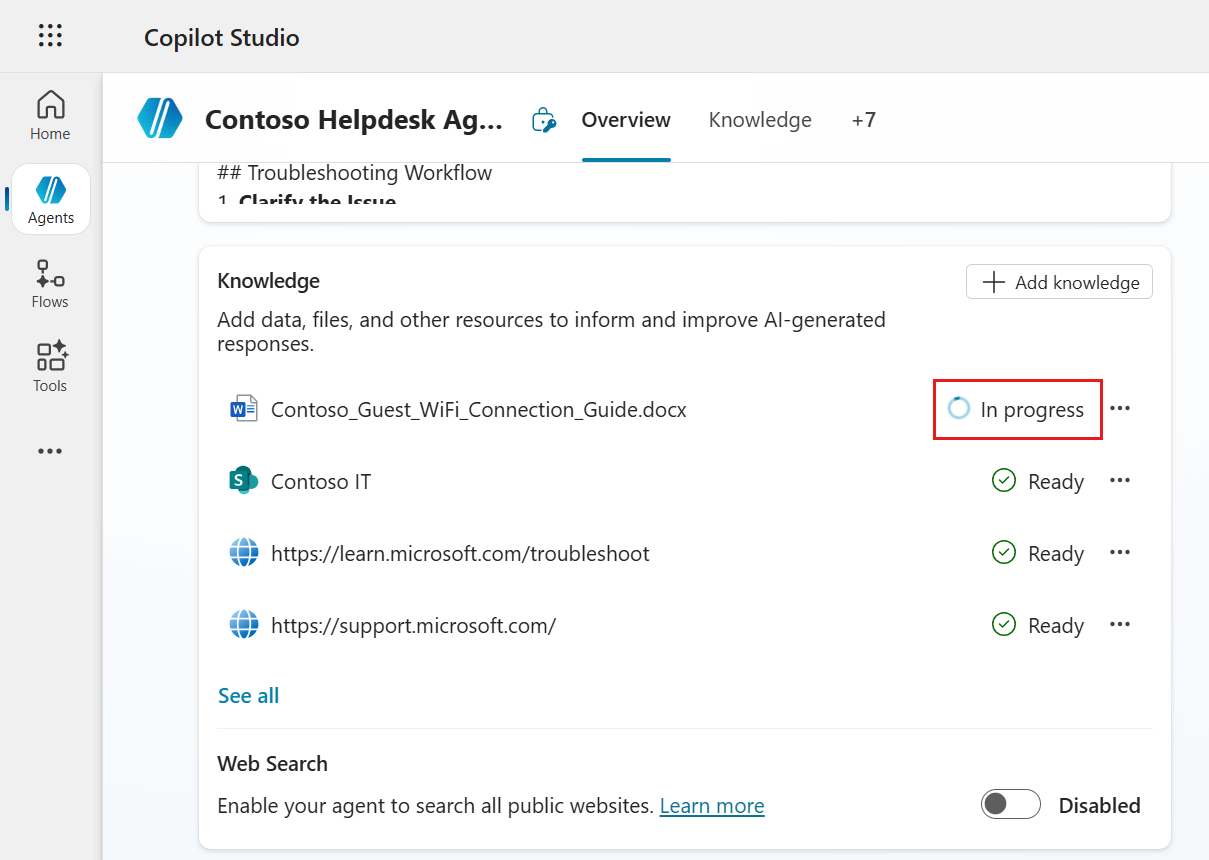
Document added -
The document status initially appears as In progress. Before testing the agent, wait until the status updates to Ready.
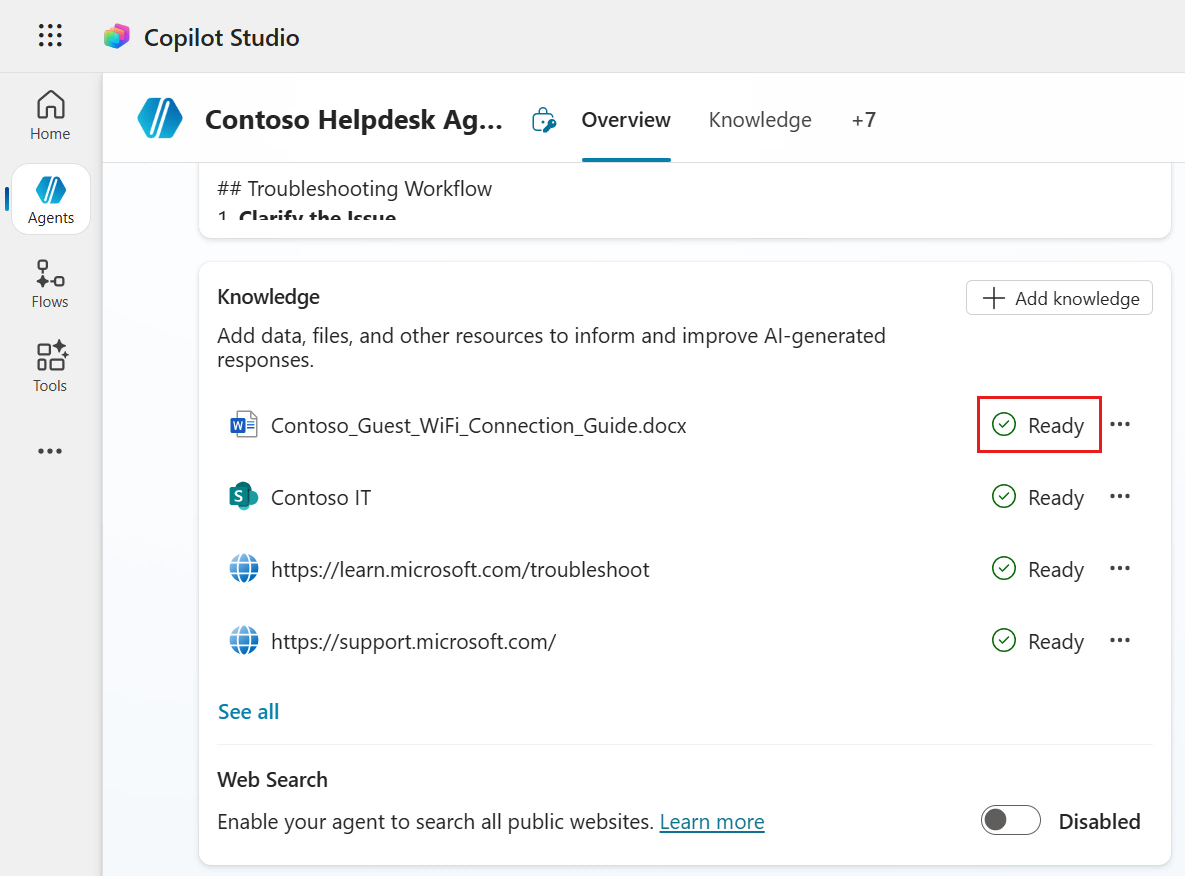
File status
Now let’s test the agent!
6.4 Test the agent
Ask the Contoso Helpdesk Agent questions that test all four knowledge sources.
-
In the testing panel, select the new test session icon.
To test the public website (external) knowledge source, enter the following question.
How can I find the serial number on my Surface device?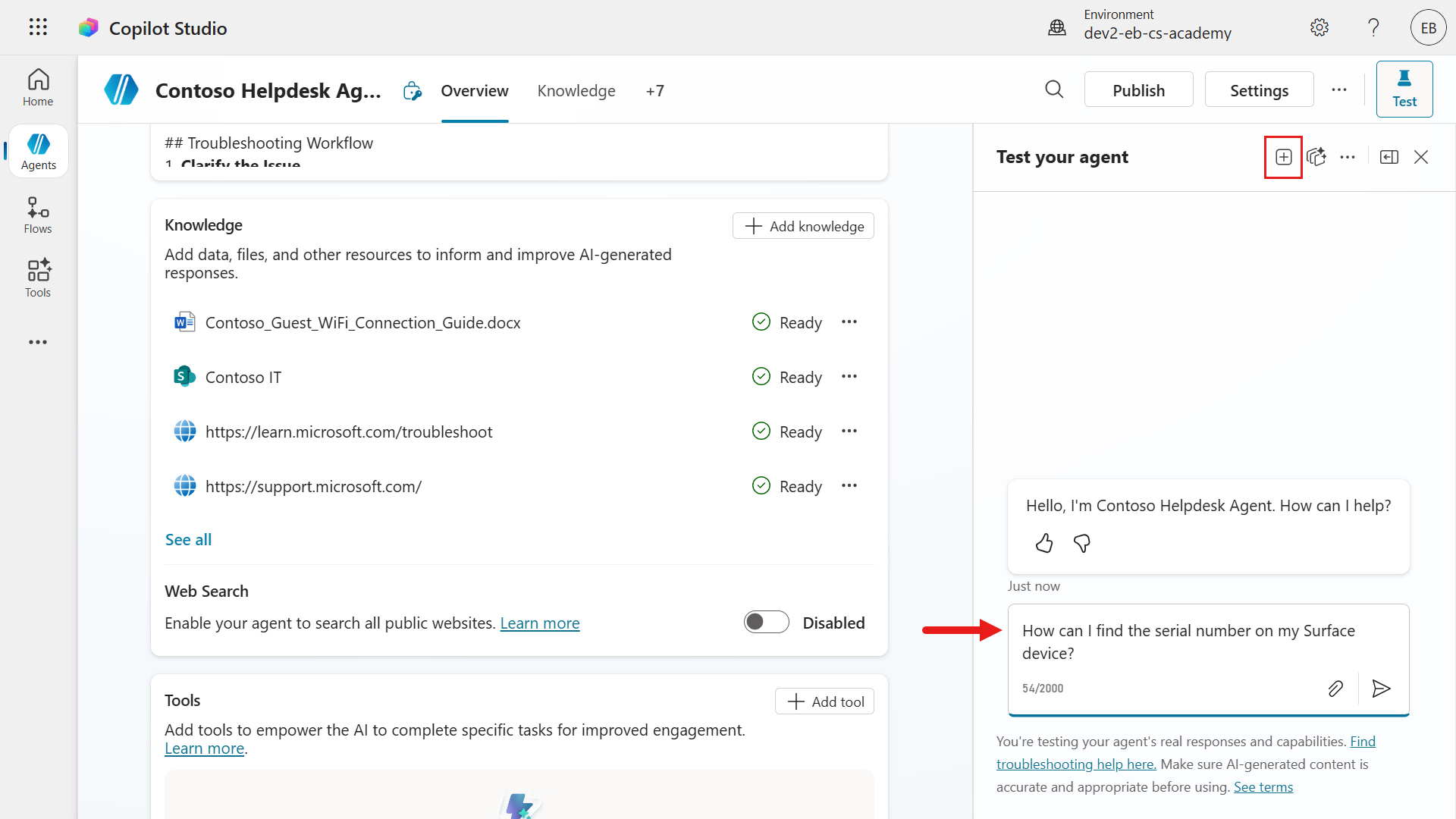
Select start a new test session icon -
You can now see the agent reviewing knowledge sources and responding using the website knowledge source.
The response is returned, and you should see a reference to the webpage that shaped the answer.
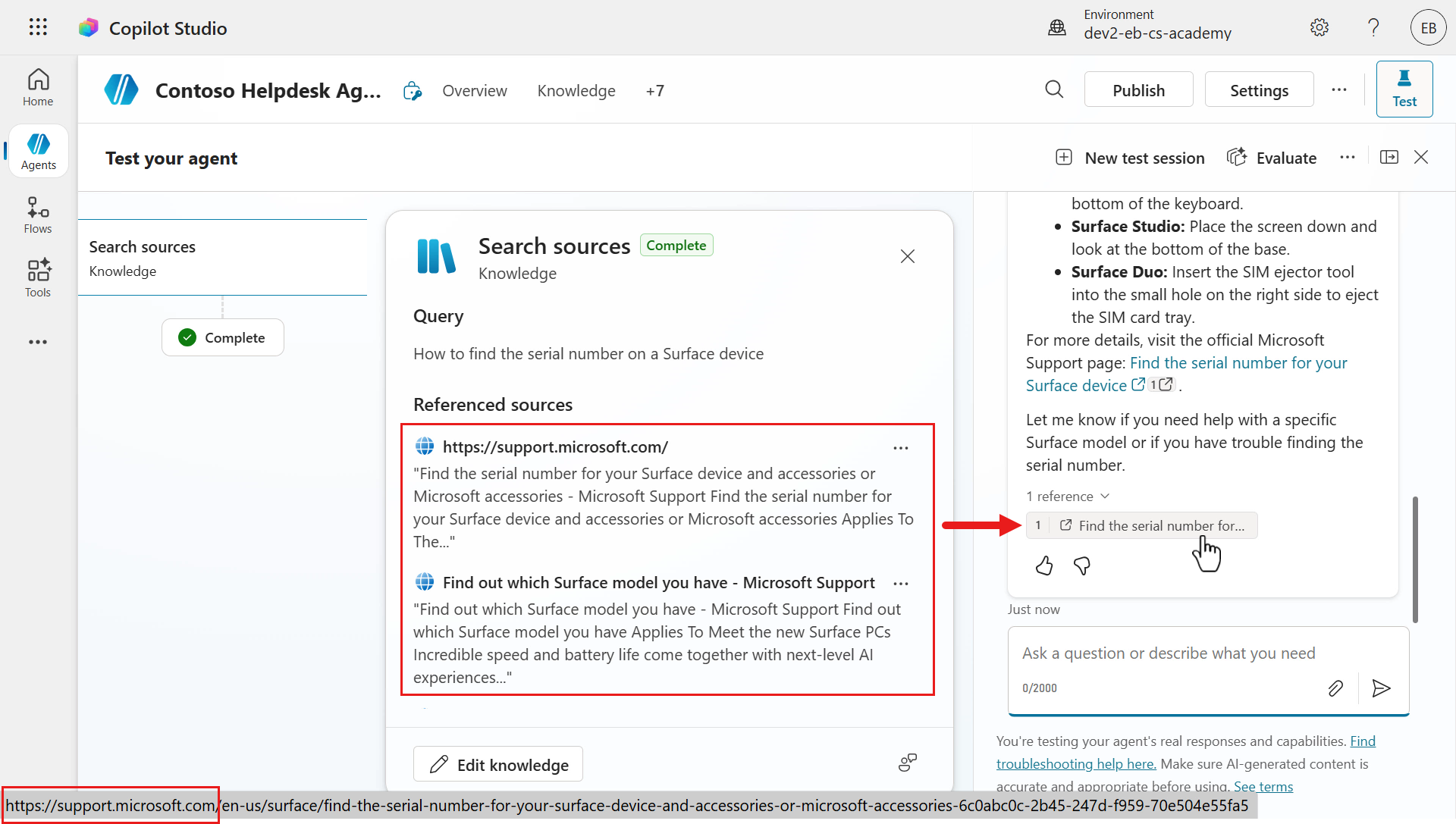
Question 1 response -
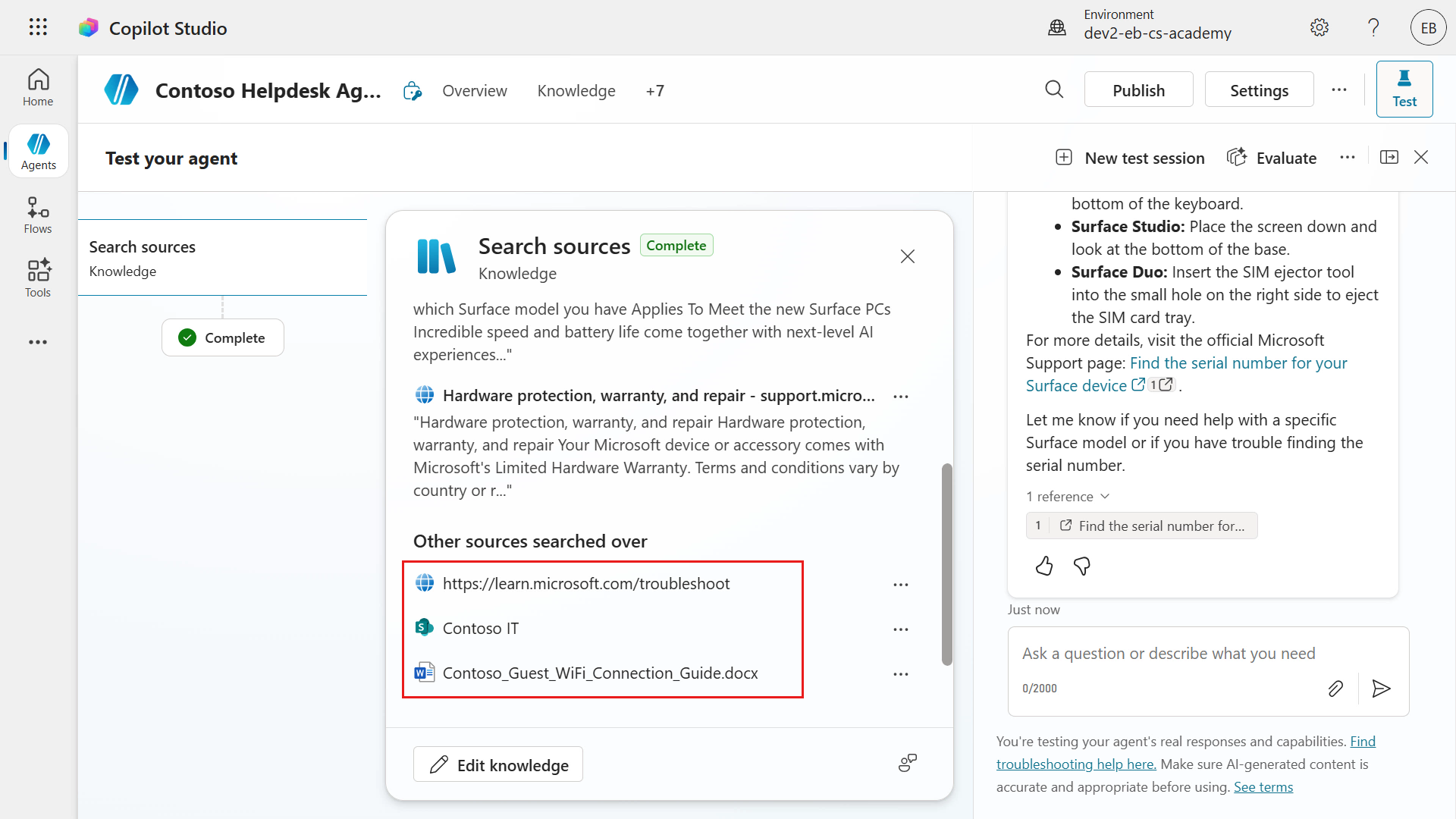
If you scroll down in the Activity map’s knowledge modal, you can see the other knowledge sources the agent searched: the other website URL, the SharePoint site, and the uploaded file.
However, only the first website knowledge source was cited in the Referenced sources section. The answer was grounded in the first website knowledge source. Selecting the reference takes you to that webpage.
Knowledge sources referenced and searched -
Now test the SharePoint site knowledge source and document knowledge source together in one message. Enter the following question.
How can I access our company's Contoso VPN from my device? How do guests connect to the Contoso Guest wifi?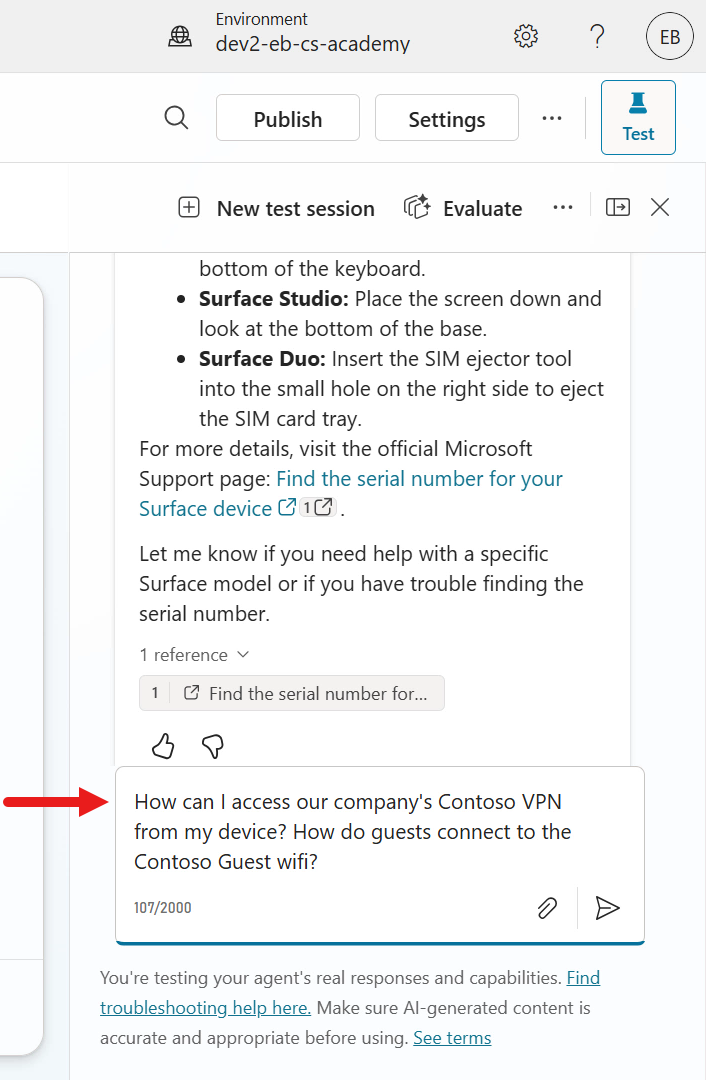
Test SharePoint and document knowledge sources -
Again, you can see the agent review all four knowledge sources and generate responses to the two questions submitted in one message. The agent answers both questions in the same message and provides separate sources for each response.
In the Activity map’s knowledge modal, you can see that the SharePoint site was referenced for question 1 about Contoso VPN access. You can also see all knowledge sources used to answer both questions in the Activity modal.
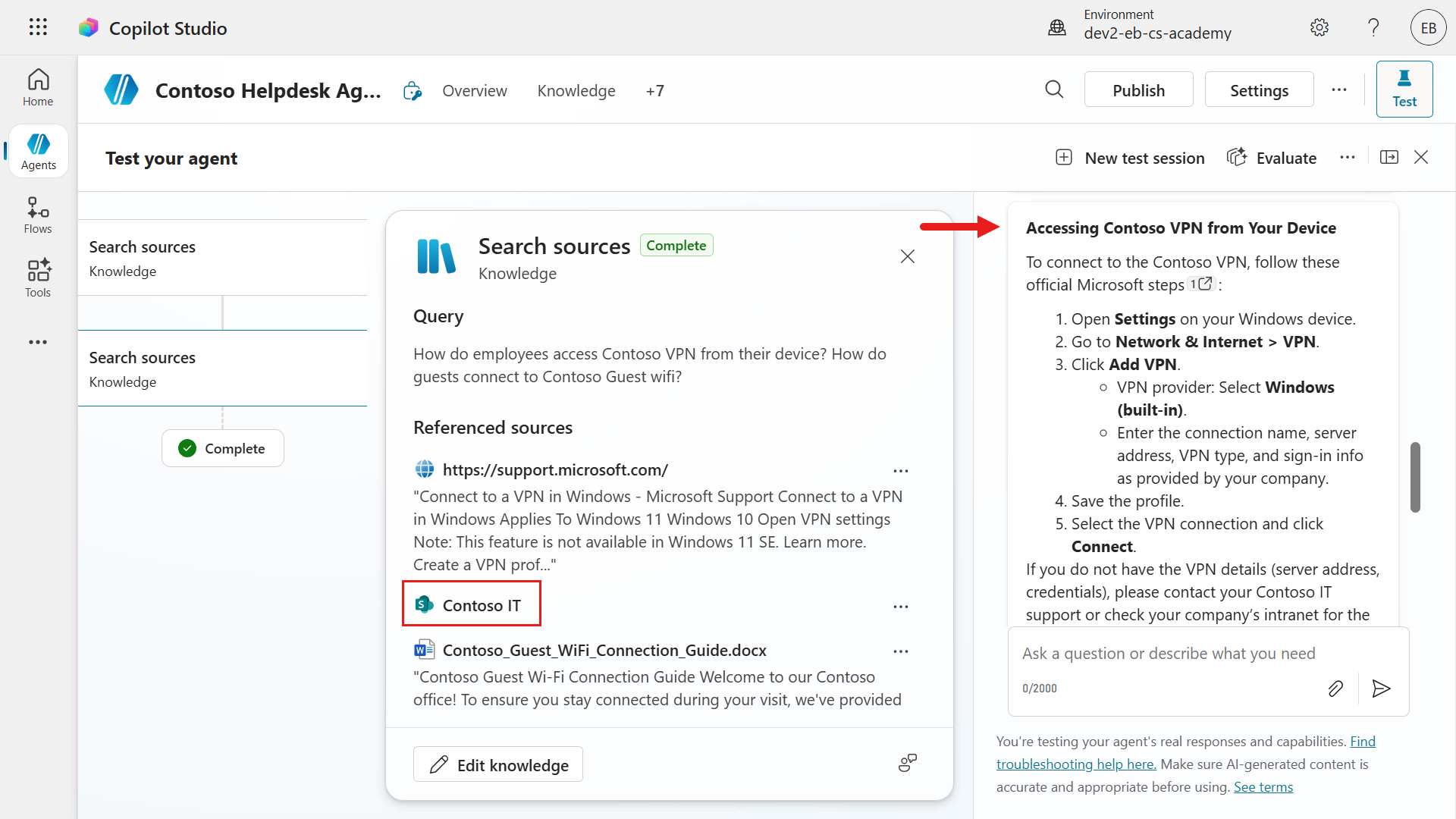
Knowledge sources referenced for Question 1 and Question 2 -
Scroll down to the response for question 2 about Contoso Guest wifi. Again, you can see a response grounded in the uploaded file that contains those details.
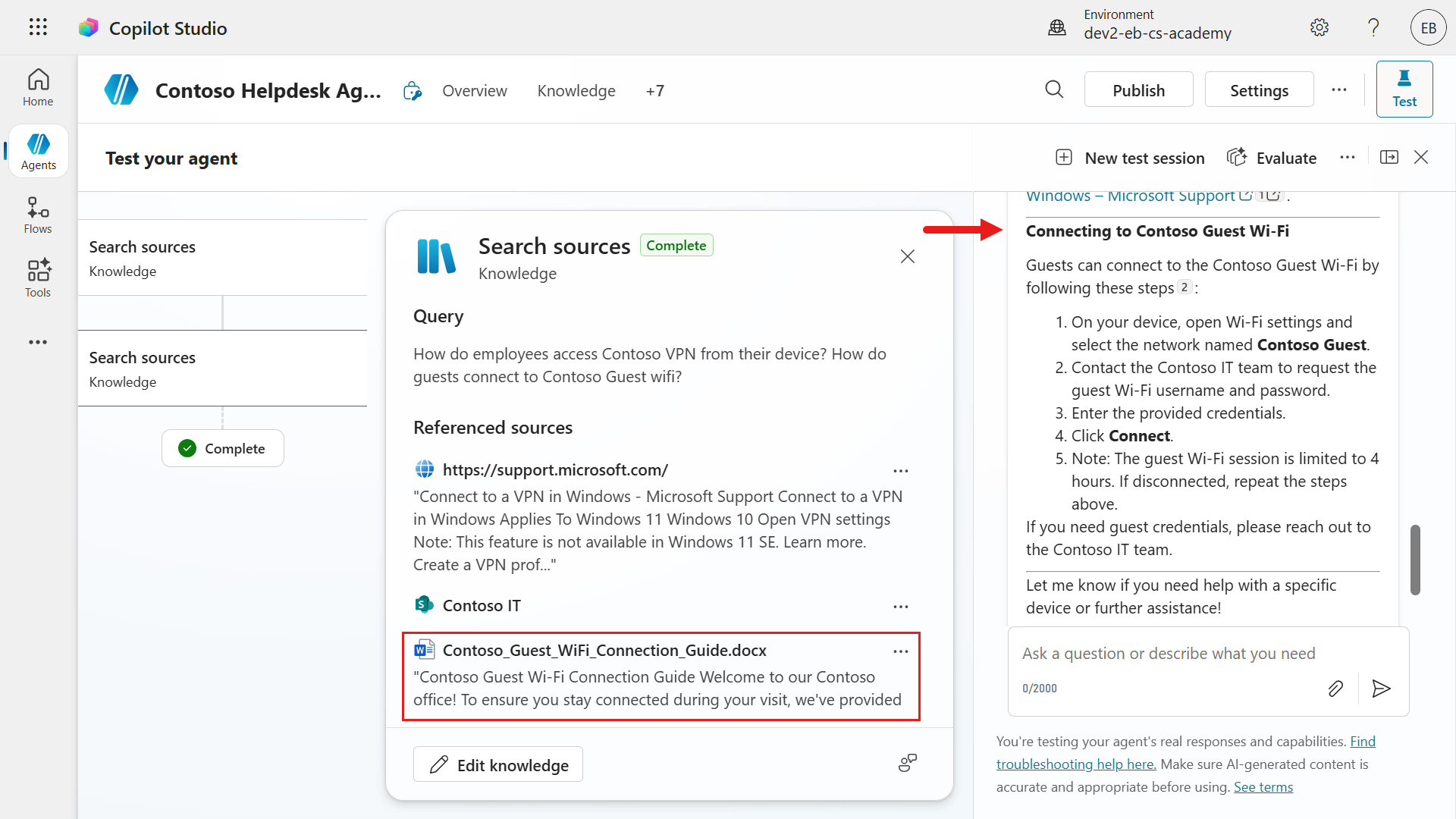
Question 3 response -
In the Activity modal, notice that the second website URL was searched but was not used as one of the referenced sources.
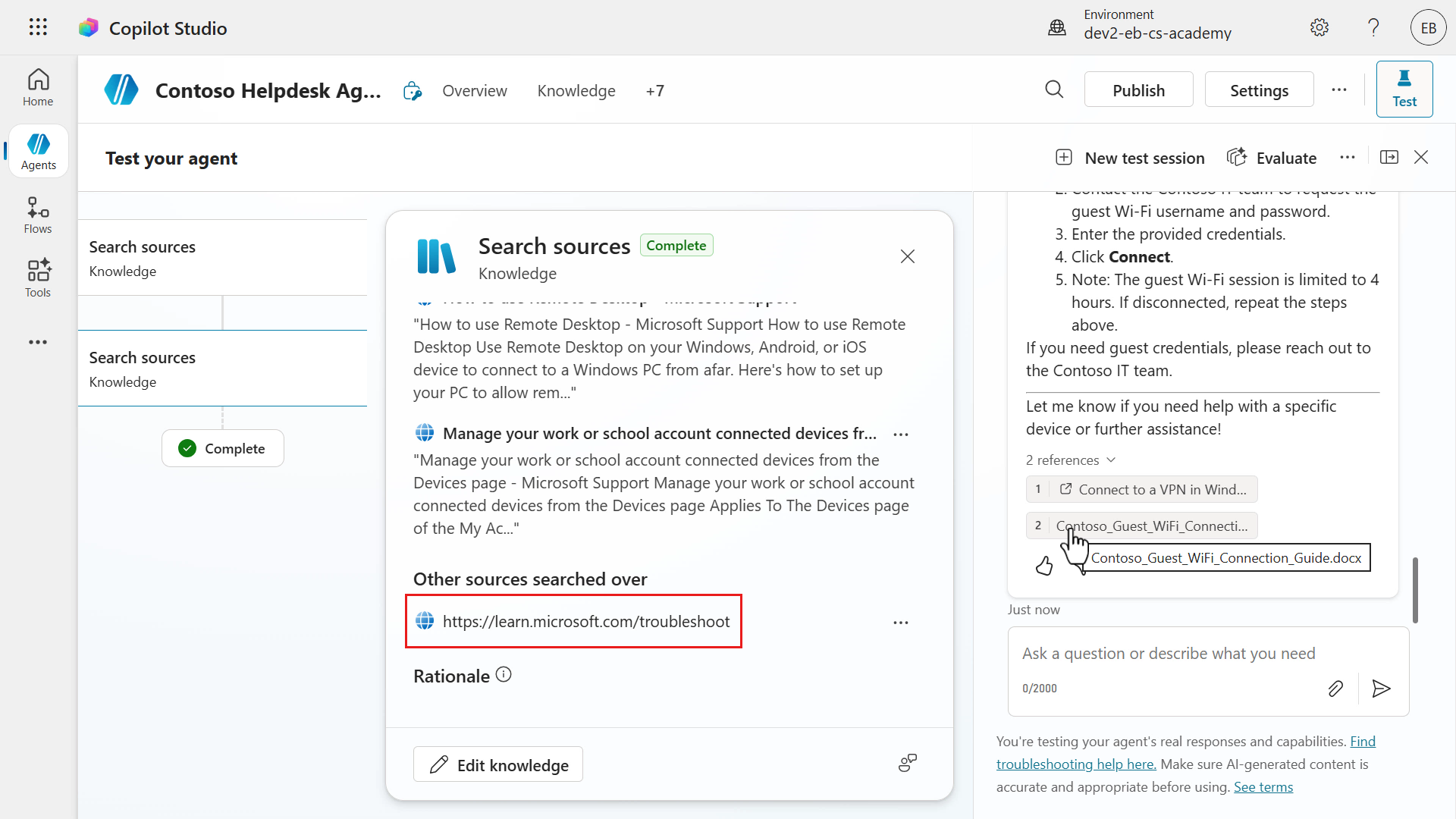
Activity modal of other sources searched over -
It is always a good idea to validate that generated responses are correct. Selecting a document reference opens a modal with the document text reflected in the answer.
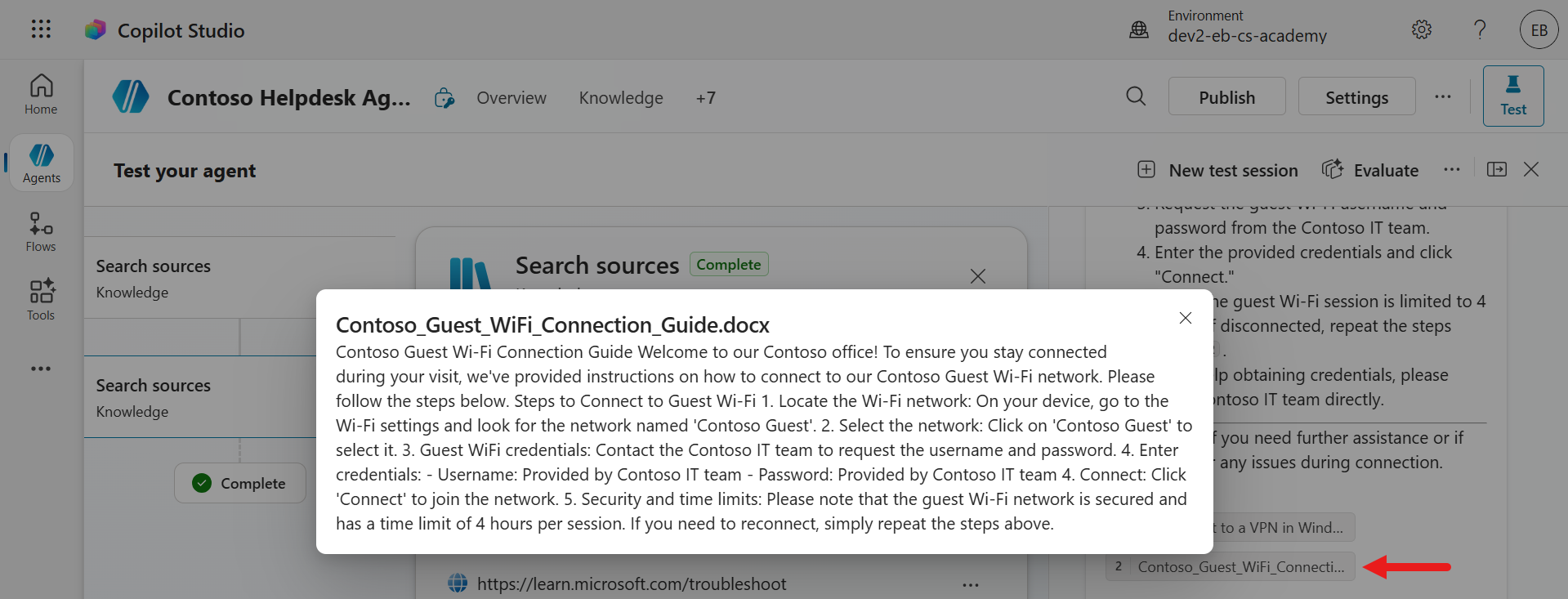
Review document
The agent can answer multiple questions in one message, search knowledge sources, and show references in its responses. Always review the references to confirm the response is correct.
✅ Mission complete
Here is what you successfully completed:
- Natural-language authoring: Created a custom agent from a description.
- Enterprise grounding: Added SharePoint, file, and public website knowledge sources.
- Generative orchestration: Configured the agent to search multiple sources.
- Testing: Validated generated answers against source references.
Next, continue to Mission 07: Add a Topic with a Trigger.