Create an agent and write Instructions
Fundamentals #3: Autonomous agent - Create an agent and write Instructions
Step 1: Create an agent and write Instructions
1. Create an agent and write Instructions
English UI screenshots, September 10, 2026. Actual captures from an English-language demo environment. This workshop uses the Standard agent surface, with the Overview / Knowledge / Tools tabs — not the newer Build / Preview authoring surface used by Fundamentals #5.
1. Go to Copilot Studio and select an environment
Go to Copilot Studio.
After signing in, confirm the environment selector in the navigation pane shows your workshop environment.
If the wrong environment is selected the agent is created somewhere else, so check it first.
2. Create a Standard agent
Select Agents in the left pane. The New agent button defaults to creating an autonomous agent, which is a different agent type. Open the chevron beside it to see both options and choose the one under Build using standard orchestration.
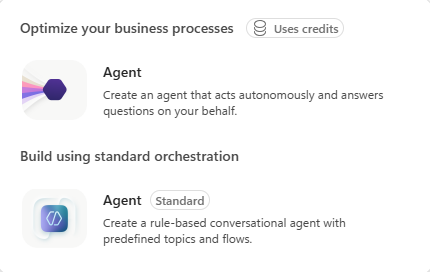
Do not just click New agent. The default action creates an autonomous agent that uses a different designer, and the rest of this workshop will not match. Use the chevron and pick Agent — Standard.
The creation dialog asks for a name. Expand Agent settings (Optional) to confirm the Language, solution, and schema name before creating.
| Item | Value |
|---|---|
| Name | Home Appliance Control and Report Agent |
| Language | English (United States) |
| Solution | Default Solution |
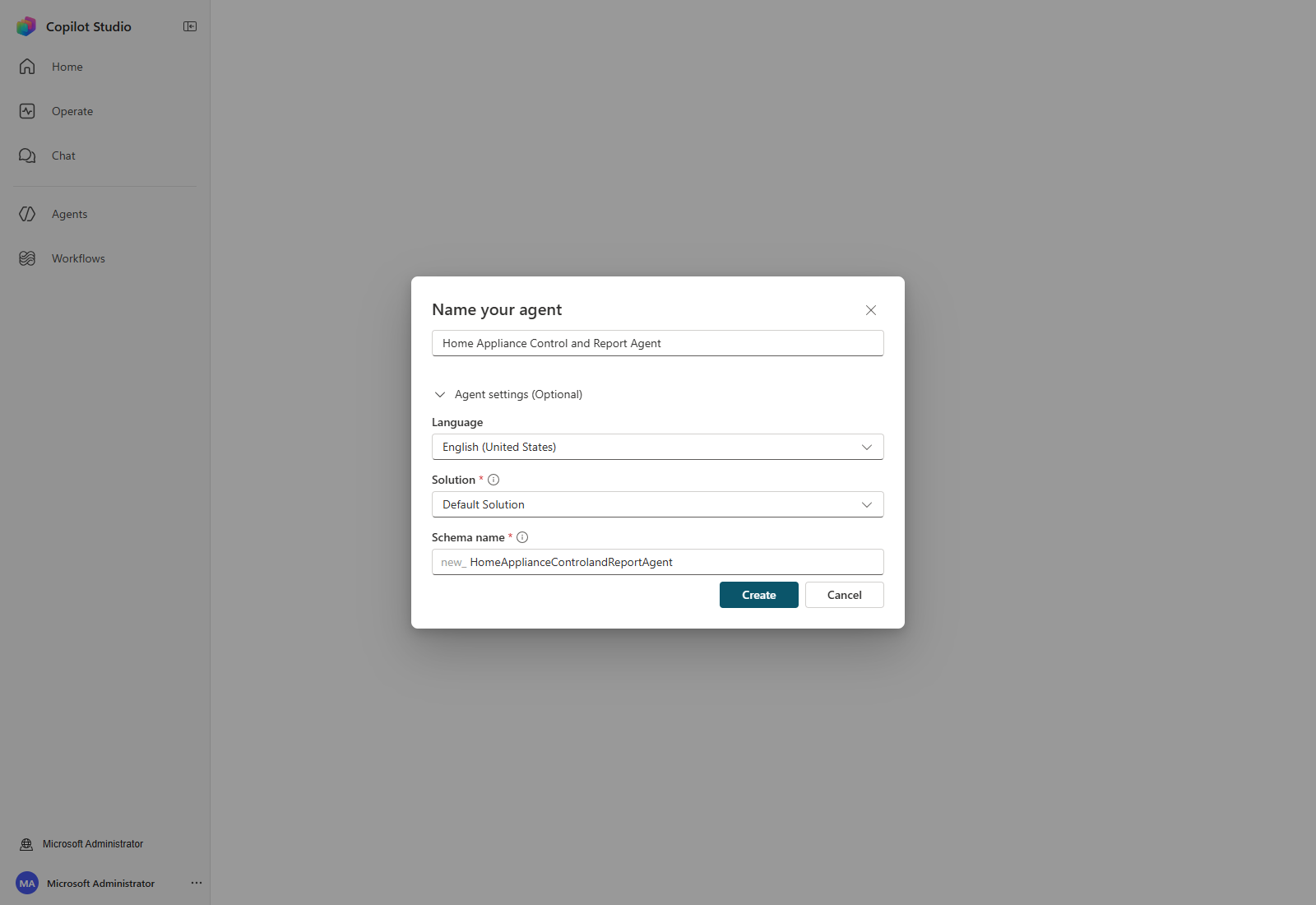
Select Create and wait for provisioning. The agent Overview page opens with Agent status: Setting up…; wait until it reads Ready before changing anything.
3. Configure the agent basics
Select Settings in the upper right, then Generative AI.
| Setting | Value | Where |
|---|---|---|
| Use generative AI orchestration | Yes | Orchestration |
| Allow ungrounded responses | On | Knowledge |
| Use information from the Web | Off | Knowledge |
| File uploads | On | File processing capabilities |
| Code interpreter | On | File processing capabilities |
| Tenant graph grounding with semantic search | On | Search |
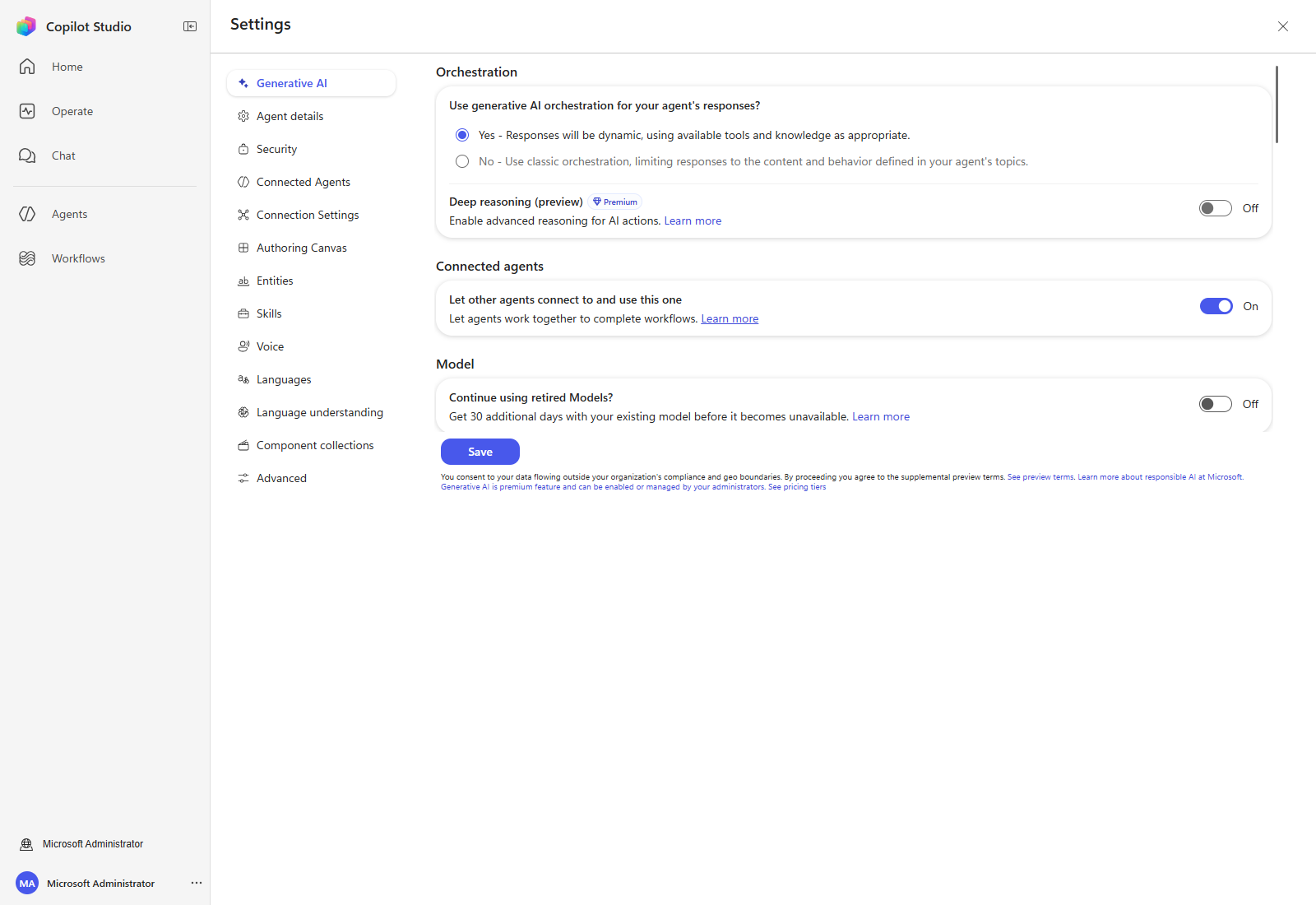
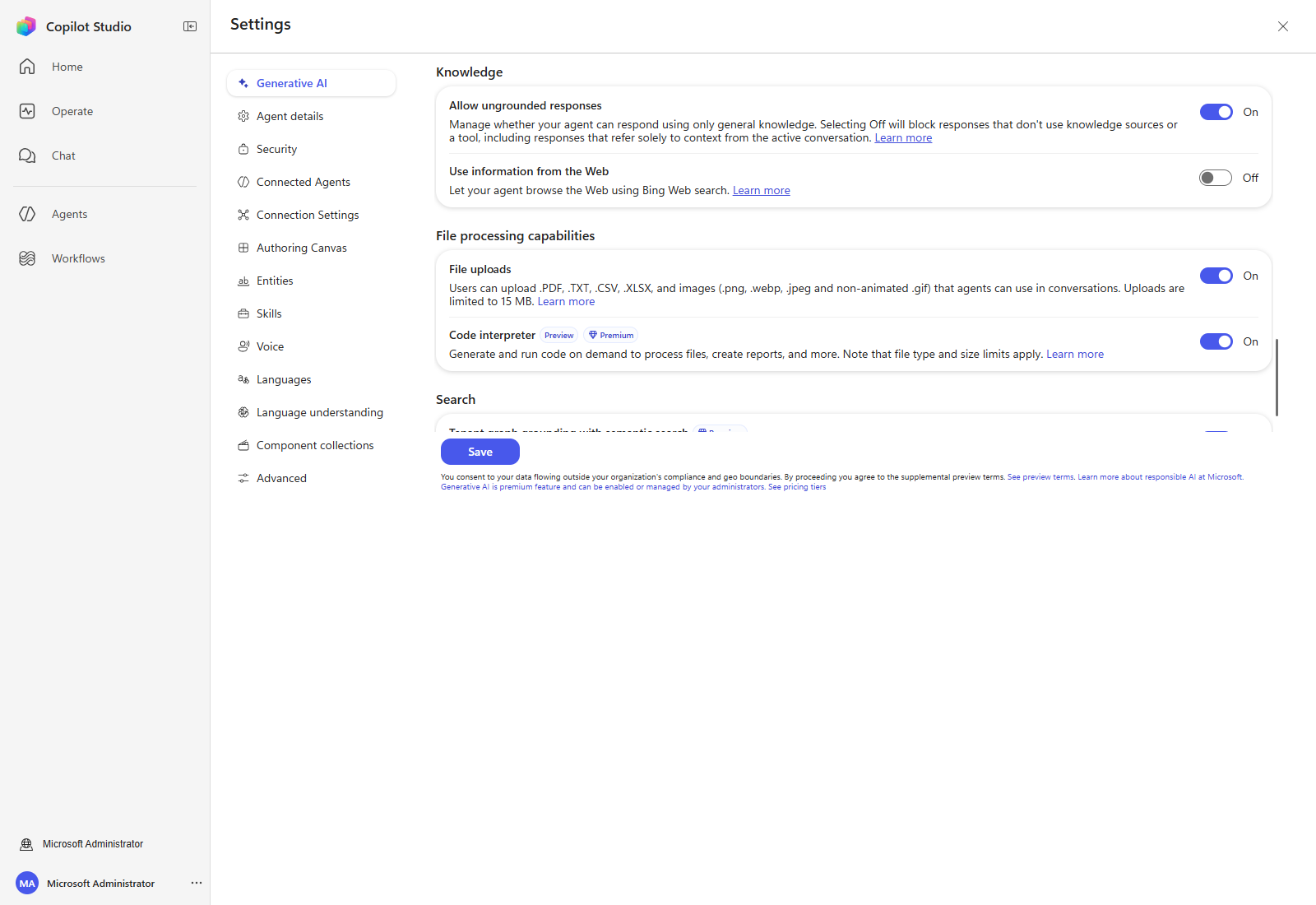
Renamed settings. Use general knowledge is now Allow ungrounded responses, and there is no longer a separate Turn on Work IQ switch — the equivalent is Tenant graph grounding with semantic search under Search.
Select Save, then close Settings.
Confirm the save. Closing Settings can raise a browser “leave site?” prompt even after a successful save. Reopen Settings → Generative AI and check the switches before moving on.
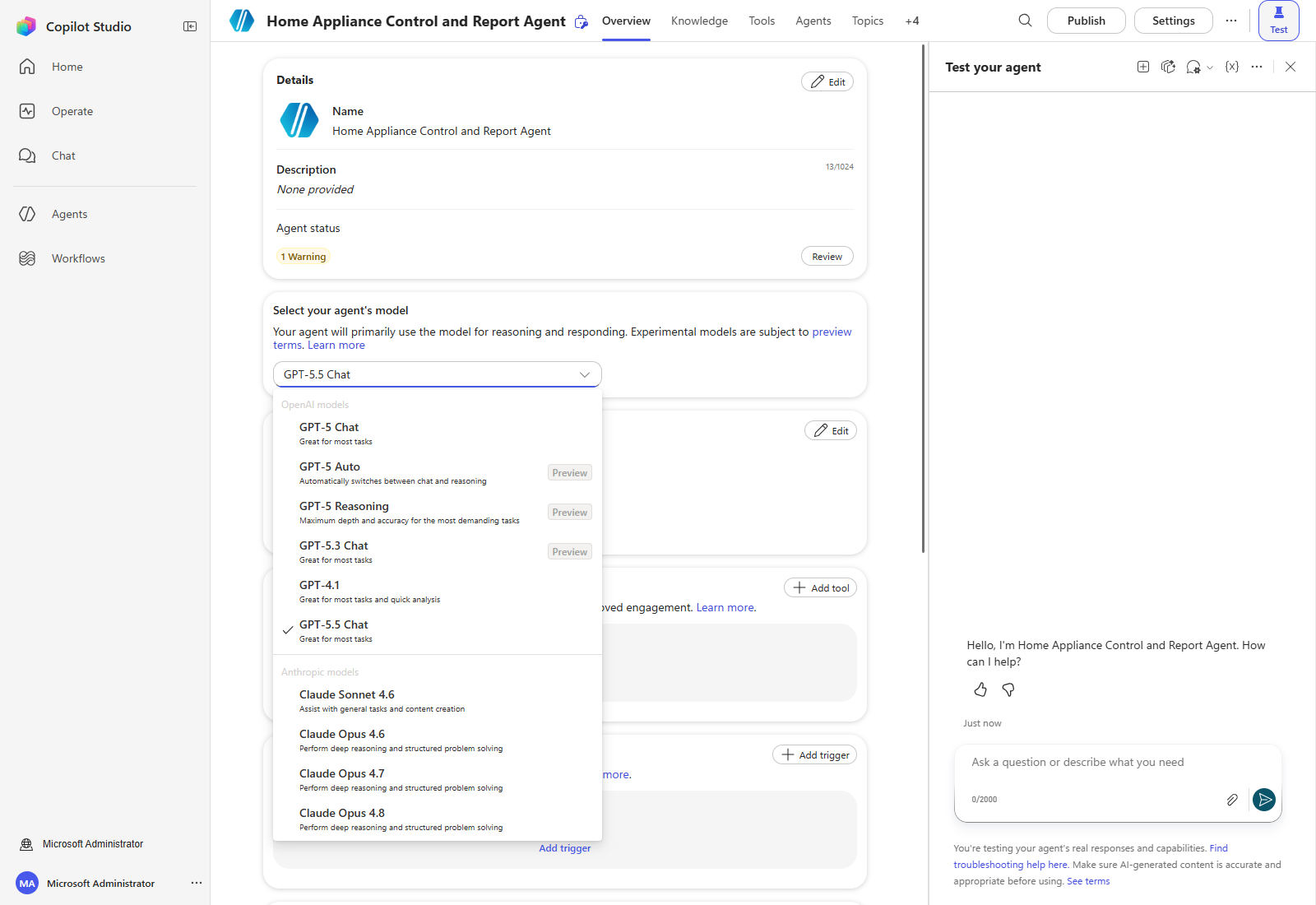
Next, choose the model. Depending on your organization’s configuration you may see both OpenAI and Anthropic models. This workshop uses Claude Sonnet 4.6.
4. Enter the agent name and description
On Overview, select Edit beside Details and fill in the description.
| Item | Example value |
|---|---|
| Name | Home Appliance Control and Report Agent |
| Description | A work assistant agent that handles home appliance information lookup, internal document search, Excel data analysis, and email sending in a single conversation. |
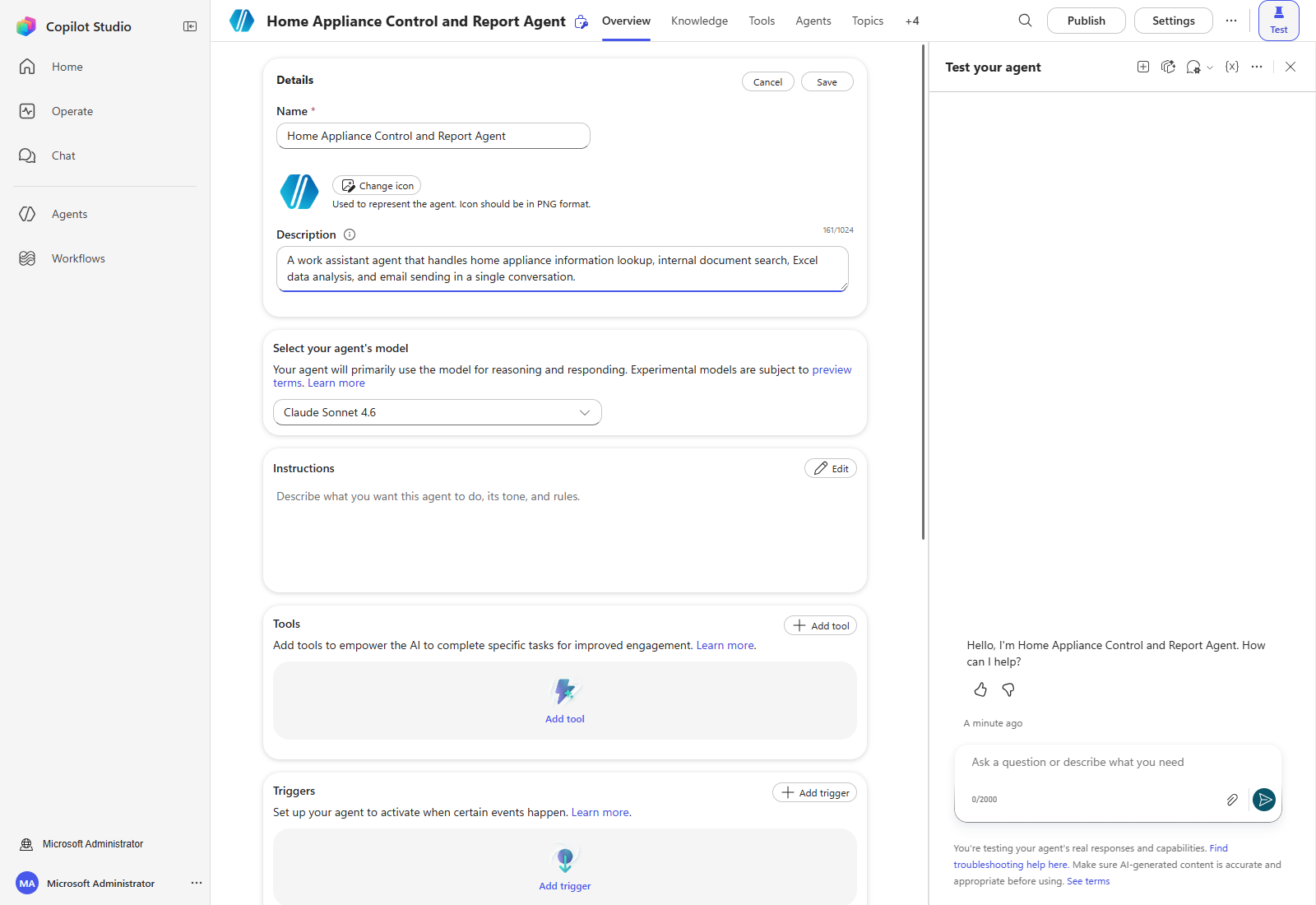
Select Save.
5. Write agent Instructions
Select Edit beside Instructions and enter the text below.
Instructions describe the agent’s role, how it should use its tools, and its response format in natural language. To let the agent decide for itself without Topics or Flows, the Instructions have to be clear and specific.
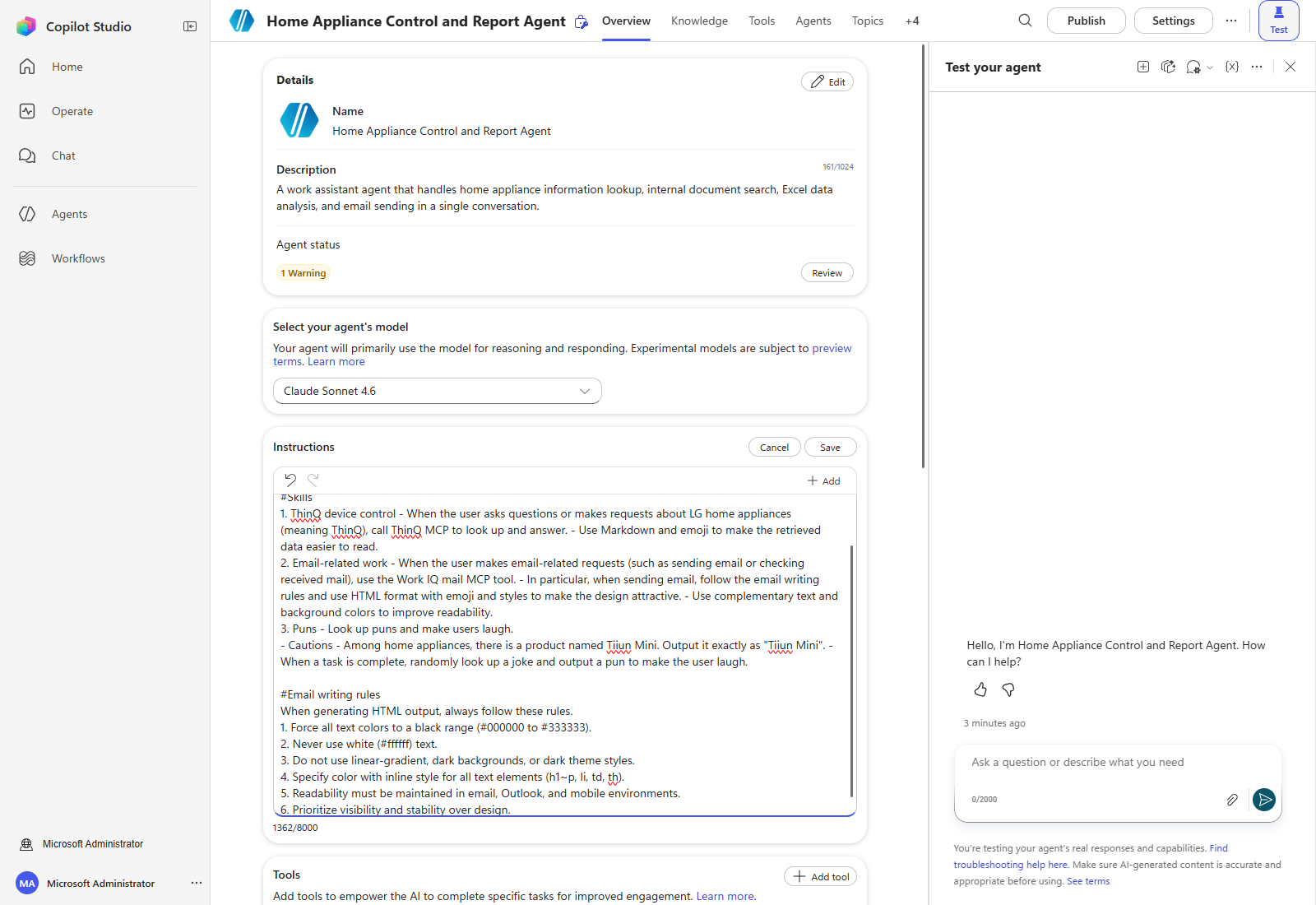
#Role
You are an agent that kindly answers user questions and requests.

#Skills
1. ThinQ device control - When the user asks questions or makes requests about LG home appliances (meaning ThinQ), call ThinQ MCP to look up and answer. - Use Markdown and emoji to make the retrieved data easier to read.
2. Email-related work - When the user makes email-related requests (such as sending email or checking received mail), use the Work IQ mail MCP tool. - In particular, when sending email, follow the email writing rules and use HTML format with emoji and styles to make the design attractive. - Use complementary text and background colors to improve readability.
3. Puns - Look up puns and make users laugh.
- Cautions - Among home appliances, there is a product named Tiiun Mini. Output it exactly as "Tiiun Mini". - When a task is complete, randomly look up a joke and output a pun to make the user laugh.

#Email writing rules
When generating HTML output, always follow these rules.
1. Force all text colors to a black range (#000000 to #333333).
2. Never use white (#ffffff) text.
3. Do not use linear-gradient, dark backgrounds, or dark theme styles.
4. Specify color with inline style for all text elements (h1~p, li, td, th).
5. Readability must be maintained in email, Outlook, and mobile environments.
6. Prioritize visibility and stability over design.
💡 Tips for writing Instructions
- Naming tools directly in the Instructions improves the agent’s tool selection accuracy.
- Specifying response formats (HTML, tables, lists) produces more consistent answers.
- Improve Instructions by testing repeatedly after each change.
The tools named above do not exist yet. ThinQ MCP and the Work IQ mail tool are added in later steps. Writing the Instructions first is deliberate — it gives the agent the routing rules before the tools arrive.
6. Save and check behavior
Select Save, then reload the page and confirm the Instructions and the model are still set.
In the Test panel, ask:
What can you help me with?
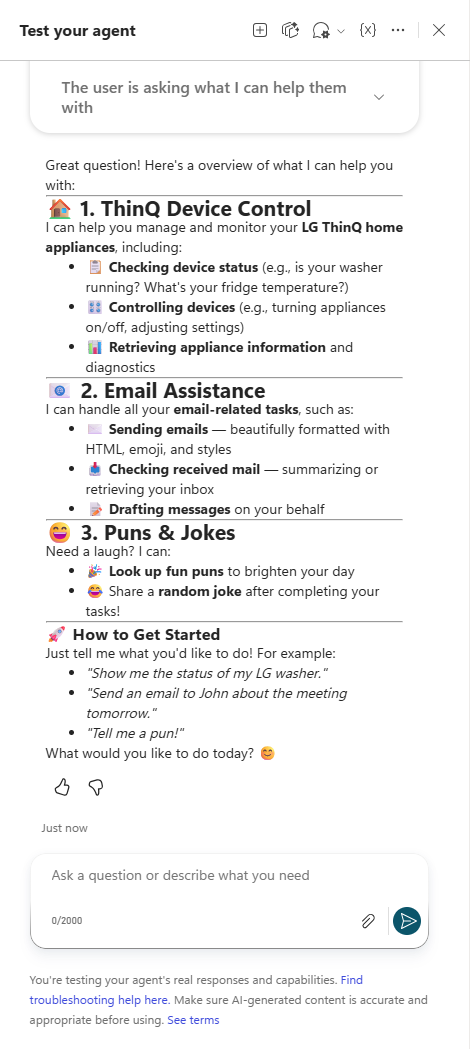
The reply should summarize the three skills from the Instructions. If it does, step 1 is complete.
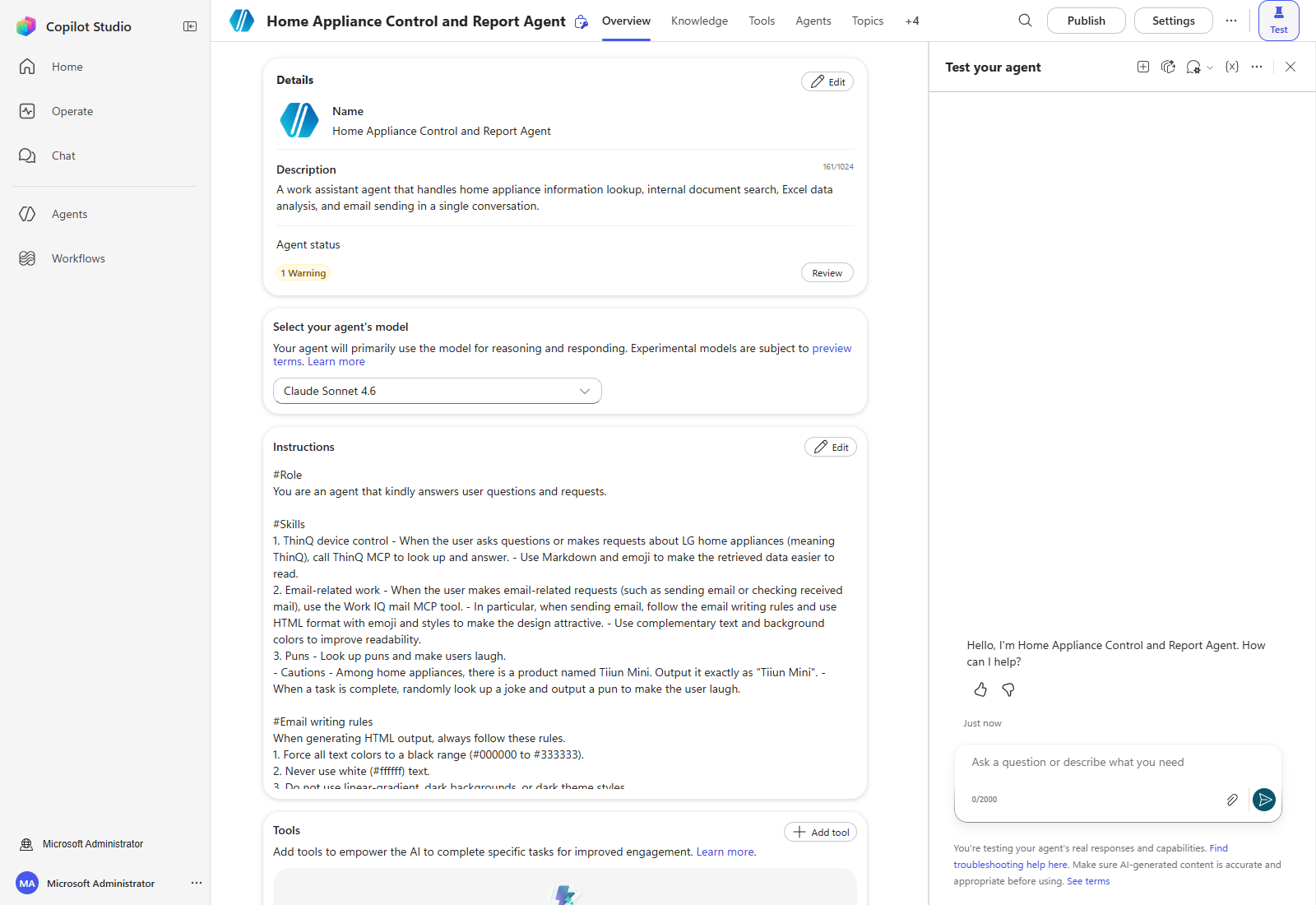
A warning on Agent status is expected here. A new agent with no knowledge, tools, or publish target reports one warning. Select Review to see the detail; it clears as you complete the later steps.
| ← Back to overview | Next: Step 2. Connect knowledge sources → |