Mission 11: Collecting feedback from users
Collect and process user feedback for continuous improvement
Translated article — This article is based on 🚨 Mission 11: Collecting feedback from users from the Copilot Studio Agent Academy. The original wording takes precedence.
🎯 Mission brief
Welcome back, Agent. In Mission 10, you learned how to integrate with MCP servers to extend your agent.
This assignment is code-named Operation Echo, a critical intelligence-gathering mission focused on extracting actionable feedback from deployed AI agents. In the world of conversational intelligence, user satisfaction data is extremely valuable. In this mission, you will learn two core methods of intelligence collection.
Phase 1: Surveillance - Deploy built-in reaction mechanisms (👍🏻/👎🏻) to monitor user sentiment.
Phase 2: Active Engagement - Implement a custom Adaptive Card feedback system for targeted information gathering when deeper insights are required.
Listen, analyze, adapt — this is the operative’s creed when processing user intelligence.
Note — If the screenshots in this lesson look different from your Copilot Studio experience, turn off New Experience in the upper-right corner to switch to the classic experience used here.
🔎 Objectives
In this mission, you will learn the following.
- How to collect user feedback by using built-in thumbs up/down reactions
- How to analyze feedback data by using the Copilot Studio Analytics dashboard
- How to create custom feedback collection by using Adaptive Cards
- How to implement conditional feedback flows based on CSAT ratings
- How to log custom telemetry events to Azure Application Insights for advanced feedback tracking
🐿️ The importance of user feedback
Collecting user feedback is critical for improving the performance and user satisfaction of conversational agents. In Microsoft Copilot Studio, there are two primary mechanisms for gathering feedback after users receive AI-generated responses.
- Built-in thumbs up/down reactions - An out-of-the-box feature where users can click 👍🏻 or 👎🏻 for each response.
- Custom feedback through Adaptive Cards - A customizable approach where developers insert an Adaptive Card into the conversation to request feedback, such as a rating or comment.
Why collect feedback?
Collecting user feedback after agent responses is essential for continuous improvement. It helps quantify satisfaction, identify knowledge gaps, and provides direct evidence for how to refine your Copilot agent’s answers. By analyzing feedback trends and comments, you can prioritize improvements that lead to a better user experience.
💬 Built-in thumbs up/down reactions
Copilot Studio provides a built-in reactions feature that lets end users react to each agent response with thumbs up or thumbs down. This feature is enabled by default for all new and existing Copilot Studio custom agents, and appears across the common channels where the agent is used.
- Test Chat (inside the Copilot Studio authoring canvas)
- Web (demo or embedded website)
- Microsoft Teams (if the agent is deployed as a Teams app)
- Custom Web chat SDK integrations
- Power Apps/Dynamics 365 channels, such as a live chat widget
After each AI response, users see a small UI with 👍🏻/👎🏻 icons. They can simply click one of the icons to provide feedback. If needed, after leaving a reaction they are prompted to add a comment explaining the reason for the rating, such as why they selected thumbs down. These comments provide qualitative insight and are stored in the conversation transcript (Dataverse) for review.
- The Copilot Studio Analytics page aggregates the total number of reactions and the breakdown of positive and negative feedback.
- If a user leaves a comment with the rating, that content is saved to the conversation transcript. You can view these comments through the analytics UI or Dataverse records, such as the
conversationtranscripttable, to understand context like what was “not useful.”
🪣 Purpose and value of thumbs reactions
The primary purpose of the thumbs up/down system is to measure user satisfaction at the response level. It provides immediate, granular feedback on whether each answer met the user’s needs. Key benefits include the following.
- Quick sentiment signal: Thumbs up means the user was satisfied, while thumbs down indicates dissatisfaction. This binary signal is easy for users to provide and easy for developers to interpret at scale.
- Aggregated “satisfaction” metric: The “Reactions” section in Copilot Studio Analytics under the broader Satisfaction analytics aggregates all collected feedback. You can quickly see how many responses were marked positive or negative over time. It acts as a satisfaction scorecard for agent responses.
- Identify areas for improvement: By reviewing or filtering thumbs-down cases and their comments, you can find patterns. For example, if a specific topic or question often receives negative feedback, it is a strong candidate for improving the knowledge base or refining prompts.
- No coding required: Because this is a built-in feature, makers do not need to configure anything separately to collect this feedback. The setting is on by default, and the data is automatically available in the Copilot Studio analytics dashboard.
Why it matters
This reaction mechanism provides immediate, objective insight into how well the agent is working from the user’s perspective. Reviewing user feedback helps identify new user scenarios and issues, and supports improvements based on what users are actually asking for. In short, thumbs up/down feedback is a quick pulse check on the usefulness of each answer.
📊 Viewing and interpreting feedback Analytics
Copilot Studio provides a dedicated analytics view to help you understand collected reactions.
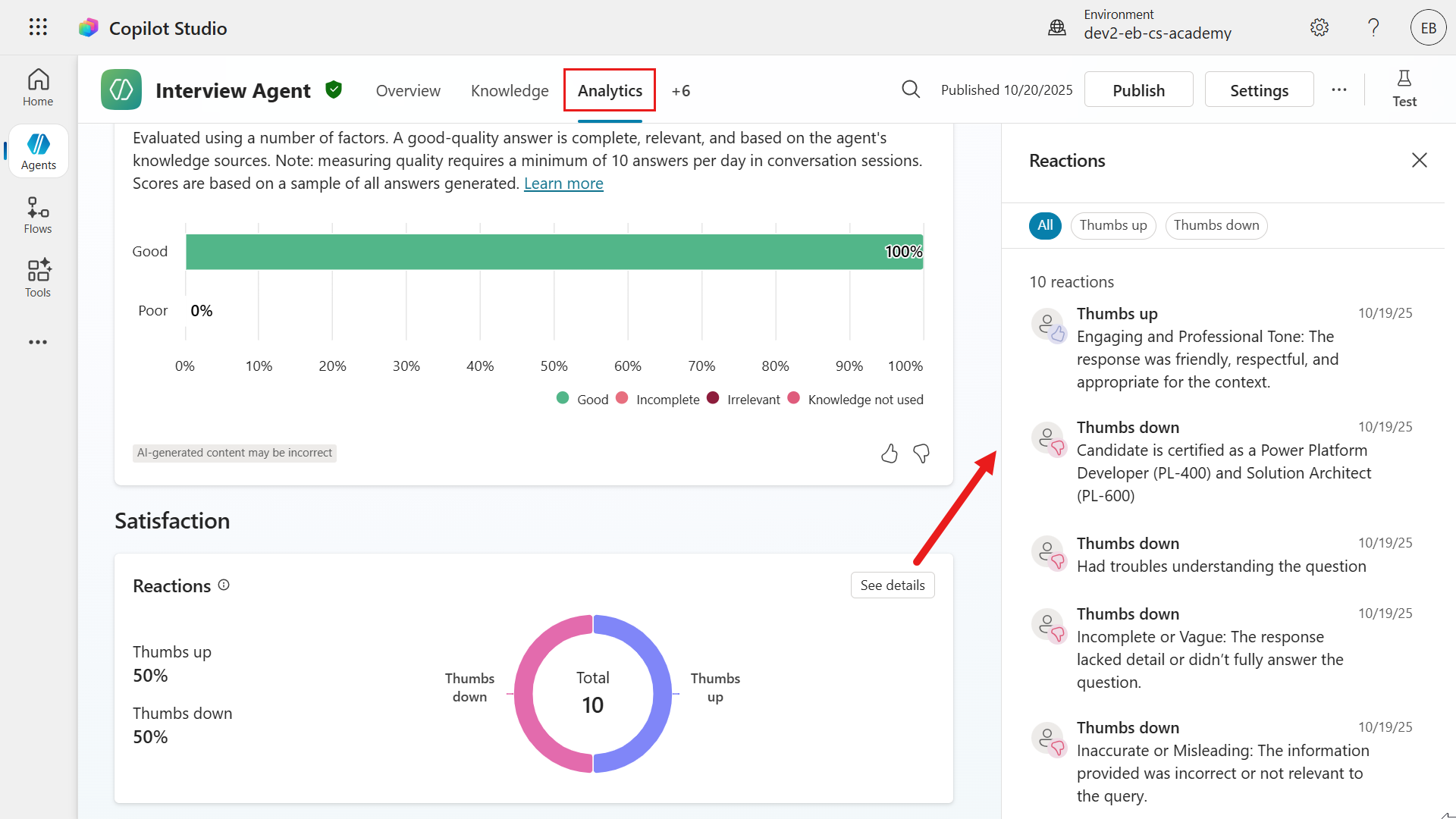
- Reactions chart: On the agent’s Analytics tab, the Satisfaction section includes a Reactions chart that counts how many times users clicked 👍🏻 or 👎🏻 during the selected period. This gives you an at-a-glance ratio of positive to negative feedback. For example, if 78 out of 100 total reactions were thumbs up and 22 were thumbs down, you can interpret that as a 78% per-response satisfaction rate.
- Filters and details: Select “See details” on the Reactions chart to drill in further. Typically, you can filter by feedback type (all/thumbs-up/thumbs-down) and view the list of user comments associated with each feedback item. Comments are extremely useful. A thumbs down by itself signals a problem, but a user’s comment may explain the reason, such as
"The answer was incorrect"or"Didn't address my question". - Trends over time: Analytics can be viewed across different date ranges, such as the last 7 days or 30 days, up to 90 days. Monitoring trends helps you determine whether recent agent changes improved satisfaction. For example, you can see whether the thumbs-up ratio increased after adding a new knowledge source.
-
Session CSAT vs. per-response Reactions: Satisfaction analytics also includes a Survey results section for customer satisfaction (CSAT) surveys at the end of a session. Do not confuse this with per-response thumbs reactions. - Reactions: Feedback on individual answers, which is the focus of this article - Survey Results: An optional overall rating at the end of a conversation, such as a 1-to-5-star survey
Both appear under Satisfaction analytics, but thumbs reactions specifically populate the Reactions chart.
Interpreting the data: A high 👍🏻 to 👎🏻 ratio means most answers are on target. A spike in 👎🏻 for specific questions can reveal an AI misunderstanding or knowledge gap. For example, if many users leave thumbs down after asking about “pricing,” the agent’s answer about pricing may be outdated or incomplete. Developers should investigate those chat transcripts and improve the content for that topic.
Best practice — Regularly review thumbs-down feedback comments. They often contain direct clues, such as "The agent gave the wrong definition" or "It didn't cite a source", that you can address by updating the knowledge base or refining prompts.
📒 Managing the reactions feature
Because this feature is on by default, makers should know how to manage it.
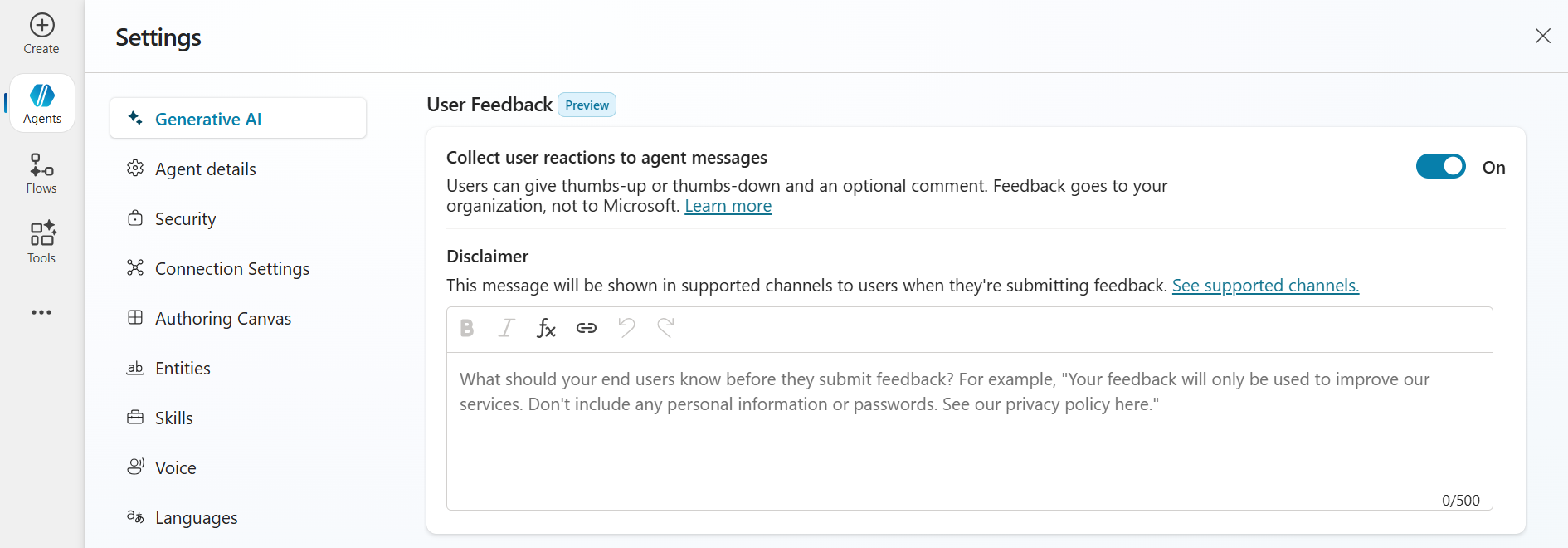
- You can disable user feedback reactions. For example, you may not want to collect this data, or you may want to turn it off only during testing. In the agent’s Generative AI Settings, under User feedback, you can set the
Collect user reactions to agent messagestoggle toOfforOn. The default isOn. - You can also provide a disclaimer to users about feedback usage. For example, you might add text such as
"Your feedback will be used to improve the service. Please do not include sensitive information in comments."This is especially important for public-facing agents for transparency and compliance.
- Data storage: All feedback records, including user comments, are stored in the agent’s Dataverse environment and tied to conversation sessions. If needed, advanced users can directly query the
conversationtranscripttable in Dataverse. For example, they can export all feedback data for offline analysis. In most cases, however, the built-in analytics UI is sufficient.
Best practice — If your agent is public or customer-facing, keep the feedback feature On. It provides extremely valuable insights. Conversely, if the agent is in a limited pilot or internal-only test, you can temporarily turn it off to avoid confusing test users, and then turn it back on when you move to real users. Always follow user feedback privacy guidance, which is why the optional disclaimer matters.
📇 Collecting feedback through Adaptive Cards - a custom approach
As an alternative to the built-in feature, you can build a custom feedback prompt by using an Adaptive Card. Adaptive Cards were already covered in Recruit. As a reminder, Adaptive Cards are UI panels defined in JSON that can be embedded in an agent conversation to collect input or display information. In this context, you might design a card that shows an Input.ChoiceSet element with a prompt such as "Please rate this answer" and a dropdown or radio buttons for feedback, then sends the user’s response back to the agent as structured data.
Unlike built-in reactions, this method requires a developer or maker to configure the agent’s topics to insert the card and handle the response. In Copilot Studio, you can add an Adaptive Card in the following nodes within a topic.
- Ask a question
- Ask with adaptive card
- Send a message
That means immediately after the agent generates an answer, you can show a custom Adaptive Card asking for feedback before the conversation continues.
How it works
-
Generate and store the answer: First, the agent’s answer must be available so it can be included when you configure the card. For example, Copilot Studio guidance suggests using a Generative Answers node to generate an answer and store it in a variable such as
Global.VarStoreAnswer. This variable contains the AI response text. -
Show an Adaptive Card with feedback options: Immediately after the answer, add a node that supports Adaptive Cards to show the answer text and ask for feedback. The card JSON defines what the user sees. For example, it can include the answer text, a prompt such as
"Was this answer helpful?", and two action buttons: 👍🏻 “Useful” and 👎🏻 “Not useful”. You can also design other input formats such as a 5-star rating, a text box for comments, or multiple-choice options. Adaptive Cards are highly flexible, so you can tailor the feedback question format to your requirements. -
The user selects an option: When the user clicks a button or submits the card, the action returns a payload to the agent. Typically, buttons in the card use
Action.Submitwith custom data. For example, one button might return{ "Feedback": "Useful" }, while another returns{ "Feedback": "NotUseful" }. A common implementation pattern is to put explicit values in the submit payload, such as"This generated answer was useful"or"This generated answer wasn't useful", so topic logic can branch reliably. This data comes back as the user’s response. -
The Agent handles the feedback data: What happens next is up to the agent logic. You can receive the submitted response in a topic or trigger and process it. For example, if the adaptive card input equals
This generated answer wasn't useful, you can trigger a specific topic that asks a follow-up question such as"Sorry to hear that. Could you tell me what was wrong?". Or you can simply log the data to a data source and respond with"Thanks for your feedback!". -
(Optional) Store or forward the feedback: Feedback collected through Adaptive Cards is not automatically saved to Analytics like built-in reactions. If you want to keep it for analysis, you must explicitly store it. For example, you can call a Power Automate flow or API to record the feedback in a database or SharePoint list, along with context such as which question the feedback was for. Alternatively, because this feedback becomes part of the conversation transcript (the user’s selection is effectively a user message), it is stored in the Dataverse conversation. However, it is stored as raw text/JSON, so you must extract it yourself for reporting.
Best practice — Adaptive Cards in Copilot Studio are available across all channels supported by the agent, but be mindful of Adaptive Card schema version differences. Copilot Studio uses Adaptive Cards v1.6 in the web test chat, while Microsoft Teams and some other channels support up to v1.5. This means that if you design a card with 1.6-only features, it may not render in Microsoft Teams. The best approach is to use only v1.5 features for broad compatibility, or test the card directly in each channel. Fortunately, typical feedback cards with text and buttons use basic components and work well in most channels.
🦜 Why use Adaptive Cards for feedback
Using an Adaptive Card for feedback requires additional setup, but it gives you more flexibility and control. Here are some reasons to choose this approach.
- Custom questions and UI: You are not limited to simple thumbs up/down. You can ask users to rate on a 1-to-5 scale, choose categories for why they liked or disliked an answer, choose from several options, or answer an open-ended question for detailed comments. You can design the card content to match your scenario.
- Contextual or conditional feedback: You may not want to ask for feedback after every response, because that can annoy users. With your own logic, you can control when to ask, such as only after long explanations or only right before the session ends. You can also customize the wording. If the answer was an error message, the card can ask specifically,
"Sorry I couldn't help - was this error explanation useful?"This level of nuance is not possible with the generic thumbs UI. - Integrated workflows: Custom feedback data can integrate directly with other processes. For example, if a user marks an answer as not useful, you can automatically create a ticket for a human expert to review later. Or you can log it to Azure Application Insights telemetry for advanced analytics. In other words, adaptive card feedback is easier to connect to your own analytics or DevOps cycle. Built-in thumbs data is somewhat isolated inside the Copilot analytics dashboard, while custom-collected data can be routed wherever you need it.
- Branding and tone: Within Adaptive Card design limits, you can style the feedback card to match the agent’s personality or your organization’s branding. You can also change the text, such as
"Rate this response", or use emoji on buttons to create a consistent user experience. - Collect additional feedback: A card can collect more than a simple sentiment signal. For example, one card can ask
"Was this helpful? (Yes/No)"and, if the answer is"No", also provide a short text box asking"What was missing?". Everything can be submitted together. This is a more advanced pattern, but it shows the flexibility.
In summary, Adaptive Cards for feedback are ideal when you need more than a binary signal or want to handle feedback in a customized way. Developers often use this approach when they want to experiment with feedback collection beyond the built-in basics.
⭐ Adaptive Card feedback best practices
-
Keep it brief and unobtrusive: Users can quickly become fatigued if they have to complete a survey every time. Usually, keep the card to a simple question with two buttons or a short rating scale. In practice, a good pattern is to add a subtle prompt under the generated answer, such as
"Generated answer, please rate it."Keep the wording short and polite. Avoid overly large or complex cards for routine feedback. -
Handle responses gracefully: When users press a feedback button, you can process it quietly without always saying
"Thanks for your feedback". In support scenarios, if someone says the answer was not useful, you can offer a follow-up such as"Sorry about that. Let me clarify or escalate your question."This turns negative feedback into an opportunity to recover satisfaction. -
Data handling and privacy: From a storage perspective, adaptive card feedback data is just part of the conversation. It does not appear in the Copilot Studio Analytics dashboard, because that dashboard only tracks the built-in feedback reaction mechanism. It also is not automatically surfaced separately in typical compliance audits, which usually record that a user message was sent but not the specific contents of an Adaptive Card submission. Therefore, if this feedback analysis matters, plan how to collect it. You can create an agent flow triggered by the conversation to write each feedback item to a separate Dataverse table or external store, along with related information such as user ID and question content. This lets you build your own reporting system.
-
Disable built-in reactions to avoid duplication: If you fully use a custom feedback card for every answer, it can make sense to turn off the default thumbs feedback in the agent settings. Otherwise, users are asked for feedback twice for the same response, which is confusing and excessive. Most implementations choose one method in production. However, you can use both in different contexts. For example, you might keep thumbs enabled for Teams users and use a custom card on a custom website. In any case, avoid bombarding users with duplicate feedback prompts.
-
Test on all channels: Adaptive Cards can render slightly differently in Teams and web chat, so test the feedback flow in each deployed channel. Make sure the card appears as intended and that submissions are received correctly by the agent. For example, if you use Teams, confirm that the card schema is 1.5 or earlier, as noted above. Also verify that the adaptive card is easy to use in Teams mobile and web chat.
Note — One useful implementation pattern is to route adaptive card values such as useful/not useful to a specific handling topic. Treat feedback values like intent signals that can trigger follow-up actions, such as recovery or escalation, or simply complete the interaction. In practice, this means editing the agent’s topics or code to capture and process these JSON responses.
🧇 Comparison summary: thumbs reactions vs Adaptive Card feedback
Both feedback collection methods aim to improve the Copilot agent through user input, but they meet different needs. The side-by-side comparison below helps explain when to use each one.
| Feature/aspect | Built-in thumbs up/down reactions | Custom feedback through Adaptive Card |
|---|---|---|
| Setup and effort | No setup required. It is enabled by default for all agents. Simply deploy the agent, and users will see 👍🏻/👎🏻 on each response. | Configuration is required. You must add an Adaptive Card node to topics, define JSON, and handle submitted data. This takes a moderate amount of developer effort. |
| Feedback format | Binary sentiment signal (Positive or Negative). Users can optionally add a comment. | Fully customizable. It can be binary, multiple choice, a rating scale, text input, or a combination. The card JSON defines the format. |
| User experience | Simple and unobtrusive. One click for thumbs up/down is enough. It is provided consistently across all channels as icon buttons. | Richer interaction is possible, but it can be intrusive if overused. You control the wording and appearance. Keep the card concise so it does not overwhelm the chat UI. |
| Collected data | Reaction plus optional comment. Example: "thumbs down (with comment: 'irrelevant answer')". There is no structured category beyond up/down. |
Any data you design. Example: "Rating: 3 stars" or "FeedbackChoice: NotUseful + Reason: Outdated info". Card submissions are received as parseable JSON payloads (key-value pairs). |
| Analytics and visibility | Automatically aggregated in the Satisfaction section of Copilot Studio Analytics. It provides totals for 👍🏻 vs 👎🏻 and lets you filter and view comments. | Not shown in Copilot Studio Analytics by default. These responses are stored as part of the conversation flow and are not aggregated in the built-in dashboards. If you need summary reporting, you must create your own reporting mechanism. |
| Extensibility | Limited. The thumbs UI is fixed. You cannot change the question or add more options. You can only turn it on or off. | Extensible. You design and evolve the Adaptive Card yourself. For example, you can add a third option such as "Partially helpful", ask a follow-up question after a negative response, and decide when to invoke it. It does not have to run every turn. |
| Ideal use cases | General satisfaction monitoring for agent answers. Best when you need a quick measure of each response’s quality and a simple success metric to track over time. Especially useful for initial deployments where you want broad feedback with minimal effort. | Deep feedback or custom workflows. Useful when you need specific insights, such as which of several answers is better, or when you need to integrate feedback with other systems such as bug reports or human review. It is also valuable when you want feedback in a specific format, such as category tags, that built-in reactions do not support. |
As a rule of thumb (no pun intended 😆), start with built-in thumbs feedback for a new agent. It is easy to get started and immediately helps you understand user satisfaction. As the solution matures and you need more nuanced feedback, experiment with the Adaptive Card approach.
Advanced implementations sometimes use both. For example, you can keep thumbs up/down enabled while adding a targeted question, such as a short survey, through an adaptive card at the end of a session. In that case, you get per-response sentiment through reactions and an overall session rating or comment through the card. However, remember that built-in CSAT is also included in Copilot Studio Analytics, as described earlier. Therefore, as you learned in this mission, you need to record adaptive card responses yourself to build custom reporting.
In most scenarios, using one method at a time is clearer. If you choose custom adaptive cards, it often makes sense to disable default reactions so users have one consistent feedback channel.
🎀 Wrapping it up (summary)
| ⚡ Built-in reactions: quick wins | 🛠️ Adaptive cards: custom fit |
|---|---|
| Enable built-in 👍🏻/👎🏻 reactions to quickly understand user satisfaction for each answer. This provides instant analytics with no coding and helps identify trouble spots early. | Use adaptive cards when you need feedback beyond yes/no. You can ask tailored questions and route feedback to your own data stores or workflows for deeper analysis and follow-up. |
🧪 Exercise 11 - Provide feedback using built-in interactions and adaptive cards (custom)
Now let’s provide feedback from the user’s perspective in two ways.
- Use built-in user interactions and review them on the agent’s Analytics page.
- Create a custom adaptive card that collects feedback when the user indicates dissatisfaction by giving 1 or 2 stars on the CSAT survey. As a bonus exercise, you will log this data as a telemetry event in Azure Application Insights.
✨ Prerequisites to complete this mission
For built-in interactions to appear on the agent’s Analytics page, the agent must be published. Make sure the Interview Agent is published.
11.1 User feedback through built-in interactions
-
Open the Interview Agent in Microsoft Teams and start asking questions.
-
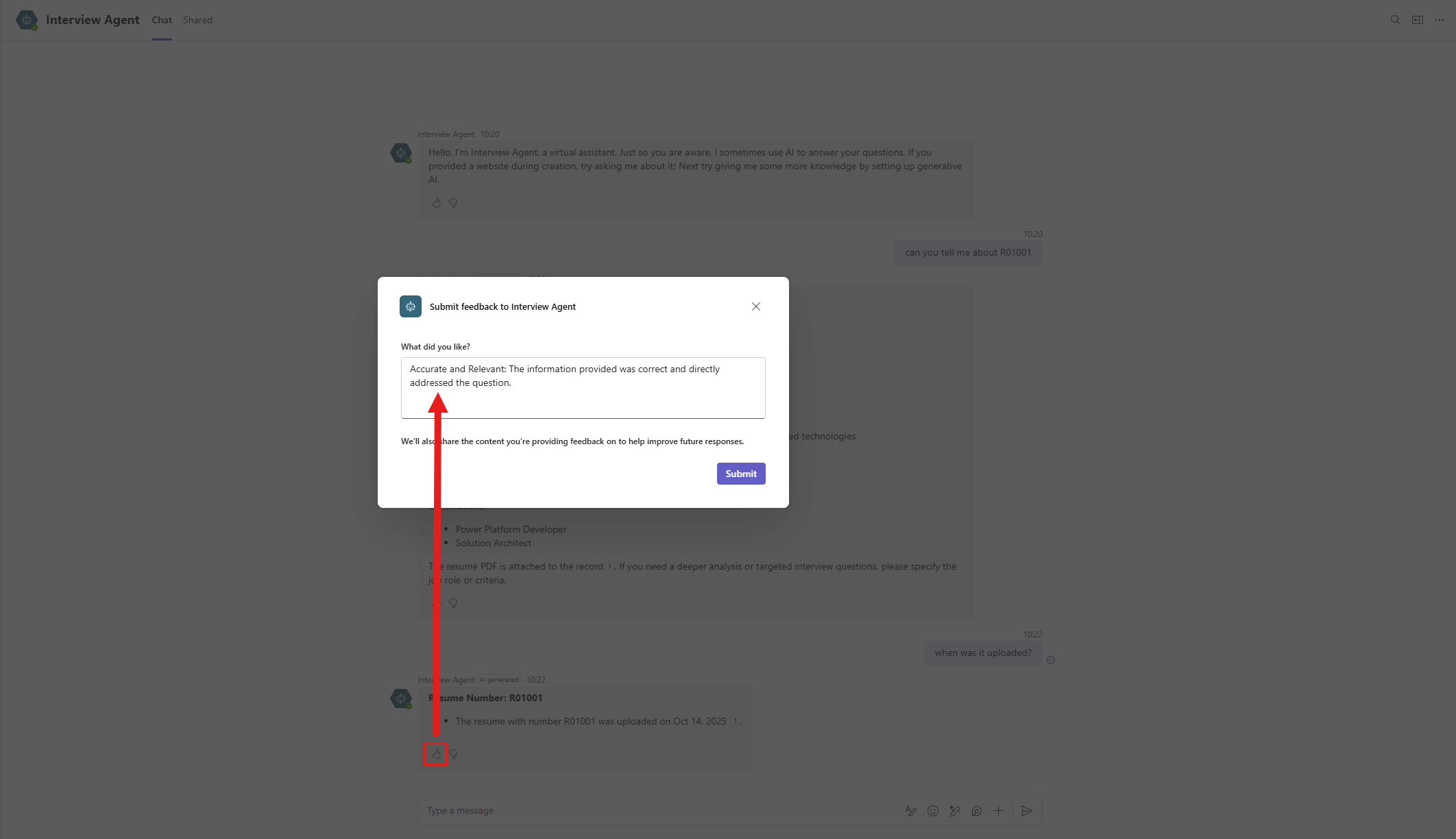
In a response, select the thumbs up icon next to the message to provide positive feedback with a comment, or select thumbs down to provide negative feedback with a comment.
-
Positive feedback comment examples
Clear and Concise: The response was easy to understand and well-structured.Accurate and Relevant: The information provided was correct and directly addressed the question.Helpful and Actionable: The response included practical steps or examples that I could apply.Comprehensive: The answer covered all aspects of the question without leaving gaps.Engaging and Professional Tone: The response was friendly, respectful, and appropriate for the context.Adapted to Context: The response considered the specific scenario and provided tailored guidance. -
Negative feedback comment examples
Incomplete or Vague: The response lacked detail or didn’t fully answer the question.Inaccurate or Misleading: The information provided was incorrect or not relevant to the query.Overly Complex or Hard to Follow: The explanation was confusing or used unnecessary jargon.
-
- Repeat until you have submitted several reactions with written feedback.
11.2 Review built-in analytics
Now let’s review the feedback you just submitted on the agent’s Analytics page.
Note — Submitted reactions and written feedback can take some time to appear on the Analytics page. If you do not see them immediately, check again after a short while.
- Go to the agent’s Analytics tab, then scroll to the Satisfaction section. In the Reactions section, select See details. This opens the Reactions pane, where you can view all thumbs up, thumbs down, and written feedback for the selected period.
11.3 Create an adaptive card for custom feedback collection
In this exercise, you will implement a custom feedback collection process in the Hiring Agent that responds to the built-in CSAT survey. When a user selects 1 or 2 stars on the CSAT survey, you will collect additional feedback to understand why they were dissatisfied. You will also get hands-on experience modifying an existing system topic.
You will learn the following.
- Create a new custom topic that includes a custom adaptive card for collecting feedback
- Modify the existing End of conversation system topic so that it conditionally routes to the new custom topic that handles custom feedback
Let’s get started!
11.3.1 Create a new custom topic
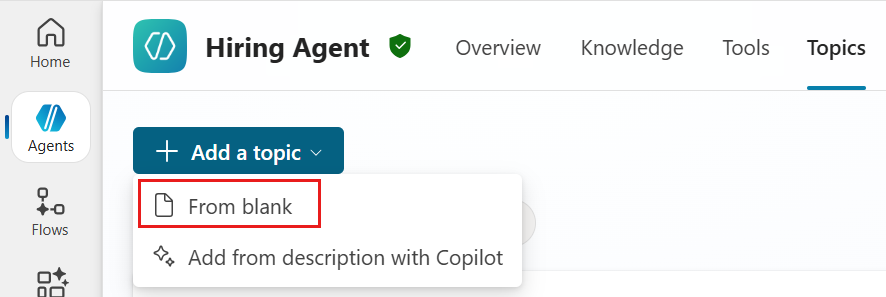
- In the Hiring Agent, go to the Topics tab. Select +Add a topic, then select From blank.
-
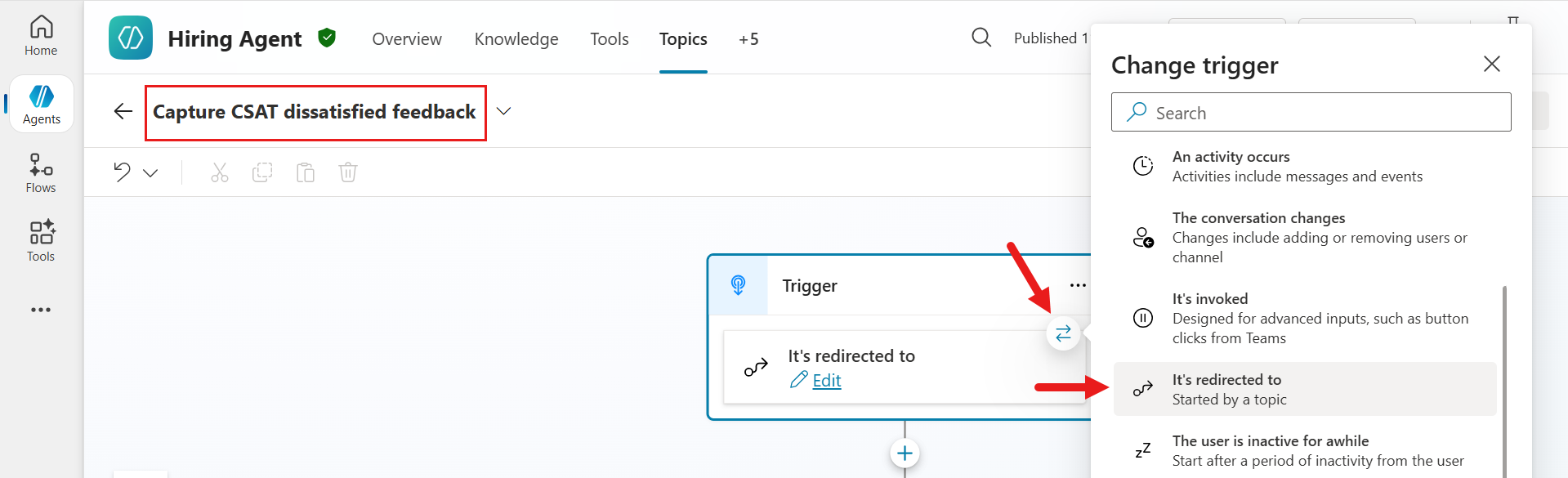
Name the topic as follows.
Capture CSAT dissatisfied feedbackIn the Trigger node, select the Change trigger arrow icon, and then select It’s redirected to. This new topic is triggered when it is explicitly called from an existing topic through the Go to another topic node.
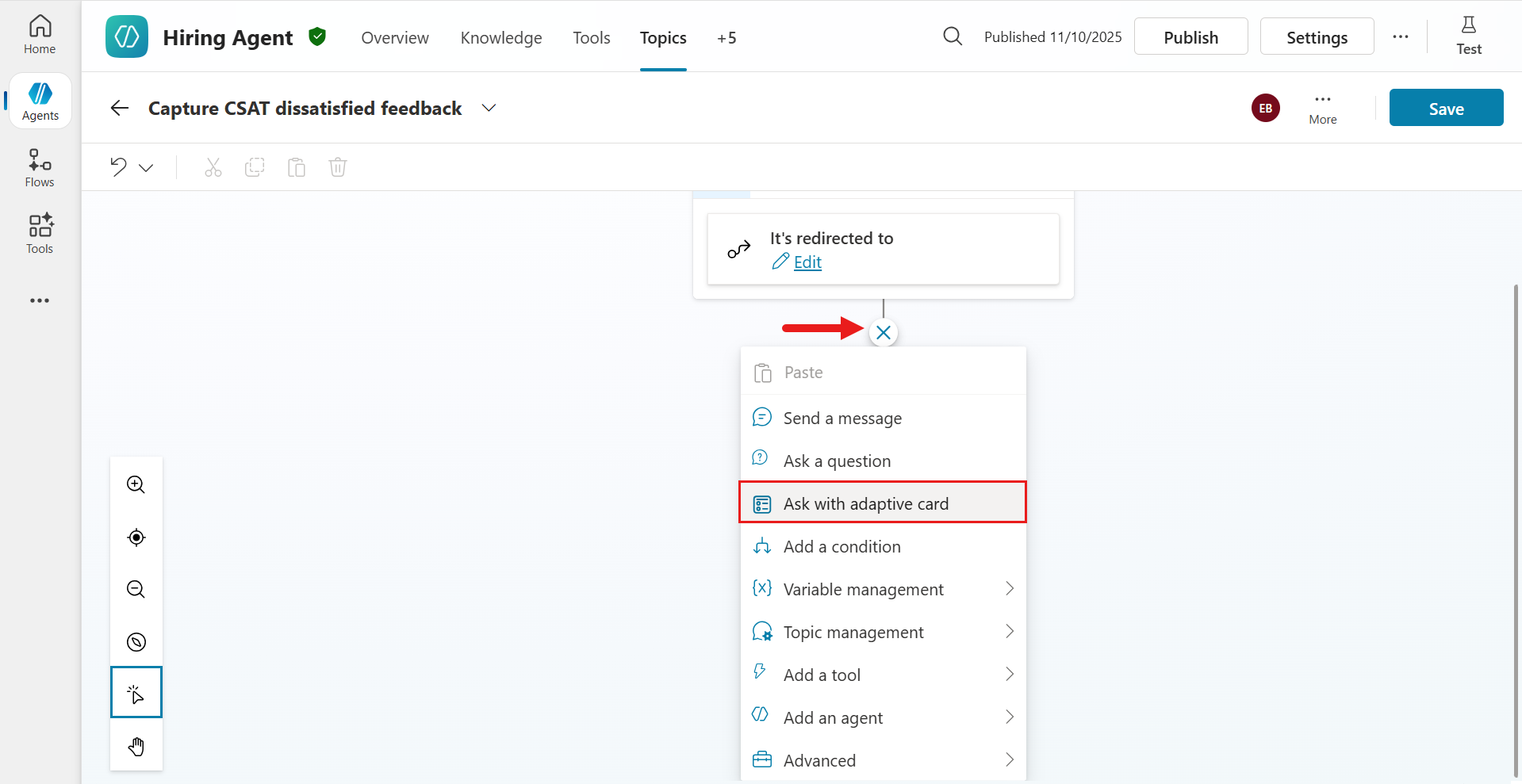
- Next, add a new node that shows the custom adaptive card to the user. This card collects dissatisfaction feedback based on the CSAT survey response. Select the + icon, then select the Ask with adaptive card node.
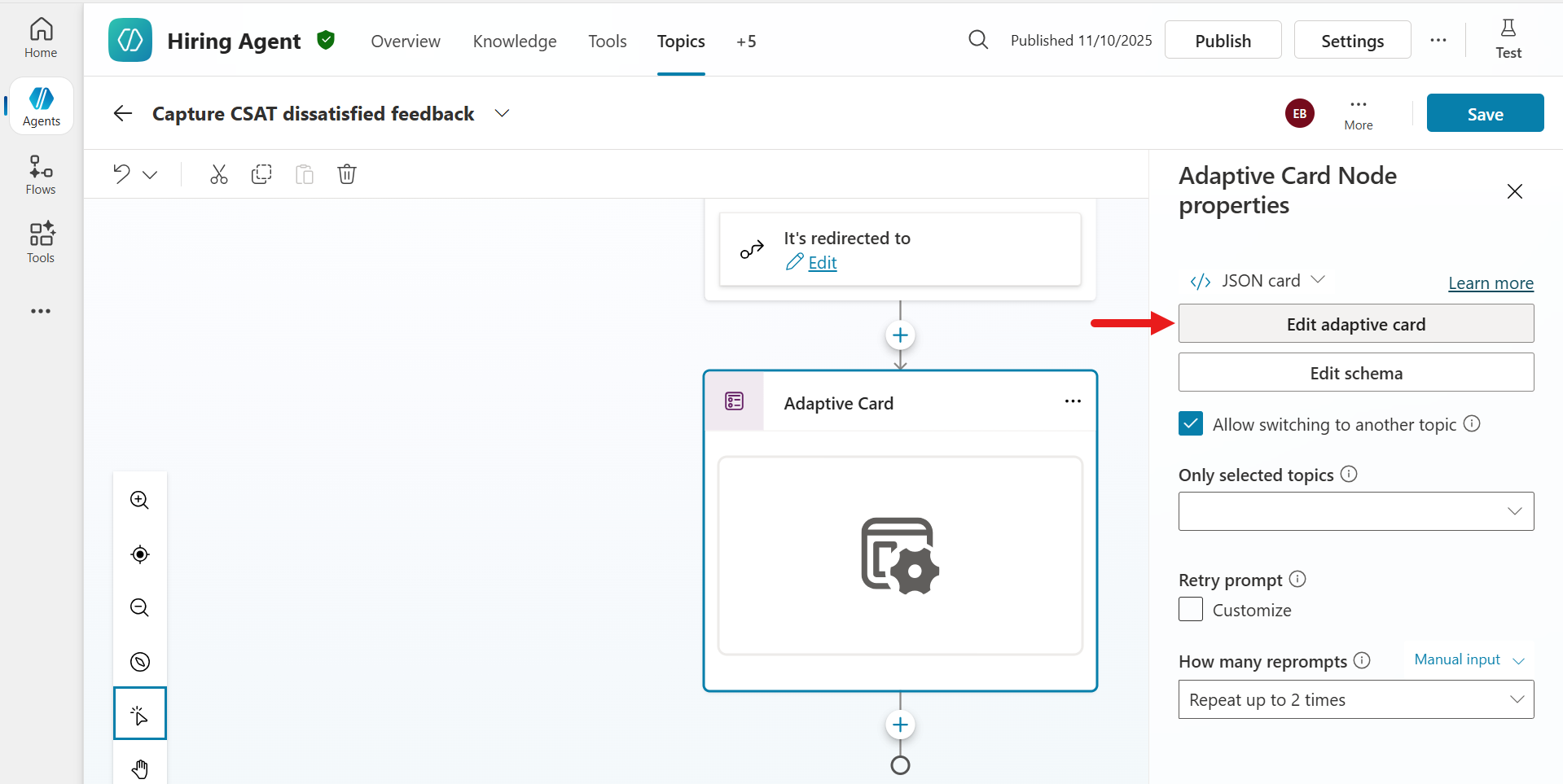
- Now it is time to configure the adaptive card 😊 Select the node, and the Adaptive Card Node properties pane appears. Now edit the JSON. Select Edit adaptive card.
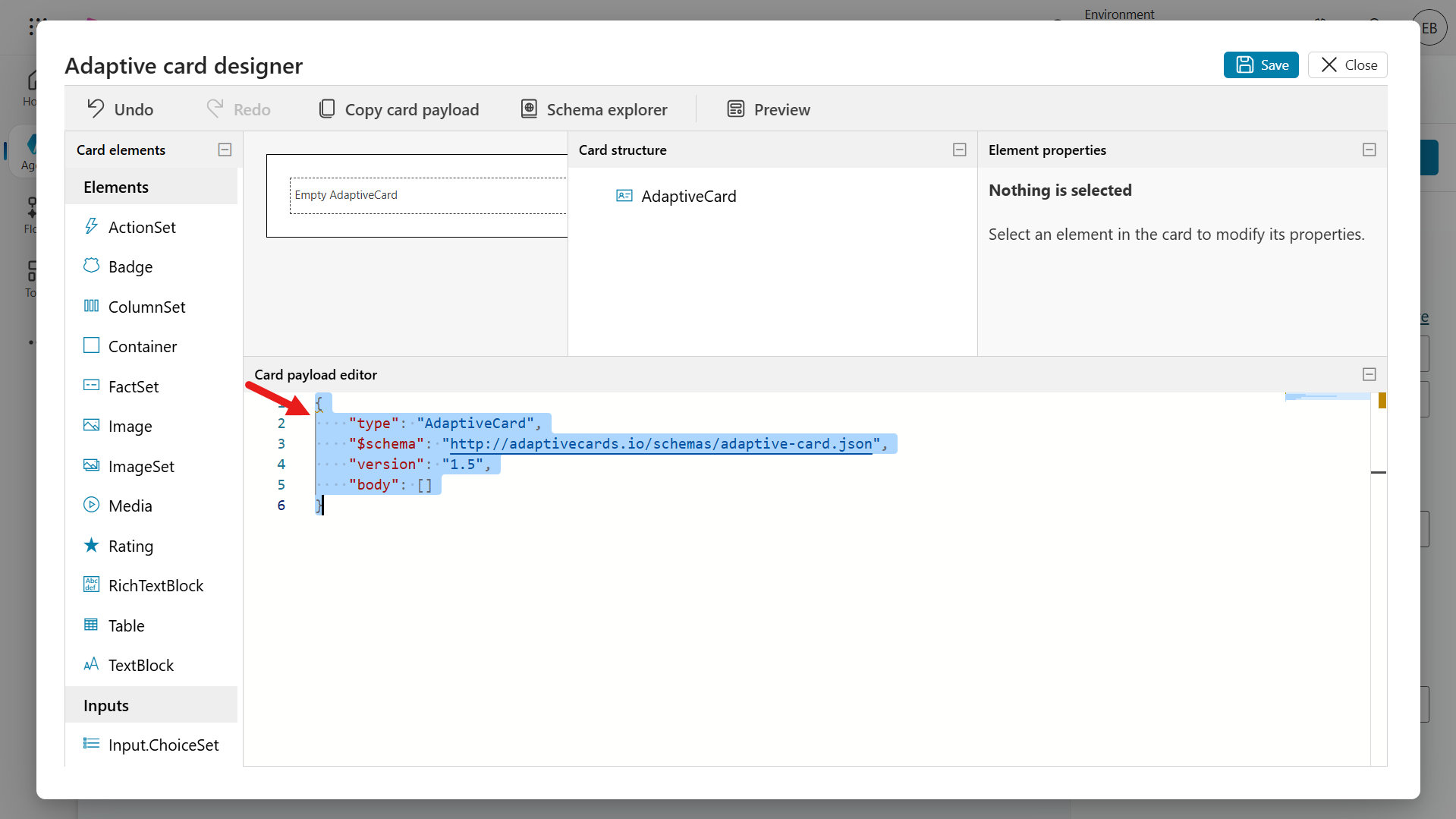
- This is the Adaptive Card Designer, where you can design the card and see the result in real time. Click Card payload editor, select all content with the Windows shortcut Ctrl + A or the Mac shortcut Command + A, and delete it. Then paste the JSON from the CSAT Feedback JSON file.
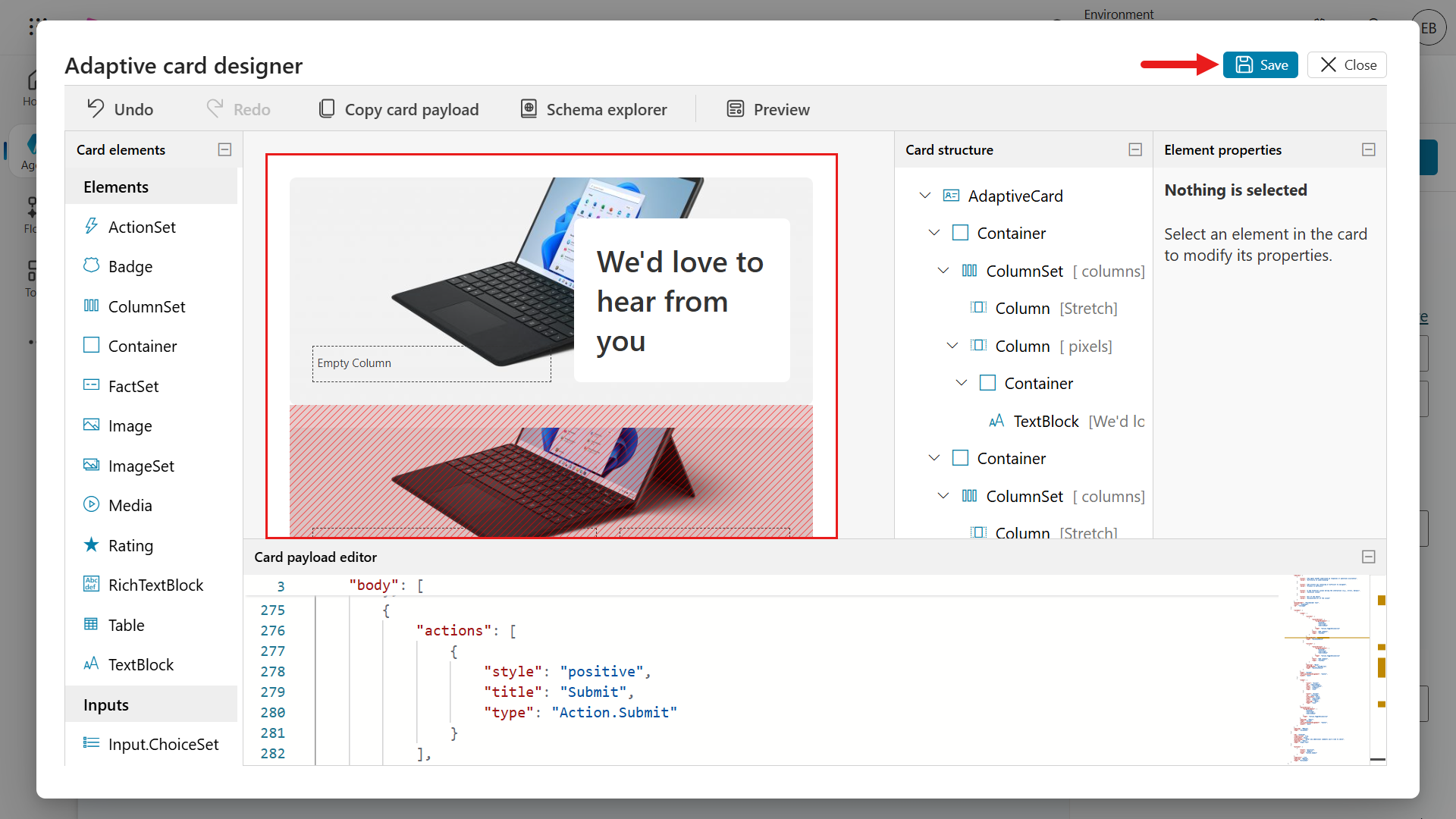
- Now you can see that Card Preview includes elements that display text and a list of available devices. Select Save.
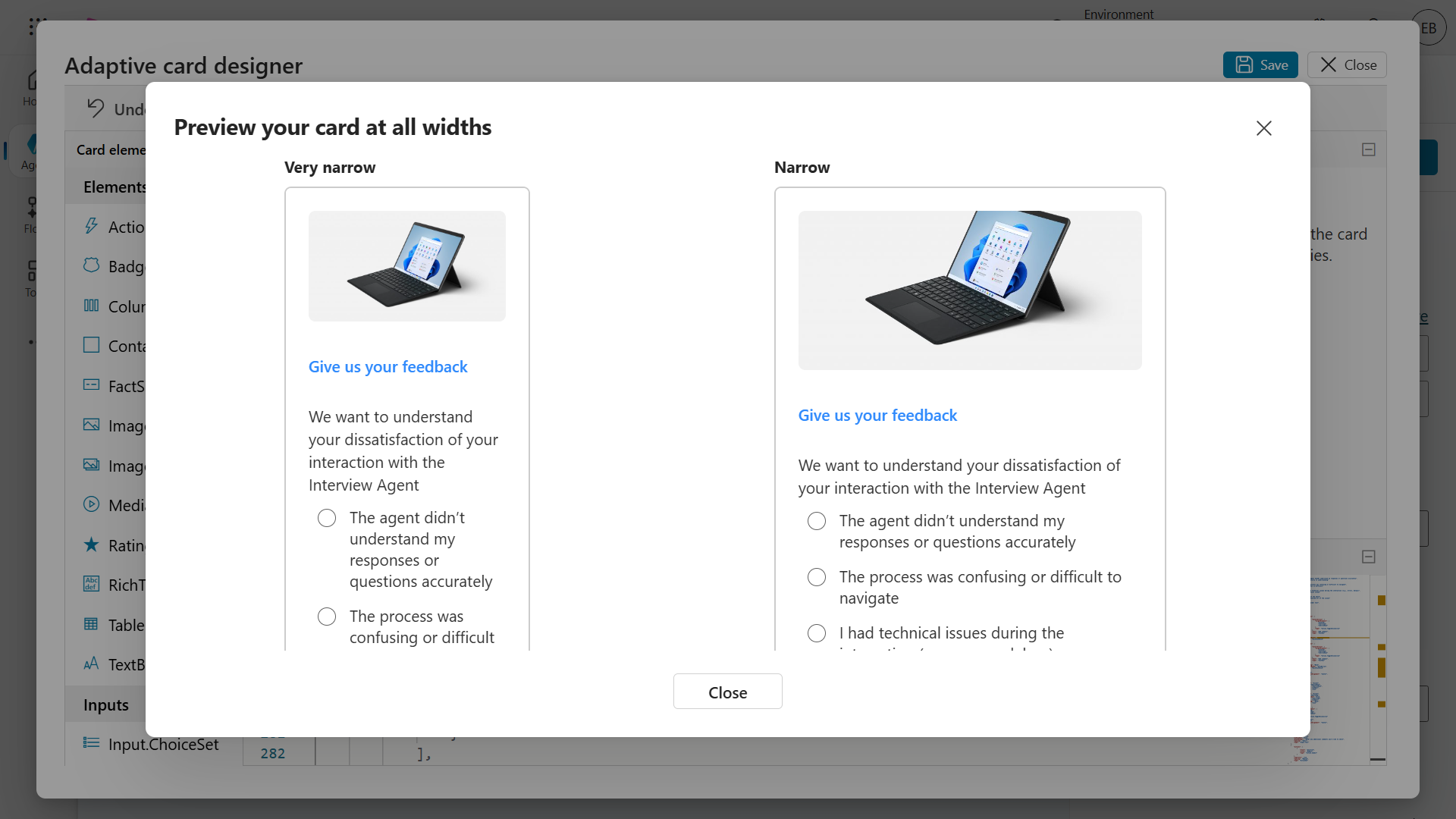
- Select Preview to see how the card looks at different widths. When the preview opens, you will see different card output depending on width. This JSON accounts for responsive design, so narrow widths show a different layout than the standard width.
-
In the Preview screen, select the x icon or Close to exit. Then in the Adaptive Card Node properties panel, select X Close to close the panel.
-
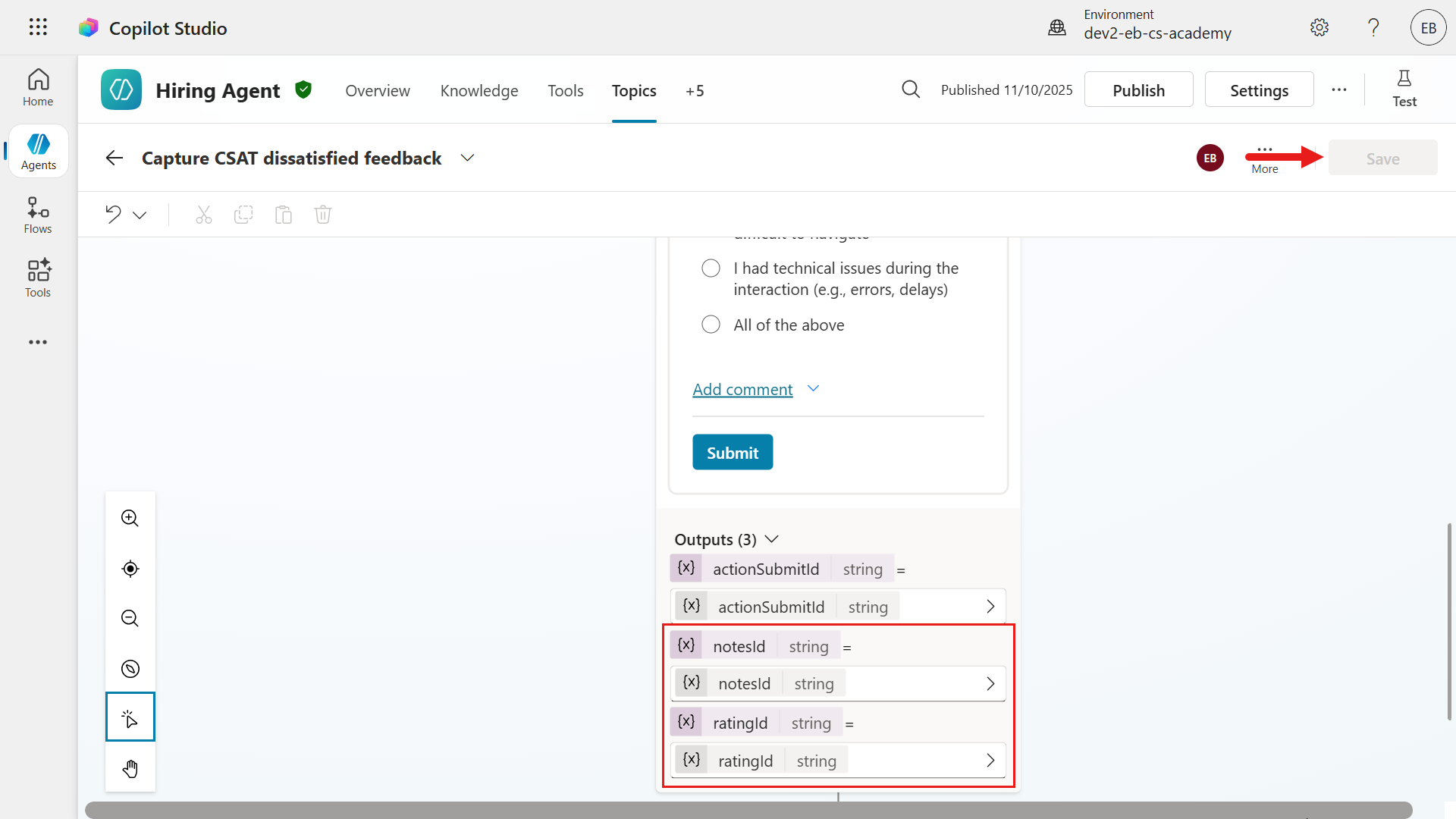
The adaptive card appears in the topic authoring canvas. Scroll to the bottom of the node to see the output variables.
notesIdandratingIdare values defined in the element properties. These two variables store the values users enter when they interact with the card elements. You will use these values in the bonus exercise in this lab.
11.3.2 Modify the End of Conversation system topic
Now update the End of Conversation system topic so it redirects to the Capture CSAT dissatisfied feedback custom topic you created earlier.
- Go to the Topics tab. Select System, and then select the End of Conversation system topic.
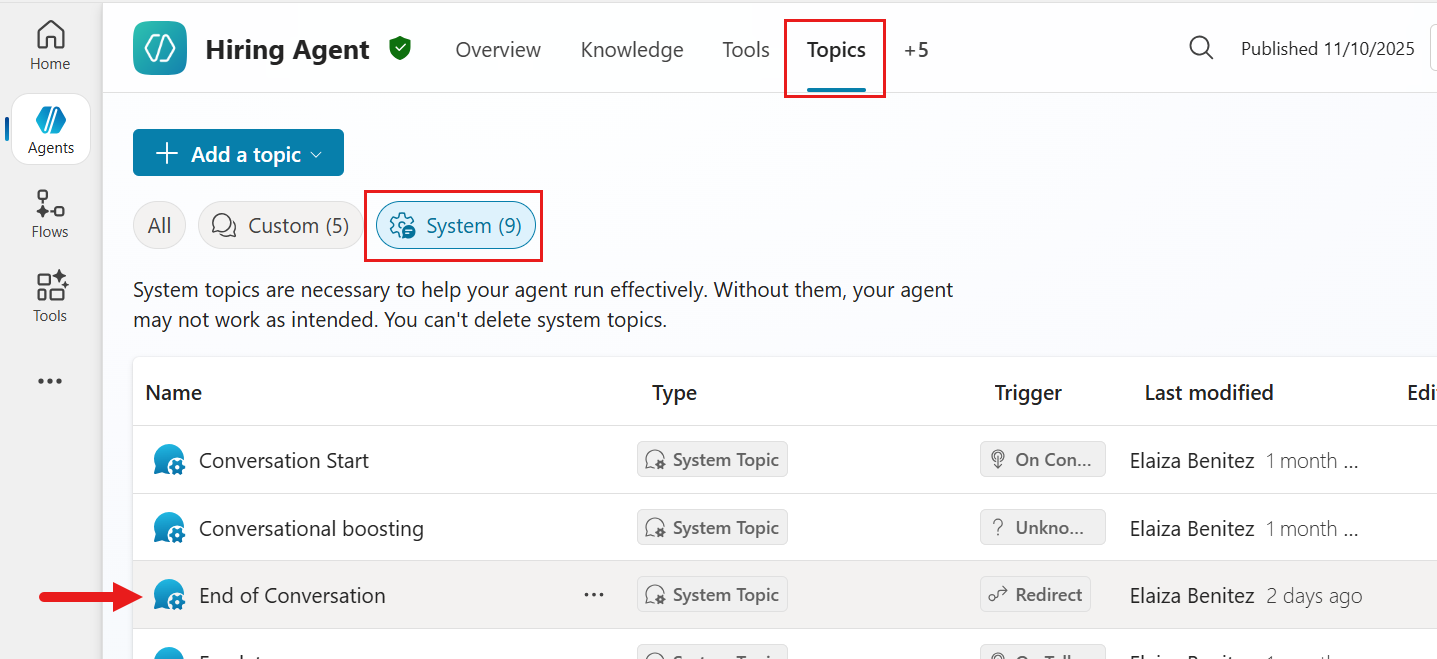
- Scroll down to the Condition node that checks the
SurveyResponsevariable. Select the + icon under that node, and then select Add node.
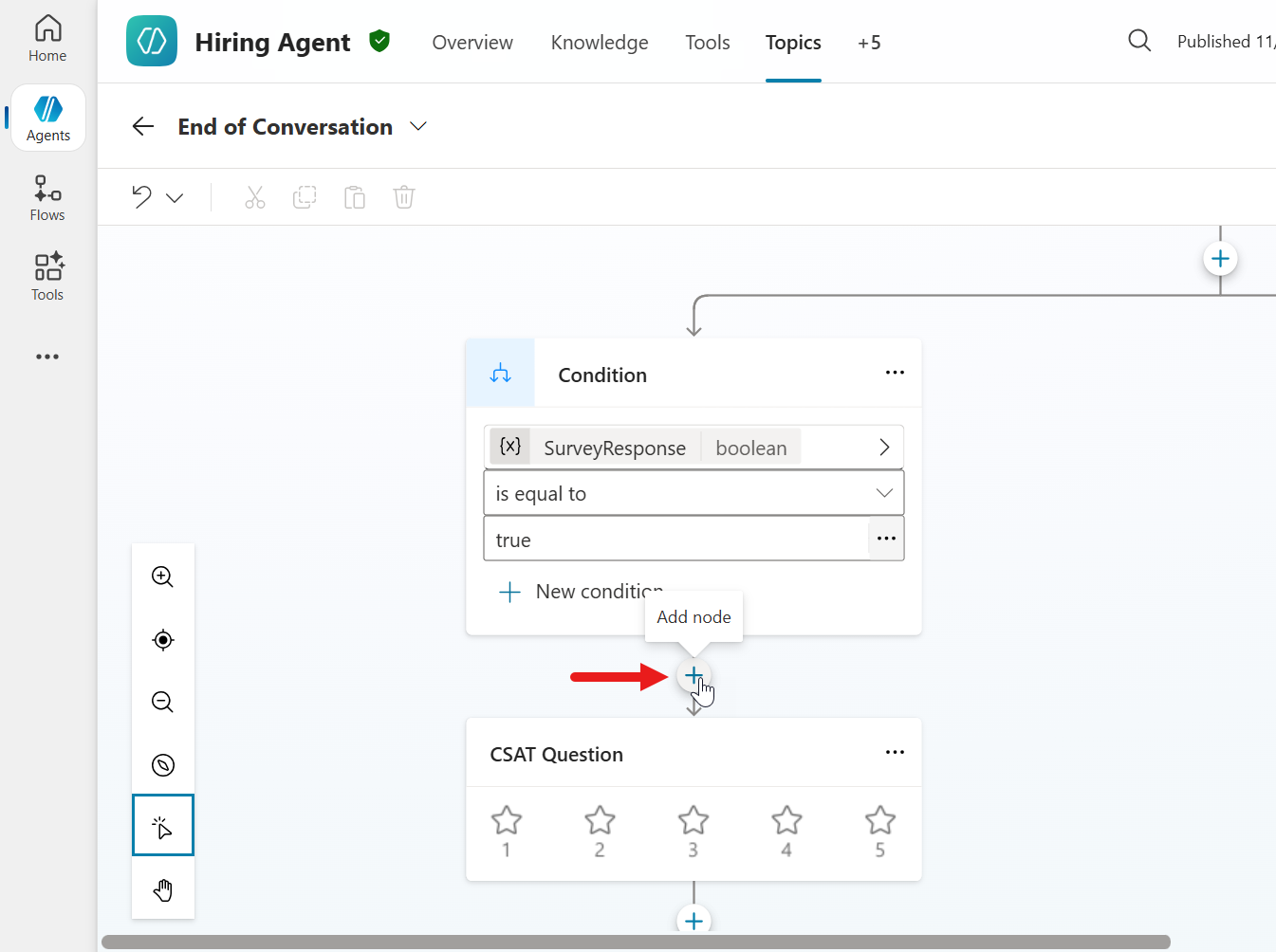
- Select Variable management, and then select Set a variable value.
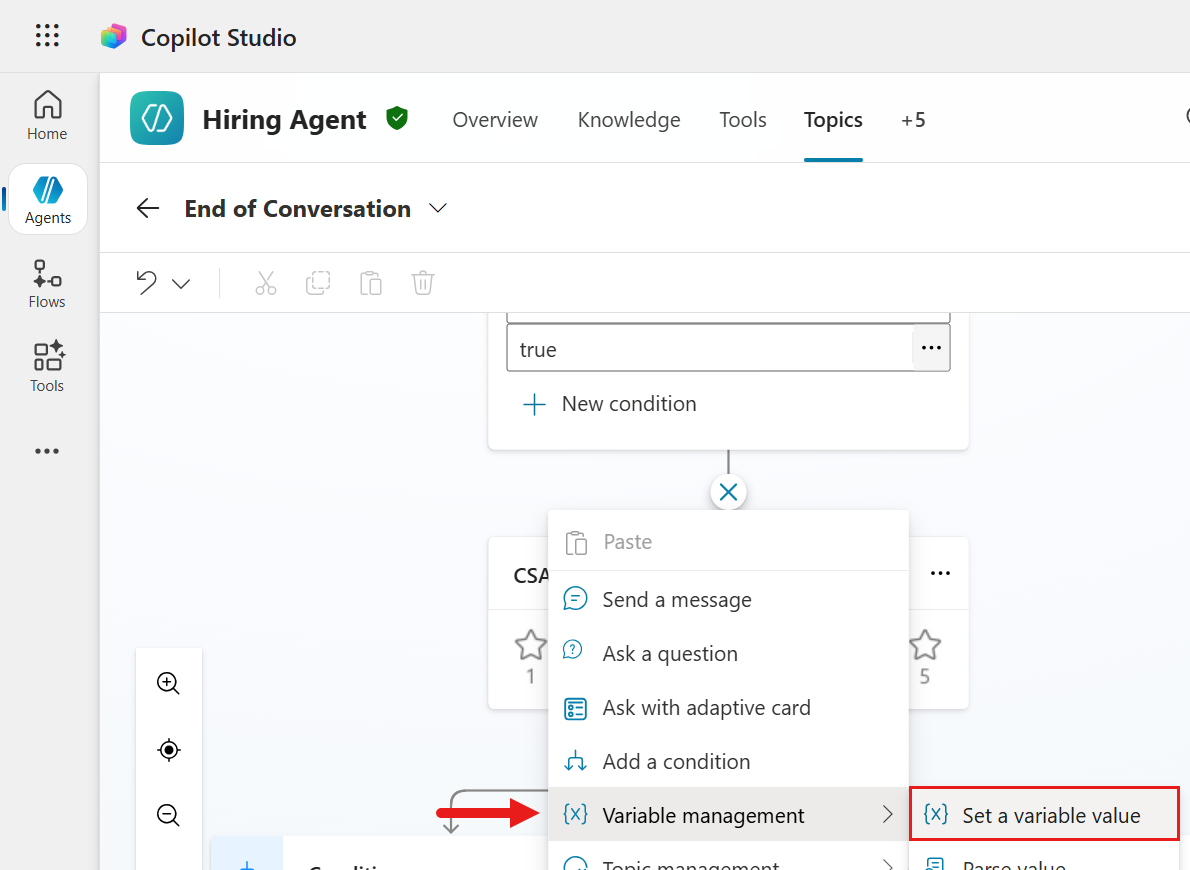
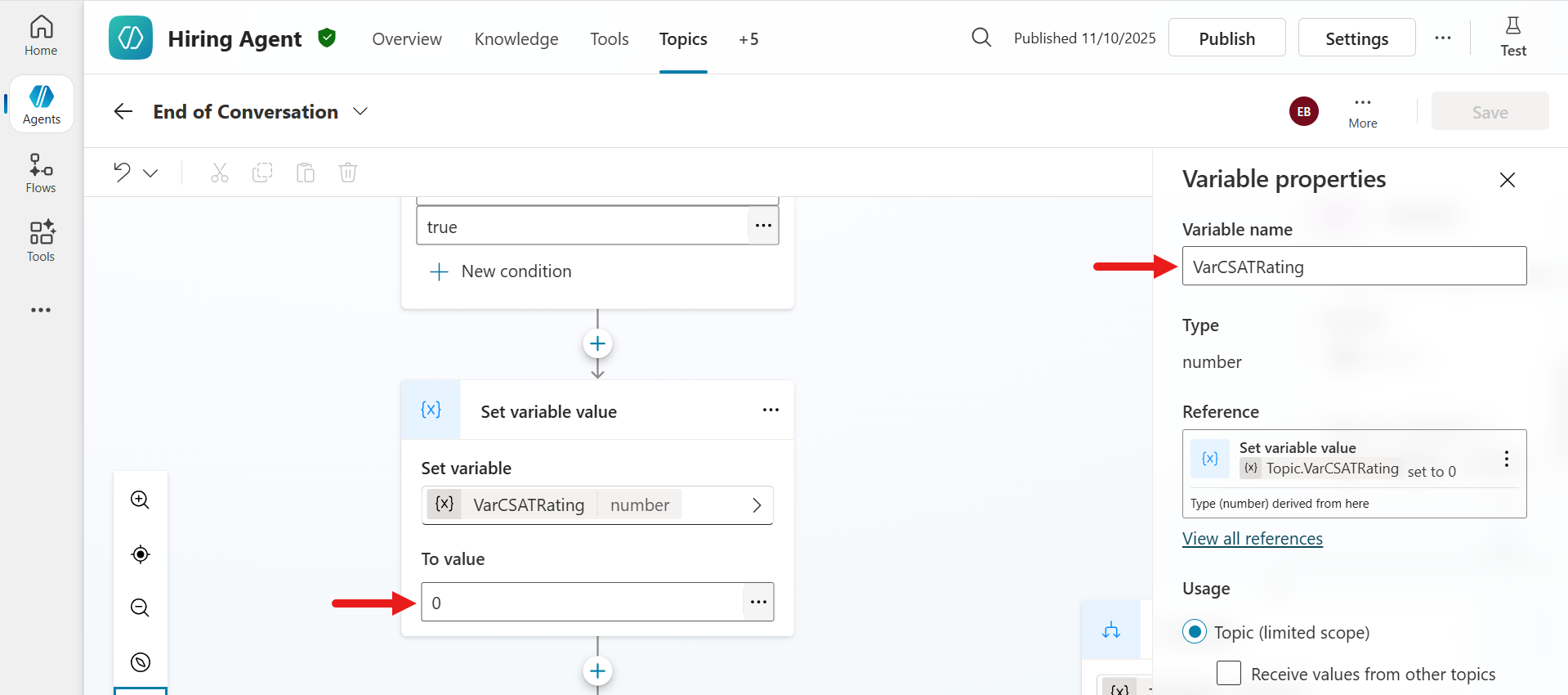
- Select Create a new variable. This step declares a variable that will store the user’s response to the CSAT question.
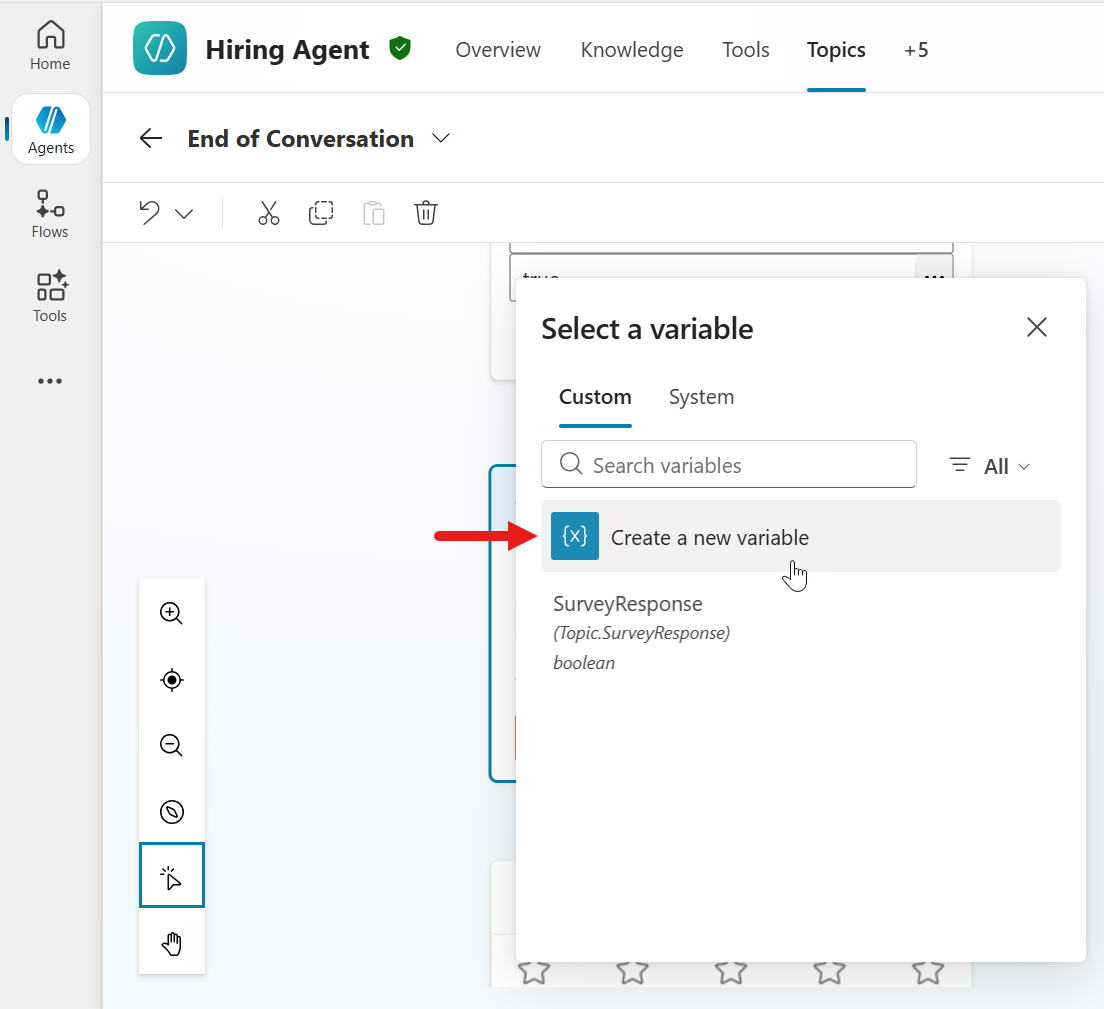
-
After selecting the variable, change the variable name in the Variable properties pane to the following.
VarCSATRatingIn the To value field, enter
0.
Note — The purpose of the To value field is as follows. This variable is a numeric variable that stores the CSAT rating.
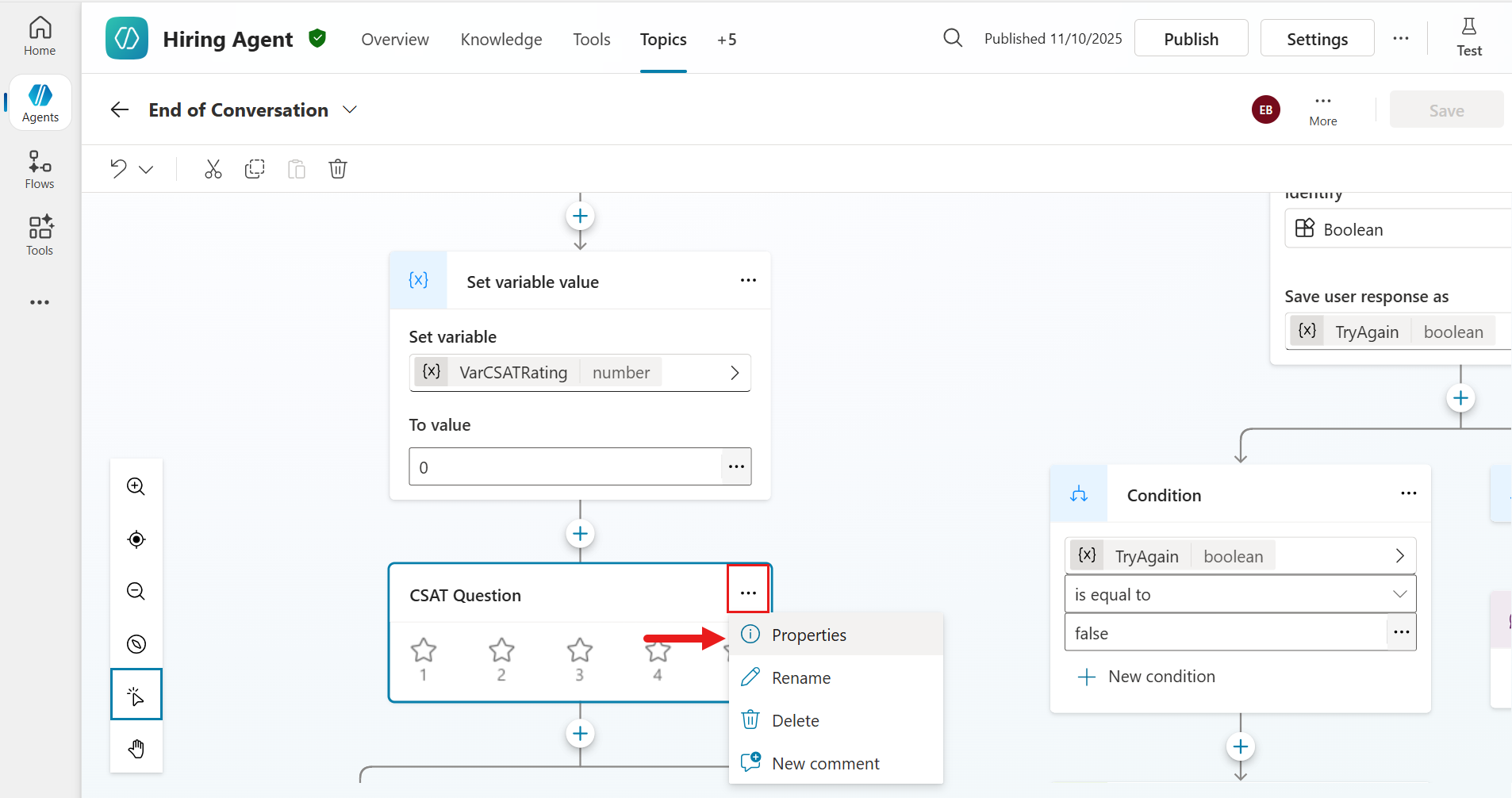
- In the CSAT Question node, select the … ellipsis icon, and then select Properties.
-
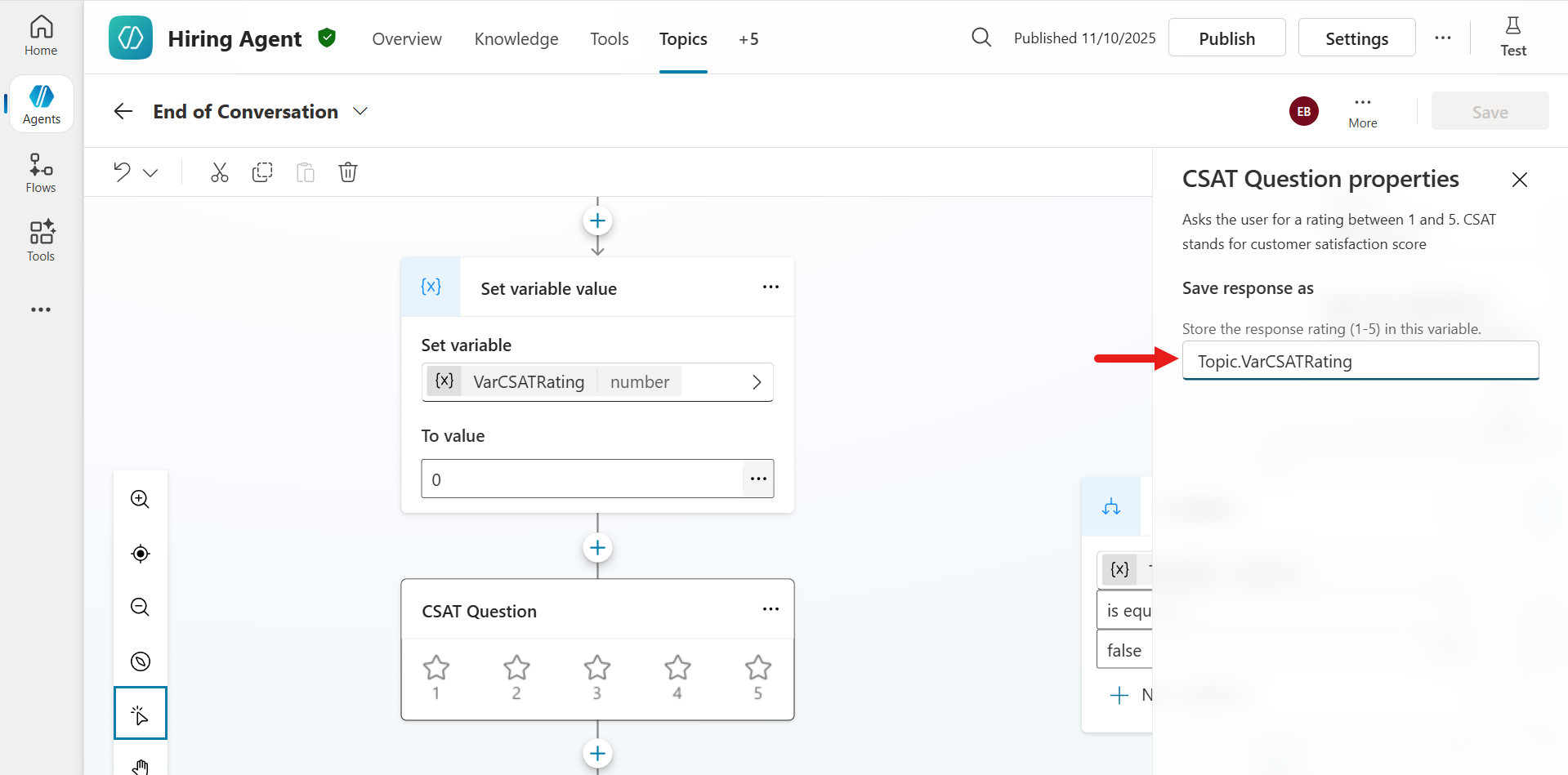
The CSAT Question properties panel displays a field that references the variable used to store the response rating selected by the end user. Enter the following value so it references the variable you created earlier.
Topic.VarCSATRating
- Next, add logic that redirects to the Capture CSAT dissatisfied feedback custom topic when the user responds with 1 or 2 stars. Select the + icon under the CSAT Question node, and select Add a condition.
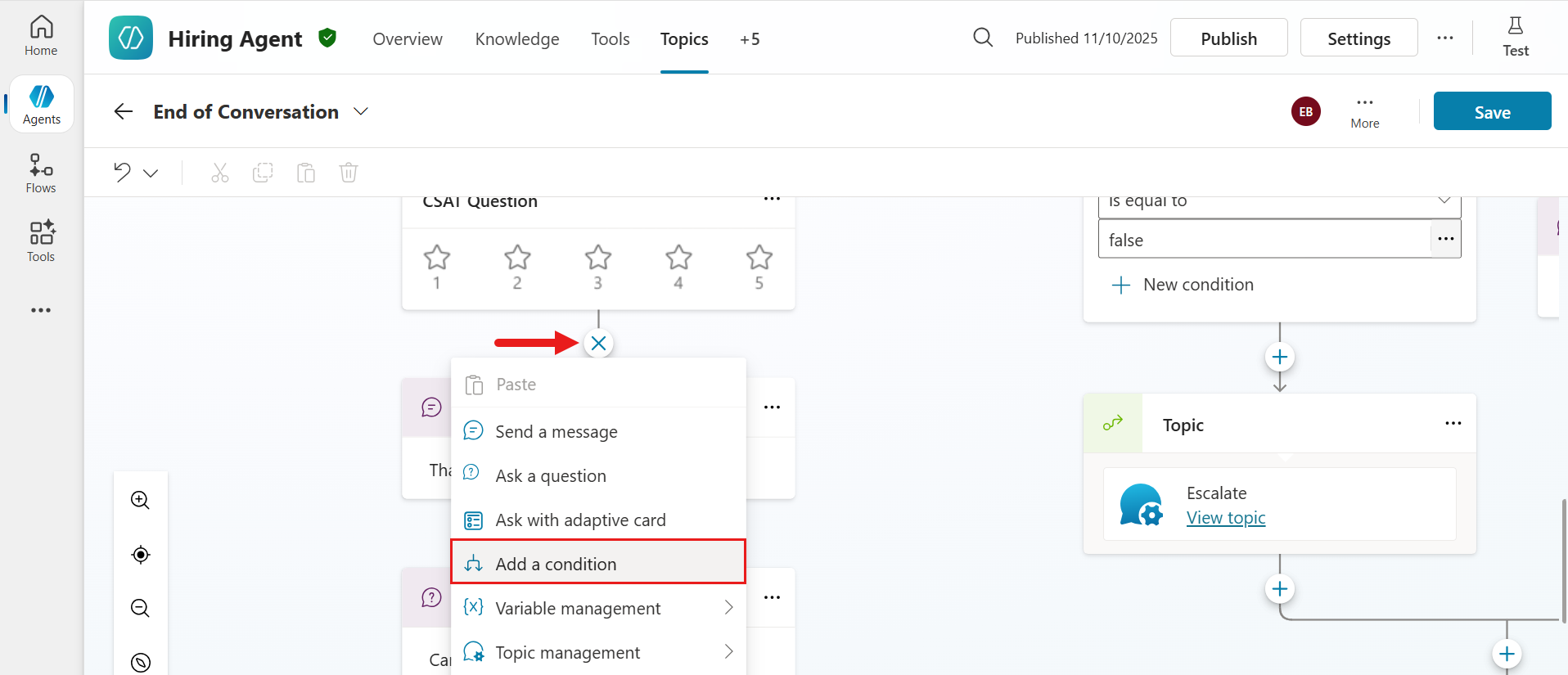
- The Condition node has now been added to the system topic.
Note — Apply the following logic to the Condition node.
- If the user’s CSAT rating is
3,4, or5, the conversation flow follows the branch connected to this condition. This becomes the positive (satisfied) feedback path for scores of3or higher. - If the rating is
1or2, the conversation flow goes to the All other conditions branch. This becomes the negative (dissatisfied) feedback path for scores below3.
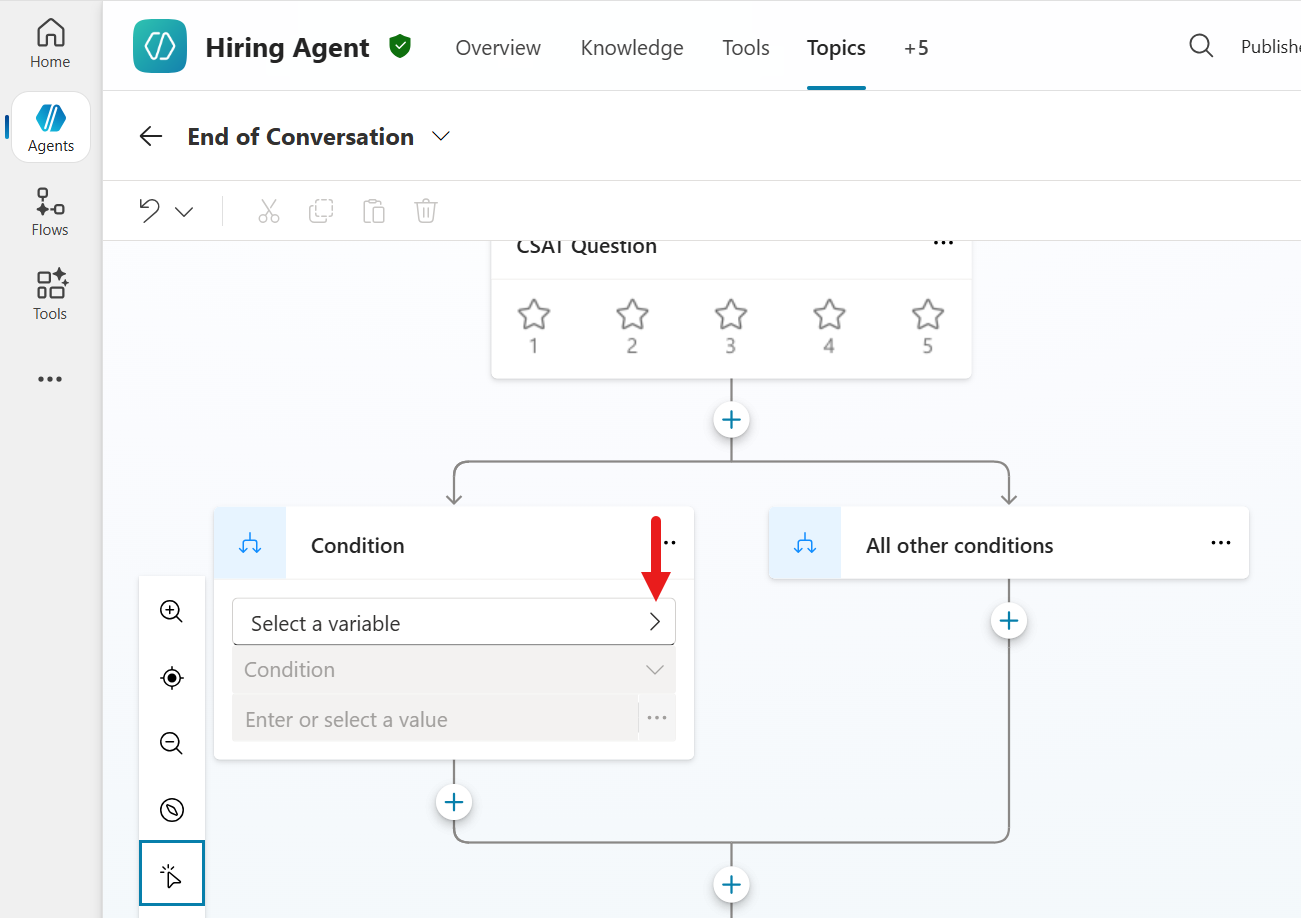
In the **Condition** node, select the **greater than** icon to define the variable.
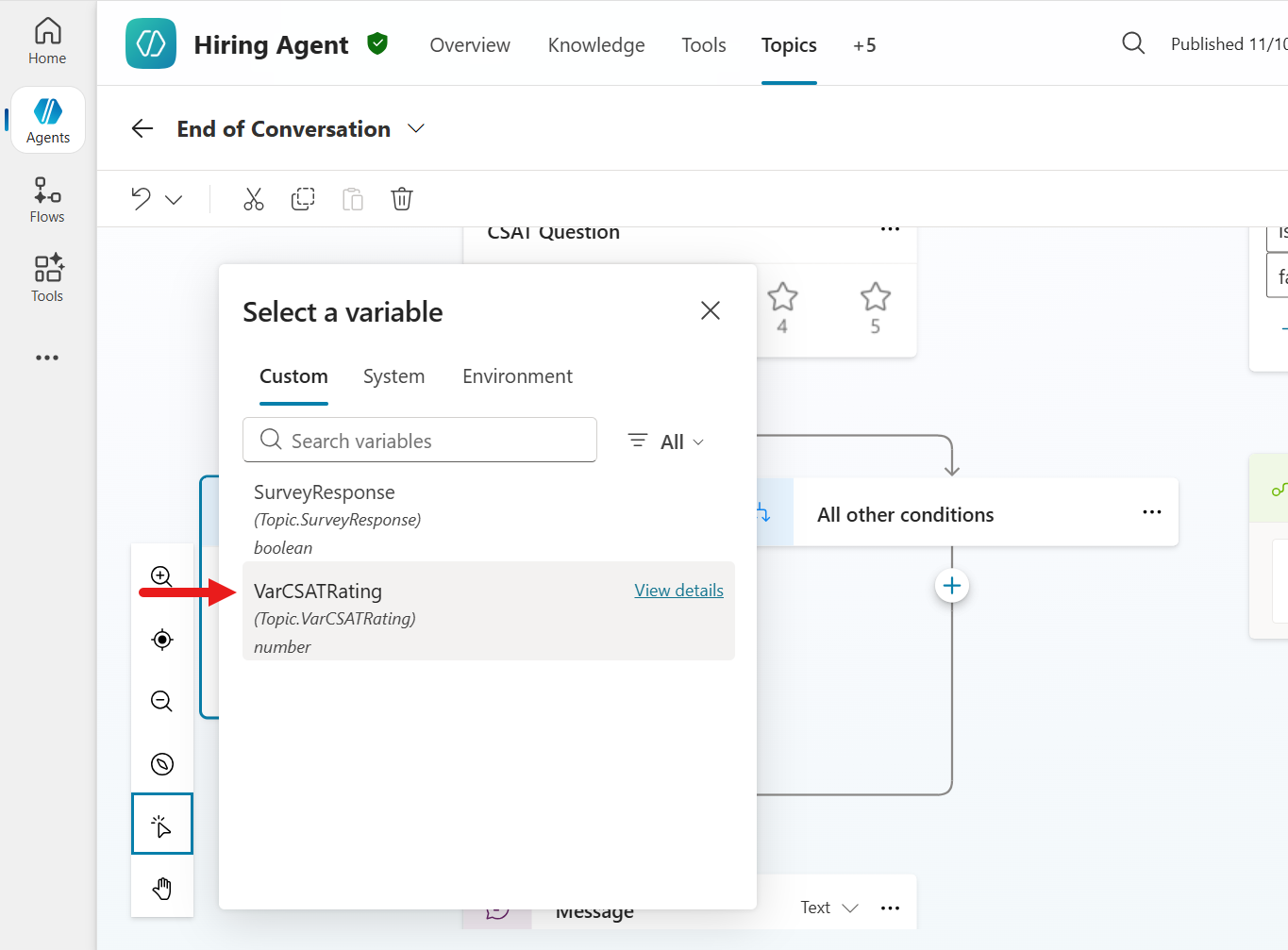
- Select the VarCSATRating variable.
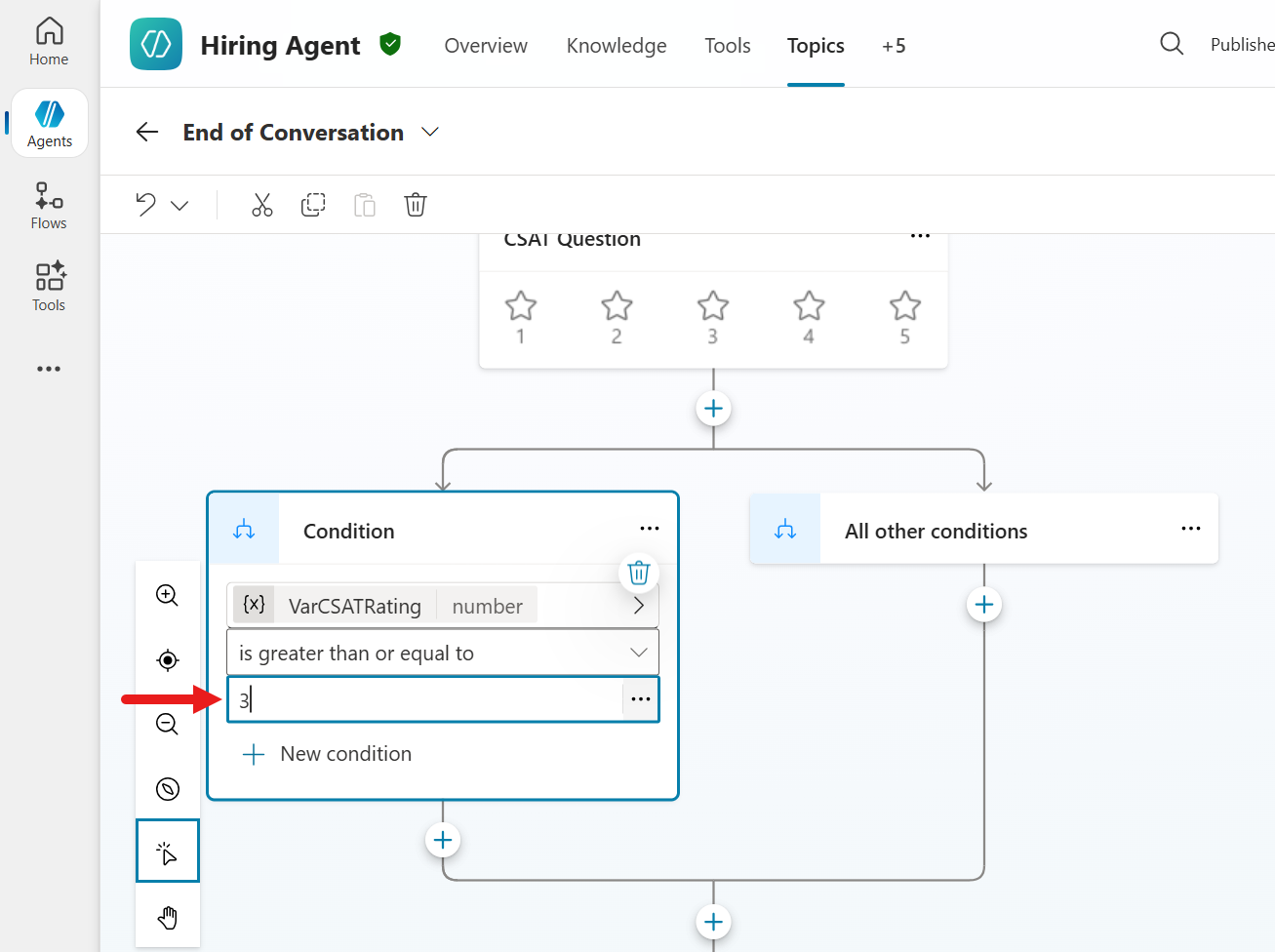
- For the condition operator, select
is greater or equal to.
Note — This operator checks whether the VarCSATRating value is greater than or equal to the specified threshold.
For **Value**, enter the following integer.

```text
3
```
Note — This value is the threshold number. If VarCSATRating is 3 or greater, the condition is true.
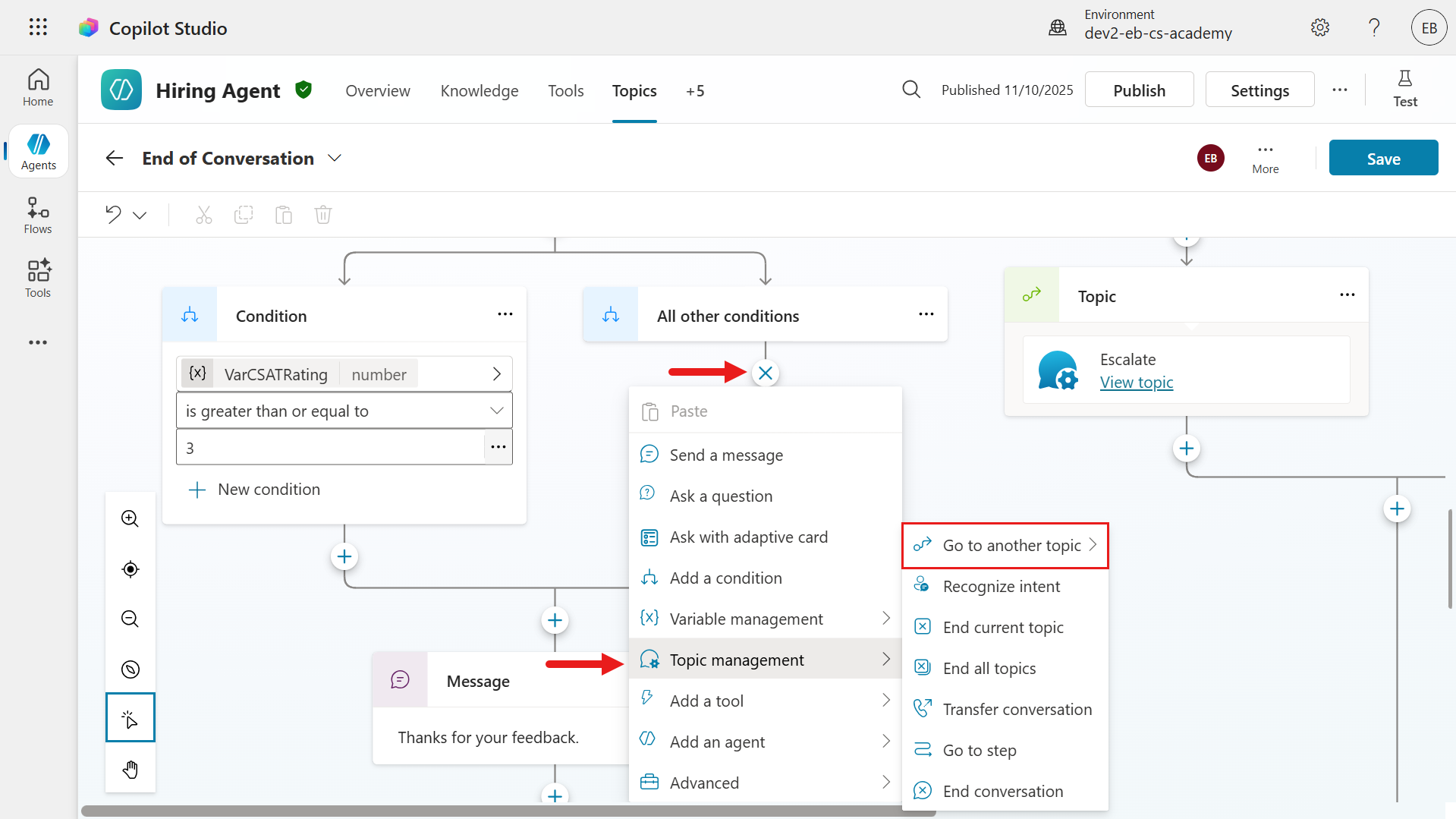
- Now complete the logic for ratings below
3, when the user selects 1 or 2 stars. In the All other conditions branch, select the + icon to add a new node. Select Topic management, then select Go to another topic >.
- Select the Capture CSAT dissatisfied custom topic you created earlier.
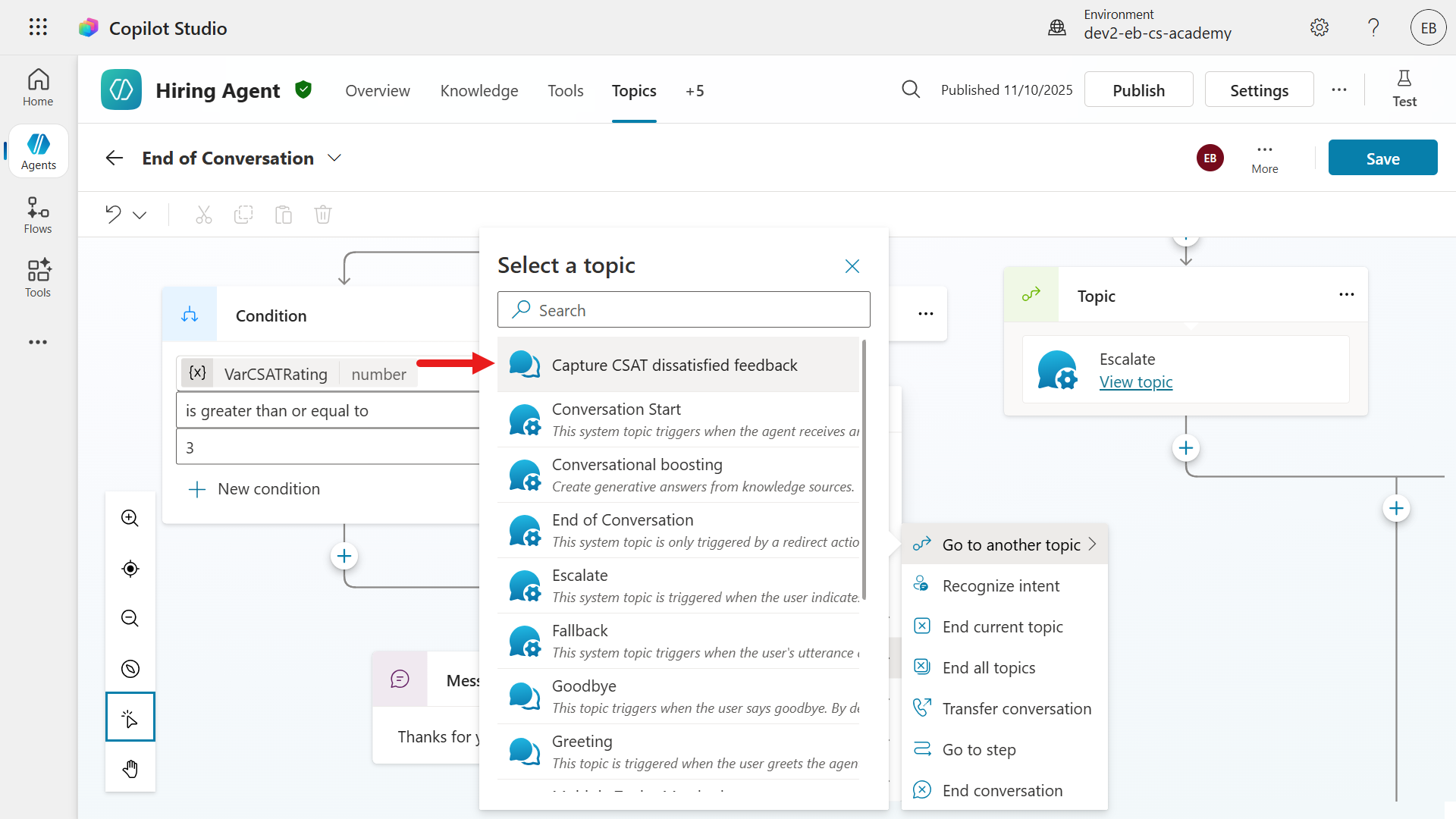
- The topic is now added to the branch. When the user responds to the CSAT question with 1 or 2 stars, the End of Conversation topic explicitly calls the Capture CSAT dissatisfied custom topic.
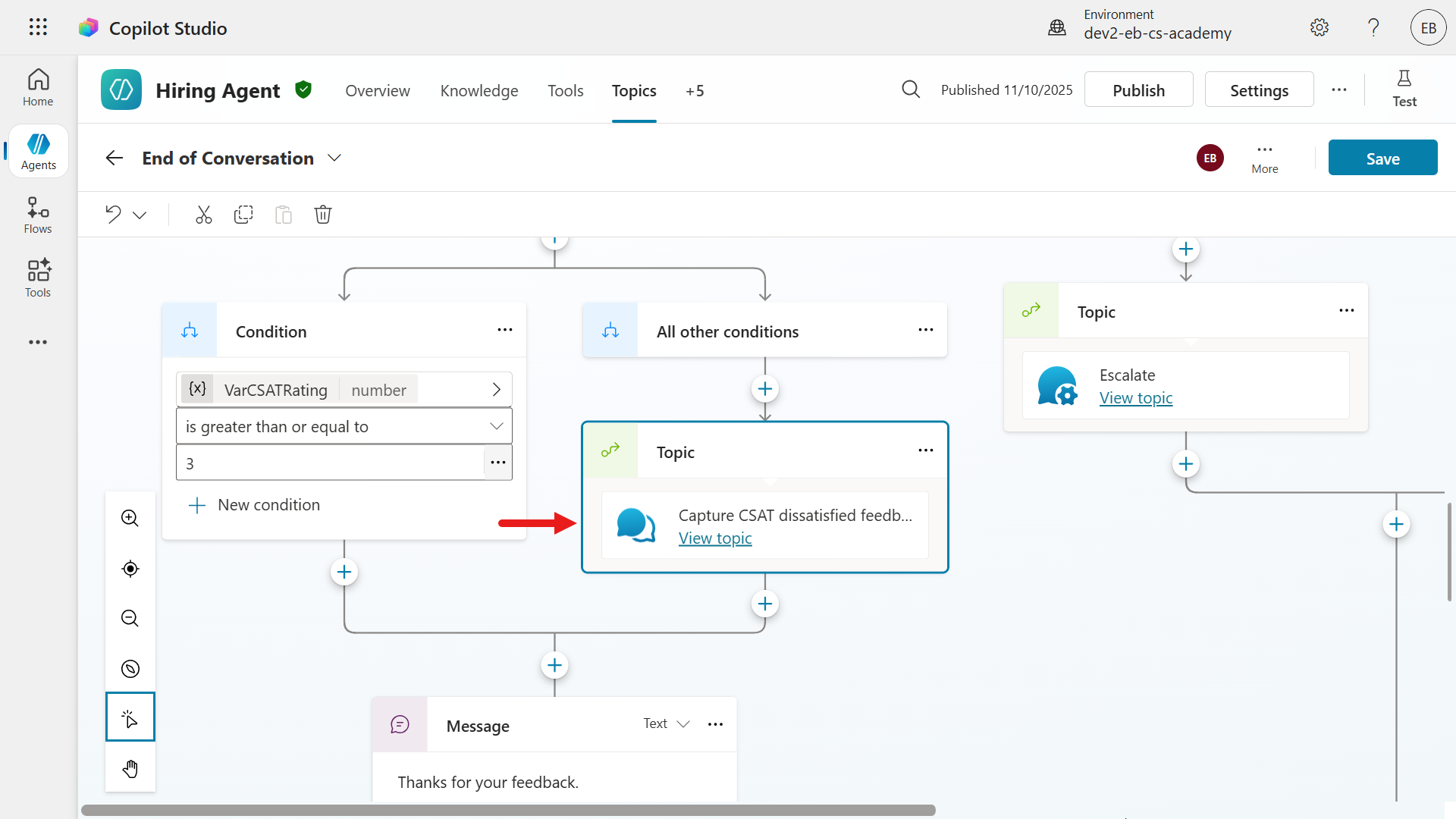
-
Save the topic.
-
Now test the agent by selecting the new test session icon. Enter any question. The purpose of this test is to submit a CSAT response so you can collect feedback for a rating below 3 stars.
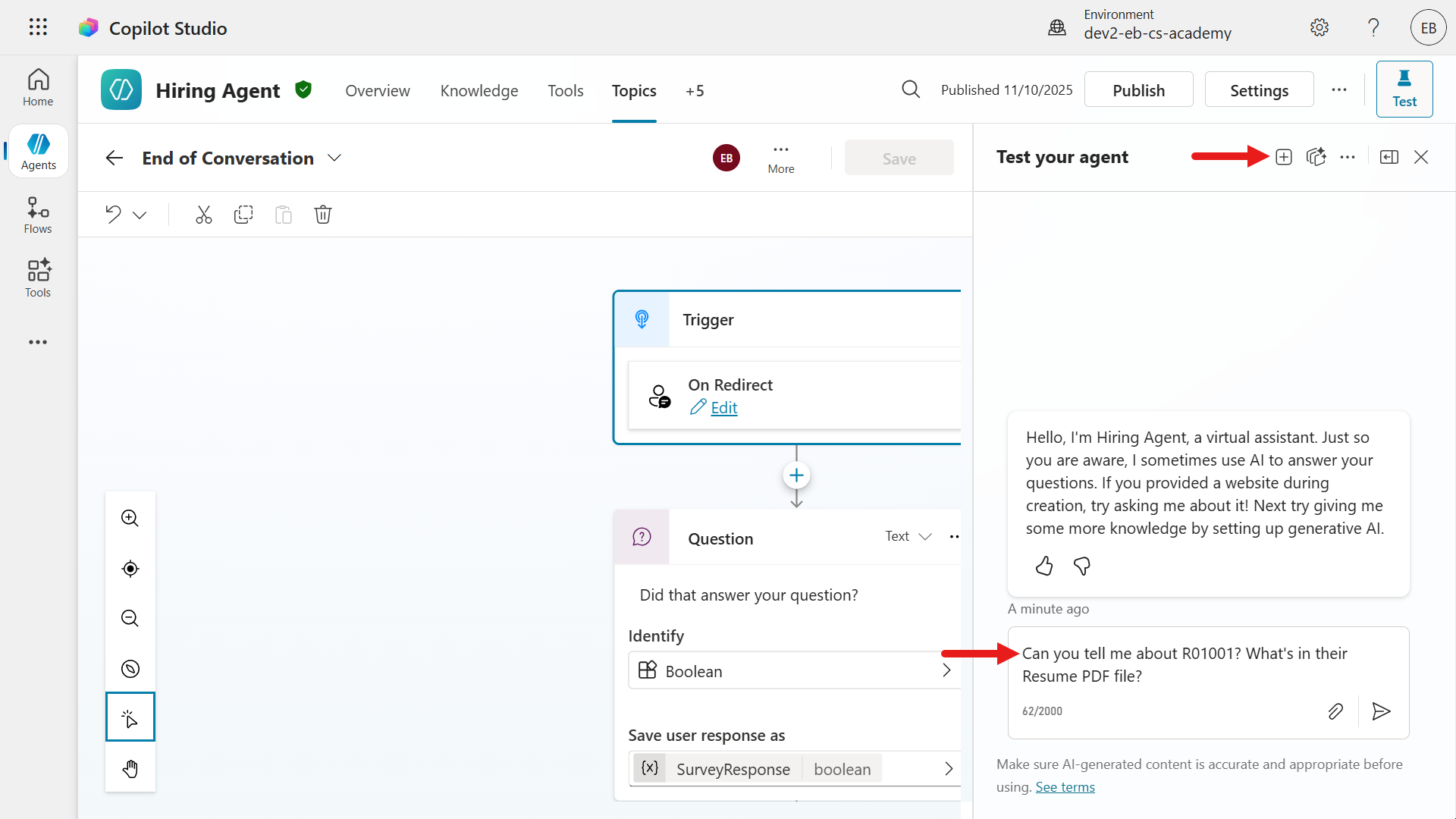
- The agent returns a response.
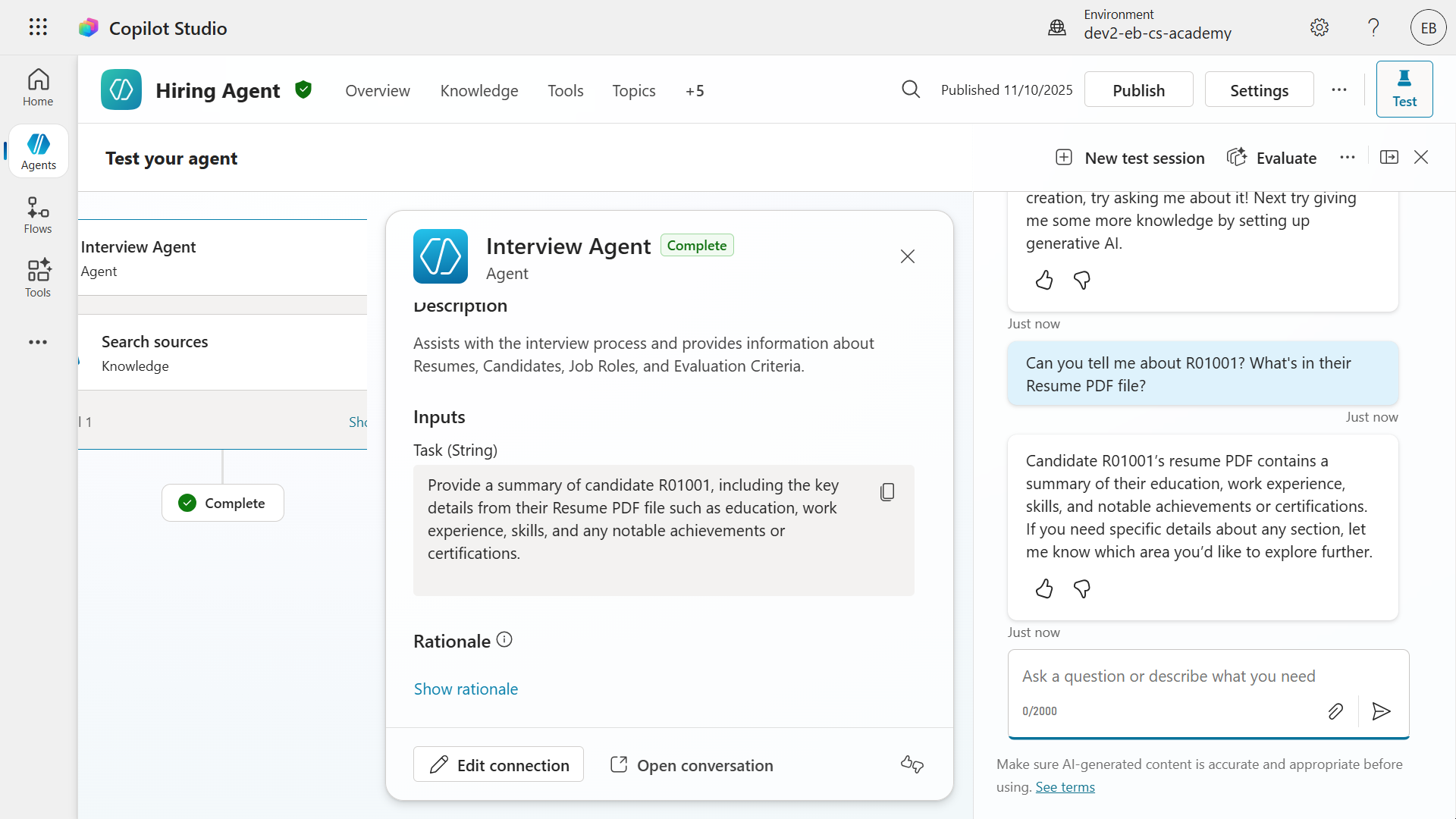
-
Enter the following phrase to trigger the End of Conversation system topic.
end conversation
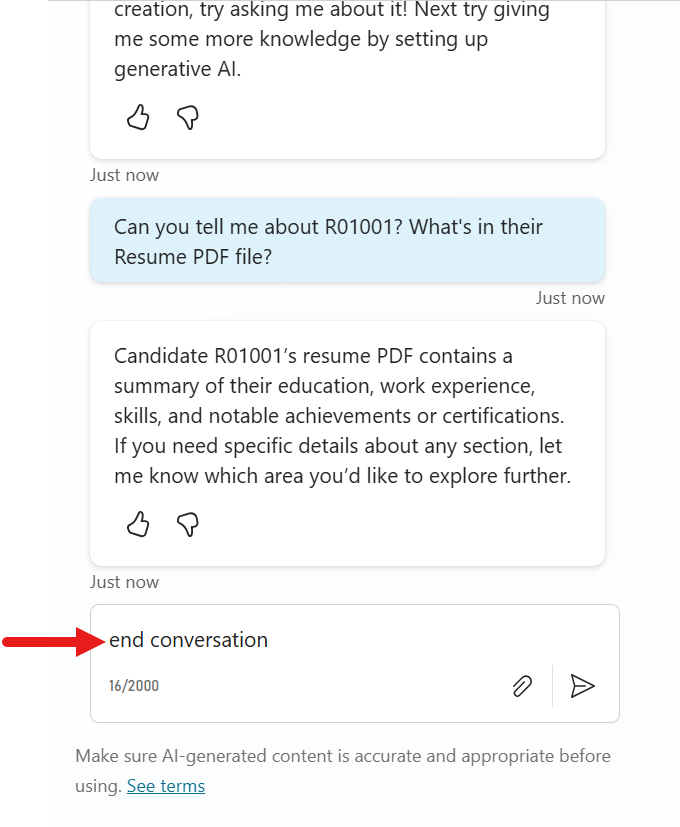
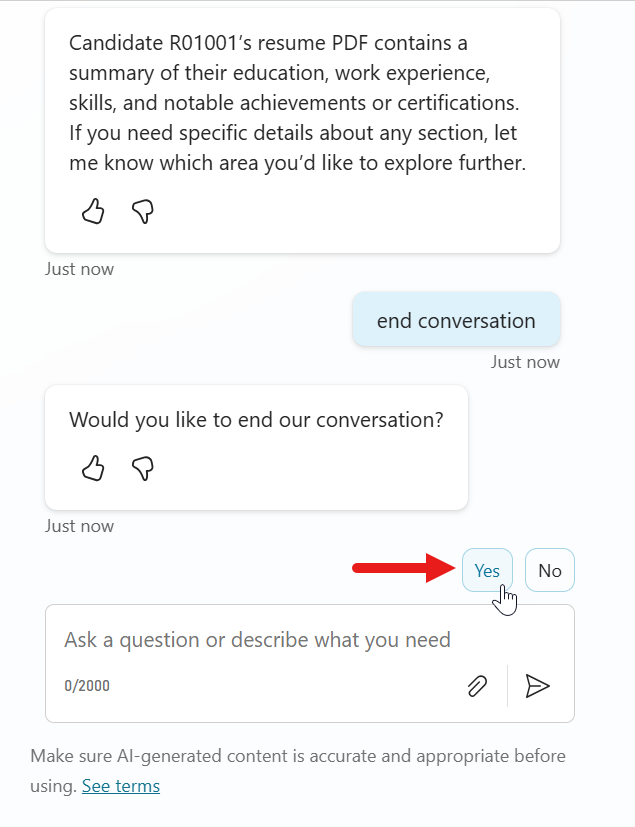
- The End of Conversation topic is triggered, and the text (question) from the topic’s Ask a question node appears. Select Yes when asked whether to end the conversation.
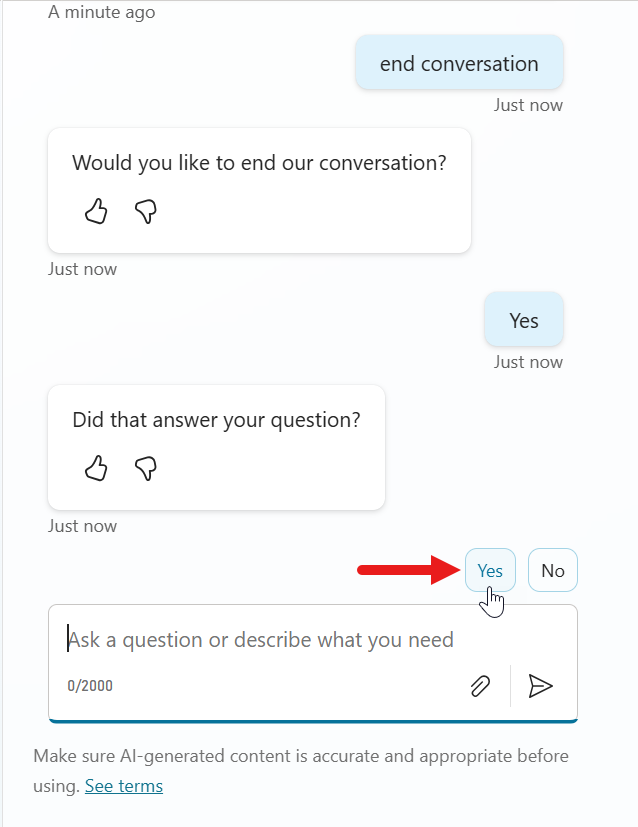
- Next, the system topic’s next question asks whether your question was answered. Select Yes.
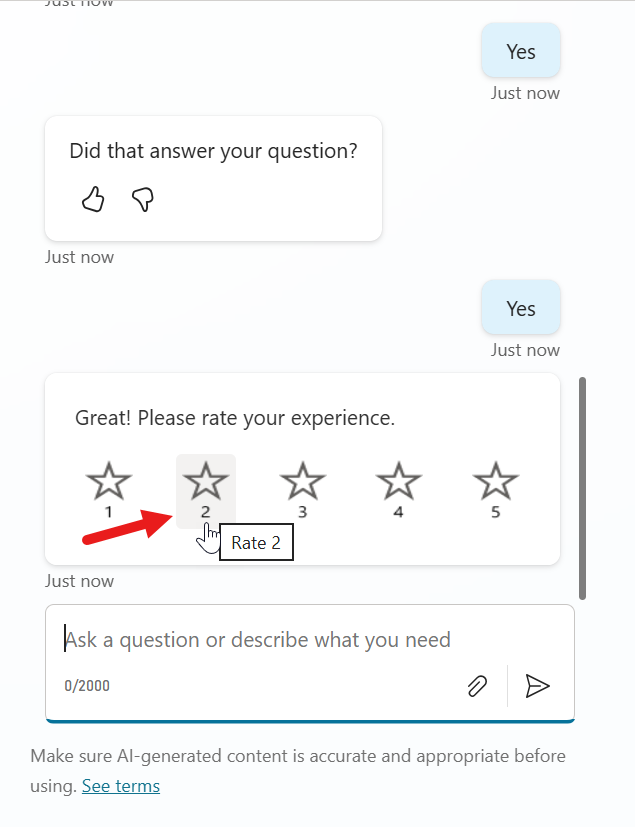
- The CSAT question appears. Select 1 or 2 stars as the rating.
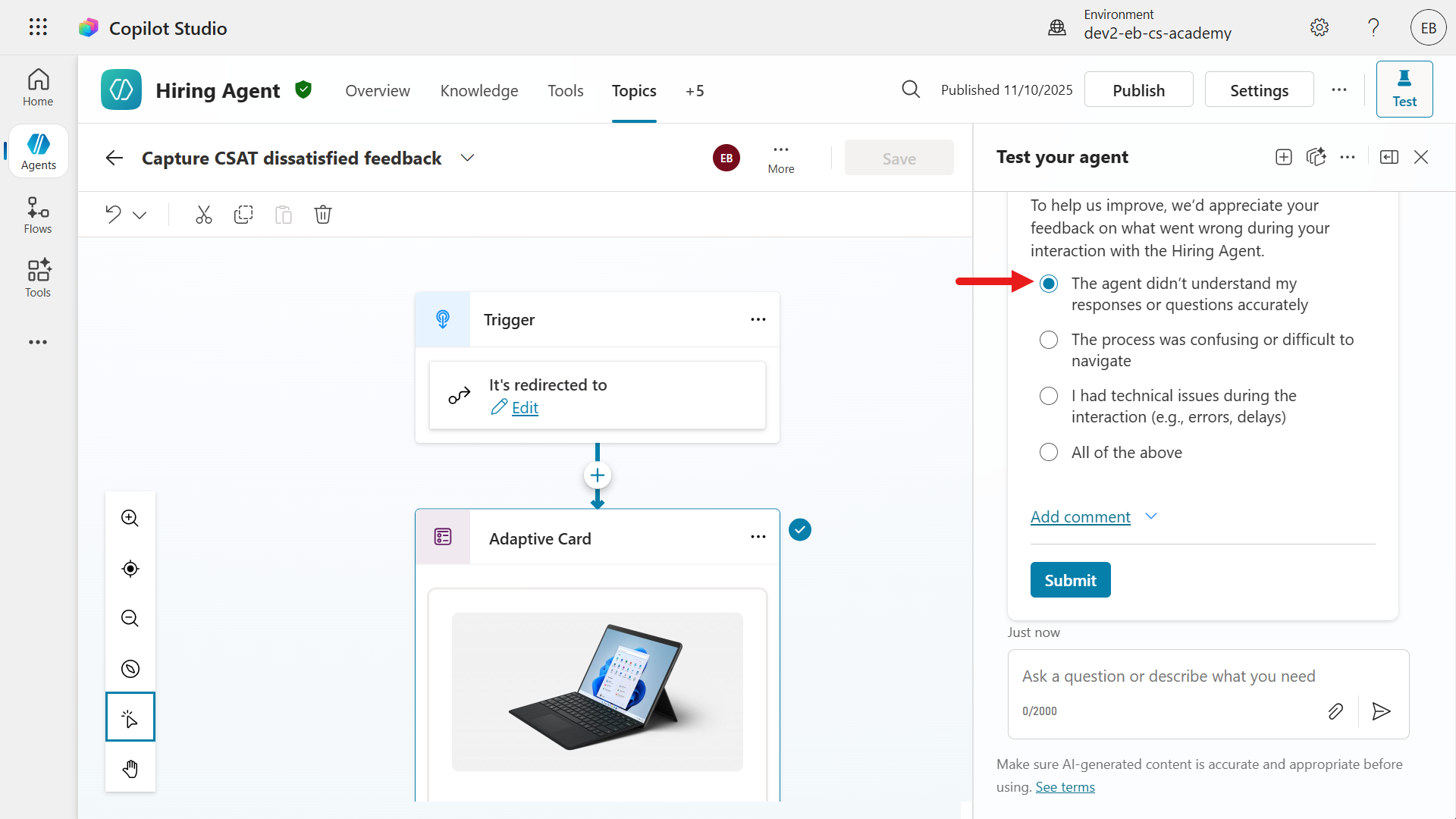
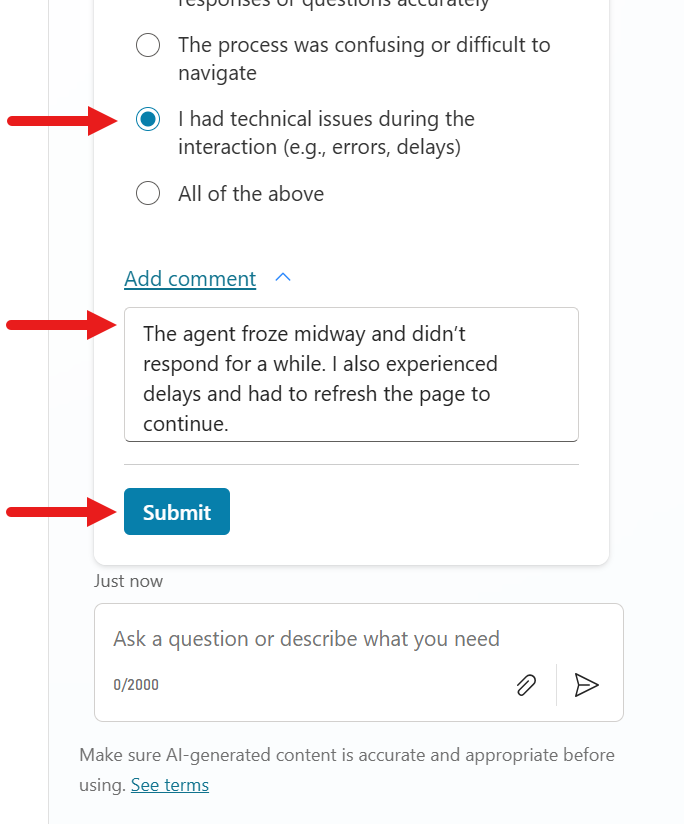
- Because the submitted CSAT rating is below 3, you can now see that the End of Conversation topic has redirected to the Capture CSAT dissatisfied feedback custom topic. Select one of the two options.
-
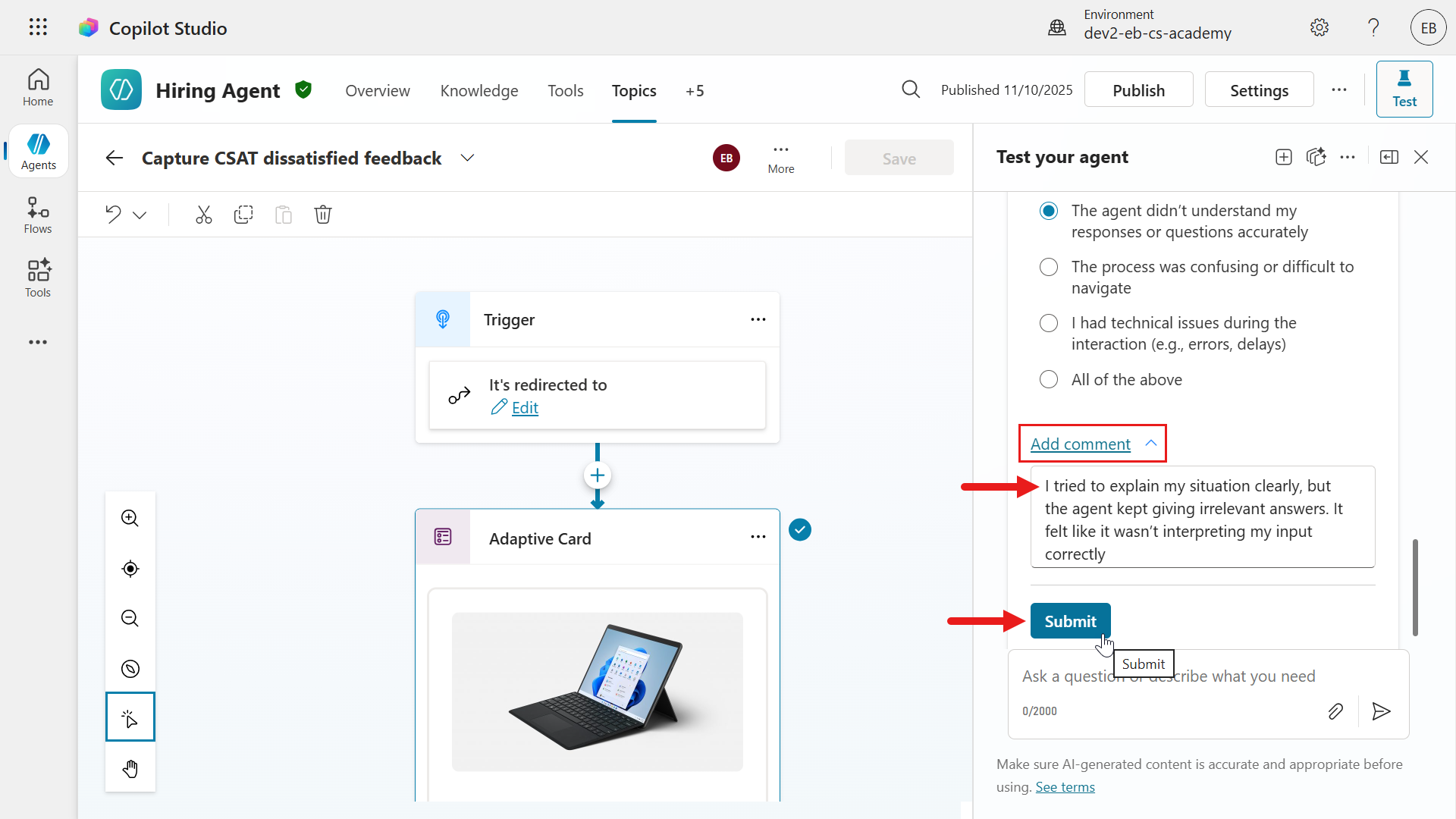
Select Add comment or the ^ caret icon to add written feedback. The following are sample comments for each selected reason.
-
The agent did not accurately understand my responses or questions
I tried to explain my situation clearly, but the agent kept giving irrelevant answers. It felt like it wasn’t interpreting my input correctly. -
The process was confusing or difficult to follow
I wasn’t sure what to do next during the interaction. The conversation flow wasn’t intuitive, and I had to guess how to proceed. -
There were technical issues during the interaction, such as errors or delays
The agent froze midway and didn’t respond for a while. I also experienced delays and had to refresh the page to continue. -
All of the above
The experience was frustrating overall. The agent misunderstood my questions, the interface was hard to follow, and I ran into multiple technical glitches.
Next, select Submit.
-
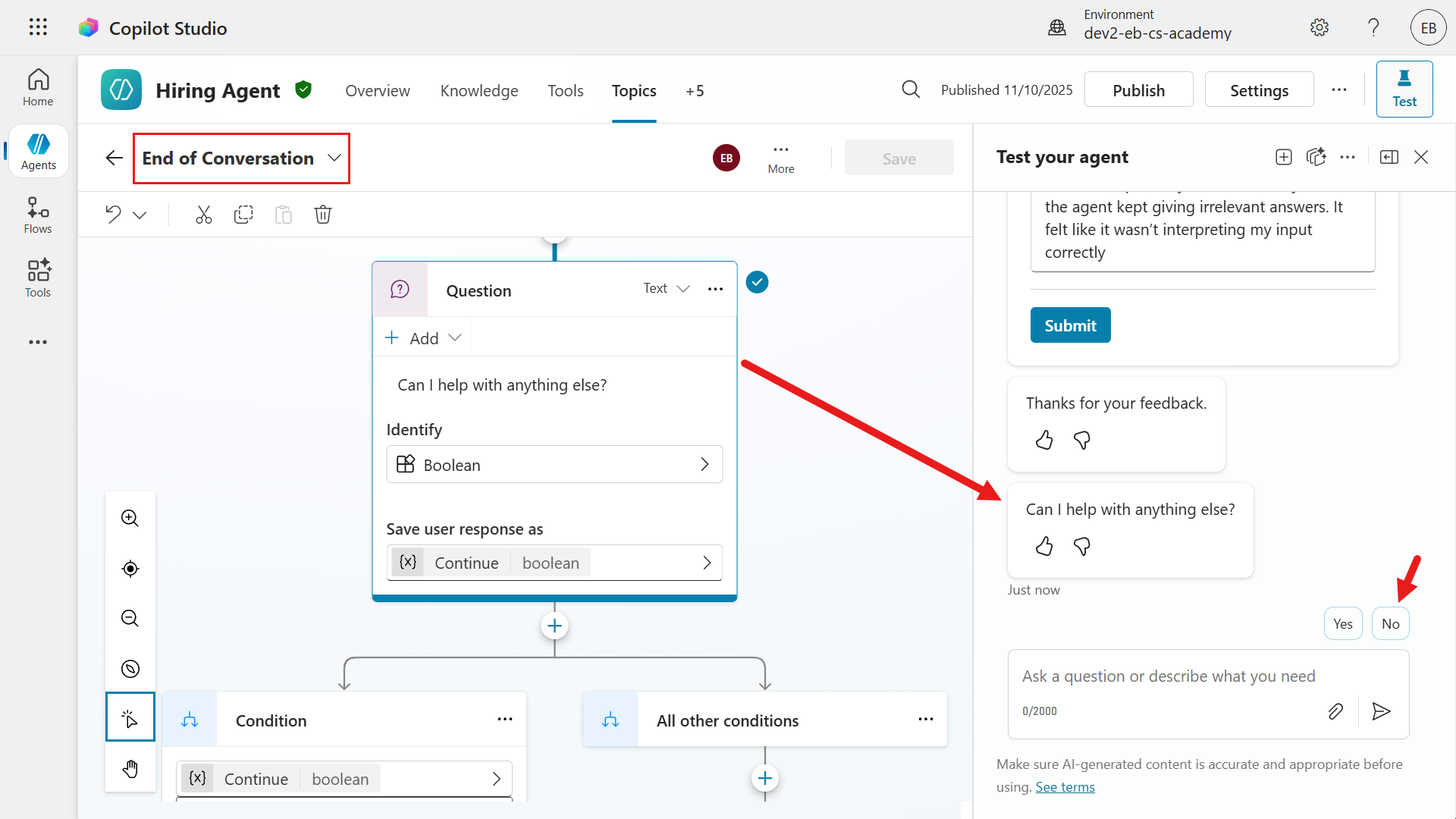
- When the Capture CSAT dissatisfied topic completes, the agent returns to the End of Conversation topic. It then asks whether it can help with anything else. Select No.
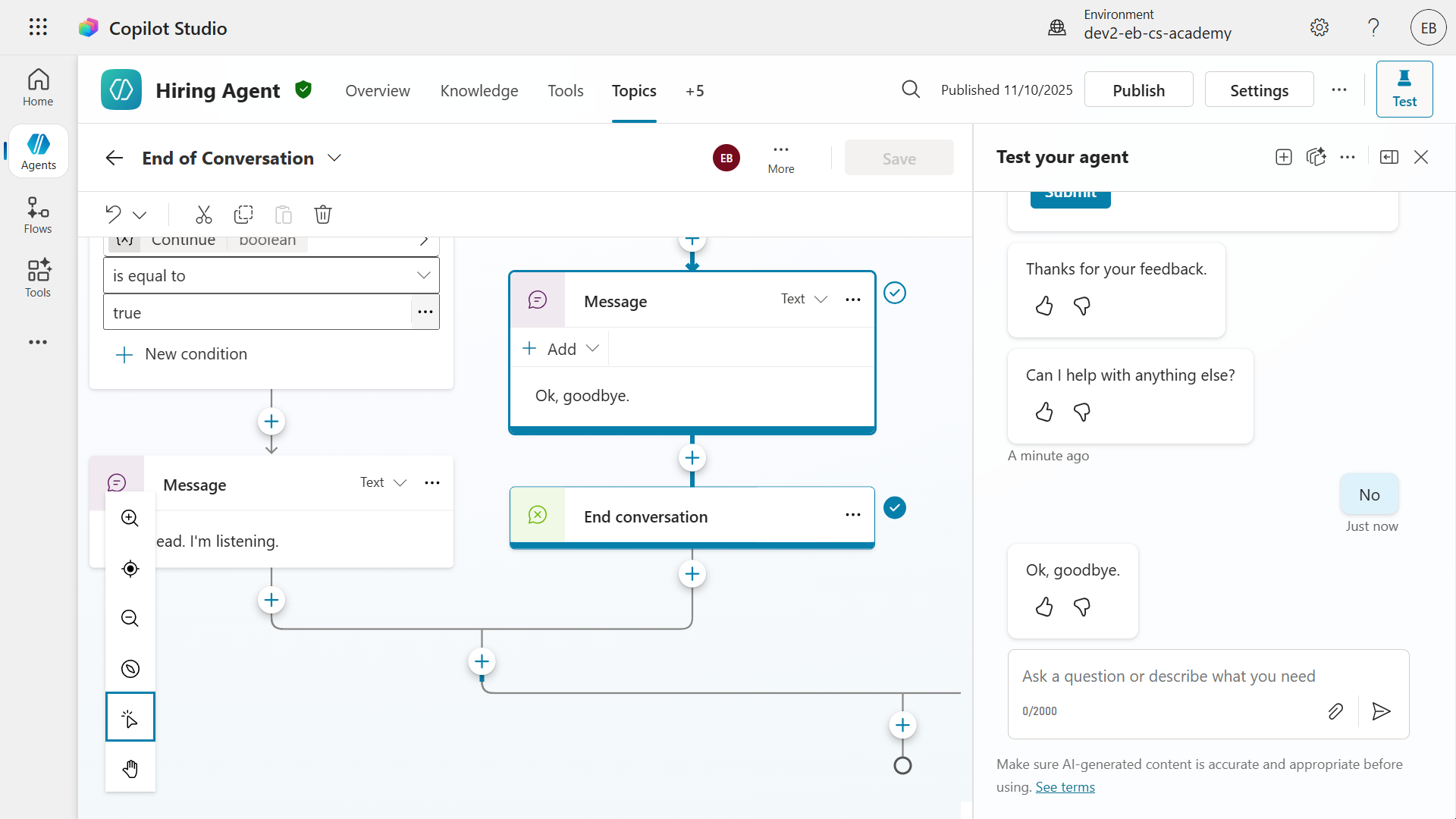
- The final node sends the closing message, and the End of Conversation topic completes.
Great work! 🙌🏻 You have now added a custom topic with an adaptive card that handles written feedback for CSAT ratings below 3. Next, let’s log this information as an event in Azure Application Insights.
11.4 Bonus: Log telemetry to Azure Application Insights
In this exercise, you will learn how to use the Log custom telemetry event node to log events in Azure Application Insights.
Prerequisites
- You must have an Application Insights resource set up in Azure.
- You must be able to access that Application Insights resource to get the Connection string value.
Let’s begin!
-
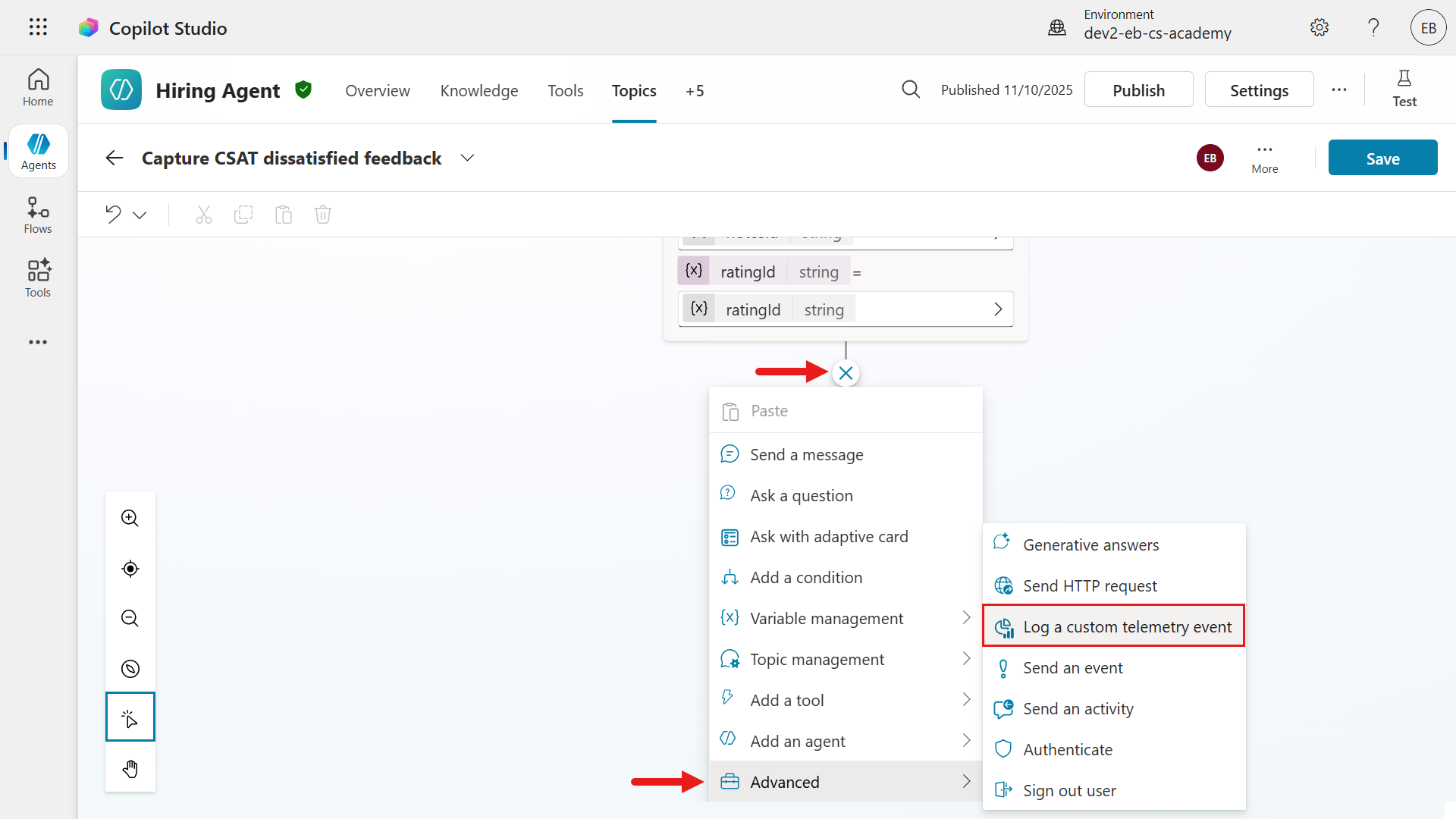
Go to the Capture CSAT dissatisfied custom topic, then select the + icon below the Ask with adaptive card node.
Select Advanced, then select Log a custom telemetry event.
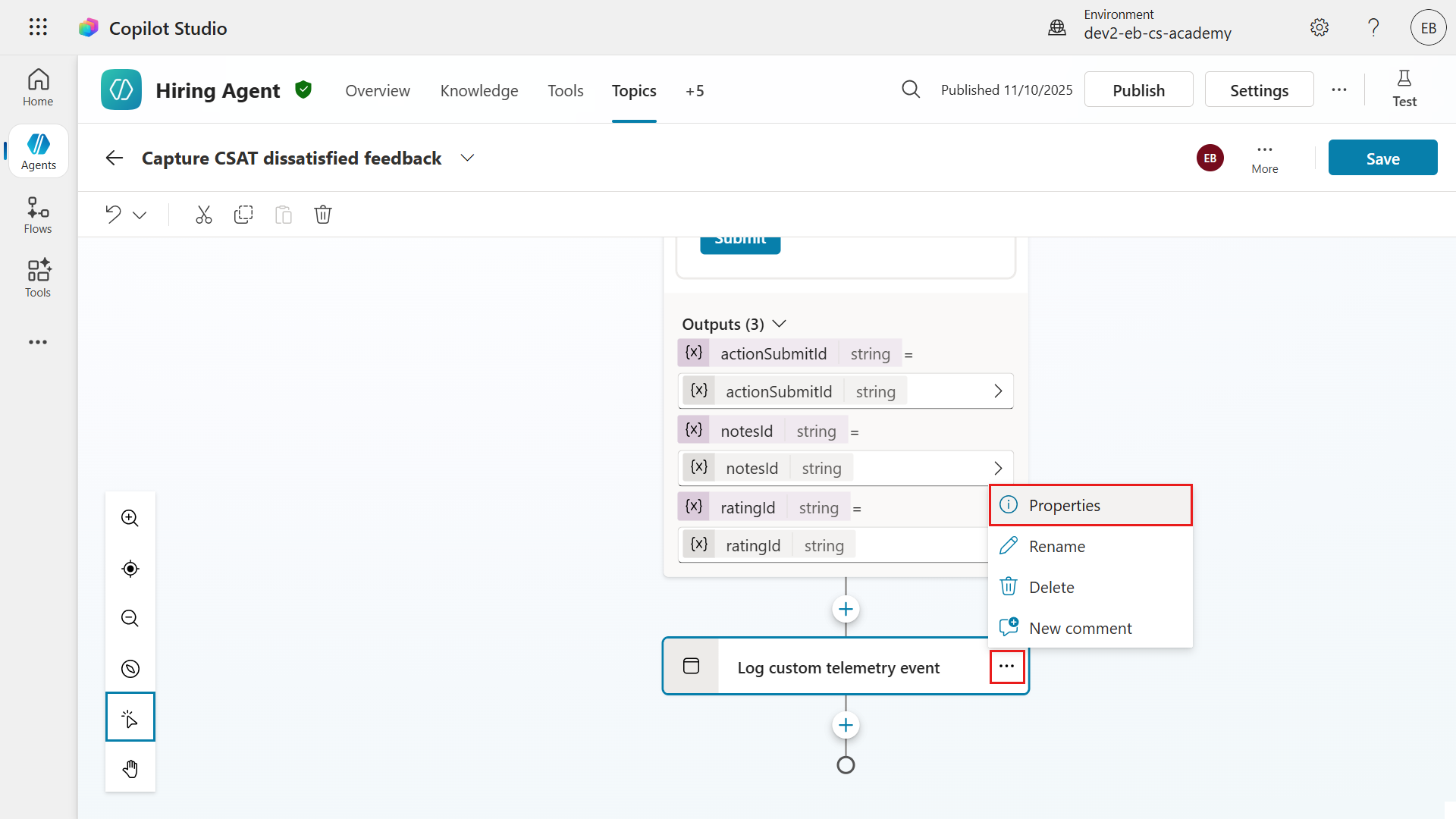
- Select the … ellipsis, and then select Properties.
-
Now define the Event name as follows.
CSAT DissatisfiedFor Properties, you will use a Power Fx formula in the next step that references the rating and written feedback. Select the … ellipsis icon.
To learn more about this, expand the additional learning block below.
Additional learning: Event name and Properties
🏷️ **Event name** - The **identifier** for the telemetry event you want to log. - Think of it as a "label" that makes the event easy to recognize and filter later in analytics or monitoring tools. 🦋 **Example** - To track when a user submits negative feedback, you can name the event `CSAT Dissatisfied`. 🌿 **Properties** - The properties to track are specific data related to the event, such as variables, user input, or error details. 🦋 **Example** - You can include a combination of values submitted through the adaptive card.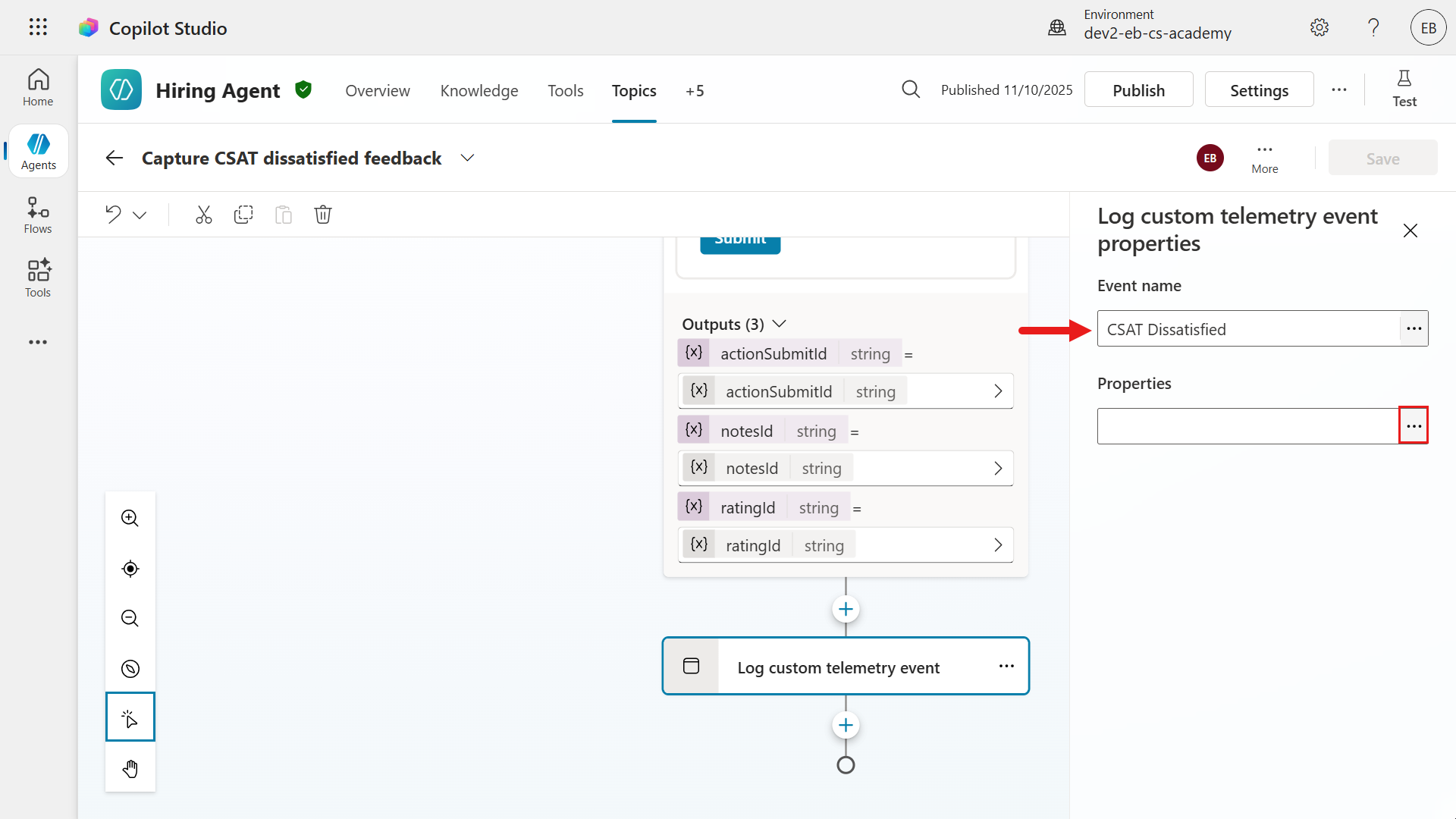
-
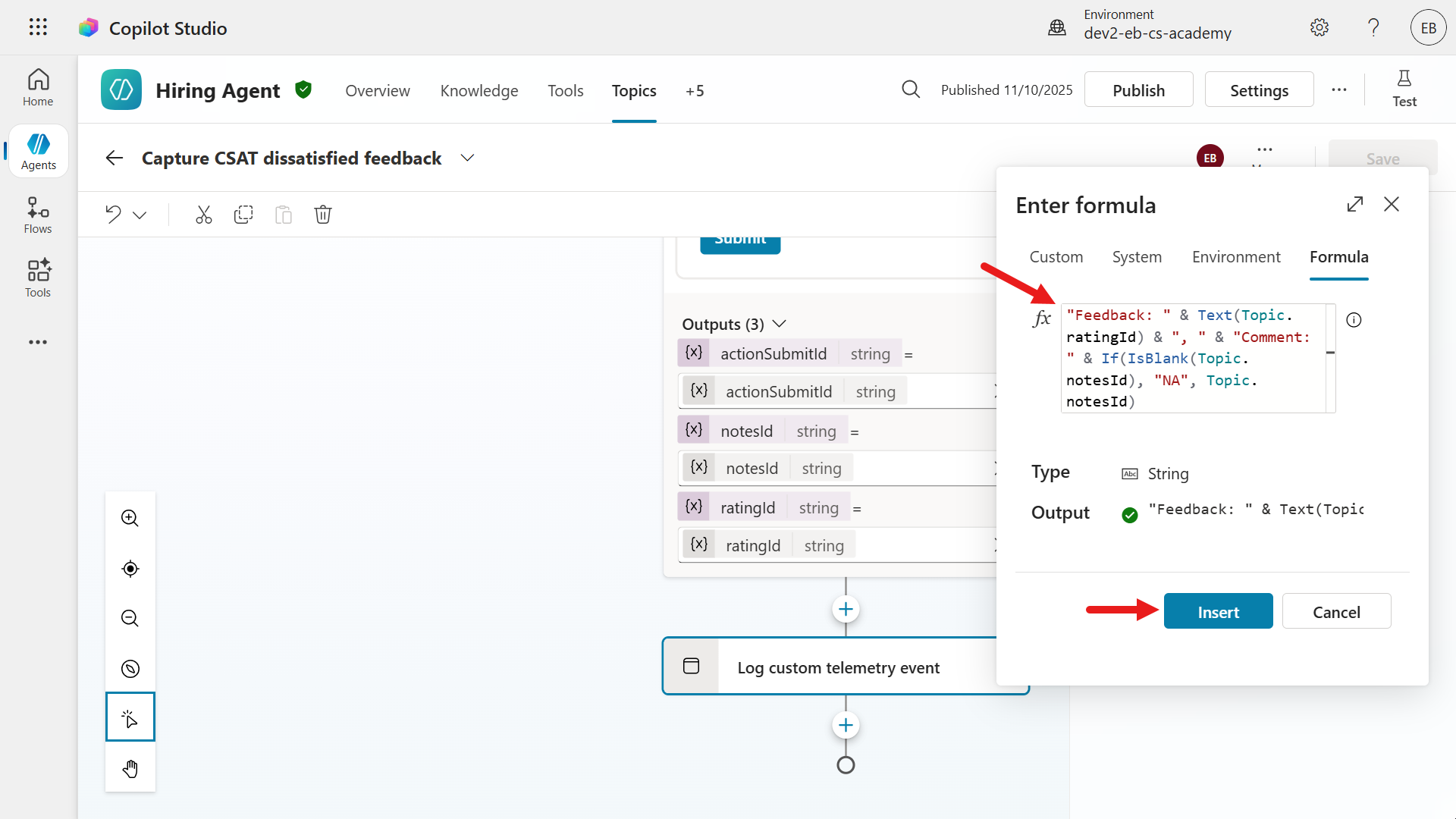
Select the Formula tab and enter the following Power Fx formula.
"Feedback: " & Text(Topic.ratingId) & ", " & "Comment: " & If(IsBlank(Topic.notesId), "NA", Topic.notesId)
Note — You can read this formula as follows.
"Feedback: "- Adds the
"Feedback: "label at the beginning.
- Adds the
Text(Topic.ratingId):- Converts
Topic.ratingId, the user’s rating such as a number from 1 to 5, to text and appends it.
- Converts
", "- Adds a comma and a space as a separator.
"Comment: "- Adds the
Comment:label.
- Adds the
If(IsBlank(Topic.notesId), "NA", Topic.notesId)- Checks whether
Topic.notesId, the user’s written comment, is blank. If it is blank, it adds"NA"(not available); otherwise, it adds the actual comment.
- Checks whether
Example
- If the user gives a rating of 2 and writes
Too slow, the result isFeedback: 2, Comment: Too slow.
Summary
- This formula is used to log or display numeric feedback and written comments together in a clear single line, while also handling cases where there may be no comment.
-
Save the topic.
-
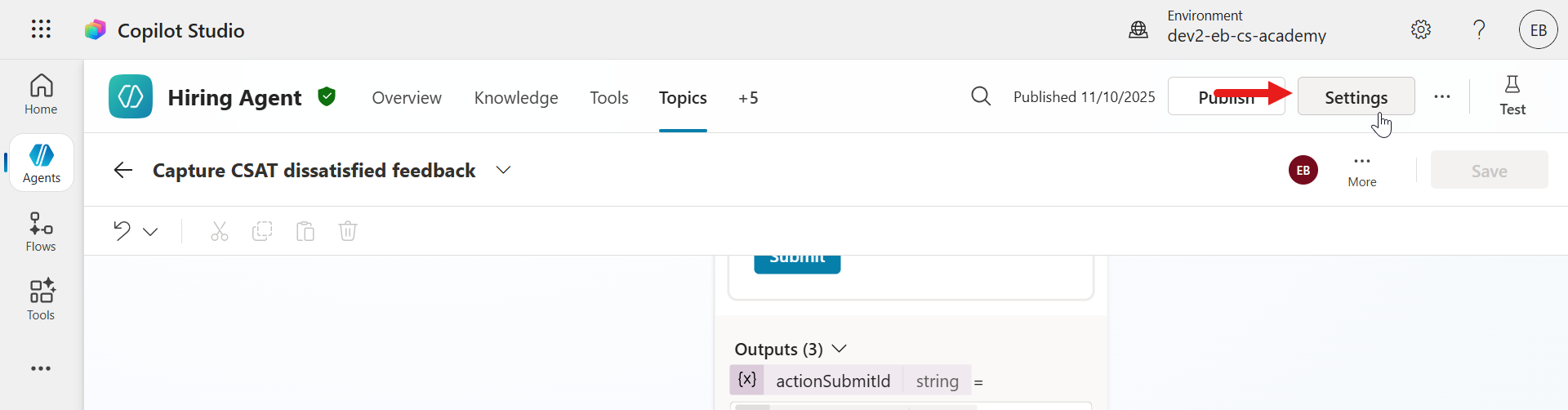
Next, connect the agent to the Application Insights resource. Select Settings.
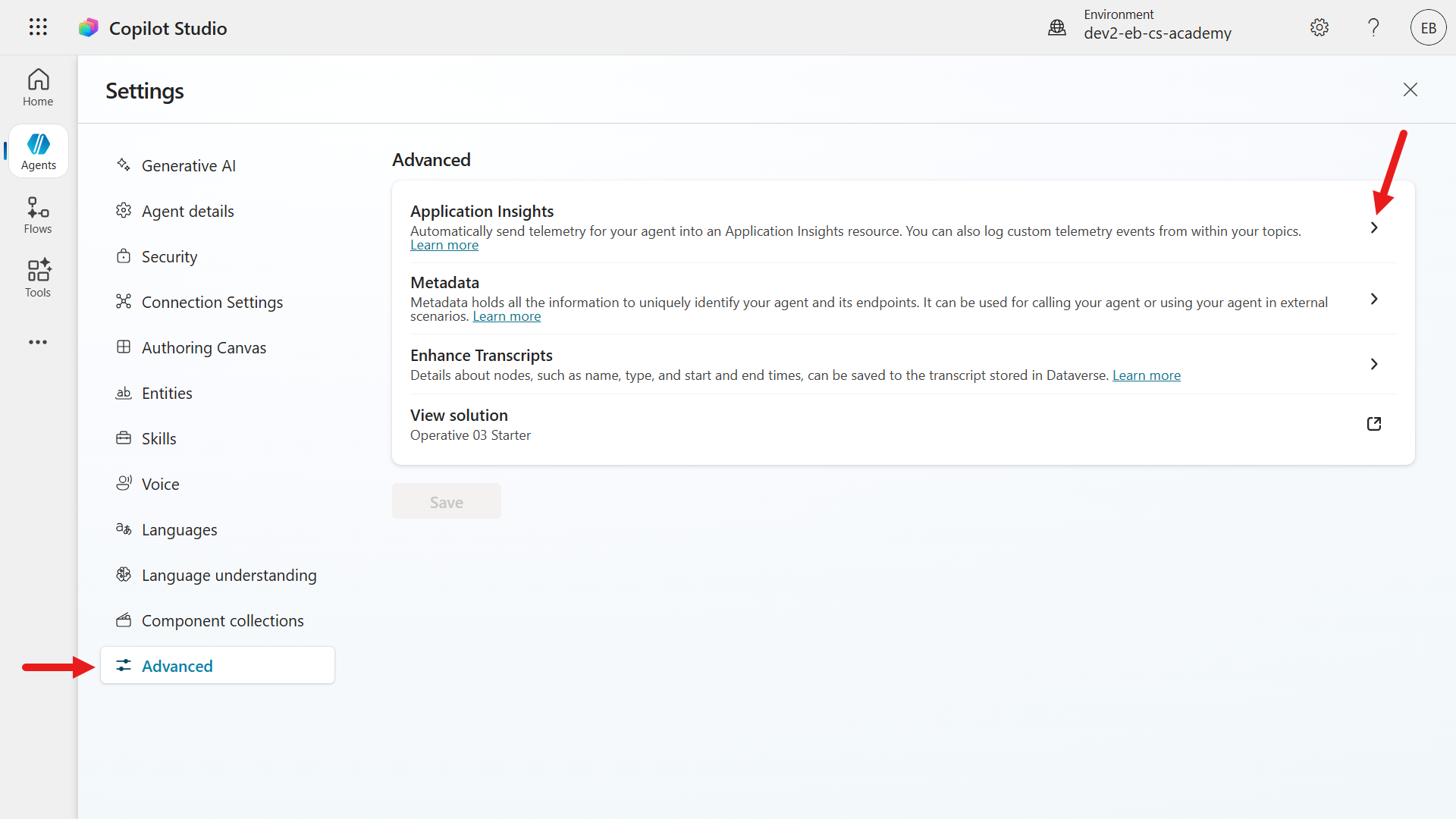
- Select Advanced, and then select Application Insights.
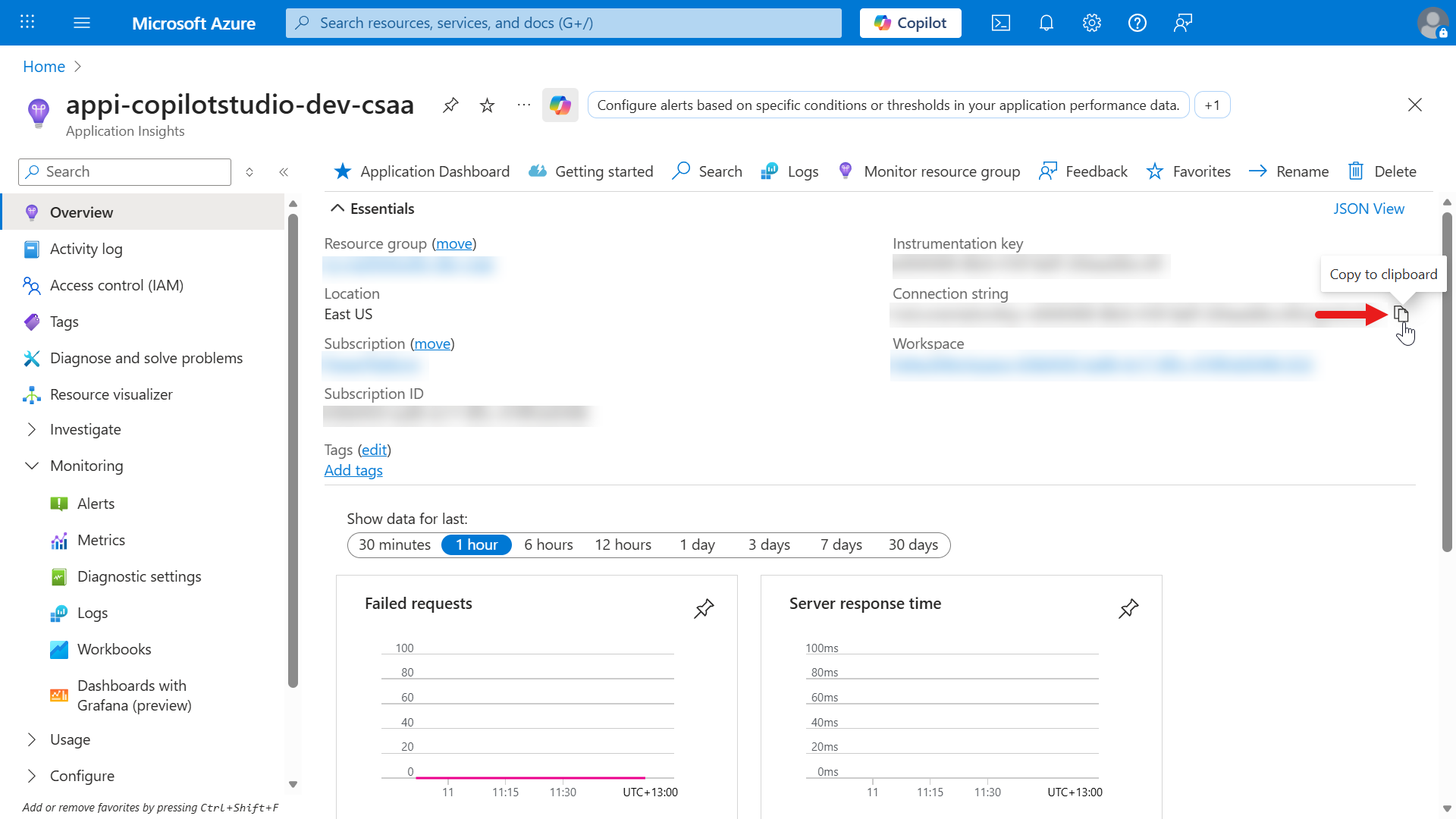
- Open the Application Insights resource in a new browser window, and under Overview, select the copy icon in the Connection string field. This copies the connection string value.
-
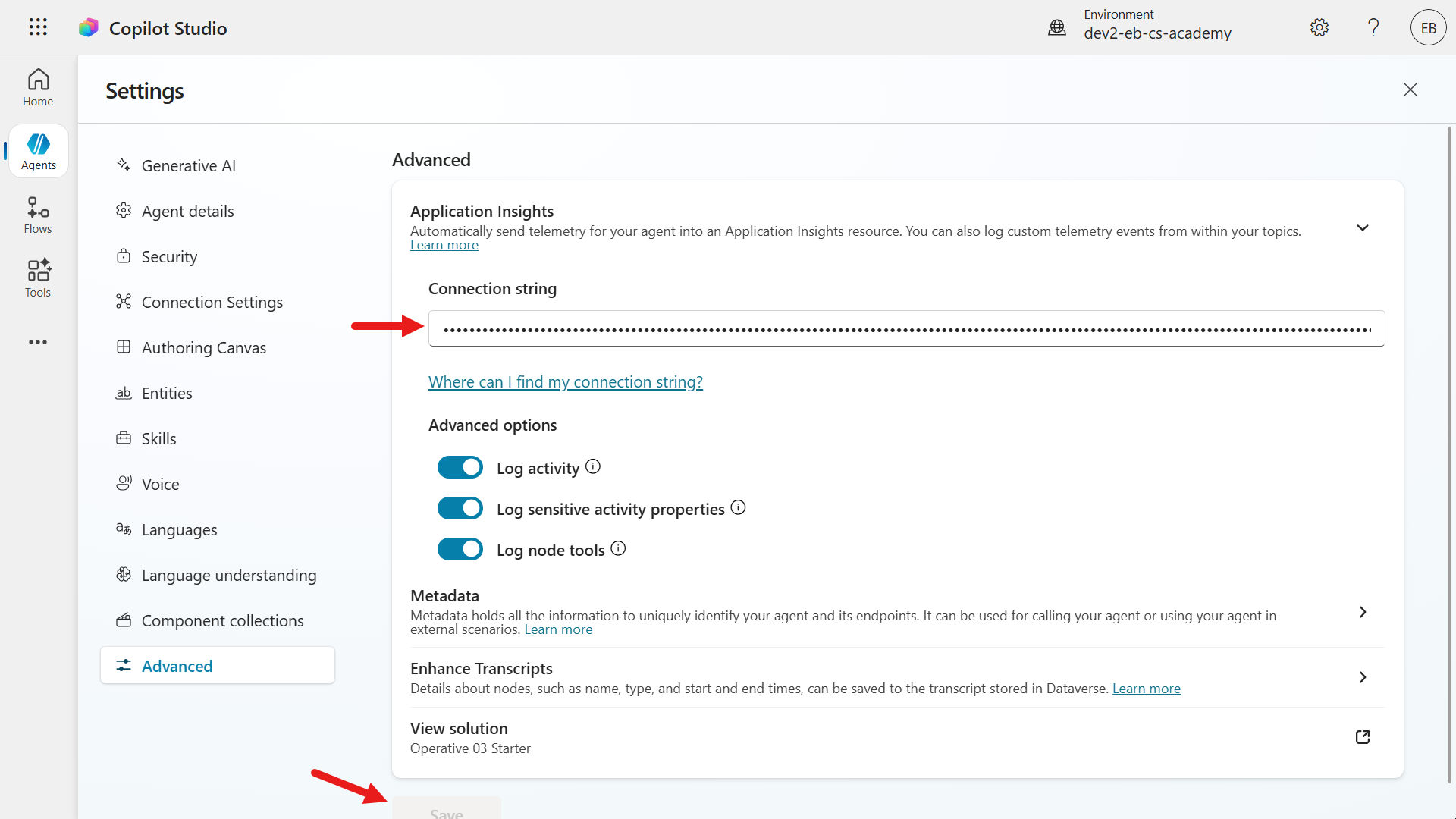
Return to Copilot Studio and paste the copied connection string value into the Connection string field.
Save the updated settings.
-
You can now test whether a telemetry event is logged in Application Insights when the CSAT rating is 1 or 2 stars. Repeat the same steps as before: ask the agent a question, wait for the agent to respond, and then enter the following phrase to trigger the End of conversation topic.
end conversation
- Select Yes when asked whether to end the conversation.
- Next, select Yes for the system topic’s next question asking whether your question was answered.
- The CSAT question appears. Select 1 or 2 stars as the rating.
-
The End of Conversation topic redirects to the Capture CSAT dissatisfied feedback custom topic.
Choose one of the two options, and add written feedback by selecting Add comment or the ^ caret icon.
Then select Submit.
- When the Capture CSAT dissatisfied topic completes, the agent returns to the End of Conversation topic. It then asks whether you need additional help. Select No.
- The final node sends the closing message, and the End of Conversation topic completes.
-
Now check the custom event logged in Application Insights.
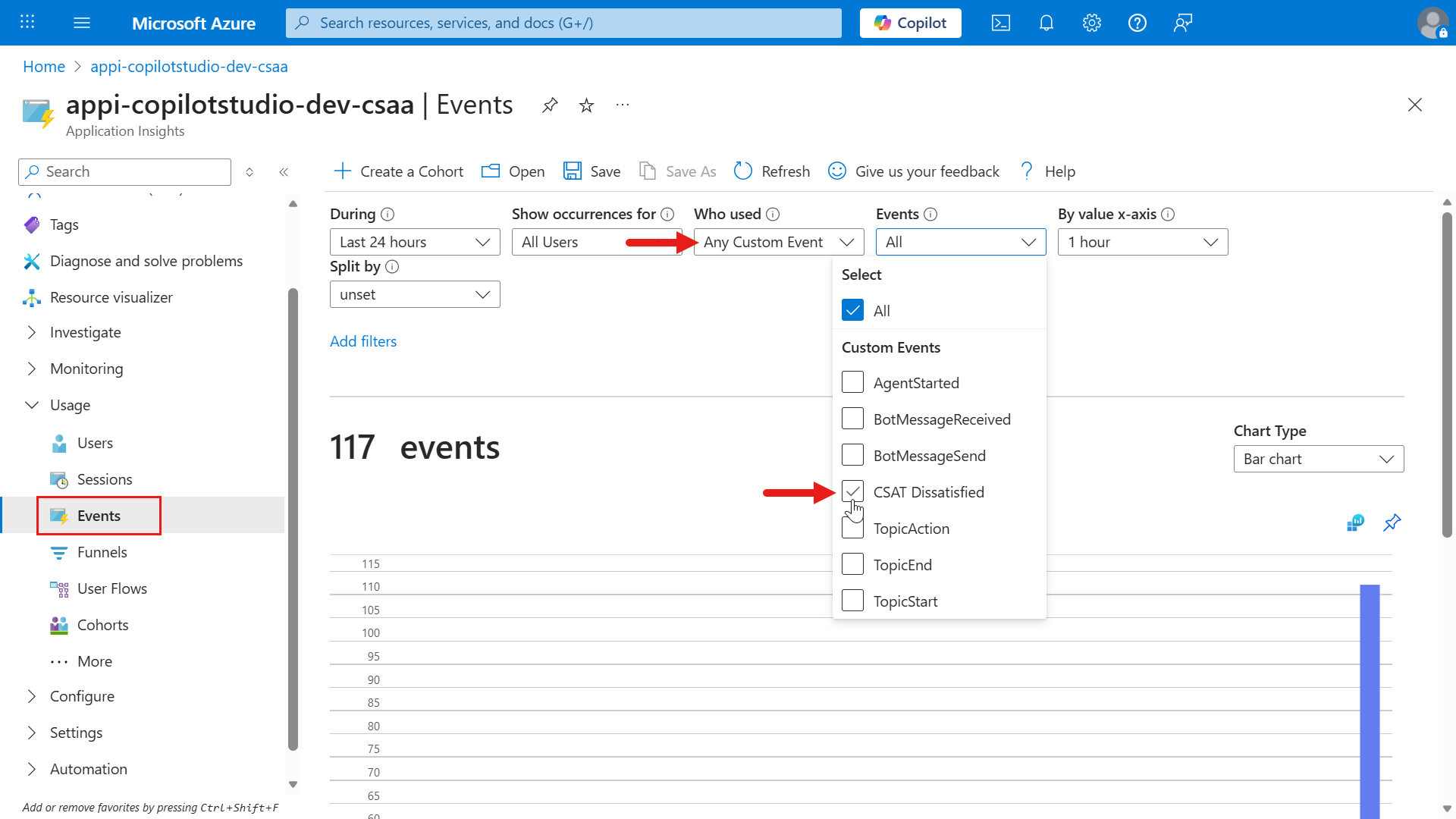
Return to the browser where the Application Insights resource is open, and select Events in the left menu. In the Who used dropdown field, select
Any Custom Event. In the Events dropdown, select the event you created earlier in Copilot Studio, CSAT Dissatisfied. This filters the view to custom events whose event name is CSAT Dissatisfied.
- Scroll down and select View More Insights.
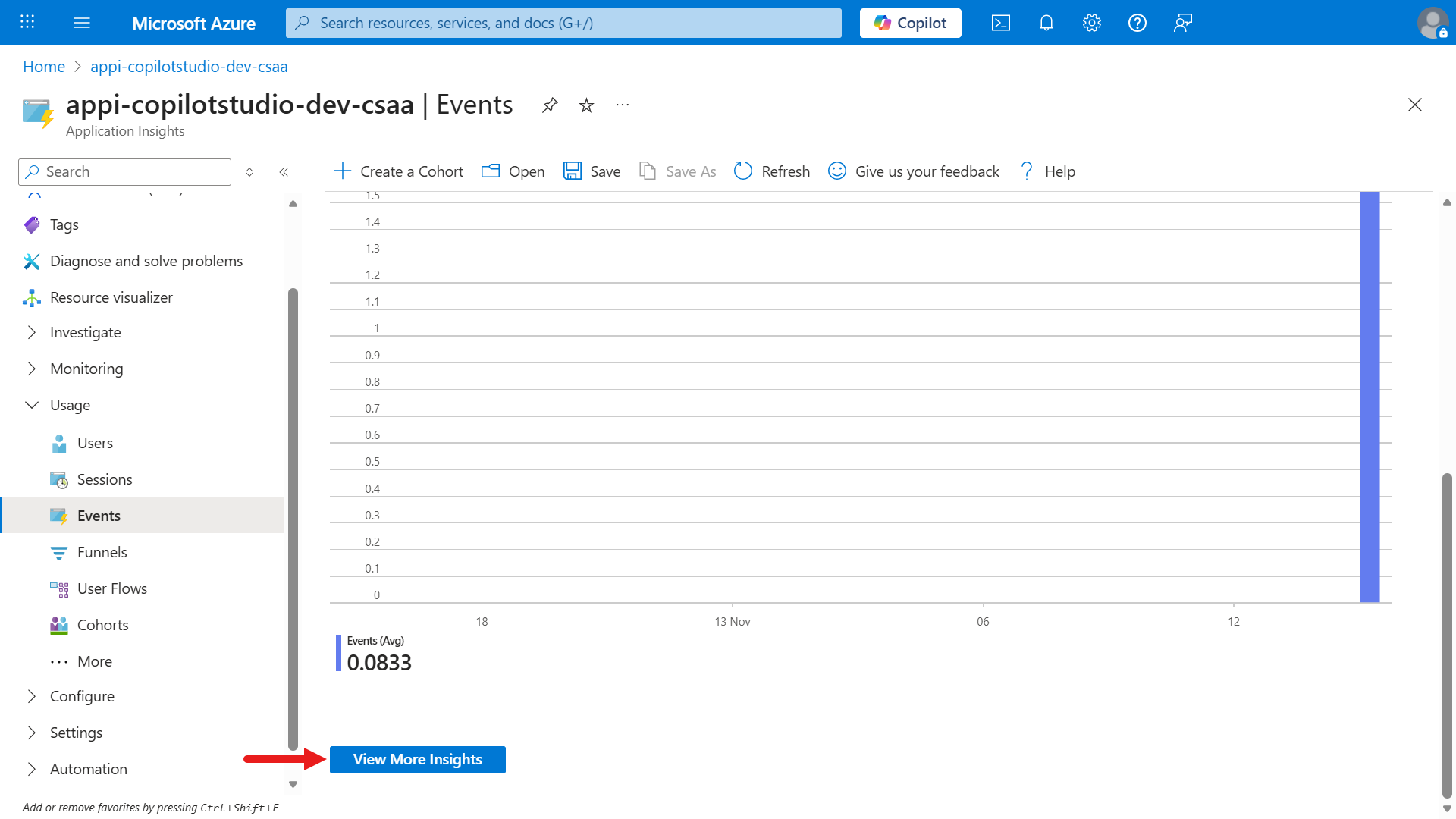
- Here you can see more detailed information about the custom event logged by the agent.
Note — This custom event links back to the agent as follows. Our CSAT Dissatisfied custom event represents a telemetry signal indicating that the user reported dissatisfaction in the CSAT survey after submitting feedback through the adaptive card. Logging a custom telemetry event in Application Insights helps track specific user actions or feedback signals from agents built in Copilot Studio.
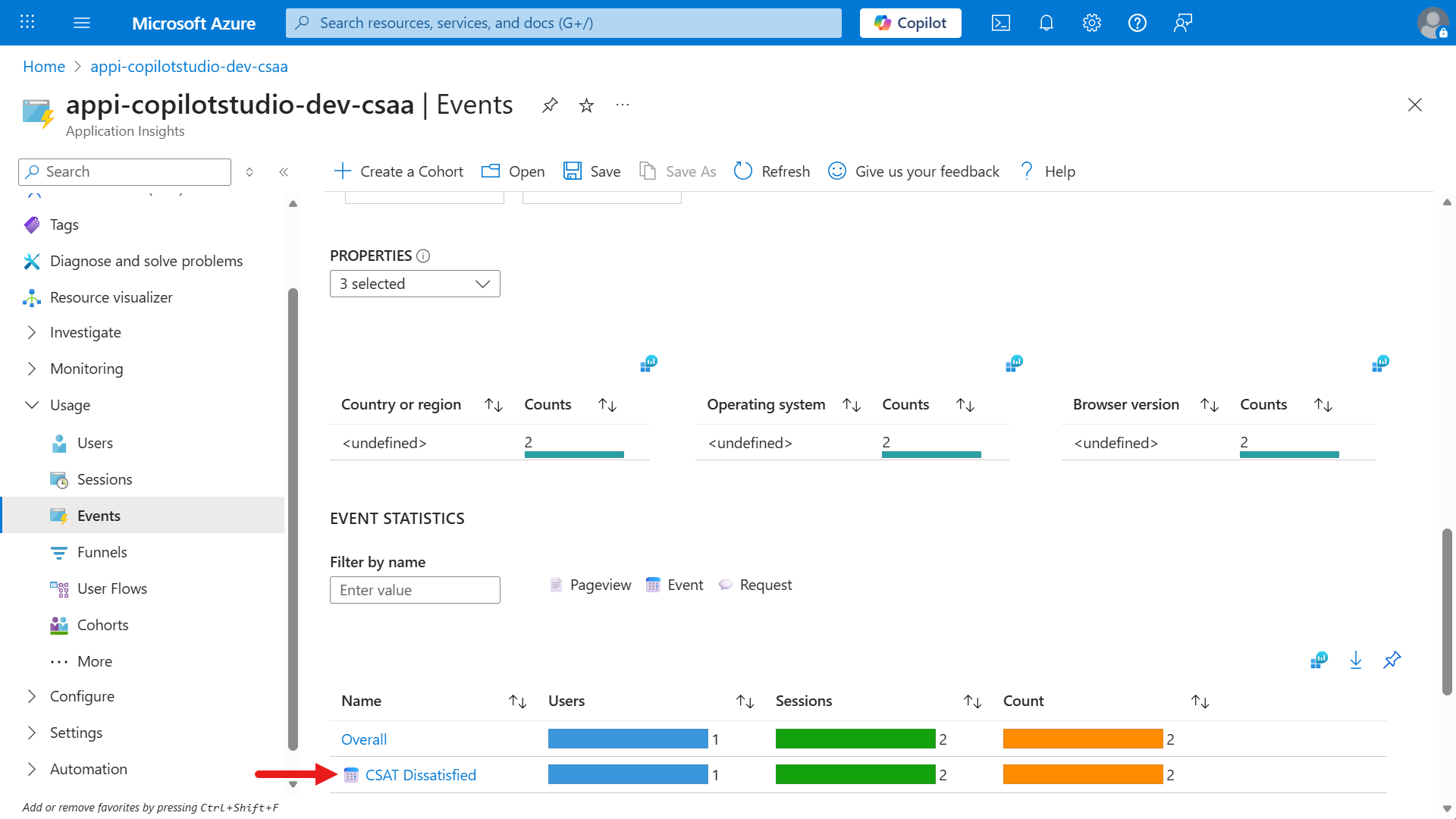
Scroll down to the **Event Statistics** section and select **CSAT Dissatisfied**.
-
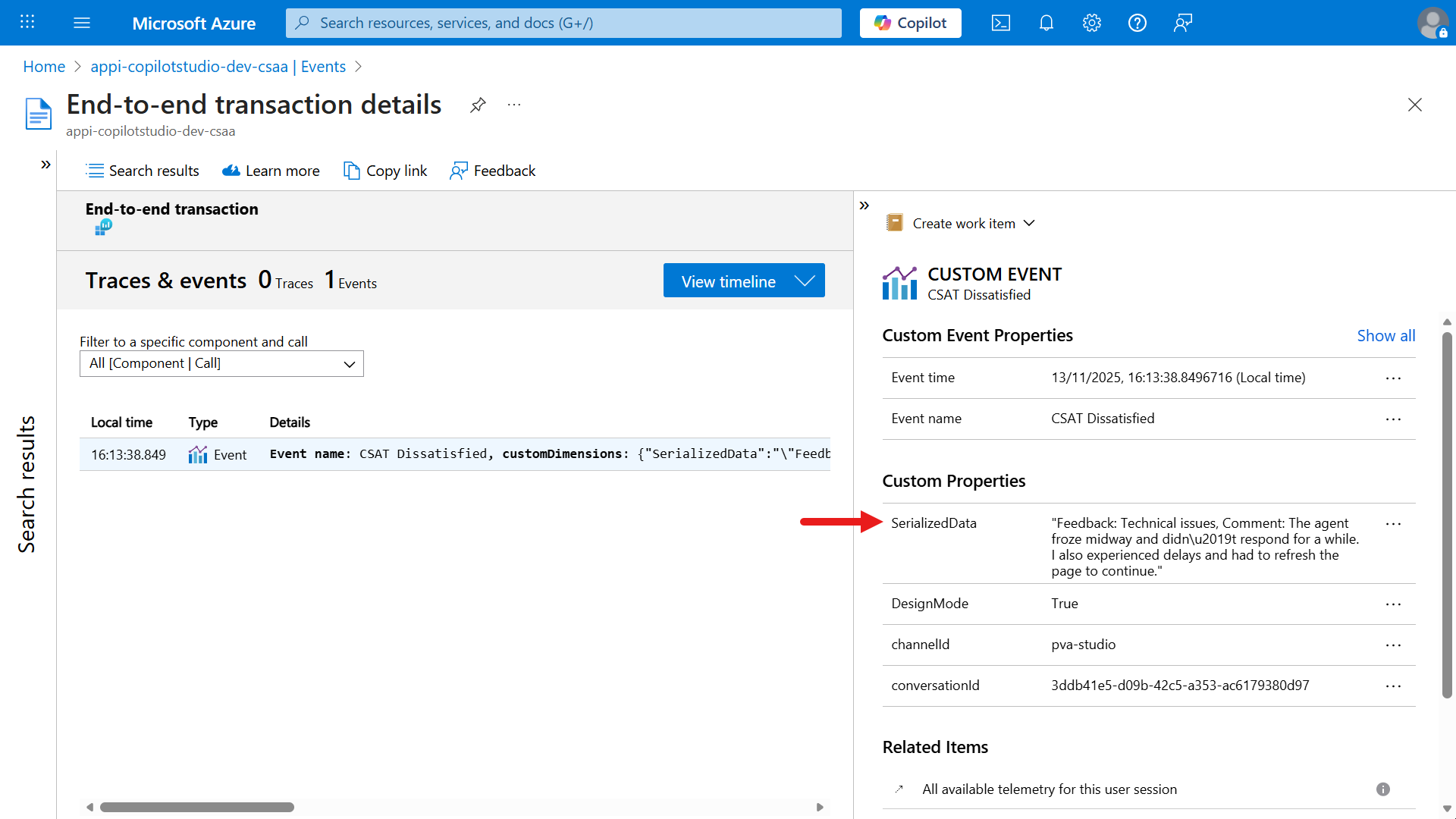
You are now viewing end-to-end transaction details. This screen provides a deep dive into event-related telemetry and shows that one Event was logged on the Traces & events tab.
- The left Event Summary panel displays local time, type, and event details. The Details column typically references the
event nameand relatedcustomDimensionsmetadata. - The right Event Properties panel displays a detailed breakdown of the event. Custom properties are the custom dimensions sent with the event.
- The
SerializedDataproperty stores the actual feedback message, including technical issues and user comments. - Other properties such as
DesignMode,channelId, andconversationIdprovide context about where and how the event occurred.
- The
- The left Event Summary panel displays local time, type, and event details. The Details column typically references the
-
Now learn another way to query events logged in Application Insights. Over time, Application Insights can accumulate many events from multiple services. To query events, you can run a Kusto query (Kusto Query Language) against app insights data.
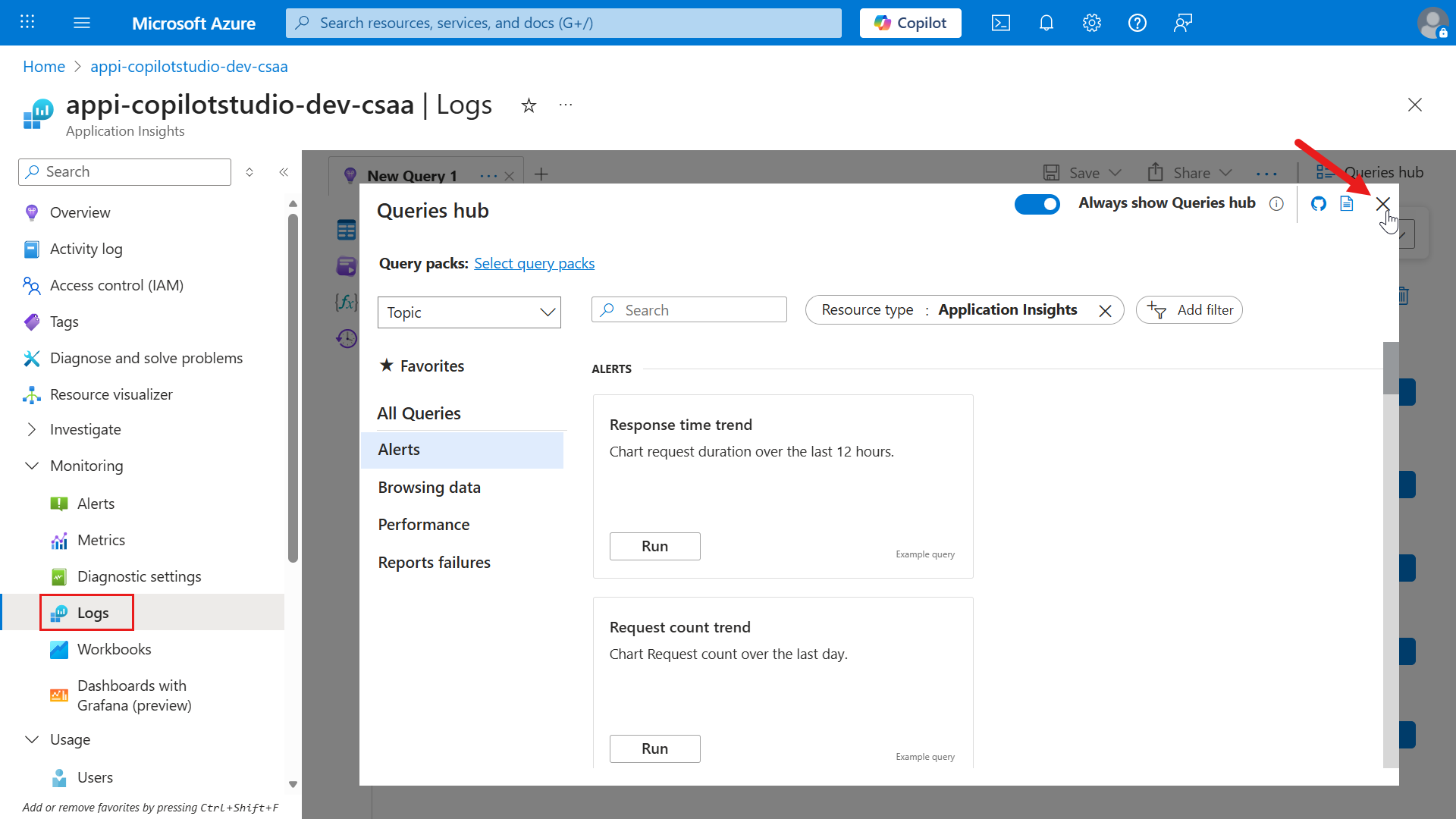
In the left menu, select Logs. The Queries hub dialog opens automatically. Select the X icon to close it.
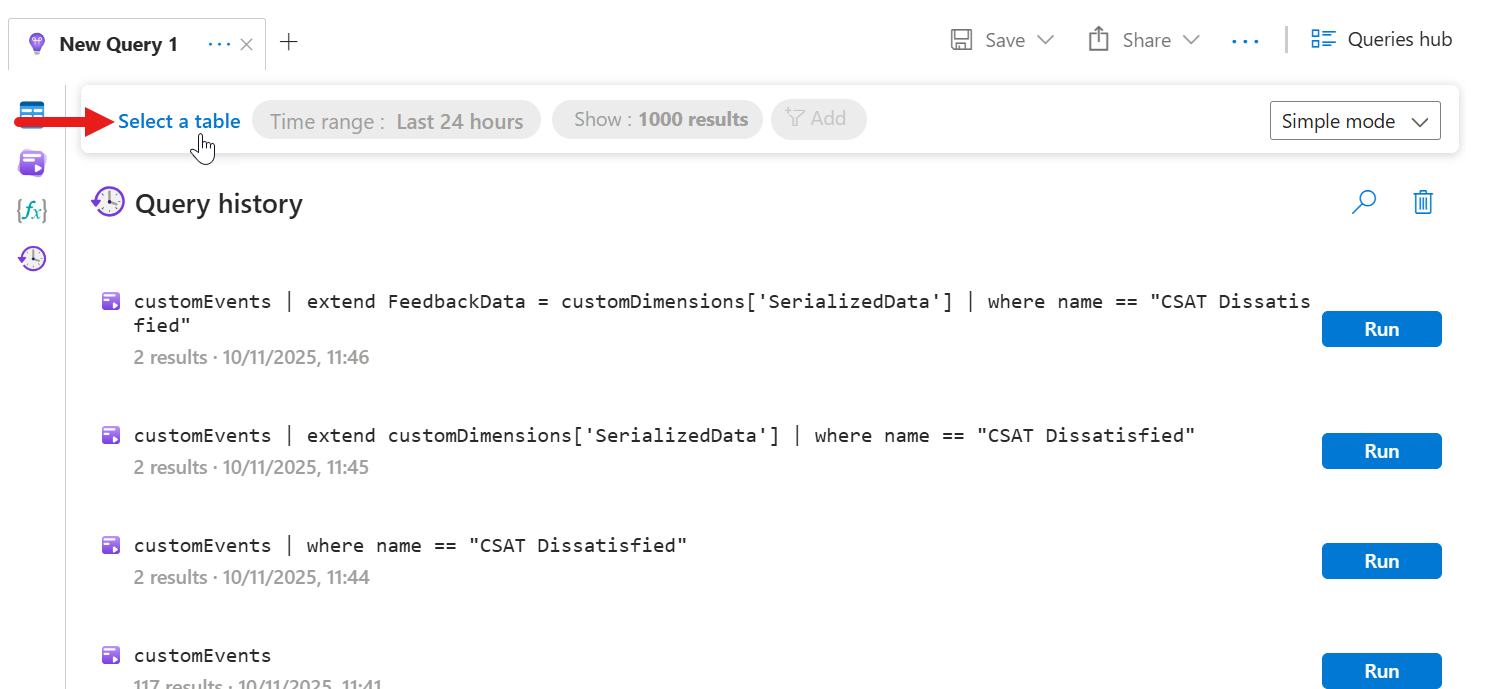
- By default, you see a list of previously run Queries. To query data, select Select a table.
- Select the
customEventstable and select Run. This runs a query against thecustomEventstable.
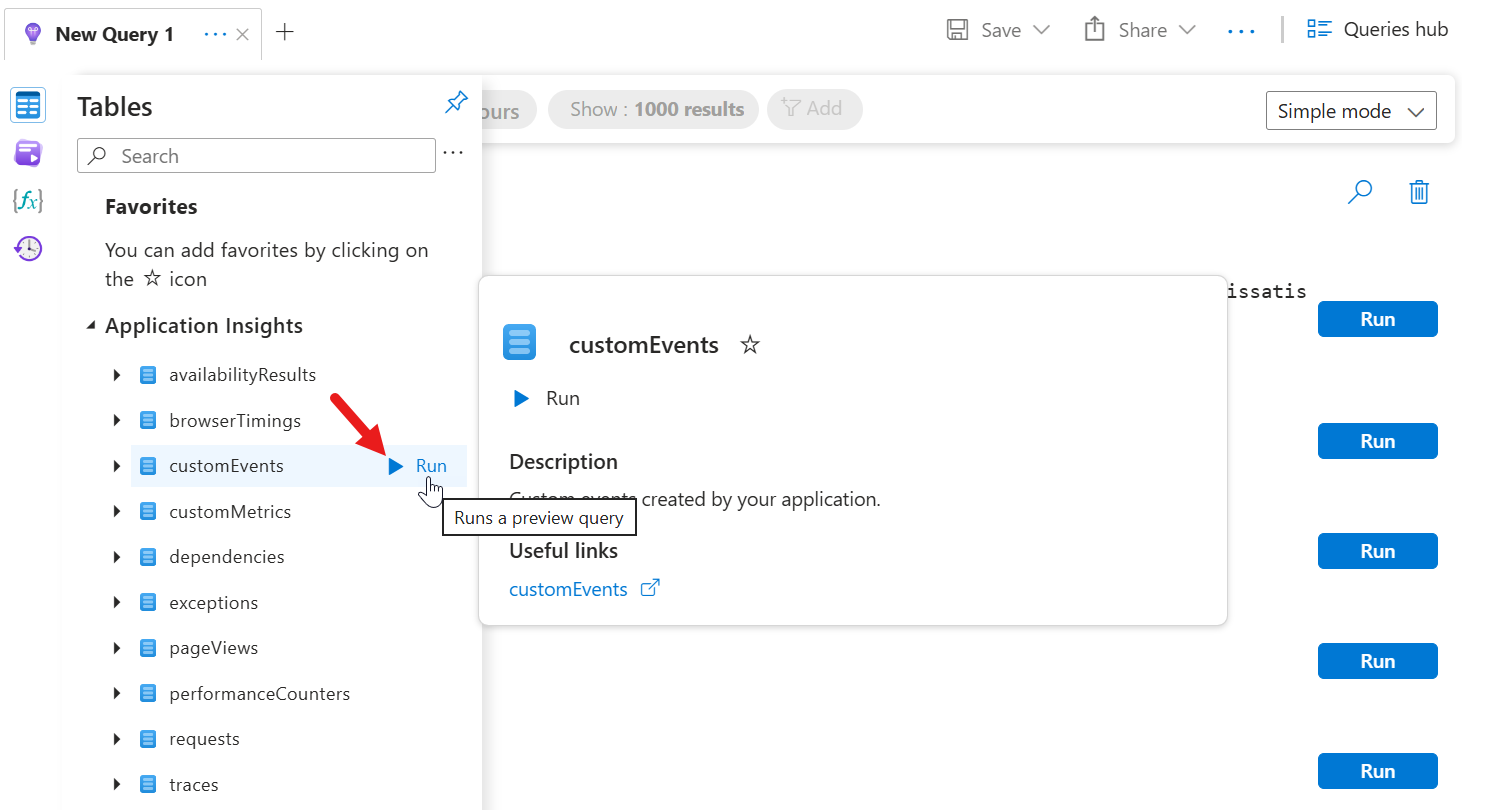
- The query results appear. By default, events from the last 24 hours are displayed, with a limit of 1000 results.
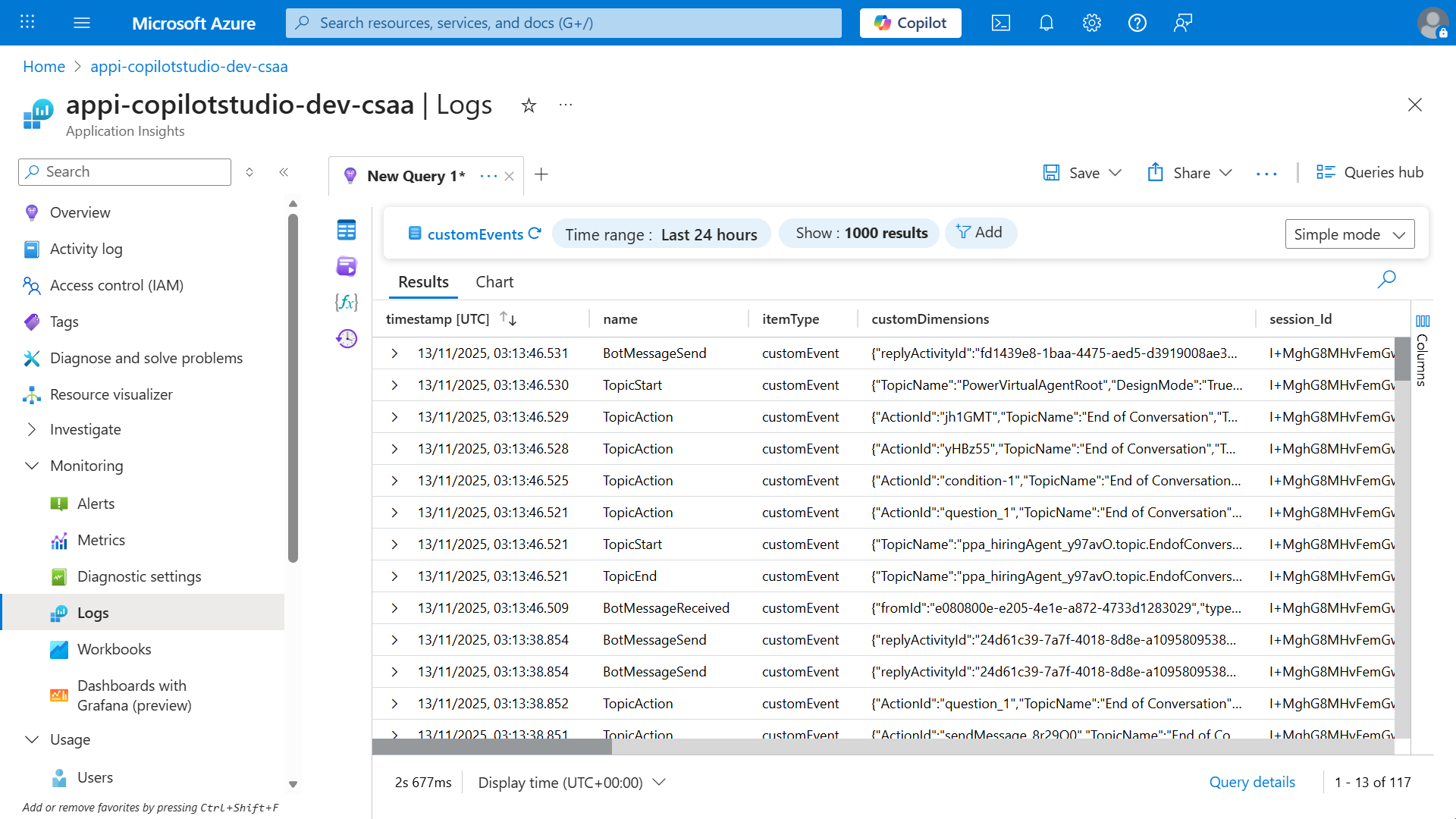
- The current view is Simple mode. Now switch to KQL mode so you can apply a Kusto query.

-
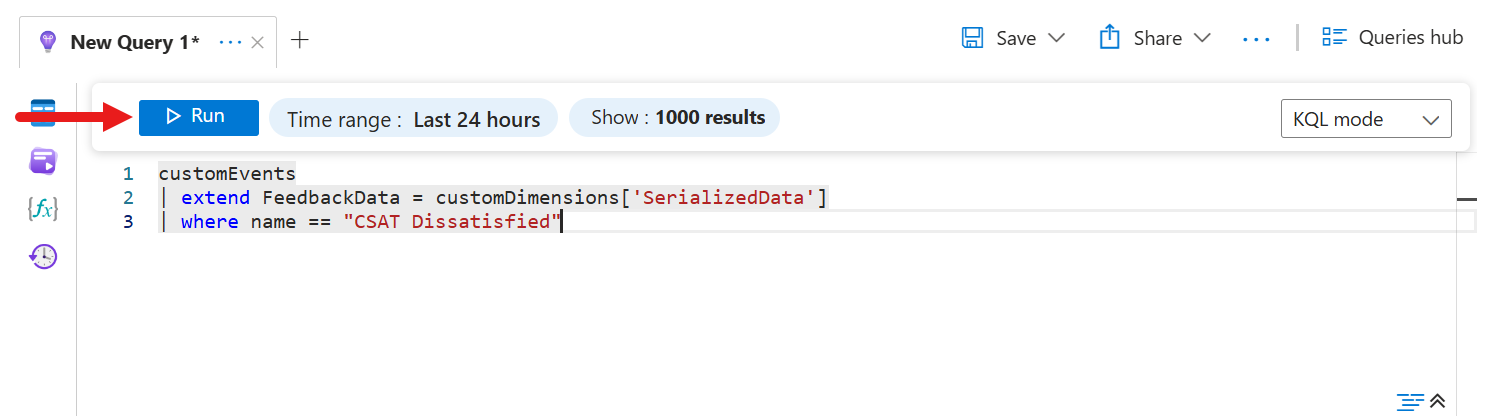
Enter the following Kusto query.
 customEvents
 | extend FeedbackData = customDimensions['SerializedData']
 | where name == "CSAT Dissatisfied"
Run the query.
Note — You can read this query as follows.
customEvents- Refers to the table in Application Insights that stores all custom telemetry events.
| extend FeedbackData = customDimensions['SerializedData']- Adds a new column named
FeedbackDatato each row and extracts the value of theSerializedDatafield from thecustomDimensionsproperty, which is the dictionary of custom data attached to the event.
- Adds a new column named
| where name == "CSAT Dissatisfied"- Filters the results to include only items whose event name is exactly
CSAT Dissatisfied. In other words, it shows only feedback events for dissatisfied CSAT ratings.
- Filters the results to include only items whose event name is exactly
Summary
This query retrieves all custom telemetry events named CSAT Dissatisfied and extracts serialized feedback data for additional analysis. It is useful when reviewing negative feedback submitted by users.
- The query results appear. Expand one of the results.
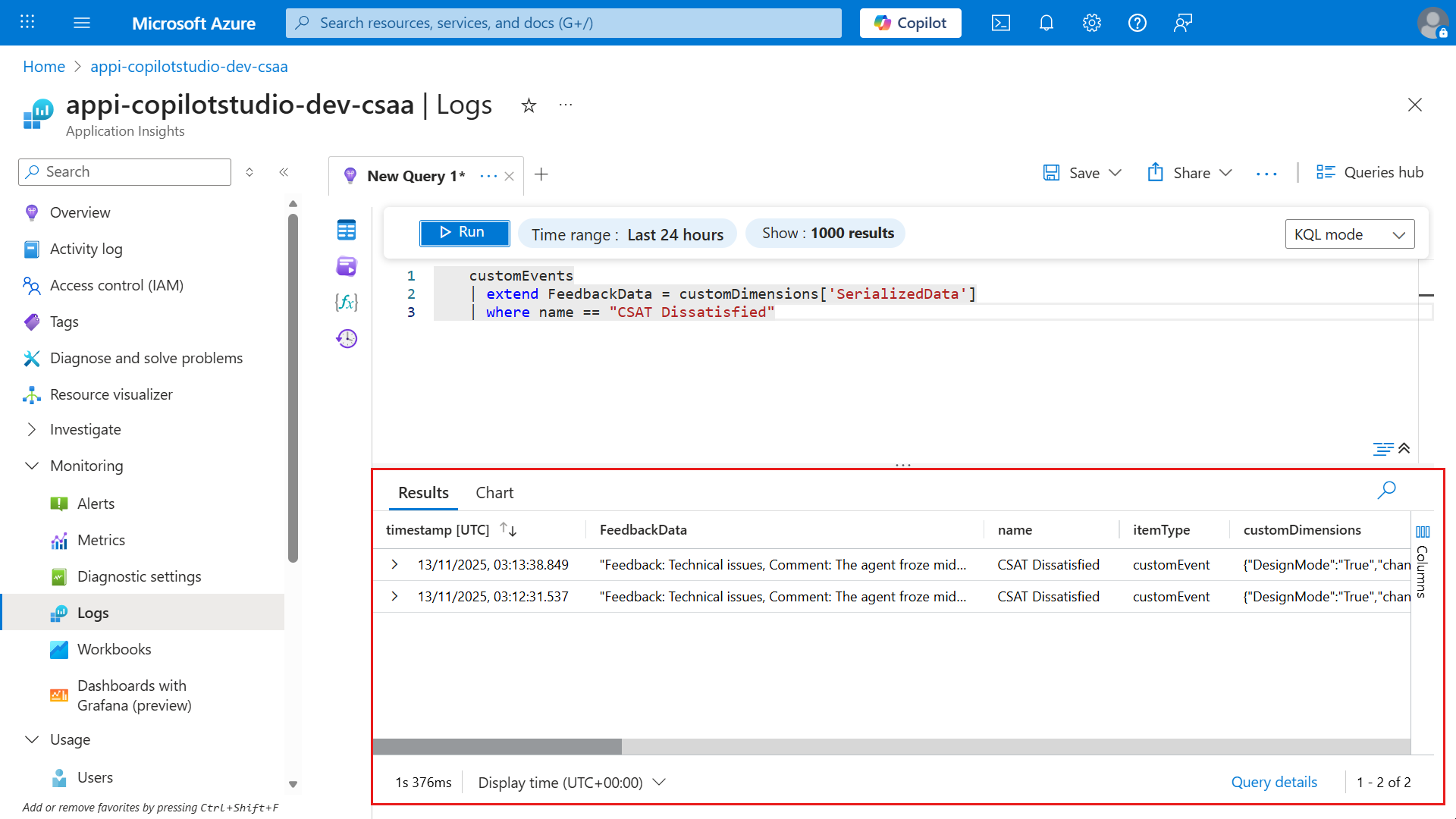
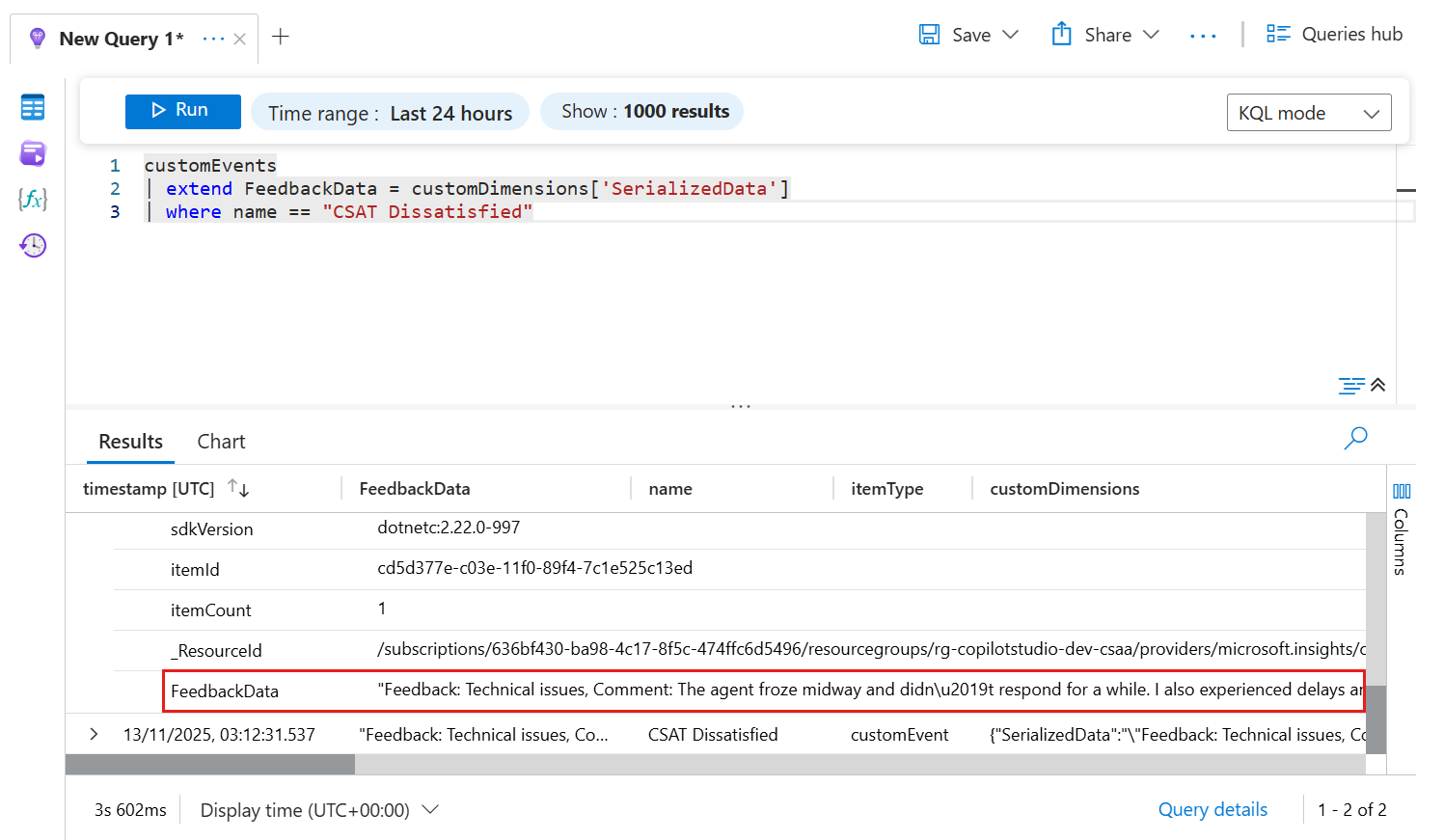
- Scroll down to see the new
FeedbackDatacolumn defined in the Kusto query.
✅ Mission complete
Congratulations! 👏🏻 Excellent work, Operative.
In this final mission, you learned how to close the feedback loop for your agent.
✅ Built-in feedback You learned how to provide user feedback directly and where to review feedback analytics.
✅ Adaptive cards (custom) You learned how to collect feedback by using an adaptive card and log telemetry to Azure Application Insights.
Feedback is central to iteratively improving agents. It is not optional. This is how good agents become great agents.
🎯 Next steps
You now have everything you need to take your agent from prototype to production.
We will not walk through publishing again here because you already learned it in the Recruit course. The same steps apply.
- Publish the agent to Microsoft Teams
- Share it with real users
- Start collecting feedback
- Iterate
If you need a refresher, revisit the Recruit publishing module and then come right back to finish.
Important — If you are using a trial license to complete the course, you cannot publish. Publishing is not required to receive the badge for this lab.
🏁 Final step: Deploy and earn your badge
🚀 Publish your agent
📊 Verify feedback is flowing
🏅 Earn the Operative badge
You have completed Agent Academy: Operative and now understand how to build a real-world multi-agent system.
The field is yours.
📚 Tactical resources
📖 Collect thumbs up/down feedback and comments for agents
📖 Enable enhanced user feedback in Copilot and related experiences
📖 Analyze conversational agent effectiveness
📖 Application Insights telemetry with Microsoft Copilot Studio