Add a Tool (connector)
Fundamentals #2: Document search & escalation - Add a Tool (connector)
Step 2: Add a Tool (connector)
Add a Tool to the agent
===
✅ The role of Tools in Copilot Studio
Tools are additional capabilities that extend what Copilot can do by default.
Simply put, they are a key element for upgrading Copilot from a conversational AI into an AI that can execute work.
1. Core role of Tools
|Role|Description| |——|—| |Connect to external services|CRM, ERP, databases, API calls| |Automate work|Send email, create schedules, write reports| |Process data|Analyze Excel, summarize PDFs, transform data| |Integrate systems|Integrate with Microsoft 365, Teams, Power Automate|
2. Why are Tools needed?
- Copilot is basically a conversational AI → it cannot look up data or execute system commands by itself
- By connecting Tools, Copilot can execute actual tasks
3. Understand through an example
- Without a tool
“Tell me this week’s sales.”
→ Copilot: “I can’t access the data directly.” - With a tool connected
“Tell me this week’s sales.”
→ Copilot: (calls the ERP API) → “This week’s sales are $120,000.”
4. Summary
✔ Tools are key to extending Copilot capabilities
✔ They enable work automation + data connections + system integration
✔ They make it possible to execute real business processes
Workshop
===
English UI screenshots, September 8, 2026. Actual captures from an English-language demo environment. The tool was connected and configured, but no email was sent — delivery is a separate, explicitly confirmed step.
In this workshop, you will add an email-sending tool so the agent can email the owner when a user needs to escalate an inquiry.
1. Add an email-sending tool
Open the Tools tab and select Add tool.
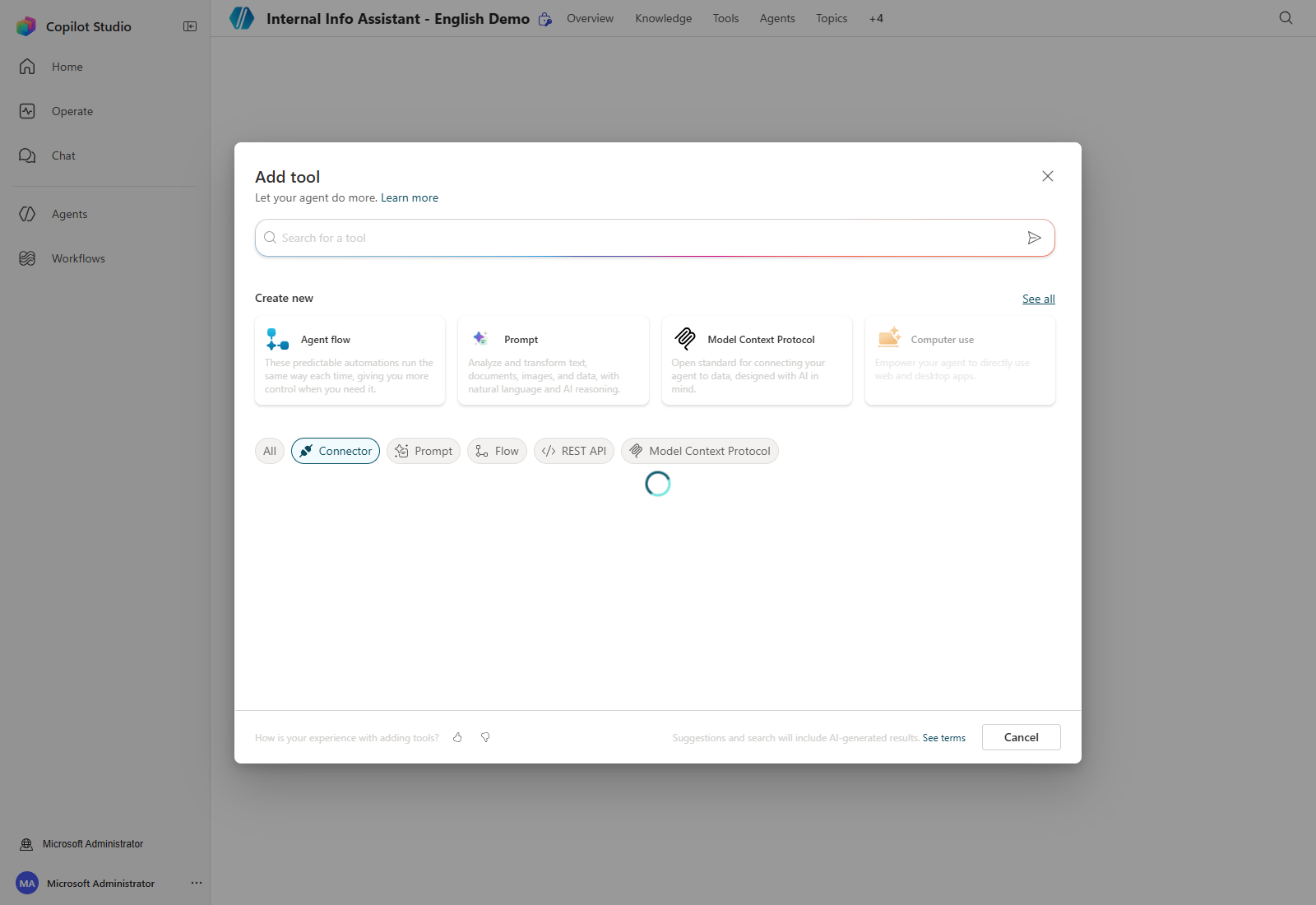
Select Office 365 Outlook, then search the connector’s actions for Send an email.
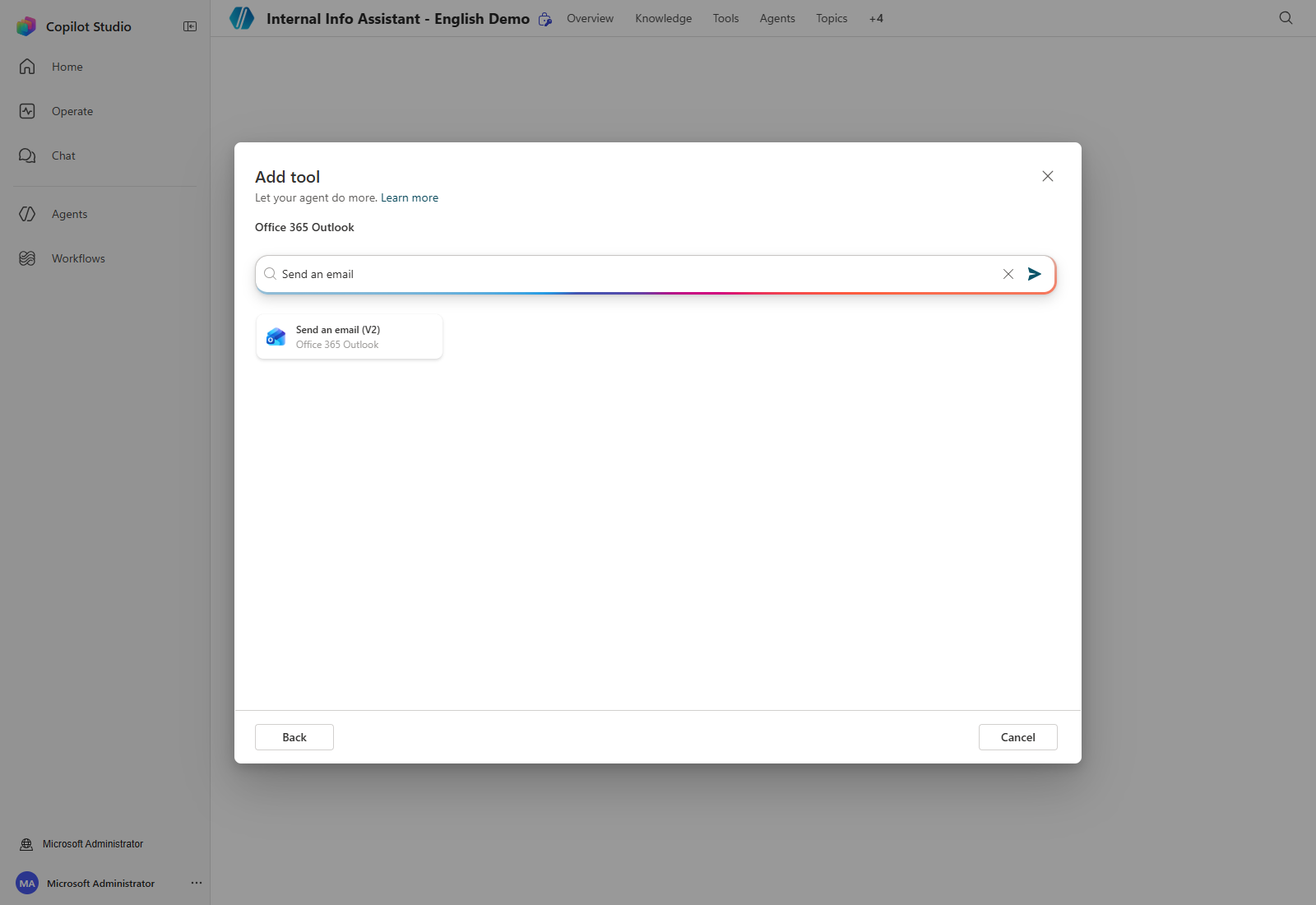
Choose the Send an email (V2) action. If no connection exists yet, open Connection → Create new connection, give it a display name, and sign in with the account the workshop assigned you. Confirm the intended connection is selected.
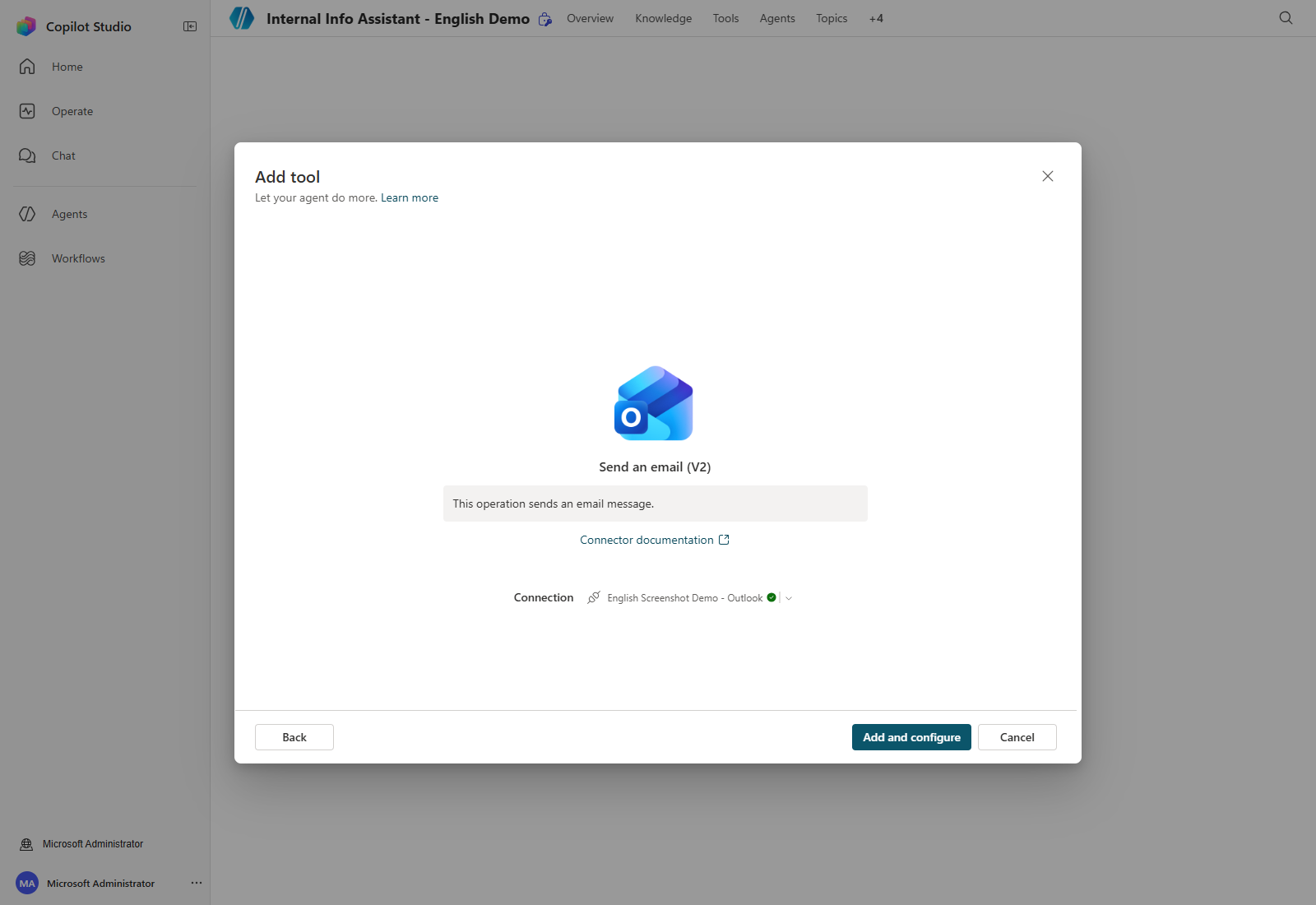
Select Add and configure to open the tool’s detail page.
2. Configure the tool basics
The Description is what the orchestrator reads when deciding whether to pick this tool, so state the situation precisely.
Use this tool to send an escalation email to the business owner on behalf of the user, after the user has confirmed the recipient, subject, and body. Do not use it during setup or screenshot capture.
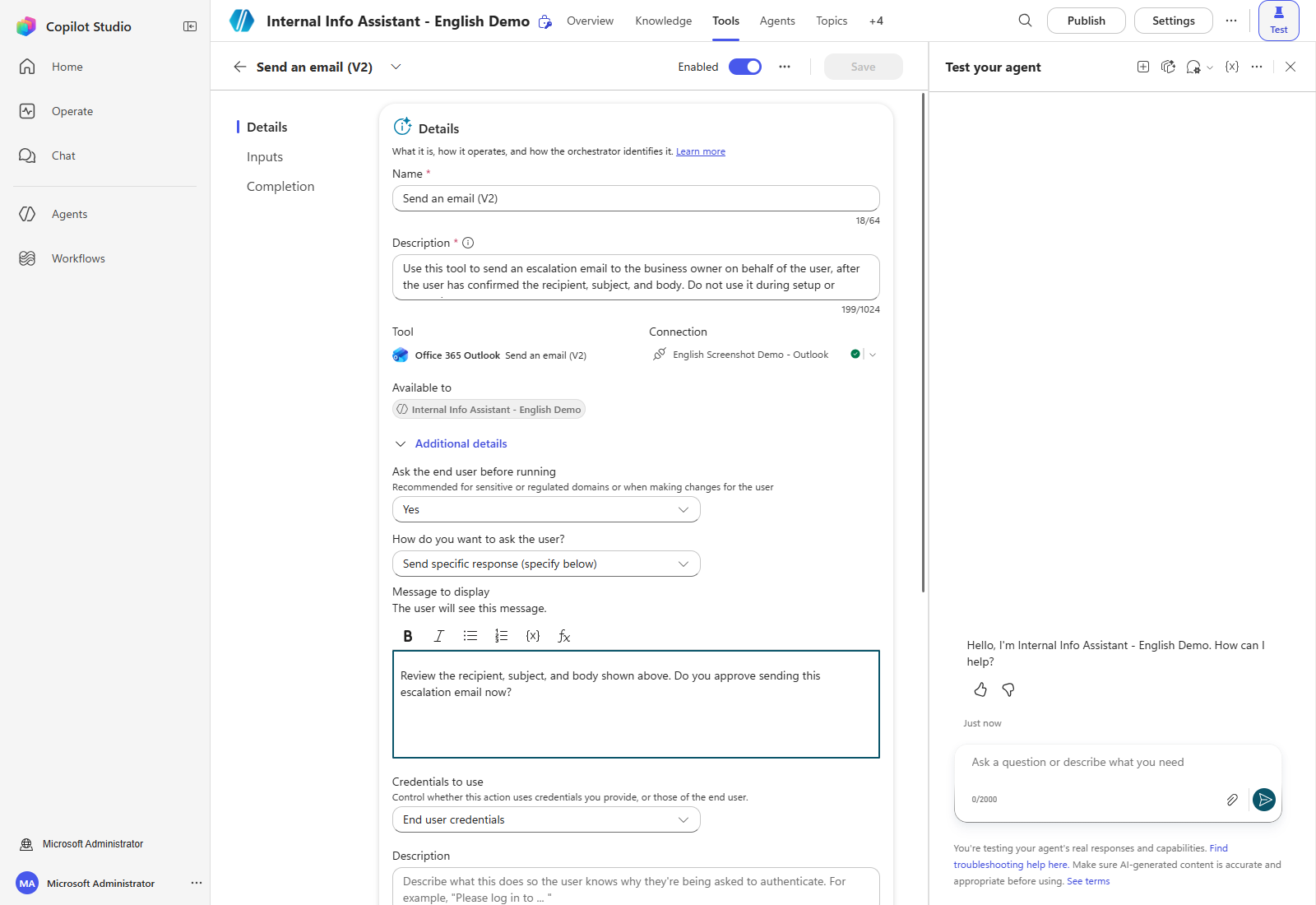
Expand Additional details. Set Ask the end user before running to Yes and enter a confirmation message. Because this action sends mail on the user’s behalf, the agent must show the actual recipient, subject, and body before asking.
Review the recipient, subject, and body shown above. Do you approve sending this escalation email now?
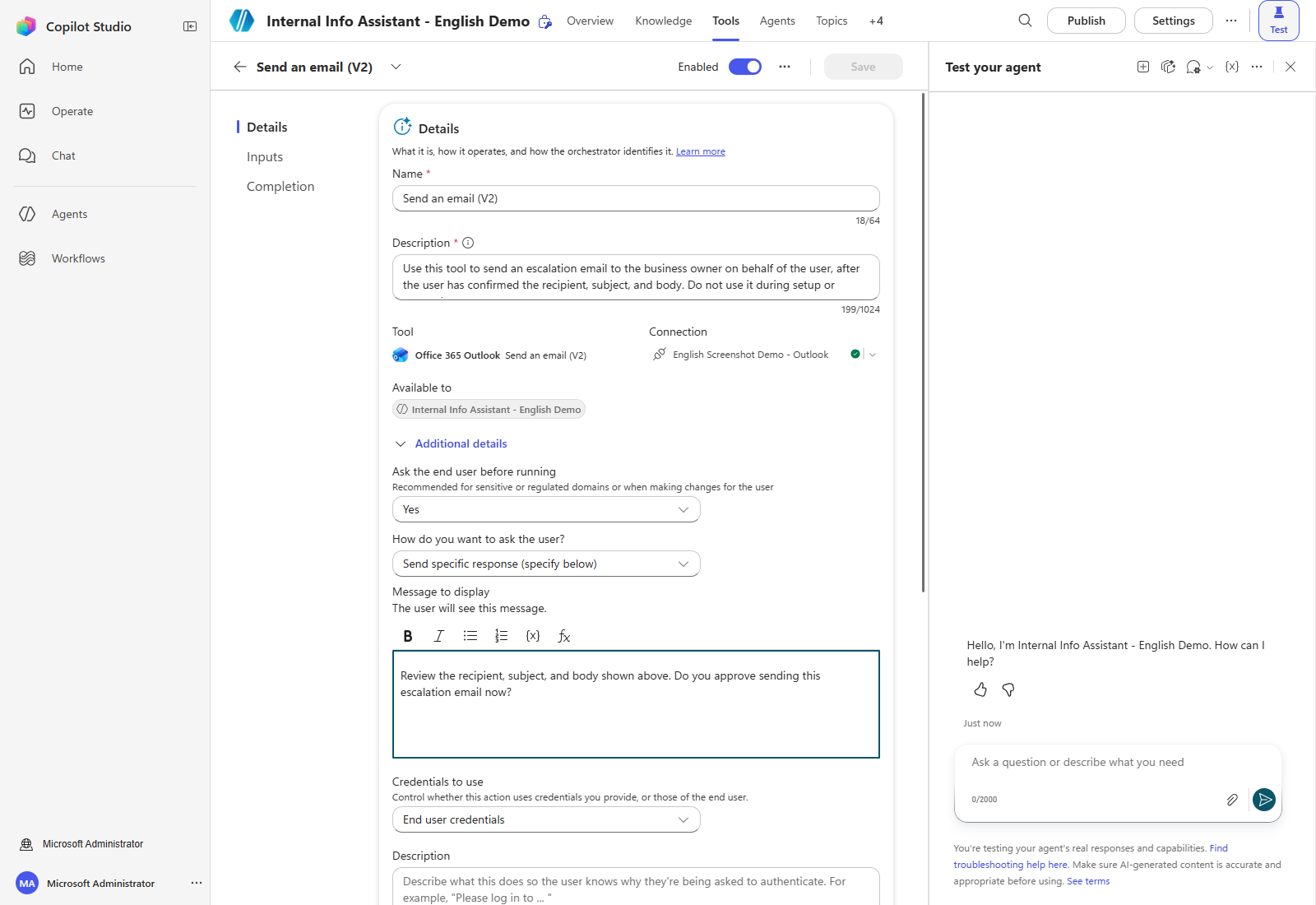
Keep Credentials to use → End user credentials for this workshop, so the mail is sent with the signed-in user’s own permissions. Maker-provided credentials change the identity and access boundary and would let every user of the agent send as the maker; only use that when a scenario genuinely requires a single service identity.
Confirm the save landed — Select Save, then reload and re-open Additional details to check the value is still Yes. In this environment the first attempt silently reverted; a setting that looks right before a reload has not necessarily been persisted.
3. Configure input parameters
The action exposes To, Subject, and Body. Leave them on Dynamically fill with AI and select Customize on each to describe what the agent should put there.
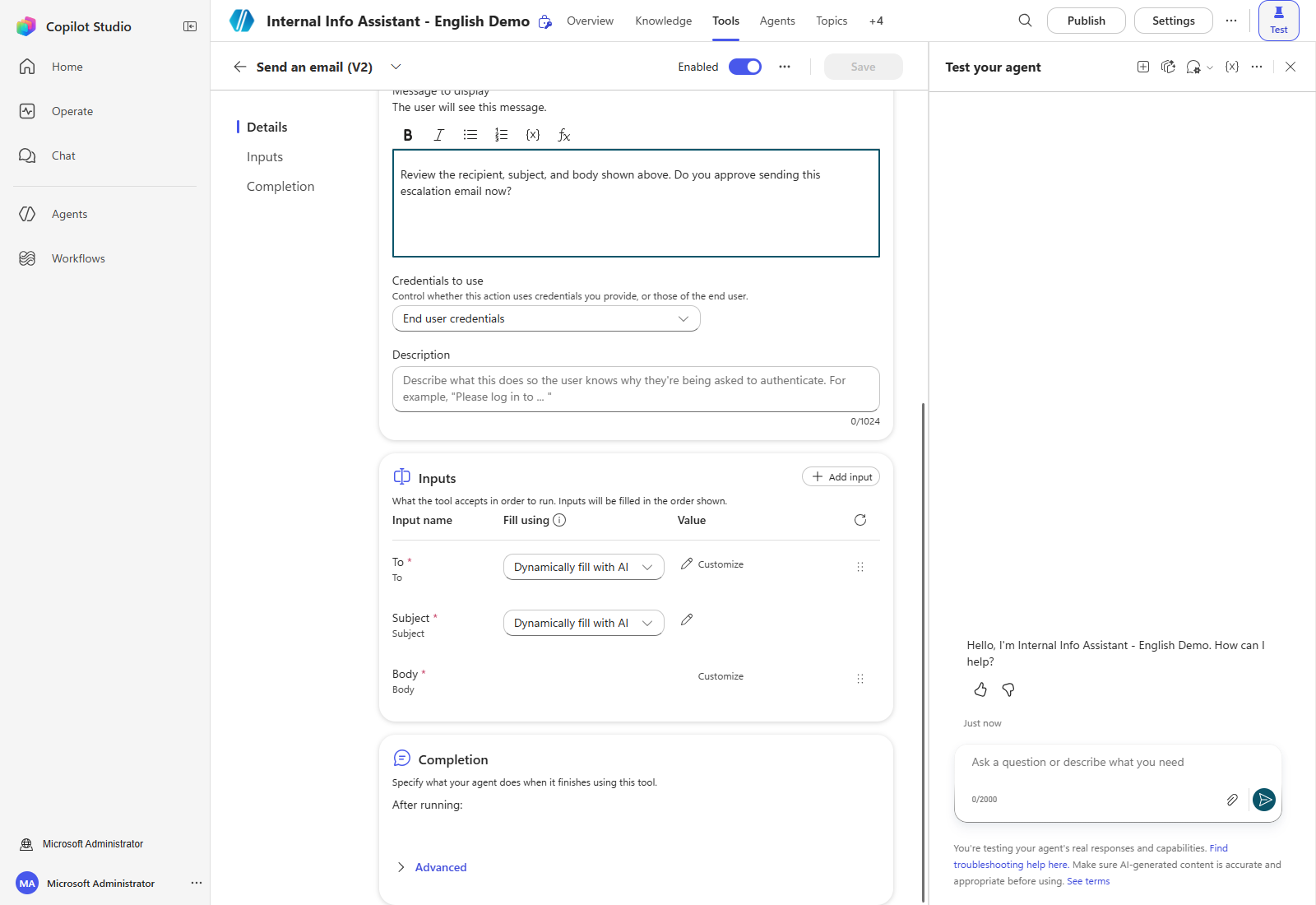
| Input name | Fill using | Description to enter |
|---|---|---|
| To | Dynamically fill with AI | The recipient. Use the owner list to choose the owner responsible for the topic. Addresses use the someone@contoso.com format; separate multiple addresses with ;. |
| Subject | Dynamically fill with AI | The email subject. Use the format [Business inquiry] <short summary>. |
| Body | Dynamically fill with AI | The email body in HTML. Include the inquiry date and time, the requester, and the inquiry details. |
Select Add input to expose additional connector parameters such as CC. For a parameter set
to Custom value, you can type a literal or use the … menu to insert a system variable —
for example User.Email to copy the requester onto the message.
Under Completion, choose Send a specific response (specify below) so the user sees a clear result in the conversation:
As requested, I sent this content to the owner by email.
The owner will contact you separately as soon as possible.
Select Save at the top when you are finished.
4. Extend the agent Instructions
The tool is configured, but the agent still needs to know who the owners are. Return to Overview and extend the Instructions. While editing, type / to reference a tool, agent, or topic explicitly.
Add an owner routing table and point the escalation path at this tool:
## Send email
When the user asks to escalate because they did not get an accurate answer, or when they need to
reach an owner directly, use the Send an email (V2) tool.

Owner contacts:
- Marketing, press releases, website management > owner-marketing@contoso.com
- Product and technical questions > owner-product@contoso.com

Always show the recipient, subject, and body, and send only after the user confirms.
Replace the placeholder addresses with the owner addresses for your workshop. Save the Instructions and confirm the text survives a reload.
Configuration is not delivery — Connecting the tool and setting a confirmation prompt does not prove an email was sent. A separate, authorized test must preview the exact recipient, subject, and body, obtain confirmation, and then verify the message in the recipient’s mailbox. No message was sent while these screenshots were taken.
The agent can now escalate by email. Next, add a Power Automate flow as a tool.
| ← Previous: Step 1. Create an agent | Next: Step 3. Tools: flow → |