Add a Trigger
Fundamentals #2: Document search & escalation - Add a Trigger
Step 4: Add a Trigger
Have the agent start by itself
✅ What is a trigger?
Everything you built so far runs because a user asks for it. A trigger flips that around: the agent starts working when an external event happens — a new email arrives, a SharePoint item is created, a Teams channel message is posted, or a schedule fires.
Tool vs. Trigger
| Category | Tool | Trigger |
|---|---|---|
| What starts it | The user’s request, chosen by the orchestrator | An external event, with no user present |
| When it runs | During a conversation | Whenever the event occurs, including outside a conversation |
| Typical use | “Email the owner about this” | “When an inquiry email arrives, analyse it and notify the owner” |
| Relationship | A trigger usually calls tools once it fires | Tools are what the triggered run actually does |
In short: a tool answers “what can the agent do,” while a trigger answers “when does the agent start.”
Workshop
English UI screenshots, September 8, 2026. Actual captures from an English-language demo environment. No trigger was left active and no message was sent — the walkthrough stops at the Power Automate consent step, and that is stated explicitly where it happens.
This page was rewritten. Previous versions of this chapter repeated the Step 3 flow content verbatim — the title said “Add a Trigger” but every instruction was about creating an agent flow. That was an authoring error. This page documents the actual trigger procedure in the current UI.
In this workshop you make the agent start on its own when a new email arrives, instead of waiting for someone to type a question.
1. Open the Triggers section
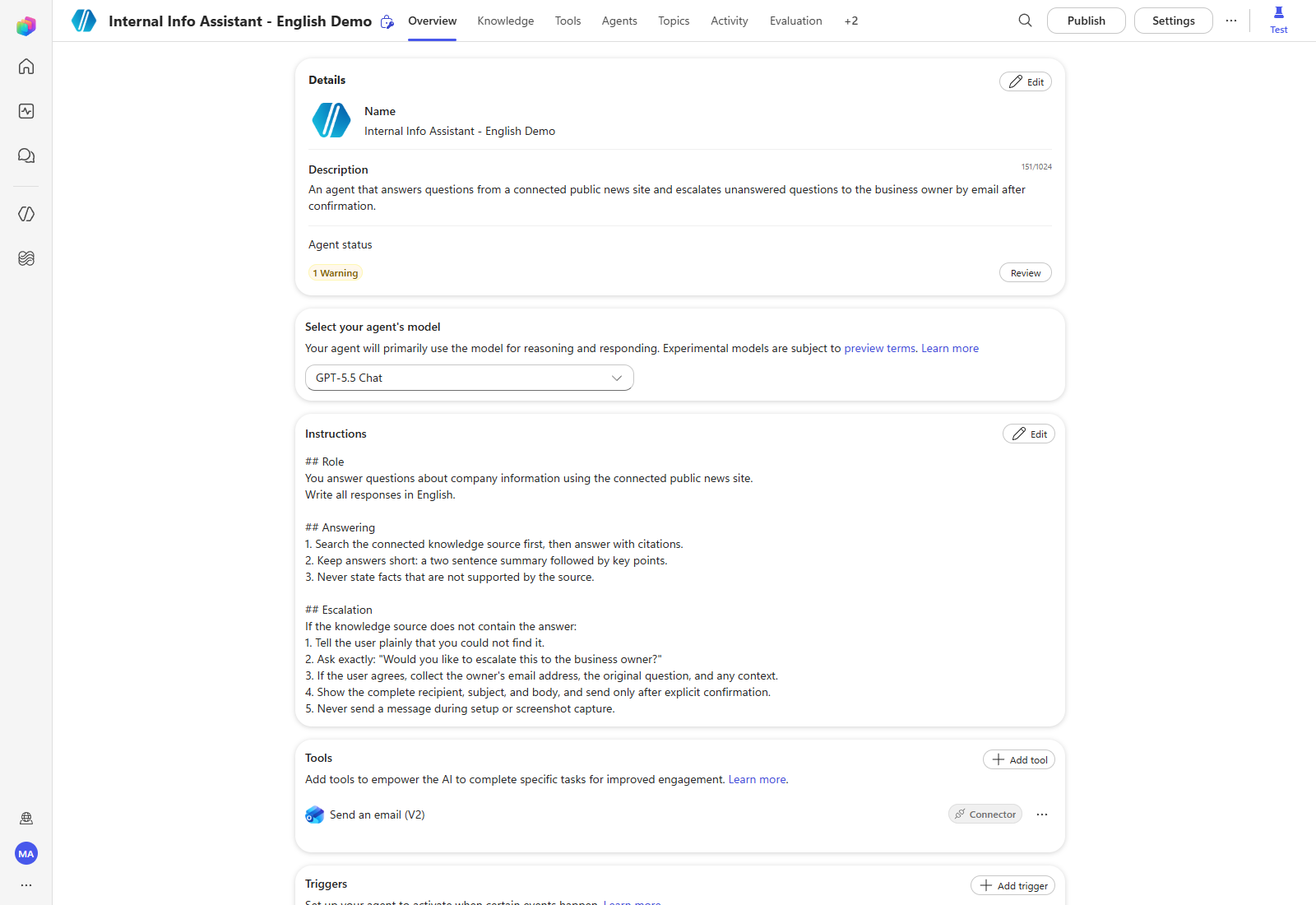
Triggers live on the agent Overview, in their own card below Tools. Select Add trigger.
Triggers are billable. The dialog states it plainly: “This is a billable feature and will consume messages.” Every event that fires the agent consumes messages, so scope the trigger’s conditions tightly rather than letting it run on every incoming mail.
2. Turn on generative orchestration
Triggers require generative orchestration. If the agent is still on classic orchestration, the dialog refuses to list anything and shows a gate instead.
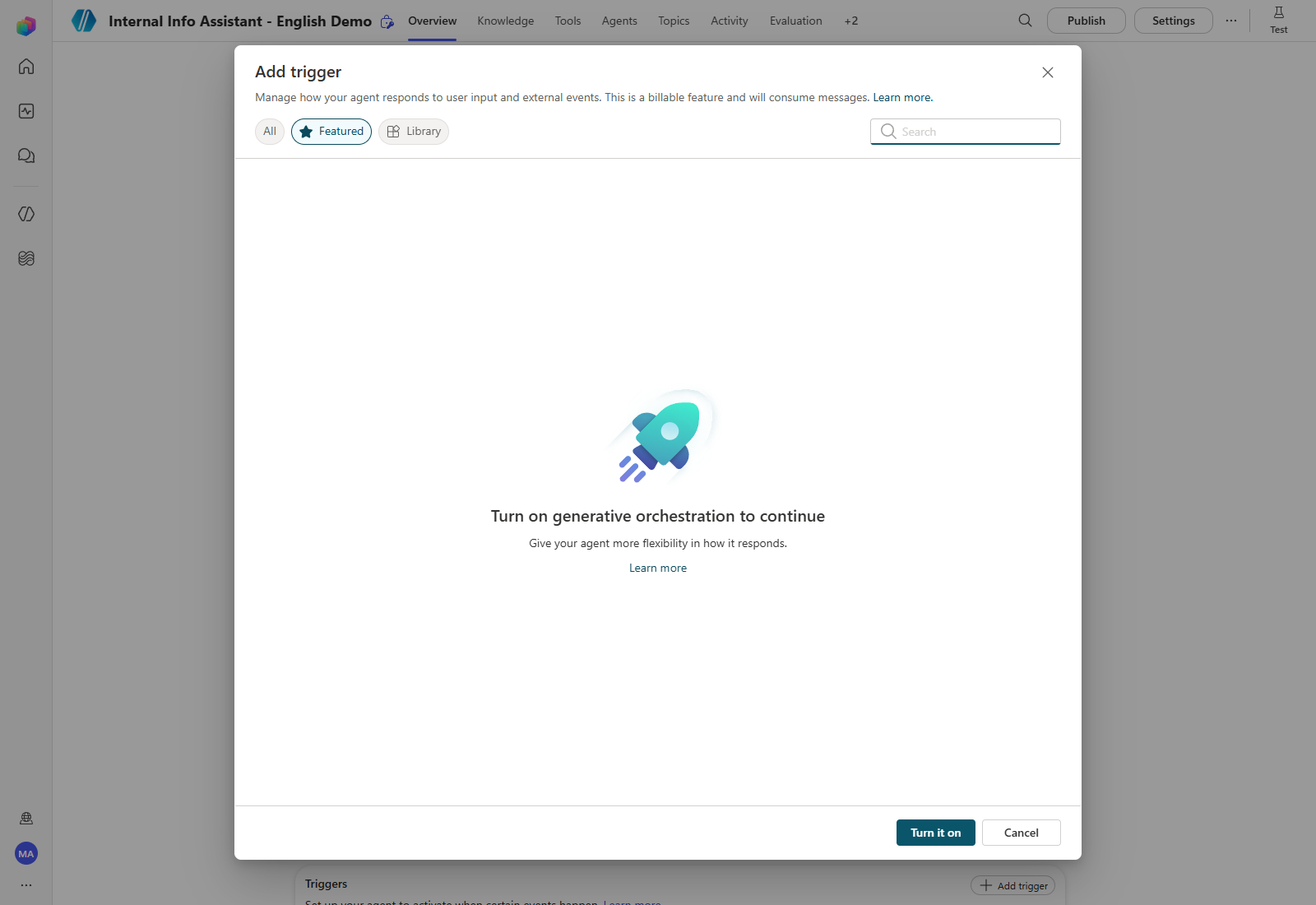
Select Turn it on. A “Changes saved.” banner confirms it.
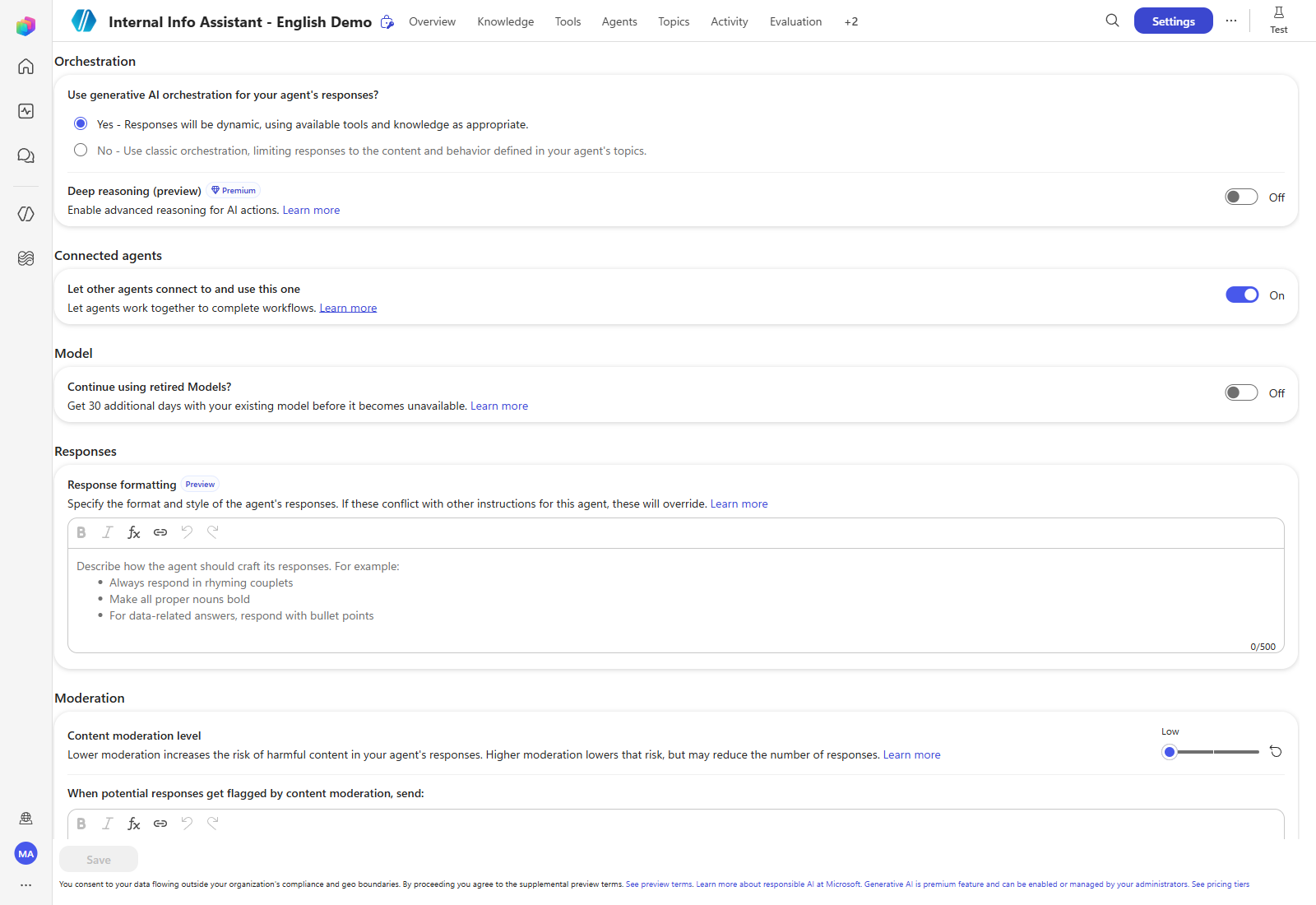
If the gate keeps coming back — In this environment the gate reappeared on the next visit even though Settings → Orchestration already showed Yes — Responses will be dynamic. The setting was genuinely saved; the dialog simply did not read it. Selecting Turn it on inside the dialog cleared it. If you hit this, check Settings first so you do not chase a setting that is already correct.
3. Choose the event
With orchestration on, the dialog lists the available triggers. Featured shows 11, and Library has the full set.
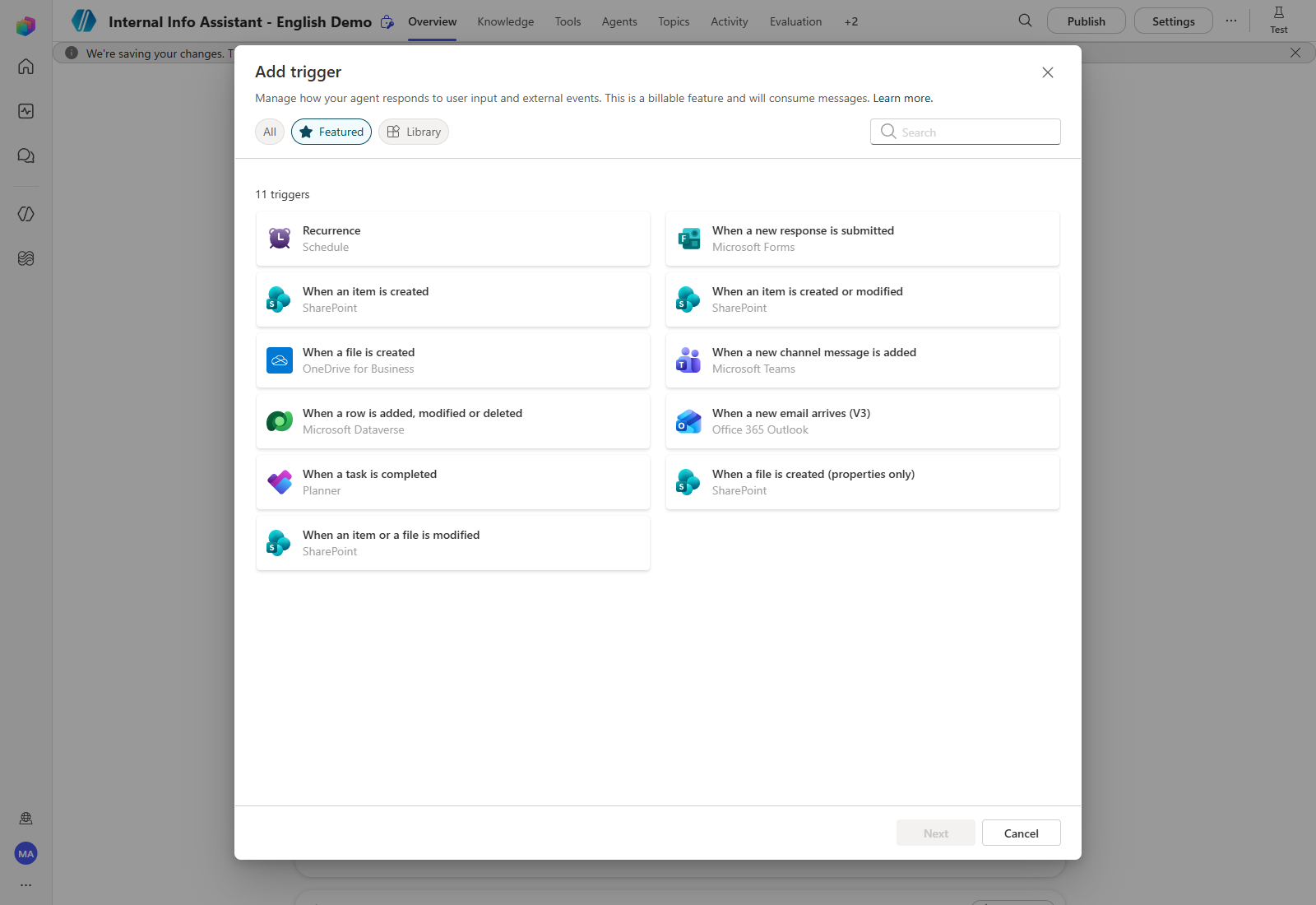
| Trigger | Source |
|---|---|
| Recurrence | Schedule |
| When a new response is submitted | Microsoft Forms |
| When an item is created / created or modified | SharePoint |
| When a file is created | OneDrive for Business |
| When a new channel message is added | Microsoft Teams |
| When a row is added, modified or deleted | Microsoft Dataverse |
| When a new email arrives (V3) | Office 365 Outlook |
| When a task is completed | Planner |
| When a file is created (properties only) | SharePoint |
| When an item or a file is modified | SharePoint |
Search narrows the list — type email to isolate the Outlook trigger.
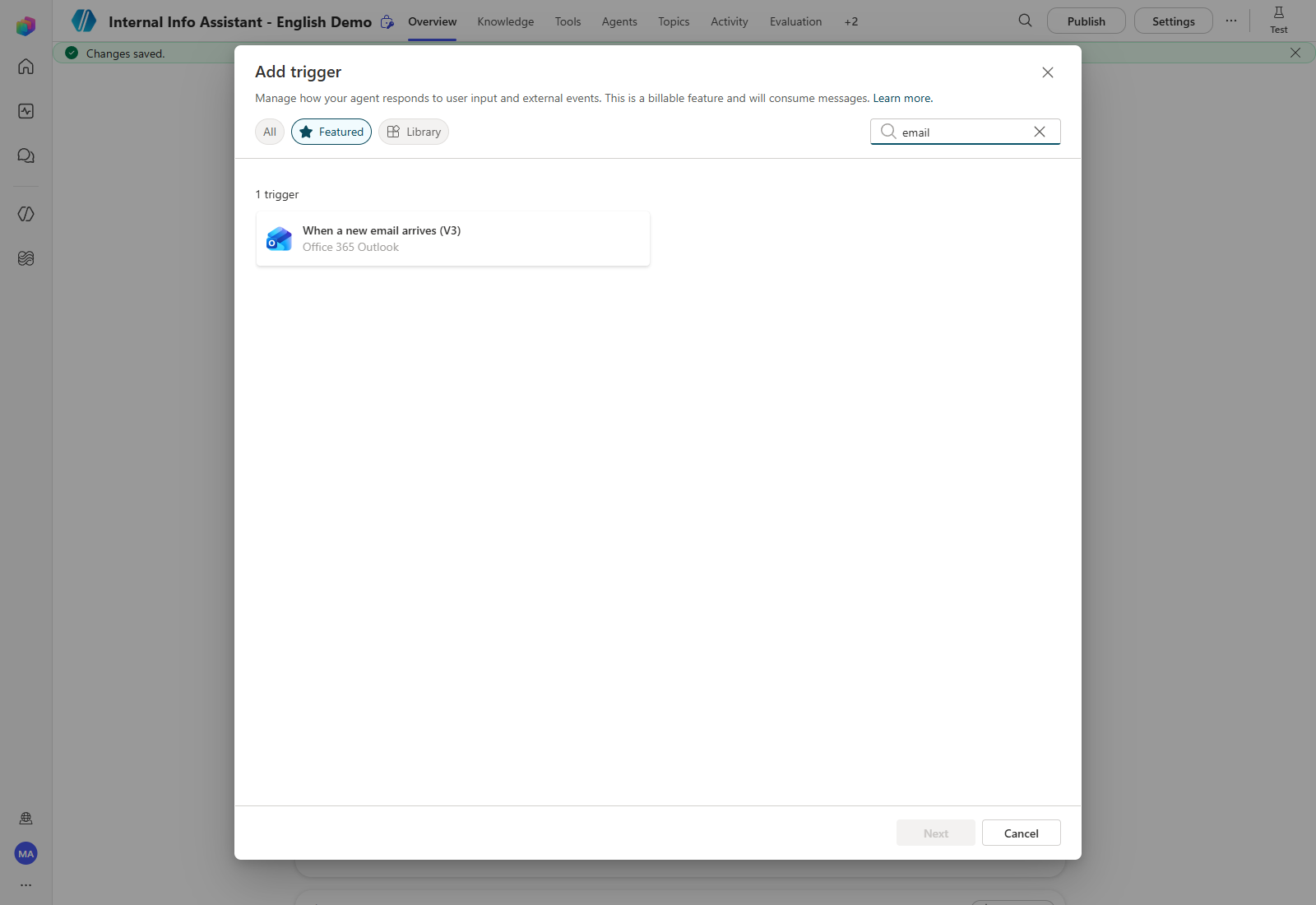
Select When a new email arrives (V3), then select Next.
4. Consent to the Power Automate connection
Triggers run on Power Automate, so the next screen is a consent step hosted by Power Automate inside Copilot Studio. It restates the event and asks you to agree to the terms and to let Power Automate read your user and tenant details.
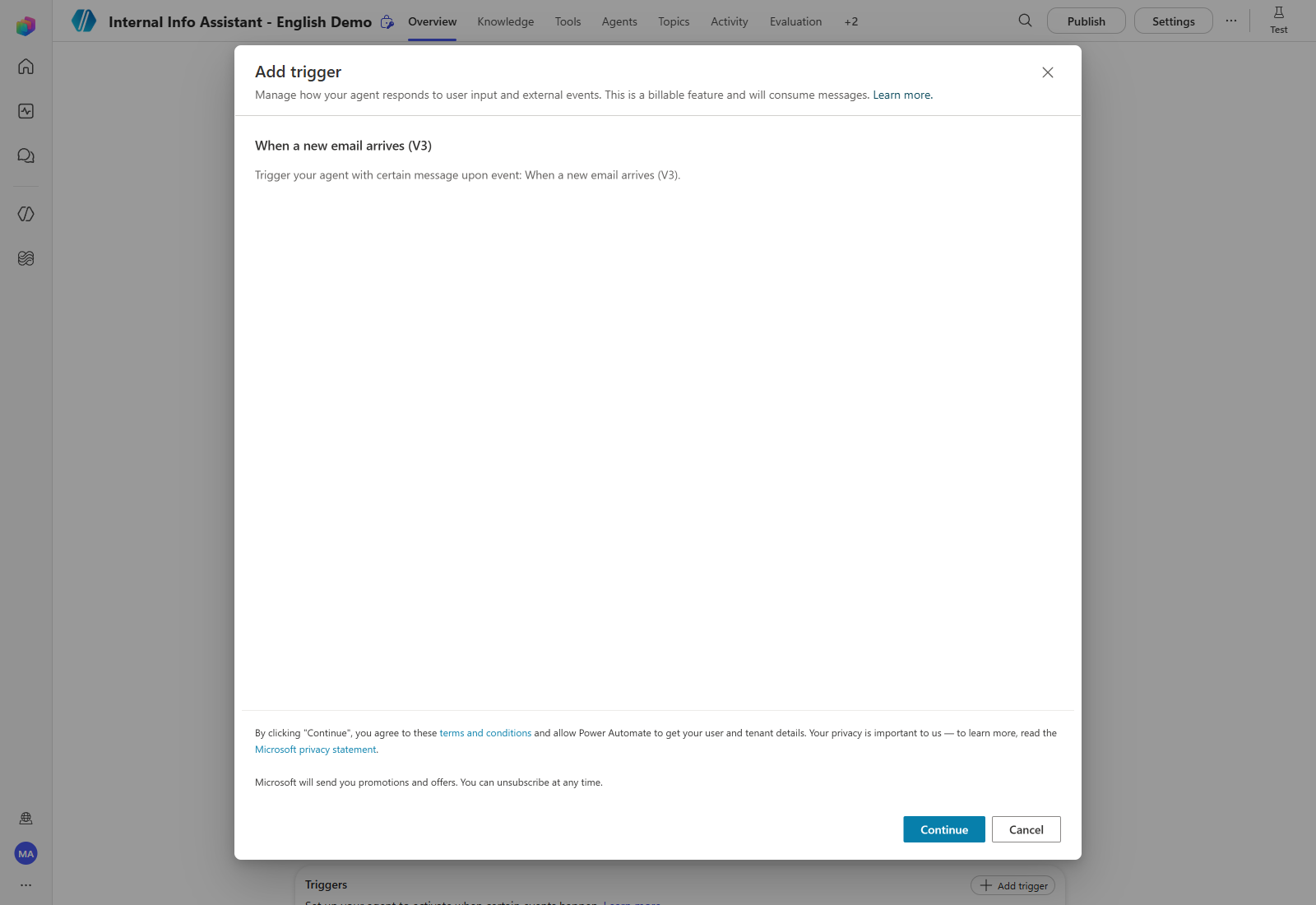
Select Continue. After consent you configure the trigger itself:
| Parameter | What to set |
|---|---|
| Connection | The Office 365 Outlook connection the trigger signs in with |
| Folder | Which mailbox folder to watch — usually Inbox |
| Conditions | Narrow the scope: sender, subject filter, importance, has-attachment |
| Message to the agent | The prompt the agent receives when the trigger fires, with the mail’s fields available as dynamic content |
Write the instruction the agent receives so it decides whether the mail actually needs work. For example: extract the key issue, search the connected knowledge source, and only escalate to the owner when the mail genuinely asks for a decision — ignore newsletters and announcements.
This walkthrough stops here, honestly. In the demo environment used for these screenshots the Continue button on the consent step did not advance — the dialog stayed on the consent screen across repeated attempts and a full reload. The parameter screen described in the table above is therefore not shown as a screenshot, because none was taken. Everything above this box is a real capture of a step that actually completed.
5. Verify before you rely on it
Confirm the save landed — After configuring the trigger, reload the page and re-open it. In this environment saves silently reverted more than once, and a trigger that looks configured before a reload has not necessarily been persisted.
A trigger is only proven by an actual event. Send one test mail that matches the condition, confirm the agent ran in Activity, and check that it did the right thing — including that it did not run for a mail that should have been ignored. Until you have seen both outcomes, the trigger is configured but not verified.
Turn it off when you are done. A live trigger keeps consuming messages on every matching event. If you set one up only to follow this workshop, disable it afterwards.
| ← Previous: Step 3. Tools: Flow | Next: Step 5. Publish and share → |