Connect knowledge sources
Fundamentals #3: Autonomous agent - Connect knowledge sources
Step 2: Connect knowledge sources
2. Connect knowledge sources (SharePoint)
English UI screenshots, September 10, 2026. Actual captures from an English-language demo environment, continuing on the agent built in Step 1.
What are Knowledge sources in Copilot Studio?
Knowledge sources are the internal documents and data repositories an agent references when answering. Connecting them lets the agent answer from organizational data rather than only from the model’s general knowledge.
| Knowledge source type | Main use cases |
|---|---|
| SharePoint | Search internal documents, manuals, reports |
| File upload (PDF, Word, etc.) | Fixed reference for specific documents |
| Public websites | Reference external webpages |
| Dataverse / Azure SQL | Query structured data |
| Salesforce, ServiceNow, Dynamics 365 | Query external business systems |
In this workshop you connect documents stored in SharePoint.
1. Connect a SharePoint knowledge source
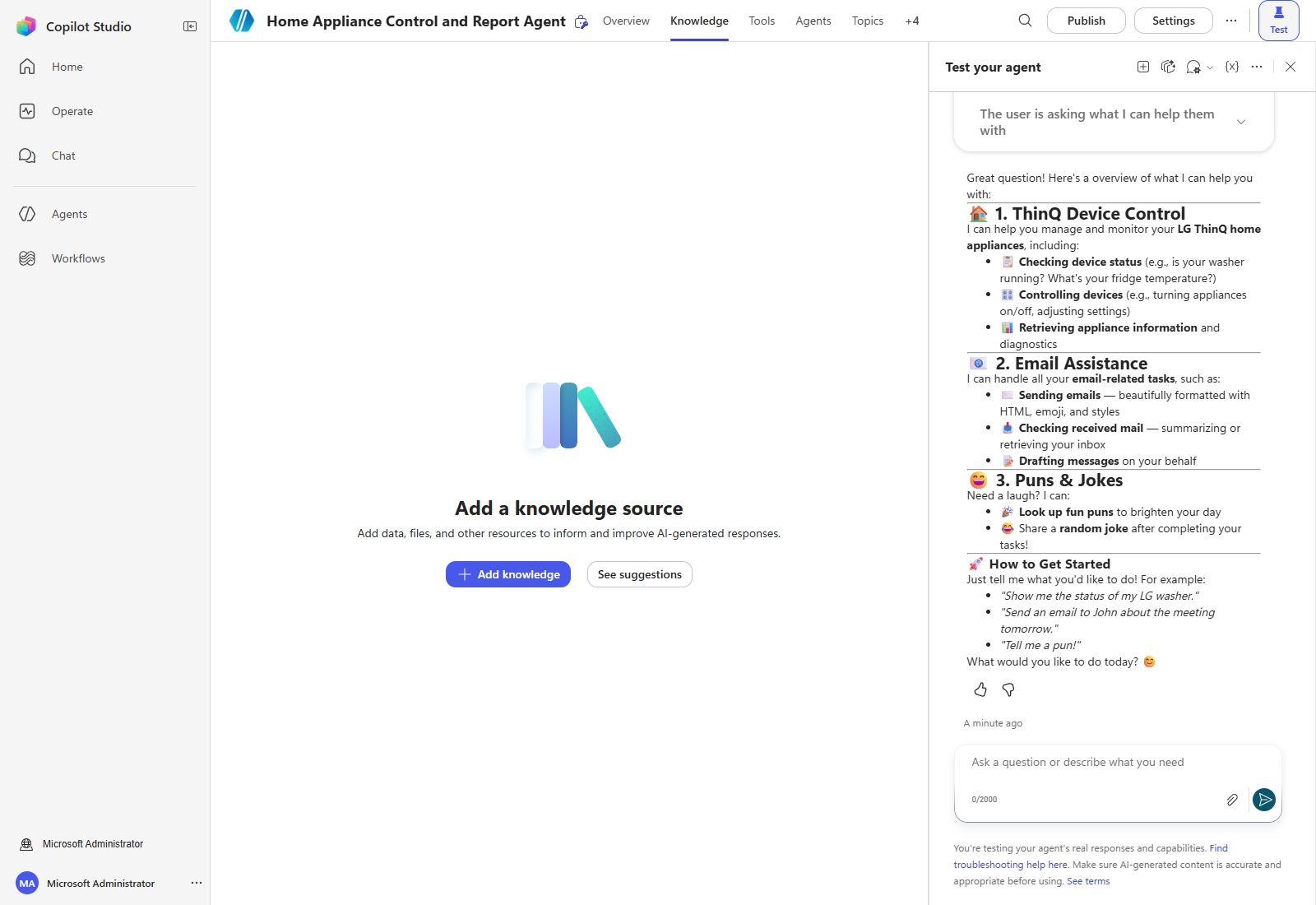
1-1. Start adding Knowledge
Open the Knowledge tab and select Add knowledge.
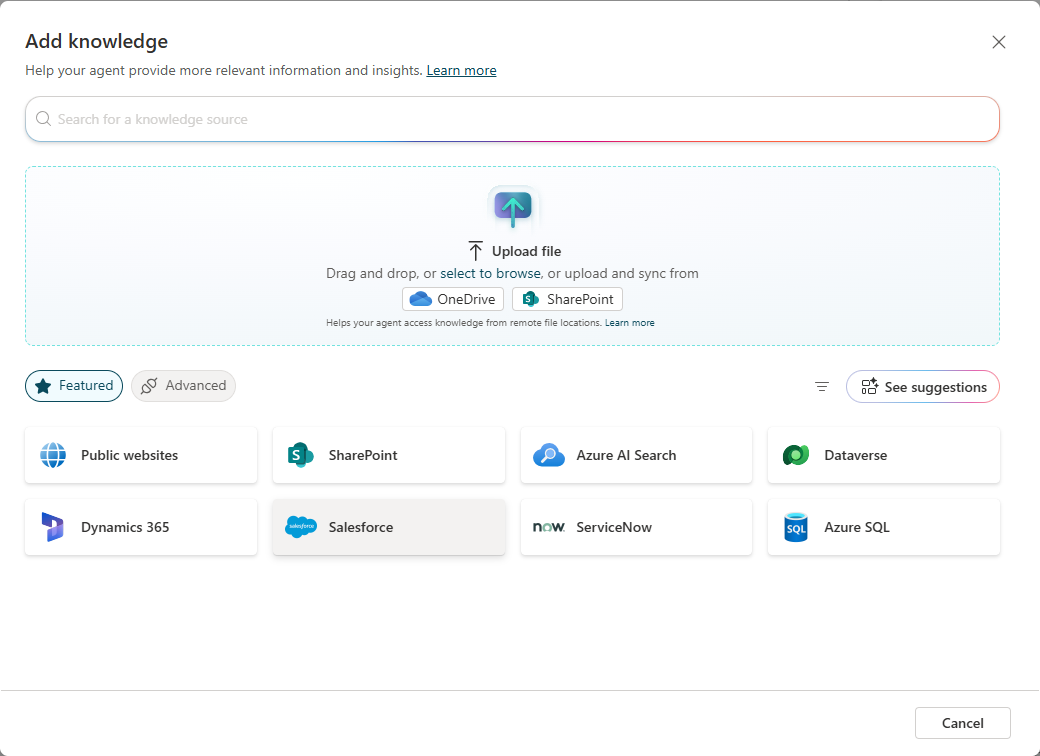
1-2. Select SharePoint
The catalog opens with a file drop zone at the top and the connectable sources below. Choose SharePoint.
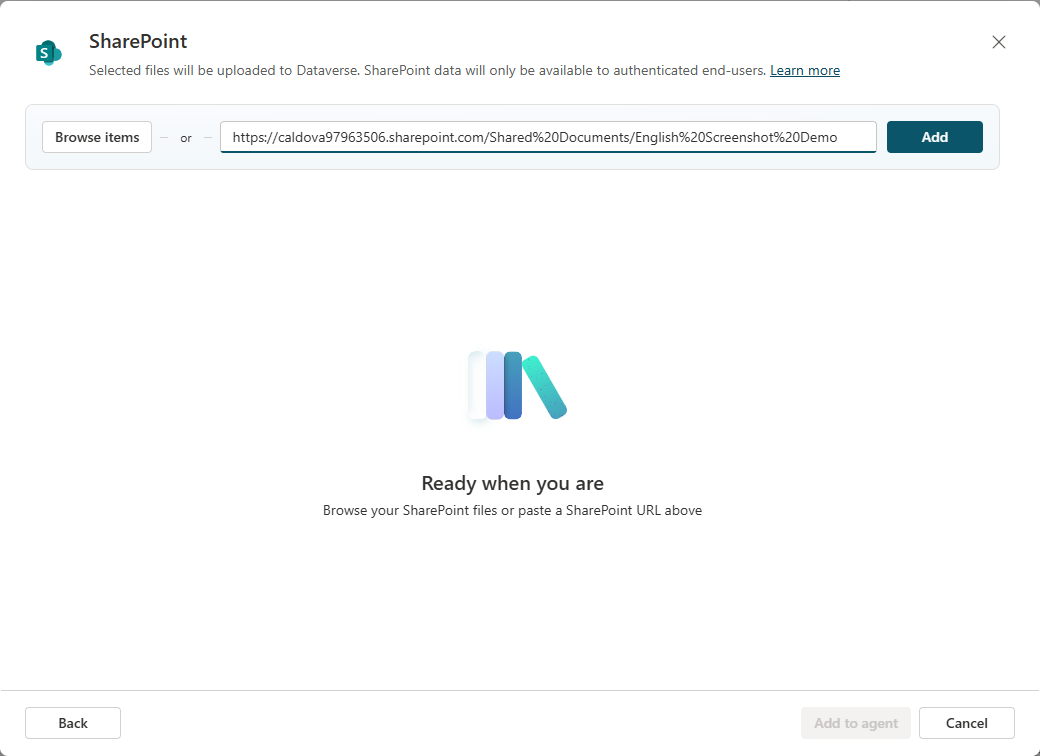
1-3. Paste the SharePoint URL
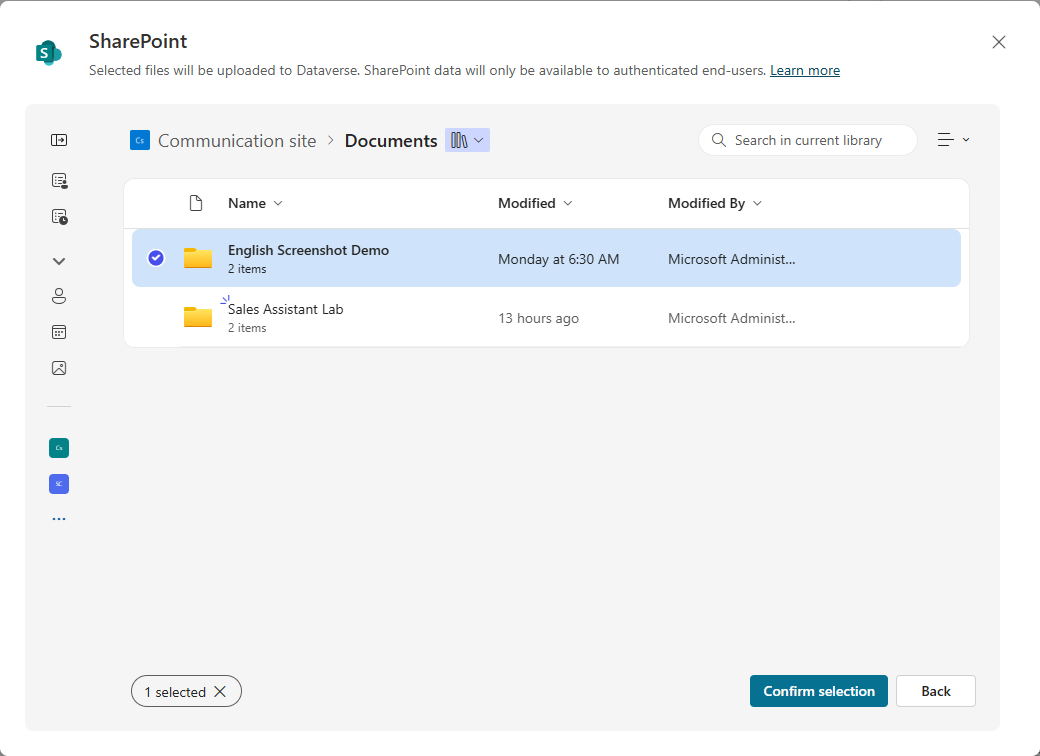
You are offered two routes: Browse items, or pasting a URL and selecting Add.
Paste the URL. To find it, open the SharePoint library, select Details on the right, and copy the Path from the bottom of the side panel. URL-encode any spaces.
https://<your-tenant>.sharepoint.com/Shared%20Documents/<Your%20Folder>
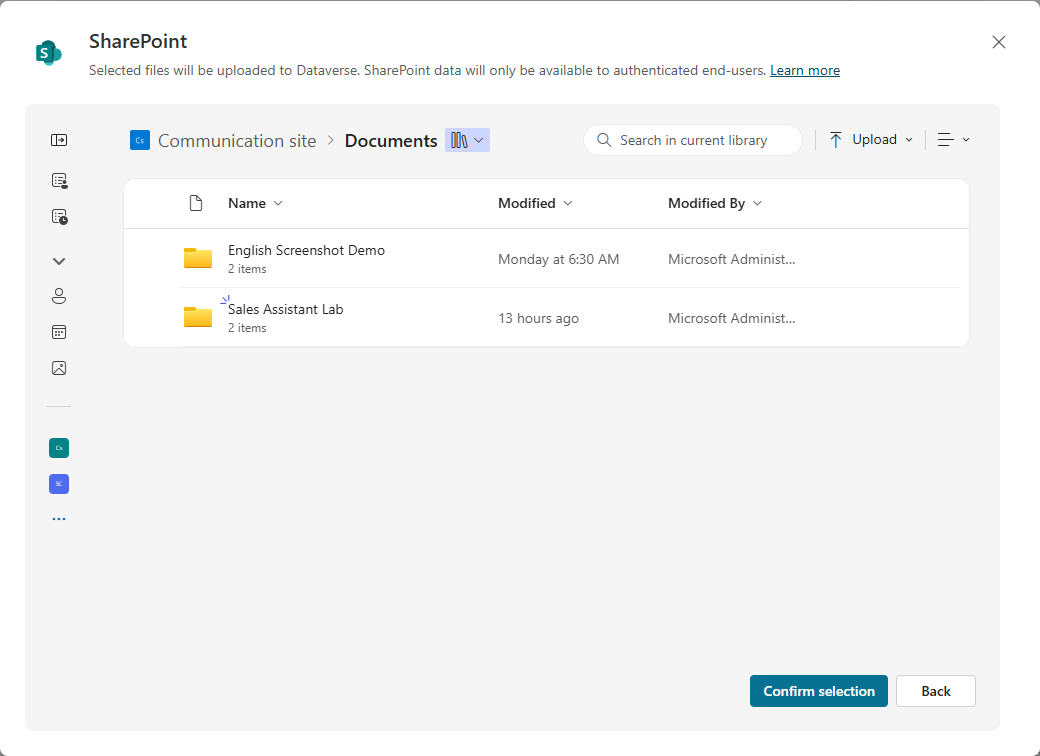
Do not use Browse items for a folder. Browsing to a folder and selecting Confirm selection creates a source of type Power Platform connector that uploads files to Dataverse — in this demo tenant it stayed stuck on Error and never became usable. Pasting the same folder URL and selecting Add creates a source of type SharePoint, which reached Ready in about two minutes. If you already created the broken one, delete it from the row’s ⋯ menu and re-add it by URL.
1-4. Enter a name and description
The dialog fills in defaults. Replace them — the agent reads the description when deciding whether the source is relevant, so say what the folder actually holds.
Name
Product Spec Sheets

Description
Technical specifications for refrigerators and dishwashers. Reference this source first when users ask about refrigerator or dishwasher specifications.
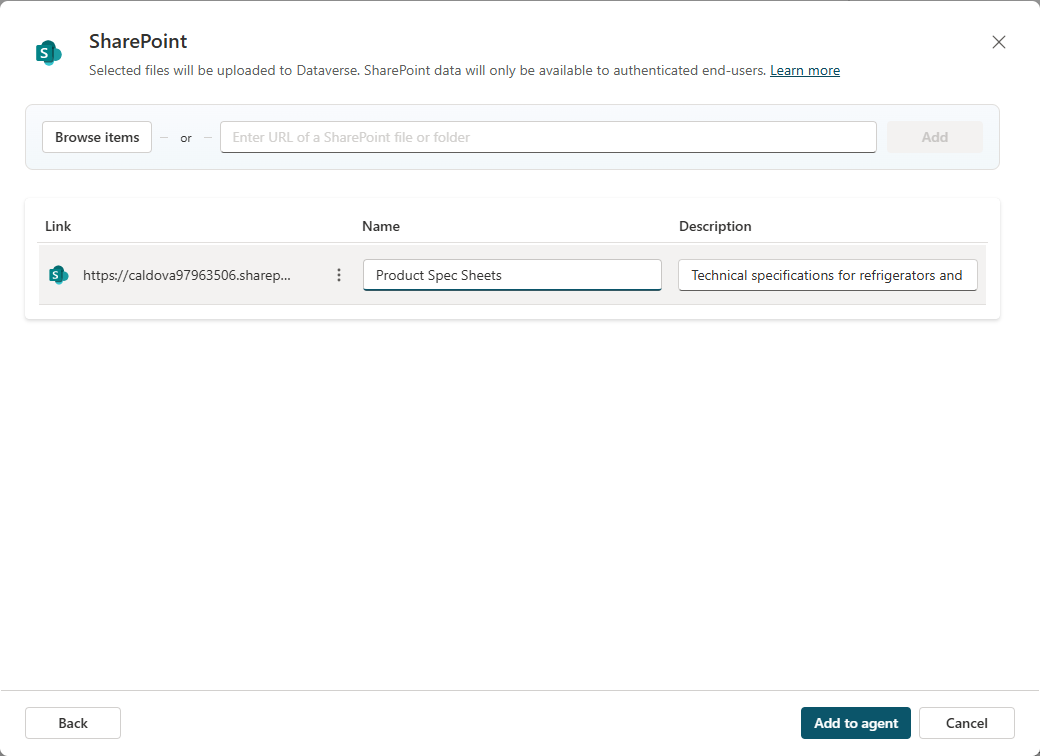
Select Add to agent.
1-5. Wait for Ready
The source is listed immediately but is not usable until Status reads Ready. Reload the Knowledge tab until it does.

2. Check behavior
In the Test panel, ask a question that can only be answered from the documents.
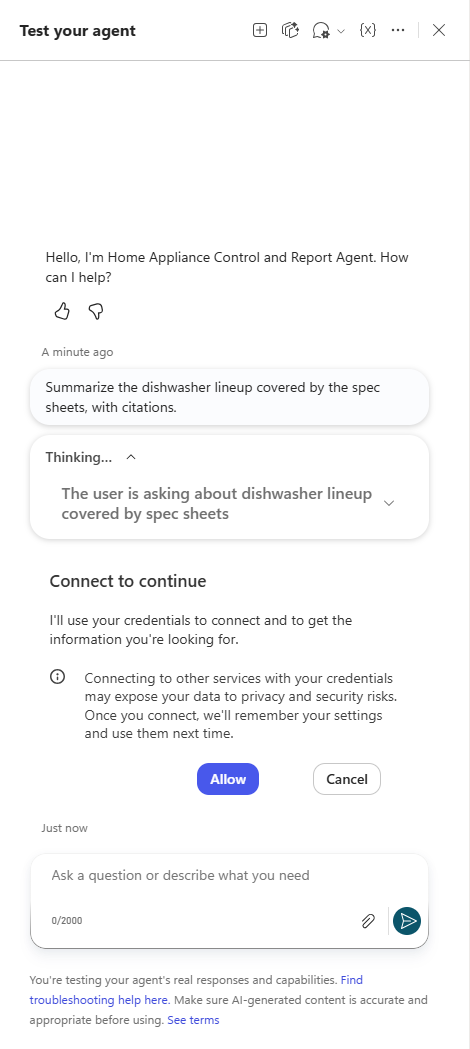
Summarize the dishwasher lineup covered by the spec sheets, with citations.
The first time the agent searches, it asks to use your credentials for the connection. Select Allow.
The answer arrives with the figures from the PDFs and a references list naming the files used.
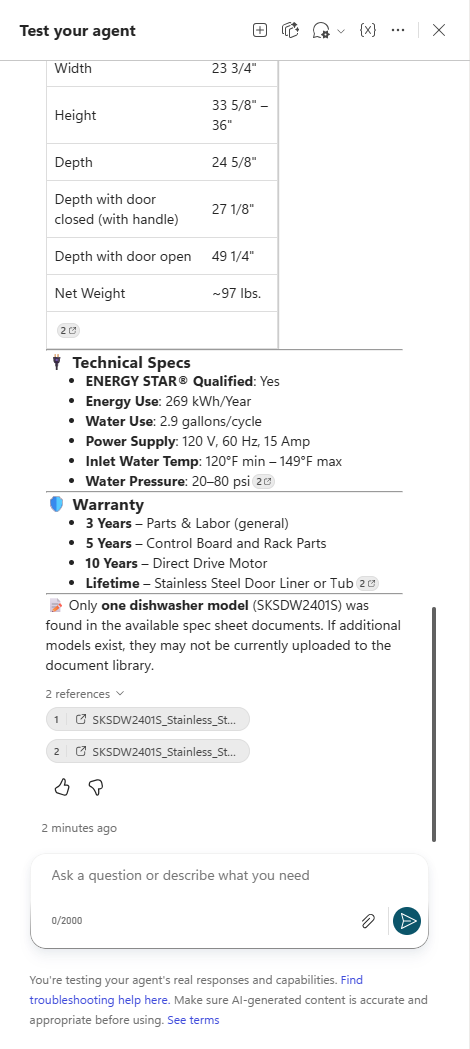
Check the references, not the status chip. Ready only means indexing finished. An answer with no references did not come from your knowledge source, however healthy the status looks.
If the agent answers by citing the SharePoint documents, step 2 is complete.
| ← Previous: Step 1. Create an agent | Next: Step 3. Work IQ MCP → |