Deploy
[Renewal] Explore the basic features of Copilot Studio - Publish and deploy to a Microsoft Teams channel
Step 11: Deploy
Publish the agent and deploy it to a Teams channel
Final check before deployment
Before deploying the agent to Teams, review the checklist below.
- Agent Instructions saved
- SharePoint Knowledge source connection confirmed
- Mail MCP / mail connector authentication completed
- External MCP (News API, etc.) connection confirmed
- Power Automate flow (email + Teams) published
- Trigger flow confirmed as active (On)
- AI Prompt tool (HTML_Response_Generator) saved
- Excel connector (table lookup) operation confirmed
- Scenario-specific behavior confirmed in the test panel
1. Publish the agent
1-1. Start publishing
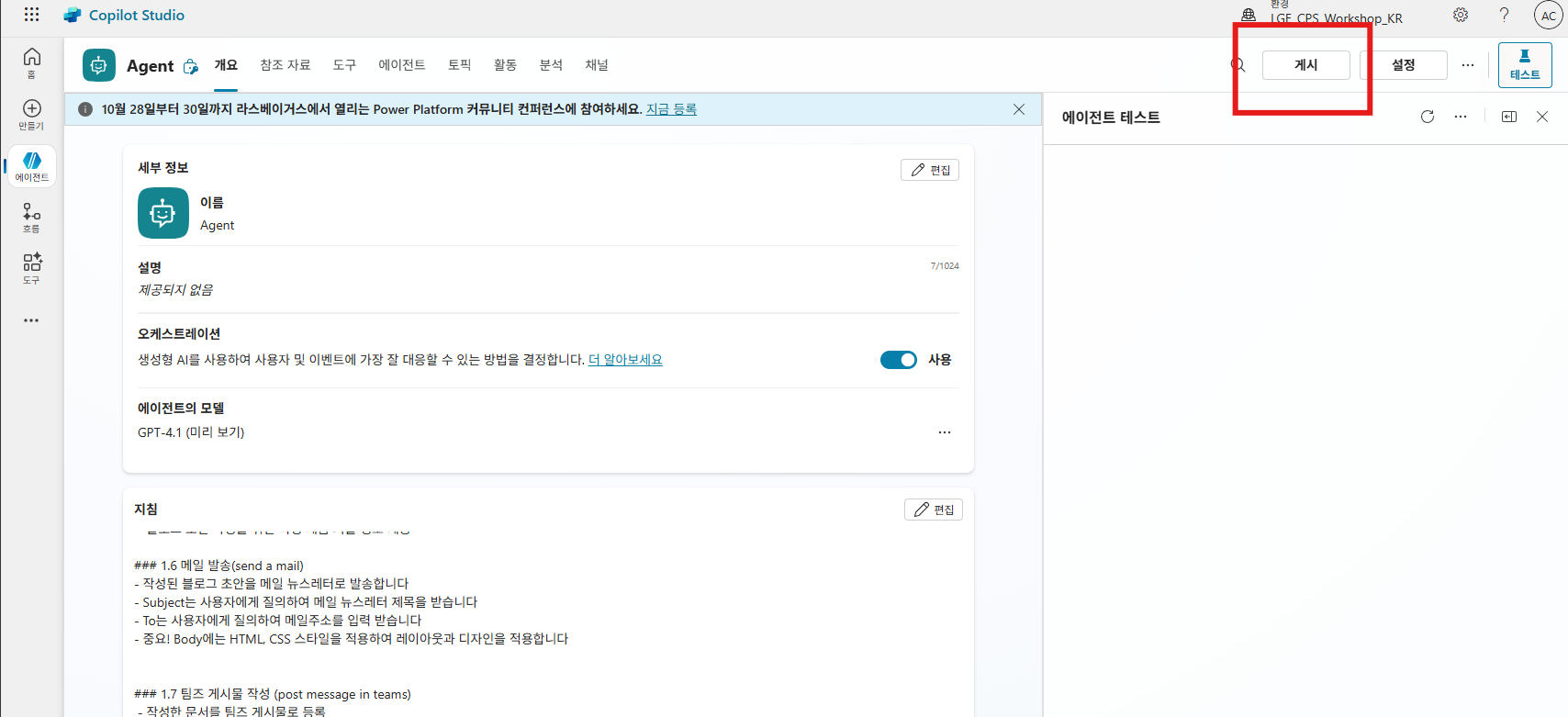
Click the Publish button in the upper-right corner of the agent overview screen.
1-2. Confirm publishing
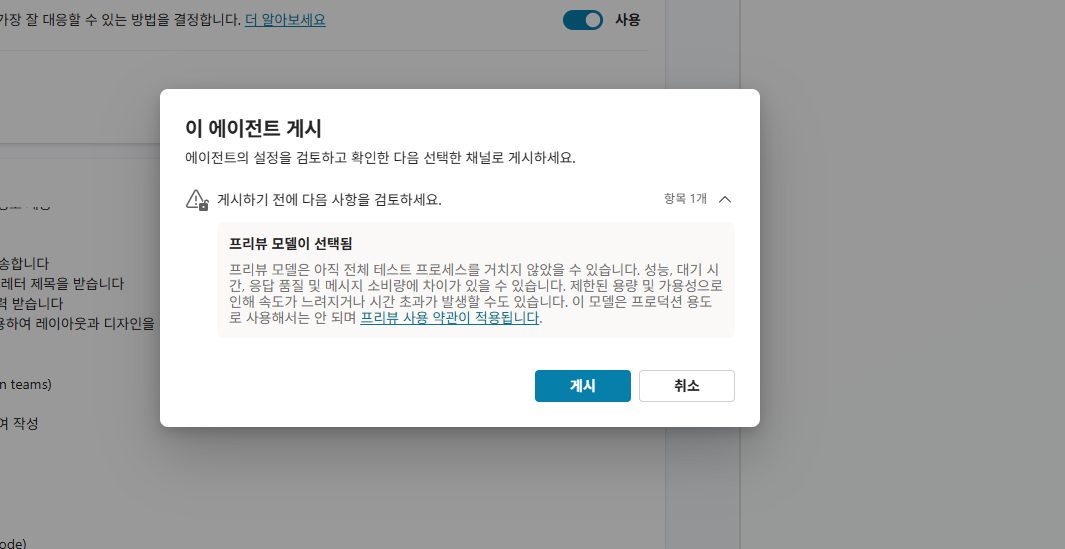
In the publishing pop-up, review the content and click Publish.
Publishing saves the current agent settings and makes the agent ready for deployment.
You can continue editing the agent after publishing, and changes are applied when you republish after editing.
Publishing may take 1-2 minutes to complete.
2. Deploy to a Teams channel
2-1. Configure channel deployment
After publishing is complete, go to Settings → Channels in the left menu.
Alternatively, find the Channels section on the agent overview screen.
2-2. Select the Microsoft Teams channel
In the channel list, select Microsoft Teams.
2-3. Configure the Teams channel
| Item | Setting |
|---|---|
| Deployment target | Teams channel (including group chat) |
| Sharing scope | Lab team or entire organization (as guided by the instructor) |
| Teams app name | Automatically set to the same as the agent name |
2-4. Add the agent to Teams
Click the Open in Teams button, or add the agent to Teams using one of the methods below.
Method A — Add from the app store (for organization deployment):
- Launch the Microsoft Teams app
- Click Apps in the lower-left → Built for your org tab
- Search for the agent name and click Add
Method B — Add by direct link:
- Copy the direct Teams add link provided by Copilot Studio
- Paste it into a Teams chat and install
2-5. Register the agent in a Teams channel
To register the agent in a specific Teams channel:
- Go to the target Teams channel
- Click + (add tab) at the top of the channel
- Search the Apps tab or search for the agent
- Complete installation
3. Test operation in Teams
After the agent is added to Teams, validate the full flow with the scenarios below.
Scenario 1 — Search internal documents (SharePoint Knowledge)
@[agent name] Find internal documents related to [search keyword].
→ SharePoint search → response with citations
Scenario 2 — Send email (MCP / connector)
Summarize this week's meeting notes and send them to [email address].
→ Draft creation → email sent after approval
Scenario 3 — Query external news (external MCP)
Summarize today's global IT headlines.
→ News API MCP call → headline response
Scenario 4 — Automation flow (email + Teams post)
Email this content to the person in charge and notify the Teams channel as well.
→ Send email and notification flow call → email sent + channel post created
Scenario 5 — Data analysis (Excel + AI Prompt)
Compare electricity usage in Dongdaemun-gu with the Seoul average.
→ Excel filtering → Time Series Data Analysis Prompt → analysis response
4. (Optional) Copilot Studio monitoring
If you have time left in the lab, check the conversation logs in Copilot Studio.
4-1. Access the Monitoring tab
Copilot Studio → select the agent → click the Monitoring tab in the left menu
4-2. Items to check
| Item | What to check |
|---|---|
| Conversation history | Check the full flow of user questions and agent responses |
| Tool call logs | Check which tools were called and in what order |
| Error logs | Check tool call failures, authentication errors, and similar issues |
| Performance metrics | Check average response time, number of sessions, and more |
💡 Monitoring usage tips
- If the agent calls the wrong tool or does not follow Instructions, analyze the cause in the conversation log and update the Instructions.
- If the tool call order differs from your intent, make the workflow description in the Instructions more specific.
Lab complete 🎉
Congratulations! You have completed all steps.
Here is a summary of what you implemented in this integrated workshop.
| Step | Implementation |
|---|---|
| Steps 1-2 | Create a custom engine agent + write basic Instructions |
| Step 3 | Connect Knowledge such as SharePoint and web sources |
| Step 4 | Add a built-in MCP (email management) tool |
| Step 5 | Add standard plugin connectors (email/Teams) |
| Step 6 | Connect a URL-based external MCP server |
| Step 7 | Configure a Power Automate flow (email + Teams) |
| Step 8 | Automatic execution with event/schedule Triggers |
| Step 9 | Standardize HTML responses with an AI Prompt tool |
| Step 10 | Combine Excel data filtering with an analysis prompt |
| Step 11 | Deploy to a Microsoft Teams channel and run end-to-end testing |
Key takeaway: Copilot Studio combines Knowledge + Tools (MCP/connectors/prompts) + automation (flows/triggers) to
configure complex work automation without writing code.
The quality of the agent’s autonomous orchestration is proportional to the specificity of the Instructions.
| ← Previous: Step 10. How to use Excel-based data | Back to overview |