Mission 07: Extract Resume Contents with Multimodal Prompts
Process documents and images with advanced AI capabilities
Translated article — This article is based on 🚨 Mission 07: Extracting Resume Contents with Multimodal Prompts from the Copilot Studio Agent Academy. The original wording takes precedence.
🎯 Mission Brief
Welcome, Operative. Through the previous missions, you have mastered powerful agent orchestration techniques. Now it is time to unlock a game-changing capability: multimodal document analysis.
This mission is code-named Document Resume Recon. The objective is to extract structured data from any document with precision. Agents can process text easily, but in the real world we work with PDFs, images, and complex documents every day. Resumes pile up, invoices need to be processed, and forms must be digitized immediately.
By the end of this mission, you will evolve from a text-only agent builder into a multimodal specialist. You will learn how to read and understand documents like a human analyst, while processing them with the speed and consistency of AI. By the end, you will have built a complete resume extraction system that integrates with your hiring workflow.
The techniques you learn here are the foundation for the advanced data grounding work covered in the next mission.
Note — If the screenshots in this lab look different from your Copilot Studio screens, turn off New Experience in the upper-right corner to switch to the classic experience used here.
🔎 Objectives
In this mission, you will learn how to:
- Understand what multimodal prompts are and which AI model to use for each situation
- Configure prompts that include image and document inputs
- Format prompt output as JSON for structured data extraction
- Apply prompt engineering best practices for document analysis
- Integrate multimodal prompts with Agent Flows
🧠 Understanding multimodal prompts
What does it mean for a prompt to be “multimodal”?
Traditional prompts process text only. Multimodal prompts, however, can process multiple types of content:
- Text: written instructions and content
- Images: photos, screenshots, charts, and diagrams (.PNG, .JPG, .JPEG)
- Documents: invoices, resumes, and forms (.PDF)
This capability unlocks powerful scenarios such as resume analysis, invoice processing, and form data extraction.
Why multimodal matters in workflows
Organizations face document processing challenges every day:
- Resume screening: manually reading hundreds of resumes takes a lot of time
- Invoice processing: vendor information, amounts, and dates must be extracted from documents with inconsistent formats
- Form analysis: paper forms must be converted into digital data
Multimodal prompts remove these bottlenecks by combining AI language understanding with visual analysis. In other words, AI can process documents as effectively as it processes text.
Common business scenarios
Here are examples where multimodal prompts can be applied.
| Scenario | Task | Example output fields |
|---|---|---|
| Resume screening | Extract the candidate’s name, email, phone number, current title, years of experience, and key skills. | Candidate Name, Email Address, Phone Number, Current Job Title, Years of Experience, Key Skills |
| Invoice processing | Extract vendor information, invoice date, total amount, and line items from this invoice. | Vendor Name, Invoice Date, Total Amount, Invoice Line Items |
| Form analysis | Analyze this application form and extract all entered fields. | Field Name (e.g., Applicant Name), Entered Value (e.g., John Doe), … |
| ID document verification | Extract the name, ID number, expiration date, and address from this identity document. Verify that all text is clearly readable and flag any unclear sections. | Full Name, Identification Number, Expiration Date, Address, Unclear Sections Flag |
⚙️ Selecting a model in AI Builder
AI Builder provides several models optimized for specific tasks. Understanding which model to use is critical to success.
Note: as of September 2025 — AI Builder models are updated regularly, so check the latest AI Builder model settings documentation for currently available models.
Model comparison
All of the models below support vision and document processing.
| Model | 💰Cost | ⚡Speed | ✅Best for |
|---|---|---|---|
| GPT-4.1 mini | Basic (most cost-effective) | Fast | Standard document processing, summarization, budget-conscious projects |
| GPT-4.1 | Standard | Moderate | Complex documents, advanced content creation, high accuracy needs |
| o3 | Premium | Slow (reasons first) | Data analysis, critical thinking, sophisticated problem-solving |
| GPT-5 chat | Standard | Enhanced | Latest document understanding, highest response accuracy |
| GPT-5 reasoning | Premium | Slow (complex analysis) | Most sophisticated analysis, planning, advanced reasoning |
Understanding Temperature settings
Temperature controls how creative or predictable AI responses are.
- Temperature 0: most predictable and consistent results (best for data extraction)
- Temperature 0.5: balances creativity and consistency
- Temperature 1: maximum creativity (best for content generation)
For document analysis, use temperature 0 for consistent data extraction.
📊 Output format: Text vs JSON
Choosing the right output format is essential, depending on what later processing steps will do.
When to use Text output
Text output is appropriate for:
- Human-readable summaries
- Simple classification
- Content that does not require structured processing
When to use JSON output
JSON output is required for:
- Structured data extraction
- Integration with databases or systems
- Power Automate flow processing
- Consistent field mapping
JSON best practices
- Define clear field names: Use descriptive, consistent names.
- Provide examples: Include sample outputs and values for each field.
- Specify data formats: Include examples for dates, numbers, and text.
- Handle missing data: Design in advance how null or empty values should be handled.
- Validate the structure: Test with different document types.
Document quality considerations
- Resolution: Make sure images are clear and readable.
- Orientation: Rotate documents to the correct orientation before processing.
- Format support: Test with the document formats you use (PDF, JPG, PNG).
- Size limits: Know the file size limits in your environment.
Performance optimization
- Choose the right model: Upgrade to higher-end models only when needed.
- Optimize prompts: Shorter, clearer instructions usually perform better.
- Error handling: Plan how to handle documents that cannot be processed.
- Monitor costs: Different models consume different amounts of AI Builder credits.
🧪 Lab 7 - Build a resume extraction system
Now it is time to apply your multimodal knowledge. You will build a comprehensive resume extraction system that analyzes candidate documents and converts them into structured data for the hiring workflow.
Prerequisites for completing this mission
-
You need the following:
- Complete Mission 06 so the multi-agent hiring system is ready.
- Download sample resume documents from Test Resumes.
7.1 Create a multimodal prompt
The first objective is to create a prompt that can analyze resume documents and extract structured data.
-
Sign in to Copilot Studio, then select Tools from the left navigation menu.
-
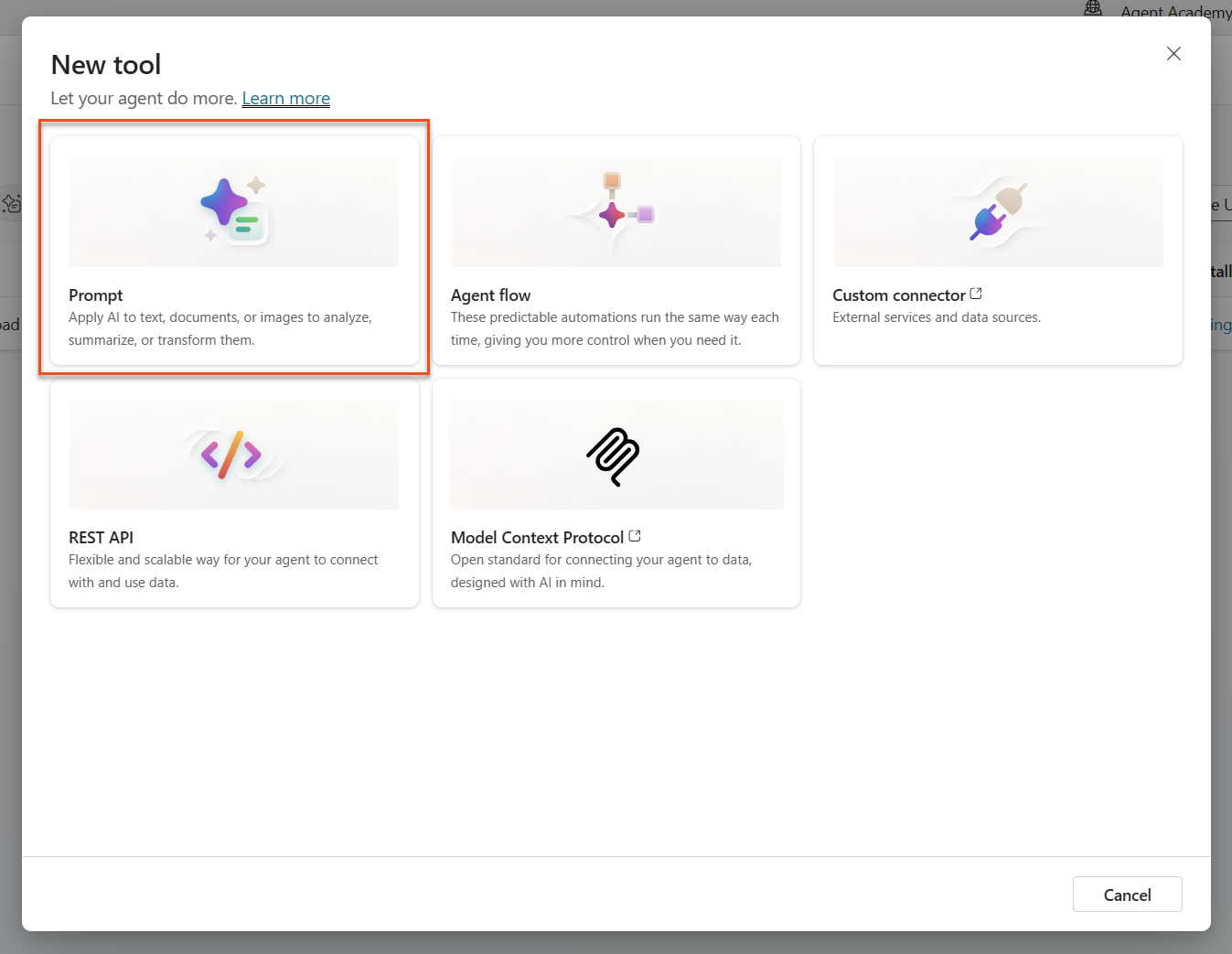
Select + New tool, then select Prompt.
-
Rename the prompt from the default timestamp name (for example, Custom prompt 09/04/2025, 04:59:11 PM) to
Summarize Resume.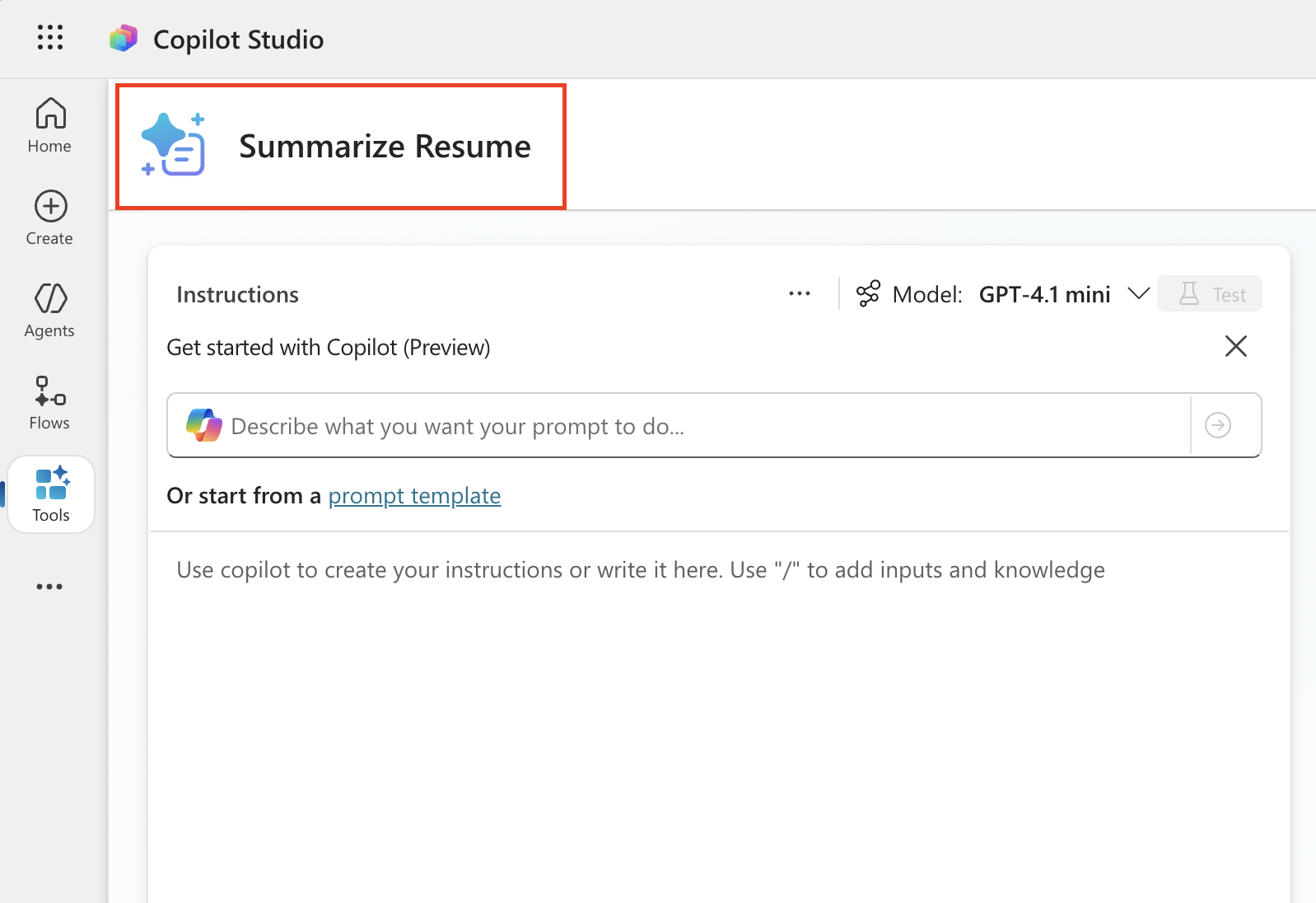
-
Add the following prompt to the Instructions field.
 You are tasked with extracting key candidate information from a resume and cover letter to facilitate matching with open job roles and creating a summary for application review.

 Instructions:
 1. Extract Candidate Details:
     - Identify and extract the candidate’s full name.
     - Extract contact information, specifically the email address.
 2. Create Candidate Summary:
     - Summarize the candidate’s profile as multiline text (max 2000 characters) with the following sections:
         - Candidate name
         - Role(s) applied for if present
         - Contact and location
         - One-paragraph summary
         - Experience snapshot (last 2–3 roles with outcomes)
         - Key projects (1–3 with metrics)
         - Education and certifications
         - Top skills (Top 10)
         - Availability and work authorization

 Guidelines:
 - Extract information only from the provided resume and cover letter documents.
 - Ensure accuracy in identifying all details such as contact details and skills.
 - The summary should be concise but informative, suitable for quick application review.

 Resume: /document
 CoverLetter: /text
Tip: Use Copilot — To generate a prompt in natural language, you can use “Get started with Copilot.” Ask Copilot to create a prompt that summarizes a resume.
-
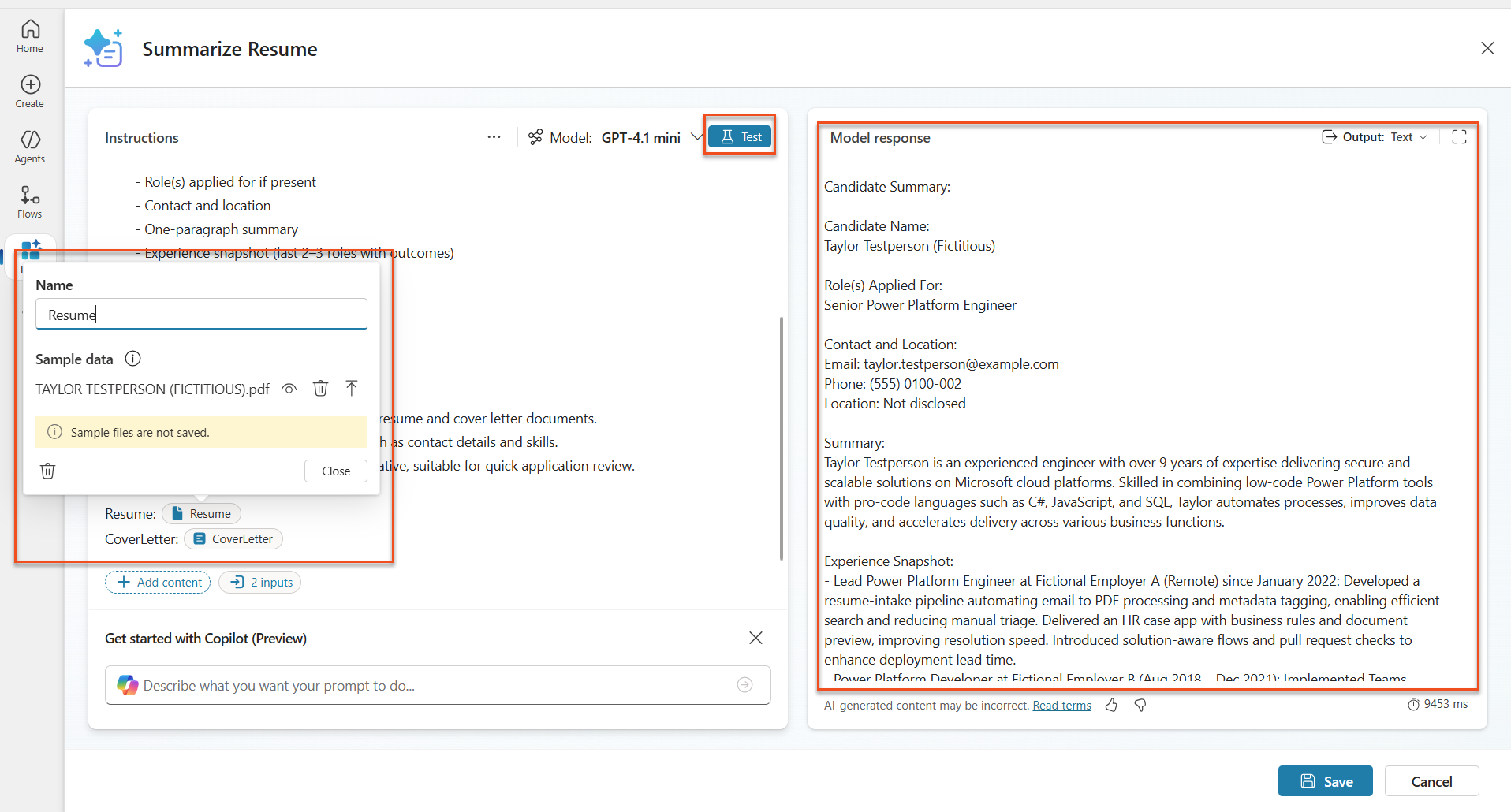
Configure the input parameters.
Parameter Type Name Sample Data Resume Image or document Resume Upload a sample resume from the test-data folder CoverLetter Text CoverLetter Here is a Resume! -
Select Test to check the prompt’s initial Text output.
7.2 Configure JSON output
Now update the prompt so that it outputs structured JSON data instead of plain text.
-
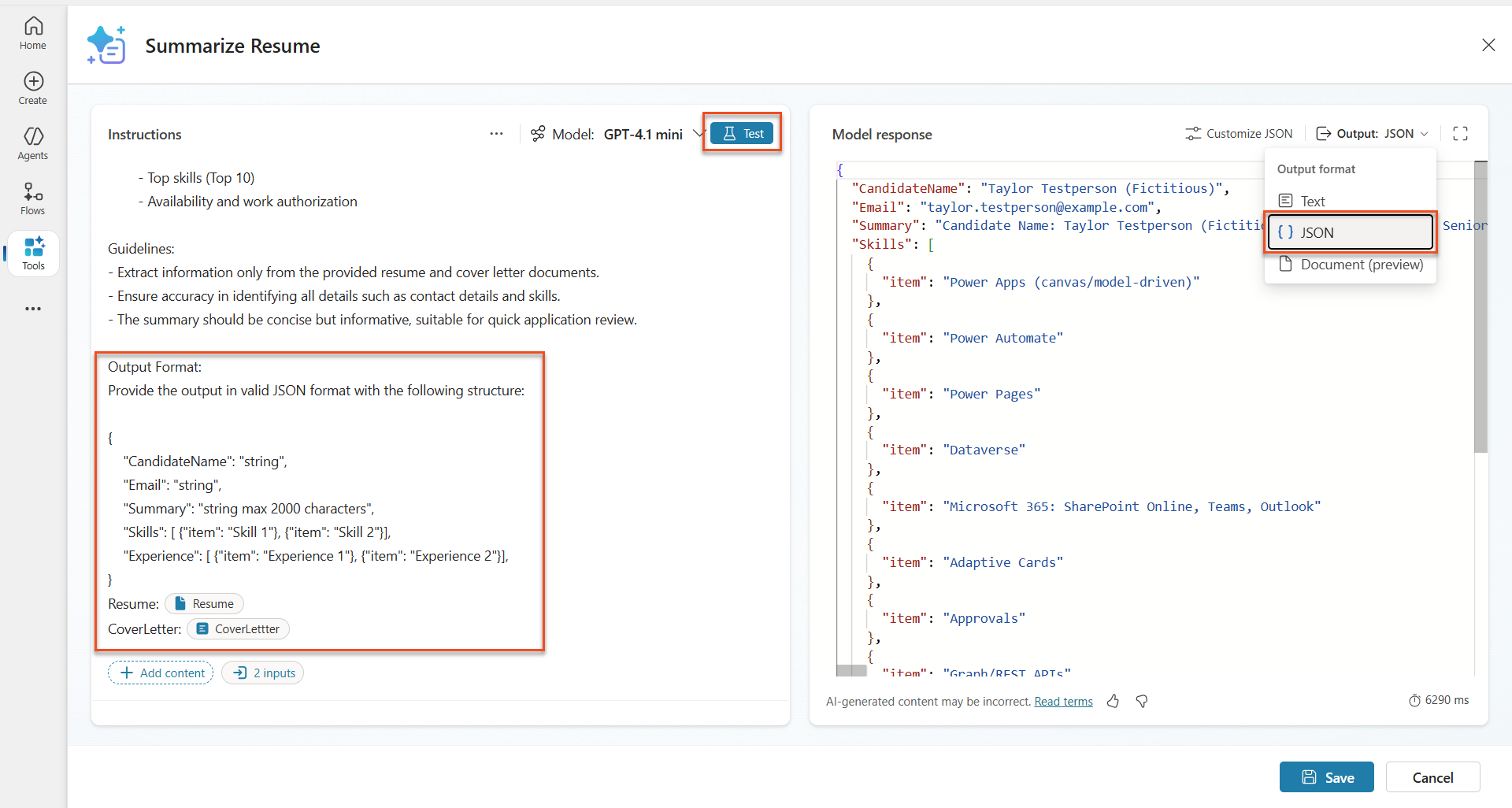
Add the following JSON format specification to the end of the prompt Instructions.
Output Format: Provide the output in valid JSON format with the following structure:
{ "CandidateName": "string", "Email": "string", "Summary": "string max 2000 characters", "Skills": [{"item": "Skill 1"}, {"item": "Skill 2"}], "Experience": [{"item": "Experience 1"}, {"item": "Experience 2"}] } -
Change the Output setting from “Text” to JSON.
-
Select Test again and confirm that the output is now in JSON format.
-
Optional: Try different AI models to see how the output changes, then switch back to the default model.
-
Select Save to create the prompt.
-
When the Configure for use in Agent dialog opens, select Cancel.
Note: why we are not adding this as a tool yet — Instead of adding this prompt directly as a tool, you will use it inside an Agent Flow. This gives you finer control over the data processing workflow.
7.3 Add the prompt to an Agent Flow
Now create an Agent Flow that will process resumes stored in Dataverse.
Tip: Agent Flow expressions — Node names and expression inputs reference previous node names, so follow the names and expressions in the instructions exactly. For a quick review, see Recruit’s Agent Flow mission.
-
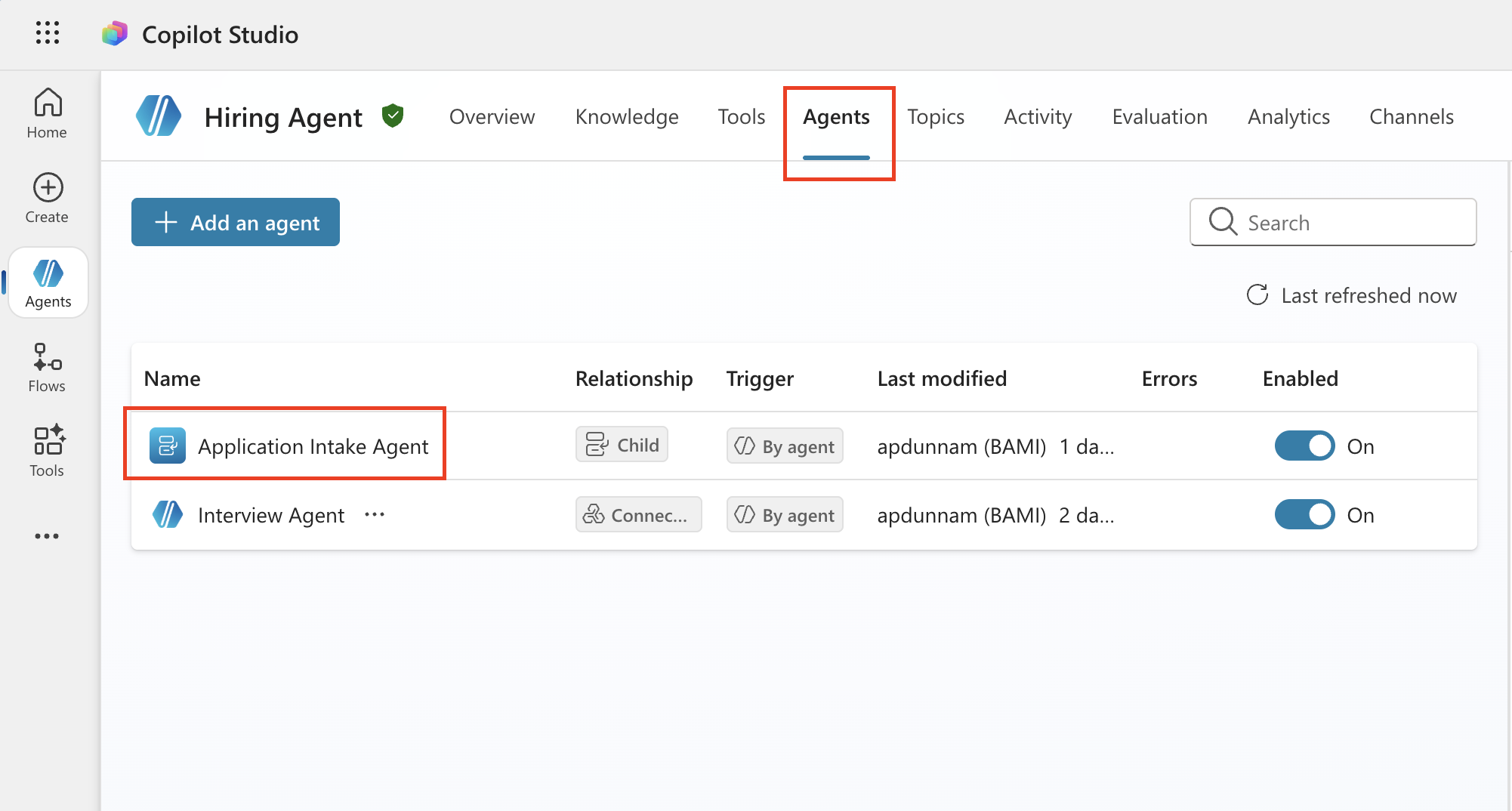
In Copilot Studio, go to Hiring Agent.
-
Select the Agents tab, then select the child agent Application Intake Agent.
-
In the Tools panel, select + Add → + New tool → Agent flow.
-
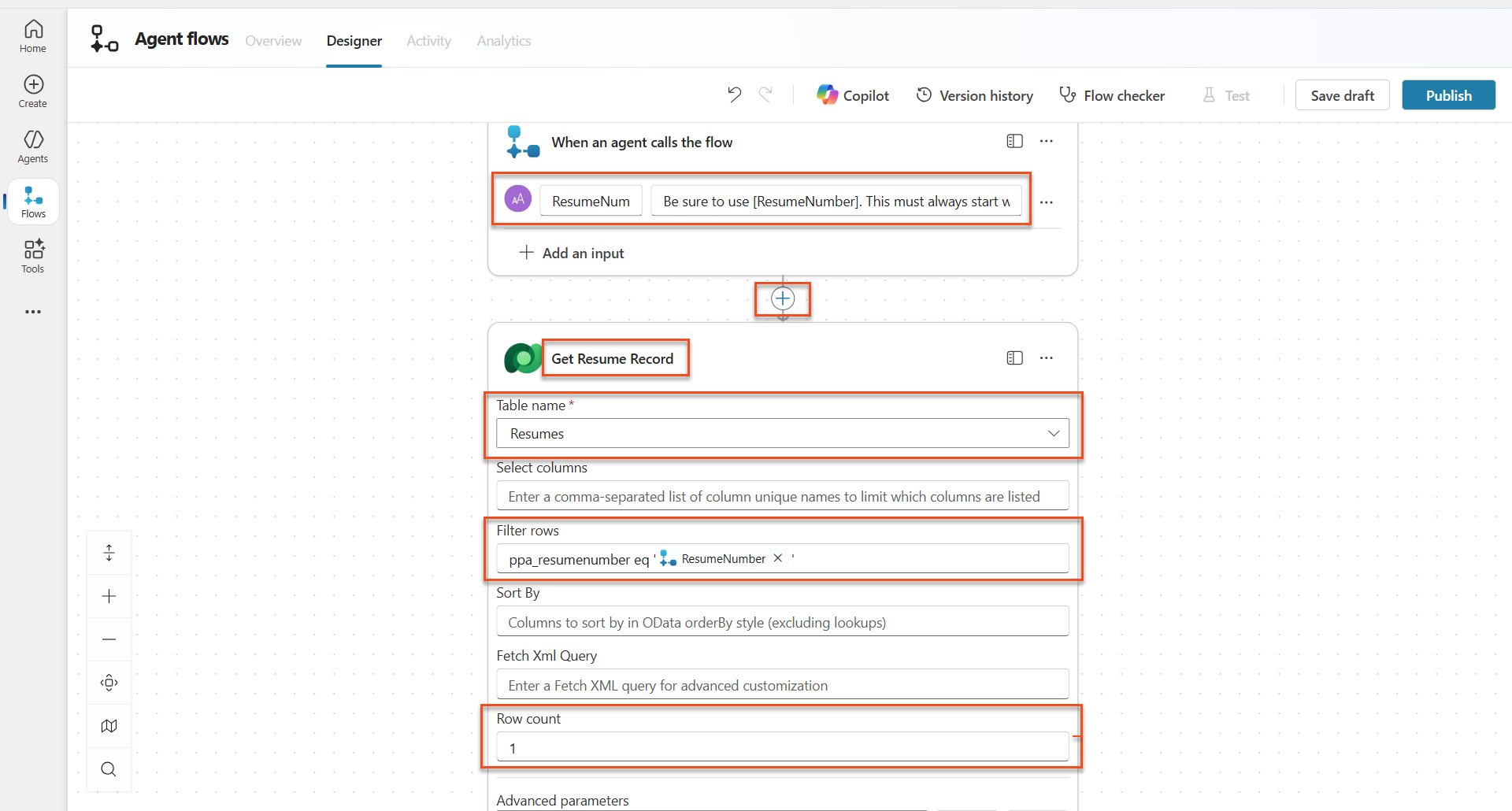
On the When an agent calls the flow node, use + Add an input to add the following parameter.
Type Name Description Text ResumeNumber Be sure to use [ResumeNumber]. This must always start with the letter R 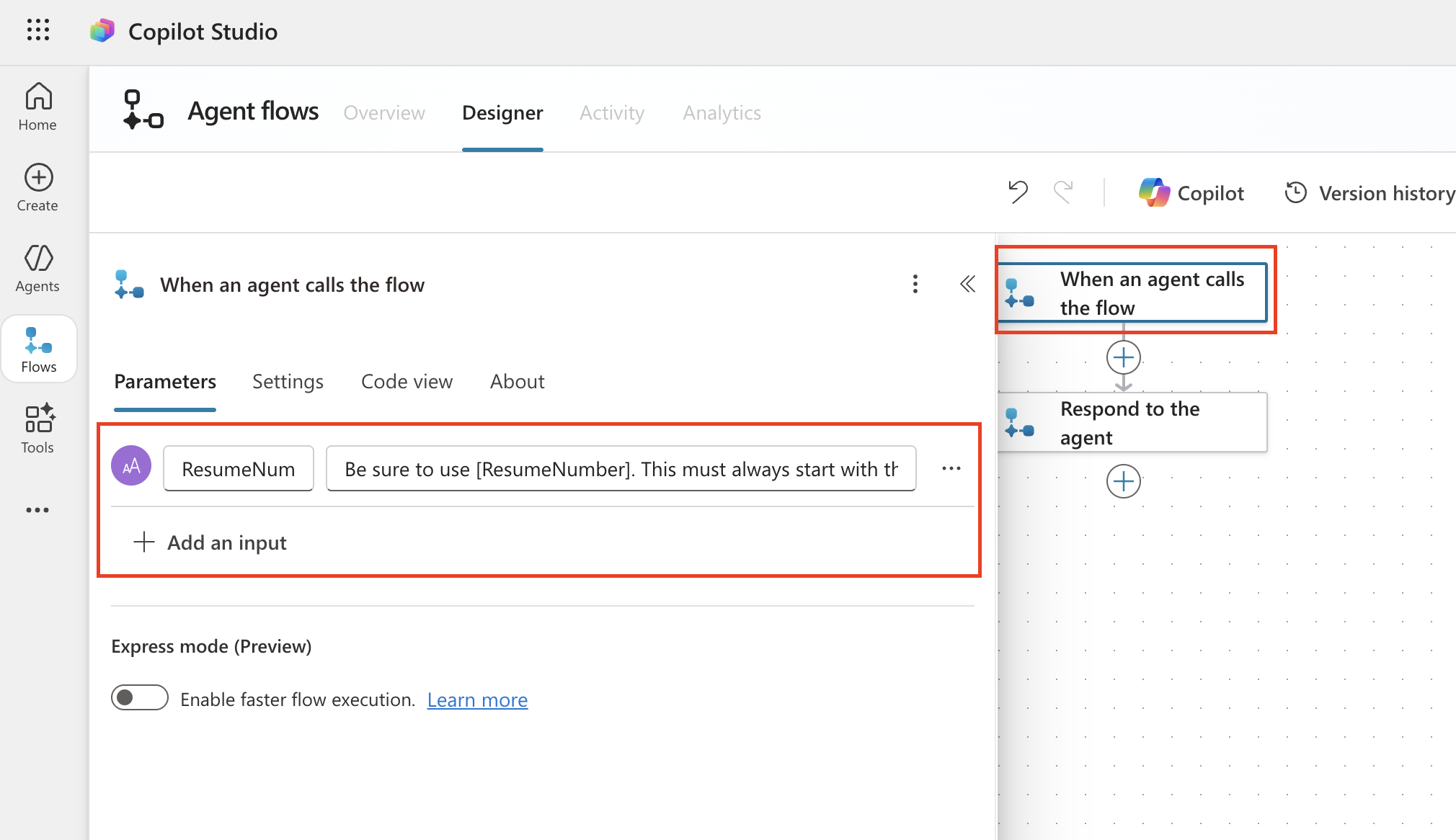
-
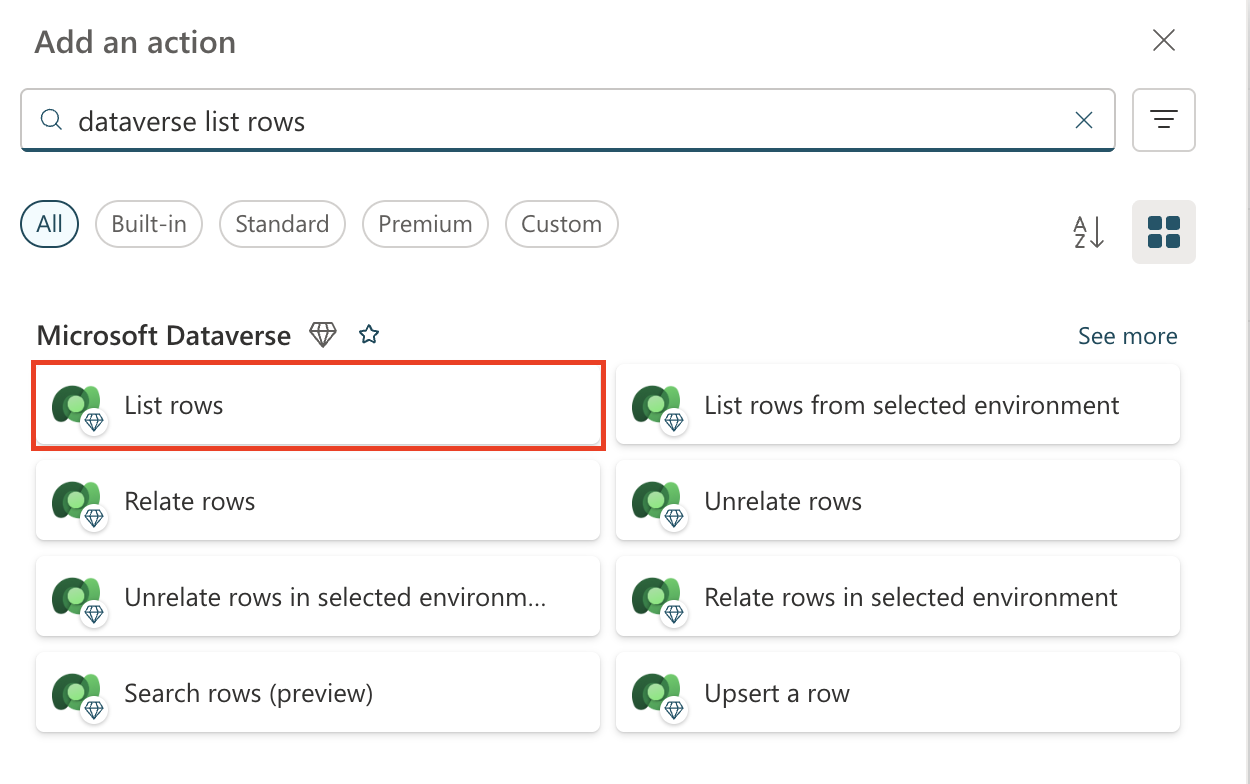
Select the + Insert action icon below the first node, search for Dataverse list rows, and select the List rows action.
-
Select the ellipsis (…) on the List rows node, use Rename to rename it
Get Resume Record, and configure it as follows.Property How to Set Value Table name Select Resumes Filter rows Dynamic data (thunderbolt icon) ppa_resumenumber eq 'ResumeNumber'Replace ResumeNumber with When an agent calls the flow → ResumeNumberRow count Enter 1 Tip: optimize the query! — When using this pattern in a production environment, always limit the query to select only the columns the Agent Flow needs.
-
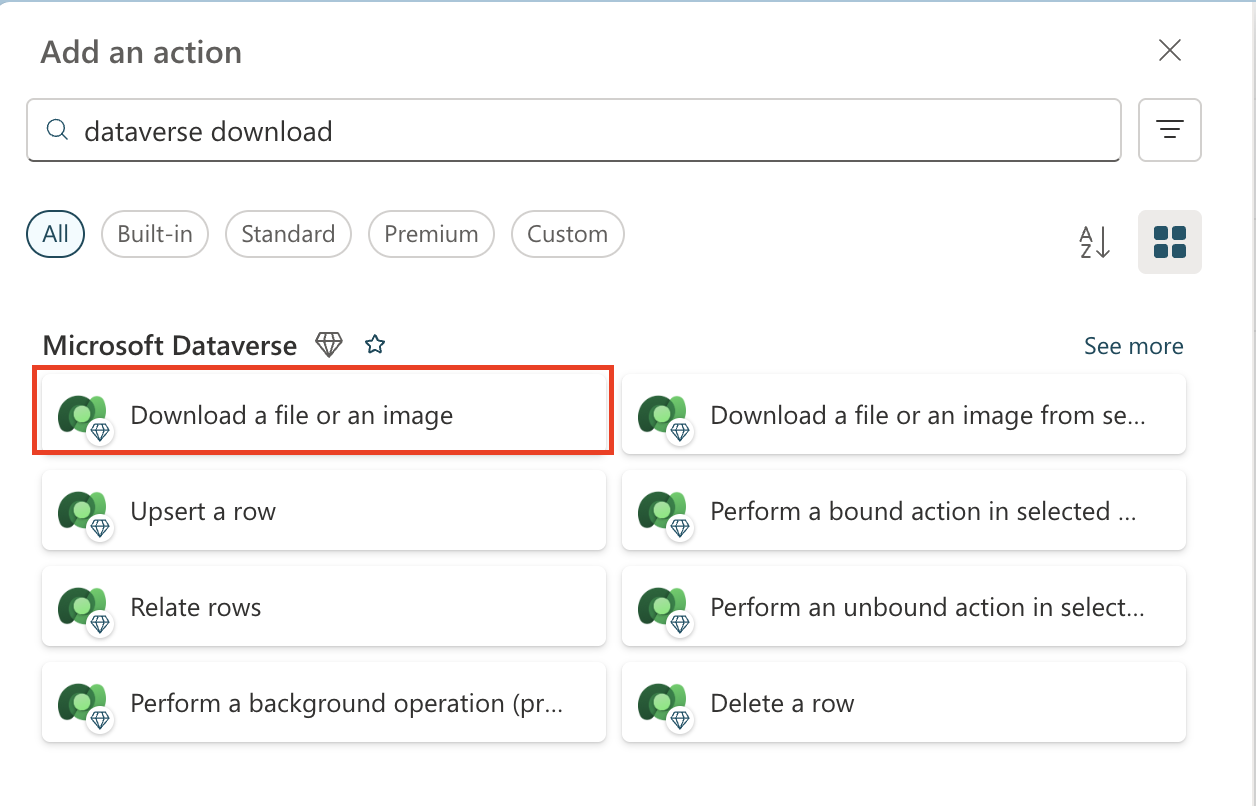
Select the + Insert action icon below the Get Resume Record node, search for Dataverse download, and then select Download a file or an image.
Tip: choose the correct action! — Be careful not to select the action whose name ends with “from selected environment.”
-
As before, rename the action to
Download Resumeand set the following parameters.Property How to Set Value Table name Select Resumes Row ID Expression (fx icon) first(body('Get_Resume_Record')?['value'])?['ppa_resumeid']Column name Select Resume PDF 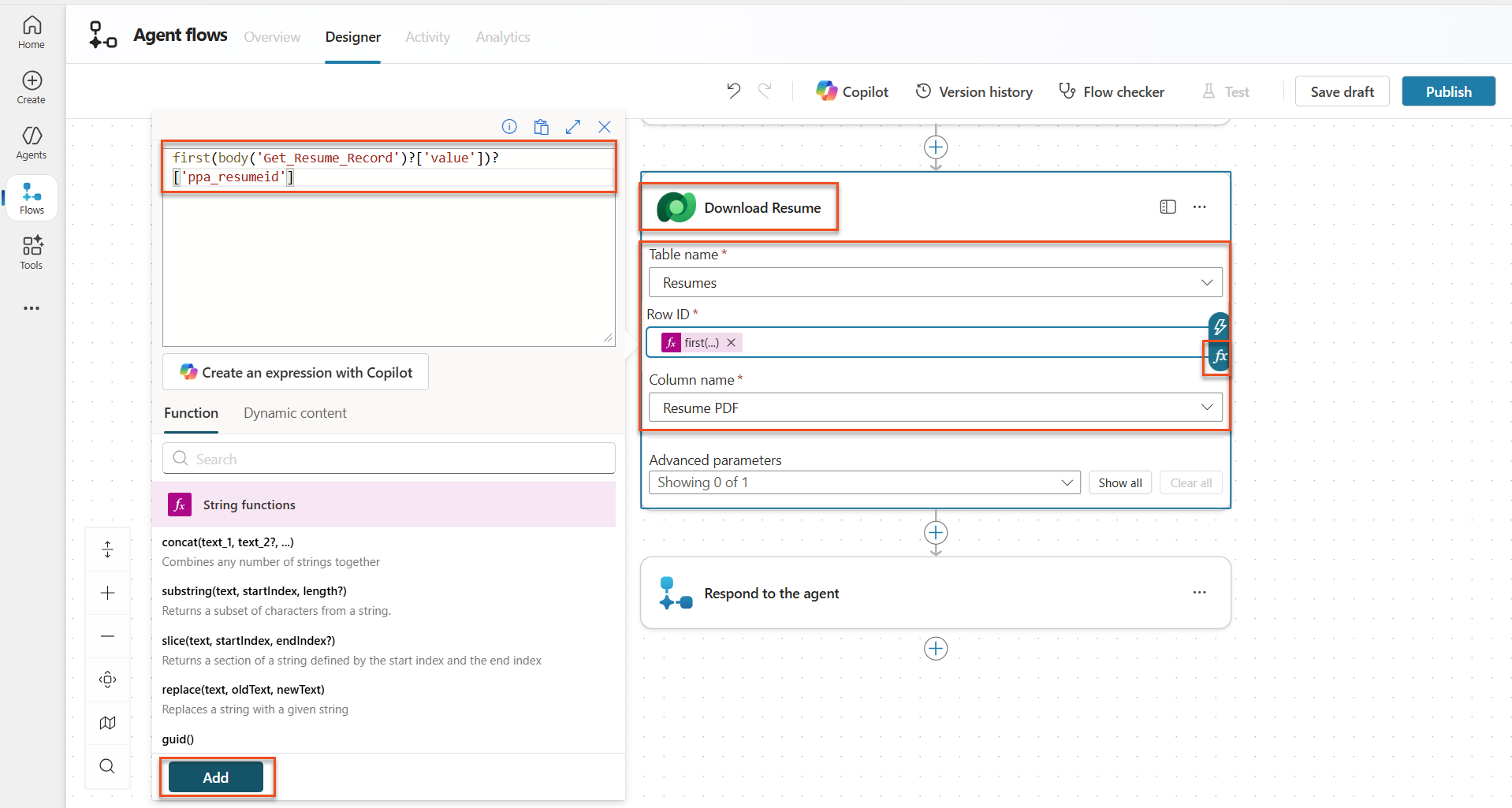
-
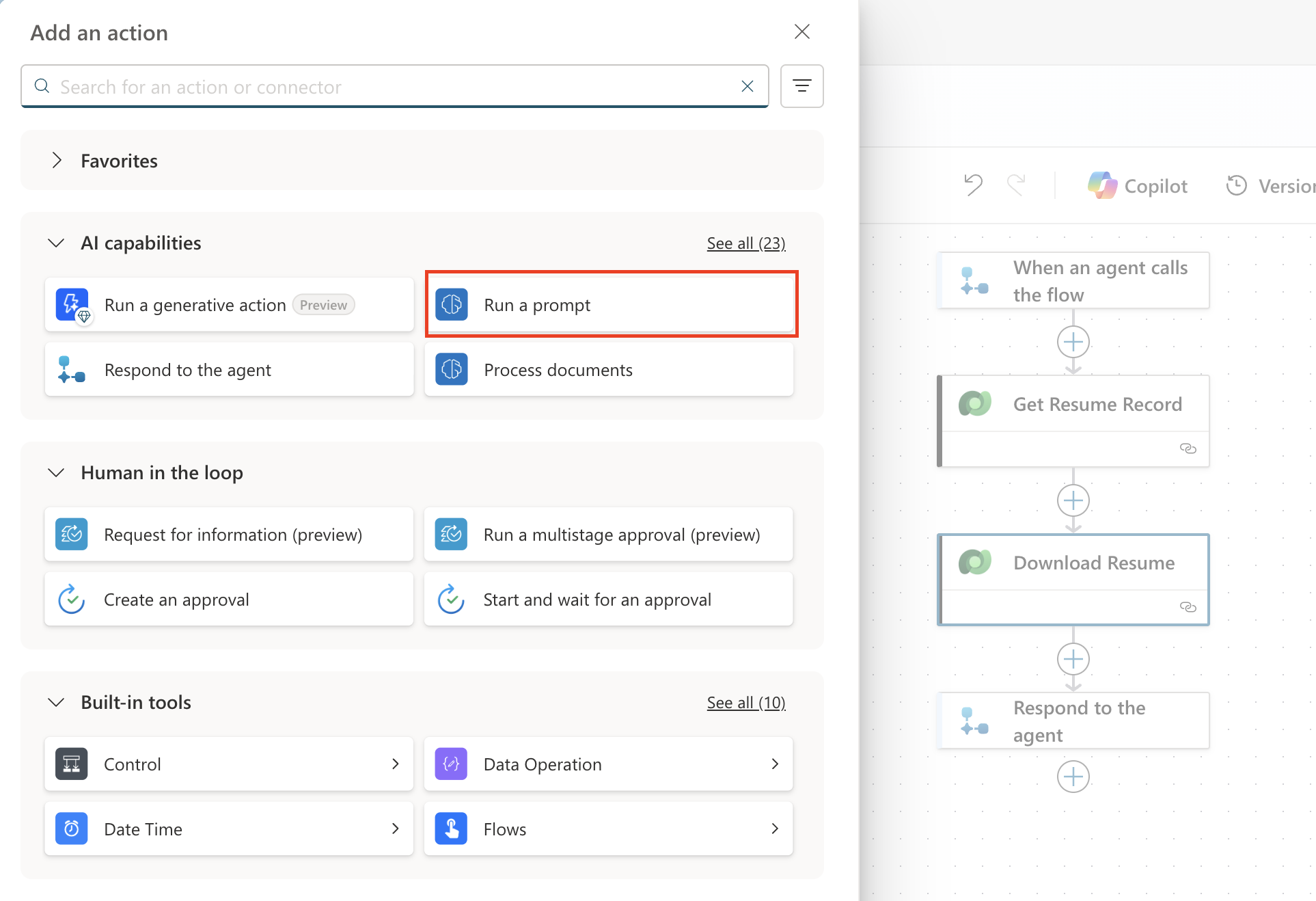
Now select the + Insert action icon below Download Resume, and under AI capabilities, select Run a prompt.
-
Rename the action to
Summarize Resumeand set the following parameters.Property How to Set Value Prompt Select Summarize Resume CoverLetter Expression (fx icon) first(body('Get_Resume_Record')?['value'])?['ppa_coverletter']Resume Dynamic data (thunderbolt icon) Download Resume → File or image content 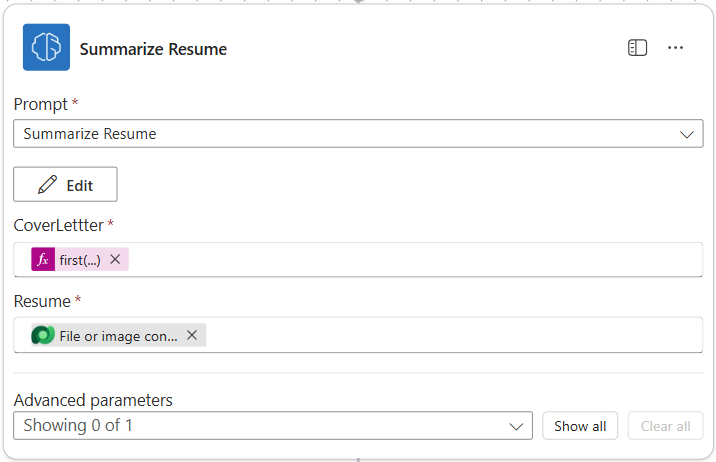
Tip: prompt parameters — Notice that the parameters you fill in here are the same items you configured as input parameters when creating the prompt.
7.4 Create a candidate record
In the next step, use the information returned by the prompt to create a new candidate record if that candidate does not already exist.
-
Select the + Insert action icon below the Summarize Resume node, search for Dataverse list, and select List rows.
-
Rename the node to
Get Existing Candidateand configure it as follows.Property How to Set Value Table name Select Candidates Filter rows Dynamic data (thunderbolt icon) ppa_email eq 'Email'ReplaceEmailwith Summarize Resume → EmailRow count Enter 1 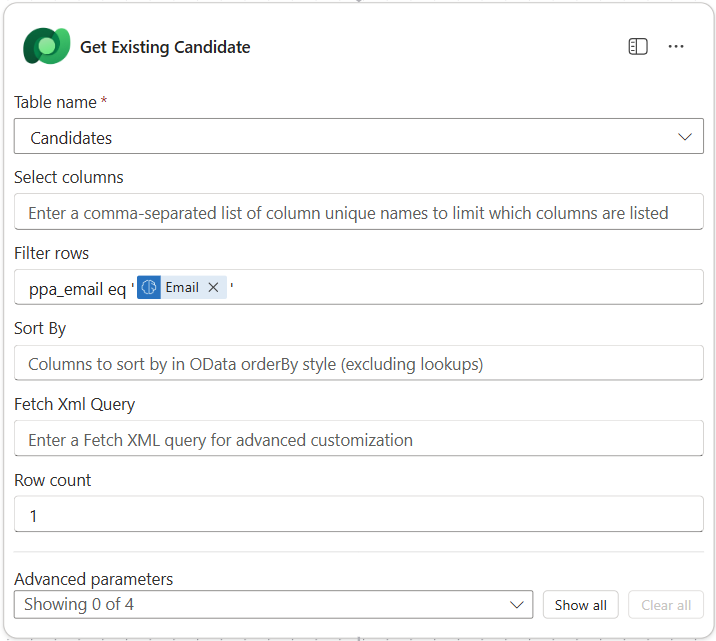
-
Select the + Insert action icon below the Get Existing Candidate node, search for Control, and then select See more to find the Condition action.
-
In the Condition properties, configure the following condition.
Condition Operator Value Expression (fx icon): length(outputs('Get_Existing_Candidate')?['body/value'])is equal to 0 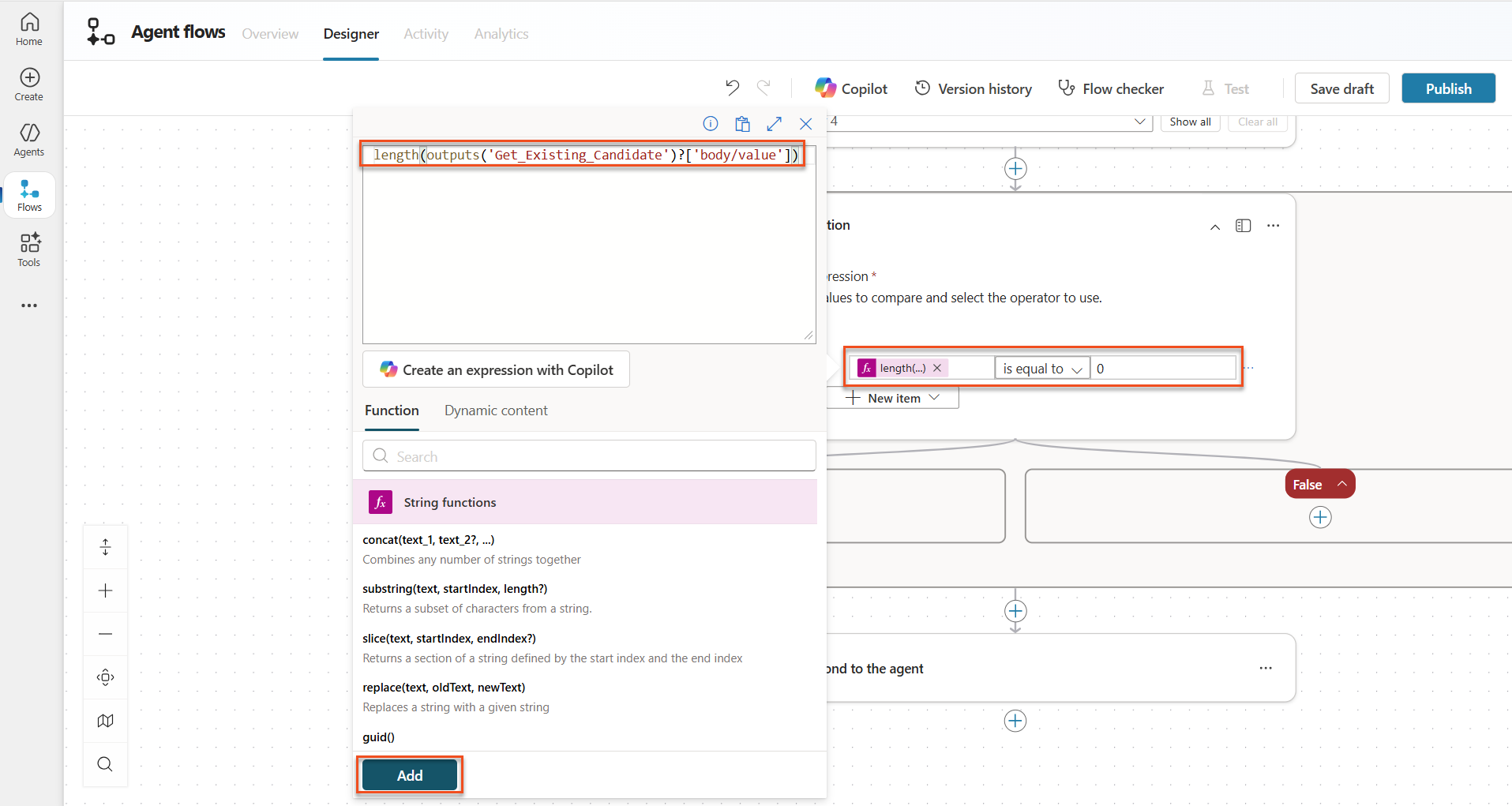
-
In the True branch, select the + Insert action icon, search for Dataverse add, and select Add a new row.
-
Rename the node to
Add a New Candidateand configure it as follows.Property How to Set Value Table name Select Candidates Candidate Name Dynamic data (thunderbolt icon) Summarize Resume → CandidateNameEmail Dynamic data (thunderbolt icon) Summarize Resume → Email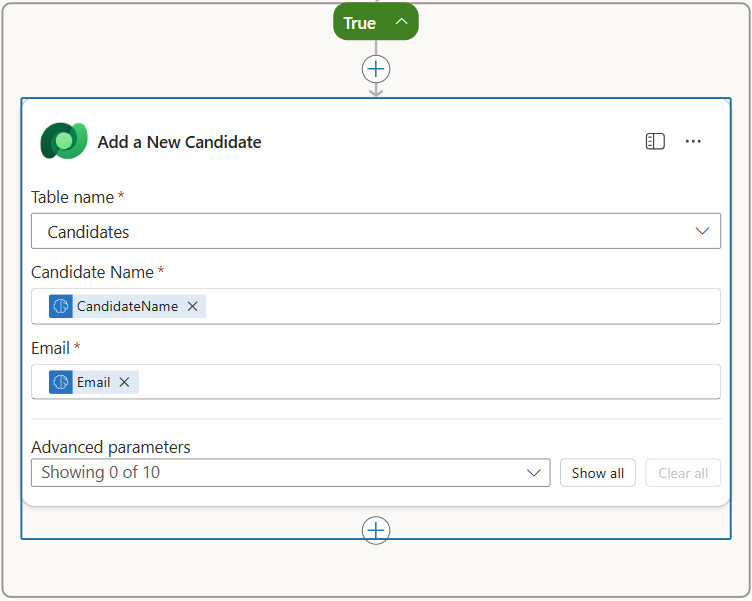
7.5 Update the resume and configure Flow output
Now update the resume record and configure what data to return to the agent to complete the Flow.
-
Select the + Insert action icon below the Condition, search for Dataverse update, and select Update a row.
-
Select the title to rename the node to
Update Resume, select Show all, and then set the following parameters.Property How to Set Value Table name Select Resumes Row ID Expression (fx icon) first(body('Get_Resume_Record')?['value'])?['ppa_resumeid']Summary Dynamic data (thunderbolt icon) Summarize Resume → Text Candidate (Candidates) Expression (fx icon) concat('ppa_candidates/',if(equals(length(outputs('Get_Existing_Candidate')?['body/value']), 1), first(outputs('Get_Existing_Candidate')?['body/value'])?['ppa_candidateid'], outputs('Add_a_New_Candidate')?['body/ppa_candidateid']))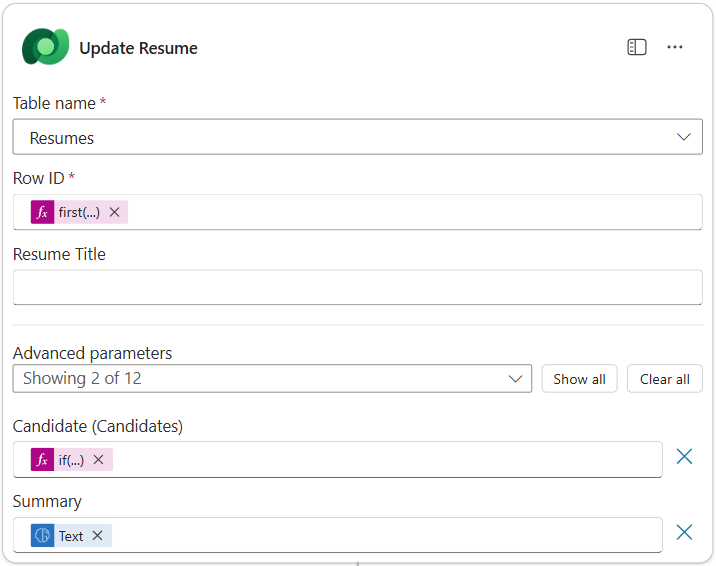
-
Select the Respond to the agent node, then use + Add an output to configure the following outputs.
Type Name How to Set Value Description Text CandidateNameDynamic data (thunderbolt icon) Summarize Resume → See more → CandidateName The [CandidateName] given on the Resume Text CandidateEmailDynamic data (thunderbolt icon) Summarize Resume → See more → Email The [CandidateEmail] given on the Resume Text CandidateNumberExpression (fx icon) if(equals(length(outputs('Get_Existing_Candidate')?['body/value']), 1), first(outputs('Get_Existing_Candidate')?['body/value'])['ppa_candidatenumber'], outputs('Add_a_New_Candidate')?['body/ppa_candidatenumber'])The [CandidateNumber] of the new or existing candidate Text ResumeSummaryDynamic data (thunderbolt icon) Summarize Resume → See more → body/responsev2/predictionOutput/structuredOutput The resume summary and details in JSON form 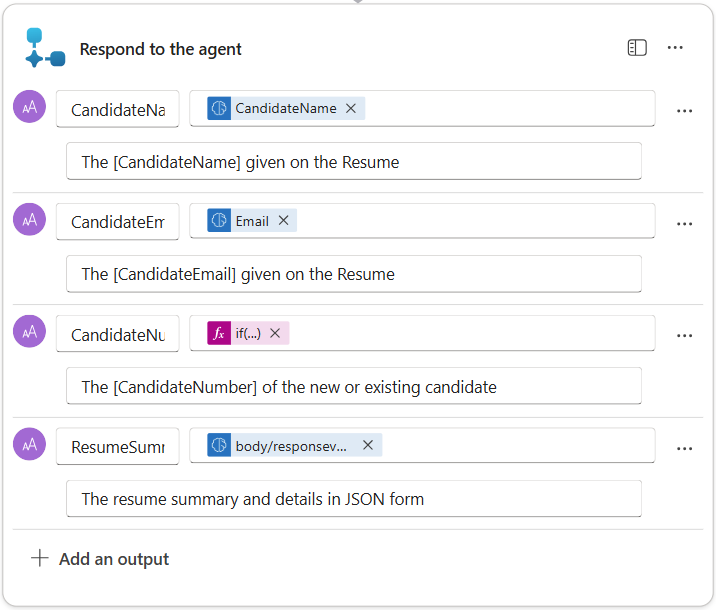
-
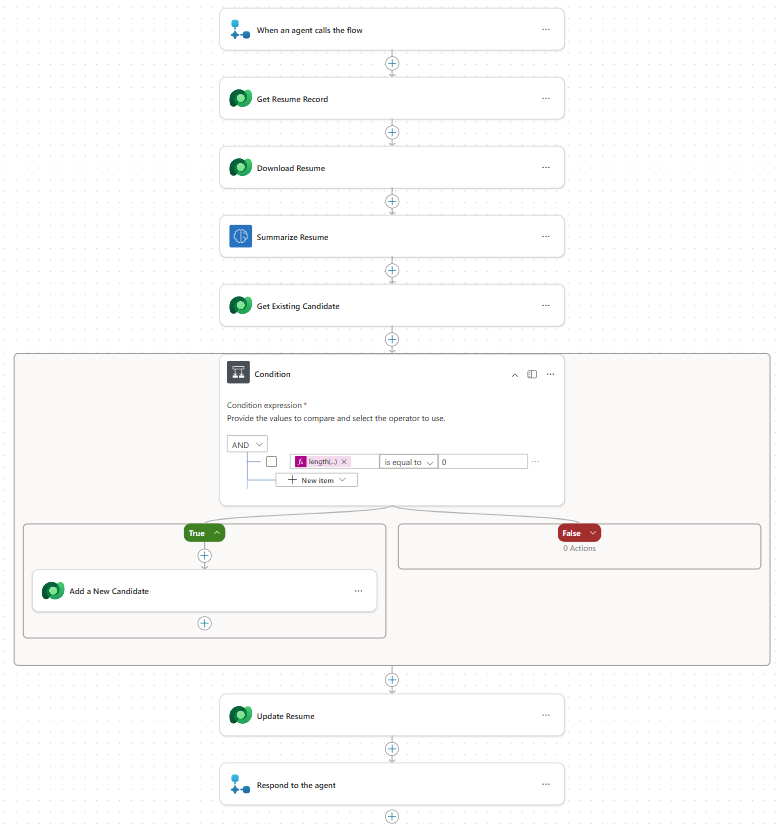
Select Save draft in the upper-right corner. The Agent Flow should look similar to the image below. Make sure the Update Resume step is outside the Condition block.
-
Select the Overview tab, then select Edit in the Details panel.
- Flow name:
Summarize Resume - Description:
Summarize an existing Resume stored in Dataverse using a [ResumeNumber] as input, return the [CandidateNumber], and resume summary JSON - Flow name:
-
Select Save.
-
Return to the Designer tab and select Publish.
7.6 Connect the Flow to the agent
Now add the Flow as a tool and configure the agent to use it.
-
In Copilot Studio, open Hiring Agent.
-
Select the Agents tab and open Application Intake Agent.
-
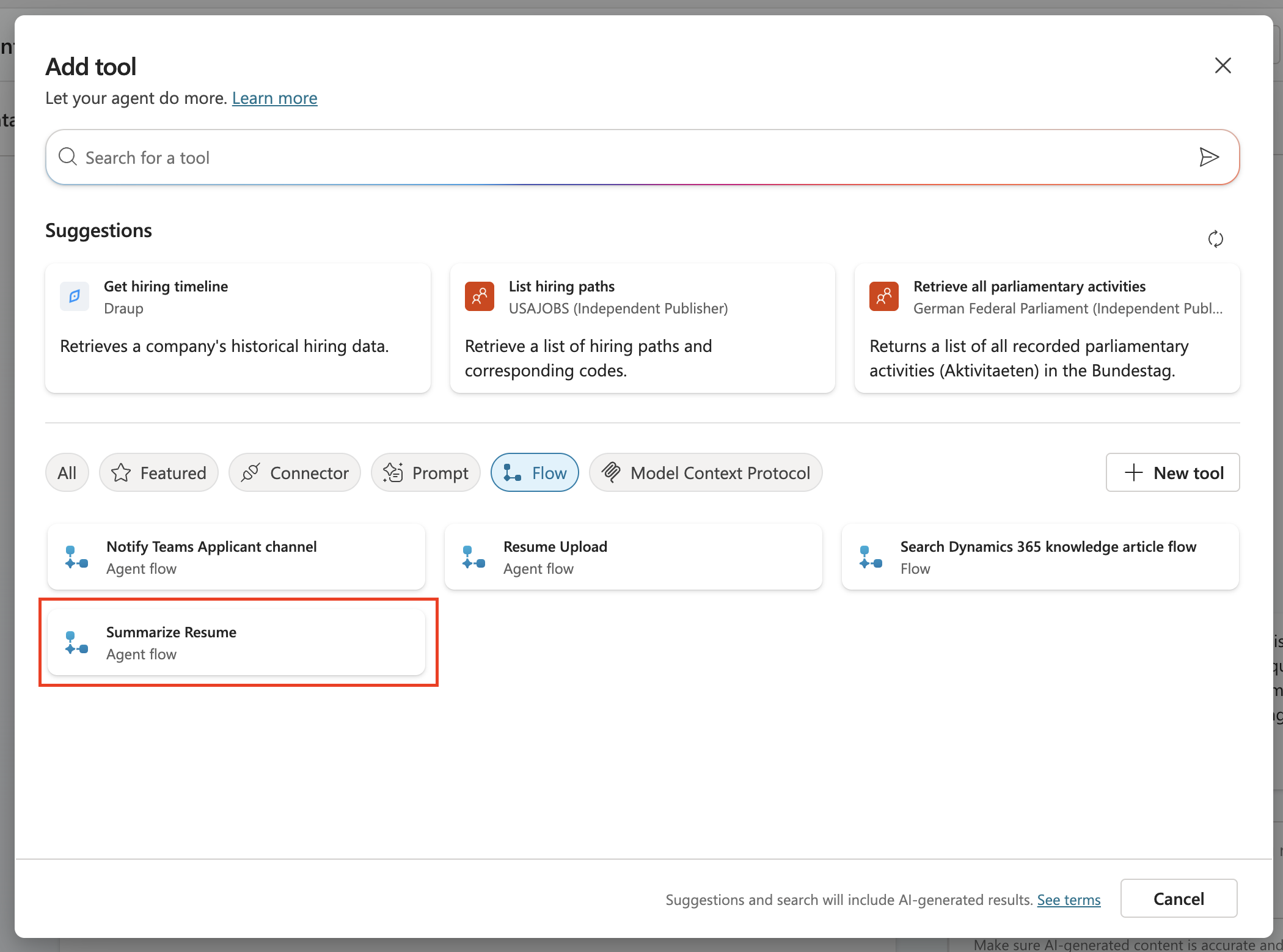
In the Tools panel, select + Add a tool -> Flow -> Summarize Resume (Agent Flow).
-
Select Add and configure.
-
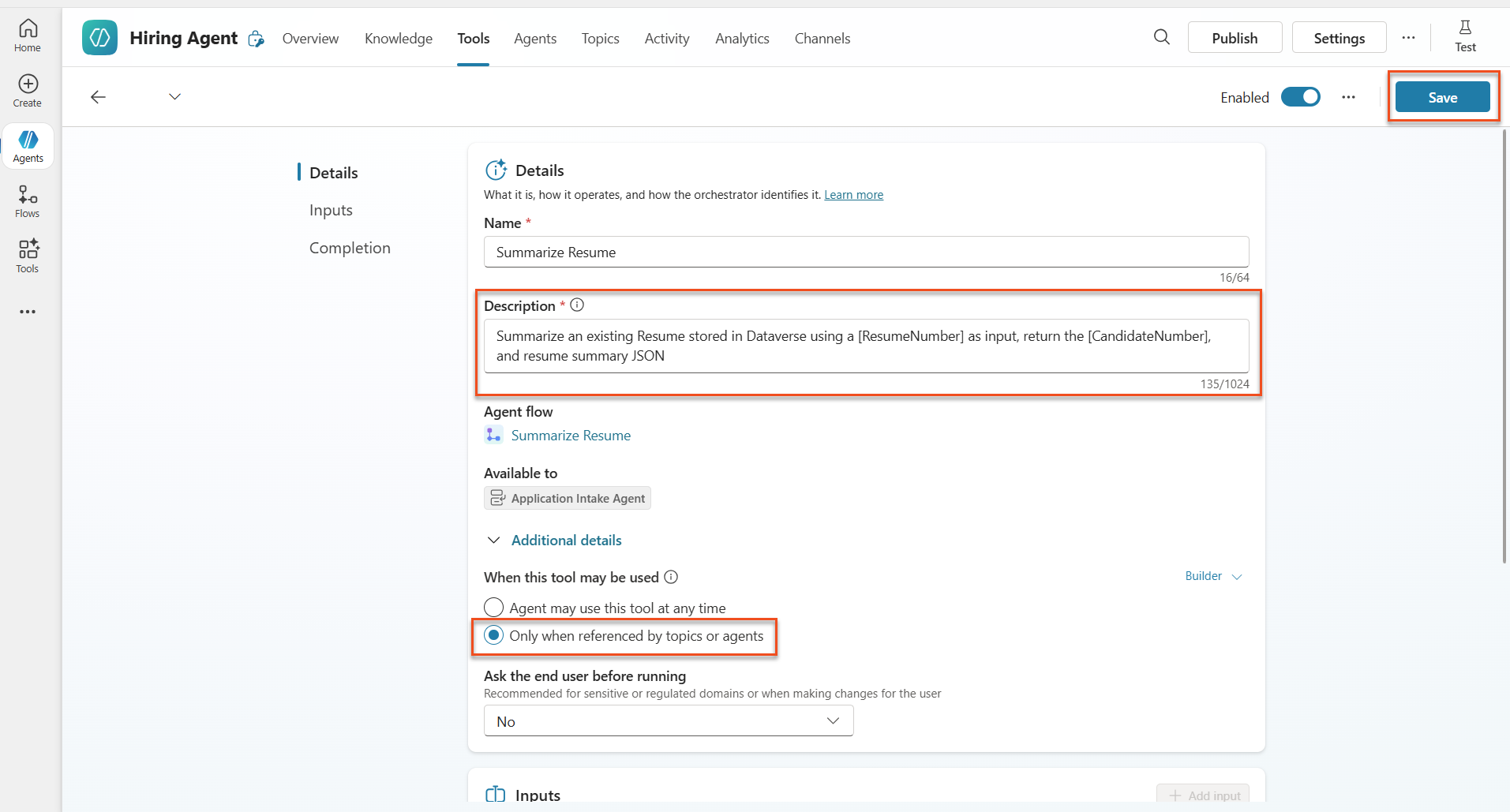
Configure the tool settings as follows.
Setting Value Description Summarize an existing Resume stored in Dataverse using a [ResumeNumber] as input, return the [CandidateNumber], and resume summary JSON When this tool may be used Only when referenced by topics or agents -
Select Save.
-
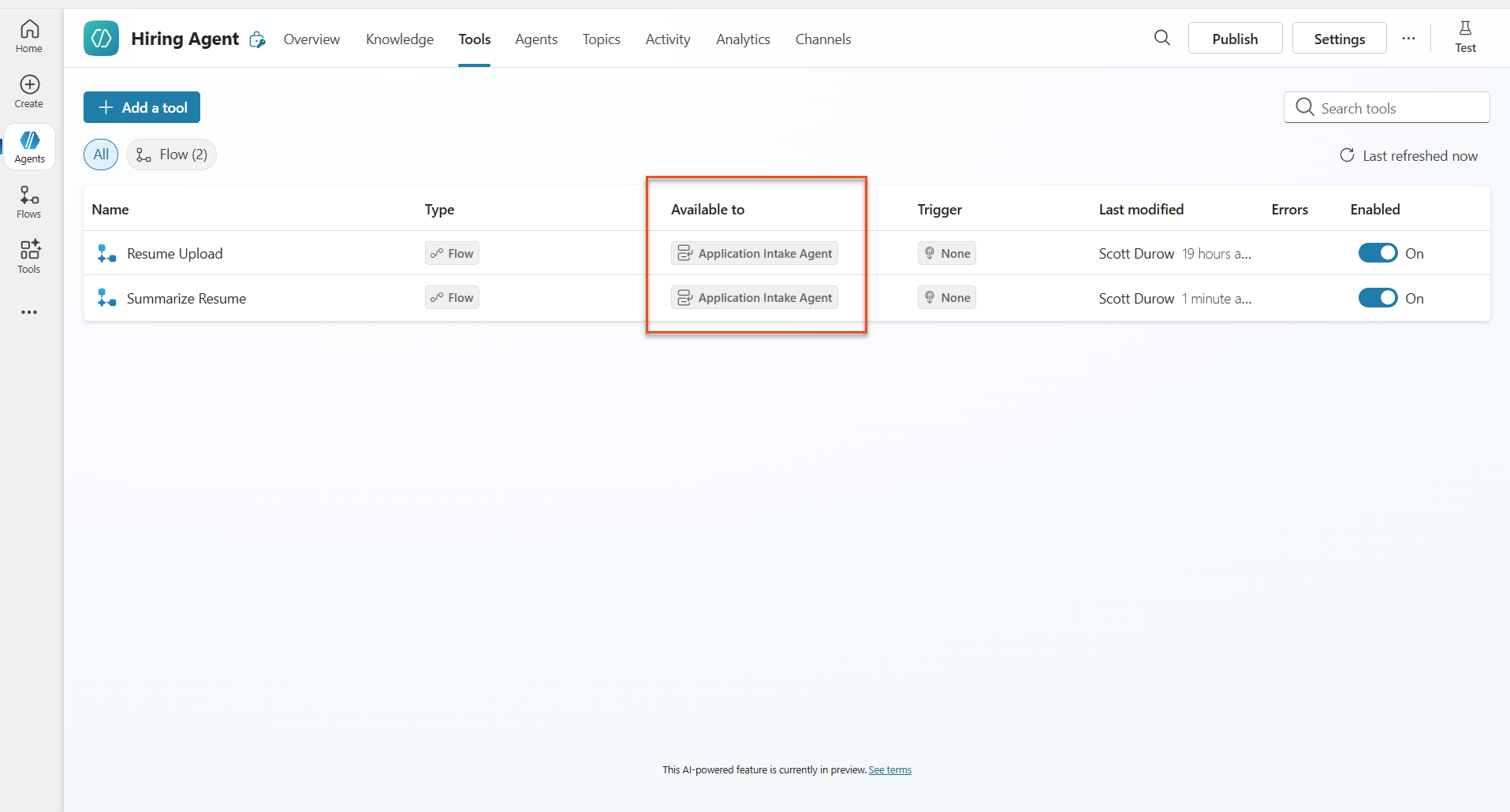
In Hiring Agent, select Tools. Both tools are now shown as available to Application Intake Agent.
-
Go to the Instructions for the Application Intake Child agent and delete the two paragraphs that begin with:
2.Post-UploadProcess for Resume Upload via Email
-
Add the following instructions to the end of the remaining Instructions.
 2. Post-Upload Processing
     - After uploading, be sure to also output the [ResumeNumber] in all messages
     - Pass [ResumeNumber] to /Summarize Resume  - Be sure to use the correct value that will start with the letter R.
     - Be sure to also output the [CandidateNumber] in all messages
     - Use the [ResumeSummary] to output a summary of the processed Resume and candidate
Replace
/Summarize Resumeby typing a slash (/) or selecting/Summarizeto insert a reference to the Summarize Resume agent flow.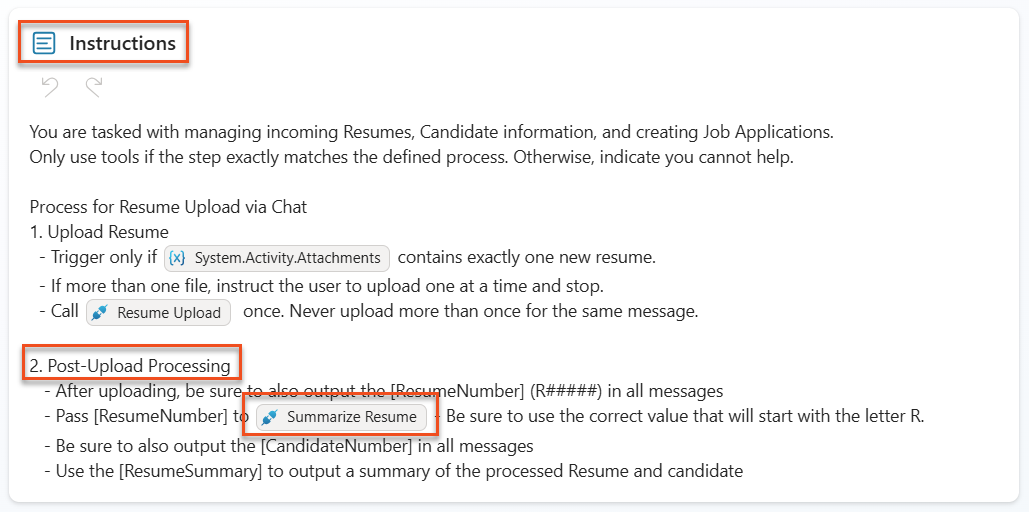
-
Select Save.
7.7 Test the agent
Now test whether the full multimodal system works correctly.
-
Start the test:
- Select Test to open the test panel.
- Enter:
Here is a candidate Resume - Upload one of the sample resumes from Test Resumes.
- Verify the result:
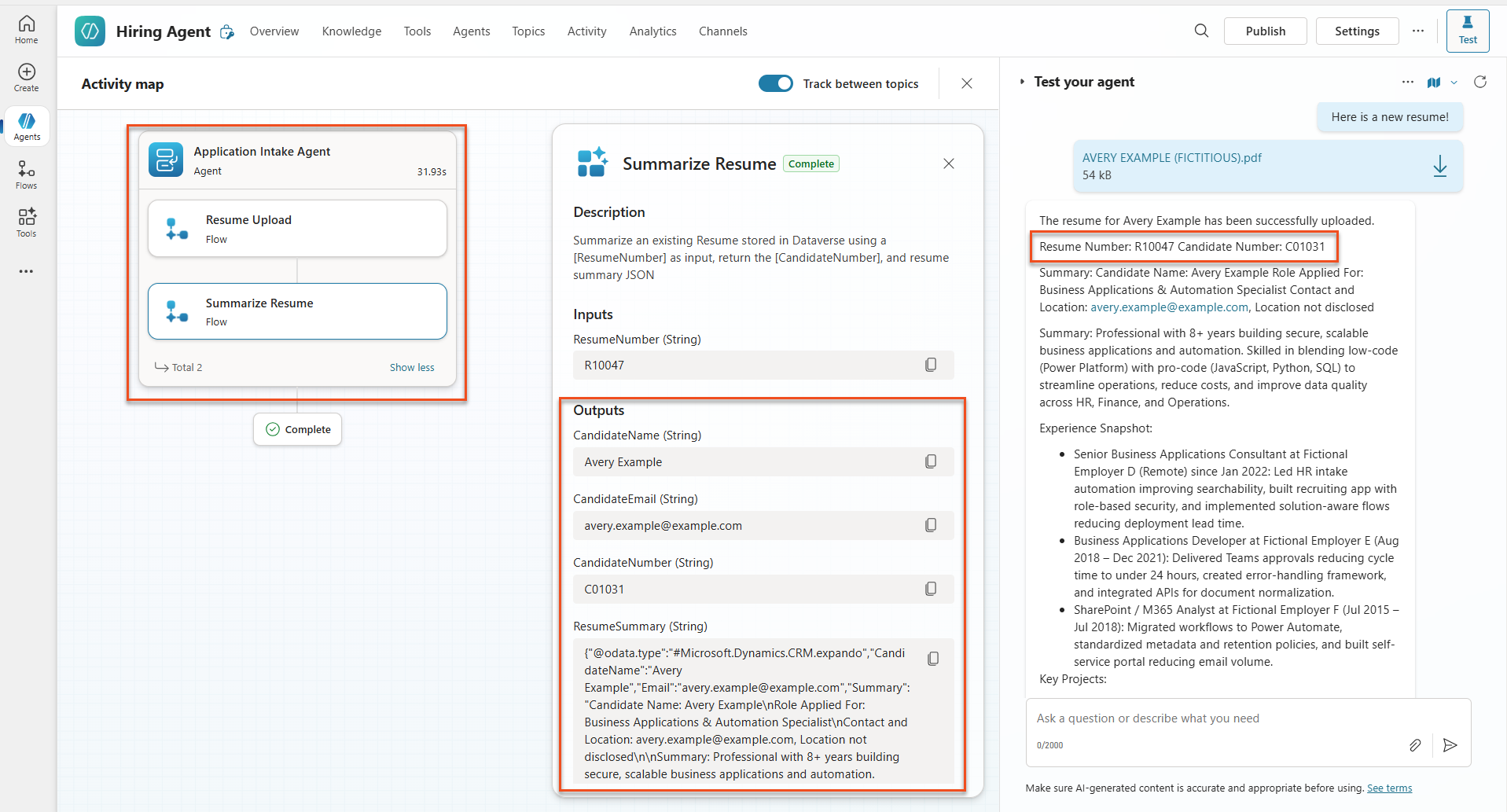
- After sending the message and resume, confirm that you receive a Resume Number (format: R#####).
- Confirm that you also receive the Candidate Number and summary.
- Open the activity map and confirm that both the Resume upload tool and Summarize Resume tool run, and that the Summary Prompt output is passed to the agent.
- Verify data persistence:
- Go to Power Apps.
- Open Apps → Hiring Hub → Play.
- Go to Resumes and confirm that the resume was uploaded and processed. It should have both summary information and a linked candidate record.
- Check the extracted candidate information in Candidates.
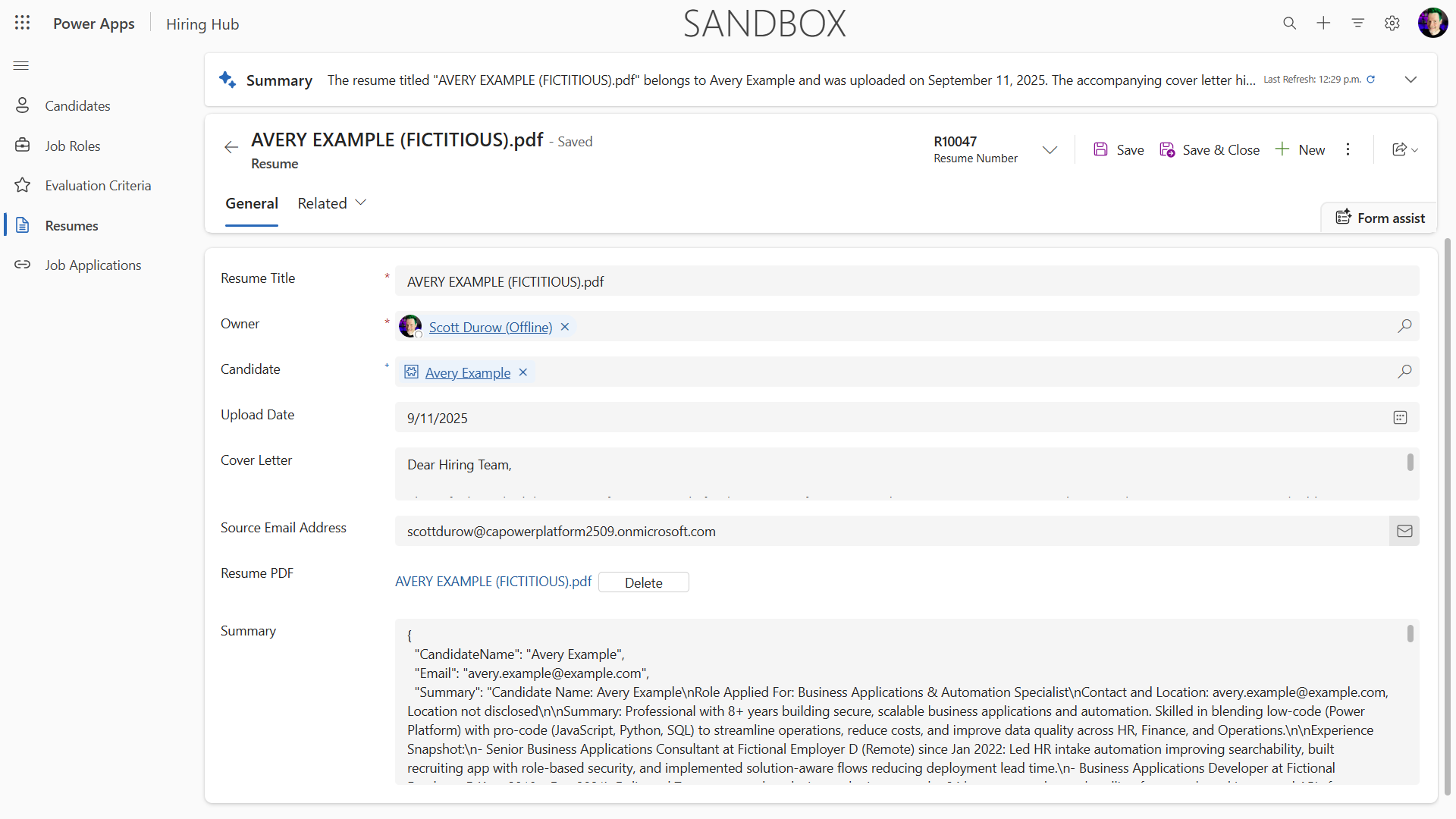
- If you run the process again, it should use the existing Candidate based on the email extracted from the resume instead of creating a new record.
Troubleshooting —
- Resume is not processed: Make sure the file is a PDF and is under the size limit.
- Candidate is not created: Make sure the email was extracted correctly from the resume.
- JSON formatting errors: Make sure the prompt instructions include the exact JSON structure.
- Flow errors: Check that all Dataverse connections and expressions are configured correctly.
Production readiness
This item is not required for this mission, but to make this Agent Flow production-ready, consider the following:
- Error handling - Add error handling that returns a clear error to the agent if the Resume Number cannot be found or the prompt cannot parse the document.
- Update existing Candidates - After finding a candidate by email, you can update the name to match the name on the resume.
- Separate resume summarization and Candidate creation - You can split this capability into smaller, easier-to-maintain Agent Flows and instruct the agent to use them in sequence.
🎉 Mission complete
Excellent work, Operative! The Document Resume Recon mission is complete. You have successfully mastered multimodal prompts and can now extract structured data from any document with precision.
In this mission, you accomplished the following:
✅ Multimodal prompt mastery
You now understand what multimodal prompts are and can choose the right AI model for each situation to achieve the best results.
✅ Document processing expertise
You learned how to configure prompts with image and document inputs and format outputs as JSON for structured data extraction.
✅ Resume extraction system built
You built a complete resume extraction system that processes candidate documents and integrates with the hiring workflow.
✅ Best practices applied
You applied prompt engineering best practices for document analysis and integrated multimodal prompts with Agent Flows.
✅ Foundation for advanced processing
You strengthened your document analysis capabilities for the advanced data grounding features you will add in future missions.
🚀 Next mission: In Mission 08, you will learn how to strengthen prompts with real-time data from Dataverse and create dynamic AI solutions that adapt to changing business requirements.
⏩ Go to Mission 08: Strengthen prompts with Dataverse grounding
📚 Tactical resources
📖 Add text, image, or document input to your prompt
📖 Process responses with JSON output
📖 Model selection and temperature settings