Add reference materials
Fundamentals #1: Blog Post Agent - Add reference materials
Step 2: Add reference materials
Add reference materials to the agent
English UI screenshots, September 7, 2026: These are actual captures from the Caldova demo environment. Its
English Screenshot DemoSharePoint folder contains two public product specification PDFs. Use your assigned workshop folder if it has a different name.
In this workshop, you will configure Knowledge so the agent can answer based on web search information and PDF data sheets stored in SharePoint in advance.
📚 The role of Knowledge in Copilot Studio
In Copilot Studio, Knowledge is a core feature that helps agents generate accurate and reliable answers based on internal company documents or external information.
The table below briefly explains its role.
| Item | Description |
|---|---|
| Definition | External information sources, such as connected documents, webpages, and data, that the agent can reference when generating answers |
| Main function | Helps generate accurate, grounded answers to user questions |
| Formats | Supports documents in various formats, including PDF, HTML, Word, Excel, and web links |
| Examples | - Search manuals stored in SharePoint - Summarize internal reports - Provide insights based on statistical data |
| Importance | Without Knowledge, the agent answers only from general knowledge, making it difficult to provide company-specific information |
| Configuration location | Can be connected from the Knowledge tab in Copilot Studio |
In Copilot Studio custom engine agents, you can use not only data in Microsoft 365 but also information stored in various data sources as Knowledge for agent answers.
📥 Summary of Knowledge data source types available in Copilot Studio
| Category | Data source | Description | |:———-:|:————–:|——| | Document-based | Uploaded files such as PDF, Word, and Excel | Uploaded to Dataverse, automatically indexed, and searchable | | Cloud storage | SharePoint, OneDrive | Can directly reference document repositories in the organization | | Web-based | Public website URLs | References webpage content through Bing Search | | Enterprise systems | ServiceNow, Salesforce, Confluence, ZenDesk, etc. | References knowledge bases or ticket information from external systems through real-time connectors | | Table data | Dataverse tables | Enables question answering based on structured table data | | API-based | External HTTP APIs, YAML definitions | Enables real-time API calls through the OnKnowledgeRequested trigger |
The Add knowledge dialog groups the currently available sources into Featured and Advanced categories. Availability depends on your environment and connections.
Workshop
First, open Settings and review Knowledge → Use information from the Web. In the current English UI, this setting is on the settings page rather than the older Overview card.
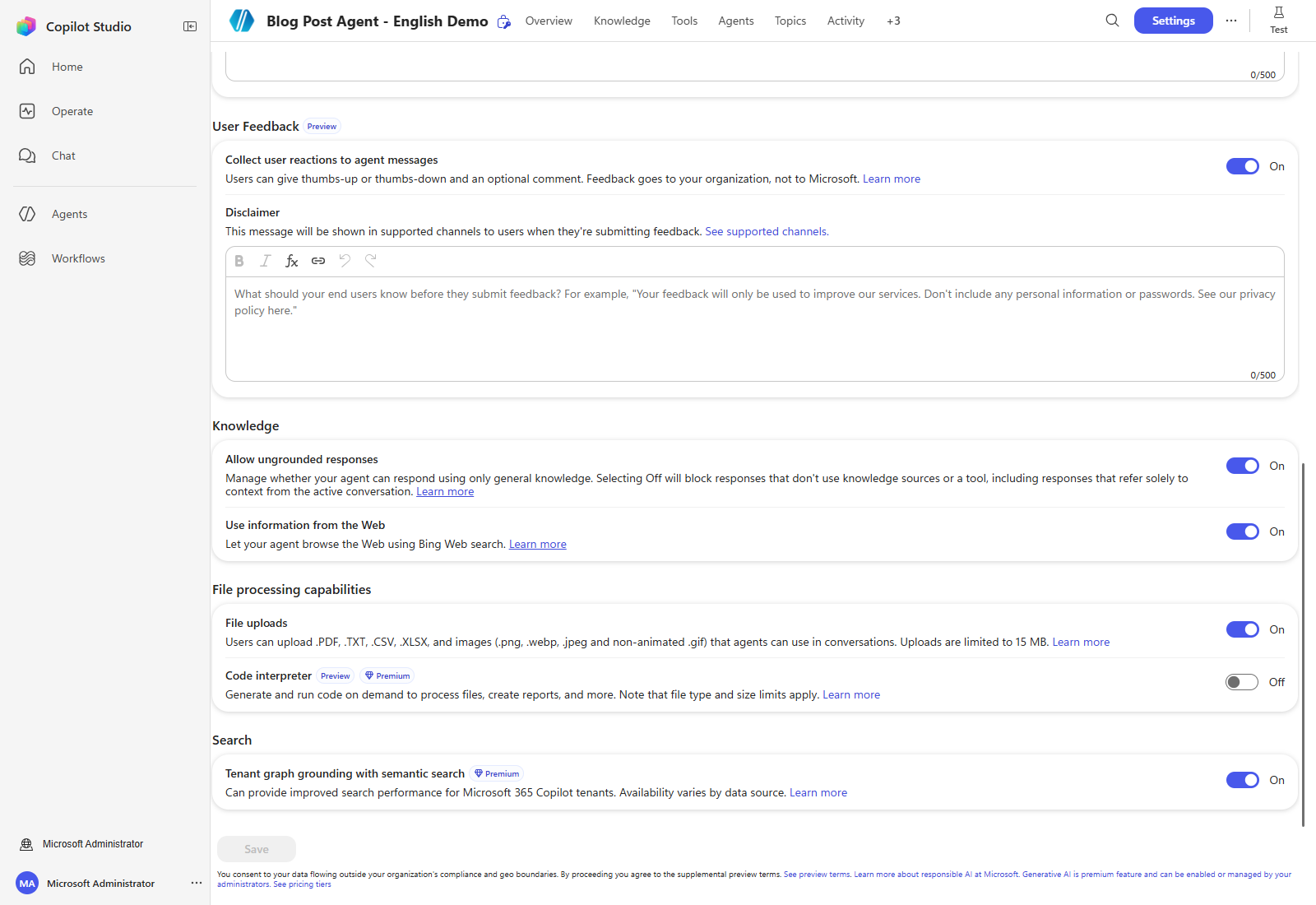
When this feature is enabled, the agent can answer user questions based on Bing Search information.
Next, open the Knowledge tab and select Add knowledge so the agent can reference SharePoint data.
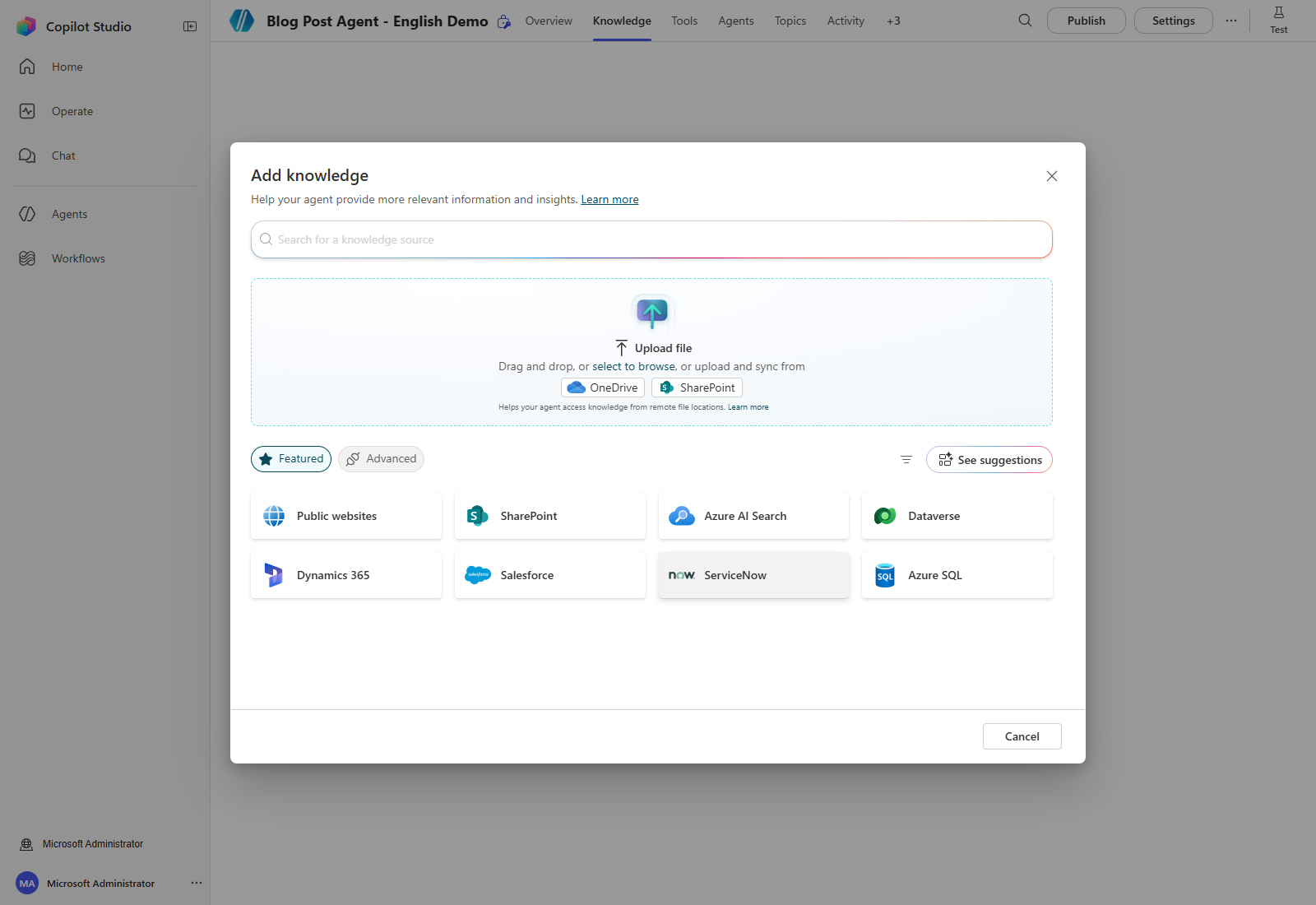
When you click the button, a pop-up appears asking where the Knowledge you want to add is stored.
Because this workshop uses SharePoint data, select SharePoint.
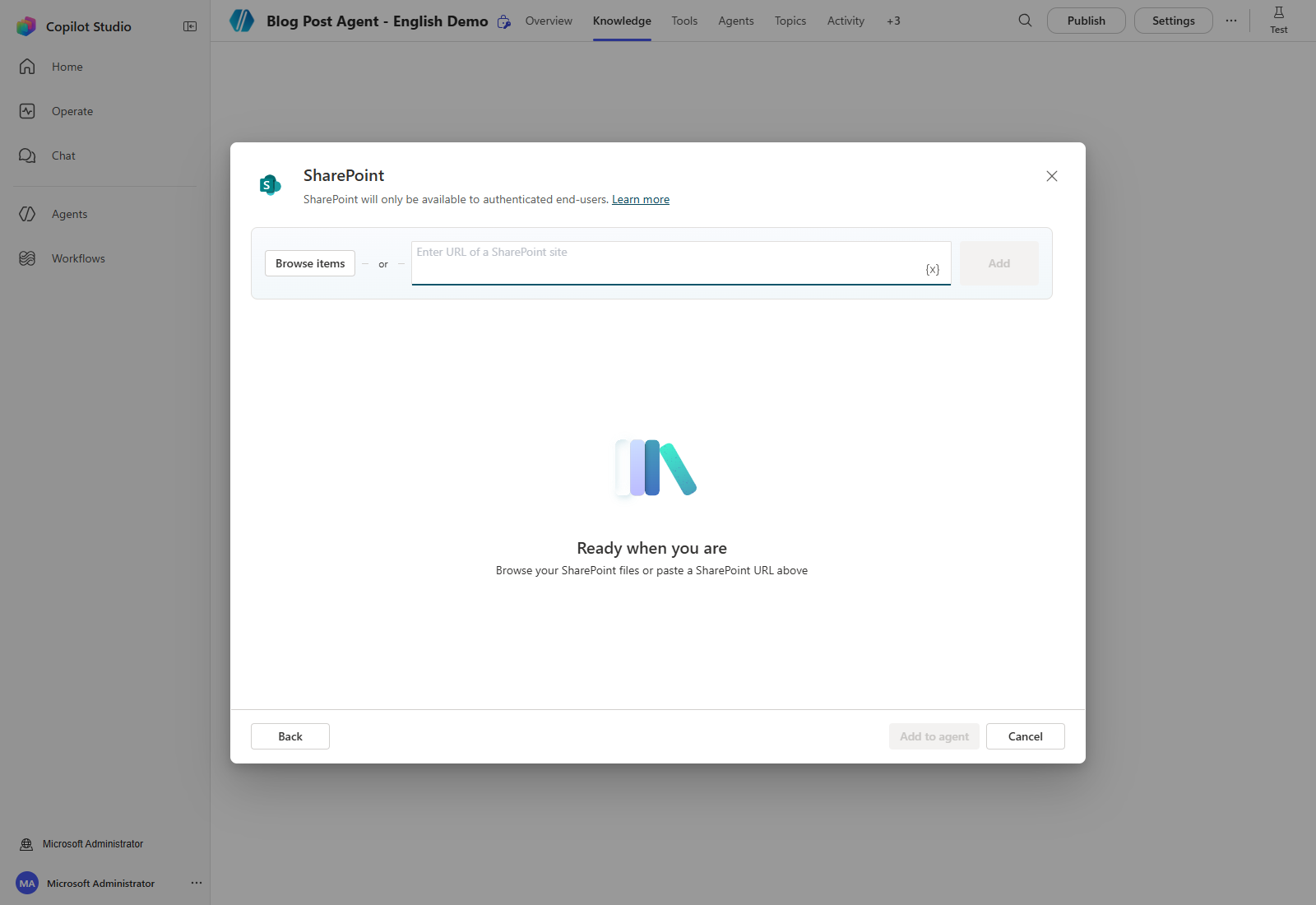
Next, either enter the SharePoint folder address directly or select Browse items. In the demo, select the checkbox beside English Screenshot Demo in Communication site → Documents, then select Confirm selection.
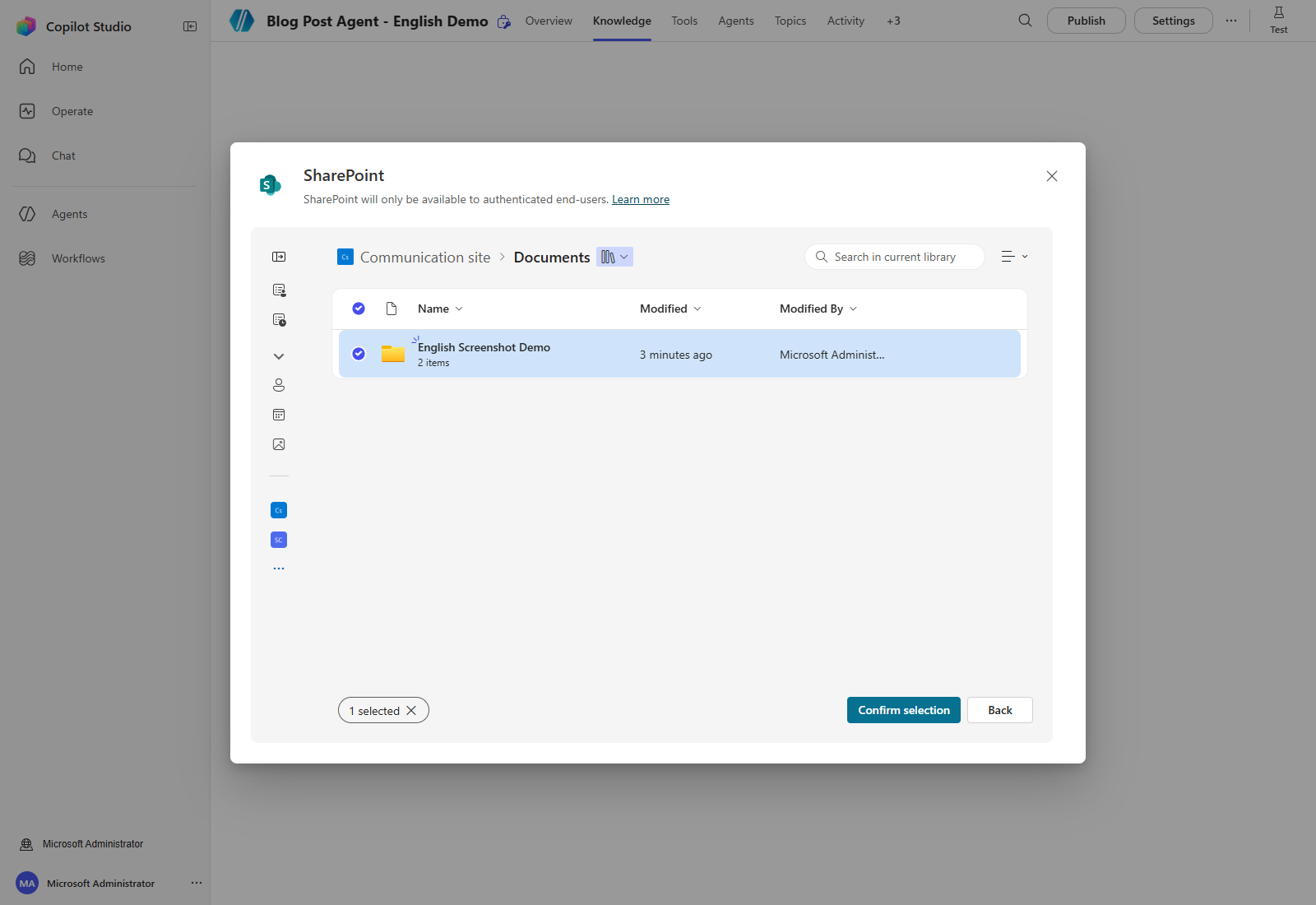
As in the previous Copilot Studio lite workshop, this workshop will reference only the files inside a specific library folder on a SharePoint site, so enter the path to the SharePoint folder.
Prepare or locate the workshop folder in SharePoint before selecting it. The actual demo folder contains LSSB2692ST_Core_Refrig-Spec_Sheet.pdf and SKSDW2401S_Stainless_Steel_Dishwasher-Spec_Sheet.pdf.
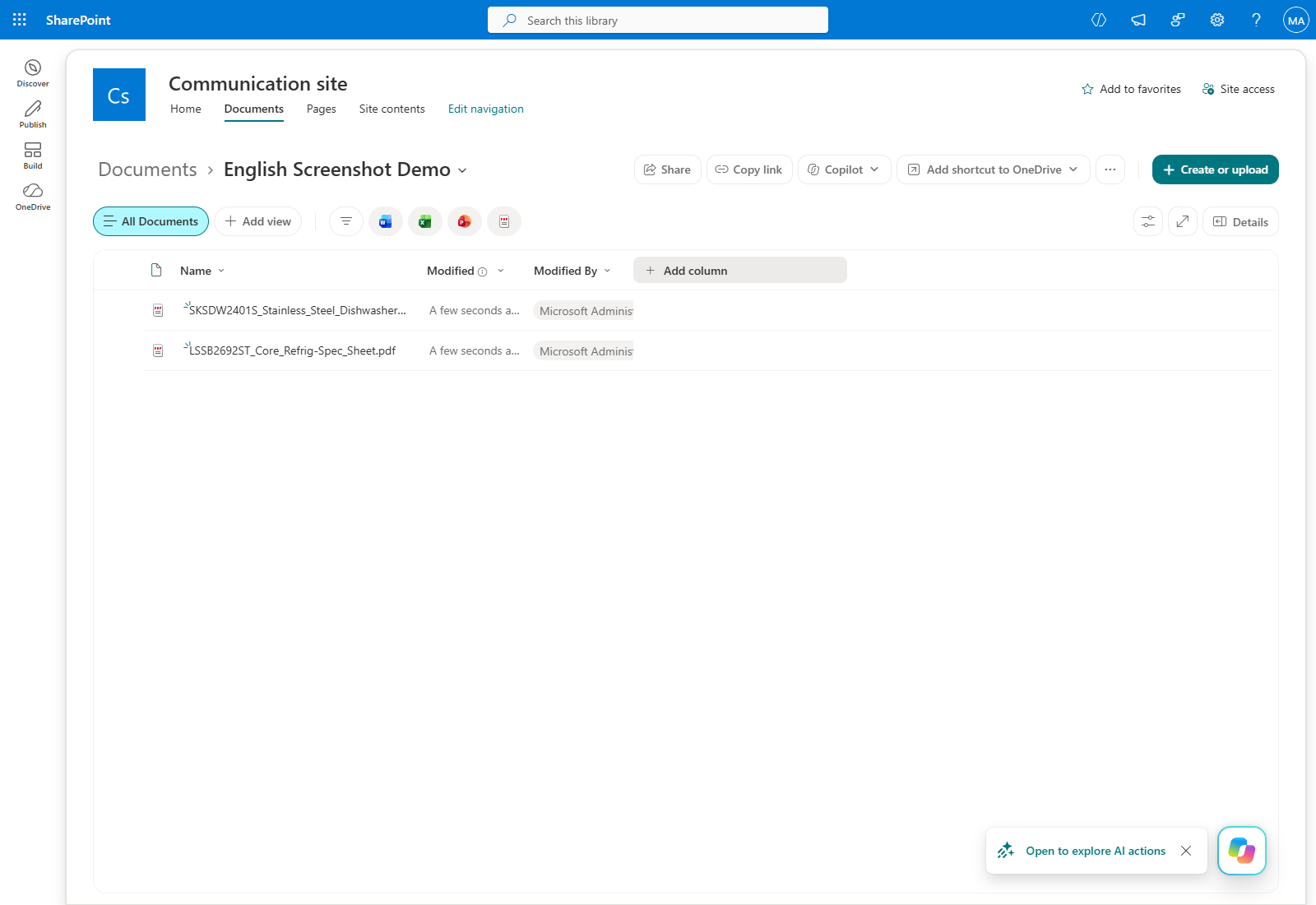
To find the direct folder address, open that folder in SharePoint, select Details, and use Copy direct link beside Path at the bottom of the details pane. This is the folder’s direct path, not the Forms/AllItems.aspx browser view URL.
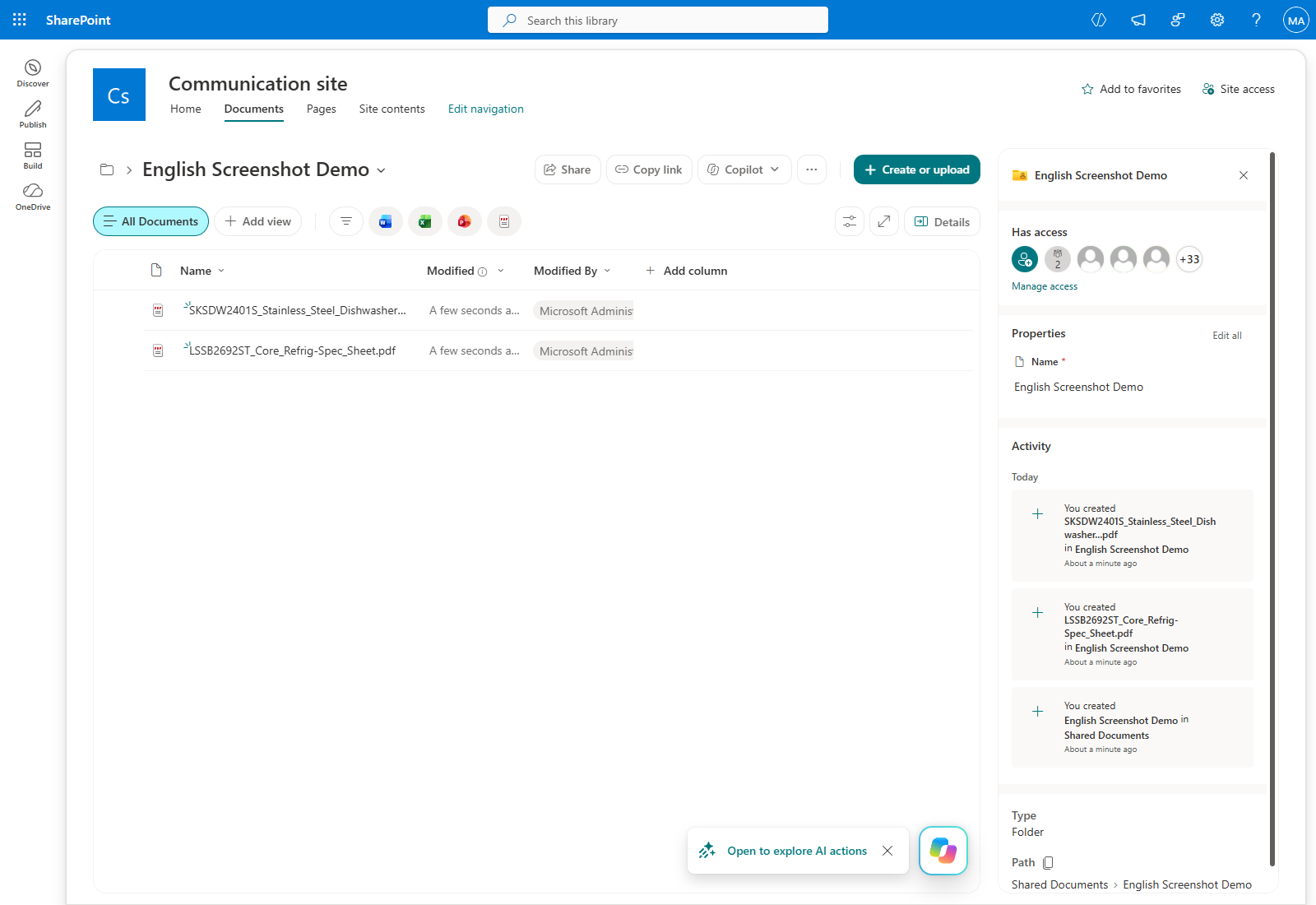
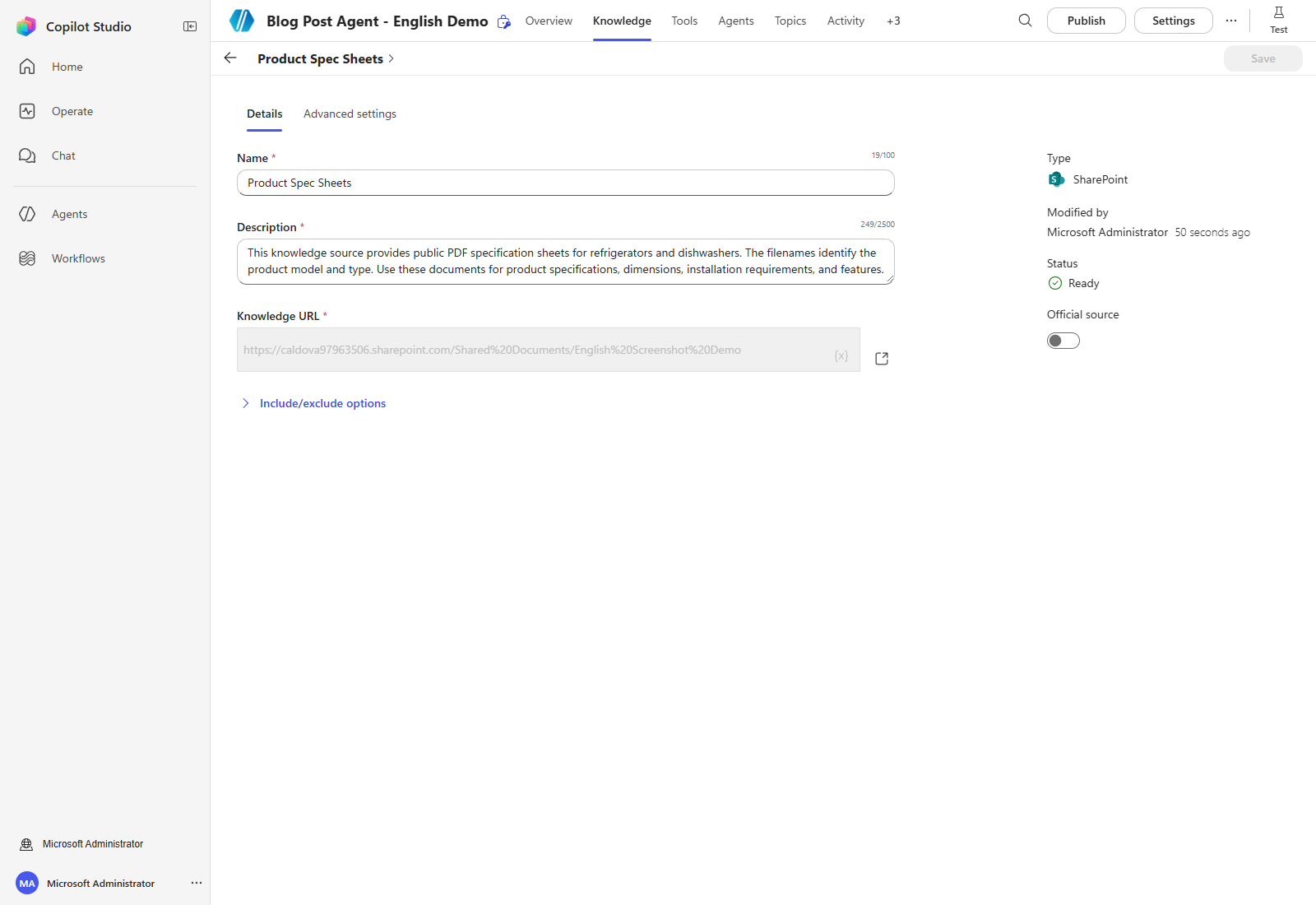
Select the folder through Browse items, or paste its direct path into the URL input and select Add. Review the selected link, set Name to Product Spec Sheets, and enter the description below.
Finally, add the following content to the description field to clarify what this Knowledge source is about.
This knowledge source provides public PDF specification sheets for refrigerators and dishwashers. The filenames identify the product model and type. Use these documents for product specifications, dimensions, installation requirements, and features.
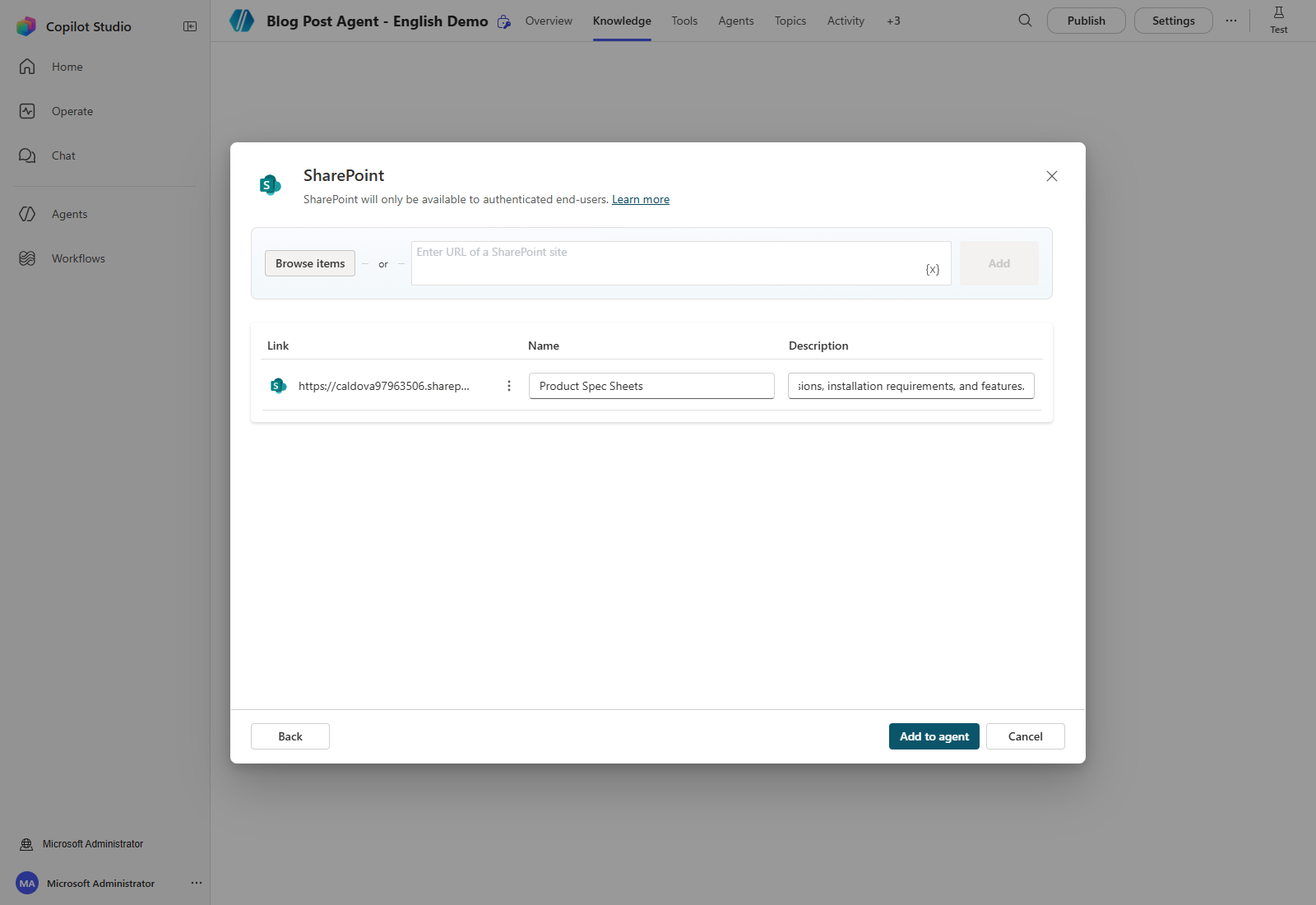
Select Add to agent, then wait for the source to show Ready in the Knowledge tab. Open the source to review its saved URL and description.
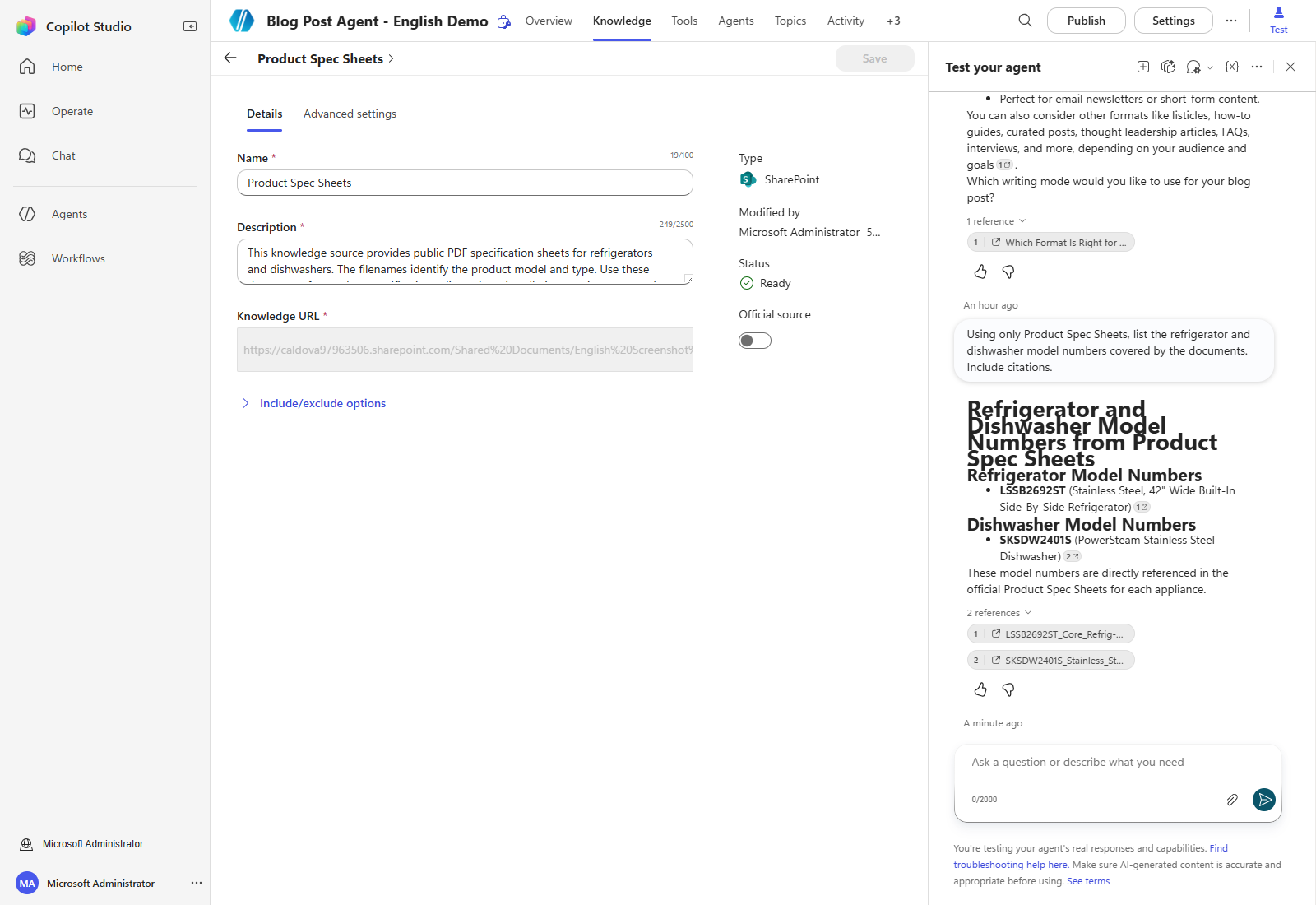
Open Test and ask:
Using only Product Spec Sheets, list the refrigerator and dishwasher model numbers covered by the documents. Include citations.
The actual demo response below identifies LSSB2692ST and SKSDW2401S and cites the two uploaded PDFs. Check citations rather than assuming that Ready status alone proves a grounded response.
—
Congratulations!
You have configured the agent to answer questions about internal company data by adding Knowledge.
Next, you will add tools so the agent can send emails and create Teams posts.
| ← Previous: Step 1. Create an agent | Next: Step 3. Tools: MCP connector → |