Badge Check — Access Log Analysis Mission
Analyze an access-badge CSV to find employees who did not check out, then receive a styled HTML report by email using a custom skill
Mission: Operation Badge Bandit Track employees who badged in but did not badge out (forgot to check out), then have Copilot Cowork deliver the results to your email inbox. 🔍
🔍 Problem
Building security depends on accurate badge data, but employees often forget to check out when leaving. Finding repeat offenders in a CSV, turning the findings into a report, and sending it by email takes more time than expected.
📋 Finished output
When you complete this mission, Copilot Cowork will:
- ✅ Analyze a badge-scan CSV and identify employees who did not check out
- ✅ Send a summary report by email
- ✅ (When a custom skill is applied) send a styled HTML report that highlights the people with the most missed checkouts
⚙️ Prerequisites
- Microsoft 365 Copilot license: required to access Copilot Cowork (details)
- Microsoft 365 license: for Outlook (receiving the report) and OneDrive (storing the custom skill)
- Anthropic models enabled: enabled by an admin in the Microsoft 365 admin center
- Copilot Cowork access: provided through the Microsoft 365 Frontier program
🎯 Scenario
You are a facilities security lead for a company with offices in multiple cities. Employees badge in whenever they enter a building, but some forget to check out when leaving. Management wants a report of repeat offenders so the security team can follow up. You received a CSV export from the badge system and need to find people who frequently forget to check out, then email the results.
📁 Lab assets
This mission uses one source file.
| File | Description |
|---|---|
badge_check.csv |
Access records containing employee names, badge IDs, office locations, and entry/exit times. If ExitDateTime is empty, the employee forgot to check out. |
📥 Download lab asset: badge_check.csv
🧪 Lab 1.1 — Find missing checkouts
In the first lab, upload the badge-scan file and ask Copilot Cowork to analyze who did not check out.
- Open Microsoft 365 Copilot
-
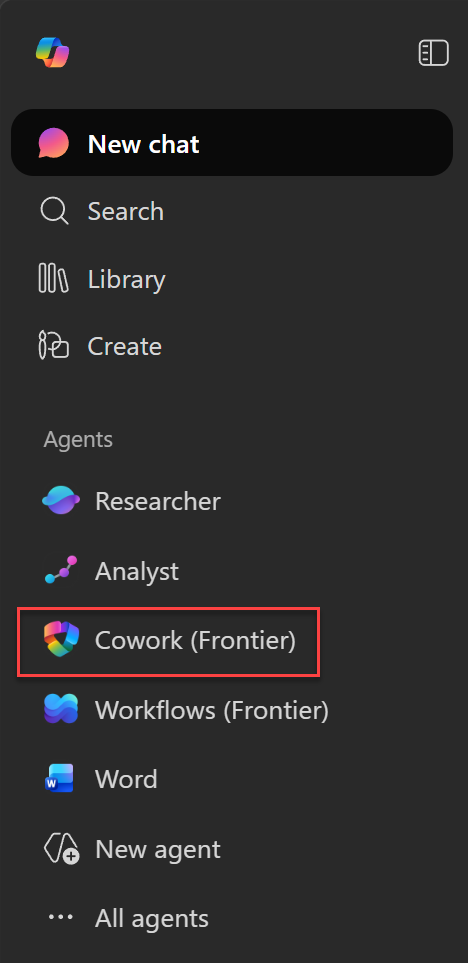
Select Cowork (Frontier) (if you do not see it, select All agents first)
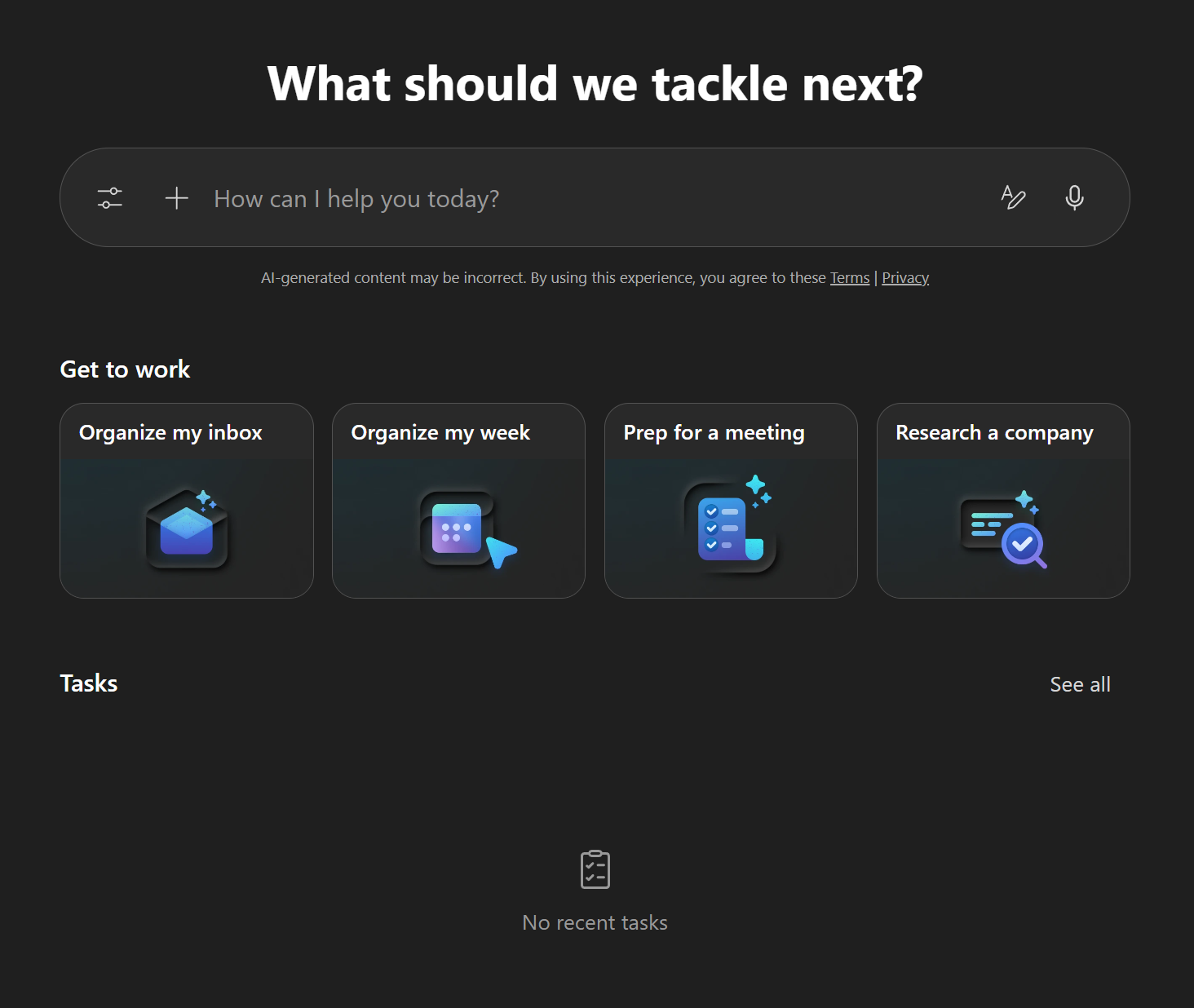
On the Copilot Cowork home screen, you can enter a new task at the top, choose a “Get to work” sample, or continue a recent task.
-
Drag and drop the
badge_check.csvfile into the chat box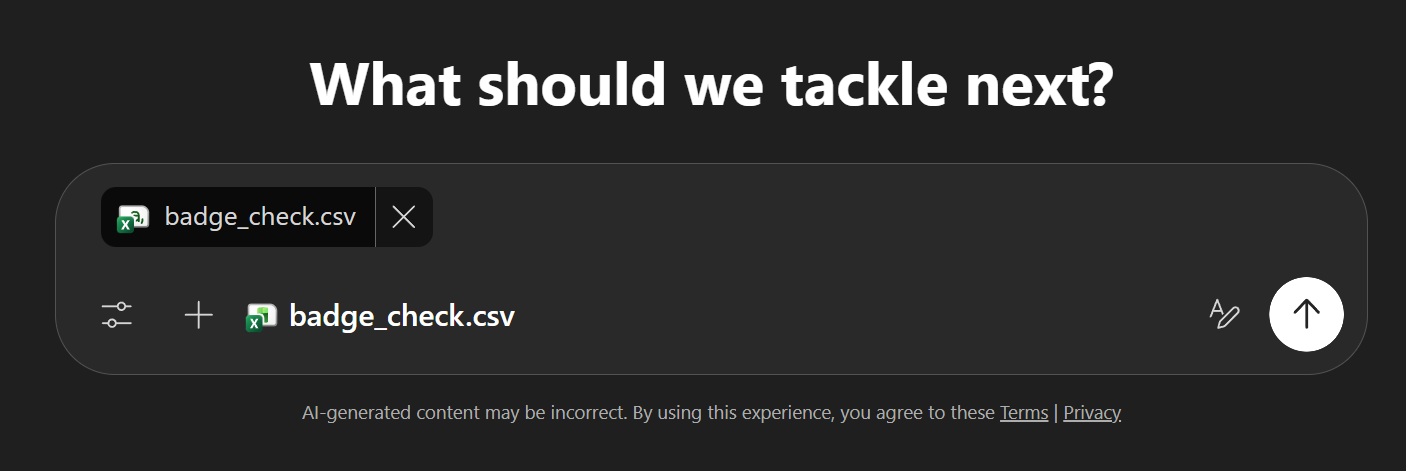
-
After attaching the file, press
Shift + Enterto add a new line and enter this message.I attached a CSV file containing office access badge-scan data. If ExitDateTime is empty, that employee forgot to check out. Tell me which employees did not check out, and can you send me a summary report by email?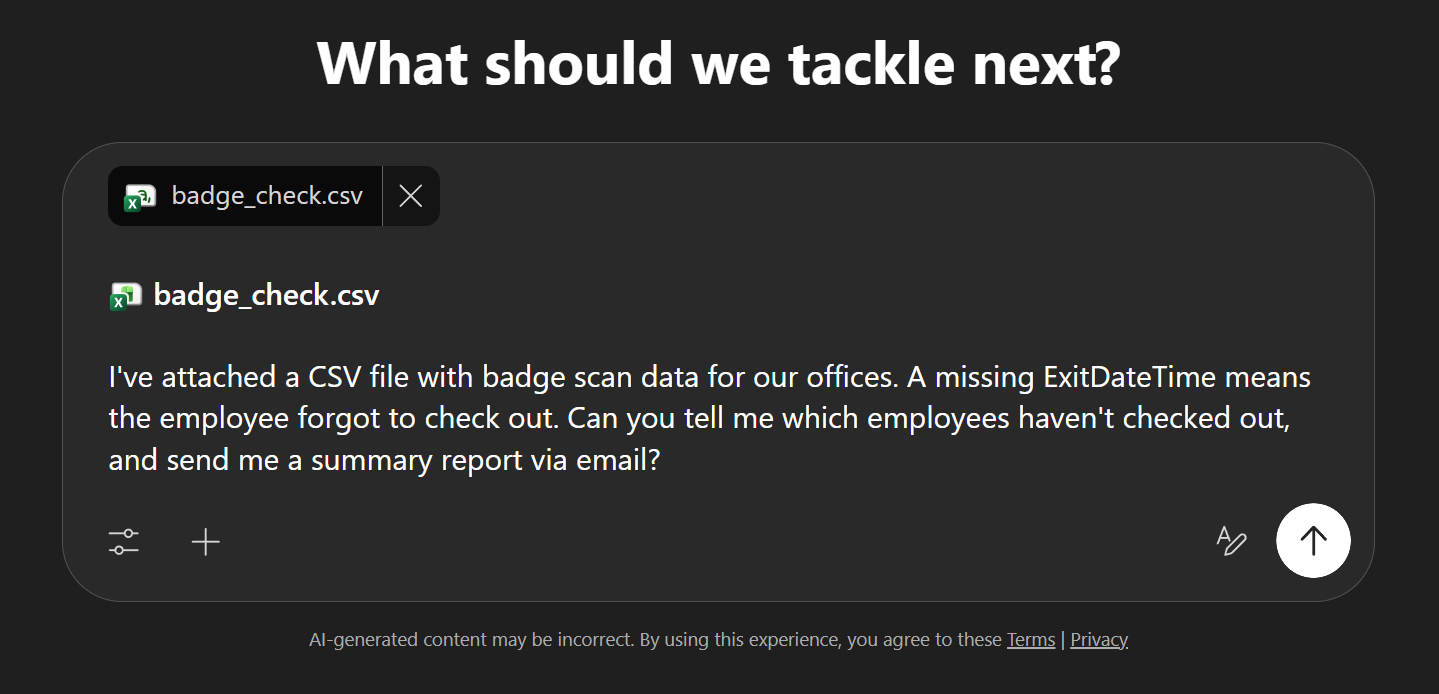
- If your screen looks similar, click the send button in the lower-right corner.
-
Watch Copilot Cowork analyze the file, identify employees who did not check out, and send the result email.
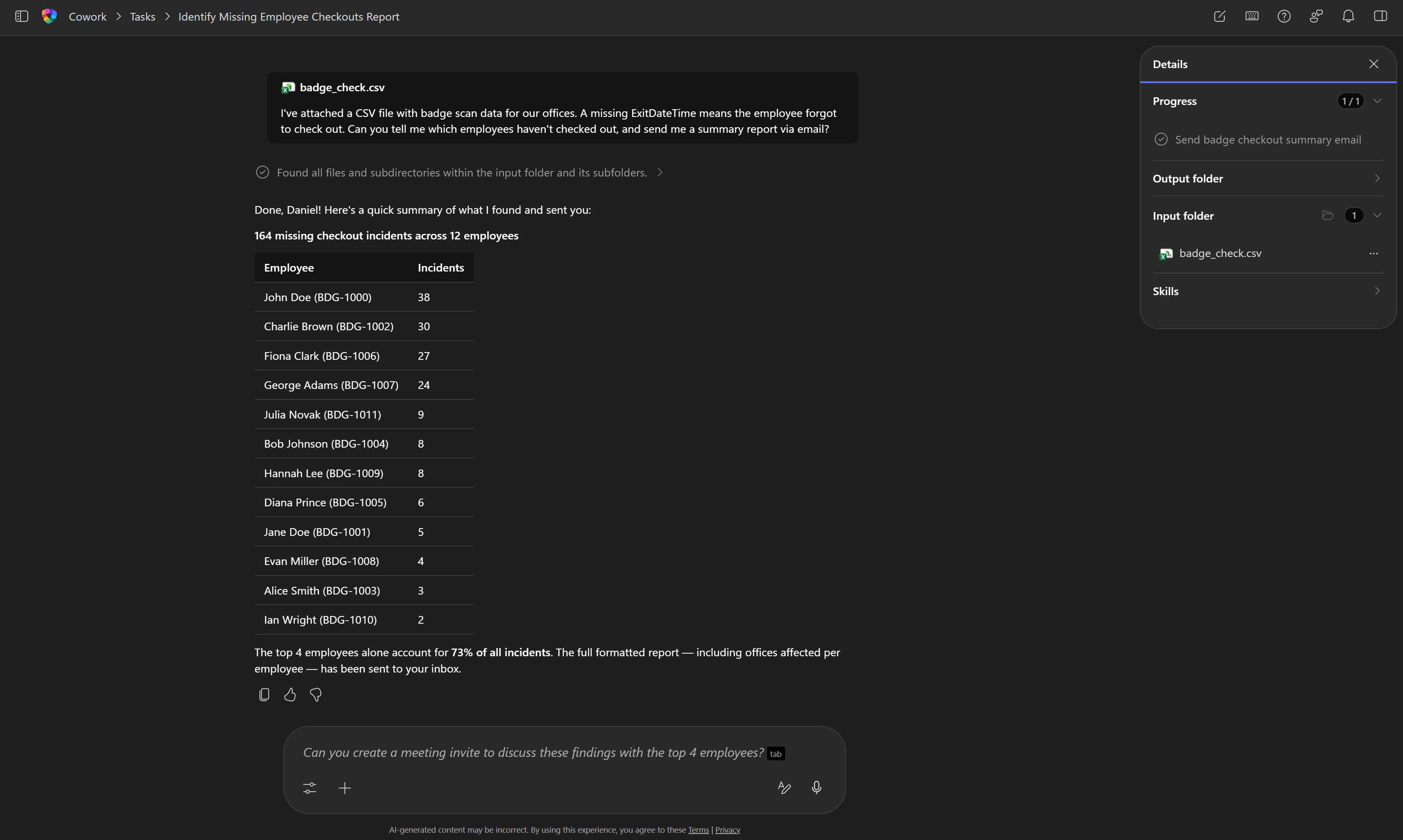
-
Check your inbox at outlook.office.com. You should receive an email containing a summary table with employee names, badge IDs, missed-checkout counts, and affected offices.
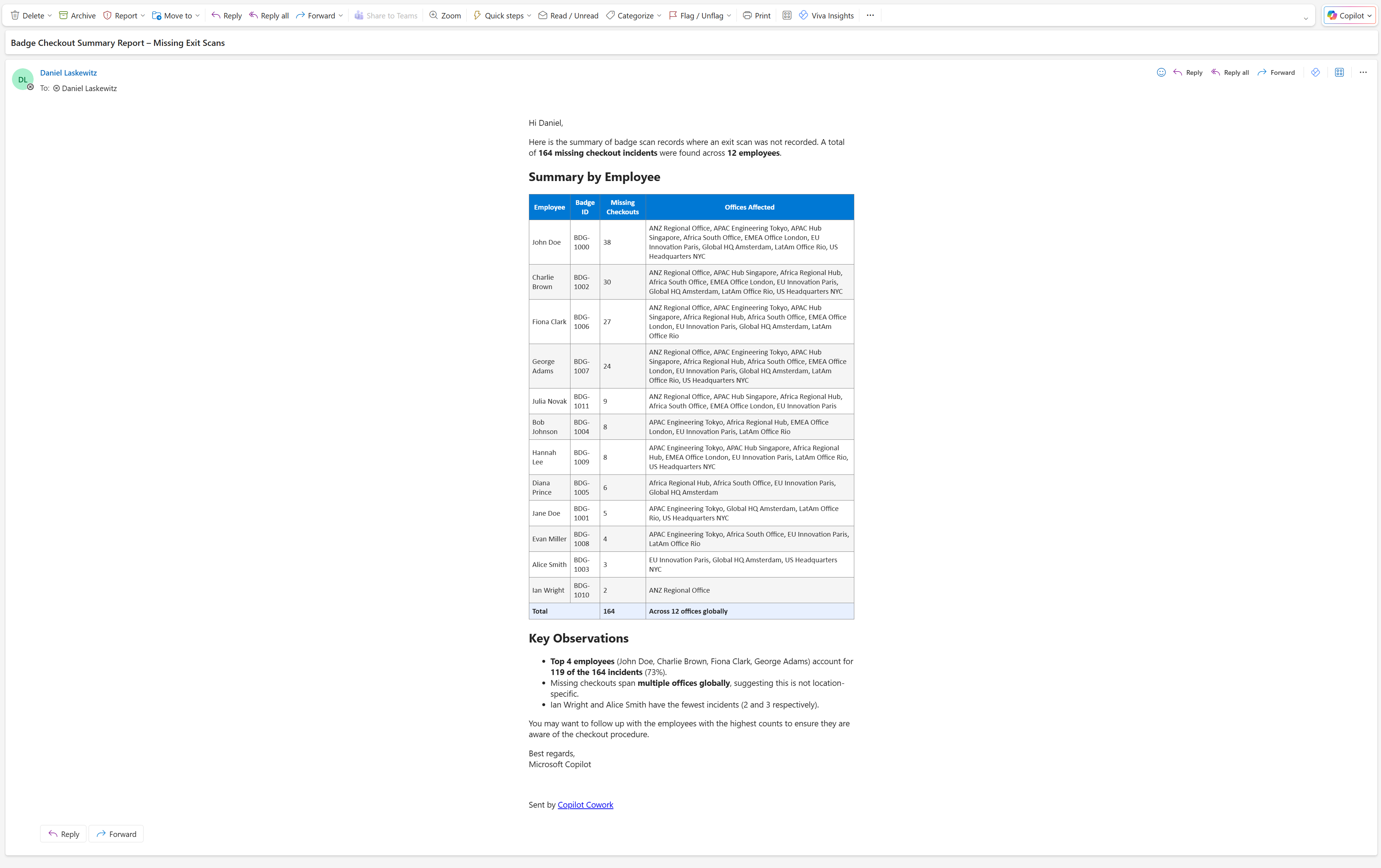
Verify the following.
- 12 employees in the summary table
- 164 total missed checkouts
- The top offender (38 missed checkouts) appears at the top
- Badge ID and affected office columns are included
Tip If an employee is missing from the report or the numbers are off, do not start over. In the same conversation, send a follow-up such as “The report is missing ○○○. Please check again and send it.” Cowork will update and resend the report without regenerating everything from scratch.
🧪 Lab 1.2 — Upgrade with a custom skill
Copilot Cowork supports custom skills stored in OneDrive. A skill is a SKILL.md file containing instructions for a specific task; it is automatically searched at the start of each conversation and loaded when needed.
Note: You can create up to 20 custom skills, and each
SKILL.mdfile can be up to 1 MB.
How custom skills work
Each custom skill is located in a subfolder under /Documents/Cowork/Skills/ in OneDrive. The SKILL.md file has two parts.
- YAML frontmatter containing
nameanddescription— Copilot Cowork uses the description to decide when to load the skill. - Markdown instructions — the actual behavior rules to follow when the skill is active
---
name: My Skill Name
description: A short description of when and why this skill should be used.
---
Write the skill instructions in regular Markdown.
Tell Cowork exactly how it should behave when this skill is active.
Add the skill
In this mission, you add the frontend-design skill, which instructs Cowork to create polished, self-contained HTML email when generating reports.
Note: The frontend-design skill in this mission is based on the open-source skill created by Anthropic (skills.sh), with a few responsive-design requirements added for email output.
- Download SKILL.md and save it to your PC. This skill instructs Cowork to use real fonts instead of system default fonts, maintain a consistent color scheme, and create layouts that work on both desktop and mobile.
- In OneDrive, go to
Documents. -
Create the following folder structure (create each folder if it does not exist).
Documents/Cowork/skills/frontend-design/ - Upload the
SKILL.mdfile to thefrontend-designfolder. - Copilot Cowork will automatically recognize this skill at the start of the next conversation.
Run the enhanced mission
- Open Microsoft 365 Copilot and select Cowork (Frontier).
- Start a new conversation.
-
Paste the following prompt into the input box (do not send it yet).
[file] contains employee access records from multiple global offices. Each row is a badge-scan event and includes these columns: PersonName, BadgeId, City, BuildingName, EntryDateTime, ExitDateTime. If ExitDateTime is empty, that employee forgot to check out. Please do the following. 1. Analyze the file and calculate, for each person, the total number of entries and missed checkouts (blank ExitDateTime values). 2. Rank the top 10 people by missed-checkout count, including name, badge ID, total entries, missed count, and missed rate (%). 3. Use the frontend-design skill to generate a self-contained, responsive HTML report with a summary header and a top-10 table sorted by missed-checkout count descending, highlighting anyone with a missed rate above 50% in red. 4. Send an email with the subject "Building Access – Top 10 Checkout Offenders" and include the report in the body. - Delete the
[file]placeholder. -
Attach the previous
badge_check.csvfile with+> Upload images and files.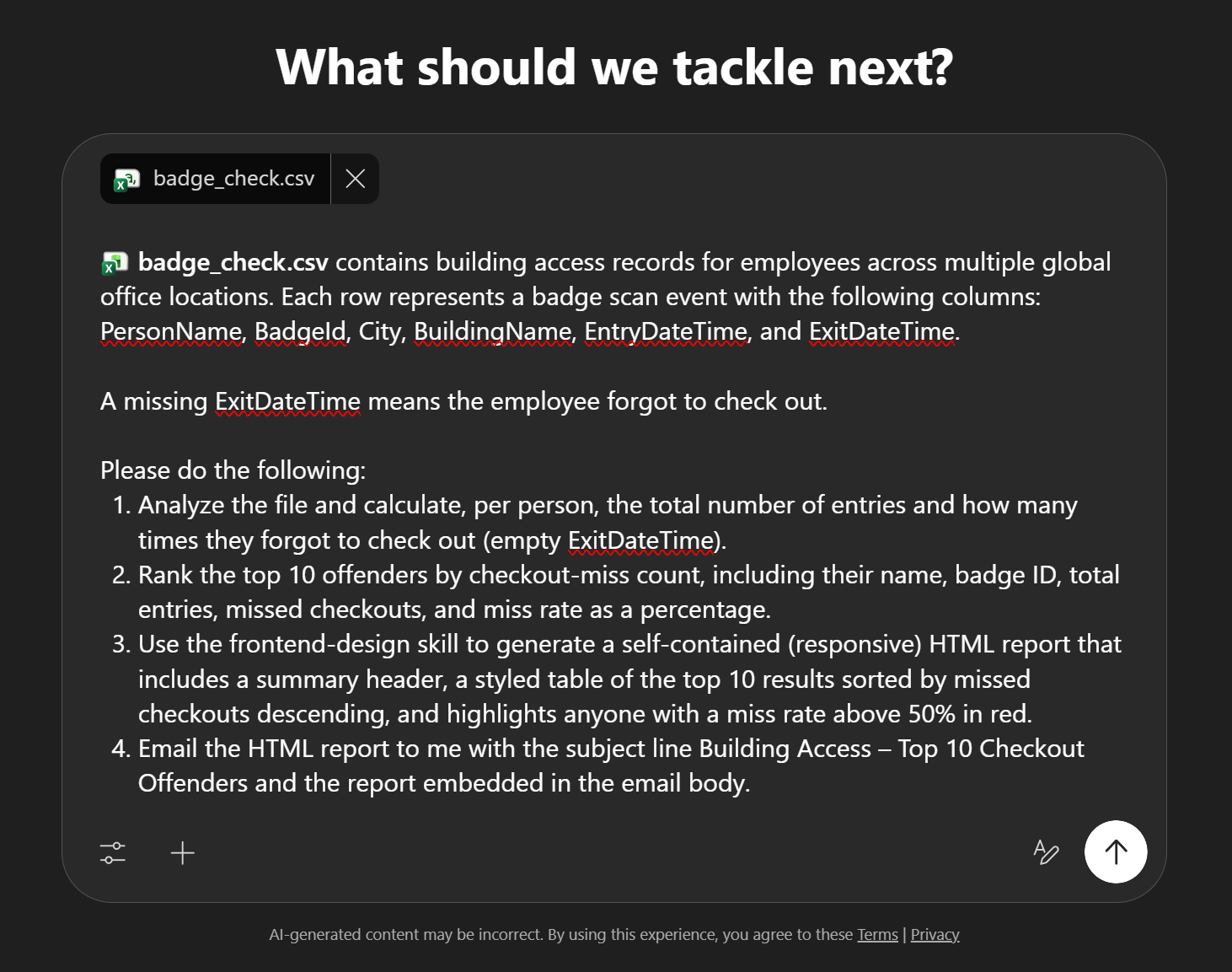
- Click the send button in the lower-right corner to send it.
- In the side panel, confirm that the frontend-design skill is loaded. The HTML formatting rules now apply.
-
At outlook.office.com, check the styled HTML report with the top 10 people, missed rates, and red highlighting for people above 50%.
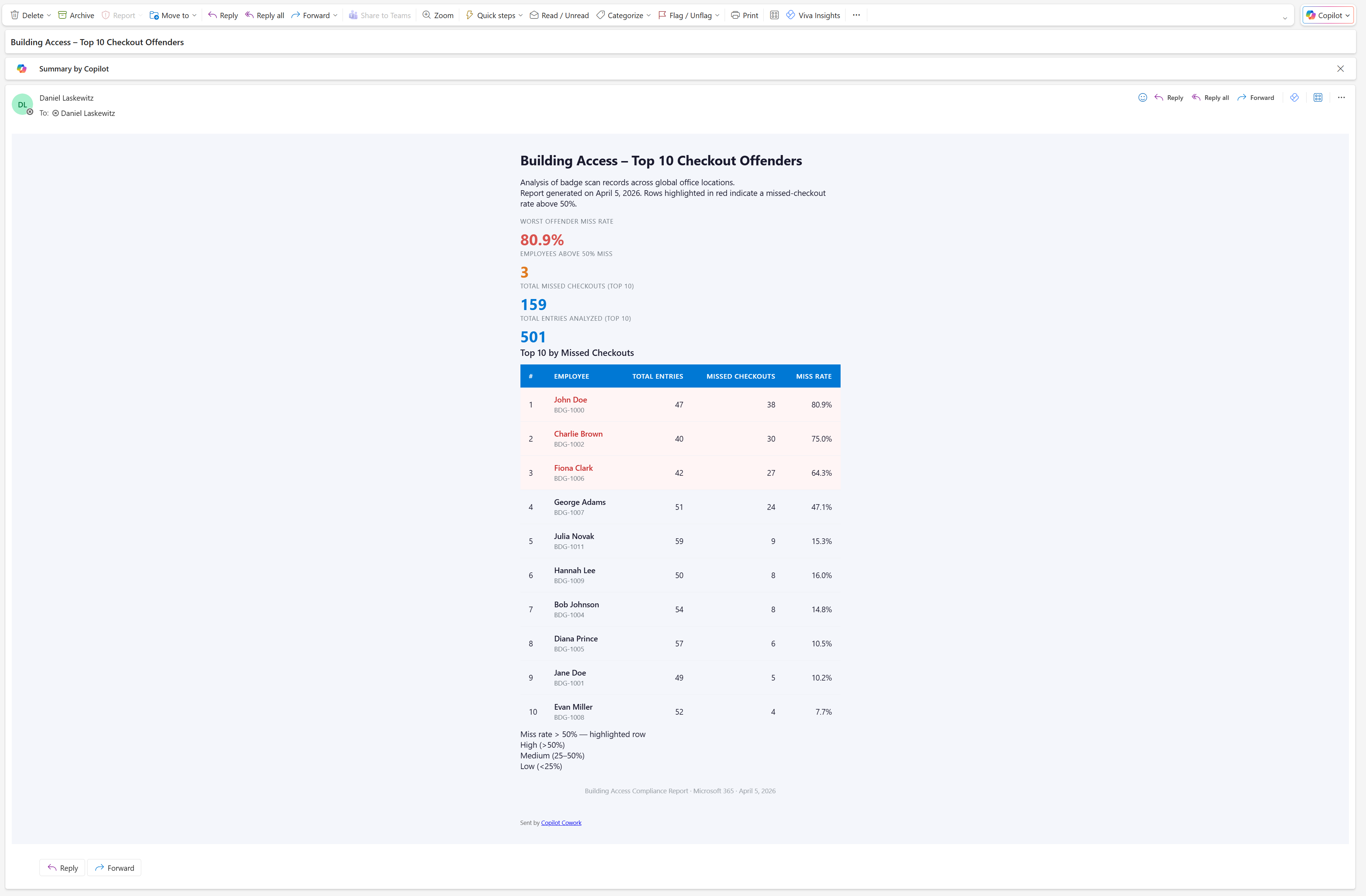
Tip In the same conversation, ask something like “Change the red highlight threshold from 50% to 30%, and add a column for each person’s most frequently visited office.” Cowork will update and resend the report.
What changed?
Open the two emails side by side. The first is a plain text table with all employees, while the second includes styled rows, real typography, and color coding for the top offenders. It is the same CSV and the same agent. The only difference is the skill file you added to OneDrive.
🏆 Mission complete
Operation Badge Bandit complete. One CSV, two reports, one custom skill.
Key takeaways:
- ✅ One conversation, full workflow: describe the task, and Cowork performs analysis, report writing, and email sending
- ✅ Custom skills change the output: the same CSV goes from a plain table to a styled HTML report with one skill file
- ✅ Automatic approval for email to yourself: email sent to your own account arrives in your inbox without manual approval (other recipients still require approval)
🏅 Get your badge
After completing the mission, you can request your badge: badge request form
Translated article — This article is based on Badge Check from Microsoft Agent Academy. Images link to assets from the original site. Refer to the original for the latest content and lab assets. Original source: https://microsoft.github.io/agent-academy/cowork-collective/badge-check/