Lab 2 · Daily Brief news briefing workflow
An advanced New Copilot Studio workflow lab that uses a Researcher node and a multi-agent pipeline (Prep, Critic, Analyst, Composer) to automatically collect, verify, and analyze daily news about a specific company, save it to SharePoint, and send it by email.
📎 Original author and source
Translated article — This lab is based on Daily Brief Workflow (Korean) · Copilot Studio Hands-on ↗ from Copilot Studio Hands-on. Author: Youngseo Lee. All copyrights belong to the original author; for the latest and most accurate content and screenshots, see the original article.
- Original author: Youngseo Lee
- Original article (Korean): Daily Brief Workflow (Korean) · Copilot Studio Hands-on ↗
- Original document (GitHub): DailyBrief_HandsOn_Guide_kr.md ↗
- Original repository: baby-crows/Copilot-Studio-Hands-on ↗
- Document version: v0.1 · Written on 2026-06-13 · Level 300 · Estimated time: about 30 minutes
The images in the body below use the original author’s screenshots as-is.
Using new Copilot Studio features (Workflow + Custom Structured Output + Researcher node), you will build a workflow in 30 minutes that automatically generates a daily news brief for a specific company and sends it by email.
Table of contents
- Overview and architecture
- Prerequisites
- Create a SharePoint List
- Create the workflow — 8 nodes
- 4.1 Trigger: Manual
- 4.2 Prep — M365 Copilot node
- 4.3 Researcher node
- 4.4 Critic — Agent node
- 4.5 Analyst — Agent node
- 4.6 Composer — Agent node
- 4.7 SharePoint — Create item
- 4.8 Send email V2
- Test and run
1. Overview and architecture
1.1 What you will build
A Copilot Studio Workflow that runs the following flow every day (or when manually triggered):
- Prep: Receive a company name and extract 2–3 angles and keywords to watch today
- Researcher: Research 6–8 real news articles on the internet for each angle
- Critic: Filter to reliable articles by validating URLs and dates
- Analyst: Analyze verified articles into themes, KPIs, and insights
- Composer: Generate an HTML email body
- Save to SharePoint + send email
1.2 Architecture diagram
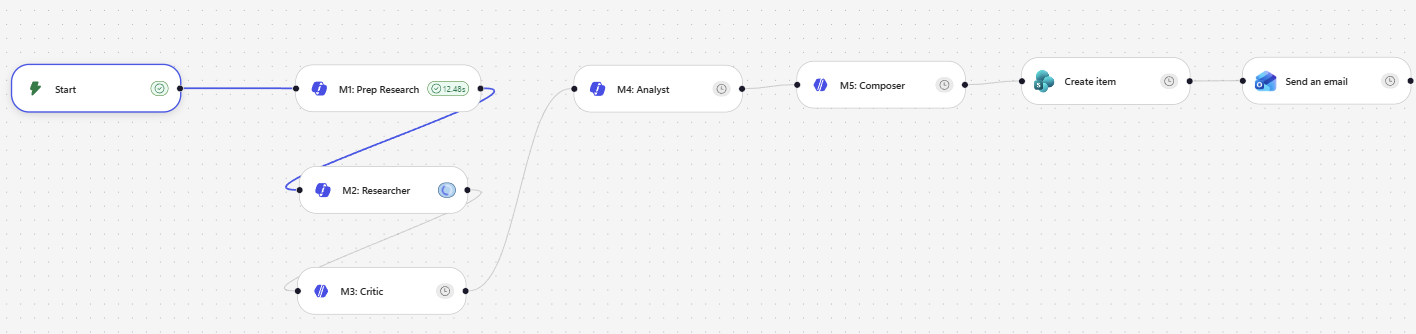
[Trigger: Manual — enter researchTopic]
       ↓
[Prep — M365 Copilot node]        ← lightweight (5–10 seconds)
       ↓
[Researcher — M365 Copilot node]  ← deep web research (1–6 minutes, Prefer async)
       ↓
[Critic — Agent node]             ← URL/date validation, Structured Output
       ↓
[Analyst — Agent node]            ← theme/KPI analysis, Structured Output
       ↓
[Composer — Agent node]           ← HTML email body
       ↓
[SharePoint Create item]          ← save to BriefArchive
       ↓
[Send email V2]                   ← send HTML email
2. Prerequisites
2.1 Required licenses / permissions
- Microsoft 365 Copilot license (for the Researcher node)
- Copilot Studio access
- SharePoint site (permission to create a List)
- Outlook email sending permission
2.2 Decide in advance
- Target company name (for example,
Microsoft) - SharePoint site URL
- Email recipient address
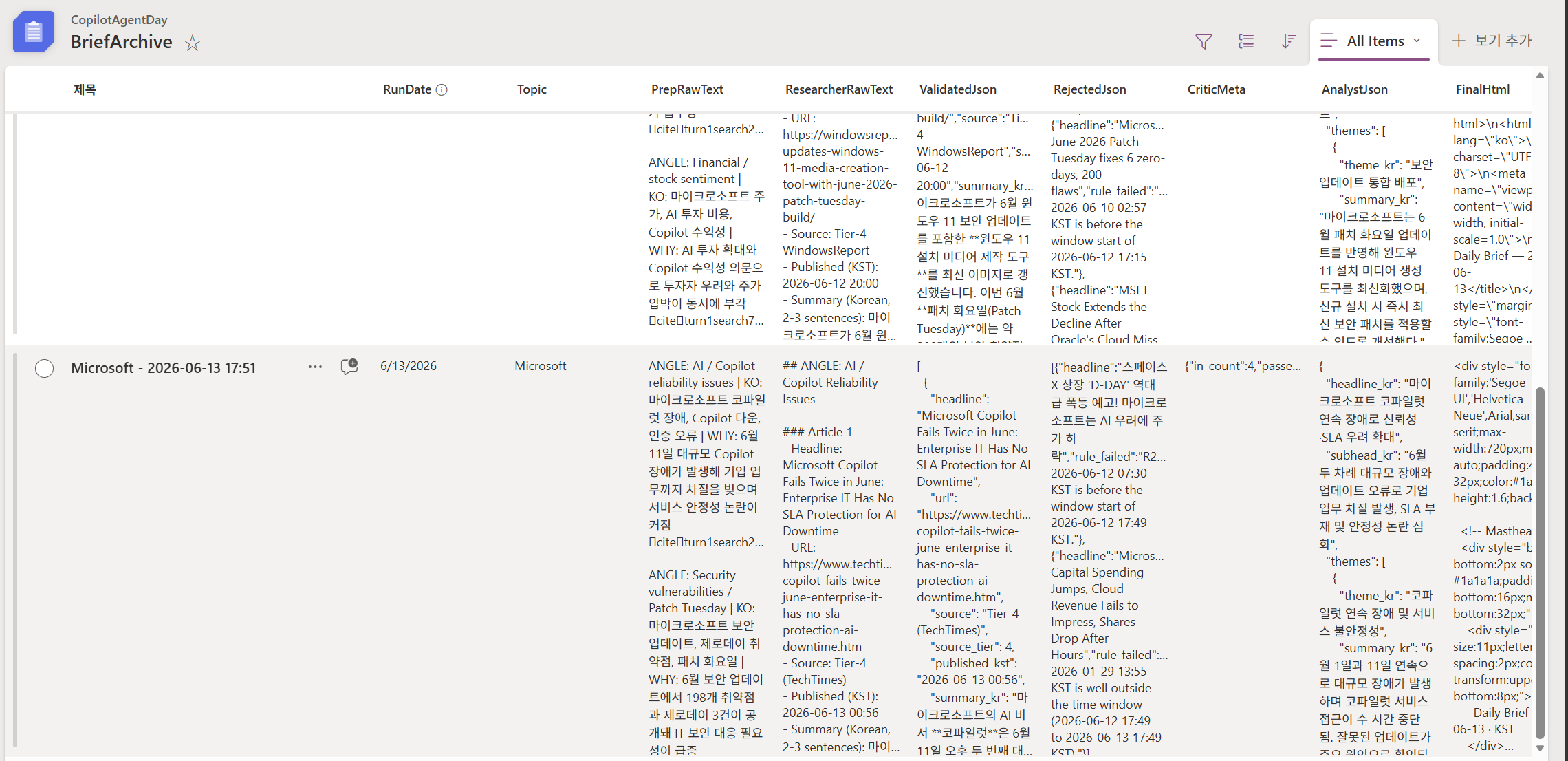
3. Create a SharePoint List
3.1 List name
BriefArchive
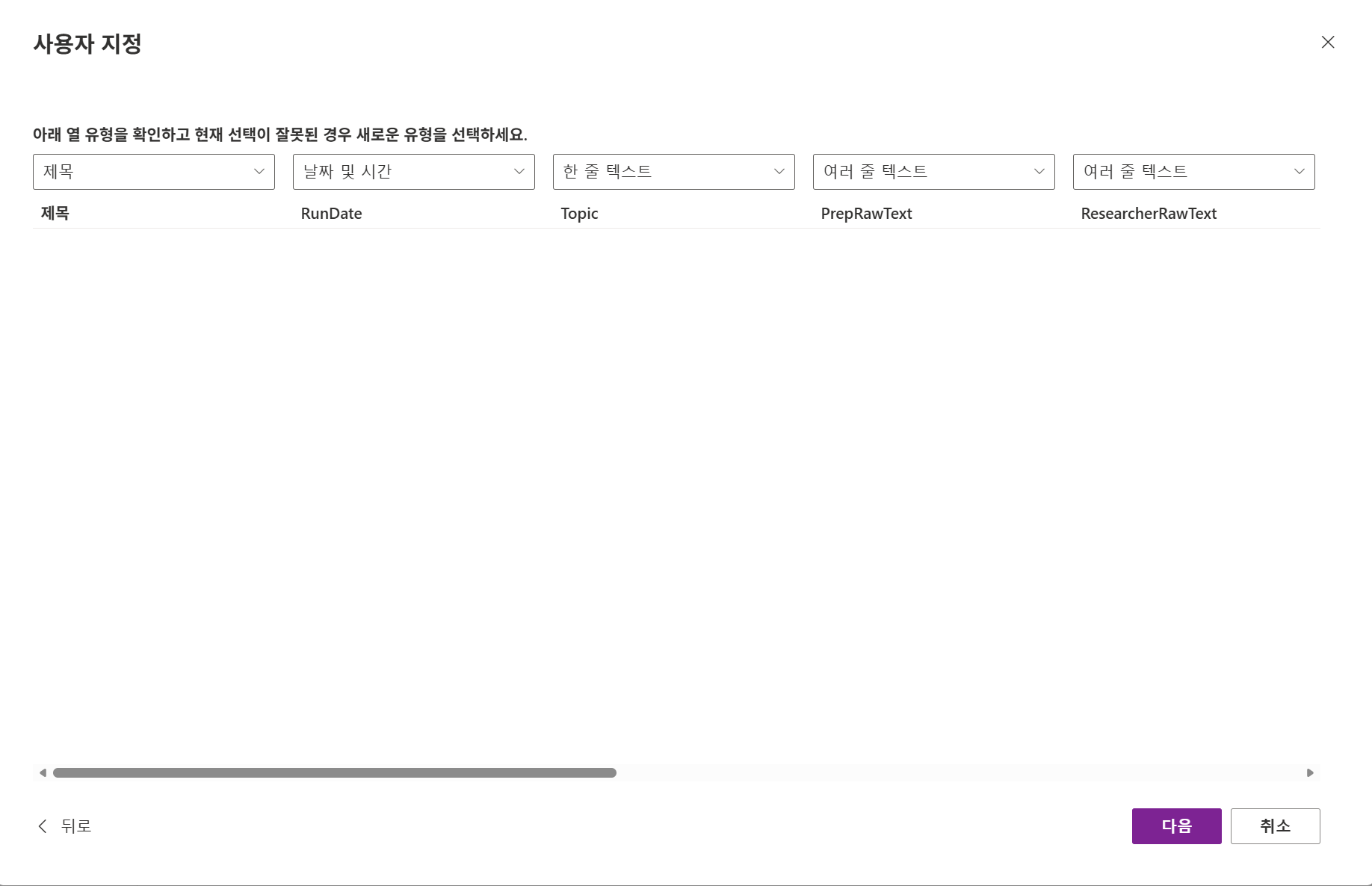
3.2 Column definitions
| Column name | Type | Description |
|---|---|---|
Title |
Single line of text | Automatic (“Microsoft - 2026-06-13 17:00”) |
RunDate |
Date and Time | Run time (UTC) |
Topic |
Single line of text | Target company name |
PrepRawText |
Multiple lines of text | Raw Prep output |
ResearcherRawText |
Multiple lines of text | Raw Researcher output |
ValidatedJson |
Multiple lines of text | Full Critic JSON (validated + rejected + meta) |
AnalystJson |
Multiple lines of text | Full Analyst JSON |
FinalHtml |
Multiple lines of text | Composer HTML body |
Status |
Text | Options: ok, low_yield, failed |
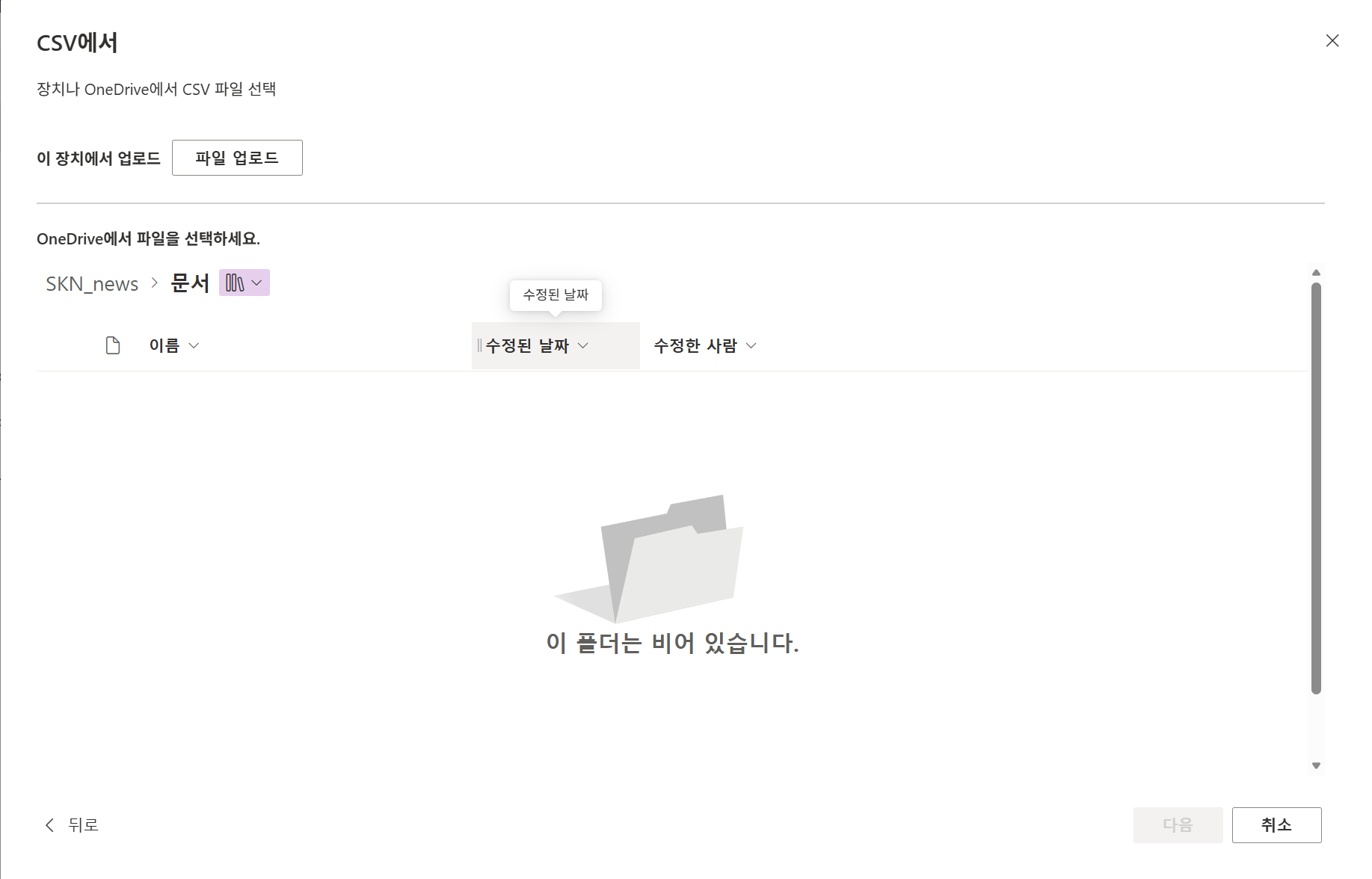
TIP: At this point, import the prepared CSV file to quickly create the SharePoint list.
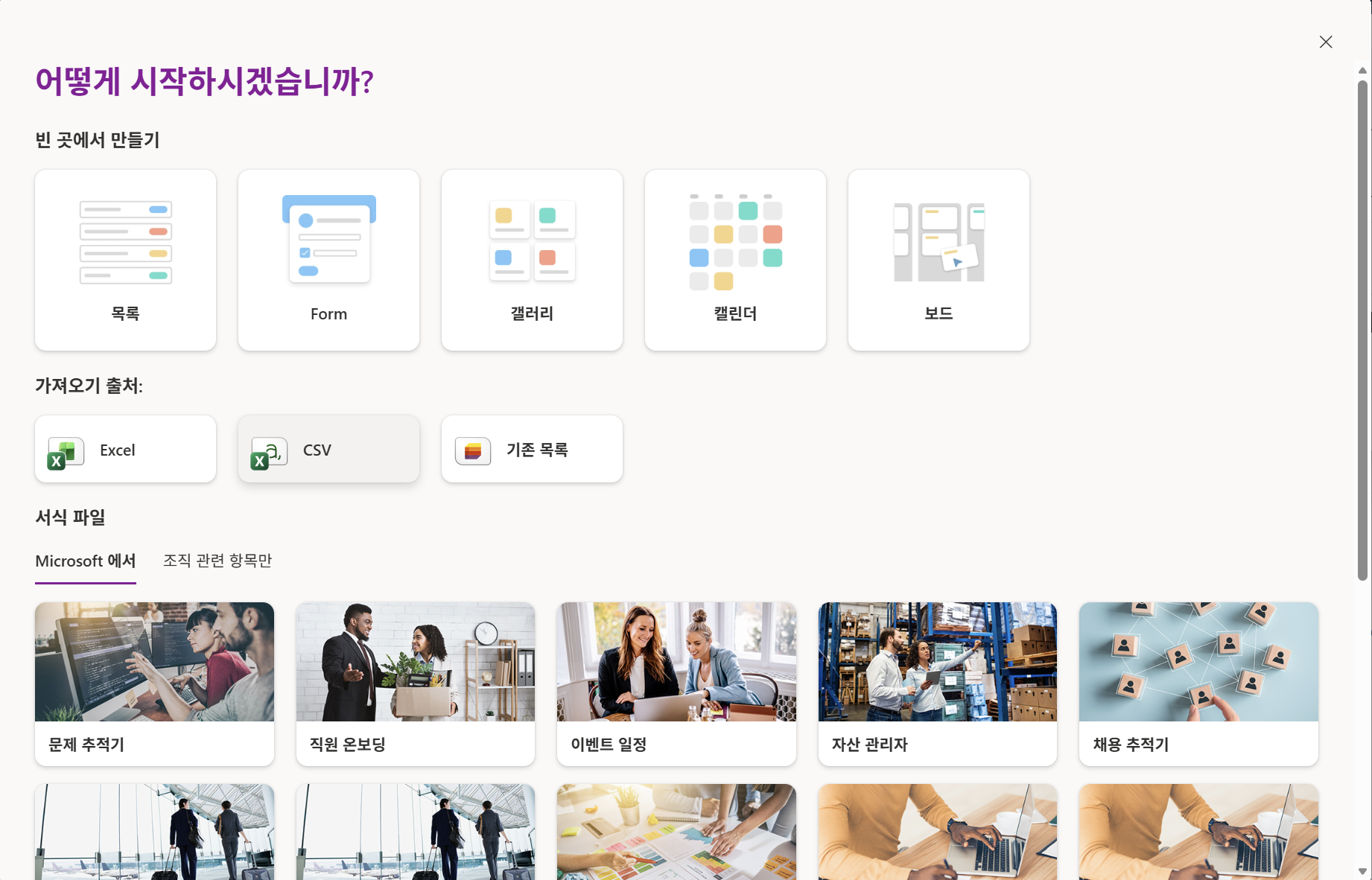
3.3 List creation steps
- Create the site first
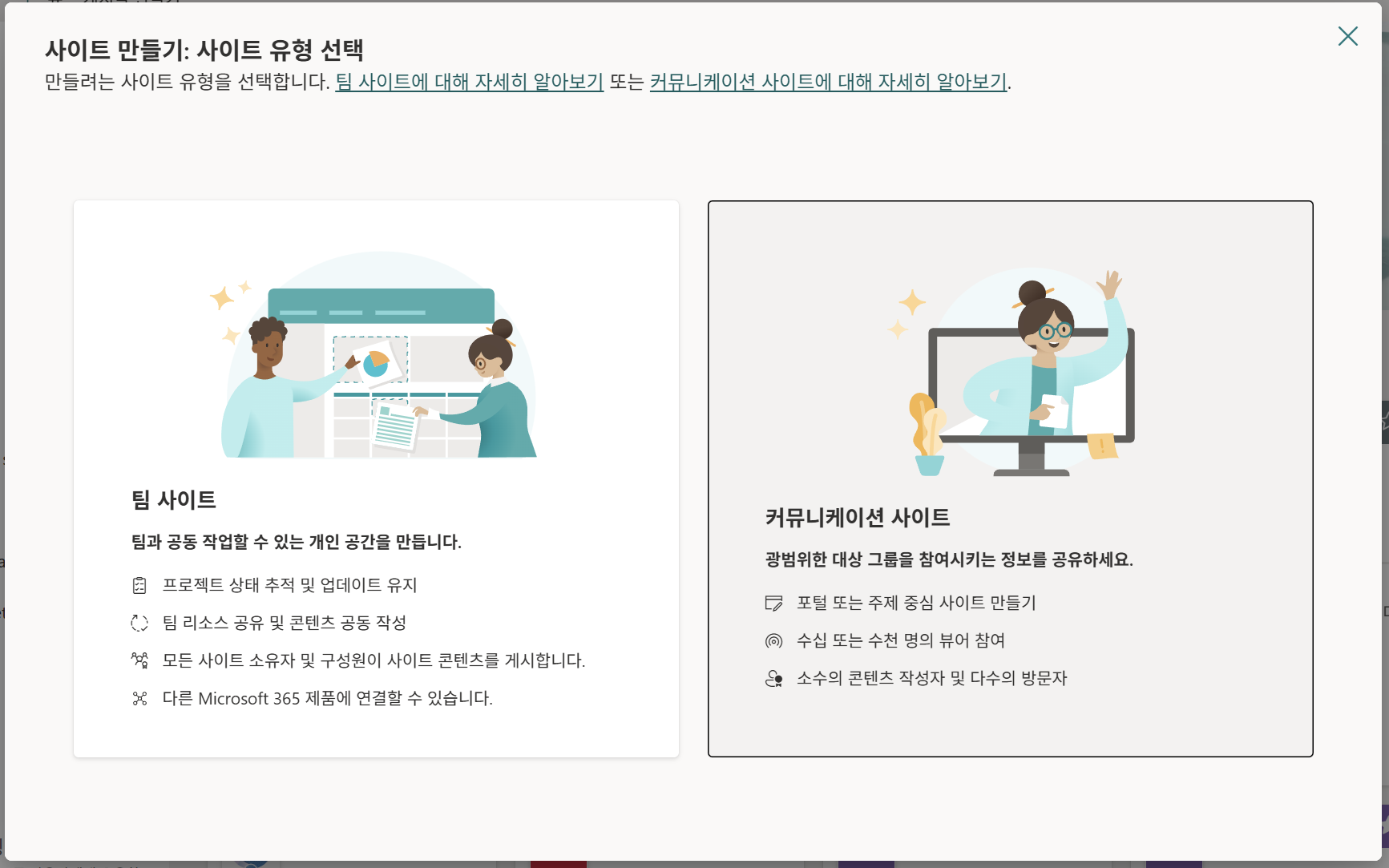
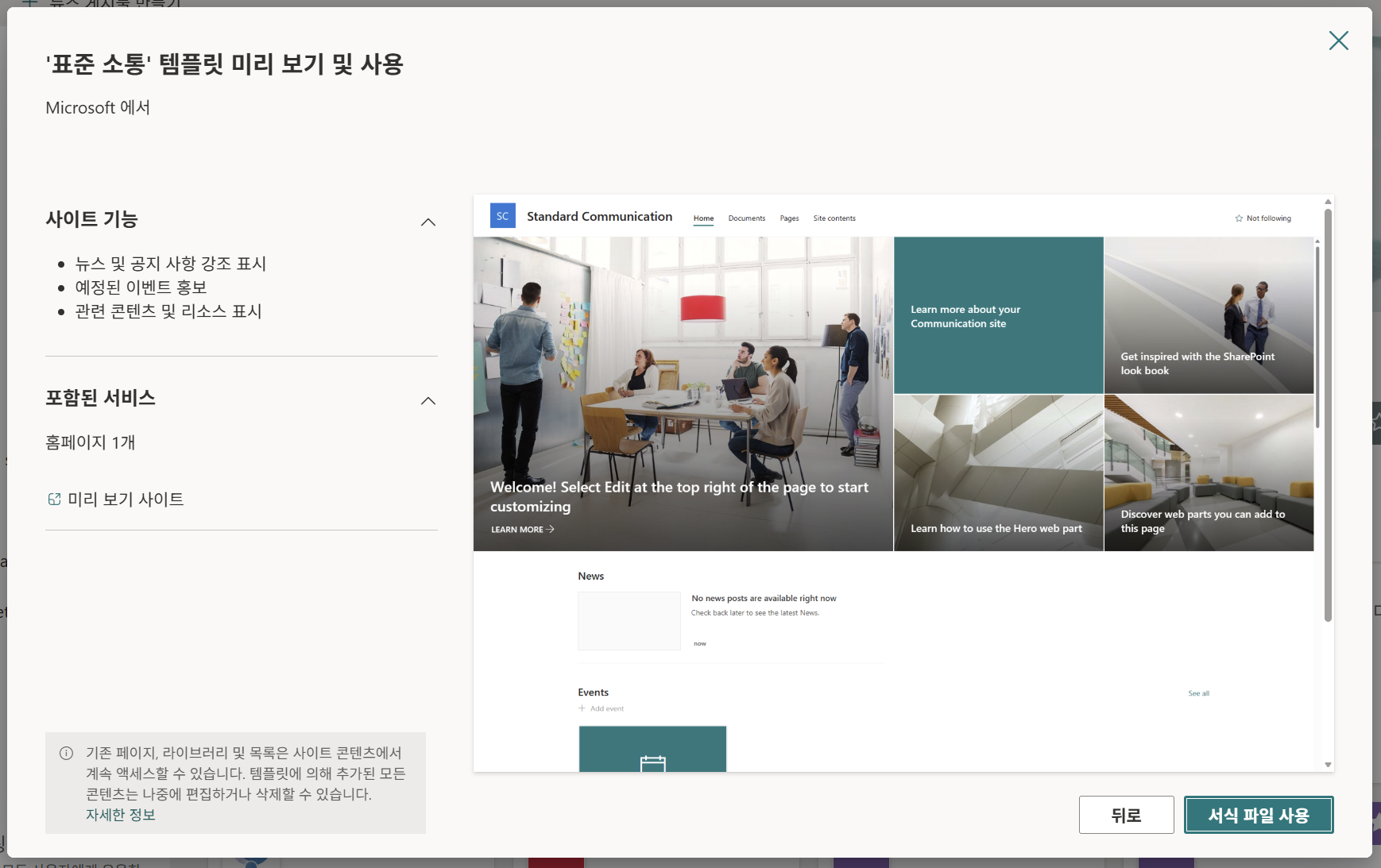
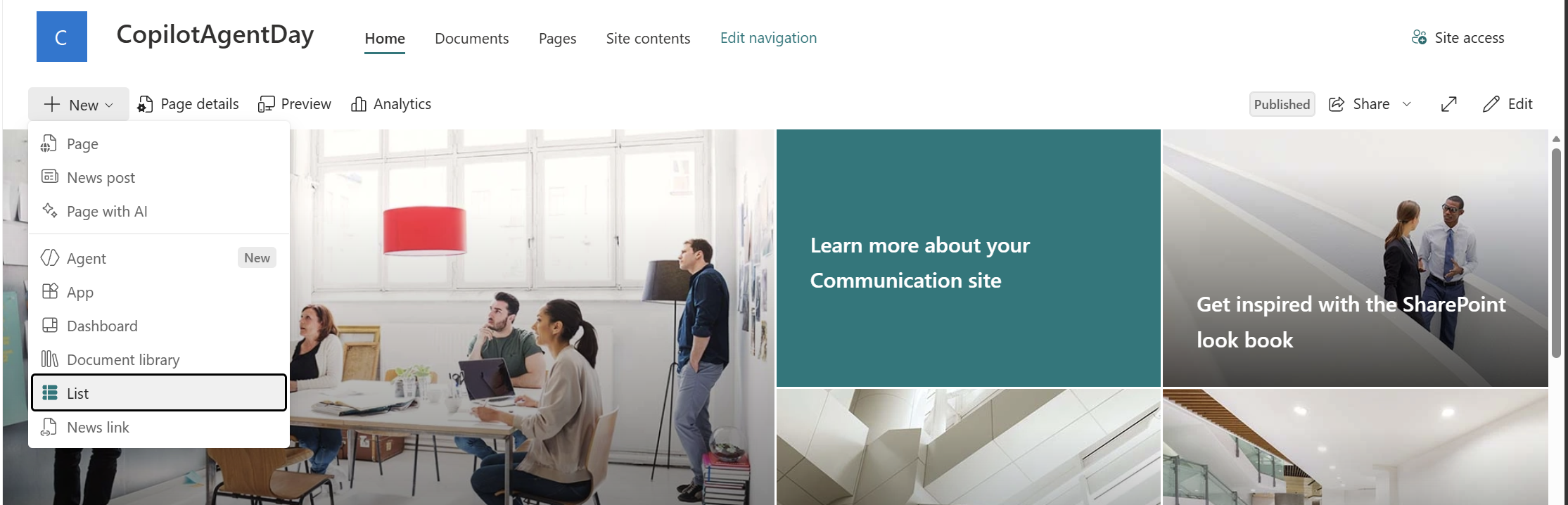
- Create the list (source to import from: CSV)
4. Create the workflow — 8 nodes
Copilot Studio → Flows (or Workflows) → + New Flow
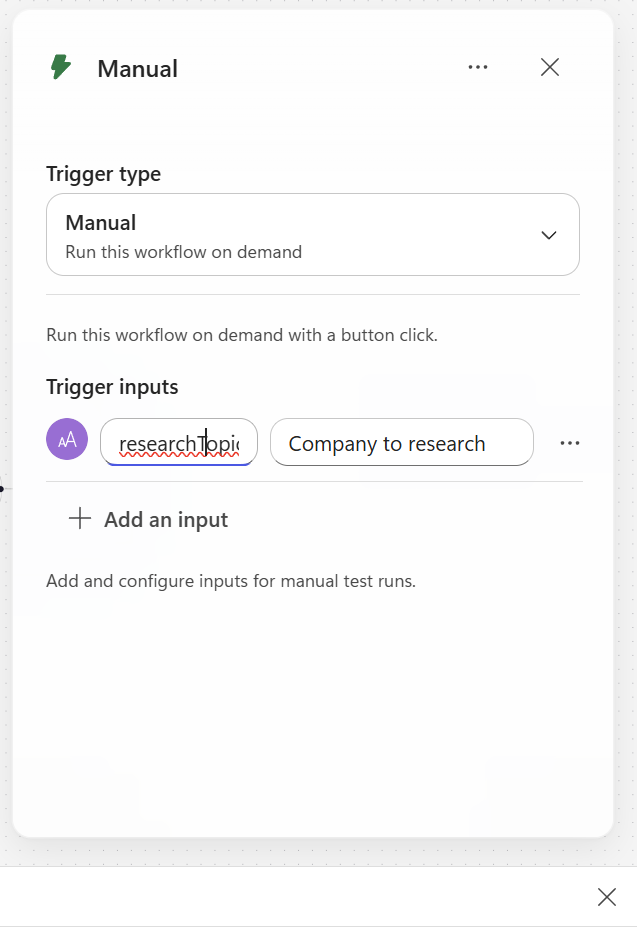
4.1 Trigger: Manual
Add node: Select Manually trigger a flow.
Input parameter:
| Field | Value |
|---|---|
| Name | researchTopic |
| Type | String |
| Description | Company to research |
4.2 Prep — M365 Copilot node
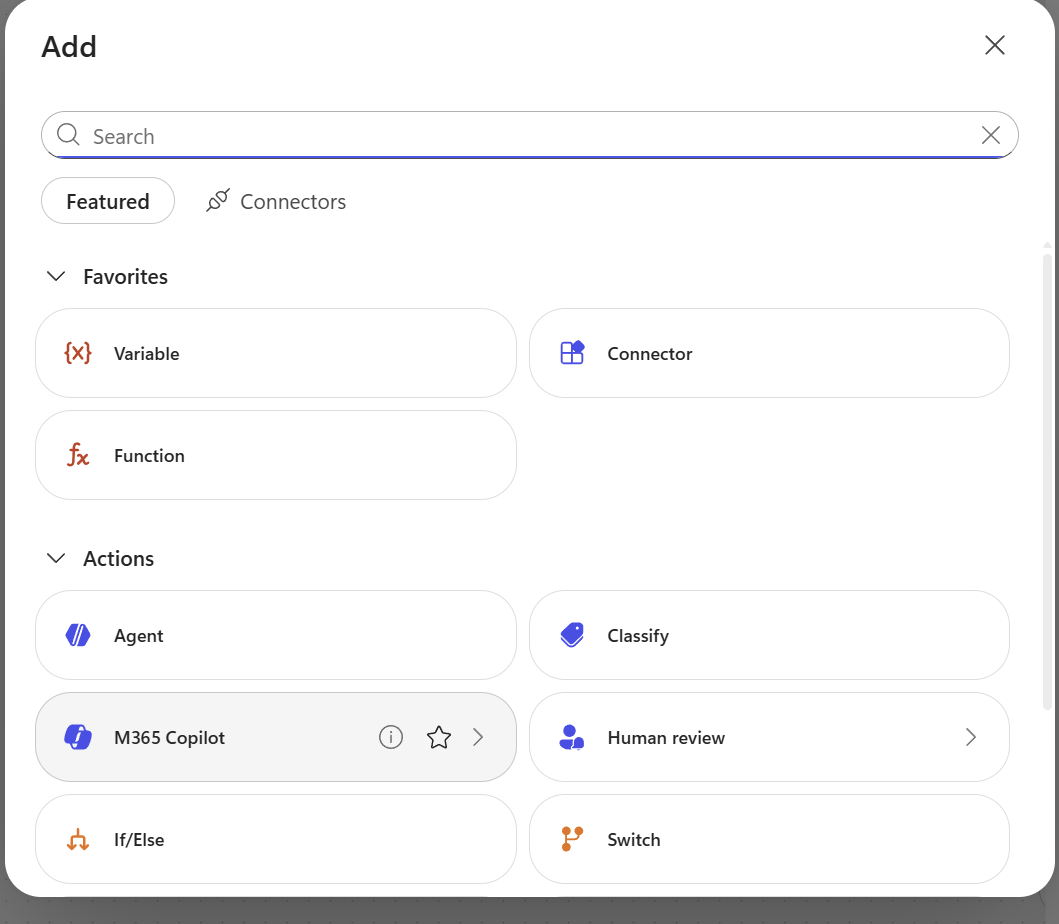
Add node: M365 Copilot (or “Use Microsoft 365 Copilot”)
Node name: Prep (upper-right ··· → Rename)
Prompt:
You are a news scout. Your mission is to identify the 2 most important angles to investigate for "<TOPIC>" over the past 24 hours.

Current time (KST): <Current time>
Time range: the past 24 hours from now (KST)

Angles to consider (choose 2 that are most likely to have real news today):
- Product launches / updates
- Finance / earnings / stock-price movement news
- AI / model / Copilot announcements
- Partnerships / acquisitions / deals
- Executive appointments / leadership
- Regulation / legal / antitrust
- Major customer wins or churn

Output (plain text, no markdown headers, no JSON):
For each angle, write exactly one line in the following format:
ANGLE: <English angle name> | KO: <2-4 Korean search keywords, comma-separated> | WHY: <one sentence explaining why this should be watched today>

Examples:
ANGLE: AI announcements | KO: Microsoft AI, new Copilot features, GPT integration | WHY: Recent Build conference just ended, so follow-up announcements are likely
ANGLE: Partnerships | KO: Microsoft partnerships, cloud agreements | WHY: It is large-deal announcement season near quarter end

Return only 3–5 lines. No preface. No closing remarks.
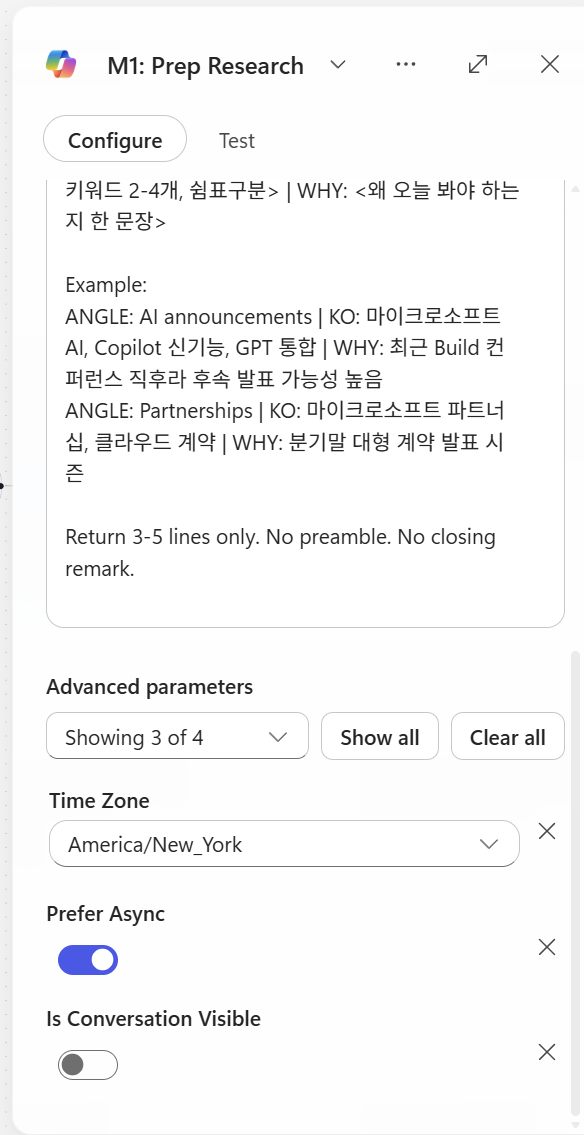
At this point, we recommend turning on Prefer async.
4.3 Researcher node
Add node: M365 Copilot Node
- Then select Researcher in the Agent property
Node name: Researcher
Settings:
| Option | Value |
|---|---|
| Prefer Async | ON (required) |
| Agent | Researcher |
Prefer async: an option to turn on when an action takes more than 2 minutes. If the toggle is OFF, it times out at around 120 seconds; if ON, it waits to completion through background polling.
→ Always turn this ON for the Researcher node (deep search takes 30 seconds to 6 minutes)
Prompt (copy and paste yourself):
You are a news researcher operating in autonomous mode.
Do not ask clarifying questions. Execute and return the results.

Topic (TOPIC): <TOPIC>

Angles to investigate (passed from Prep): <Prep Output>

Time range (required, KST):
  Start: <Start time>
  End: <End time>
  Treat "today" / "yesterday" based on KST.

Task:
 Find 2–3 articles for each angle. (Use the keywords for each angle.)
Total target: 6–8 articles.
Stop searching when you have 6–8 high-quality articles. Do not exceed this.

Preferred sources (include other sources too if relevant):
- Korea: ETNews, ZDNet Korea, Digital Times, Digital Daily, Bloter, Korea Economic Daily IT, Maeil Business IT, ChosunBiz
- Global: Reuters, Bloomberg, AP, Financial Times, WSJ, CNBC, The Verge, Ars Technica, TechCrunch
- Company official website

Output format (markdown, one block per article):

## ANGLE: <angle name>

### Article 1
- Headline: <original headline>
- URL: <full https URL>
- Source: <Tier-X source name>
- Published (KST): YYYY-MM-DD HH:mm
- Summary (Korean, 2-3 sentences): <Korean summary>
- Key facts: <numbers/dates/names, if any>

### Article 2
...

(Repeat for each angle)

Self-check before output:
1. Does every article have a full https:// URL? If not, remove it.
2. Is every publication date within the time range? If not, remove it.
3. Is the source Tier 1–4? If not, remove it.
4. Have you removed all opinions/rumors/marketing?
5. Are there no duplicate URLs?

If there are fewer than 3 verified articles in total, output only:
NO_RESULTS

Start output immediately. No preface.
4.4 Critic — Agent node
Add node: Agent (inline Agent node)
Node name: Critic
Prefer Async: Off
4.4.1 Instructions
You are a news validation critic. Do not add or rewrite information.
Only filter and structure it.

Input (passed from Researcher):
{outputs('m365Copilot-7998626b-2486-41f1-b762-a55d6711a431')?['body/response']}

Current time (KST): {convertFromUtc(utcNow(), 'Korea Standard Time', 'yyyy-MM-dd HH:mm')}
Time range (KST): from {formatDateTime(addDays(convertFromUtc(utcNow(), 'Korea Standard Time'), -1), 'yyyy-MM-dd HH:mm')} to {convertFromUtc(utcNow(), 'Korea Standard Time', 'yyyy-MM-dd HH:mm')}

Validation rules (only these two — lenient; pass by default):
  R1. URL exists and starts with http:// or https://
  R2. Published date is within the time range above (KST)
If the published date is missing or ambiguous, pass the article (do not reject it).
Reject only when you can clearly confirm that the date is outside the range.

Do not reject for any other reason. Specifically:
Do not judge source quality, opinion vs. news, duplication, or relevance.
Do not reject because it "looks like a blog" or "source tier cannot be verified."
When in doubt → pass.

Actions:
Passed articles → "validated_articles" (keep all Researcher fields;
    if a field is missing, use the empty string "")
Rejected articles → in "rejected", include rule_failed (R1 or R2) + a short reason
Calculate _meta counts

Confidence score (_meta.confidence, 0.0–1.0):
  passed / in_count
If passed == 0 → confidence = 0
If passed >= 5 → set warning = "" (empty value)
If passed < 2 → set warning = "low_yield"

Return only JSON that matches the schema. No additional explanation.
4.4.2 Output → Structured output (JSON Schema)
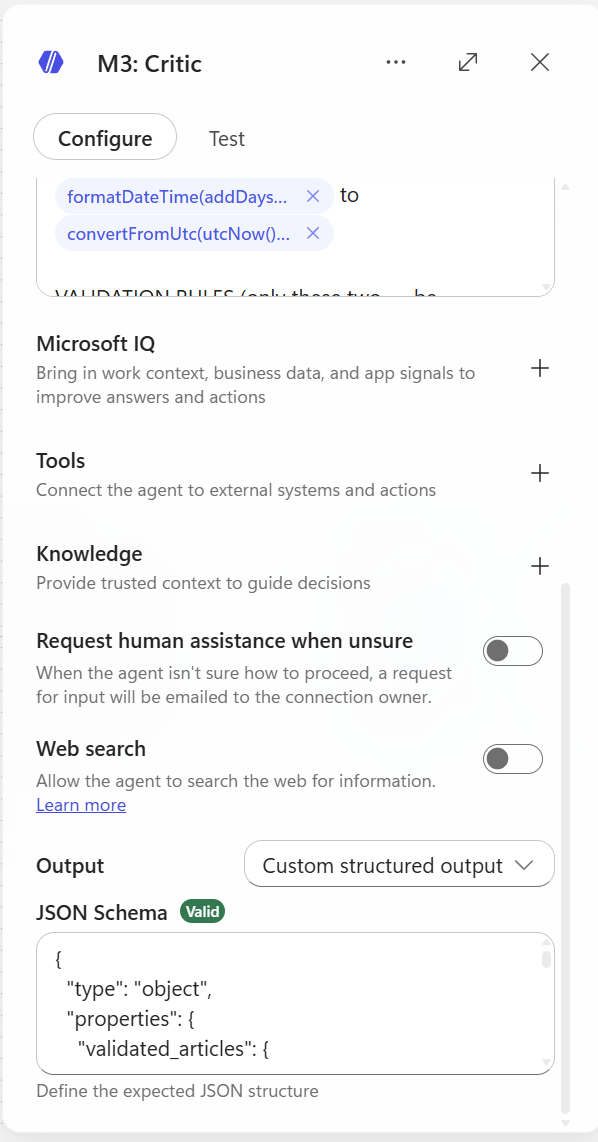
In the top UI Output dropdown, select Structured output → paste the JSON schema:
{
  "type": "object",
  "properties": {
    "validated_articles": {
      "type": "array",
      "items": {
        "type": "object",
        "properties": {
          "headline": {"type": "string"},
          "url": {"type": "string"},
          "source": {"type": "string"},
          "source_tier": {"type": "integer"},
          "published_kst": {"type": "string"},
          "summary_kr": {"type": "string"},
          "key_facts": {"type": "string"},
          "angle": {"type": "string"}
        },
        "required": ["headline", "url", "source", "source_tier", "published_kst", "summary_kr", "key_facts", "angle"],
        "additionalProperties": false
      }
    },
    "rejected": {
      "type": "array",
      "items": {
        "type": "object",
        "properties": {
          "headline": {"type": "string"},
          "rule_failed": {"type": "string"},
          "reason": {"type": "string"}
        },
        "required": ["headline", "rule_failed", "reason"],
        "additionalProperties": false
      }
    },
    "meta": {
      "type": "object",
      "properties": {
        "in_count": {"type": "integer"},
        "passed": {"type": "integer"},
        "rejected_count": {"type": "integer"},
        "confidence": {"type": "number"},
        "warning": {"type": "string"}
      },
      "required": ["in_count", "passed", "rejected_count", "confidence", "warning"],
      "additionalProperties": false
    }
  },
  "required": ["validated_articles", "rejected", "meta"],
  "additionalProperties": false
}
4.5 Analyst — Agent node (Agent: Analyst)
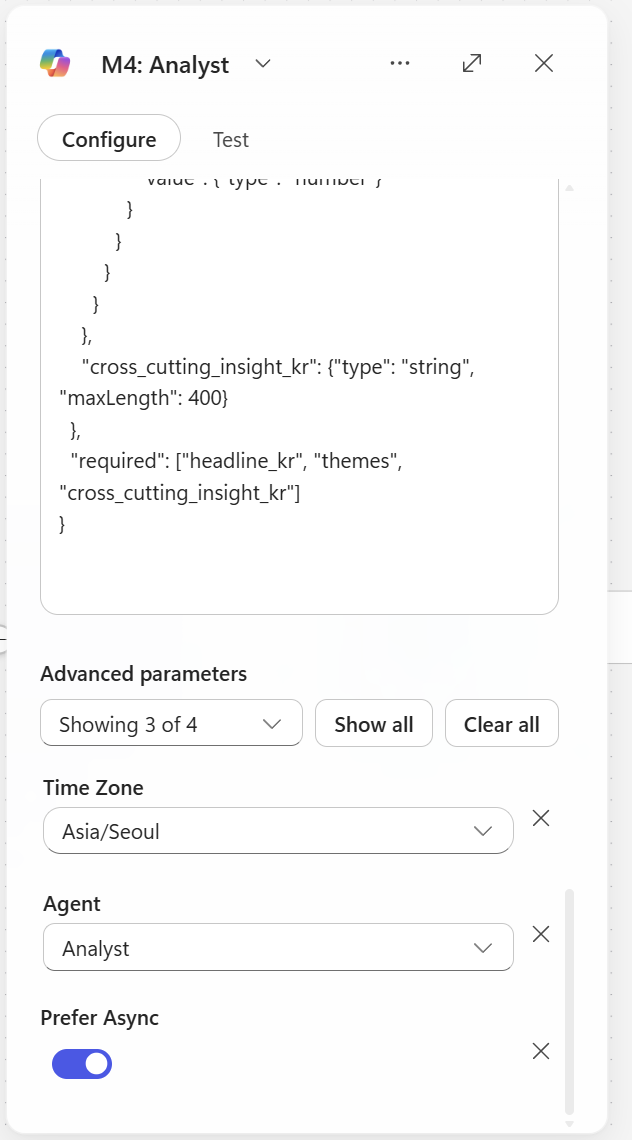
Add node: M365 Copilot
Node name: Analyst
prefer Async: On
Agent: Analyst
4.5.1 Instructions
You are a senior business analyst. Convert verified news articles
into a structured executive brief.

Input (verified article JSON): <Critic Output>

Topic (TOPIC): <TOPIC>

Date (KST): <Date>

Tasks:
1. Group articles into 2–4 themes (for example, "AI strategy," "financial performance,"
   "partnership expansion"). Each theme must cite the article URLs that support it.
2. Extract KPI cards: specific numbers mentioned
   (revenue, growth rate %, user count, deal size, dates).
3. Generate one cross-cutting insight (Korean, 2–3 sentences)
   — what these news items collectively suggest about the company today.
4. If the numbers allow it, suggest one simple chart
   (bar/line/none). Otherwise, chart_type = "none".

Strict rules (self-check before output):
  S1. Every fact in the output must exist in input validated_articles.
      No fabrication.
  S2. Every KPI must cite the input source_url.
  S3. No speculation. If unclear, omit it.
  S4. If the input is empty or null, leave themes/kpi_cards empty and
      return headline_kr = "There is not enough verified news today."
  S5. All text is Korean. Be concise. Use an executive tone.

Return only JSON that matches the schema.

{
  "type": "object",
  "properties": {
    "headline_kr": {"type": "string", "maxLength": 100},
    "subhead_kr": {"type": "string", "maxLength": 200},
    "themes": {
      "type": "array",
      "items": {
        "type": "object",
        "properties": {
          "theme_kr": {"type": "string"},
          "summary_kr": {"type": "string", "maxLength": 300},
          "supporting_urls": {"type": "array", "items": {"type": "string"}}
        },
        "required": ["theme_kr", "summary_kr", "supporting_urls"]
      }
    },
    "kpi_cards": {
      "type": "array",
      "items": {
        "type": "object",
        "properties": {
          "label_kr": {"type": "string"},
          "value": {"type": "string"},
          "context_kr": {"type": "string"},
          "source_url": {"type": "string"}
        },
        "required": ["label_kr", "value", "source_url"]
      }
    },
    "chart": {
      "type": "object",
      "properties": {
        "chart_type": {"type": "string", "enum": ["bar", "line", "none"]},
        "title_kr": {"type": "string"},
        "data_points": {
          "type": "array",
          "items": {
            "type": "object",
            "properties": {
              "label": {"type": "string"},
              "value": {"type": "number"}
            }
          }
        }
      }
    },
    "cross_cutting_insight_kr": {"type": "string", "maxLength": 400}
  },
  "required": ["headline_kr", "themes", "cross_cutting_insight_kr"]
}
4.6 Composer — Agent node
Add node: Agent
Node name: Composer
4.6.1 Instructions
You are a presentation-layer composer. Your only mission is to render the input
data as HTML in the style of a premium consulting report.
Do not summarize, shorten, paraphrase, or omit anything.

Input 1 — Analyst brief (full JSON):
{outputs('m365Copilot-d649e3c3-fc5a-4515-8c68-d8799d3be674')?['body/response']}
Input 2 — verified articles (full JSON array):
{body('agent-38b44900-e17b-41bd-a4bb-46c7be9ebdaf')?['structuredOutput/validated_articles']}

Topic (TOPIC): {triggerBody()?['text']}
Date (KST): {convertFromUtc(utcNow(), 'Korea Standard Time', 'yyyy-MM-dd')}

══════════════════════════════════════════════════════
Content rules (important — do not modify input text)
══════════════════════════════════════════════════════
Render every field from Input 1: headline_kr, subhead_kr, all themes,
  all kpi_cards, cross_cutting_insight_kr.
Render every article from Input 2 (no count limit).
Use the exact input text. No paraphrasing. No shortening.
Do not truncate with "...". Do not re-summarize summaries.
If a field is empty or null, just skip that element (do not write "N/A").

══════════════════════════════════════════════════════
Output format rules (important)
══════════════════════════════════════════════════════
Output only raw HTML.
Start: <div
End: </div>
No JSON. No markdown code fence. No additional explanation.
Pure HTML that can be pasted directly into an email body.

══════════════════════════════════════════════════════
Design system — McKinsey / BCG consulting-report aesthetic
══════════════════════════════════════════════════════
Color palette:
Background: #ffffff
Primary text: #1a1a1a (near black)
Secondary text: #595959
Subtle text / meta: #8c8c8c
Accent (one color only): #003a70 (deep navy)
Hairline rule: #d9d9d9
Highlight bg: #f5f5f0 (warm off-white for insight box)

Typography:
Headings: 'Georgia', 'Cambria', serif (consulting feel)
Body: 'Segoe UI', 'Helvetica Neue', Arial, sans-serif
Article meta: 11-12px, color:#8c8c8c
Generous line-height: 1.6
Letter-spacing on H1: 0.5px

Spacing:
Container max-width: 720px, centered
Section spacing: 40px vertical
Generous padding inside containers: 24-32px

Visual elements (restrained):
Thin (1px) hairline rules under section headings
Small uppercase section labels (letter-spacing:2px, font-size:11px)
Numbered sections (01. / 02. / 03.) for themes
KPI numbers: large (32px), serif, color:#003a70
No emoji. No shadows. No gradients. No border-radius > 2px.
No buttons. No CTA. Only a clean editorial layout.

══════════════════════════════════════════════════════
HTML structure (follow this skeleton and render all input data)
══════════════════════════════════════════════════════
<div style="font-family:'Segoe UI','Helvetica Neue',Arial,sans-serif;
            max-width:720px;margin:0 auto;padding:40px 32px;
            color:#1a1a1a;line-height:1.6;background:#ffffff;">

  <!-- Masthead -->
  <div style="border-bottom:2px solid #1a1a1a;padding-bottom:16px;
              margin-bottom:32px;">
    <div style="font-size:11px;letter-spacing:2px;color:#8c8c8c;
                text-transform:uppercase;margin-bottom:8px;">
      Daily Brief · {DATE} · KST
    </div>
    <h1 style="font-family:Georgia,Cambria,serif;font-size:32px;
               font-weight:normal;letter-spacing:0.5px;margin:0;
               color:#1a1a1a;">
      {TOPIC}
    </h1>
  </div>

  <!-- Lead (Analyst headline + subhead) -->
  <div style="margin-bottom:40px;">
    <p style="font-family:Georgia,Cambria,serif;font-size:20px;
              line-height:1.5;margin:0 0 12px 0;color:#1a1a1a;">
      {INPUT1.headline_kr}
    </p>
    <p style="font-size:14px;color:#595959;margin:0;">
      {INPUT1.subhead_kr}
    </p>
  </div>

  <!-- KPI Strip (render ALL kpi_cards from INPUT 1) -->
  <!-- Skip this whole block if kpi_cards is empty -->
  <div style="border-top:1px solid #d9d9d9;border-bottom:1px solid #d9d9d9;
              padding:24px 0;margin-bottom:40px;
              display:flex;gap:32px;flex-wrap:wrap;">
    <!-- For each kpi in INPUT1.kpi_cards: -->
    <div style="flex:1;min-width:160px;">
      <div style="font-size:11px;letter-spacing:1.5px;color:#8c8c8c;
                  text-transform:uppercase;margin-bottom:6px;">
        {kpi.label_kr}
      </div>
      <div style="font-family:Georgia,Cambria,serif;font-size:32px;
                  color:#003a70;line-height:1;margin-bottom:6px;">
        {kpi.value}
      </div>
      <div style="font-size:12px;color:#595959;">
        {kpi.context_kr}
      </div>
    </div>
  </div>

  <!-- Themes (render ALL from INPUT 1, numbered 01./02./03./...) -->
  <div style="margin-bottom:48px;">
    <div style="font-size:11px;letter-spacing:2px;color:#8c8c8c;
                text-transform:uppercase;border-bottom:1px solid #d9d9d9;
                padding-bottom:8px;margin-bottom:24px;">
      Key Themes
    </div>
    <!-- For each theme, render the FULL summary_kr text: -->
    <div style="margin-bottom:32px;">
      <div style="display:flex;gap:16px;align-items:baseline;">
        <span style="font-family:Georgia,Cambria,serif;font-size:14px;
                     color:#003a70;letter-spacing:1px;">01.</span>
        <div style="flex:1;">
          <h3 style="font-family:Georgia,Cambria,serif;font-size:18px;
                     font-weight:normal;margin:0 0 10px 0;color:#1a1a1a;">
            {theme.theme_kr}
          </h3>
          <p style="font-size:14px;color:#1a1a1a;margin:0 0 10px 0;">
            {theme.summary_kr}
          </p>
          <div style="font-size:11px;color:#8c8c8c;">
            Sources:
            <a href="{theme.supporting_urls[0]}"
               style="color:#003a70;text-decoration:none;
                      border-bottom:1px solid #003a70;">link</a>
            · <a href="{theme.supporting_urls[1]}"
                 style="color:#003a70;text-decoration:none;
                        border-bottom:1px solid #003a70;">link</a>
          </div>
        </div>
      </div>
    </div>
    <!-- Repeat for 02., 03., ... using INPUT1.themes -->
  </div>

  <!-- Cross-cutting insight (INPUT 1) -->
  <div style="background:#f5f5f0;padding:32px;margin-bottom:48px;
              border-left:3px solid #003a70;">
    <div style="font-size:11px;letter-spacing:2px;color:#8c8c8c;
                text-transform:uppercase;margin-bottom:12px;">
      Cross-Cutting Insight
    </div>
    <p style="font-family:Georgia,Cambria,serif;font-size:16px;
              line-height:1.7;margin:0;color:#1a1a1a;">
      {INPUT1.cross_cutting_insight_kr}
    </p>
  </div>

  <!-- Source Articles (render ALL articles from INPUT 2) -->
  <div style="margin-bottom:40px;">
    <div style="font-size:11px;letter-spacing:2px;color:#8c8c8c;
                text-transform:uppercase;border-bottom:1px solid #d9d9d9;
                padding-bottom:8px;margin-bottom:20px;">
      Source Articles ({count of INPUT 2})
    </div>
    <!-- For EACH article in INPUT 2 (NO LIMIT): -->
    <div style="padding:16px 0;border-bottom:1px solid #d9d9d9;">
      <a href="{article.url}"
         style="font-family:Georgia,Cambria,serif;font-size:16px;
                color:#1a1a1a;text-decoration:none;
                display:block;margin-bottom:6px;">
        {article.headline}
      </a>
      <p style="font-size:13px;color:#1a1a1a;margin:6px 0;">
        {article.summary_kr}
      </p>
      <div style="font-size:11px;color:#8c8c8c;letter-spacing:0.5px;">
        {article.source} · {article.published_kst} ·
        {article.angle}
      </div>
    </div>
    <!-- Repeat for ALL articles in INPUT 2 -->
  </div>

  <!-- Footer -->
  <div style="border-top:1px solid #d9d9d9;padding-top:16px;
              font-size:11px;color:#8c8c8c;letter-spacing:0.5px;">
    Auto-generated by DailyBriefWorkflow ·
    @{convertFromUtc(utcNow(), 'Korea Standard Time', 'yyyy-MM-dd HH:mm')} KST
  </div>

</div>

══════════════════════════════════════════════════════
Final self-check before output
══════════════════════════════════════════════════════
Every <a href="..."> URL exists in Input 1 or Input 2.
No <script>, <iframe>, <style>, <link>, <form>, or <button> tags.
Inline CSS only. No class attributes. No external resources.
Pure HTML. No JSON. No markdown fence. No additional explanation.
Starts with <div and ends with </div>.
All themes from Input 1 are rendered (check count).
All articles from Input 2 are rendered (no truncation, no "...").
All kpi_cards from Input 1 are rendered.
No paraphrased text — use input strings exactly as-is.

Start HTML output immediately.
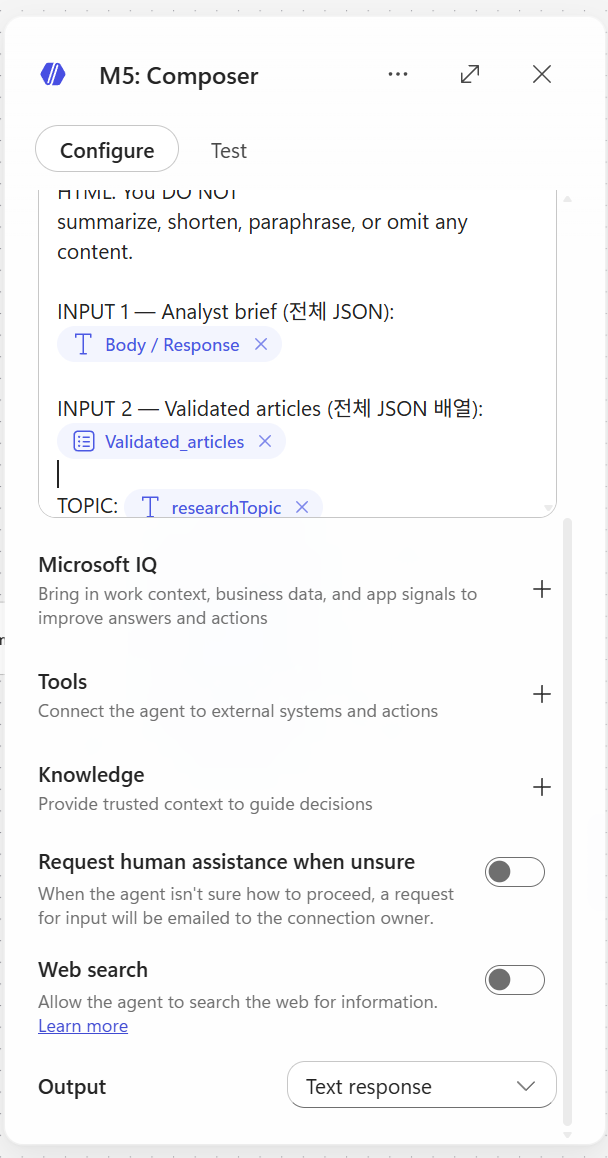
Output — one String
4.7 SharePoint — Create item
Add node: SharePoint - Create item
Settings:
| Field | Value |
|---|---|
| Site Address | (select your SharePoint site) |
| List Name | BriefArchive |
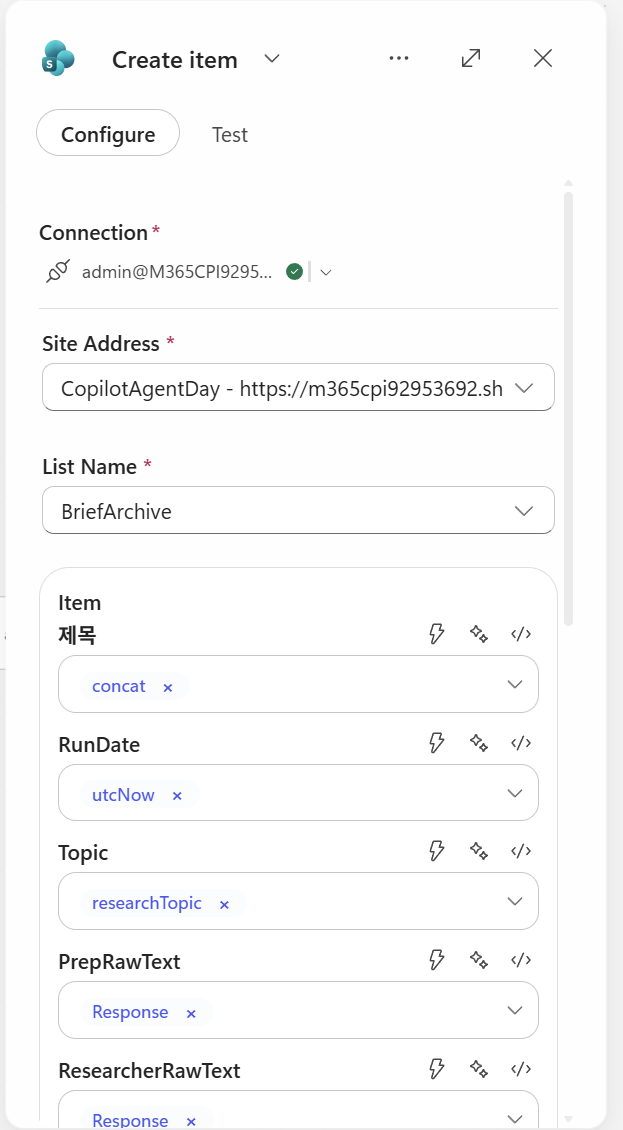
Column mapping (enter Expressions directly, or insert some fields directly as dynamic content):
| Column | Expression |
|---|---|
| Title | @{concat(triggerOutputs()?['body/text'], ' - ', convertFromUtc(utcNow(), 'Korea Standard Time', 'yyyy-MM-dd HH:mm'))} |
| RunDate | @{utcNow()} |
| Topic | @{triggerOutputs()?['body/text']} |
| PrepRawText | @{outputs('Prep')?['body/text']} |
| ResearcherRawText | @{outputs('Researcher')?['body/text']} |
| ValidatedJson | @{string(outputs('Critic')?['body'])} |
| AnalystJson | @{string(outputs('Analyst')?['body'])} |
| FinalHtml | @{outputs('Composer')?['body/html_body']} |
| Status | @{if(equals(body('agent-38b44900-e17b-41bd-a4bb-46c7be9ebdaf')?['structuredOutput/meta/warning'], 'low_yield'), 'low_yield', 'ok')} |
⚠️ Consistency between node names and expressions:
- The node name must be
Prepfor it to becomeoutputs('Prep')- If spaces or colons (
:) are included, it changes to an ID such asoutputs('m365Copilot-xxx'), making the expression messy- Use single English words for node names (Prep, Researcher, Critic, Analyst, Composer)
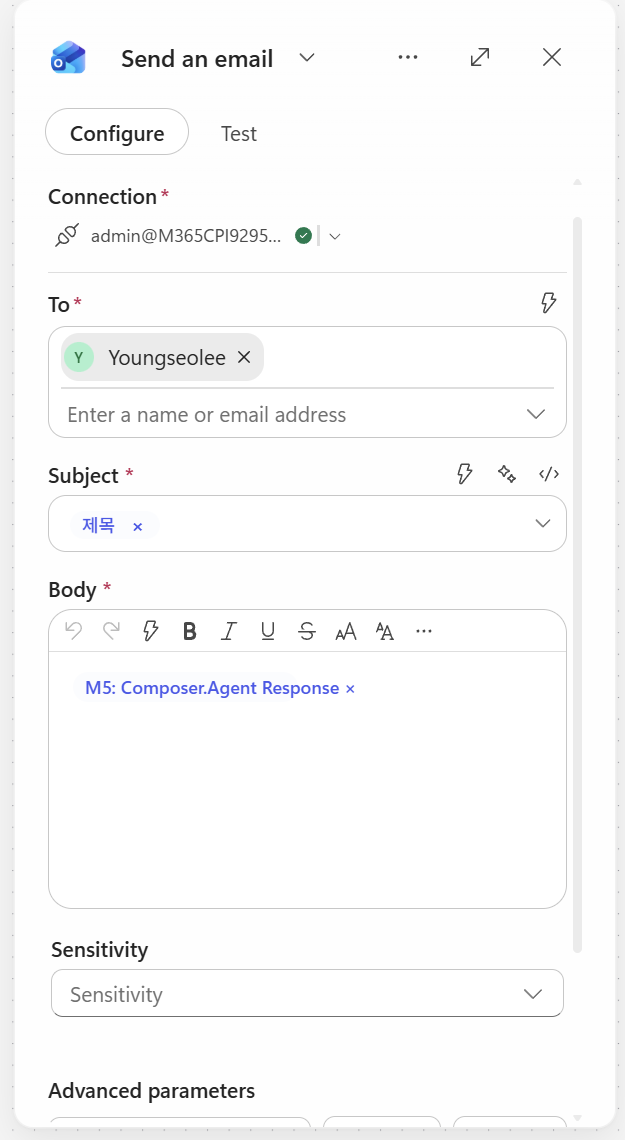
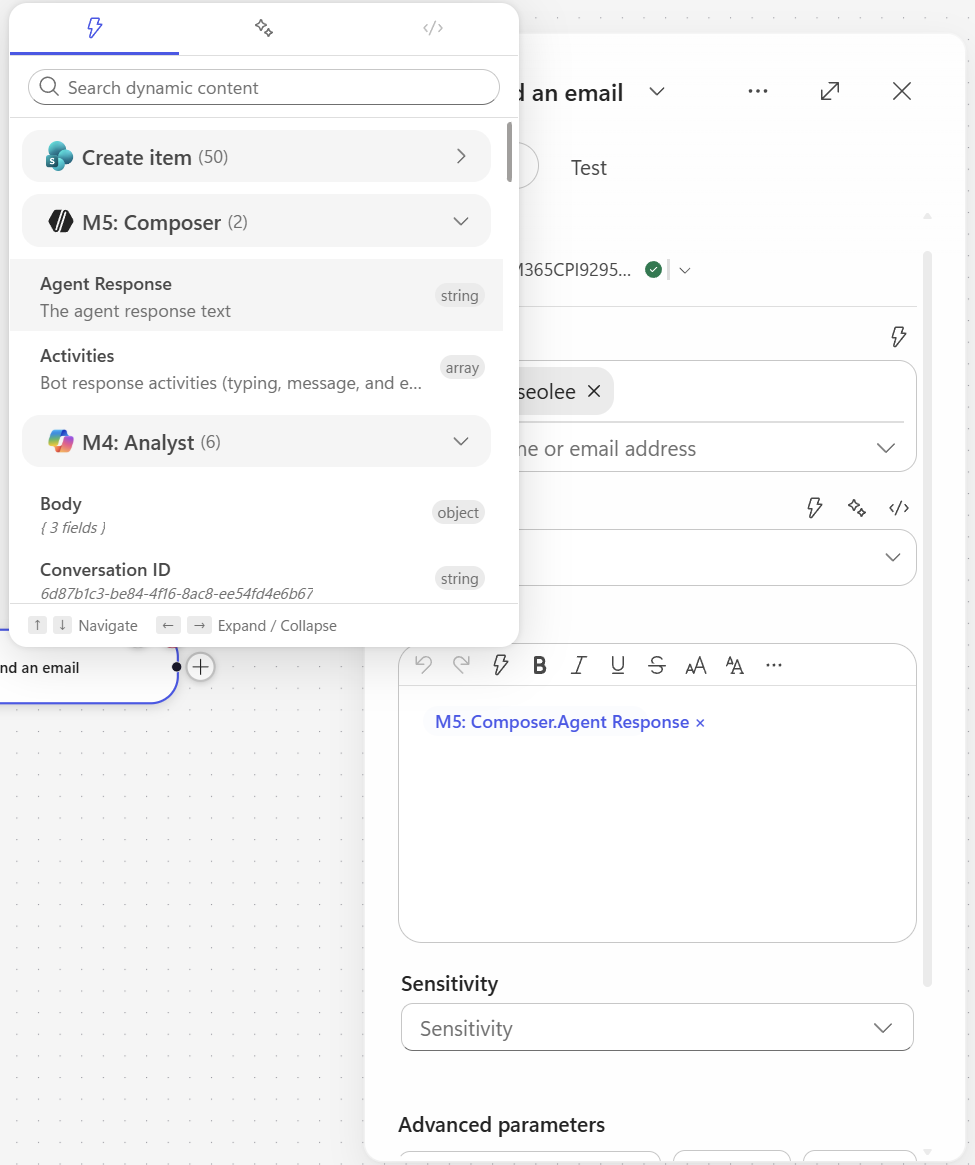
4.8 Send email V2
Add node: Outlook - Send an email (V2)
Settings:
| Field | Value |
|---|---|
| To | [your email address] |
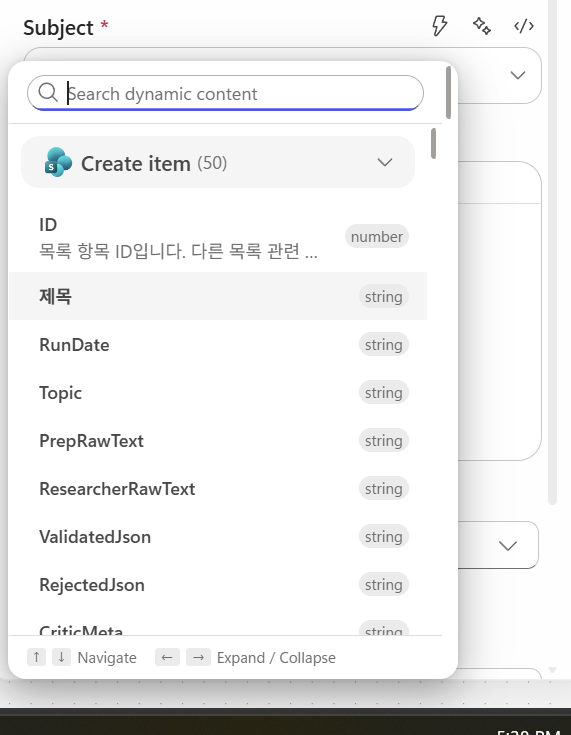
| Subject | {insert the SharePoint item's title dynamic content} |
| Body | {insert the Composer response dynamic content} |
5. Test and run
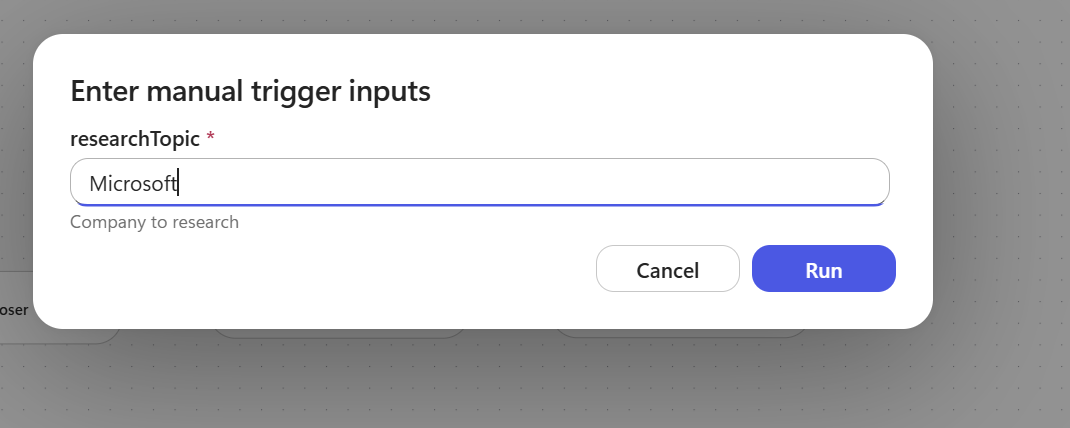
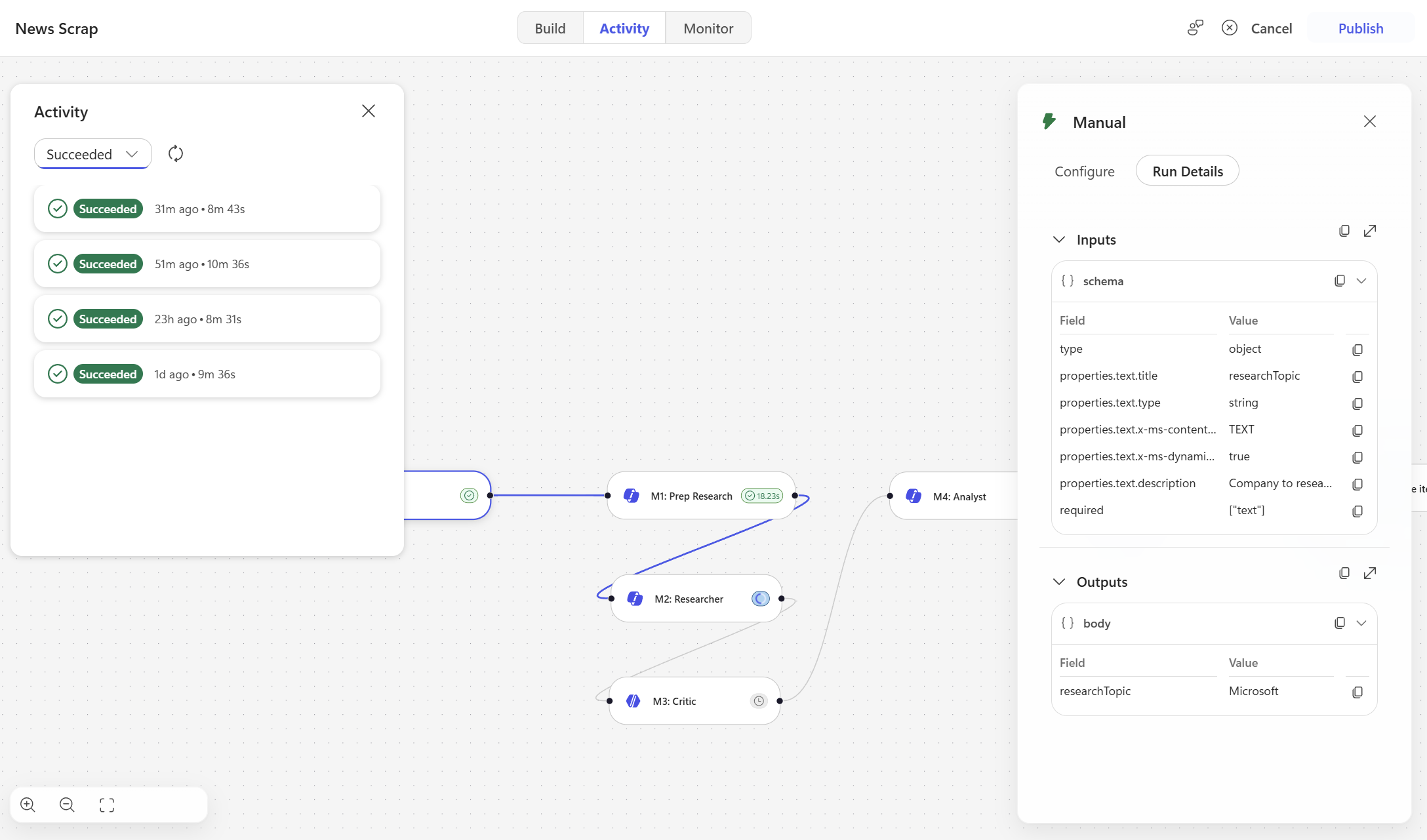
5.1 Save & Test
- Click Save in the upper-right corner
- Click the Test button → run manually
- Monitor the run (it is normal for Researcher to take 1–6 minutes)
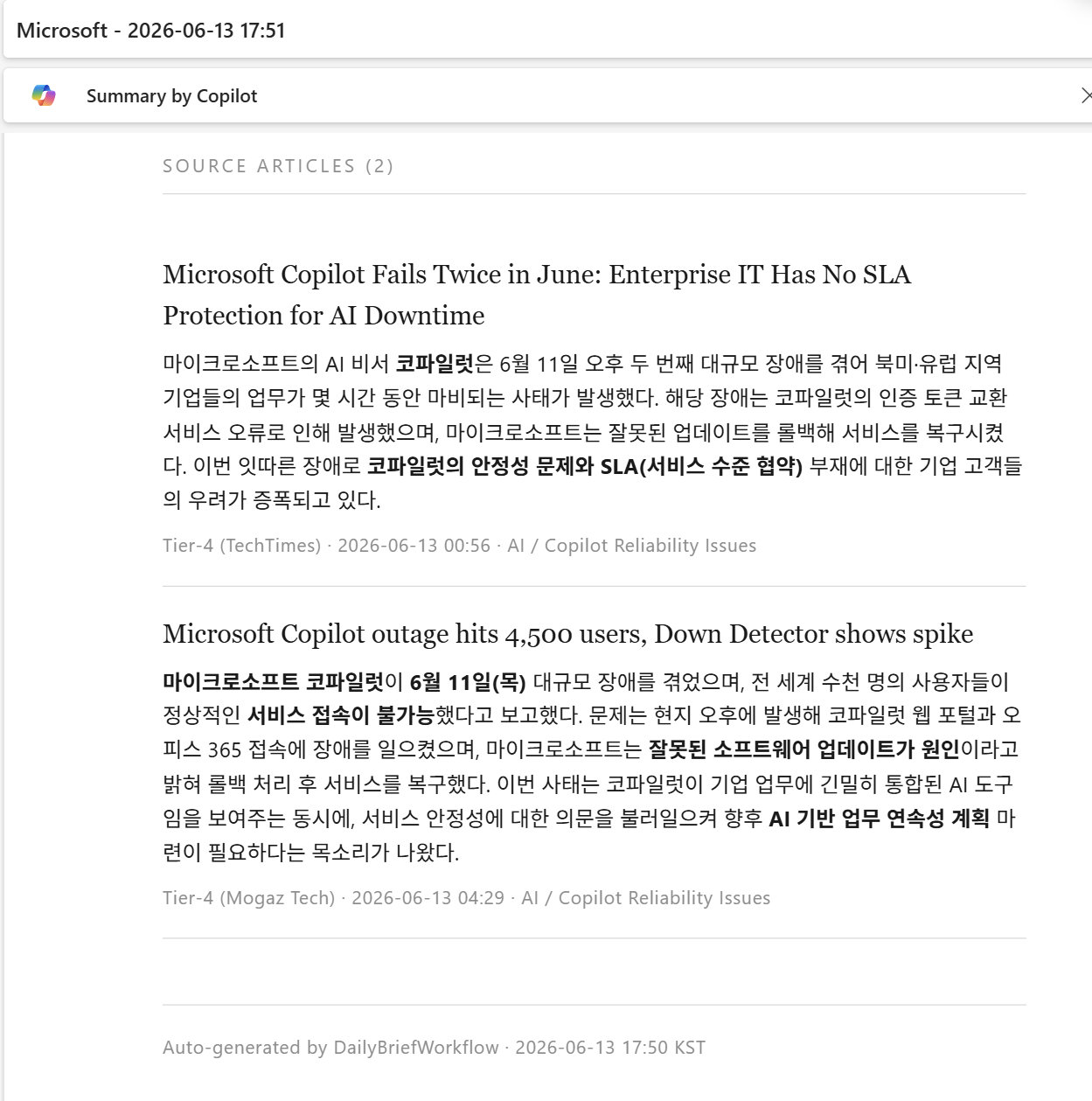
5.2 Result screenshots
Document version: v0.1 · Written on: 2026-06-13 · Original author: Youngseo Lee · Copilot Studio Hands-on. Translated article — based on Daily Brief Workflow (Korean) from Copilot Studio Hands-on.