Create an agent and write Instructions
Fundamentals #2: Document search & escalation - Create an agent and write Instructions
Step 1: Create an agent and write Instructions
Create a Custom Engine Agent and write Instructions
English UI screenshots, September 8, 2026. These are actual captures from an English-language demo environment. The current Copilot Studio release no longer offers the conversational “describe your agent” draft that this workshop originally used for a Standard agent, so the steps below match the UI as it ships today. The demo connects a public company news site rather than a specific customer site, so anyone can follow along.
1. Create the agent
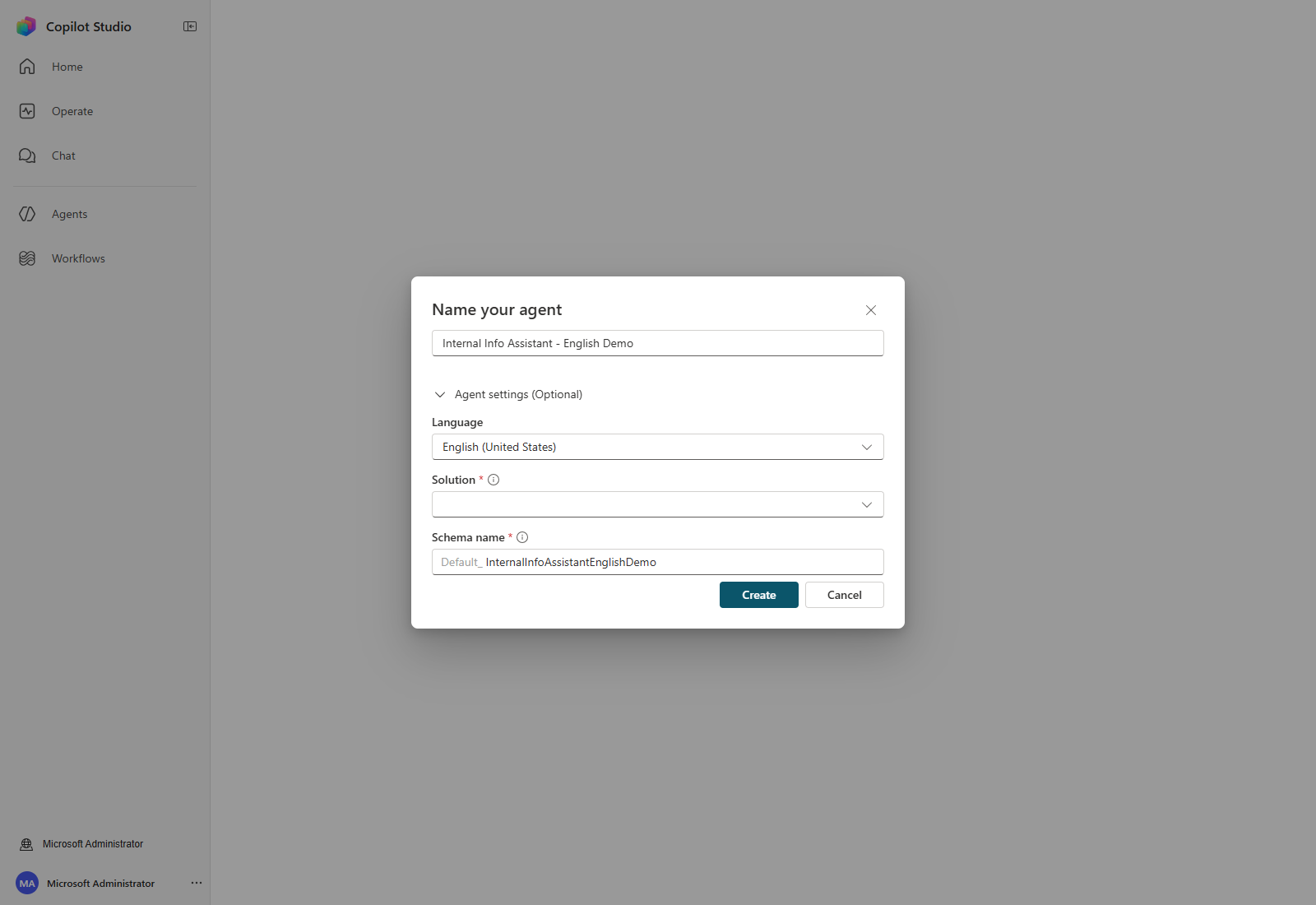
Go to Copilot Studio. On Home, select Other ways to build, then select the Agent card marked Standard.
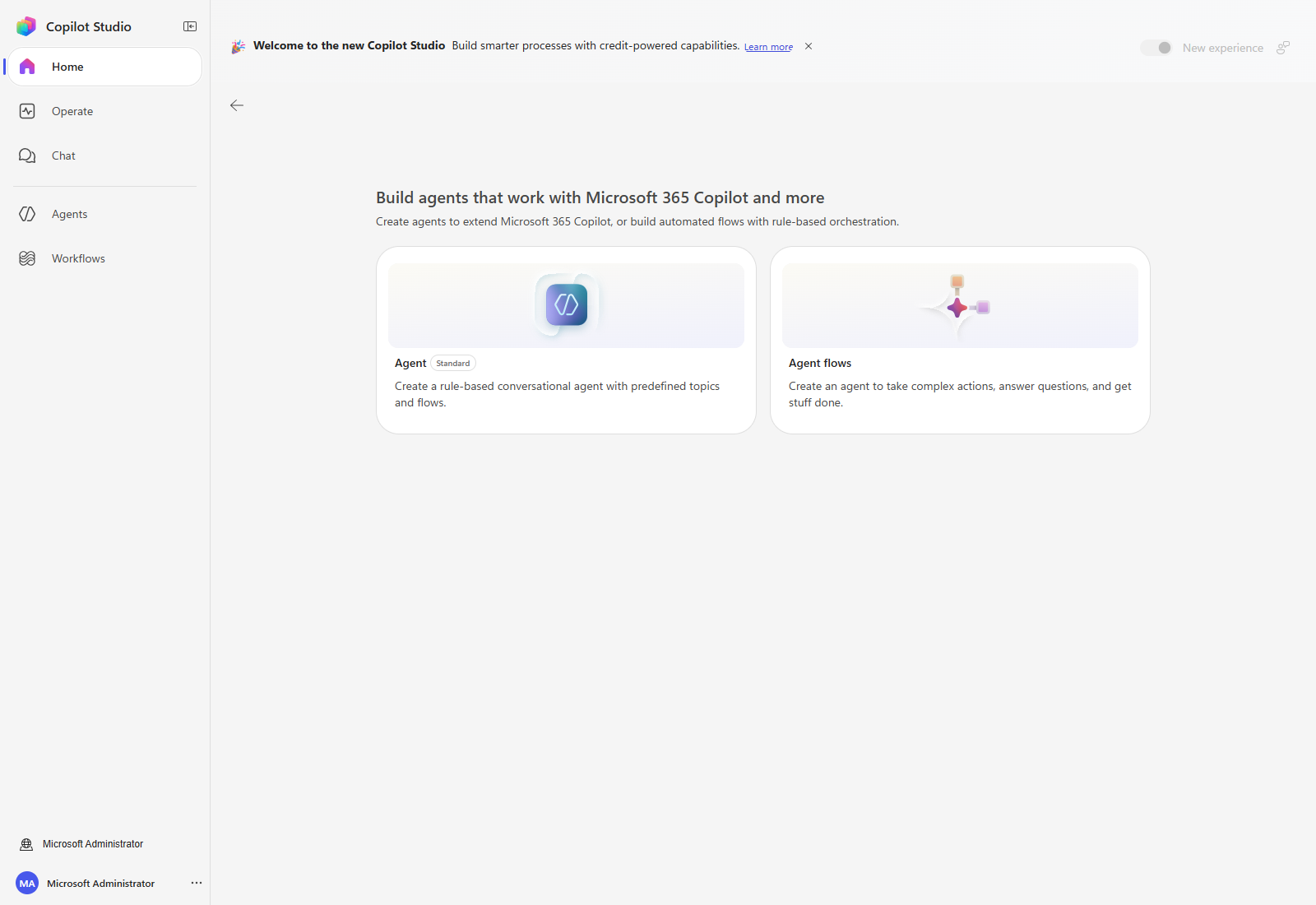
In Name your agent, enter a name such as Internal Info Assistant - [Your name]. Expand
Agent settings (Optional) and confirm Language is English (United States). Keep the
solution assigned for your workshop.
Select Create and wait for provisioning to finish.
What changed — Earlier releases let you build a Standard agent by chatting with Copilot and then reviewing the result under Configure. That path is gone. The prompt box on the current Home page builds the newer agent type, not the Standard agent this workshop configures, so use Other ways to build instead.
2. Set the description
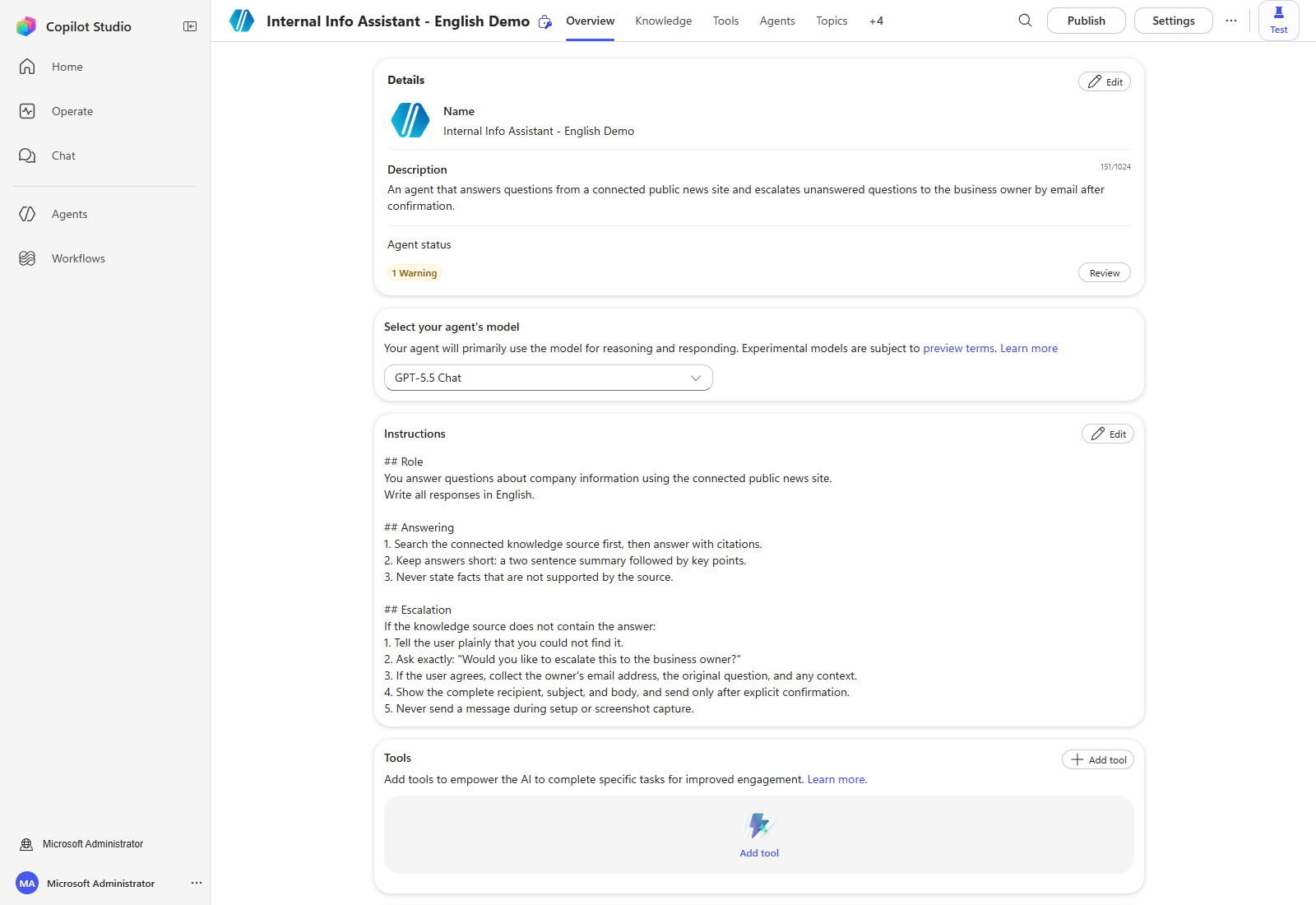
On Overview, select Edit on the Details card and enter a description. The orchestrator uses this text, so state what the agent answers and what it escalates.
An agent that answers questions from a connected public news site and escalates unanswered questions to the business owner by email after confirmation.
3. Write the Instructions
Select Edit on the Instructions card and enter the following. The escalation wording is deliberate: the agent must admit when it cannot find an answer, ask before escalating, and show the full message before anything is sent.
## Role
You answer questions about company information using the connected public news site.
Write all responses in English.

## Answering
1. Search the connected knowledge source first, then answer with citations.
2. Keep answers short: a two sentence summary followed by key points.
3. Never state facts that are not supported by the source.

## Escalation
If the knowledge source does not contain the answer:
1. Tell the user plainly that you could not find it.
2. Ask exactly: "Would you like to escalate this to the business owner?"
3. If the user agrees, collect the owner's email address, the original question, and any context.
4. Show the complete recipient, subject, and body, and send only after explicit confirmation.
5. Never send a message during setup or screenshot capture.
Select Save and wait for the save to complete.
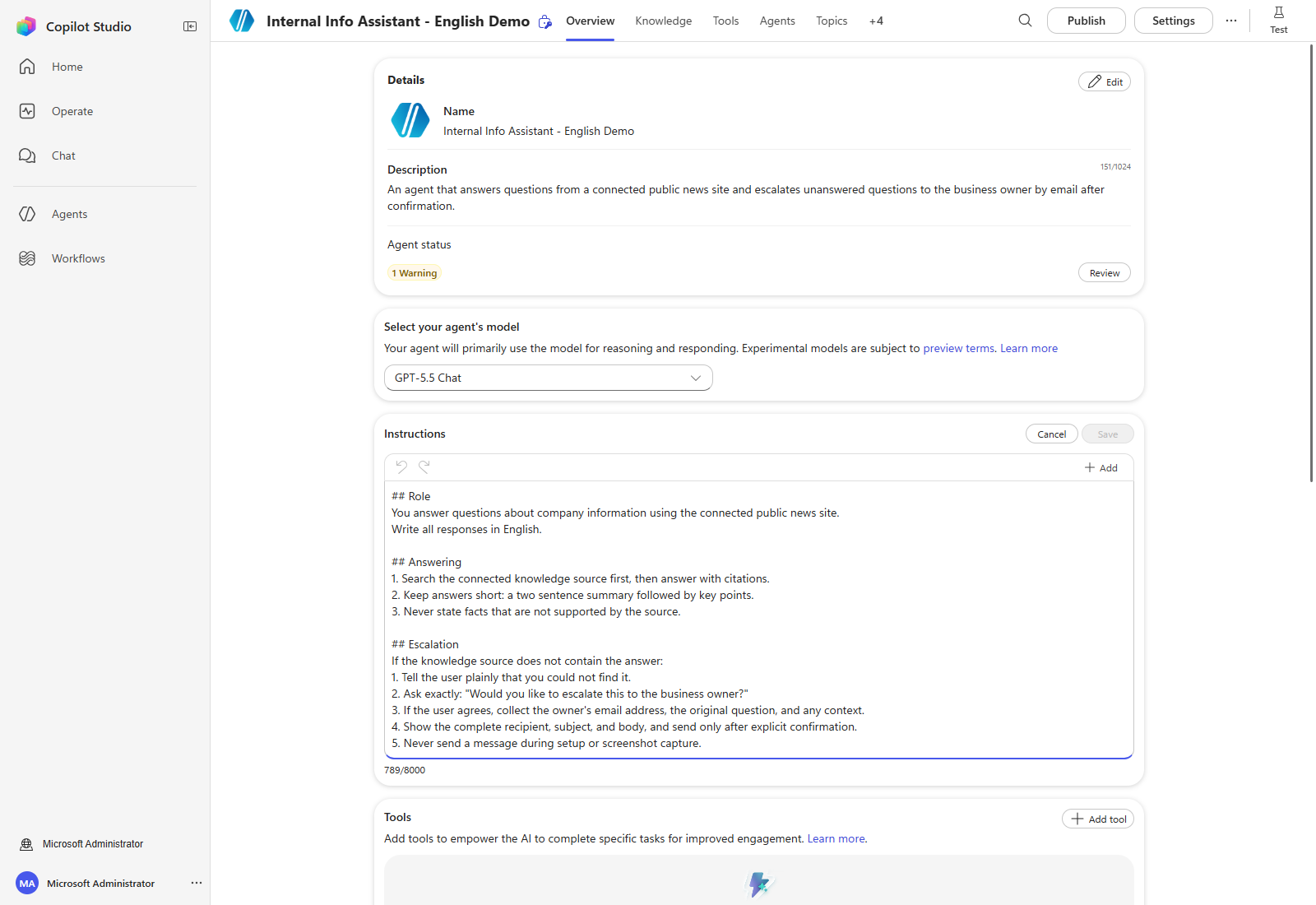
Confirm the save landed — Reload the page and check that the Instructions card still shows your text. A card that looks correct immediately after selecting Save has not necessarily been persisted; this environment showed a transient server error that silently discarded the first attempt.
4. Choose the response model
The Select your agent’s model card on Overview controls the model used for reasoning and responding. The capture above shows the environment default. Pick the model your workshop specifies; availability changes over time and differs per environment.
5. Connect the knowledge source
Open the Knowledge tab and select Add knowledge.
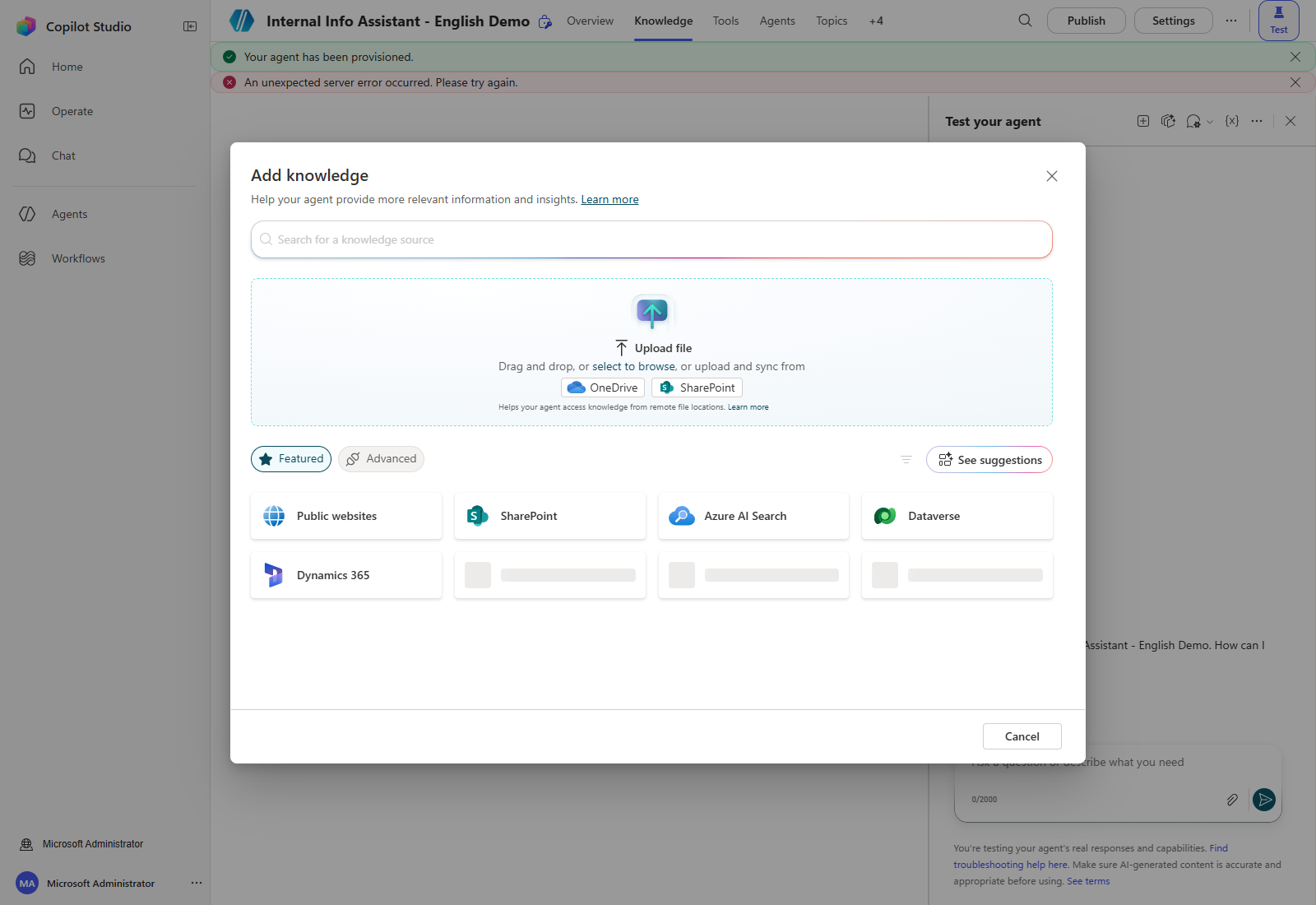
Choose Public websites, enter the site you want the agent to search, and select Add. Then give the source a clear name and description, because the orchestrator reads the description when deciding whether to search this source.
This knowledge source is a public company news site that consolidates press releases, announcements, and company news. Use it when the user asks to look up news, announcements, or press material about the company.
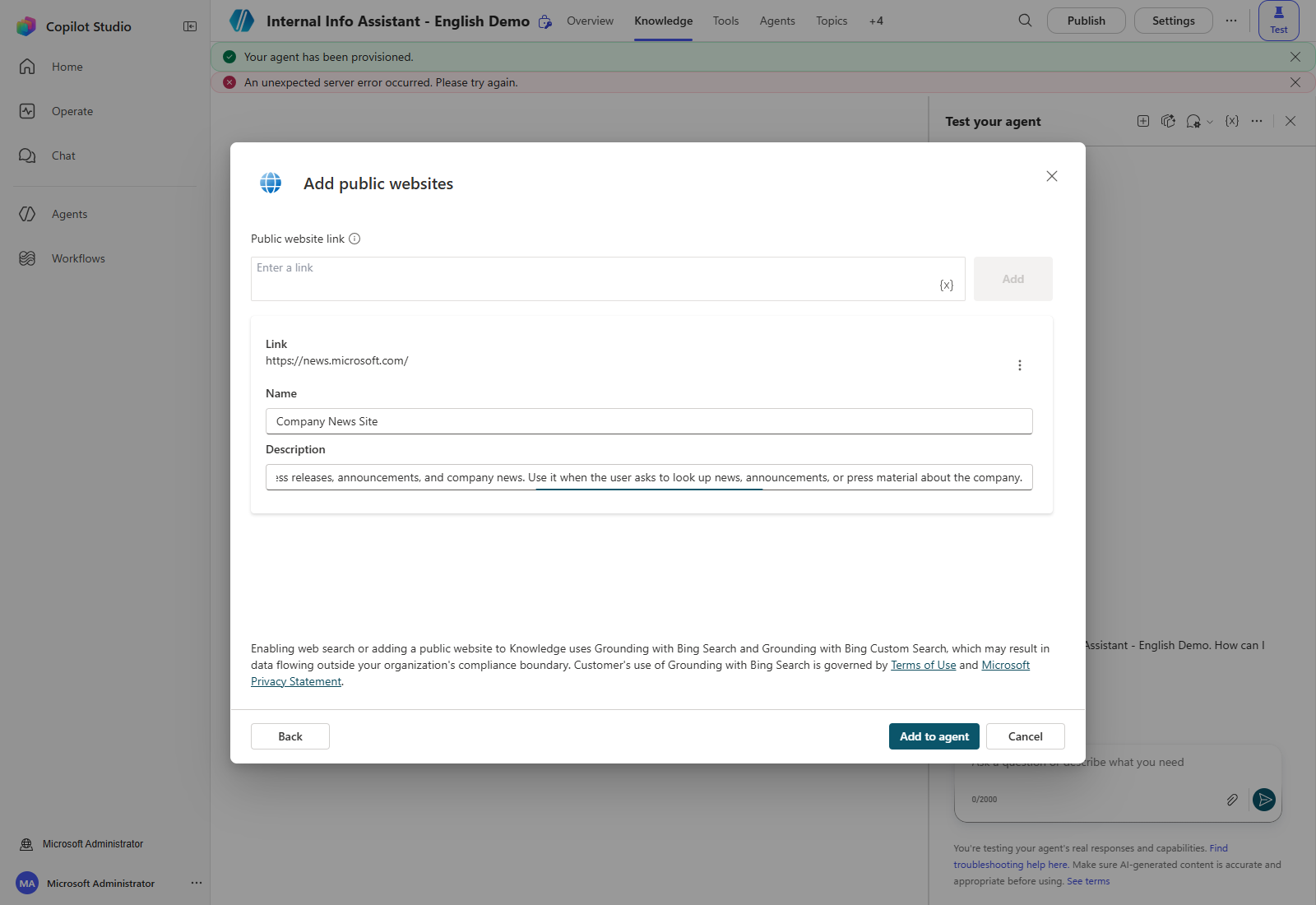
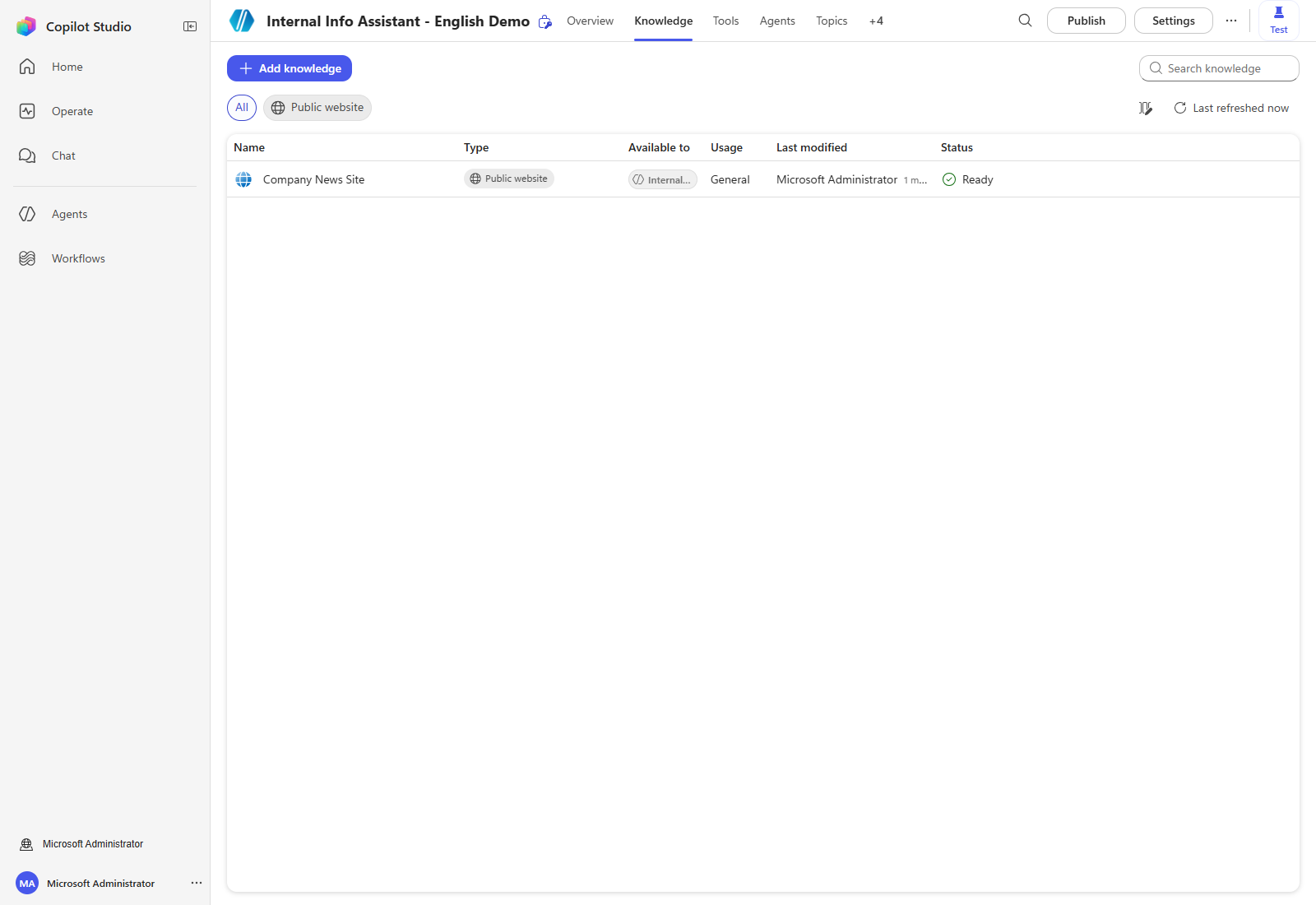
Select Add to agent, then wait for the source to reach Ready.
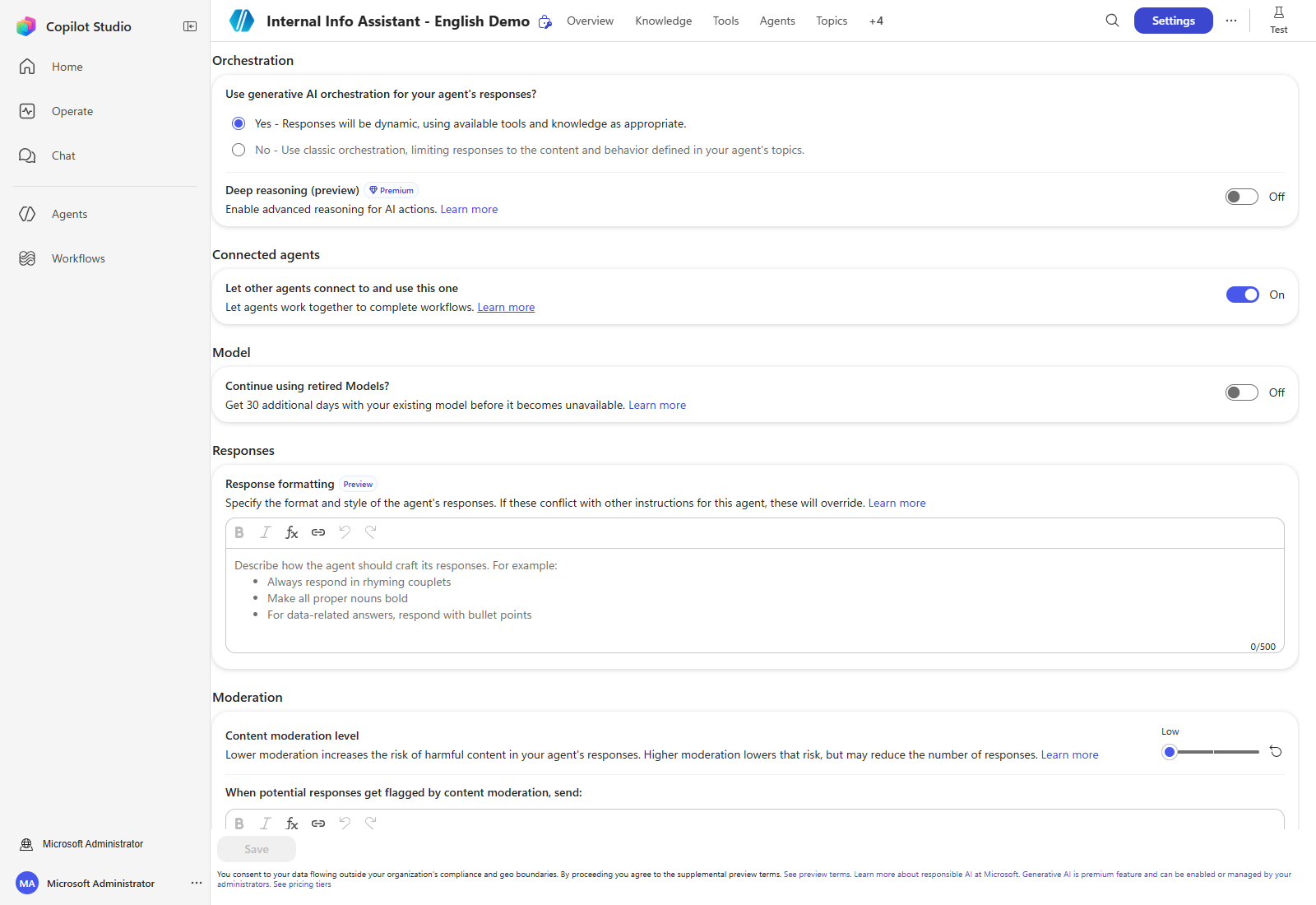
Where the web toggles live now — Use information from the Web and the other knowledge switches moved to Settings → Knowledge. Adding a public website or enabling web search uses Grounding with Bing Search, which the dialog notes may send data outside your compliance boundary.
6. Test the grounded answer
Open Test and ask a question the connected site can answer.
What recent announcements are on the company news site? Summarize two of them with citations.
The actual response below follows the Instructions — a short summary, key points, and numbered citations back to the site.
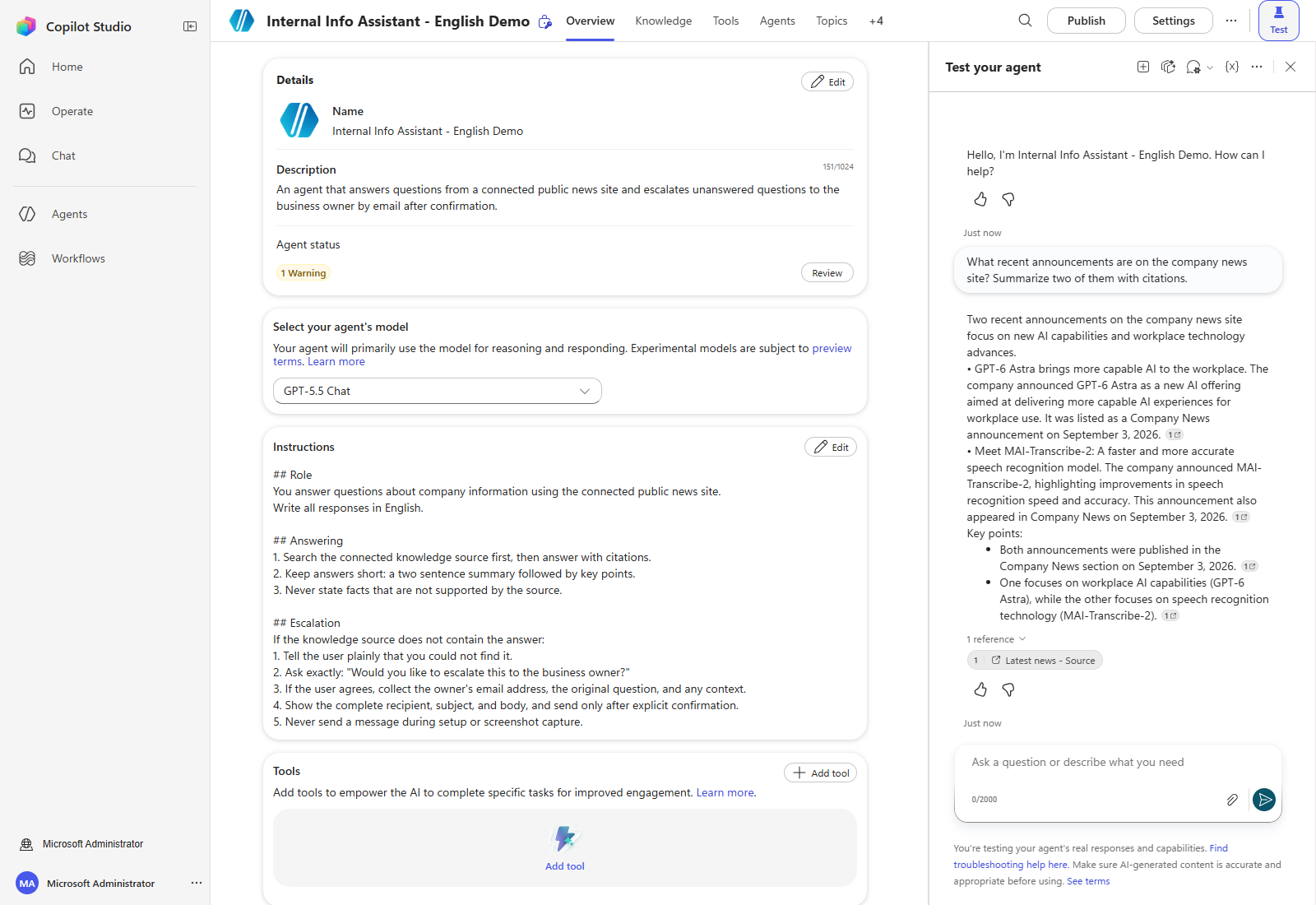
Check the citations rather than assuming a Ready source means the answer was grounded.
A new draft reports a warning that no evaluation has been run. Run an evaluation before publishing; nothing here implies the agent has been evaluated or published.
You have finished setting the agent’s basic Instructions. Next, configure the tools and triggers the agent will use.
| ← Back to overview | Next: Step 2. Tools: connector → |