Publish your agent and deploy it to Teams and Microsoft 365 Copilot
Deploy your agent to Microsoft Teams and Microsoft 365 Copilot.
Translated article — This article is based on 🚨 Mission 11: Publish Your Agent from the Copilot Studio Agent Academy. The original wording takes precedence.
🎥 Watch the walkthrough video
🎯 Mission briefing
Welcome back, Recruit. Now that you have built and tested your agent, it is ready to be published so users can access it in Microsoft Teams and Microsoft 365 Copilot.
With a clear mission, powerful tools, and key knowledge sources, your agent is ready to go into service. By deploying your agent with Microsoft Copilot Studio, real users can get help right where they work.
Let’s put your agent into action.
Important: This mission uses the classic Copilot Studio experience
If your screenshots and Copilot Studio screens look different from this lab, turn off New Experience in the upper-right corner to switch to the classic experience used here.
🔎 Learning objectives
In this mission, you will learn:
- Why publishing is required to make agent updates available to users
- What happens when you publish an agent
- How to add Microsoft Teams and Microsoft 365 Copilot as channels
- How to add your agent in Microsoft Teams
- How to make your agent available across your organization
🚀 Publish your agent
Whenever you work on an agent in Copilot Studio, you can update it by adding knowledge or tools. After you have finished all changes and tested them thoroughly, you are ready to publish. Publishing makes the latest updates live. Even if you update your agent with a new tool, it is not available to end users until you select the publish button.
To deliver updates to your agent users, always select the publish button. If channels have been added to the agent, publishing makes the updates available in every channel added to the agent.
Important
❗ Publishing is not allowed by default in Copilot Studio trial environments. You can turn it back on by adding yourself to the Copilot Studio authors tenant setting covered in step 4 of course setup. This step requires tenant admin permissions, so if you cannot change the setting yourself, see step 1 of that same lab to create a separate trial tenant. Publishing is not required to earn the badge.
⚙️ Configure channels
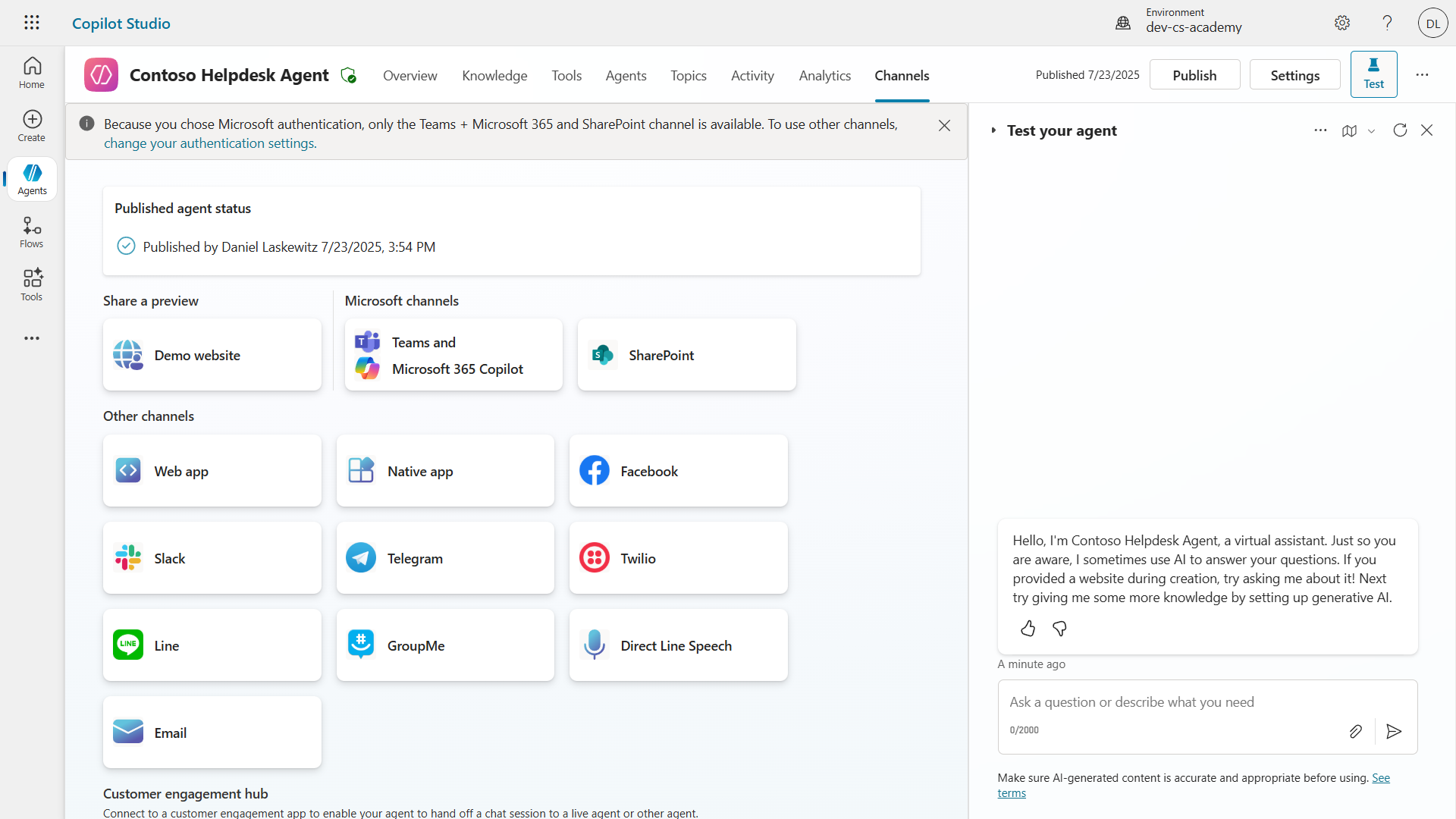
Channels determine where users can access and interact with your agent. After you publish an agent, you can make it available in multiple channels. Each channel may display agent content differently.
You can add your agent to the following channels.
- Microsoft Teams and Microsoft 365 Copilot - Makes the agent available in Teams chats and meetings, and in the Microsoft 365 Copilot experience. See Publish an agent to Teams and Microsoft 365 Copilot.
- Demo website - Test the agent on the demo website provided by Copilot Studio. See Connect your agent to web channels.
- Custom website - Embed the agent directly in your own website. See Connect your agent to a custom website.
- Mobile app - Integrate the agent into a custom mobile application. See Connect your agent to a mobile app.
- SharePoint - Add the agent to a SharePoint site to support documents and sites. See Add an agent to SharePoint.
- Facebook Messenger - Connect with users through the Facebook messaging platform. See Add an agent to Facebook.
- Power Pages - Integrate the agent into a Power Pages website. See Add an agent to Power Pages.
- Azure Bot Service channels - Access additional channels such as Slack, Telegram, and Twilio SMS. See Connect an agent to Azure Bot Service channels.
To add a channel, go to the agent’s Channels tab and select the channel you want to configure. Each channel has different configuration requirements and may require additional authentication or setup steps.
📺 User experiences by channel
The user experience differs by channel. If you build an agent for multiple channels, you should understand the differences between them. Testing in multiple channels is always a good strategy to make sure the agent works as intended in the real world.
| Experience element | Website | Teams and Microsoft 365 Copilot | Dynamics Omnichannel for Customer Service | |
|---|---|---|---|---|
| Customer satisfaction survey | Adaptive card | Text-only | Text-only | Text-only |
| Multiple-choice options | Supported | Up to 6 supported (hero card) | Up to 13 supported | Partially supported |
| Markdown | Supported | Partially supported | Partially supported | Partially supported |
| Welcome message | Supported | Supported | Not supported | Supported in Chat. Not supported in other channels |
| Did-You-Mean | Supported | Supported | Supported | Supported in Microsoft Teams, Chat, Facebook, and text-only channels (short message service (SMS) via TeleSign and Twilio, WhatsApp, WeChat, and Twitter). Suggested actions are displayed as a text-only list, and users must type the option again to respond |
Note
There are several examples of using different logic for different channels. You can find examples in the Power Platform Snippets repository.
The Adaptive Card channel-logic example shared by Henry Jammes shows how to display a different card when the channel is Microsoft Teams.
🧪 Lab 11: Publish your agent to Teams and Microsoft 365 Copilot
🎯 Use case
The Contoso IT Help Desk agent is now fully configured with powerful capabilities. It can access SharePoint knowledge sources, create support tickets, send proactive notifications, and respond intelligently to user questions. However, all these capabilities are currently available only in the development environment where the agent was built.
Problem: End users cannot benefit from the agent’s capabilities until the agent is properly published and made accessible through the channels where users actually work.
Solution: Publishing the agent makes the latest version available to real users, including recent updates, new topics, enhanced knowledge sources, and configured flows. Without publishing, users may continue interacting with an older version of the agent that is missing important capabilities.
Adding the Teams and Microsoft 365 Copilot channel is just as important. Here’s why:
-
Teams Integration: Employees in your organization spend much of their day in Microsoft Teams for collaboration, meetings, and communication. Adding the agent to Teams lets users get IT support without leaving their primary work environment.
-
Microsoft 365 Copilot: Users can directly access the specialized IT help desk agent inside the Microsoft 365 Copilot experience, naturally integrating it into daily workflows across Office applications.
-
Centralized Access: Users can get IT support on a platform they already use, without having to remember a separate website or application. This reduces friction and increases adoption.
This mission turns your development work into a production-ready solution that delivers real value to your organization’s end users.
Prerequisites
Before starting this lab, make sure you have:
- ✅ Completed the previous labs and have a fully configured Contoso Helpdesk Agent
- ✅ Tested the agent and confirmed it is ready for production use
- ✅ Permission to publish the agent in your Copilot Studio environment
- ✅ Access to Microsoft Teams in your organization
11.1 Publish your agent
Now that you have finished all work on the agent, you need to make that work available to the end users who will use it. To make the content available to everyone, you must publish the agent.
-
Go to the Contoso Helpdesk Agent in Copilot Studio through the Copilot Studio maker portal.
Copilot Studio makes it easy to publish an agent. From the top of the agent overview, select the publish button.
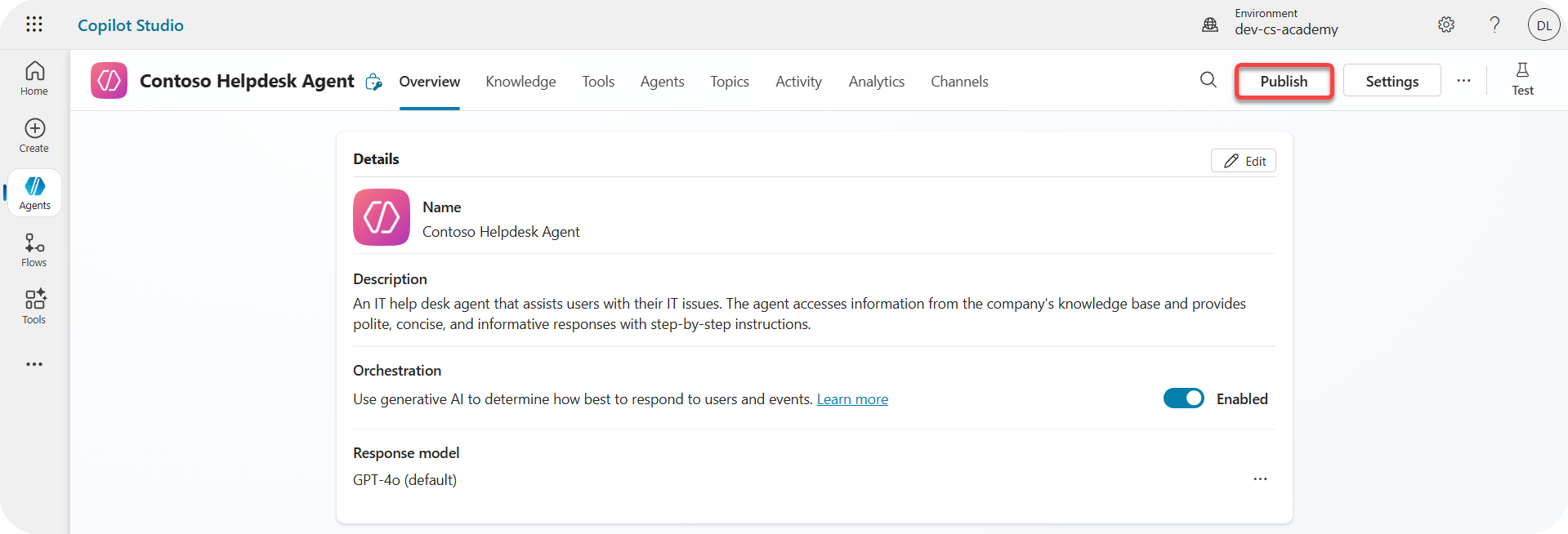
Publish button on the agent overview -
Select the Publish button on the agent.
This opens a publish popup asking you to confirm that you want to publish the agent.
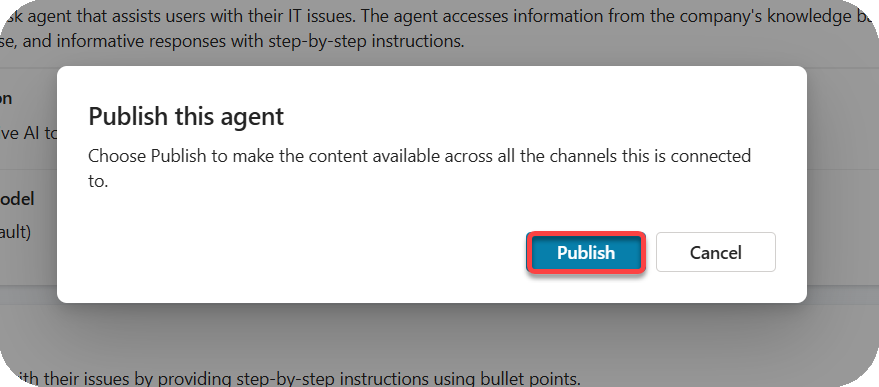
Publish confirmation -
Select Publish to confirm publishing the agent.
You will now see a message that the agent is being published. You do not need to keep this popup open. You will be notified when the agent is published.
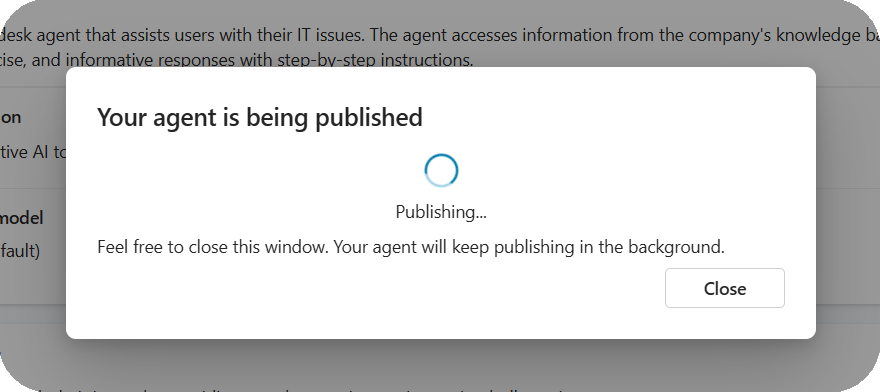
Agent publishing in progress When publishing completes, a notification appears at the top of the agent page.
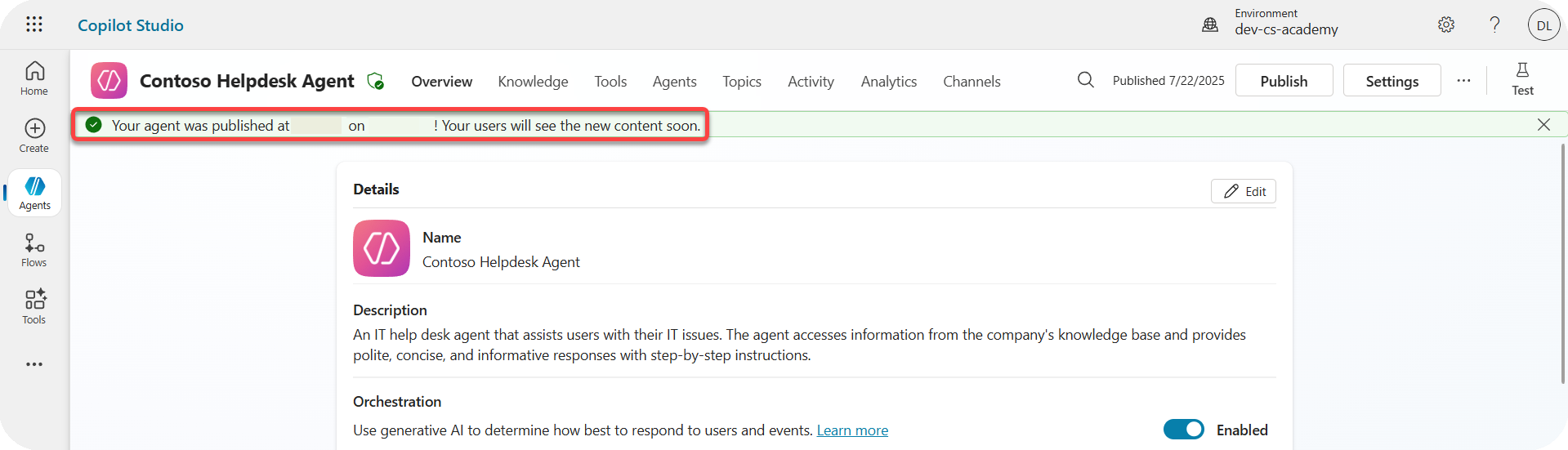
Publishing complete notification The agent has been published, but it is not yet available through a channel. Let’s fix that now.
11.2 Add the Teams and Microsoft 365 Copilot channel
-
In the agent navigation, select Channels.
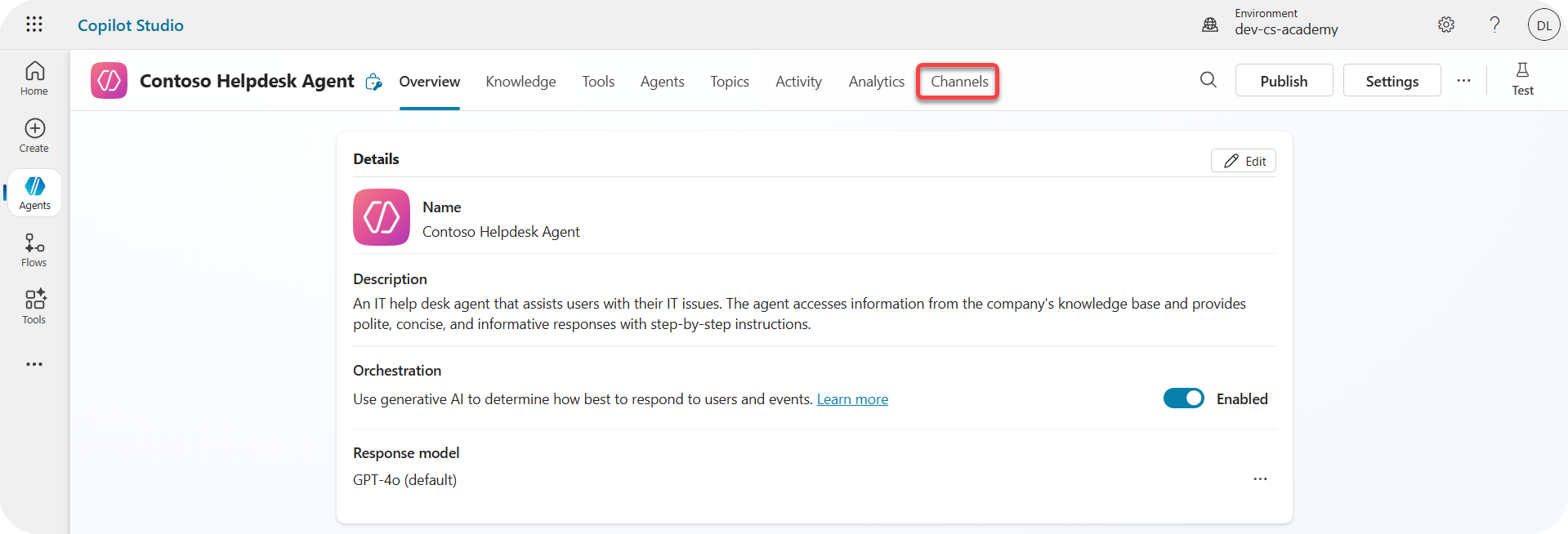
Channels tab Here, you can see all channels that can be added to this agent.
-
Select Teams and Microsoft 365.
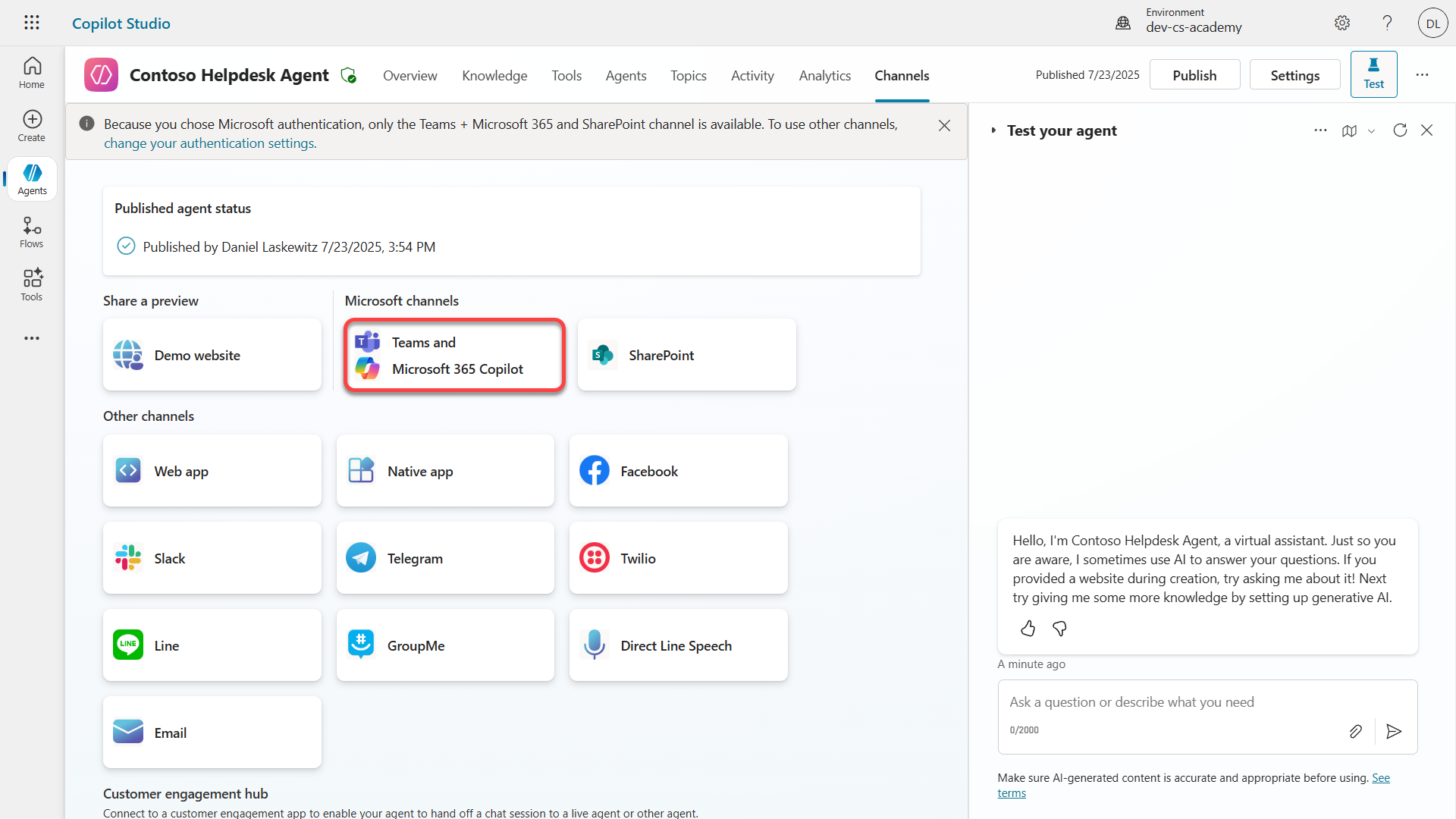
Select Teams and Microsoft 365 -
Select Add channel to complete the wizard and add the channel to the agent.
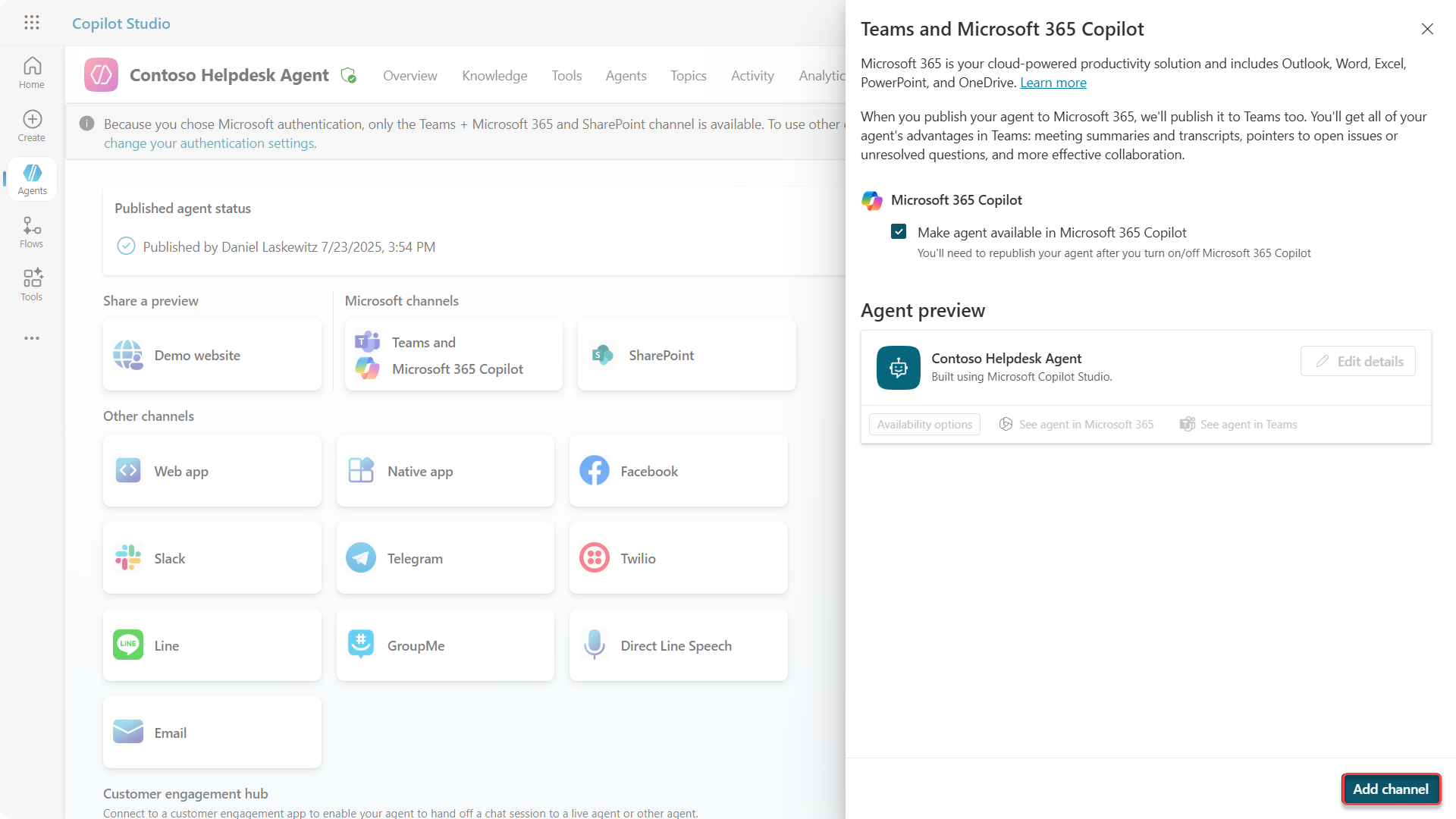
Select Add channel Adding the channel may take a little time. When it is ready, a success notification appears at the top of the sidebar.
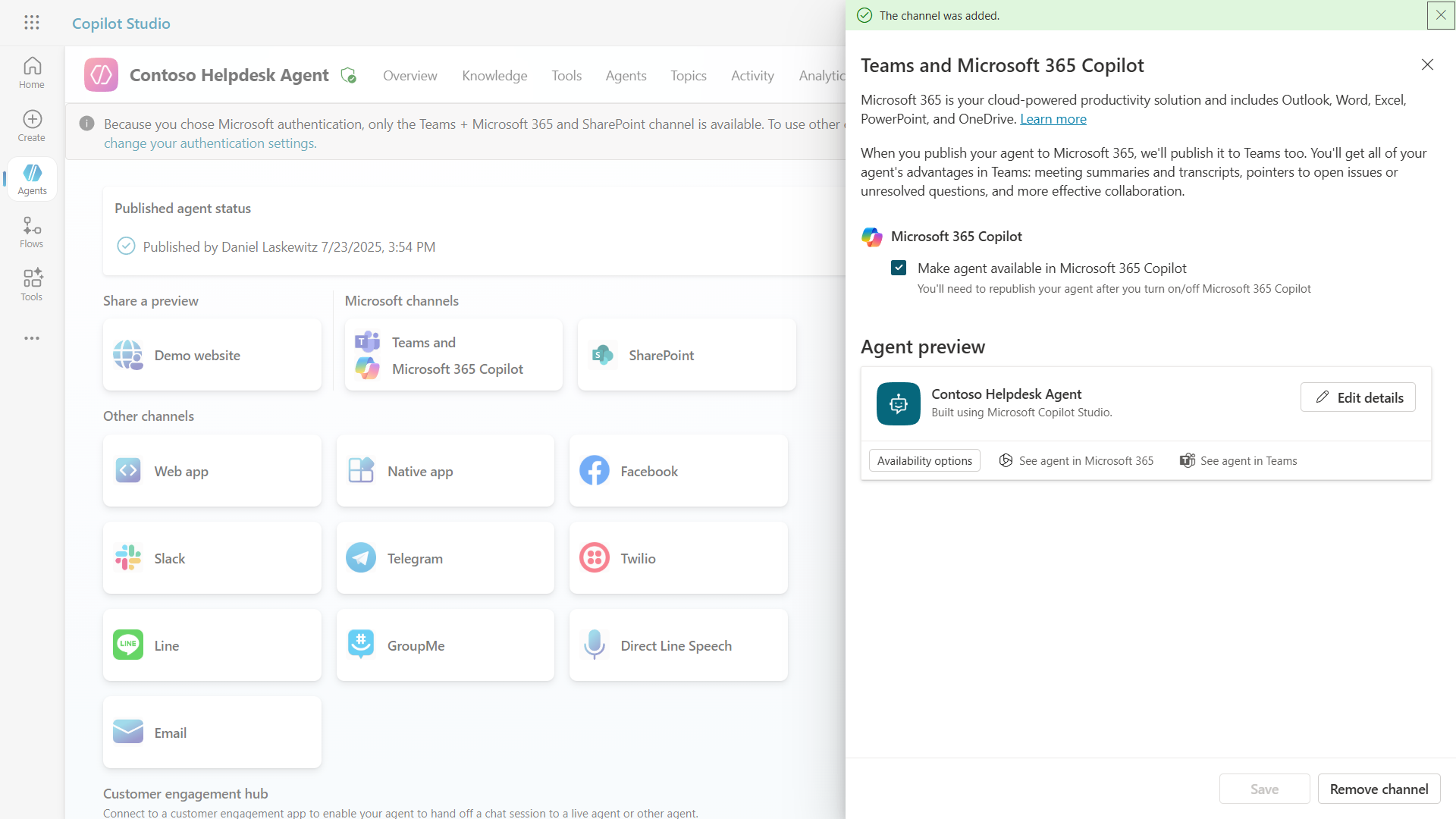
Channel added -
Select See agent in Teams to open a new tab.
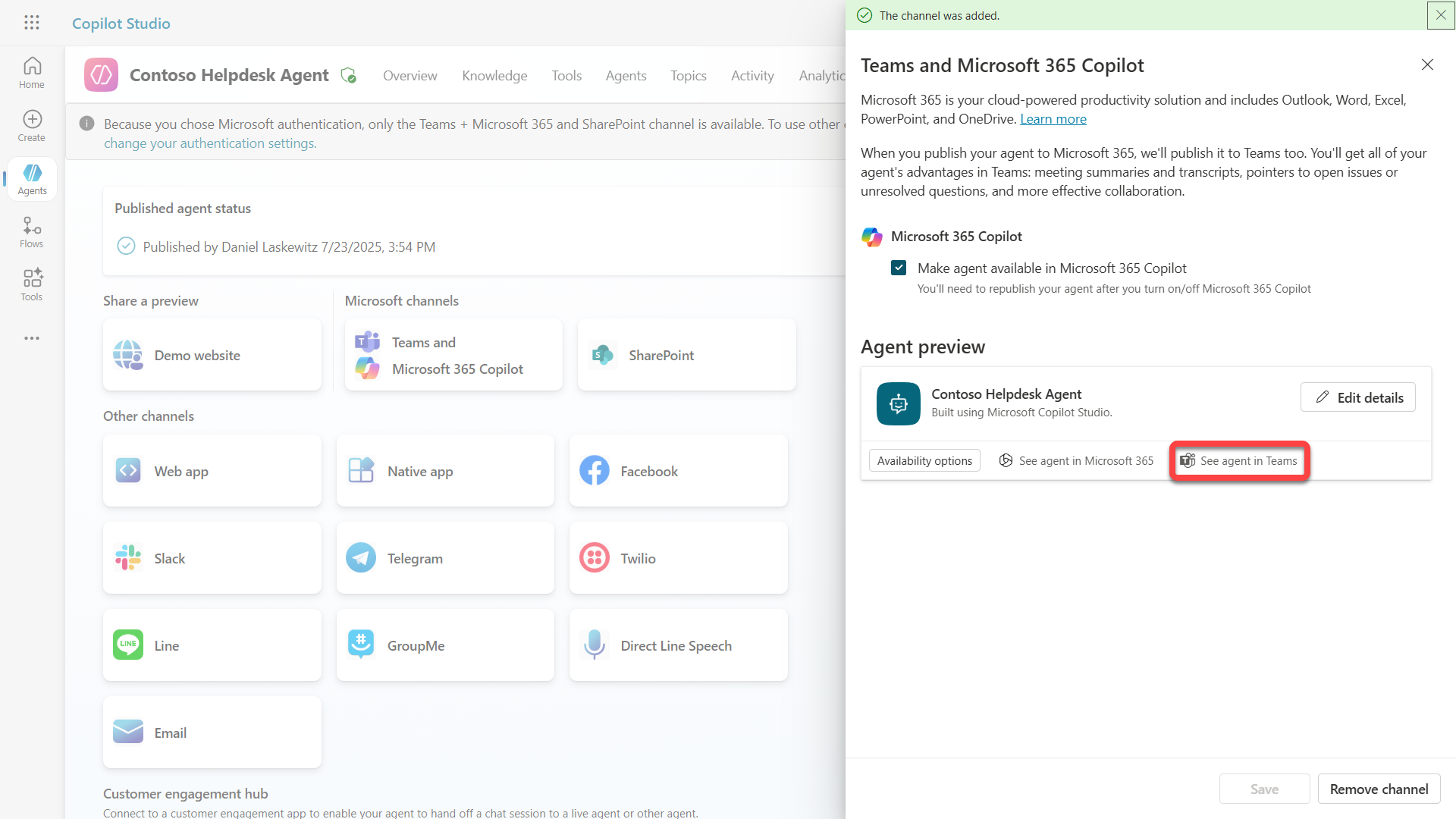
See agent in Teams -
Select Add to add the Contoso Helpdesk Agent to Teams.
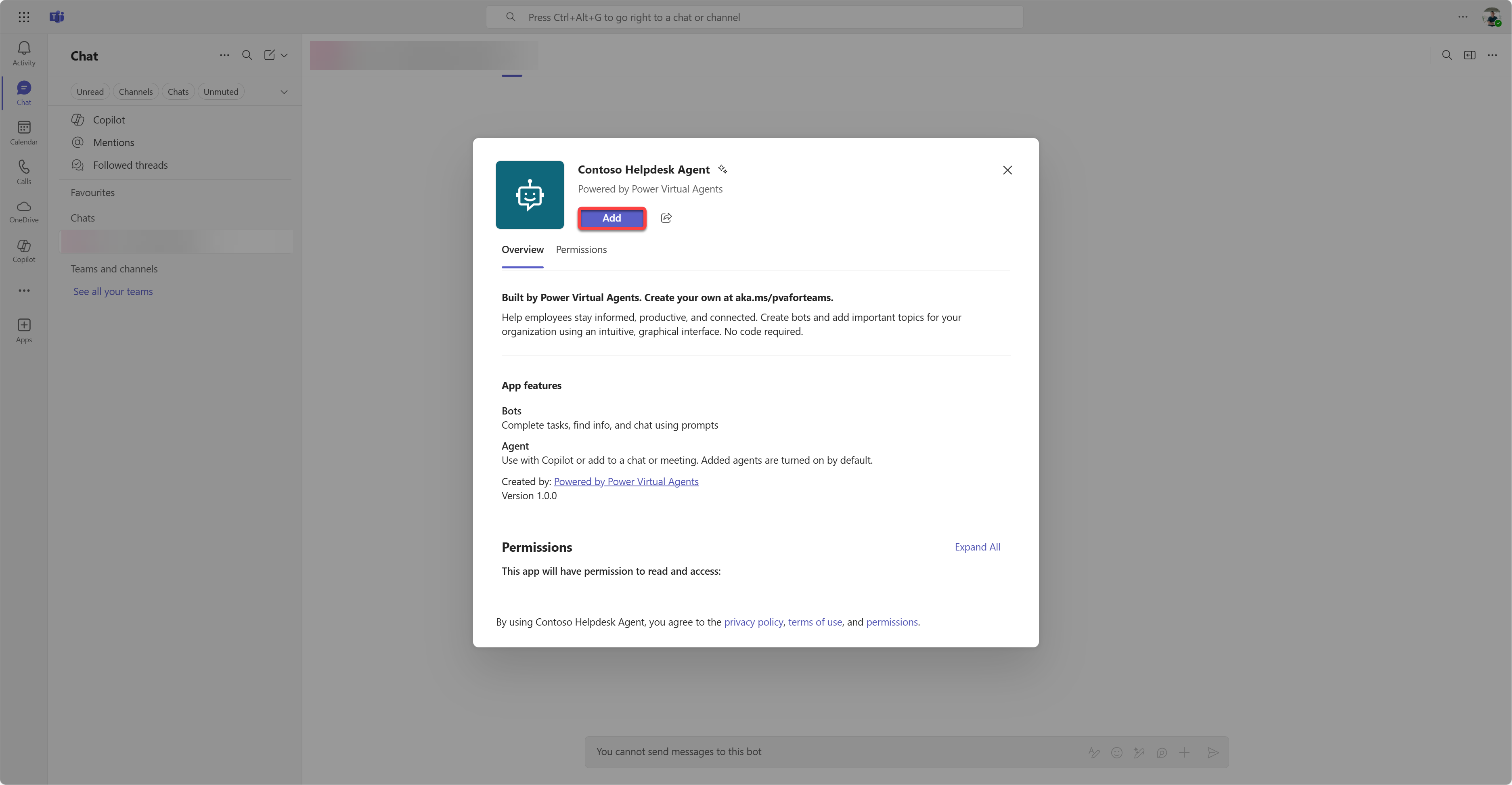
Add the agent to Teams This takes a little time. When it completes, you will see the following screen.
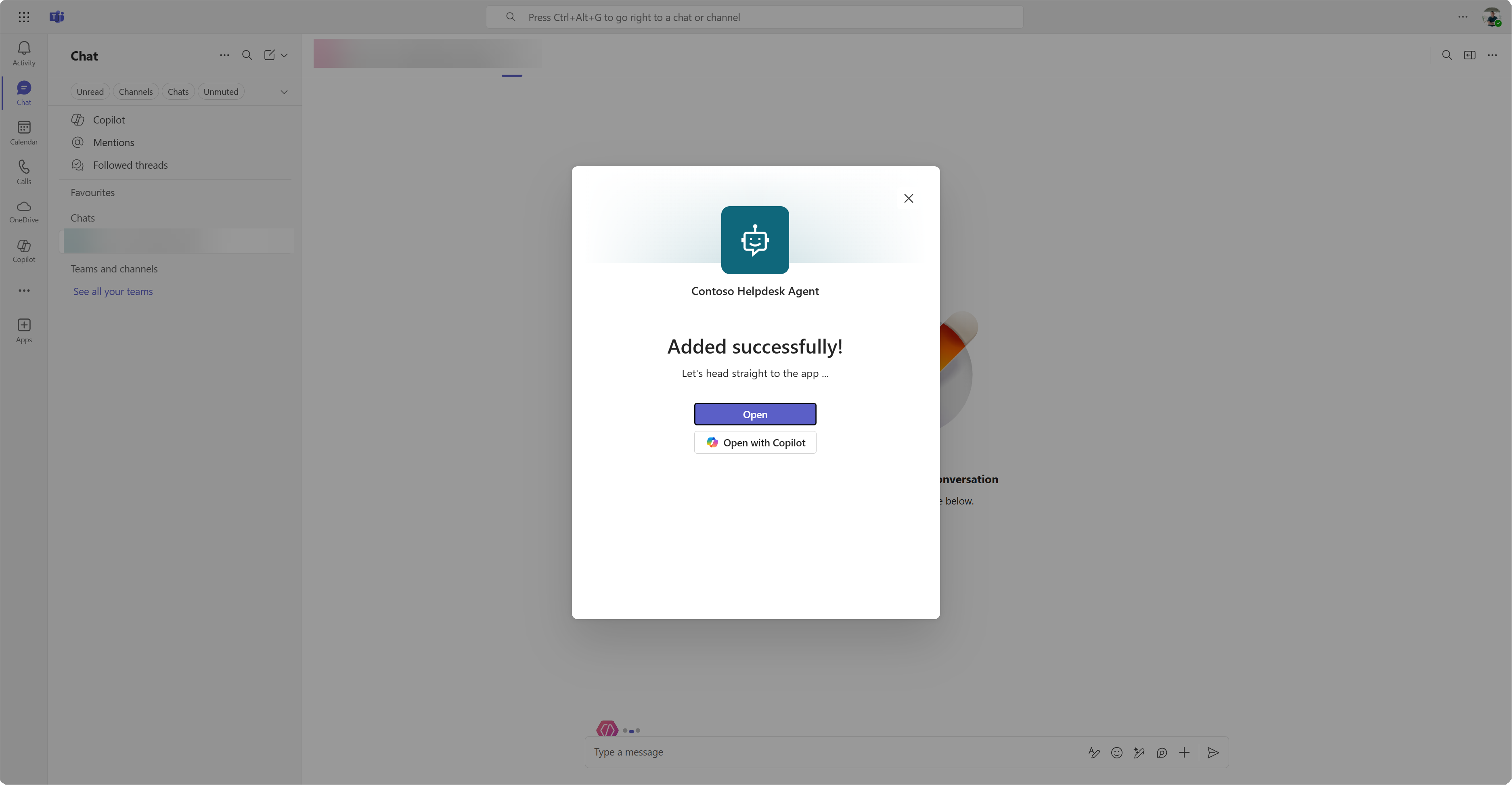
Agent added successfully -
Select Open to open the agent in Teams.
The agent opens as a Teams app.
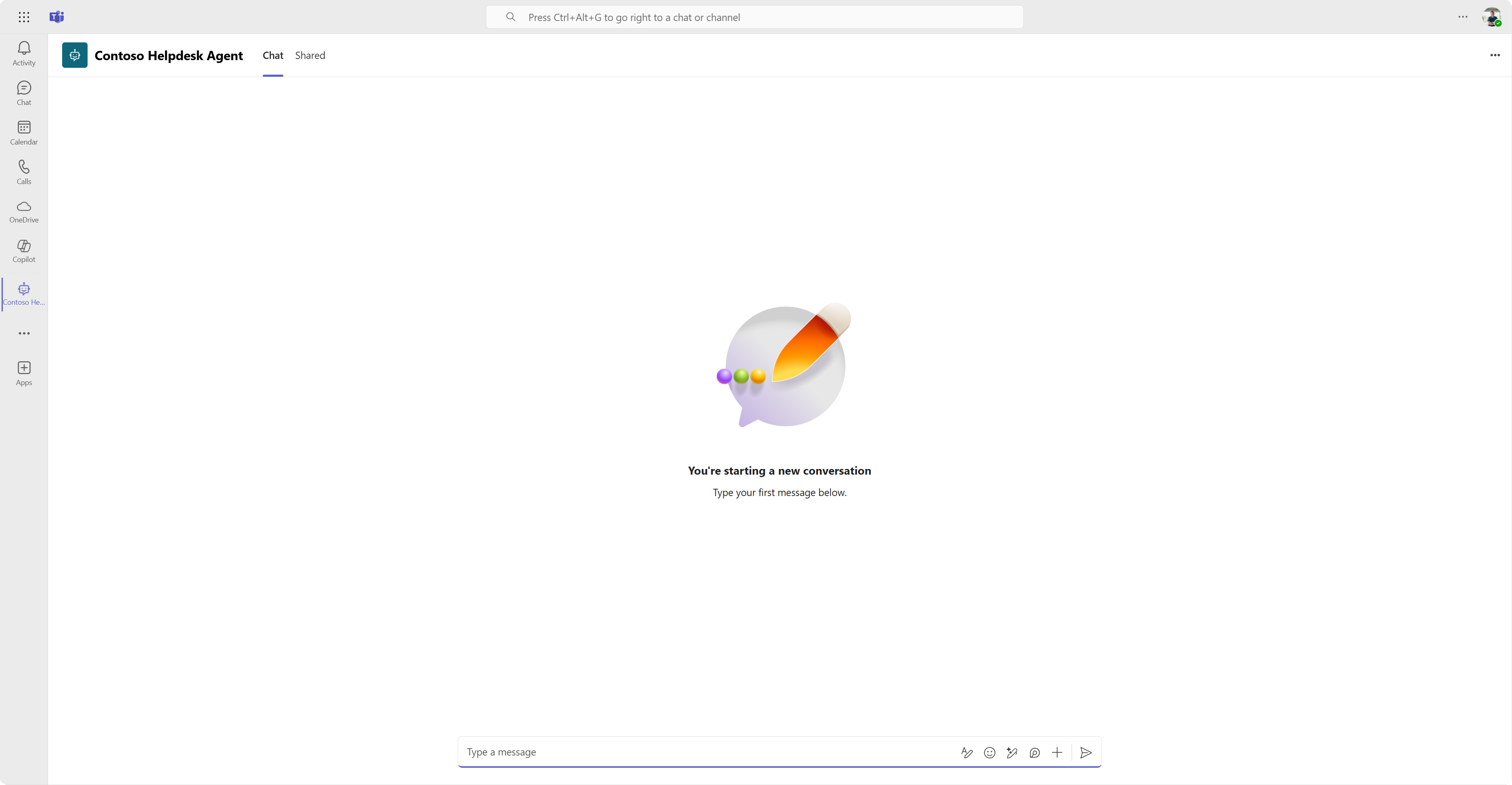
Agent open in Microsoft Teams You have now published the agent so you can use it in Microsoft Teams. But you may want to make it available to more people.
11.3 Make the agent available to all tenant users
-
Close the browser tab where the Contoso Helpdesk Agent is open.
This returns you to Copilot Studio, where the Teams and Microsoft 365 Copilot side panel is still open. You just opened the agent in Teams, but you can do much more from here. You can edit agent details, distribute the agent to more users, and more.
-
Select Edit details.
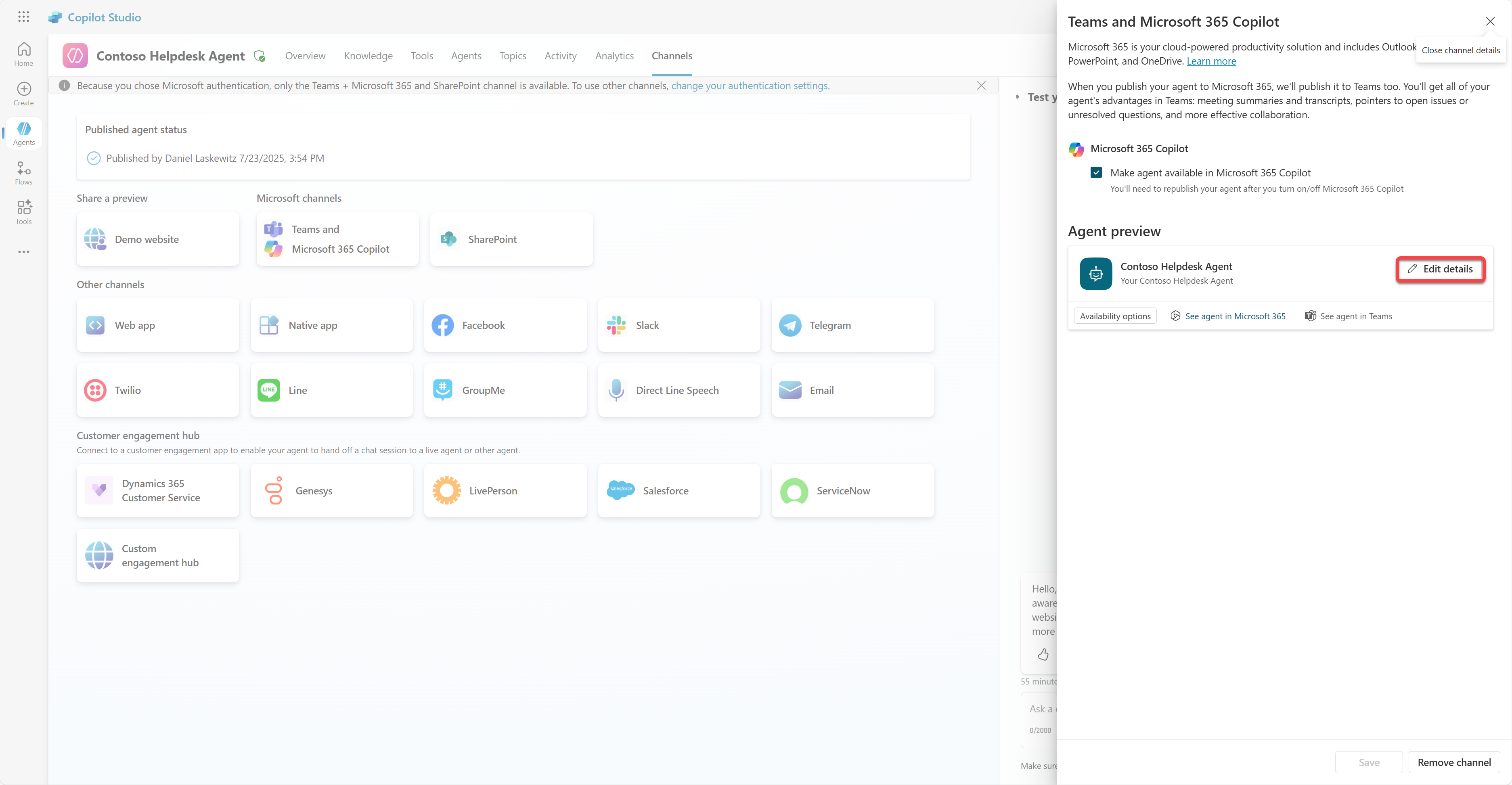
Edit details This opens a window where you can change many details and settings for the agent. You can change basic details such as the icon, icon background color, and description. You can also change Teams settings here, such as whether users are allowed to add the agent to a team and whether the agent can be used in group and meeting chats. Select more to change developer details such as developer name, website, privacy policy, and terms of use.
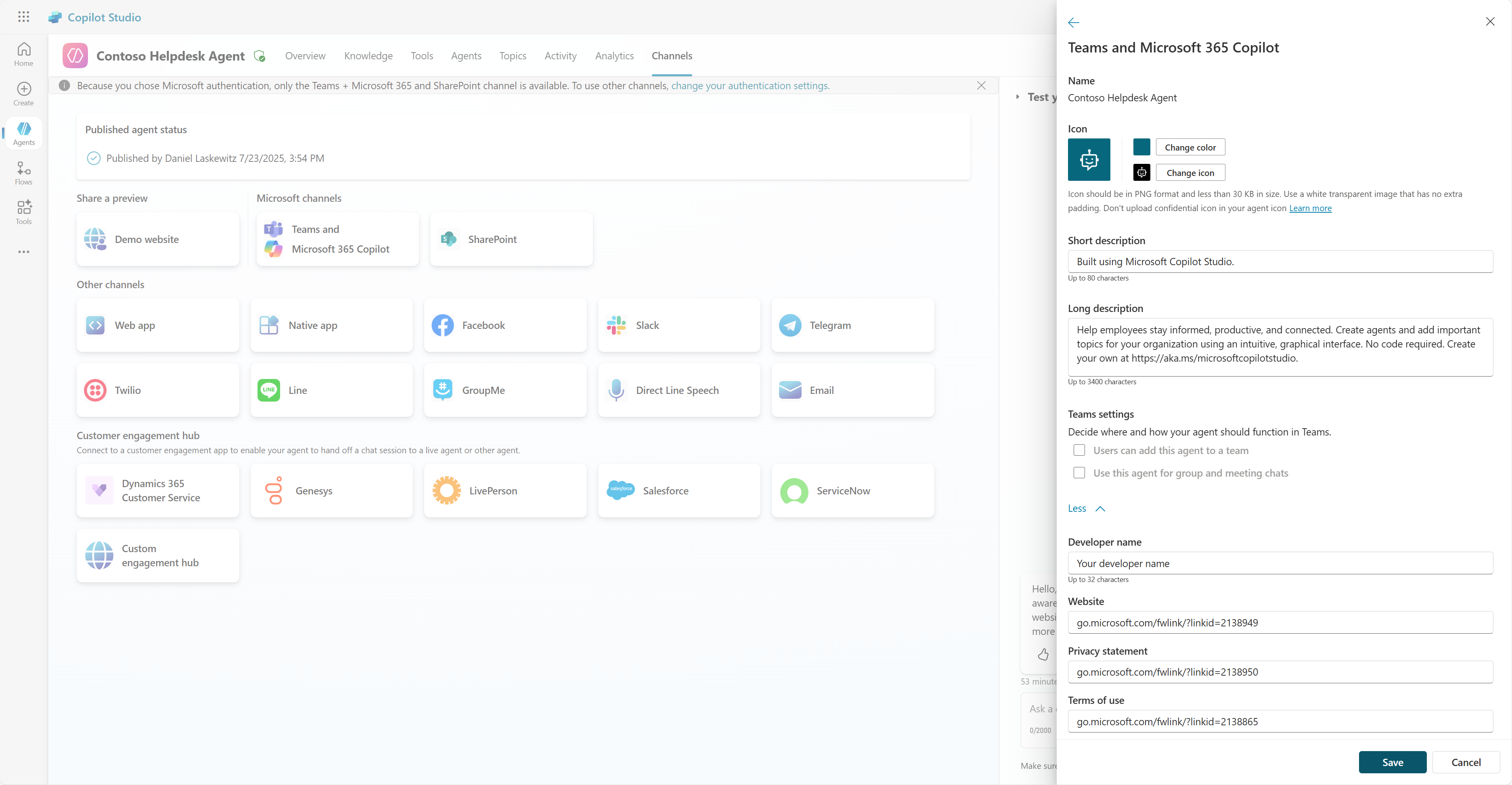
Edit details window -
Select Cancel to close the Edit details window.
-
Select Availability options.
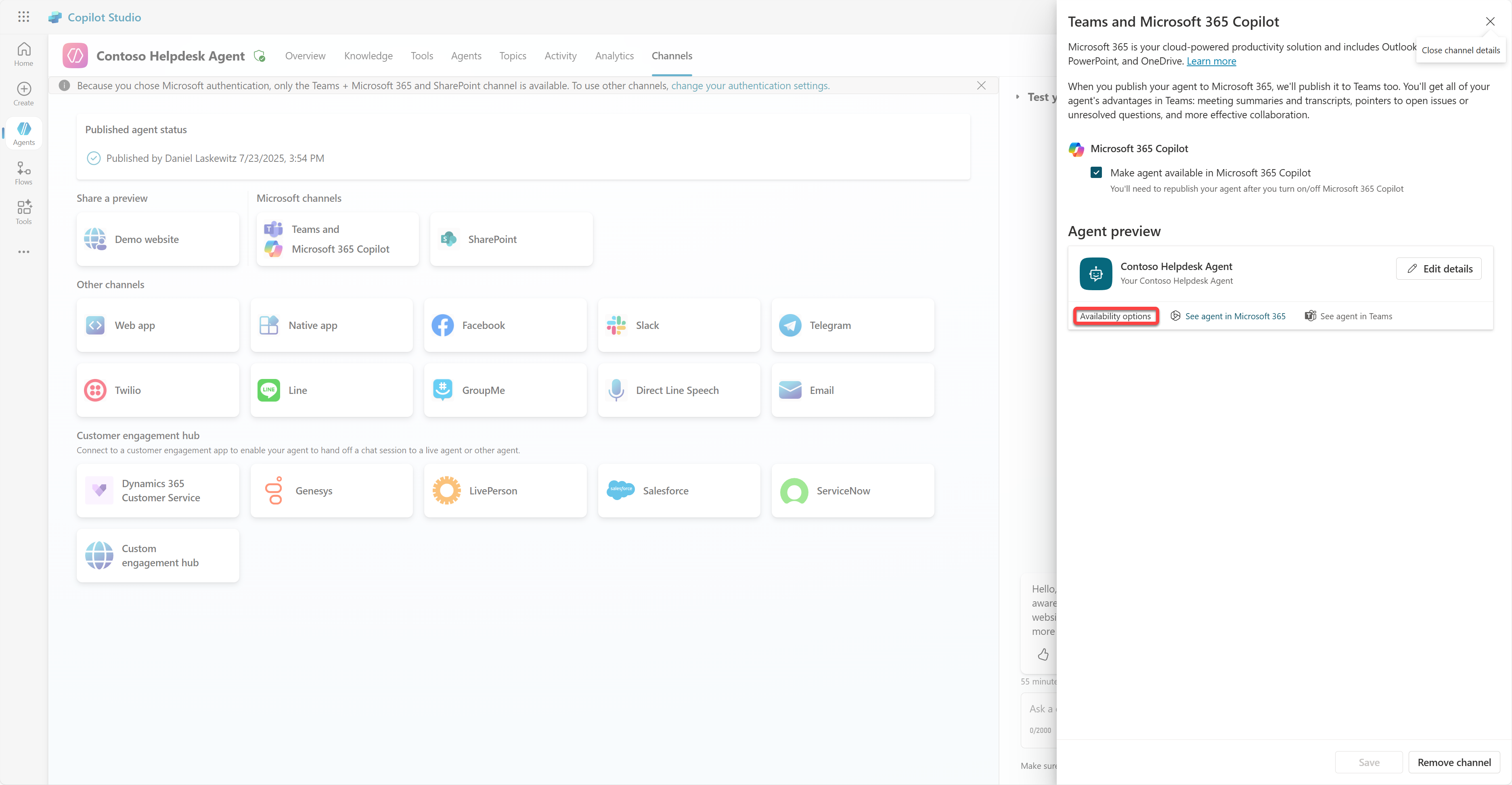
Availability options This opens the availability options window. Here you can copy a link to send to users so they can use the agent (note that you must also share the agent with users), and you can download a file for adding the agent to the Microsoft Teams or Microsoft 365 store. There are other options for showing the agent in the store as well: show it to teammates and shared users (in the Built with Power Platform section), or show it to everyone in the organization (requires admin approval).
-
Select Show to everyone in my org.
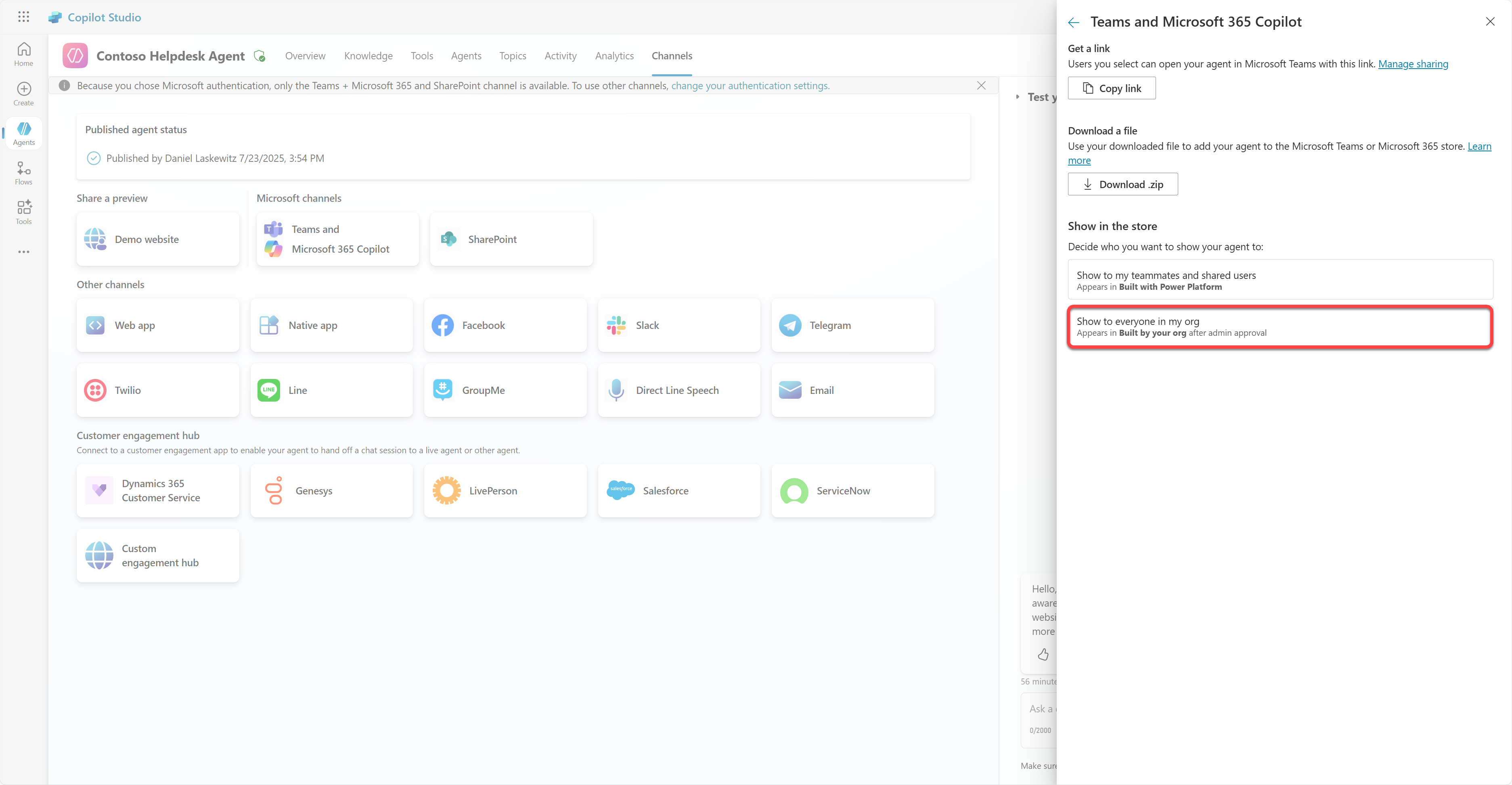
Availability options -
Select Submit for admin approval.
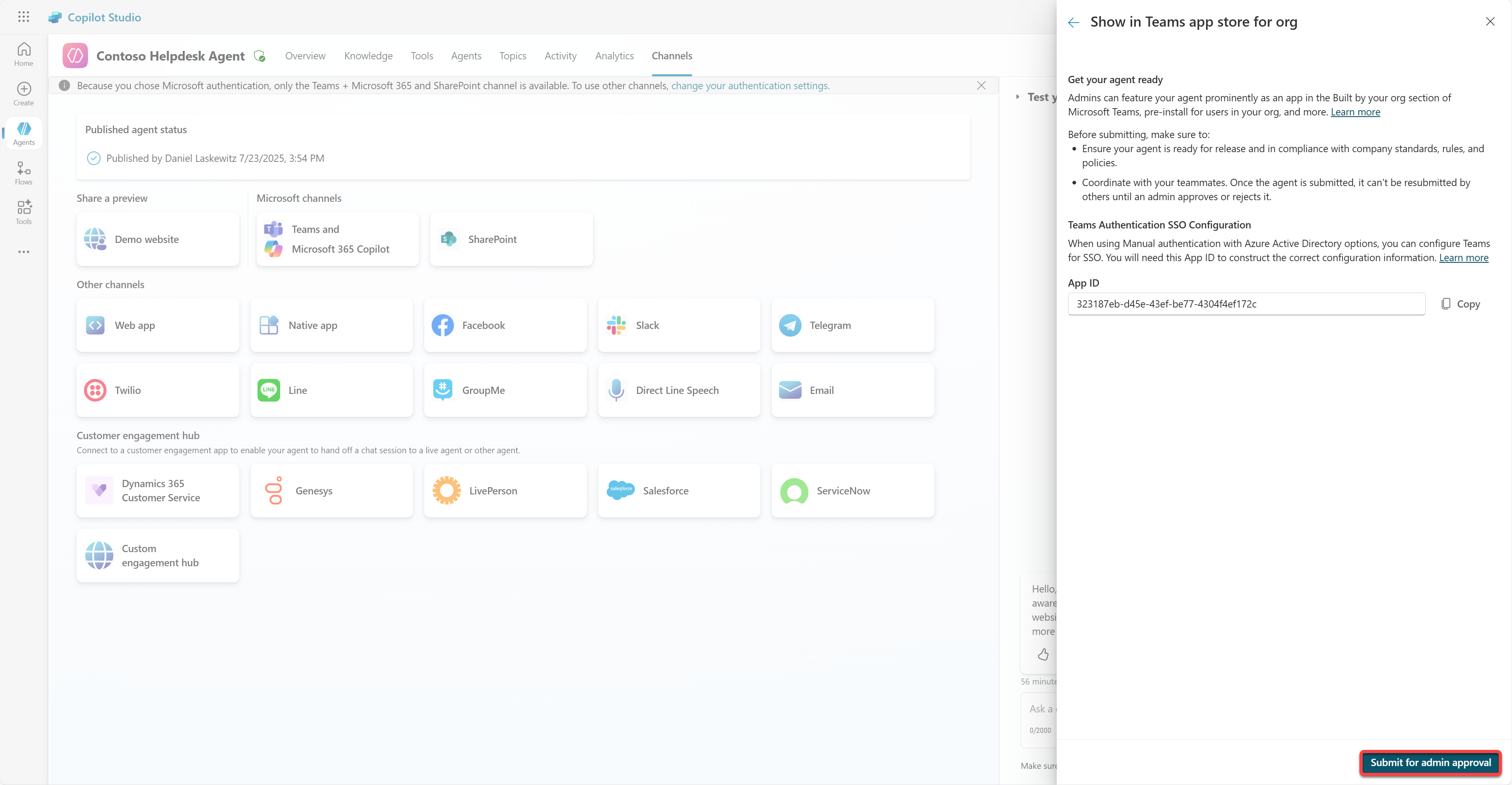
Submit for approval An admin now needs to approve the agent submission. The admin can go to the Teams Admin Center, find Contoso Helpdesk Agent under Apps, and approve it. The screenshot shows what the admin sees in the Teams Admin Center.
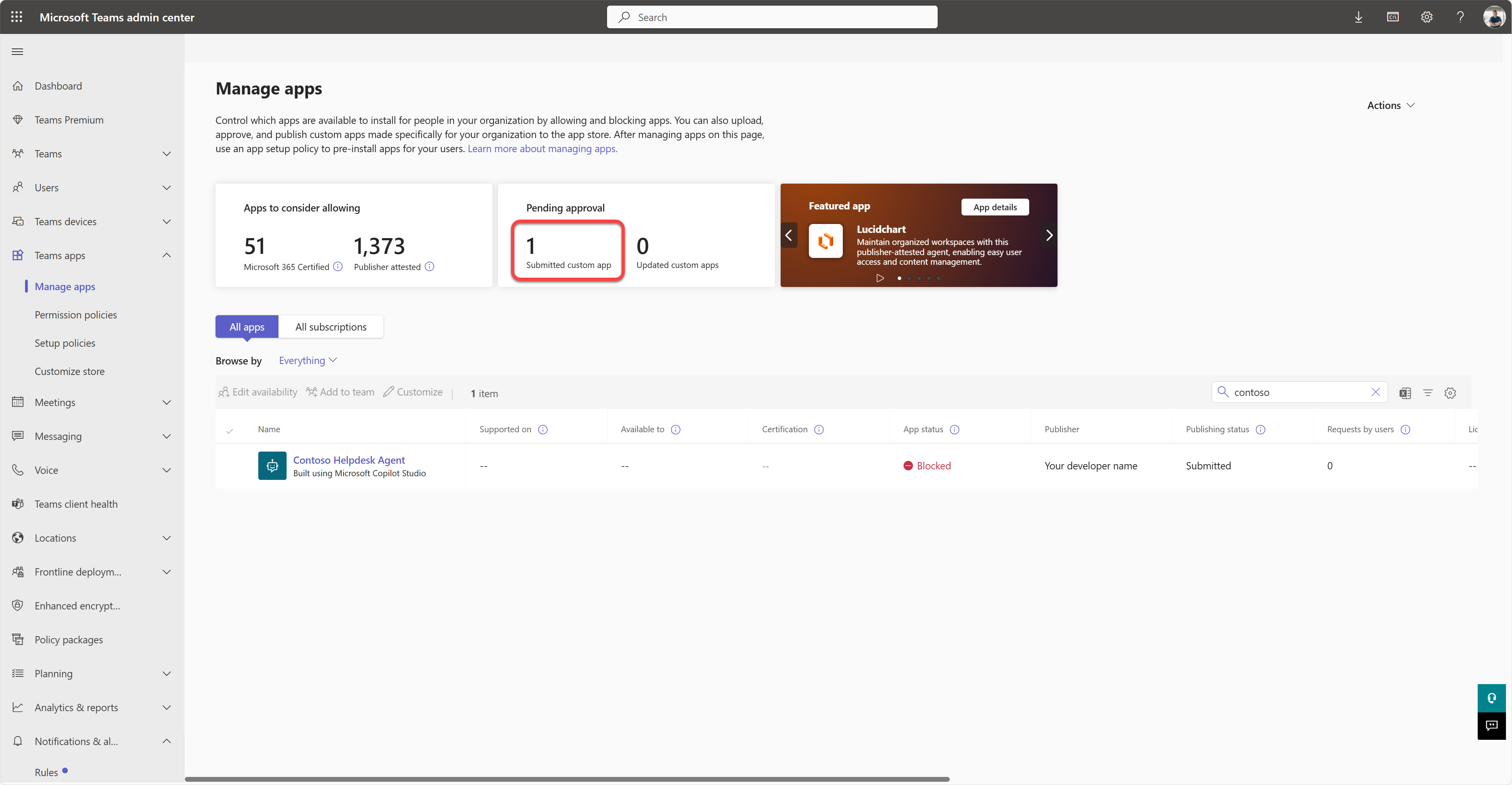
Teams app pending approval The admin must select Contoso Helpdesk Agent, then select Publish to publish Contoso Helpdesk Agent to everyone.
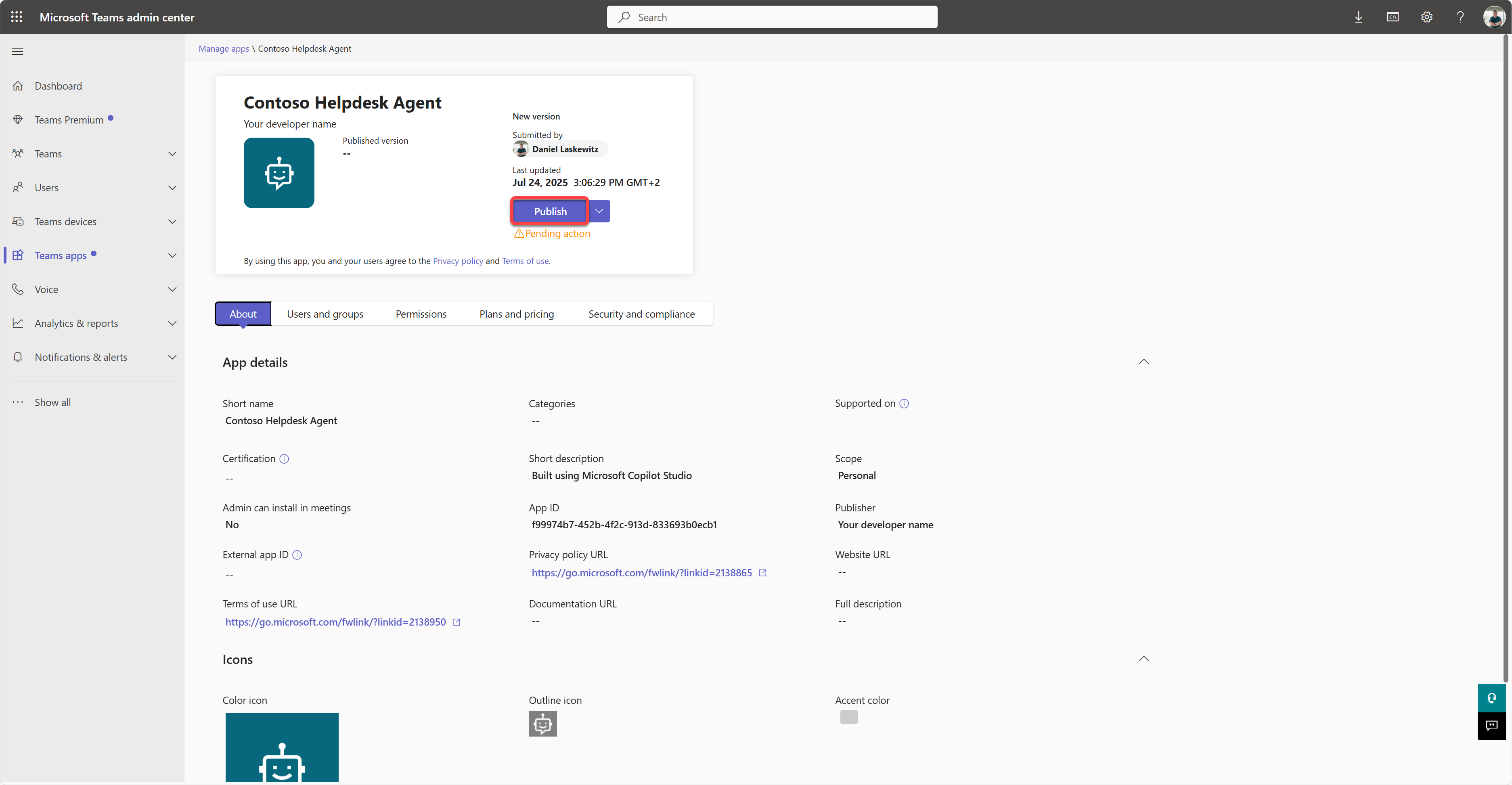
Publish Teams app After the admin publishes the agent submission, refresh Copilot Studio. The availability options show an available in app store banner.
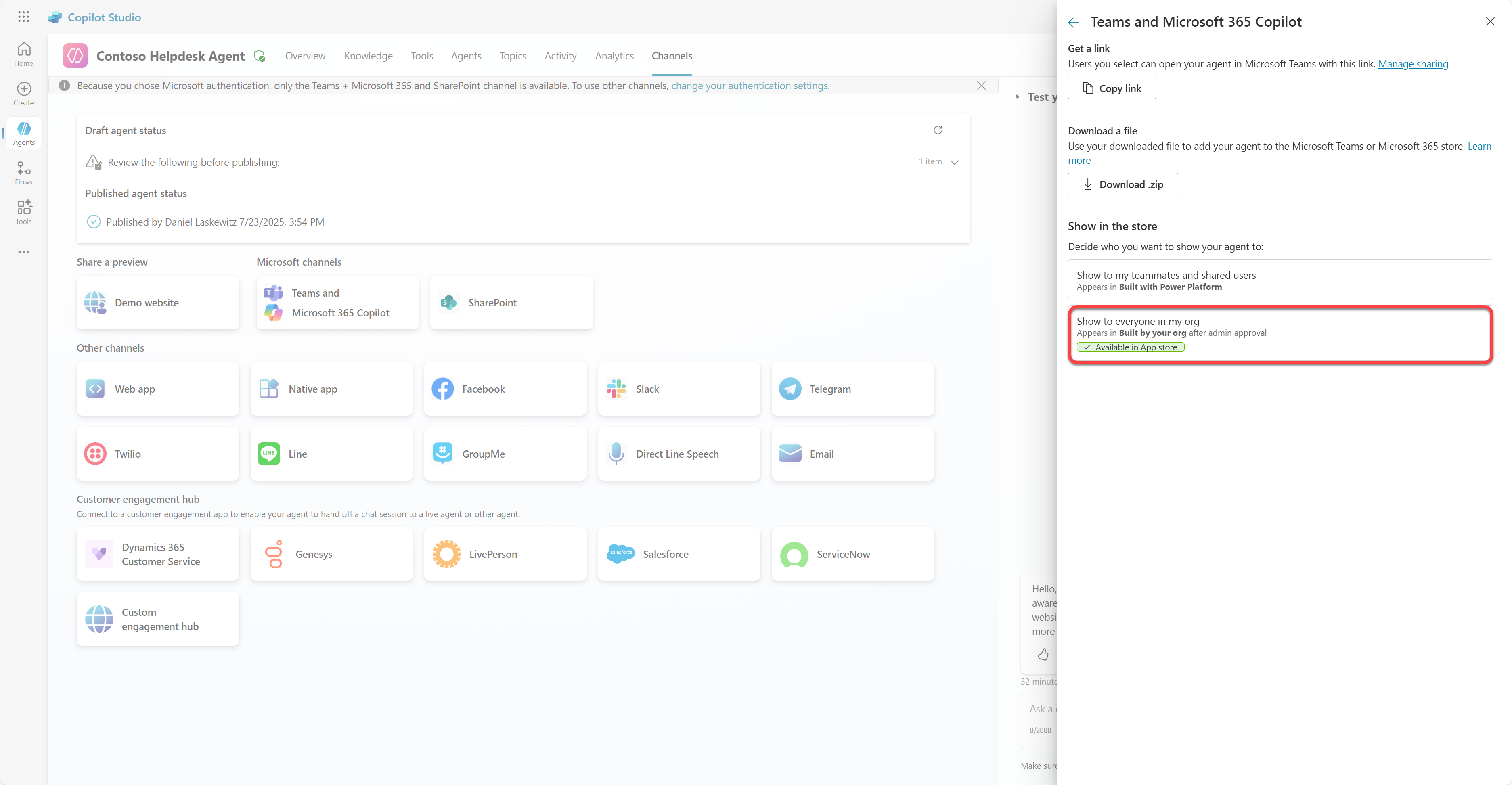
Available in app store There are more possibilities here. Admins can change the global setup policy to automatically install Contoso Helpdesk Agent for every user in the tenant. They can also pin Contoso Helpdesk Agent to the left rail so everyone can access it easily.
✅ Mission complete
You successfully completed the following:
- Publishing: Published the latest version of your agent.
- Channels: Added Microsoft Teams and Microsoft 365 Copilot.
- Teams installation: Added and tested the agent in Microsoft Teams.
- Organizational availability: Prepared the agent for admin approval and deployment.
Next, continue to Mission 12: Understanding Licensing.