Add a tool (MCP connector)
Fundamentals #1: Blog Post Agent - Add a tool (MCP connector)
Step 3: Add a tool (MCP connector)
Add a tool to the agent #1 (MCP connector)
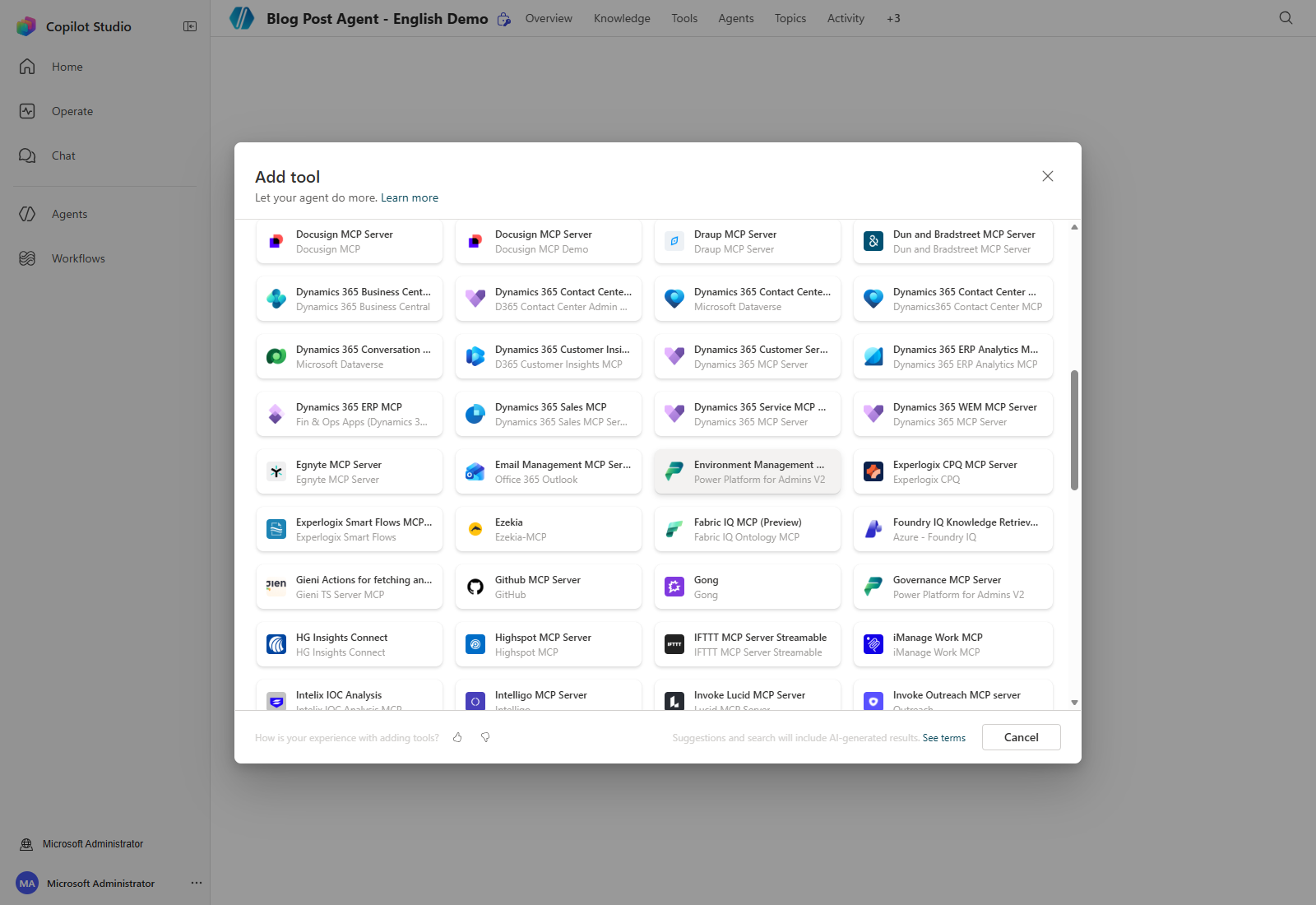
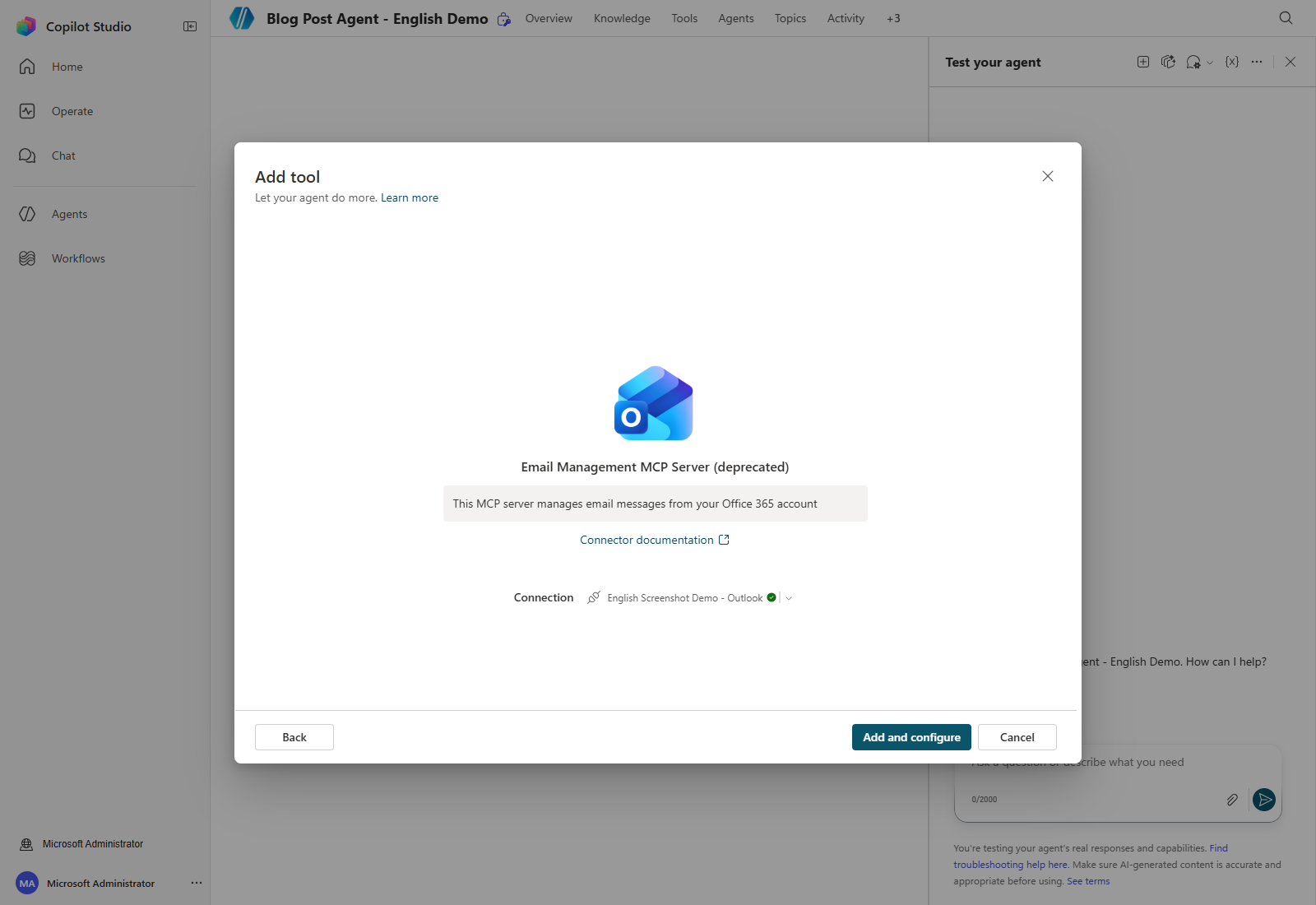
Actual English UI capture, September 7, 2026: The catalog now labels the original workshop server Email Management MCP Server (deprecated). It is shown here to reproduce this existing workshop, not as a recommendation for new production agents. Connection and configuration were completed in the demo; no email was sent.
✅ The role of Tools in Copilot Studio
Tools are additional capabilities that extend what Copilot can do by default.
Simply put, they are a key element for upgrading Copilot from a conversational AI into an AI that can execute work.
1. Core role of Tools
|Role|Description| |——|—| |Connect to external services|CRM, ERP, databases, API calls| |Automate work|Send email, create schedules, write reports| |Process data|Analyze Excel, summarize PDFs, transform data| |Integrate systems|Integrate with Microsoft 365, Teams, Power Automate|
2. Why are Tools needed?
- Copilot is basically a conversational AI → it cannot look up data or execute system commands by itself
- By connecting Tools, Copilot can execute actual tasks
3. Understand through an example
- Without a tool
“Tell me this week’s sales.”
→ Copilot: “I can’t access the data directly.” - With a tool connected
“Tell me this week’s sales.”
→ Copilot: (calls the ERP API) → “This week’s sales are ₩120,000,000.”
4. Summary
✔ Tools are key to extending Copilot capabilities
✔ They enable work automation + data connections + system integration
✔ They make it possible to execute real business processes
Workshop
In this workshop, you will add a tool that lets the agent send generated blog/newsletter drafts by email on behalf of the user.
1. Add an email-sending tool
In the agent settings window, select [Tools] - [+ Add a tool].
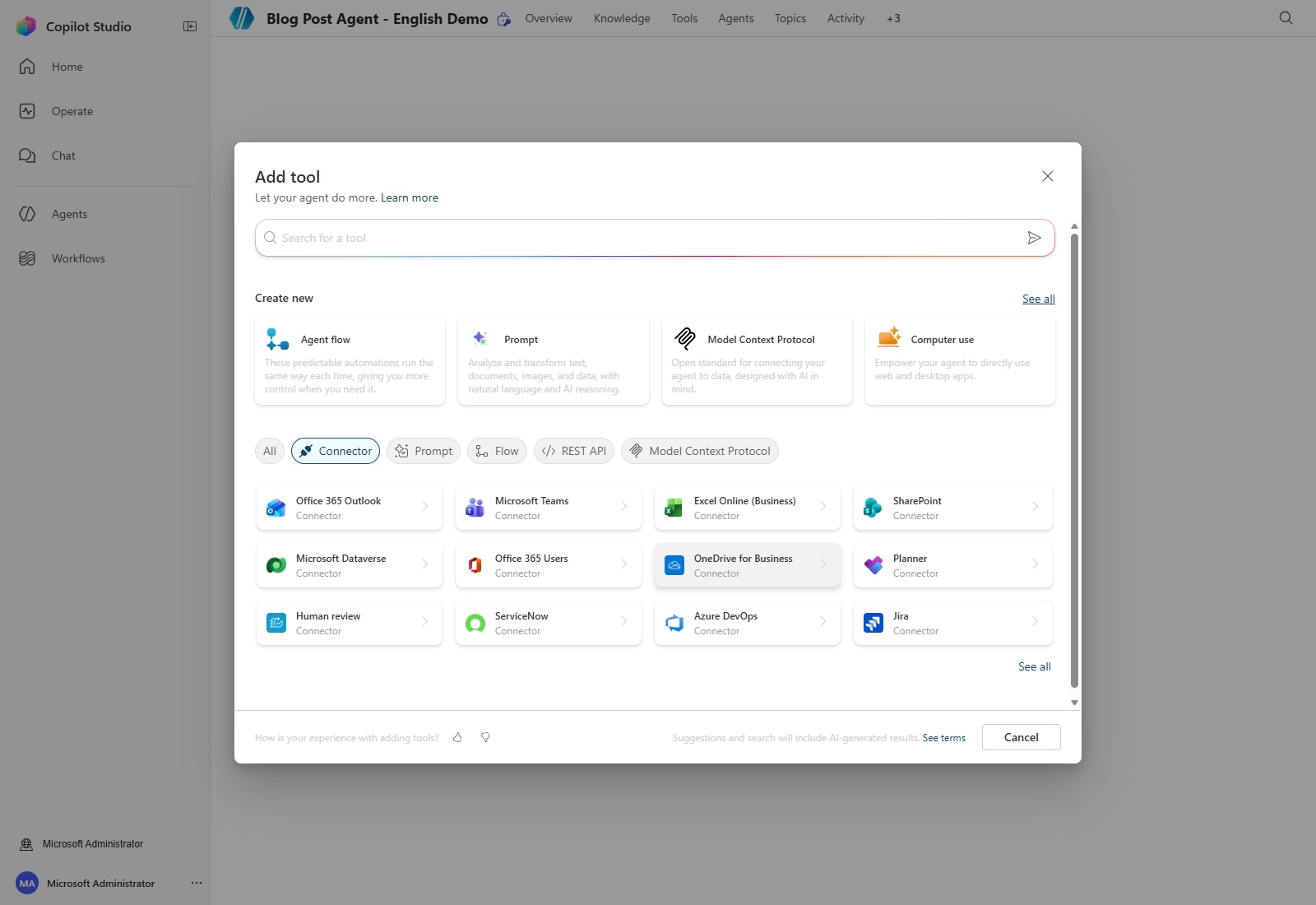
Under Model Context Protocol, locate Email Management MCP Server (deprecated). If it is no longer available in your environment, do not assume the old workshop UI still applies; use a currently supported mail tool and review its permissions separately.
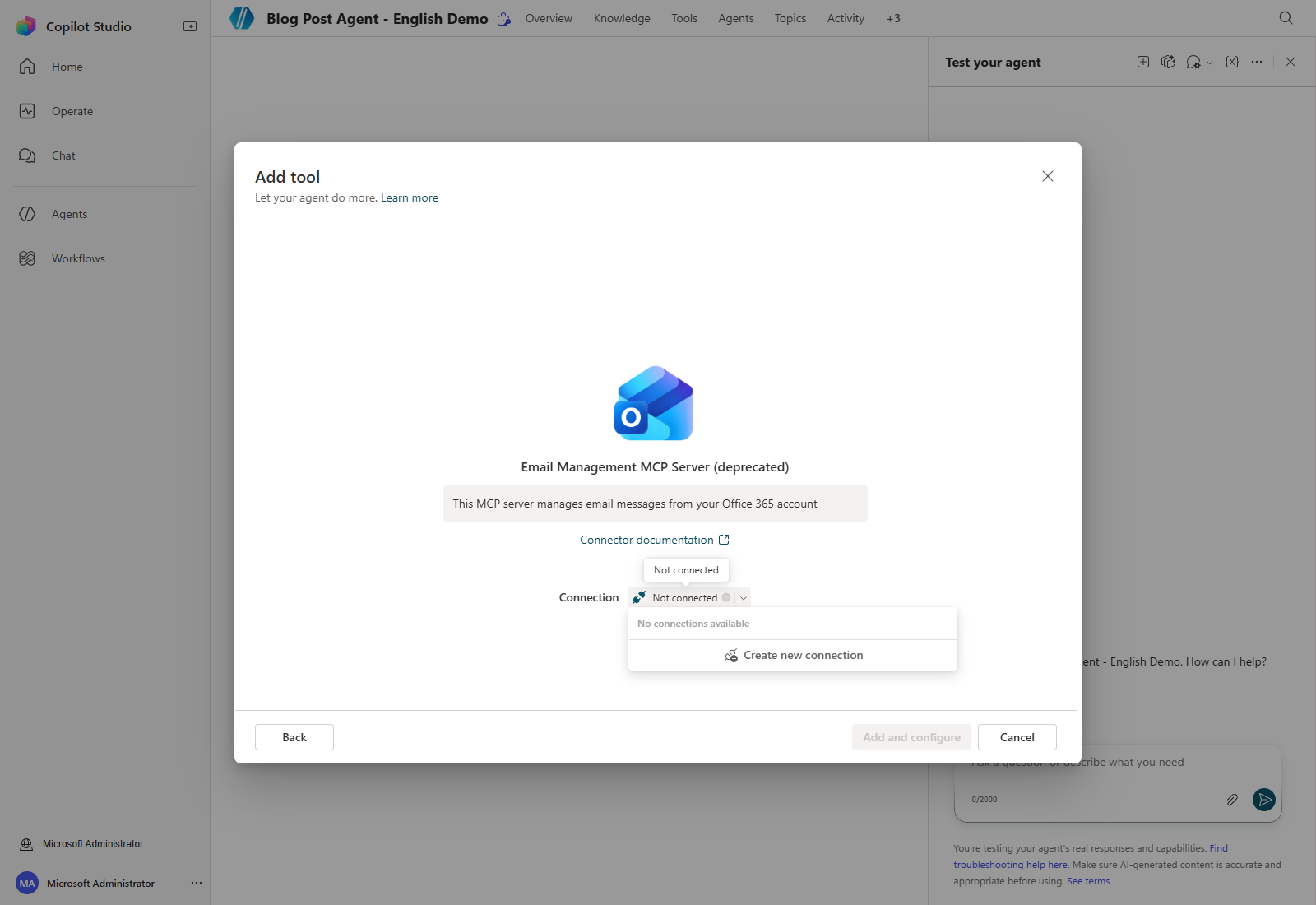
When you select the tool, an OAuth connection window appears so you can use the Office 365 Outlook connector.
Open Connection → Create new connection.
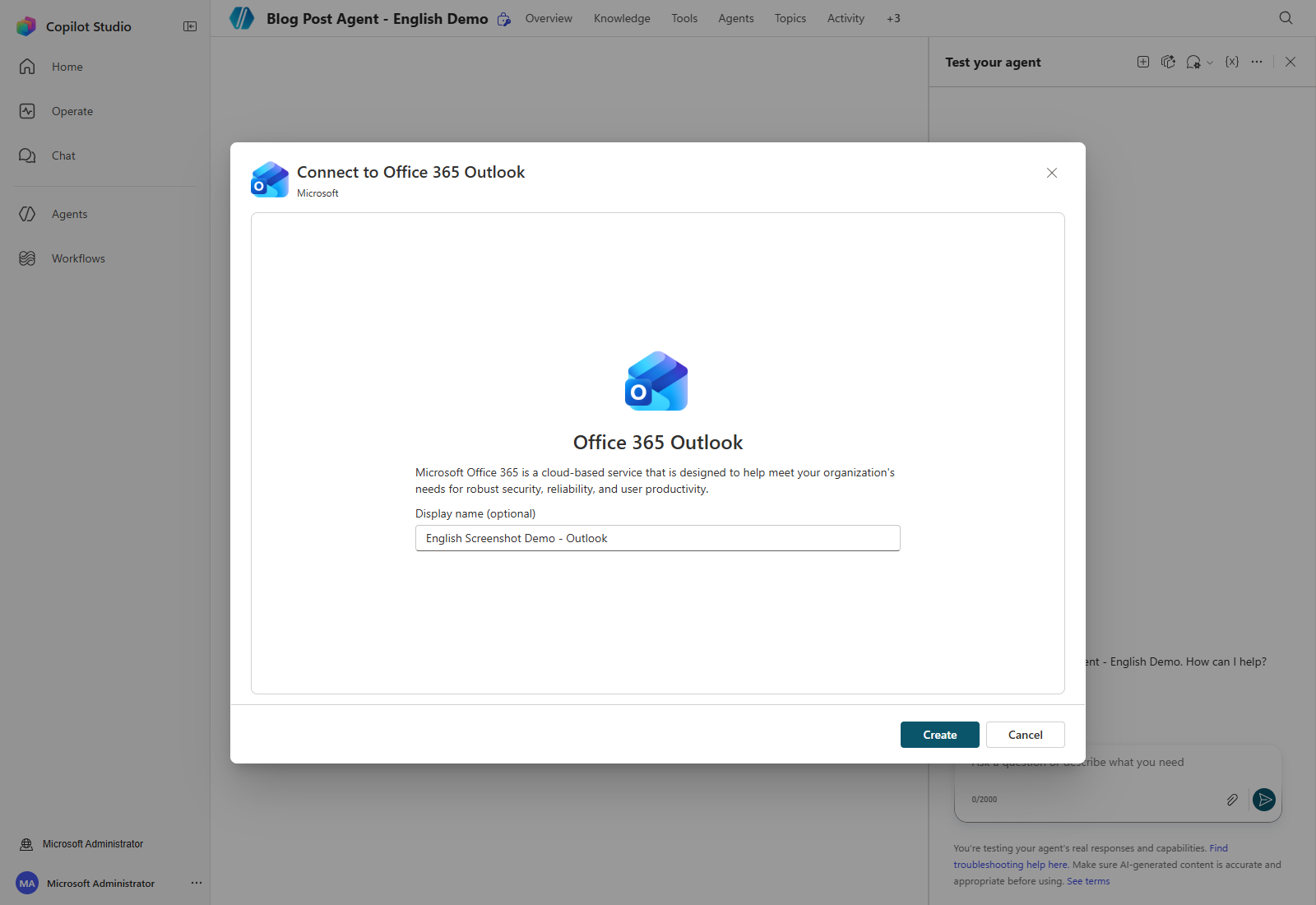
Enter an optional display name, such as English Screenshot Demo - Outlook, and select Create. In the Microsoft sign-in window, explicitly choose the approved workshop account. Do not accidentally select another cached account.
When the connection is complete, the connected account information and a green icon appear as shown below.
Select [Add and configure] to go to the detailed settings for the email-sending connector.
2. Configure the email-sending connector basics
Next, specify the settings required for the agent to send email.
By default, the first thing to do after adding a tool is to enter when and how this tool should be used in the Description field.
This description is referenced when the agent needs to choose a tool, so it should explain the situation in as much detail as possible to help the agent follow instructions accurately.
However, for the MCP server added here, the server description and each tool description have already been written and updated at the MCP server level, so you do not need to add a separate description.
Open Additional details. Set Ask the end user before running to Yes and keep Credentials to use → End user credentials for this workshop.
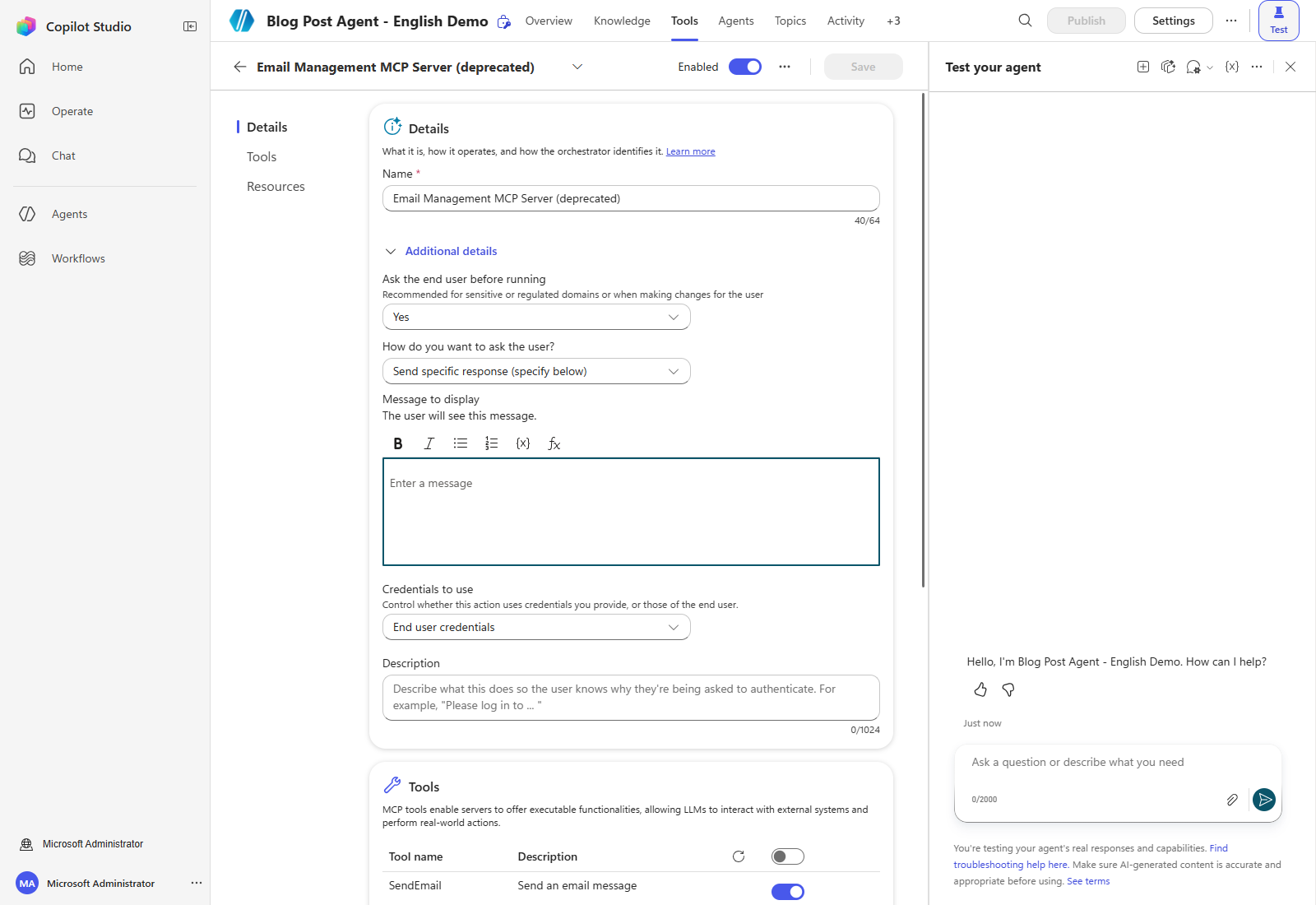
By default, “End-user credentials” is selected. In this case, users of the agent complete a one-time sign-in flow when they use the action.
Keep this setting when the action should run with the user’s own permissions. Maker-provided credentials change the identity and access boundary; they are not required for this demo and should not be used to expose an administrator’s access to other agent users.
3. Configure the tools used by the Email Management MCP Server
Enable only the tools provided by the MCP server that you will actually use.
This step is optional, but if there are tools that are not defined in the Instructions, they can reduce the agent’s accuracy when selecting tools. Enable only the tools you need whenever possible.
If you turn off the option to enable all functions in the tool, you can selectively allow individual tools.
In this scenario, only email sending is needed, so disable every function except the SendEmail tool.
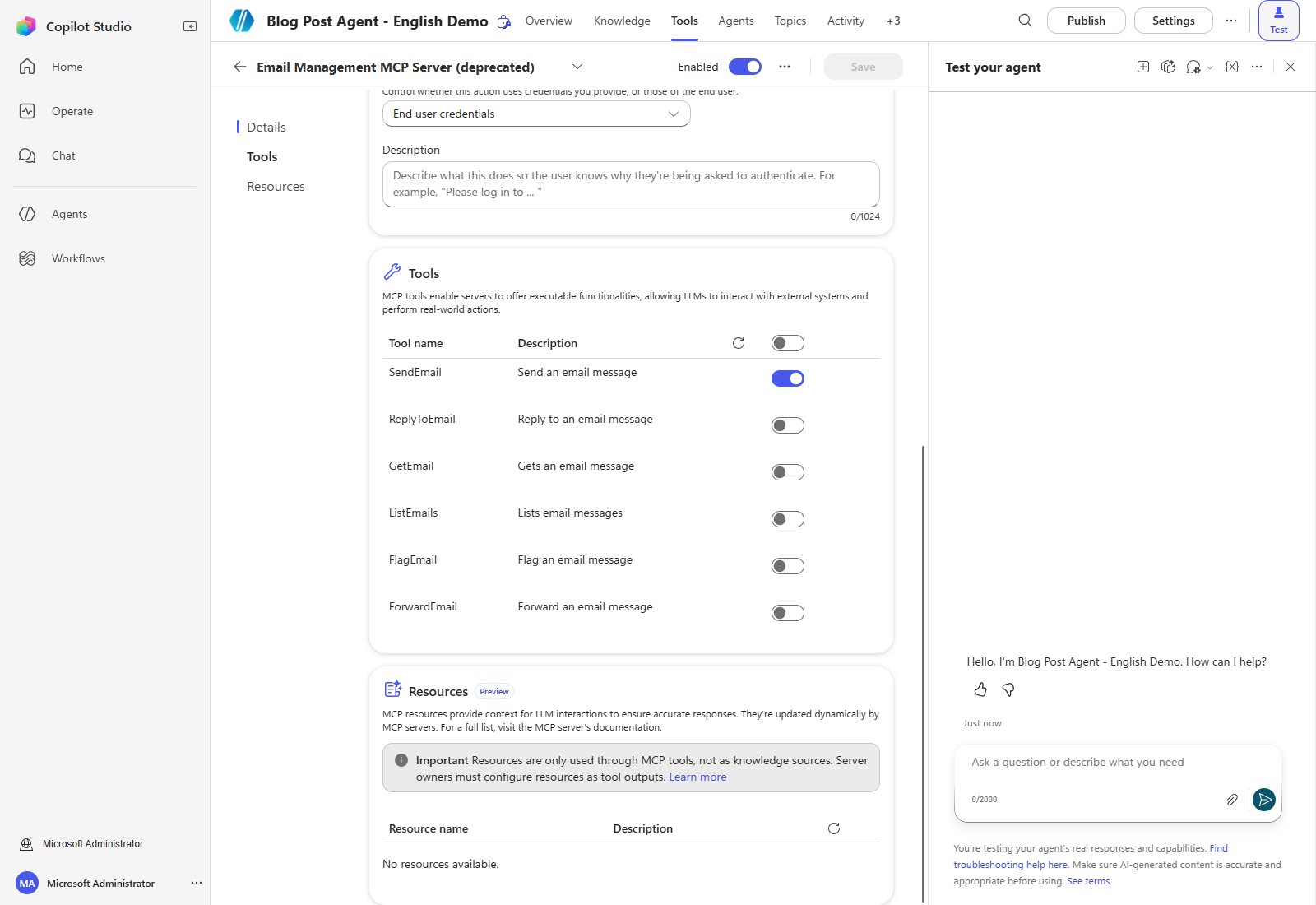
After that, click the Save button at the top. The email-sending tool is now ready. Next, write Instructions that tell the agent how to send emails.
4. Modify the agent Instructions
The email-sending tool setup is complete, but if a user enters “send this by email,” the agent may select and run the tool, while detailed instructions such as who the recipient is, what the subject should be, and what to include in the body are not defined.
Therefore, return to the Overview and enter Instructions for the added tool.
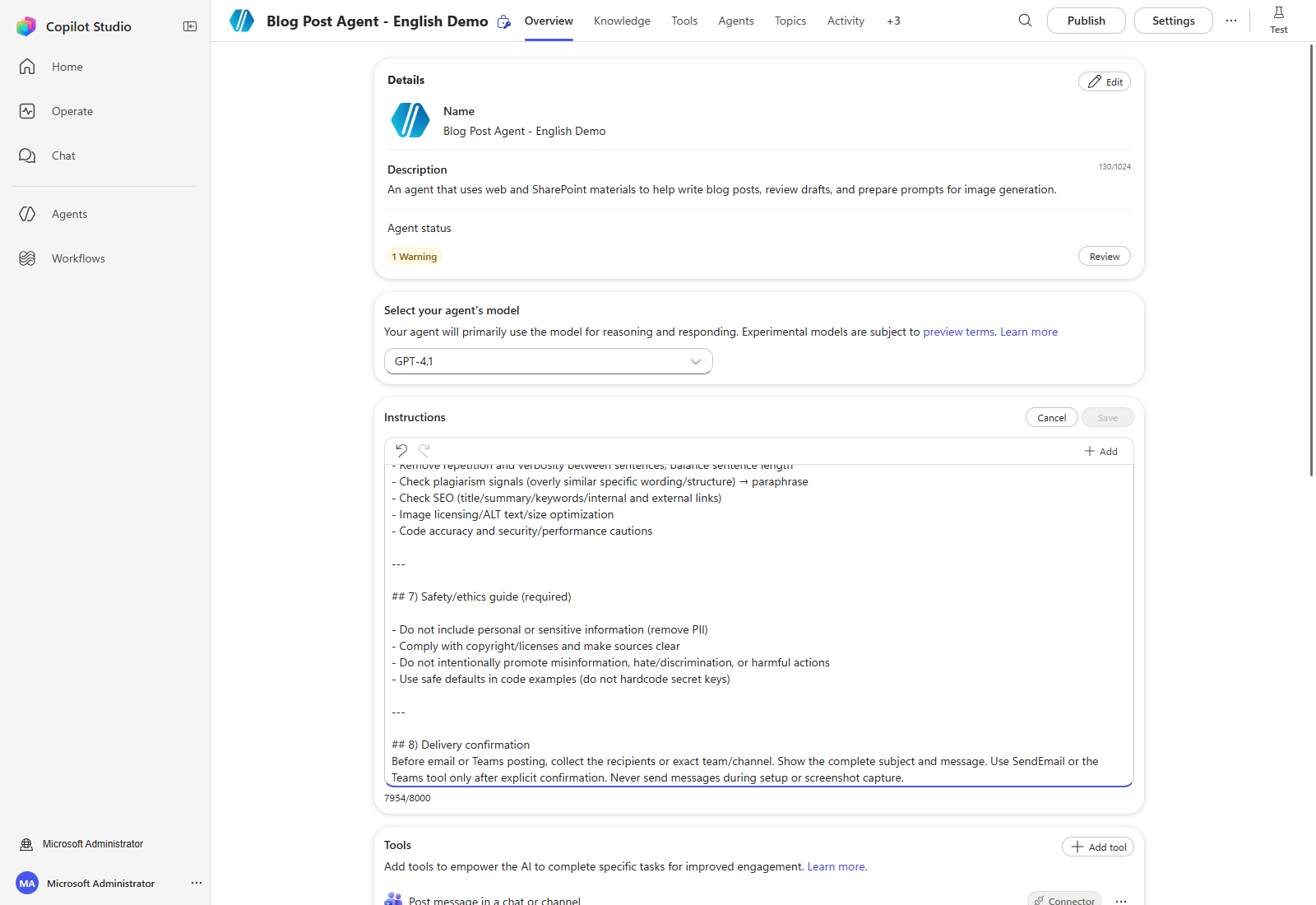
Append this compact delivery guardrail to the existing Instructions. Keep the combined Instructions within the UI’s 8,000-character limit; remove redundant examples if necessary. The same guardrail also covers the Teams tool in the next step.
## 8) Delivery confirmation
Before email or Teams posting, collect the recipients or exact team/channel. Show the complete subject and message. Use SendEmail or the Teams tool only after explicit confirmation. Never send messages during setup or screenshot capture.
Save the Instructions and wait for the save to finish. A connection being configured does not prove delivery. A separate, authorized end-to-end test must preview the exact recipients, subject, and body and obtain confirmation before sending.
Capture boundary: No send operation or inbox delivery was performed for these screenshots. The previous sent-mail images are not presented as evidence of this demo run.
The agent can now use additional actions through Tools.
Next, add a tool that posts the same content to a Teams channel.
| ← Previous: Step 2. Add reference materials | Next: Step 4. Tools: plugin connector → |