Mission 01: Get started with the Hiring Agent
Deploy the core infrastructure for a hiring management system and create the central orchestrator agent
Translated article — This article is based on 🚨 Mission 01: Get started with the Hiring Agent from the Copilot Studio Agent Academy. The original wording takes precedence.
🎥 Watch the hands-on video
🎯 Mission briefing
Welcome, Agent. Your first assignment is Operation Talent Scout. In this mission, you will establish the foundational infrastructure for an AI-powered hiring system that transforms how organizations find and hire top talent.
The goal of this mission is to use Microsoft Copilot Studio to deploy and configure a comprehensive hiring management system. You will import a prebuilt solution that includes all required data structures, then create your first AI agent, the Hiring Agent, which will oversee all future hiring activities.
This initial deployment gives you the solution you will expand throughout the Agent Academy Operative course. Think of it as the base of operations for the missions ahead. It is the foundation on which you will build a network of specialized agents in later missions.
This lab uses the classic Copilot Studio experience — Microsoft Copilot Studio is rolling out a new authoring experience. The screenshots and steps in this lab are based on the classic experience. If your screen looks different, turn off New Experience in the upper-right corner before continuing. Updated guidance for the new experience will also be provided, but this lab remains valid in the classic experience.
🔎 Objectives
In this mission, you will learn how to:
- Understand the hiring automation scenario’s challenges and solution, and grasp the overall context
- Successfully import and configure the base components of the hiring management system
- Create the hiring agent that serves as the starting point for the scenario you will build as an Agent Academy Operative
🔍 Prerequisites
Before starting this mission, prepare the following:
- A Copilot Studio license
- Access to a Microsoft Power Platform environment that is not a managed environment
- Admin permissions to create solutions and agents
Prerequisite help — If you need help preparing a Copilot Studio license, see the Recruit course setup lab, which walks through setting up a Power Platform environment and Copilot Studio trial.
🏢 Understanding the hiring automation scenario
This scenario shows how an organization can use Microsoft Copilot Studio to improve and automate the hiring process. In this course, you will learn an architecture in which multiple agents collaborate to handle tasks such as reviewing resumes, recommending suitable roles, preparing interview materials, and evaluating candidates.
Business value
This solution helps HR teams save time and make better decisions in the following ways:
- Automatically process resumes received by email.
- Suggest suitable roles based on candidate profiles.
- Generate job applications and interview guides tailored to each candidate.
- Support fair and compliant hiring processes through built-in safety and moderation features.
- Collect feedback to improve the solution.
How it works
- The central Hiring Agent coordinates the overall process and stores data in Microsoft Dataverse.
- The Application Intake Agent reads resumes and creates job applications.
- The Interview Prep Agent generates interview questions and documents based on a candidate’s background.
- The system can be published to a demo website so stakeholders can interact with it directly.
This scenario is well suited for organizations that want to modernize hiring workflows with AI-powered automation while maintaining transparency, fairness, and efficiency.
🧪 Lab 1 - Set up the Hiring Agent
In this hands-on lab, you will lay the foundation for the hiring automation system. First, you will import a preconfigured solution containing the Dataverse tables and data structures required to manage candidates, roles, and hiring workflows. Next, you will populate those tables with sample data that supports the learning throughout this module and provides realistic test scenarios. Finally, you will create the Hiring Agent in Copilot Studio, setting up the basic conversation interface that all functionality added in later missions will build on.
🧪 Lab 1.1 - Import the solution
- Go to Copilot Studio.
-
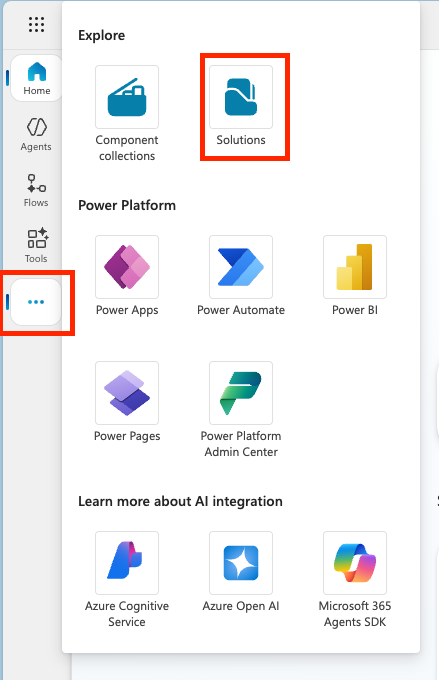
In the left navigation menu, select …, then select Solutions.
-
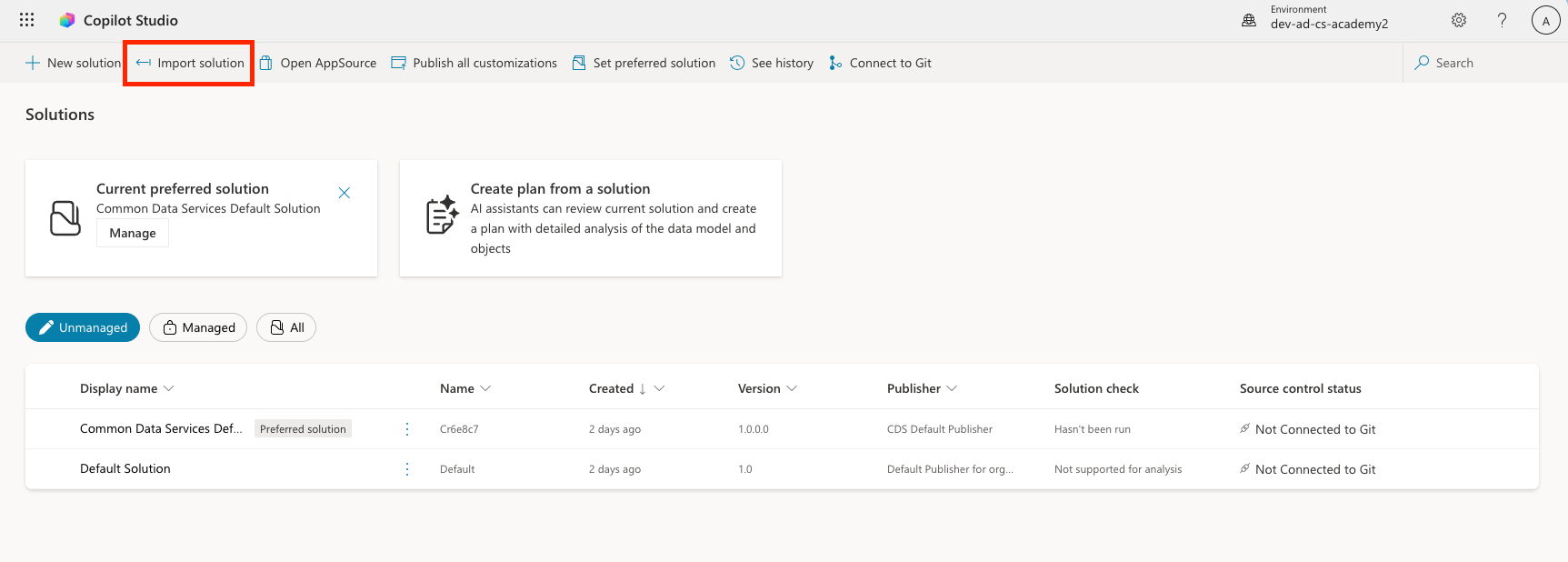
Select the Import Solution button at the top.
- Download the prepared solution.
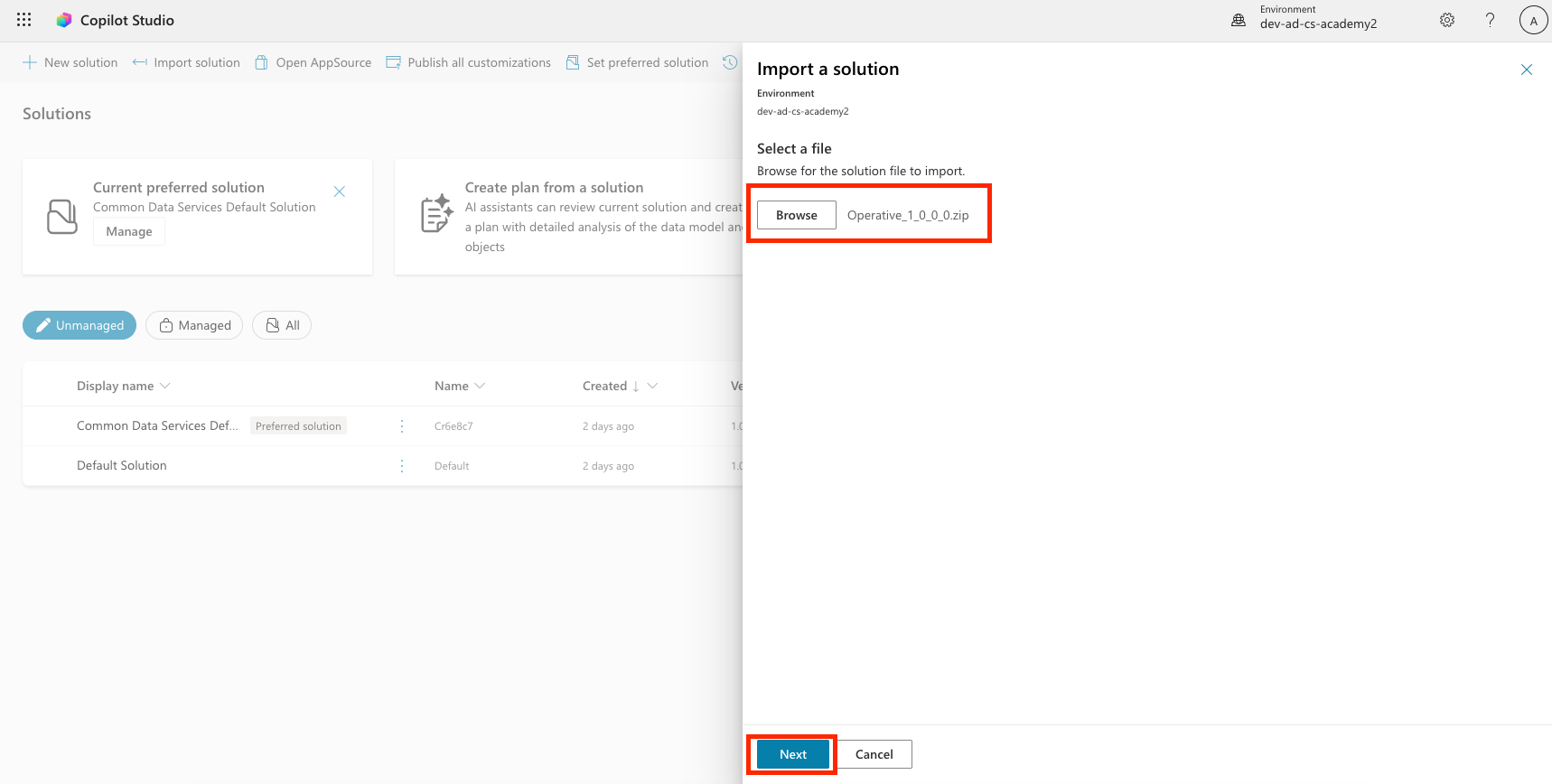
- Select Browse, then select the solution you downloaded in the previous step.
-
Select Next.
-
Select Import.
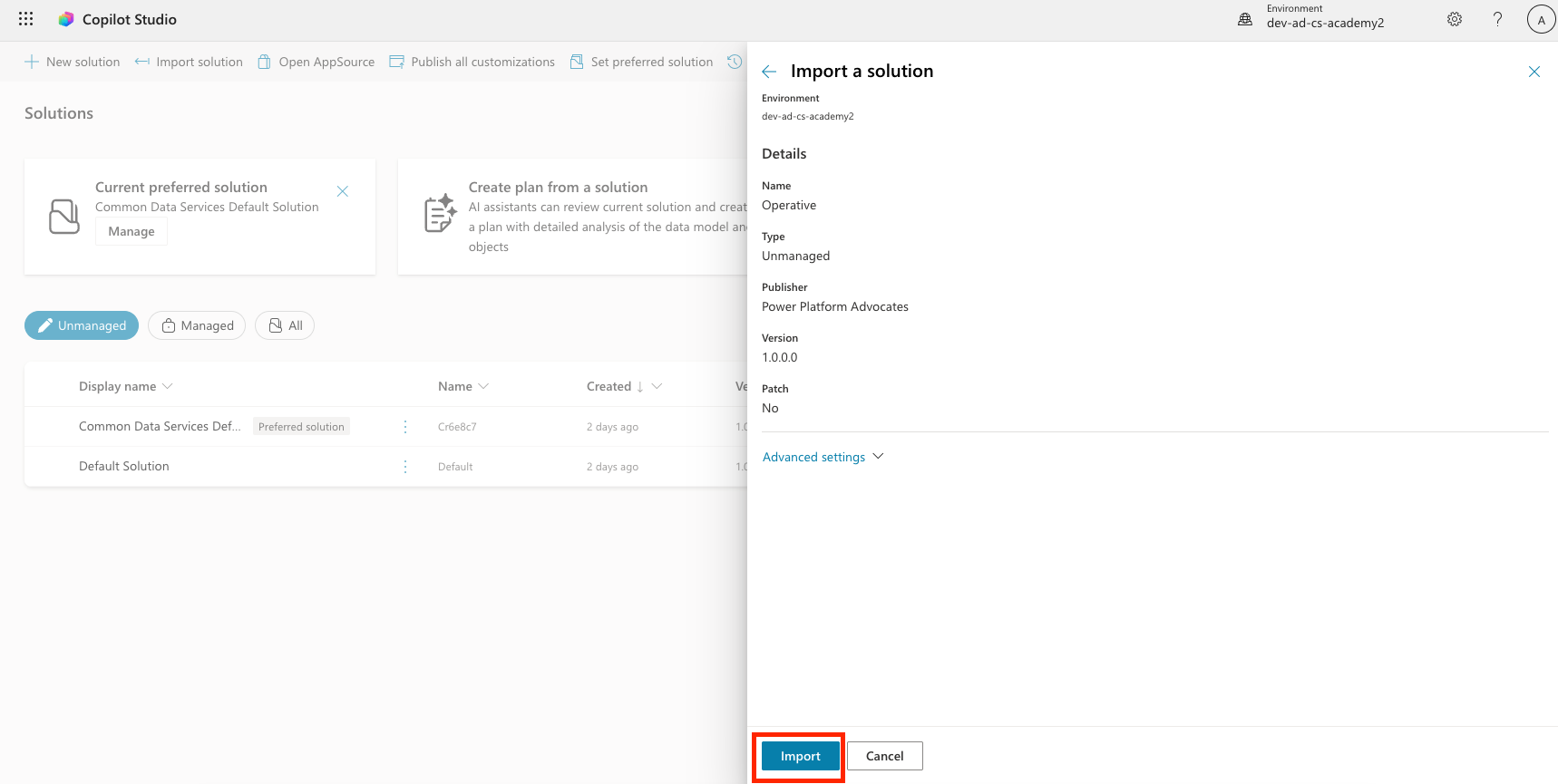
Note — When the import succeeds, a green notification bar displays the message
Solution "Operative" imported successfully.after completion. - When you see the
imported successfullymessage, select the solution display name,Operative, from the Solutions list to review the imported contents.
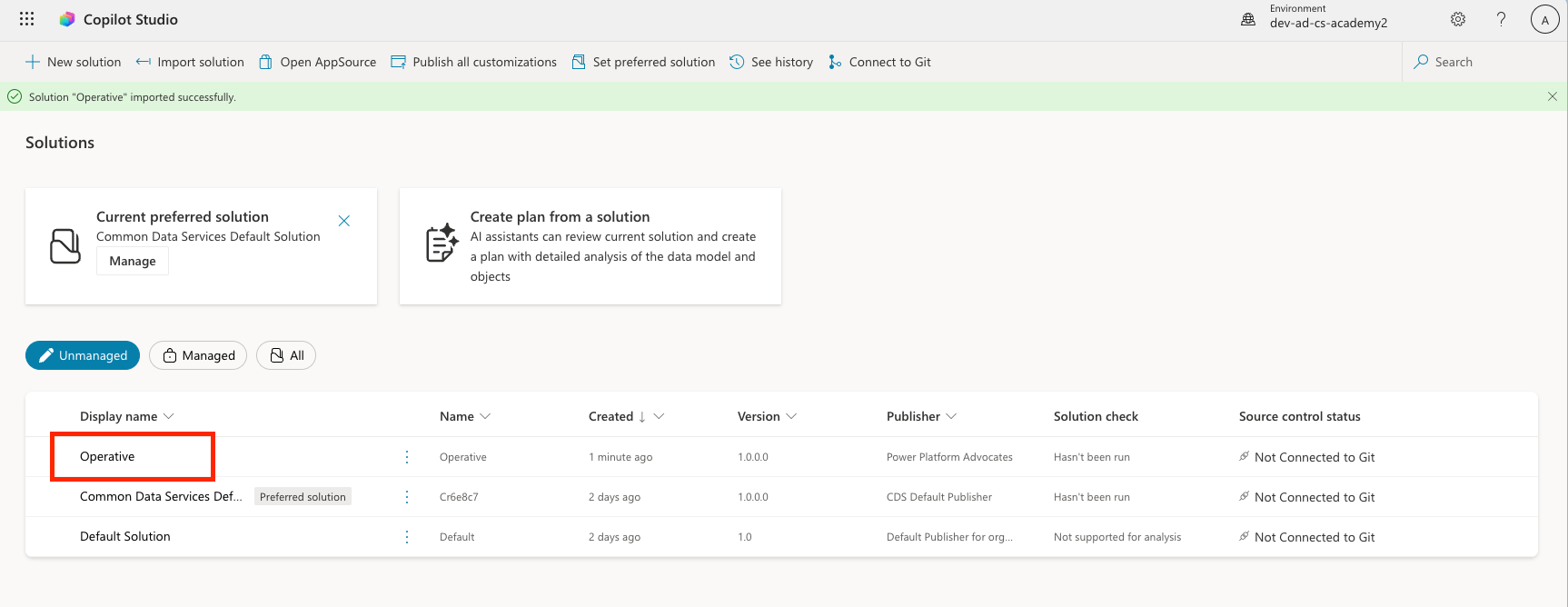
Review the imported solution and confirm that it contains the following components.
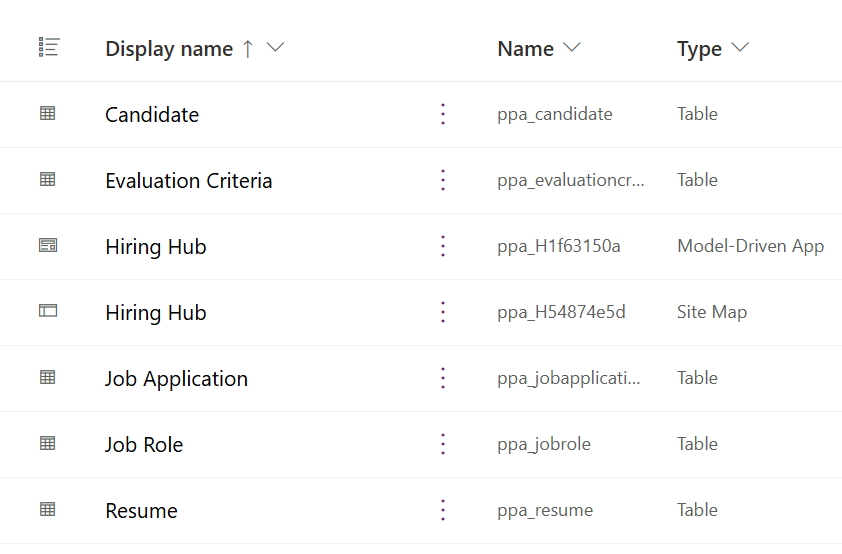
| Display name | Type | Description |
|---|---|---|
| Candidate | Table | Candidate information |
| Evaluation Criteria | Table | Evaluation criteria for the role |
| Hiring Hub | Model-Driven App | Application that manages the hiring process |
| Hiring Hub | Site Map | Navigation structure for the Hiring Hub app |
| Job Application | Table | Job application |
| Job Role | Table | Job role |
| Resume | Table | Candidate resume |
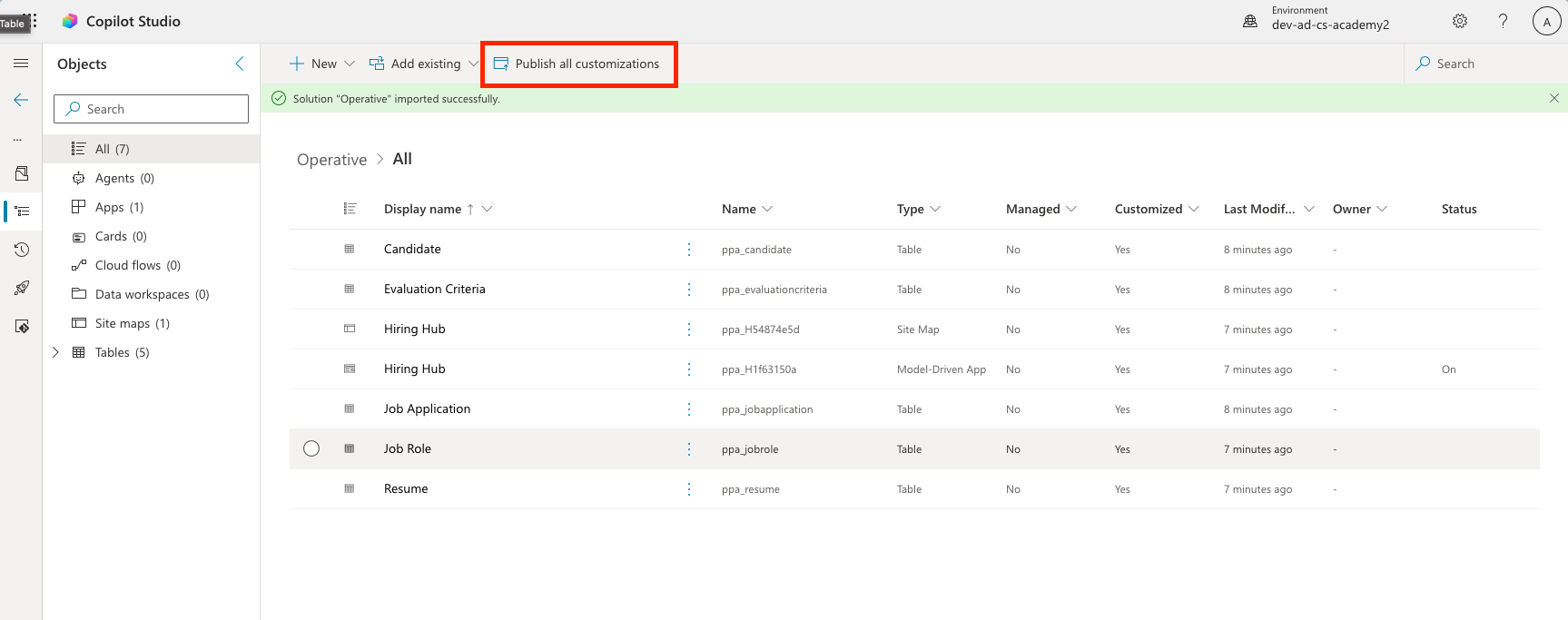
As the final task in this lab, select the Publish all customizations button at the top of the page.
🧪 Lab 1.2 - Import sample data
In this lab, you will add sample data to some of the tables imported in Lab 1.1.
Download the files to import
📥 The sample files needed for the lab can be downloaded from the original mission page.
Import Job Role sample data
- Return to the solution you imported in the previous lab.
- Select the check mark in front of the row to select the Hiring Hub model-driven app.
-
Select the Play button at the top.
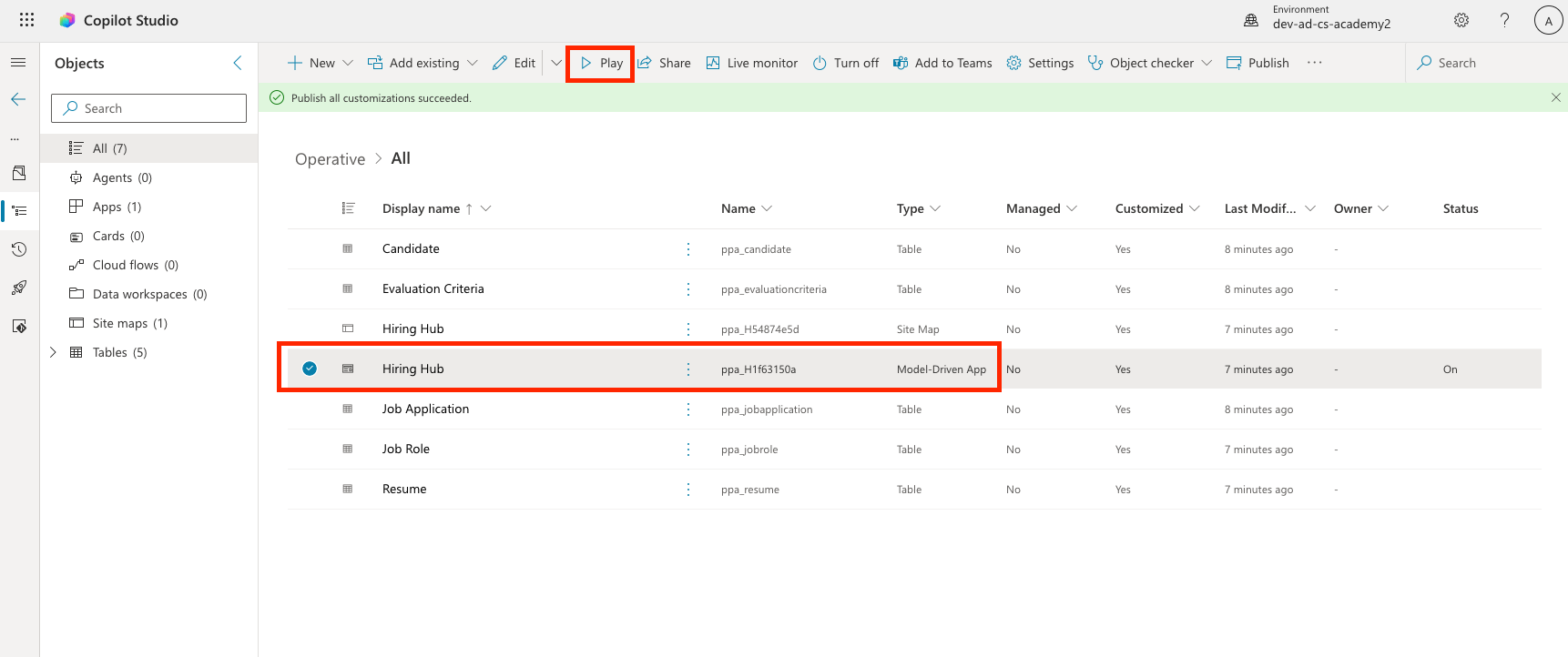
Warning — You may be prompted to sign in again. If so, sign in. After signing in, the Hiring Hub app should be displayed.
- In the left navigation menu, select Job Roles.
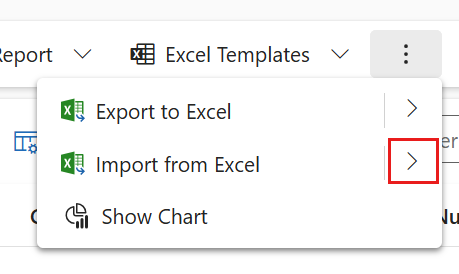
- In the command bar, select the More icon (three vertical dots).
-
Select the right arrow next to Import from Excel.
-
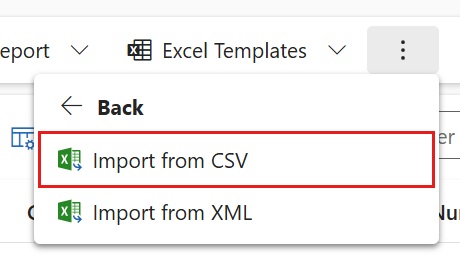
Select Import from CSV.
- Select the Choose File button, select the job-roles.csv file you just downloaded, then select Open.
- Select Next.
-
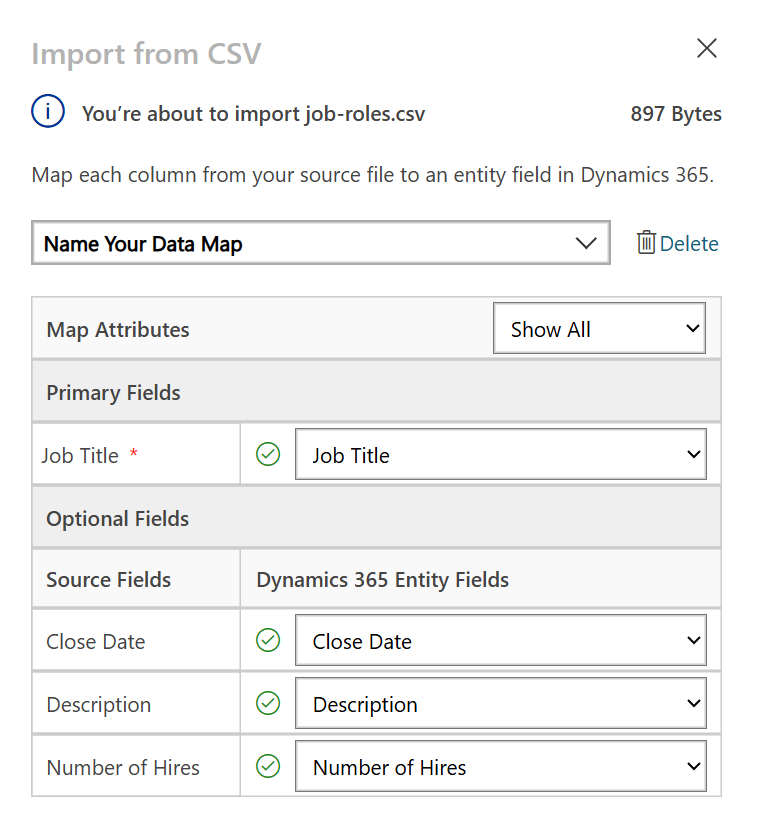
Leave the next step unchanged and select Review Mapping.
-
Confirm that the mapping is correct, then select Finish Import.
Note — This starts the import. You can track its progress or select Done to finish this process immediately.
- Select Done.
This may take a little while, but you can select Refresh to confirm that the import succeeded.
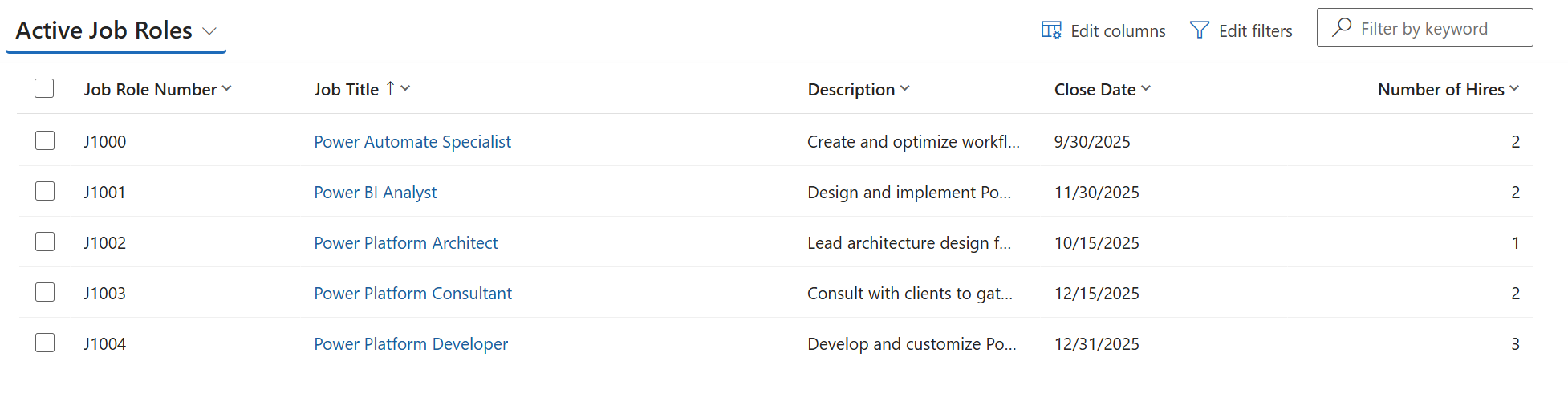
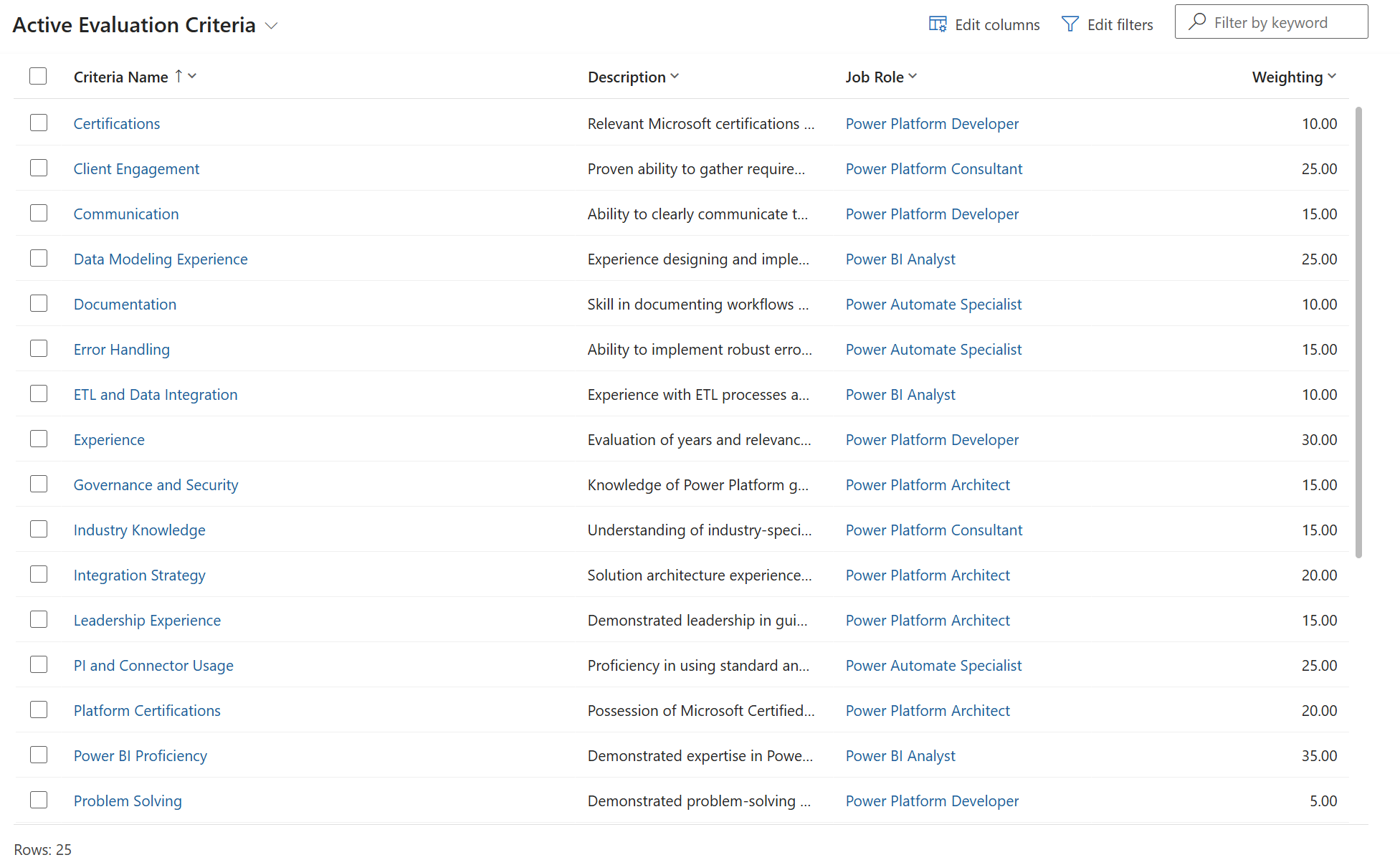
Import Evaluation Criteria sample data
- In the left navigation menu, select Evaluation Criteria.
- In the command bar, select the More icon (three vertical dots).
-
Select the right arrow next to Import from Excel.
-
Select Import from CSV.
- Select the Choose File button, select the evaluation-criteria.csv file you just downloaded, then select Open.
- Select Next.
-
Leave the next step unchanged and select Review Mapping.
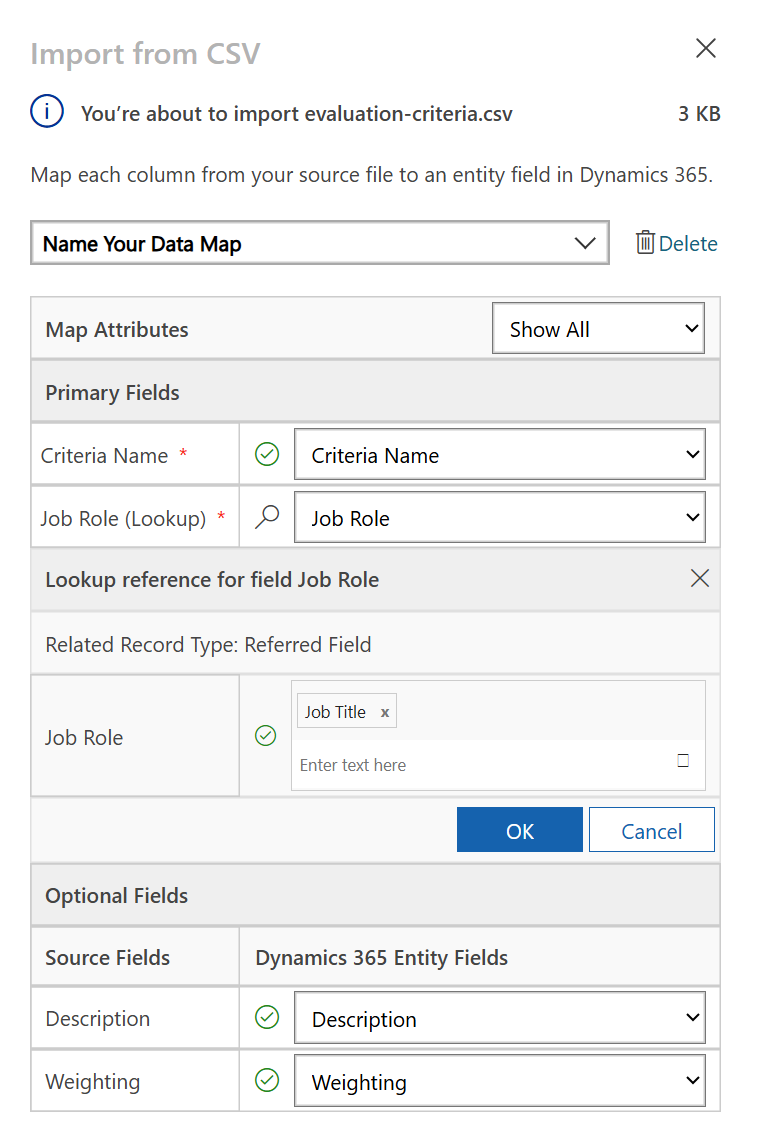
-
Now you need to do a little more work in the mapping. Select the magnifying glass (🔎 icon) next to the Job Role field.
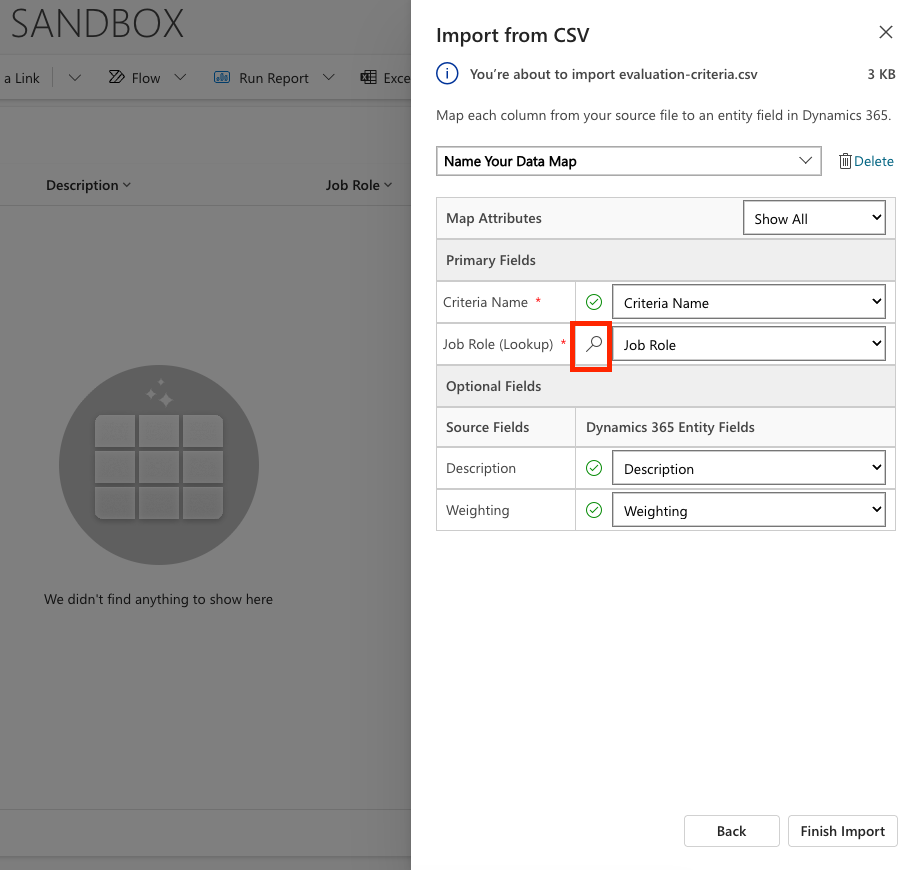
- Make sure Job Title is selected here, and add it if it is not.
-
Select OK.
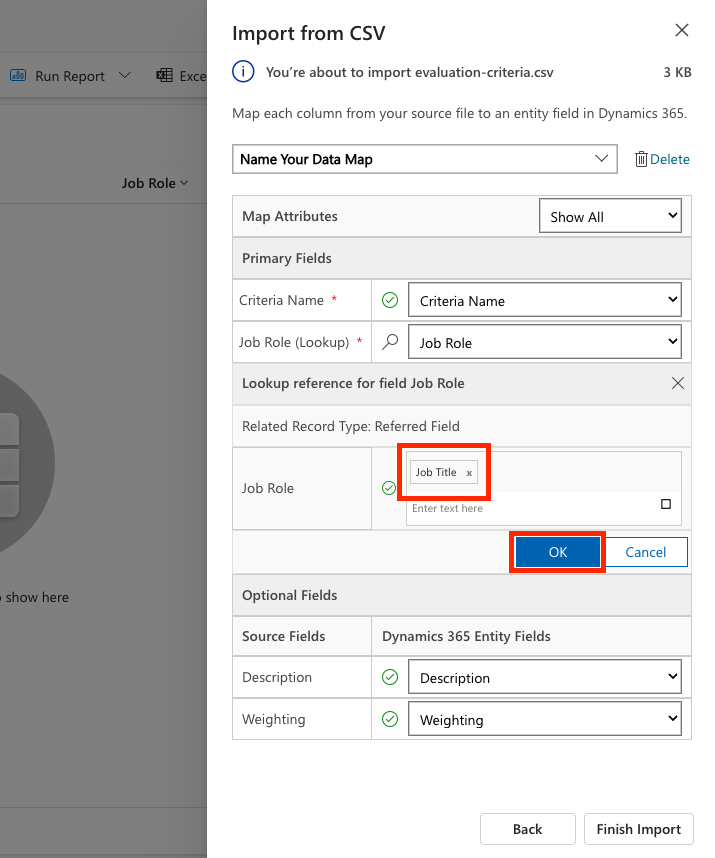
-
Confirm that the remaining mappings are correct, then select Finish Import.
Note — This starts the import again. You can track its progress or select Done to finish this process immediately.
- Select Done.
This may take a little while, but you can select Refresh to confirm that the import succeeded.
🧪 Lab 1.3 - Create the Hiring Agent
Now that the prerequisite setup is complete, it is time to get to work. First, create the Hiring Agent.
- Go to Copilot Studio and make sure you are in the same environment where you imported the solution and data.
-
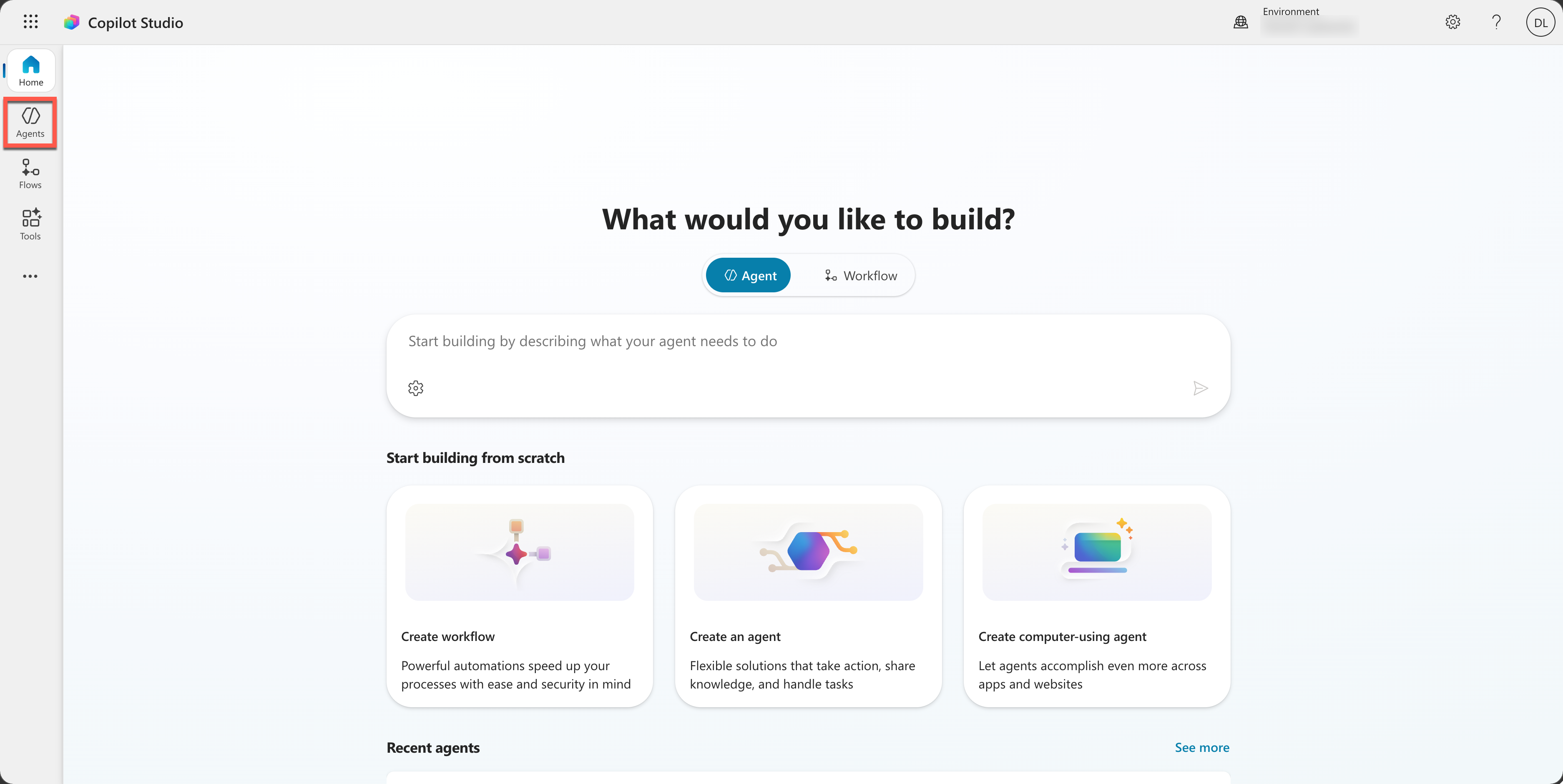
In the left navigation menu, select Agents.
-
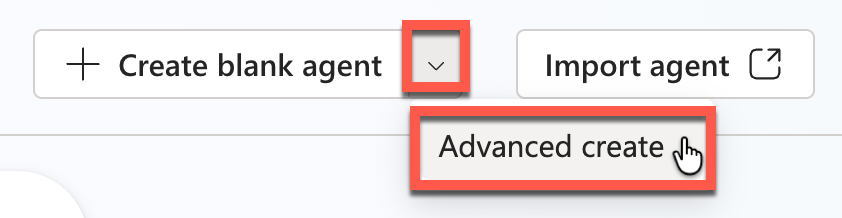
Select the down-arrow icon next to Create blank agent, then select Advanced create.
- For solution, select Operative. This is the solution you just imported.
-
For schema name, enter hiringagent after the
ppa_prefix.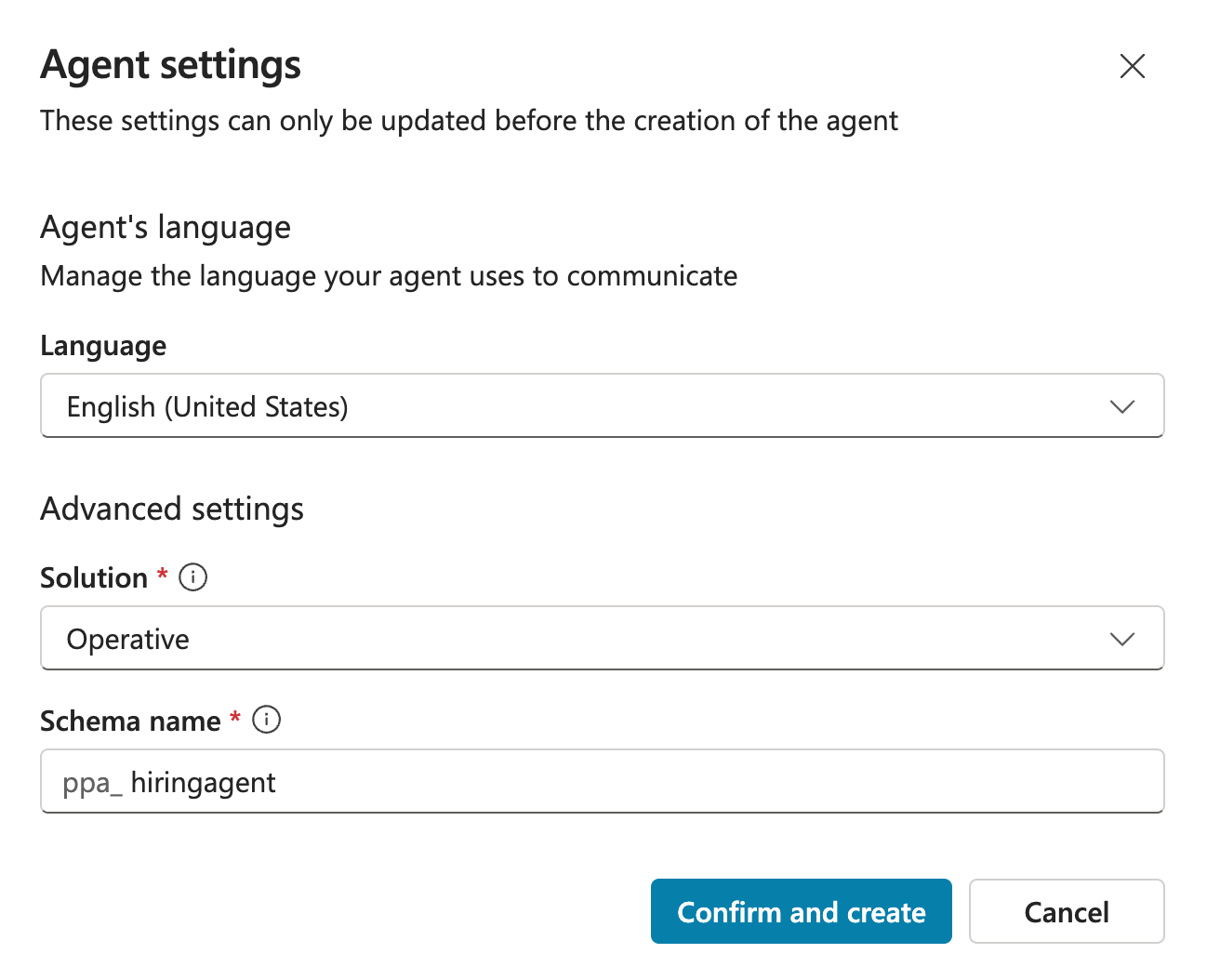
-
Select Confirm and create.
This creates the agent in the
Operativesolution. It is initially created with the nameAgent 1, which is not very useful, so we will change it. - In the Details card at the top, select Edit.
-
In Name, enter the following.
Hiring Agent -
In Description, enter the following.
Central orchestrator for all hiring activities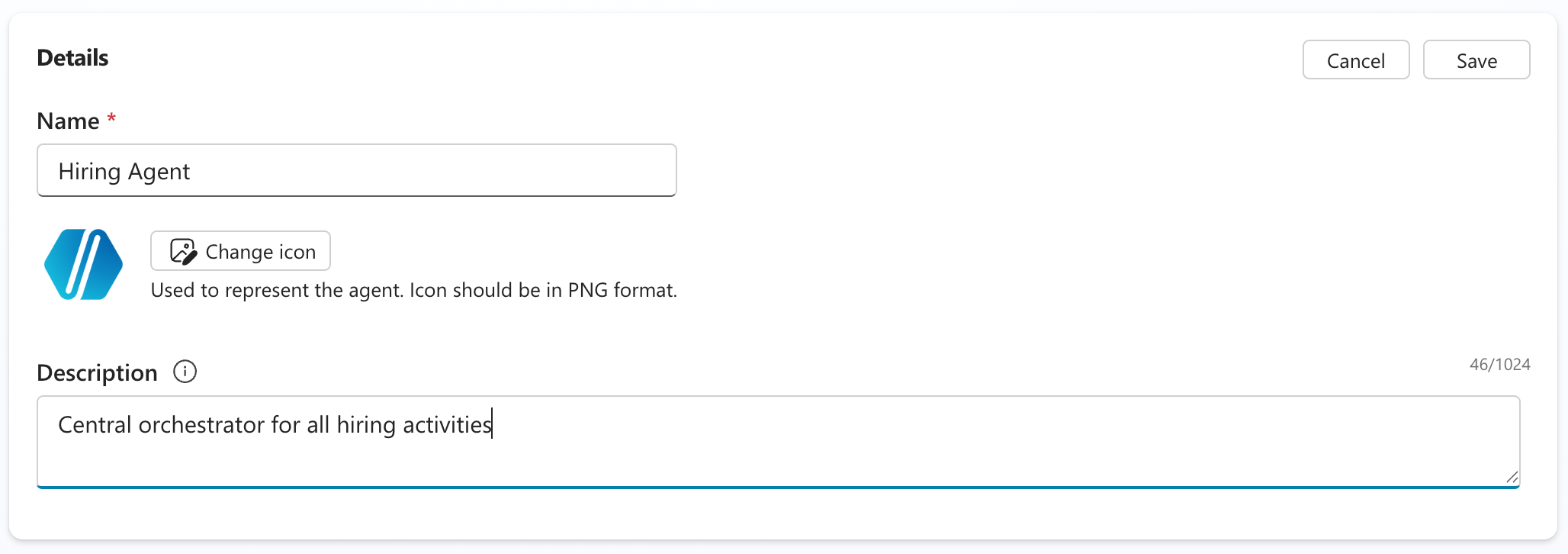
- Select Save to save the agent. It may take a little while for the changes to appear.
You will continue using this agent in the other missions of the Operative course.
🎉 Mission complete
You have completed Mission 01. You have now learned:
✅ Scenario understanding: A comprehensive understanding of the hiring automation challenge and the solution you will build
✅ Solution deployment: Successfully imported and configured the components of the hiring management system
✅ Agent creation: Built the hiring agent that serves as the starting point for the scenario you will build as an Agent Academy Operative
Continue to the next mission, Mission 02: Write Agent Instructions.