Connector-centric flow
[Renewal] Explore the basic features of Copilot Studio - Chain email and Teams posting automation with a Power Automate flow
Step 7: Connector-centric flow
Add a flow to the agent
✅ What is a Flow?
A Flow is a Power Automate-based automation process: a workflow that runs a series of tasks in response to a specific event, such as user input from Copilot.
Key capabilities:
- Interact with external systems based on data received from Copilot
- Process business logic such as conditional branching, loops, and data transformation
- Implement work automation by connecting to various services
Flow vs Connector comparison
| Category | Flow | Connector |
|---|---|---|
| Role | Runs automation logic based on events generated in Copilot | Handles data communication with external systems |
| Core capabilities |
Conditional processing, loops, data transformation, task orchestration | API calls, authentication processing, data schema definition |
| Usage examples |
- Vacation request → Register a request in the HR system - Customer inquiry → Create a CRM ticket |
- Get SharePoint document list - Send Outlook email |
| Relationship | A Flow uses connectors to interact with external systems | A Connector serves as a data source in a Flow |
Summary of the key difference
- Flow = automation logic
- Connector = means of connecting to external services
In other words, a Flow defines “what to do,” and a Connector handles “where to get data from and where to send it.”
Lab
English UI screenshots, September 8, 2026. Actual captures from an English-language demo environment. The flow was authored and its actions configured, but no email was sent and no Teams message was posted — running the flow is a separate, explicitly confirmed step.
In this workshop you extend the email-sending connector scenario from Step 5 into a single flow that sends the escalation email and notifies a Teams channel about what was sent.
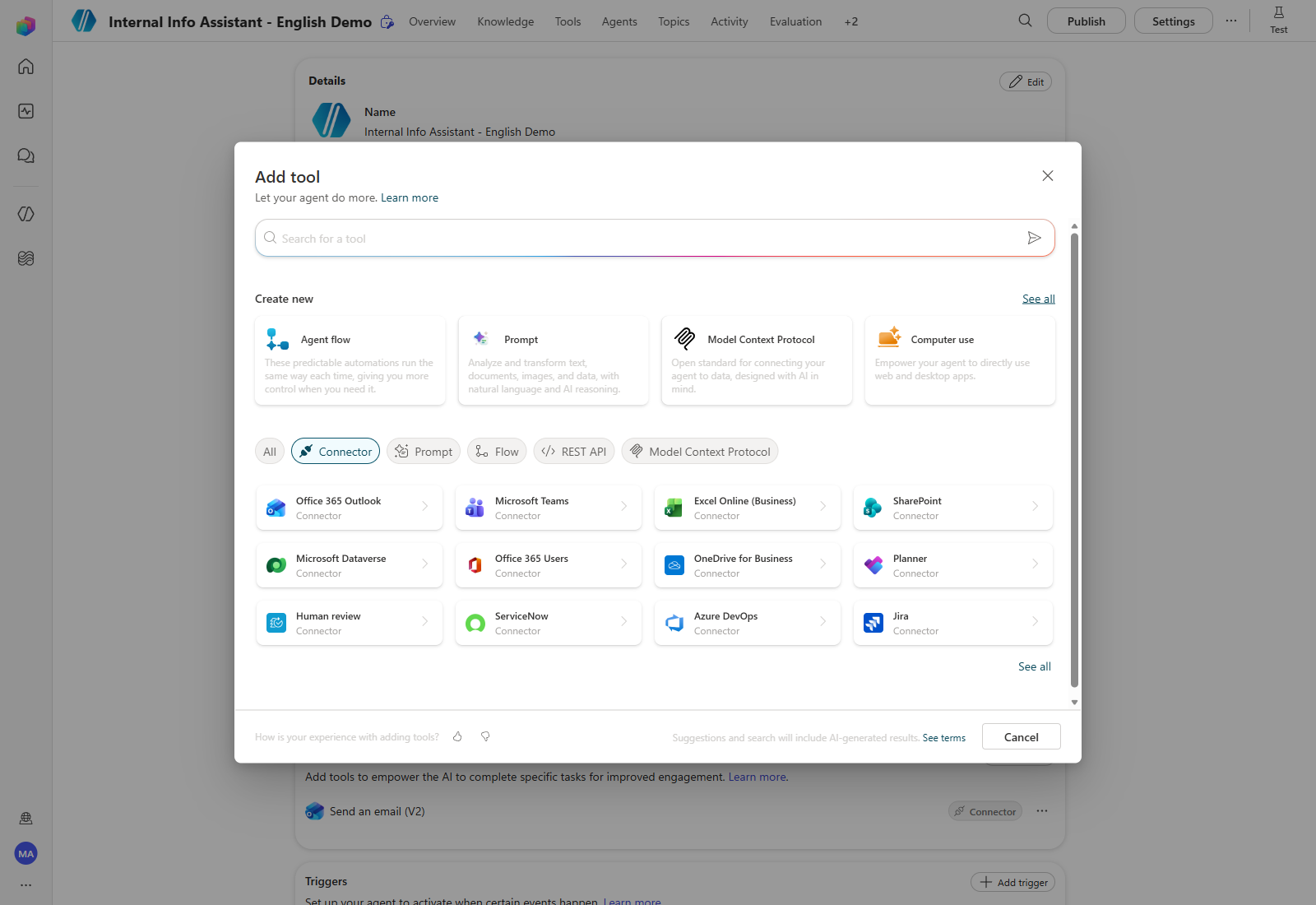
The entry point changed. Earlier versions of this workshop went through Add tool → New tool → Agent flow. In the current Copilot Studio, Agent flow is a card in the Create new row at the top of the Add tool dialog, so there is no separate “New tool” step.
1. Create a Flow
From the agent Overview, select Add tool. In the Add tool dialog, choose Agent flow under Create new.
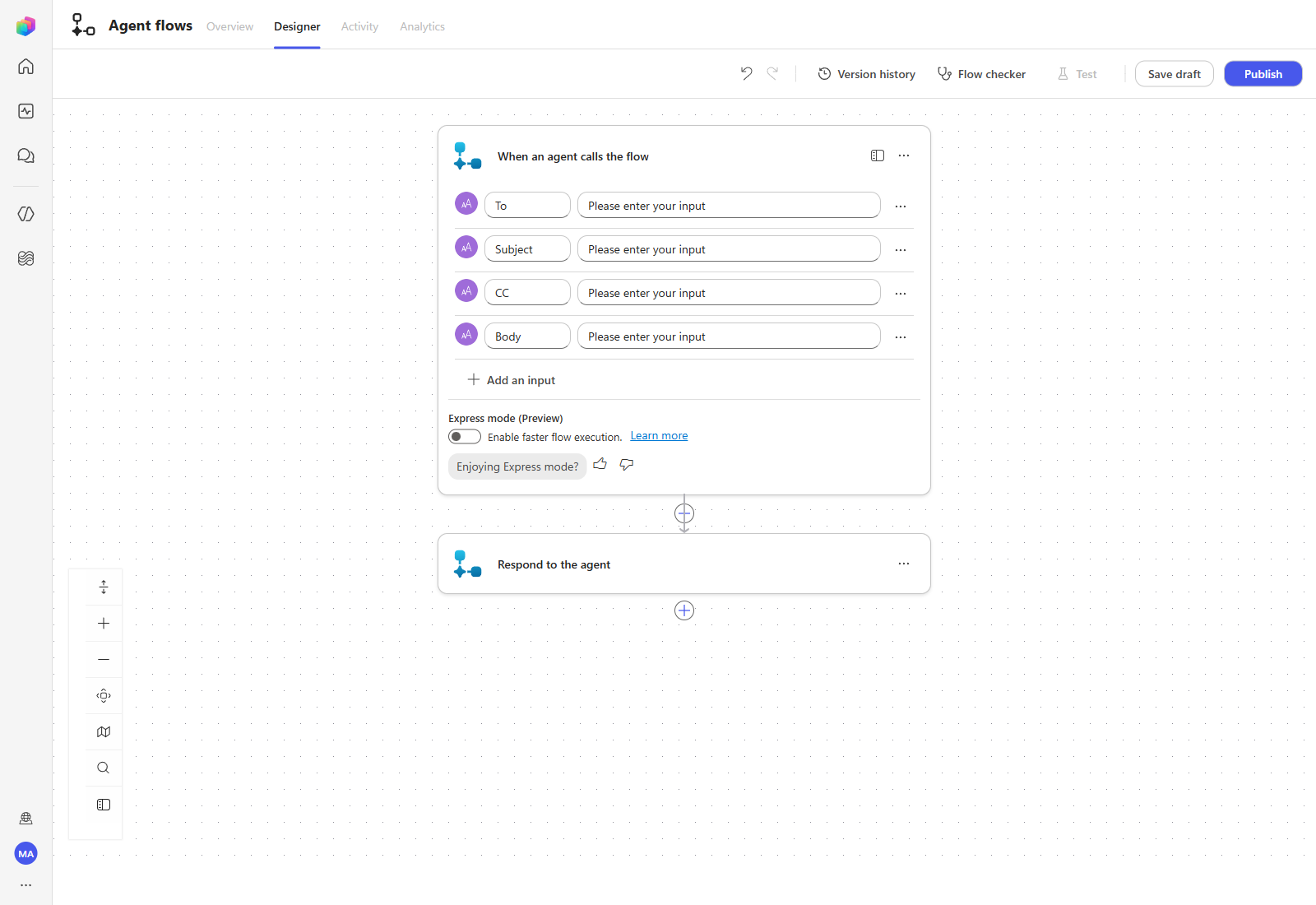
The flow designer opens with two actions already on the canvas.
- When an agent calls the flow — the trigger. You declare the flow’s input variables here.
- Respond to the agent — returns output variables to the agent after the work is done.
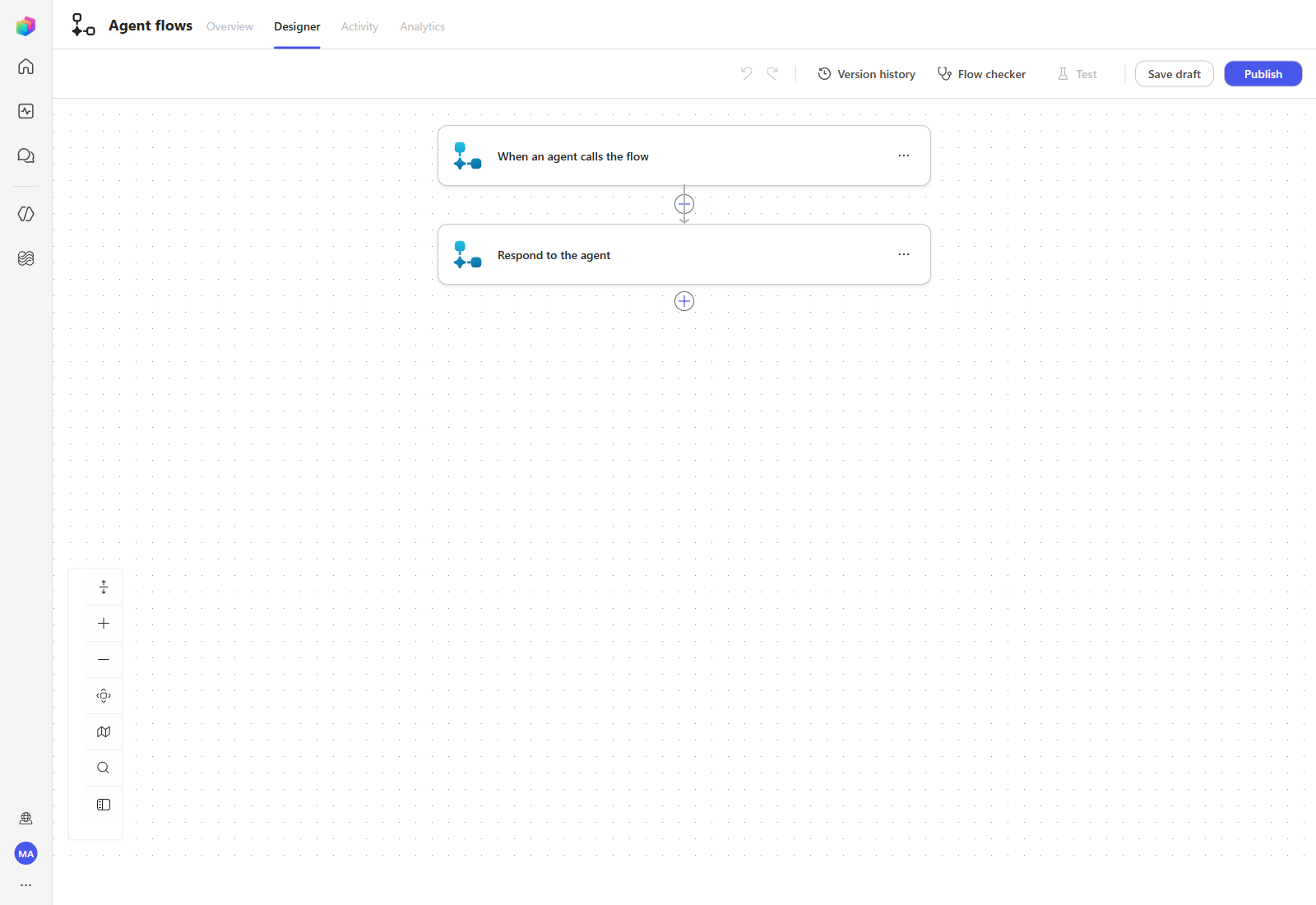
This scenario only needs inputs — the recipient, subject, CC and body used to send the mail and compose the Teams post. Because nothing needs to be returned, you add input variables only.
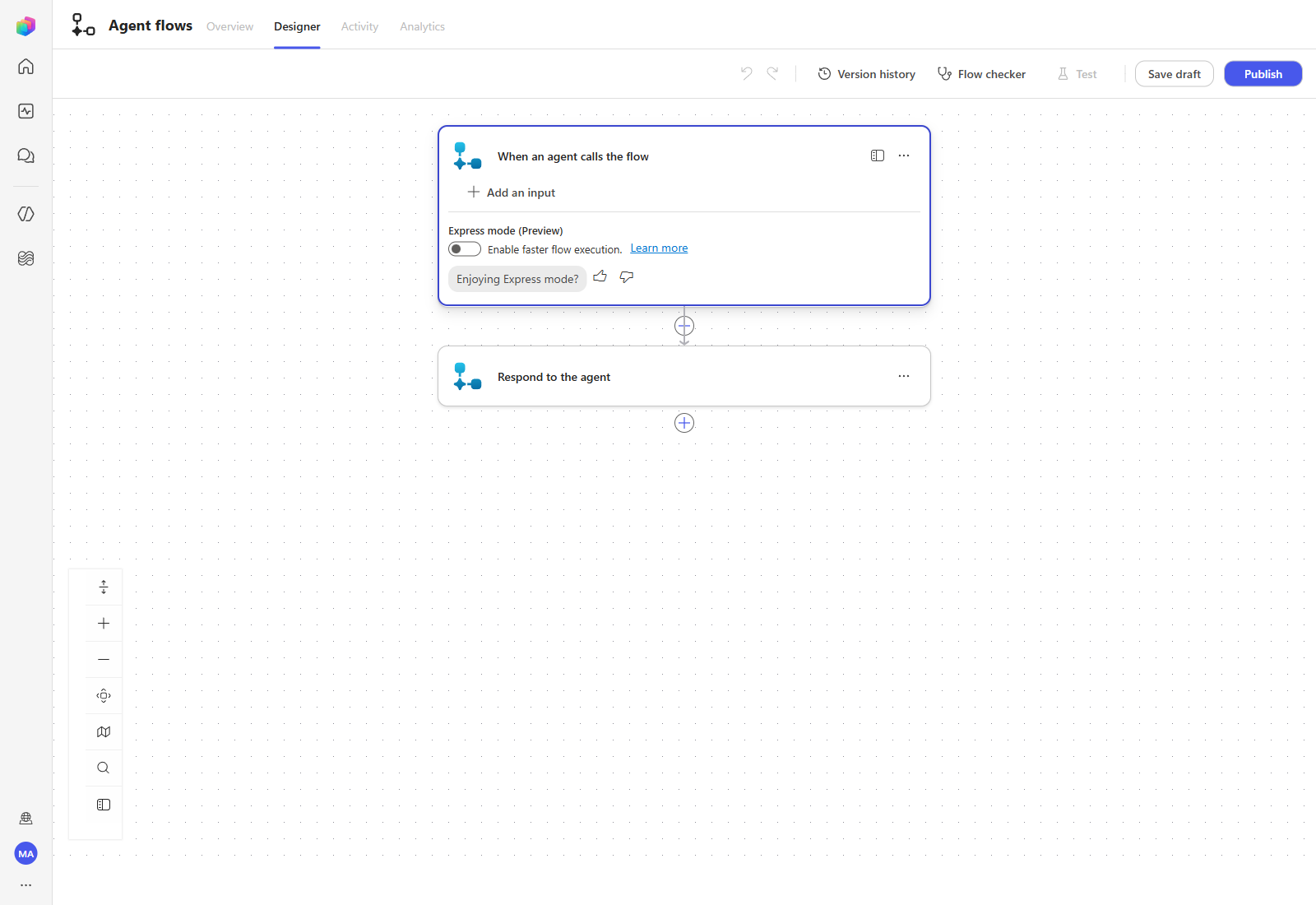
Select When an agent calls the flow, then select Add an input.
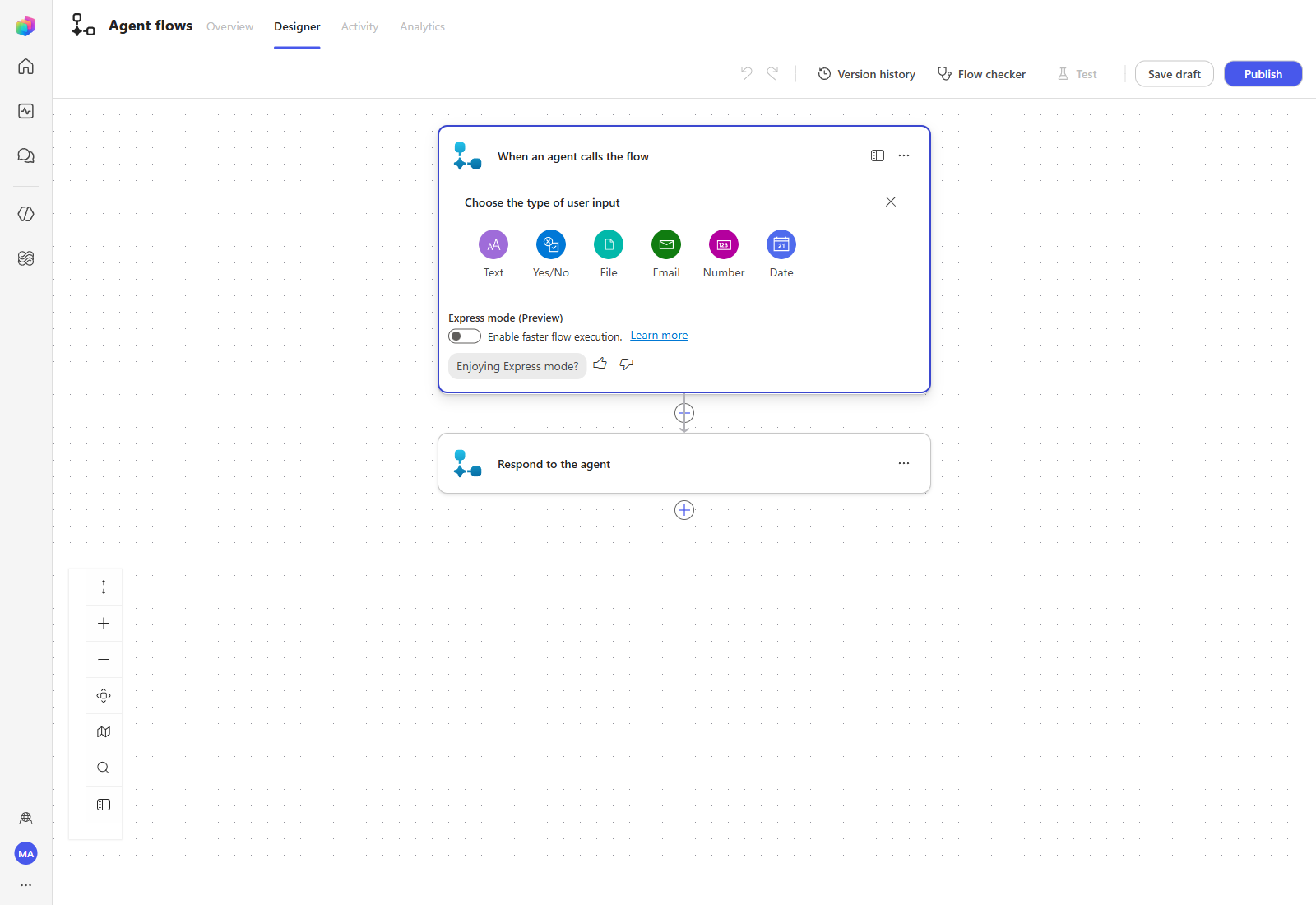
Choose the input type. Use Text for all four inputs in this workshop.
Repeat until all four inputs exist.
| Variable name | Type |
|---|---|
| To | Text |
| Subject | Text |
| CC | Text |
| Body | Text |
2. Add an action connector (email)
With the inputs in place, add the two actions the flow runs in order:
- Send the email
- Post a message to a Teams channel
Select the + below the trigger to open Add an action, then search for Send an email.
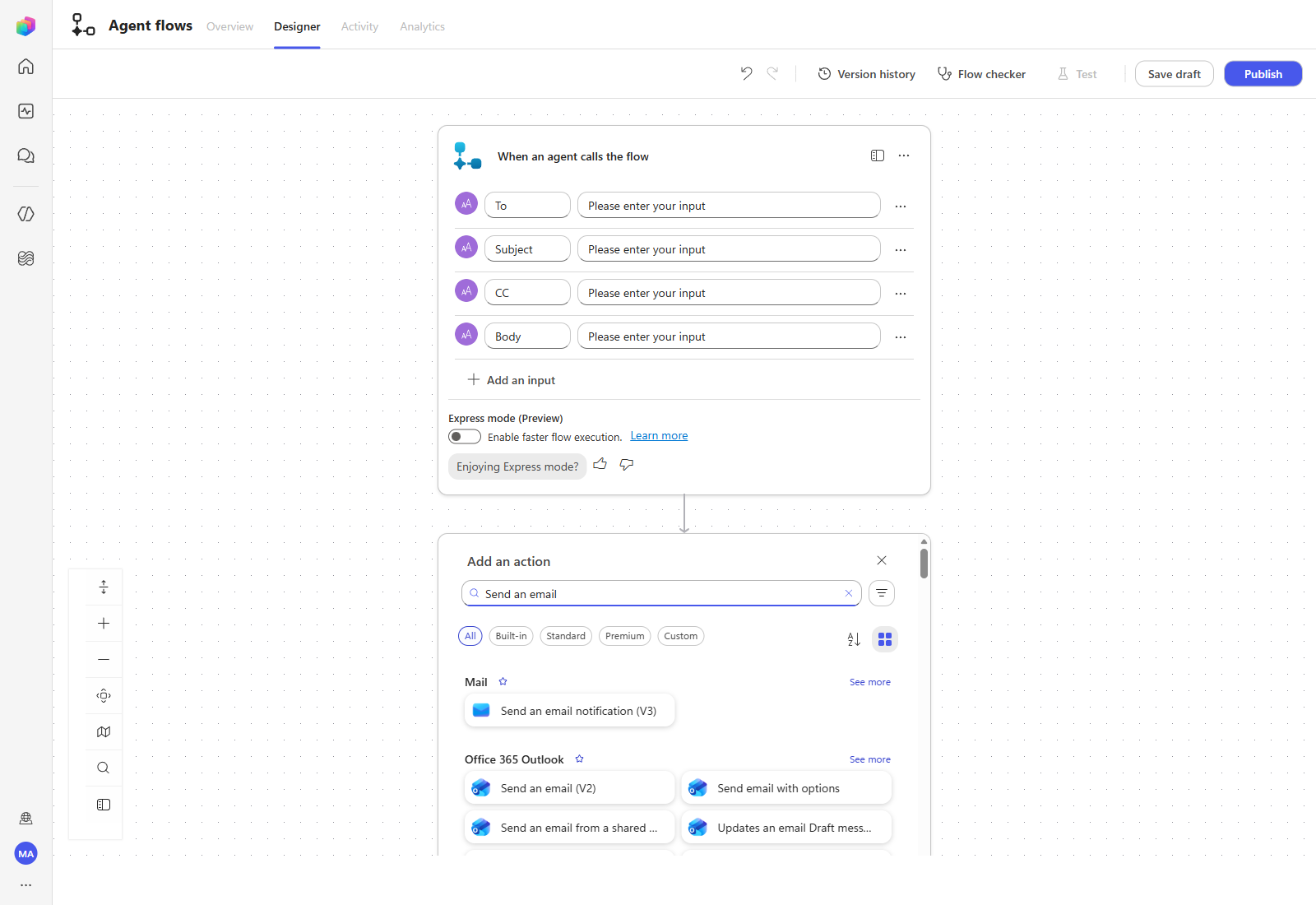
Under Office 365 Outlook, choose Send an email (V2). The action is added with its To, Subject and Body parameters.
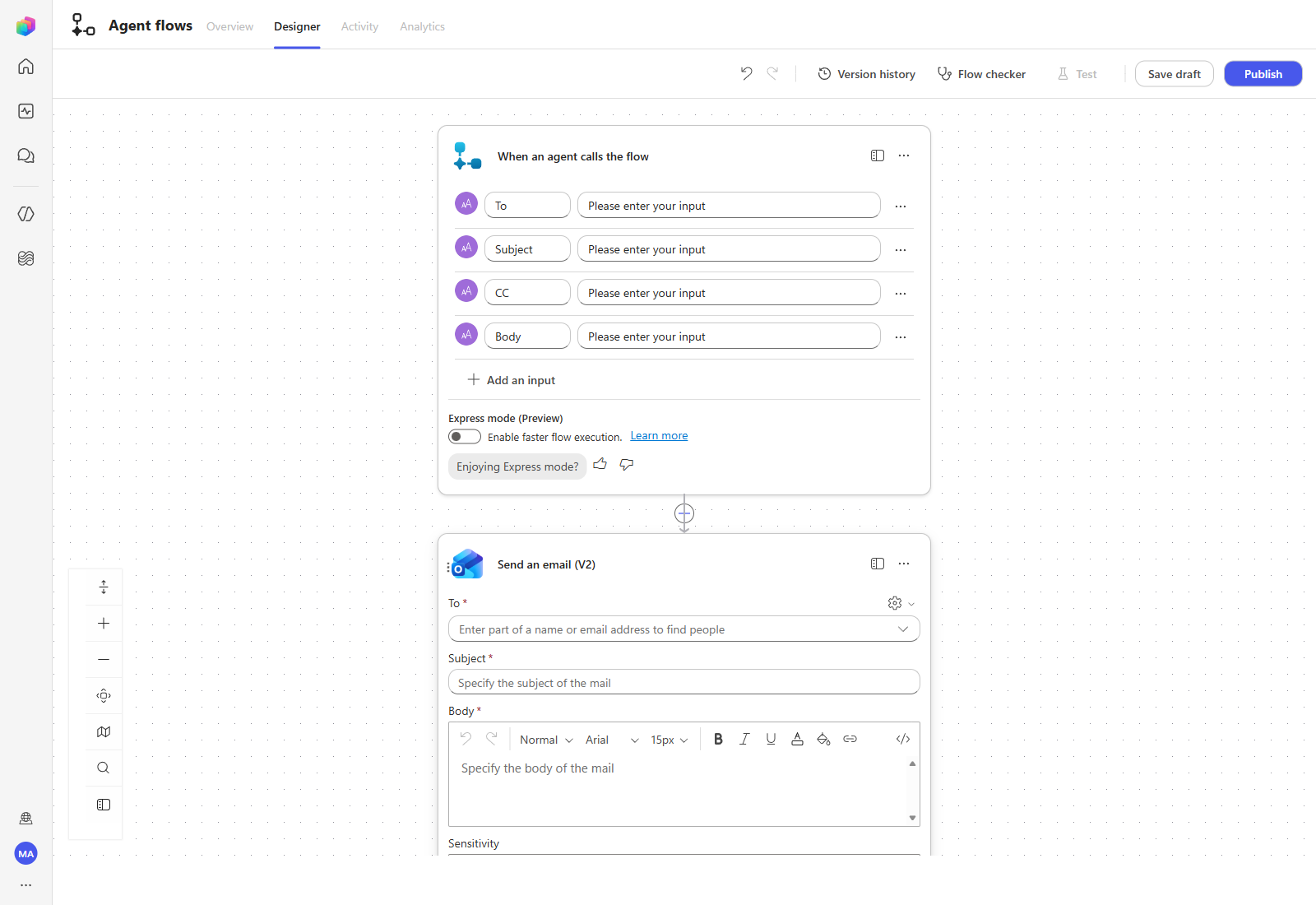
To starts as a people picker, which cannot hold a variable. Select the gear icon in the upper-right of the action and choose Use dynamic content to switch it to a free-text field.
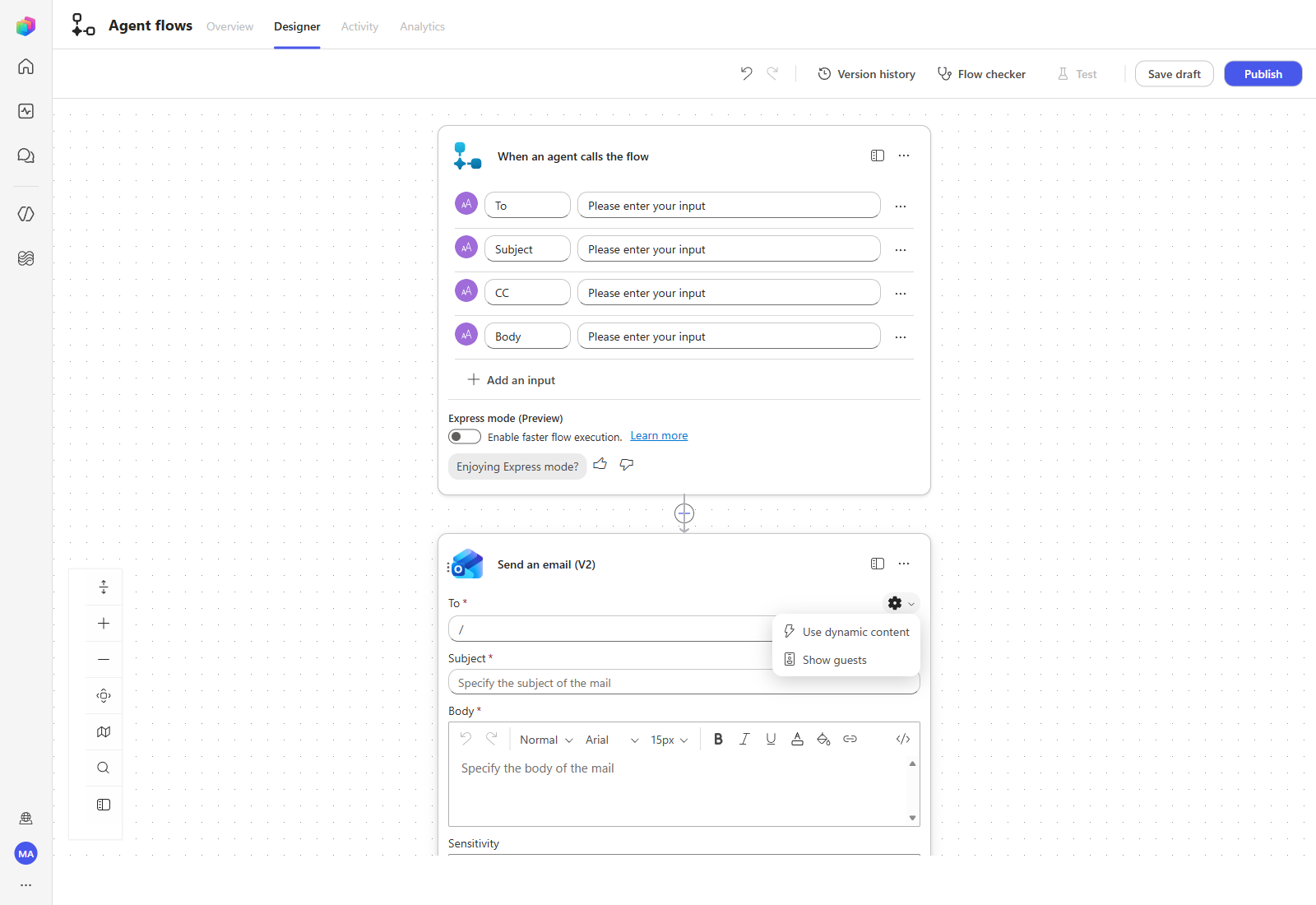
Now type / in the field. A small menu offers Insert dynamic content and Insert expression.
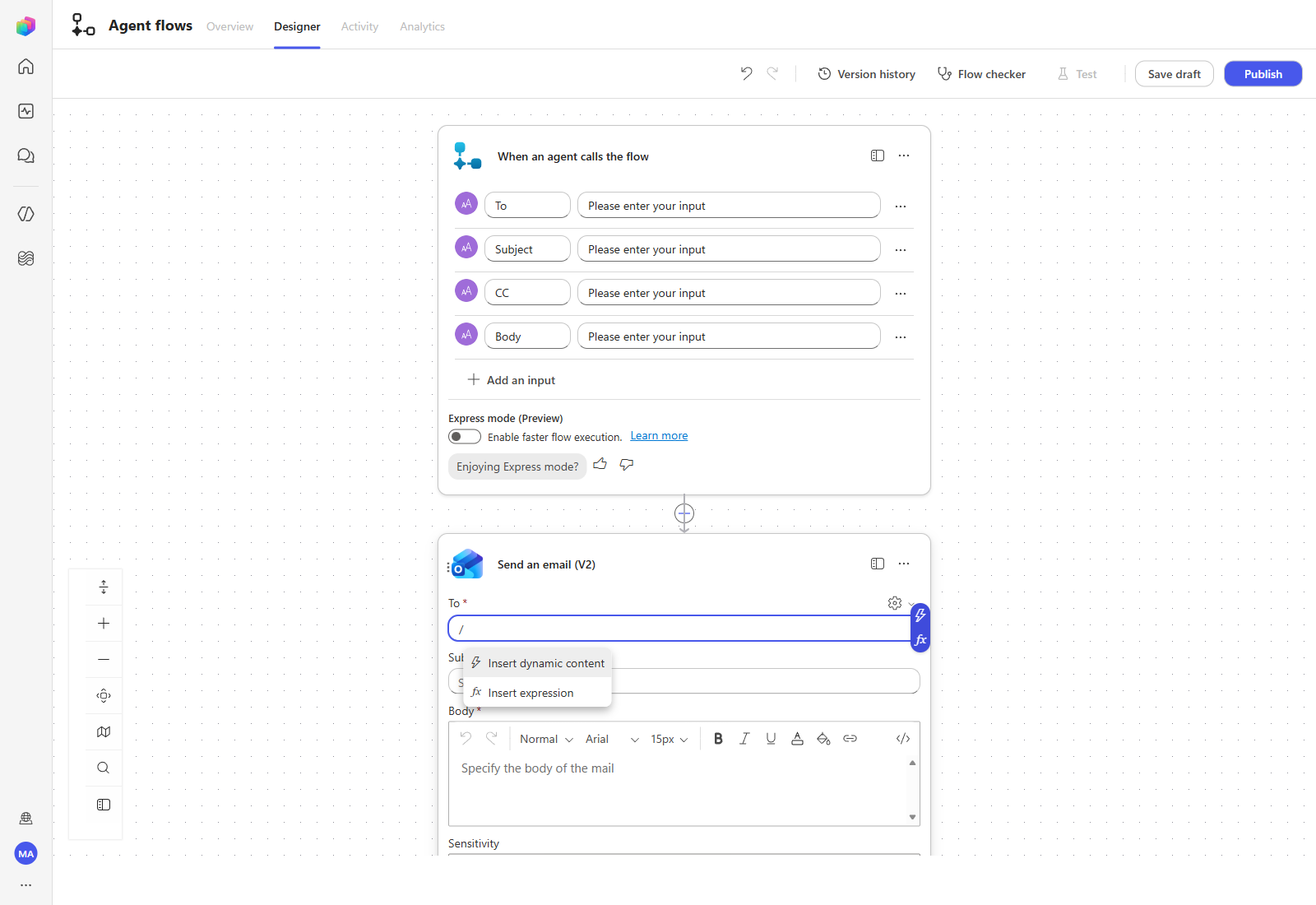
Select Insert dynamic content. The picker lists the variables you declared under When an agent calls the flow.
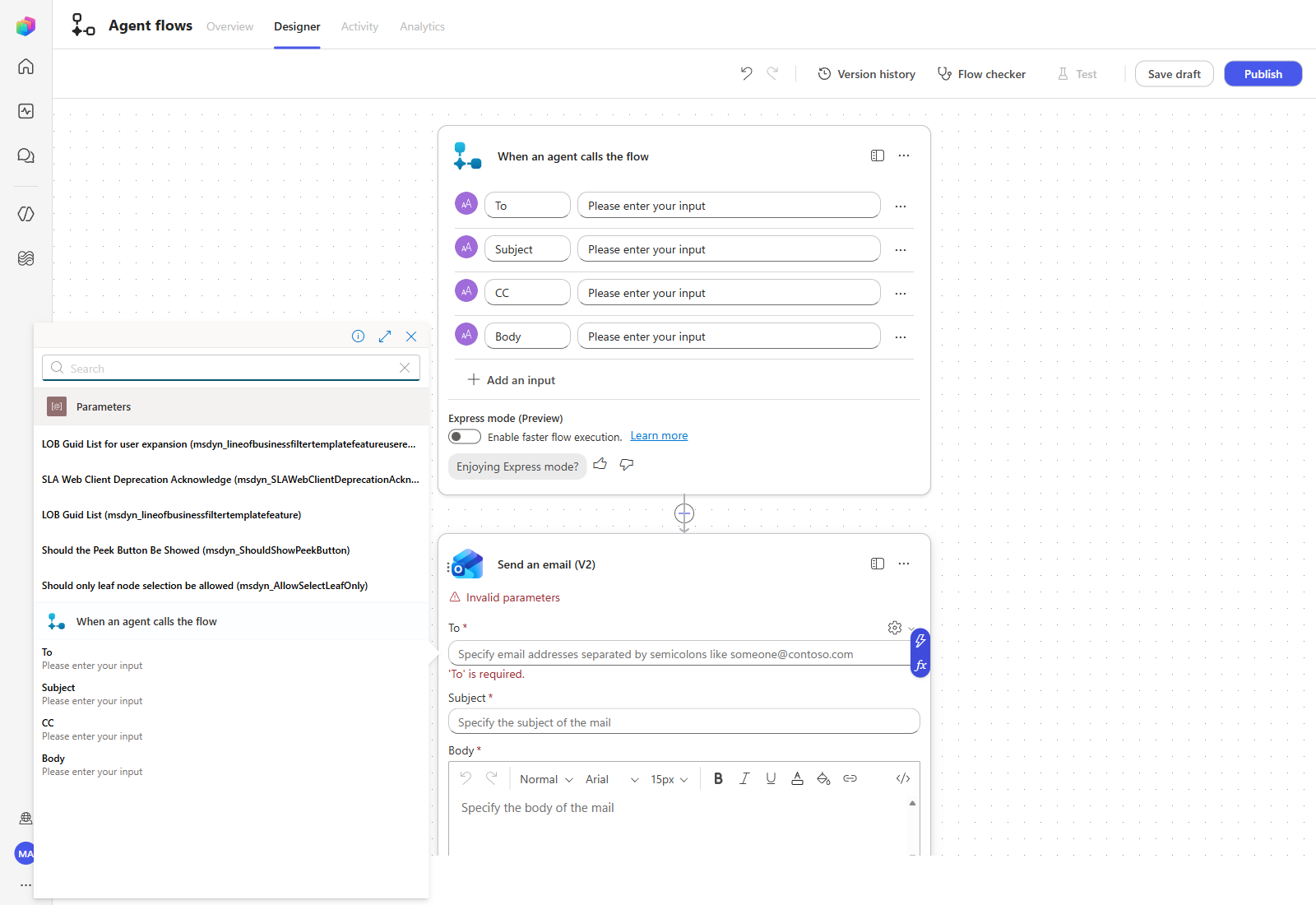
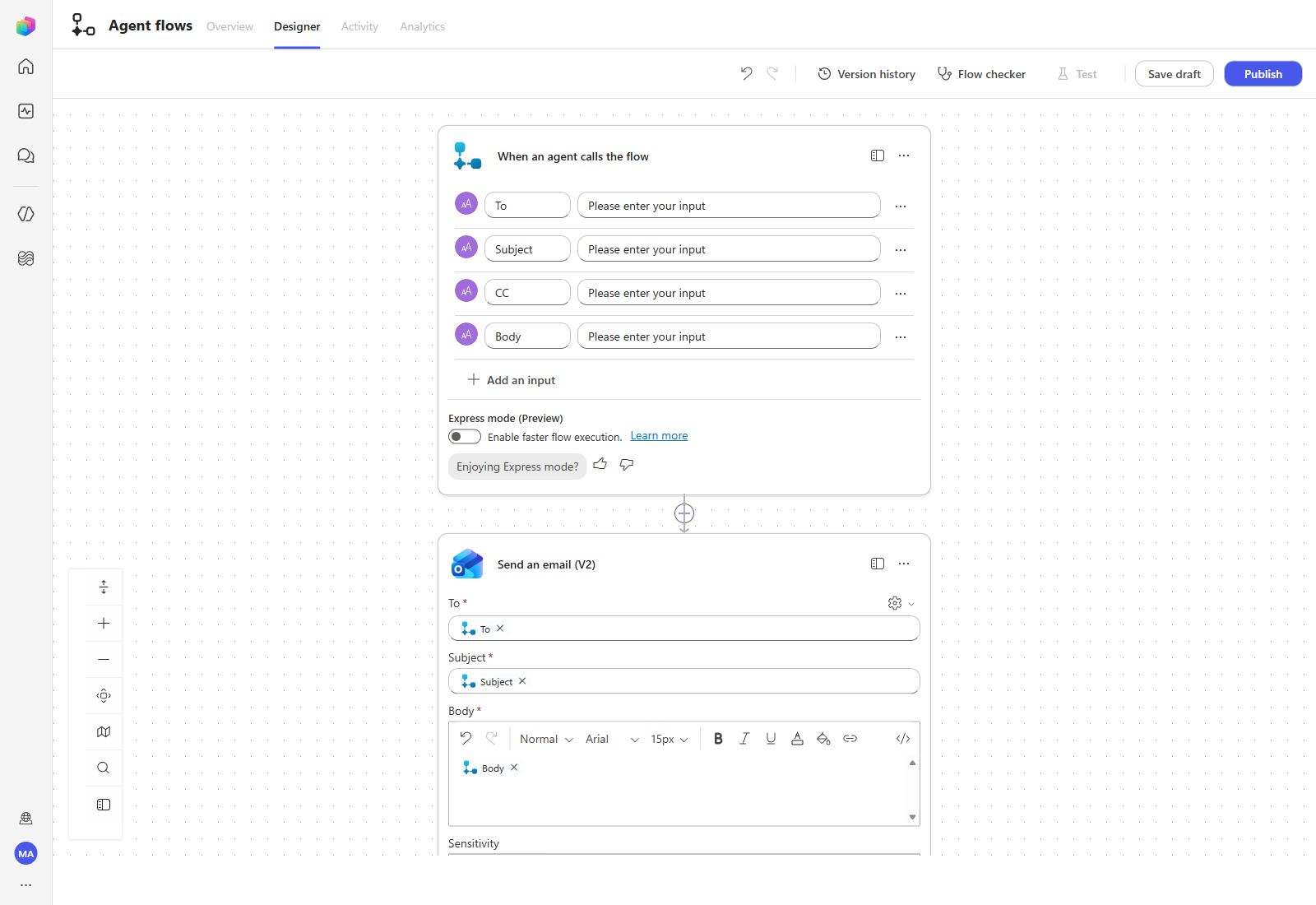
Map each parameter to the matching trigger variable:
| Action parameter | Dynamic content to insert |
|---|---|
| To | To |
| Subject | Subject |
| Body | Body |
CC is not shown by default. Select Show all advanced parameters to reveal From (Send as), CC, BCC and Attachments, then map CC the same way — switch it to dynamic content with its own gear menu first.
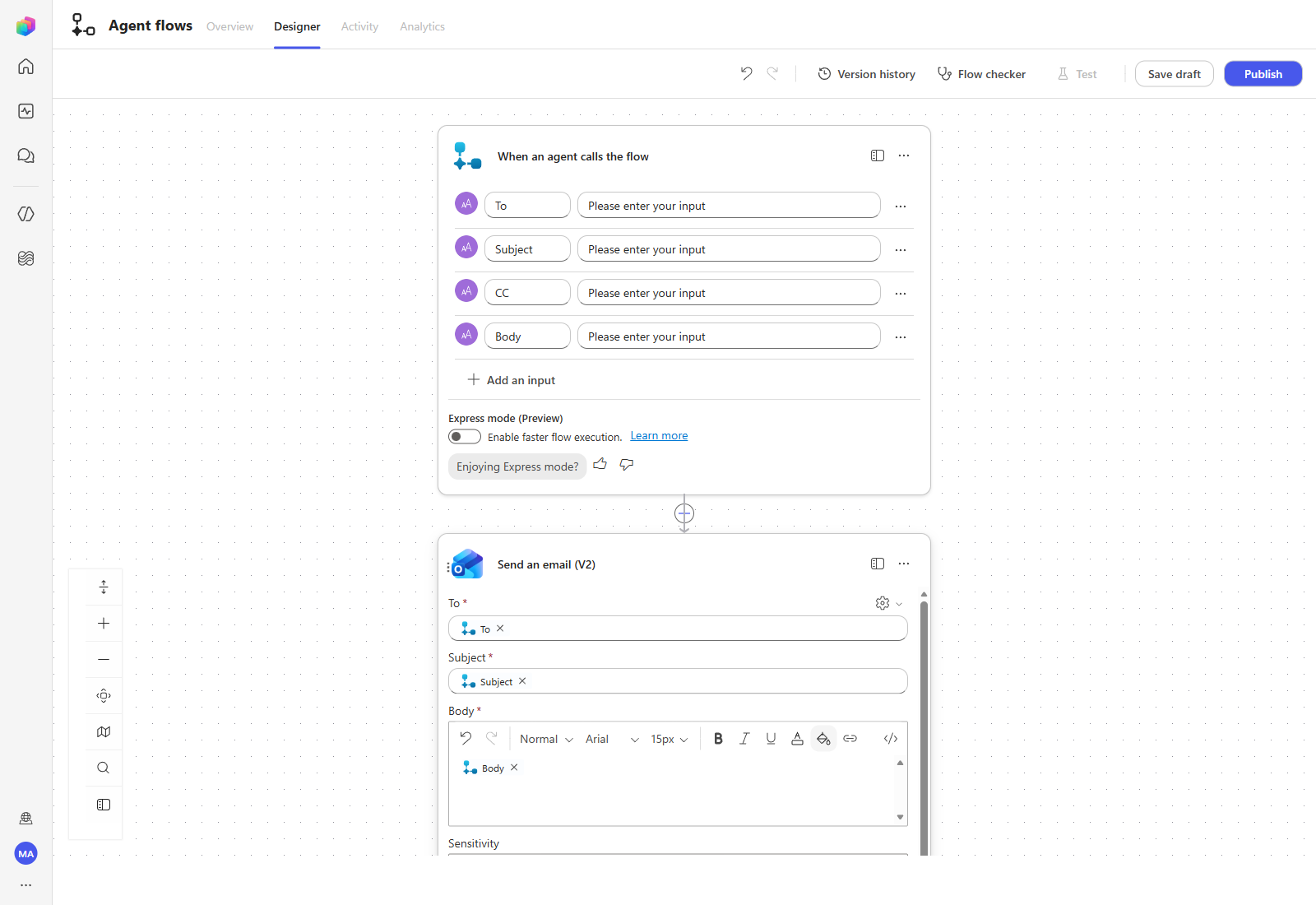
Use the side panel for long actions. The panel icon in the action’s header opens the action in a full-height pane, which keeps every parameter — including the advanced ones — visible at once. It is much easier to work in than the inline card.
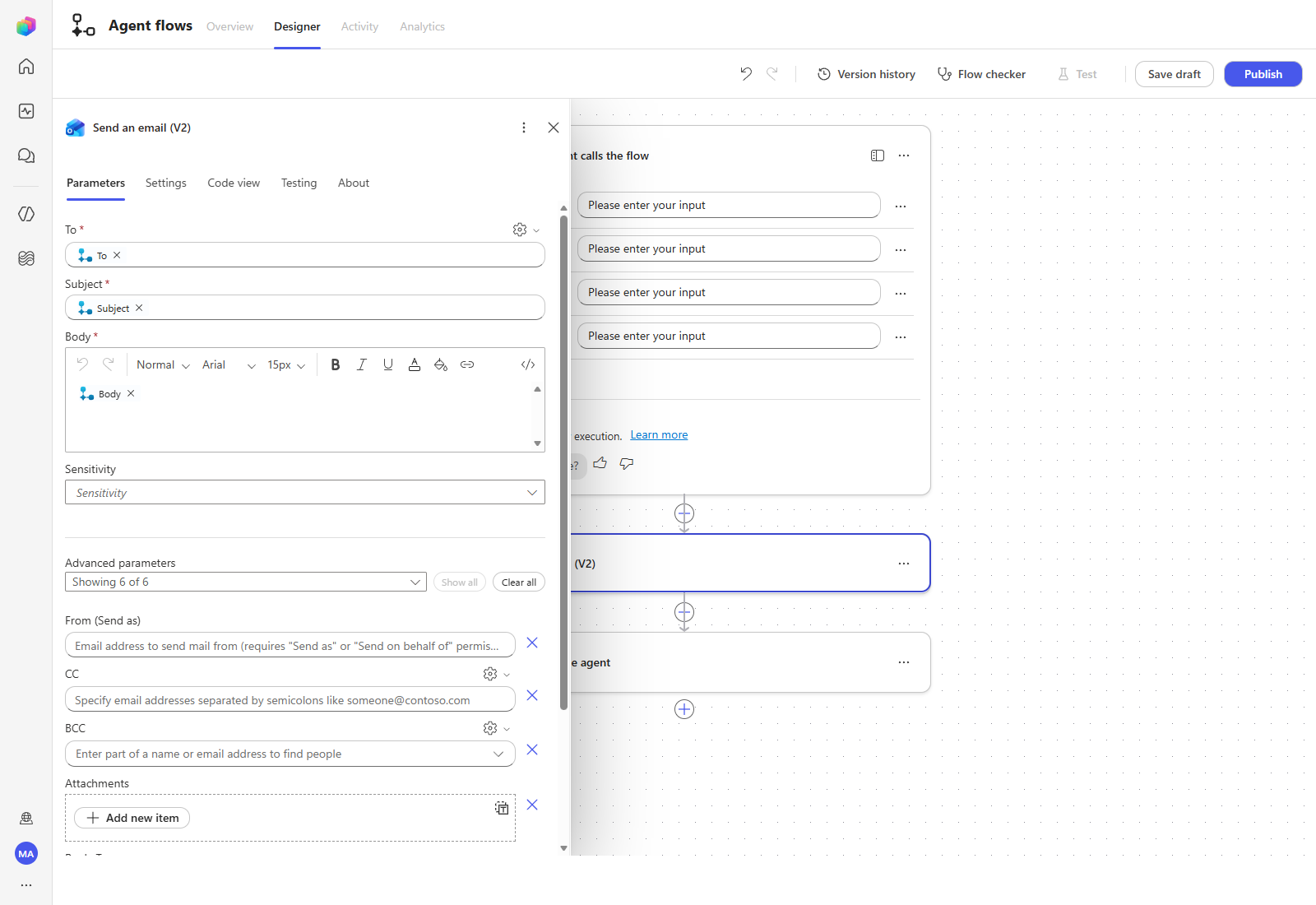
When the flow runs, the values the agent passes are mapped onto these parameters and the mail is sent.
3. Add an action connector (post a message to a Teams channel)
Next, post a notification to a Teams channel after the mail goes out. Select the + below the email action and search for Post message in a chat or channel.
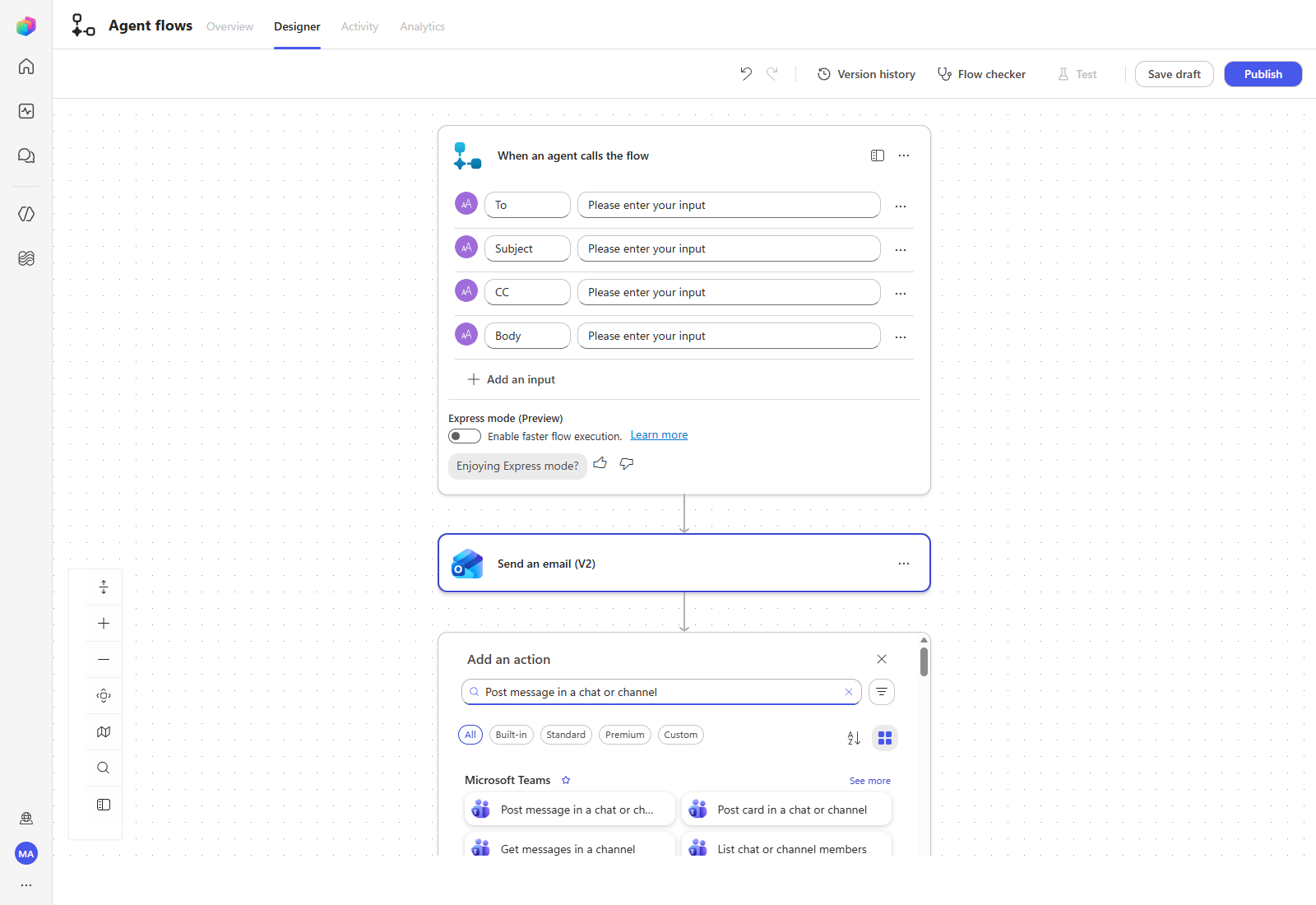
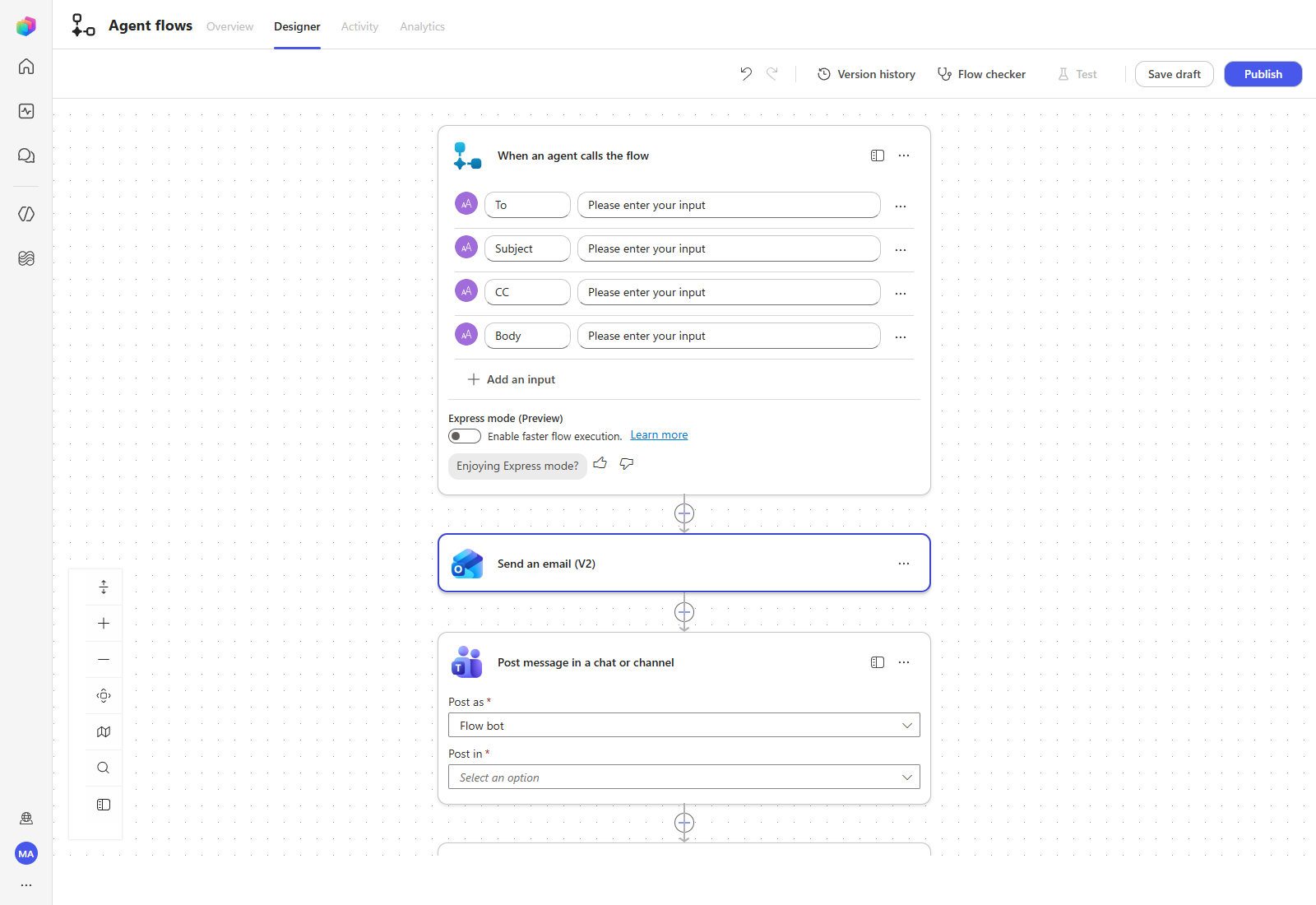
Choose the Microsoft Teams action. It is added with Post as and Post in.
Open Post in. The options are Channel, Chat with Flow bot, Group chat and Enter custom value.
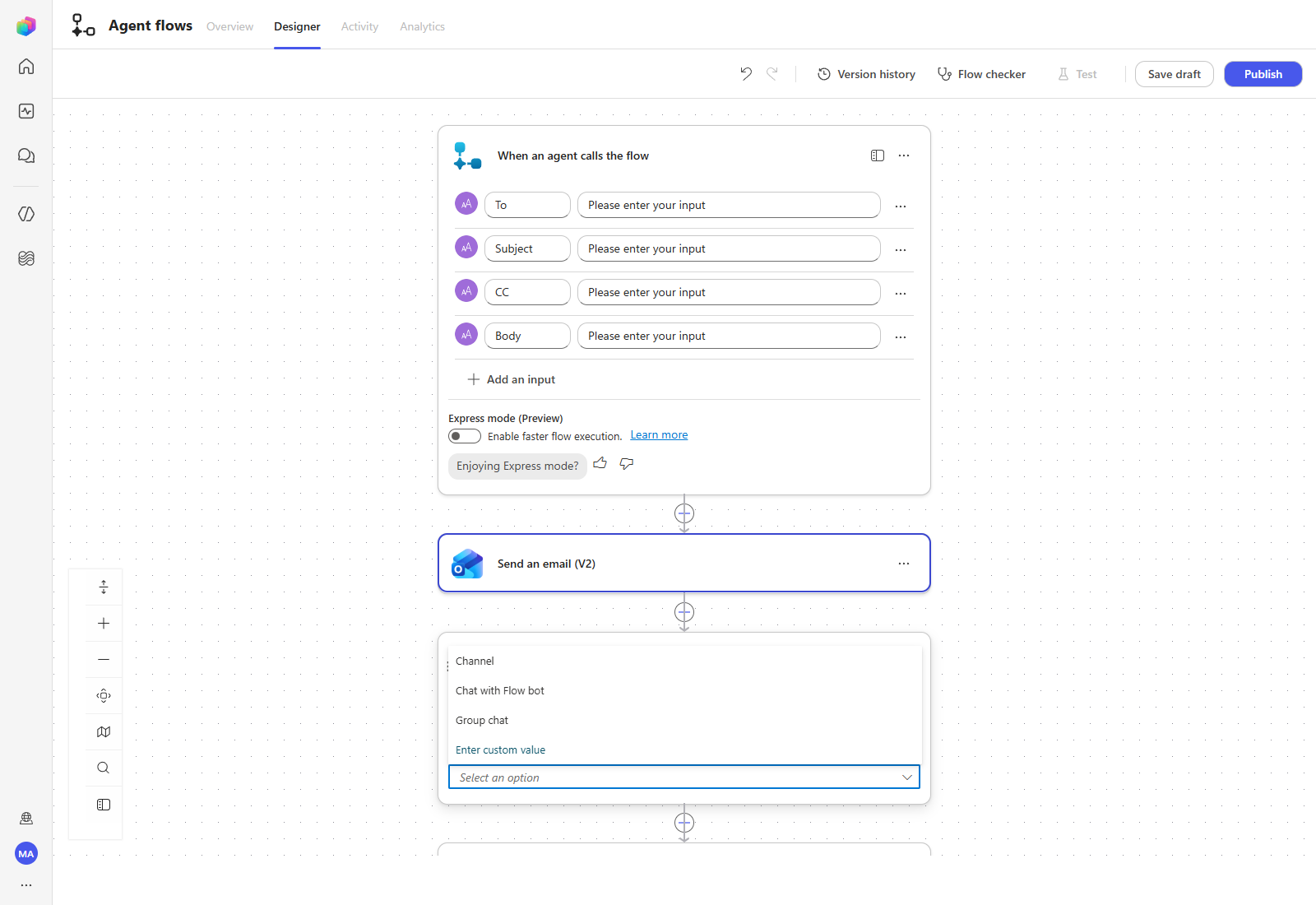
Select Channel. Team and Channel pickers appear below it.
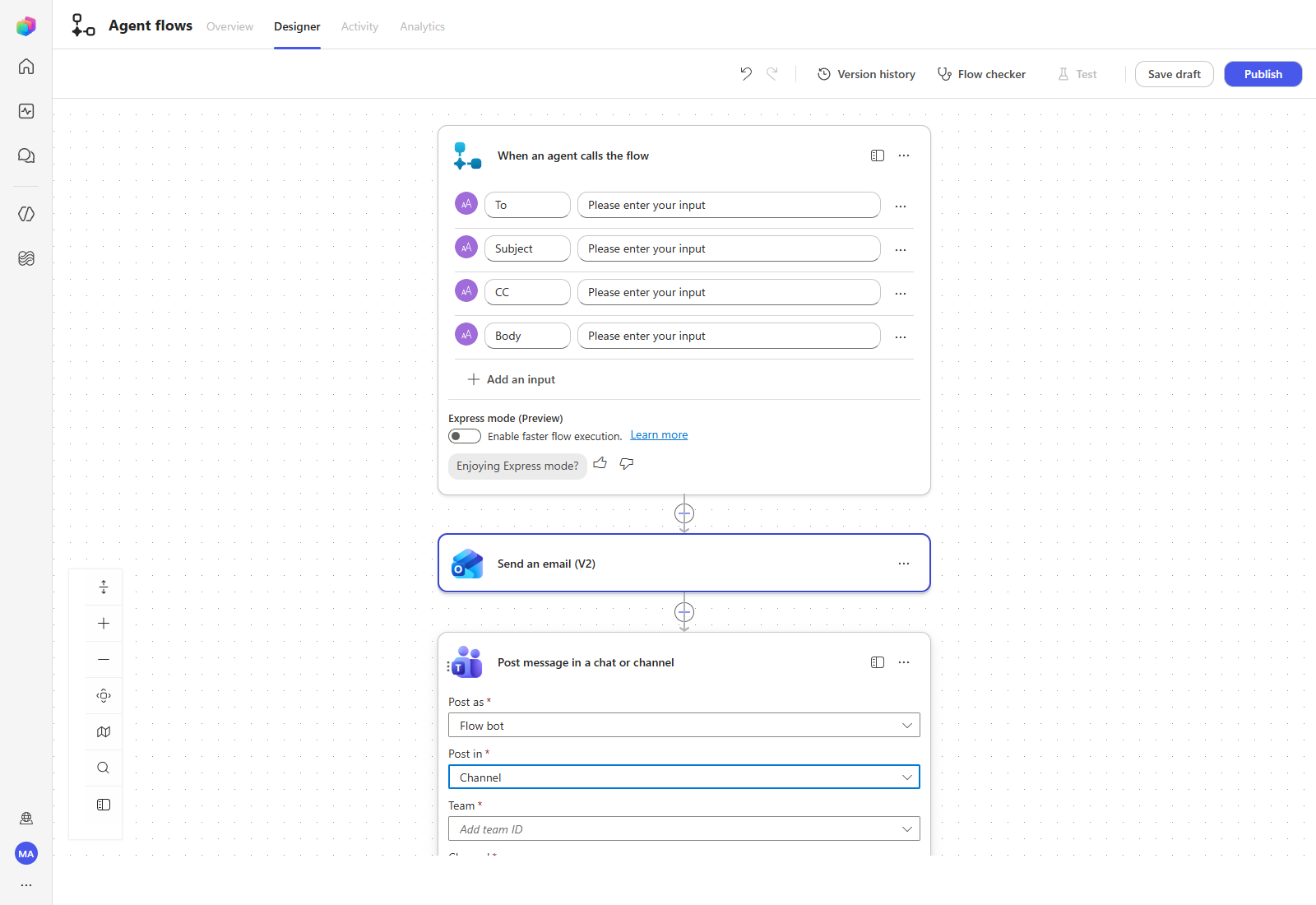
Configure the destination as follows.
| Parameter | Value | Description |
|---|---|---|
| Post as | Flow bot | Whether the post appears under your name or on behalf of Flow bot. This changes the name shown in the channel. |
| Post in | Channel | Whether the message goes to a chat or a channel. |
| Team | The team that owns the channel | Teams you can access are listed automatically. |
| Channel | The channel to post in | The channel the post actually appears in. |
| Message | Fixed text + the Body variable | The post content. Base it on the same Body used for the email. |
For Message, combine fixed text with a dynamic variable — type / inside the message box and use Insert dynamic content exactly as you did for the email:
A new inquiry has arrived. Please check it!
…followed by the Body variable.
When the flow is complete, select Publish at the top, then return to the agent. The published flow appears on the agent’s Overview page as a tool.
4. Apply the Flow
Open Tools. The flow you created is listed — a newly created flow that has not been renamed appears as Untitled.
Because this flow now covers the email step you configured in Step 5, first turn off the Send an email (V2) tool so the agent does not have two ways to do the same thing.
Then open the flow tool and configure it the same way you configured the connector.
| Parameter | Value |
|---|---|
| Name | Send email and notification flow |
| Description | Use this when a task requires sending email on behalf of the user, such as sending an escalation email to the business owner. |
| To | Dynamically fill with AI — the recipient. Use the owner list to choose the owner responsible for the topic. Addresses use the someone@contoso.com format; separate multiple addresses with ;. |
| Subject | Dynamically fill with AI — the email subject. Use the format [Business inquiry] <short summary>. |
| Body | Dynamically fill with AI — the email body in HTML. Include the inquiry date and time, the requester, and the inquiry details. |
| CC | Custom value — User.Email |
| After running | Send a specific response — “As requested, I sent this content to the owner by email. The owner will contact you separately as soon as possible.” |
Select Save, then go back to Overview and update the Instructions. The existing Instructions point escalation at the Send an email (V2) tool, so remove that reference and declare the Send email and notification flow instead.
Confirm the save landed — Select Save, then reload the page and re-open the tool. In this environment a save silently reverted on the first attempt; a value that looks right before a reload has not necessarily been persisted.
Authoring is not running — Publishing the flow and wiring it to the agent does not prove an email was sent or a Teams message was posted. A separate, authorized test must preview the exact recipient, subject and body, obtain confirmation, and then verify the message in the recipient’s mailbox and the target channel. Nothing was sent or posted while these screenshots were taken.
| ← Previous: Step 6. Add external MCP tools | Next: Step 8. Add Triggers → |