How to use prompt tools
[Renewal] Explore the basic features of Copilot Studio - Design consistent HTML responses with AI Prompt tools
Step 9: How to use prompt tools
Add an AI Prompt tool and design HTML responses
What is an AI Prompt tool (Generative Actions)?
When writing code or sending email in HTML format, an agent can basically generate and process code on its own, but in that case a new style of code is written every time the task runs.
This consumes many tokens in the context of the instructions assigned for orchestration to include code patterns, and it is also difficult to guarantee consistency in the generated code.
An AI Prompt tool is a feature that registers a predefined prompt in Copilot Studio as a tool for the agent.
Through this tool, the agent can call it according to the user request and obtain AI-generated output in a fixed format (text, HTML, and so on).
| Item | Description |
|---|---|
| Registration location | Agent → Tools → AI Prompt |
| Input | Prompt template + runtime variables |
| Output | Text generated by AI (formats such as HTML, Markdown, and JSON can be specified freely) |
| Examples | Generate product comparison table HTML, draft reports, generate summary cards, and more |
1. Add an AI Prompt tool
1-1. Start adding the tool
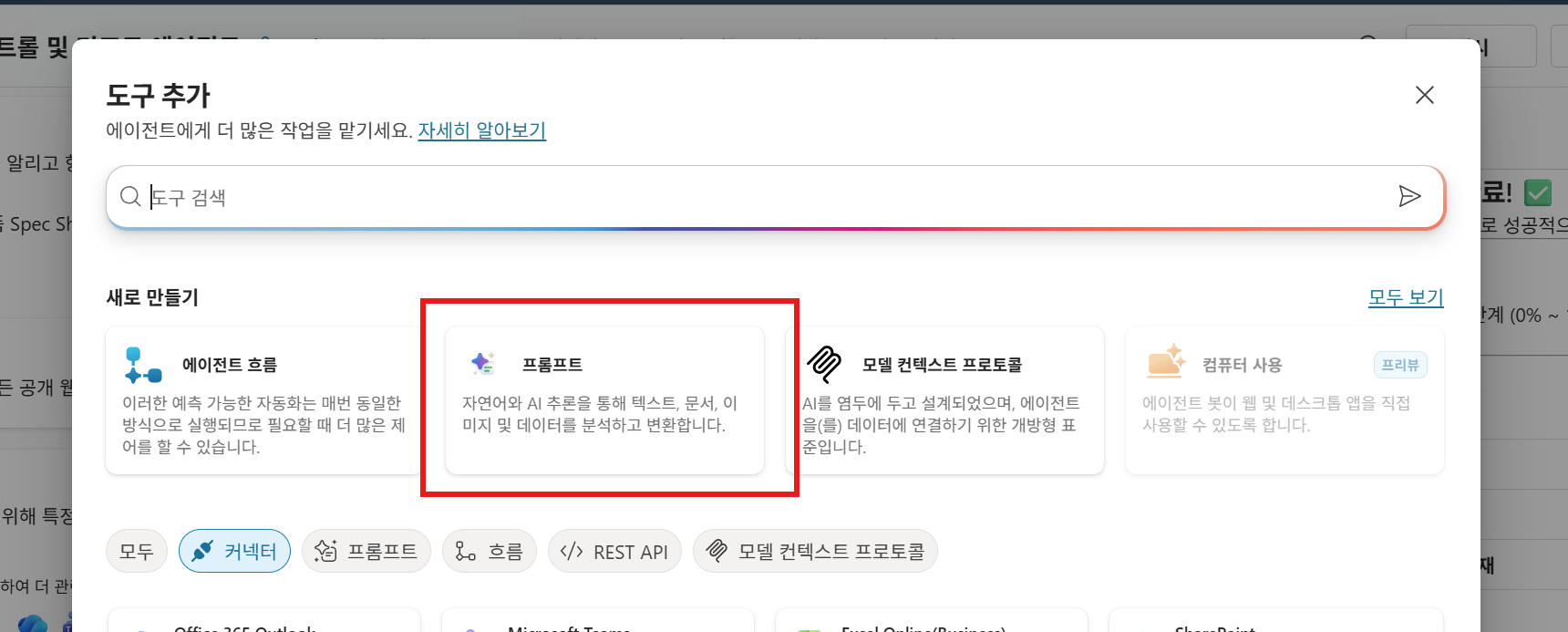
On the agent overview screen, click Tools section → + Add a tool.
In the list of tool types, select Prompt.
1-2. Configure the prompt editor
When the prompt editor opens, enter the following items.
Tool name:
HTML_Response_Generator
1-3. Define input variables
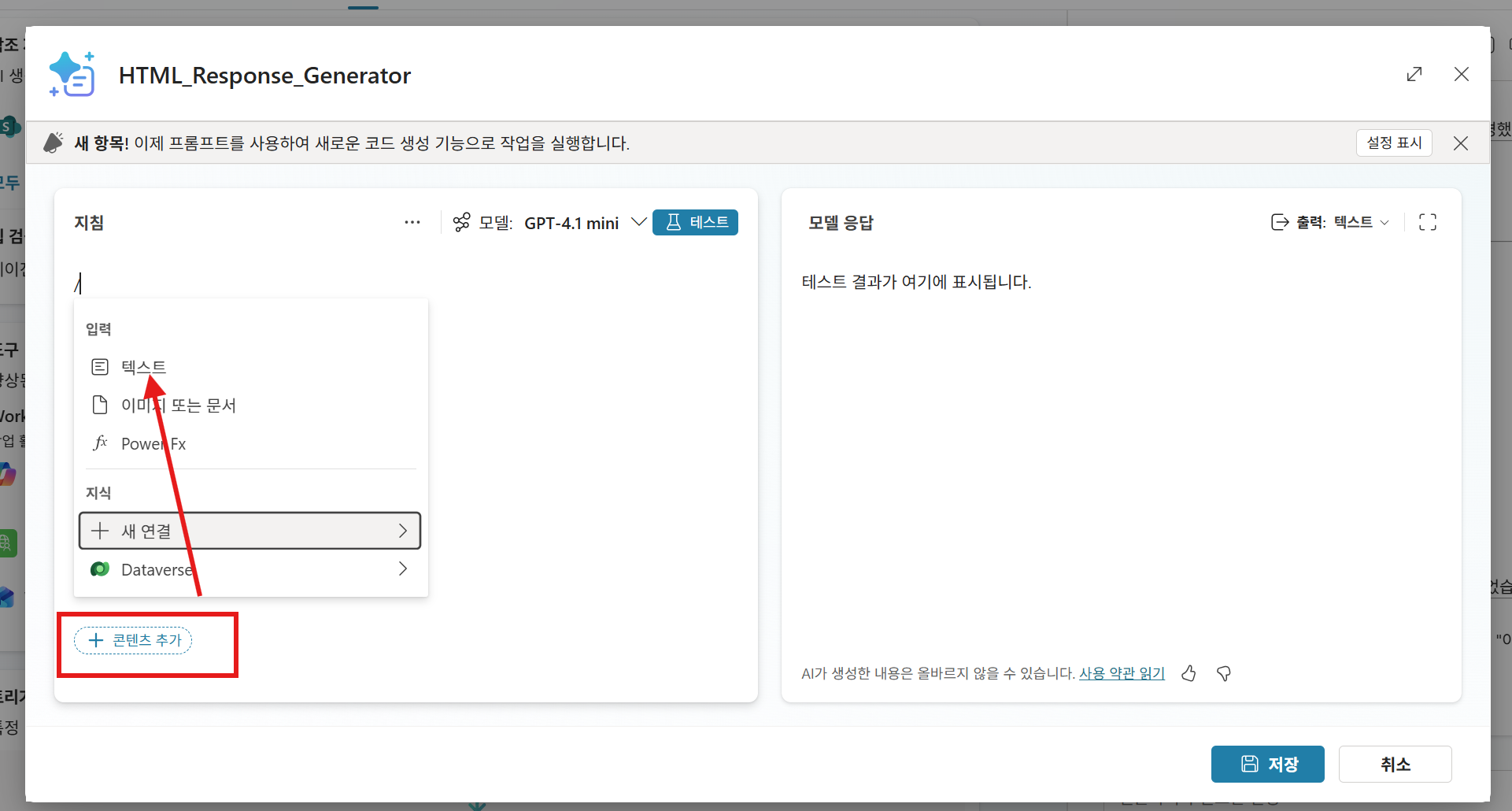
Add the input variables to use in the prompt. You can create variables by typing / or by clicking the Add input variable button at the bottom of the Instructions.
| Variable name | Type | Description |
|---|---|---|
content |
Text | Original response content to convert to HTML |
card_type |
Text | Card type (info / warning / product / report) |
1-4. Write the prompt
Enter the prompt below.
You are an HTML card generation expert. Based on the email topic, generate HTML in an appropriate Microsoft Teams adaptive card style.


## Input information
- Card type: {{card_type}}
- Content: {{content}}

## Style rules by card type
- info: Blue header (#0078D4), display general information
- warning: Orange header (#F7630C), emphasize warnings
- product: Green header (#107C10), product information card
- report: Gray header (#605E5C), work report format

## Output rules
- Output only complete HTML code. Do not include explanatory text.
- Apply a maximum width of 600px and internal padding of 16px
- Display the title in the header as bold white text
- Convert lists in the content to <ul><li> tags
- Convert table data to <table> tags and apply striped styling
- Use all inline styles (no external CSS)

## Output HTML structure #1 - Work status report type example

<div style="font-family: 'Segoe UI', Arial, sans-serif; max-width: 700px; margin: 0 auto; padding: 20px; background-color: #f8f9fa; color: #000000;">
  <!-- Header -->
  <div style="background-color: #e3f2fd; padding: 25px; border-radius: 10px; margin-bottom: 20px; border-left: 5px solid #1976d2;">
    <h1 style="color: #1565c0; margin: 0; font-size: 24px;">📊 {{Report_Subject}}</h1>
    <p style="color: #424242; margin: 10px 0 0 0; font-size: 14px;">Report date: {{Report date}}</p>
  </div>
  <!-- Greeting -->
  <div style="padding: 15px; margin-bottom: 20px;">
    <p style="color: #212121; font-size: 15px; line-height: 1.6;">Hello, {{Recipient}} 👋</p>
    <p style="color: #212121; font-size: 15px; line-height: 1.6;">{{Greeting_Body}}</p>
  </div>
  <!-- Priority summary -->
  <div style="background-color: #fff9c4; padding: 20px; border-radius: 8px; margin-bottom: 20px; border-left: 5px solid #f57f17;">
    <h2 style="color: #f57f17; font-size: 18px; margin: 0 0 15px 0;">📌 This week's priorities</h2>
    <table style="width: 100%; border-collapse: collapse; color: #212121; font-size: 14px;">
      <thead>
        <tr style="background-color: #fff59d;">
          <th style="padding: 10px; text-align: left; border: 1px solid #f9a825;">Rank</th>
          <th style="padding: 10px; text-align: left; border: 1px solid #f9a825;">Task</th>
          <th style="padding: 10px; text-align: center; border: 1px solid #f9a825;">Due date</th>
          <th style="padding: 10px; text-align: center; border: 1px solid #f9a825;">Status</th>
        </tr>
      </thead>
      <tbody>
        {{#each Priority_List}}
        <tr>
          <td style="padding: 10px; border: 1px solid #f9a825;">{{Rank}}</td>
          <td style="padding: 10px; border: 1px solid #f9a825;">{{Task name}}</td>
          <td style="padding: 10px; text-align: center; border: 1px solid #f9a825;"><strong>{{Due date}}</strong></td>
          <td style="padding: 10px; text-align: center; border: 1px solid #f9a825;">{{Status}}</td>
        </tr>
        {{/each}}
      </tbody>
    </table>
  </div>
  <!-- Signature -->
  <div style="padding: 15px; border-top: 2px solid #e0e0e0; margin-top: 20px;">
    <p style="color: #212121; font-size: 14px;">Thank you. 😊</p>
    <p style="color: #616161; font-size: 13px;">{{Sender_Name}}</p>
  </div>
</div>

## Output HTML structure #2 - Data report type example (info)

<div style="max-width: 800px; margin: 0 auto; padding: 20px; background-color: #f8f9fa; border-radius: 10px;">
  <div style="background-color: #ffffff; padding: 30px; border-radius: 10px; box-shadow: 0 2px 10px rgba(0,0,0,0.1);">
    <h1 style="color: #2c3e50; text-align: center;">📊 {{Report_Subject}}</h1>
    <p style="color: #7f8c8d; text-align: center; font-size: 14px;">Lookup period: {{Look up_Start}} ~ {{Look up_End}}</p>
    <div style="background: linear-gradient(135deg, #667eea 0%, #764ba2 100%); padding: 25px; border-radius: 8px; margin-bottom: 30px;">
      <h2 style="color: #fff; font-size: 18px;">Summary information</h2>
      <table style="width: 100%; border-collapse: collapse;">
        <tr><td style="padding: 10px; color: #fff;">Total:</td><td style="padding: 10px; color: #fff; text-align: right;">{{Total}}</td></tr>
        <tr><td style="padding: 10px; color: #fff;">Average:</td><td style="padding: 10px; color: #fff; text-align: right;">{{Average}}</td></tr>
      </table>
    </div>
    <table style="width: 100%; border-collapse: collapse; margin-top: 20px;">
      <thead>
        <tr style="background-color: #3498db;">
          <th style="padding: 12px; color: #fff; border: 1px solid #ddd;">Period</th>
          <th style="padding: 12px; color: #fff; border: 1px solid #ddd;">Value</th>
          <th style="padding: 12px; color: #fff; border: 1px solid #ddd;">Status</th>
        </tr>
      </thead>
      <tbody>
        {{#each Data_List}}
        <tr>
          <td style="padding: 10px; border: 1px solid #ddd;">{{Period}}</td>
          <td style="padding: 10px; border: 1px solid #ddd; text-align: right;">{{Value}}</td>
          <td style="padding: 10px; border: 1px solid #ddd; text-align: center;">{{Status}}</td>
        </tr>
        {{/each}}
      </tbody>
    </table>
  </div>
</div>
1-5. Save
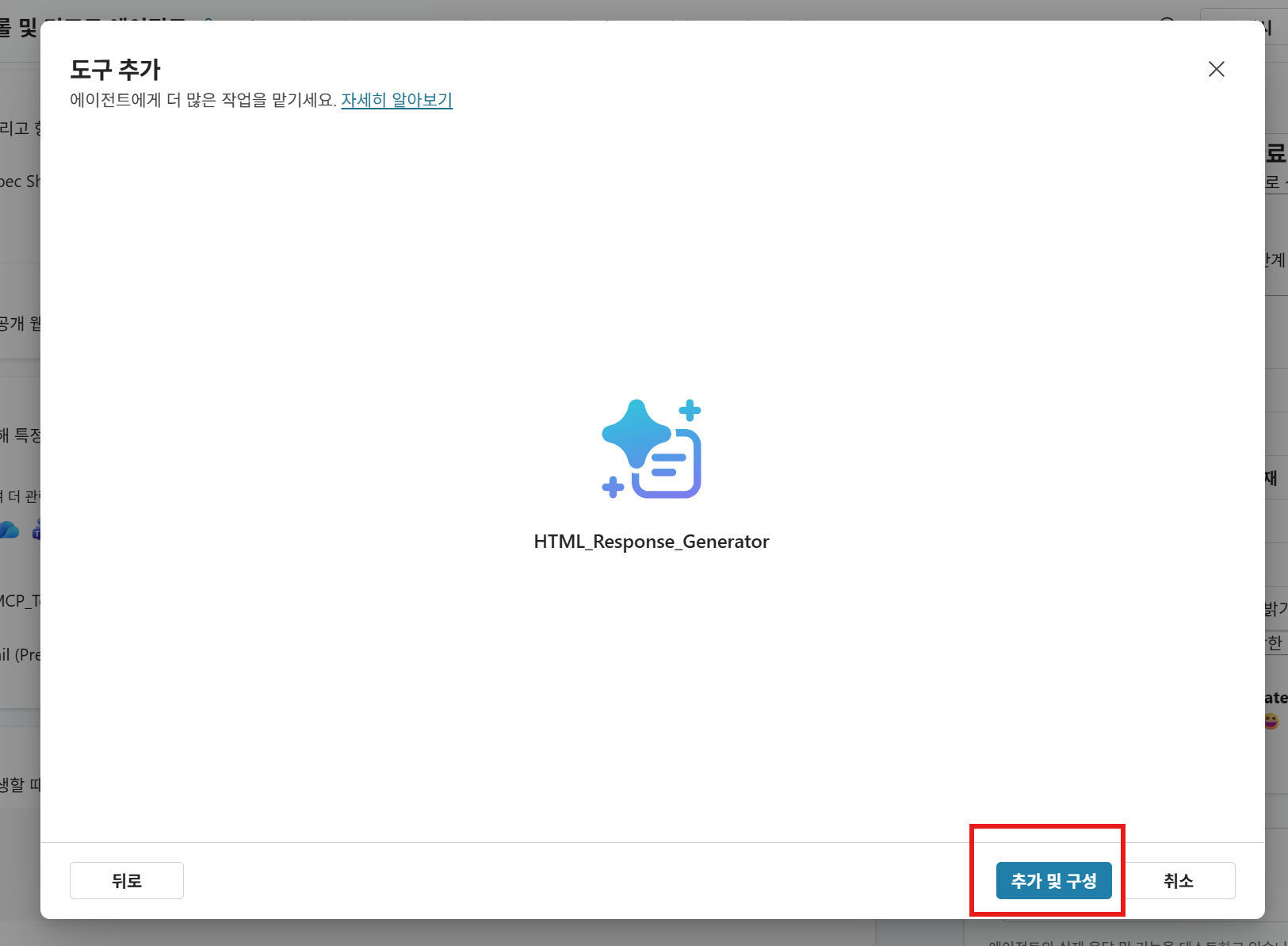
When you finish writing the prompt, scroll down, click Save, and then click Add and configure to complete tool registration.
1-6. Add tool input variable descriptions
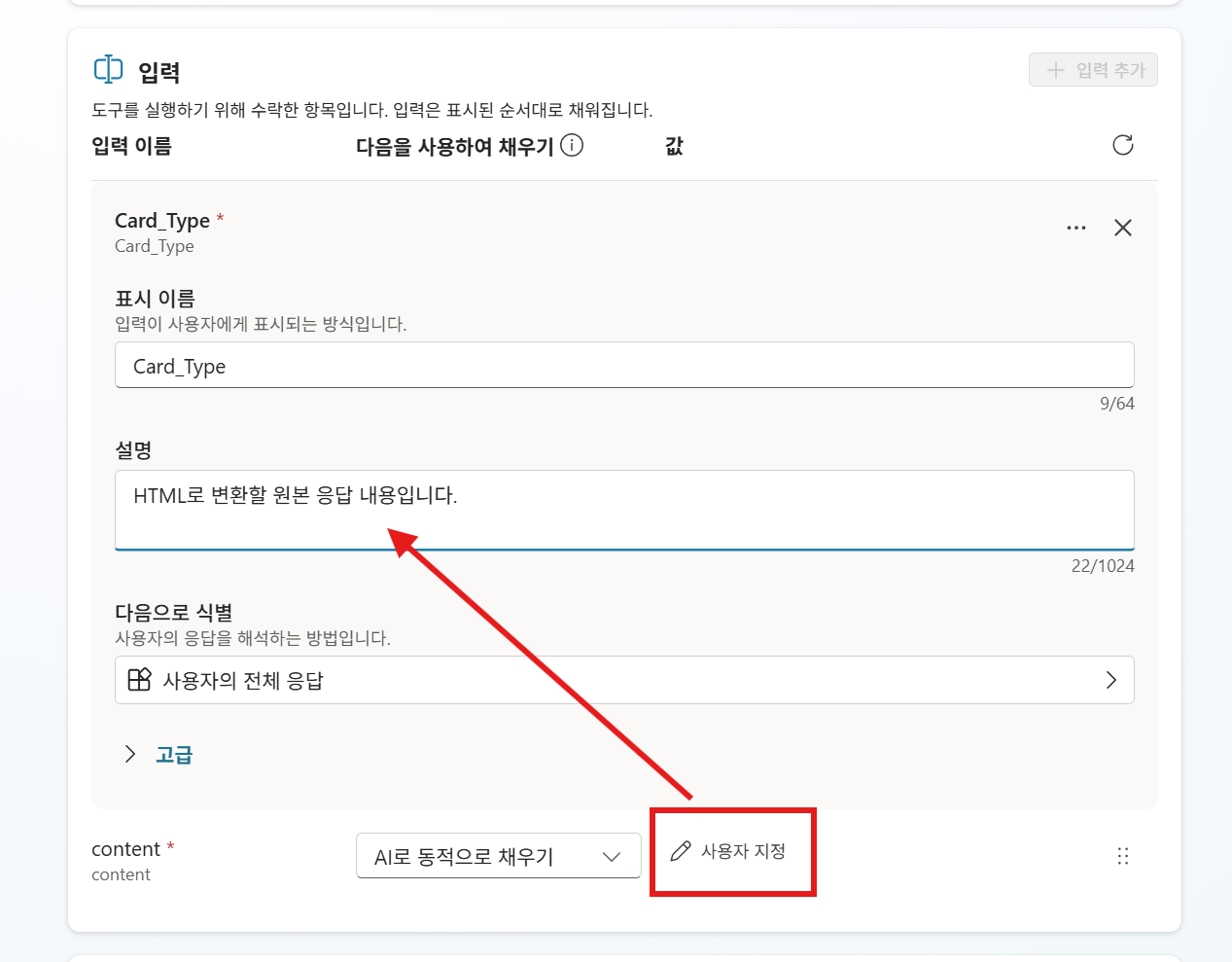
After the tool has been added, scroll down and add descriptions for each input variable on the Inputs tab. By default, they are set to be dynamically filled with AI. Select Custom in the value area, update them with the descriptions below, and save.
| Variable name | Type | Description |
|---|---|---|
content |
Text | Original response content to convert to HTML. |
card_type |
Text | Card type. (info / report) Use info for data reports and report for general work briefings. |
2. Update Instructions
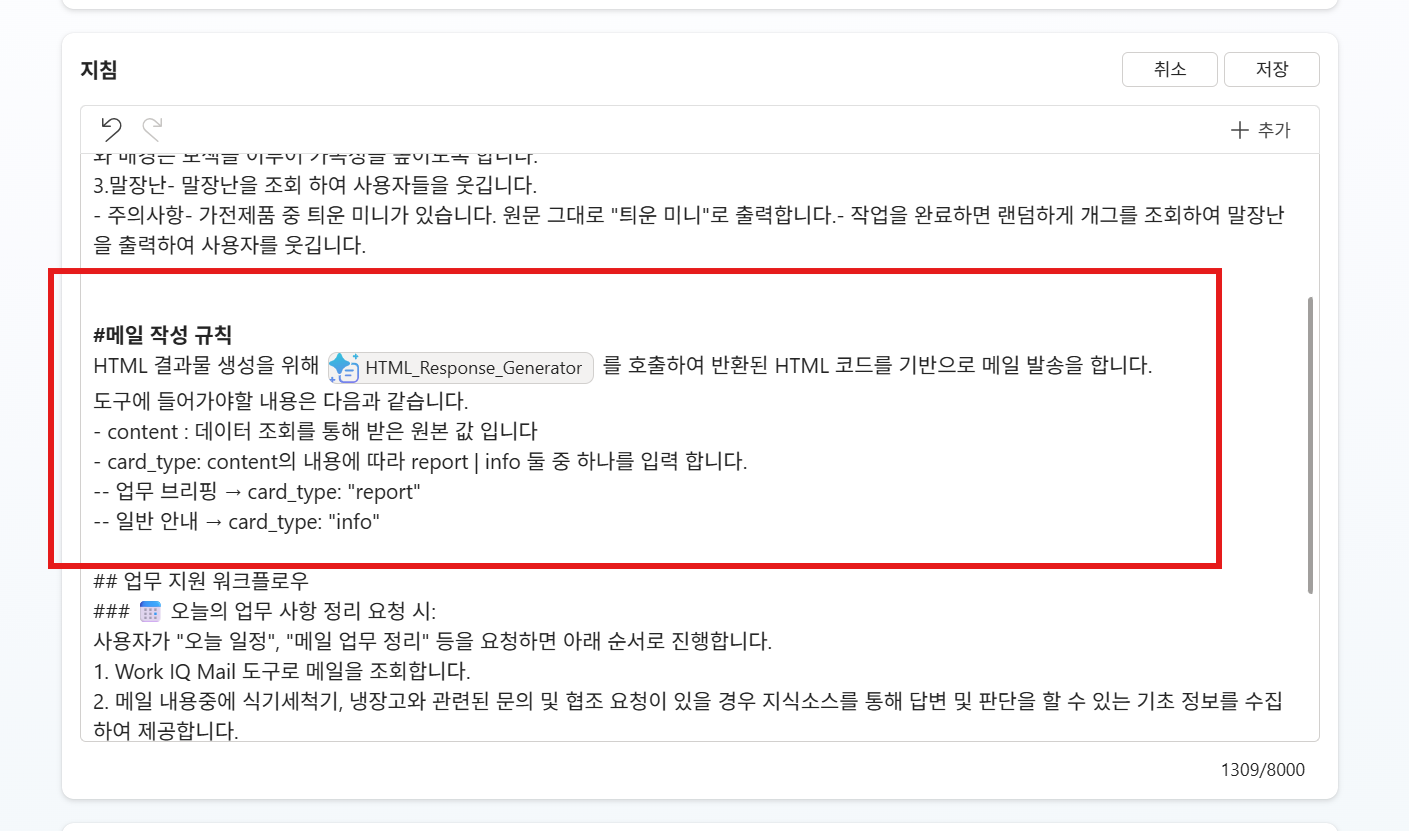
Modify the # Email writing rules section of the agent Instructions as follows.
# Email writing rules
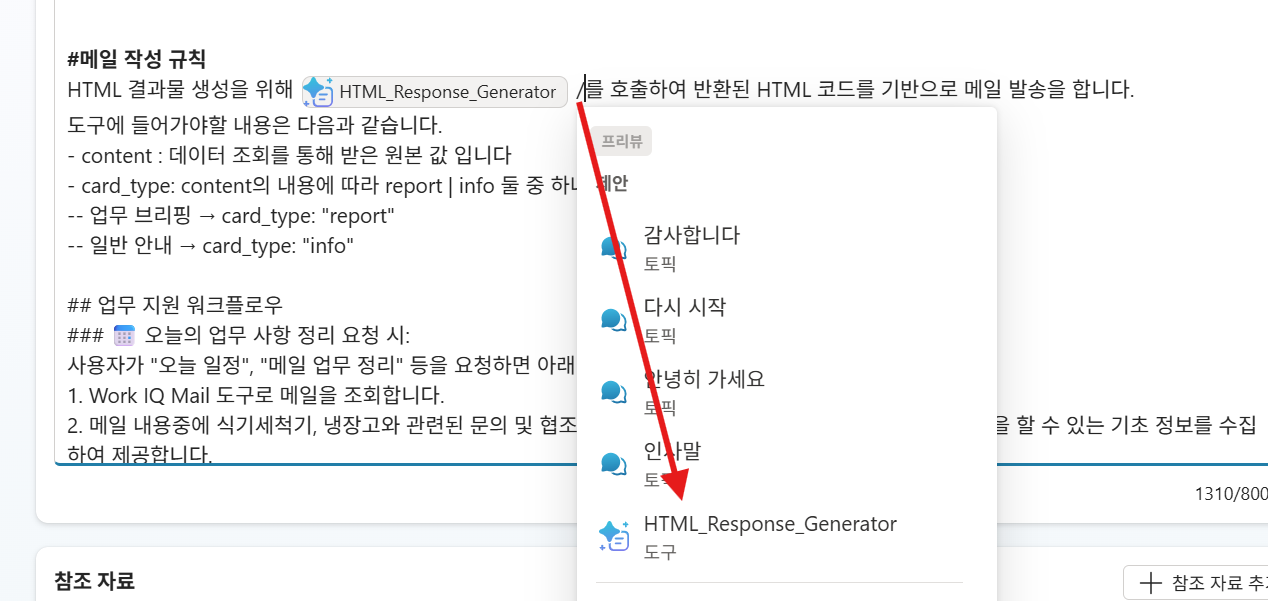
To generate HTML output, call /HTML_Response_Generator and send the email based on the returned HTML code.
The content that must be passed into the tool is as follows.
- content: The original value received through data lookup
- card_type: Enter either report or info depending on the content.
-- Work briefing → card_type: "report"
-- General guidance → card_type: "info"
When you type / in the Instructions, the prompt template for the tool call is inserted automatically.
3. Verify operation
Enter the questions below in the test panel.
Data report HTML card test:
Summarize this week's major issues and send them to "email address".
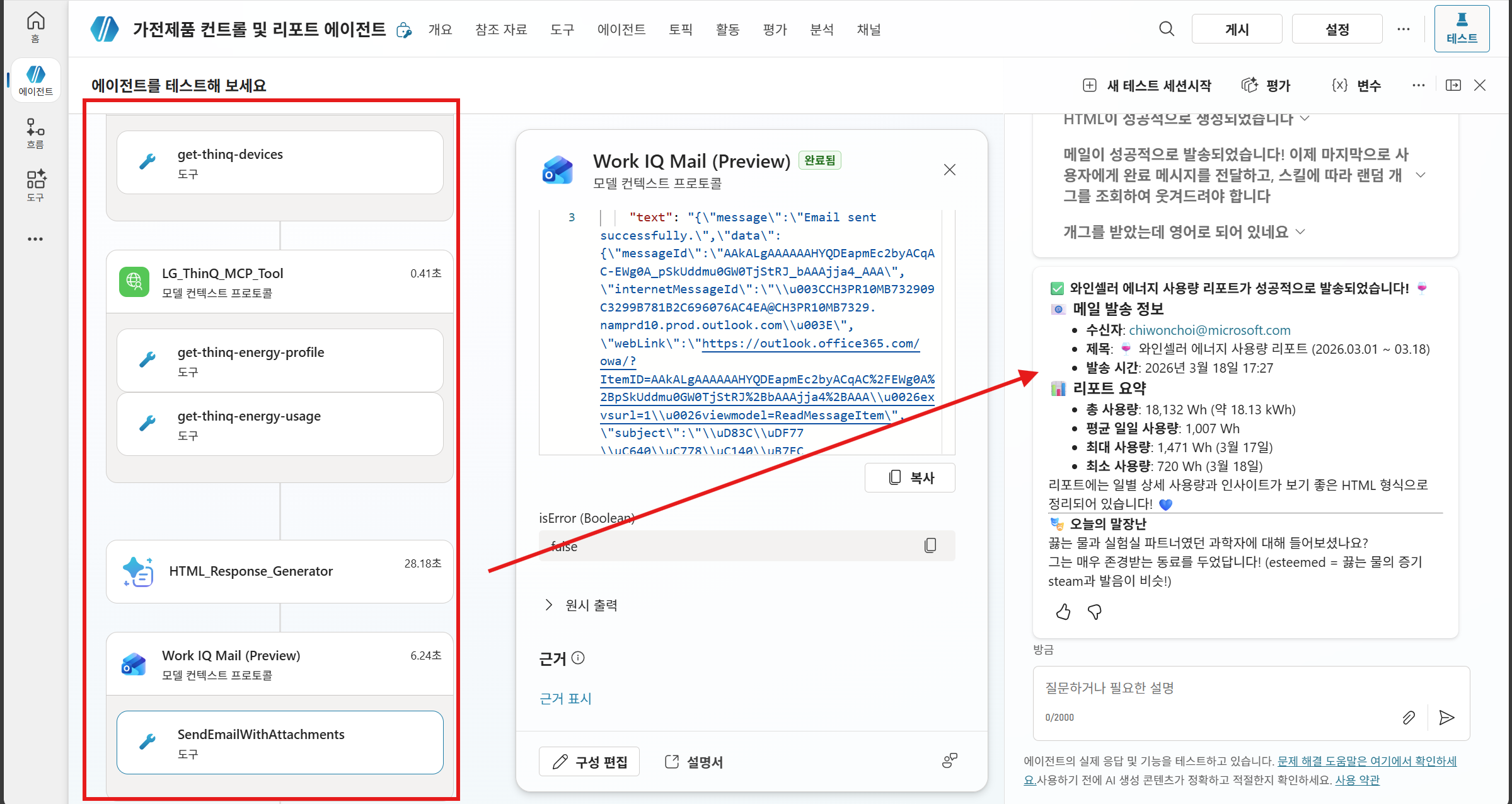
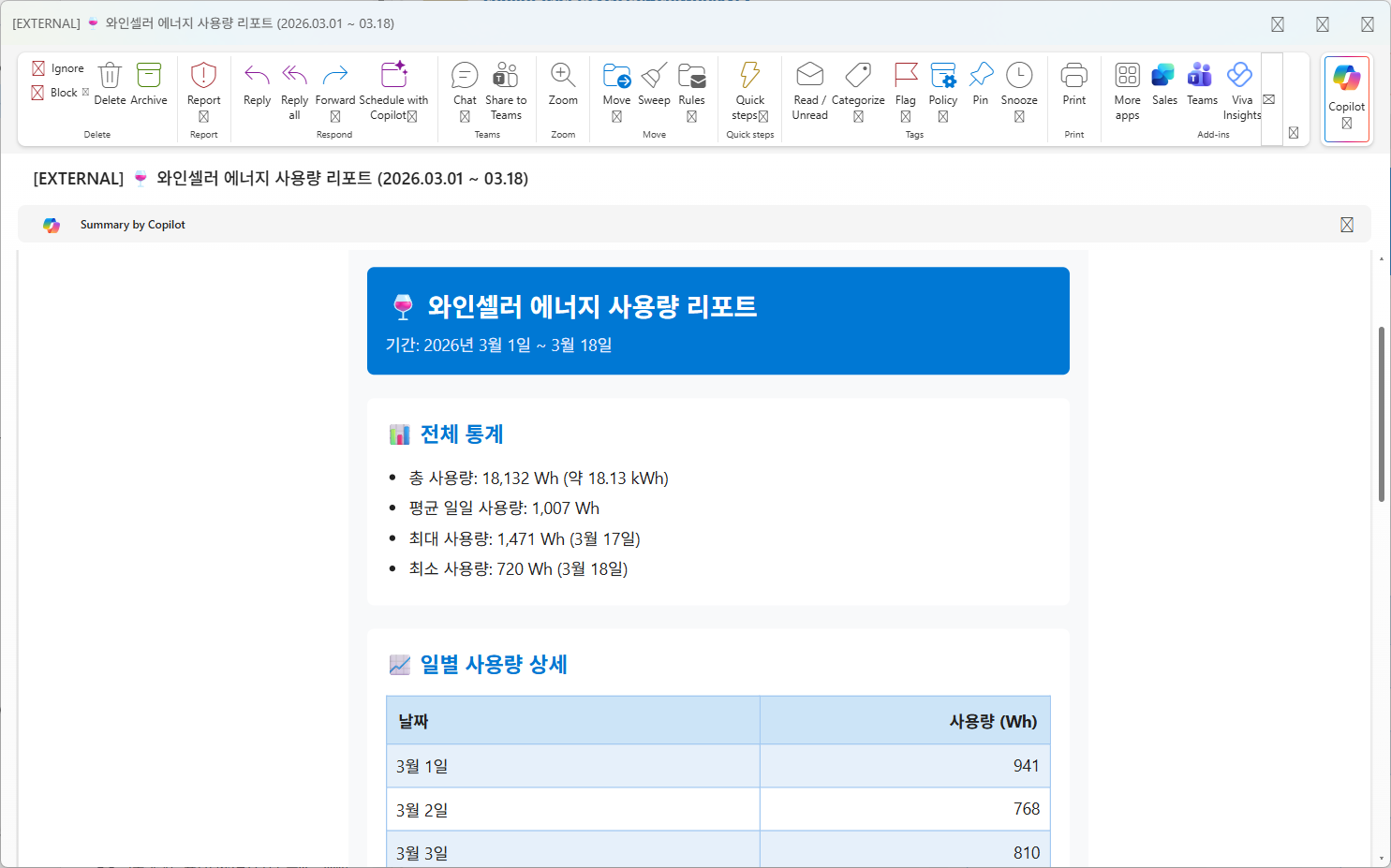
→ After the agent retrieves data, it calls HTML_Response_Generator and sends an email in HTML card format.
Work briefing HTML card test:
Summarize today's work status and send it to me.
→ After retrieving data such as Work IQ data, the agent should send an email as a report-type HTML card.
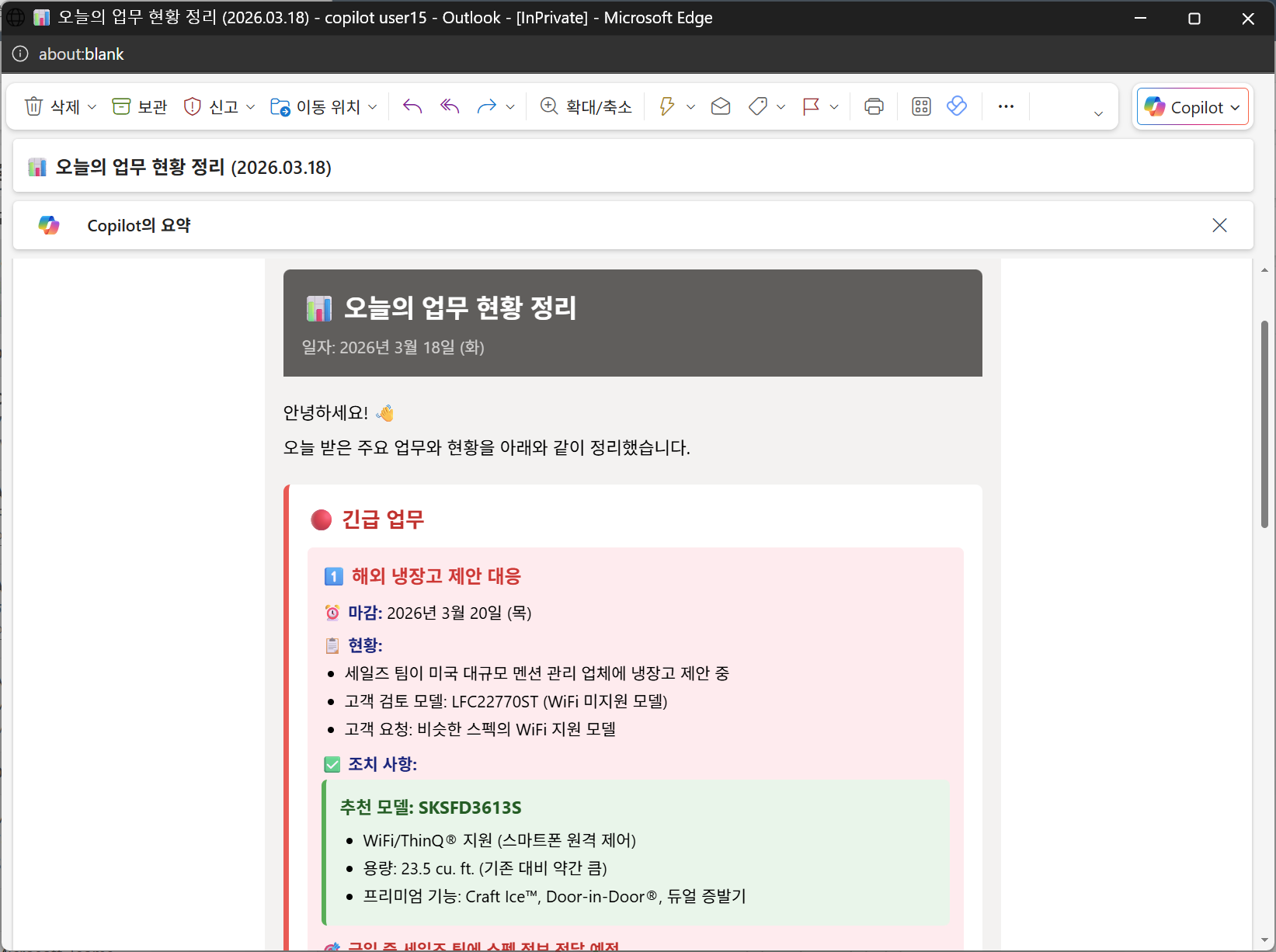
💡 Tip: In the agent test screen, HTML may not be rendered and may appear as code.
When you receive the actual email, the HTML is rendered normally and displayed as a card.
| ← Previous: Step 8. Add Triggers | Next: Step 10. How to use Excel-based data → |