Microsoft Copilot Studio + Docusign MCP
A hands-on lab for connecting the Docusign MCP Demo server to a Copilot Studio agent and triggering Workflow Builder agreement automation. Learn how to automate an end-to-end employment agreement workflow.
Translated article — This article is based on 📄 Microsoft Copilot Studio + Docusign MCP from the Copilot Studio Agent Academy. The original wording takes precedence.
📄 Microsoft Copilot Studio + Docusign MCP

Welcome, agent. Your objective is to reuse what already works: connect the Docusign MCP Demo server to your Copilot Studio agent and trigger an existing Workflow Builder workflow. Your agent gathers inputs. Workflow Builder executes the agreement process.
🔎 Objectives
In this mission, you’ll learn how to:
- Create Docusign Web Forms, document templates, and a Workflow Builder workflow
- Add the Docusign MCP Demo tool to your agent
- Invoke the Workflow Builder workflow from the agent
- Provide inputs in natural language for the workflow start step when testing the agent
- Bonus: add your first Microsoft MCP tool (Work IQ Calendar) to extend the agent with multi-MCP capabilities
❓ What is Docusign?
Docusign is an agreement execution engine.
It enables organizations to create, send, sign, and manage agreements digitally, reducing manual and paper-based work. Beyond eSignatures, Docusign is an Intelligent Agreement Management (IAM) platform that supports the full agreement lifecycle, from creation to tracking and storage.
💼 Why it matters
Agreements are business-critical, but manual handling causes delays and inconsistency. Docusign makes agreement processes faster, trackable, and scalable.
🏗️ What is Docusign Workflow Builder?
Workflow Builder is where agreements become automated workflows.
It defines how agreements move from data collection to document generation and signing, without manual coordination. You design a workflow once and run it consistently.
💡 Common use cases
- Employee onboarding
- Sales agreements
- Procurement approvals
- NDAs and compliance workflows
⚙️ What Workflow Builder does
- Structure multi-step workflows
- Collect inputs through Web Forms
- Generate agreements from templates and data
- Route documents between participants in the right order
- Connect to third-party applications and services
- Provide visibility into workflow progress
🧩 Key Workflow Builder capabilities
Identity Verification
Confirm signer identity before agreement completion.
Web Forms
Collect structured browser-based input before agreement generation. Captured data can automatically populate documents.
Document Generation
Automatically generate agreements and documents using collected data and reusable templates.
eSignature
Enable legally recognized electronic signatures in workflows.
App Center
Connect Workflow Builder to third-party apps and services.
Workflow Templates
Use pre-built templates for common scenarios to deploy standardized agreement flows quickly.
Agreement Desk
Centralize agreement preparation, review, and collaboration across teams.
🚀 How this works with your agent
A Copilot Studio agent does not replace the workflow — it triggers it. You are not rebuilding agreement logic from scratch. You are reusing a workflow already built in Docusign. The agent collects inputs in natural language, then Workflow Builder runs the agreement process end to end.
🛡️ Certified MCP spotlight: Docusign MCP Demo
The Docusign MCP Demo server is supported in Copilot Studio and is published as a certified MCP integration in Microsoft’s connector ecosystem.
Why this matters for your mission:
- Enterprise trust signal: Certified MCP servers go through Microsoft validation and review stages before broad availability.
- Security and compliance alignment: Certification includes checks for packaging quality, behavior validation, and security/compliance readiness.
- Responsible AI expectations: Certification review includes safety evaluation, but safe usage in your tenant still depends on implementation choices.
In practical terms, this means you are not connecting to an unknown endpoint. You are integrating a reviewed MCP server that can expose Docusign capabilities to your agent through natural language.
🔐 Security and governance guidance for this mission
Treat it as safe by design, not safe by default:
- Use the correct account and connector pairing:
- Docusign developer account (also called a demo or sandbox account) with Docusign MCP Demo
- Docusign production account with Docusign MCP
- Use OAuth and least-privilege accounts wherever possible.
- Keep a human in the loop for high-impact actions.
- Validate prompts and outputs before scaling into production scenarios.
Warning: Certification does not remove your organization’s responsibility to configure and govern safe usage. You still need to apply least privilege, monitor usage, and retain human review for high-impact workflows.
✍️ Docusign MCP Demo connector notes
The Docusign MCP Demo connector is intended for sandbox testing. It is separate from the Docusign MCP production connector, and workflows do not automatically migrate between Demo and Production environments.
For this Special Ops lab, that is exactly what you want: a safe development space to test prompt-driven agreement workflows before a production rollout.
📚 Learn more about Docusign MCP and Microsoft MCP server certification
- Microsoft MCP server certification
- Docusign MCP Demo connector (Microsoft Learn)
- Docusign MCP overview
🧪 Docusign MCP Lab
In this Special Ops mission, you’ll work through two practical use cases:
- First, automate a complete employment agreement flow in Docusign.
- Second, optionally extend the flow with calendar follow-up using a second MCP tool.
✨ Use case scenario
Use case 1: Core hiring workflow (Labs 1.1–1.5)
As a recruiter,
I want to digitally deliver an employment agreement and employee offer letter,
so that candidates can review and complete signatures faster.
To complete this scenario:
- 1.1 Create a Docusign Web Form
- 1.2 Create document templates
- 1.3 Create a Docusign Workflow Builder workflow
- 1.4 Test the workflow
- 1.5 Build a custom agent in Microsoft Copilot Studio, connect Docusign MCP Demo, and trigger the workflow
Outcome: The agent collects inputs and triggers the Docusign Workflow Builder workflow you already built, end to end.
Use case 2: Multi-MCP extension (Lab 1.6)
Use case for Lab 1.6:
As a hiring manager,
I want to automatically schedule a prep meeting before the new employee’s start date,
so that I have dedicated calendar time to complete onboarding tasks.
Solution diagram
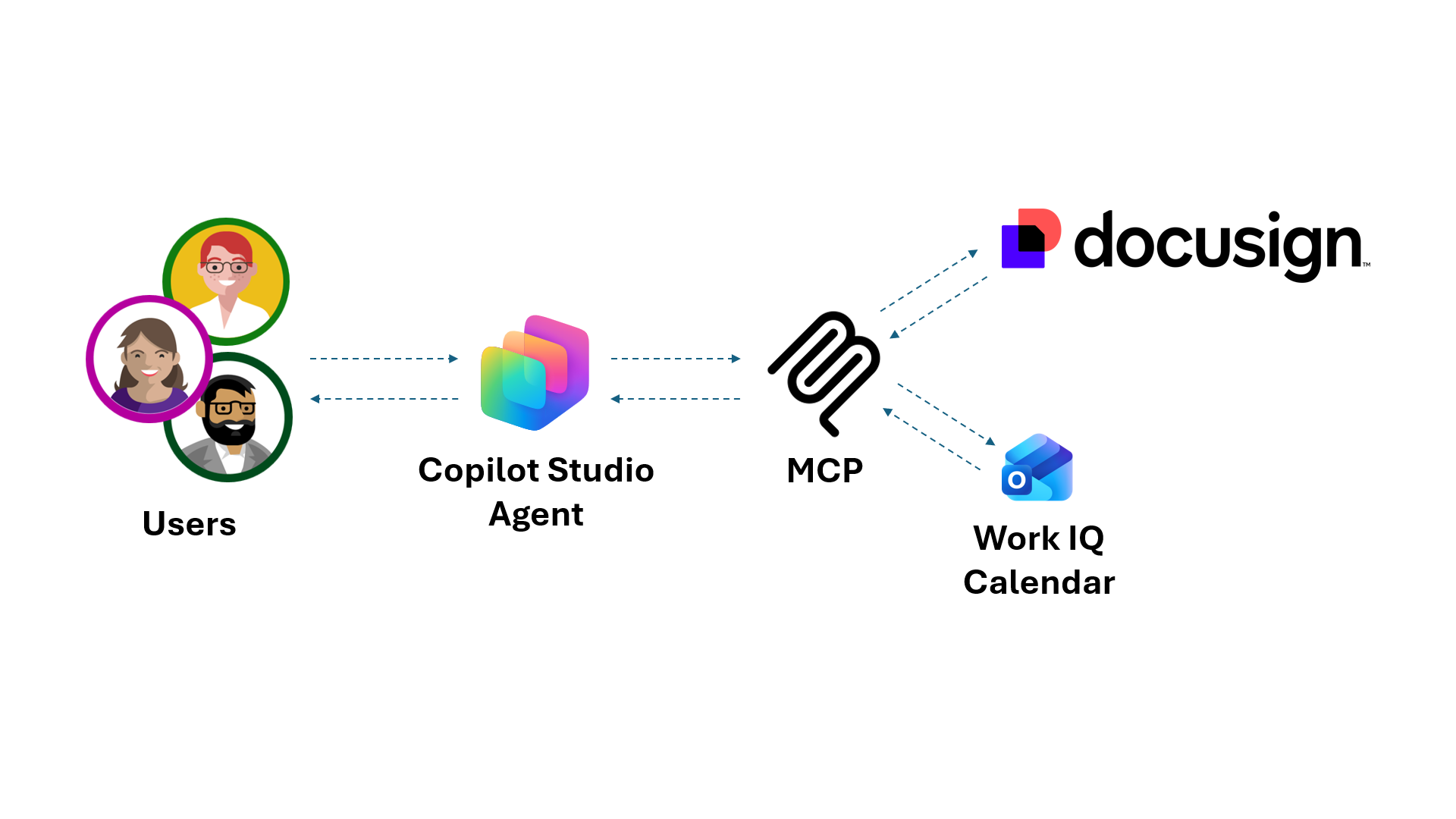
The agent is the control layer.
- The user interacts with the Copilot Studio agent, and the agent collects inputs and triggers a Docusign Workflow Builder workflow through MCP.
- Docusign handles the agreement process end to end, and additional tools such as Work IQ Calendar can extend the flow with supporting tasks.
One prompt. Multiple systems. Orchestrated execution.
✅ Prerequisites
Docusign
- Sign up for a free Docusign developer account if you don’t already have one:
-
Go to https://developers.docusign.com and select Create Account in the upper-right corner.
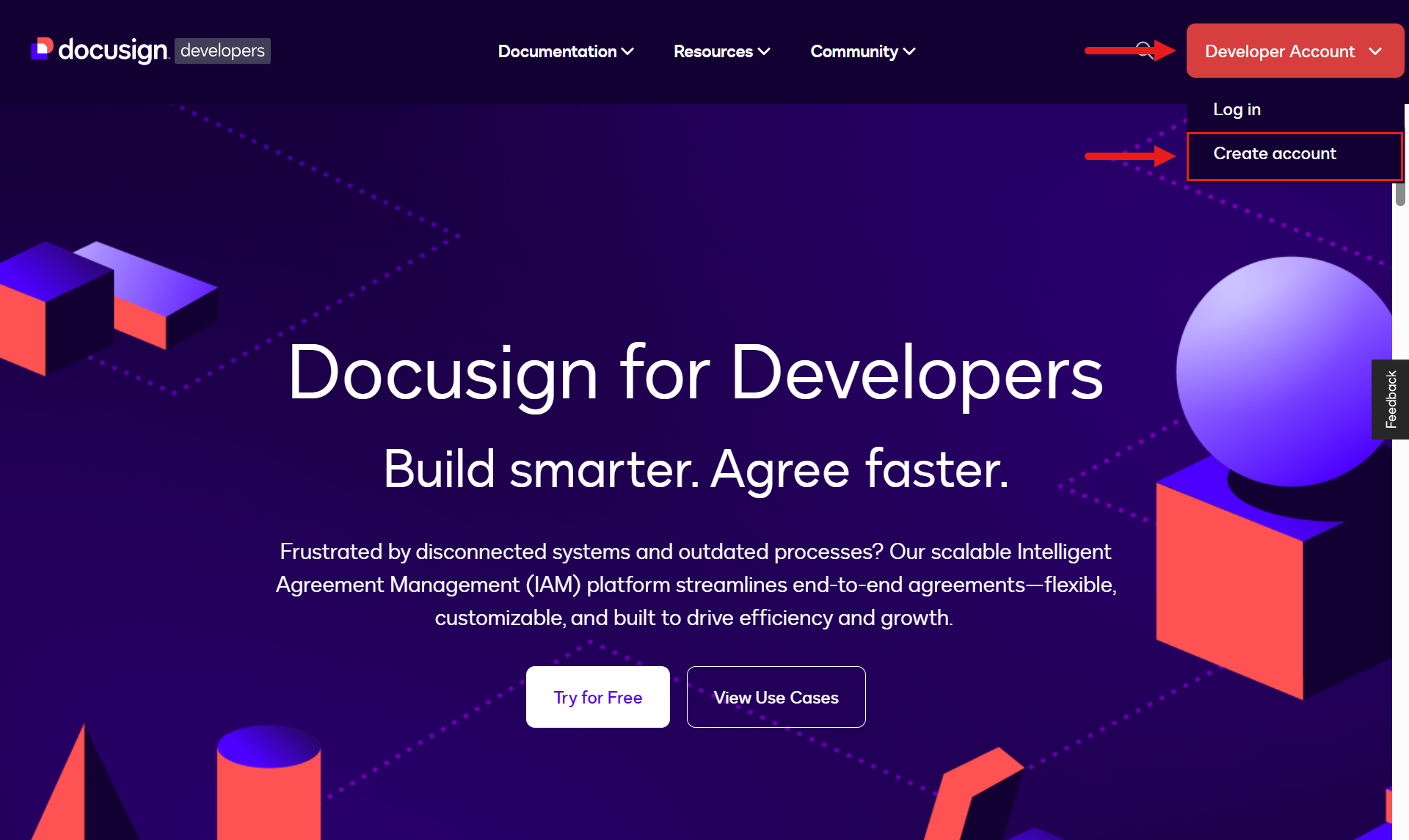
Create a Docusign developer account
-
Microsoft
- Copilot Studio license
- Access to a Copilot Studio developer environment
- Administrator permissions to create solutions and agents
- A SharePoint site where you have permission to create a new folder in the Documents library
Tip: If you need help setting up a Copilot Studio license, see the Recruit course setup lab.
Two email addresses
To complete this lab, you need two different email addresses:
- An email address to use as the employee
- An email address to use as the hiring manager
🧪 1.1 Create a Docusign Web Form
Warning: To complete this Docusign lab exercise, you need a Docusign developer account. Follow the steps in the Prerequisites section above.
Web Forms let organizations collect information through secure browser-based forms, which can automatically populate agreements and workflows with data. They help reduce manual data entry, improve accuracy, and streamline processes such as onboarding, registration, approvals, and agreement generation.
To learn more about Web Forms, expand the additional learning block below.
Web Forms: collecting pre-agreement data
🤔 What are Web Forms?
Within Workflow Builder, Web Forms provide a way to collect user input before an agreement is generated or sent.
Examples:
- Customer application forms
- Employee onboarding questionnaires
- Supplier registration forms
- Service request forms
- Intake forms for legal or HR teams
Instead of manually entering information into an agreement, users enter details directly into a form.
The captured data can:
- Automatically populate an agreement
- Trigger a workflow
- Feed information into business systems
- Start the signature process
🌱 Web Forms support:
- Text fields
- Dropdowns
- Checkboxes
- Conditional logic
- Required inputs
- Template field mapping
💡 This helps minimize
- Manual data entry
- Copy/paste errors
- Delays caused by incomplete submissions
-
On the Docusign developer portal home page, select Templates.
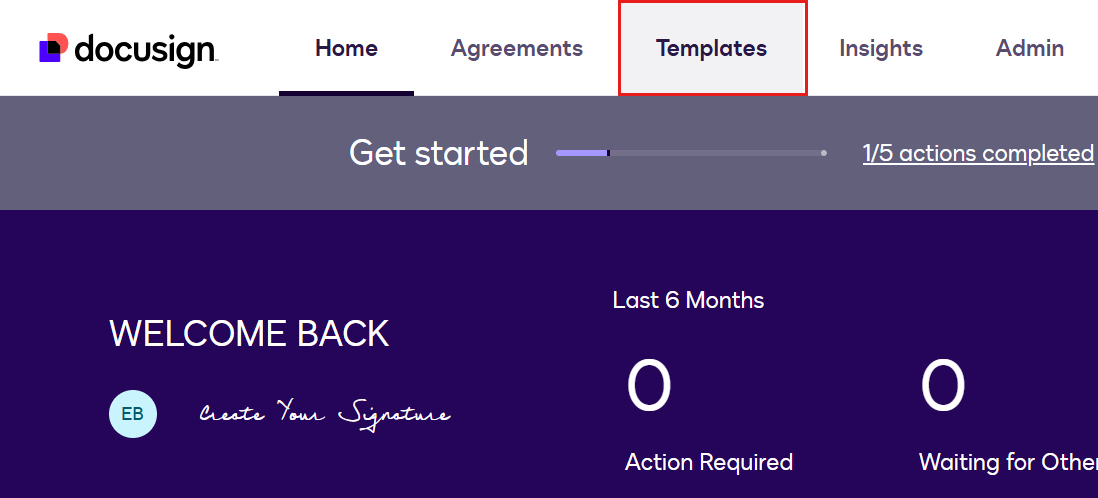
Select Templates -
In the left navigation pane, select Start. Select Web Forms, then select Create Web Form.
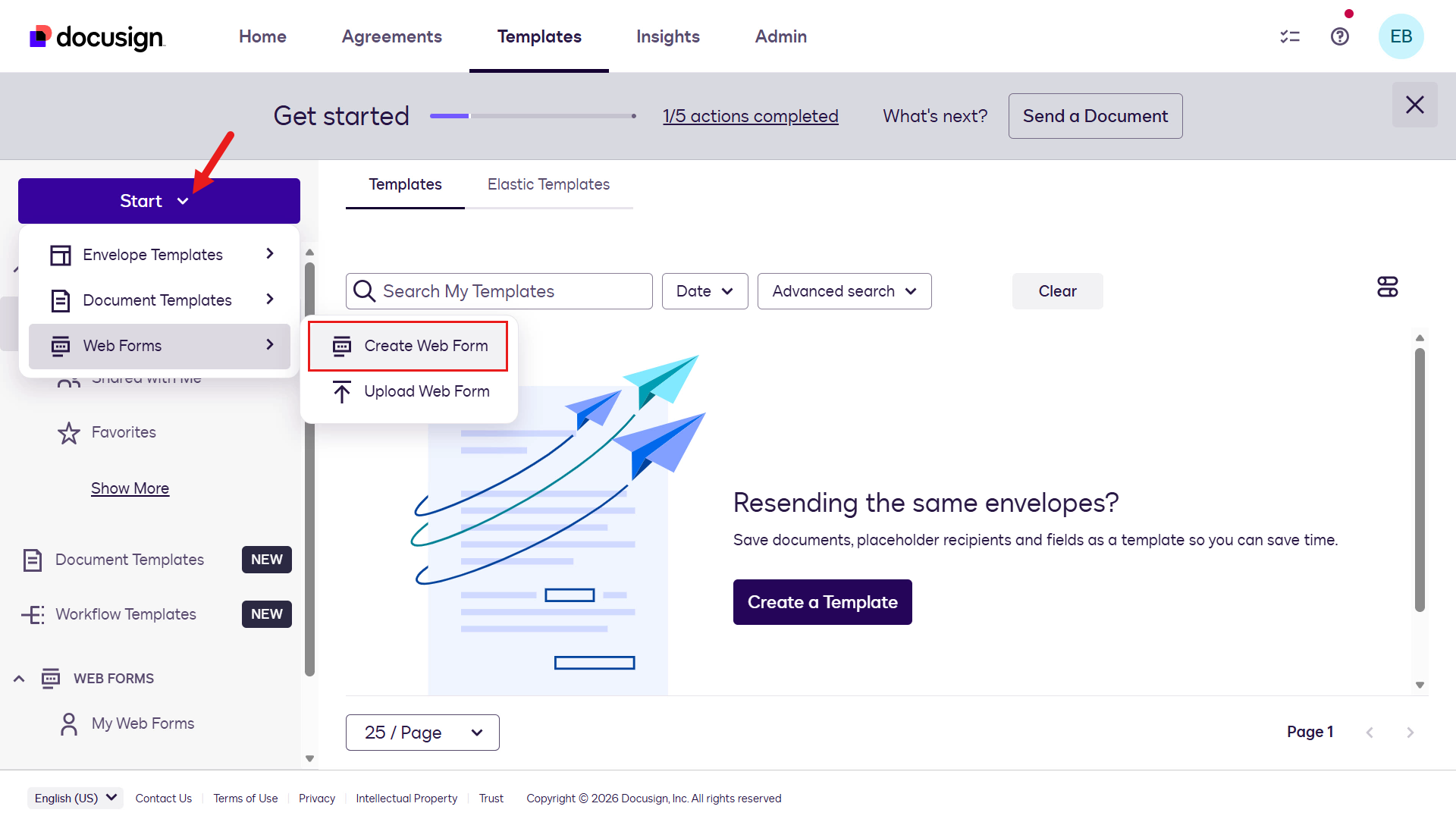
Create a Web Form -
You are asked how you want to create the Web Form. Select Start From Scratch.
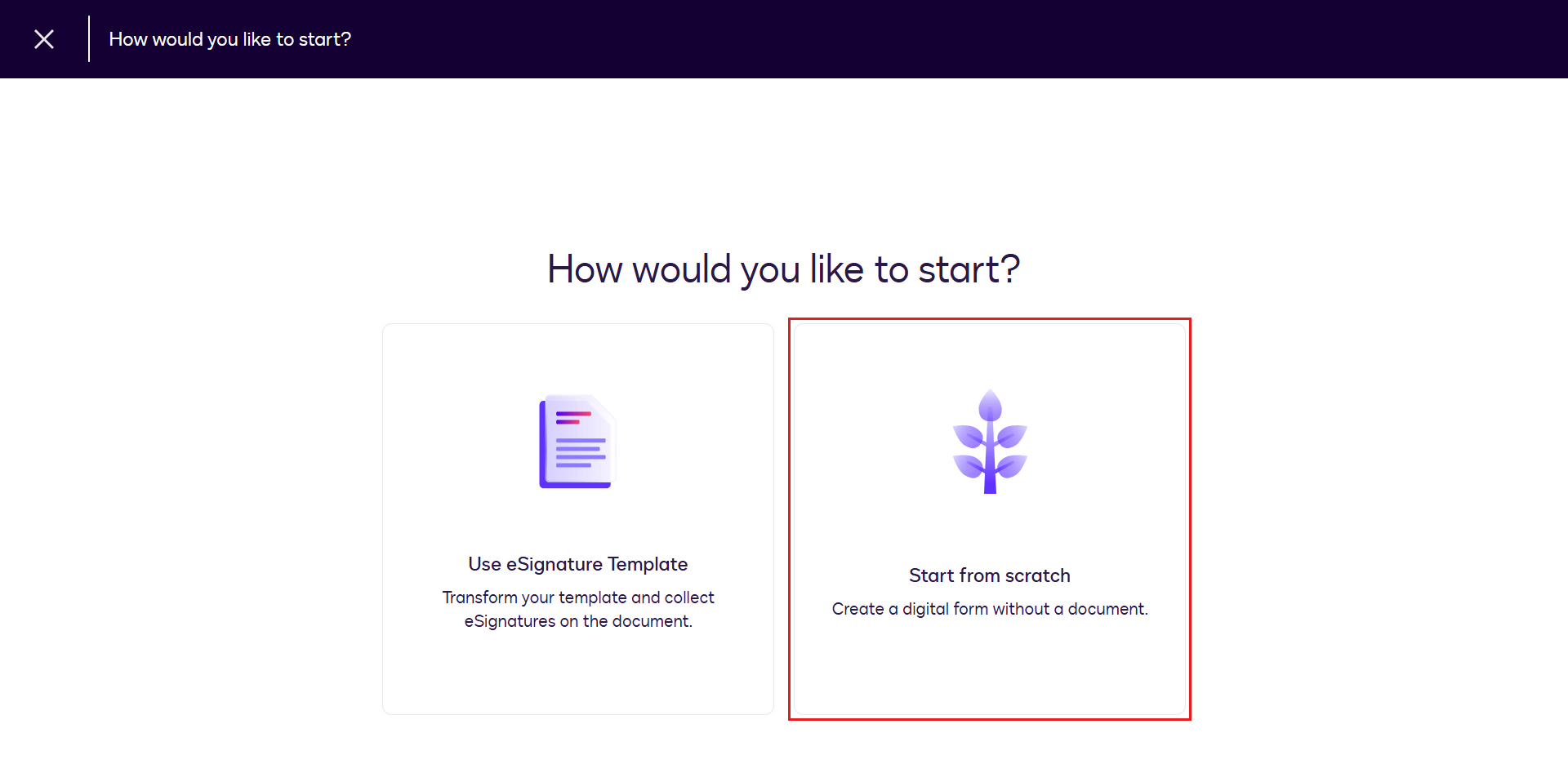
Start from scratch -
Enter a name for the Web Form. For example:
Request for your contact information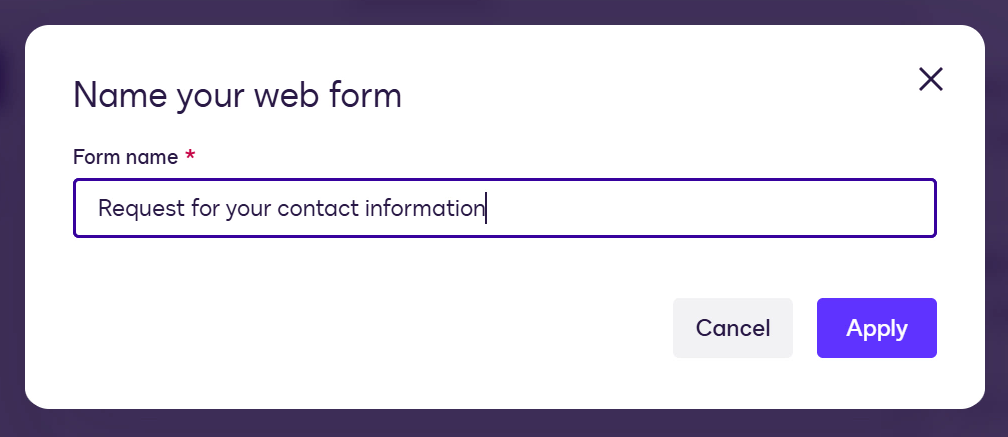
Enter the Web Form name -
The Web Form designer appears. By default, there are three pages: Welcome page, Untitled page, and Thank you page.
On the Welcome page, update the following fields:
Page title
👋🏻 Hey there!Page subtitle
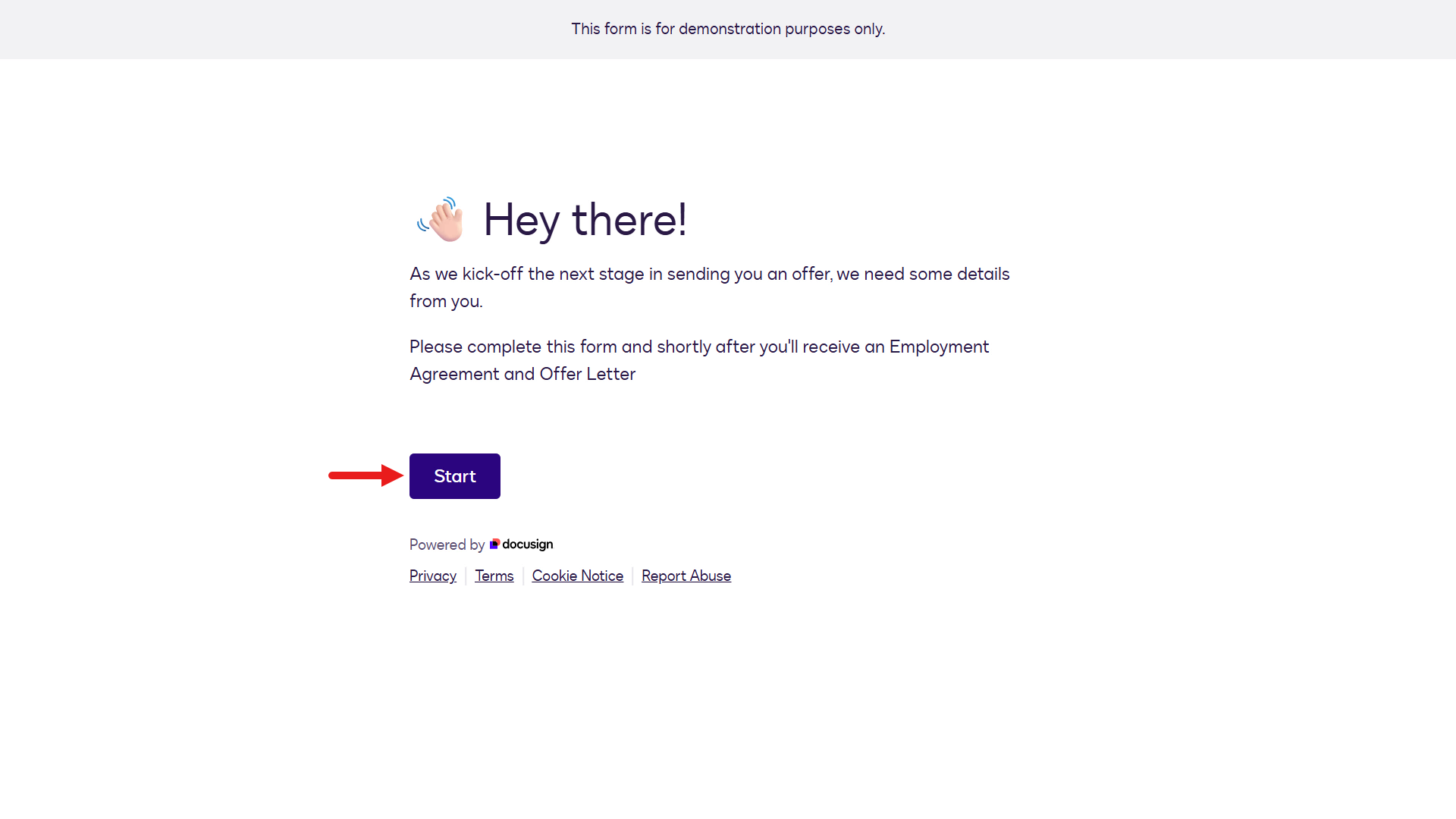
 As we kick-off the next stage in sending you an offer, we need some details from you.

 Please complete this form and shortly after you'll receive an Employment Agreement and Offer Letter.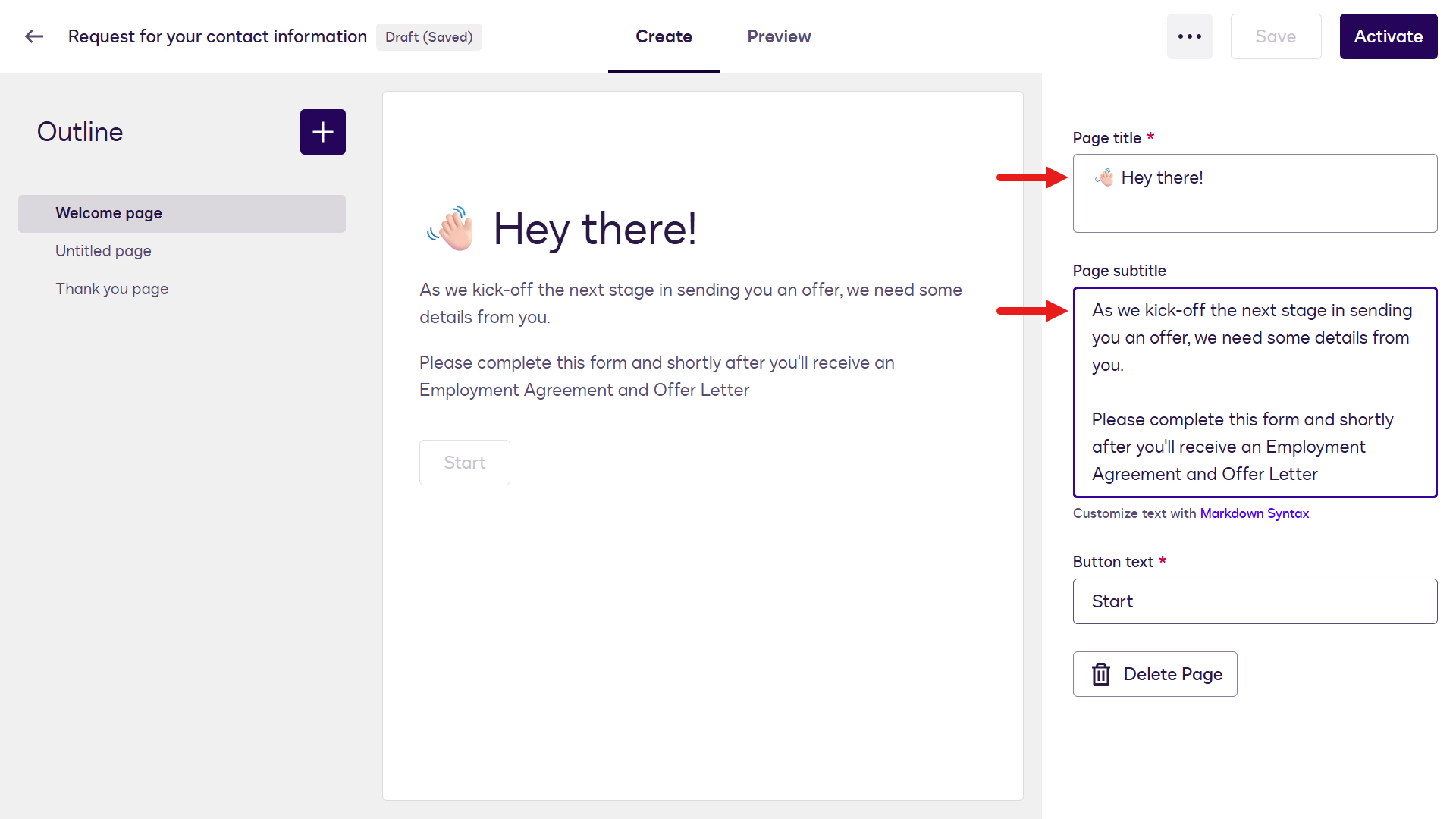
Welcome page details -
Select the Untitled page and update the following fields:
Page title
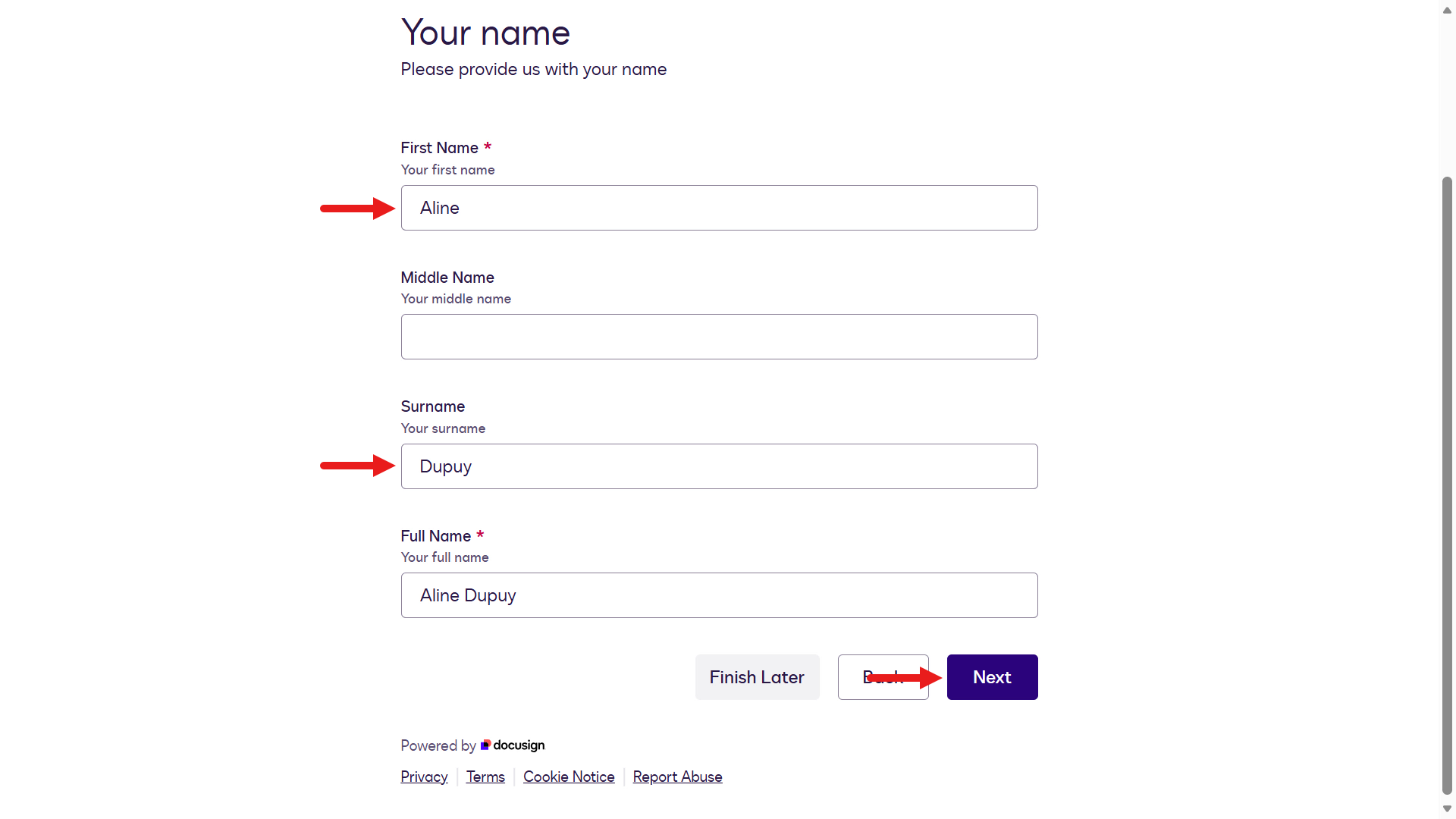
Your namePage subtitle
Please provide us with your nameAPI reference name
Step_CandidateName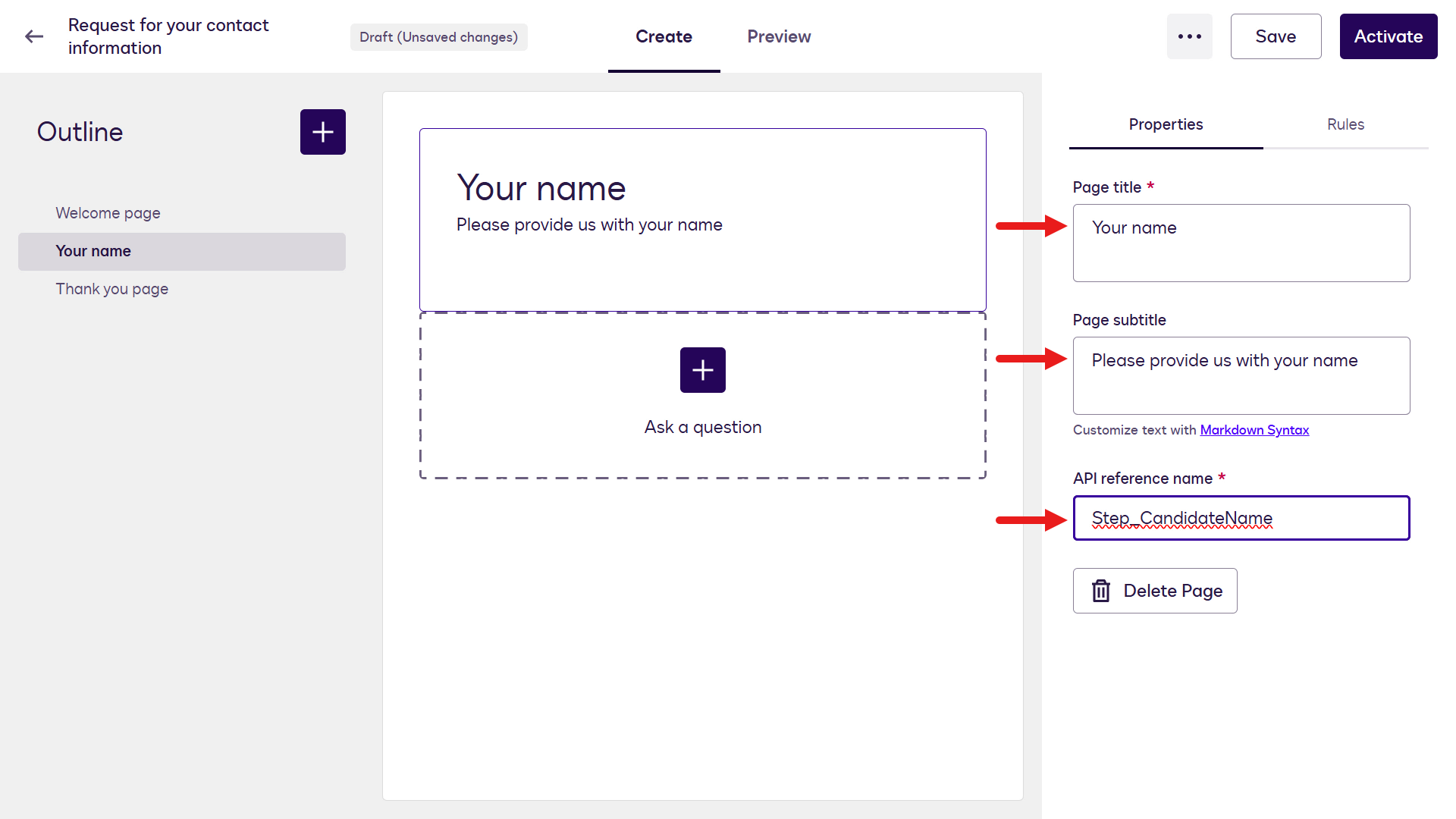
Your Name page -
Add fields to this page. Select the plus icon below the page title section in the middle of the designer.
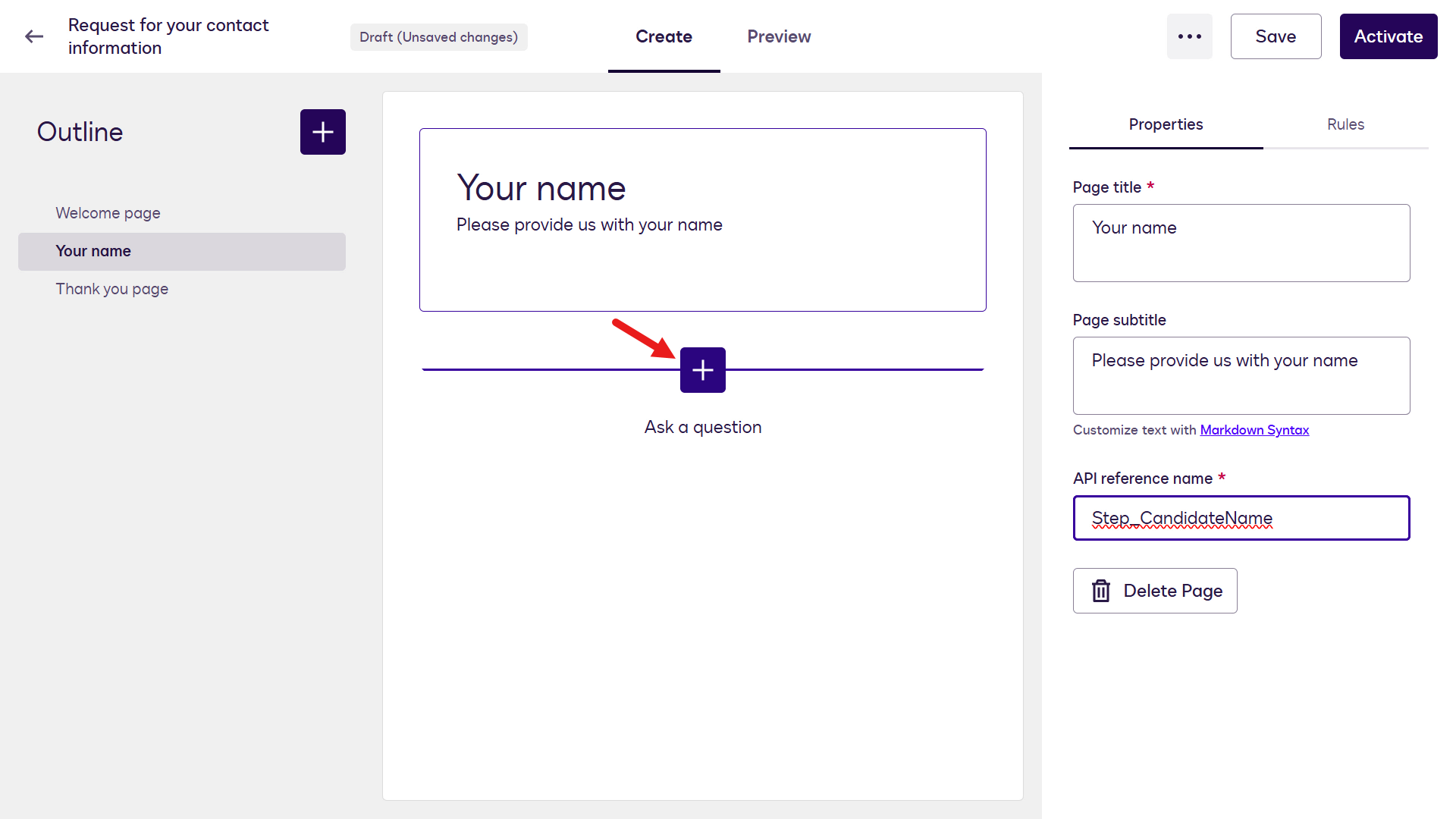
Add a field -
Select Text Field.
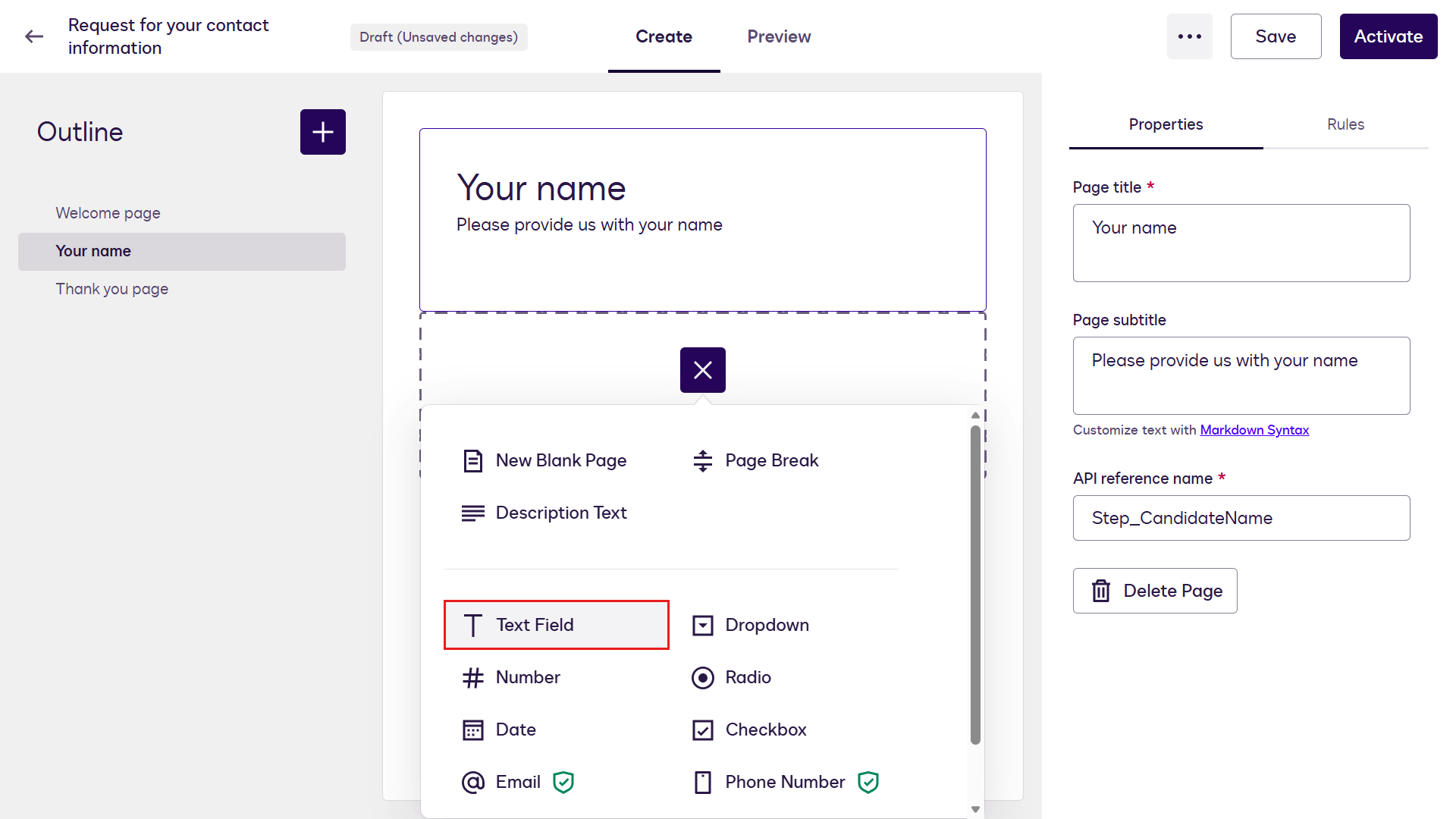
Select Text Field -
The field attributes appear. Update the following attributes:
Field name Field description Required field API reference name First NameYour first nameYes TextBox_FirstName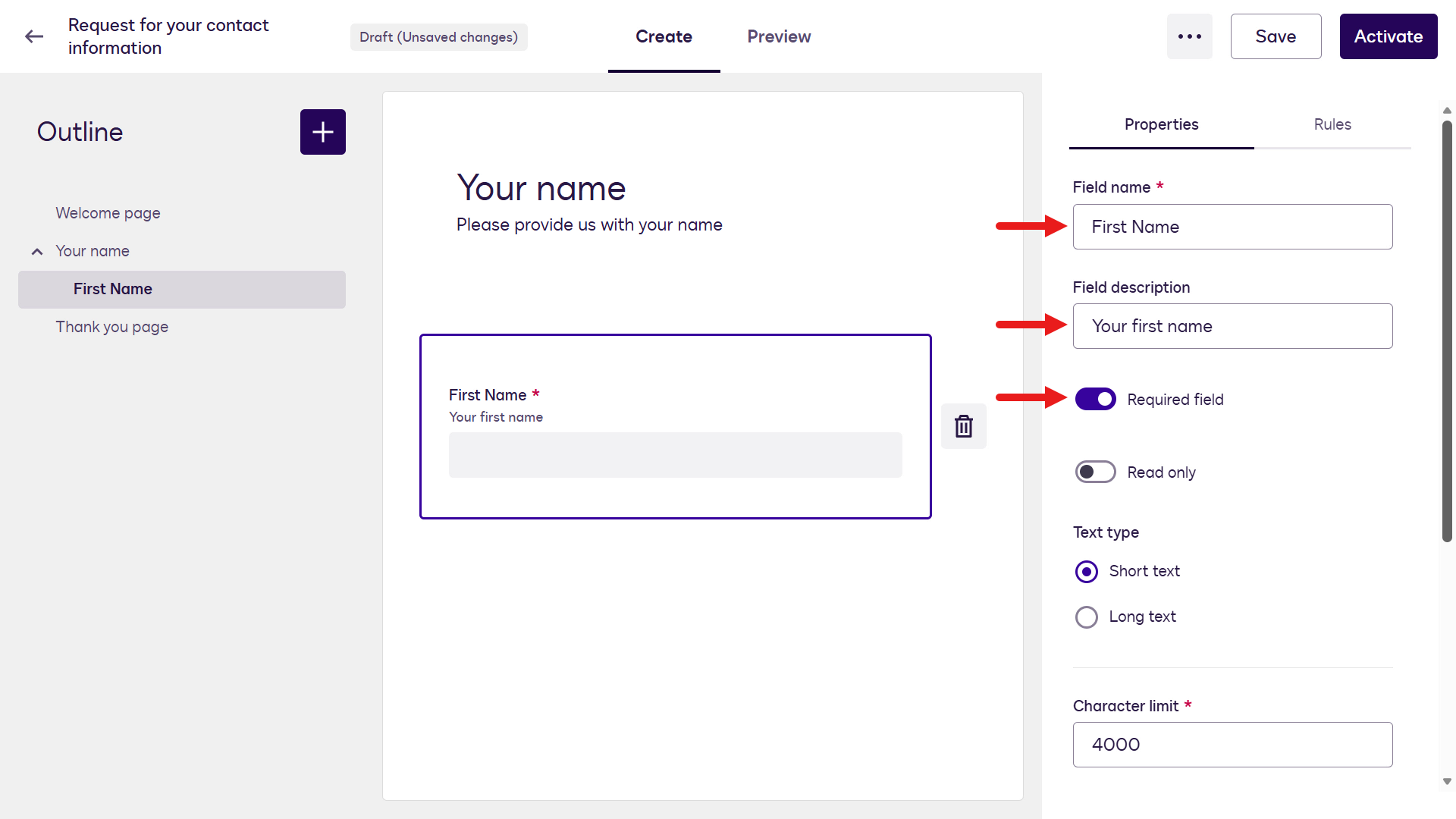
First Name field attributes 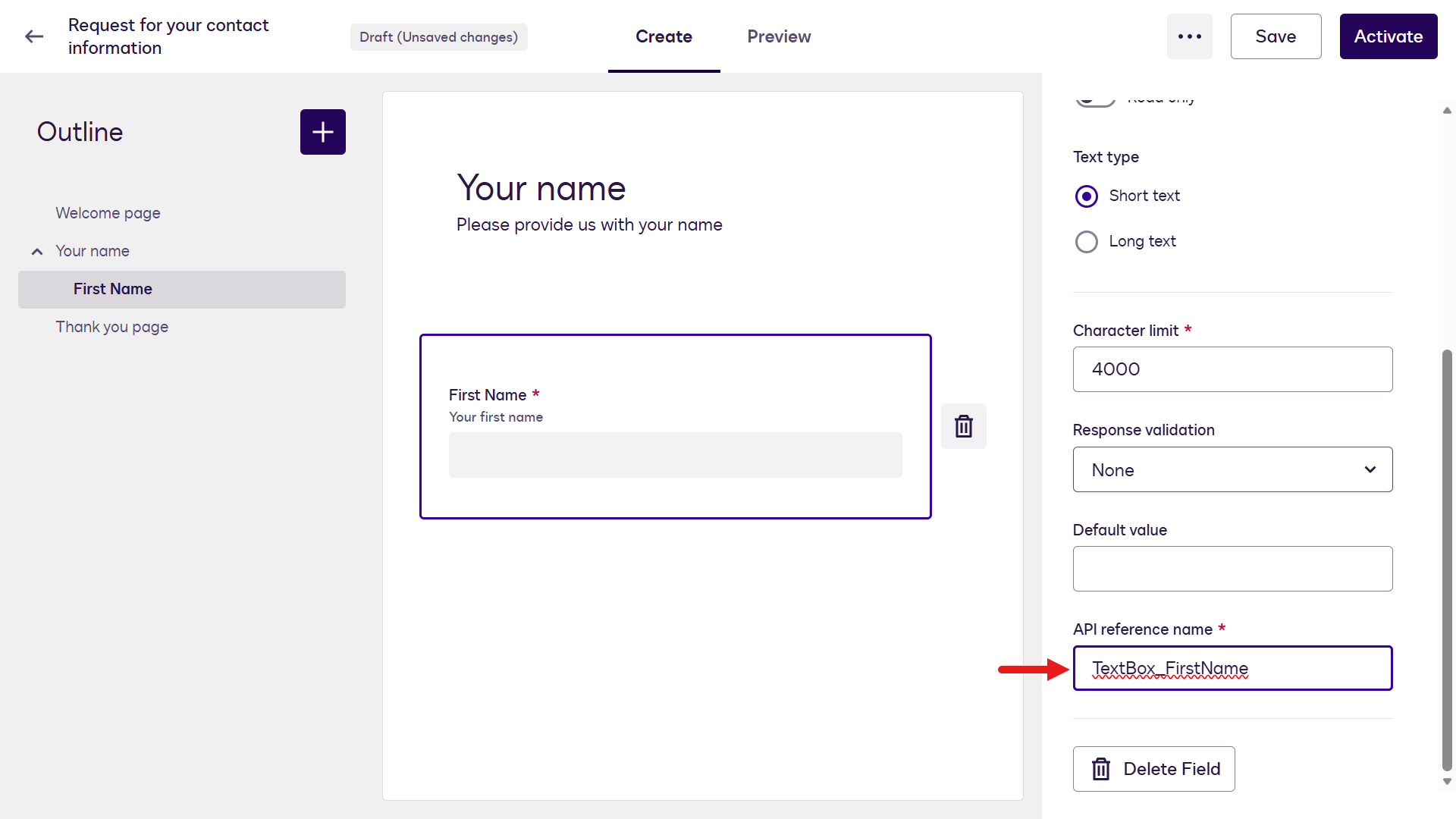
First Name field settings -
Repeat the same steps to add the remaining Text Fields. Select the plus icon and add new Text Fields with the following attributes:
Field name Field description Required field API reference name Middle NameYour middle nameNo TextBox_MiddleNameSurnameYour surnameYes TextBox_SurnameFull NameYour full nameYes TextBox_FullNameAfter adding the Text Fields, select the plus icon in the left pane and select New Blank Page.
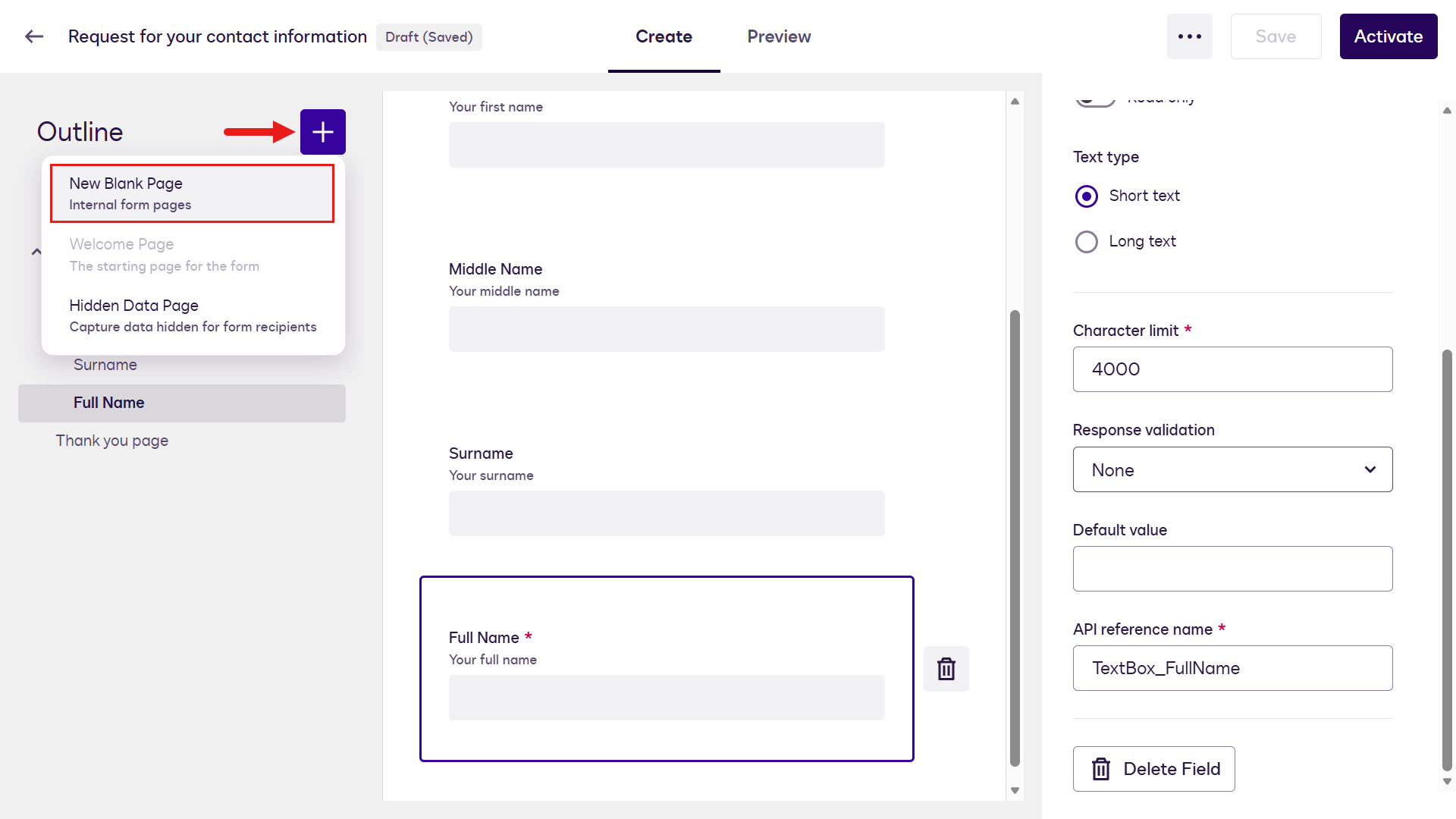
Add a new blank page -
Update the following fields on the new page:
Page title
AddressPage subtitle
Please provide us with your physical addressAPI reference name
Step_CandidateAddressRepeat the same steps to add the remaining Text Fields. Select the plus icon and add new Text Fields with the following attributes:
Note: The table below shows a generic address format. You can adjust it, but keep track of any changes because you will need them in a later step. To avoid issues in later steps, use the following address format.
| Field name | Field description | Required field | API reference name | |——————|——————-|—————-|————————-| |
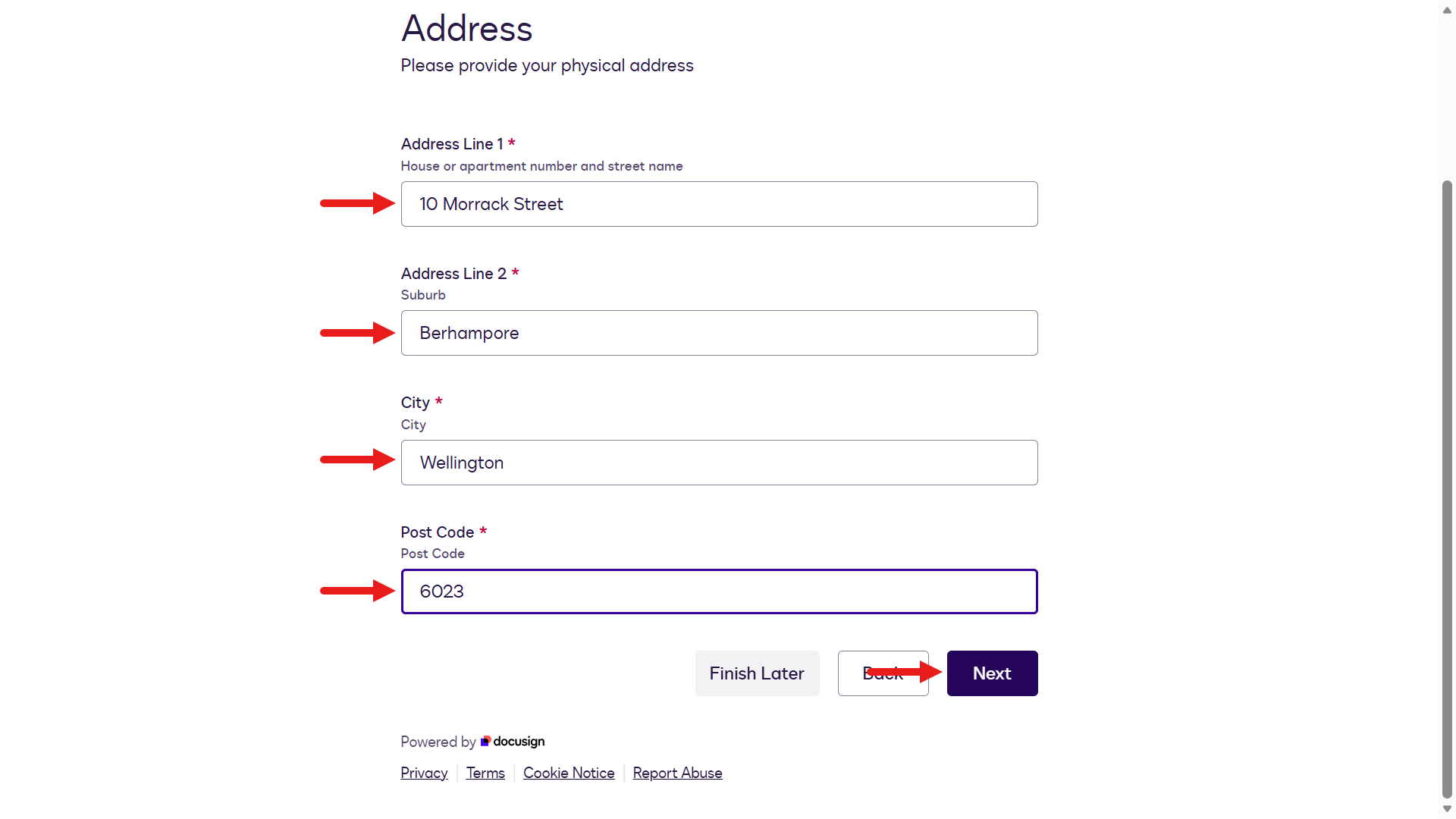
Address Line 1|Street Address| Yes |TextBox_AddressLine1| |Address Line 2|Suburb/District| Yes |TextBox_AddressLine2| |City|City| Yes |TextBox_City| |Post Code|Post Code| Yes |TextBox_PostCode|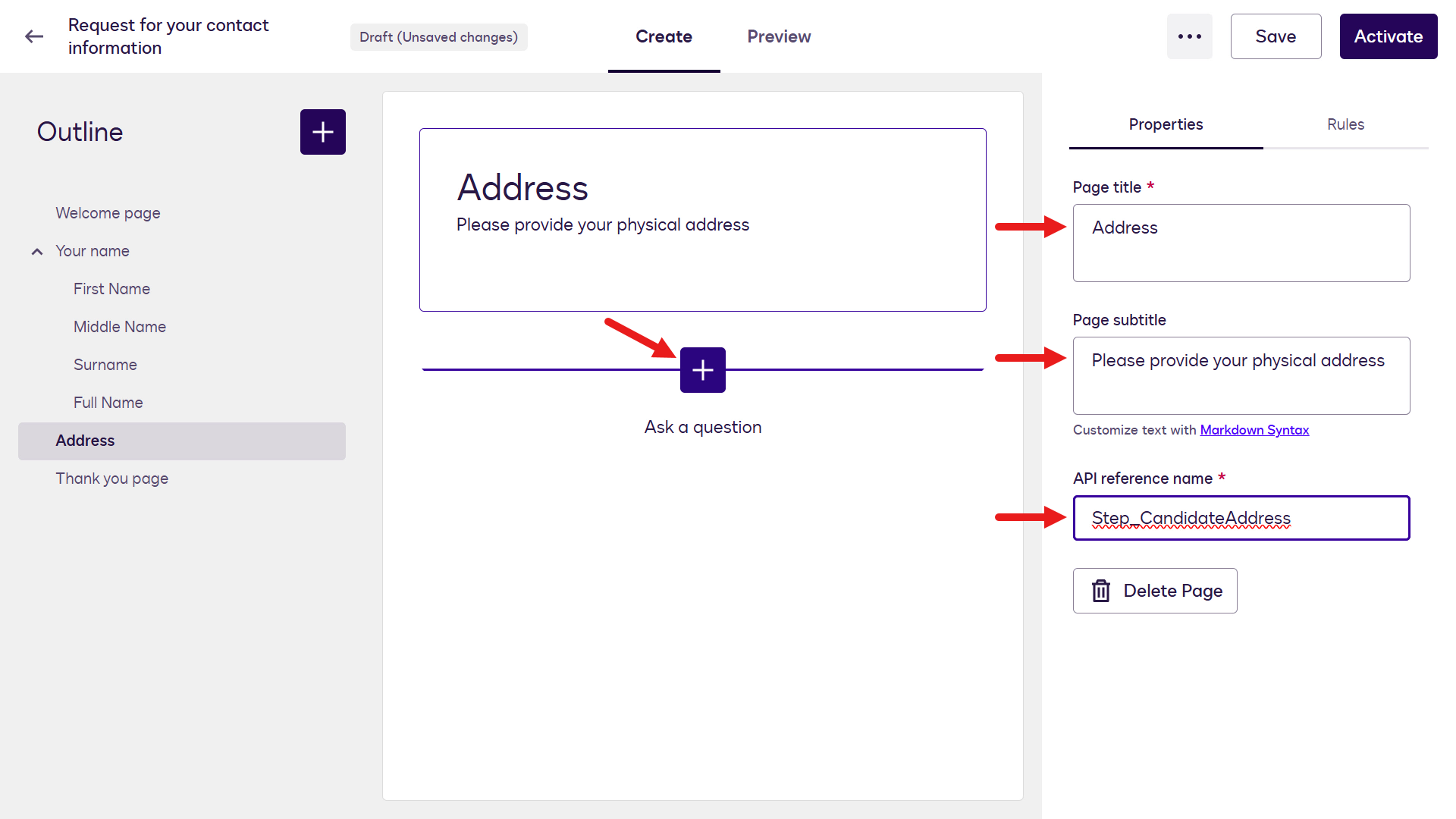
Address page -
After adding the Text Fields, select Thank you page in the left pane.
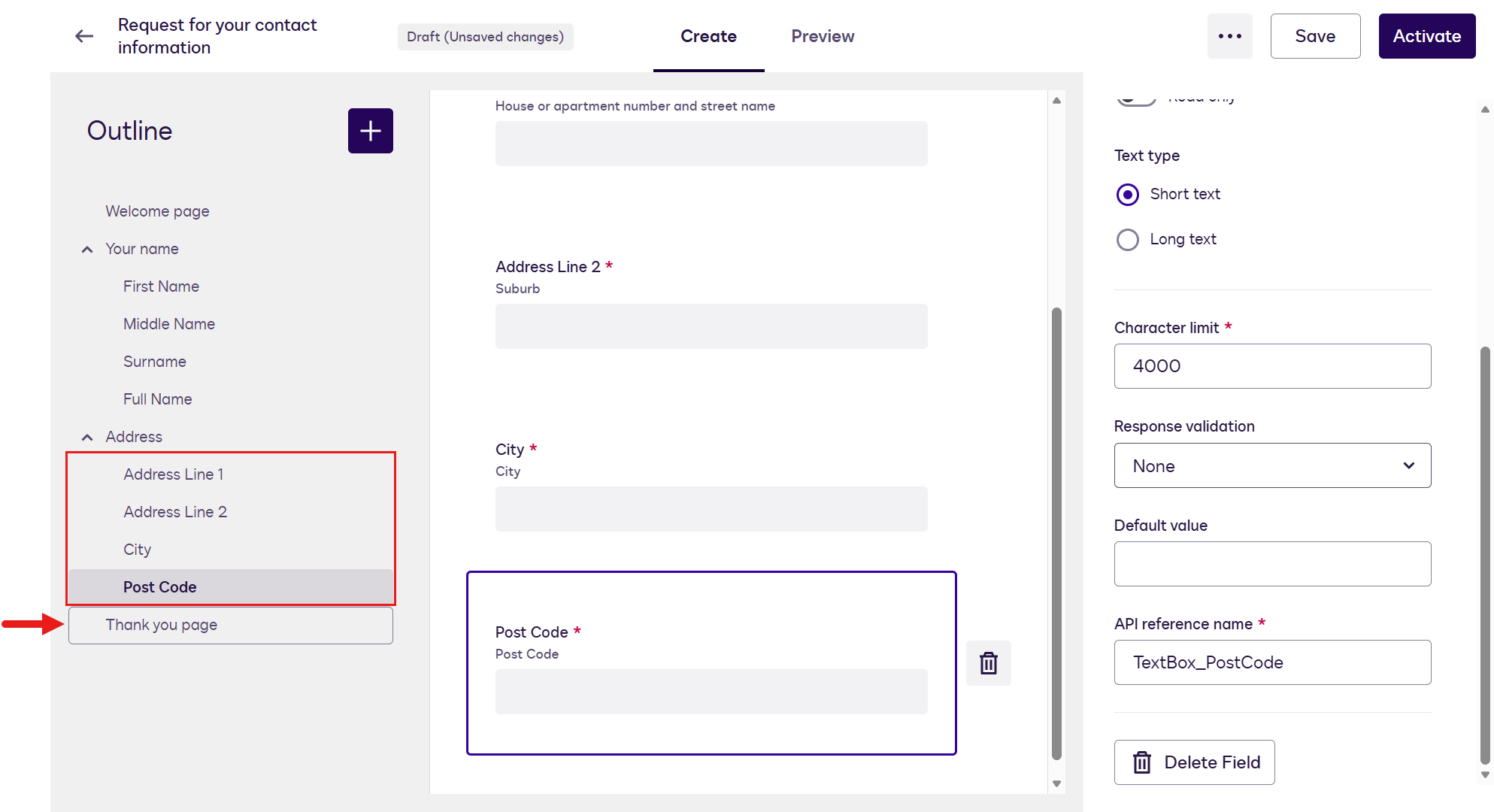
Address page fields added -
Update the following fields on the Thank you page:
Page title
✨ Thank youPage subtitle
We've received your form. Expect an email soon with documents to sign.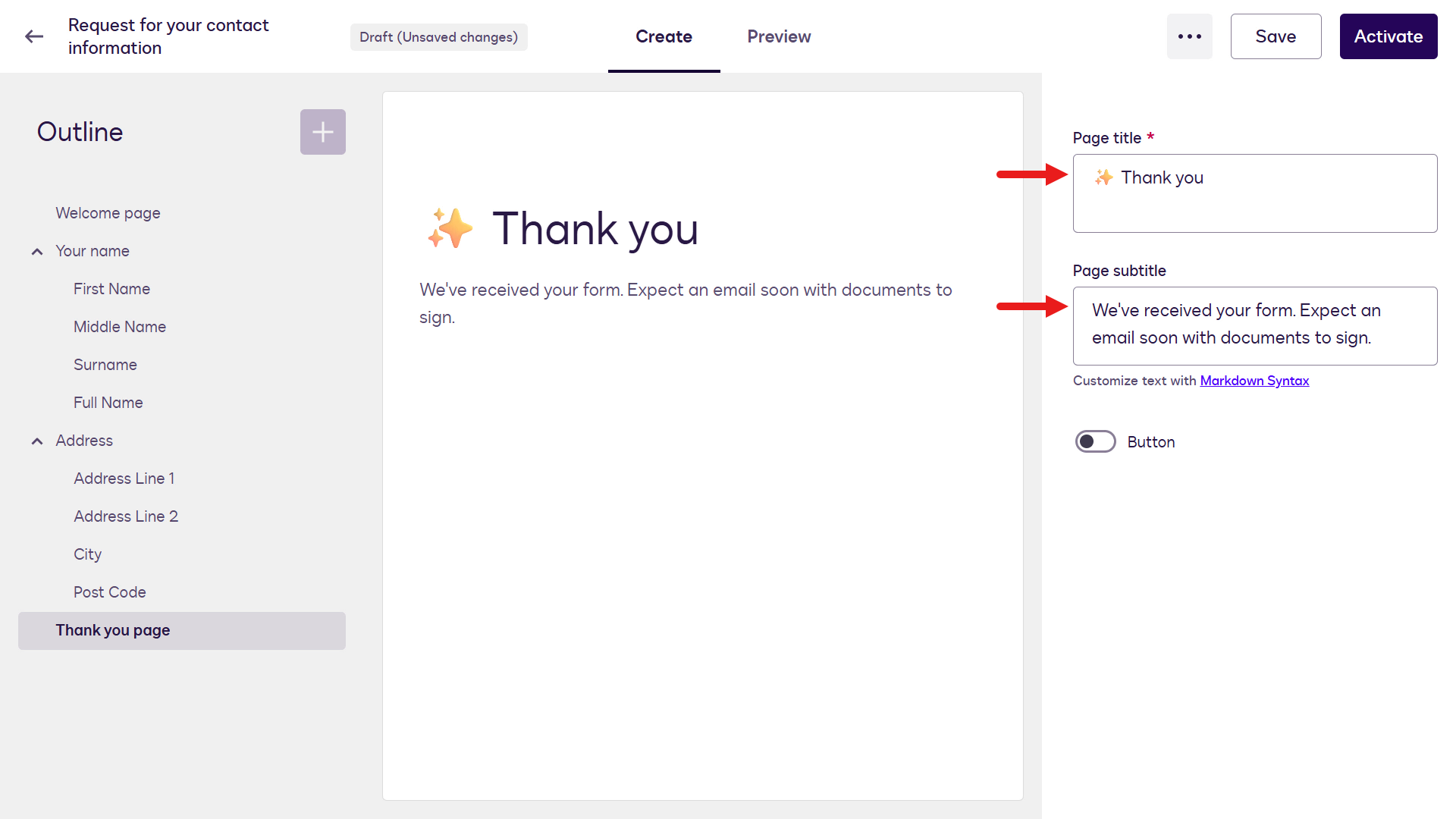
Thank you page details -
Your Web Form configuration is complete. To view the end-user experience, select Preview.
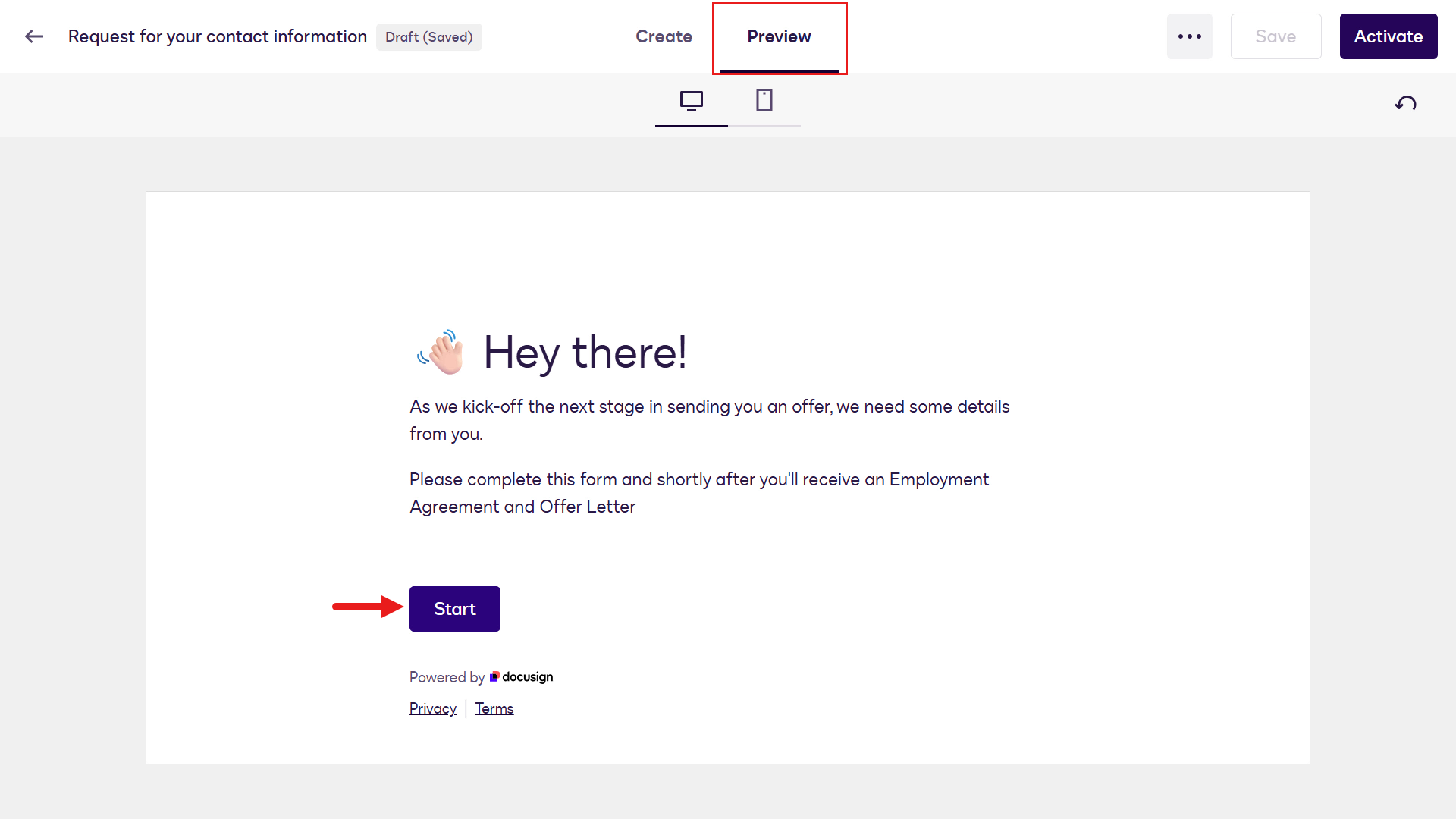
Preview the Web Form -
The Web Form opens in preview mode. You can enter the required information on each page. Enter a name on the Your Name page and select Next.
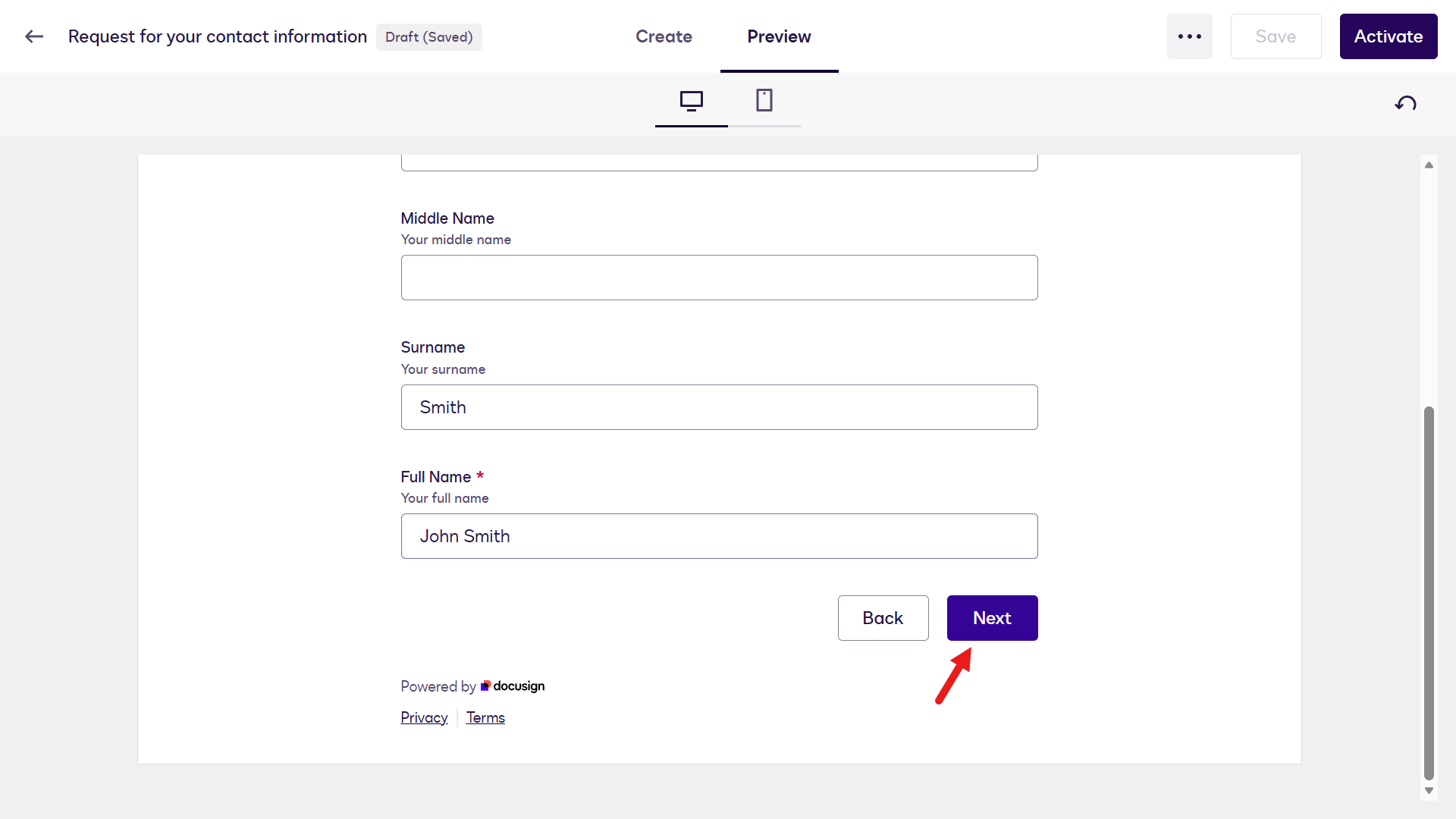
Complete the name page -
Next, complete the Address page.
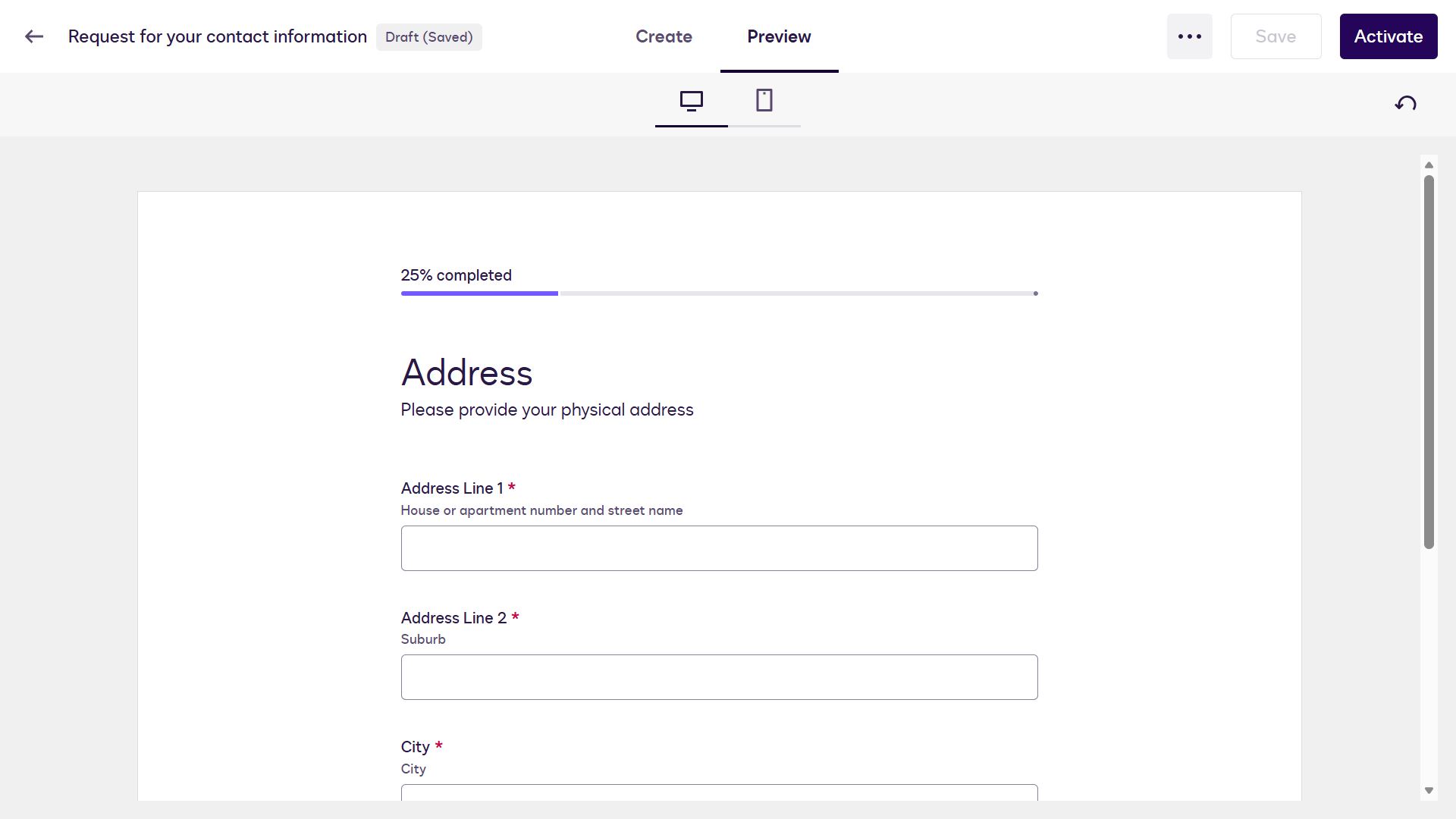
Address page -
Enter information on the Address page and select Next.
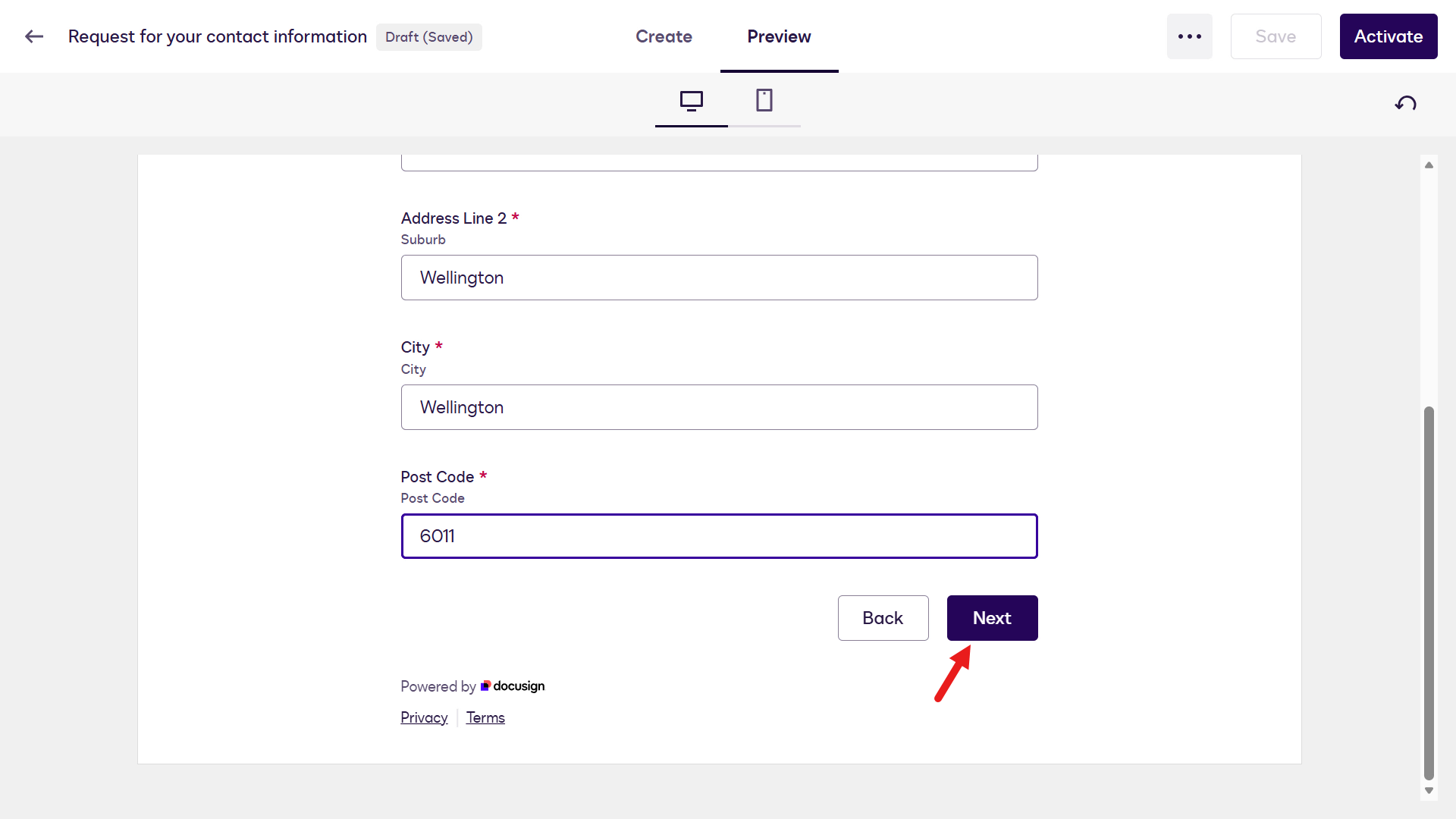
Complete the address page -
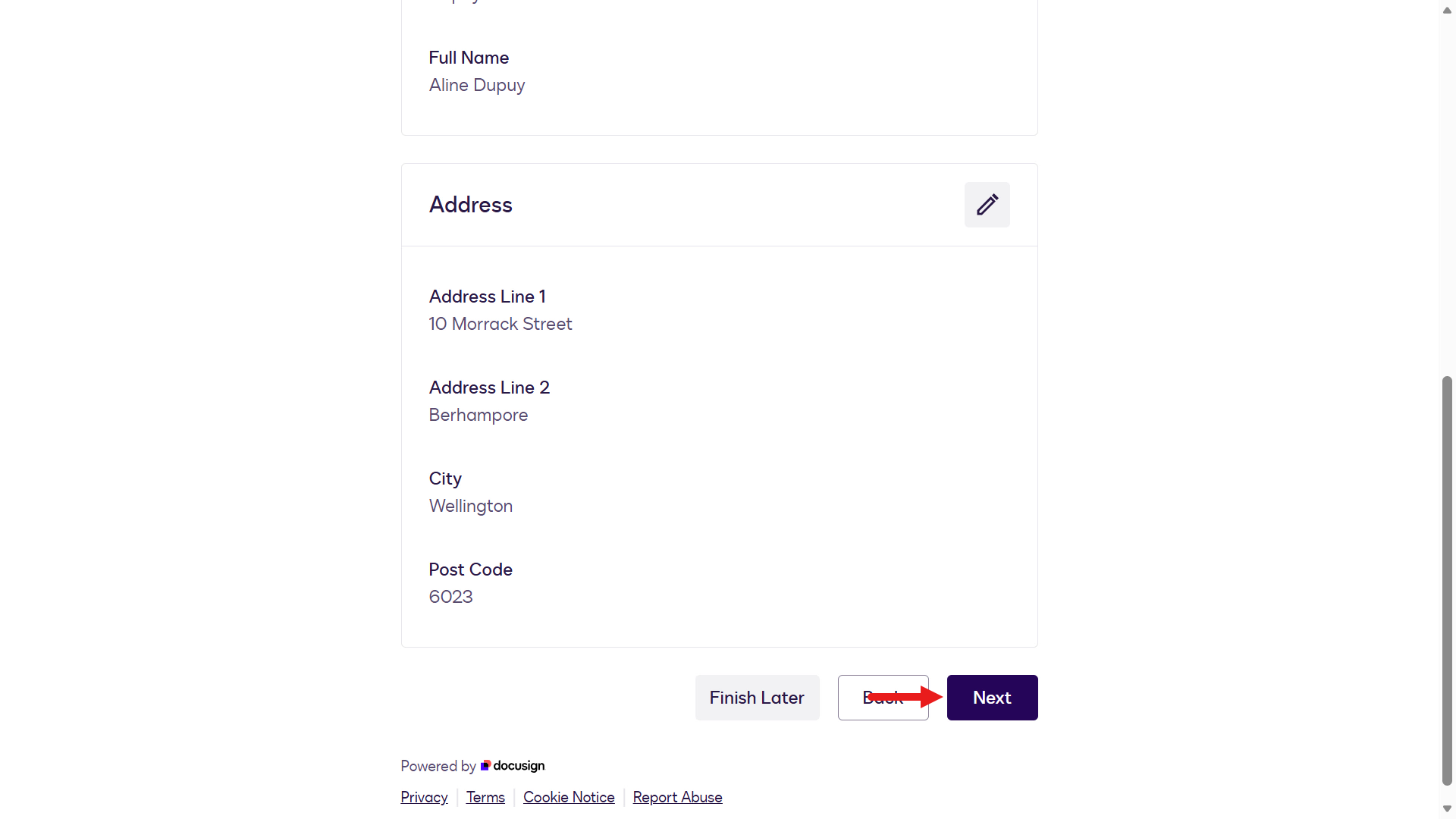
A summary of the information entered on both pages is shown.
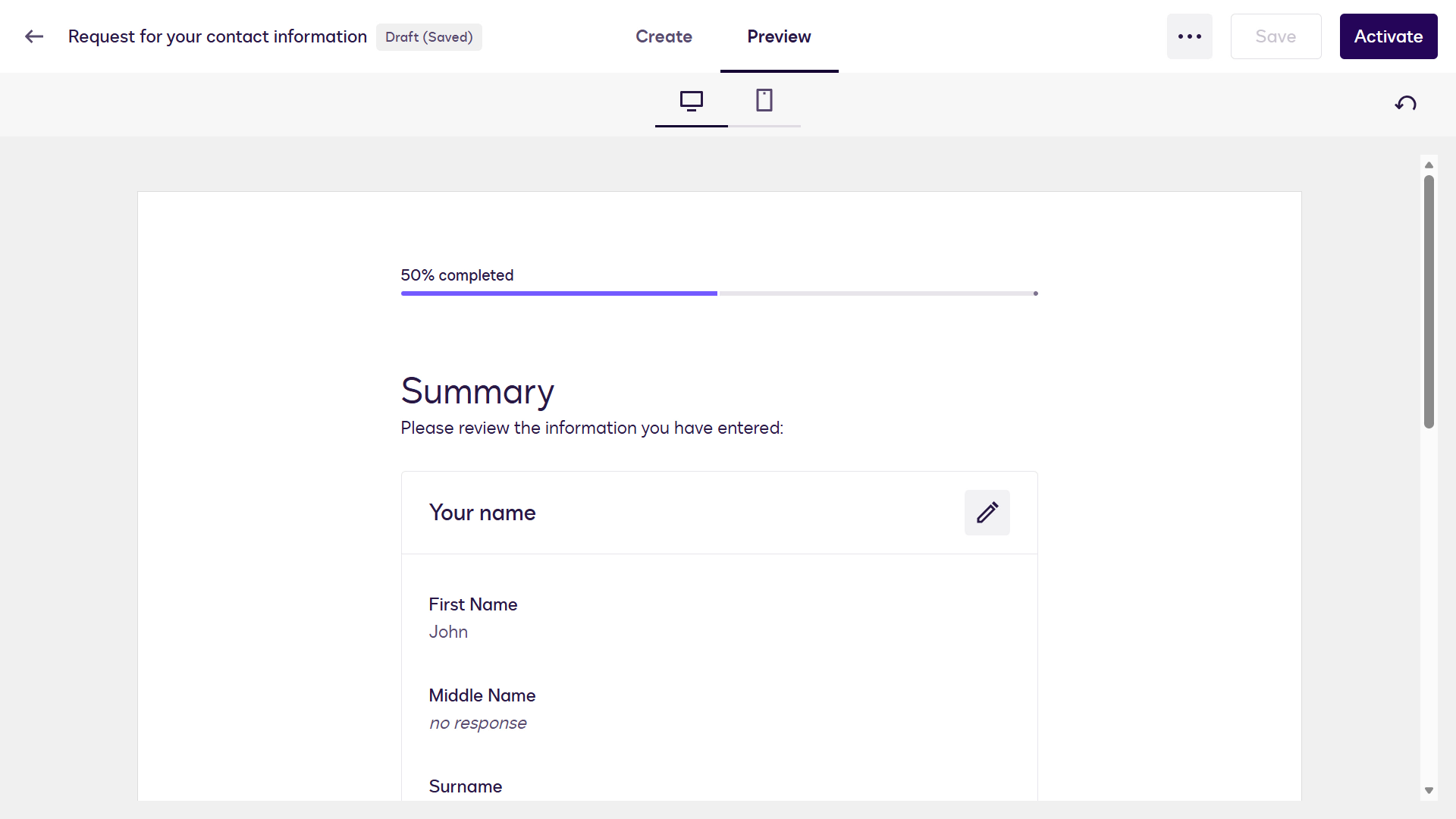
Review entered information -
Scroll down and select Next.
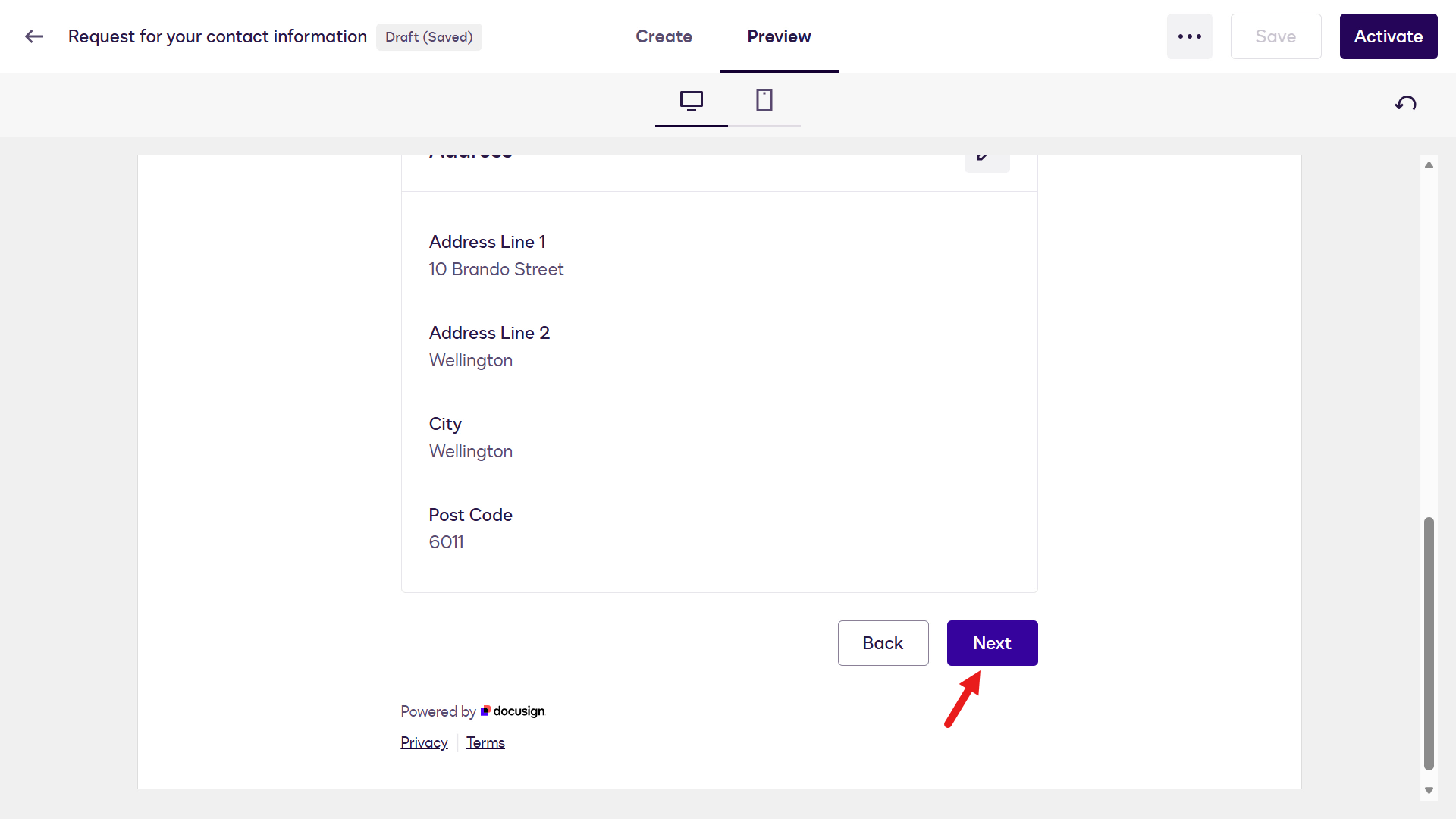
Select Next -
An error appears next. This is expected because the Web Form is in preview mode. Select Create.
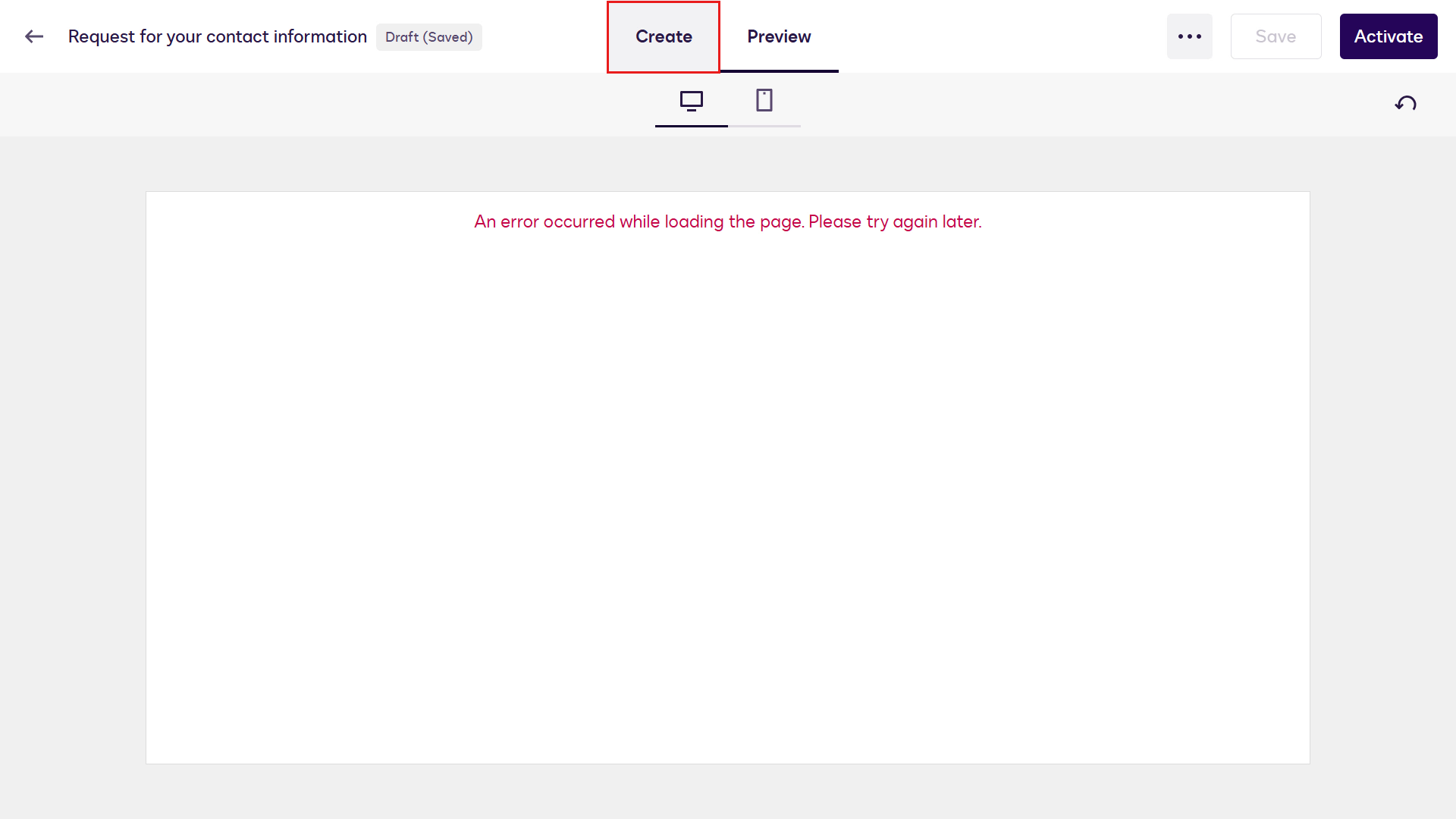
Preview mode error (expected) -
Now activate the Web Form. In the upper-right corner of the designer, select Activate.
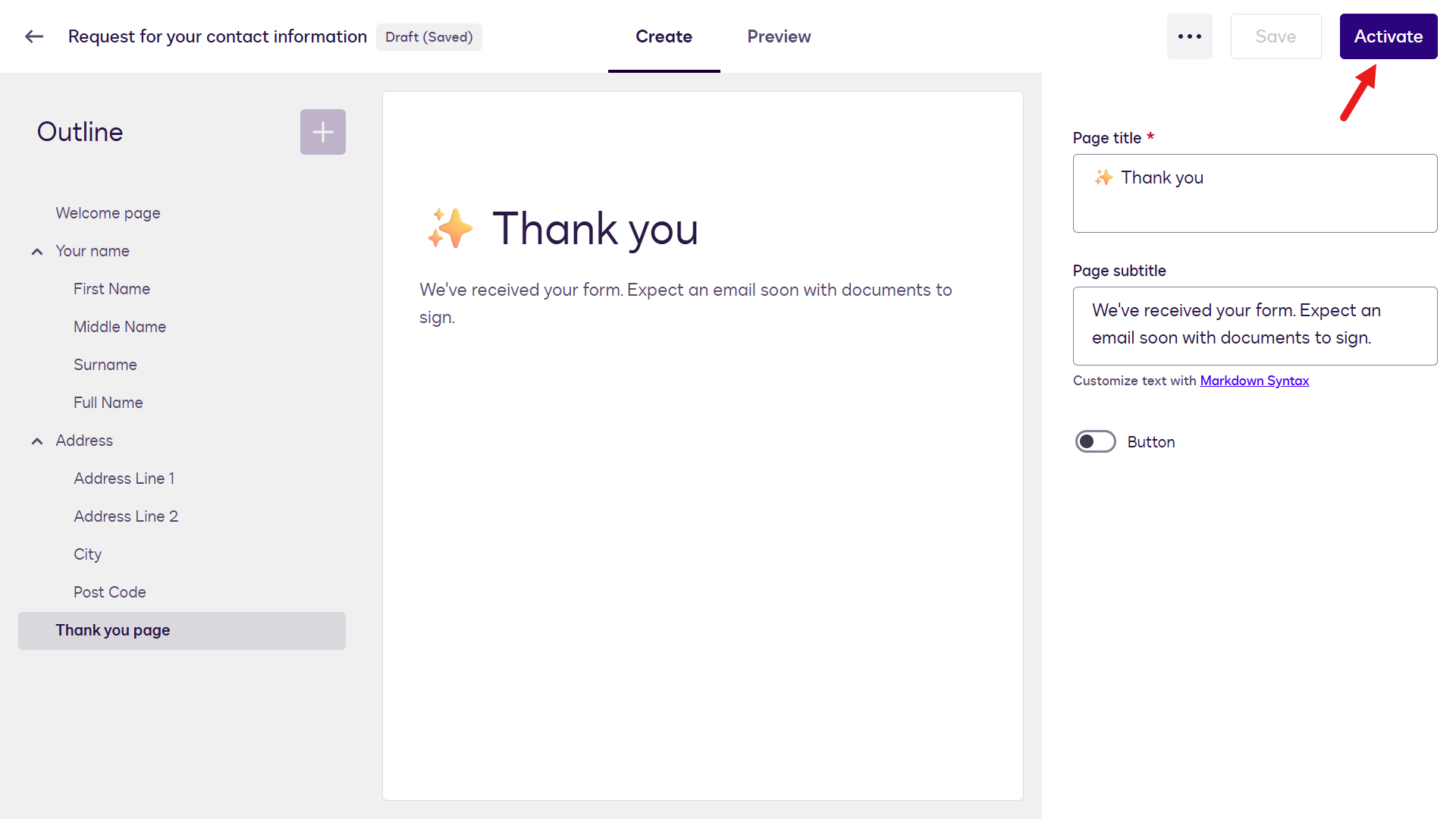
Activate the Web Form -
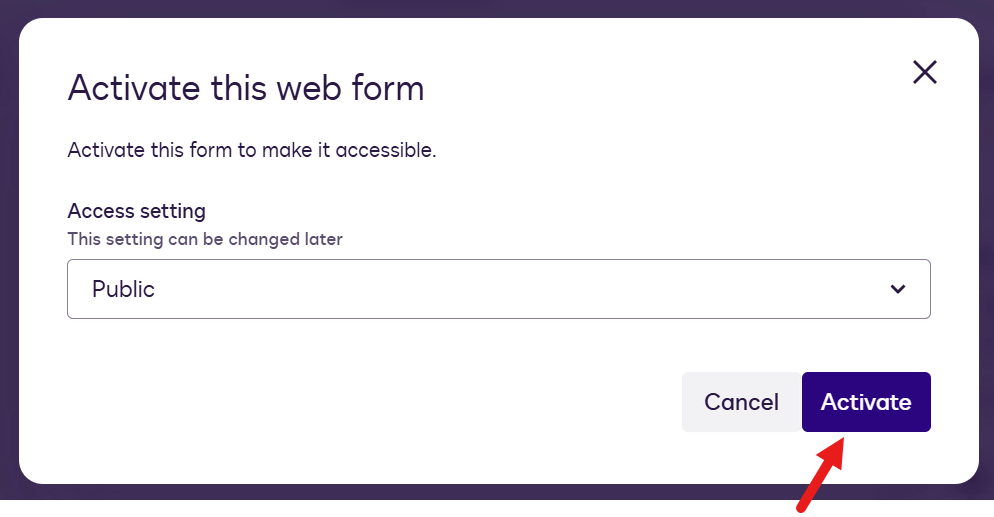
A confirmation modal appears with an Access setting field. Leave it set to Public because it will be used in a workflow step later in the lab, and select Activate.
Confirm activation -
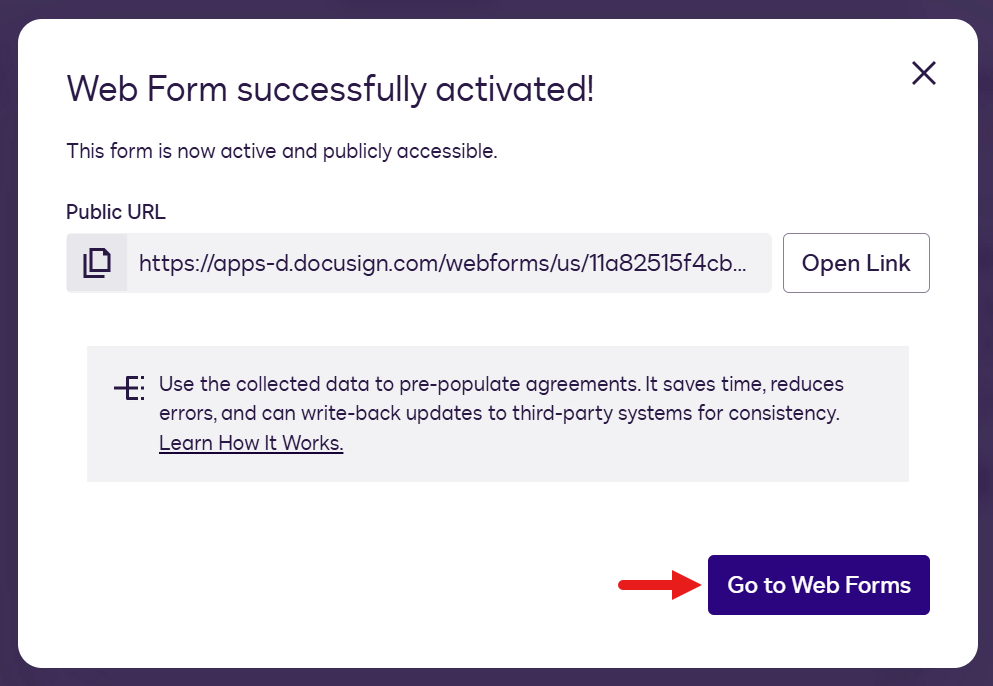
A confirmation message appears indicating that the Web Form was activated successfully. Select Go to Web Forms.
Tip: If the Go to Web Forms button is not visible, navigate back to the Web Forms page.
Go to Web Forms -
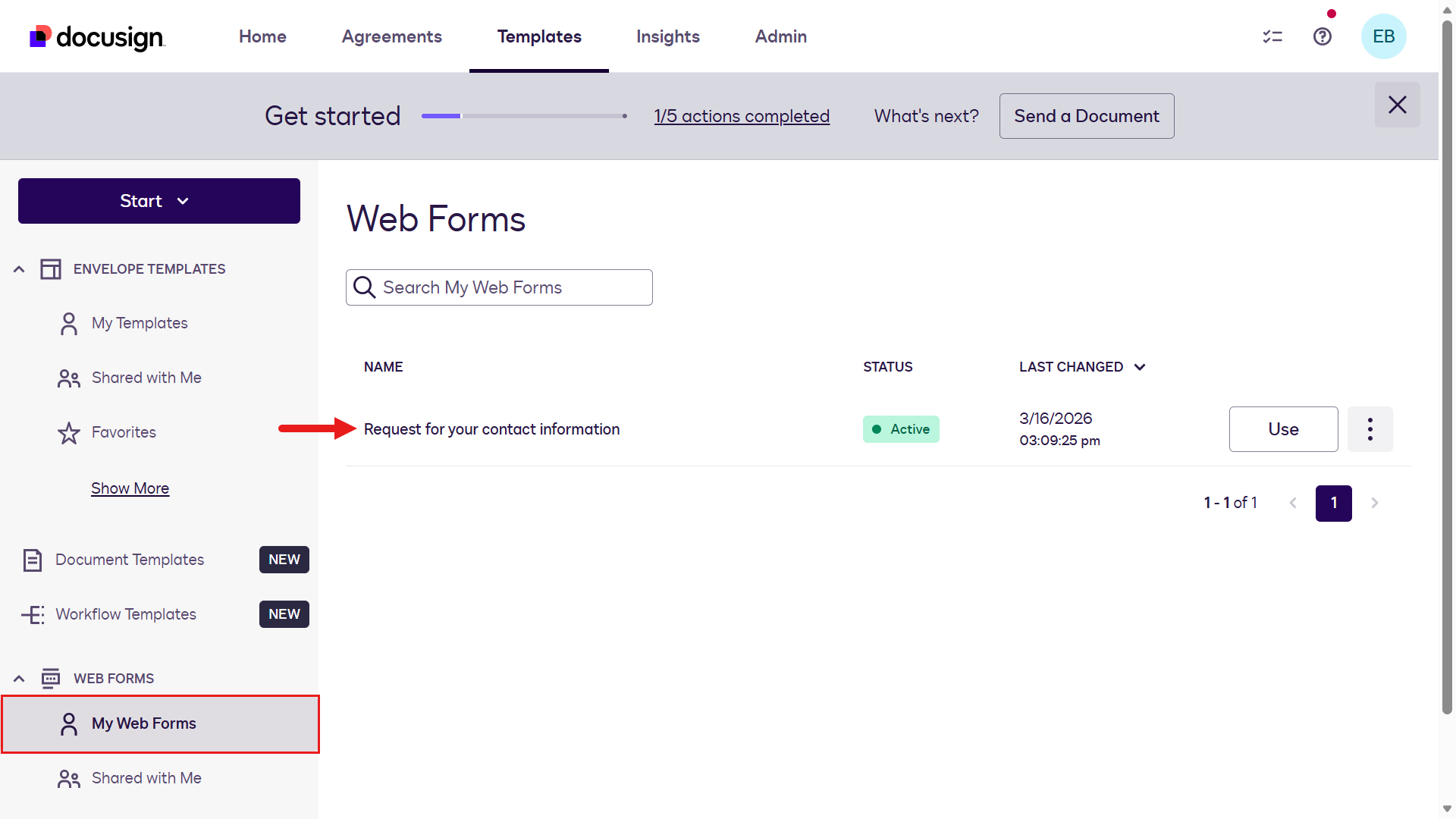
The Web Form is shown with an Active status. You successfully built a Web Form 👏🏻
Active Web Form
🧪 1.2 Create document templates
Document templates are reusable settings for sending agreements. They let you predefine documents, recipient roles, routing order, and messages. This helps you quickly create and send consistent agreement envelopes without starting from scratch every time.
To learn more about Document Templates, expand the additional learning block below.
Using Document Templates
📄 Workflow Builder works closely with document templates.
Templates let organizations standardize frequently used agreements, such as:
- NDAs
- Employment agreements
- Purchase forms
- Customer agreements
- Approval documents
📦 Templates can include:
- Preconfigured documents
- Signer roles
- Signature fields
- Approval flows
- Workflow logic
This means teams do not have to recreate documents every time.
Example:
- A customer completes a Web Form
- That information automatically populates an agreement template
- Workflow Builder routes the agreement for approval
- The document is sent for eSignature
- A signed copy is saved automatically
💡 All of this can happen with minimal manual intervention.
In this lab exercise, you will create two document templates:
- Employment Agreement
- Employee Offer Letter
Download both sample files. These two document templates will be used in the next lab exercise when you create a workflow in Workflow Builder.
Let’s get started. ⤵️
-
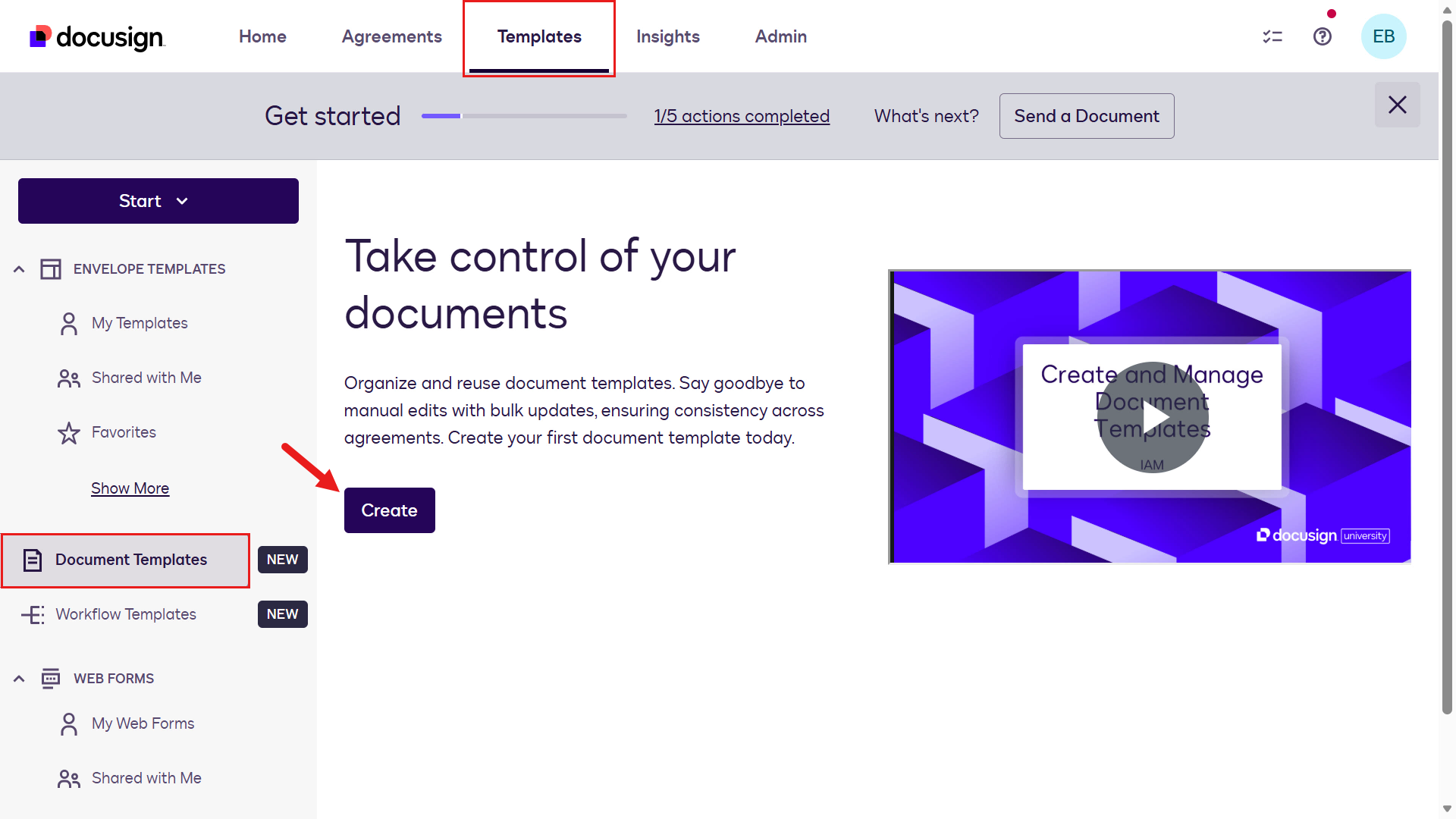
Go to Templates, and in the left menu pane, select Document Templates. Select Create.
Create a document template -
You can select the file to upload. Select Upload.
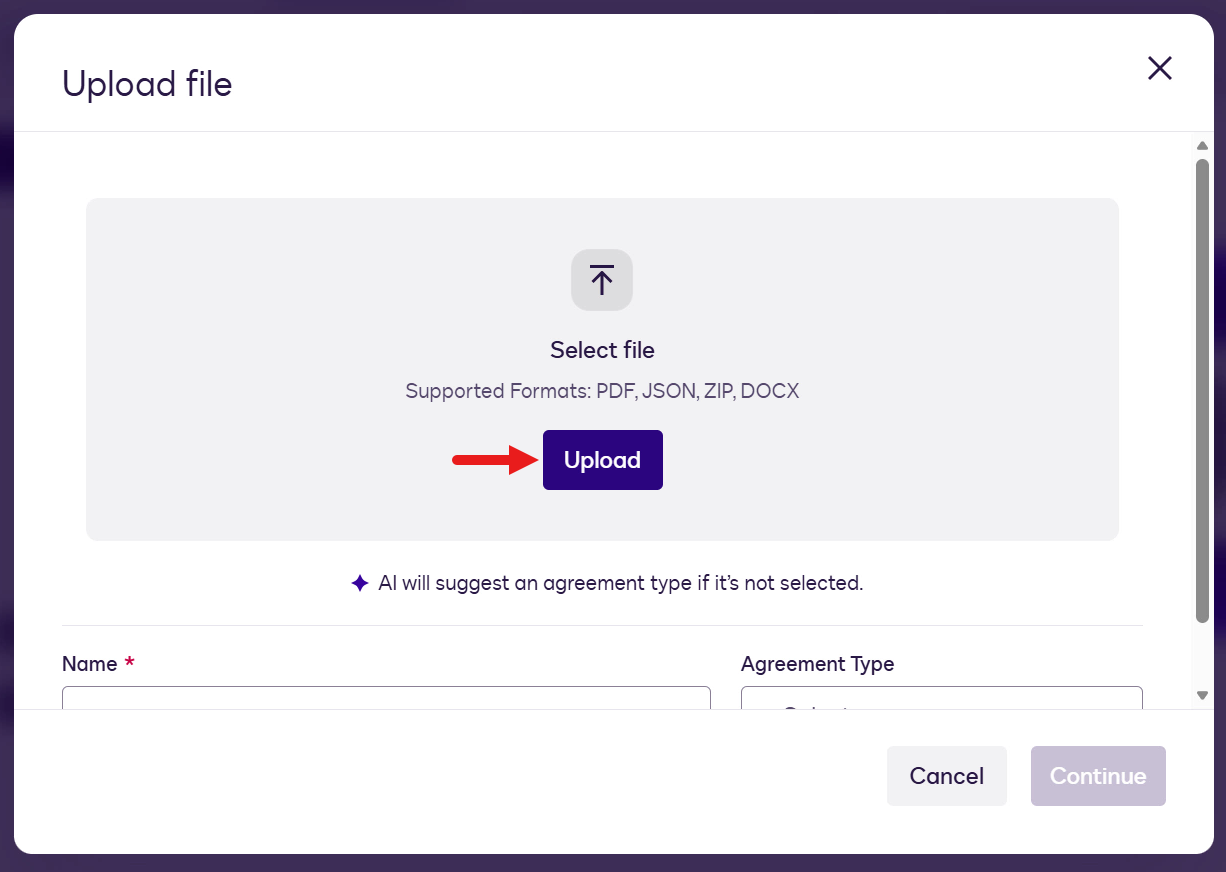
Upload a file -
Select the Sample Employment Agreement file.
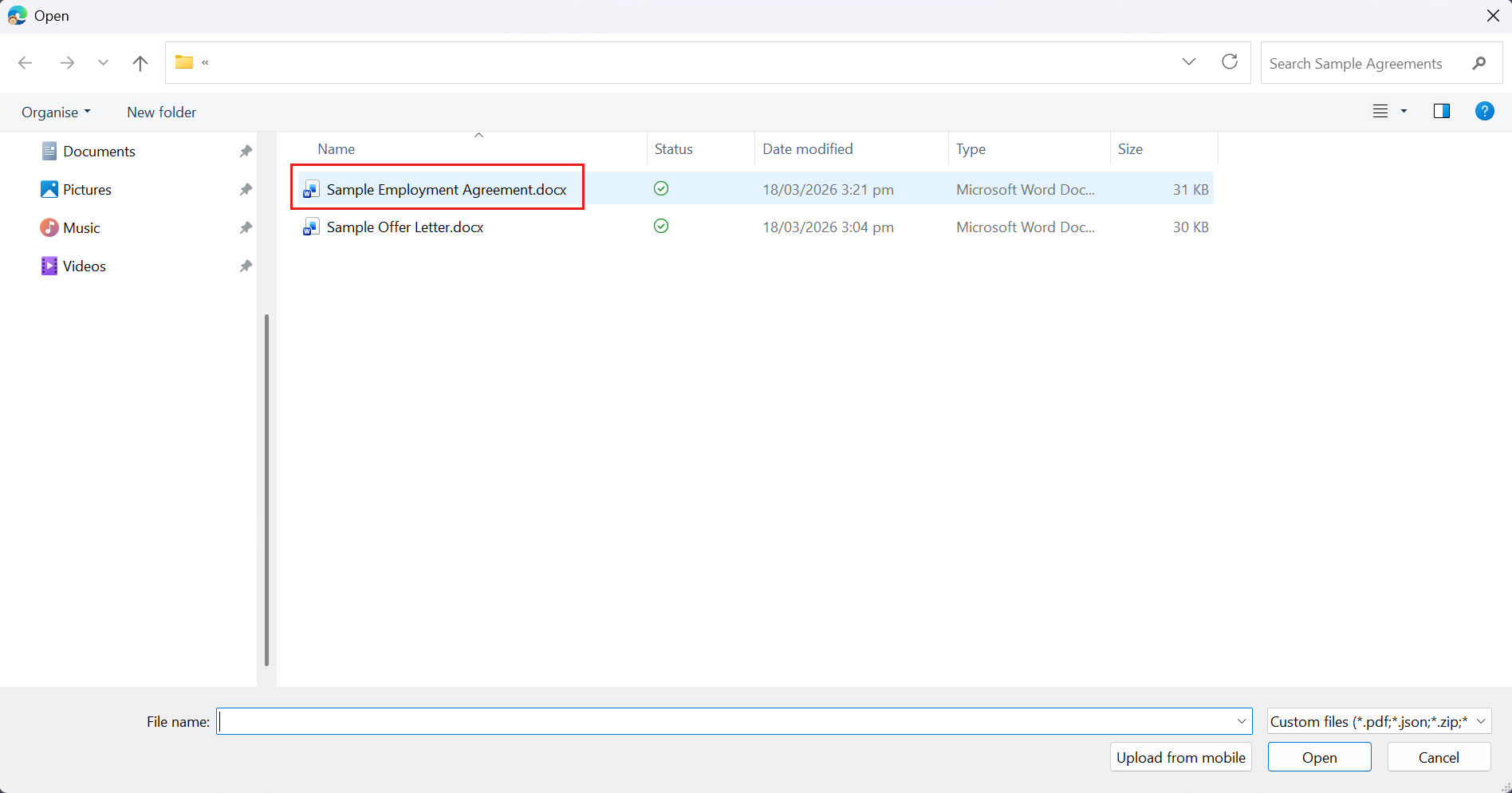
Select the sample employment agreement -
The Name field is automatically populated with the file name. In the Agreement Type field, select the chevron icon, scroll down to the Human Resources list, and select Offer Letter.
Tip: Type Offer Letter to find it quickly.
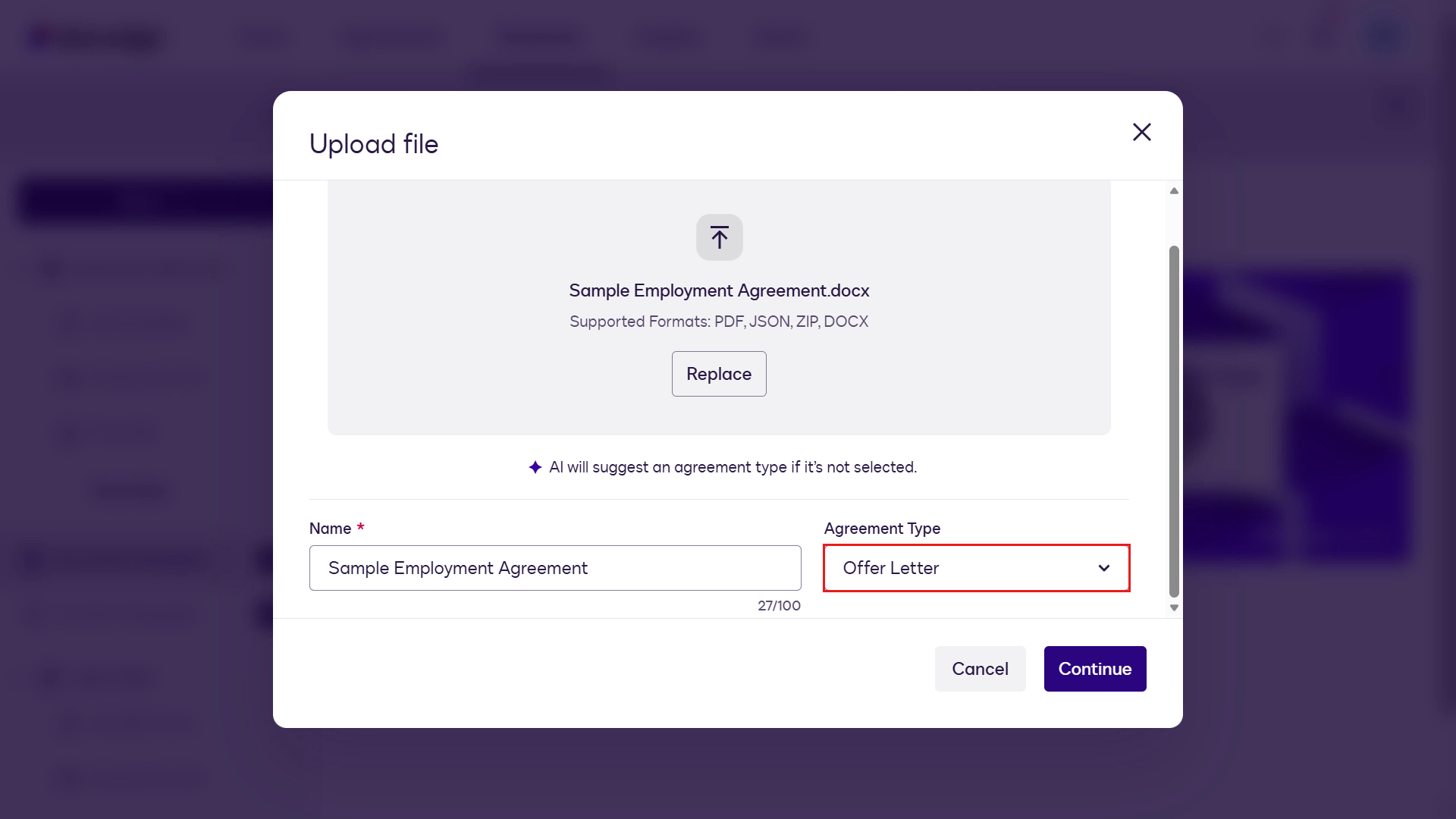
Select the agreement type -
Next, define the roles for the document template. In the Fields left pane, select the chevron icon next to Sender 1, then select Edit recipients to update the signer roles.
What is a role in a template? 🤔
A role is a placeholder in a template that represents the person who will take action on the document, such as signing or approving. Roles define who participates and what actions they take, even before you know the actual recipient.
🐦 What roles are used for
- Defining who participates in an agreement
- Reusing templates across multiple envelopes
- Preparing documents and fields before final recipients are known
When the template is used, an actual person (name and email) is assigned to each predefined role.
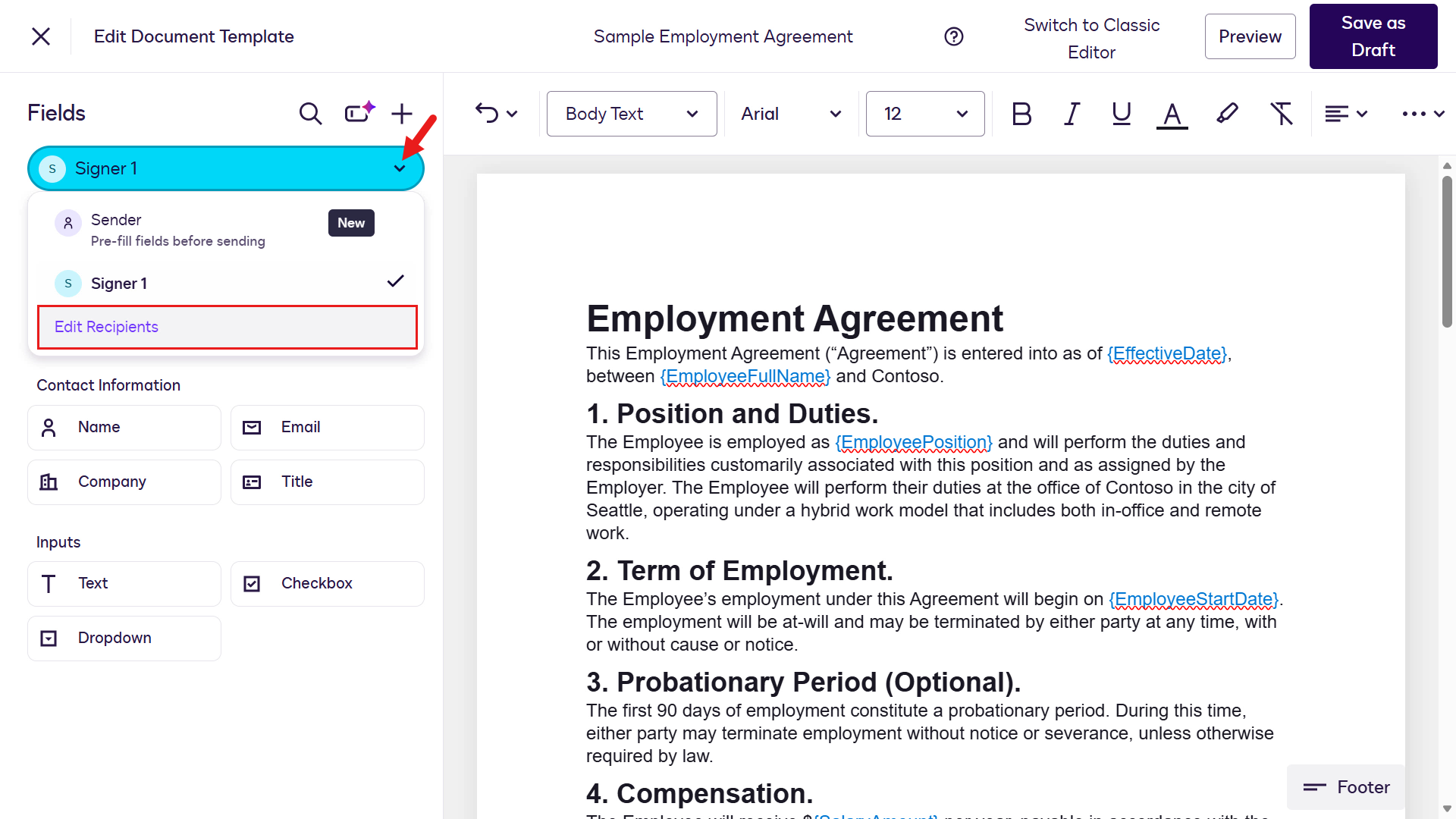
Edit recipients -
Change the Signer 1 role name to:
Hiring ManagerAdd a new recipient and set the role name to:
Employee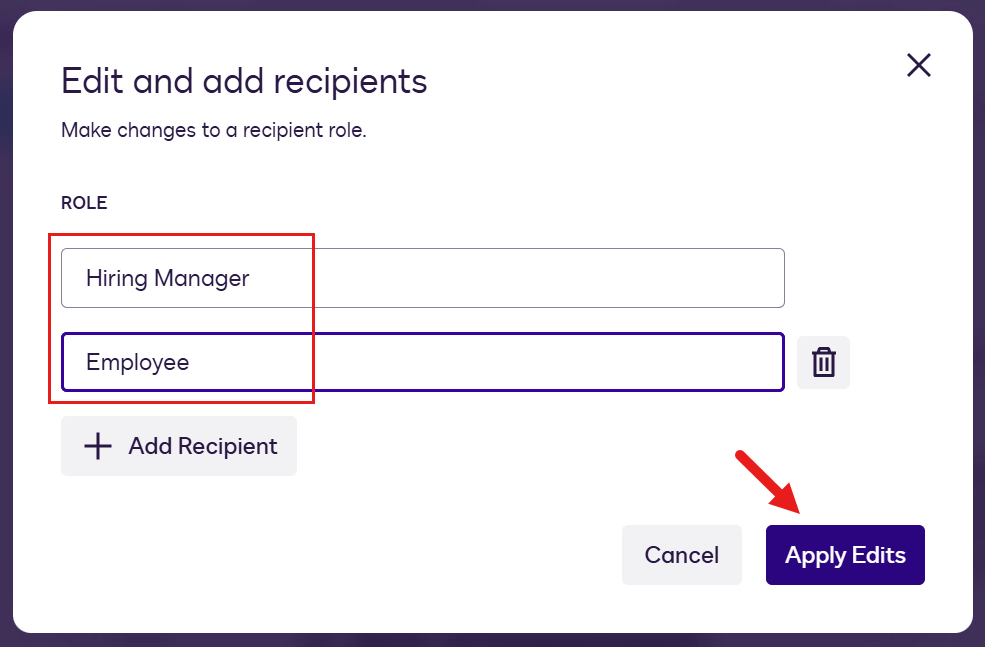
Set recipient roles -
Next, replace the placeholders in the document with fields. Start by switching to the Sender role.
What is a field in a template? 🤔
Fields are interactive elements added to a document so recipients can take action, such as signing or entering information.
🐦 What fields are used for
- Collecting recipient input, such as a signature or typed information
- Assigning actions to specific recipients or roles
- Pre-filling information in the document when the template is set up
In summary: fields define where and how recipients interact with the document during the signing process.
The two field types used in this lab exercise are:
- Standard Fields: built-in field sets you can add to a document
- Custom Fields: fields you create to capture specific data not covered by the standard options
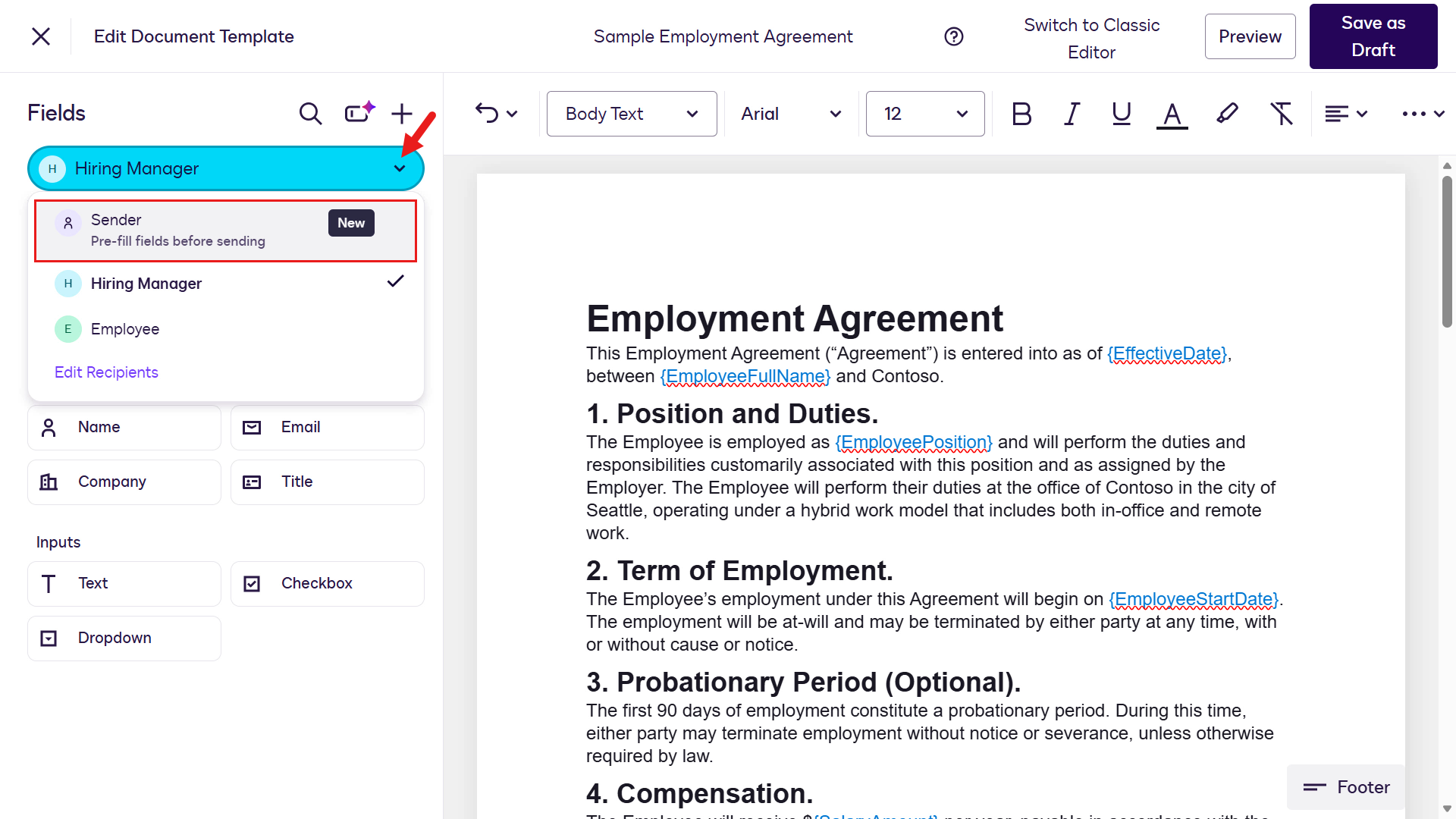
Add fields as the Sender role -
Highlight the first placeholder,
{EffectiveDate}, and select the standard Effective Date field in the left menu.Warning: The blue text in the sample document is used only to make it easier to identify placeholders where fields should be added. It is for learning purposes only; real production templates do not contain colored placeholder text.
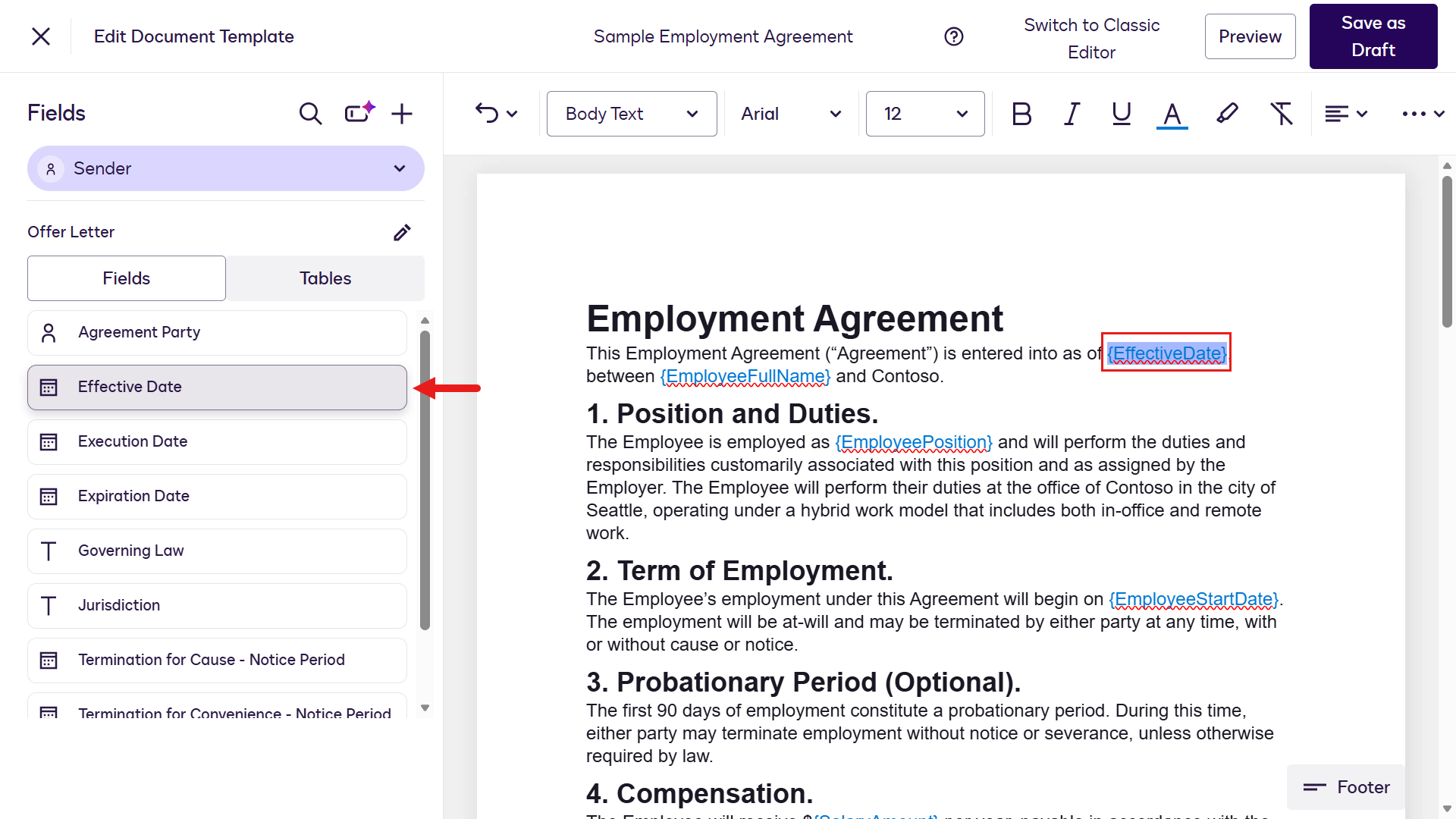
Add the Effective Date field -
When selected, the Effective Date field is added to the template.
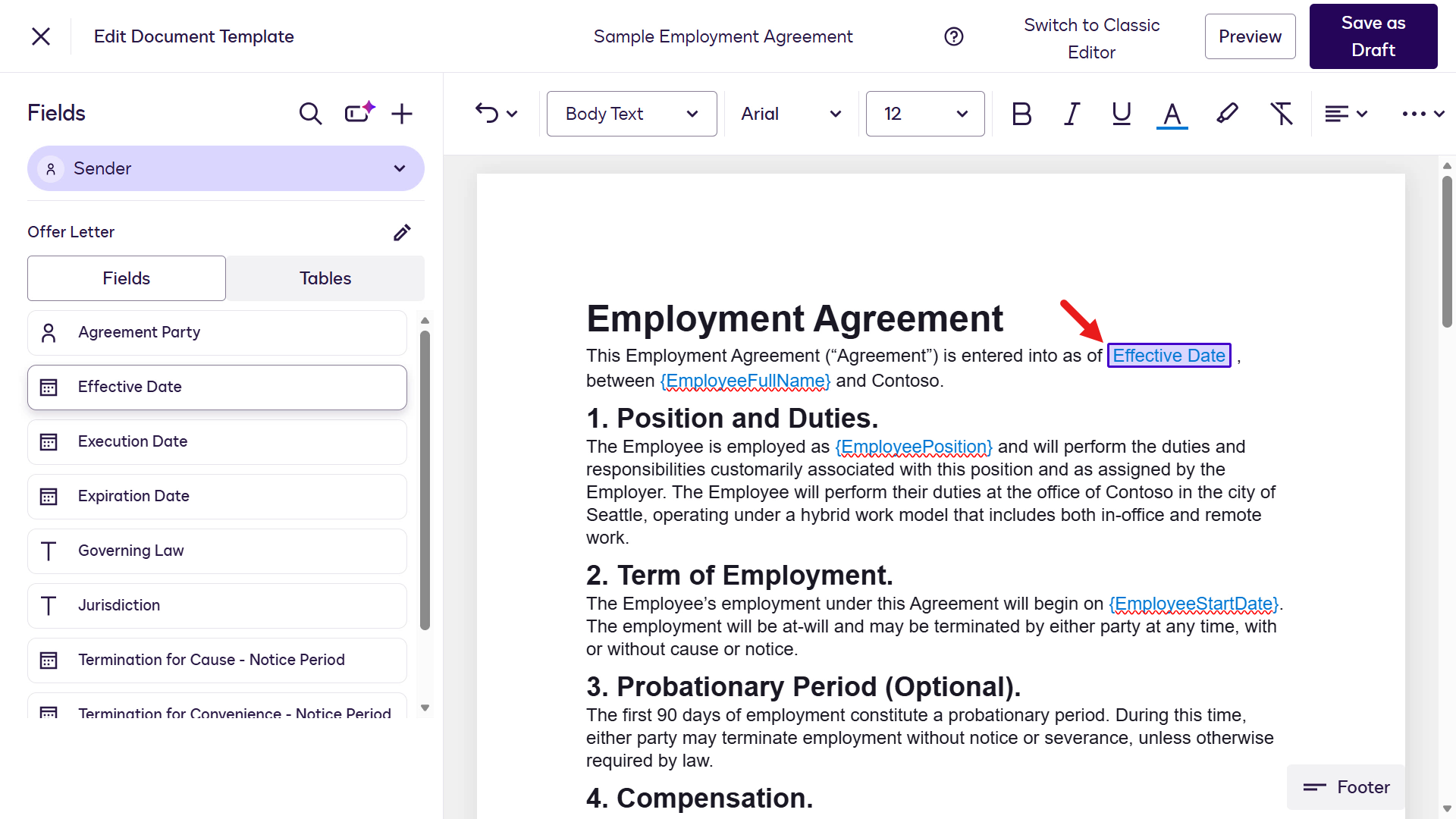
Effective Date field added -
Next, add a custom field. Highlight the
{EmployeeFullName}placeholder, select the + icon in the Fields panel, then select Field.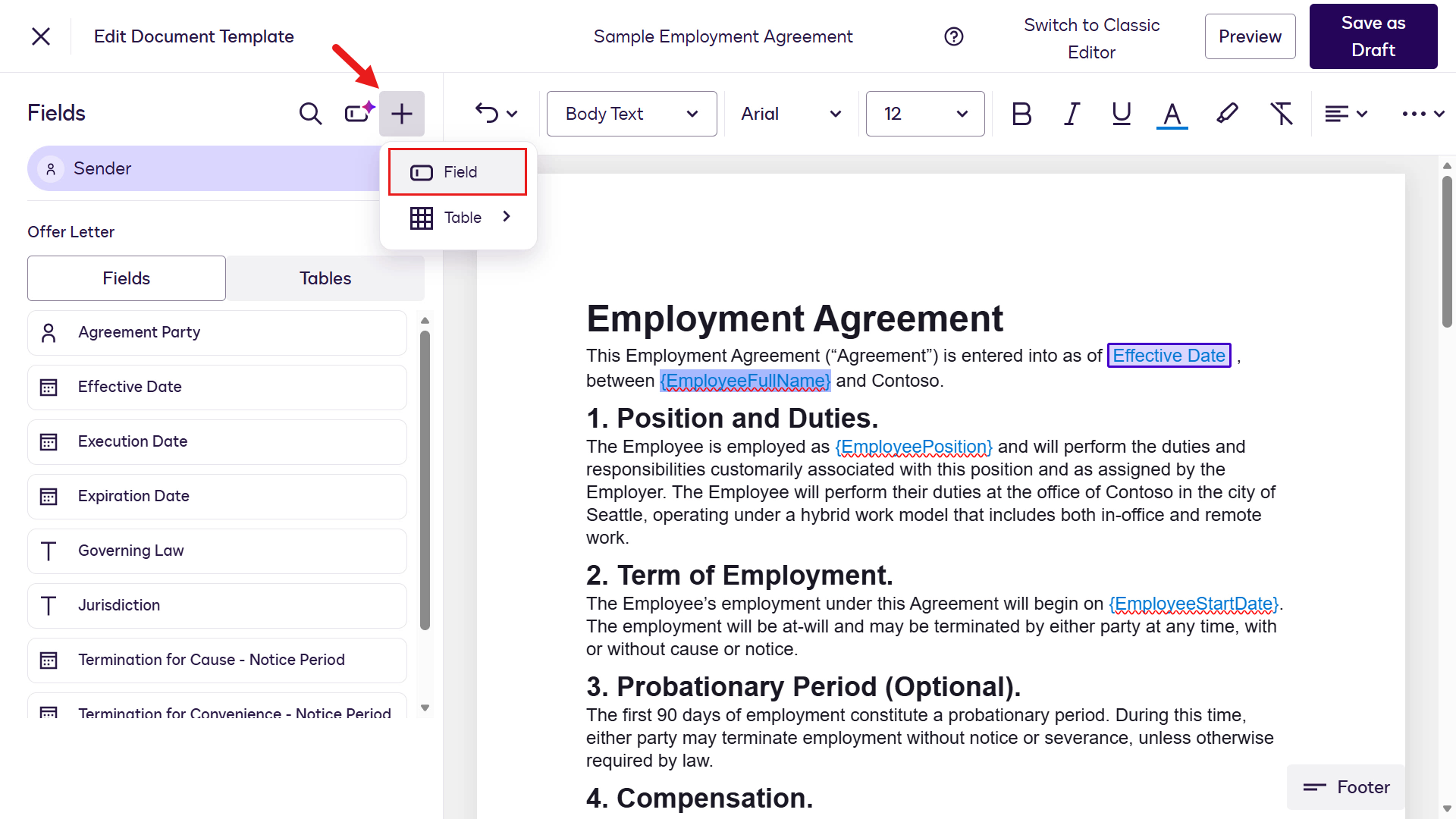
Add a custom field -
In the field properties flyout, enter the following for Field Name:
Employee Full NameWhen you enter a value in Field Name, the template designer searches for existing fields with the same name. If no results are found, an option appears to create a new custom field using the value you entered.
Select the plus icon to create a new custom field for Employee Full Name.
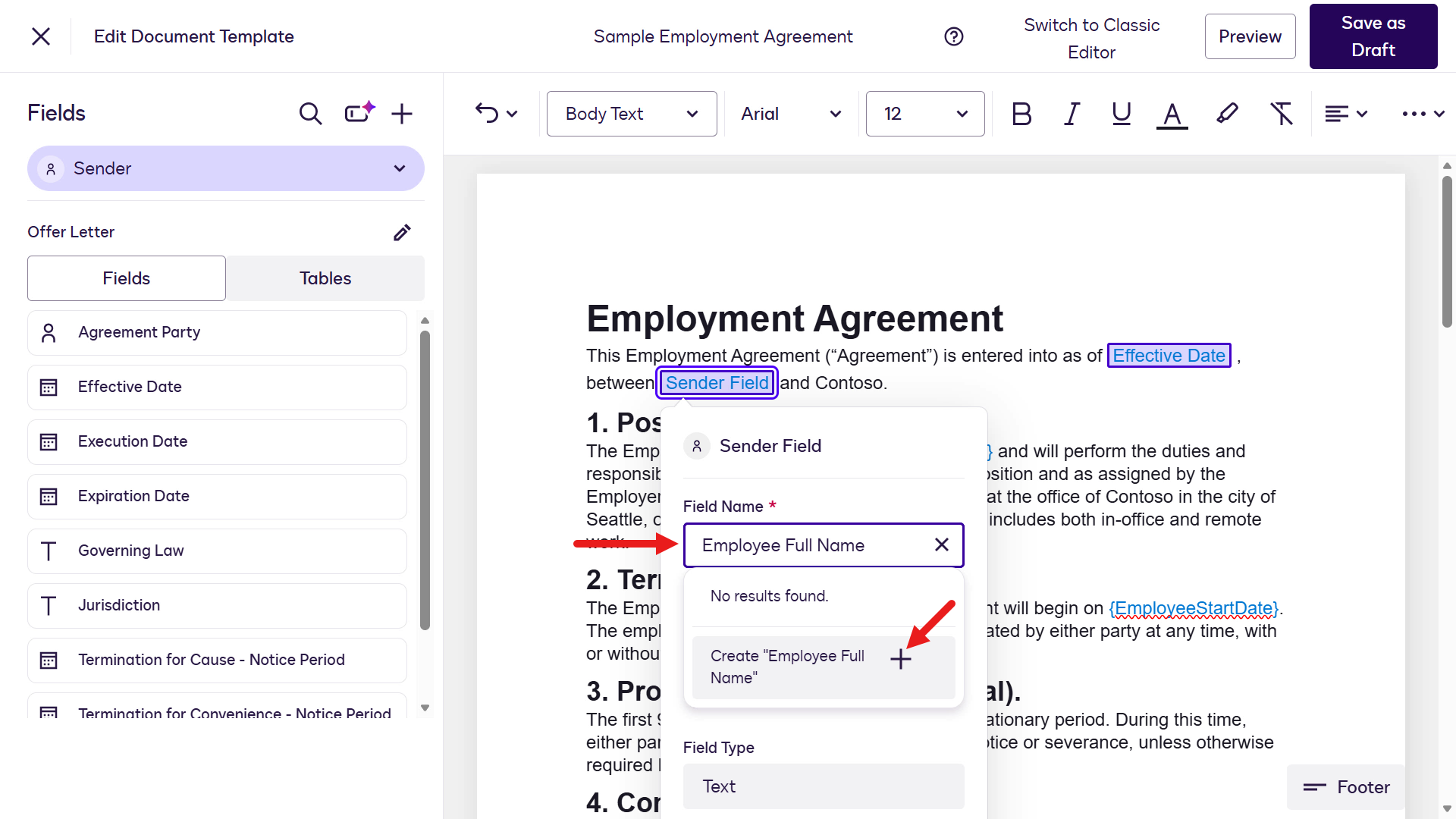
Create a custom field -
Configure the remaining properties. Enter the following for Field Description:
The full name of the employeeTurn on the Required Field option.
By default, Field type is Text. Keep it as Text.
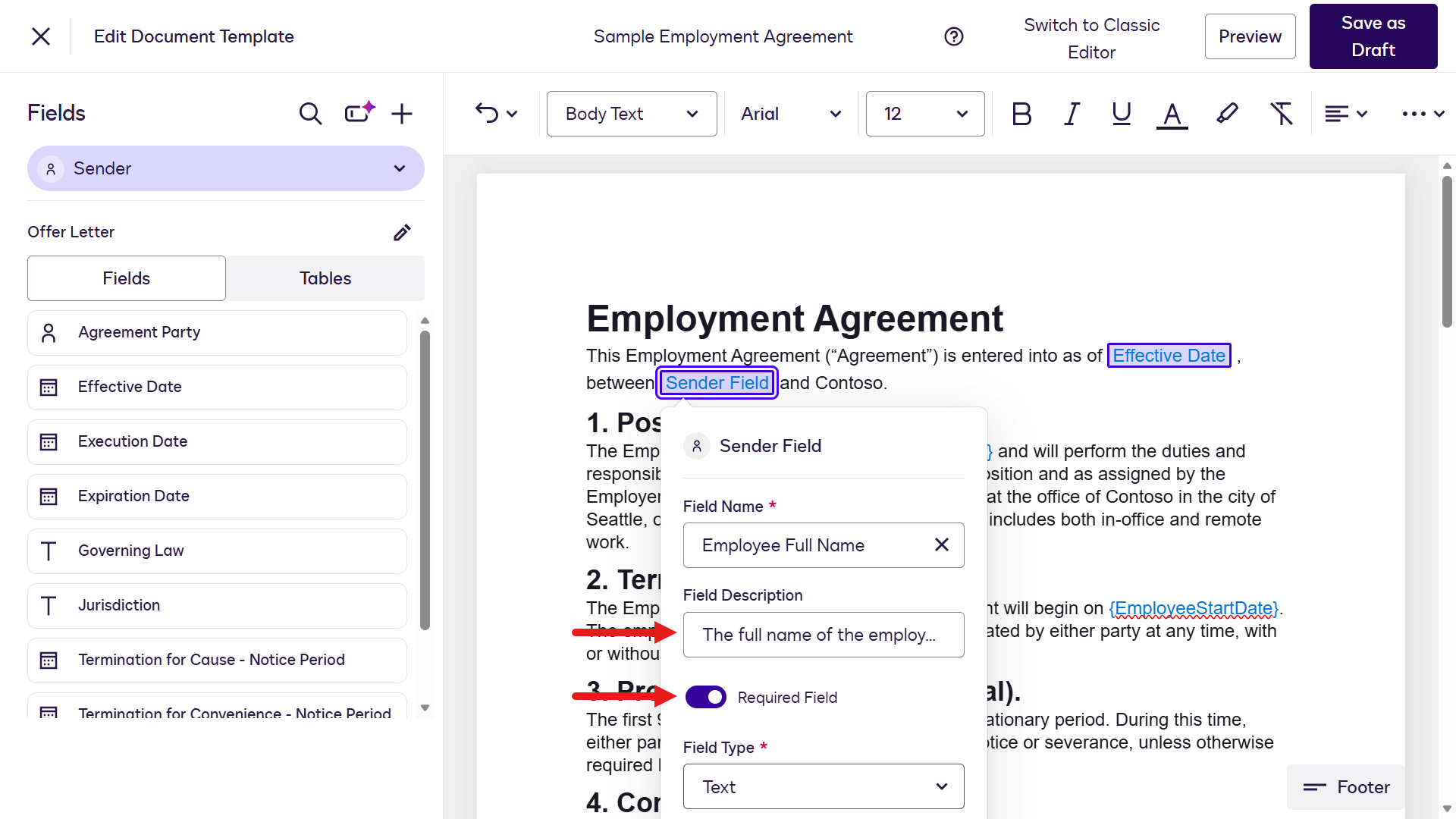
Configure the custom field -
Save the Employee Full Name custom field.
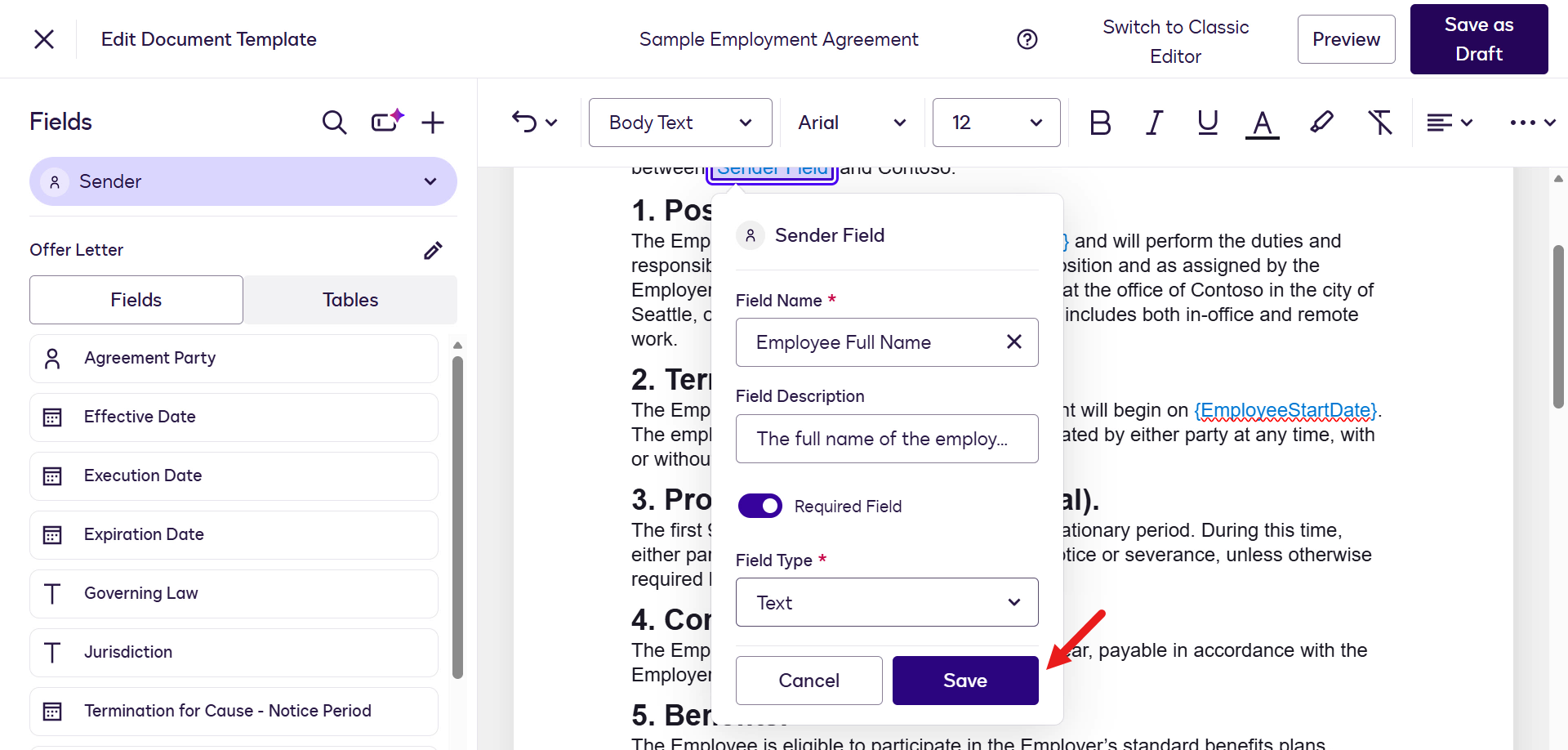
Save the custom field -
Repeat the same steps to add the remaining custom fields. Use them for the Sender role placeholders.
Placeholder Field name Field description Required field Field Type {EmployeePosition} Employee PositionPosition the employee is fulfillingYes Text {EmployeeStartDate} Start DateThe start date of the employeeYes Date {SalaryAmount} SalaryThe salary of the employeeYes Text 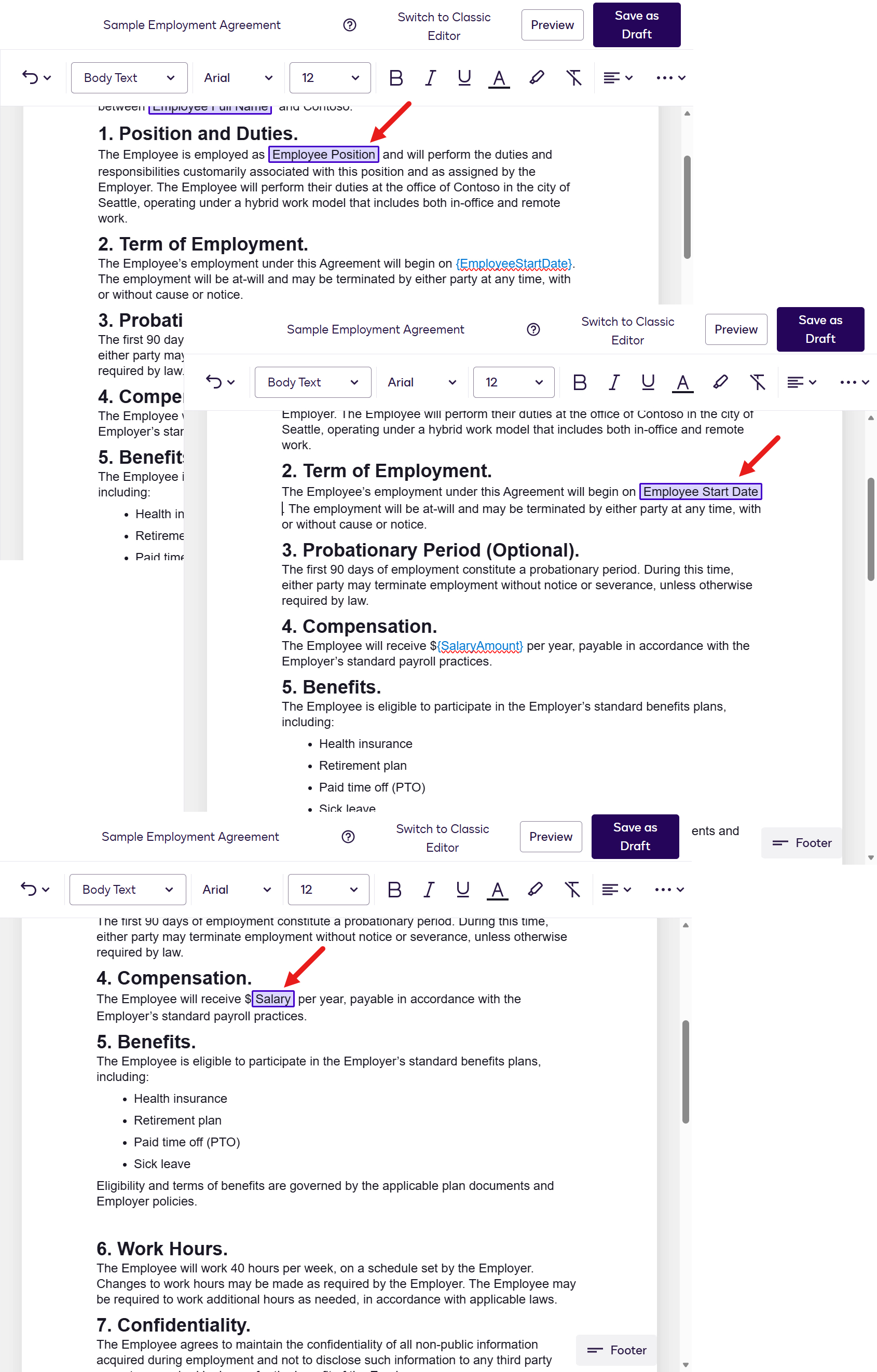
Remaining custom fields -
Next, add the Employee Full Name field to the template’s 16. Signatures section. Highlight the
{EmployeeFullName}placeholder and select the field in the Fields left pane.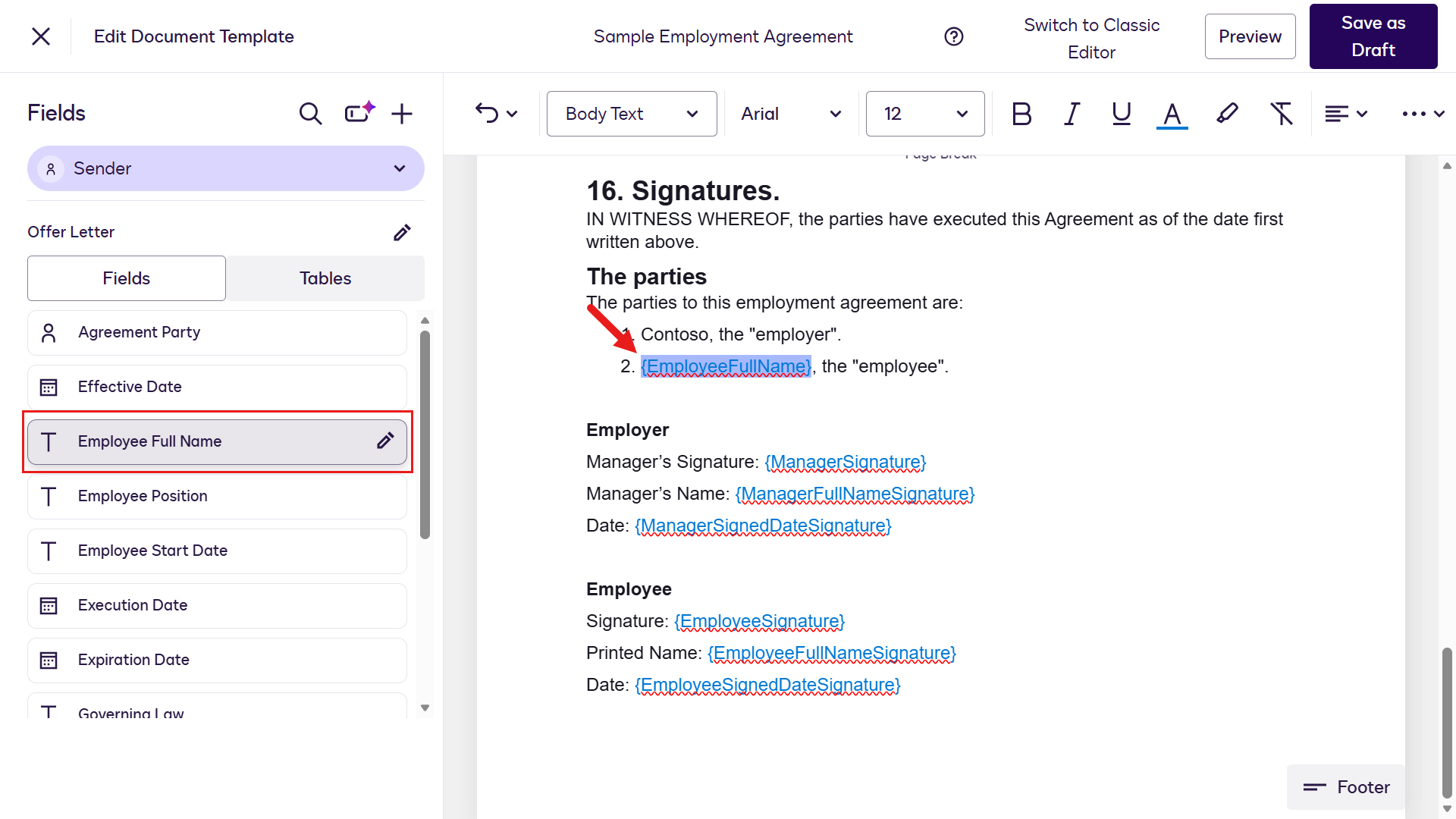
Add the Employee Full Name field -
Now switch to the Hiring Manager role to define the fields this recipient needs to complete. In the Fields left pane, select the chevron icon next to Sender and select Hiring Manager.
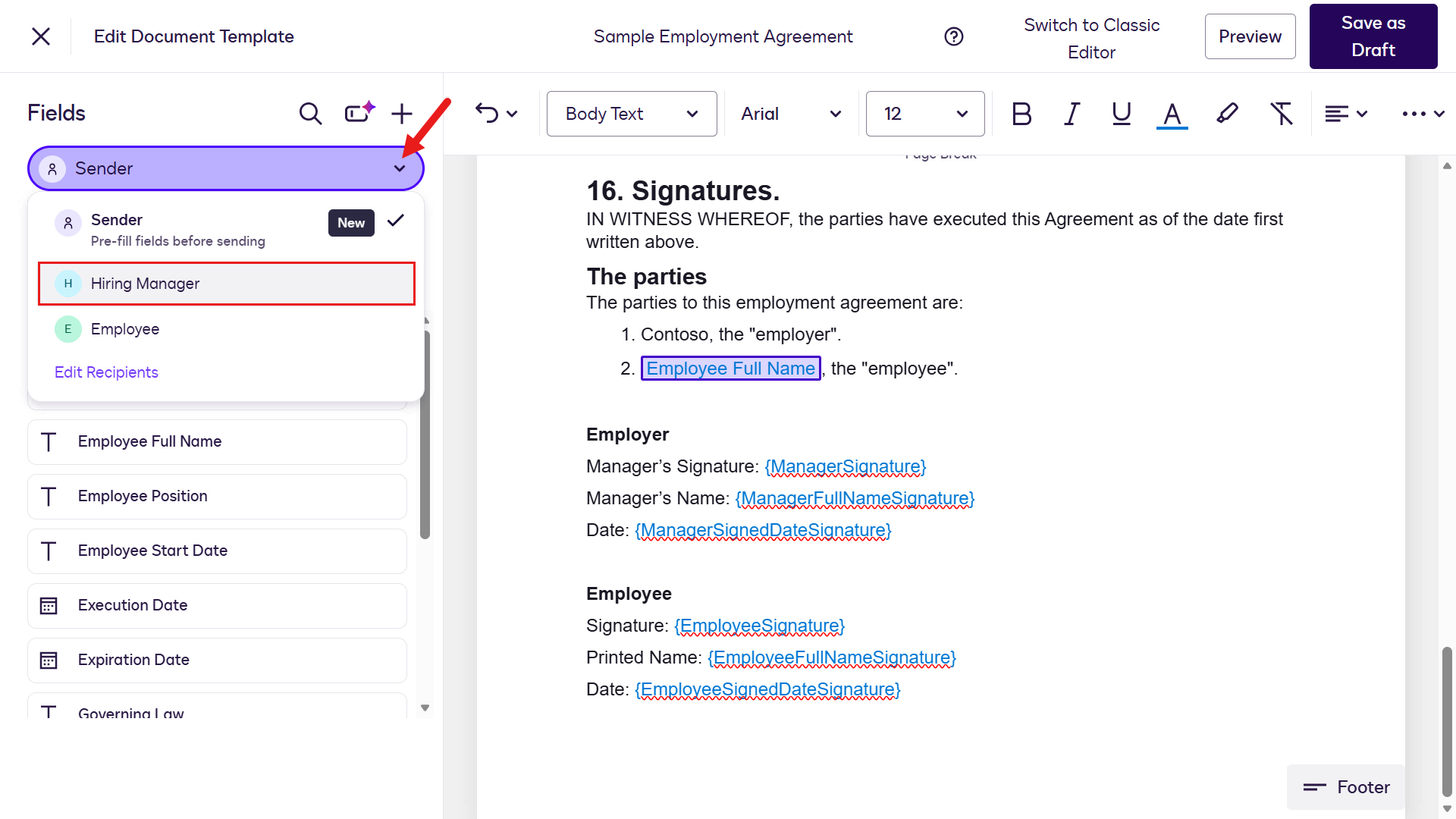
Switch to the Hiring Manager role -
Highlight the
{ManagerSignature}placeholder and select Signature in the Fields left pane.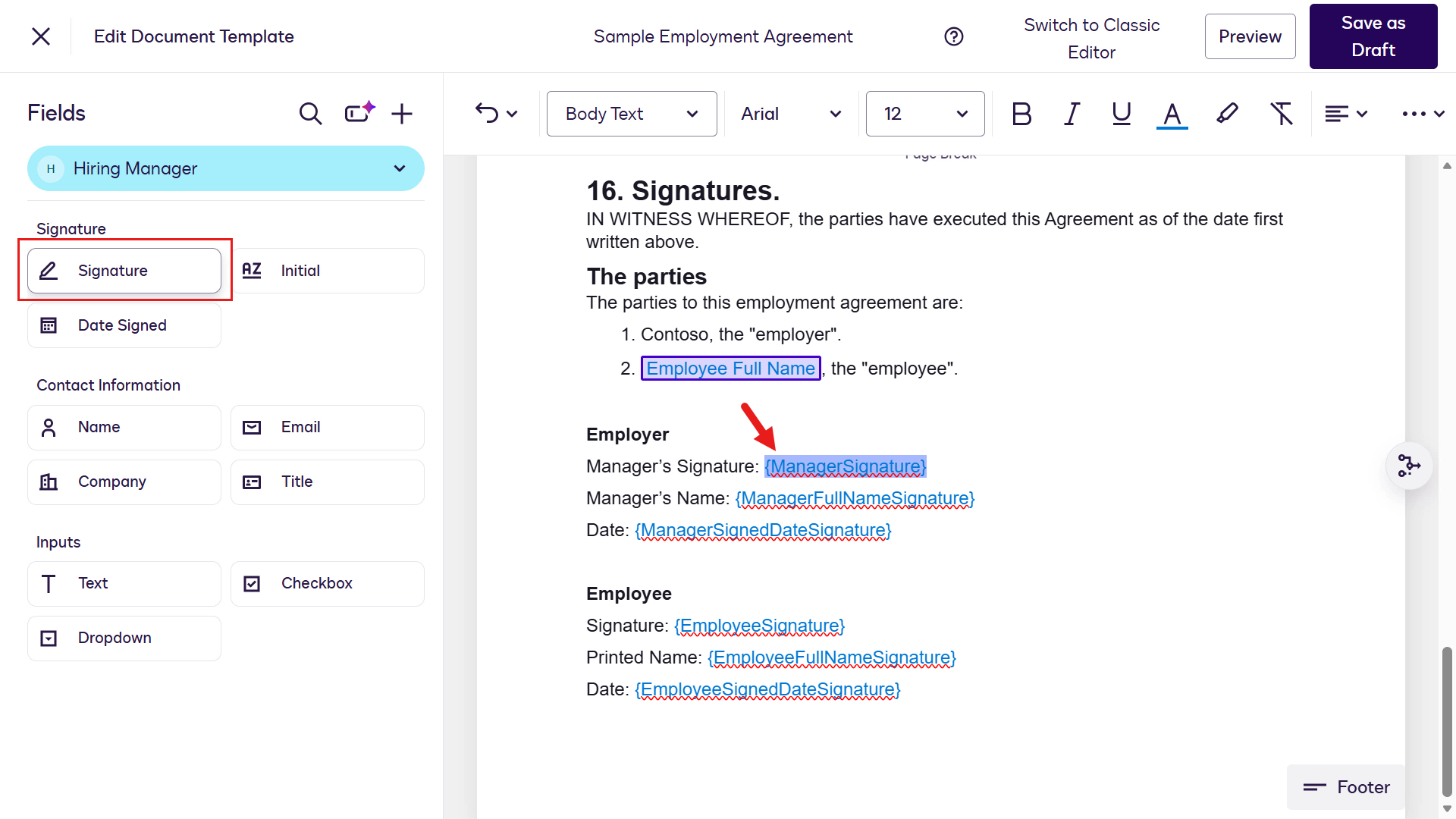
Add a signature field -
The Signature field is added.
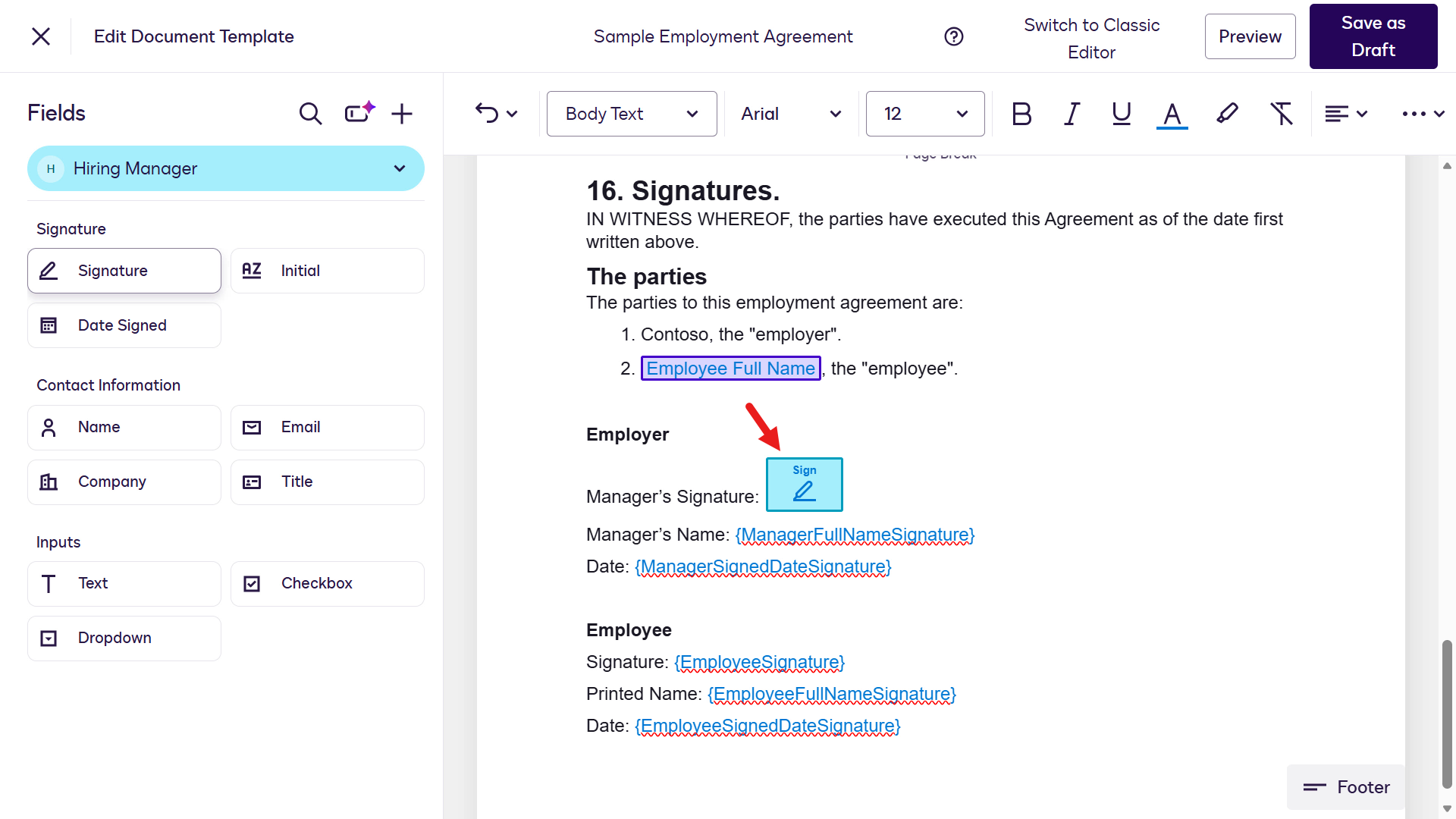
Signature field added -
Repeat the same steps to add the remaining fields for the Hiring Manager and Employee roles.
Tip: 🖱️ Don’t forget to switch roles
Use the chevron icon in the Fields left pane to switch to the Employee role.
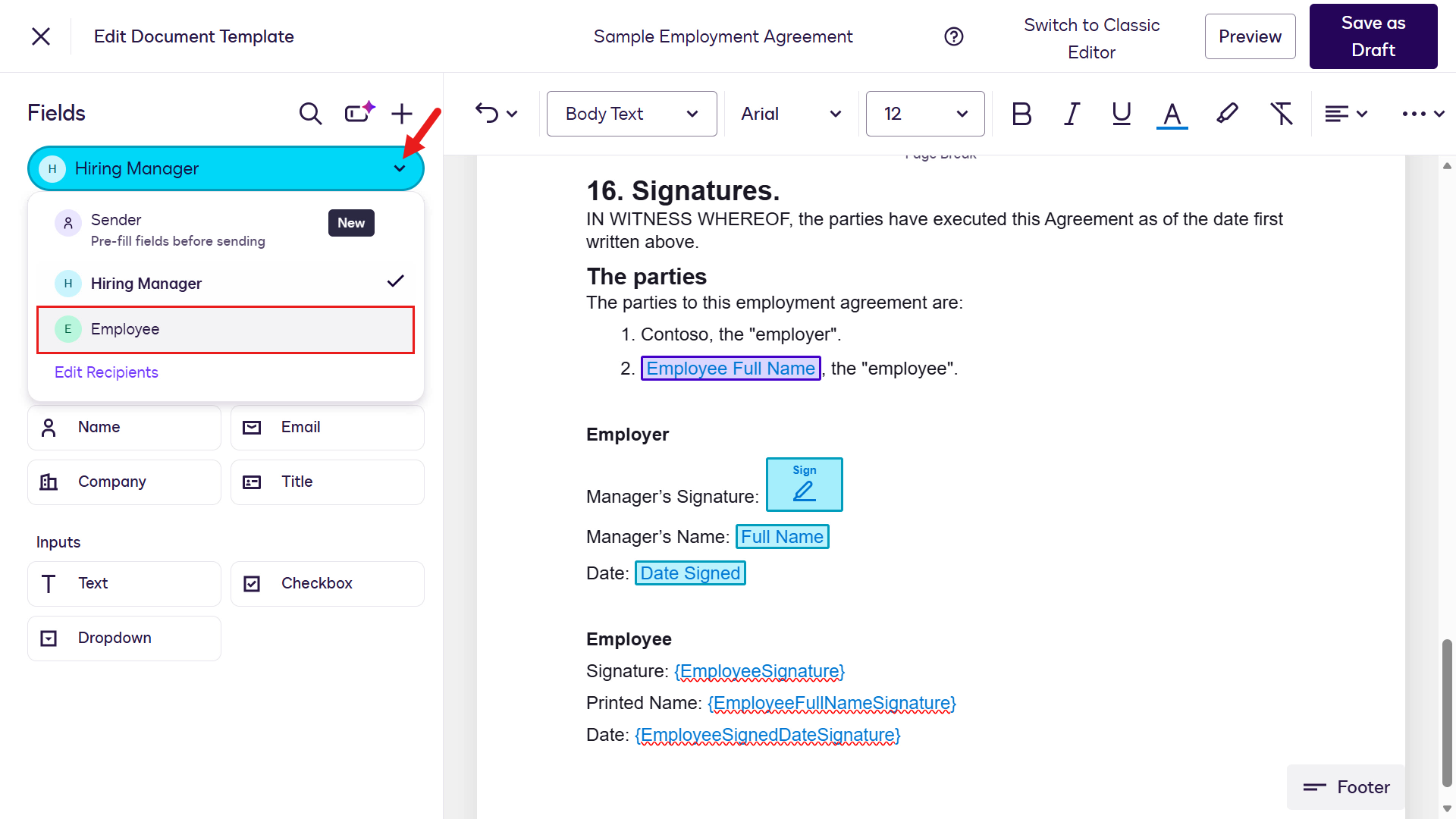
Switch to the Employee role Role Placeholder Field Hiring Manager {ManagerFullNameSignature} Name Hiring Manager {ManagerSignedDateSignature} Date Signed Employee {EmployeeSignature} Signature Employee {EmployeeFullNameSignature} Name Employee {EmployeeSignedDateSignature} Date Signed -
After the fields for the Hiring Manager and Employee roles are added, the template looks like this.
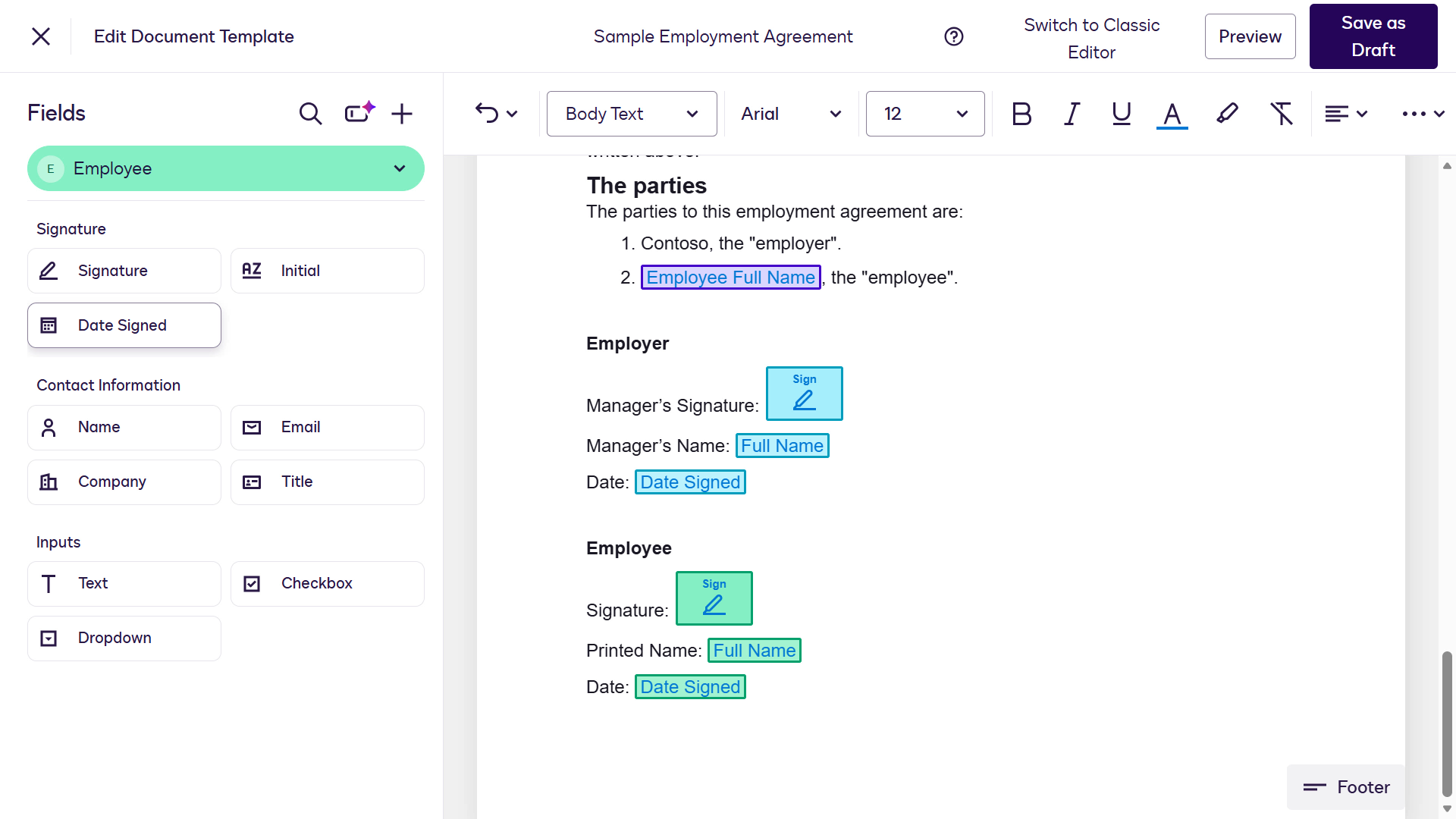
All role fields added -
In the upper-right corner, select Save as Draft. You are redirected to the document templates page, and a confirmation message appears in the lower-left corner. Then select the ellipsis icon (…) and select Publish.
Tip: If you do not see the Save As Draft button and instead see Save and Publish, select Save and Publish.
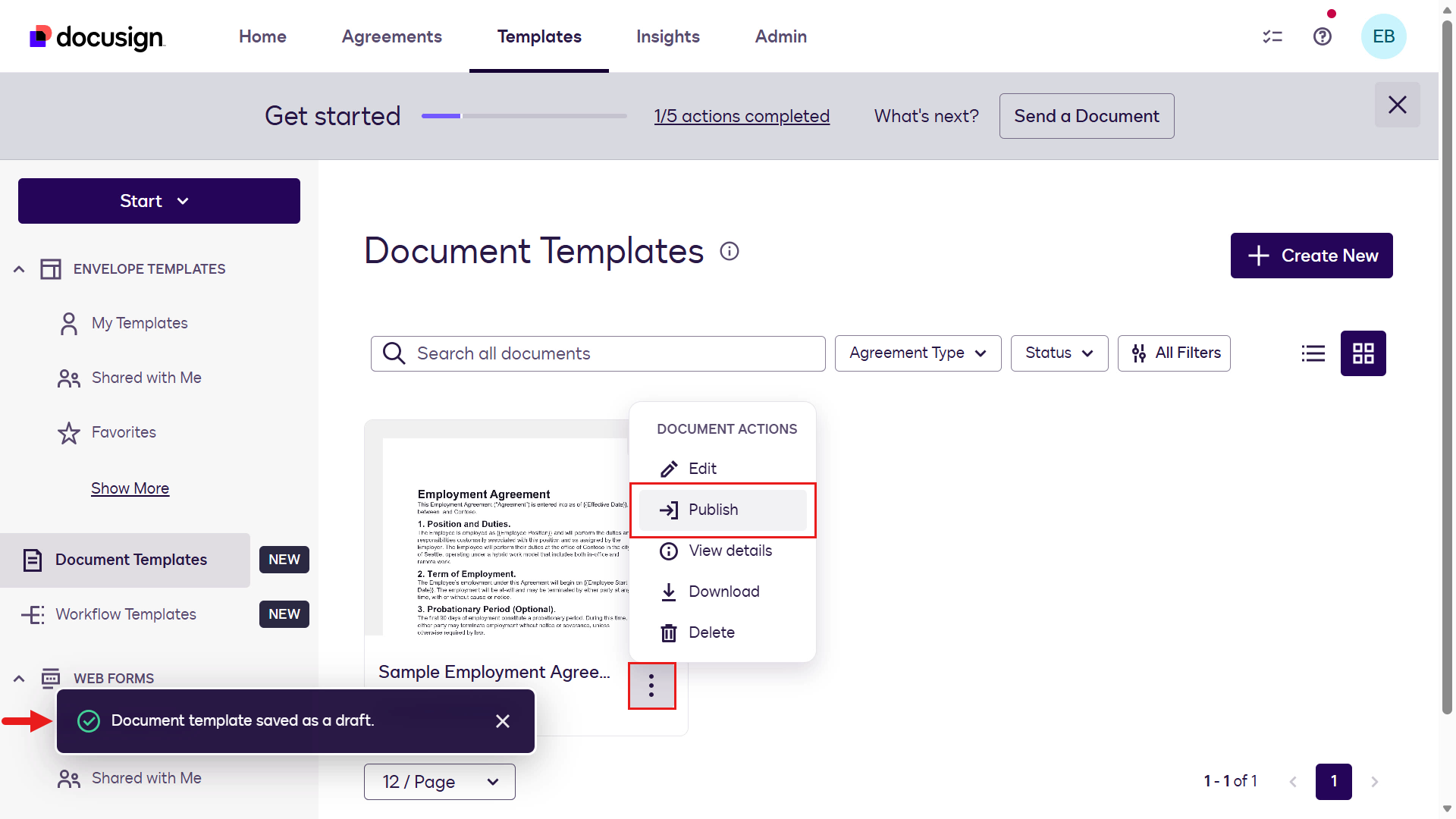
Publish the document template -
A confirmation message appears in the lower-left corner indicating that the draft template was published.
Now create the second document template using the Sample Offer Letter file.
Select + Create new.
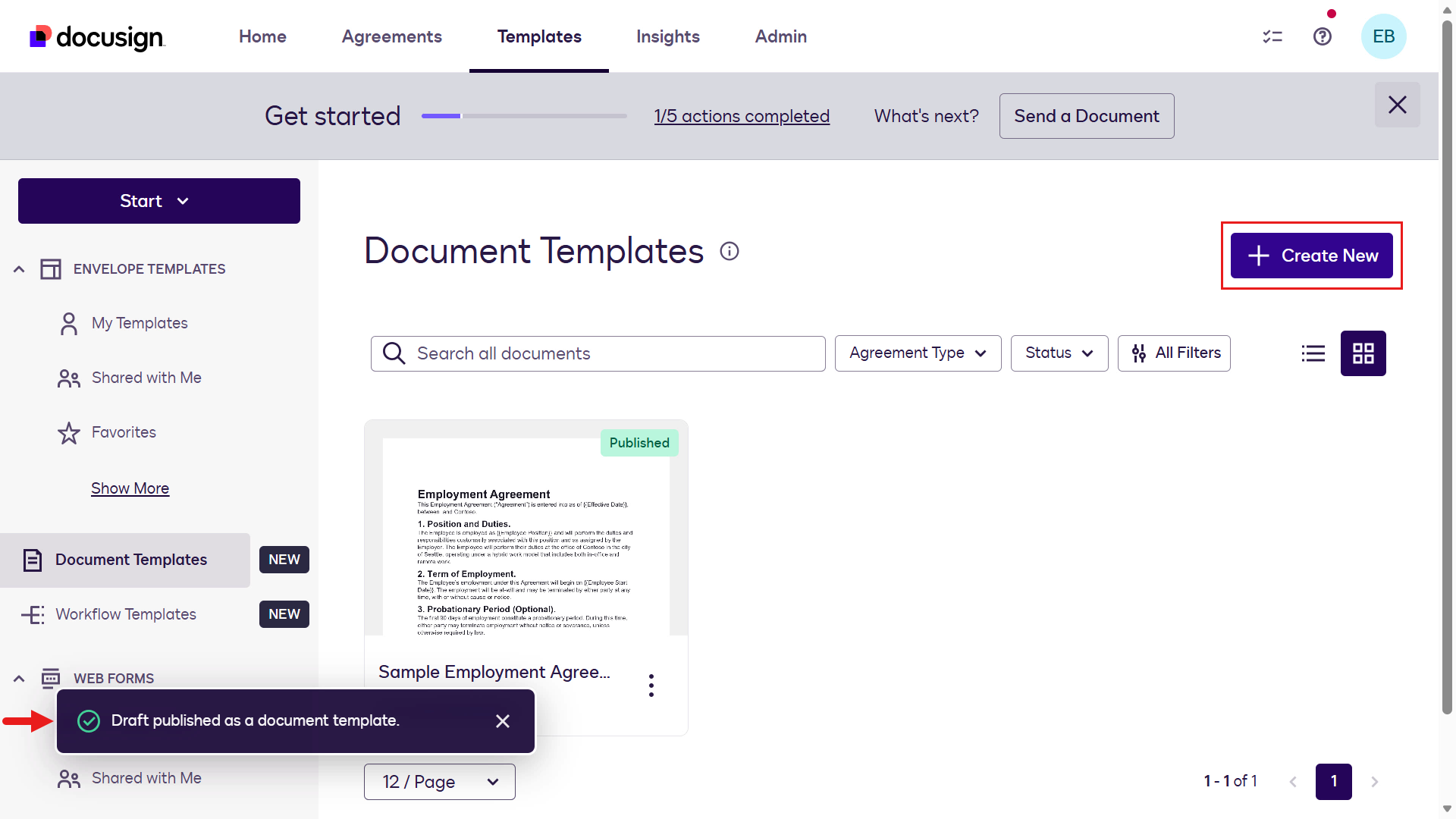
Create a new document template -
Repeat the previous steps to upload the Sample Offer Letter file and select Offer Letter as the Agreement Type.
Select Continue.
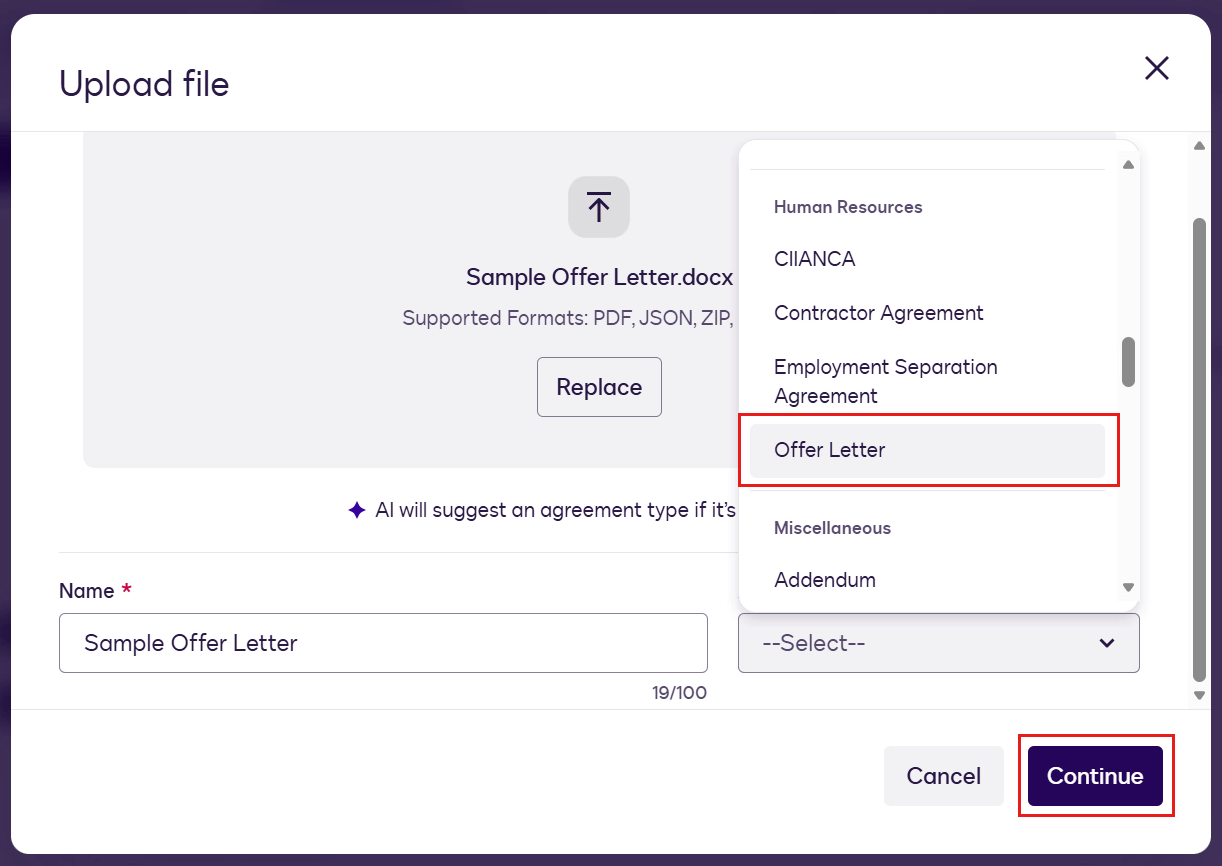
Offer Letter agreement type -
Repeat the previous steps to create two roles in the document template: Hiring Manager and Employee.
In the Fields left pane, select the chevron icon next to Sender 1, then select Edit recipients.
Change the Signer 1 role name to:
Hiring ManagerAdd a new recipient and set the role name to:
Employee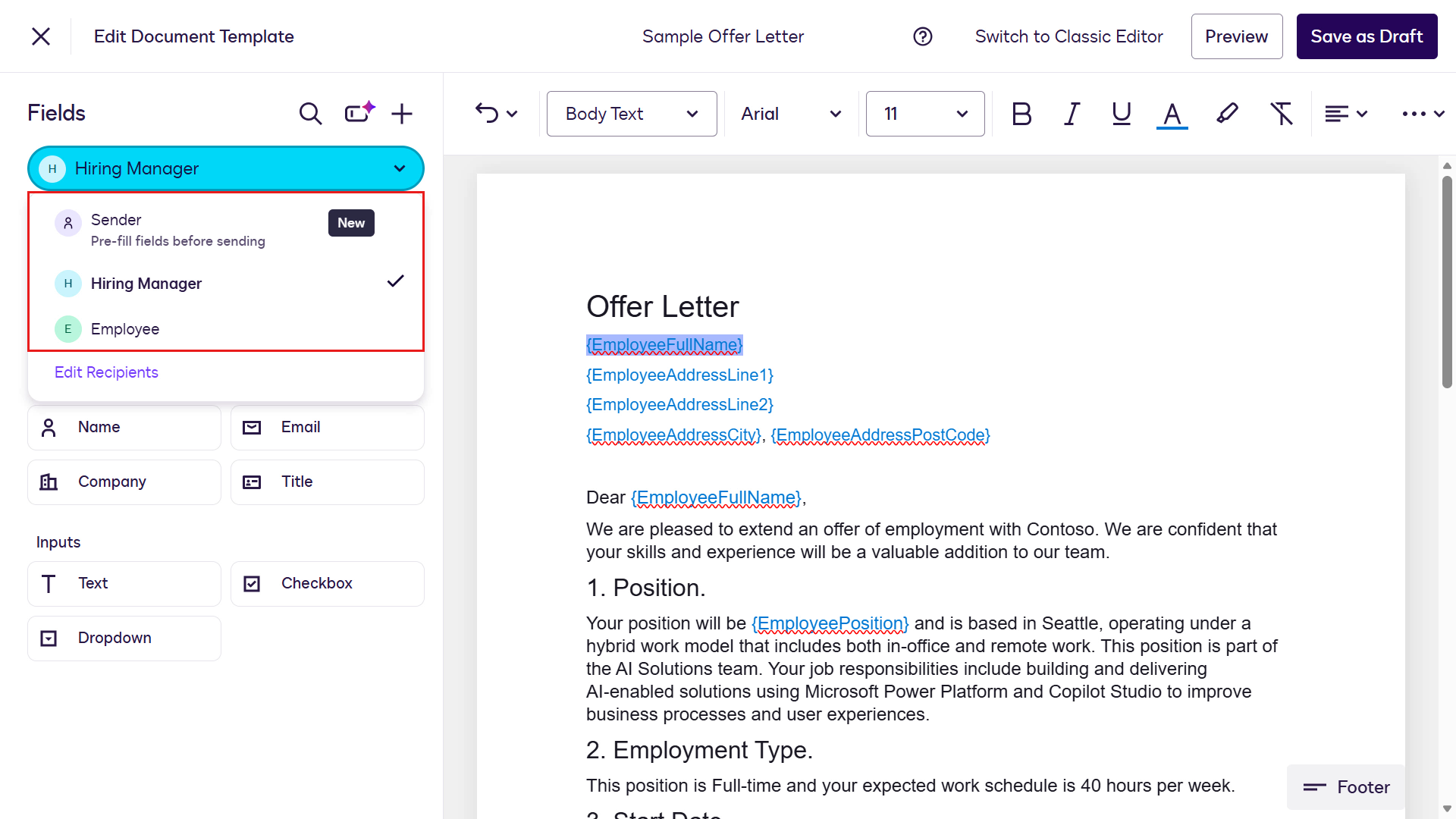
Add roles -
Next, replace the placeholders in the document with fields. Start by switching to the Sender role. Highlight the
{EmployeeFullName}placeholder and select the Employee Full Name field in the left menu. The field now appears in place of the placeholder.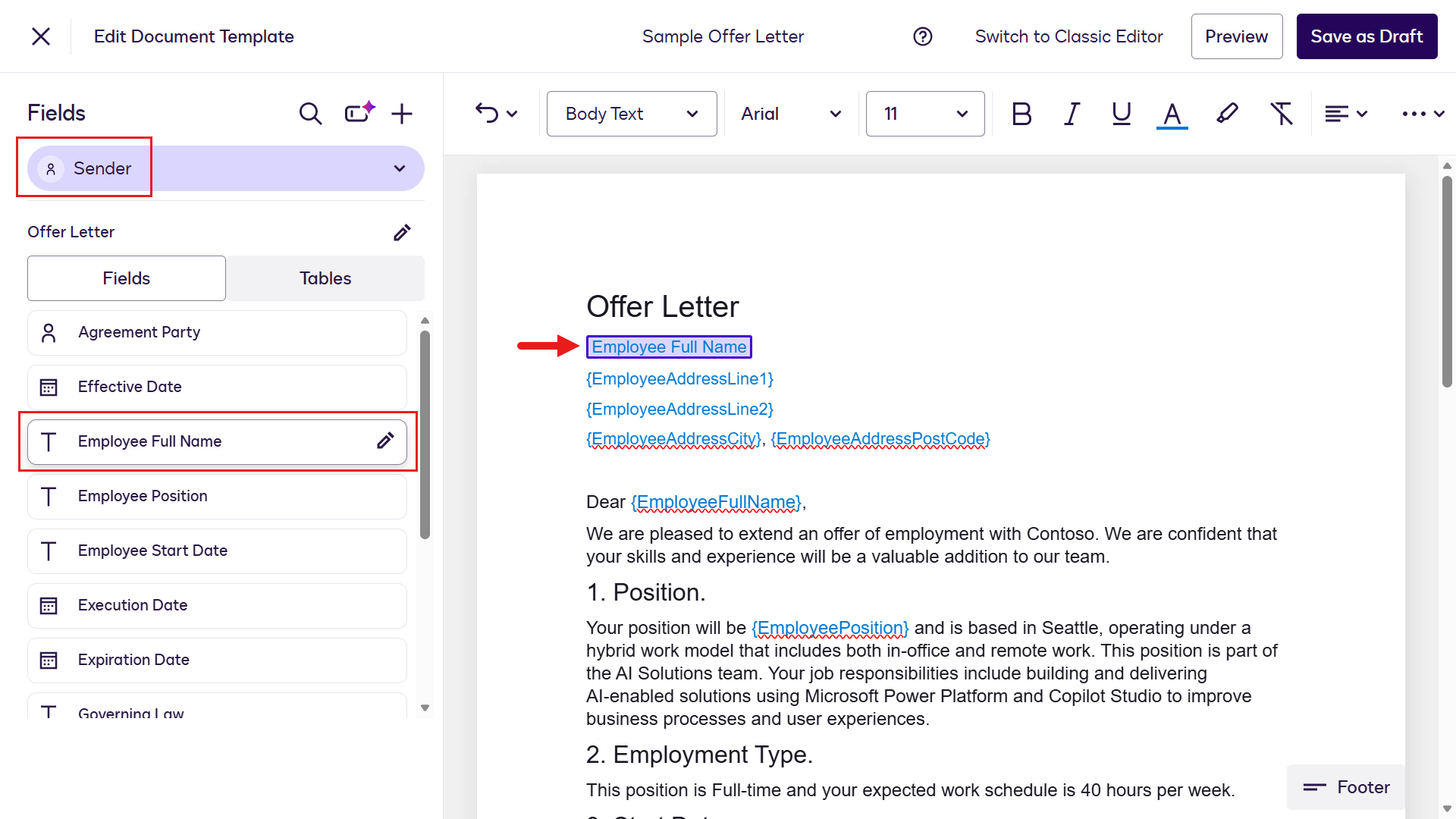
Configure Sender fields -
Repeat the same steps for the remaining placeholders for the Sender role. Select existing fields from the left menu or create new fields.
Placeholder Field name Create New Field Field description Required field Field Type {EmployeeAddressLine1} Employee Address Line 1Yes Apt or House No. and street nameYes Text {EmployeeAddressLine2} Employee Address Line 2Yes SuburbYes Text {EmployeeAddressCity} Employee Address CityYes CityYes Text {Employee AddressPostCode} Employee Address Post CodeYes Post codeYes Text {EmployeePosition} Employee PositionNo {EmployeeStartDate} Start DateNo {DueDate} Signed Due DateYes Due date of signed agreement by employeeYes Date Tip: If you accidentally create a new field with the wrong field type (for example, if you create Signed Due Date as
Text), you cannot change the field type. However, you can rename the field to[Don't use] Signed Due Date. -
Next, use the same steps as before to add the fields for the Hiring Manager and Employee roles.
Tip: 🖱️ Don’t forget to switch roles
Use the chevron icon in the Fields left pane to switch to the Employee role.
Role Placeholder Field Hiring Manager {ManagerSignature} Signature Hiring Manager {ManagerFullNameSignature} Name Employee {EmployeeSignature} Signature Employee {EmployeeFullNameSignature} Name Employee {EmployeeSignedDateSignature} Date Signed Your second document template configuration is now complete 👏🏻
Select Preview in the upper-right corner to view the document template preview mode.
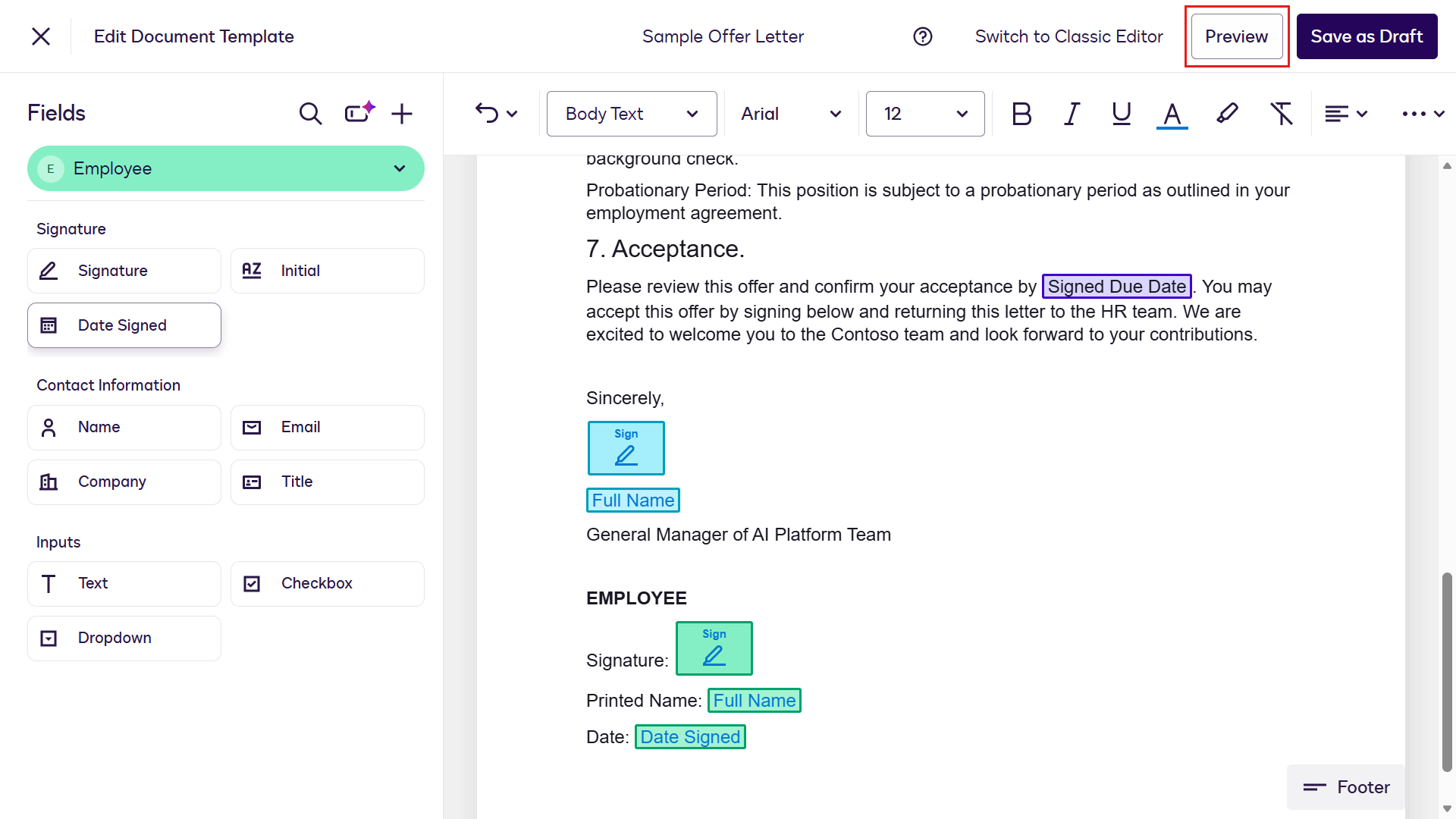
Role fields configured -
When you enter values in the fields, they appear in the template viewer.
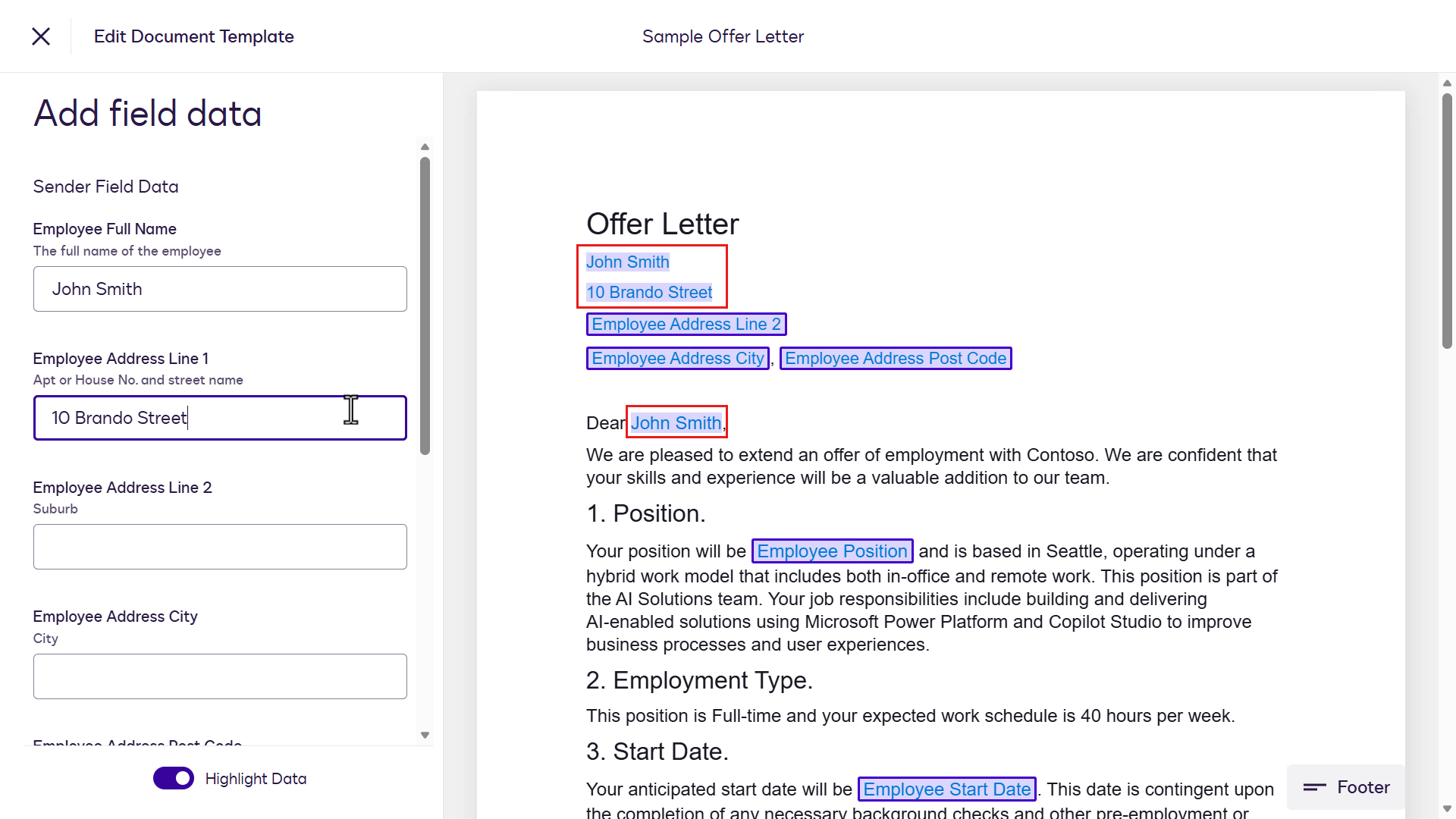
Document template preview -
Select the X icon in the upper-left corner to exit Preview mode, then select Save As Draft.
Tip: If you do not see the Save As Draft button and instead see Save and Publish, select Save and Publish and skip the next two publishing steps.
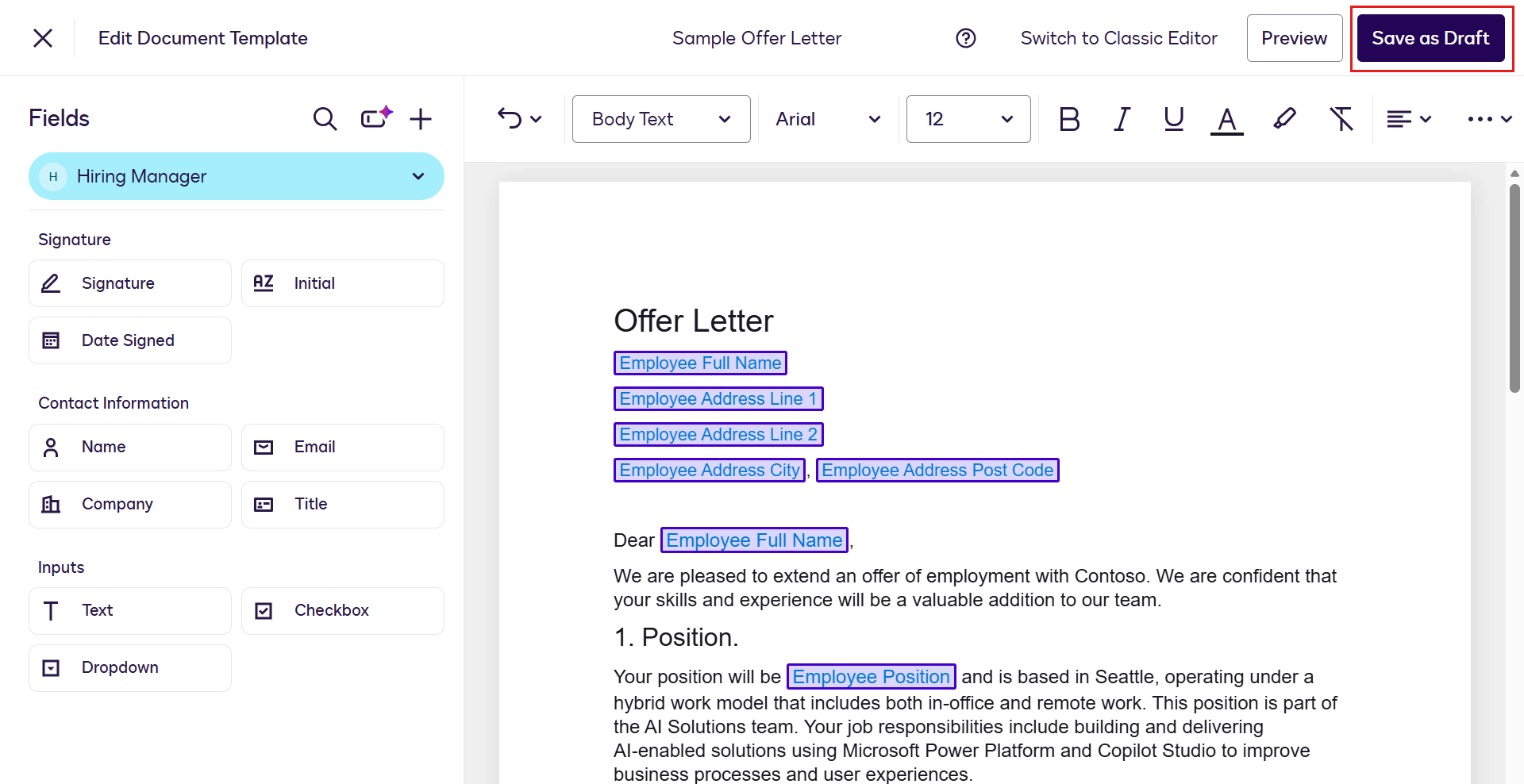
Save as draft -
A confirmation message appears in the lower-left corner indicating that the template was saved as Draft. Next, select the ellipsis icon (…) and select Publish.
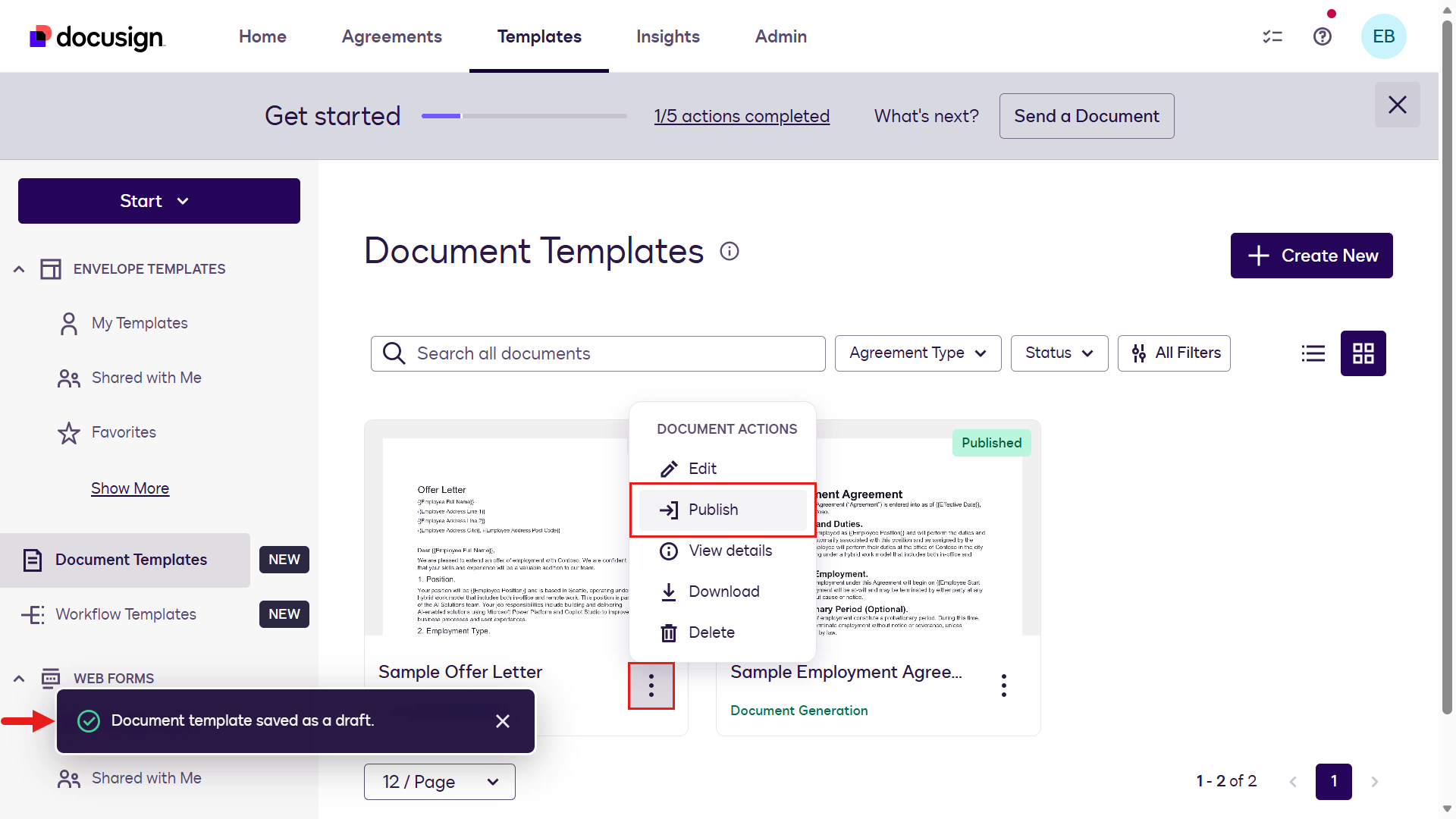
Publish the Offer Letter -
The Sample Offer Letter document template is now published.
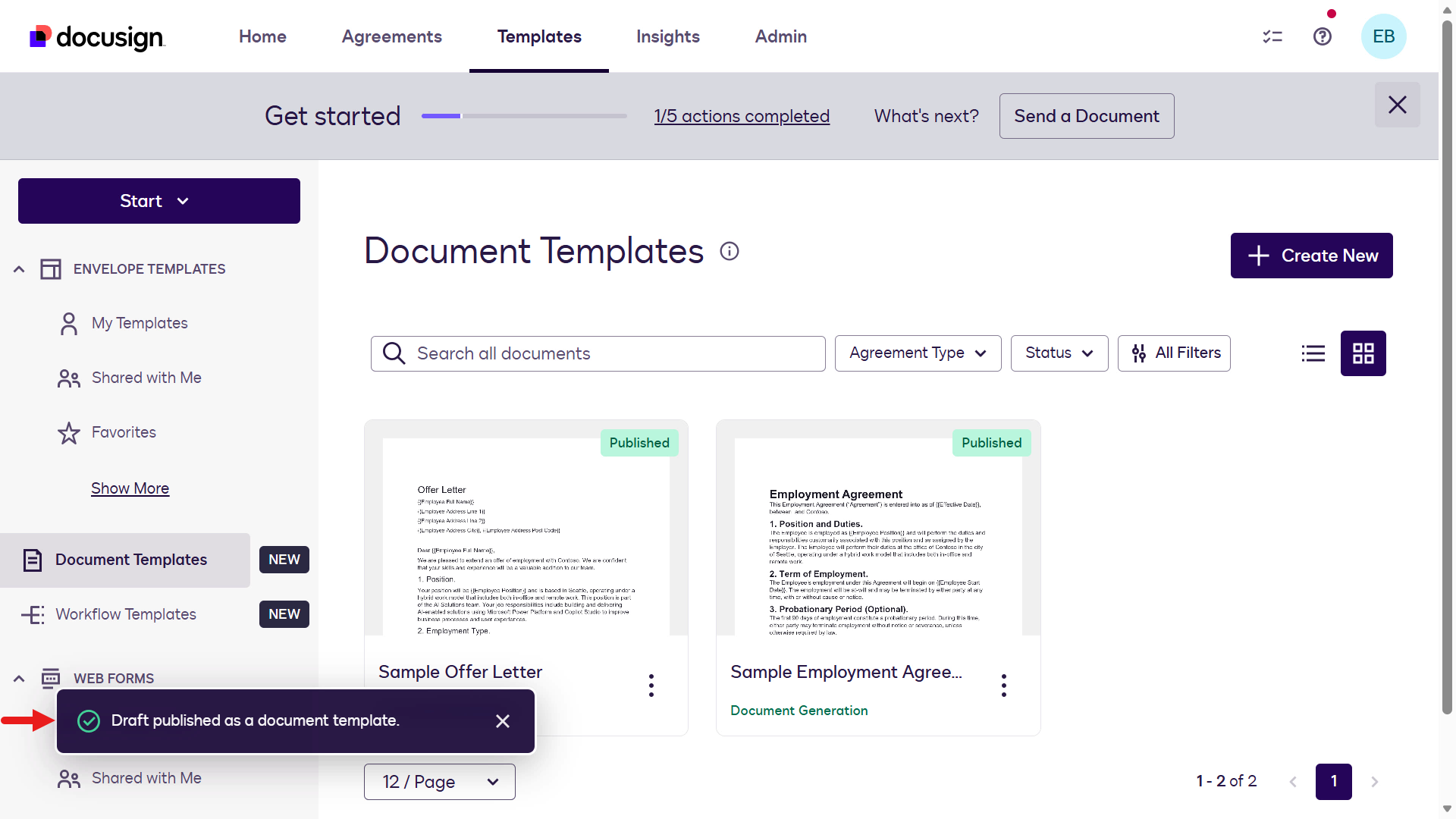
Offer Letter published
🏃🏻♀️➡️ Next, let’s create a workflow in Workflow Builder.
🧪 1.3 Create a Docusign Workflow Builder workflow
A Docusign Workflow Builder workflow is a tool for automating document processing, signing, and data collection. Once a workflow is configured, Workflow Builder automatically handles complex agreement processes such as notifying participants, collecting signatures, and routing data.
-
In the Docusign developer portal, select Agreements from the left menu. Select Workflows. Then select Create Workflow.
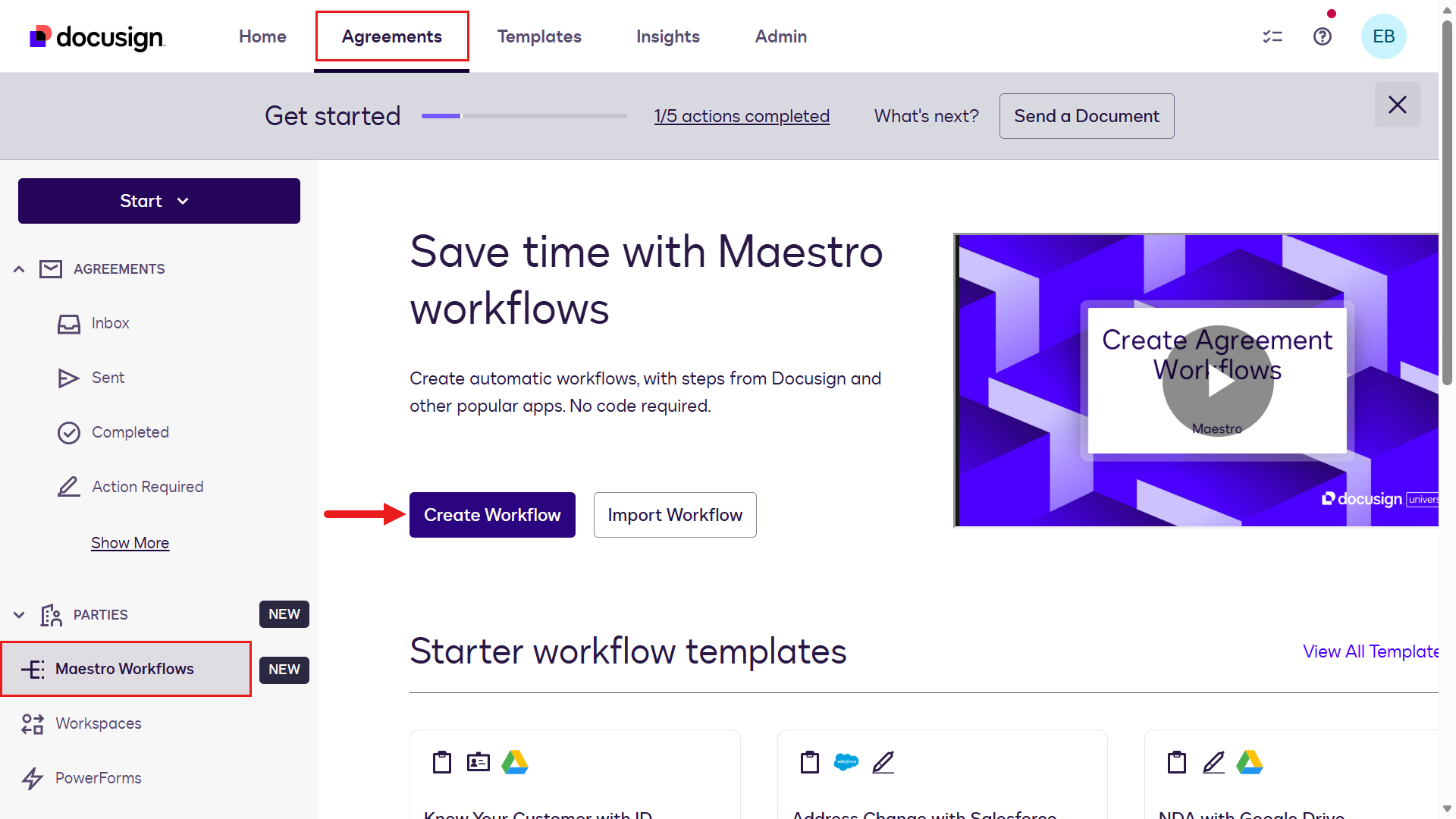
Create a workflow -
Select + Blank Workflow.
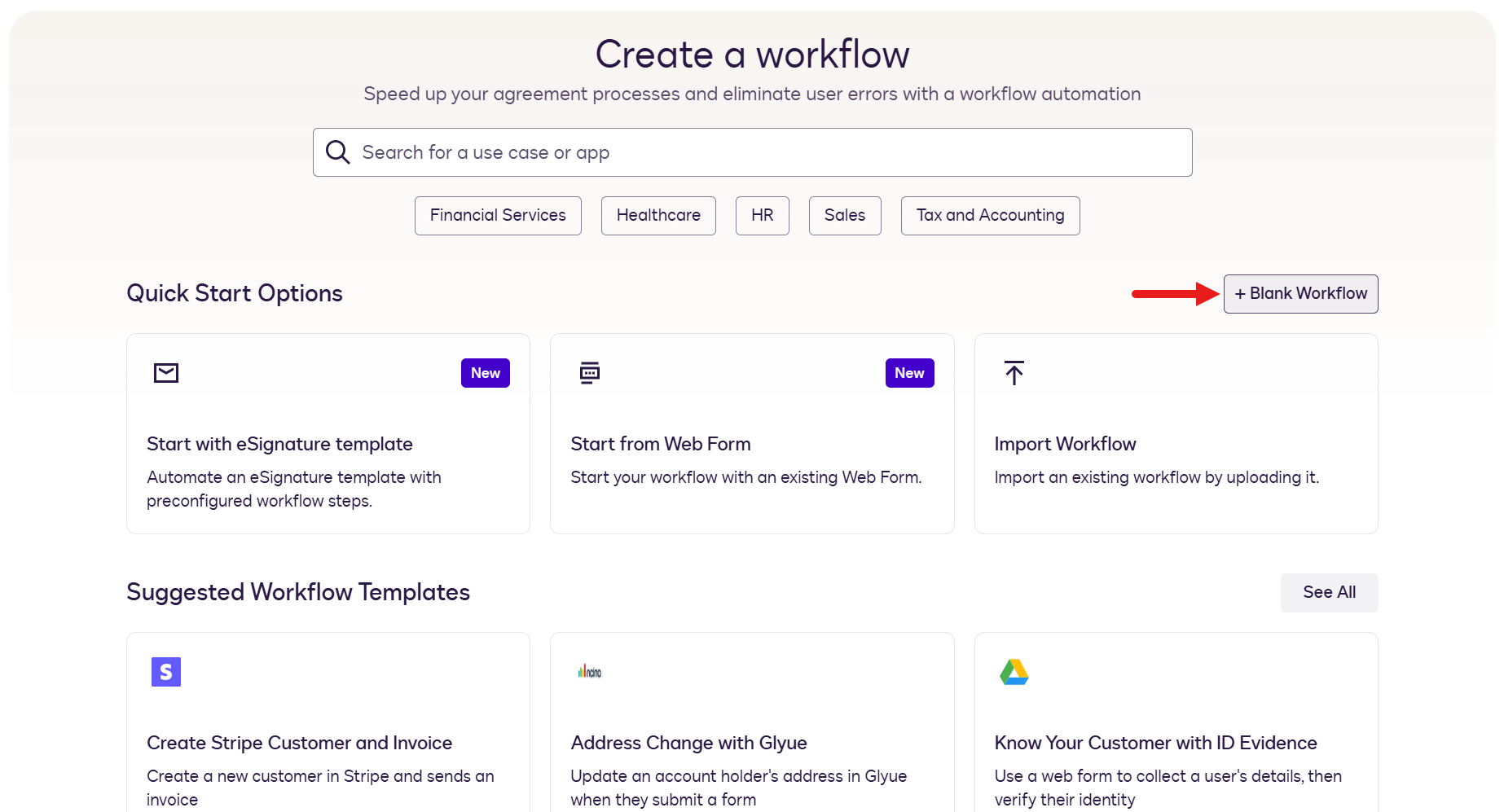
Select a blank workflow -
Select the ellipsis icon (…) > Rename.
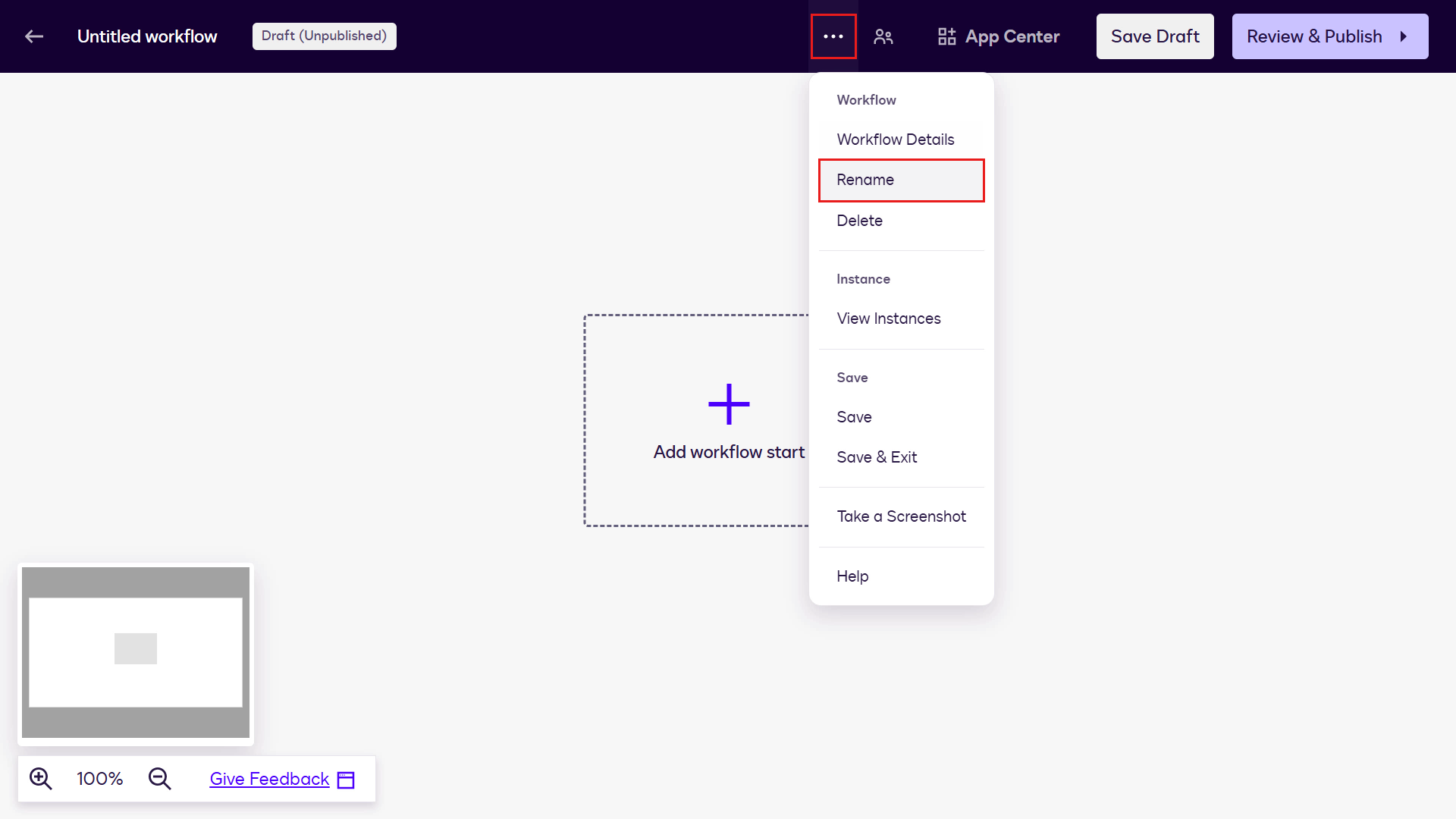
Rename the workflow -
Enter a workflow name and select Save. For example:
Docusign MCP Demo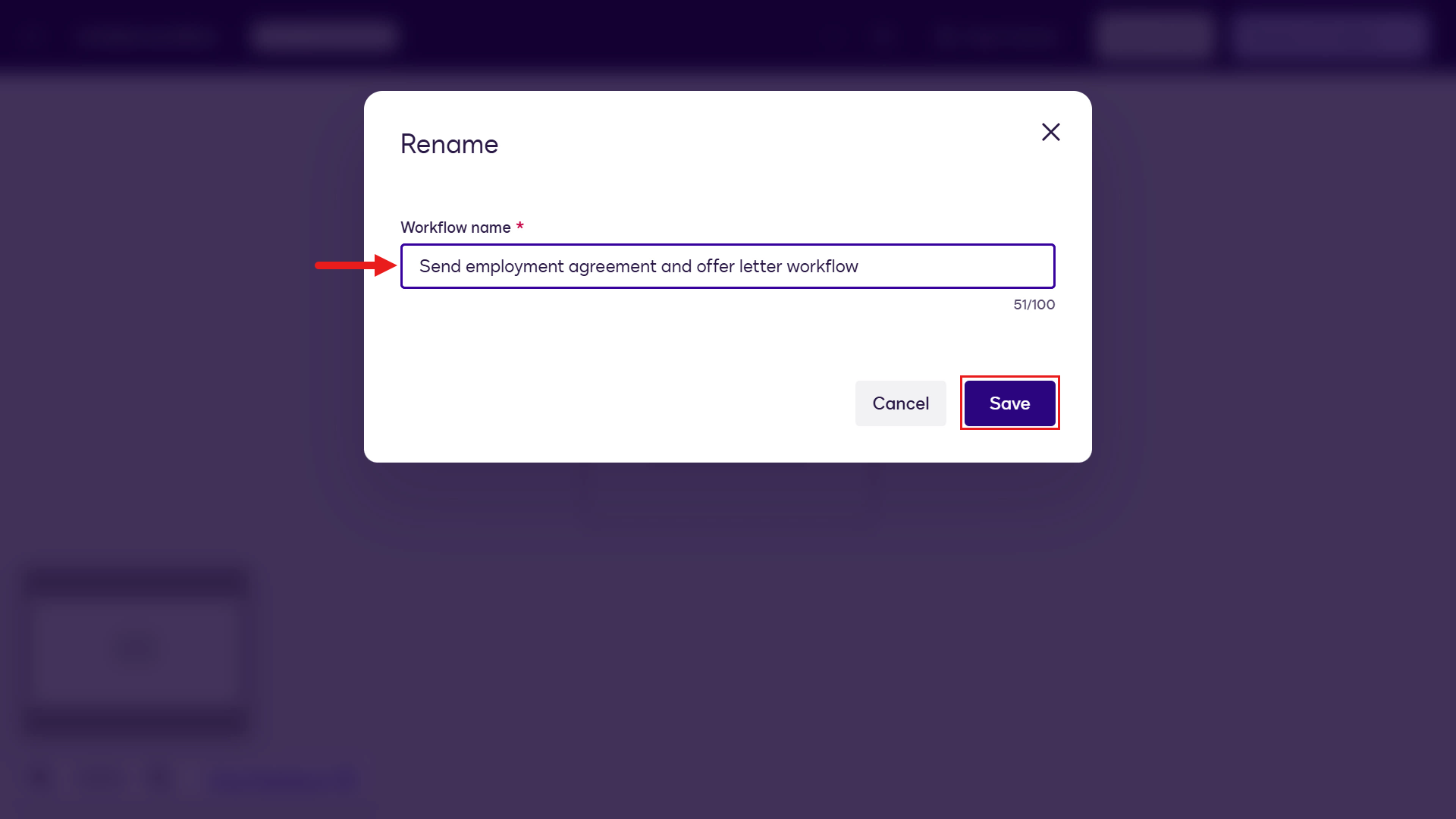
Save the workflow name -
Select Add workflow start.
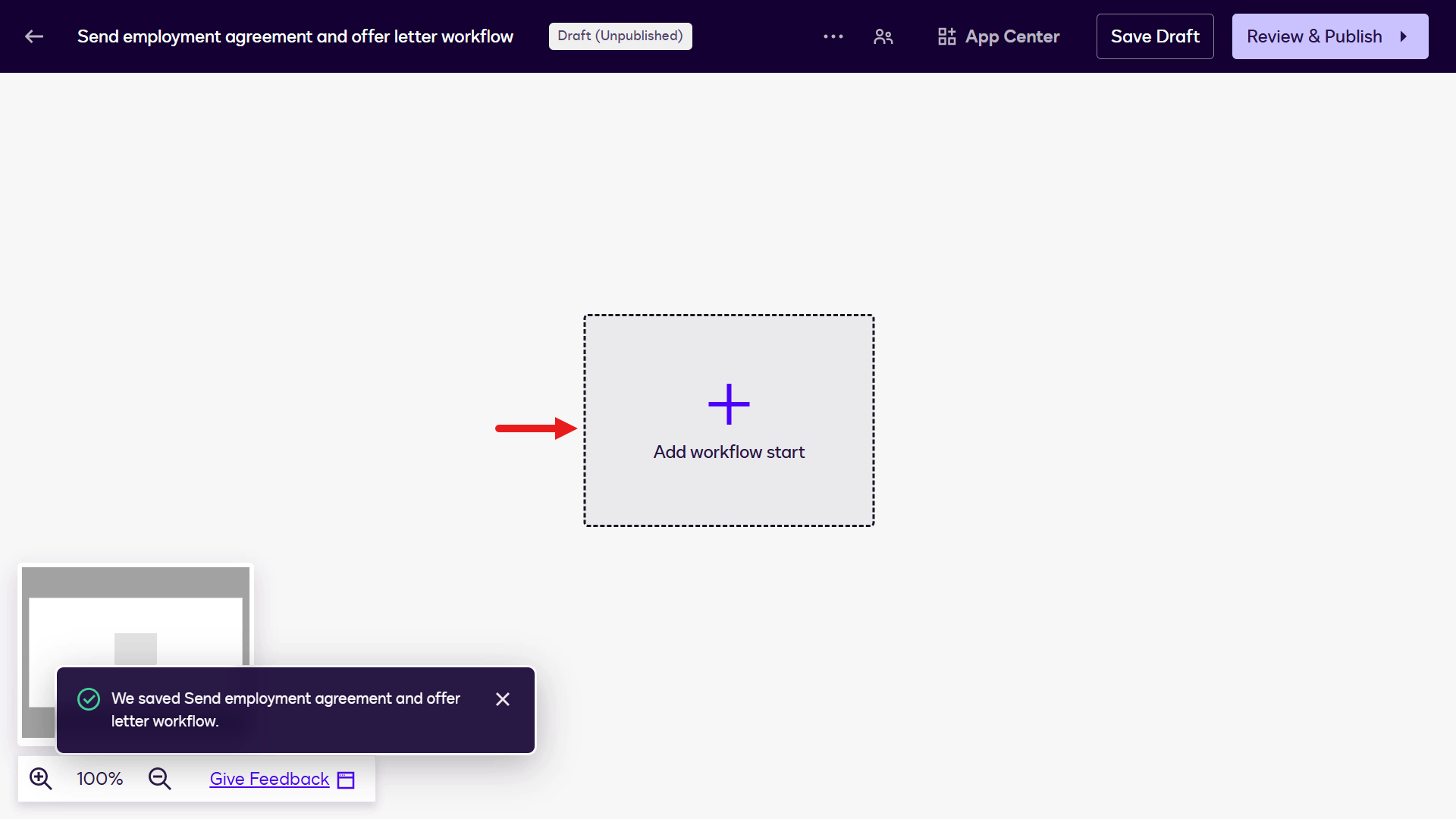
Add workflow start -
Select From an API Call and select Apply.
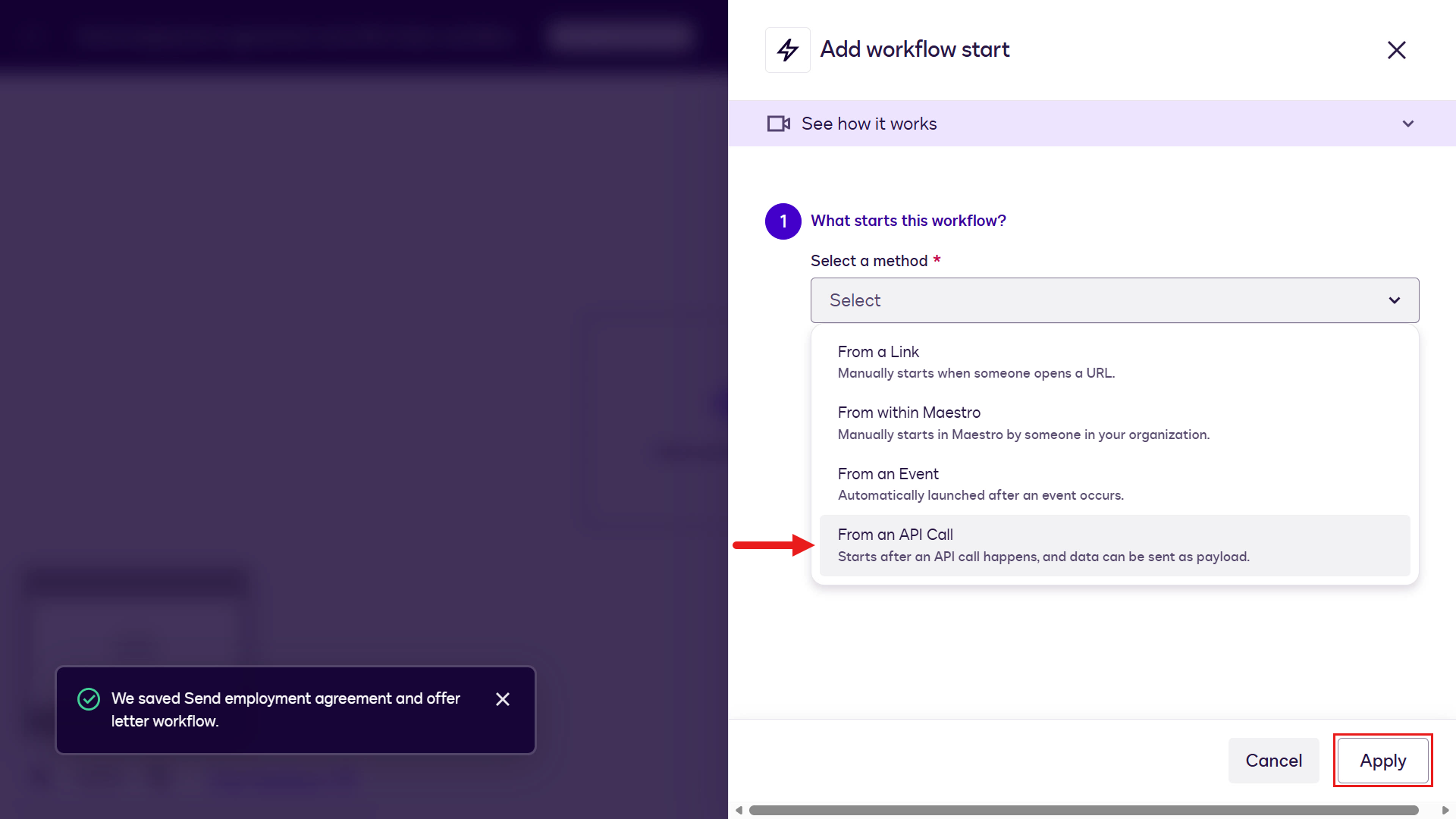
Start the workflow from an API call -
Select Next.
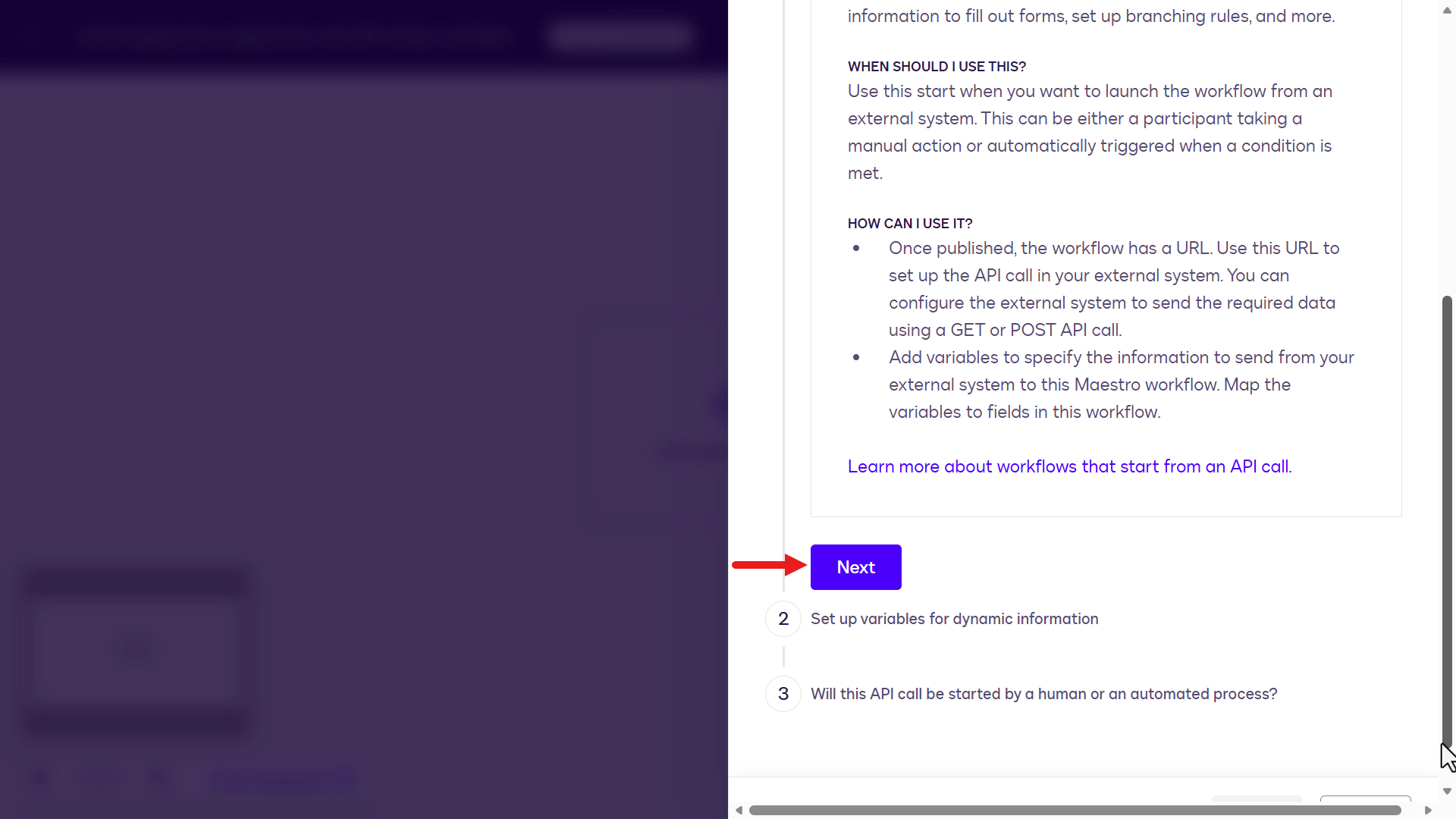
Select Next -
The next step is to configure workflow variables. Variables are used to store data and pass it between workflow steps. Select + Add variable and create a variable of type Text. Name it:
Employee Full NameSelect Add Variable.
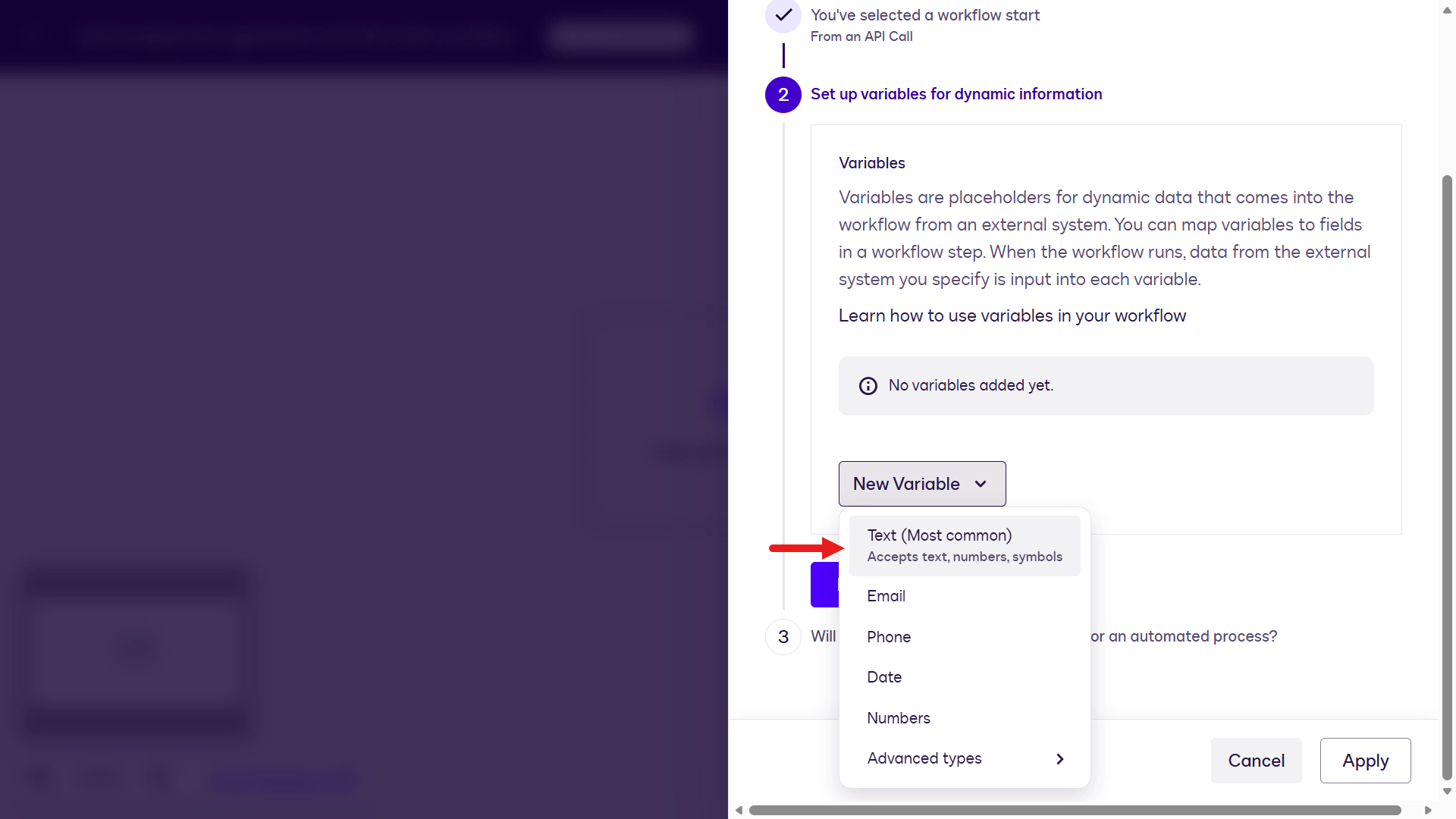
Add a workflow variable -
Repeat the same steps for the remaining variables of type Text:
Employee EmailHiring Manager Full NameHiring Manager EmailEmployee PositionStart DateEffective DateSalary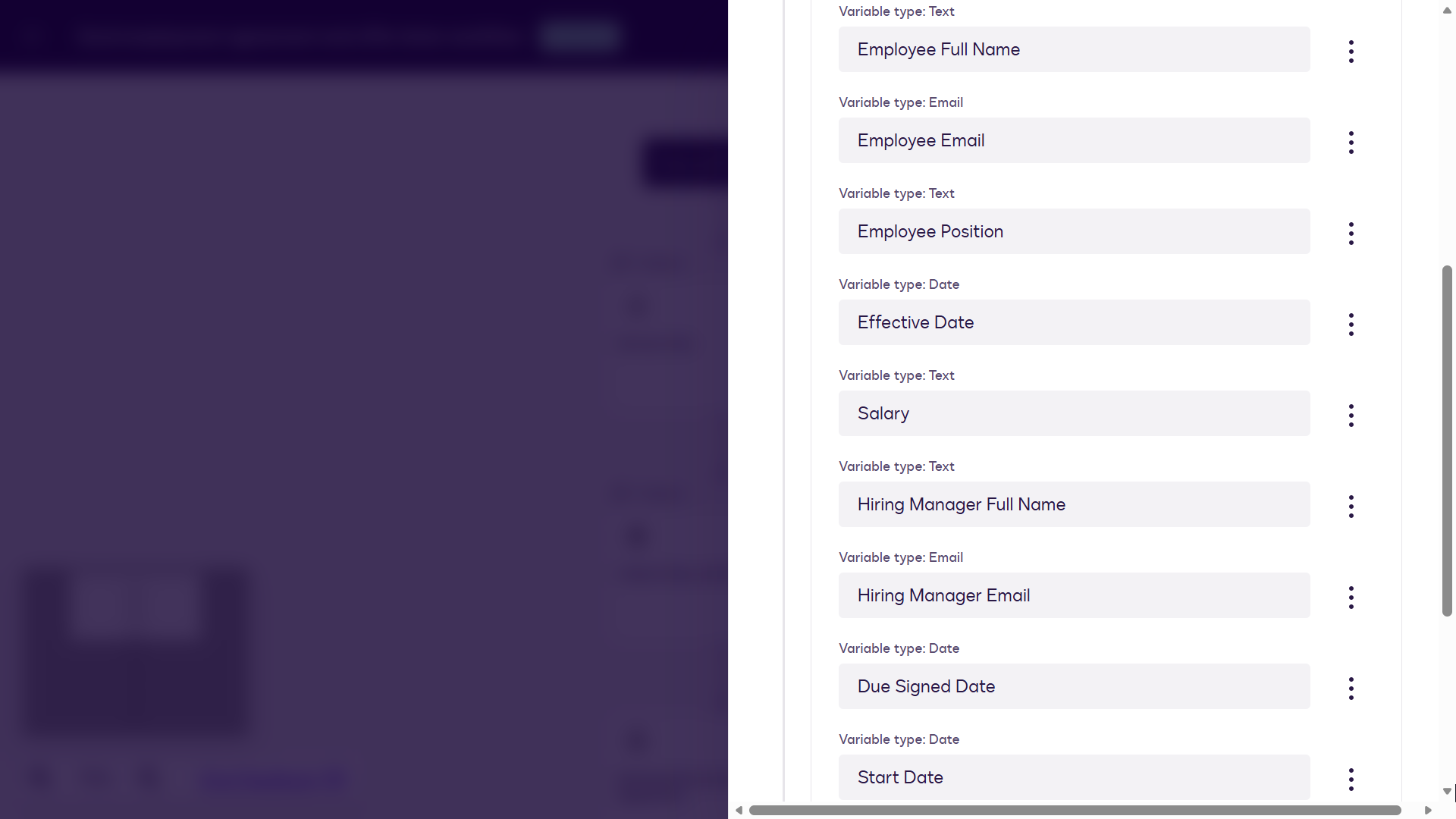
All workflow variables -
Select Next.
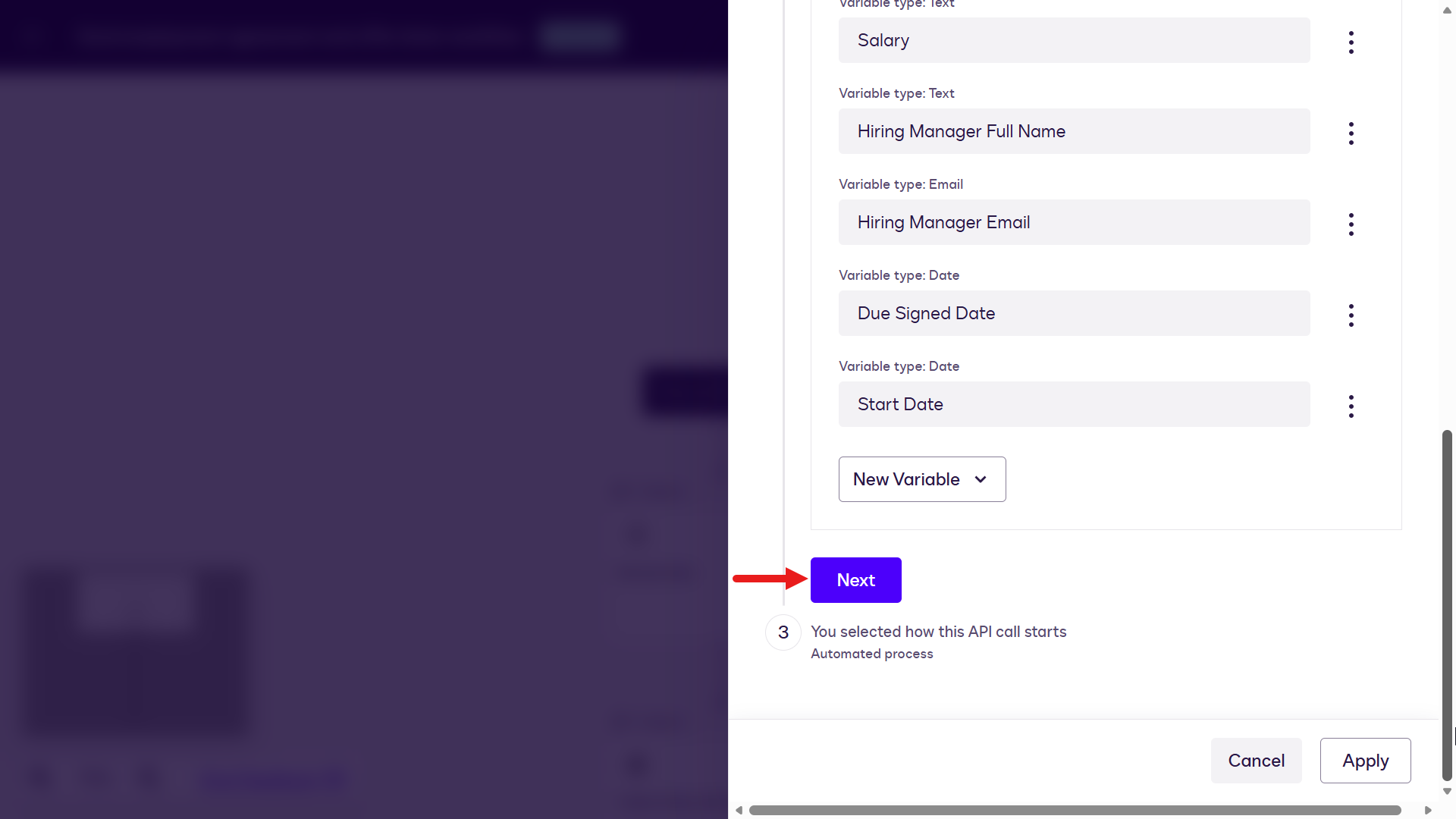
Select Next -
Select Automated process and select Apply.
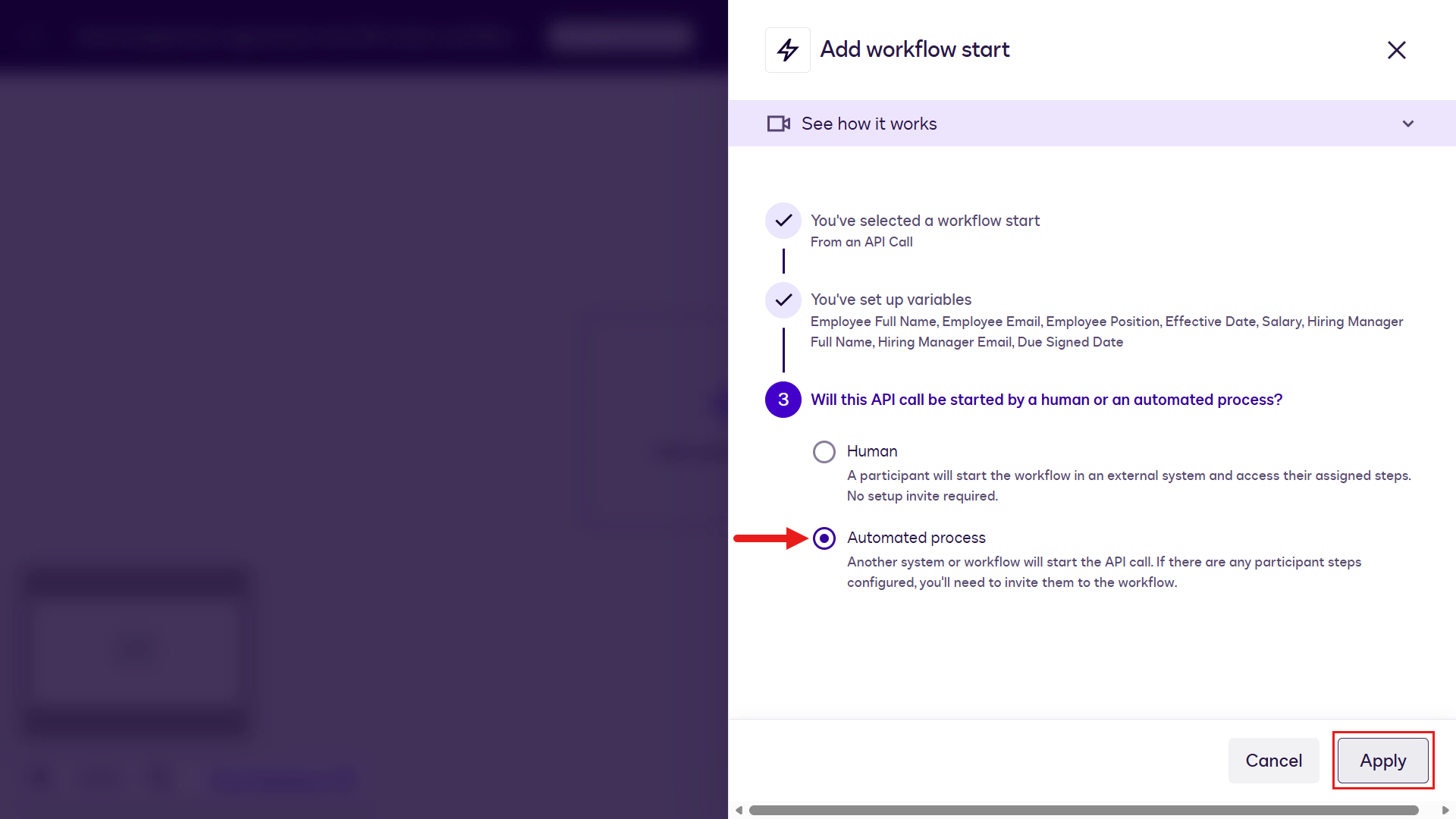
Select automated process -
Select Add a step.
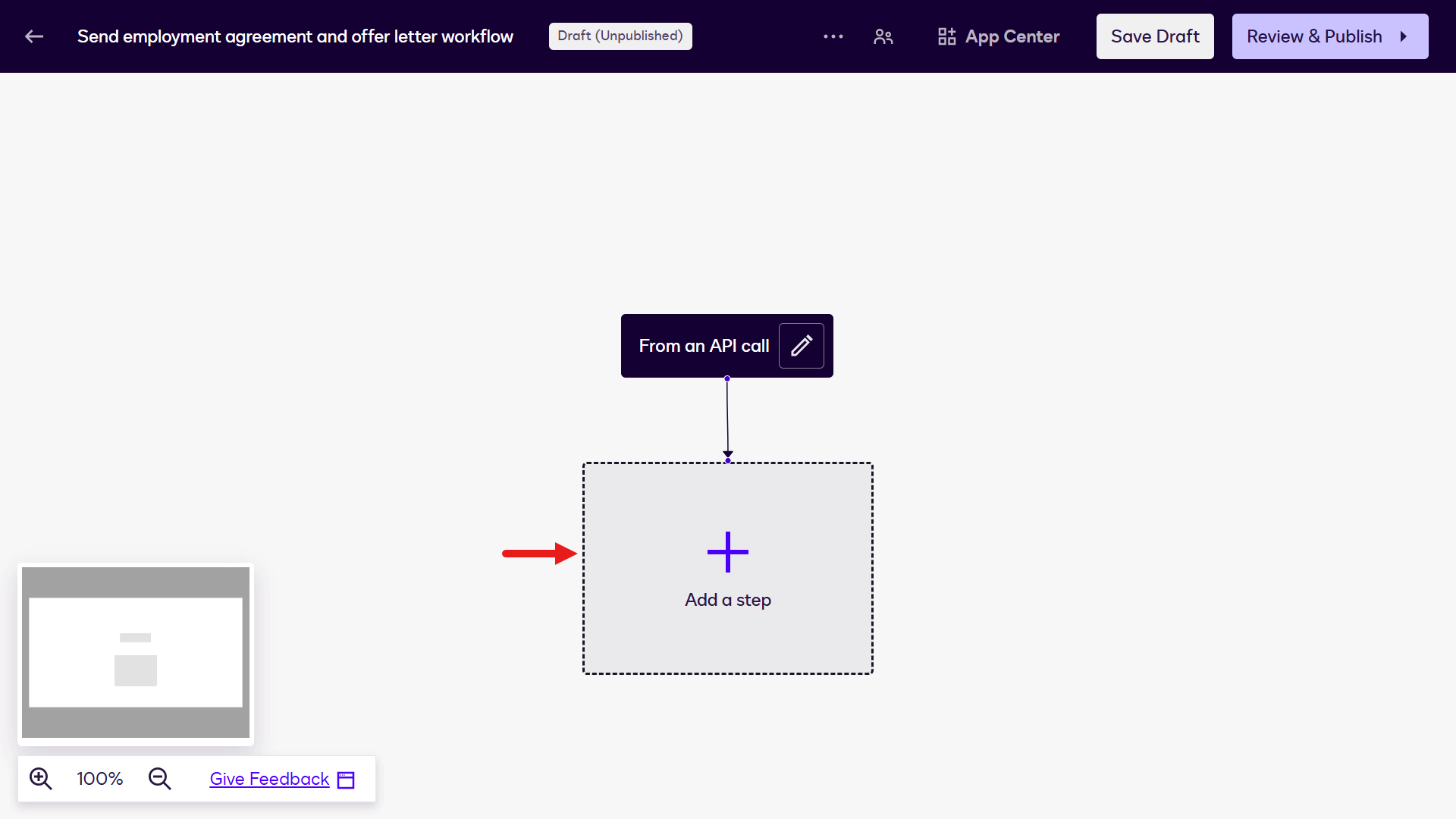
Add a step -
Select Set Up Invite.
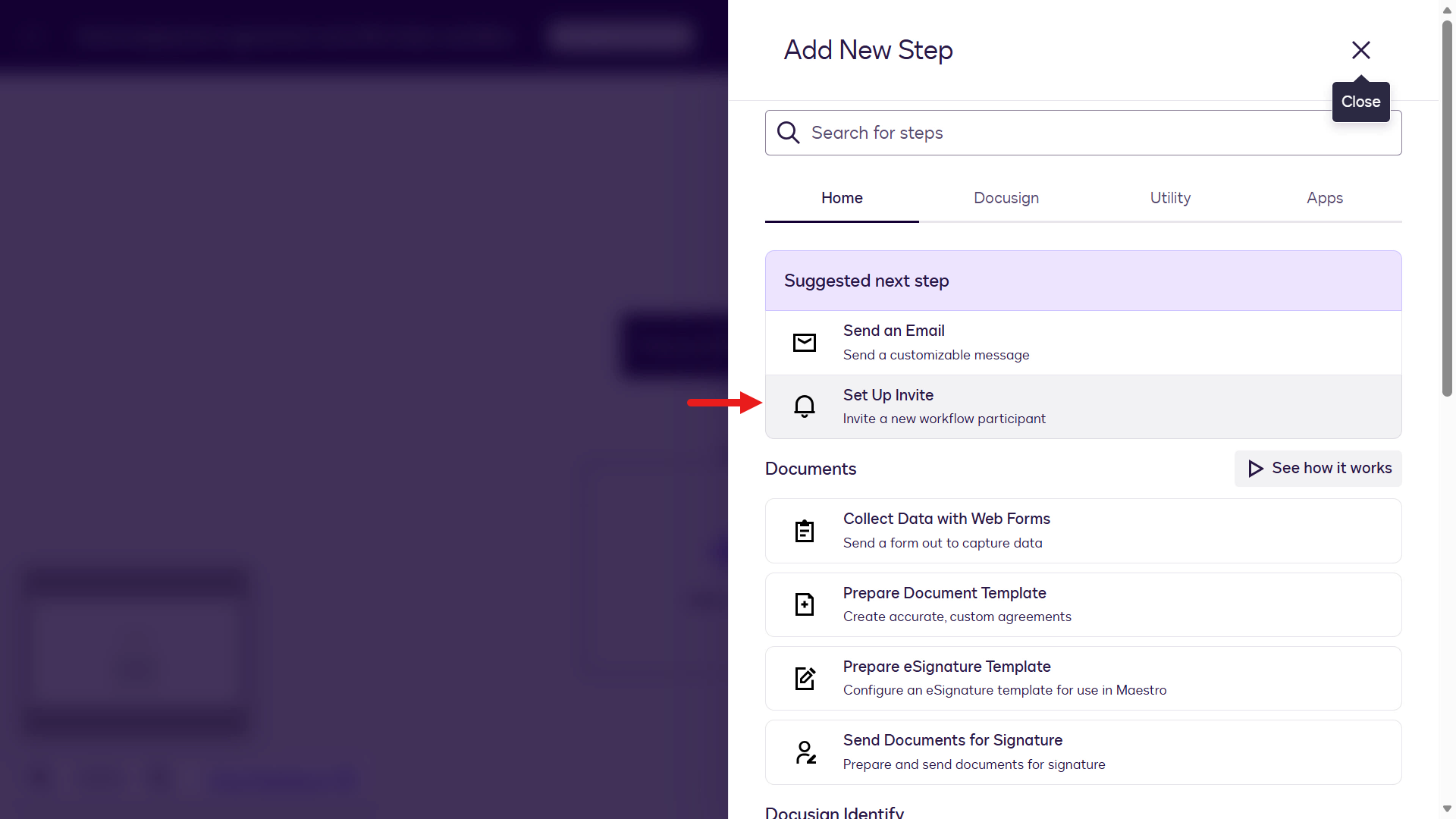
Set up invite -
Select Configure.
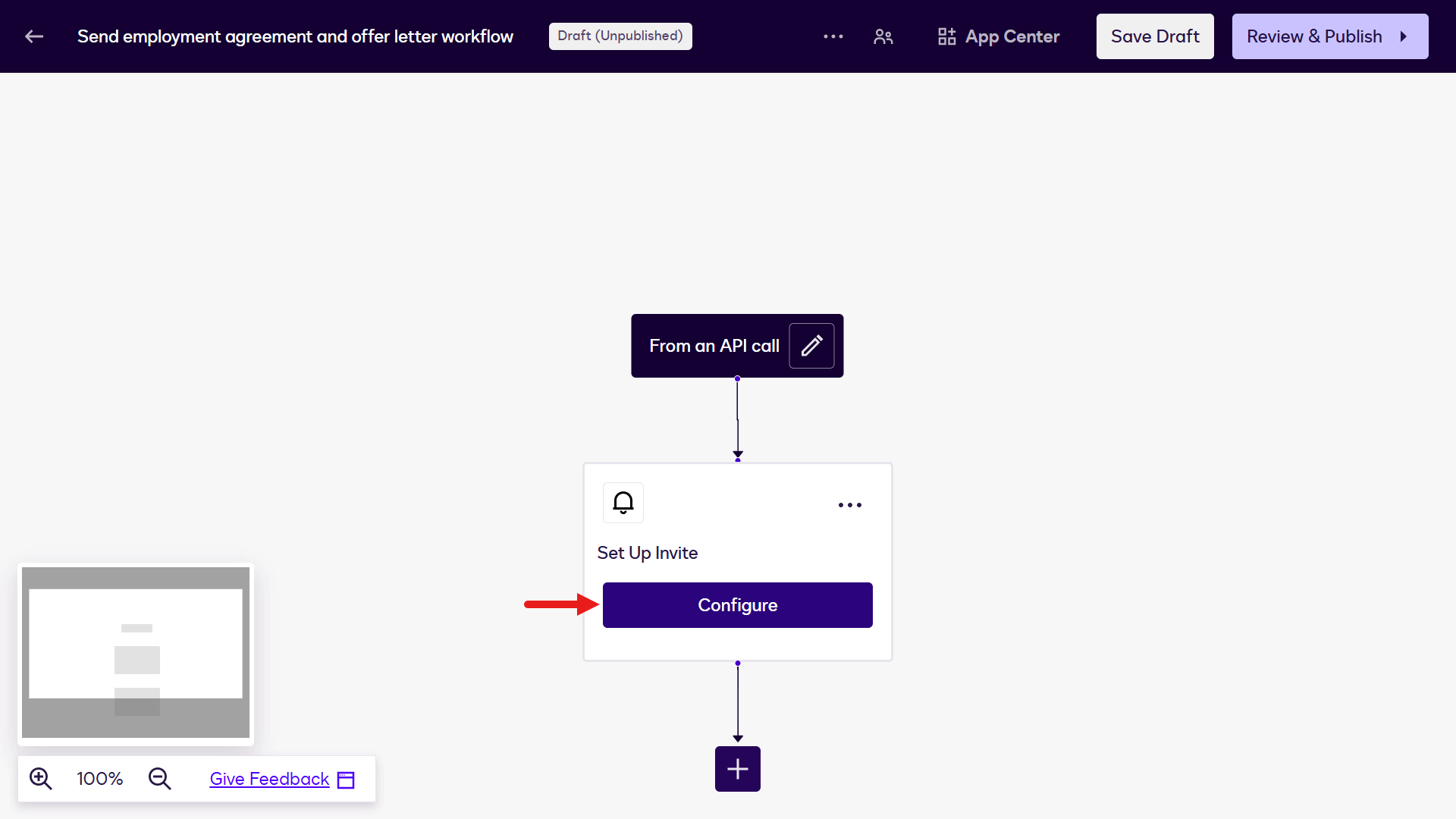
Configure -
Select Add Participant.
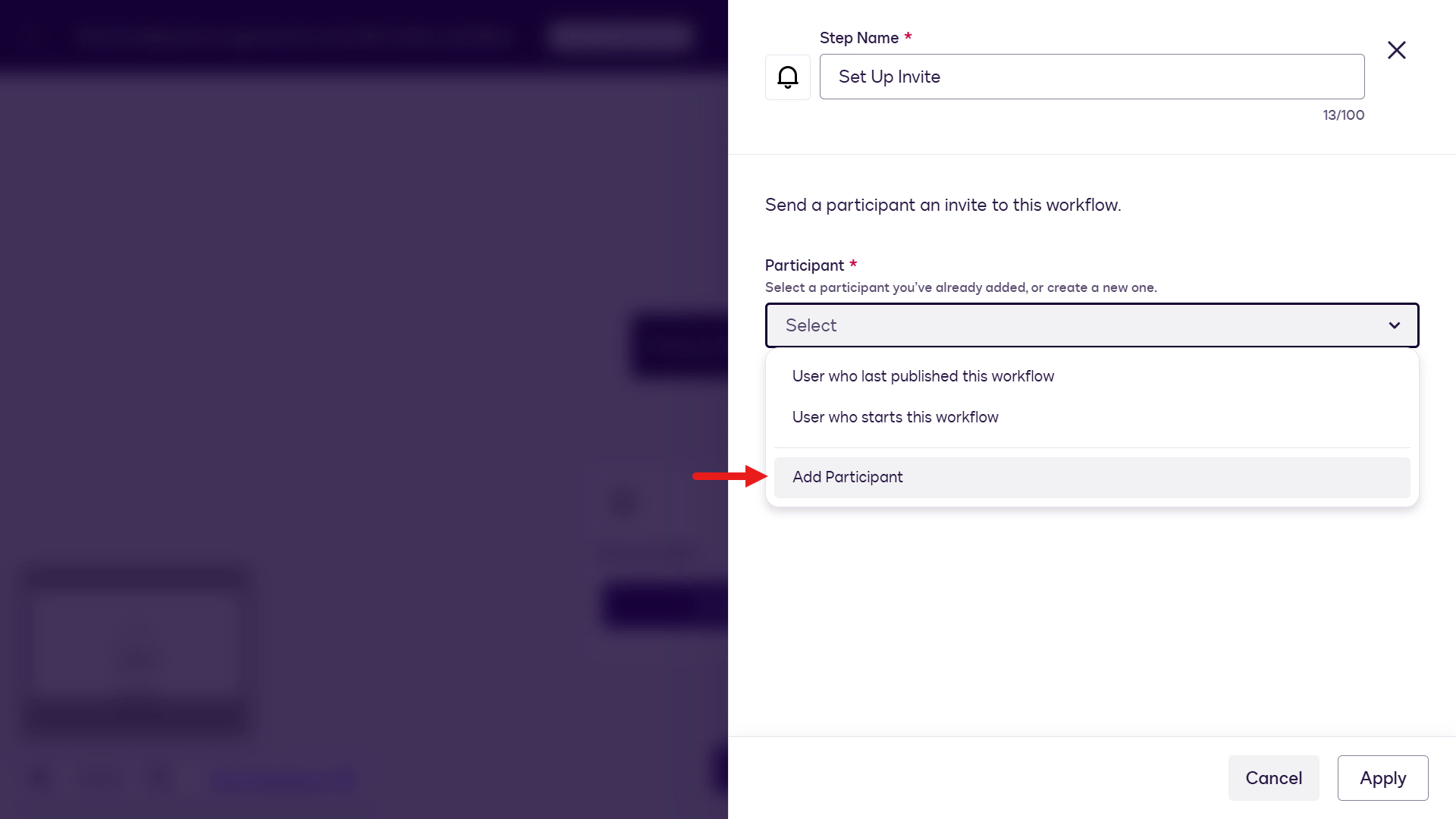
Add a participant -
Enter the following and select Add:
Employee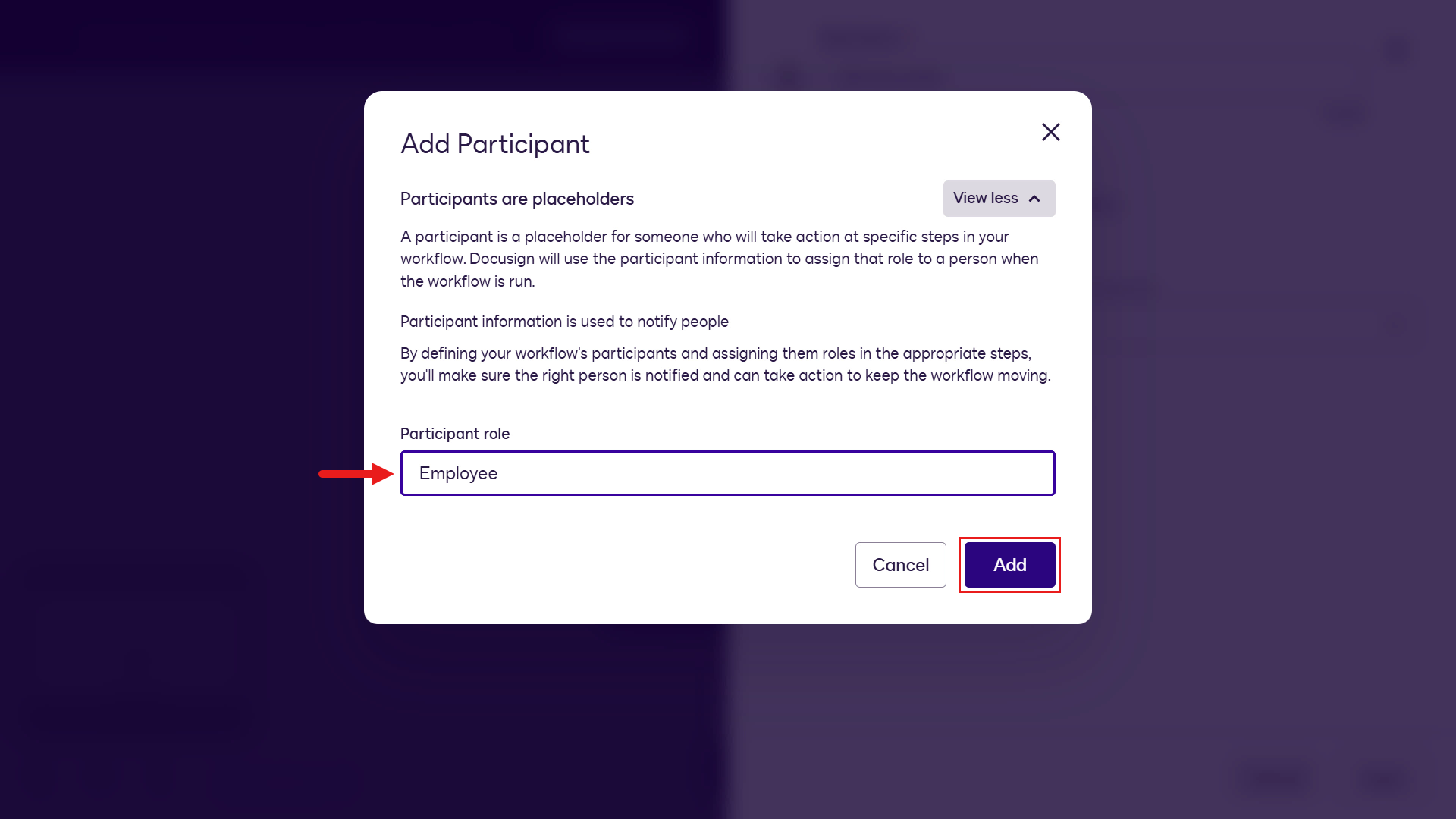
Add the Employee participant -
The Employee Name and Employee Email fields appear.
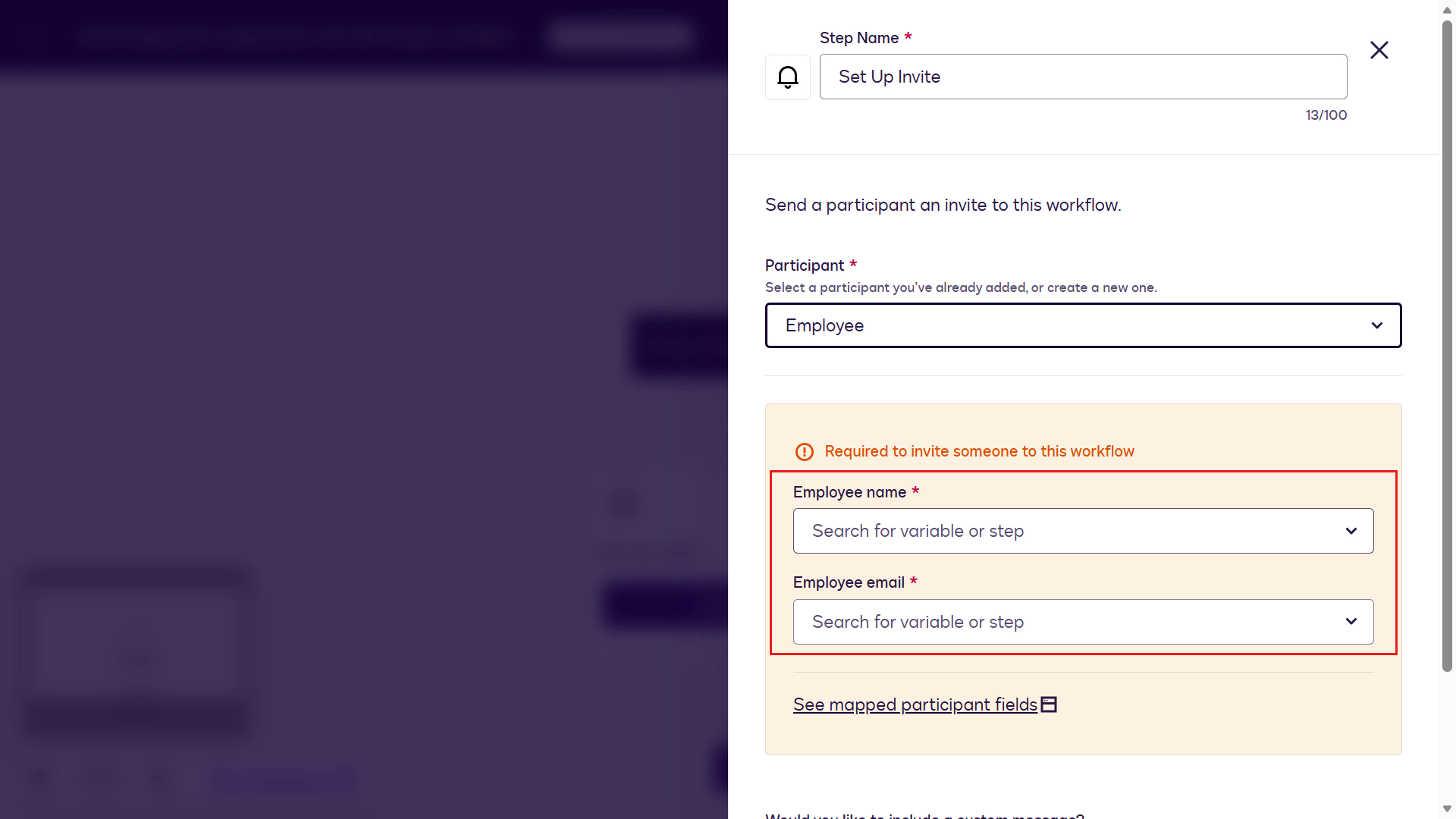
Employee participant fields -
Select the Employee Full Name variable.
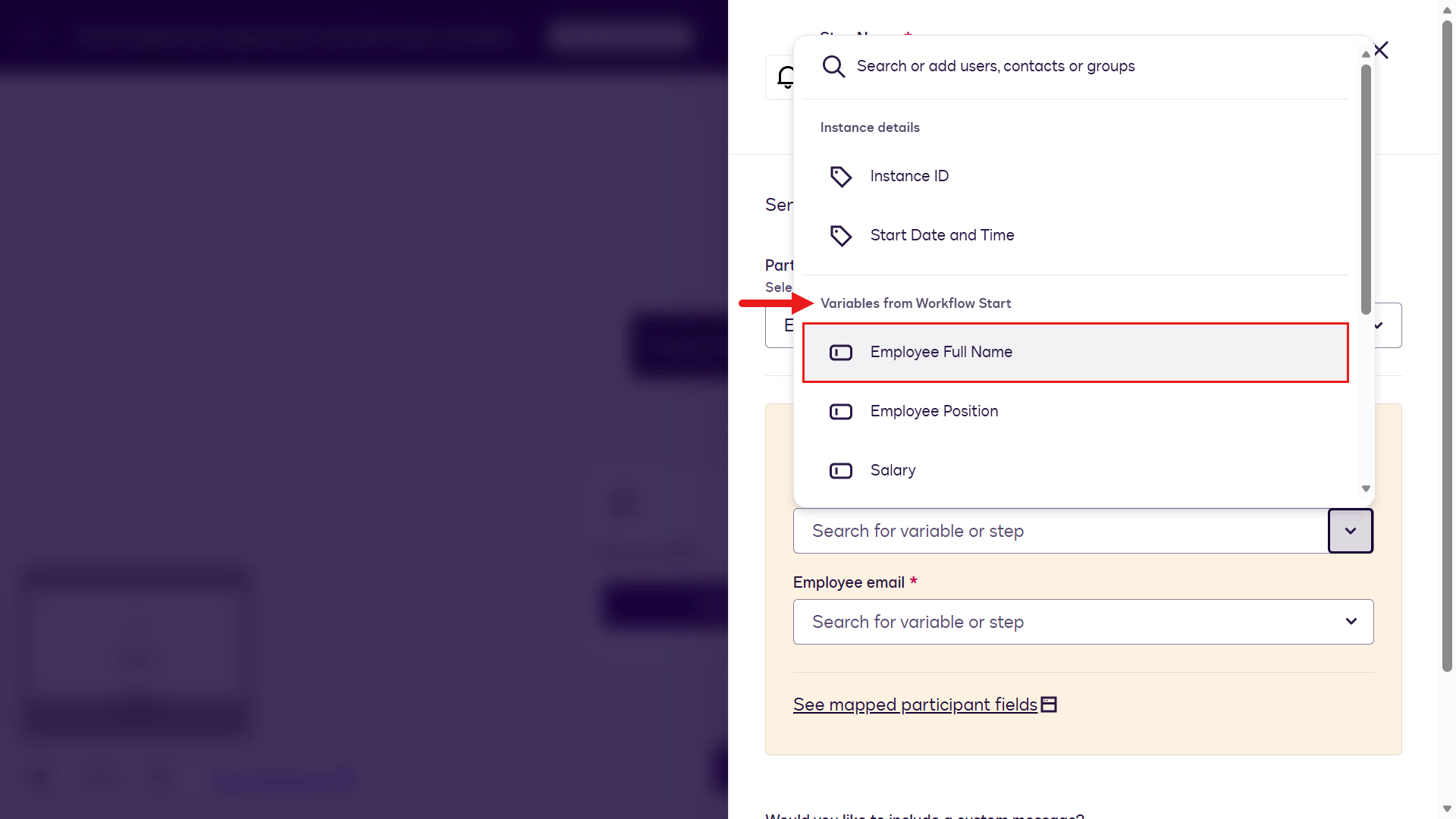
Employee Full Name variable -
Select the Employee Email variable.
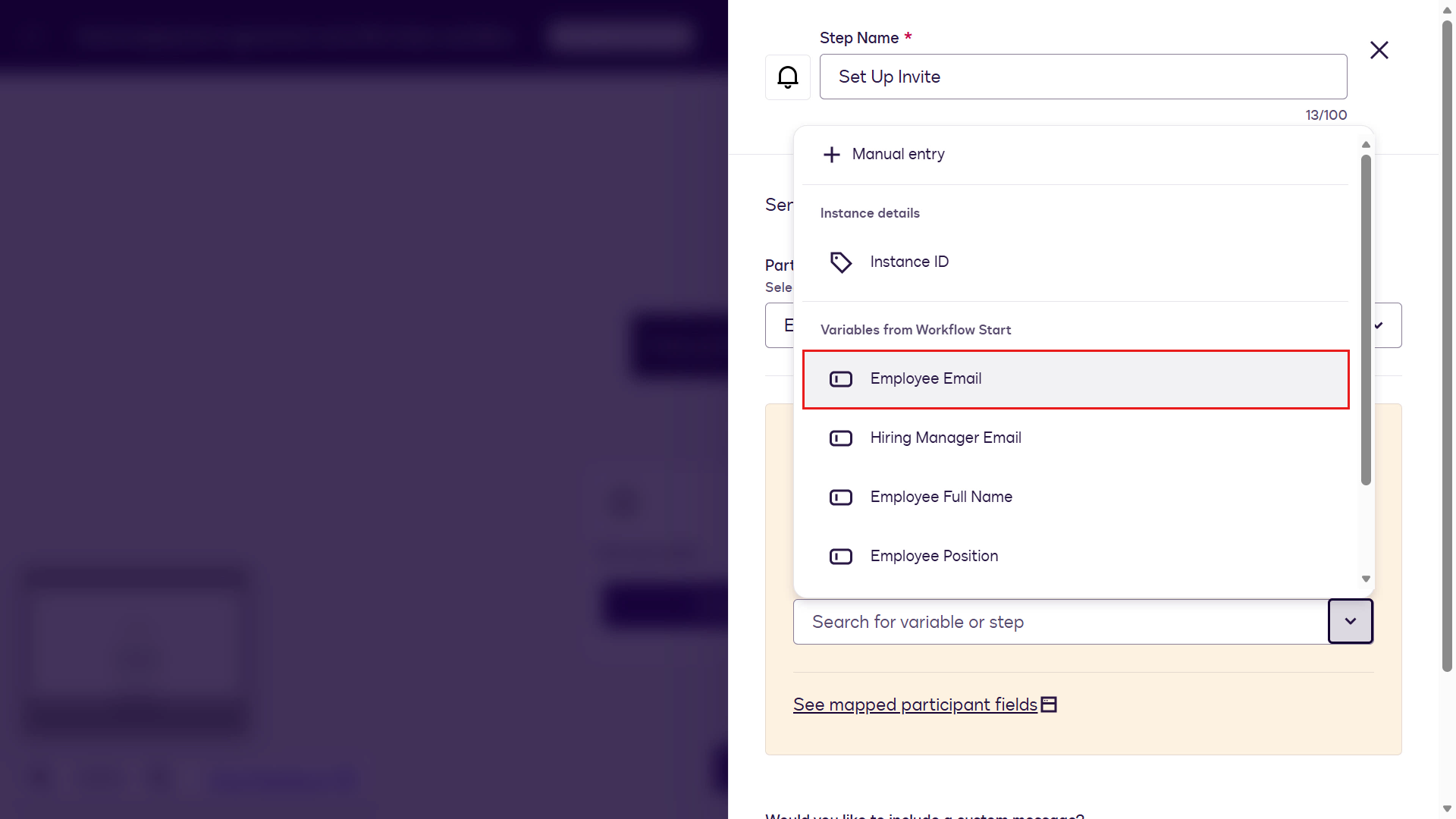
Employee Email variable -
Select Apply.
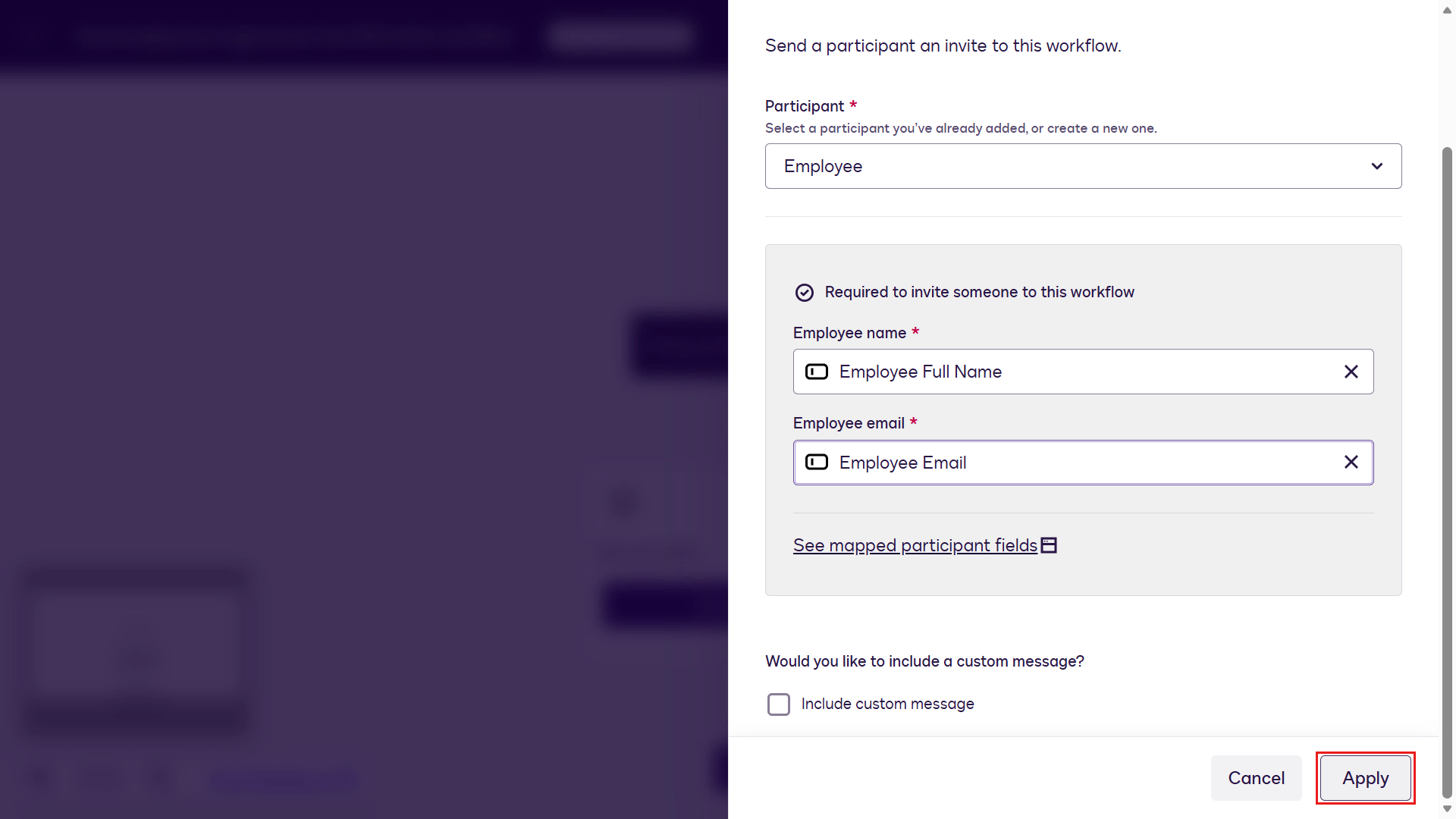
Select Apply -
Select Add a step.
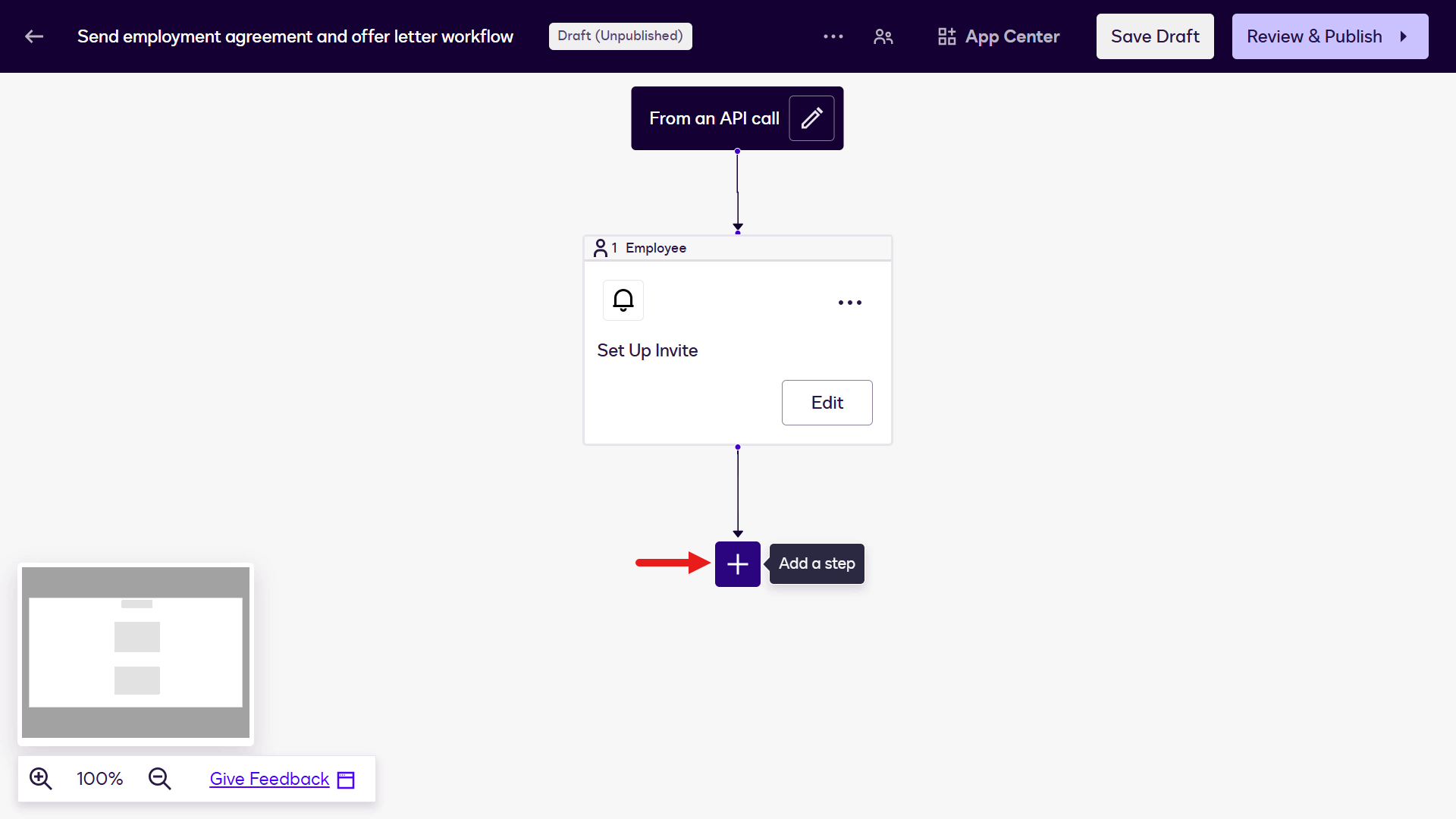
Add a step -
Select Collect Data with Web Forms.
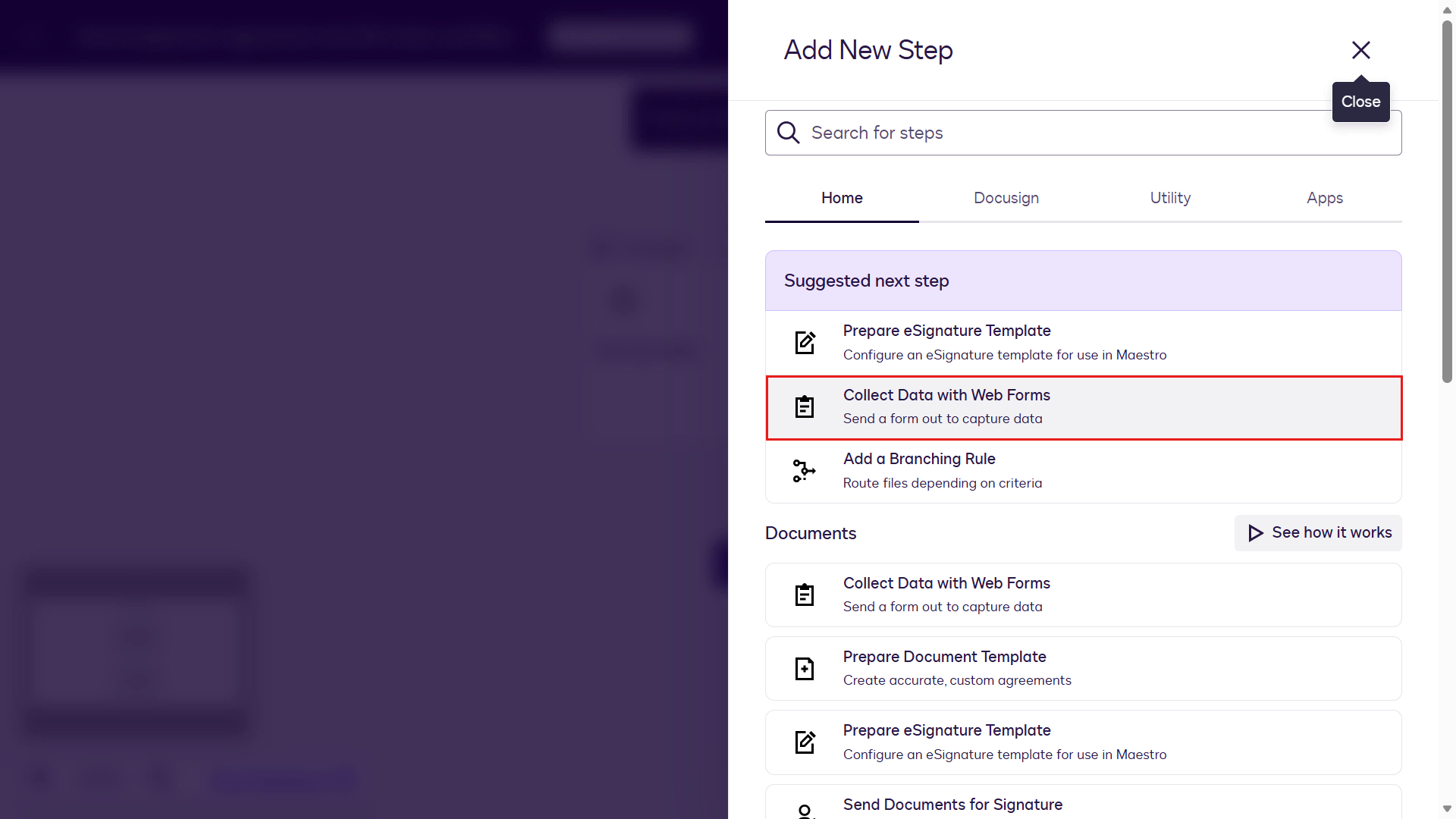
Collect data with Web Forms -
Select Configure.
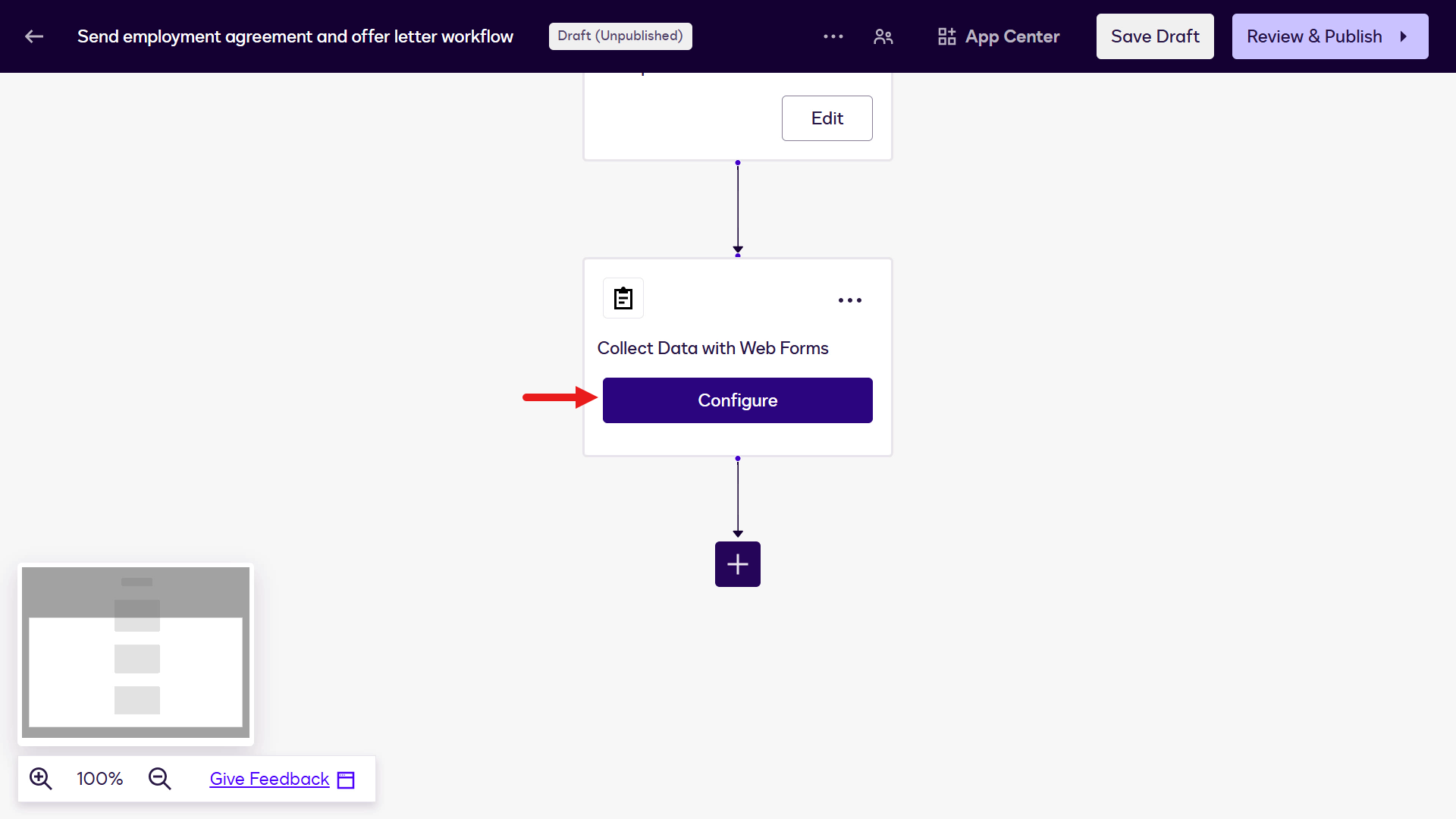
Configure Web Forms -
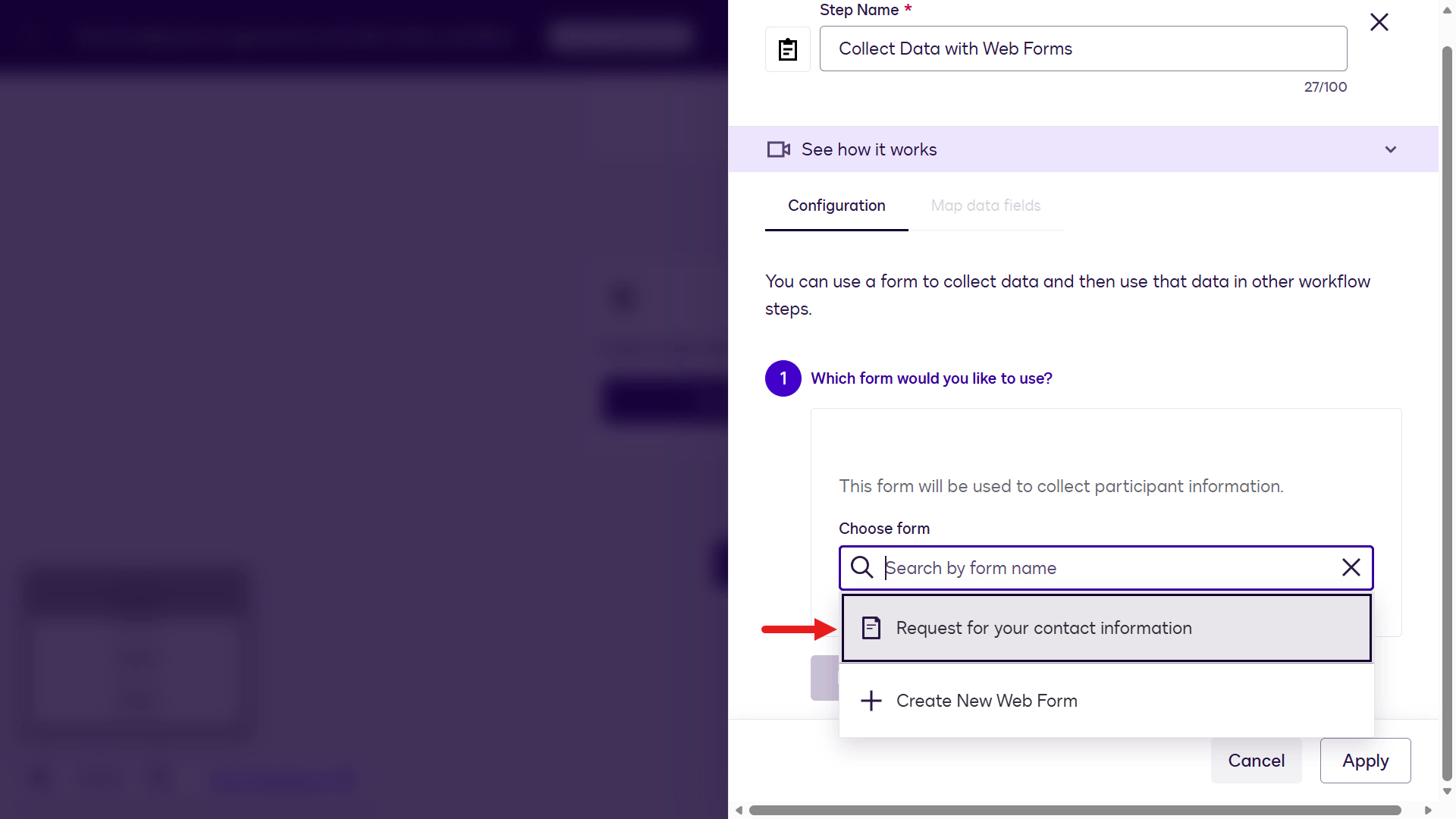
Select the Request for your contact information Web Form you created earlier.
Select the Web Form -
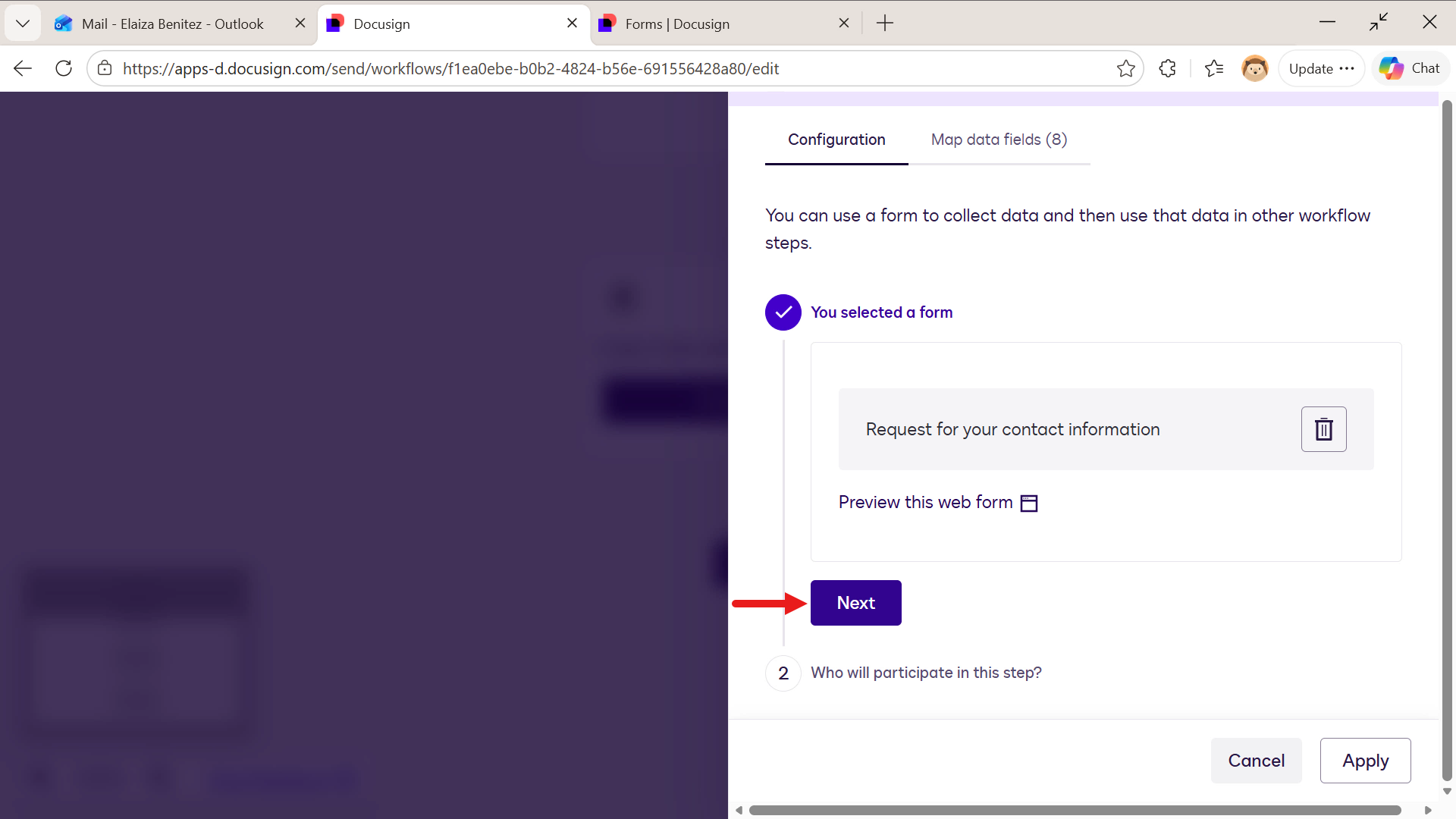
Select Next.
Select Next -
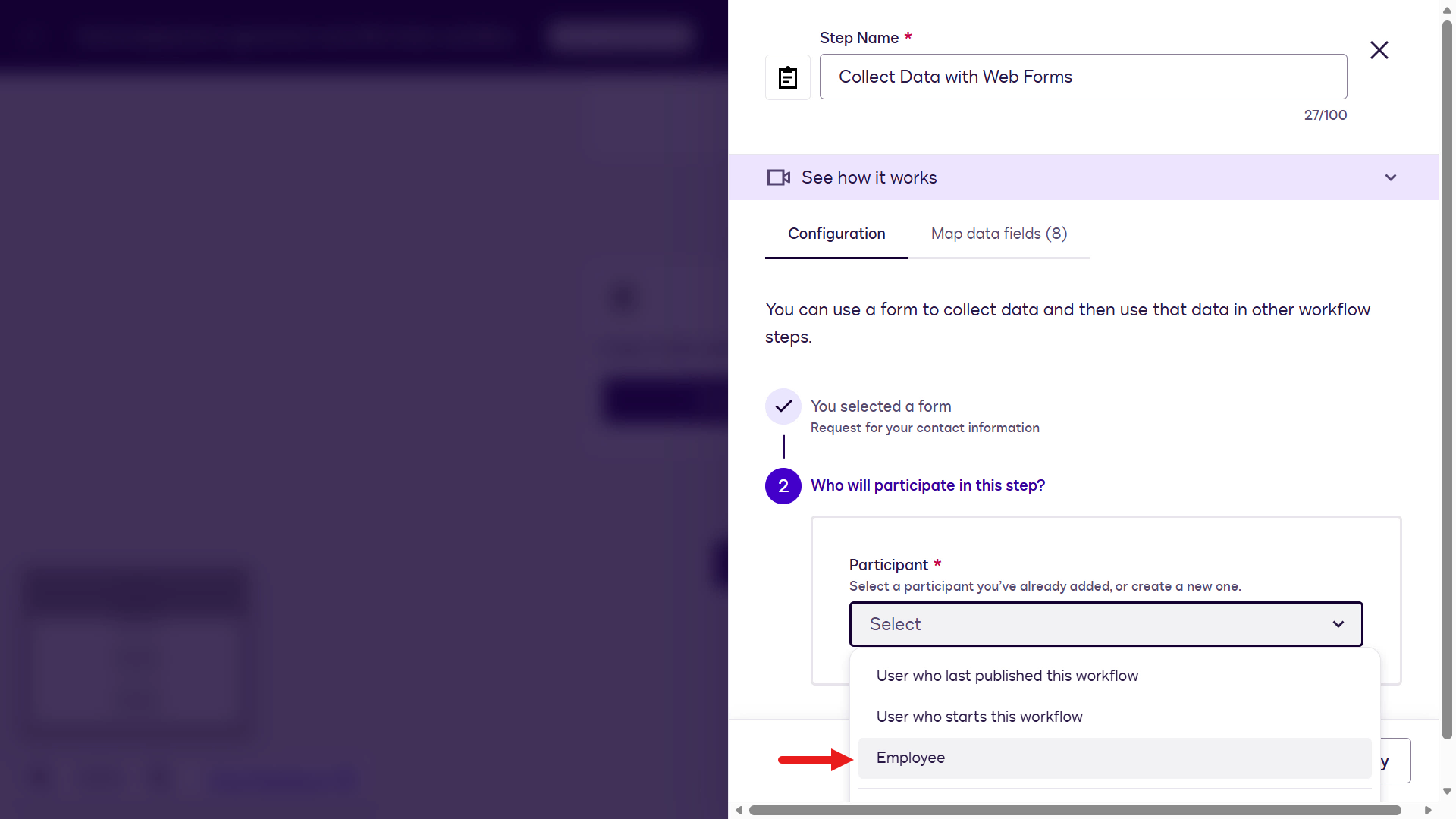
Select the Employee participant.
Select the Employee participant -
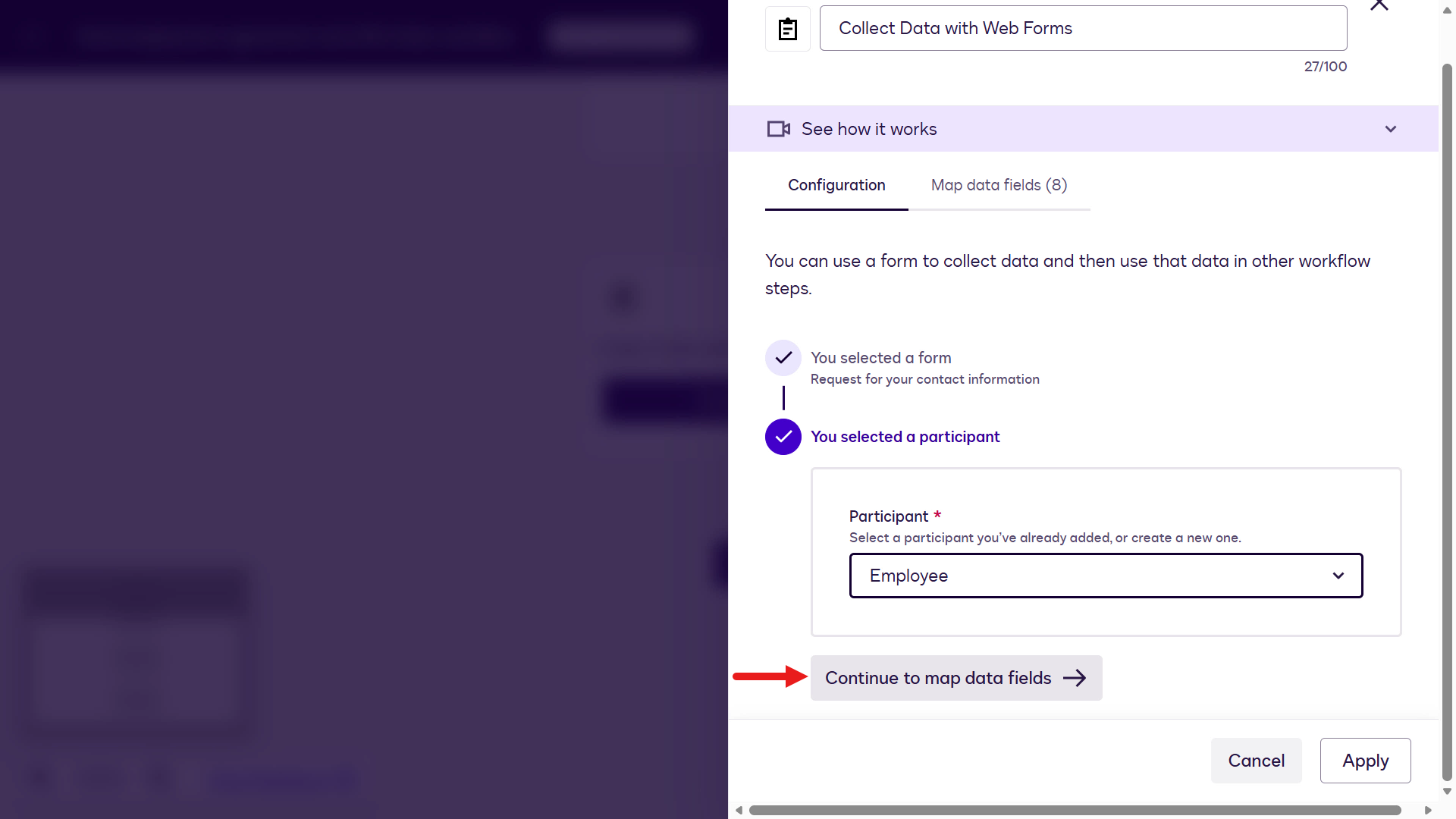
Select Continue to map data fields.
Map data fields -
Select the Employee Full Name variable.
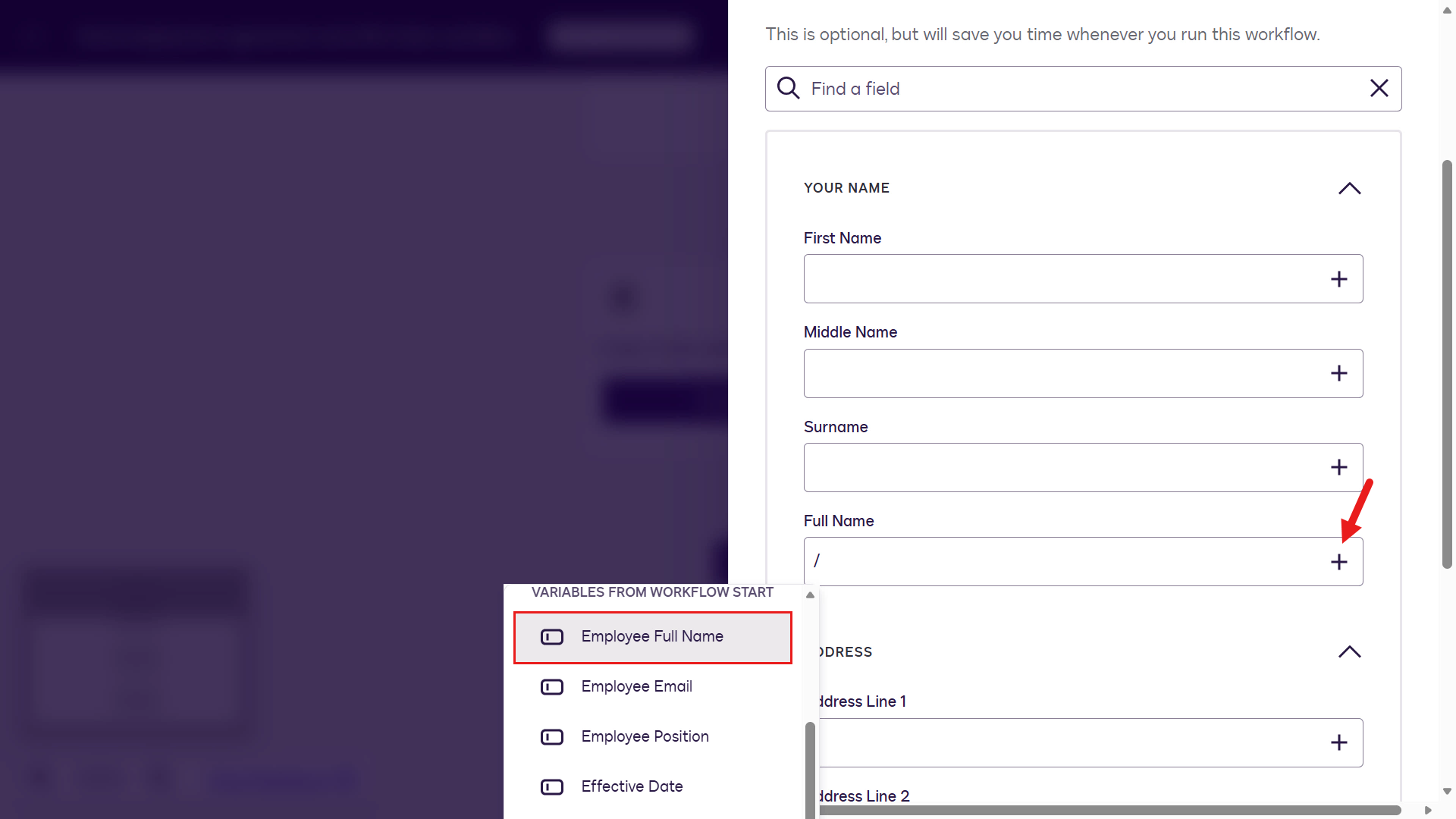
Map Employee Full Name -
Select Apply.
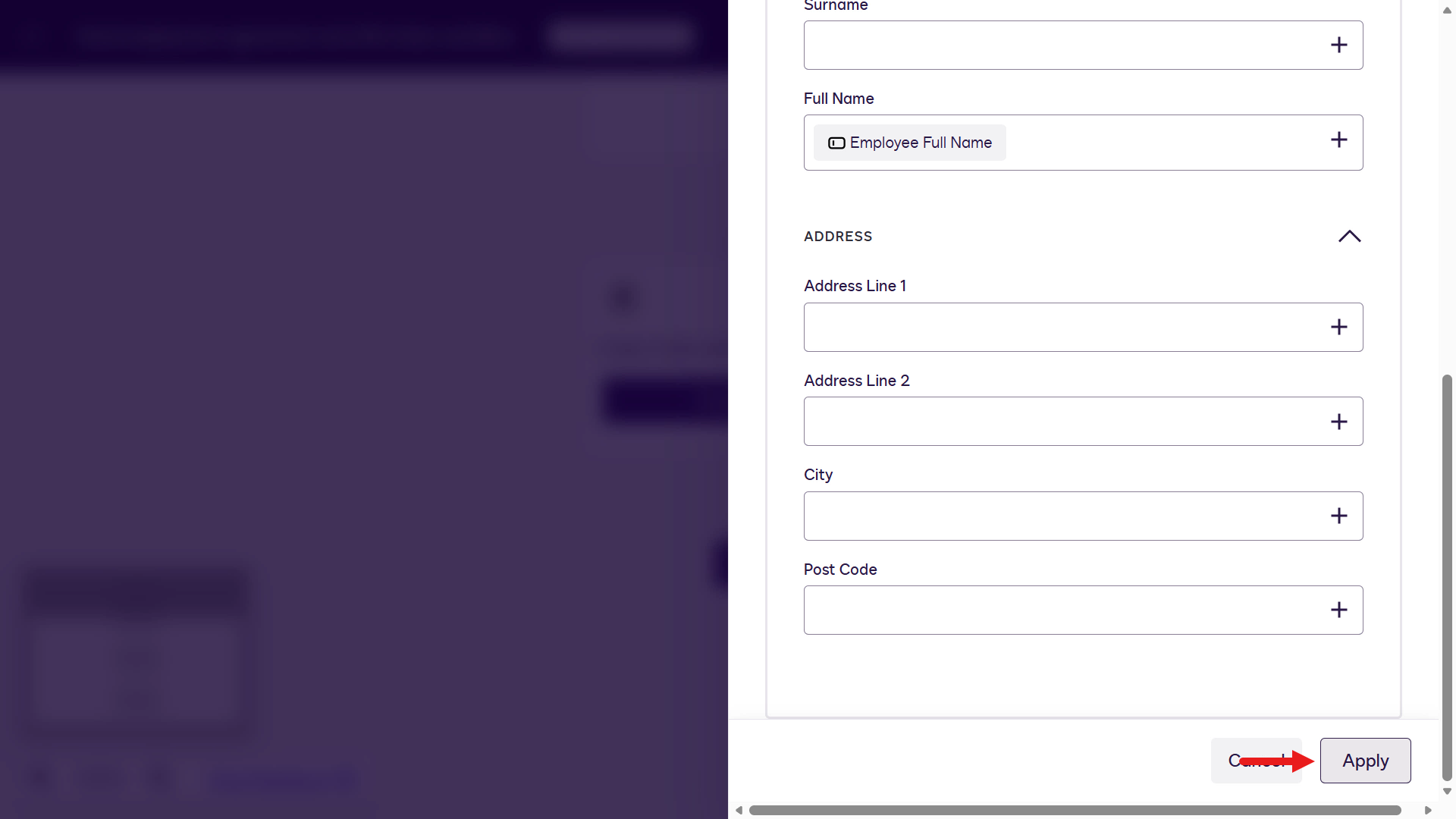
Select Apply -
Select Add a step.
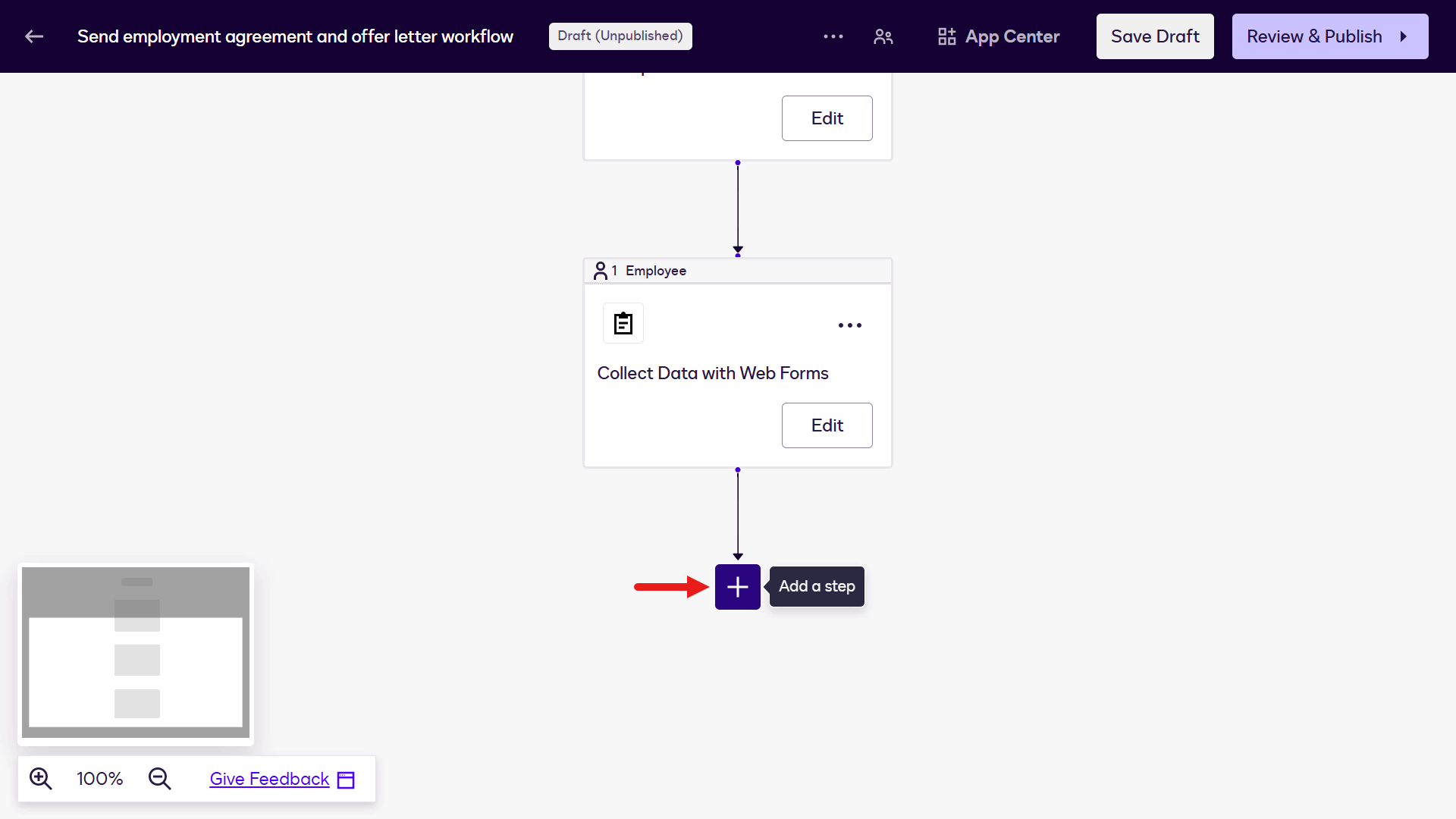
Add a step -
Select Prepare a Document Template.
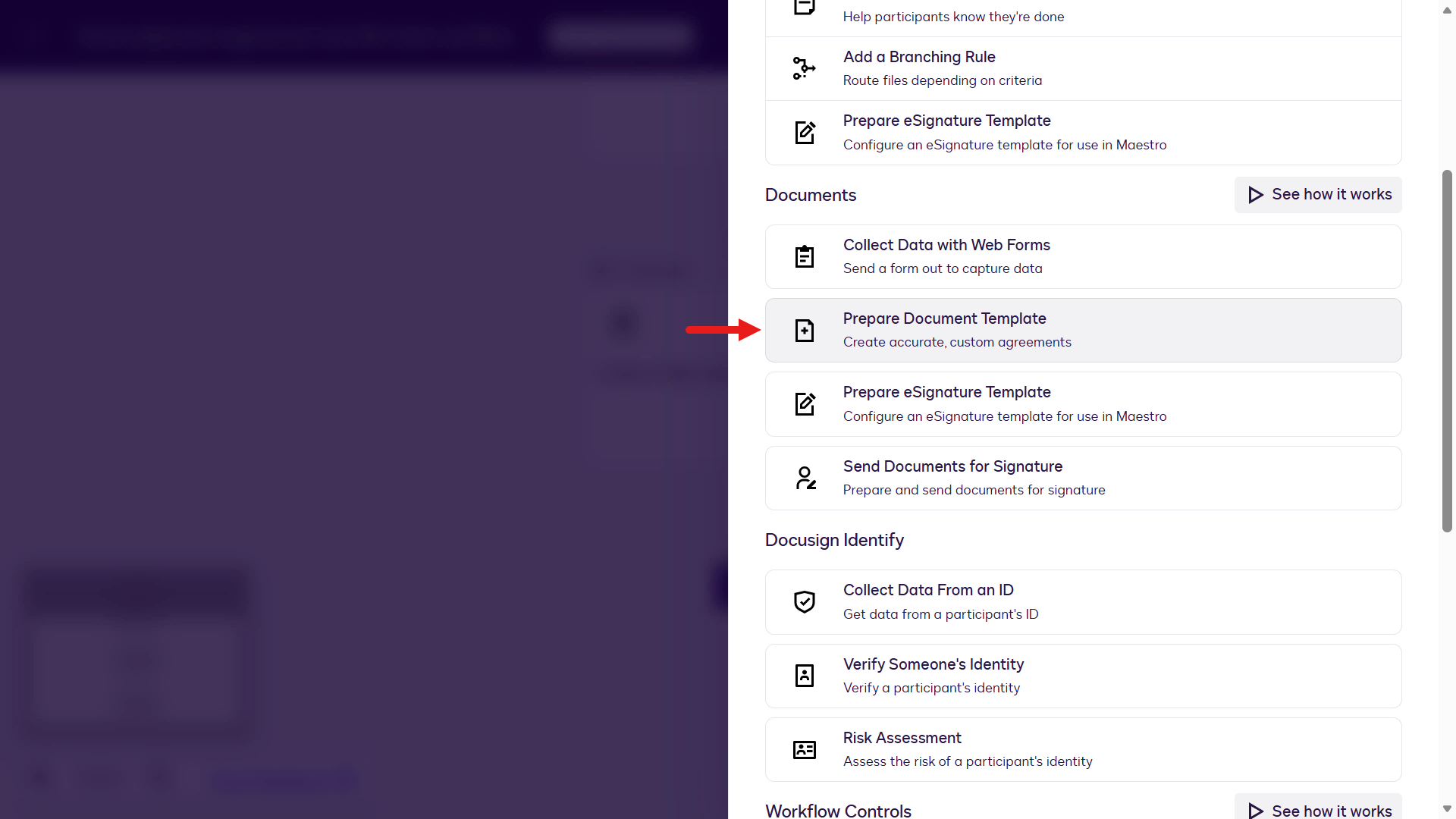
Prepare a document template -
Select Configure.
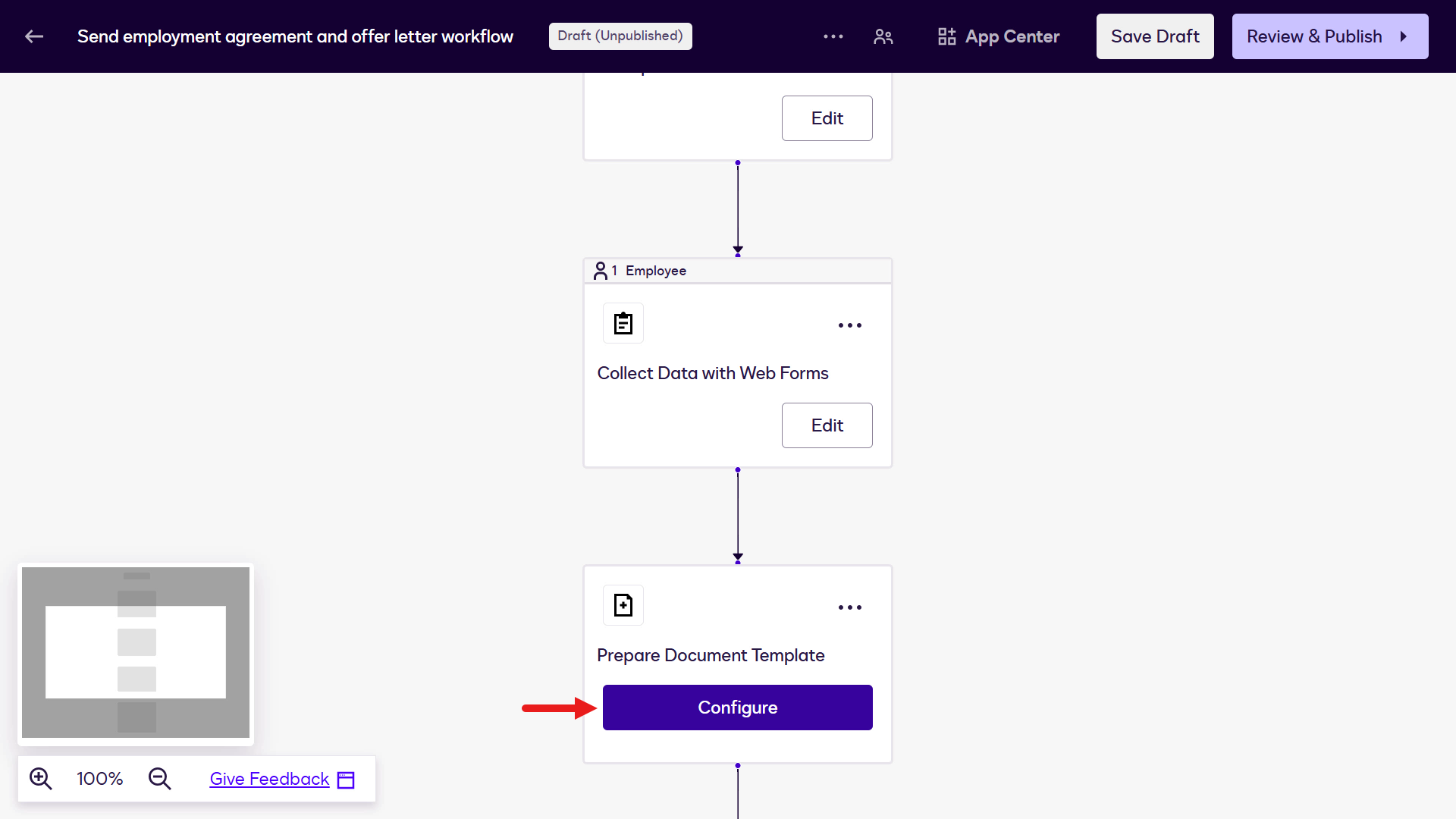
Configure -
Update Step Name:
Employment AgreementSelect the Sample Employment Agreement document template.
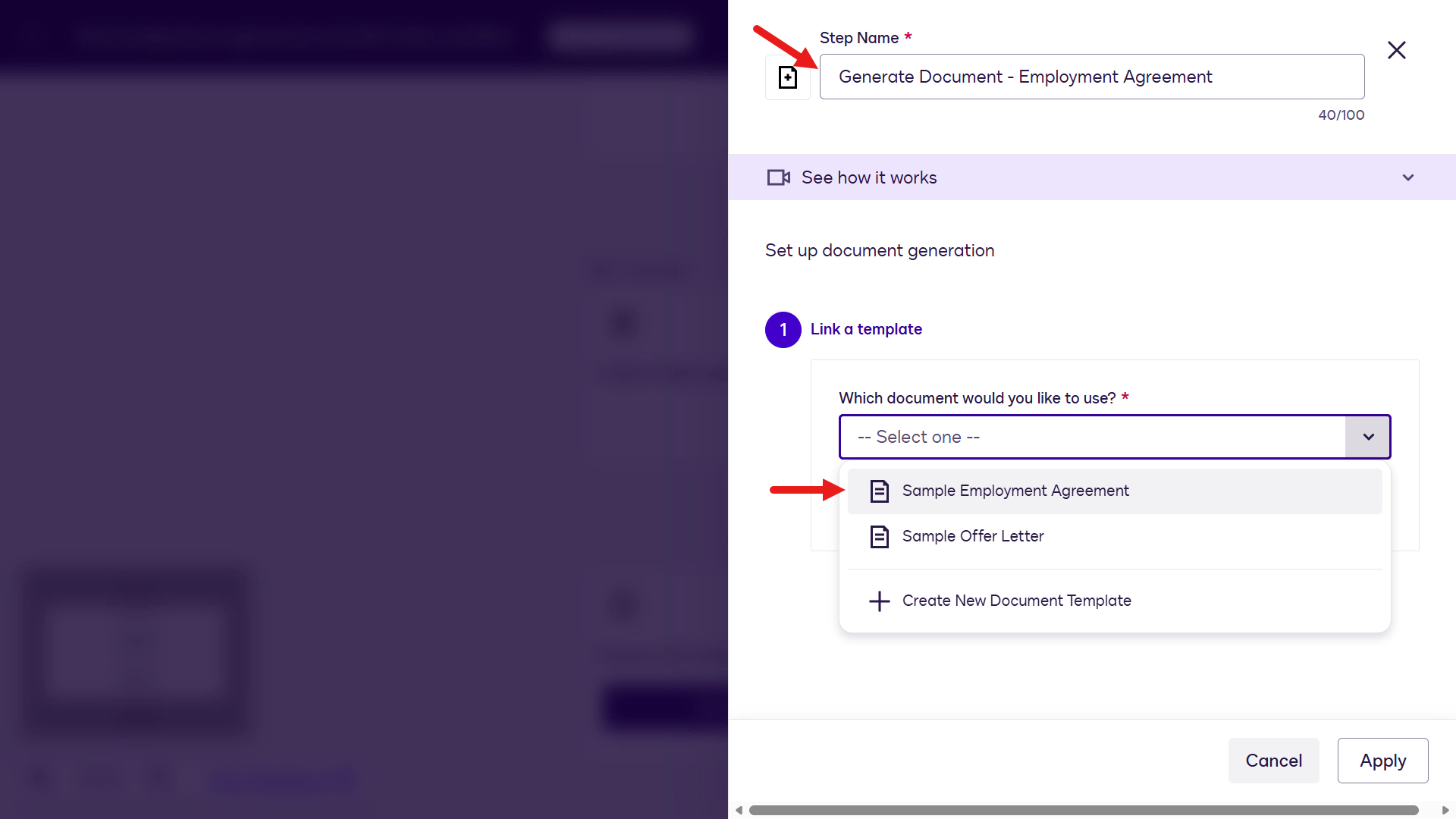
Select the employment agreement template -
Select Next.
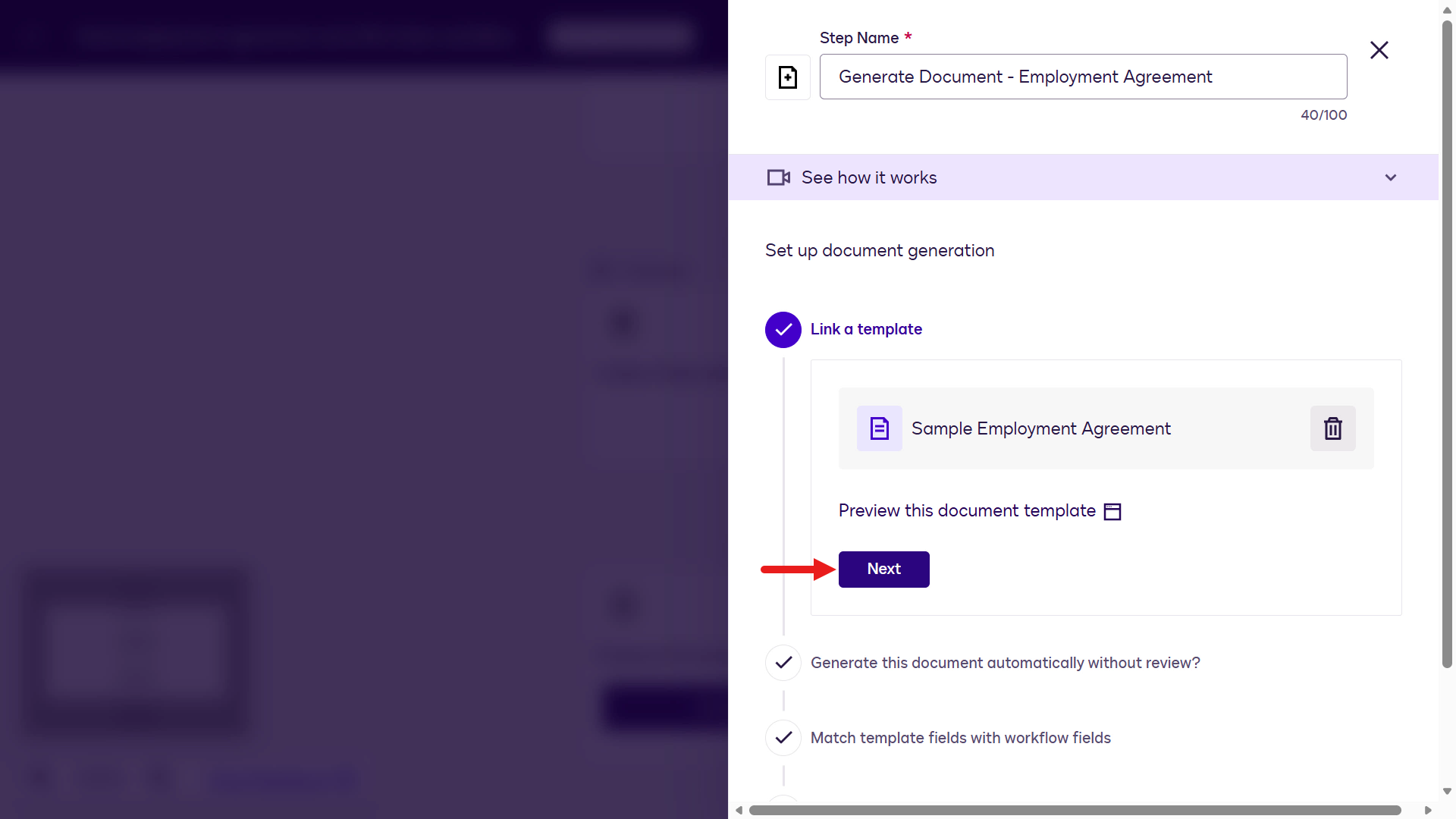
Select Next -
Next, configure the field values. Select Next to accept the fields that were populated automatically.
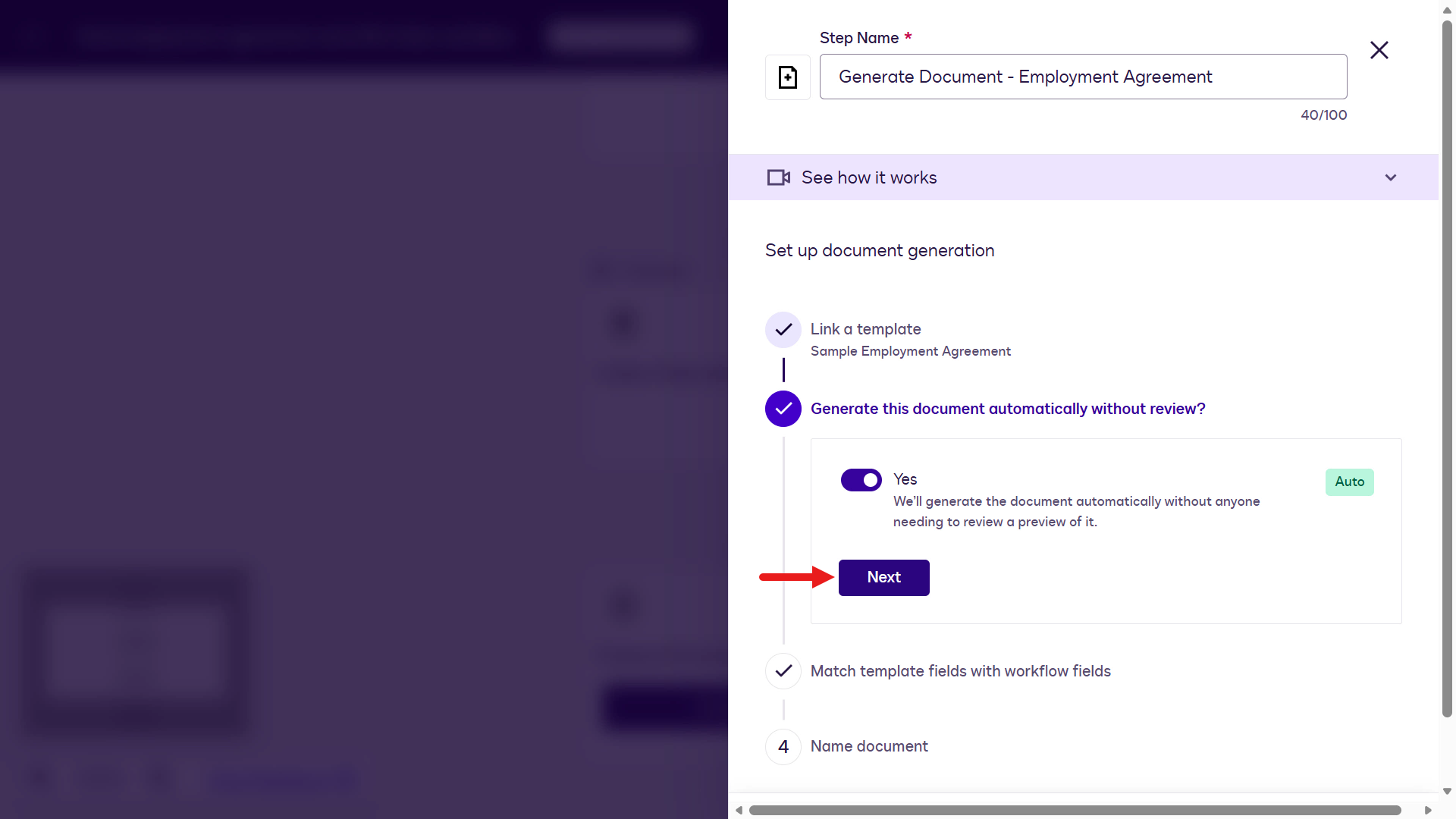
Select Next -
Select the Effective Date variable.
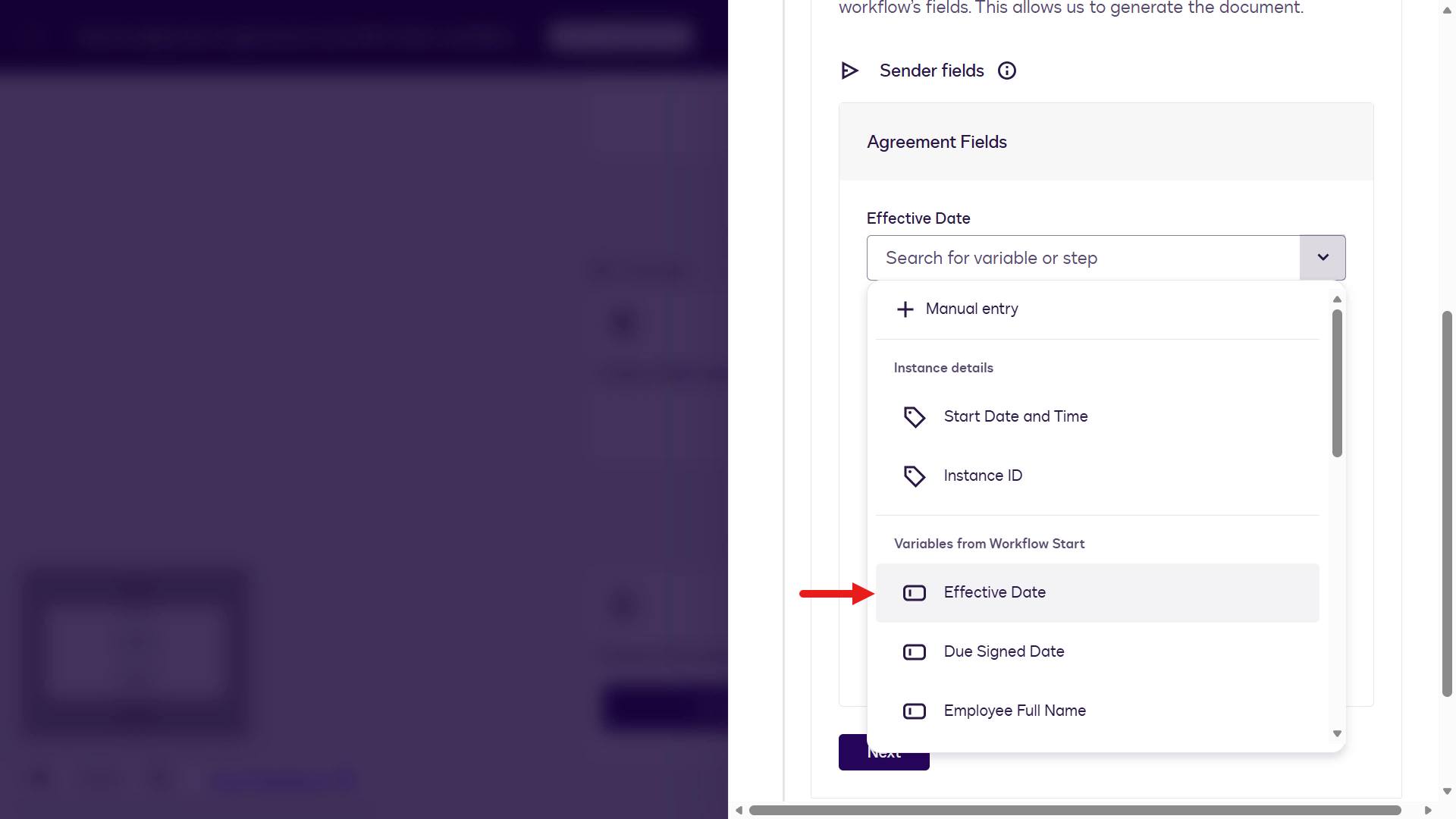
Select the Effective Date variable -
Repeat the same steps to map the remaining fields to variables. Select Next.
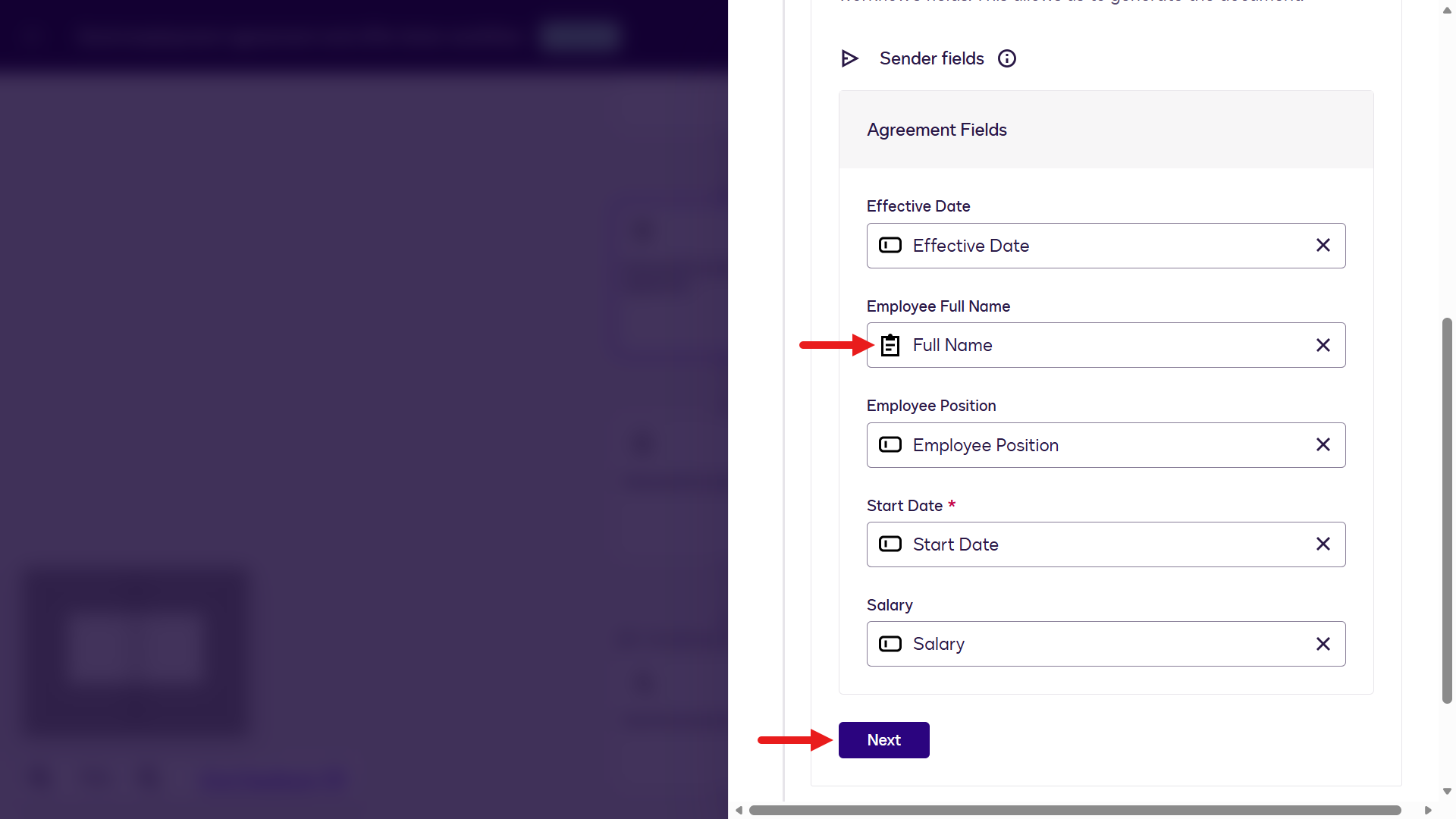
Map the remaining fields -
Use variables in the Title field. Select the Employee Full Name variable to add it.
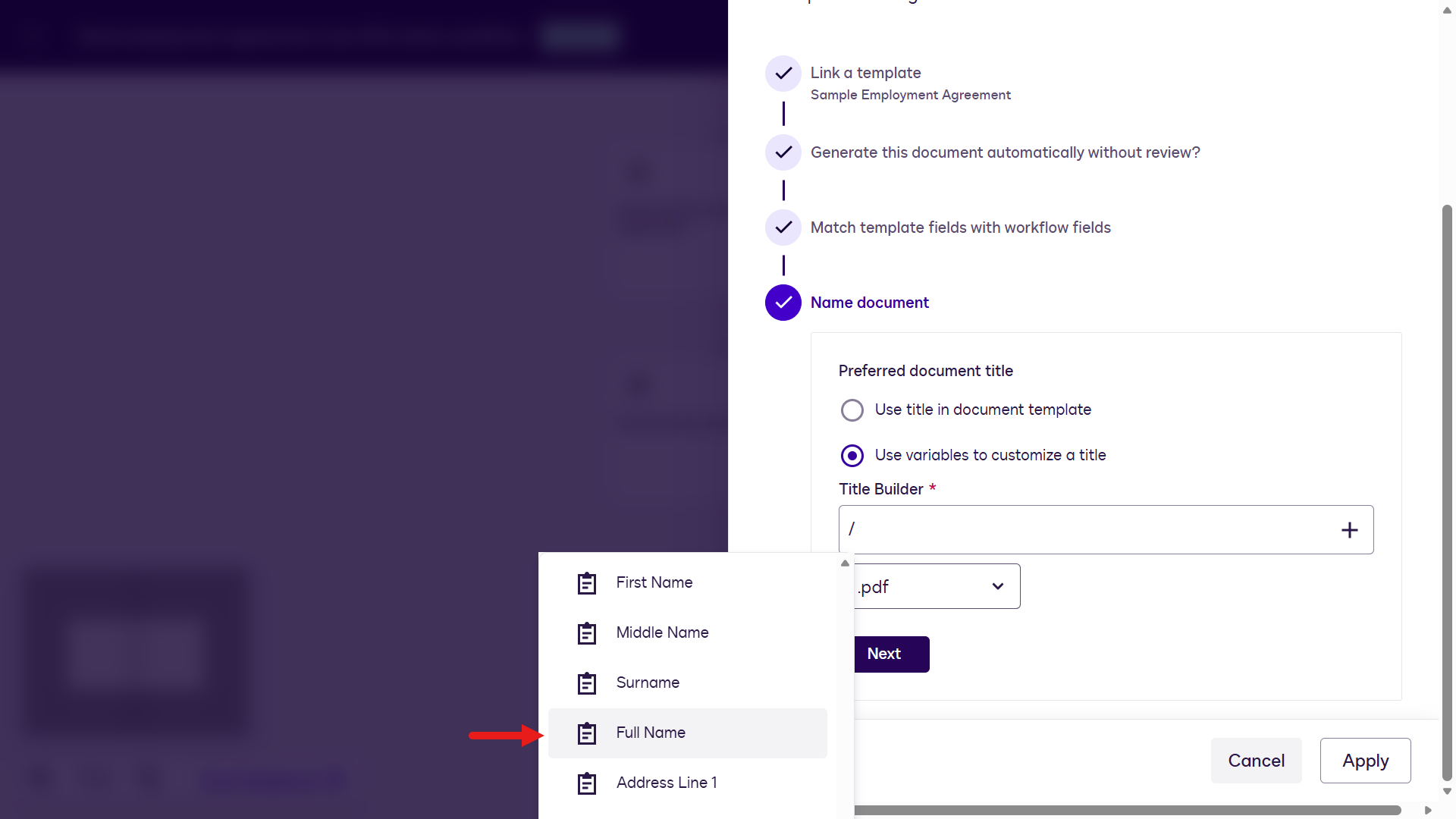
Configure the Title variable -
Select the + icon next to the Effective Date variable.
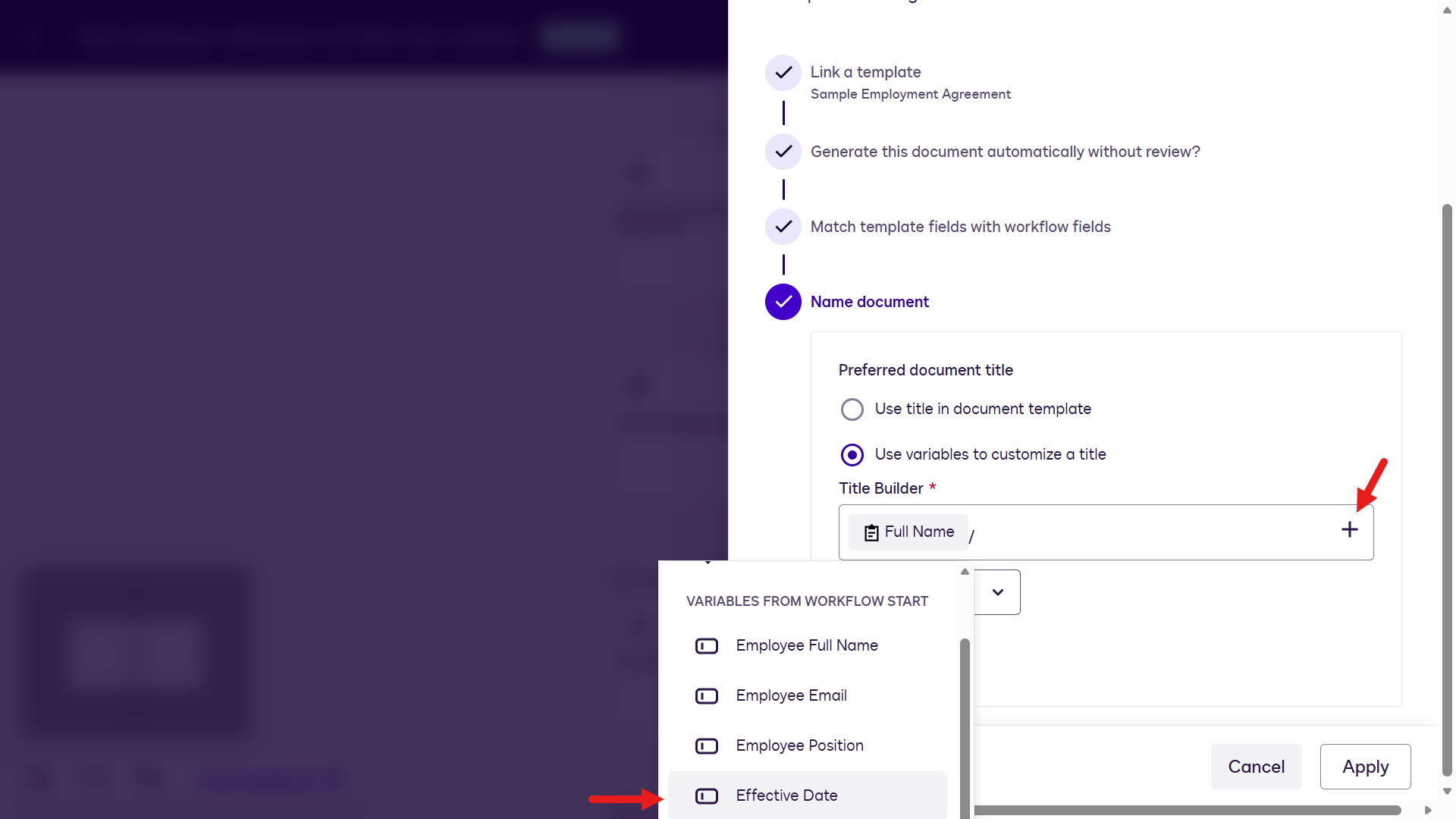
Add the date variable -
Add a separator and update the format. Select Next.
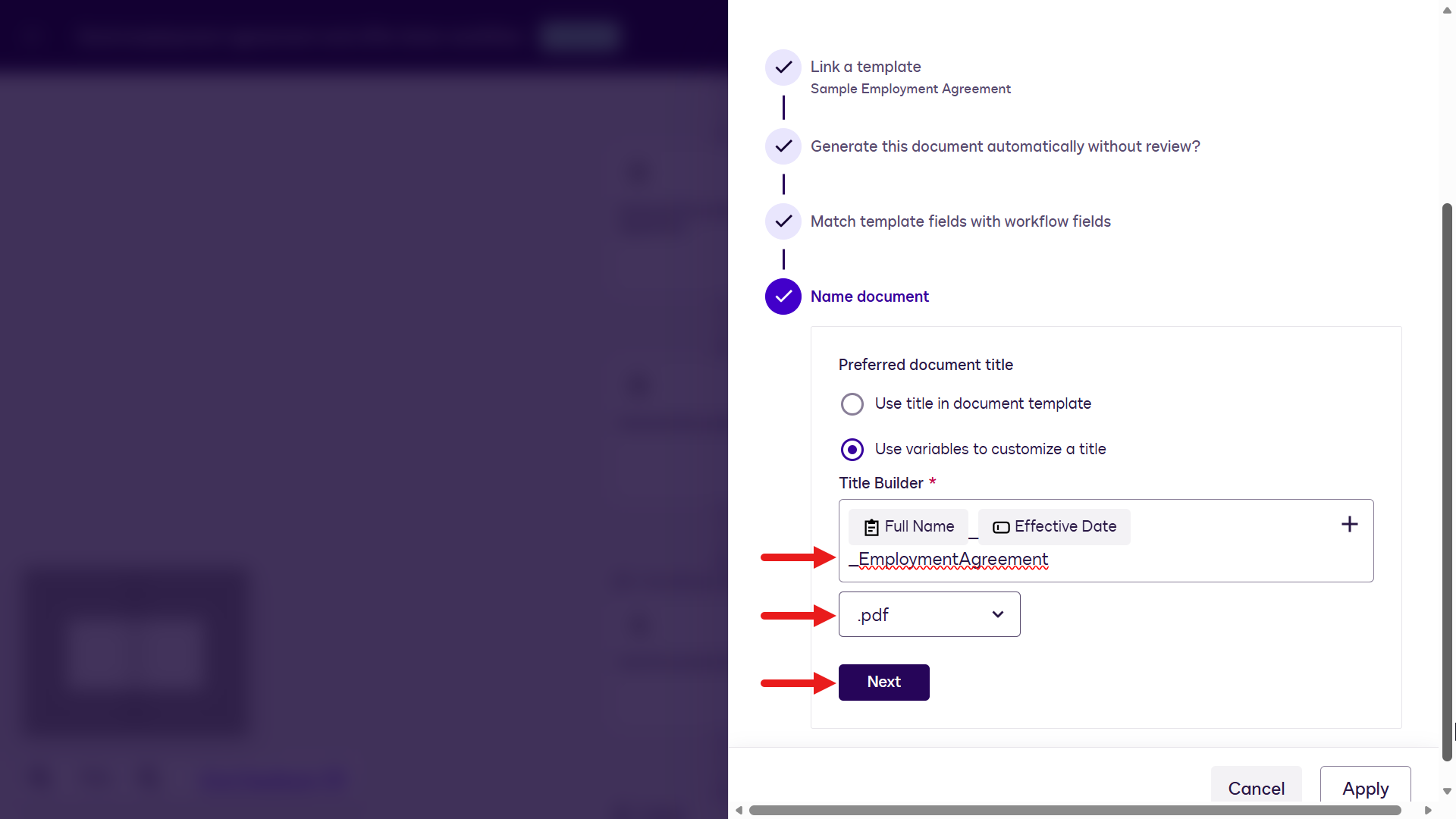
Set the separator and format -
Select Apply.
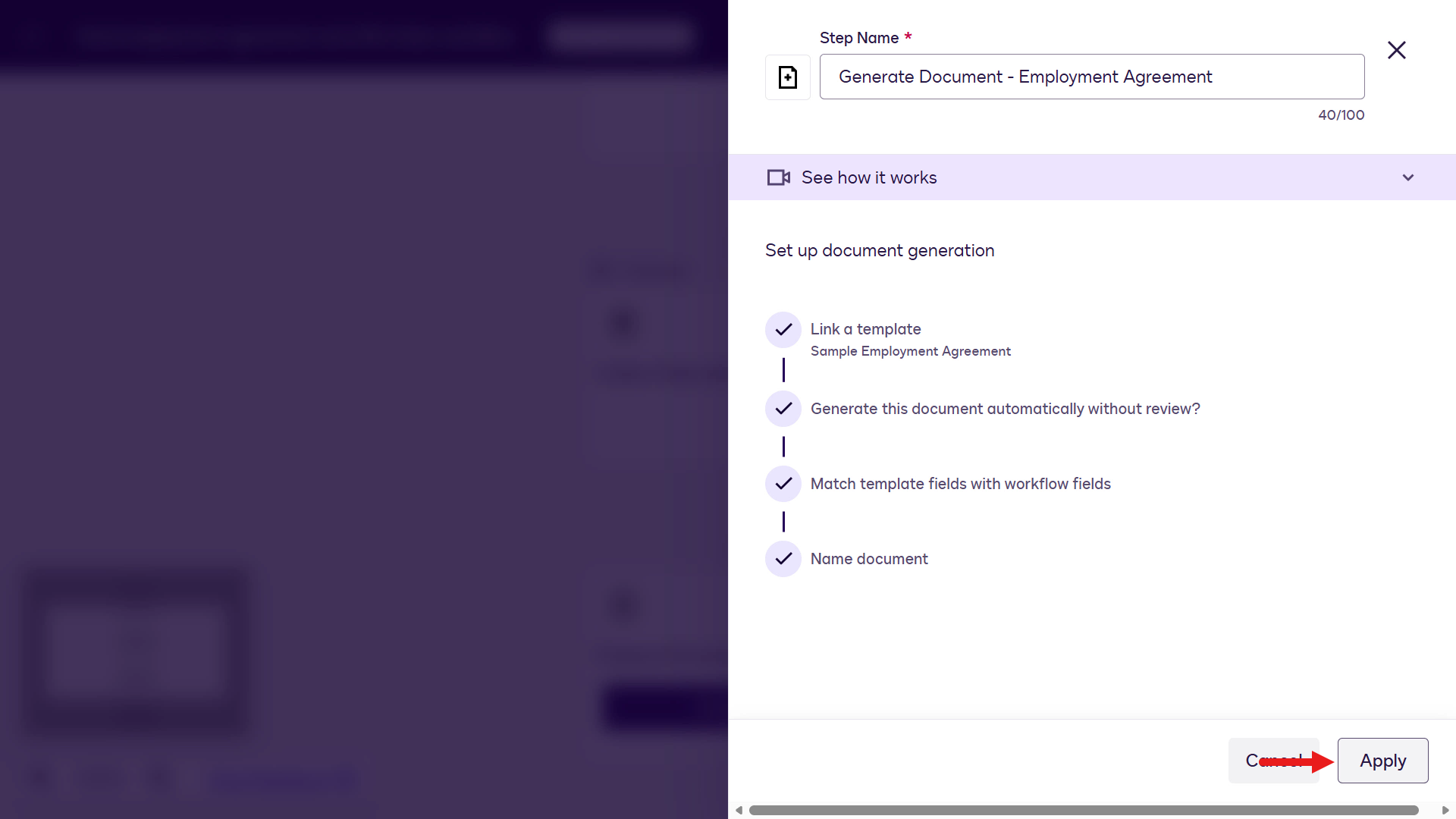
Select Apply -
Select Add a step.
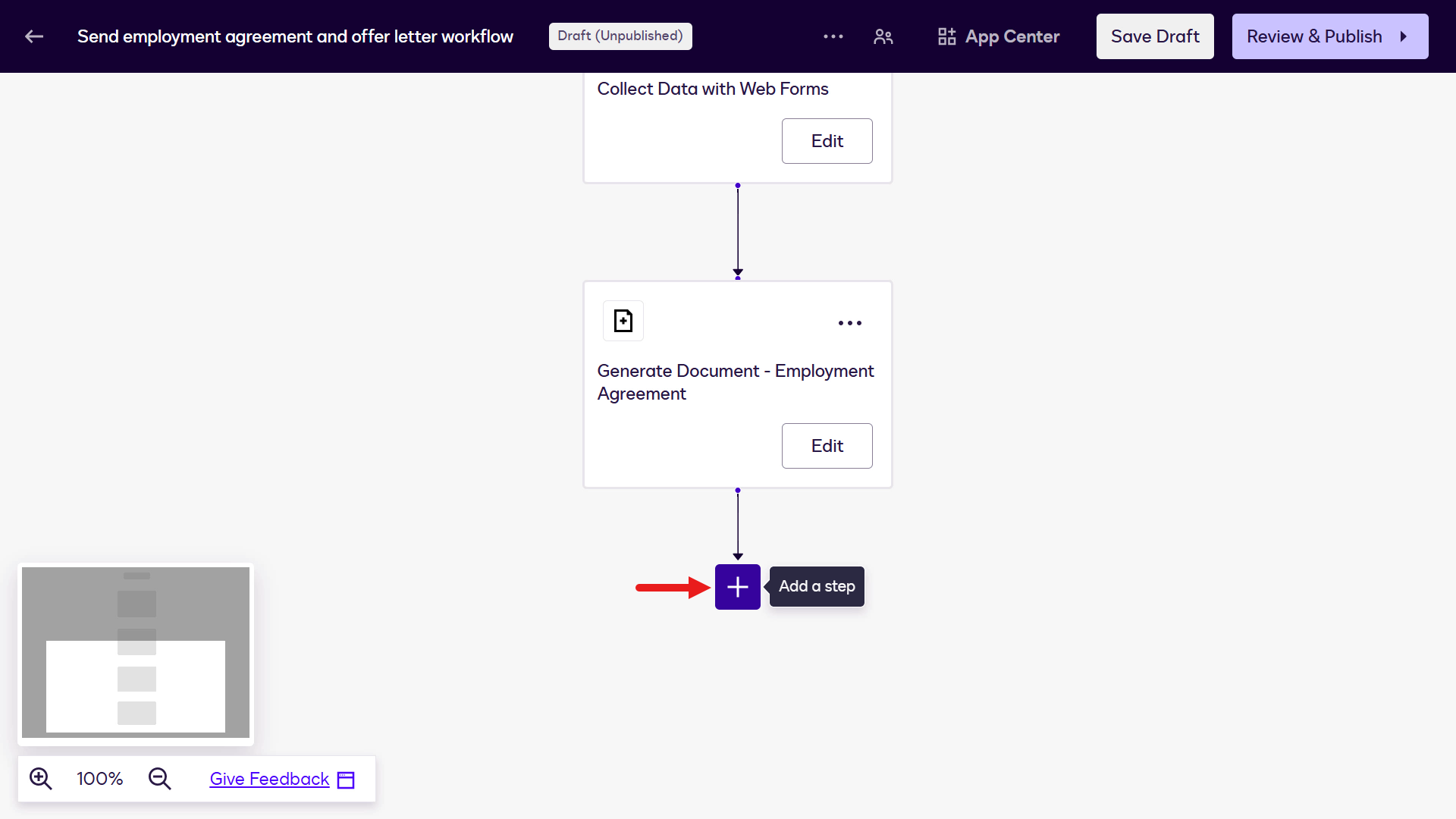
Add a step -
Select Prepare a Document Template.
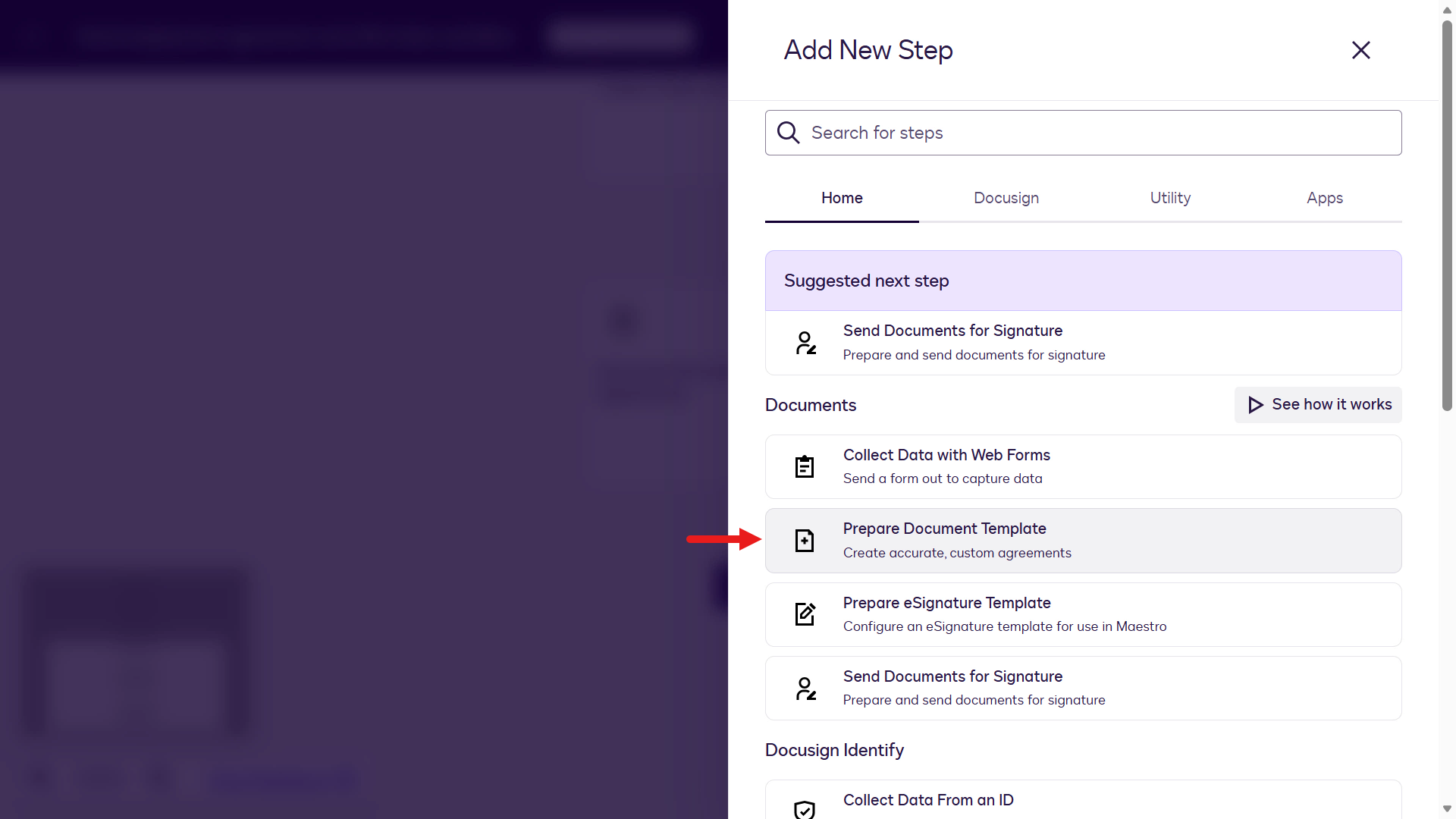
Prepare a document template -
Update Step Name:
Offer LetterSelect the Sample Offer Letter document template. Repeat the same steps to configure the fields for the Offer Letter template and select Apply.
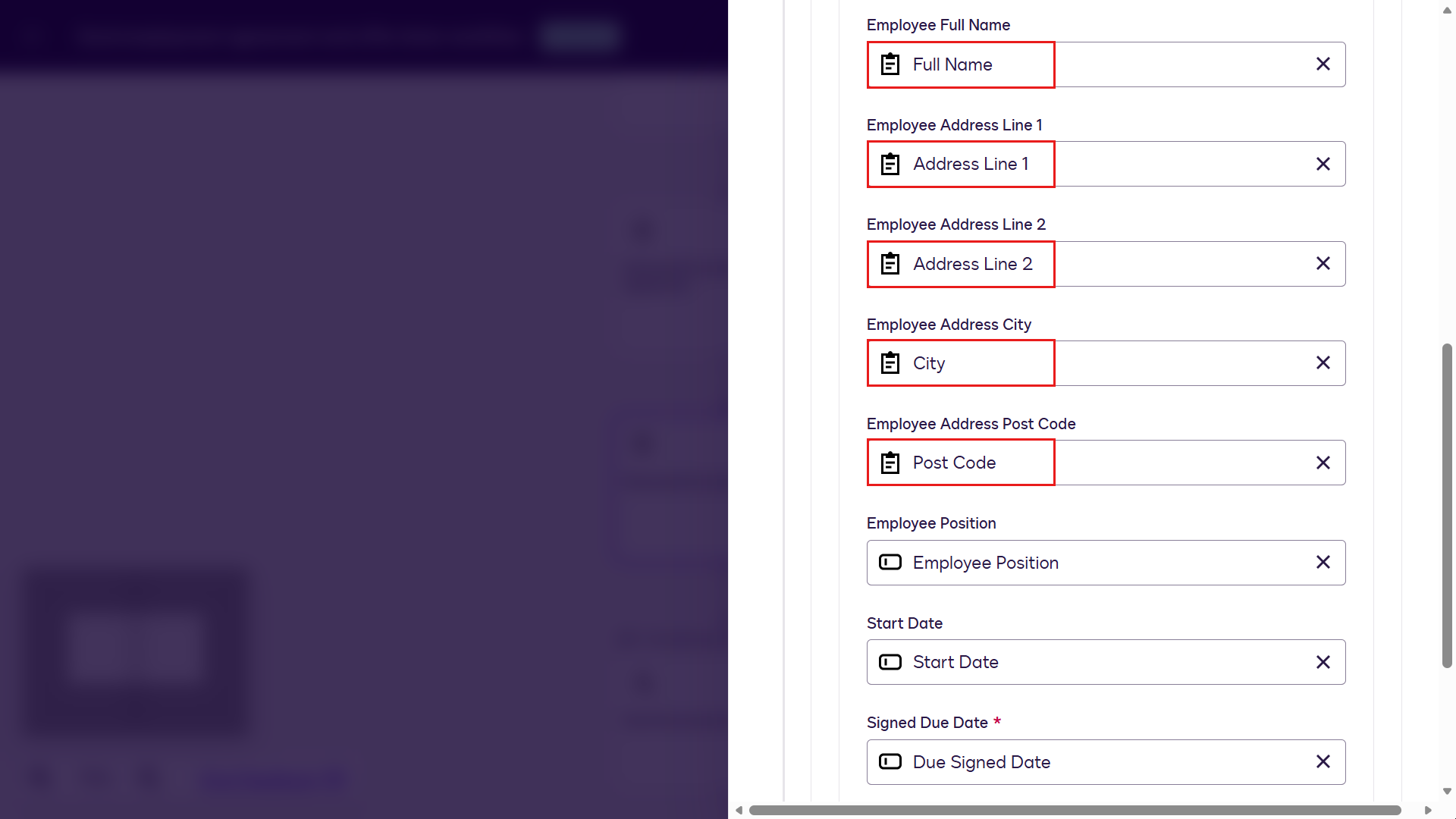
Configure the Offer Letter -
Confirm the named document configuration.
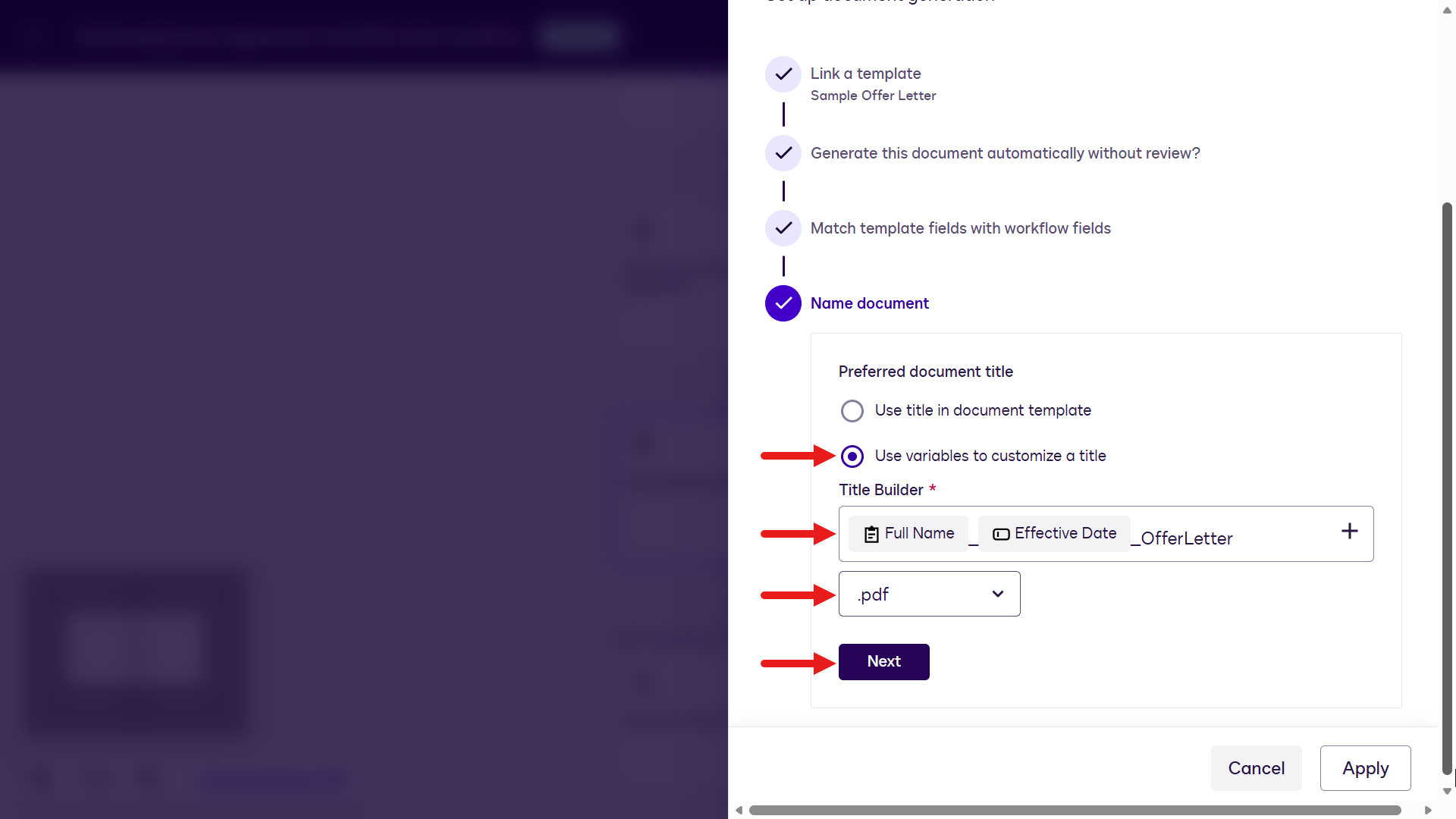
Document configuration -
Select Add a step.
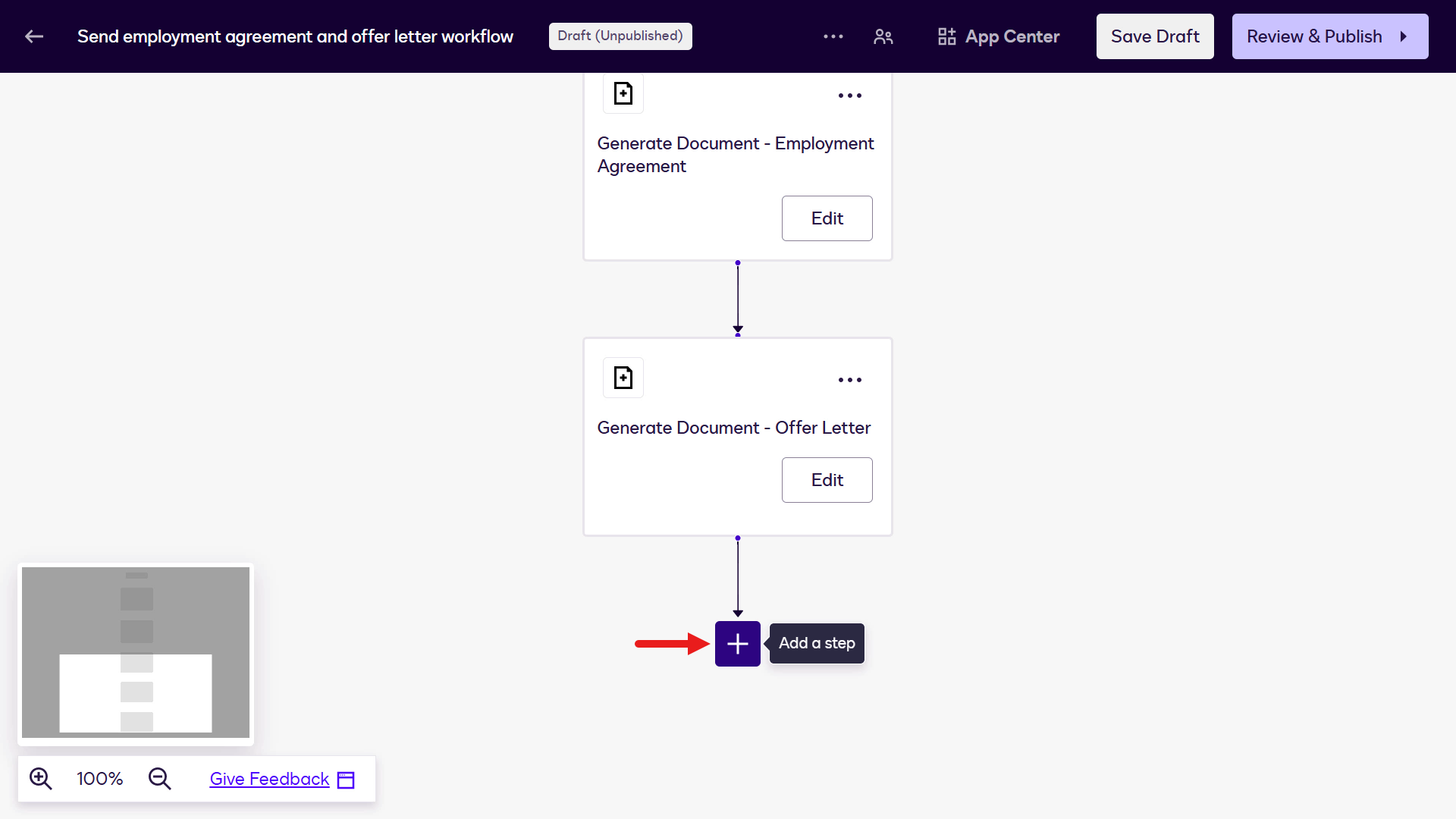
Add a step -
Select Send Documents for Signature.
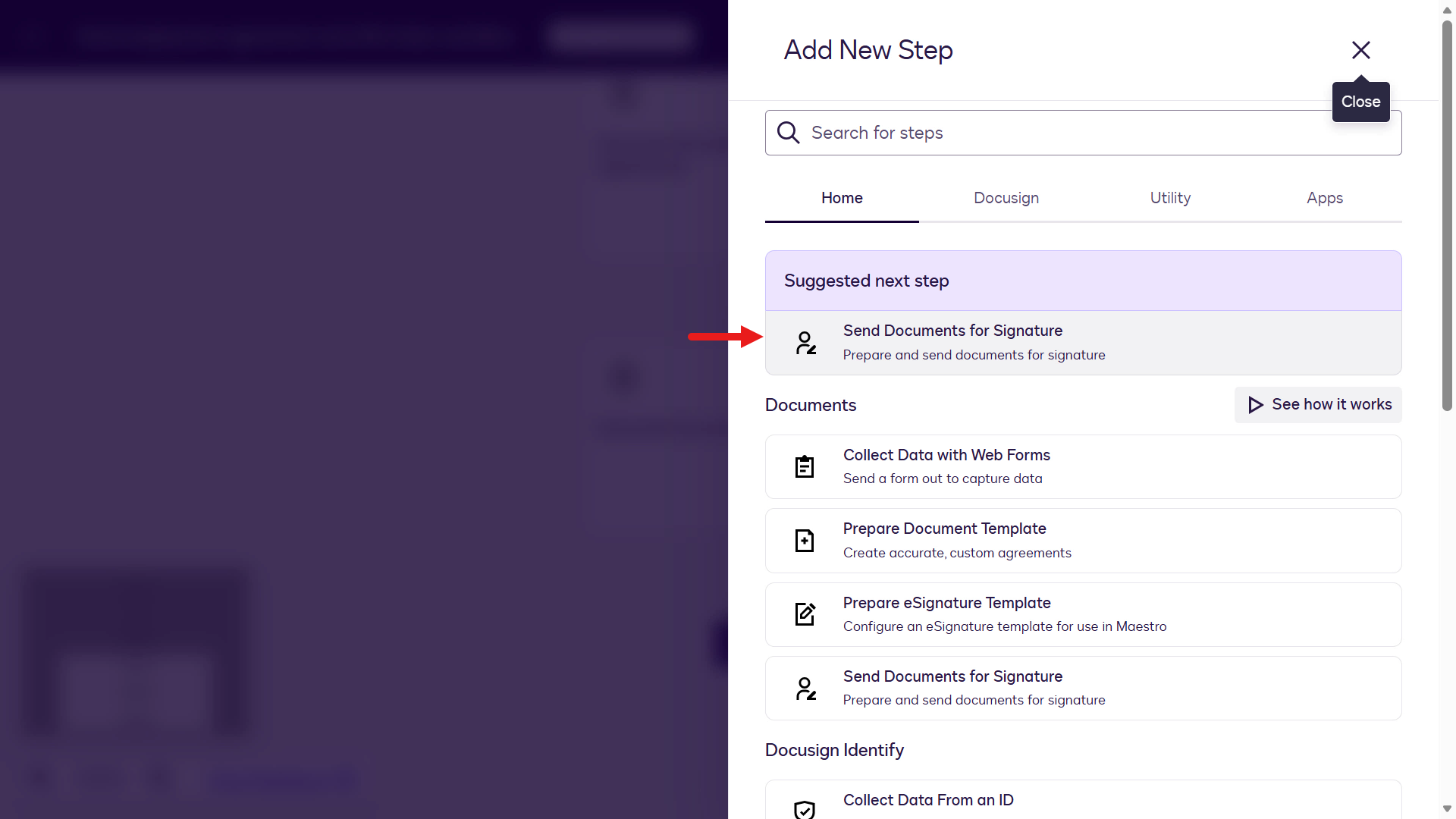
Send documents for signature -
Select Configure.
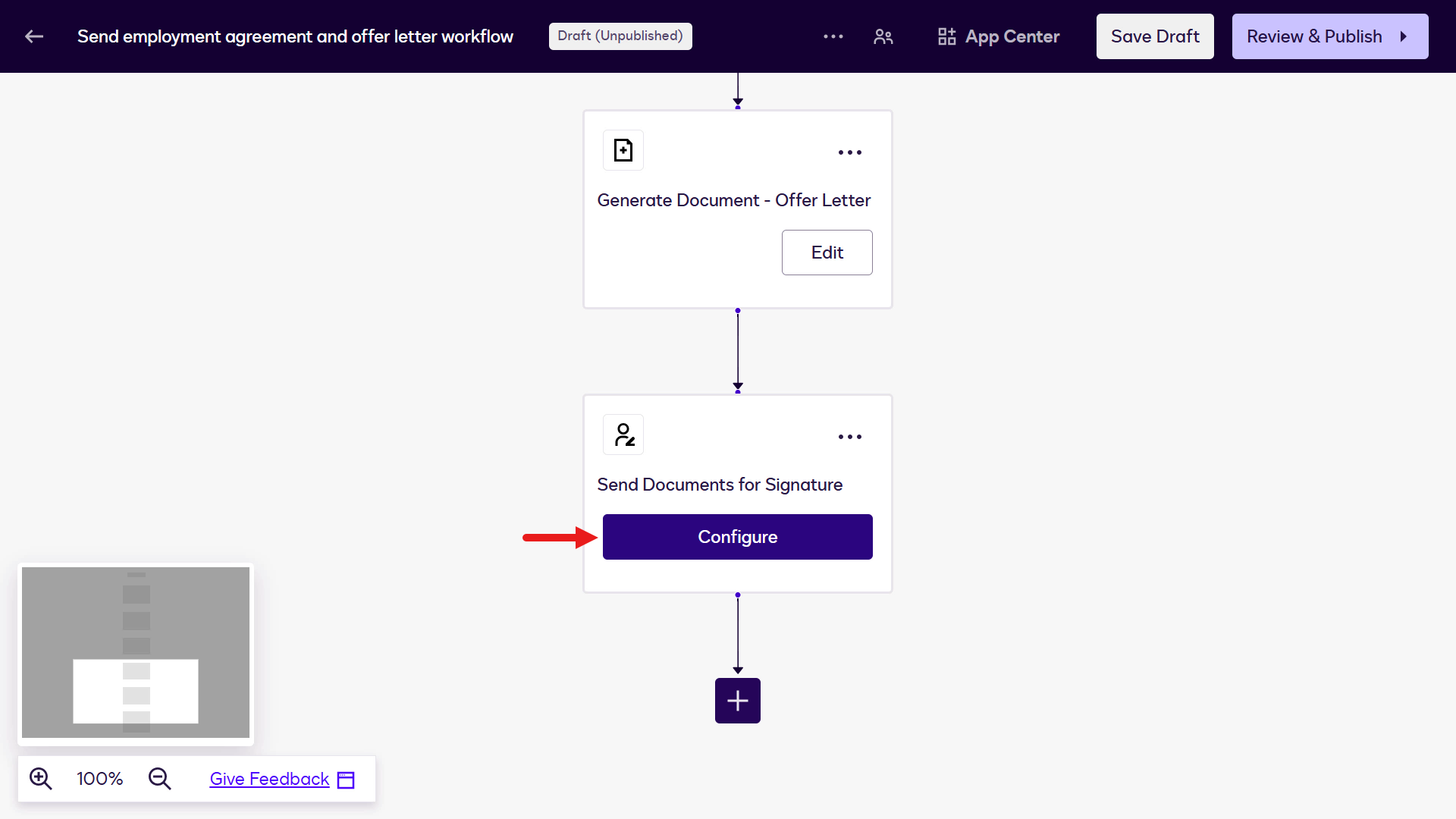
Configure -
Select the Employment Agreement document.
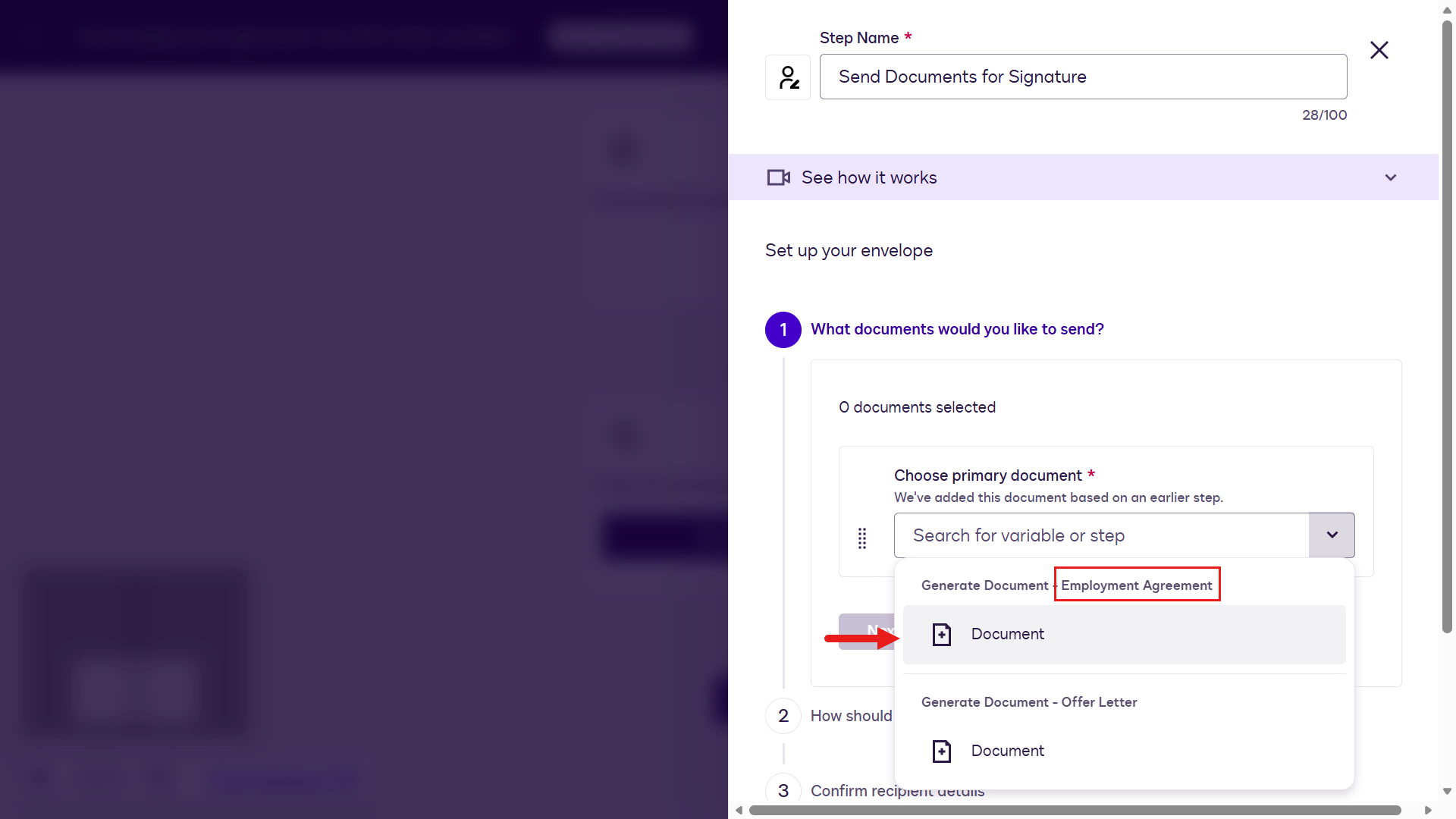
Select the employment agreement -
Select Add Document.
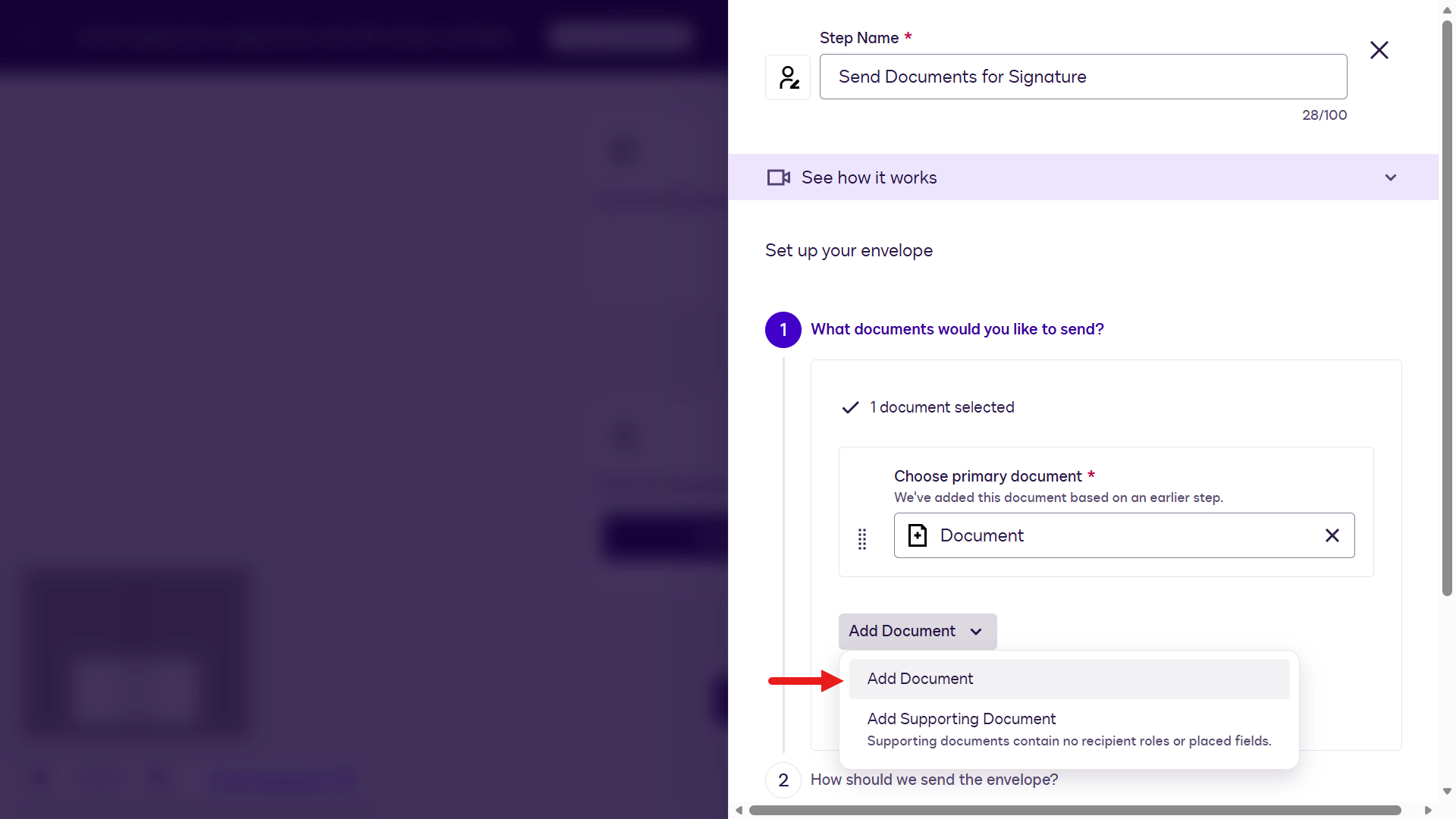
Add document -
Select the Offer Letter document.
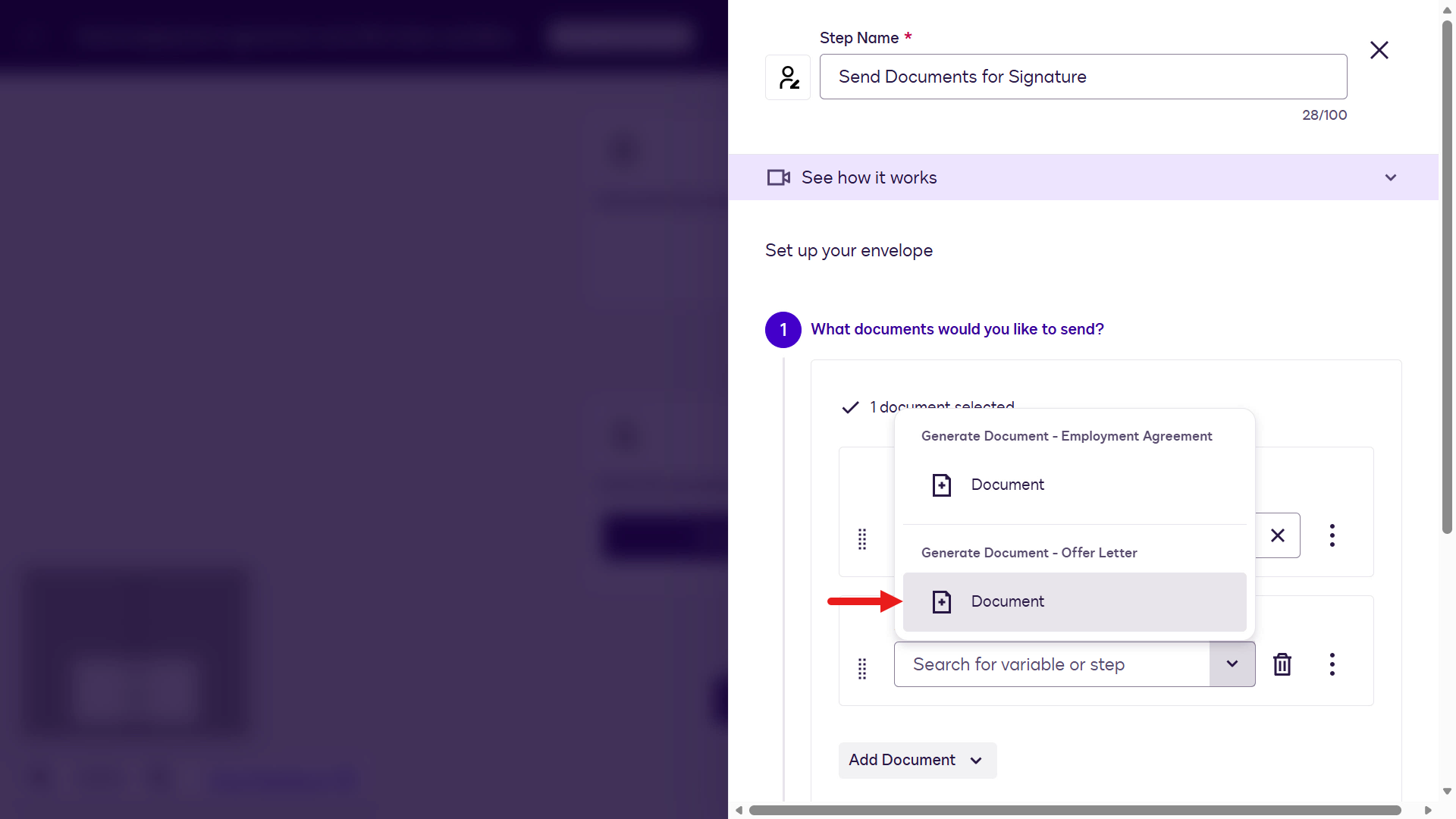
Select the Offer Letter -
Select Next.
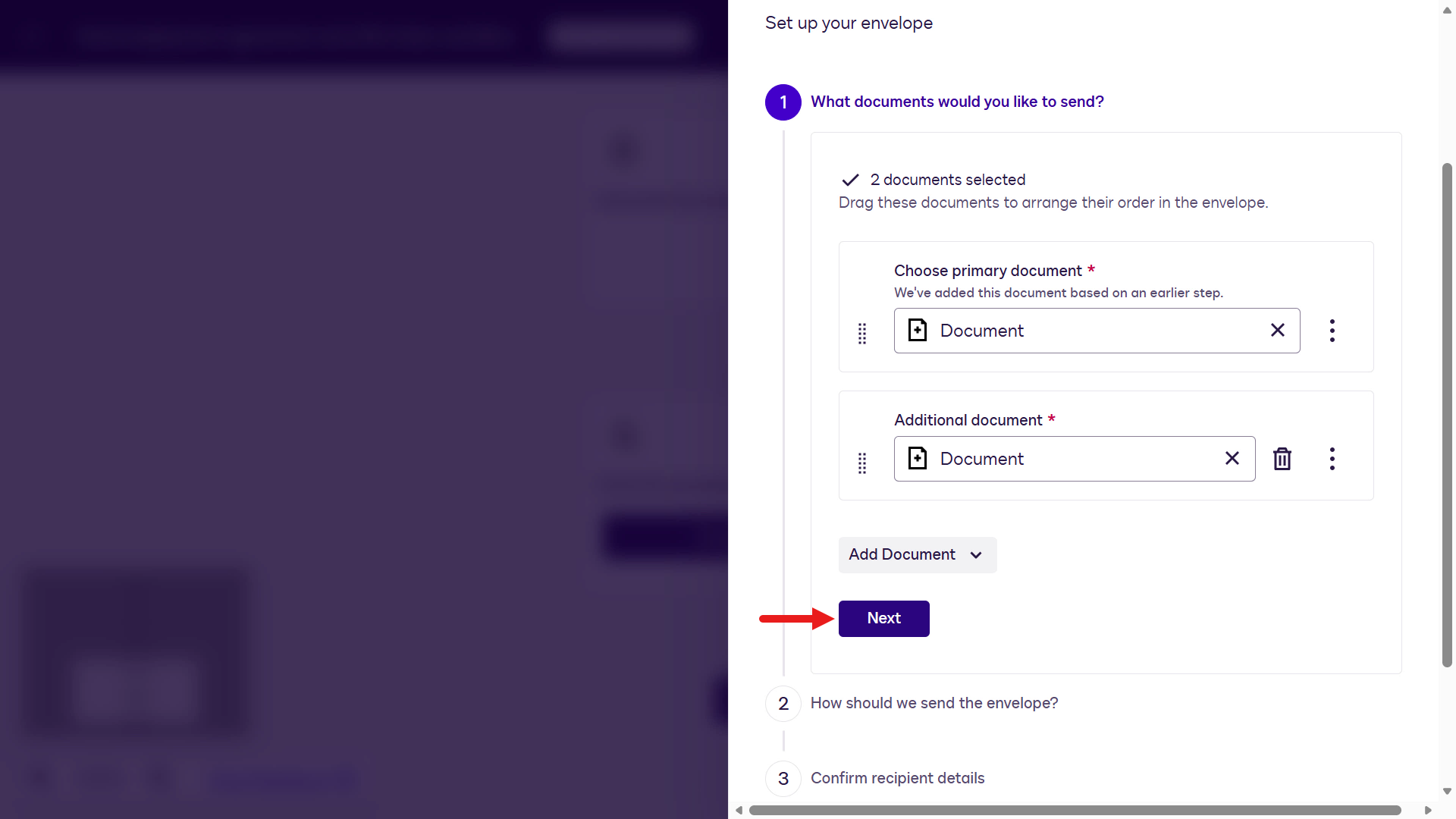
Select Next -
Select Next. (It will be sent automatically.)
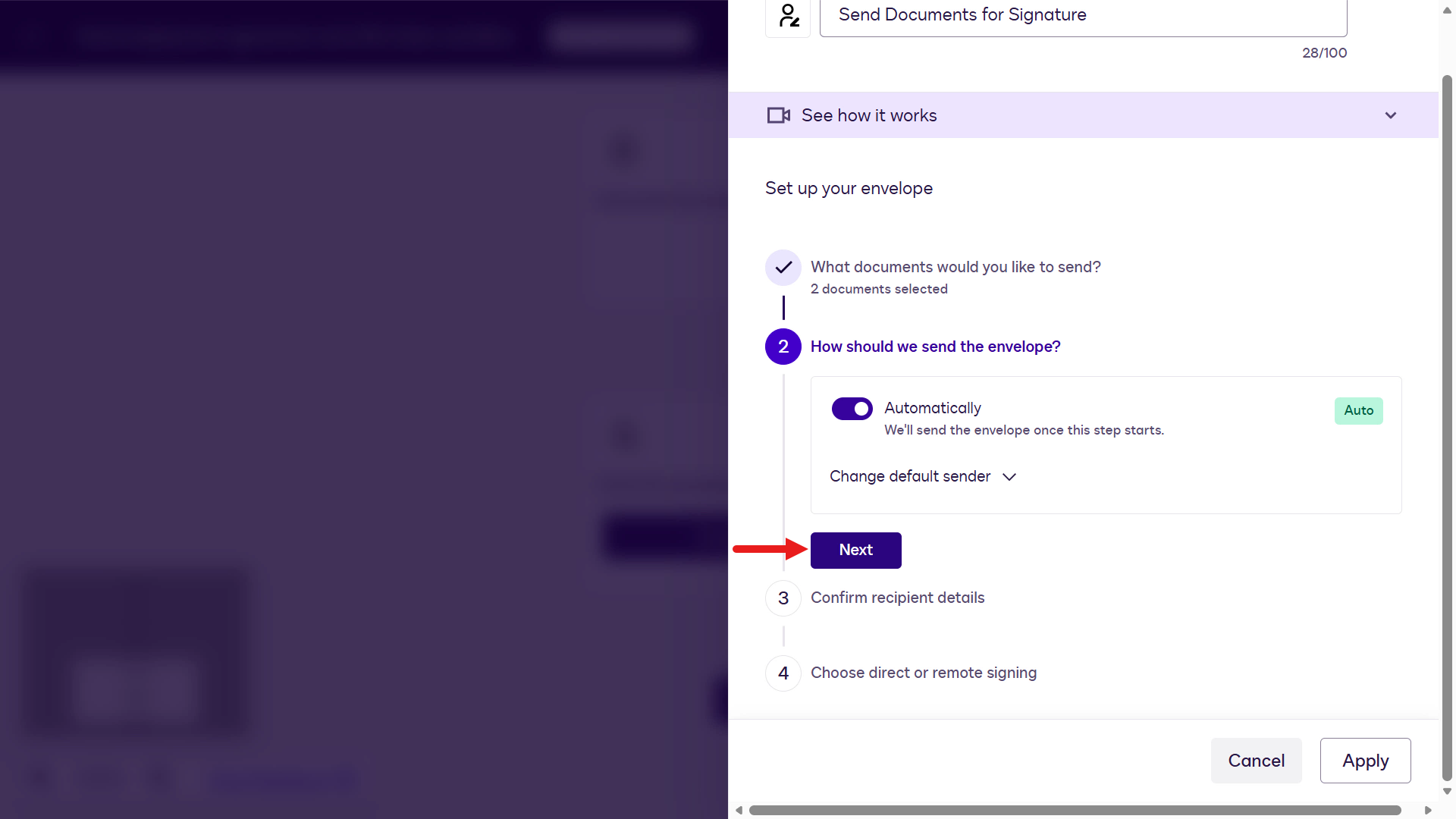
Select Next -
Enable Set a signing order.
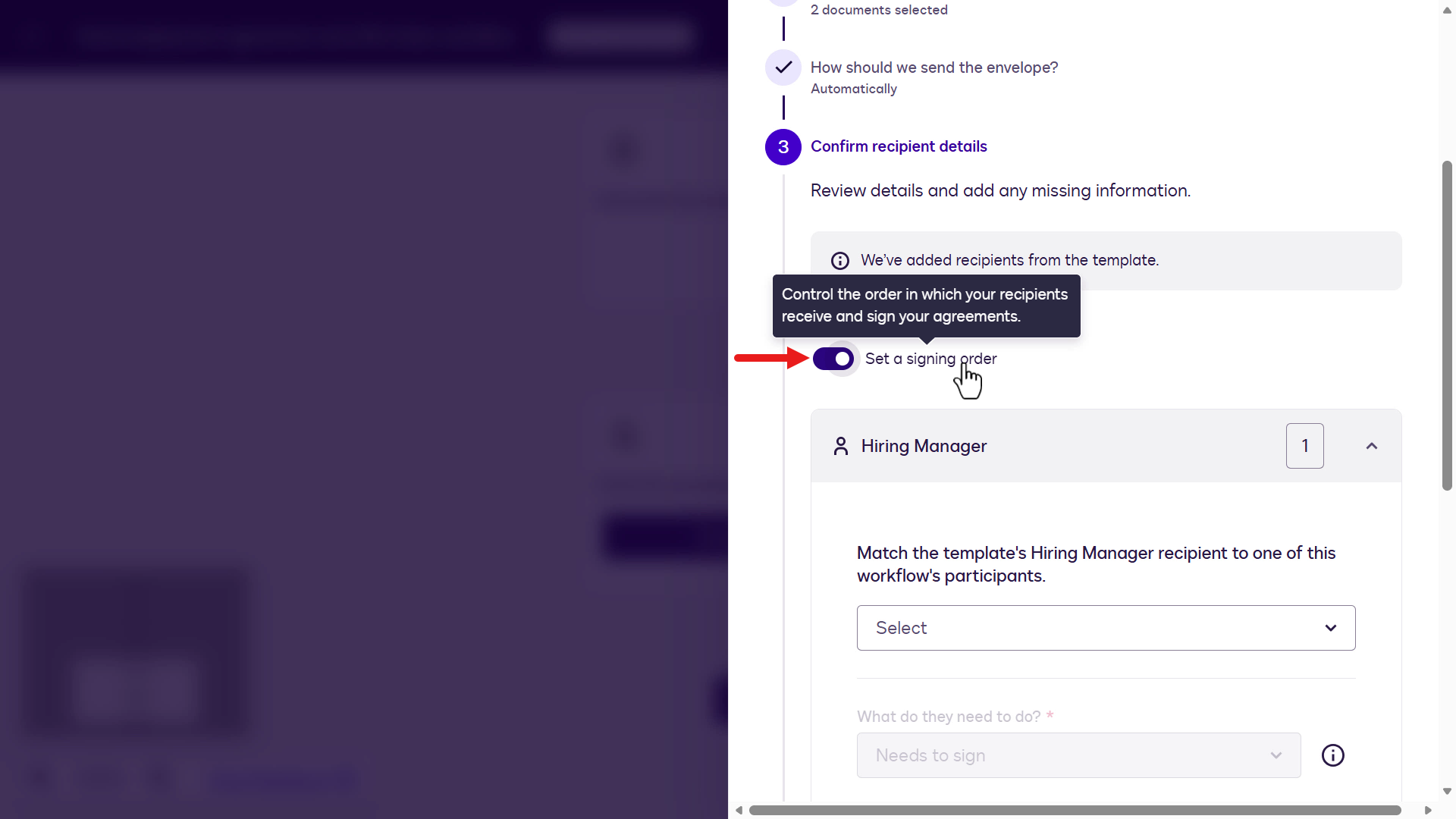
Set a signing order -
Set Hiring Manager to 2.
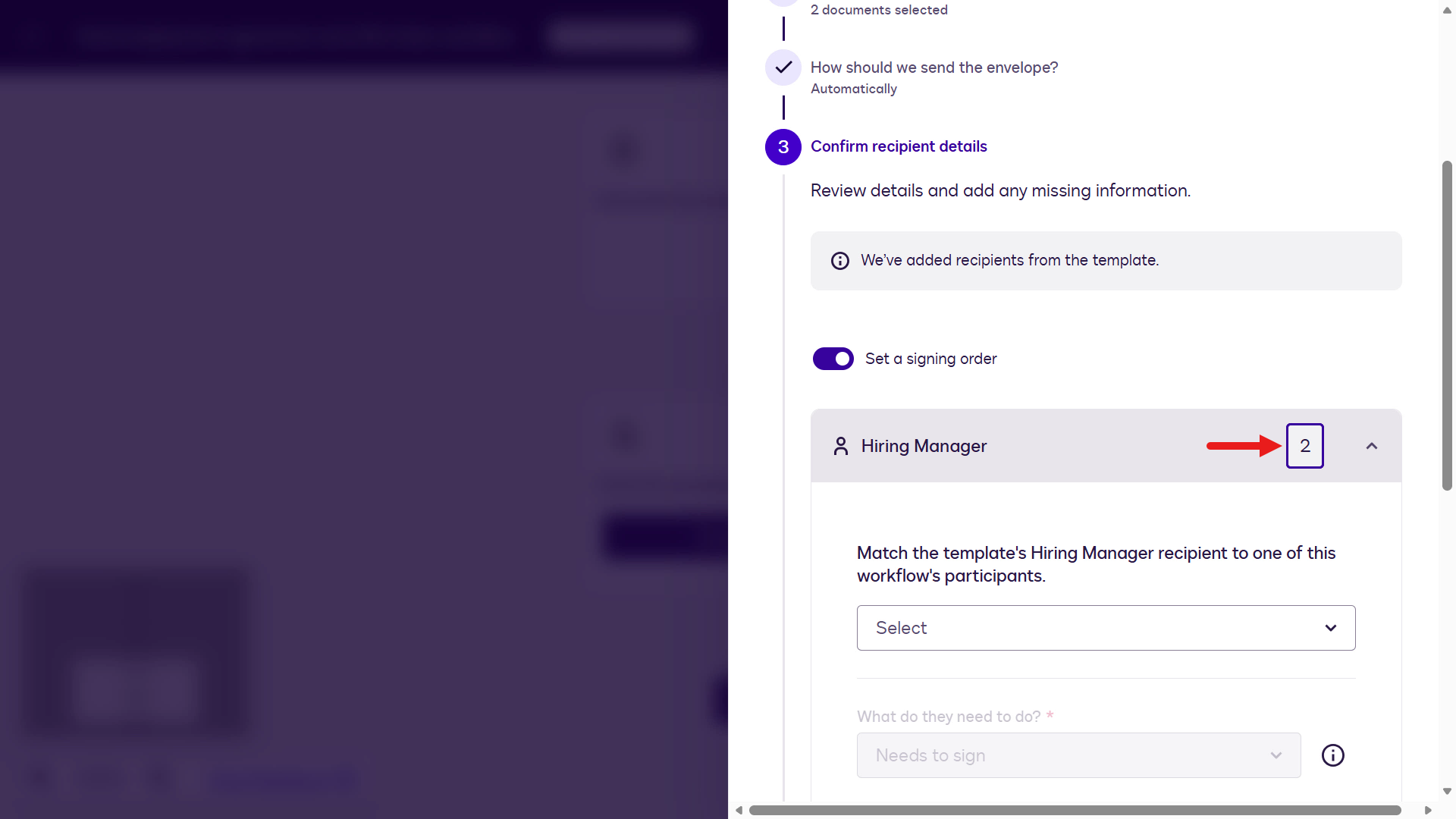
Hiring Manager signing order -
Set Employee to 1.
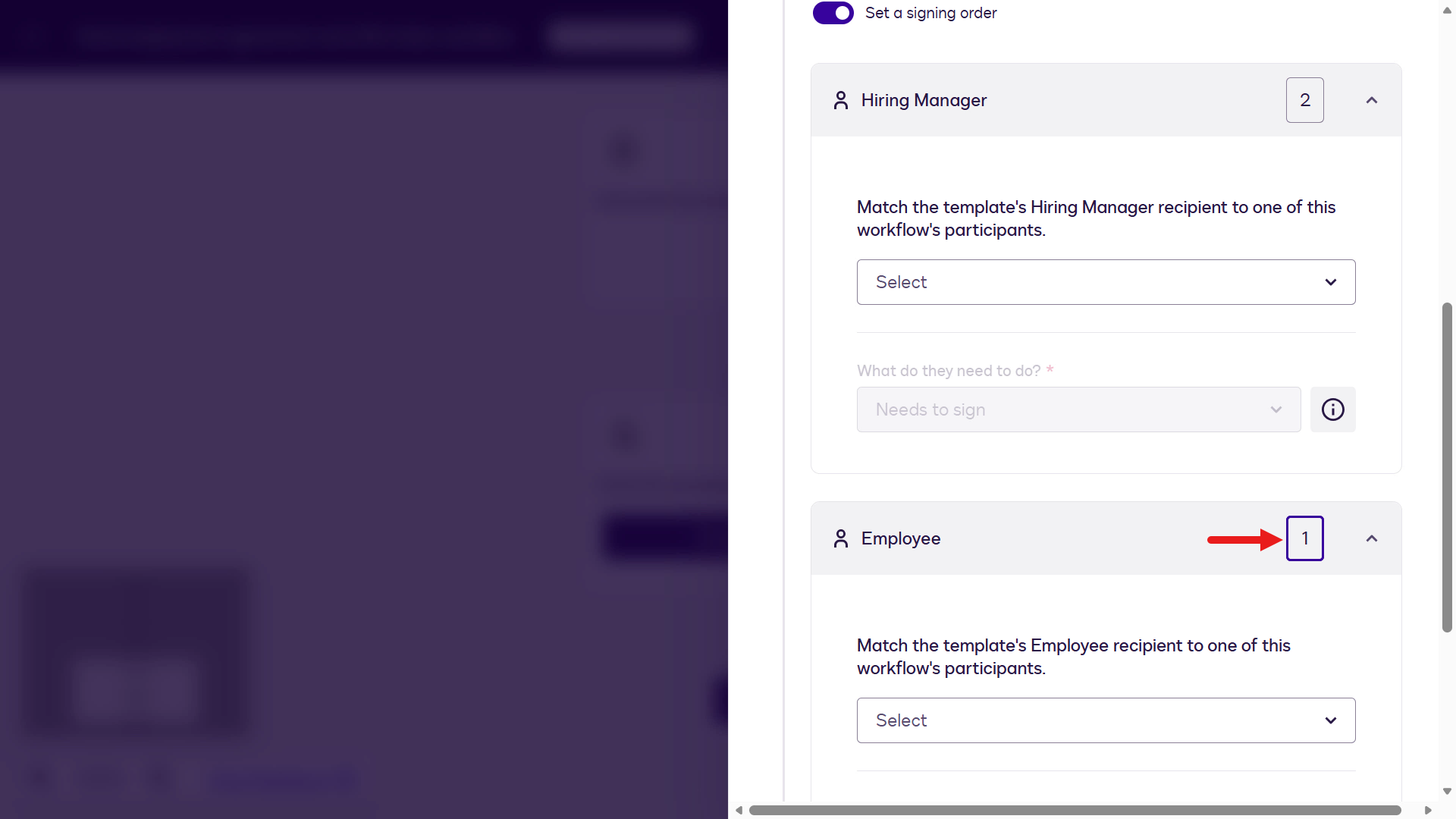
Employee signing order -
Select the Employee variable.
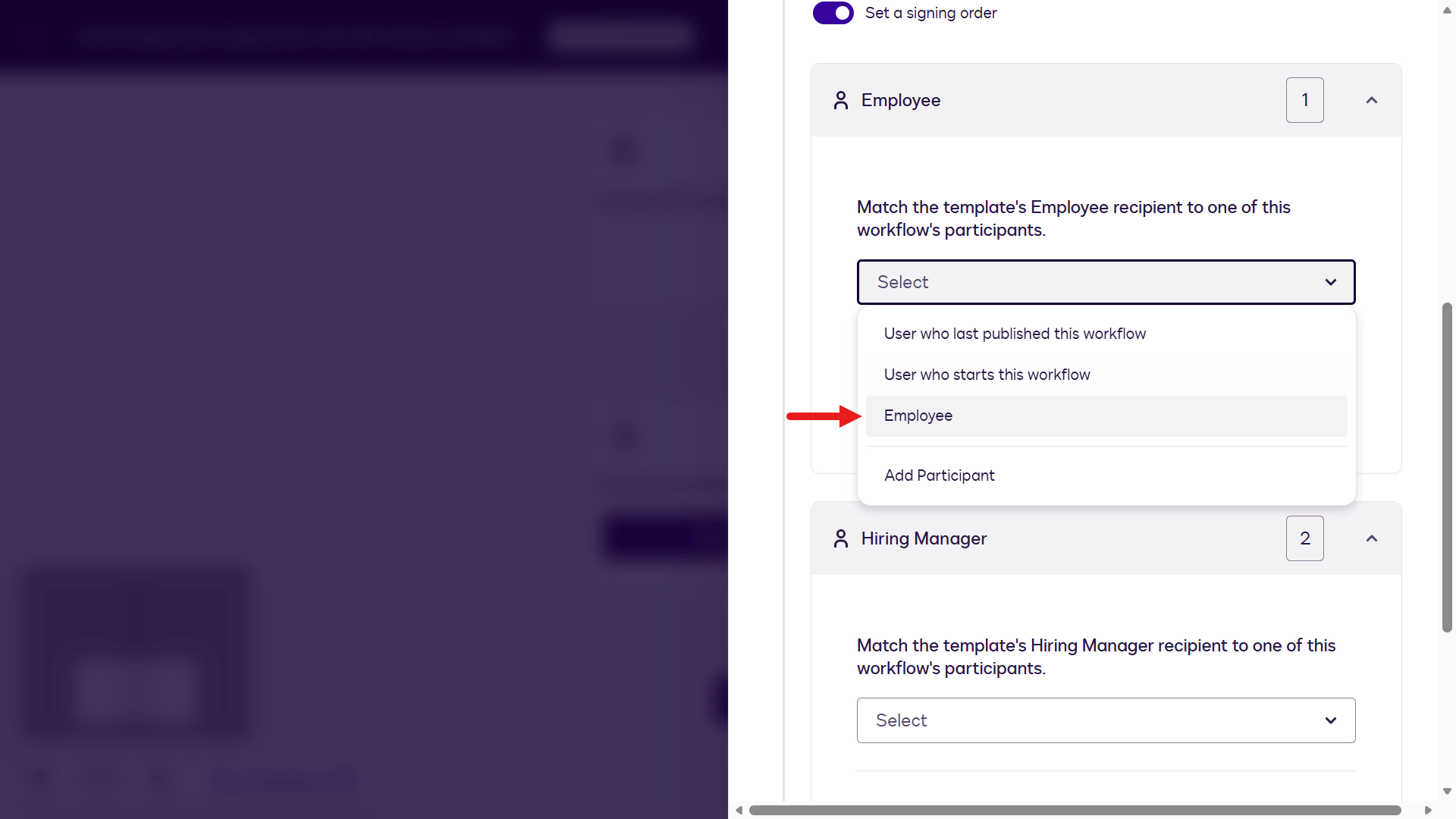
Select the Employee variable -
The Employee participant fields are mapped.
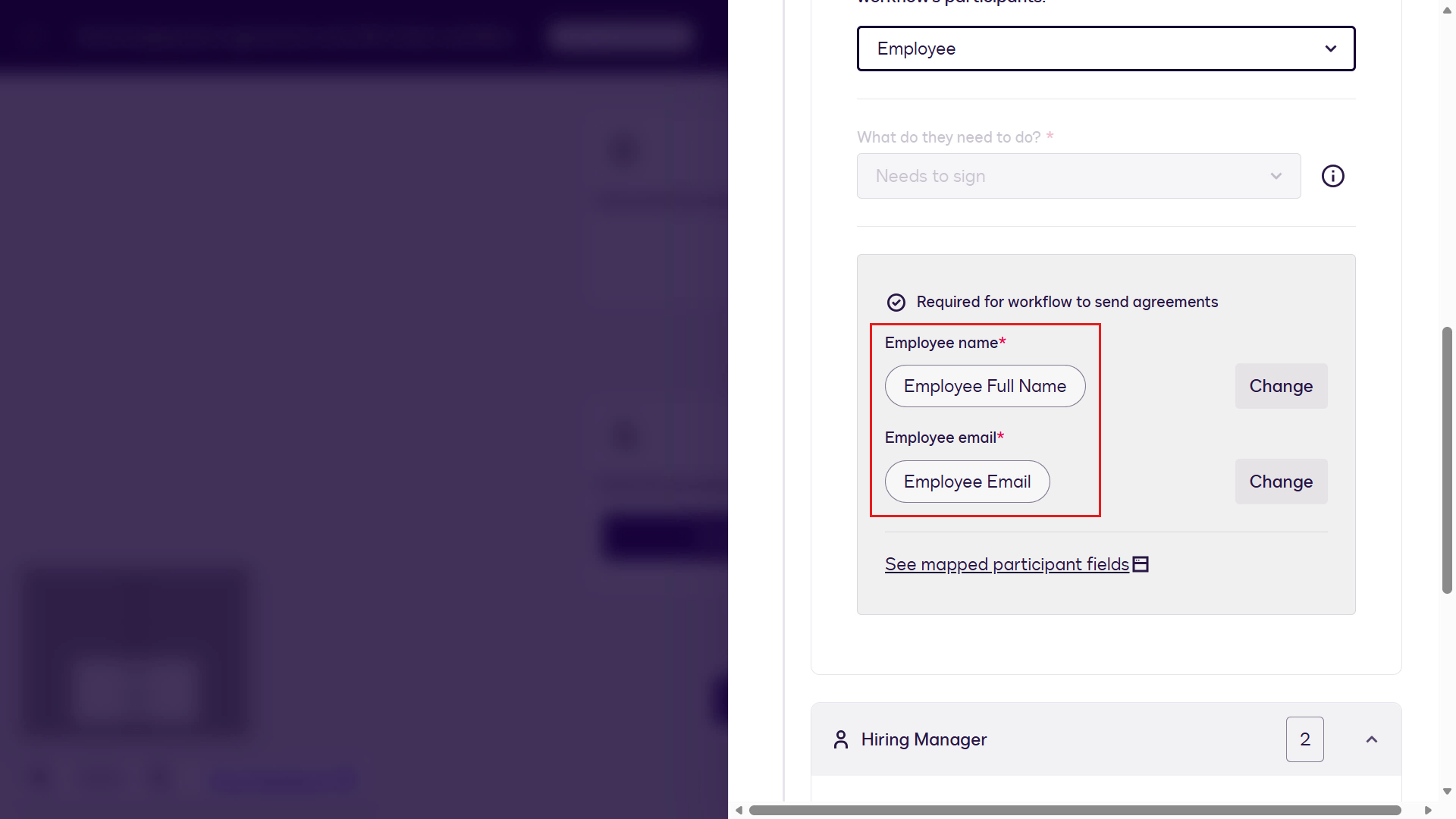
Employee field mapping -
Select Add Participant.
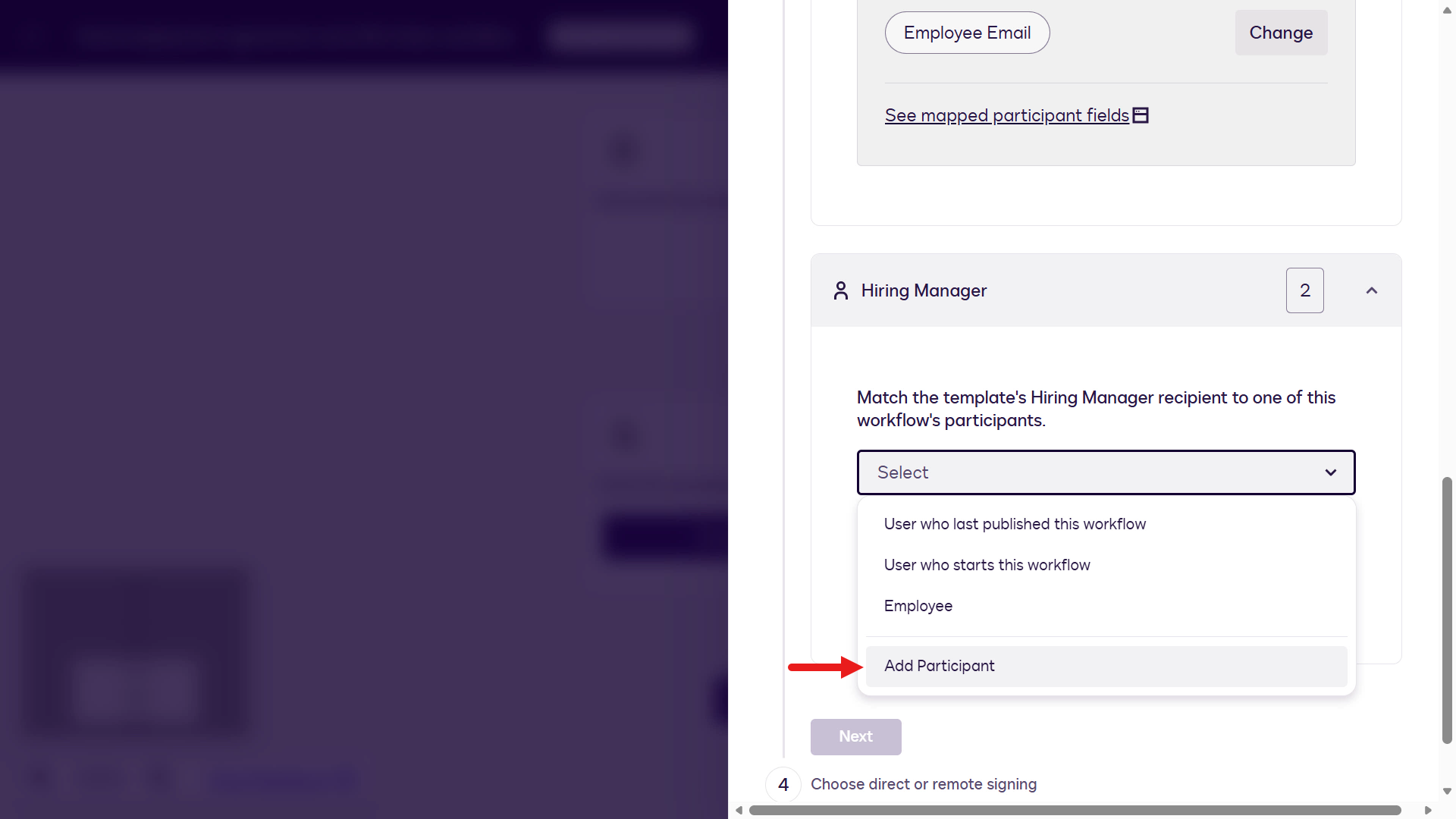
Add a participant -
Enter the following and select Add:
Hiring Manager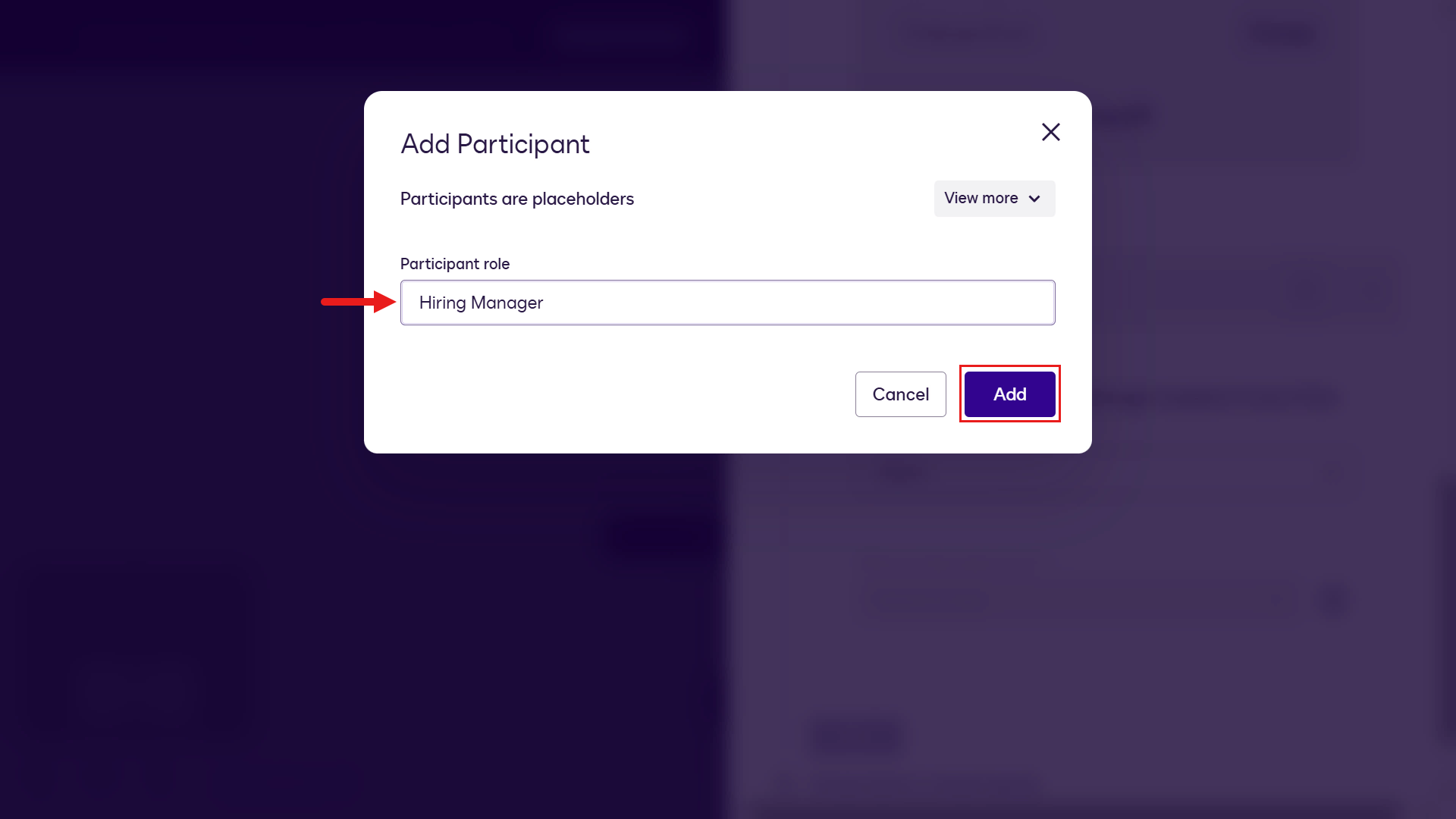
Add the Hiring Manager -
Select the Hiring Manager Full Name variable.
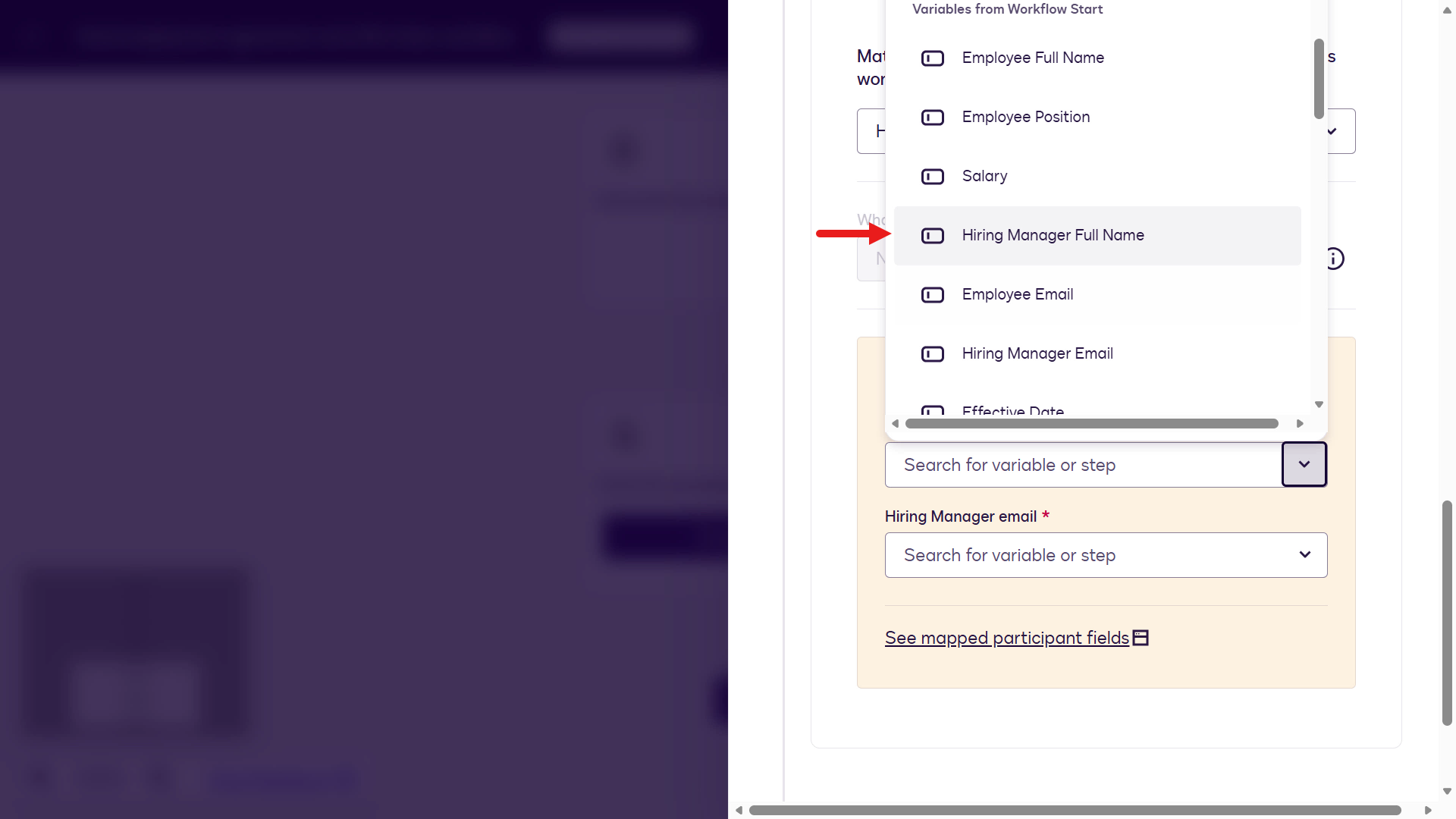
Hiring Manager name variable -
Select the Hiring Manager Email variable and select Next.
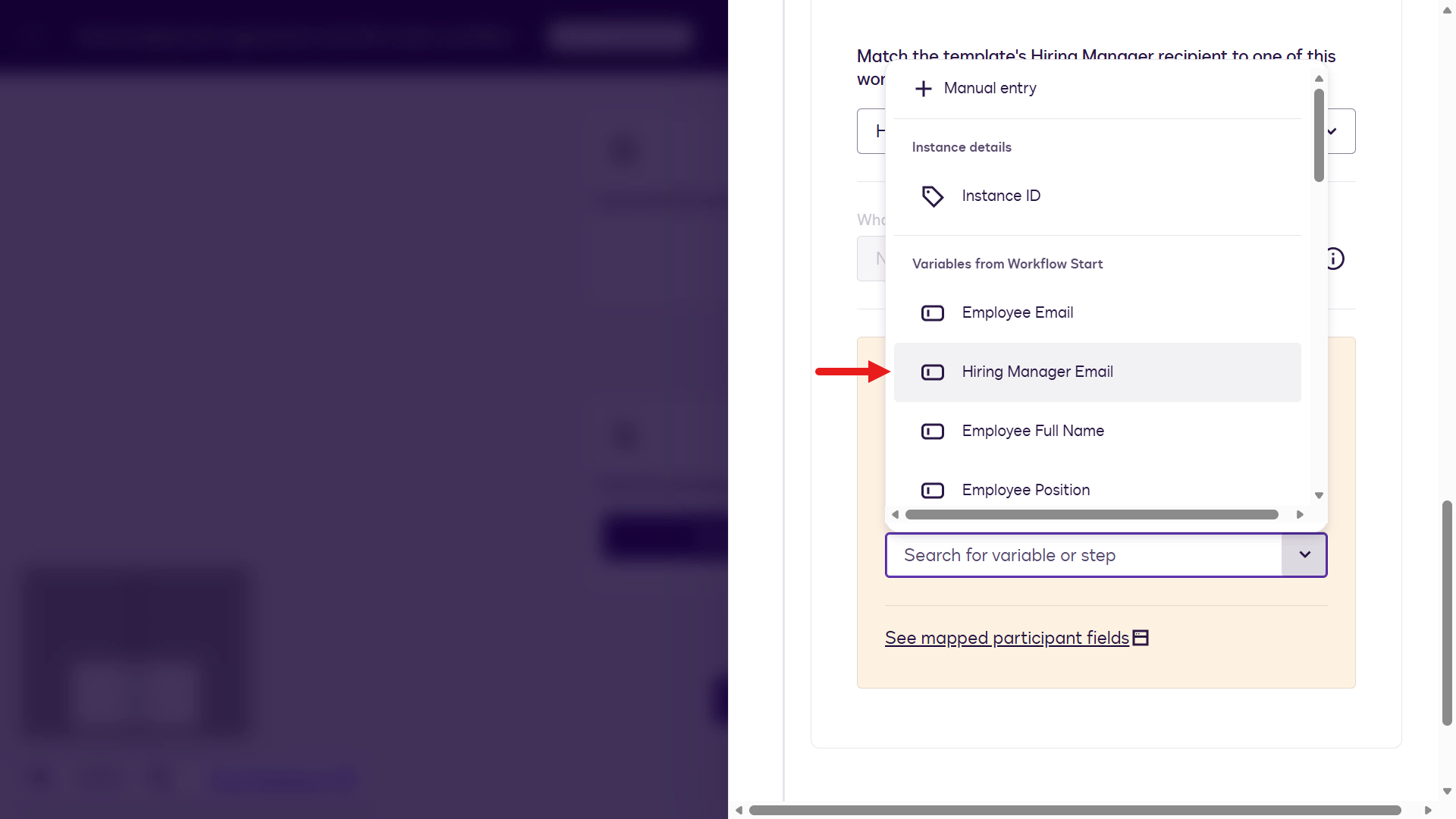
Hiring Manager email variable -
For the signing session, keep the default selection: Use a direct signing session. Select Next.
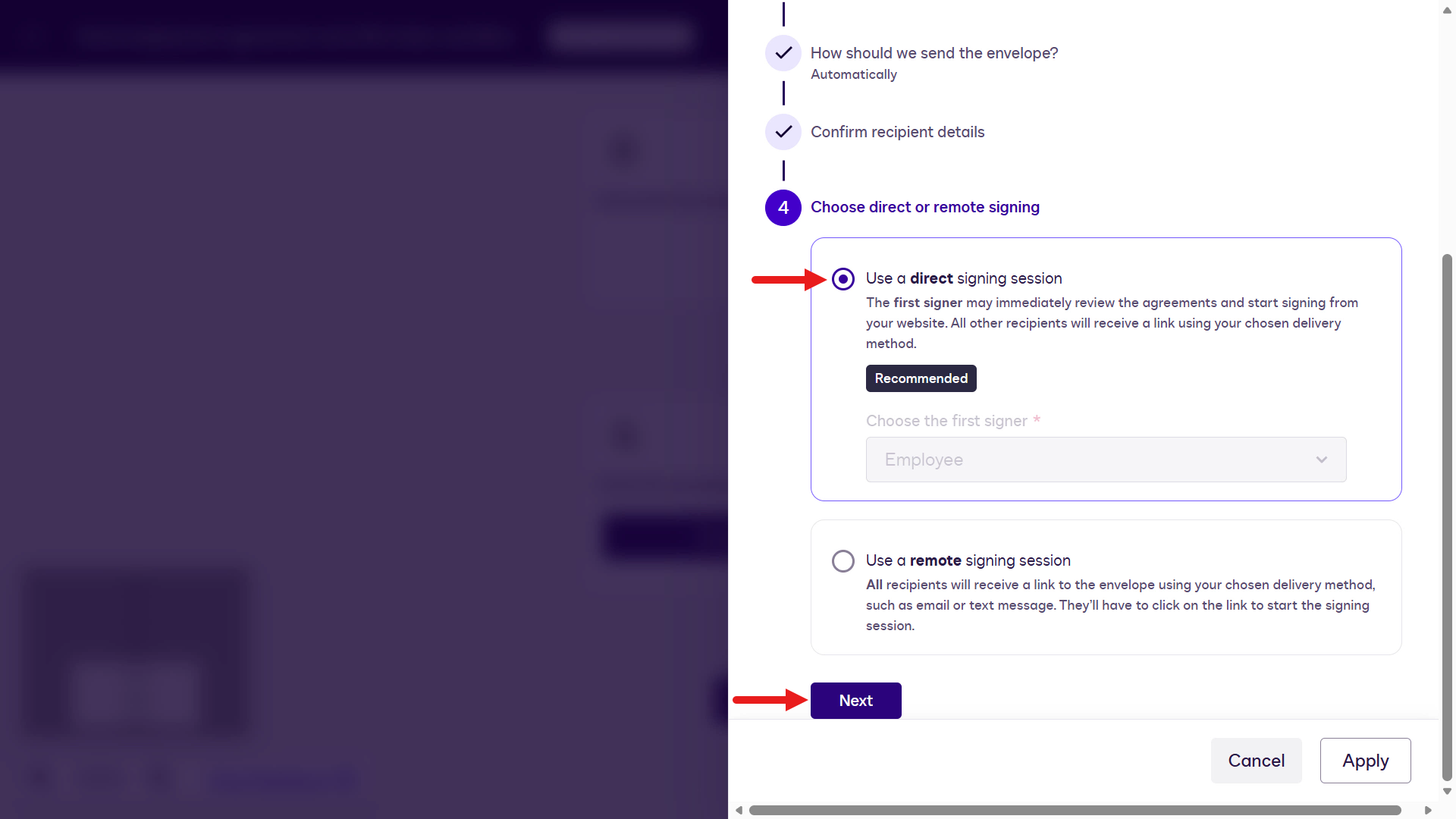
Direct signing session -
Finally, configure the message the Hiring Manager will see.
Message title:
Complete with Docusign: Employment Agreement and Offer LetterMessage:
Please review and sign the Employment Agreement and Offer Letter.Select Next.
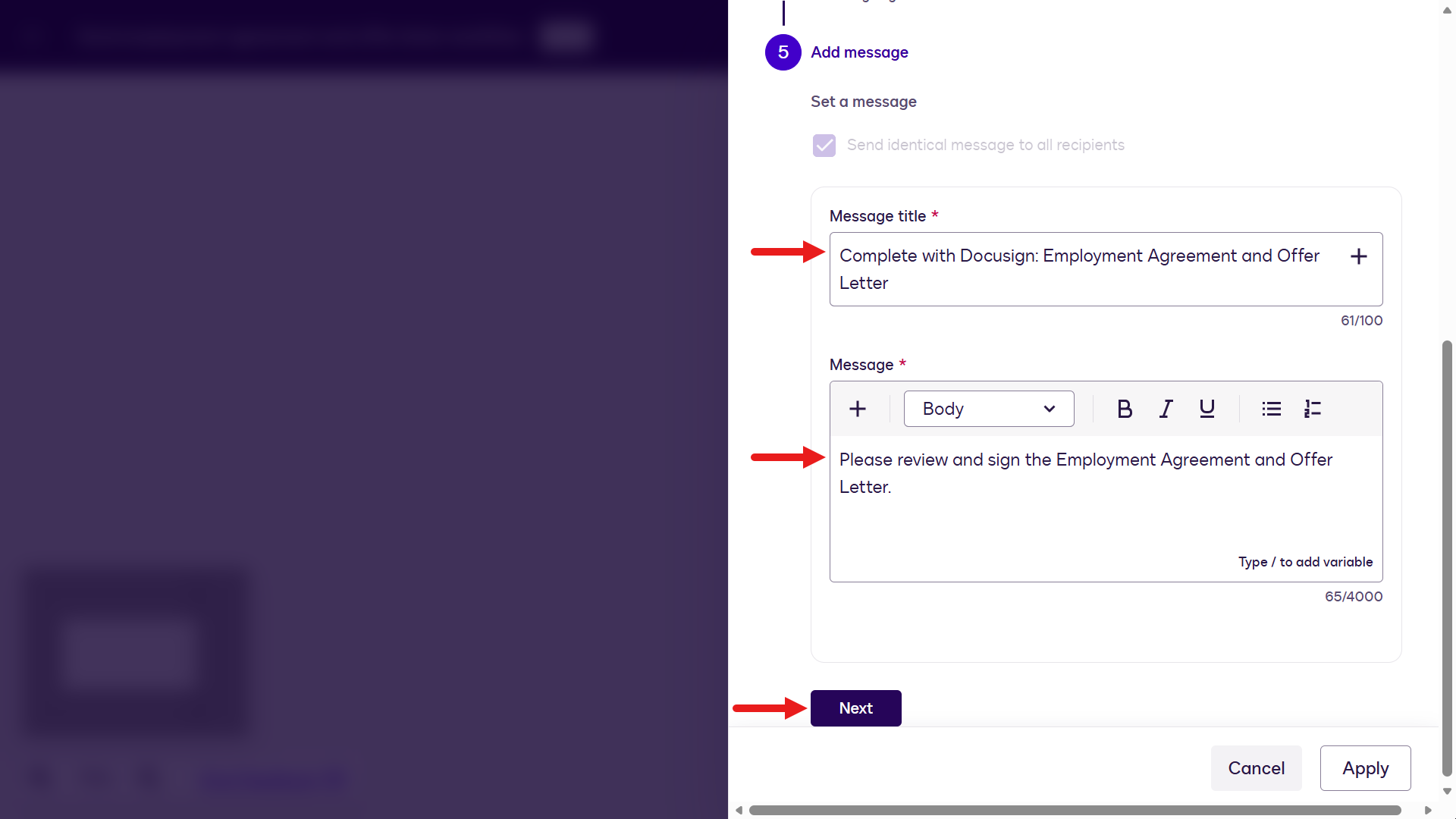
Configure the message -
Select Apply to complete the workflow step configuration.
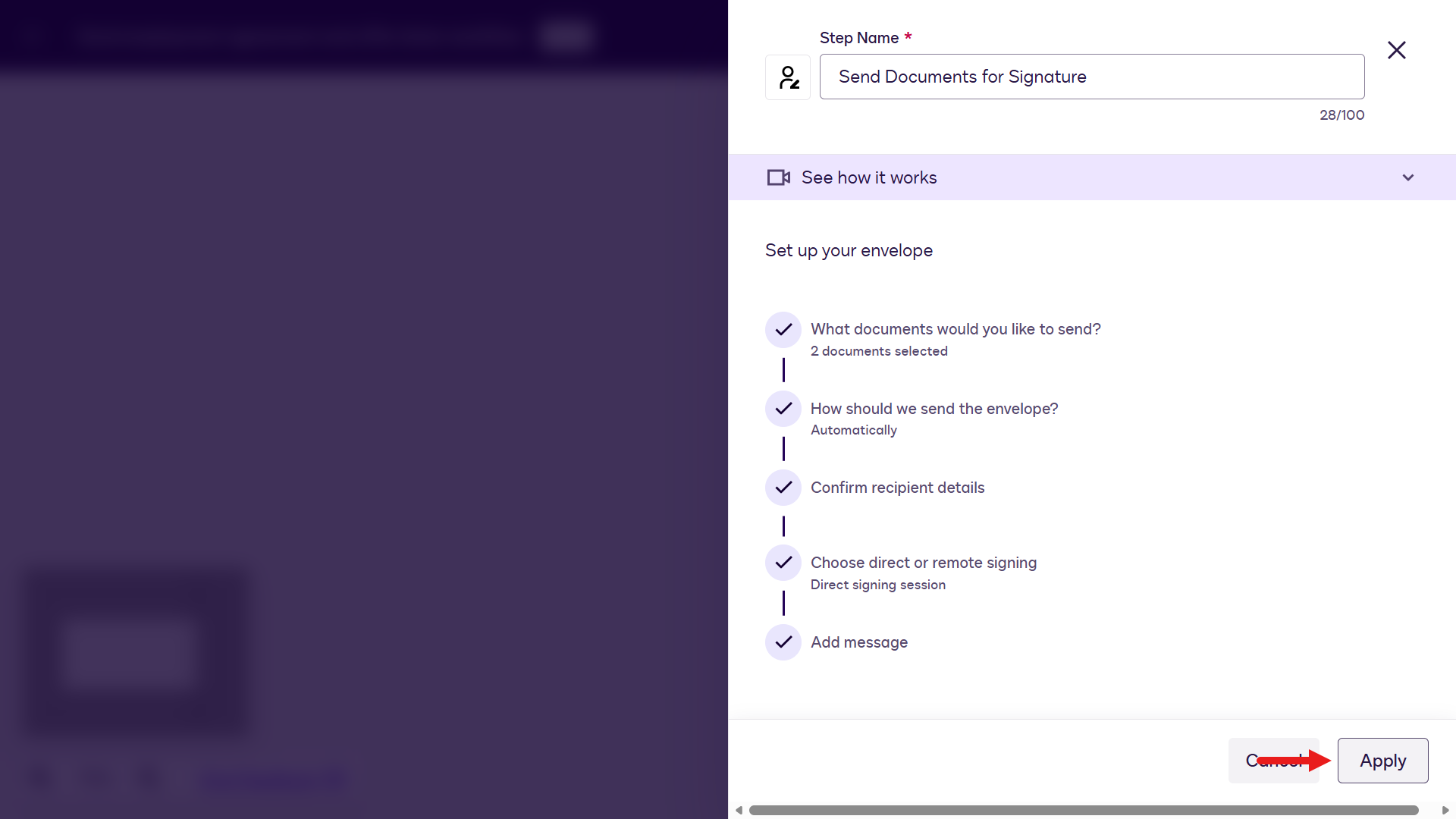
Select Apply -
Select Add a step. Next, add a Confirmation Screen that appears to the Employee participant after signing is complete.
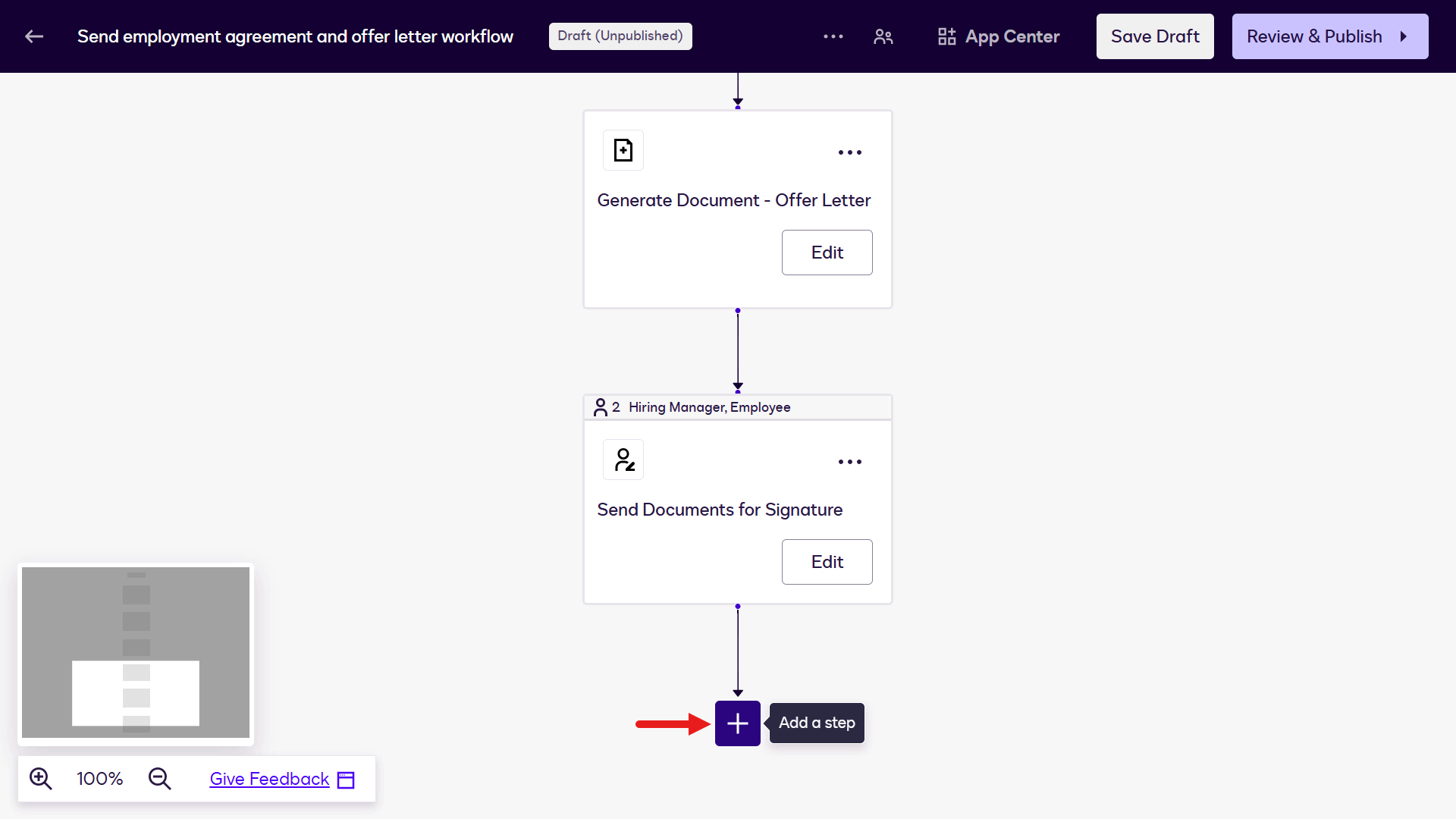
Add a step -
Select Show a Confirmation Screen.
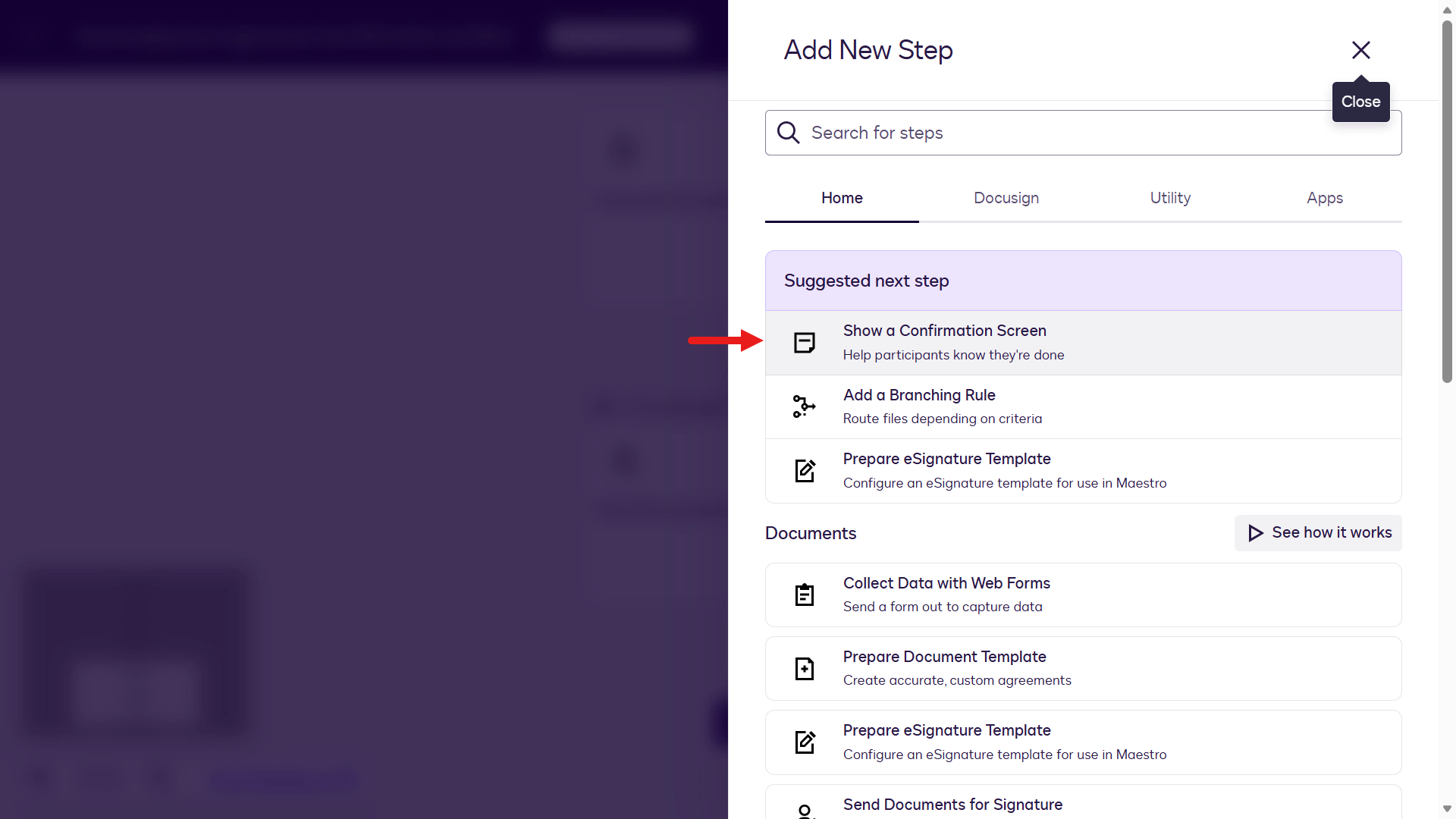
Show a confirmation screen -
Select Configure.
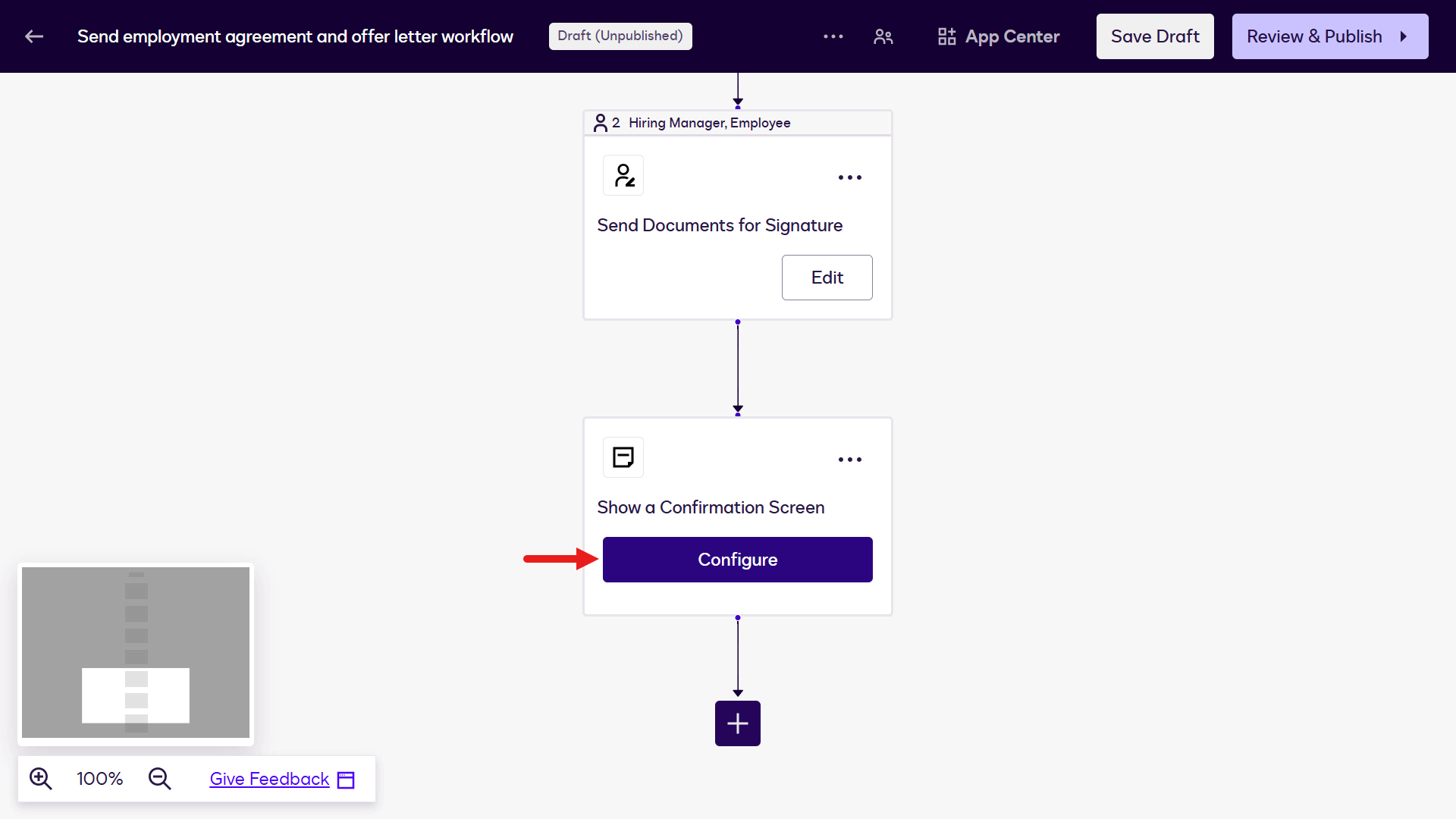
Configure -
Select Employee.
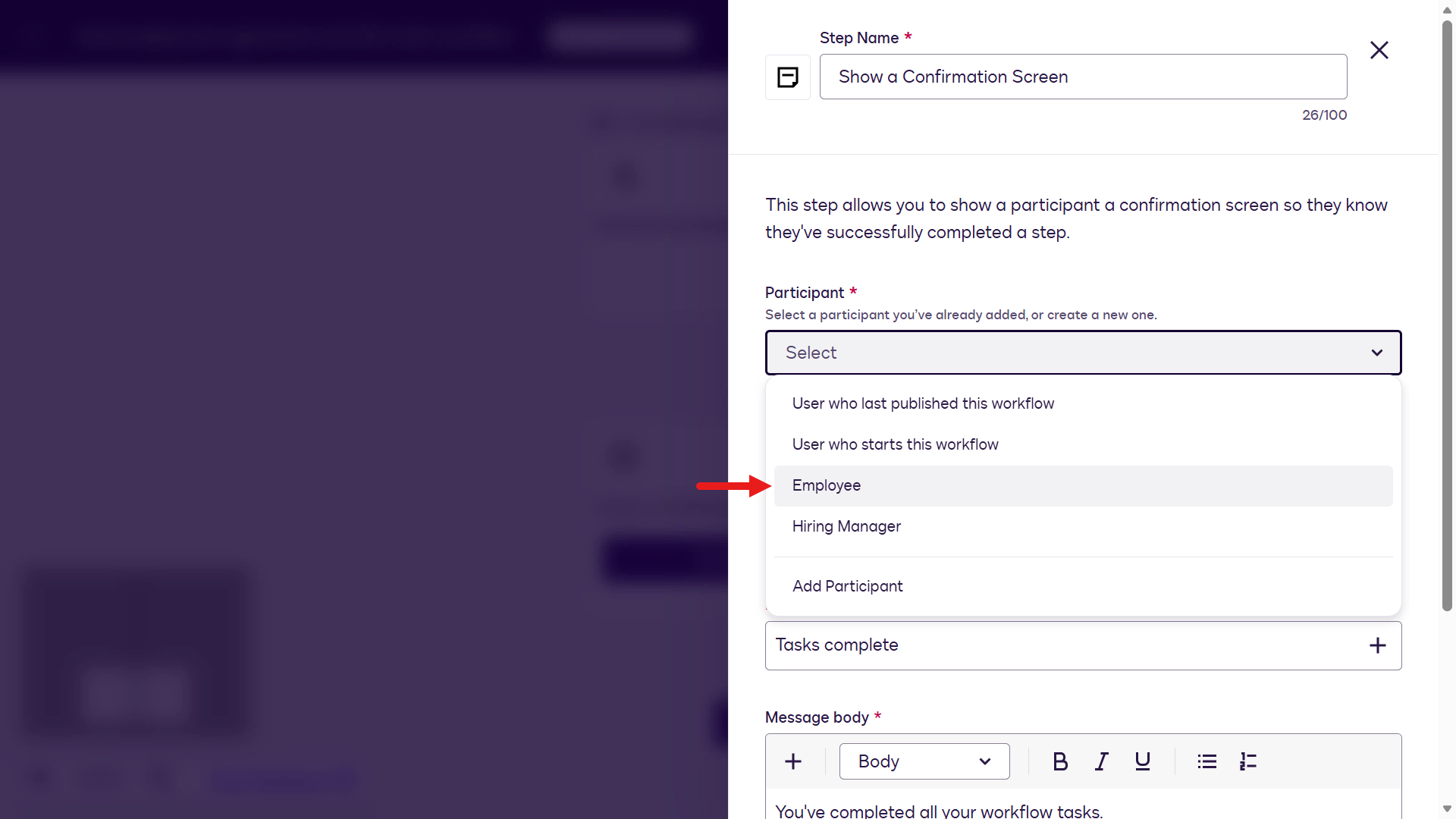
Select Employee -
Select Apply.
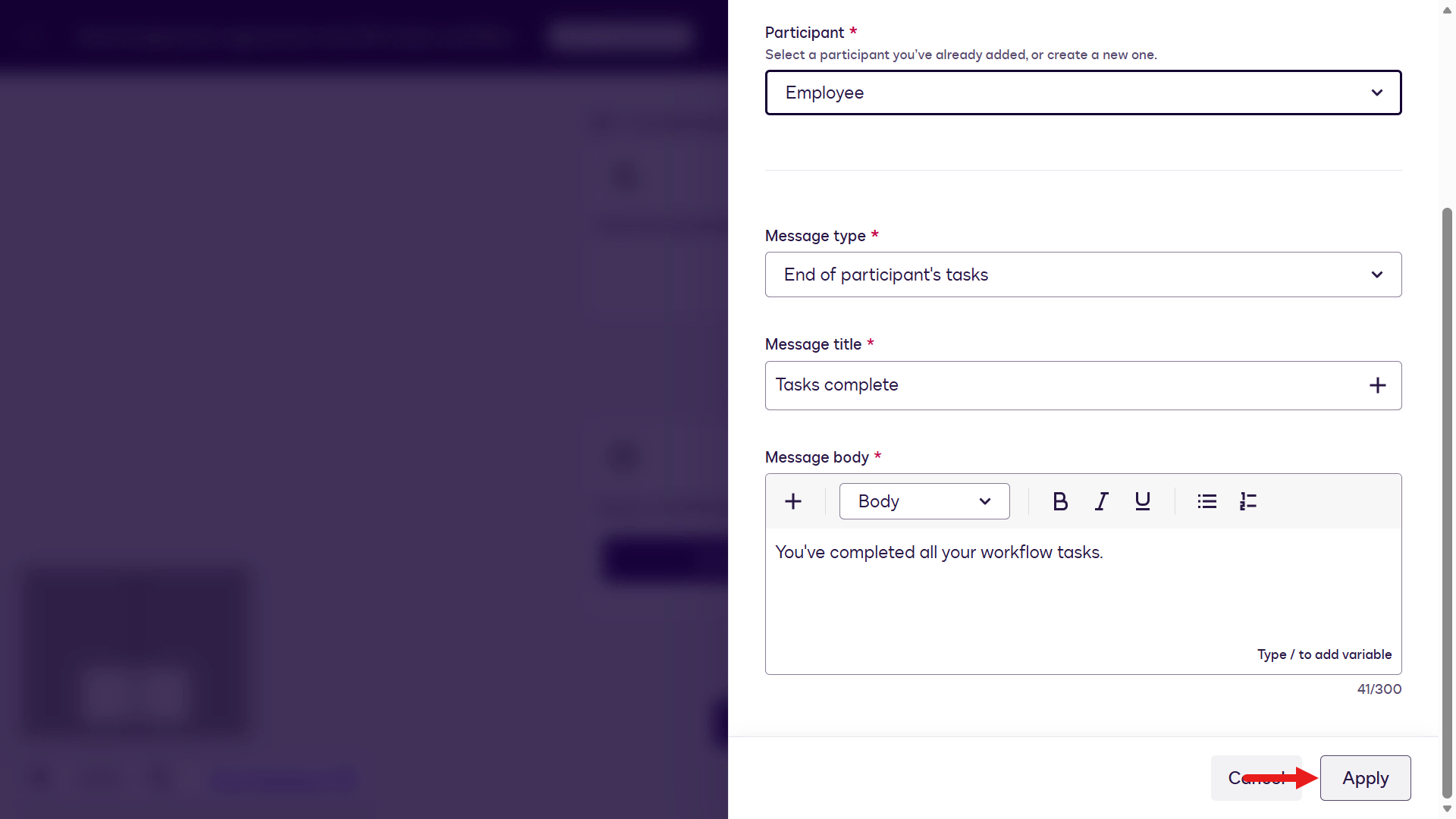
Select Apply -
Select App Center.
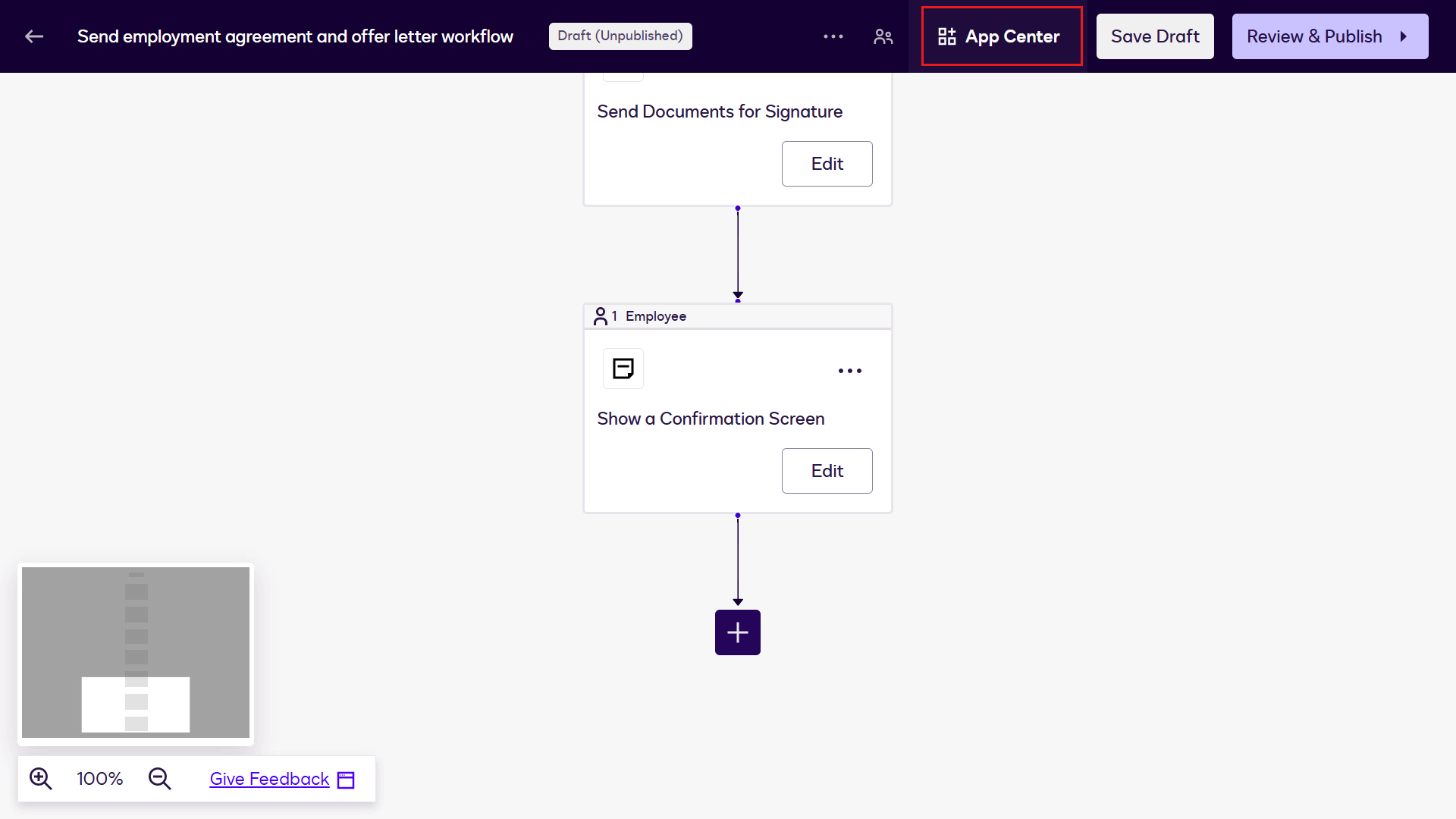
Select App Center -
Select SharePoint.
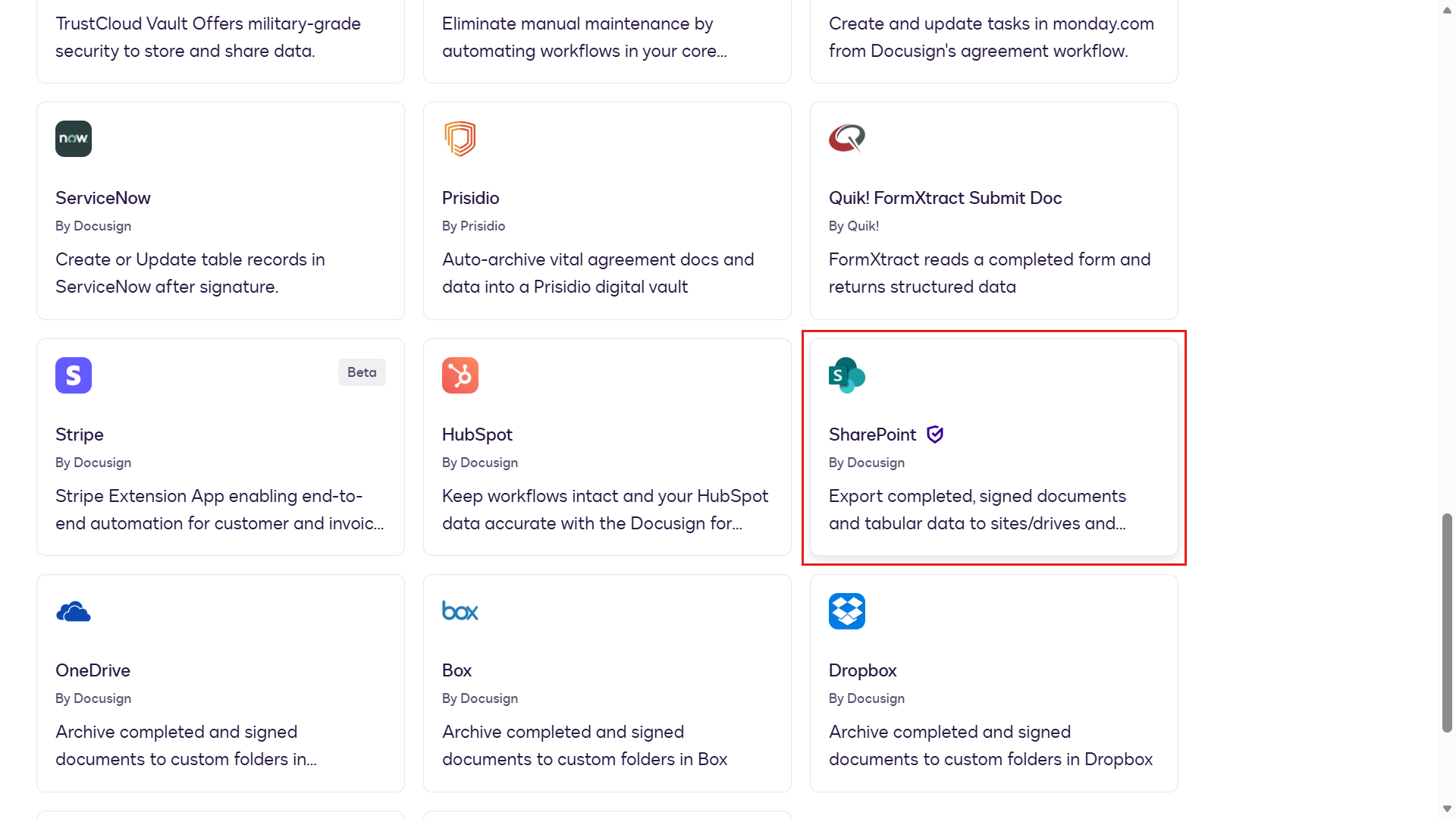
Select SharePoint -
Select Install App.
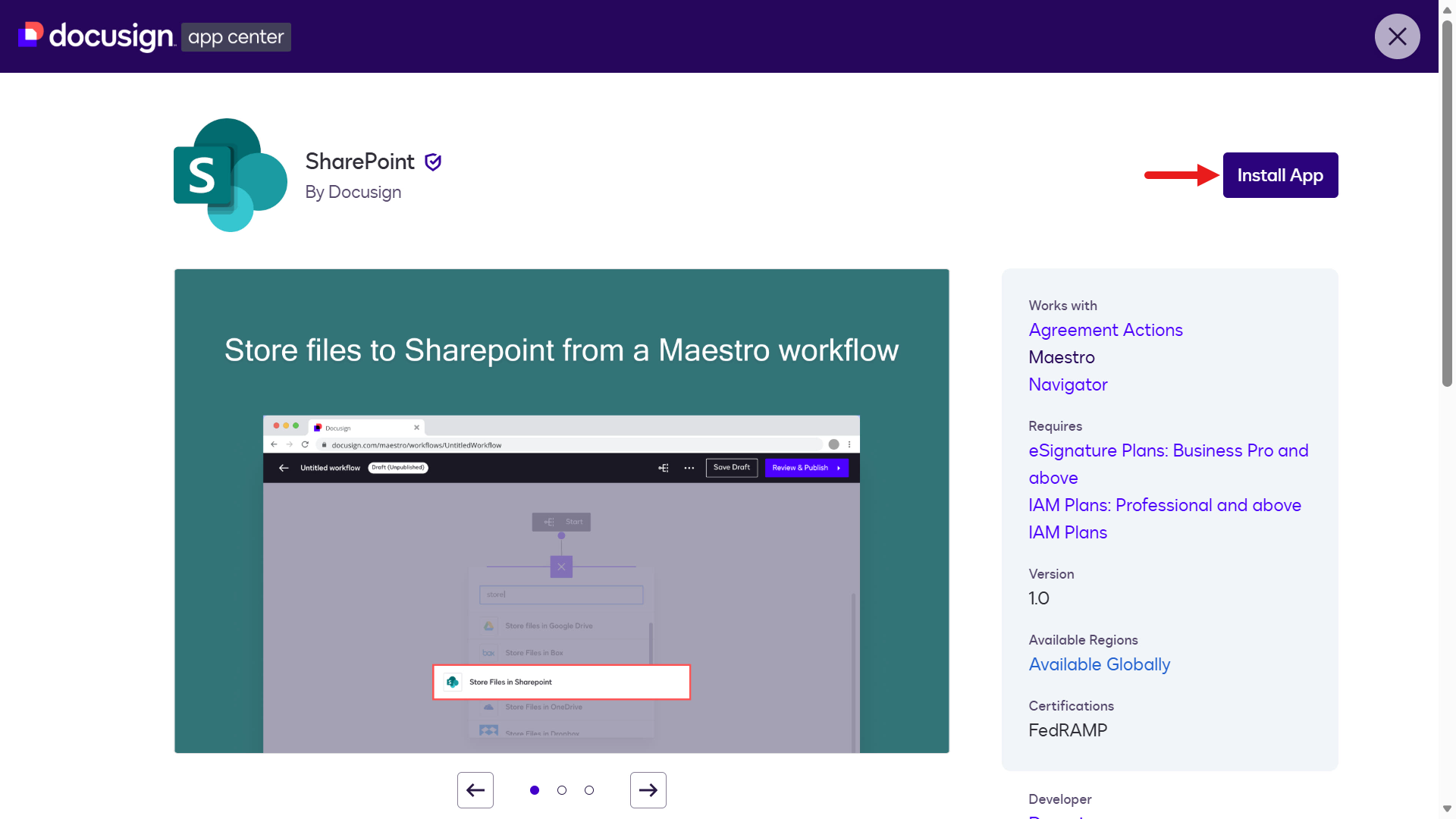
Install the app -
Select Install and Authorize.
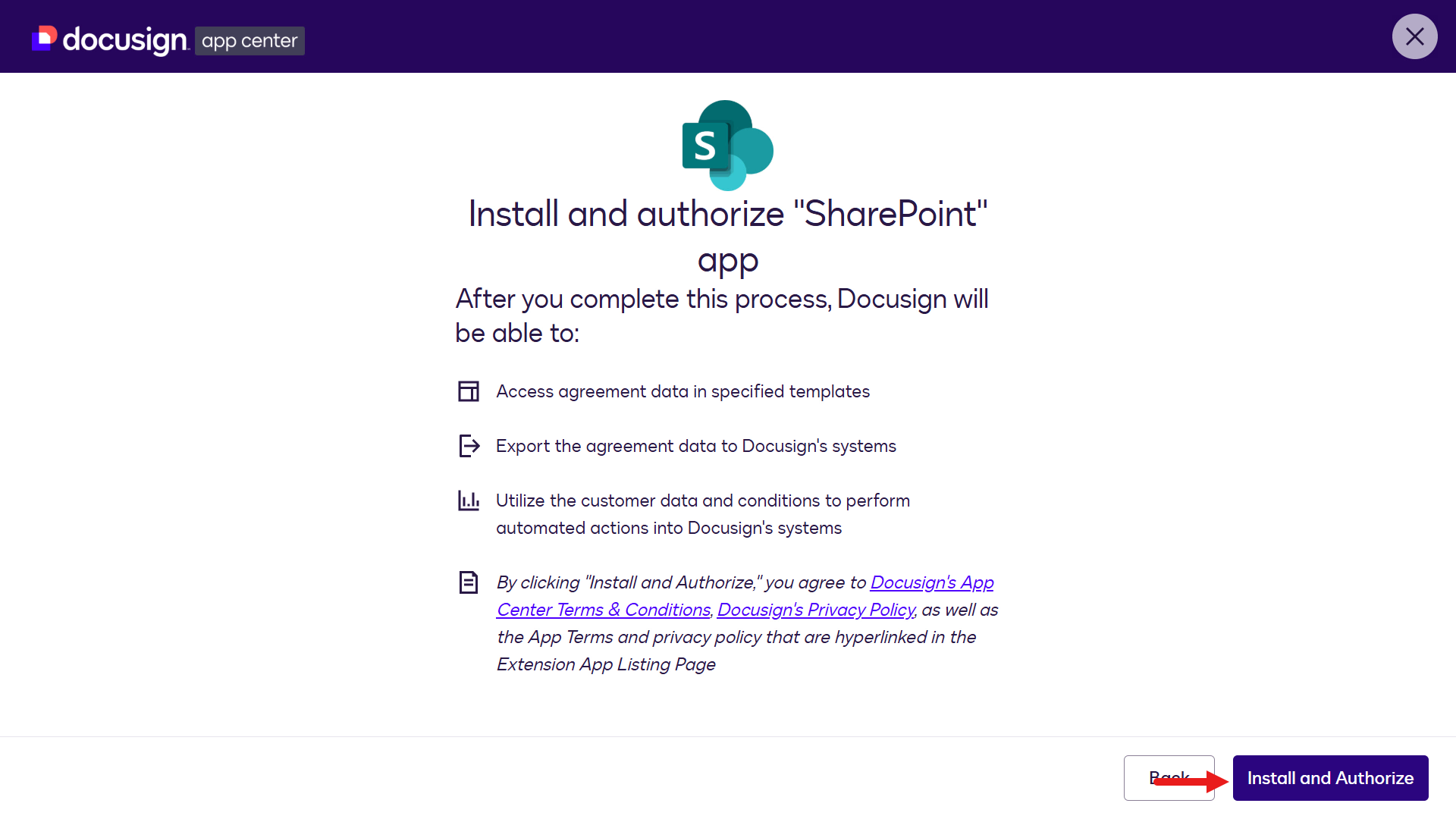
Install and authorize -
Select Connect Account.
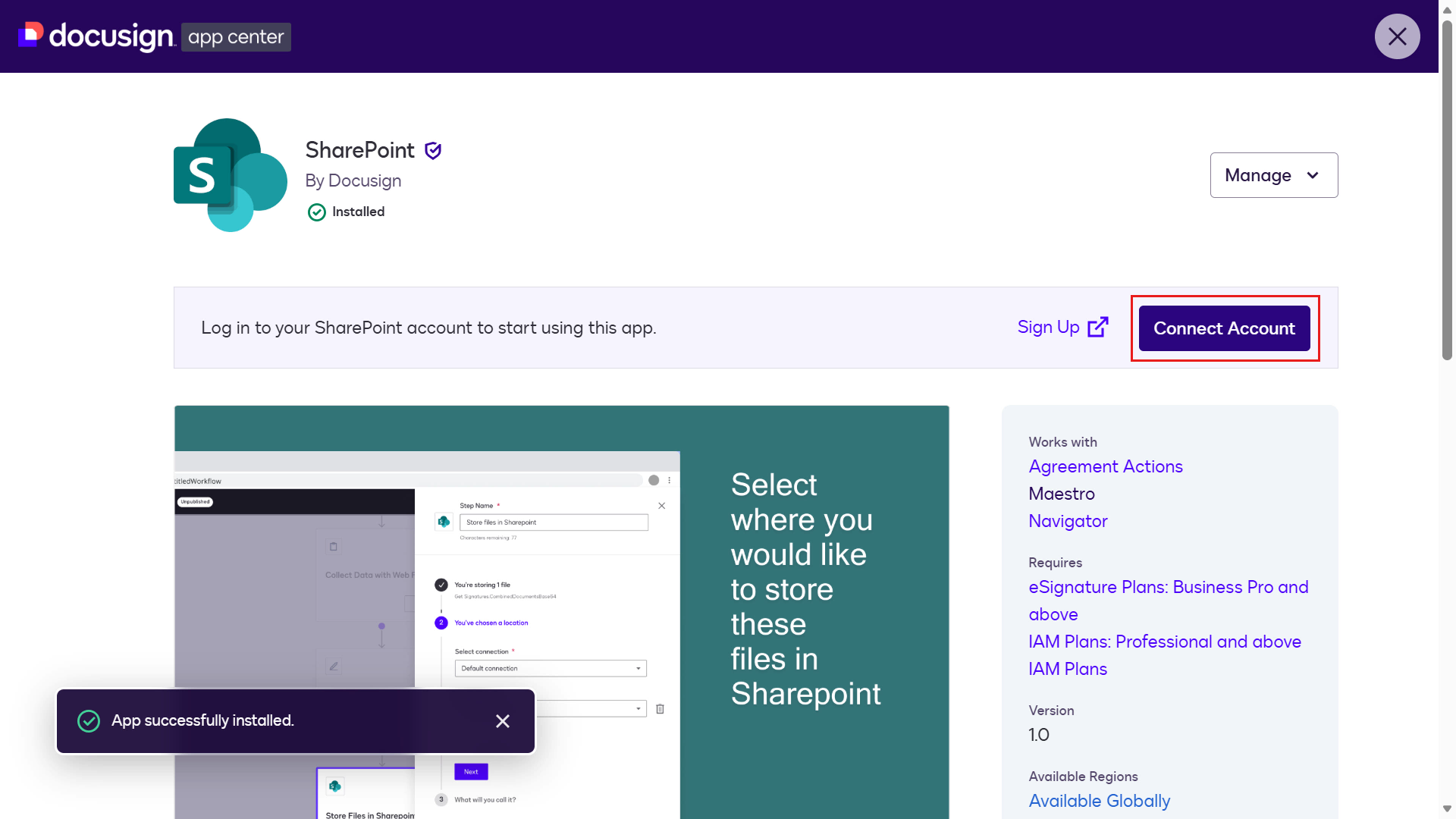
Connect account -
Select Private, then select Next.
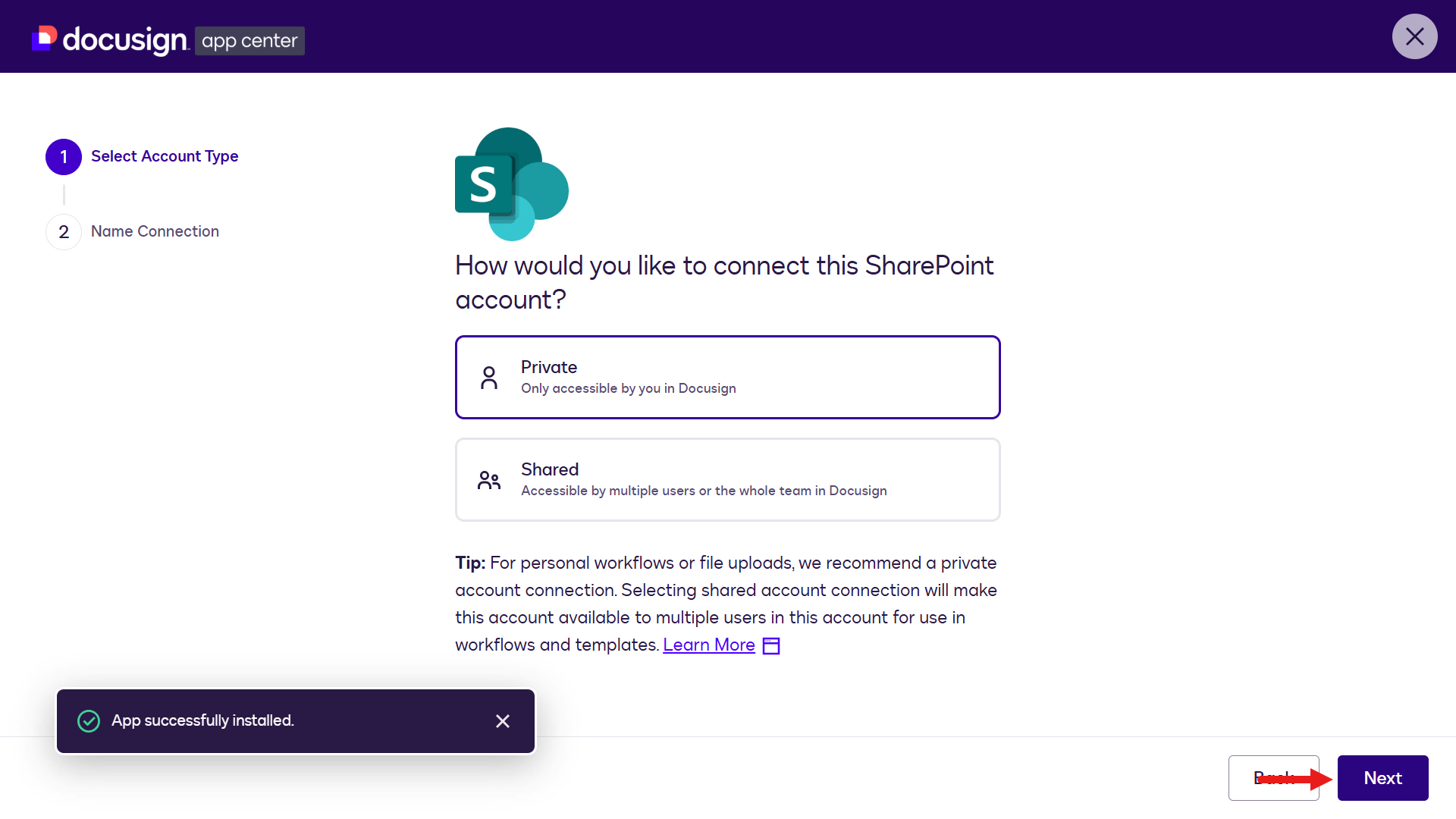
Private connection -
Enter a name and select Log In.
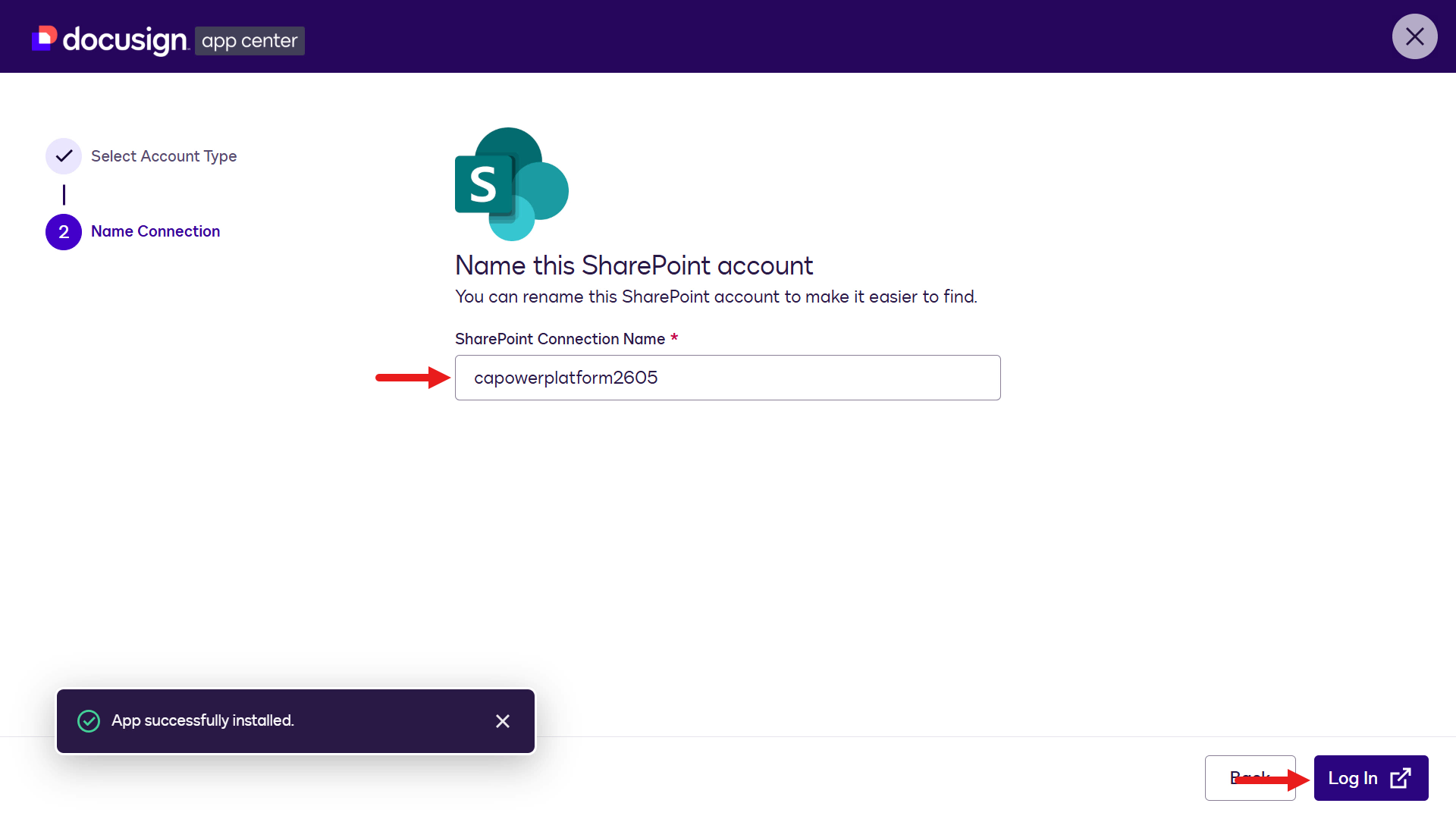
Log in -
Enter credentials and select Accept.
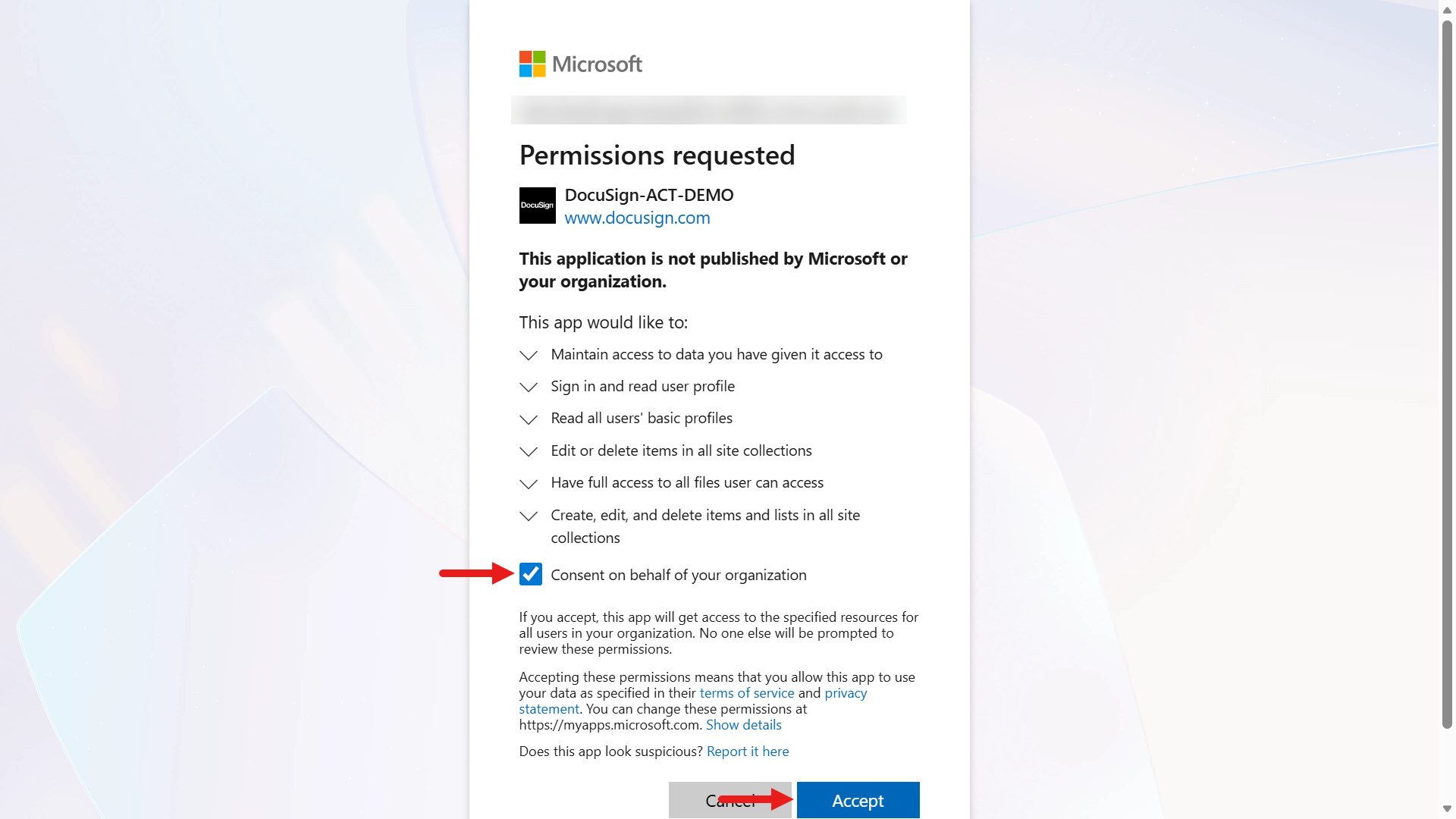
Enter credentials -
Select the X icon to exit App Center.
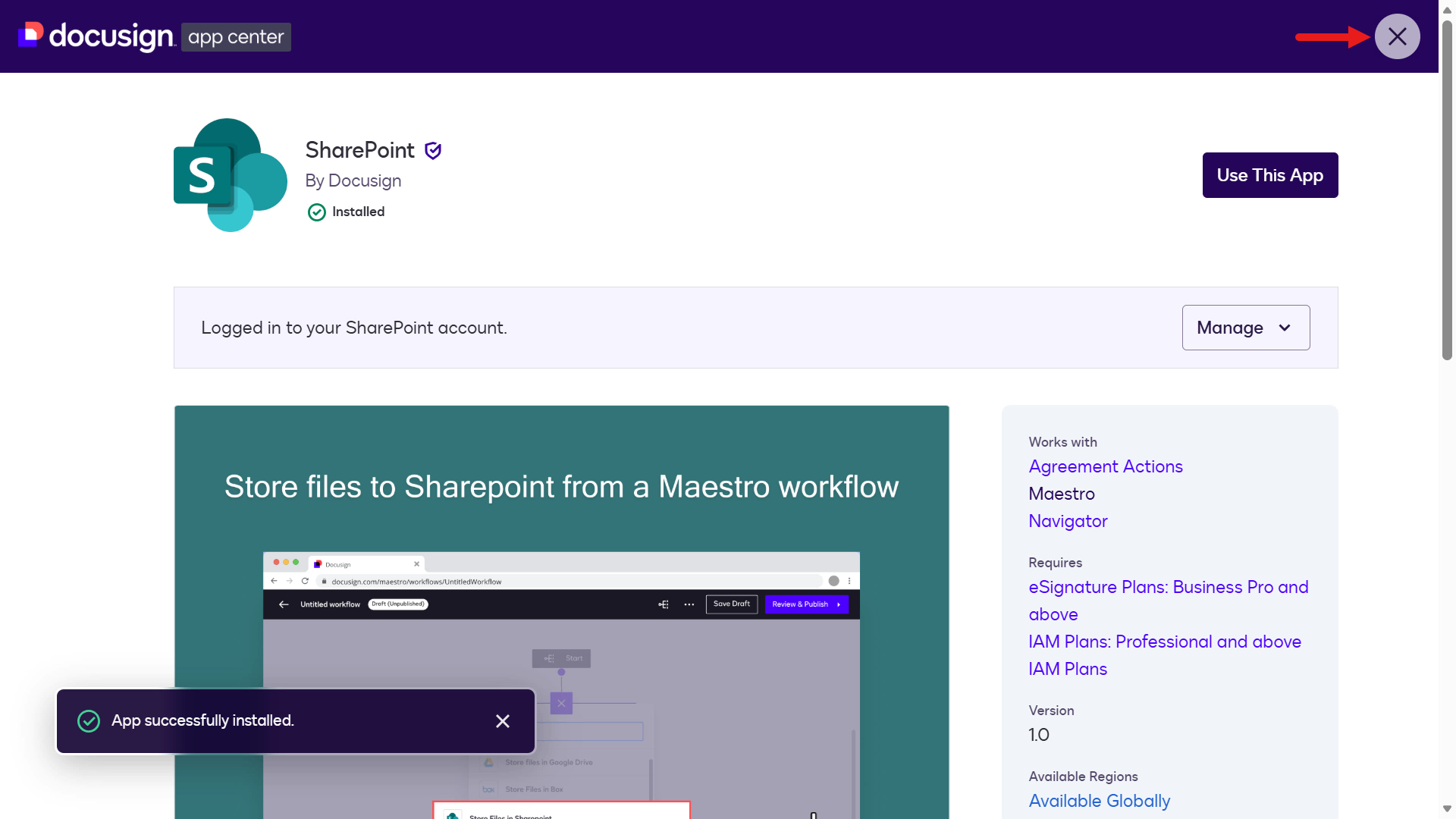
Exit App Center -
Select Add a step.
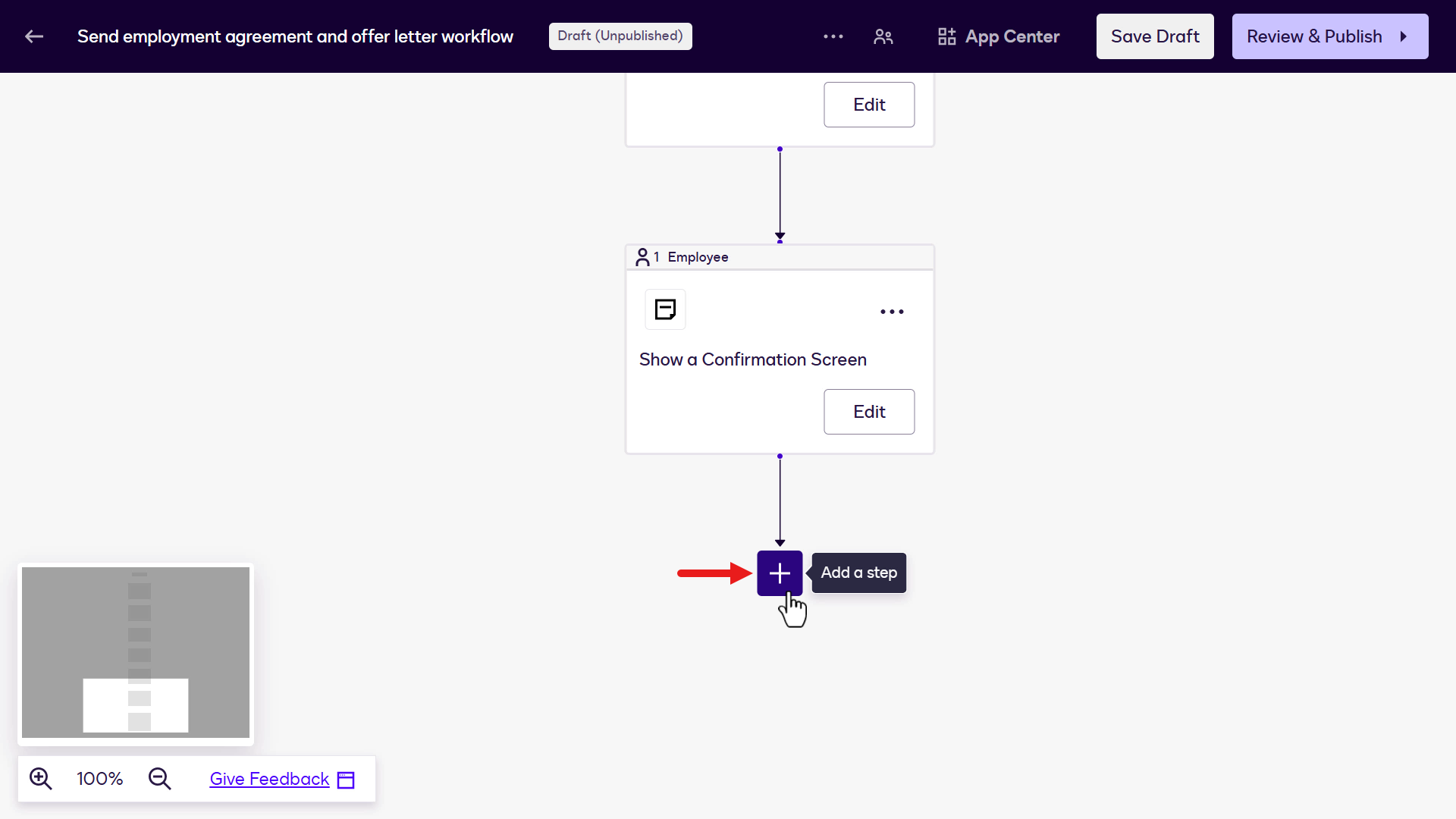
Add a step -
Select Store files in SharePoint.
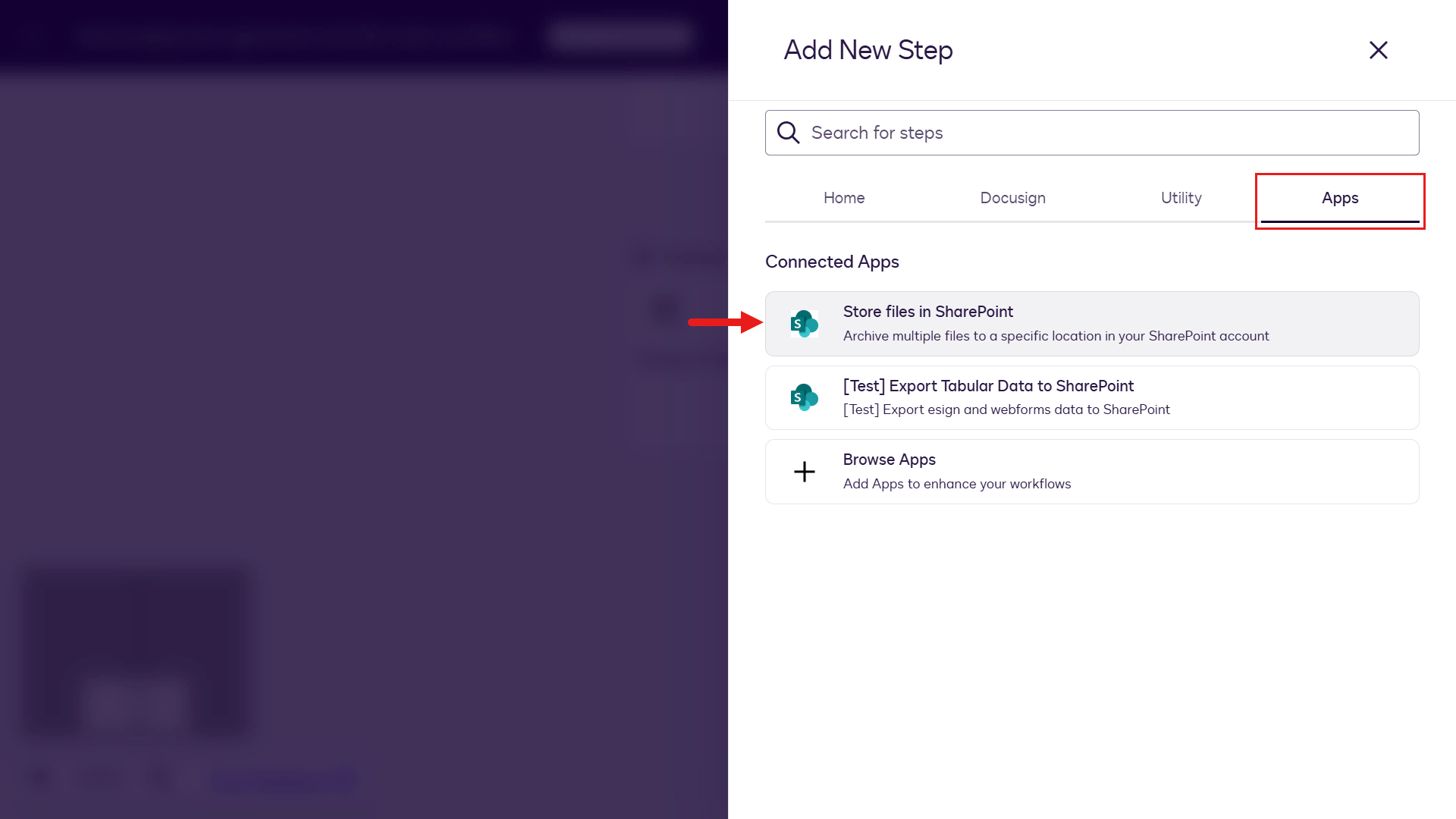
Store files in SharePoint -
Select Configure.
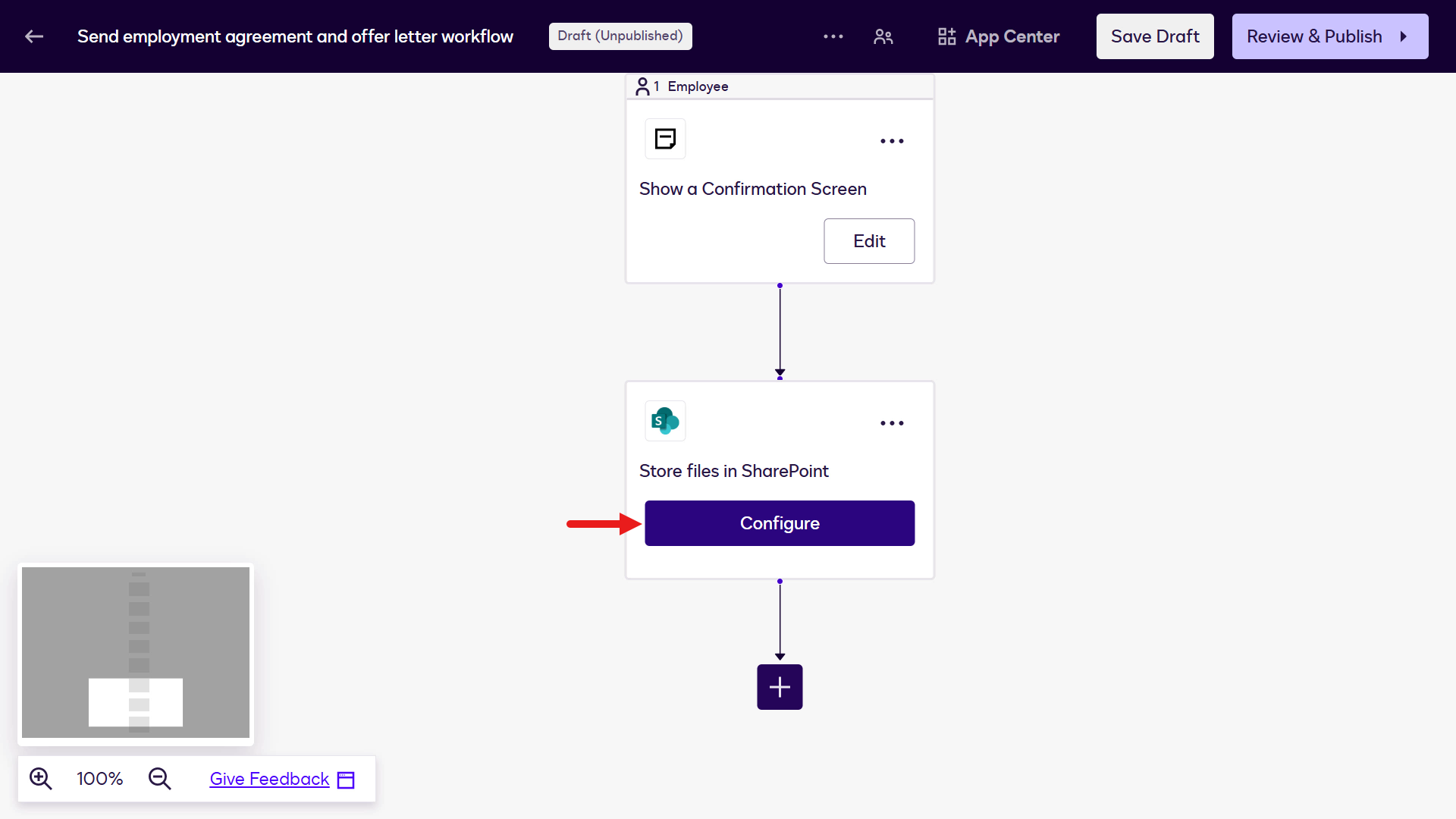
Configure -
Select Combined Envelope File.
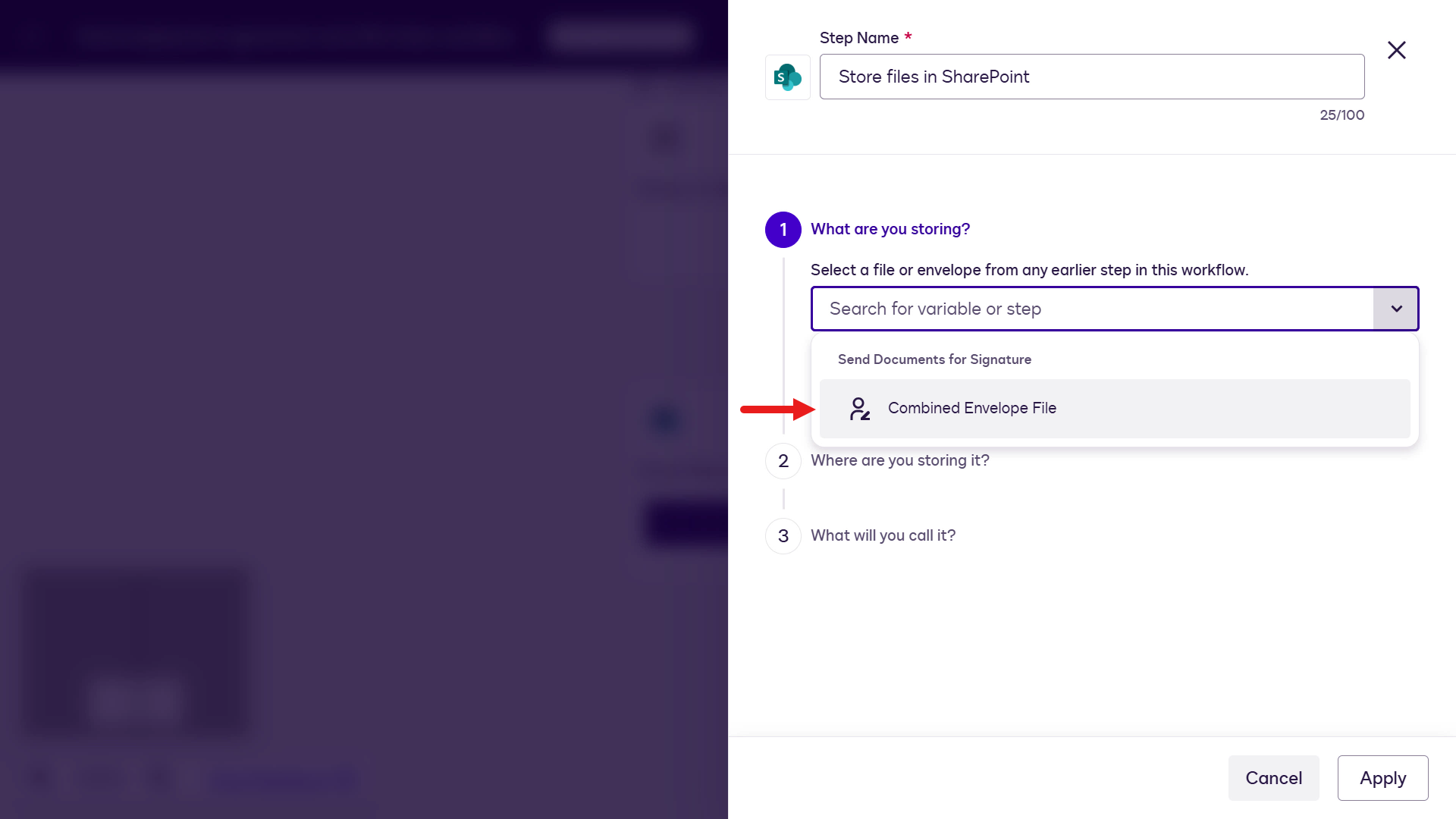
Select the combined envelope file -
Select the connection.
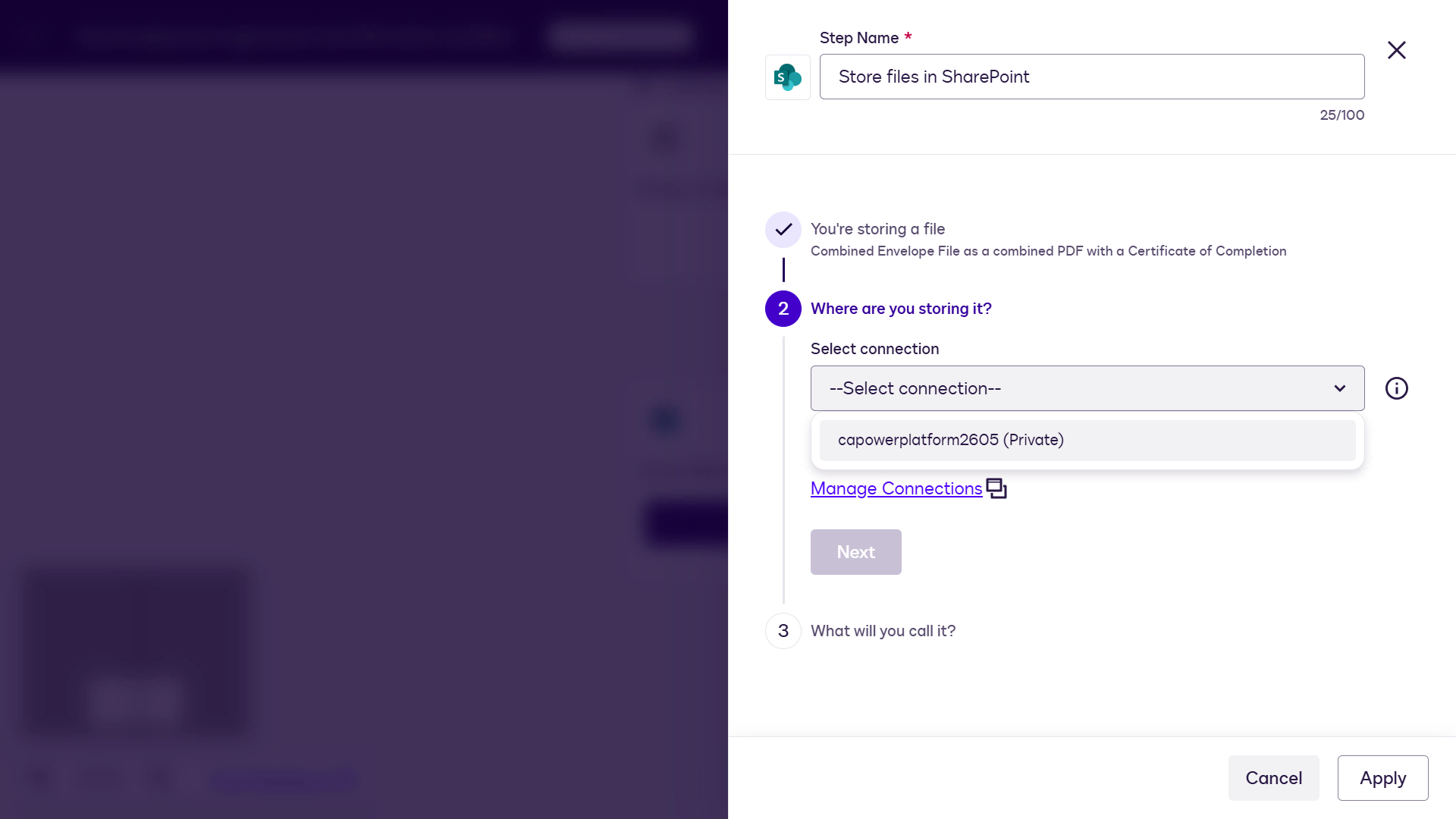
Select the connection -
Select the SharePoint site.
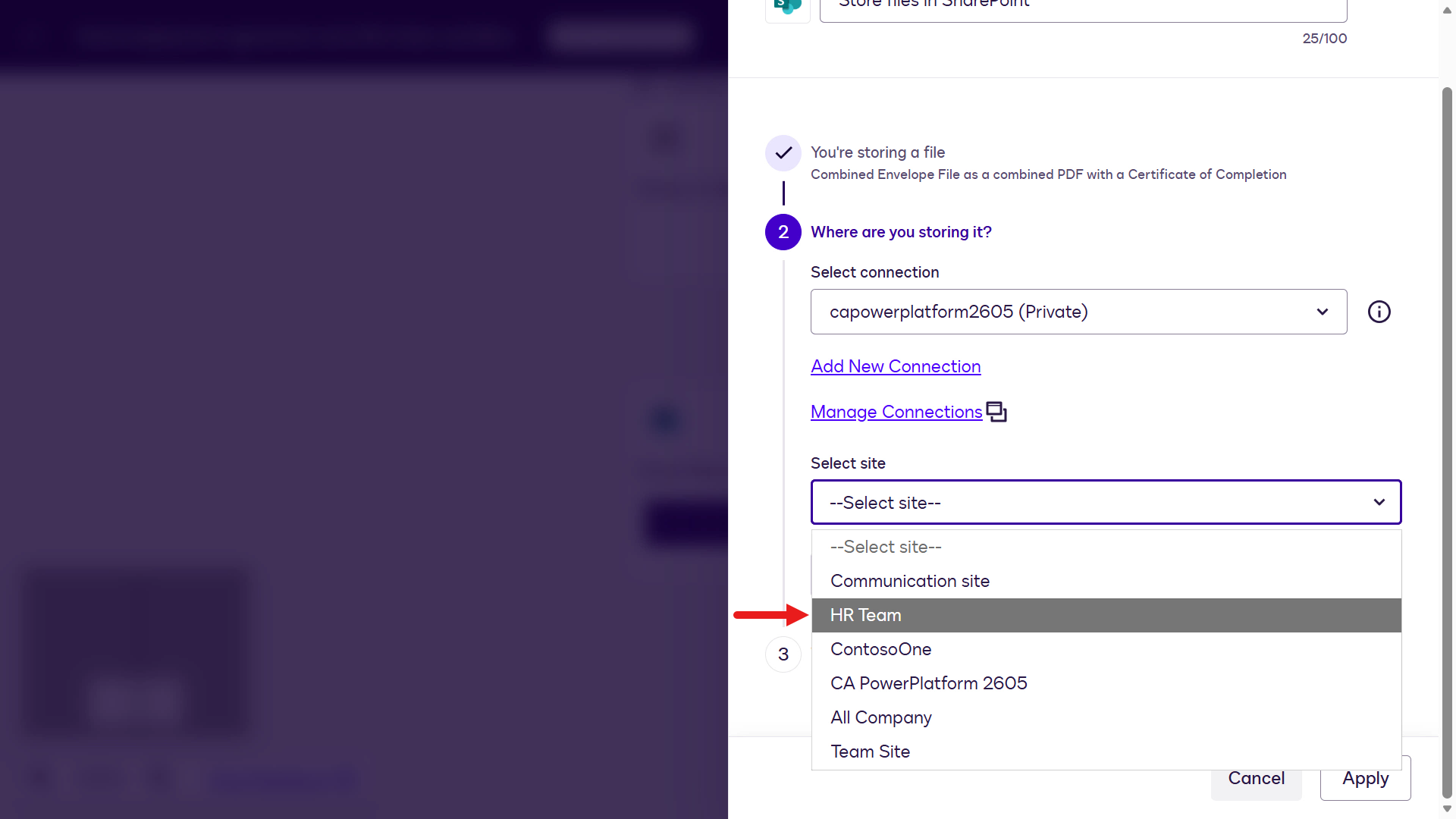
Select the SharePoint site -
Select the Documents drive.
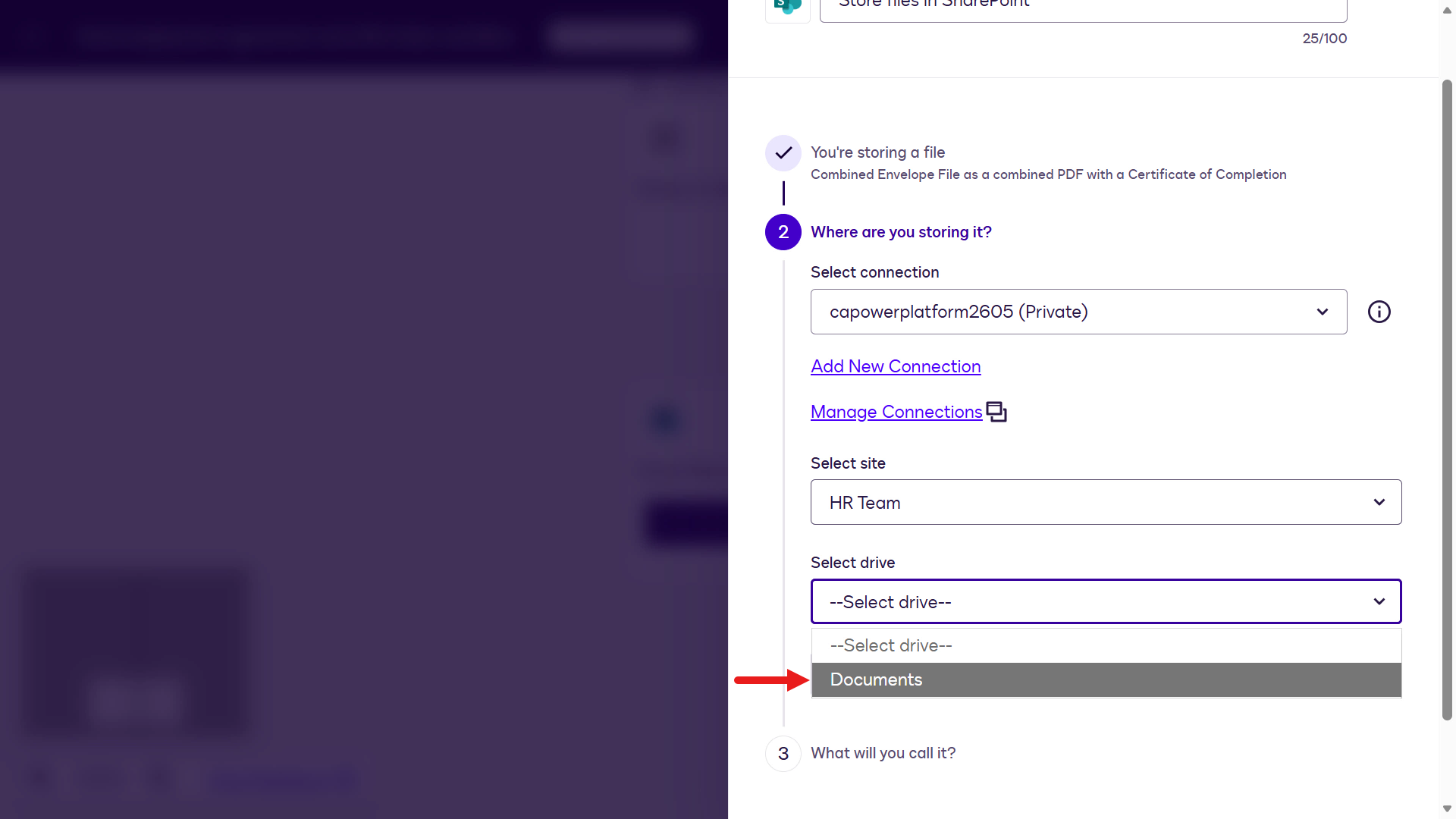
Select the drive -
Select the folder.
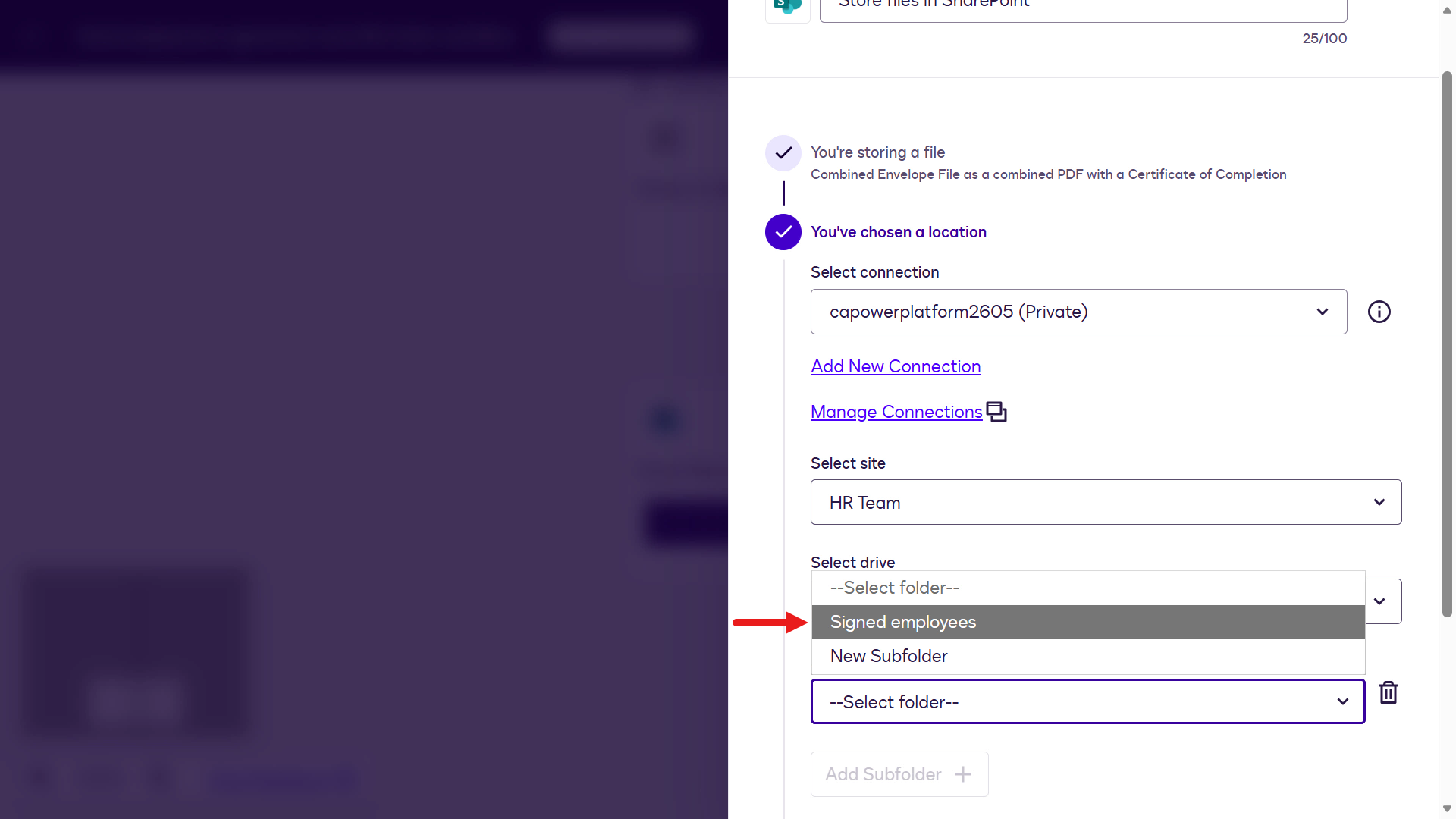
Select the folder -
Select Next.
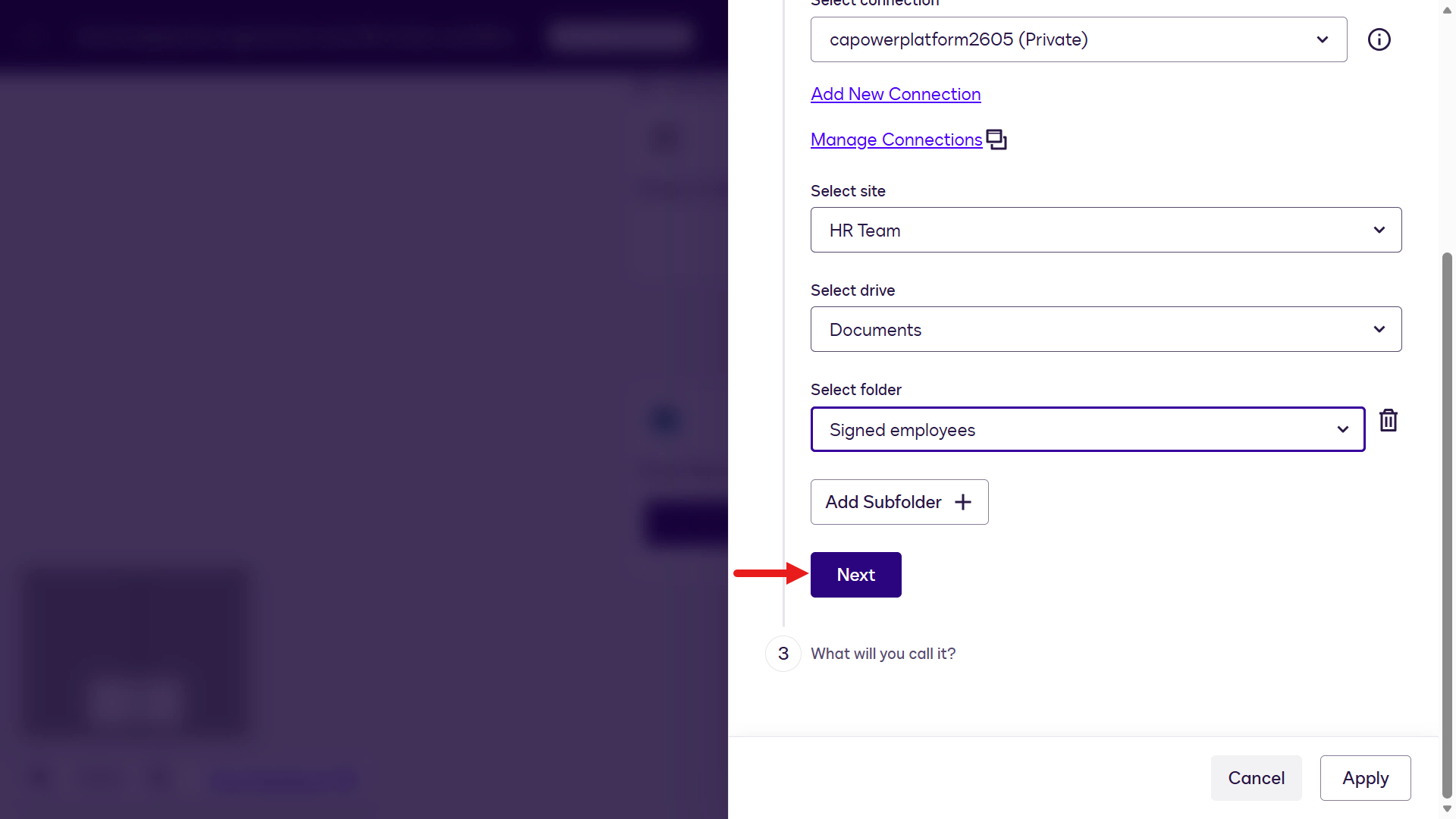
Select Next -
In the file name field, select the Envelope ID variable.
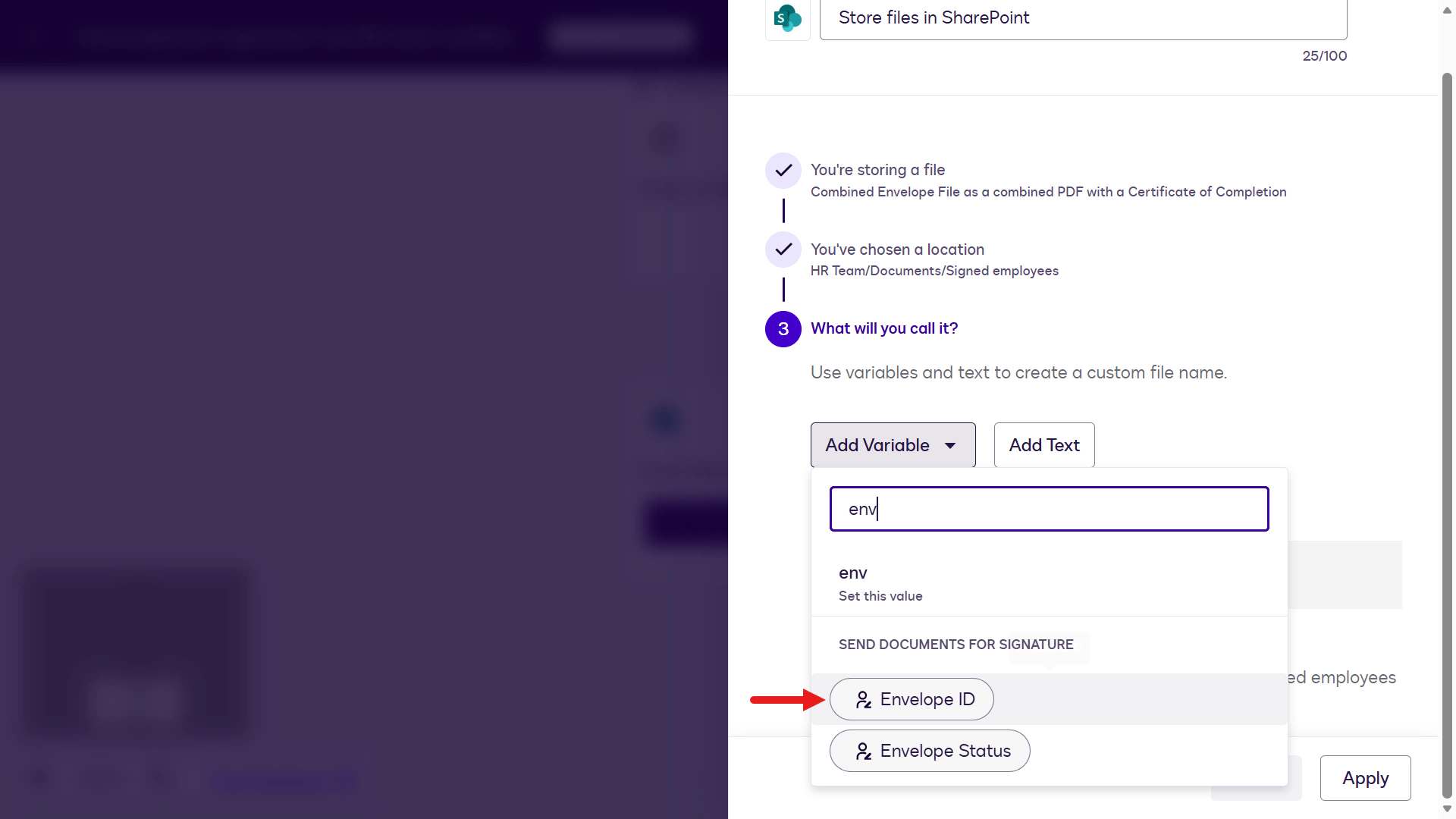
Envelope ID variable -
Select Add Text.
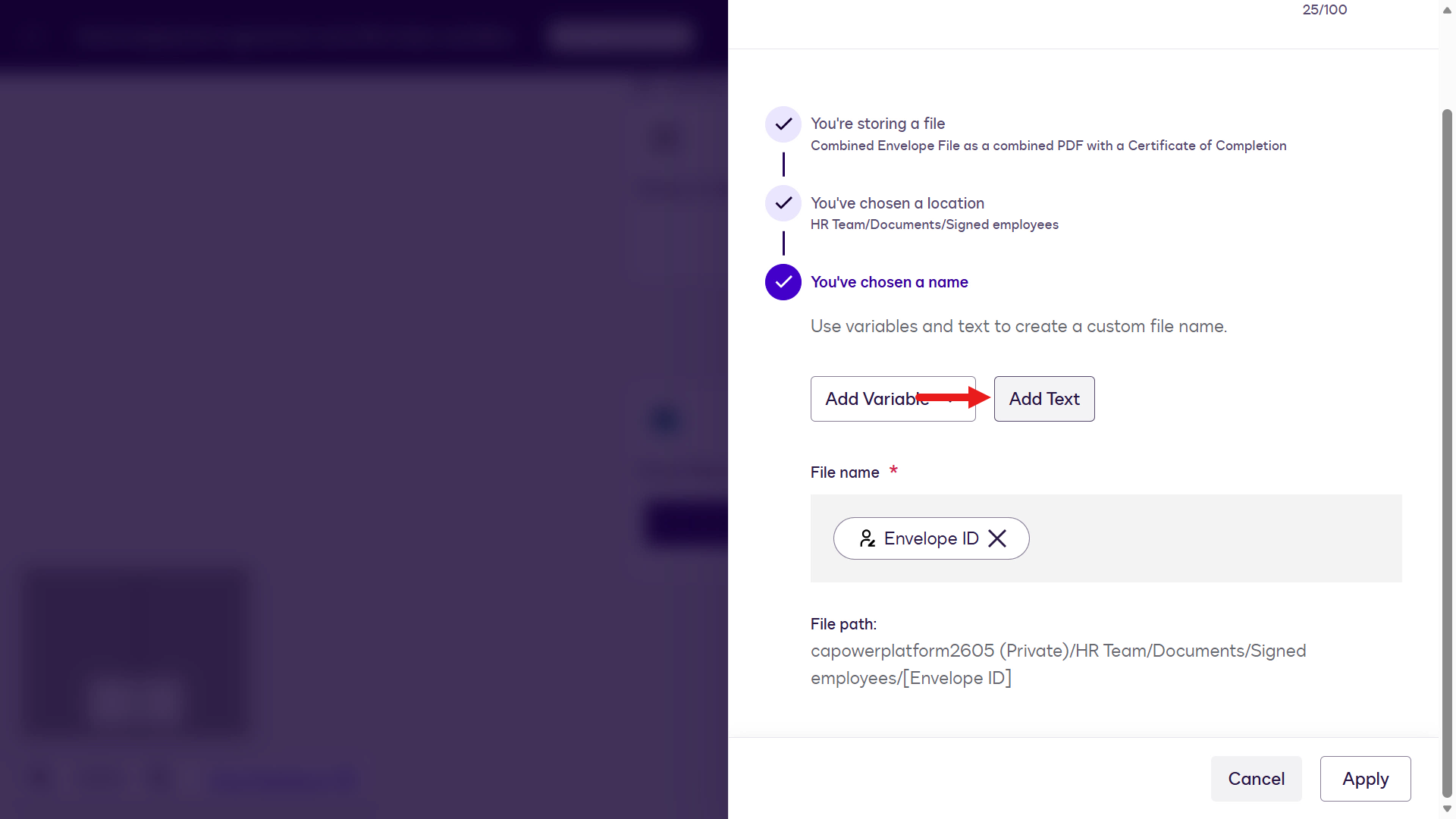
Add text -
Enter a separator and select Add:
_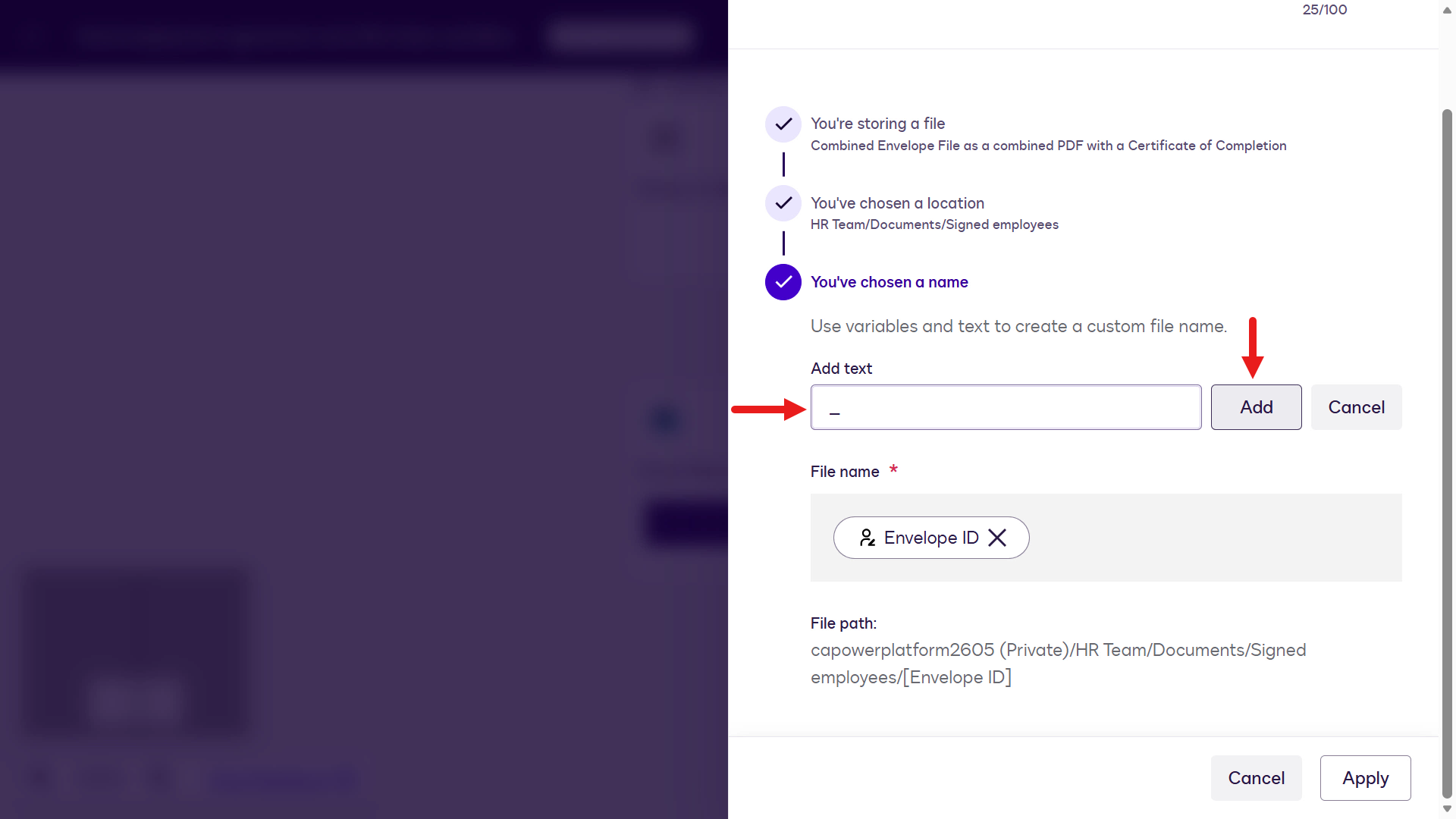
Add a separator -
Select Add Variable and select the Full Name variable.
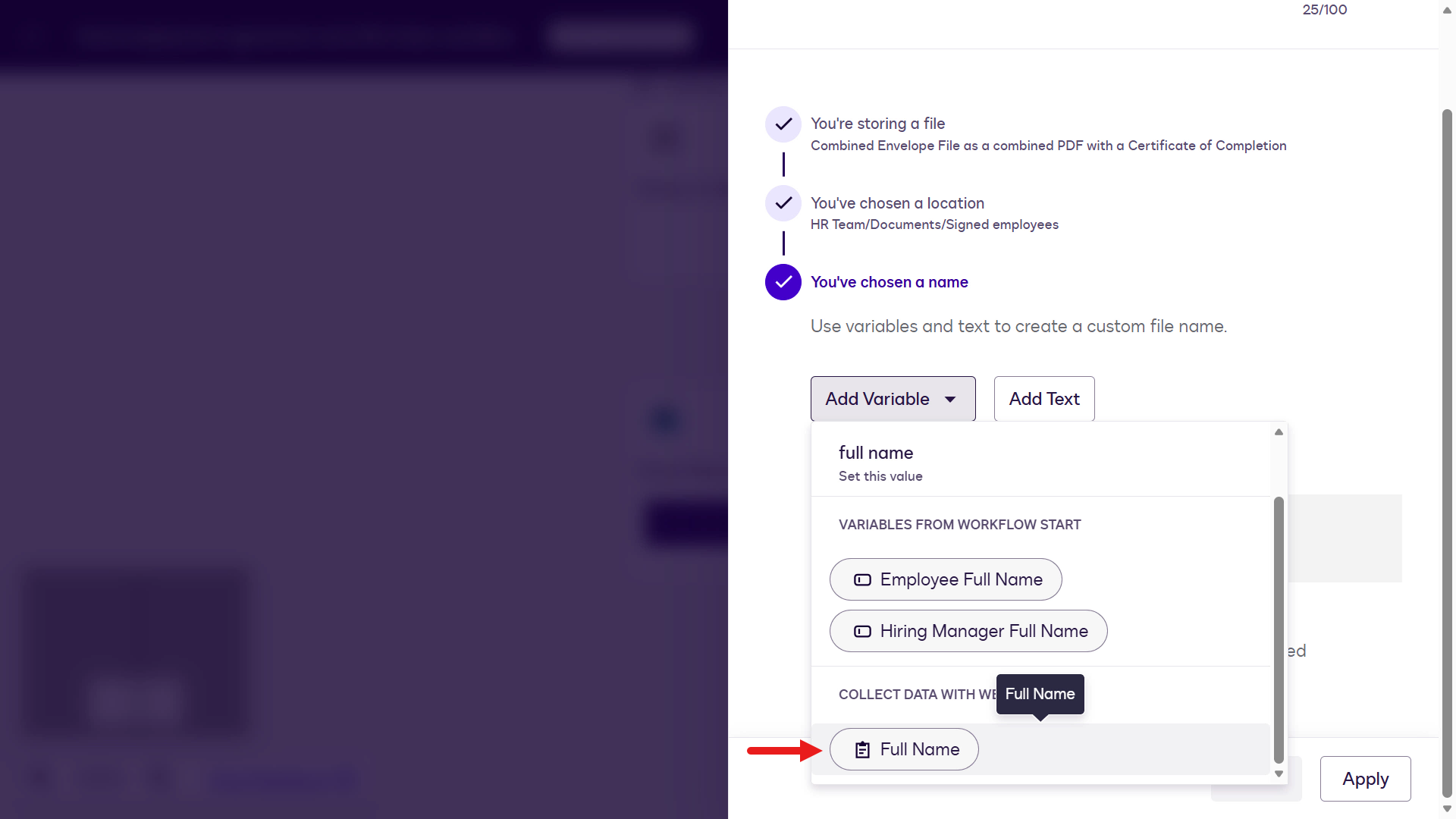
Select the Full Name variable -
Select Apply.
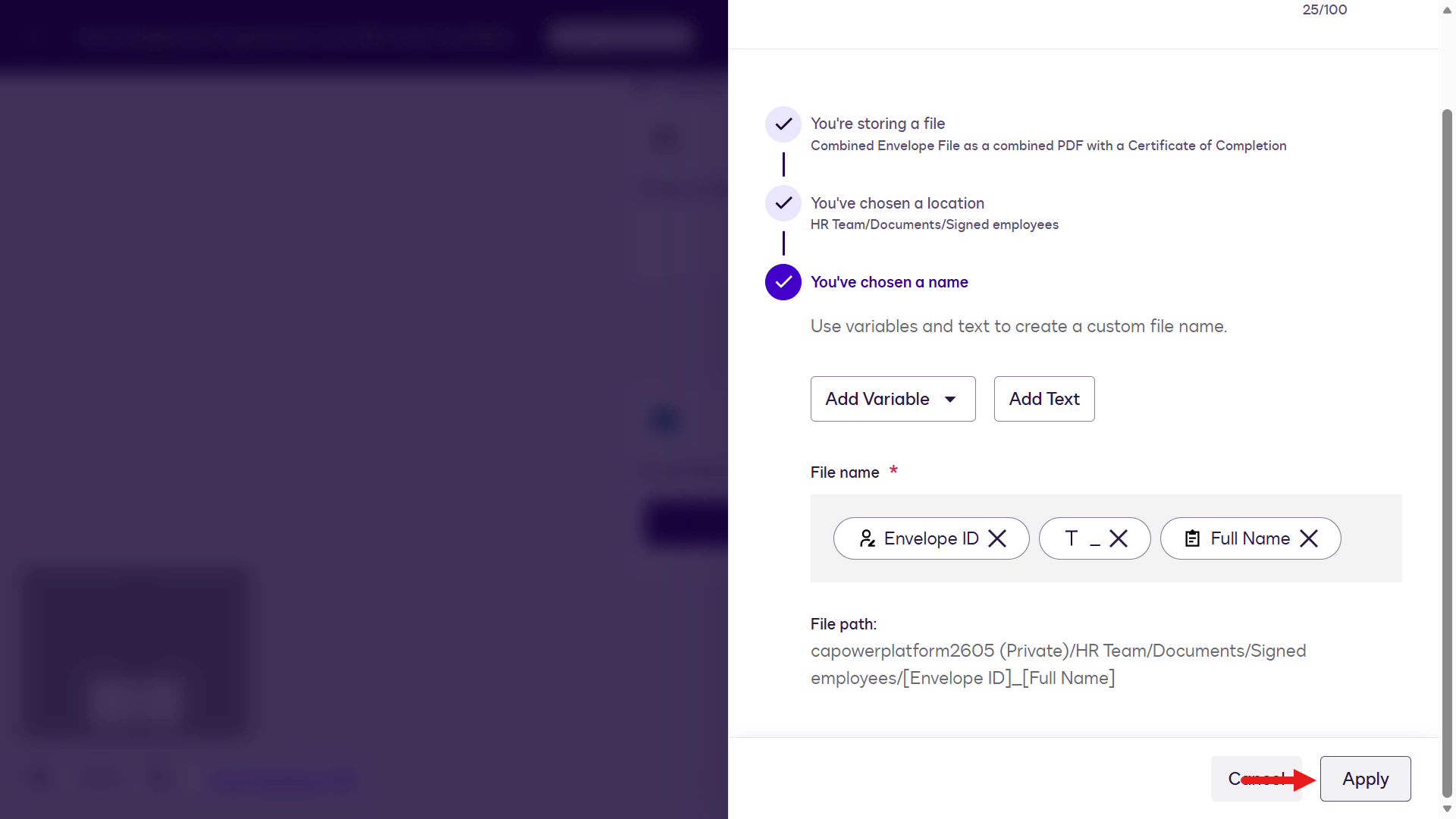
Select Apply -
Select Save Draft.
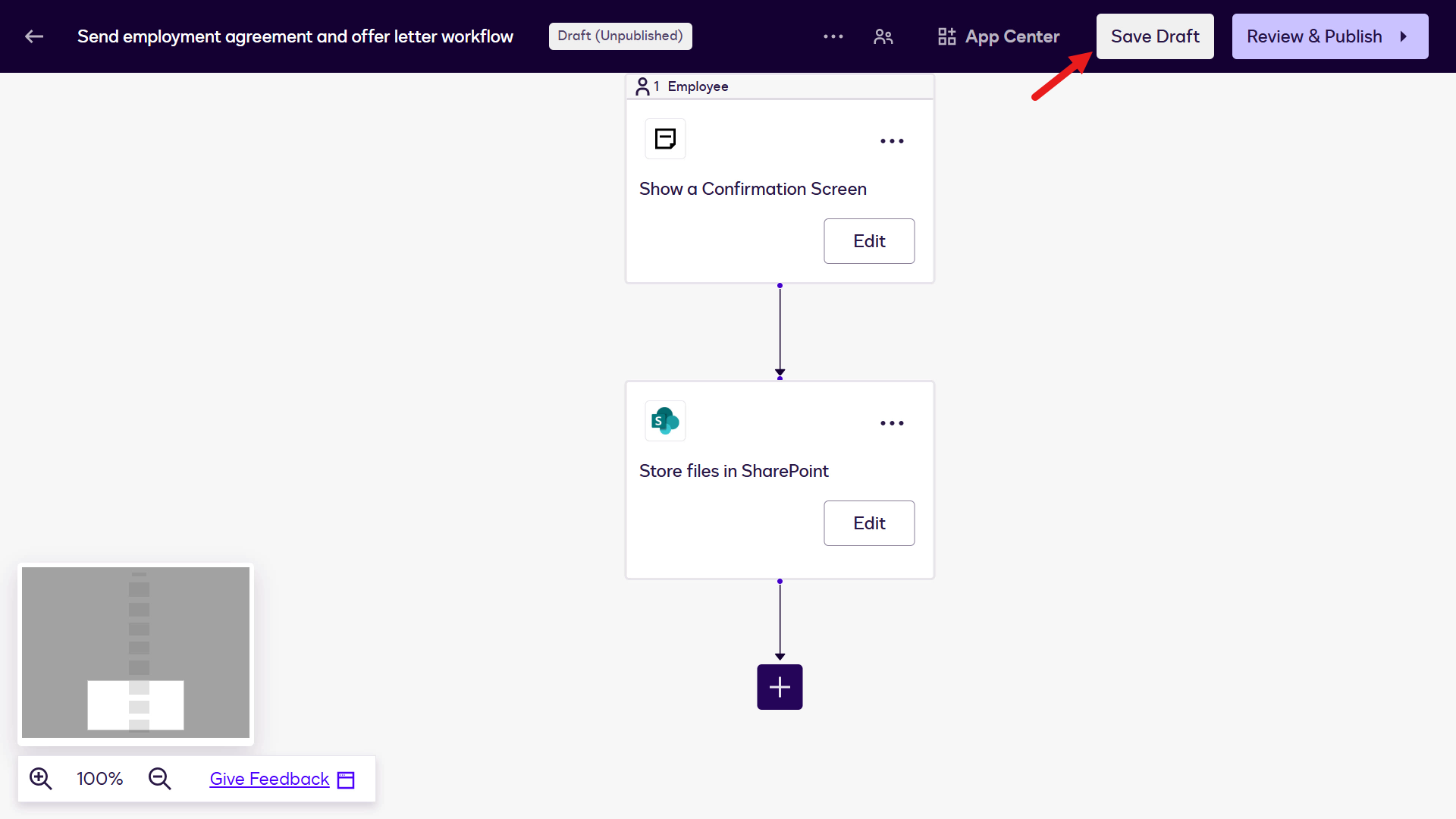
Save draft -
Select Review & Publish.
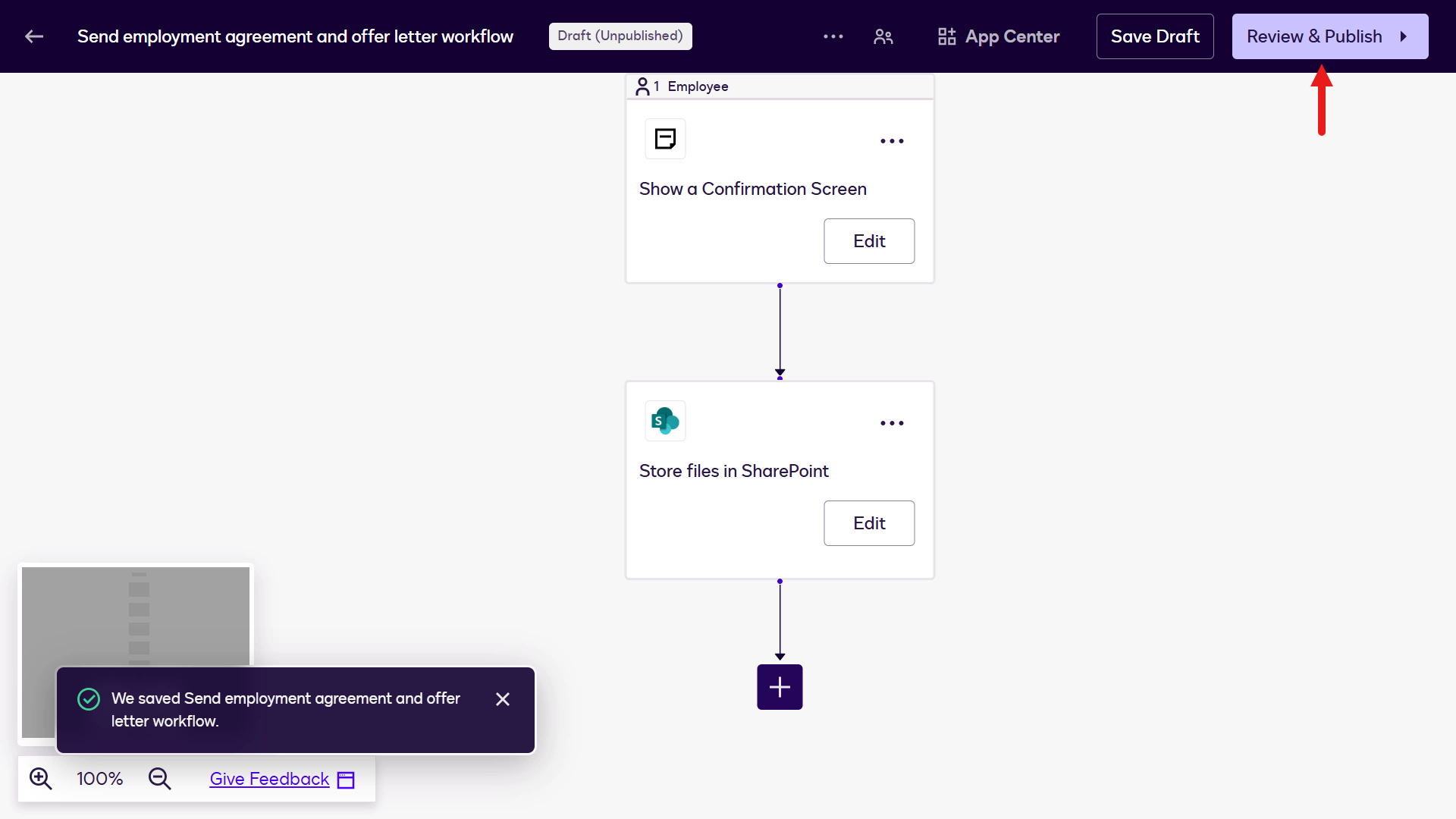
Review and publish -
Select Next.
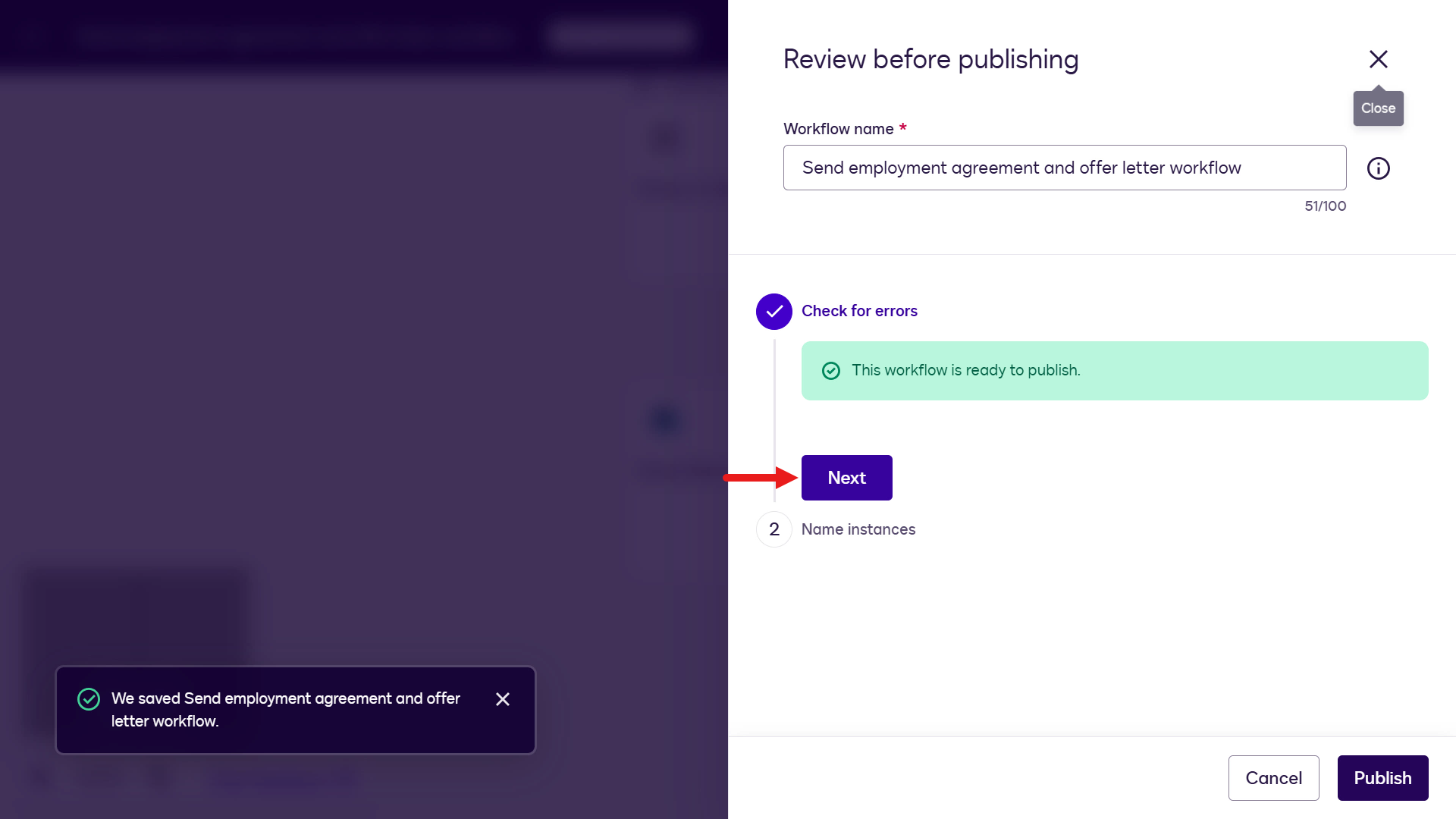
Select Next -
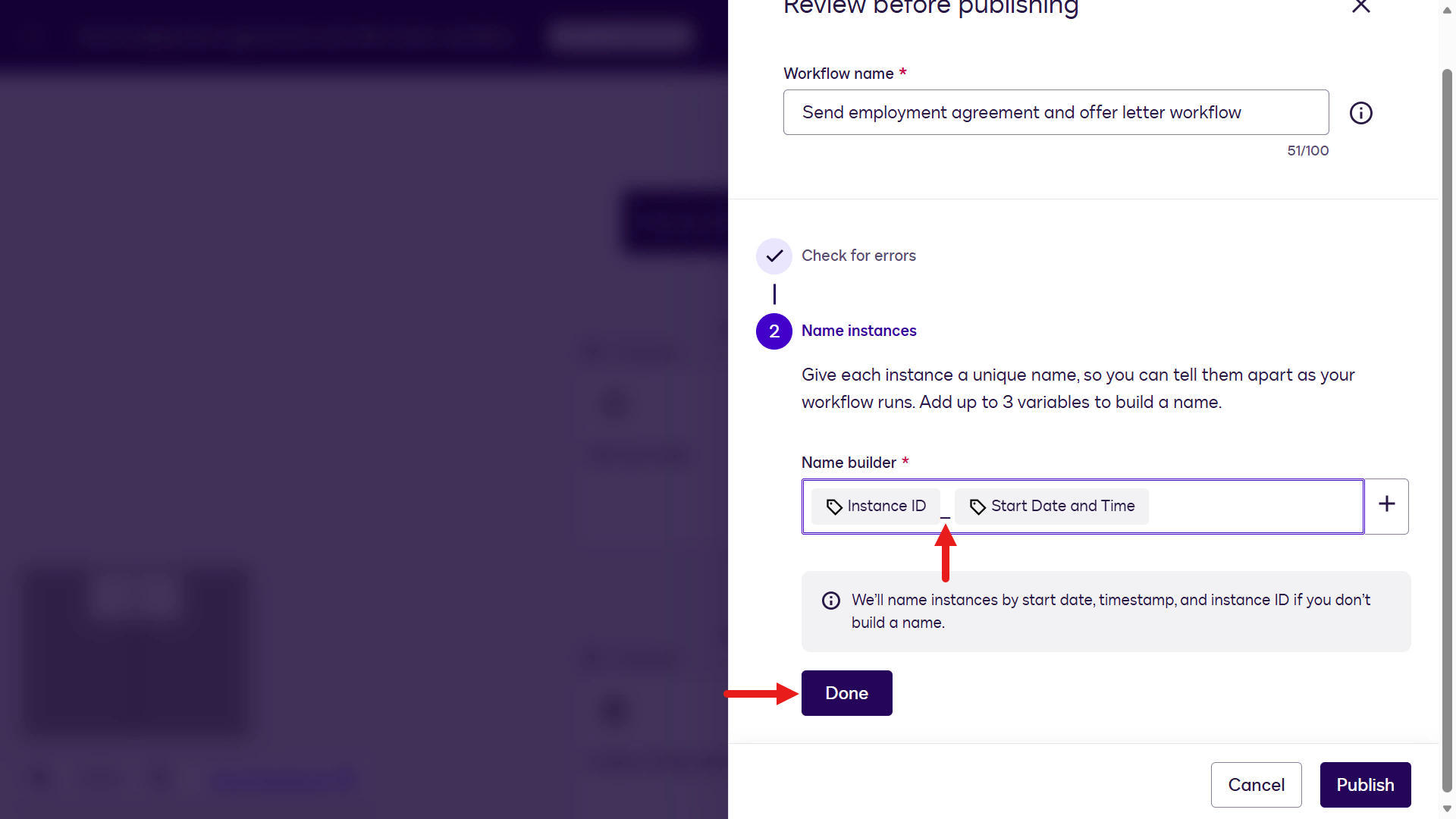
Select the + icon next to the variable.
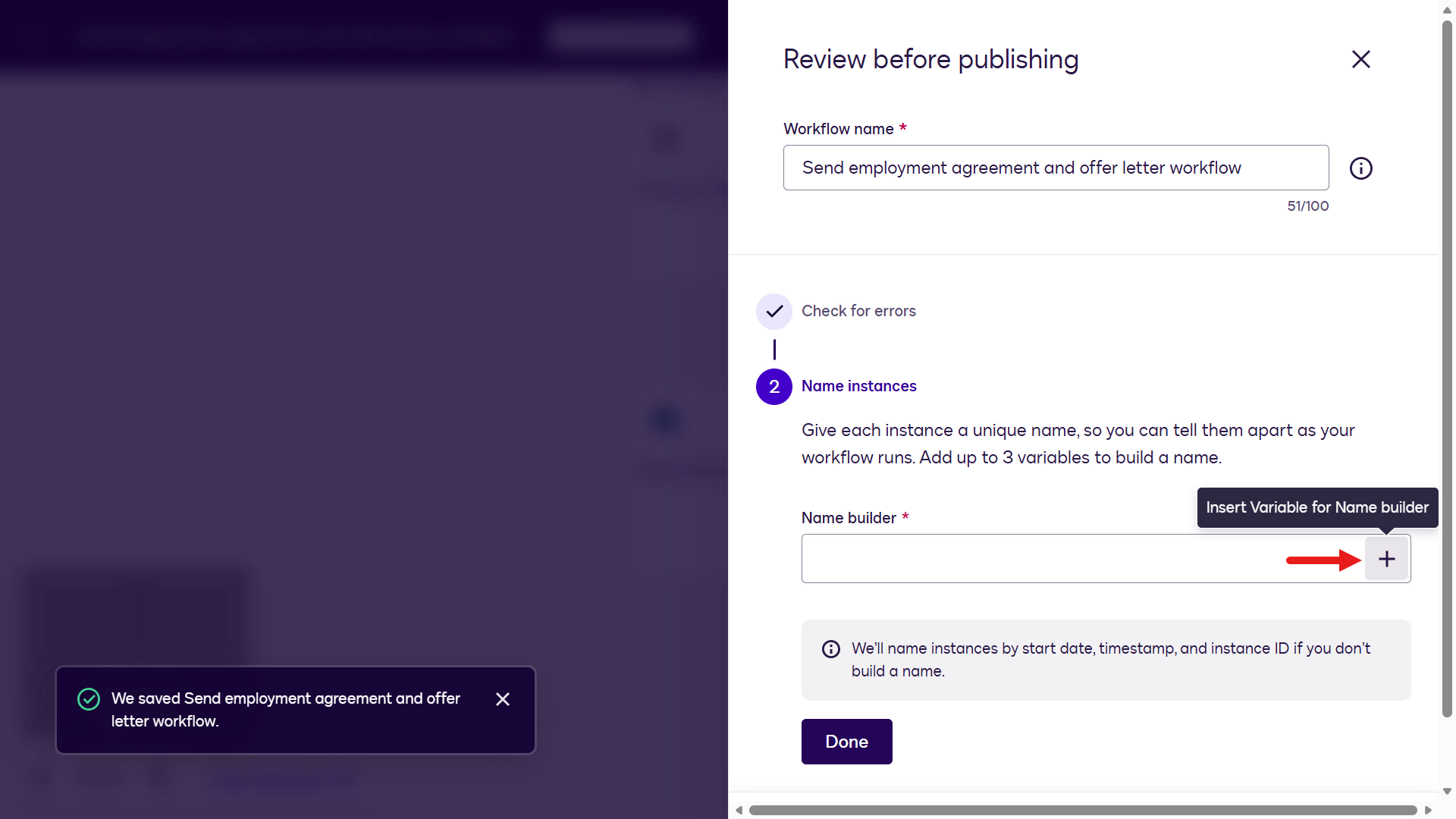
Add a variable -
Select the Instance ID variable.
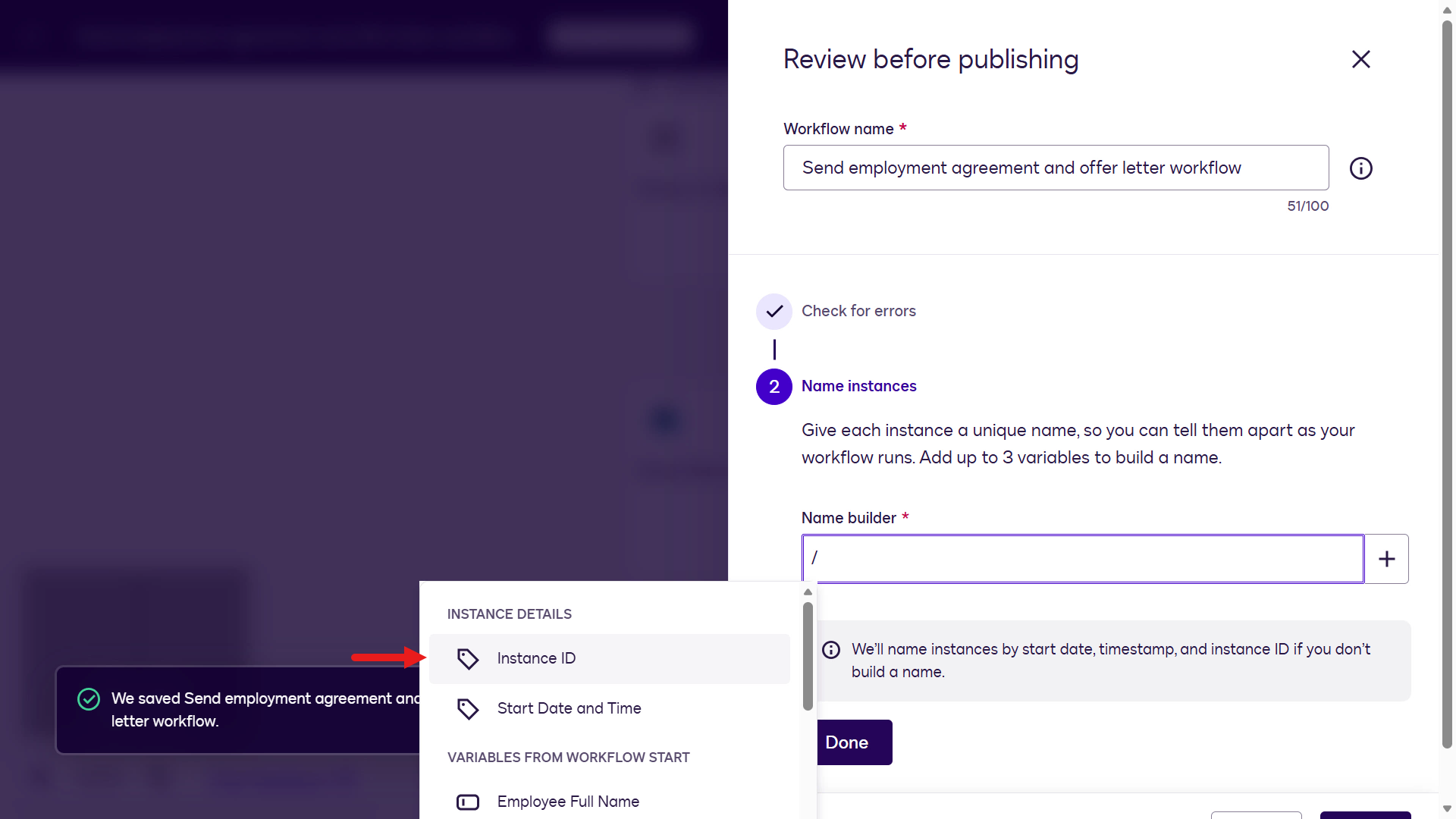
Instance ID variable -
Select the Start Date and Time variable.
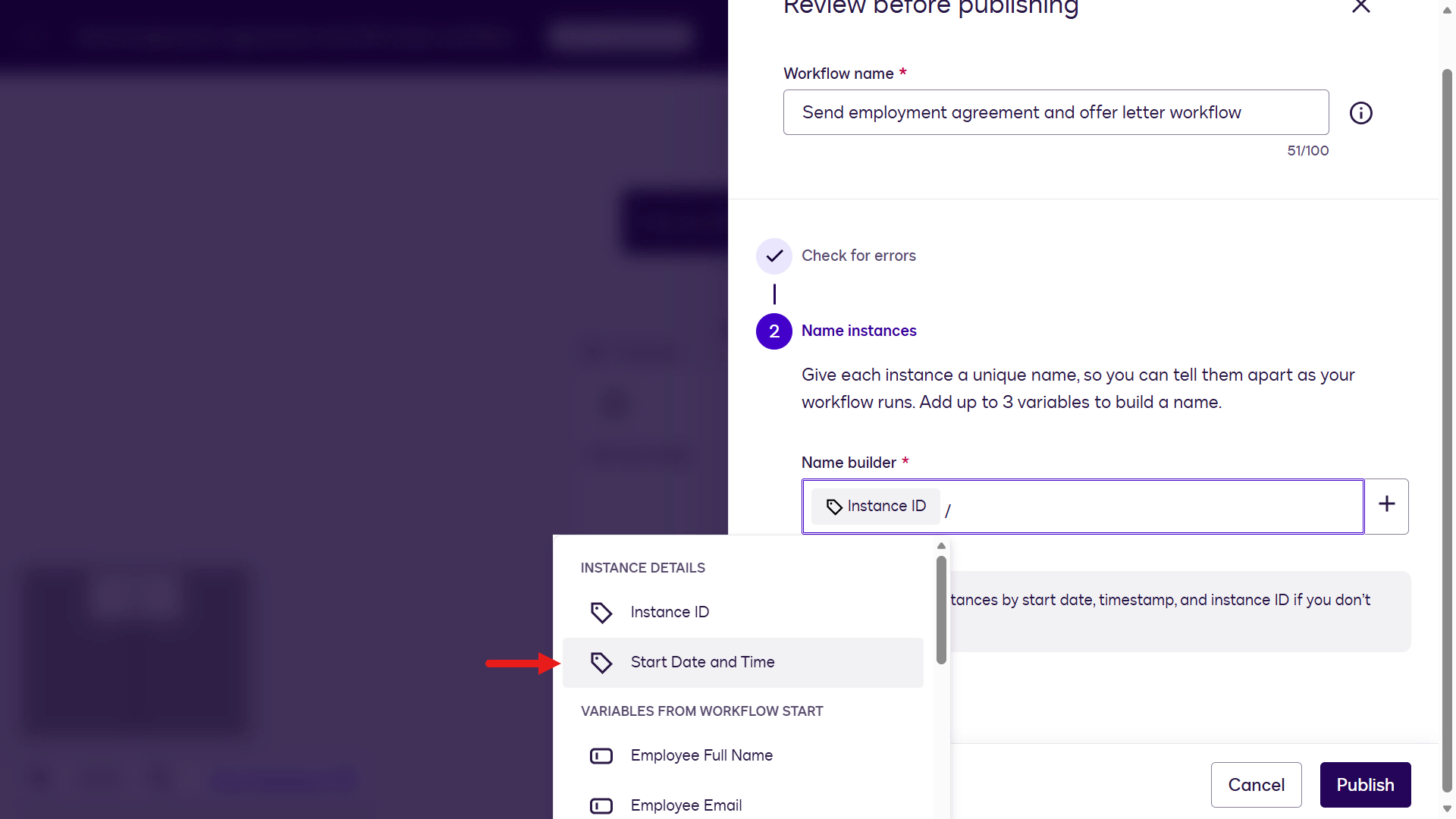
Start date variable -
Enter a separator and select Done:
_
Set the separator -
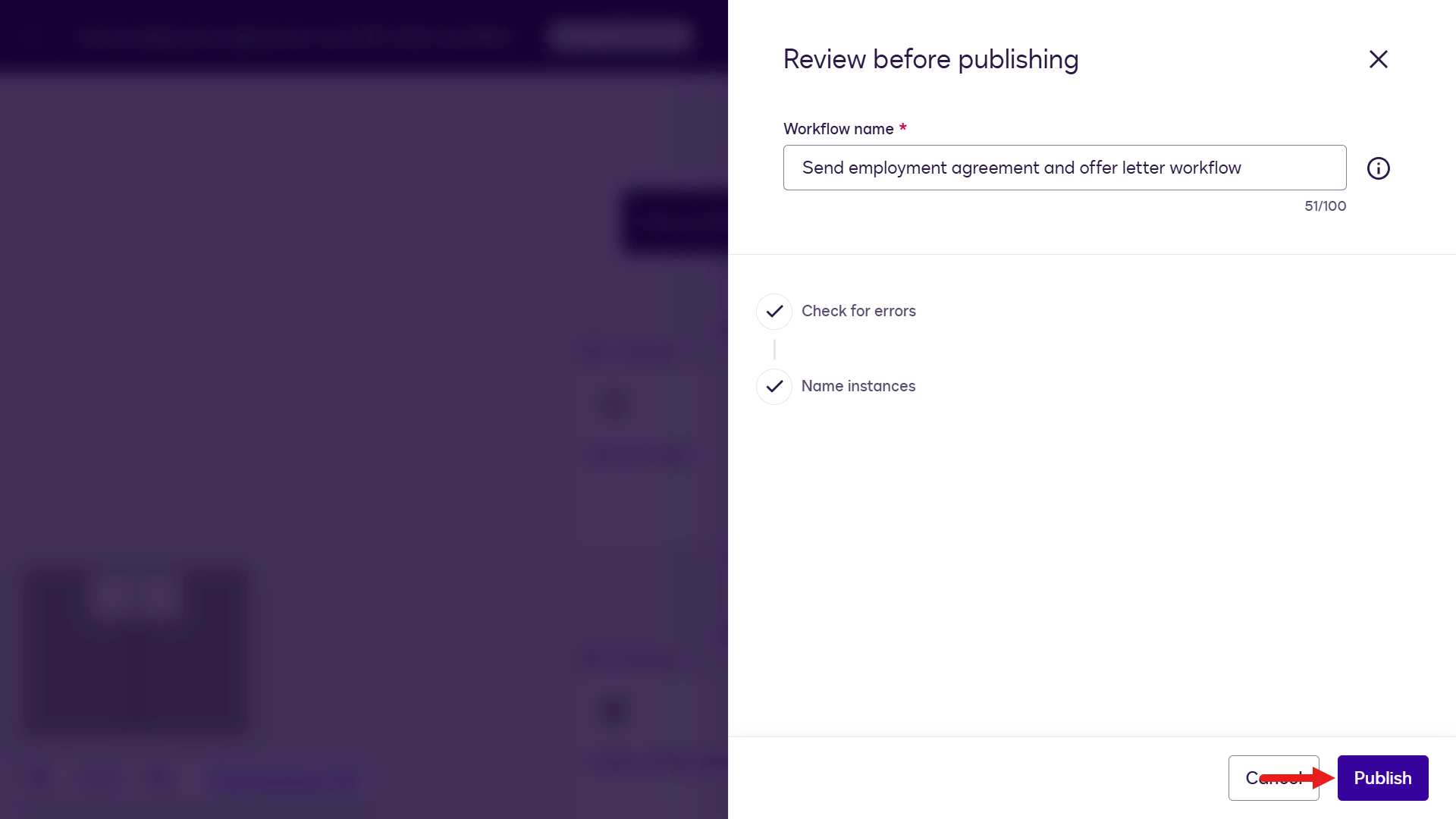
Select Publish.
Publish -
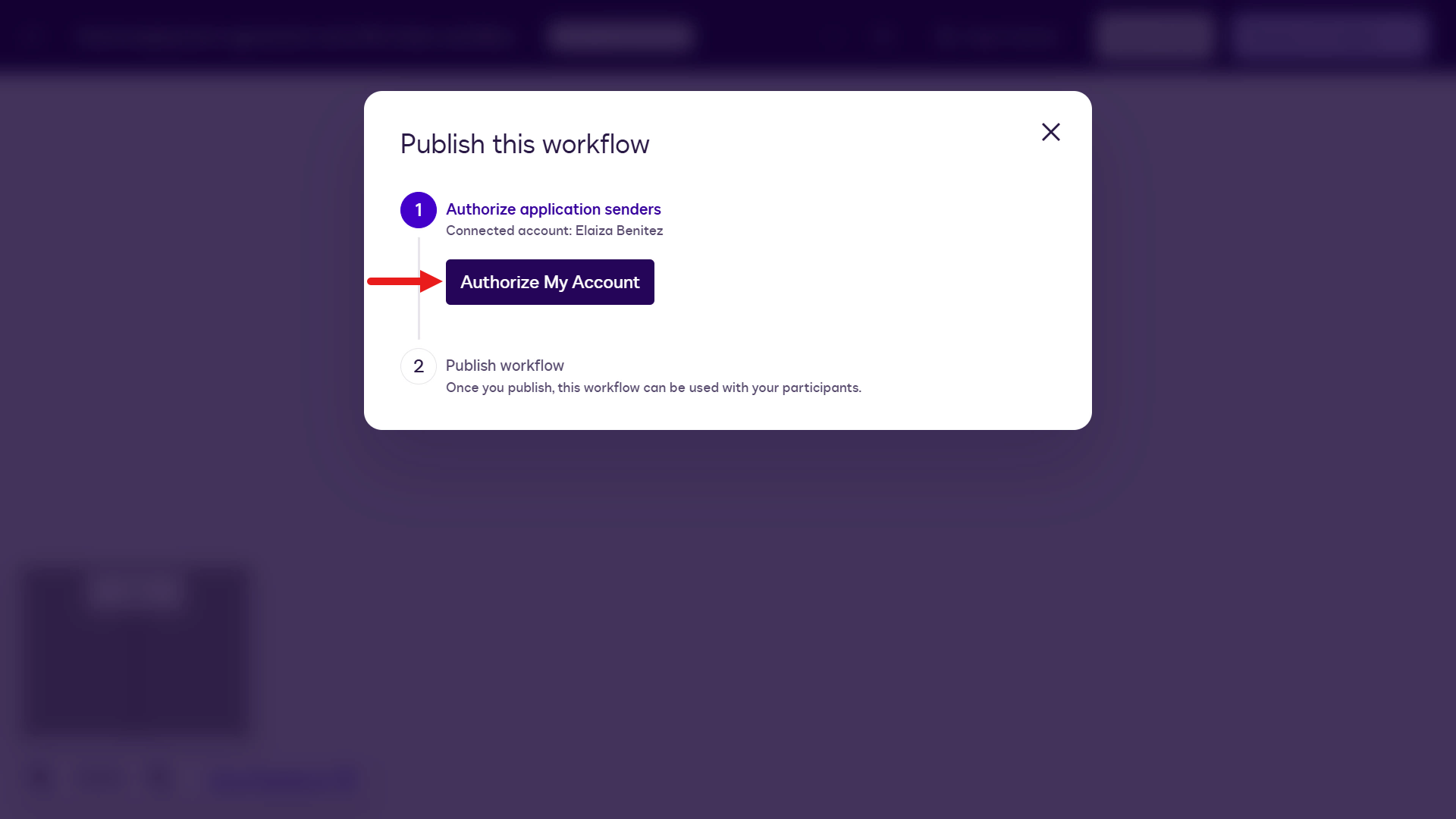
Select Authorize My Account.
Authorize account -
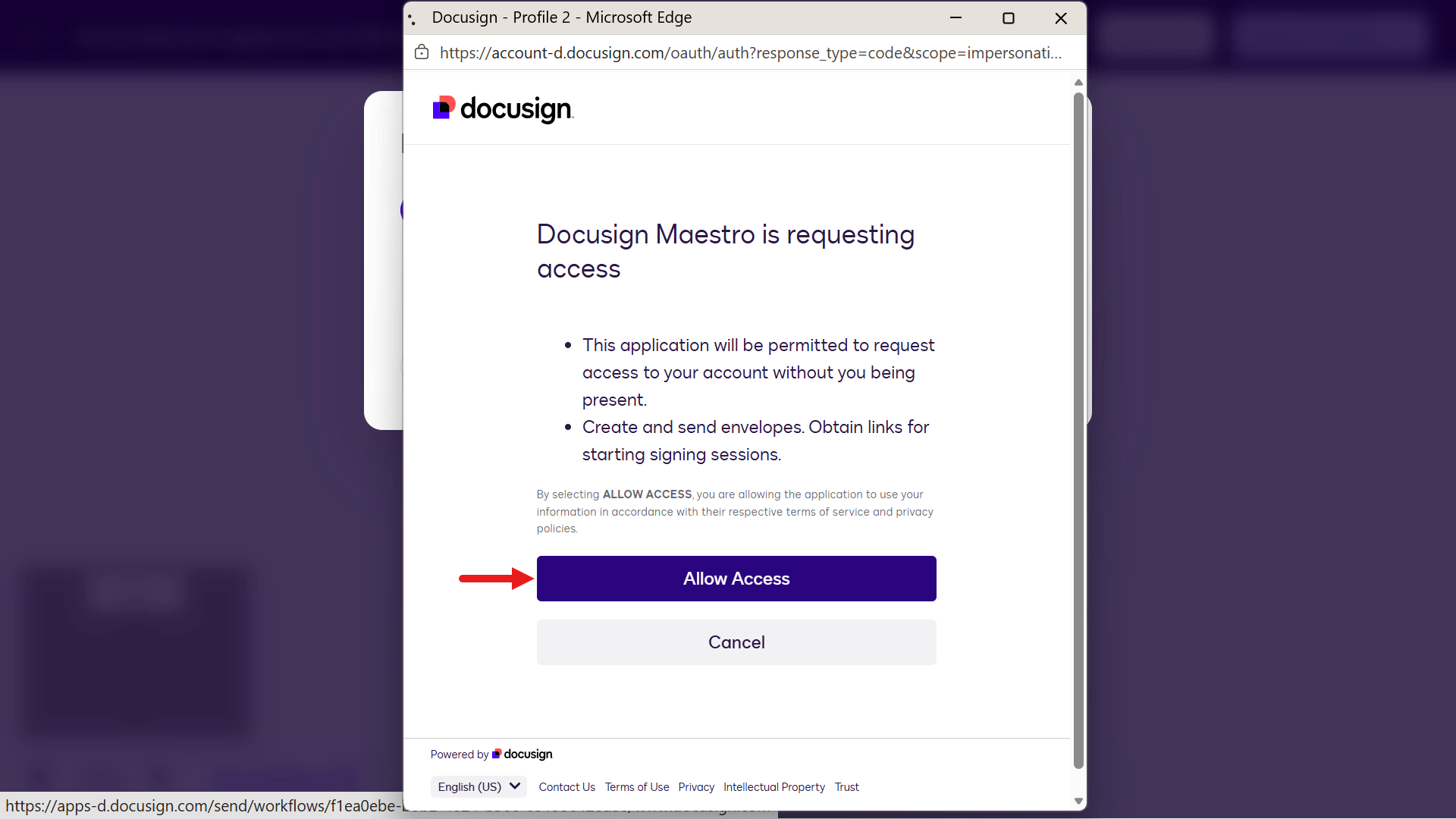
Select Allow Access.
Allow access -
Select Publish.
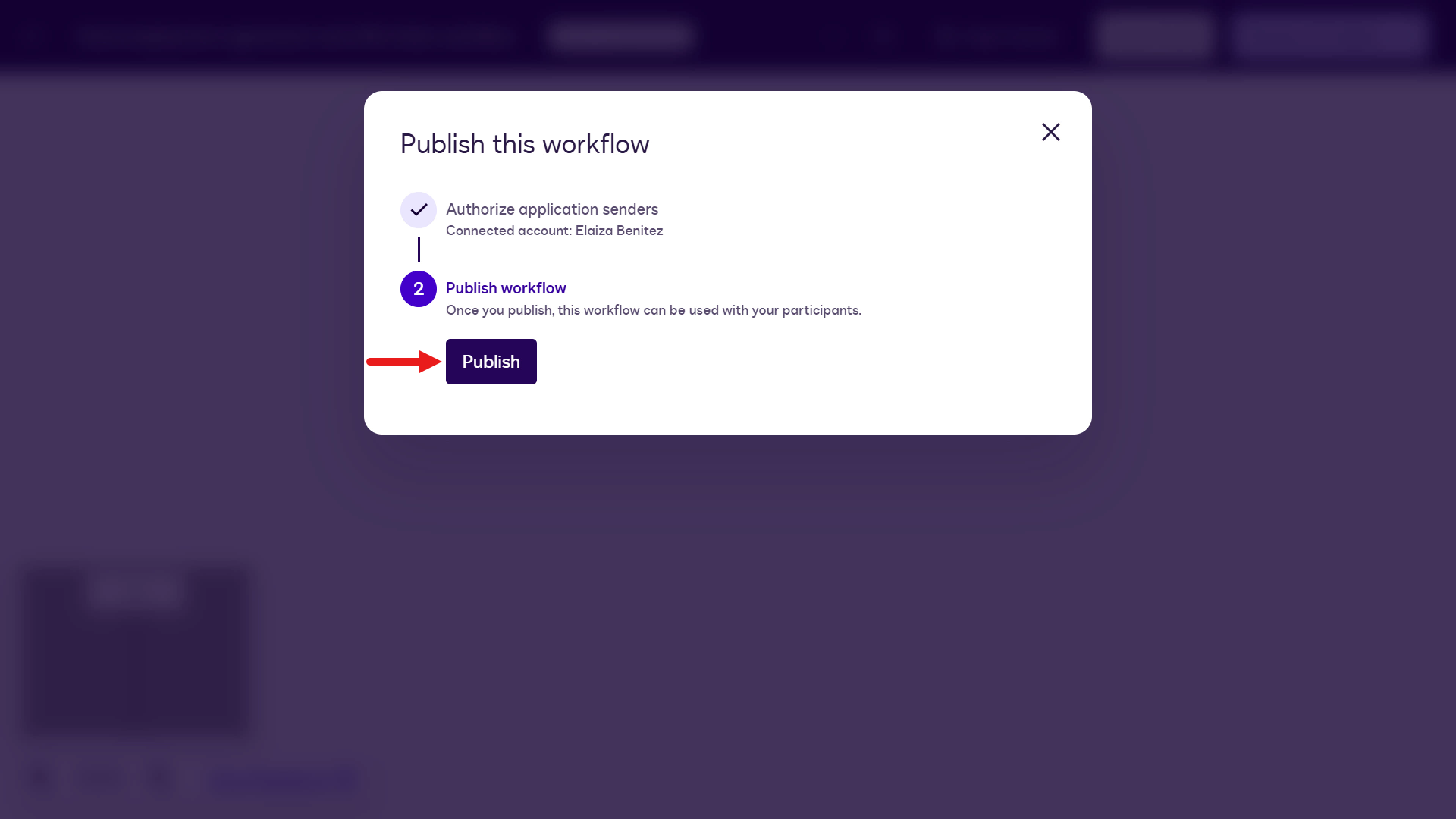
Publish -
Select Go to Workflows.
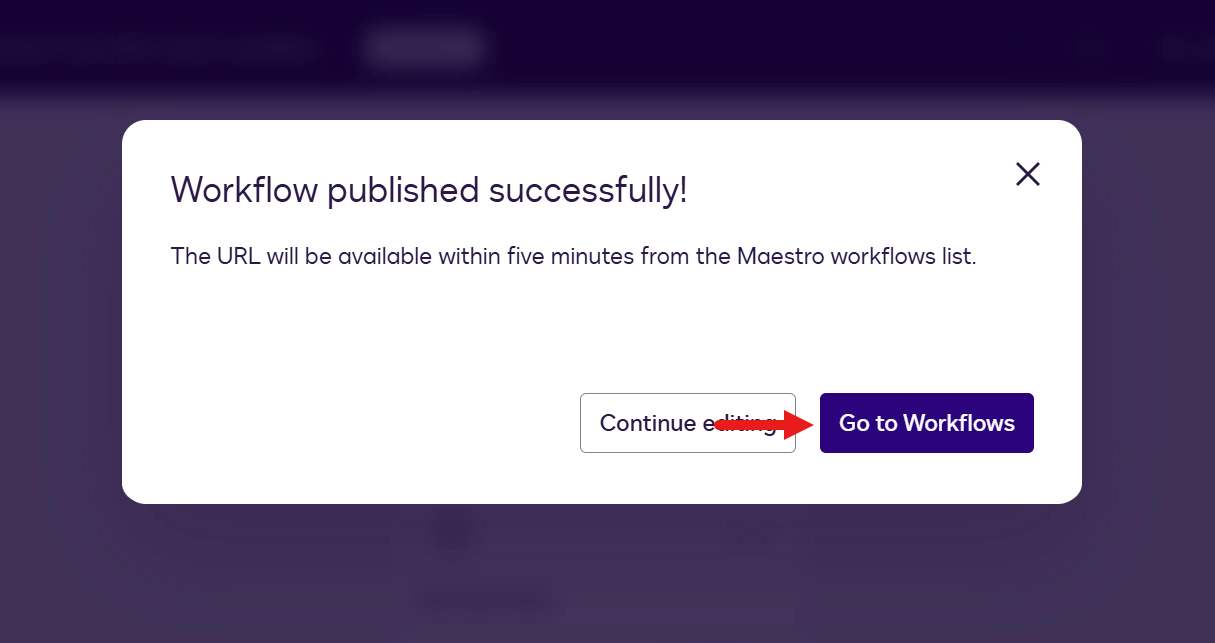
Go to workflows -
The workflow is shown with a Published status. You successfully built the workflow 👏🏻
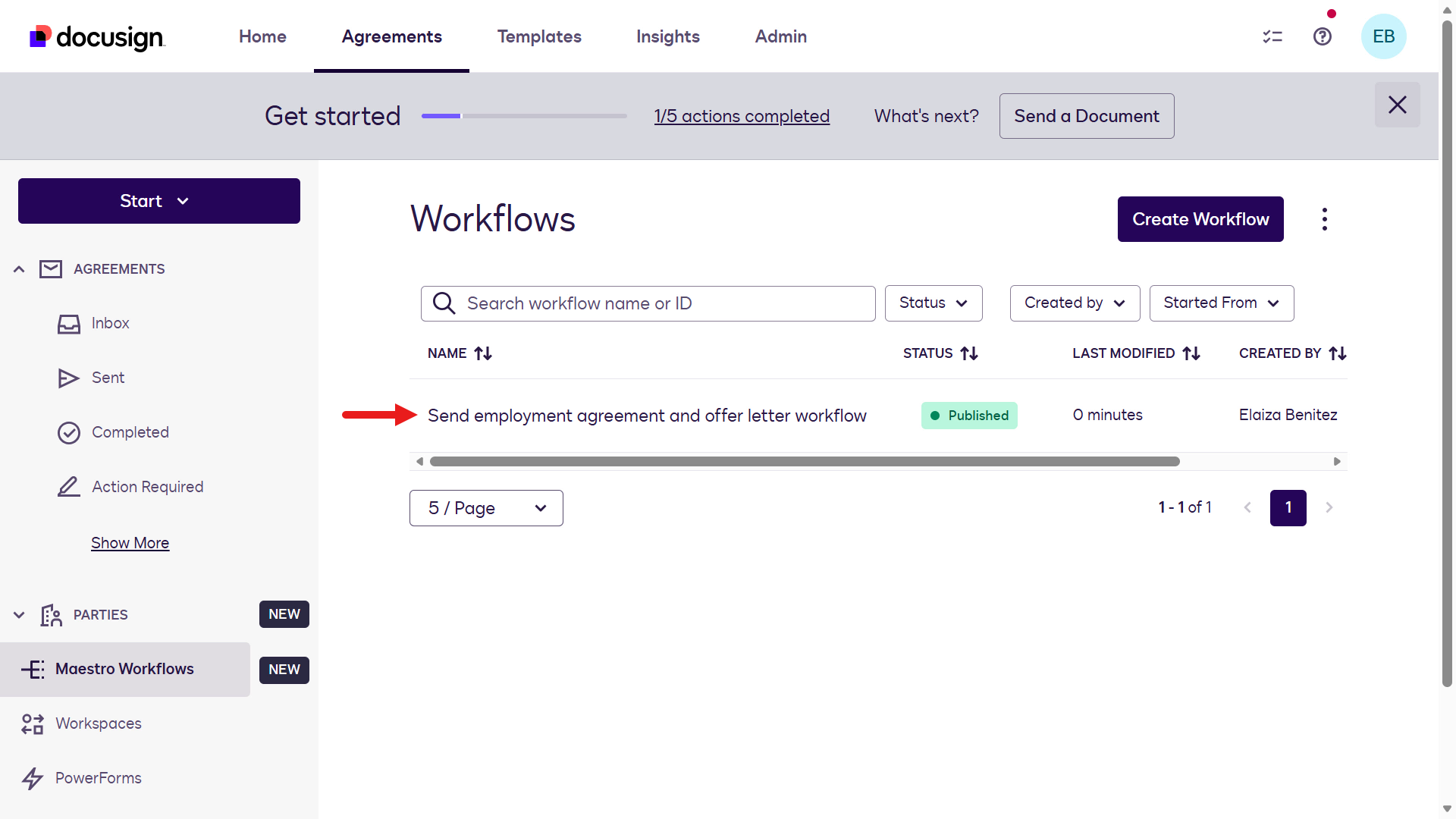
Workflow published
🧪 1.4 Test the workflow
Before building the agent in Microsoft Copilot Studio, it is a good practice to test the workflow by running it. You can start a new instance and run the workflow manually.
-
Open the workflow and select Start Instance in the upper-right corner.
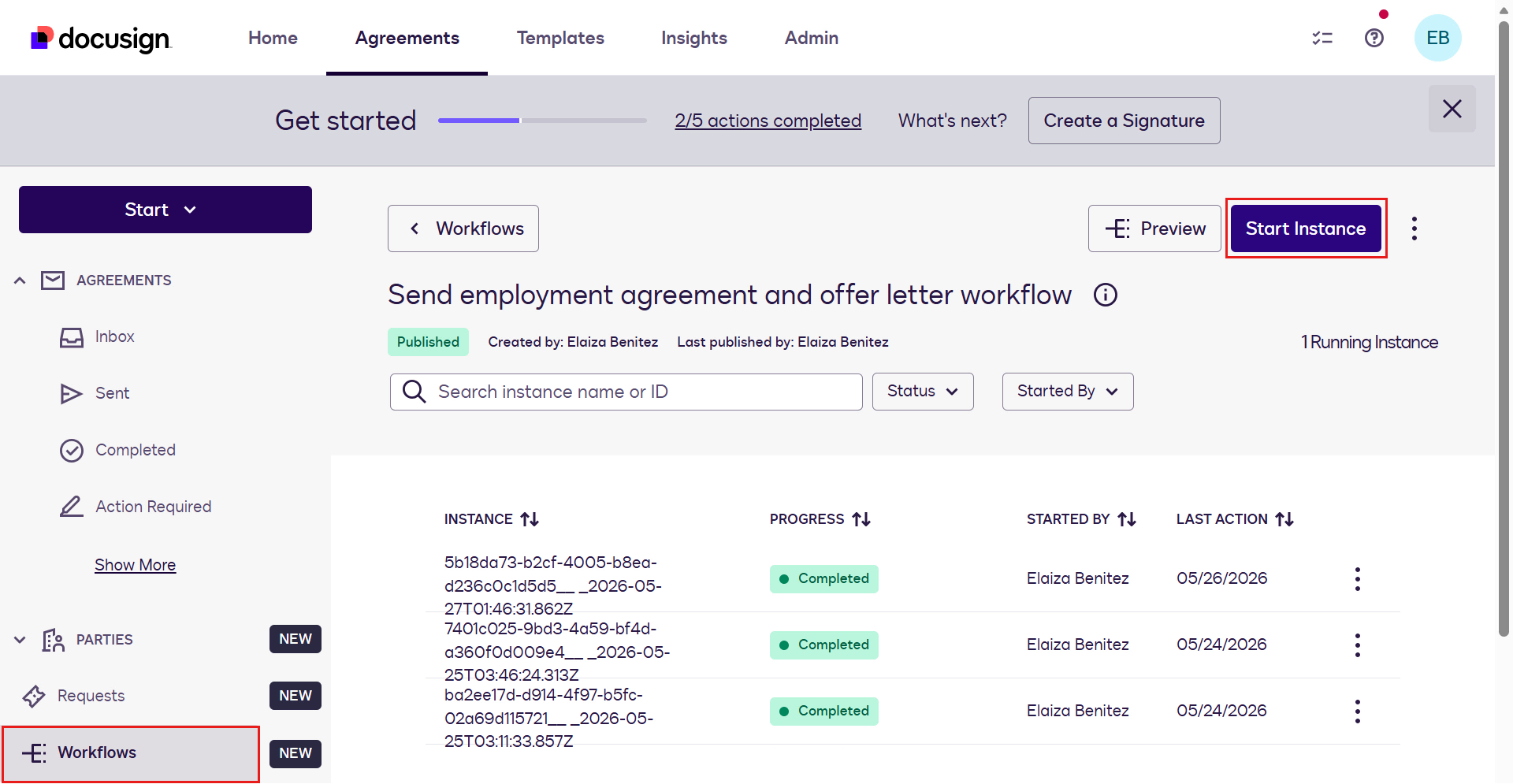
Start a workflow instance -
A modal appears where you enter values for the workflow start step variables. Fill the fields with sample data.
Note: Use two different email addresses that you can access for Employee and Hiring Manager.
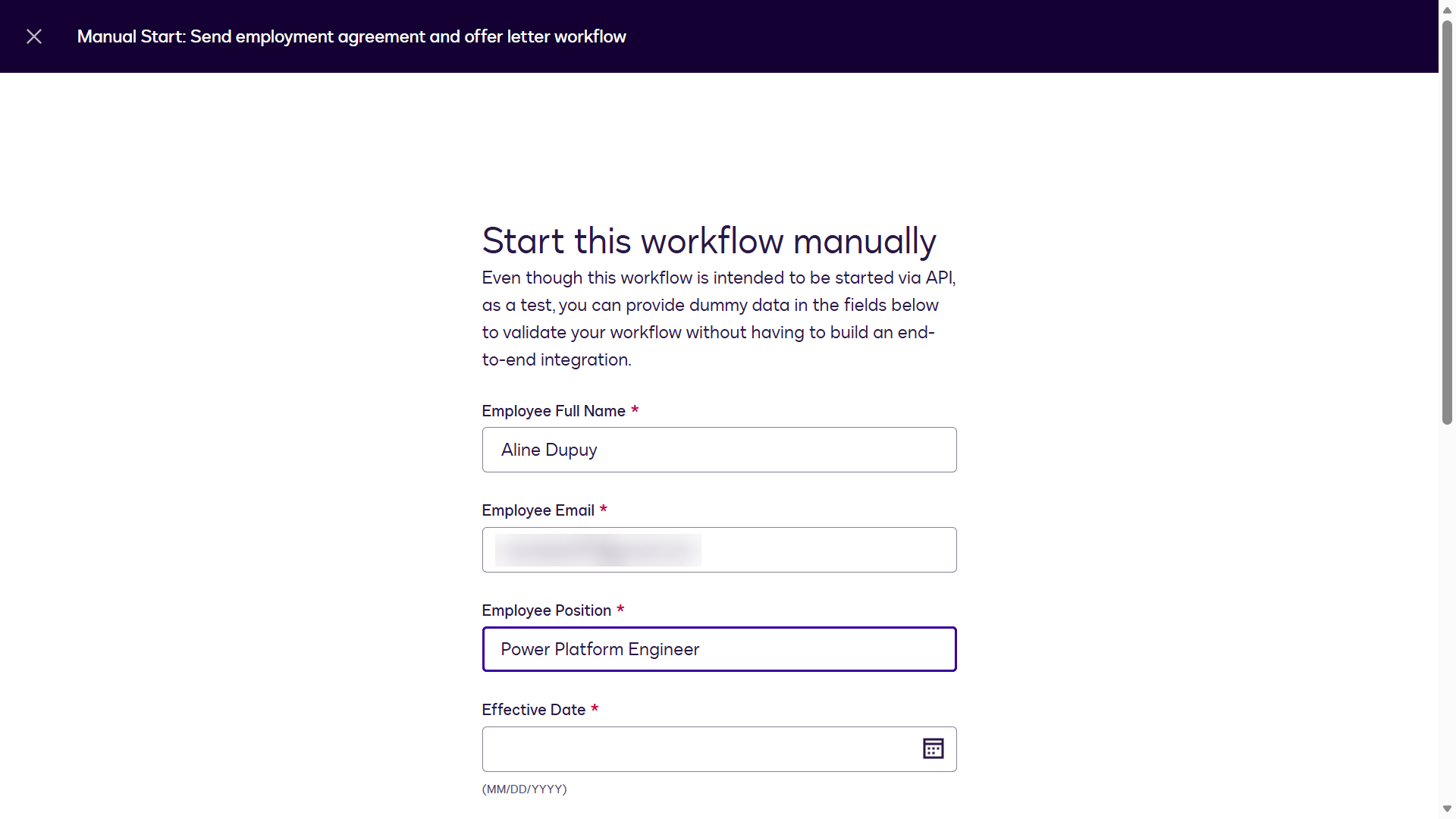
Workflow start variables -
After entering the variable values, select Start.
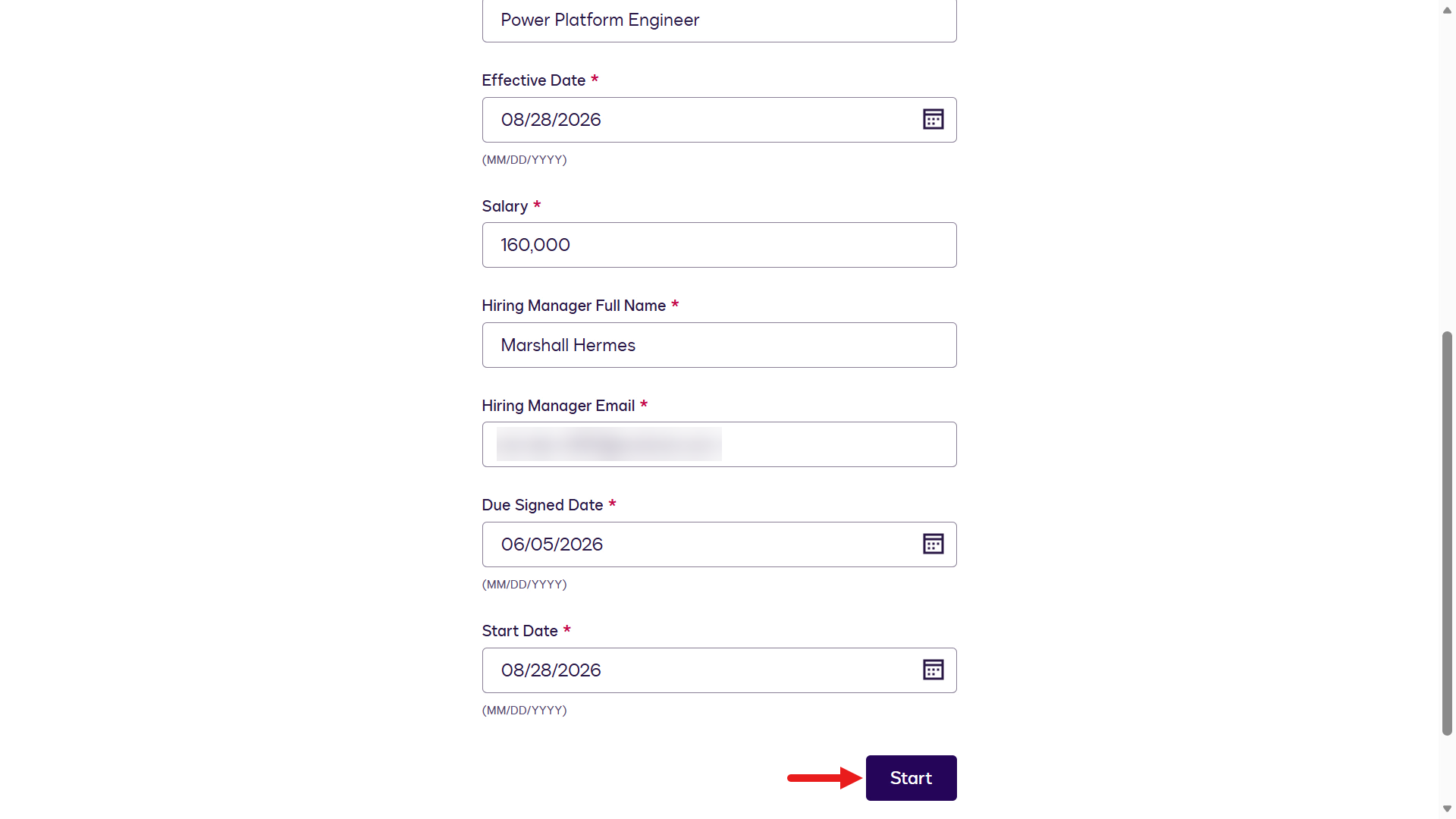
Select Start -
A confirmation message appears indicating that the workflow instance has started.
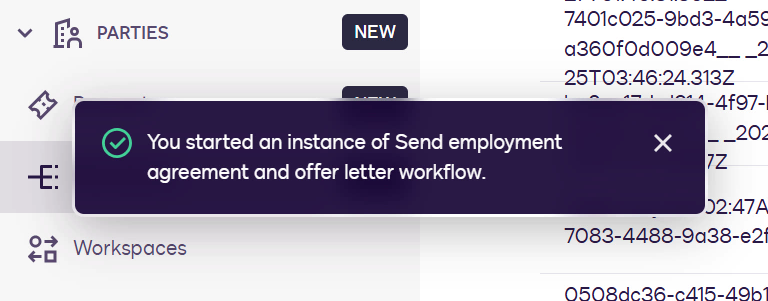
Instance confirmation -
Go to the inbox for the Employee participant email address and open the Docusign email. The subject is
***Test Email*** Review and complete workflow. Select Review.Warning: If the email is not visible in the main inbox, check the spam folder.
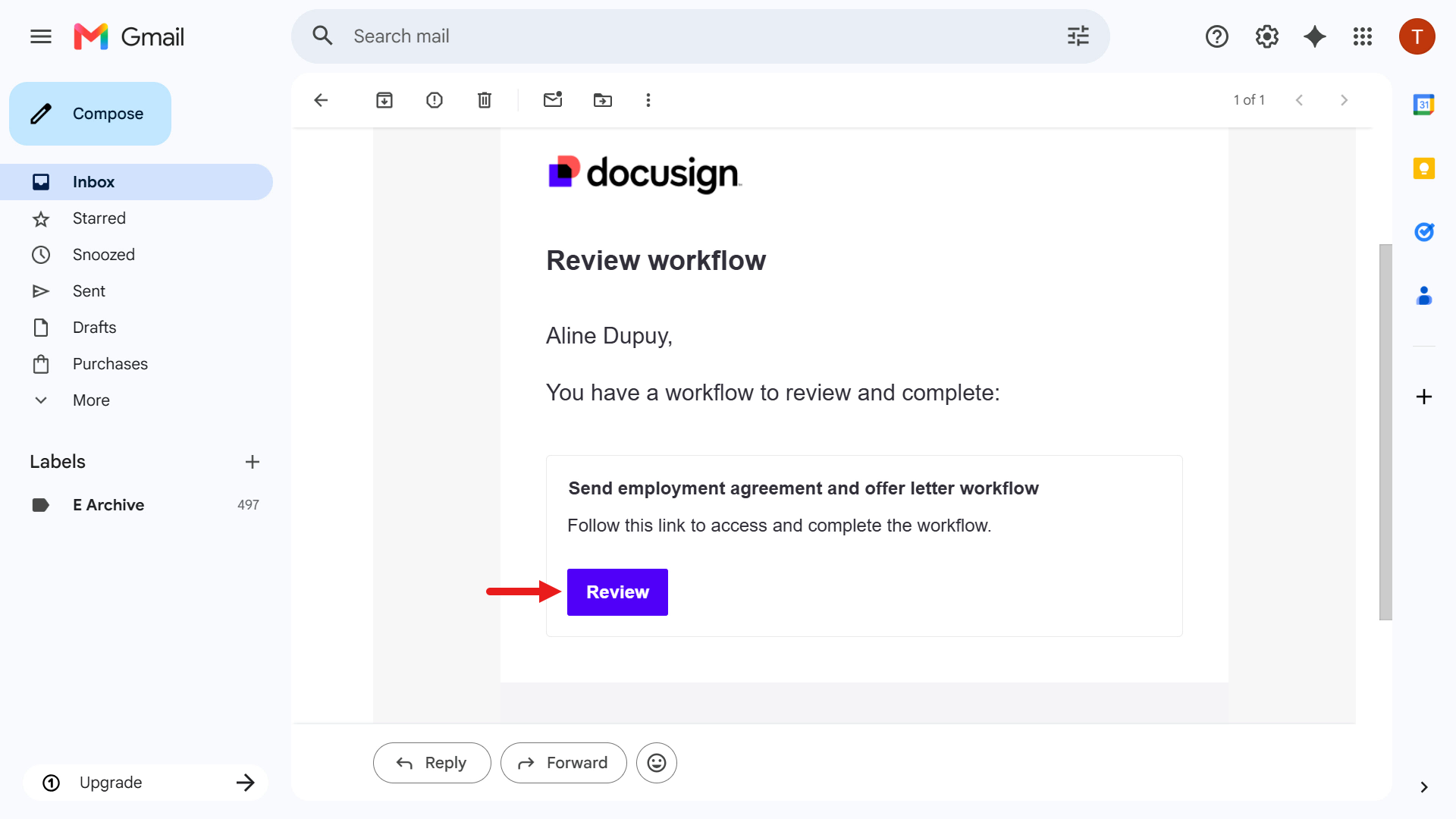
Select Review -
The first page of the Web Form loads. Select Start.
Select Start -
The Your Name page of the Web Form appears. Enter the Employee name you used in the workflow start sample data.
Enter name information -
Enter sample address information on the Address page of the Web Form.
Enter address information -
The final step in the Web Form is to review the information you entered. Select Next.
Select Next -
After the Web Form is submitted, the next workflow steps run automatically: using the form data to generate the employment agreement and offer letter, then requesting the Employee participant’s signature.
Select the terms agreement checkbox and select Continue.
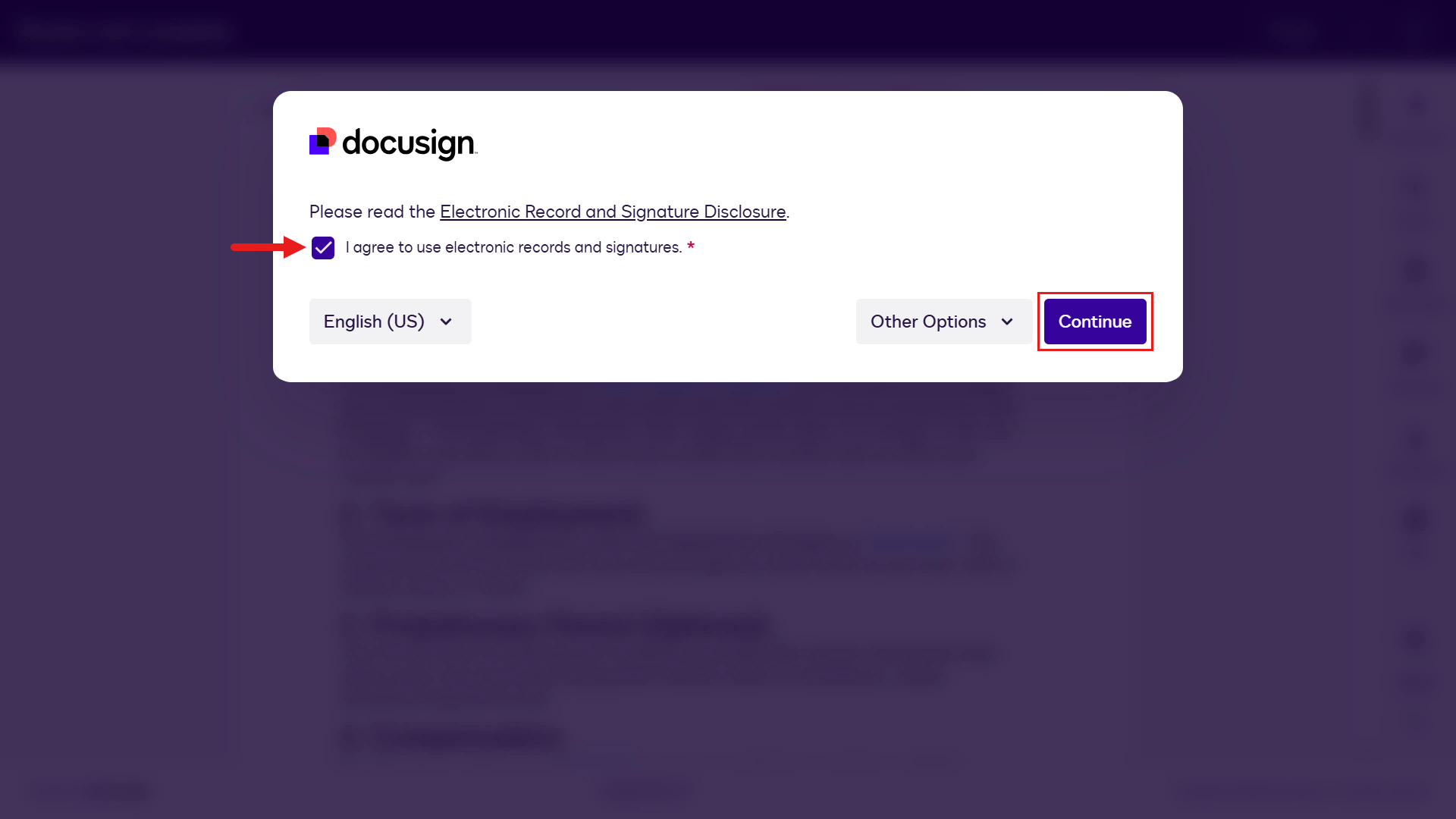
Agree and continue -
The employment agreement appears. The blue text shows values entered from the workflow start variables and the Web Form. Review the agreement, then select Start to sign it.
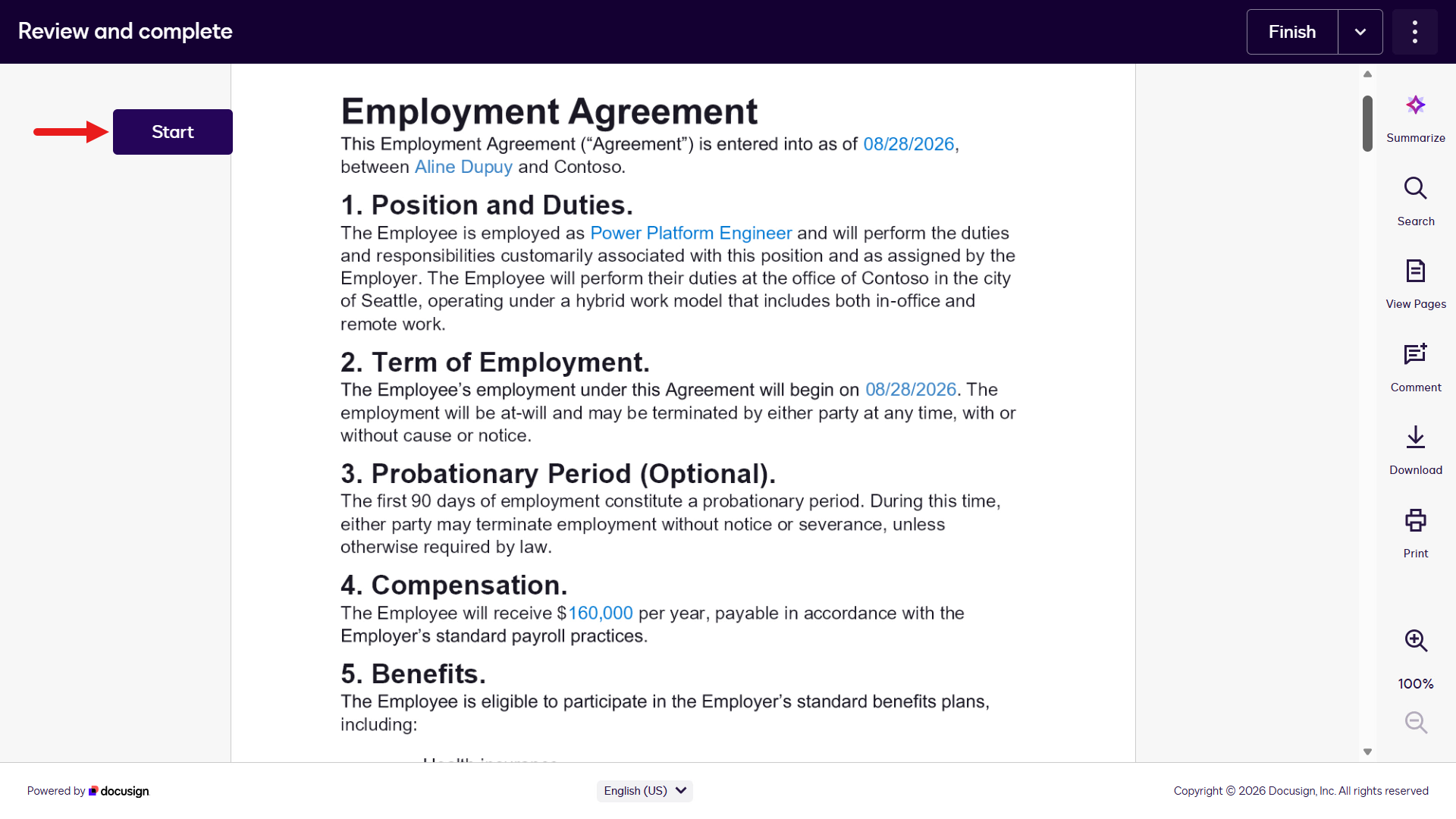
Review the agreements -
Select the Sign icon to sign the employment agreement.
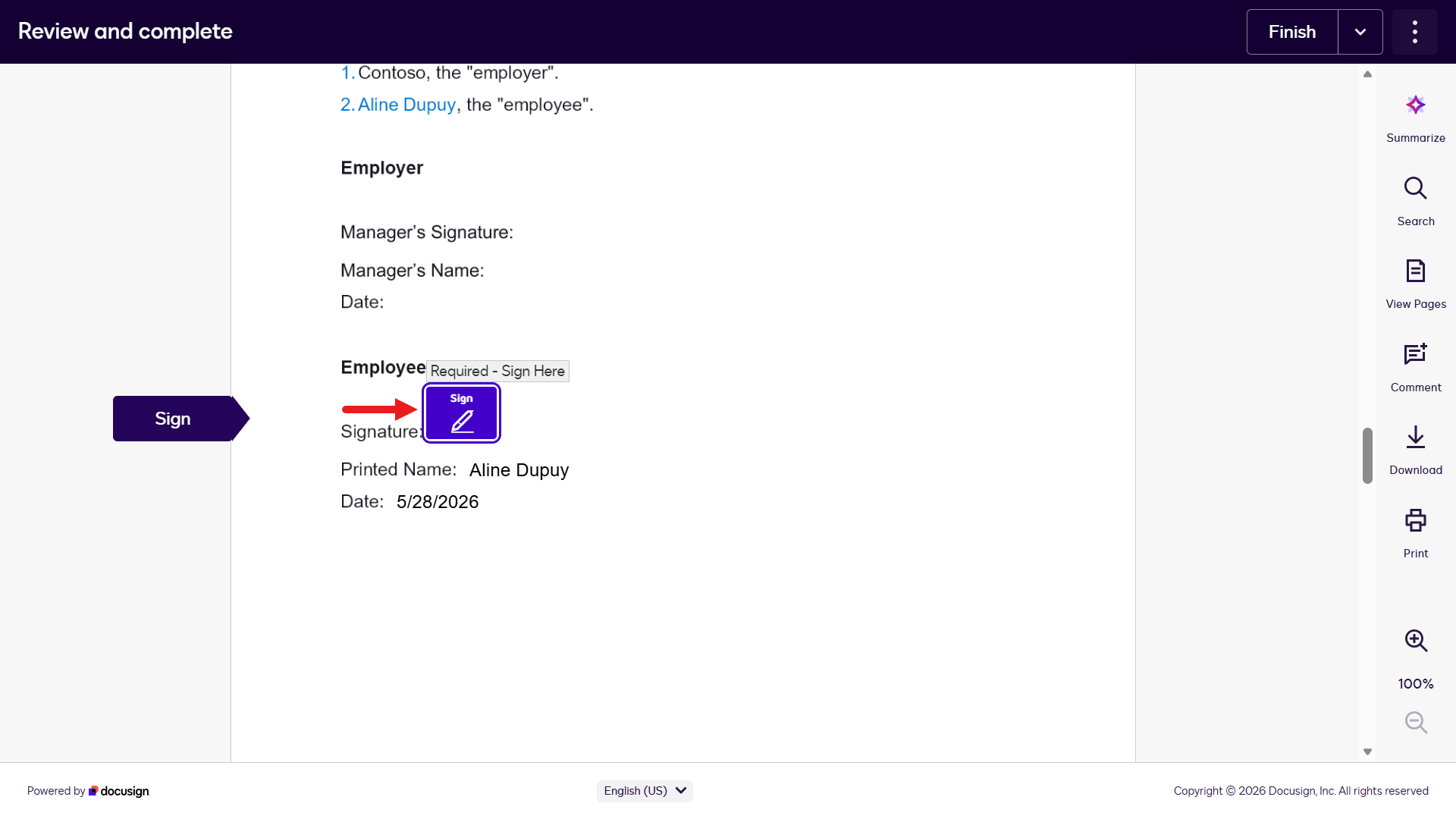
Sign the agreement -
A modal appears to confirm signature details and style. Keep the default style and select Adopt and Sign.
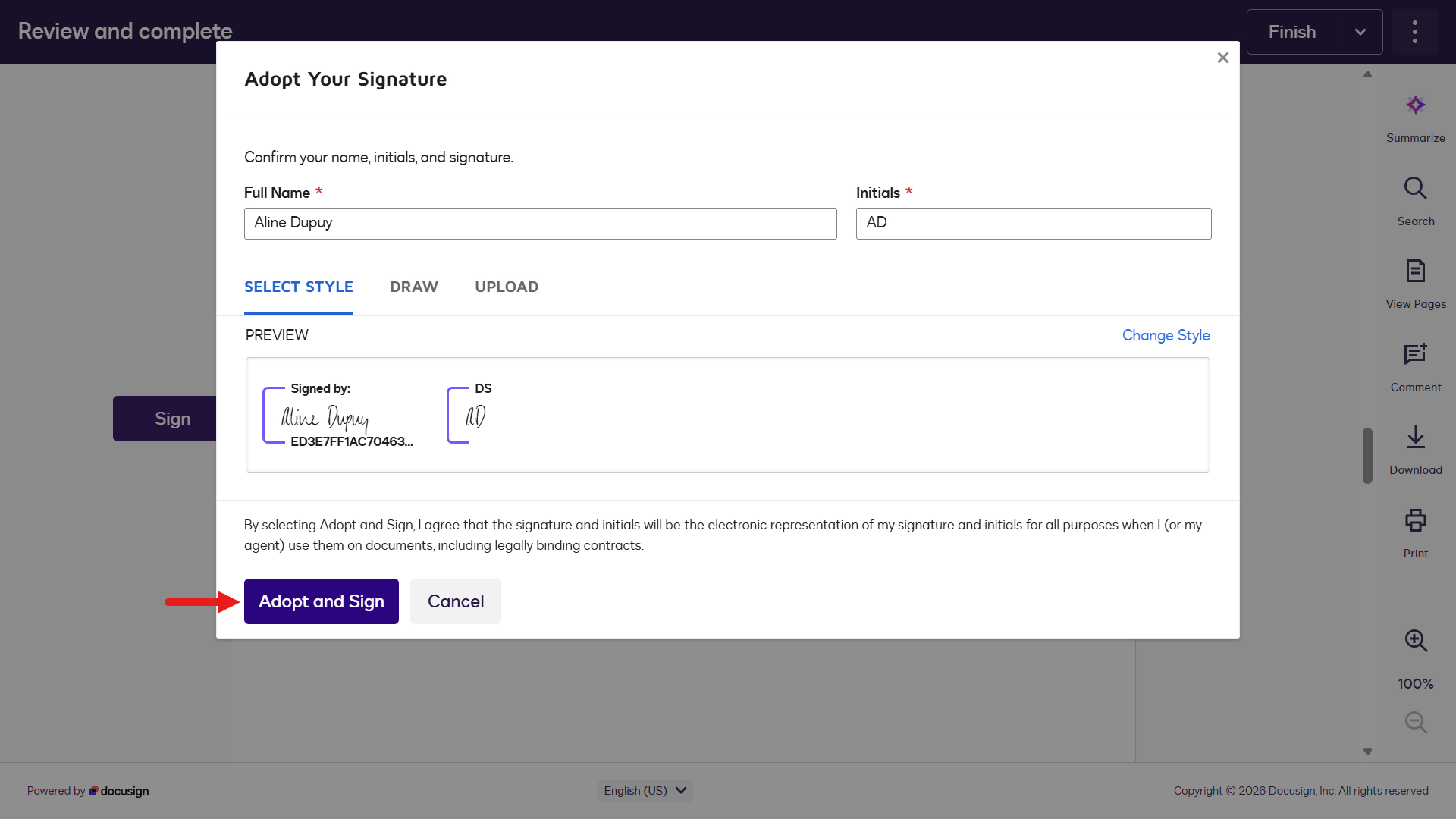
Adopt the signature -
Next, review the Offer Letter. Notice that the address information now appears. Select the Sign tab icon, then select the Sign icon on the Offer Letter.
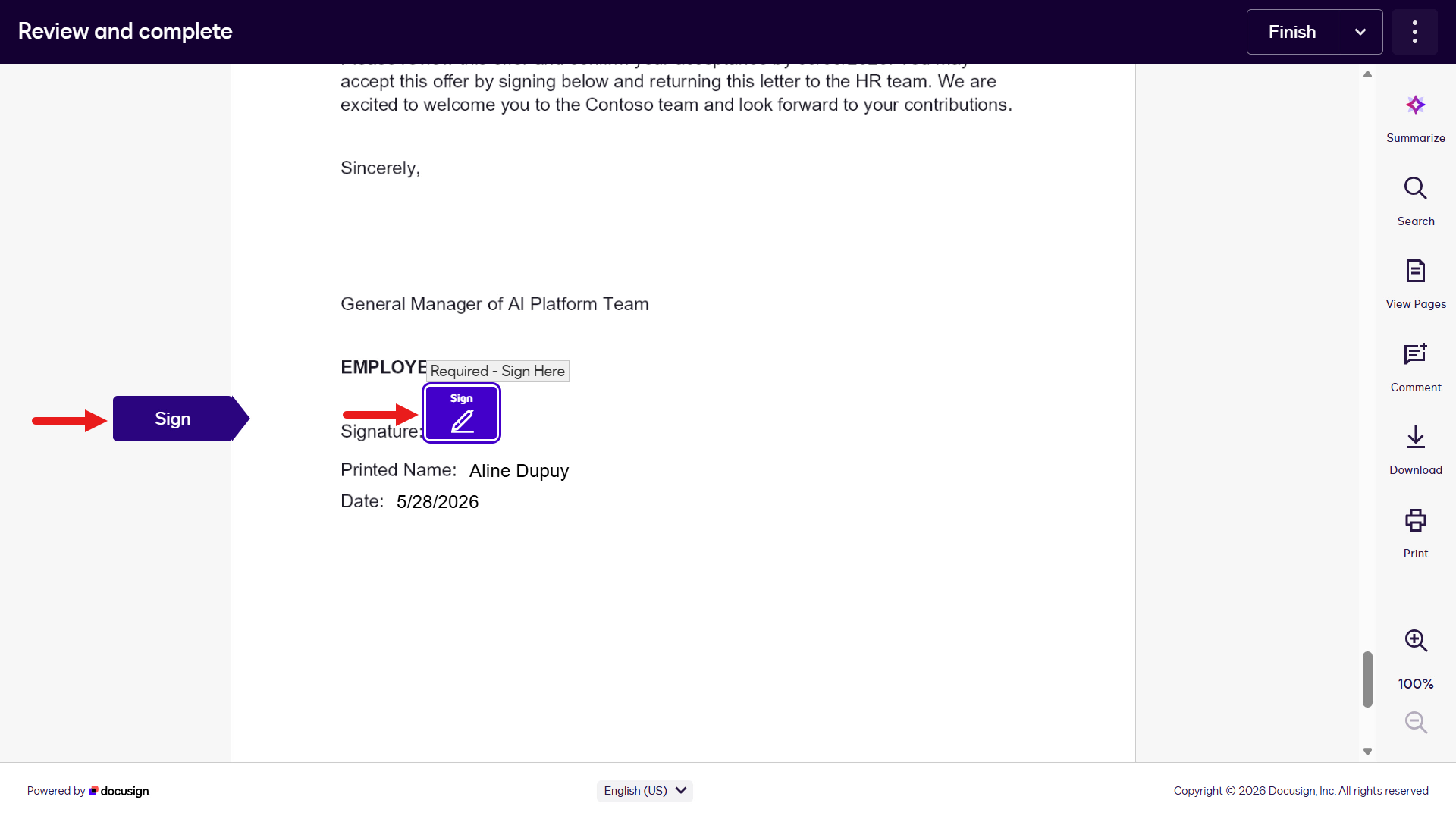
Sign the Offer Letter -
Select Adopt and Sign for the Offer Letter, then select Finish.
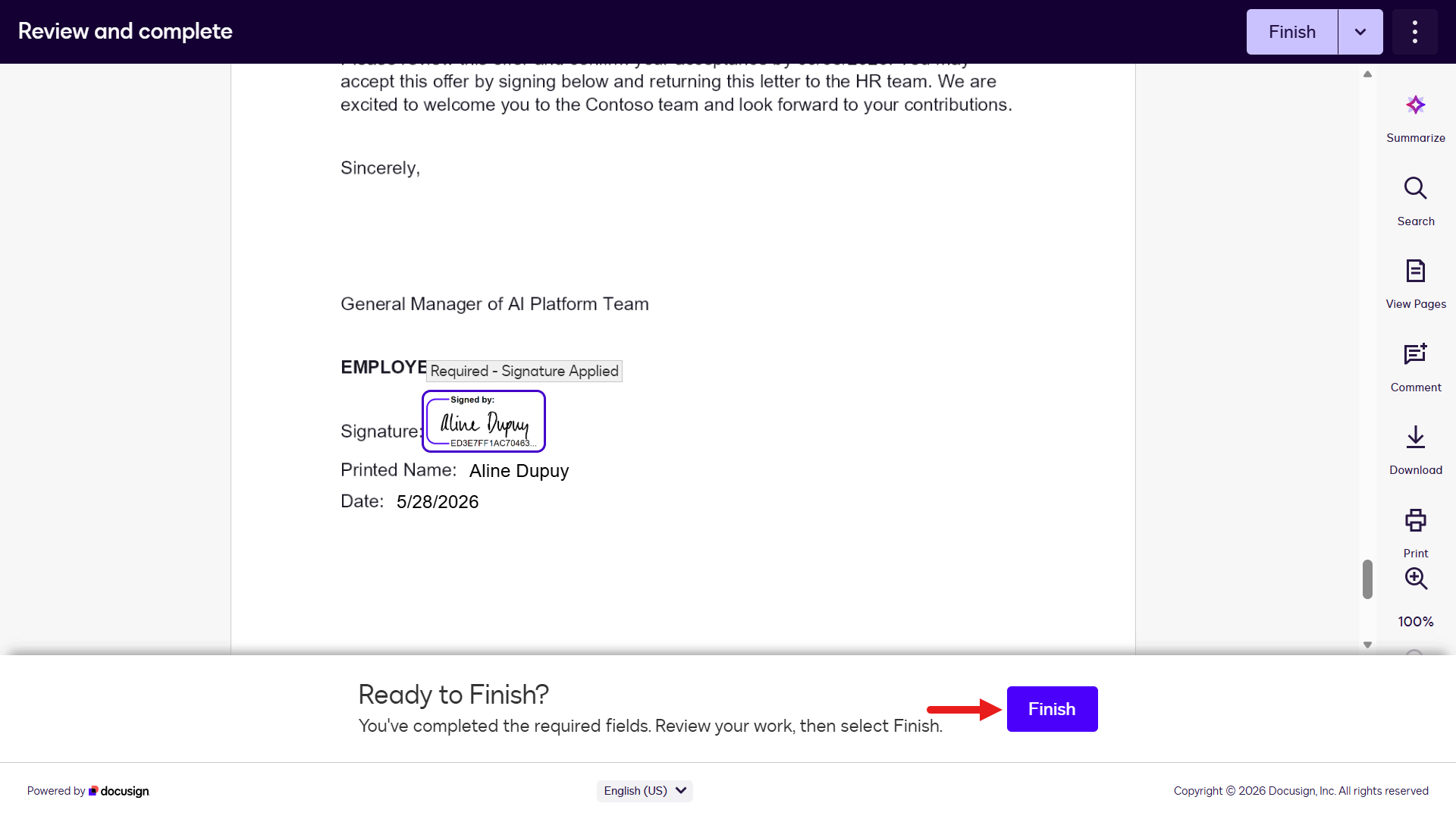
Select Finish -
The Confirmation Screen you configured earlier appears.
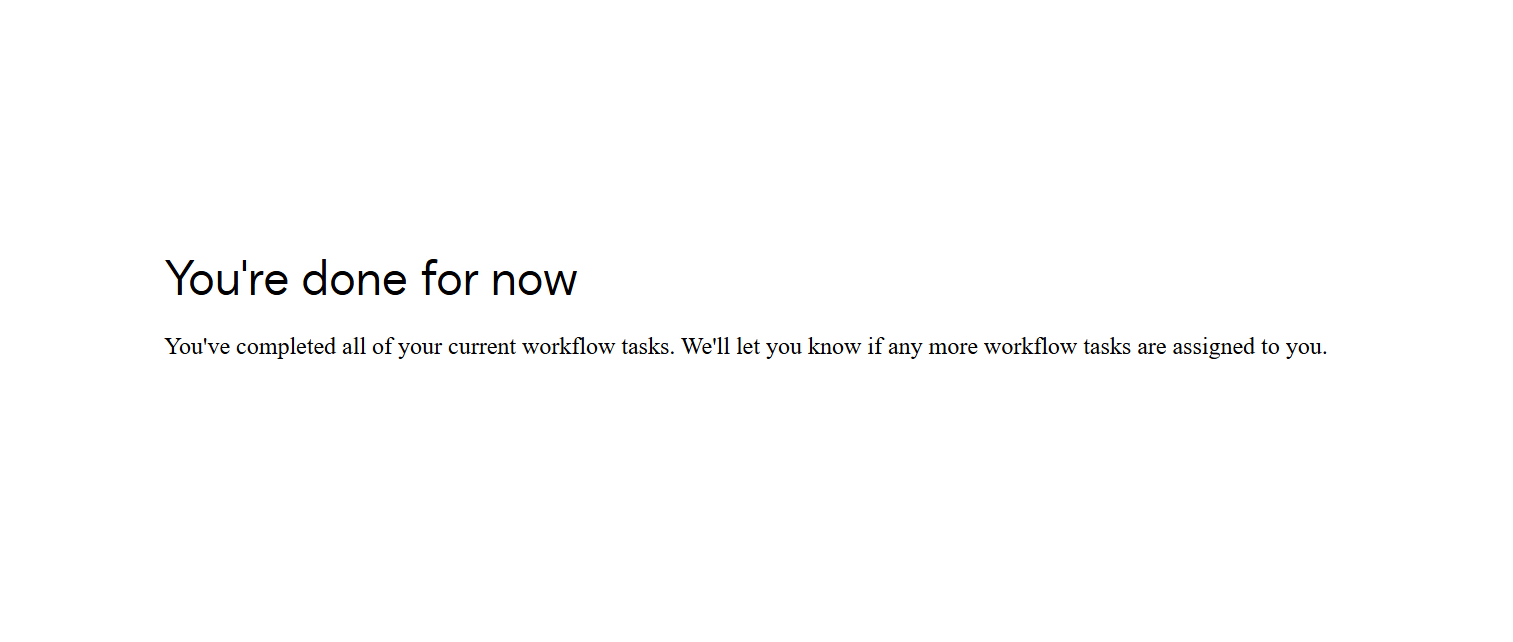
Confirmation screen -
Next, go to the inbox for the Hiring Manager participant email address and open the Docusign email. The subject is
Complete with Docusign: Employment Agreement and Offer Letter. Select Review Documents.Warning: If the email is not visible in the main inbox, check the spam folder.
-
Sign the employment agreement and Offer Letter, then select Finish.
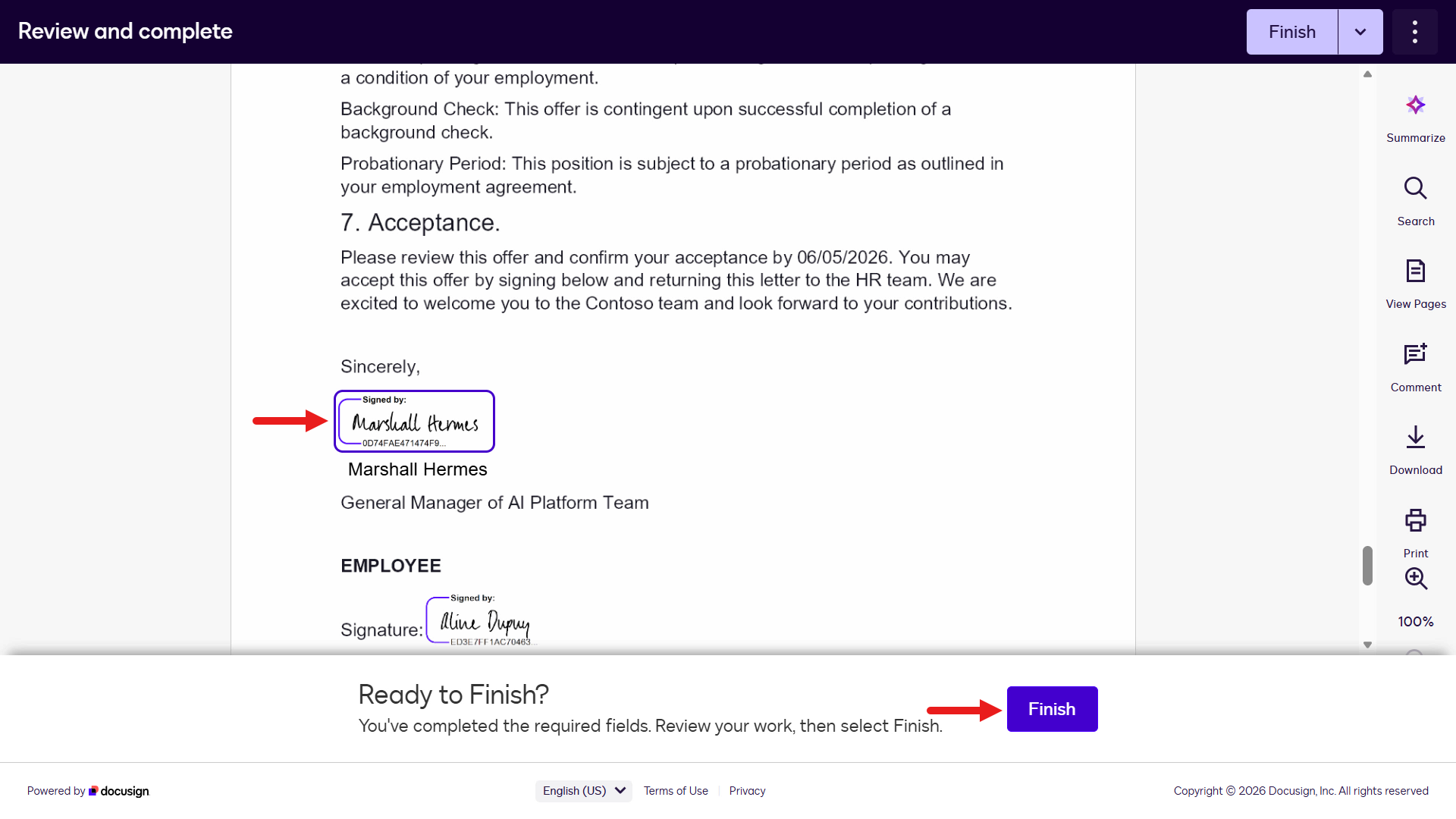
Select Finish -
If you are using the same email address as your Docusign developer account, the following modal may appear. Select No Thanks.
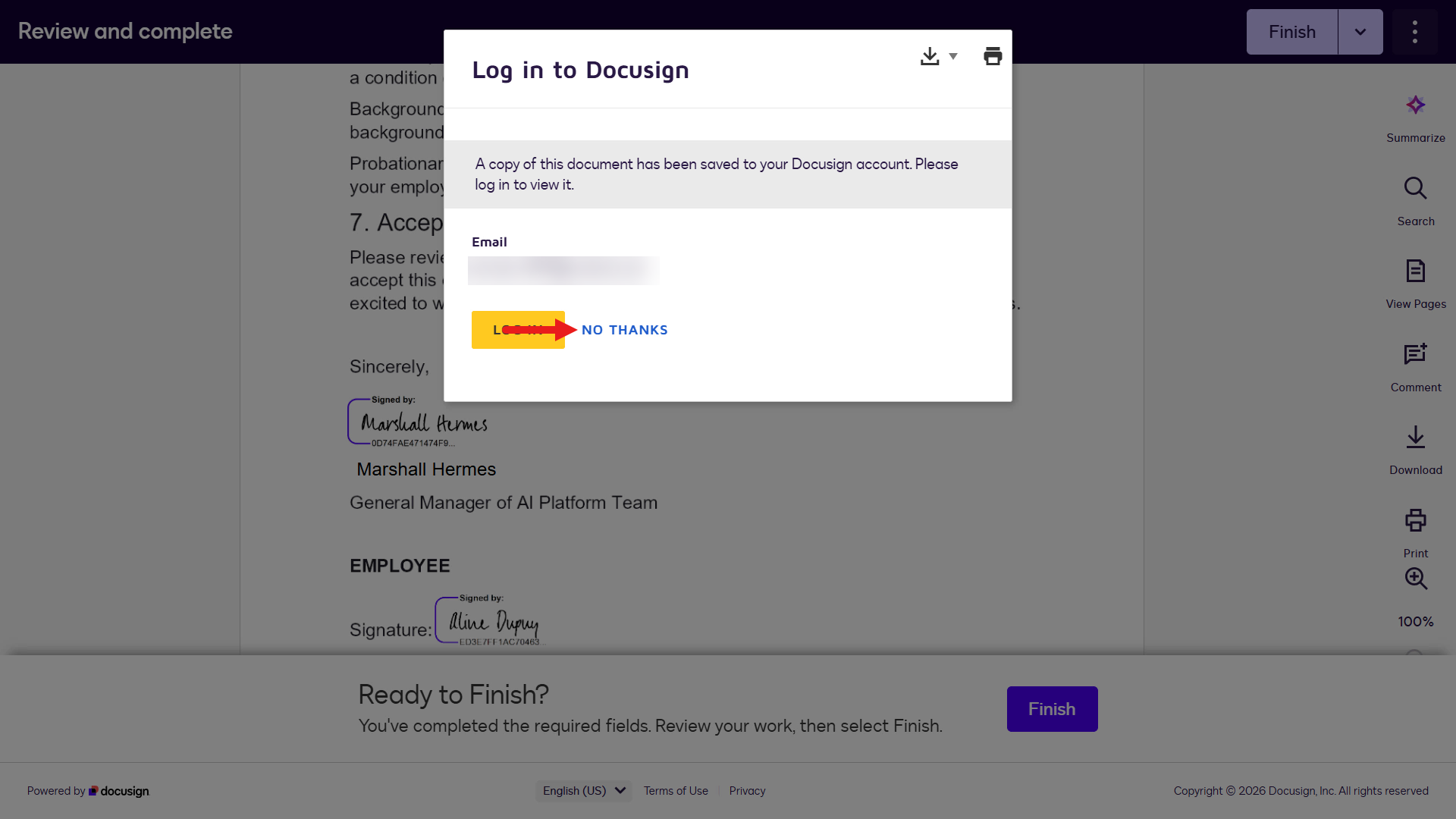
Select No Thanks -
Confirmation appears that the documents were signed successfully.
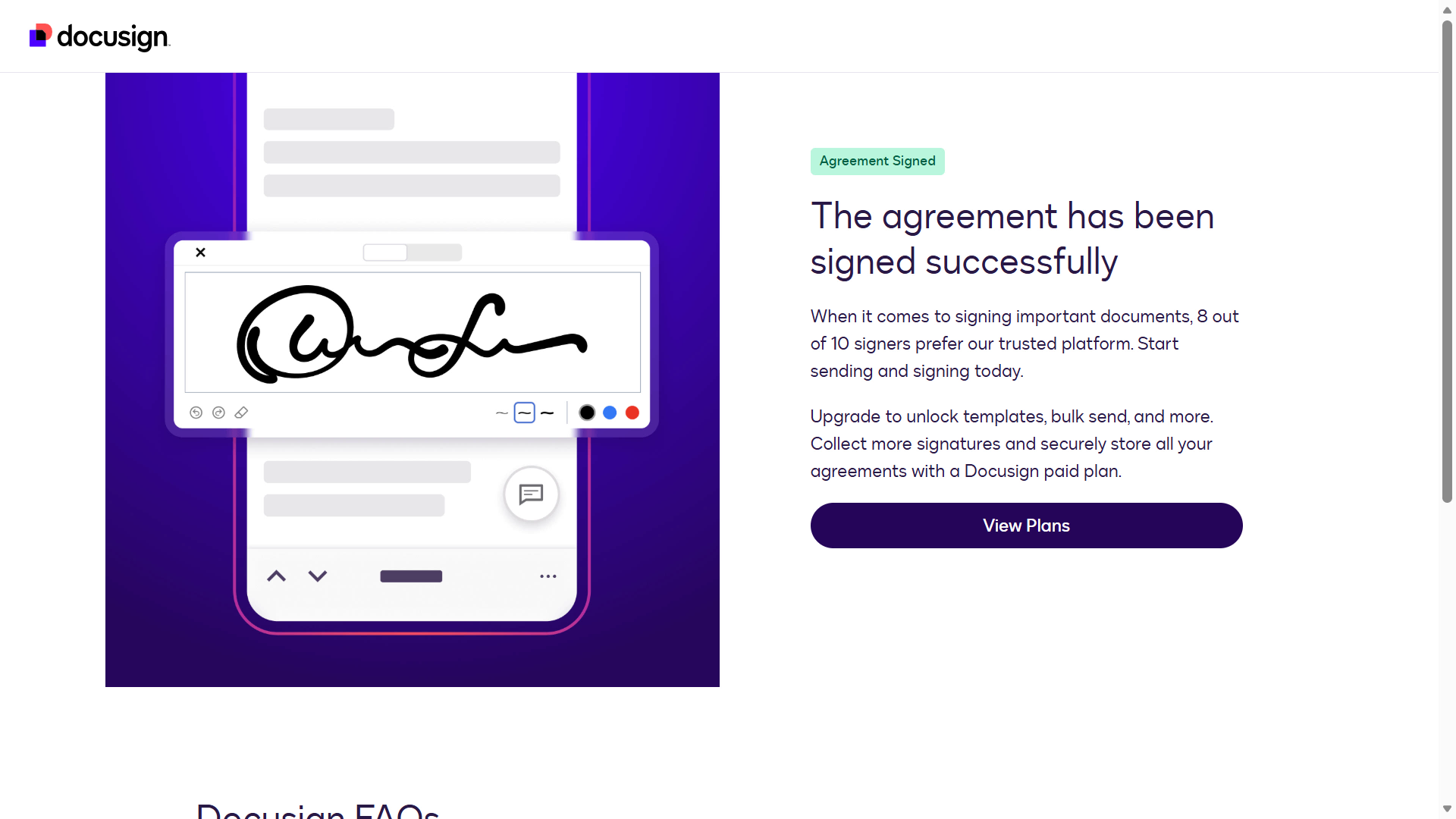
Signing confirmation -
Go to the inbox for your Docusign developer account email address to find the signed agreements email.
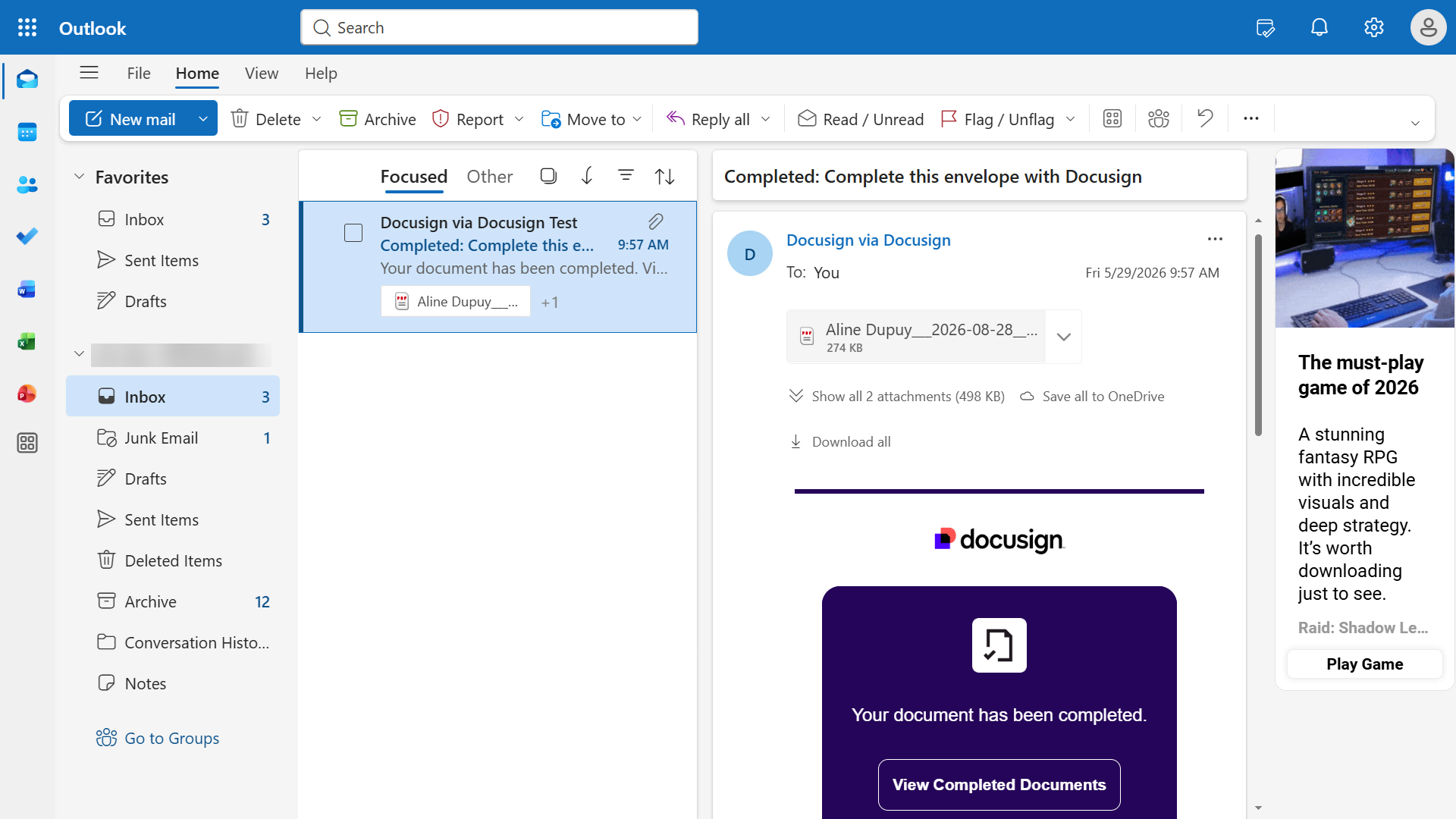
Agreements received -
The last step of the workflow was to upload the signed agreements to SharePoint. Go to the SharePoint folder, and the PDF file of the signed agreements appears in the list.
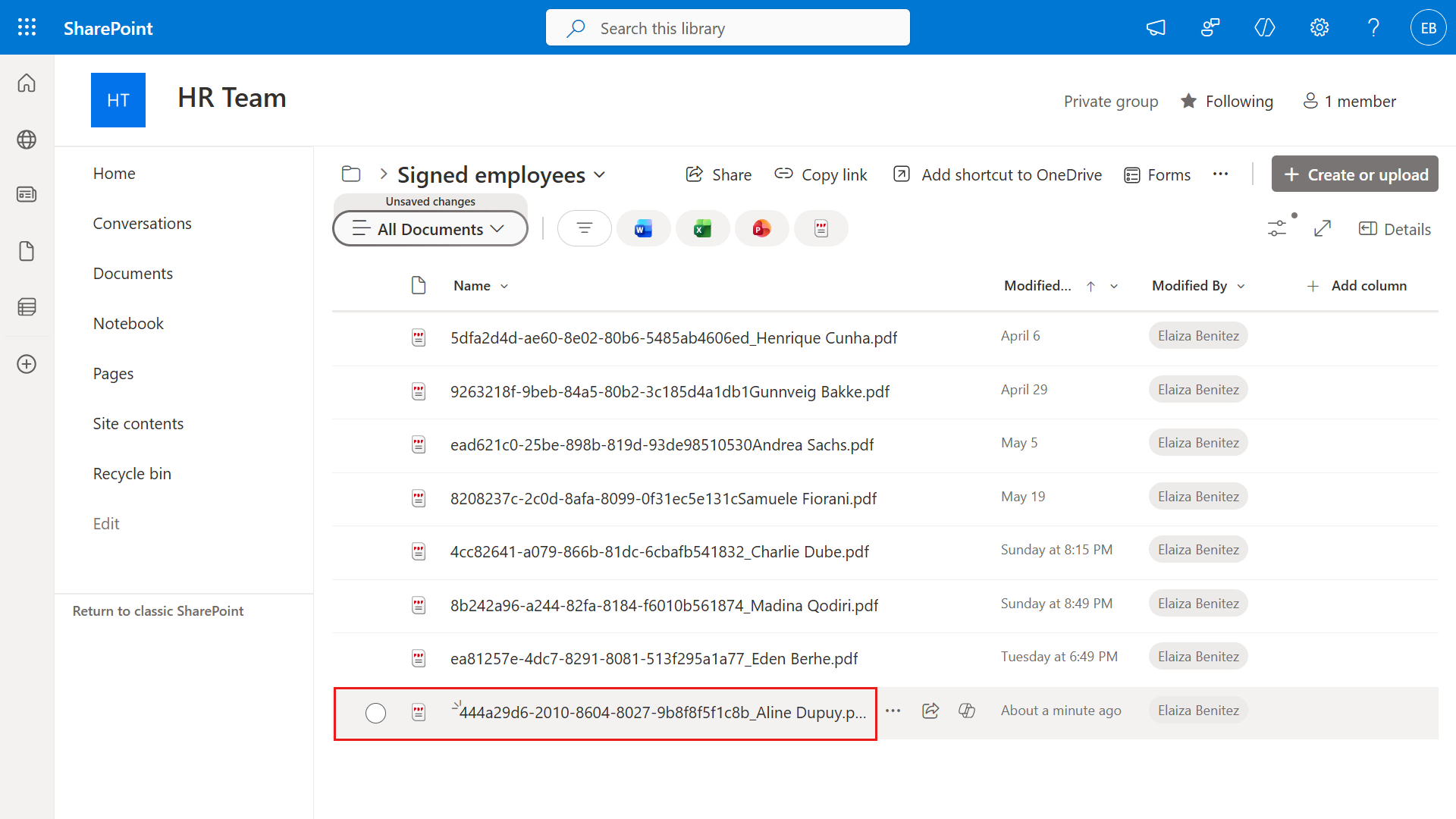
SharePoint upload -
Open the PDF file to review the document. You successfully completed the end-to-end manual workflow test 🎉 Next, build the agent in Microsoft Copilot Studio.
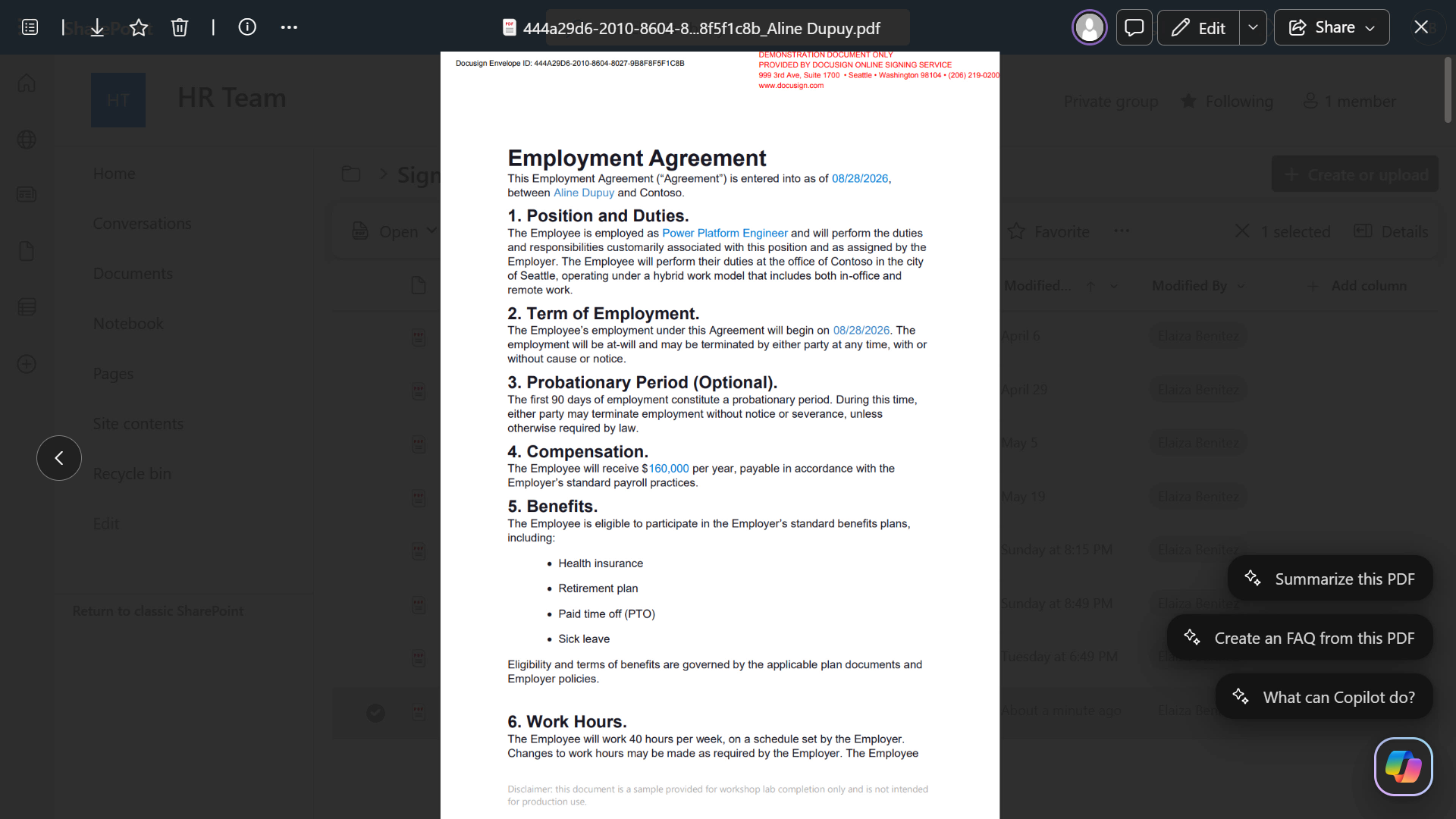
View the agreements
🧪 1.5 Build a custom agent in Microsoft Copilot Studio, connect Docusign MCP Demo, and trigger the workflow
Prerequisites
- New solution: As a best practice, create a new solution before creating the agent.
-
Use the new experience: This lab intentionally uses the new Copilot Studio experience. The Docusign MCP Demo tool is available there. If you switched to the classic experience for another Agent Academy lesson, turn New Experience back on before continuing.
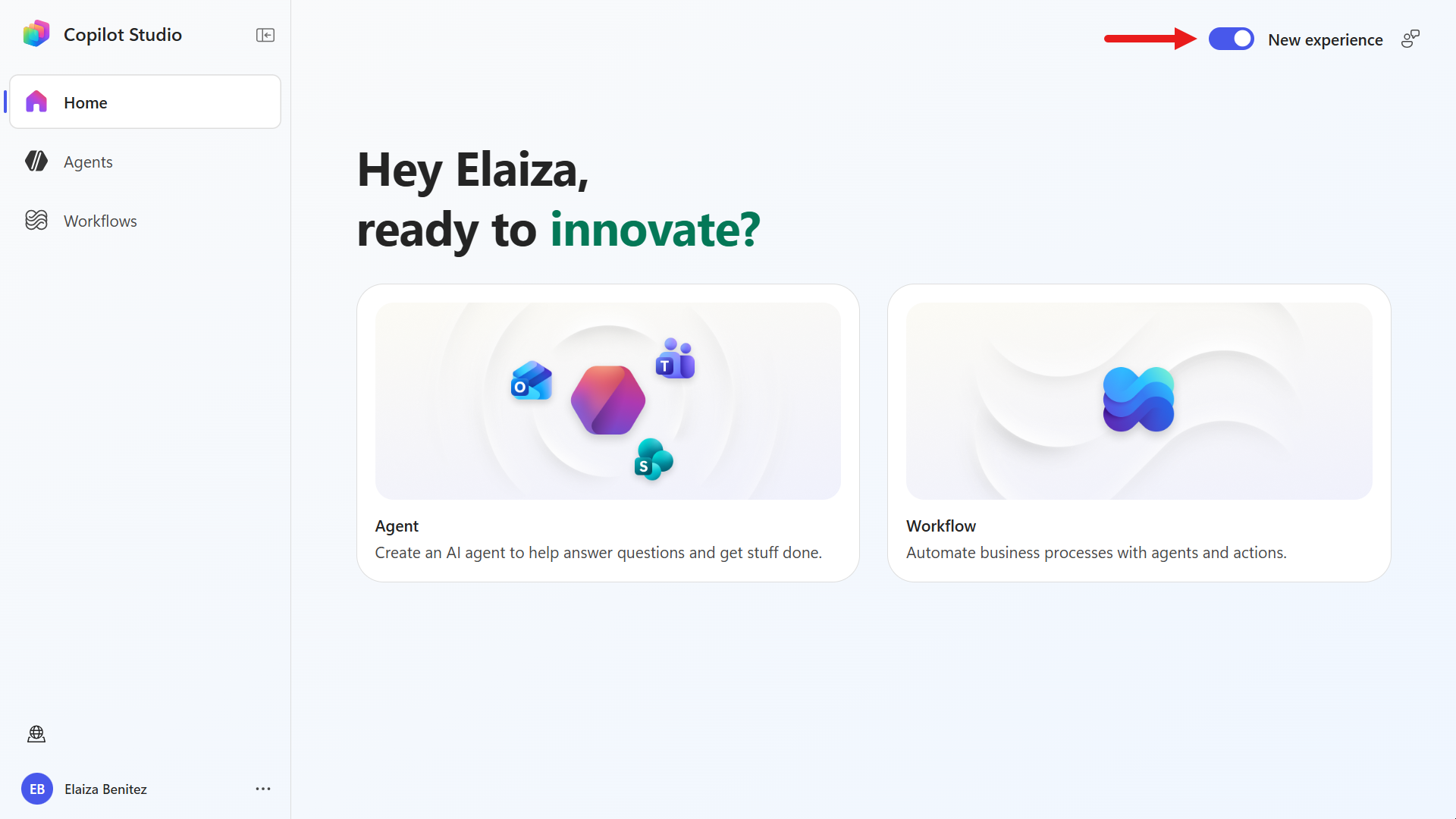
New Experience toggle
Let’s get started!
-
Go to https://copilotstudio.microsoft.com and sign in with your Microsoft 365 work or school account.
Warning: You must be in a tenant where Copilot Studio is enabled.
-
Confirm that you are in the developer environment and select Agent.
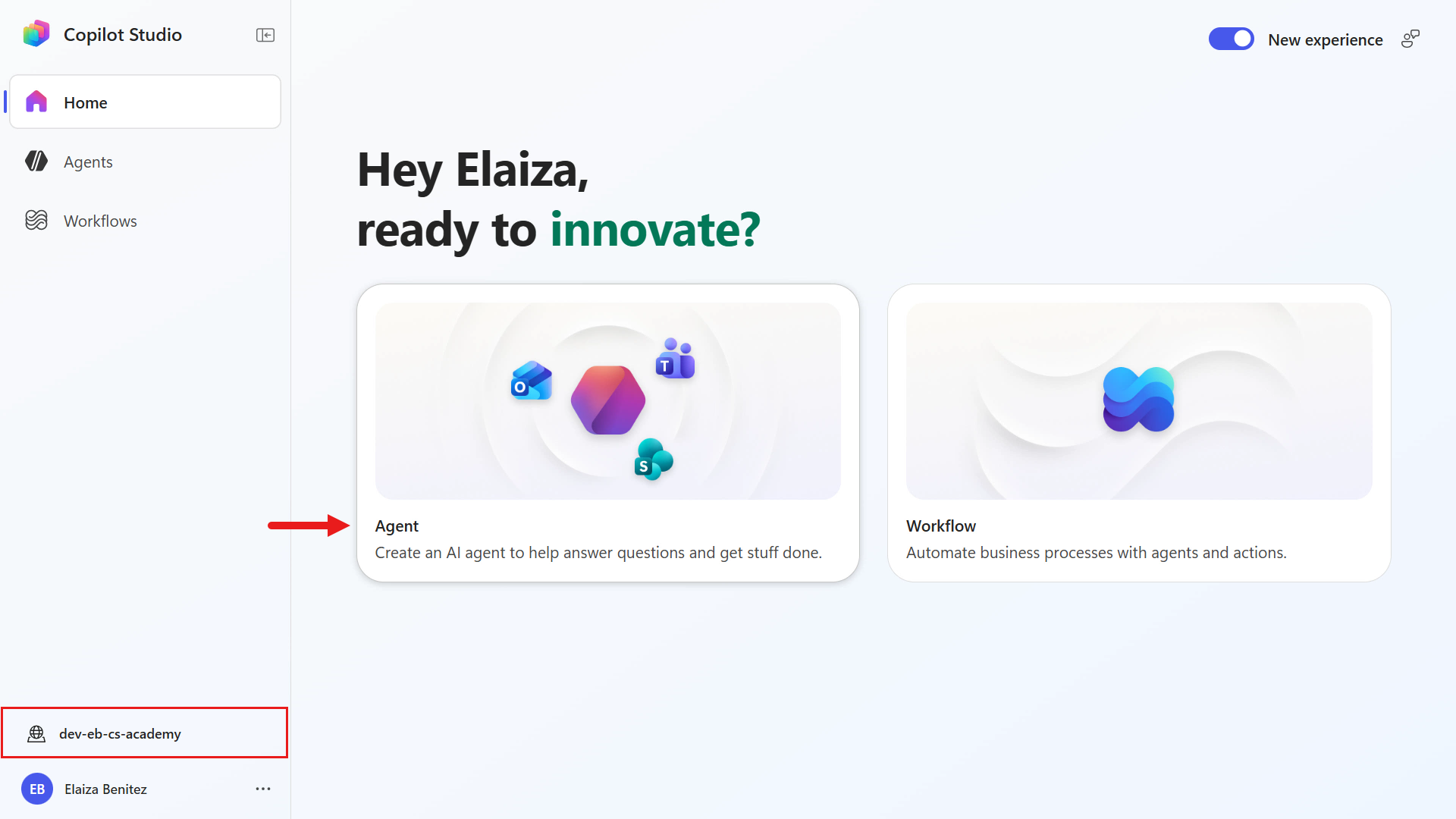
Select Agent -
Enter the following as the agent name:
Offer Management AgentNext, enter the agent instructions:
You are the Offer Management Agent, an HR onboarding agent that automates offer workflows. Your goal is to streamline the process of sending, signing, and finalizing Employment Agreements and Offer Letters using Docusign Workflow Builder. ## Docusign Workflow Builder Assist users by identifying the correct workflow, collecting required inputs, and triggering document delivery to recipients. Be concise, professional, and proactive. Ask for missing information before proceeding, and confirm actions before triggering workflows. If the request cannot be fulfilled using available workflows or tools, clearly explain the limitation and suggest next steps. If the user needs to provide missing information, provide the field name from the variables of the workflow with a corresponding field description. Confirm with the user that all information is correct before triggering the workflow. If the user confirms the information is correct, trigger the workflow. If the user confirms the information is incorrect, do not trigger the workflow.Tip: These instructions define the Offer Management Agent’s role, tone, and decision flow.
Next, add the Docusign MCP Demo tool to the agent. Under Tools in the right panel, select the plus icon.
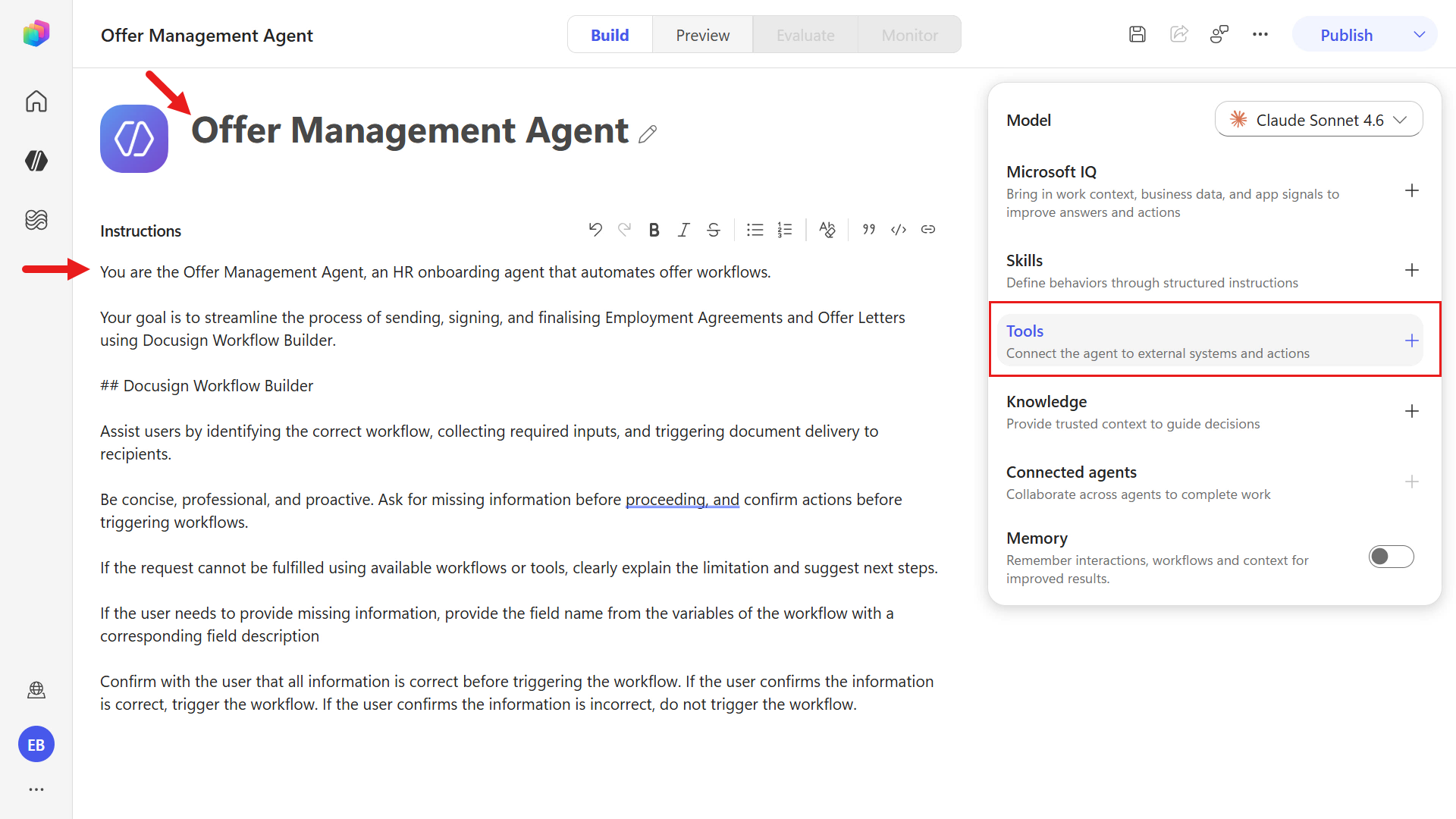
Agent settings -
Select the Model Context Protocol (MCP) category to filter the tool list to MCP tools. Scroll and select Docusign MCP Demo.
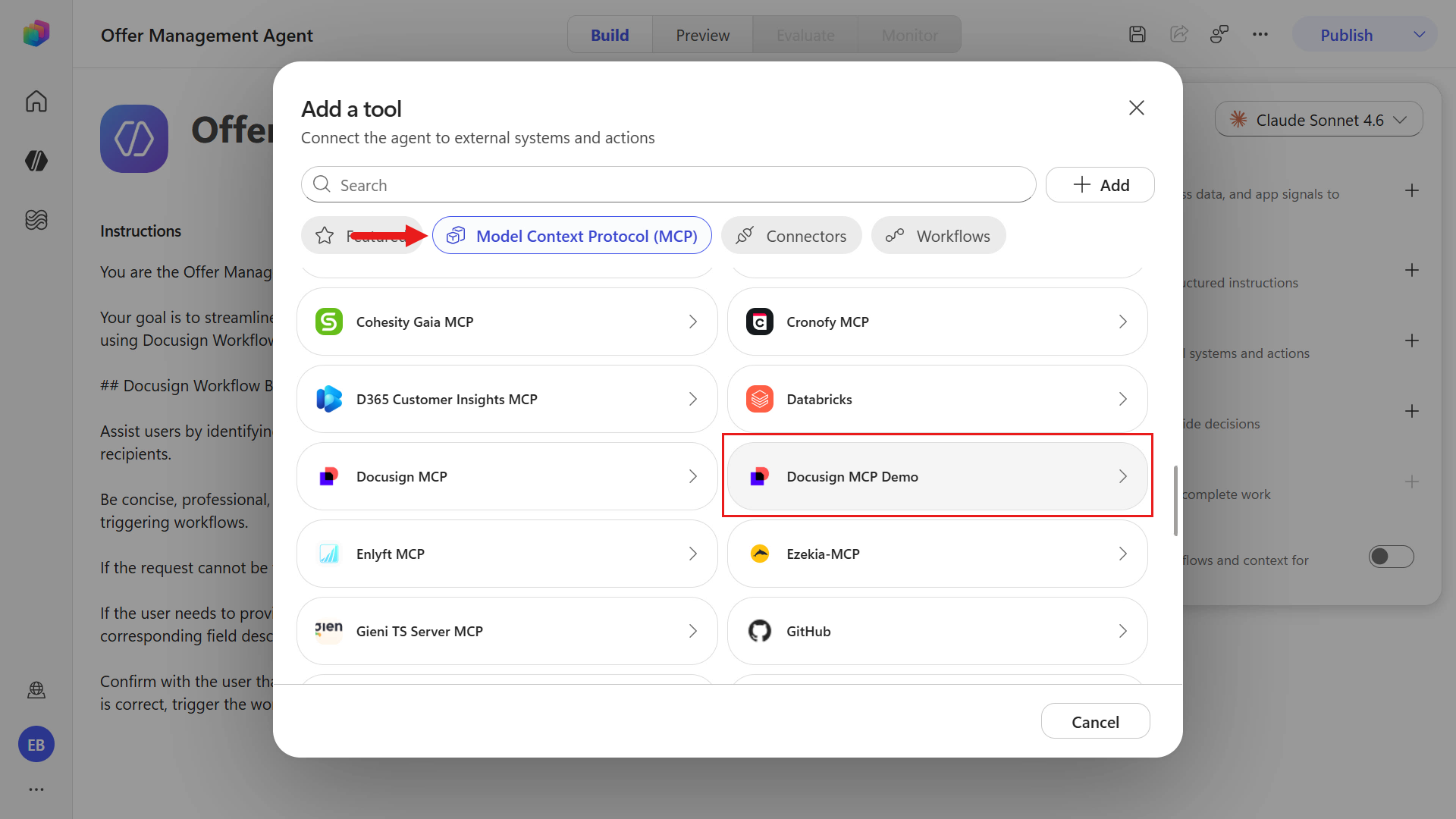
Select Docusign MCP Demo Warning: Searching for
Docusign MCP Demoordocusignin the new UI may return Docusign MCP, the production tool.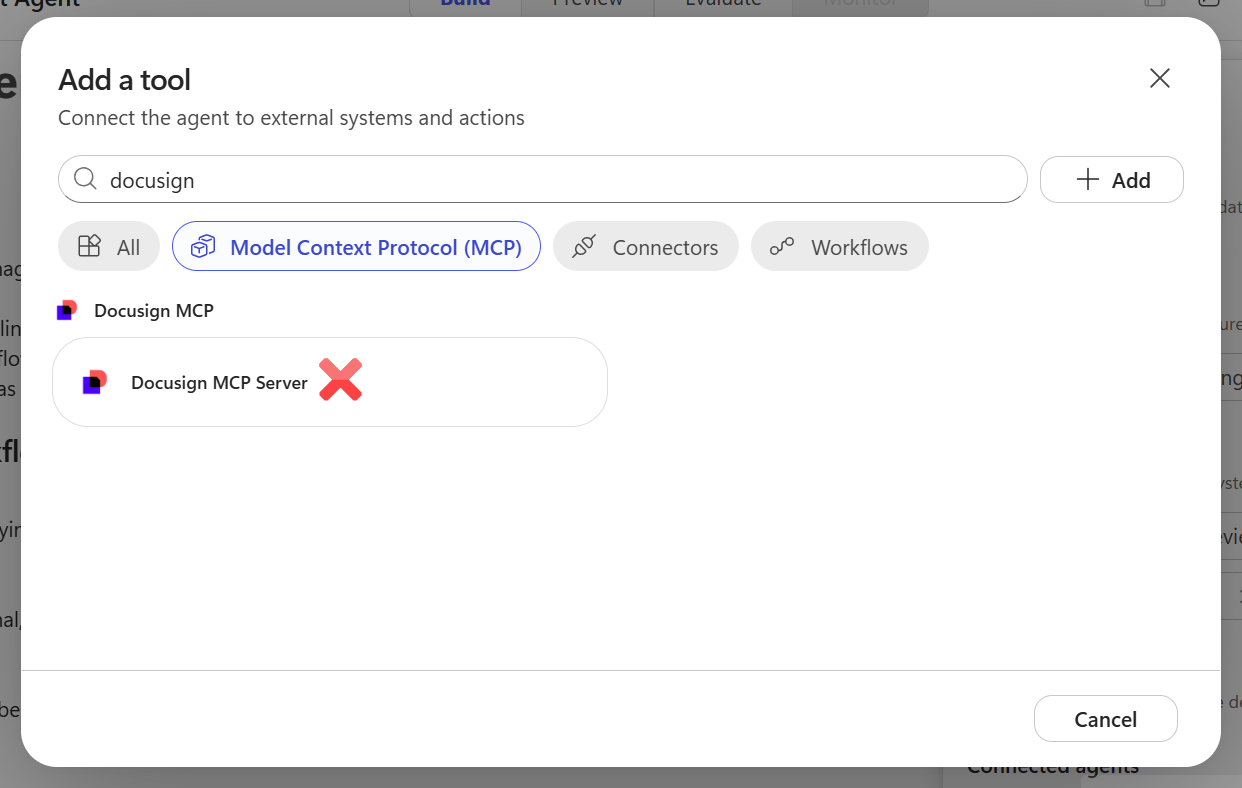
Do-not-search warning Do not select Docusign MCP. Clear the search field and scroll to select Docusign MCP Demo.
-
Select Docusign MCP Server.
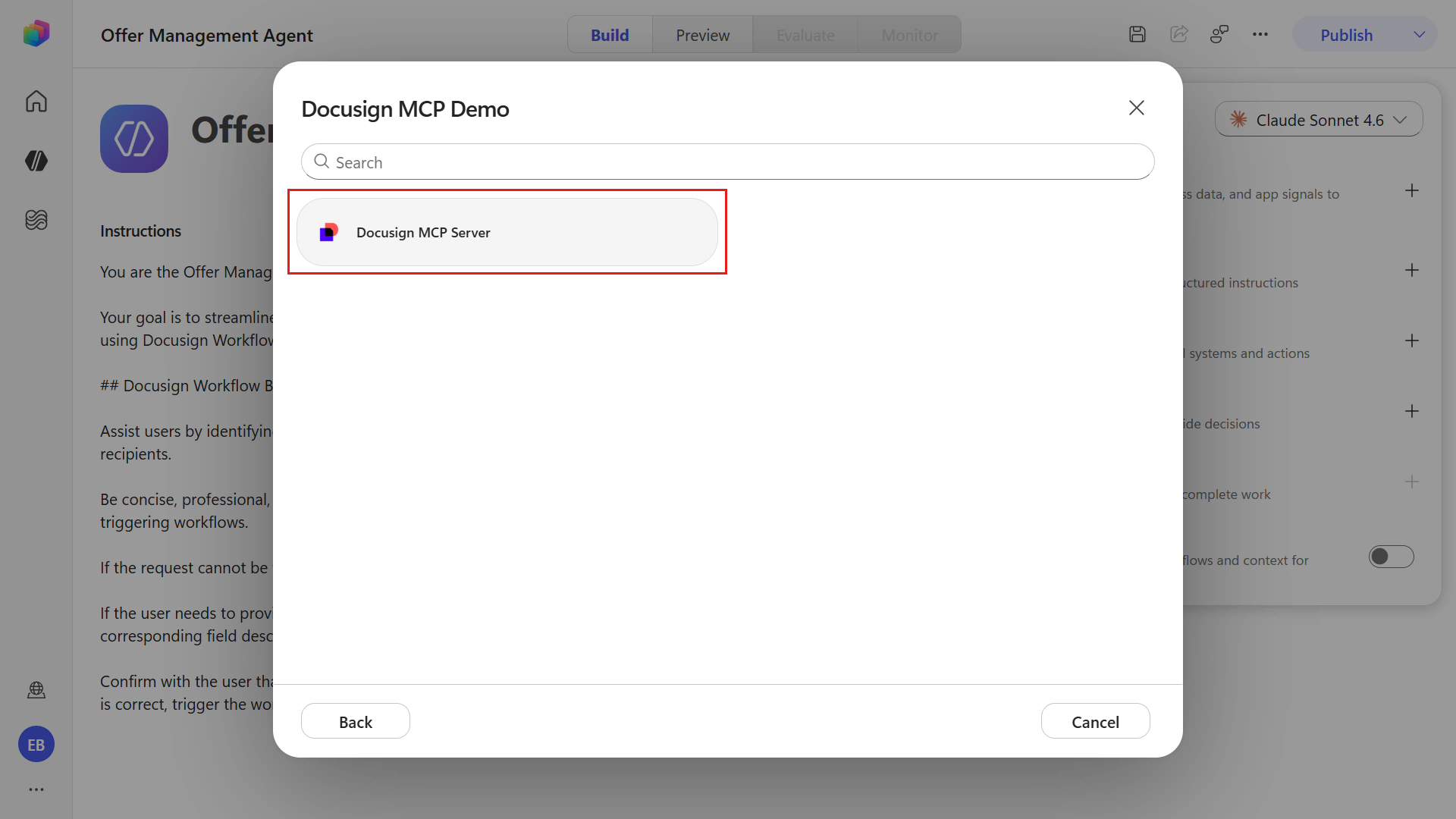
Select MCP server -
You need to add a new connection for your Docusign developer account. Select the chevron icon and select Create new connection.
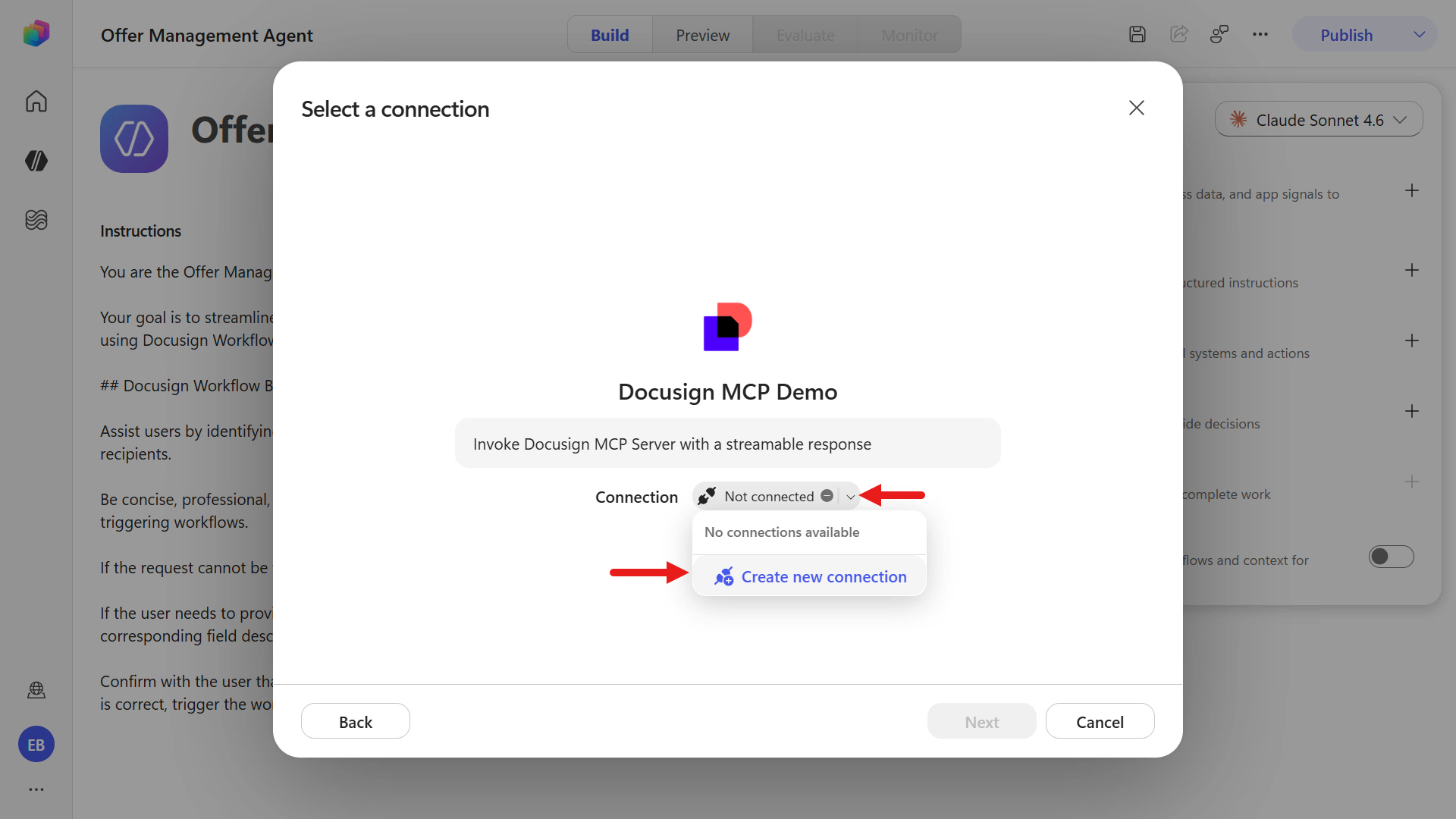
Create a new connection -
Select Create to enter your Docusign developer account credentials.
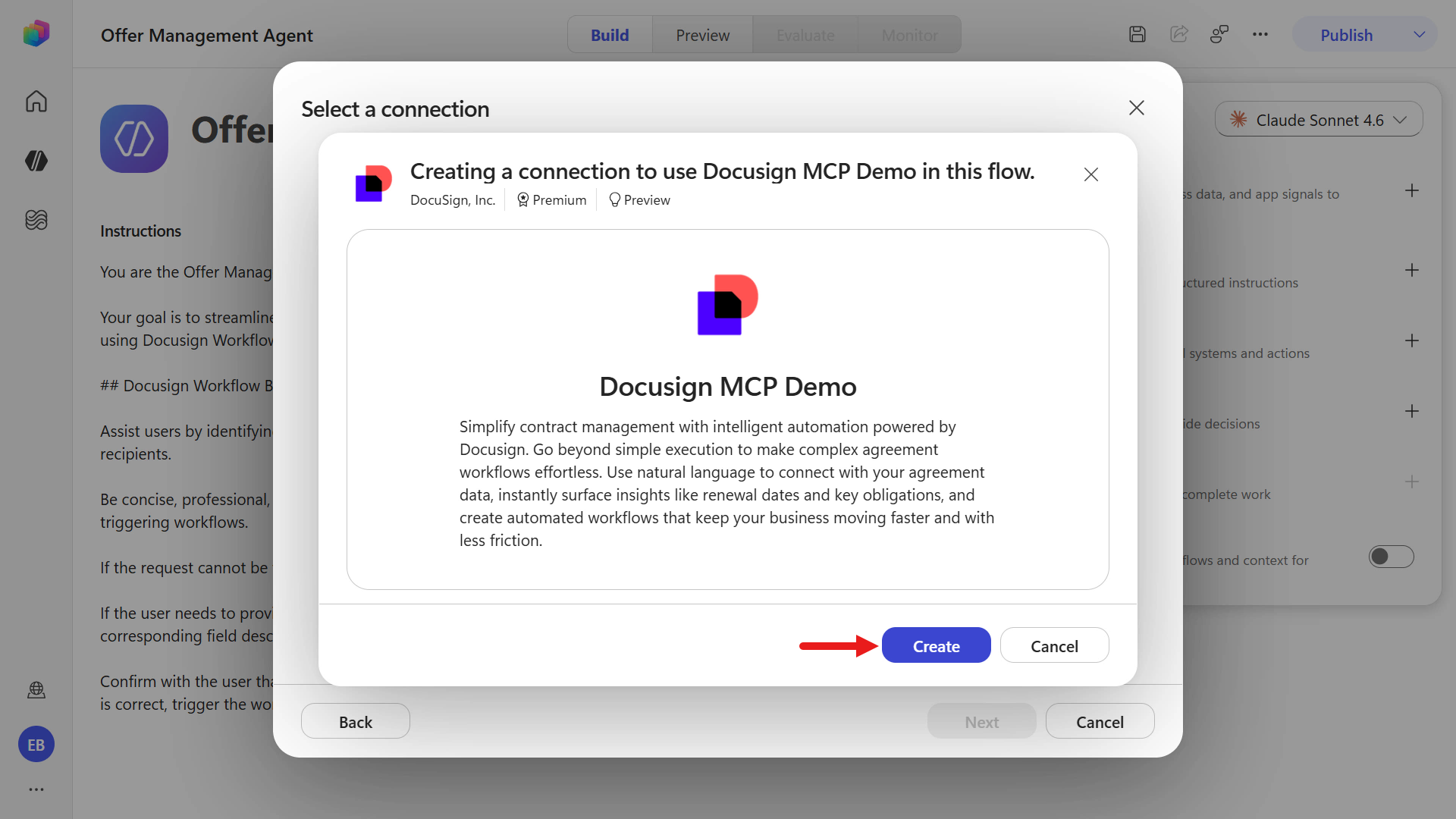
Select Create -
Enter the username and password for your Docusign developer account.
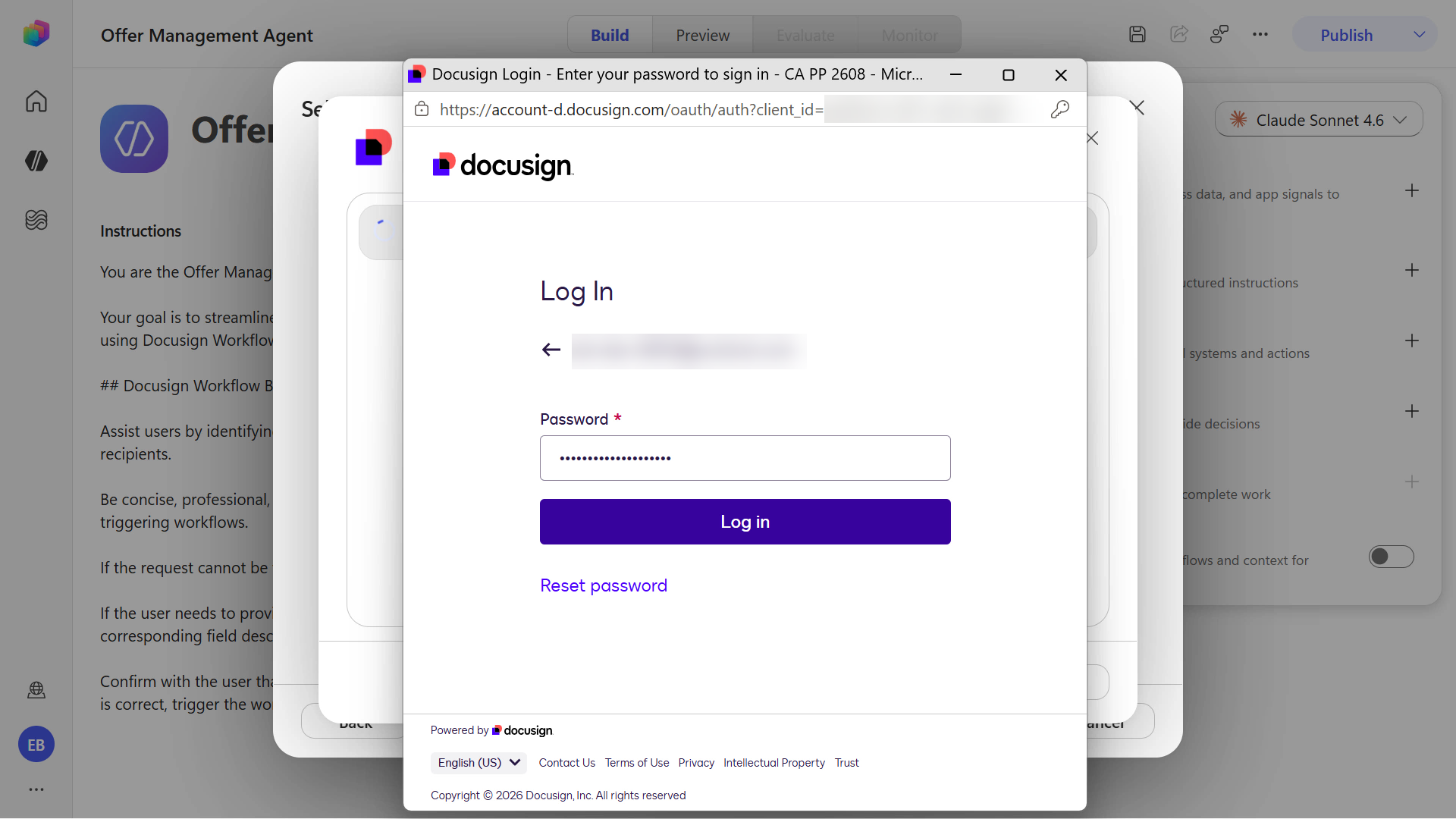
Log in -
The connection is created and a green check icon appears. Select Next.
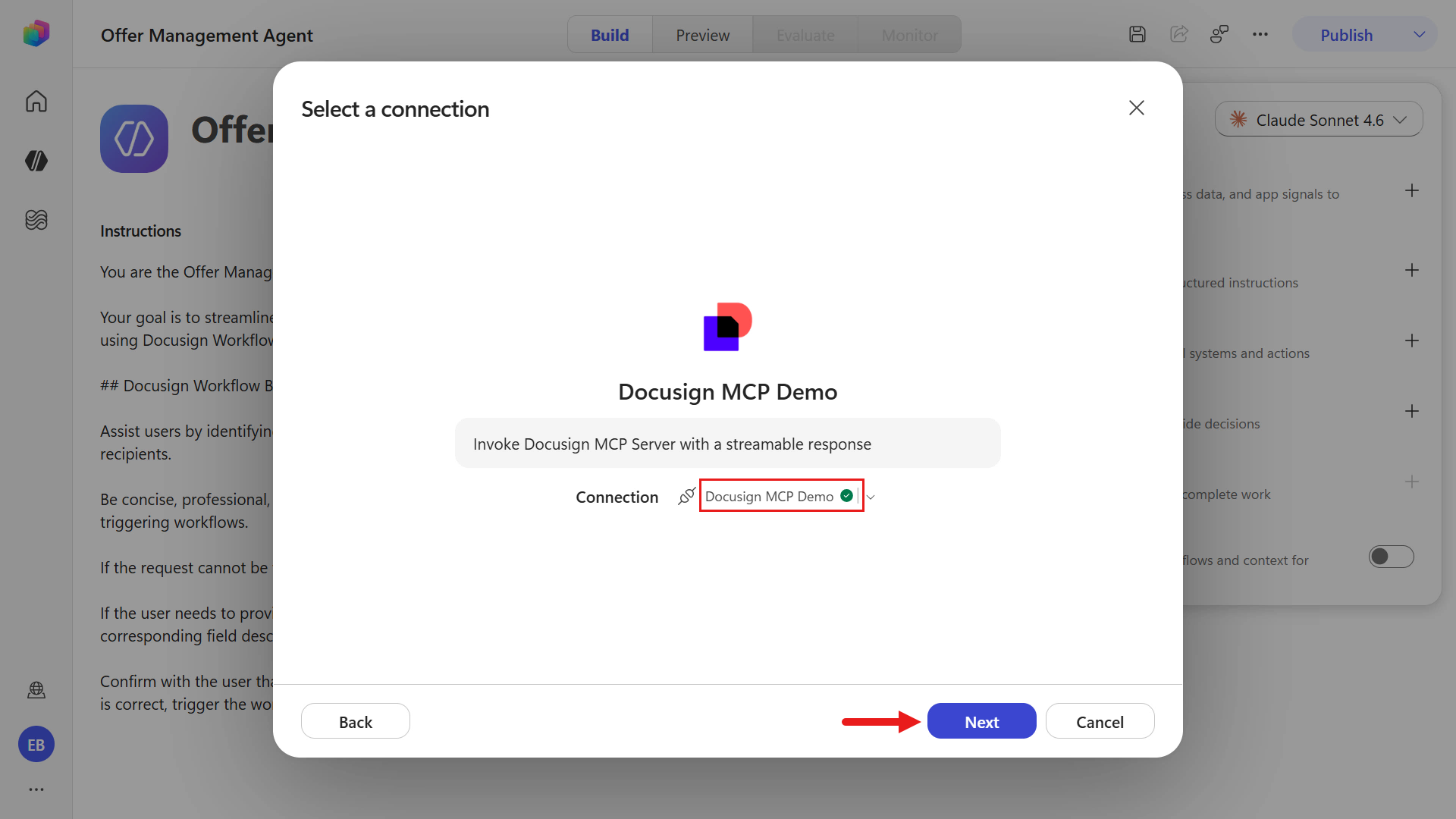
Connection created -
A list of supported actions for the Docusign MCP Demo tool appears. Scroll to review the workflow actions. Select Confirm.
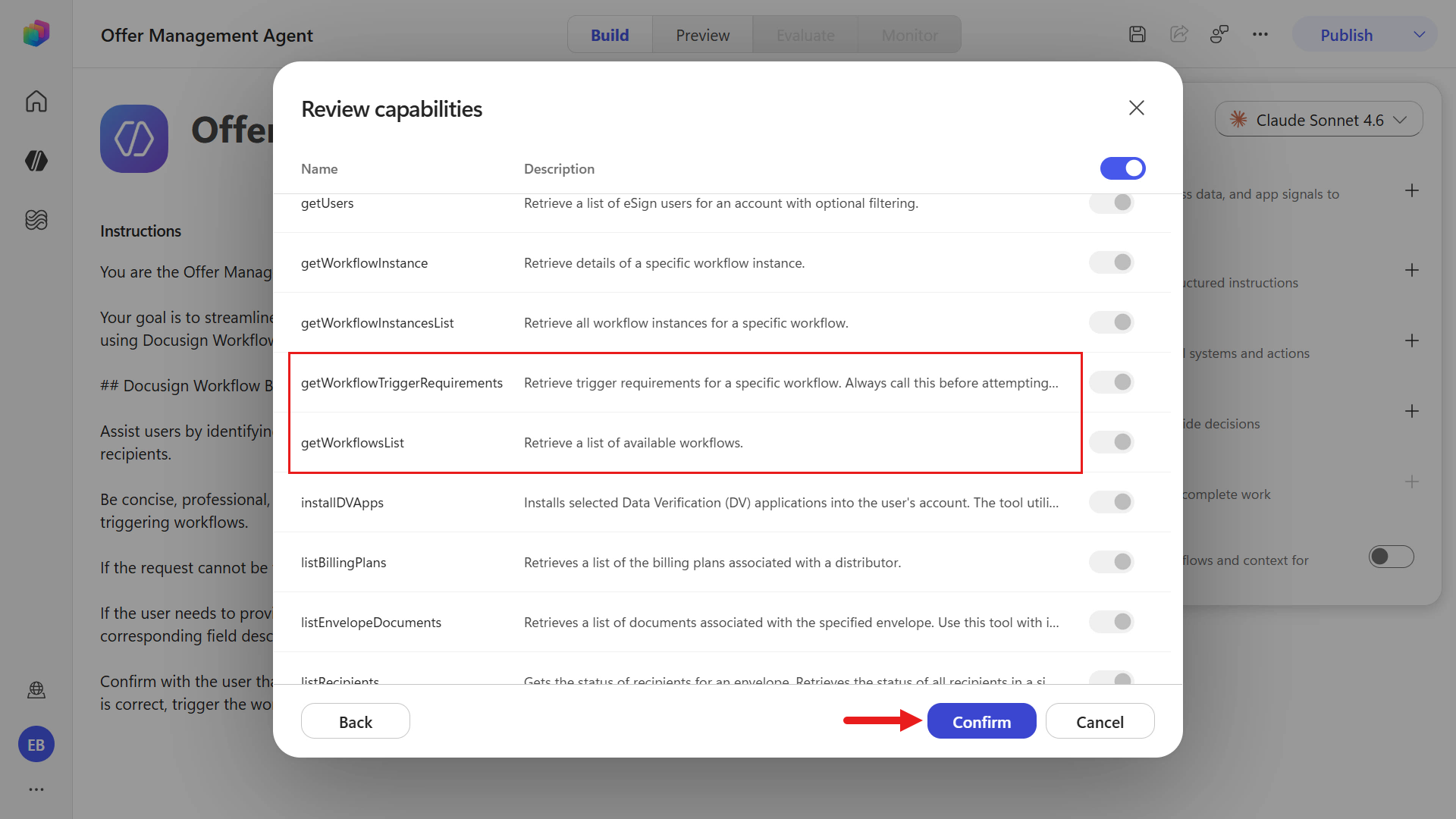
Review MCP capabilities -
The tool is added to the agent.
Next, change this agent’s solution in Settings. In the upper-right corner, select the ellipsis icon, then select Settings.
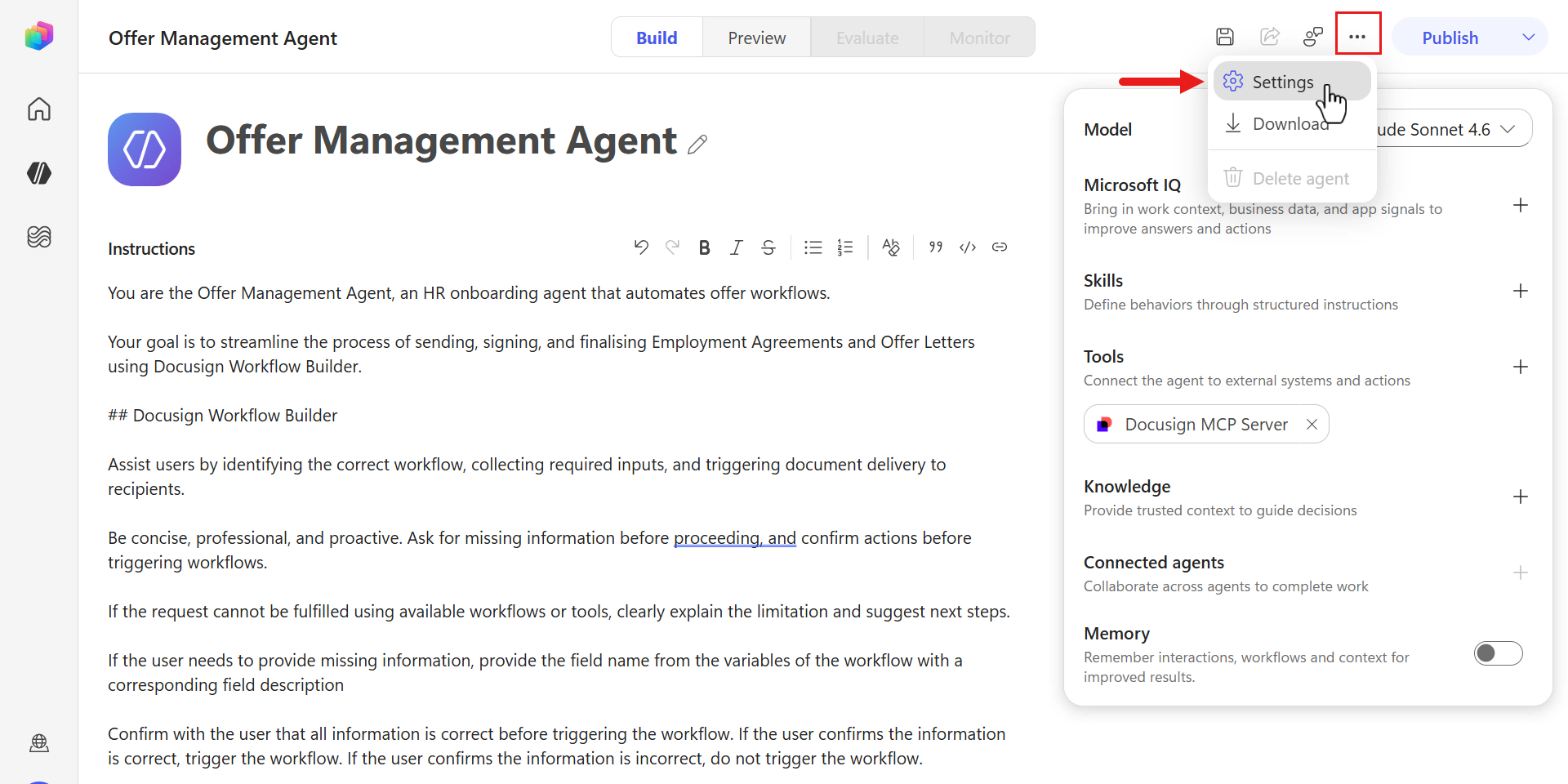
Select Settings -
In the dropdown field, select the new solution you created earlier to change the agent’s solution.
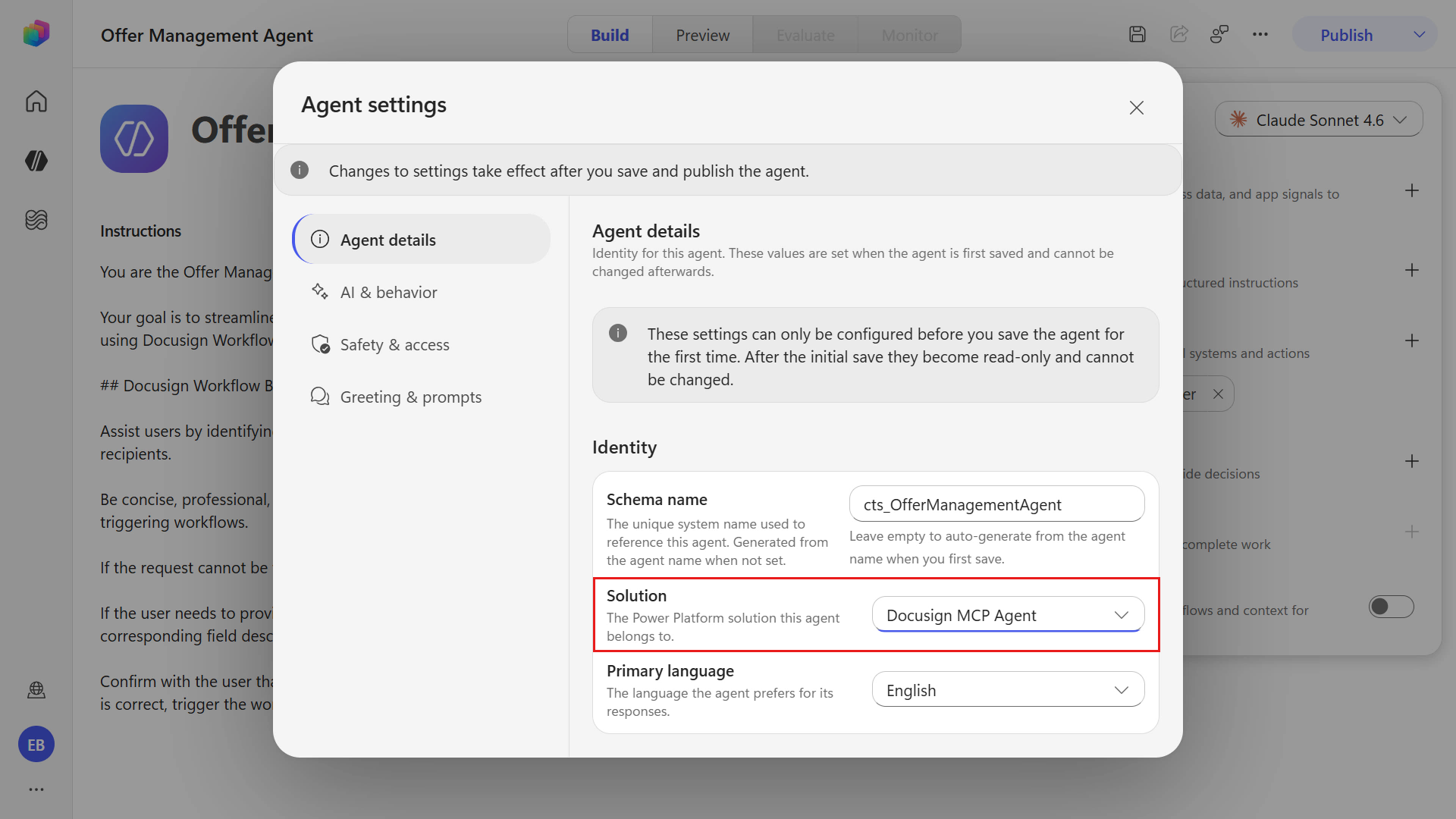
Select solution -
Save and test the agent. Select the Preview tab, then enter and submit the following:
Send an employment agreement and offer letter to [employee name], [email address]- Replace
[employee name]with a name. - Replace
[email address]with the Employee participant email address.
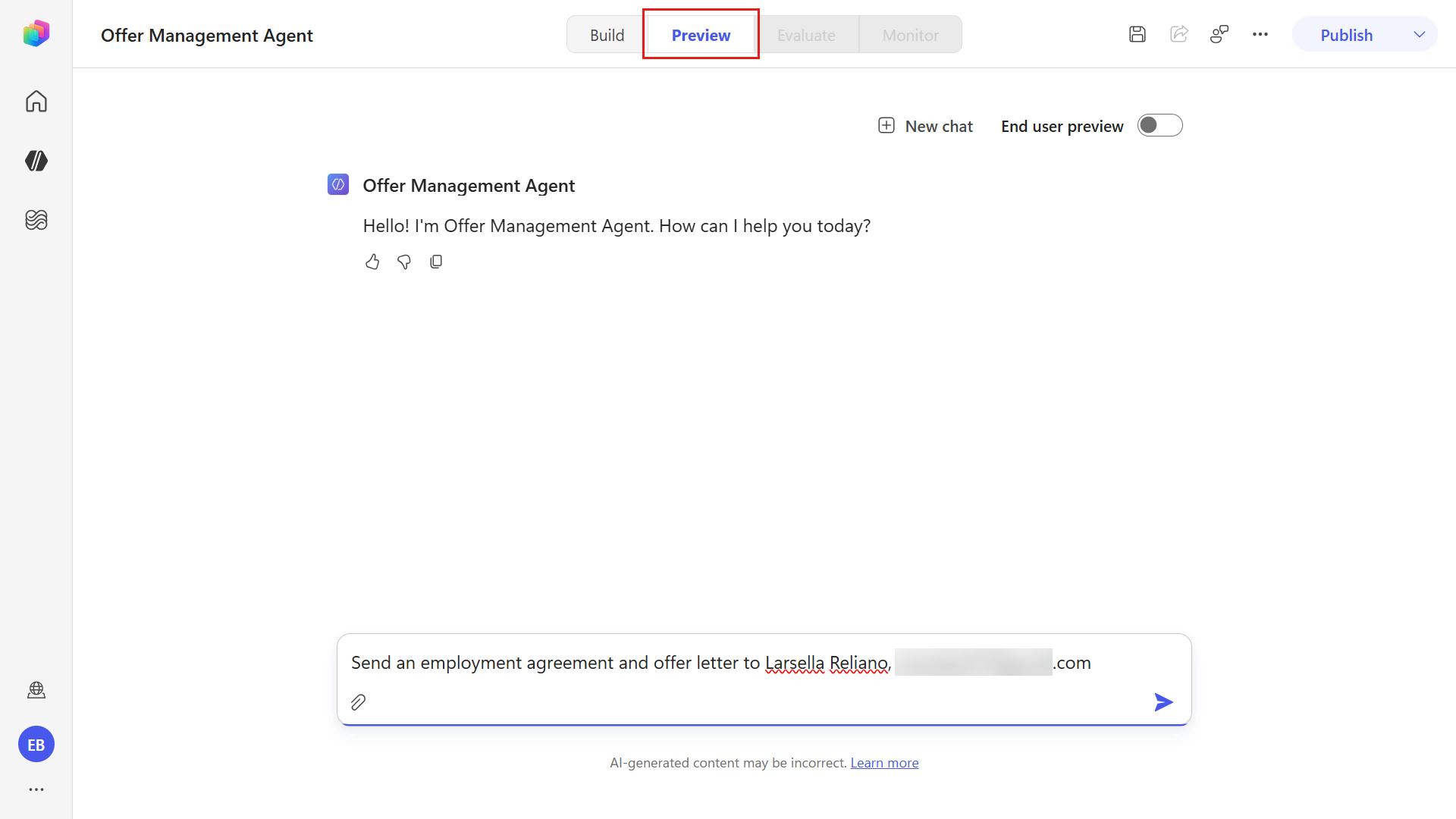
Test the agent - Replace
-
The orchestrator uses the Docusign MCP Demo tool and the instructions you added to find the workflow requirements needed to send the employment agreement and Offer Letter.
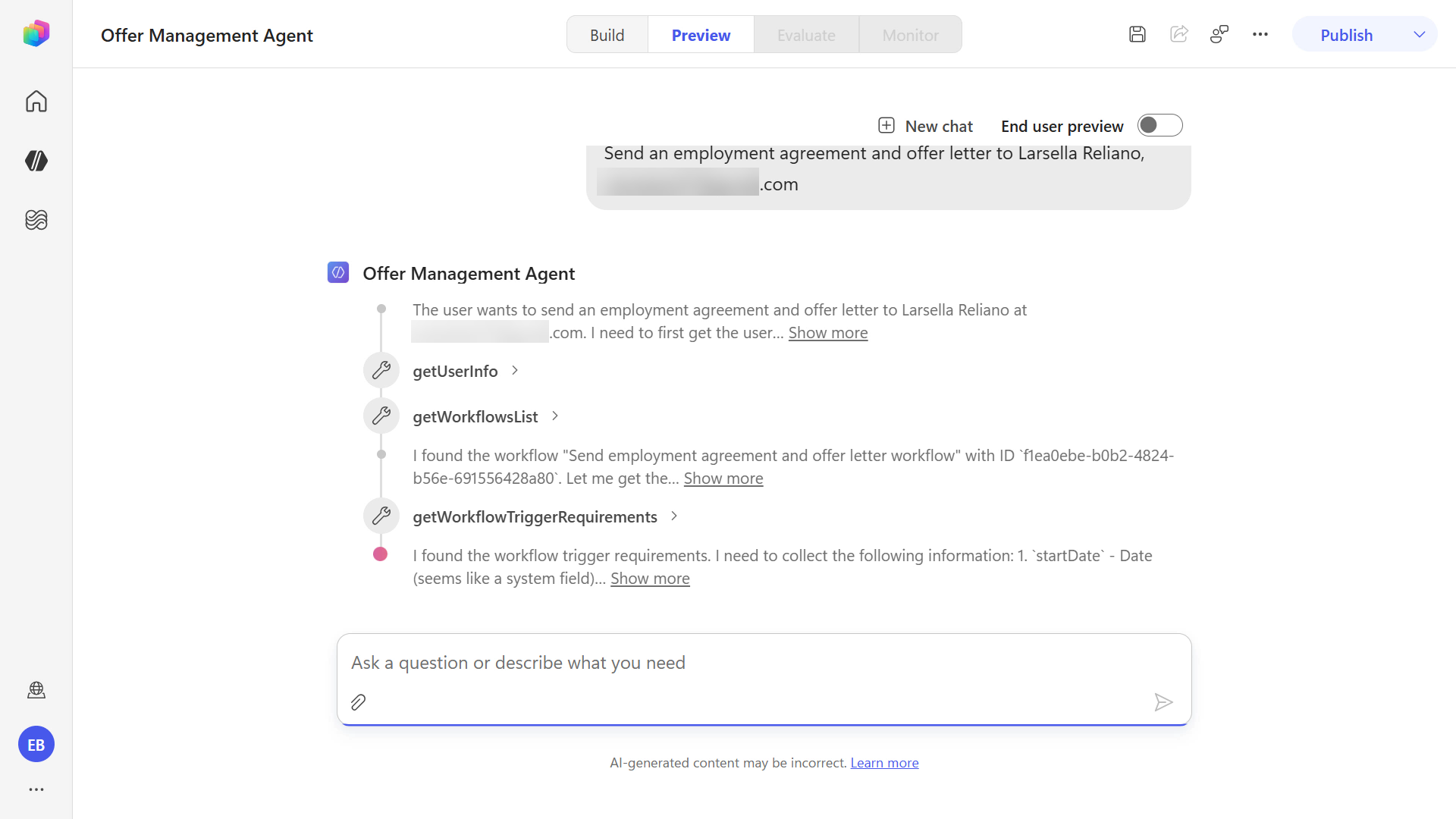
Orchestrator working -
Because you provided only the Employee name and email address, the agent response asks for the remaining information required by the workflow.
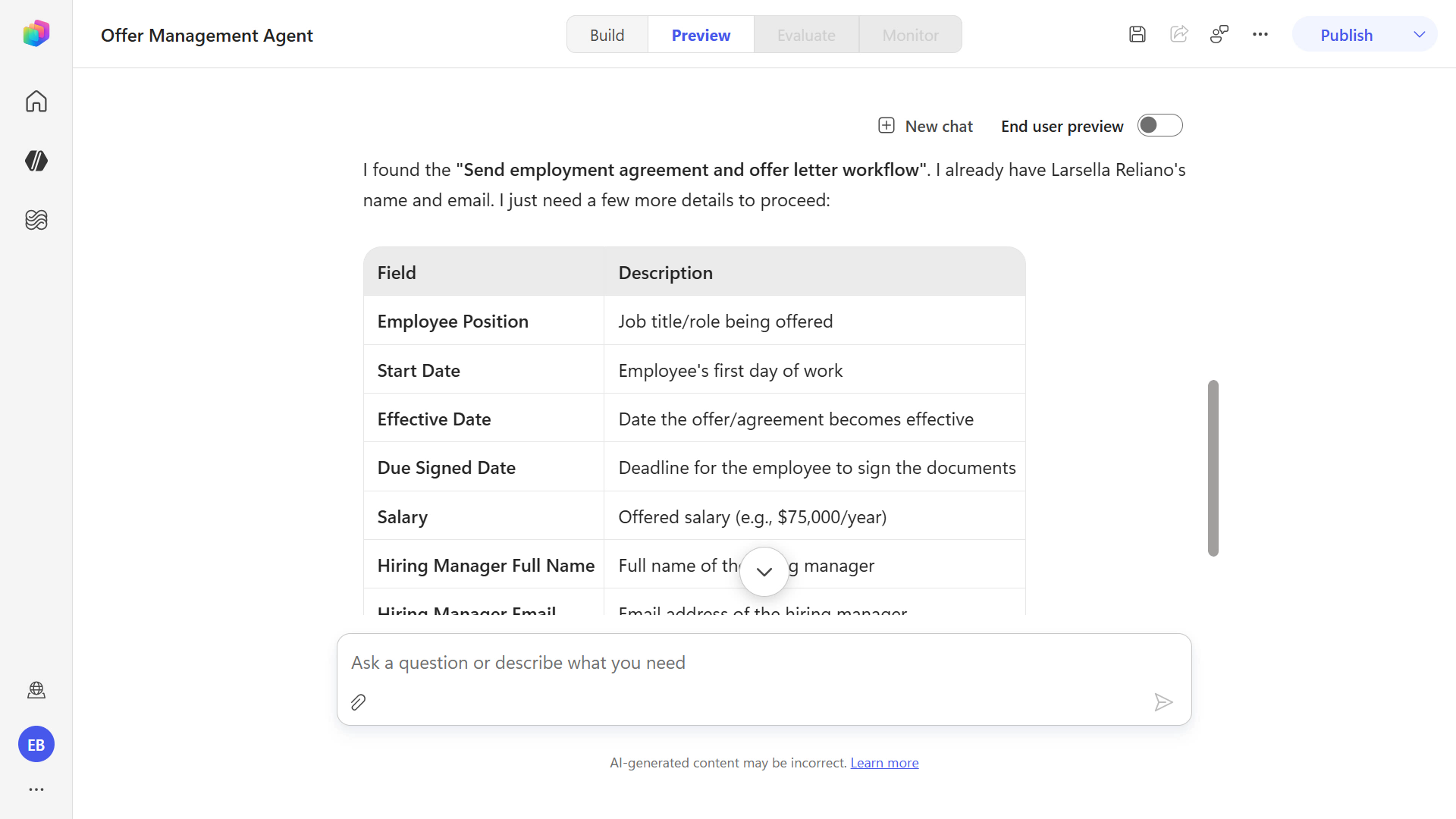
Requirements identified -
Enter and submit the following text. Replace the bracketed values with real values:
employee position is [position], effective date and start date is [MMMM d], salary is [salary dollar amount], reporting to [manager full name] [manager email address], and due signed date is [MMMM d]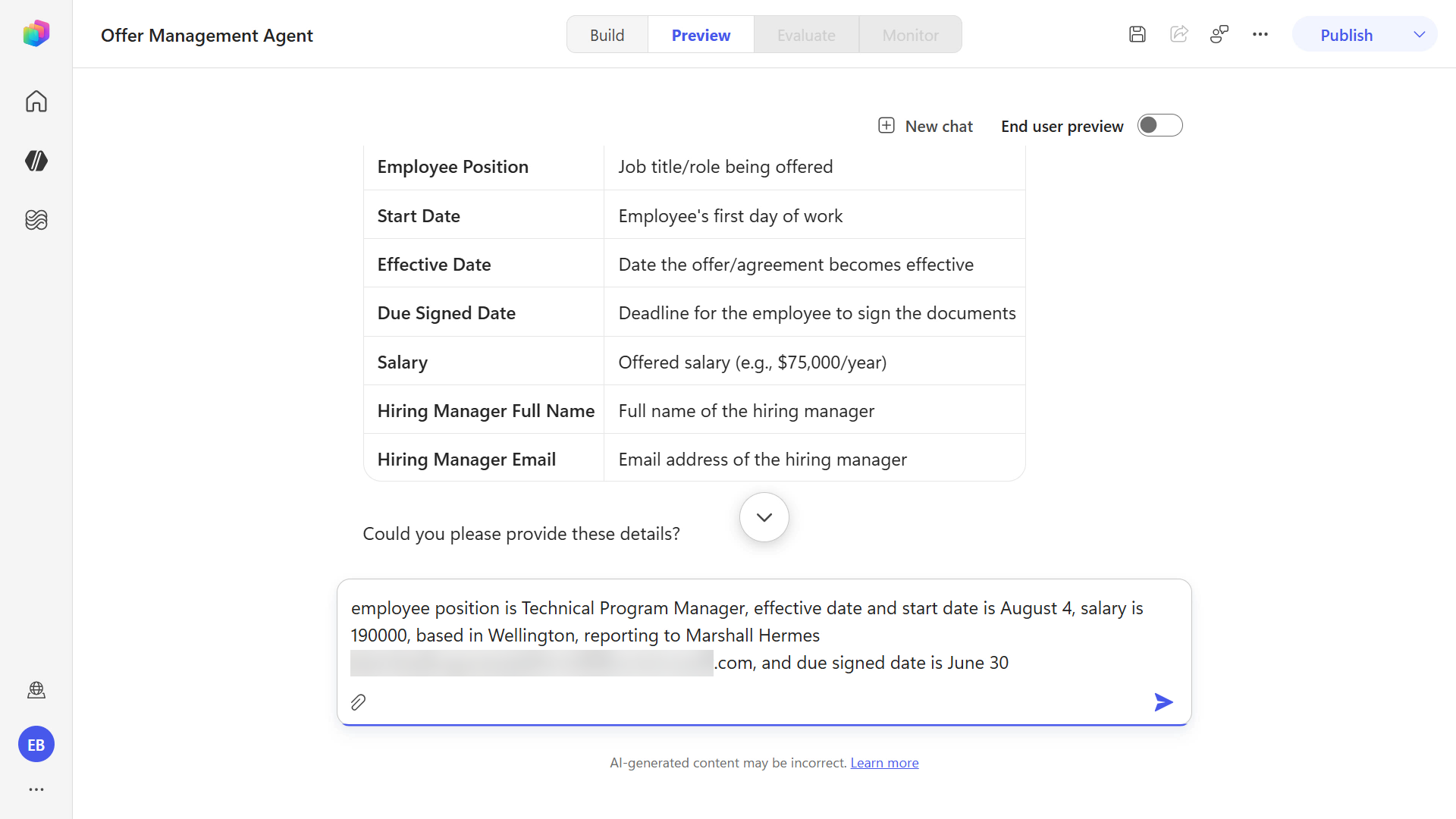
Variables provided -
The agent provides a summary of the variables based on the information you provided and asks you to confirm whether the information is correct. This is based on the instructions you entered when creating the agent.
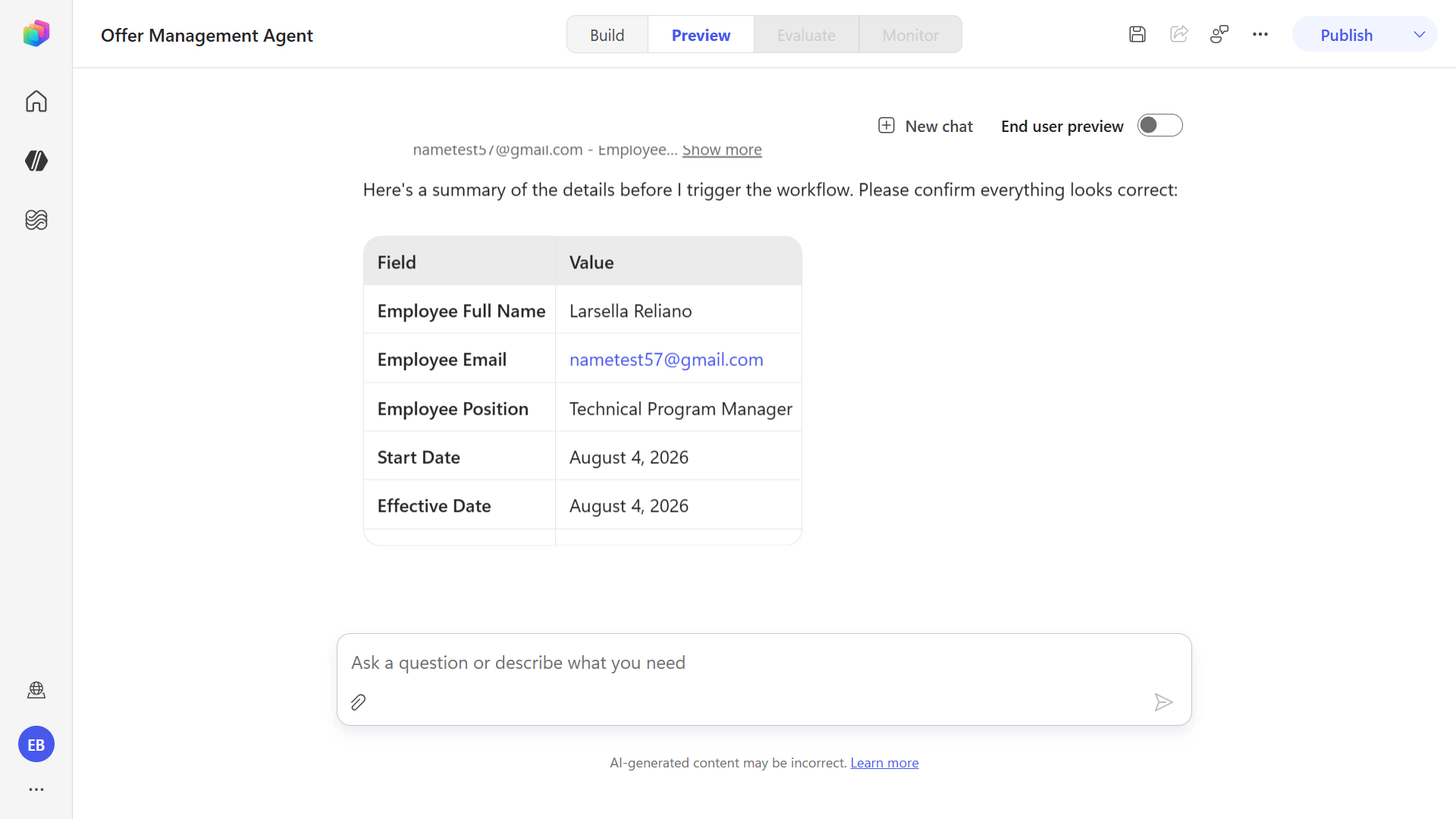
Review information -
Enter and submit the following text:
Yes, information is correct.The orchestrator triggers the workflow next.
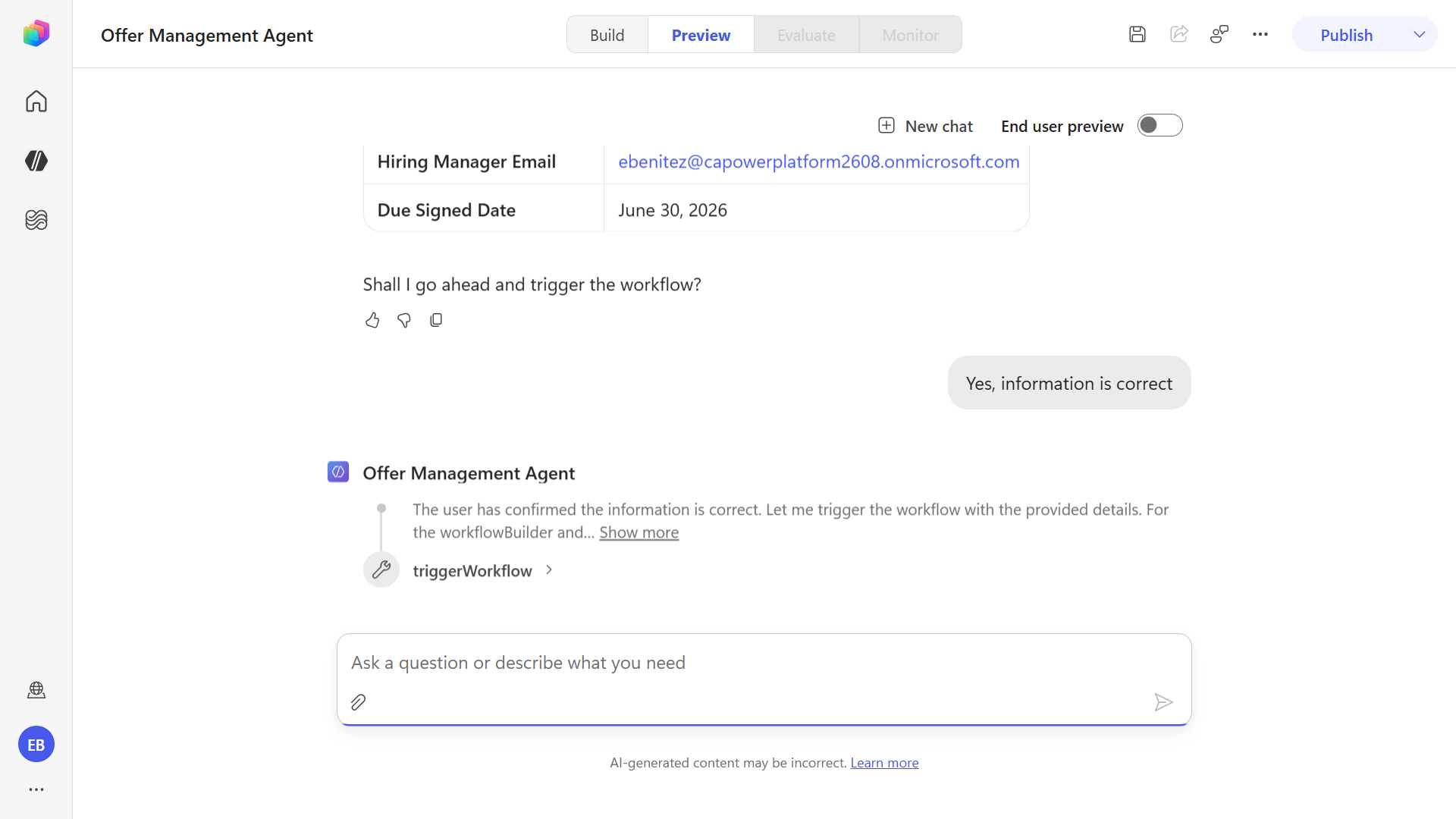
Enter confirmation -
When the workflow is triggered, a confirmation and summary appear.
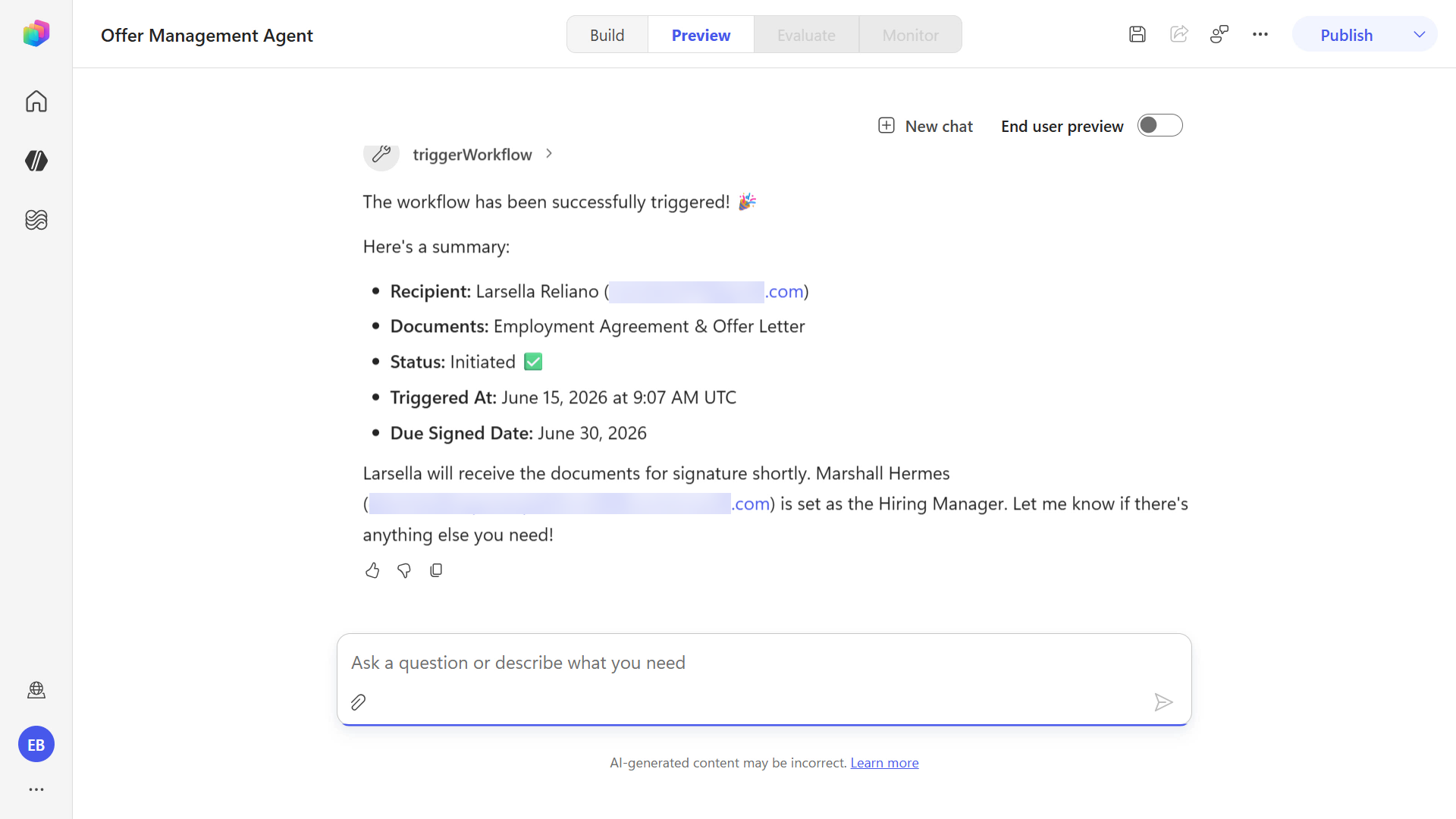
Workflow triggered -
Follow the same steps as before to complete the workflow:
- Go to the Employee participant email inbox, open the Docusign email, complete the Web Form, and sign the agreements.
- Go to the Hiring Manager participant email inbox and sign the agreements.
- Finally, the signed agreements are uploaded to SharePoint.
Warning: If the email is not visible in the main inbox, check the spam folder.
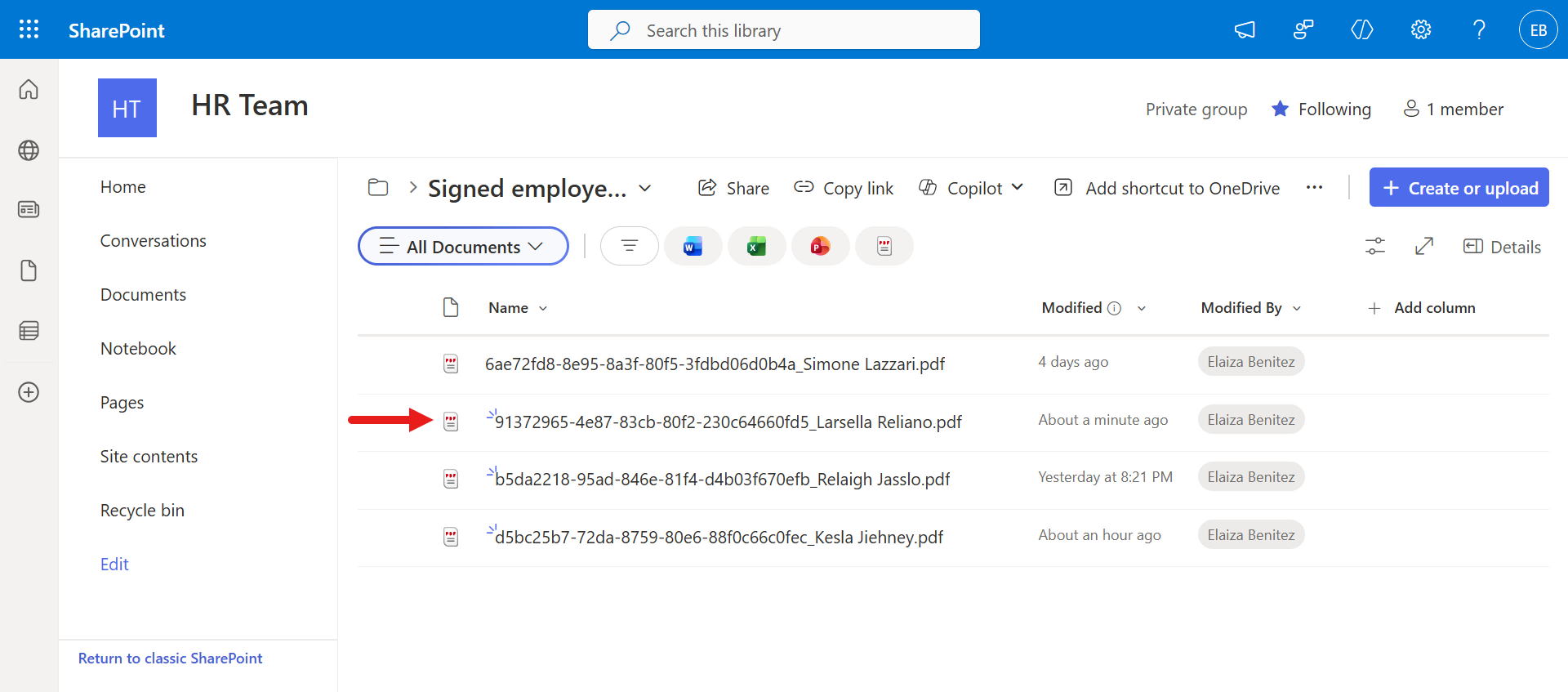
SharePoint upload 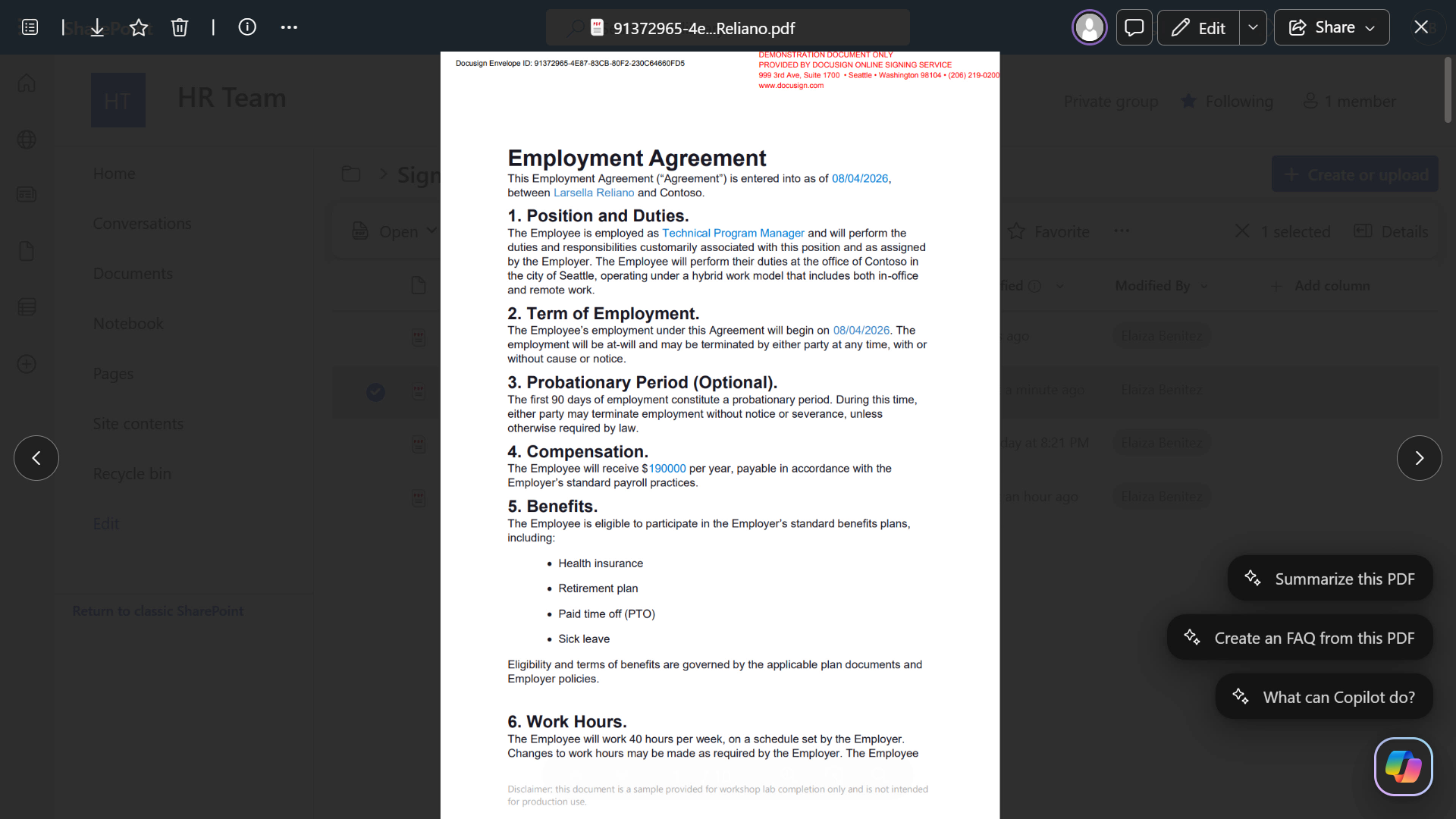
Review agreements -
You can also review the workflow instance in the Docusign developer portal, where the progress status is shown as Completed.
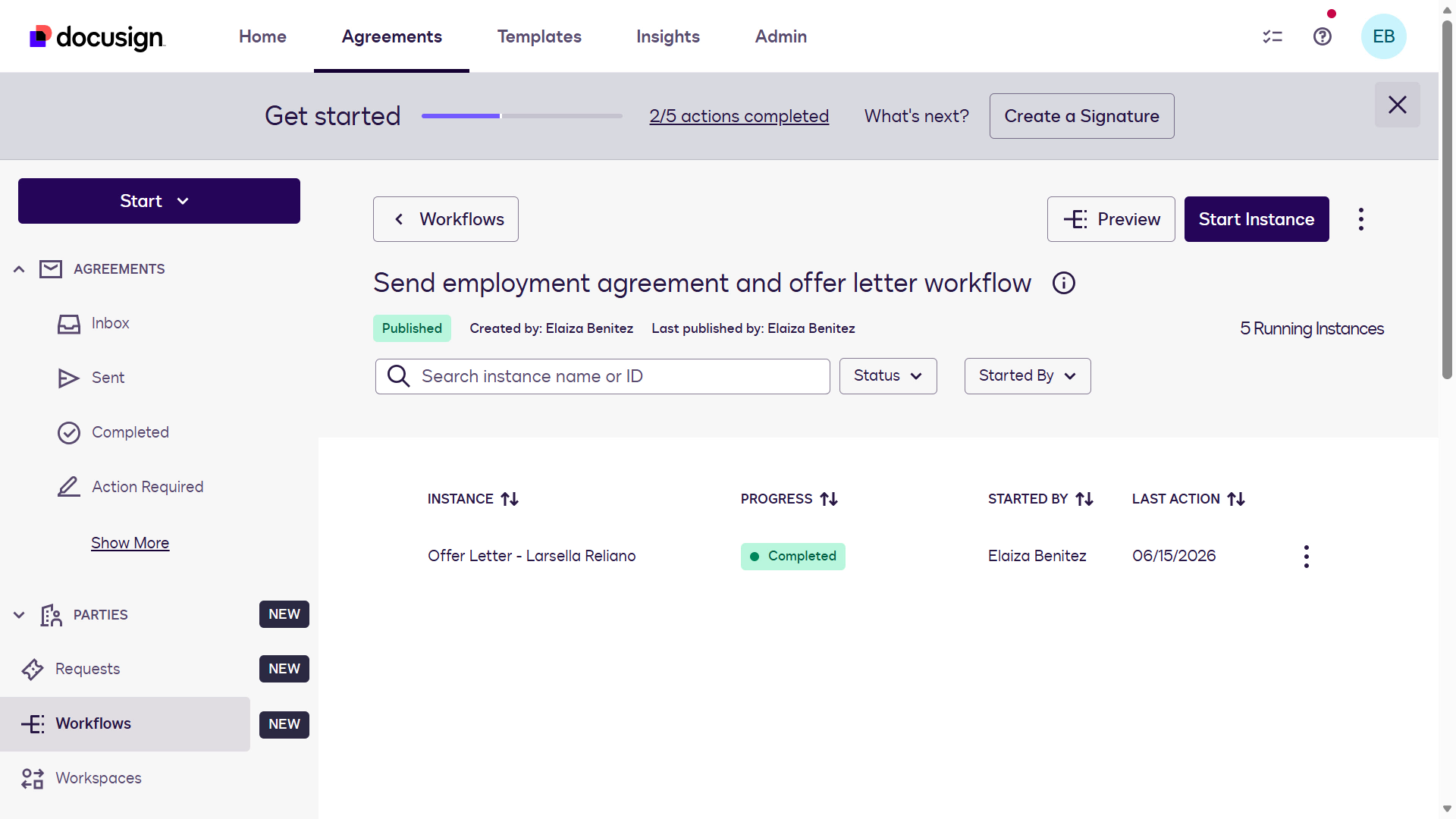
Completed status
Congratulations! 🥳 You learned how to invoke a Workflow Builder workflow from an agent through the Docusign MCP Demo tool.
🧪🌟 1.6 Bonus - Add the Work IQ Calendar tool (multi-MCP capabilities)
If your tenant and user are enabled for Frontier capabilities, try the following exercise to combine a second MCP server, Work IQ Calendar, with the agent.
You will update the agent to automatically create an Outlook meeting on the calendar to review the HR onboarding pre-checklist after the Docusign Workflow Builder workflow succeeds.
Download and extract sample-skill.zip, then upload the sample-skill-outlook-pre-onboarding-checklist-meeting.zip file to the agent.
-
Update the agent instructions to include details for creating an Outlook meeting after the Workflow Builder workflow is successfully triggered. In the second paragraph of the instructions, add the following as a new line:
When the workflow has successfully been triggered, schedule an Outlook meeting.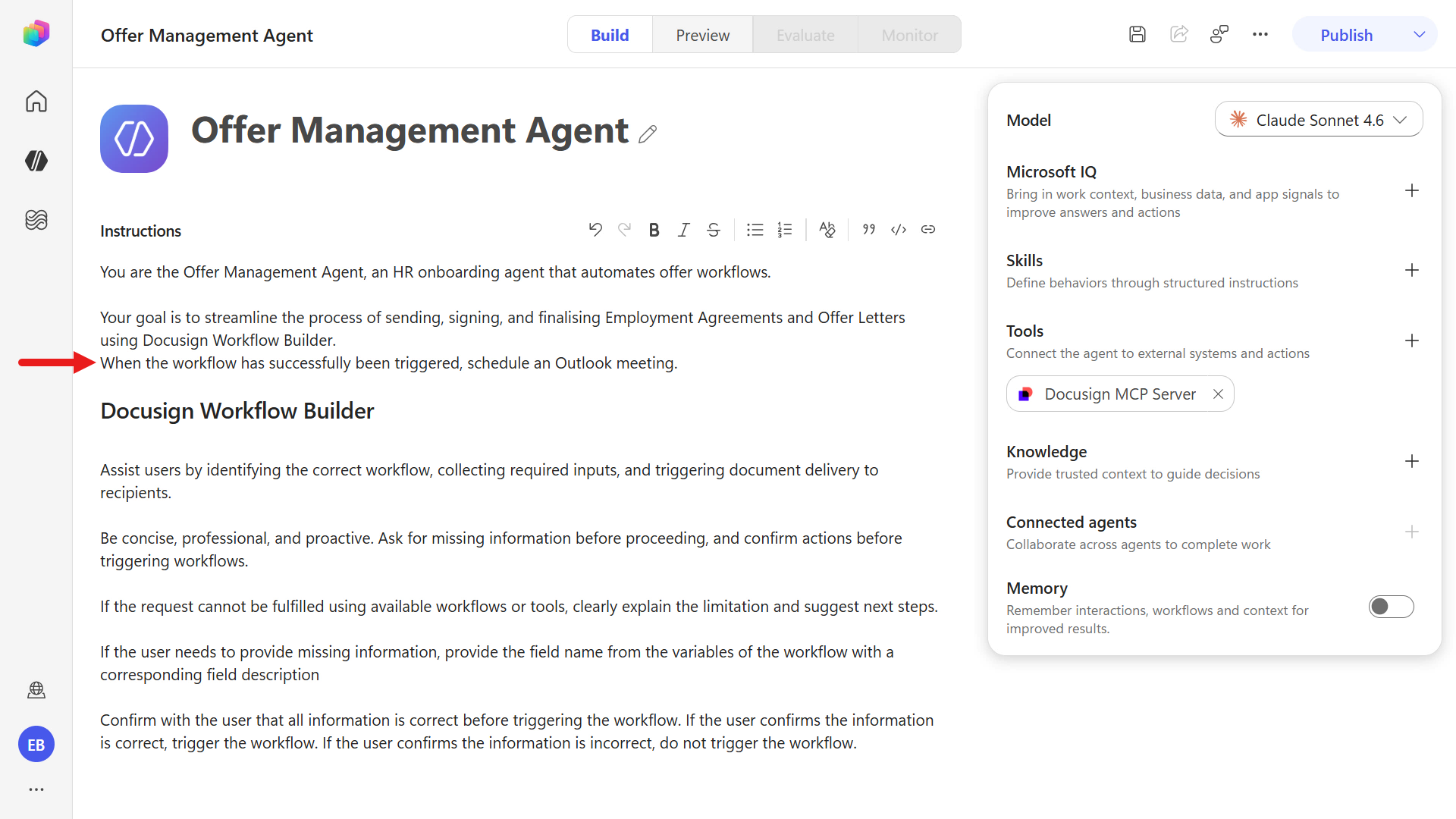
Update instructions -
Next, add an Outlook meeting scheduling section below the Docusign Workflow Builder section.
Tip: Agent instructions define what the agent should do and when it should do it. A skill defines how to perform a specific task reliably and consistently.
 ## Schedule Outlook meeting
 When the workflow has successfully been triggered, use the `outlook-pre-onboarding-checklist-meeting` skill to create the Outlook meeting.
After updating the agent instructions, select Save.
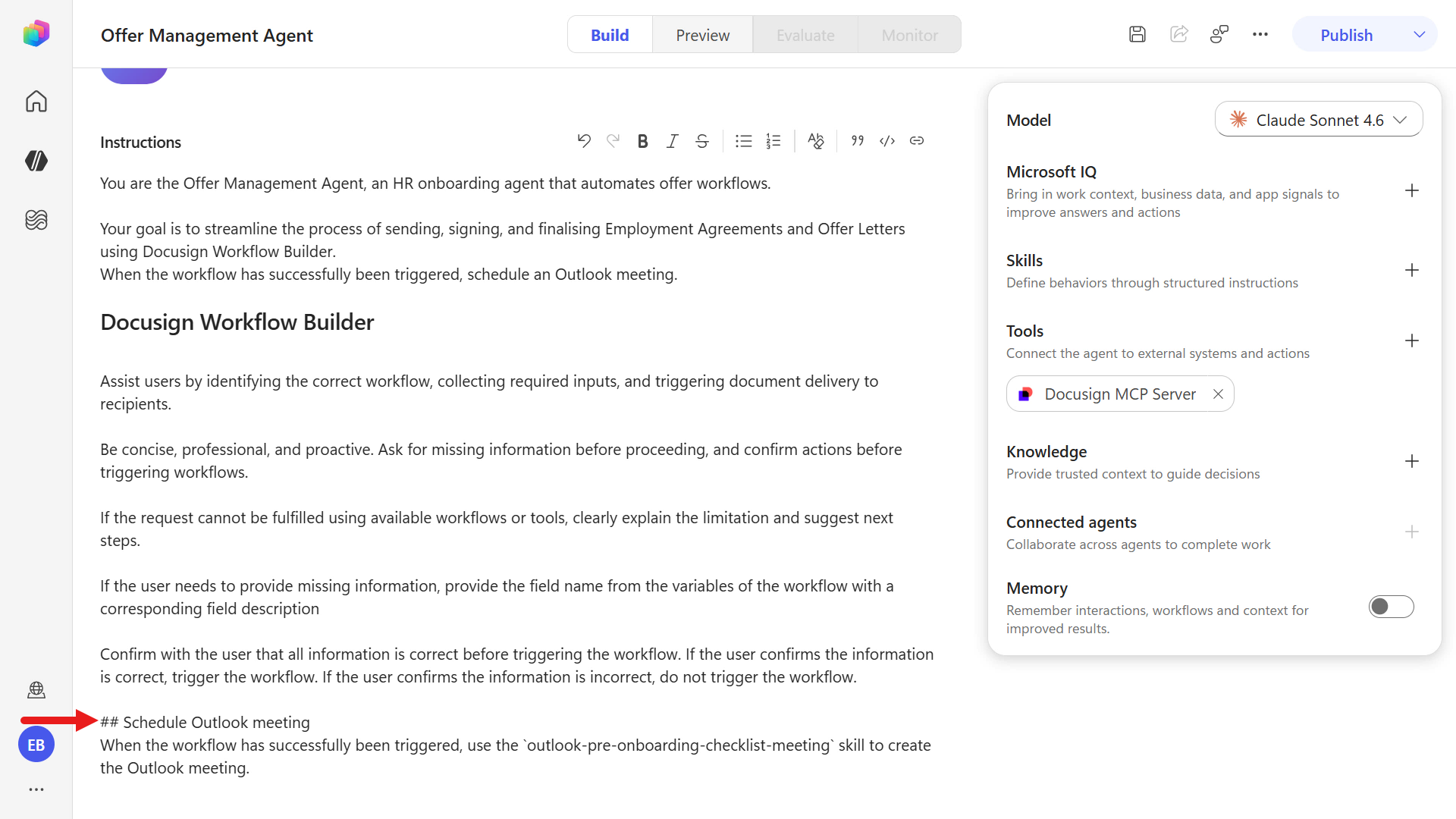
Update instructions -
In the right panel, under Skills, select the plus icon to upload the skill file.
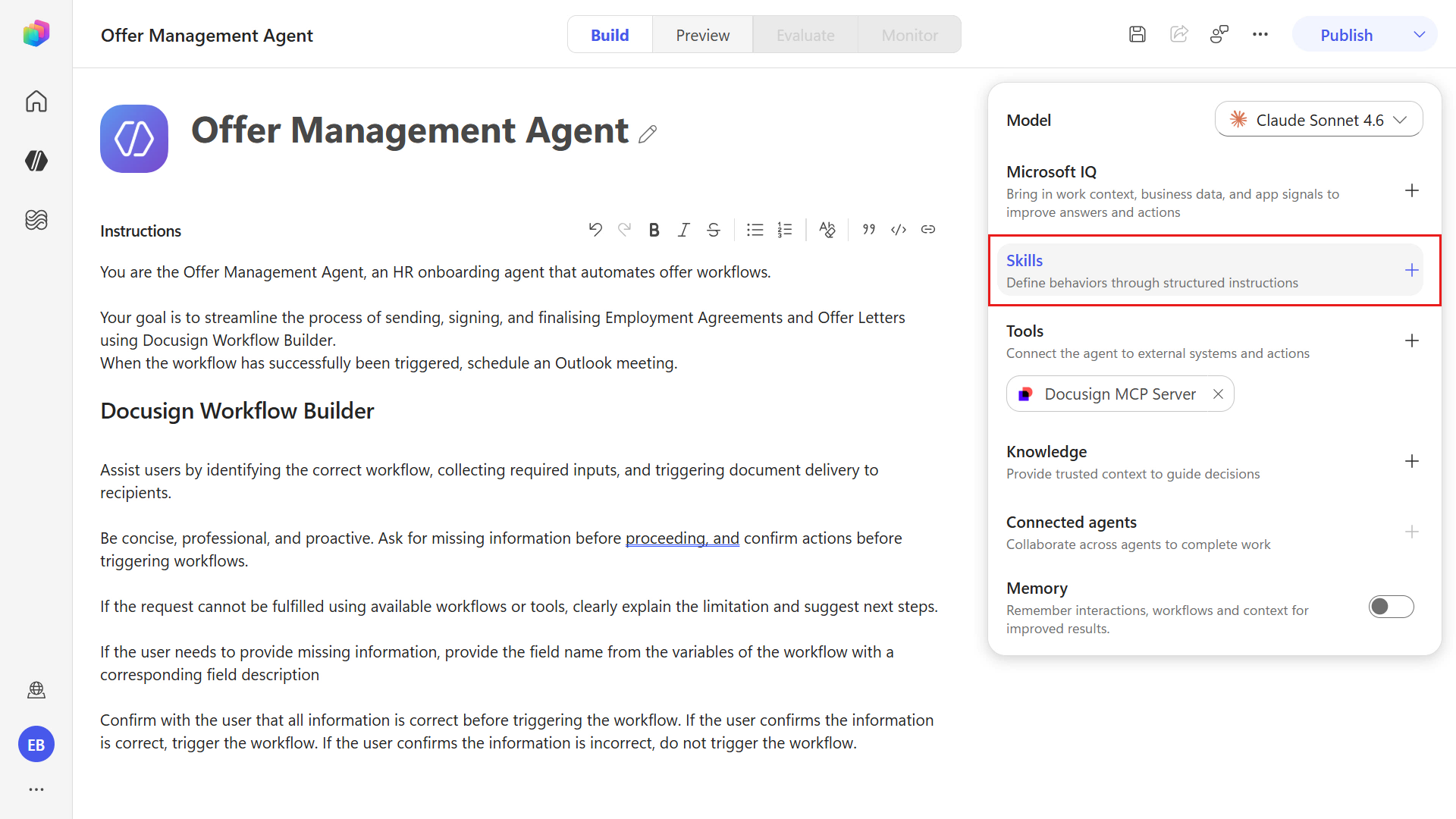
Add a skill -
Click to upload the file.
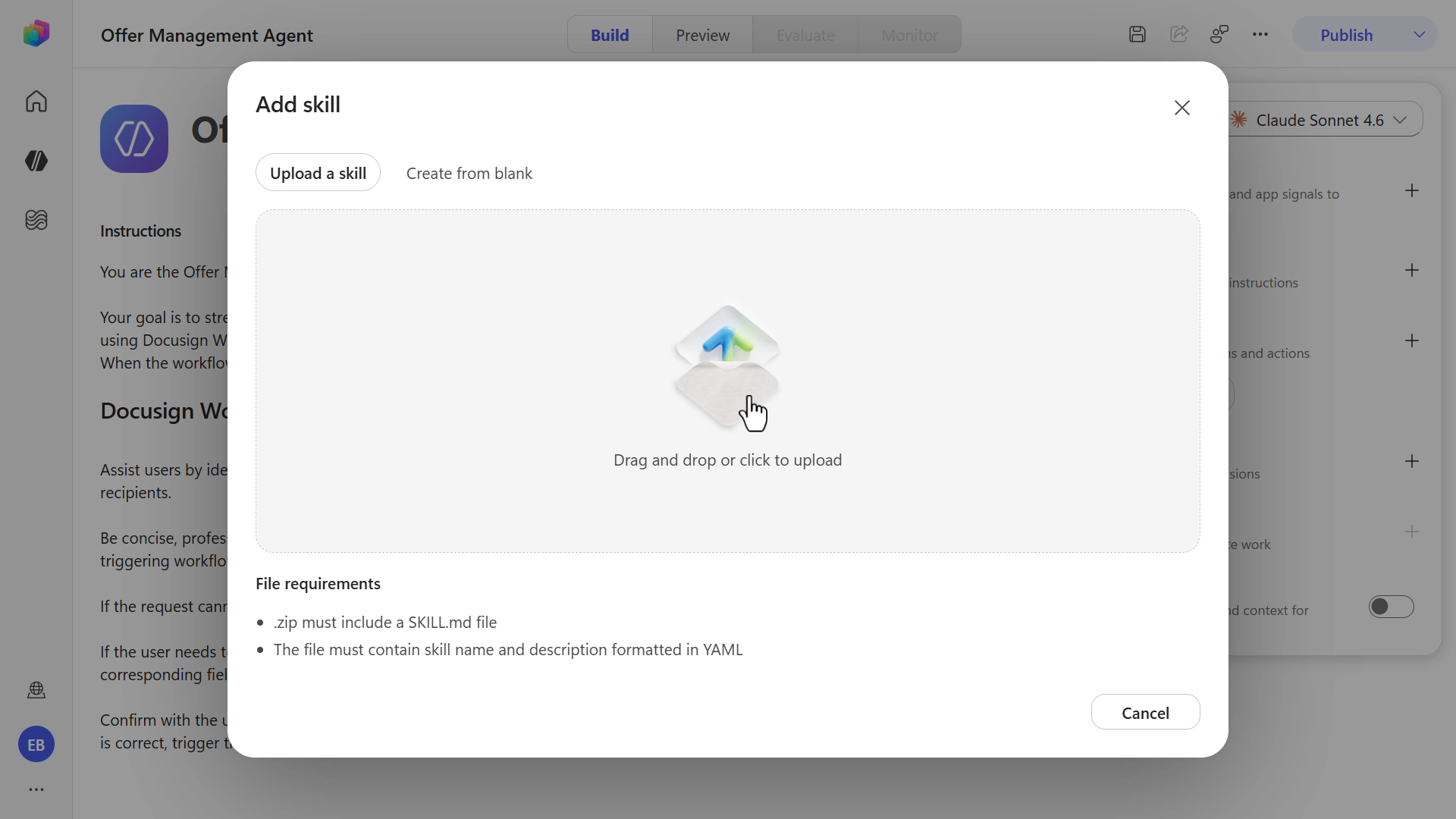
Upload file -
Download and extract
sample-skill.zip, then upload thesample-skill-outlook-pre-onboarding-checklist-meeting.zipfile to the agent.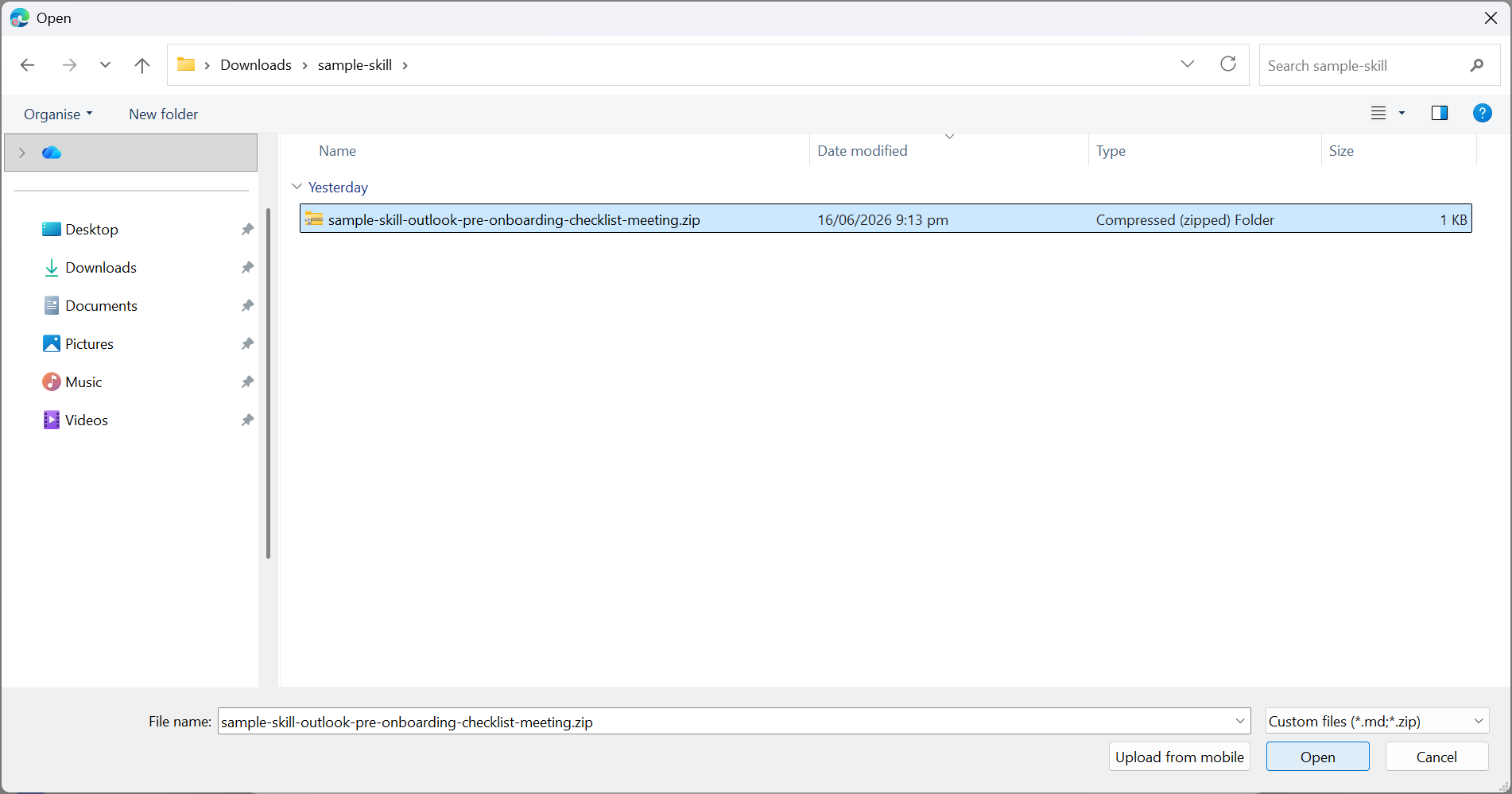
Select the skill file -
The skill is added to the agent.
Tip: This skill is the agent’s automation recipe for scheduling an Outlook pre-onboarding meeting after the Docusign Workflow Builder workflow succeeds.
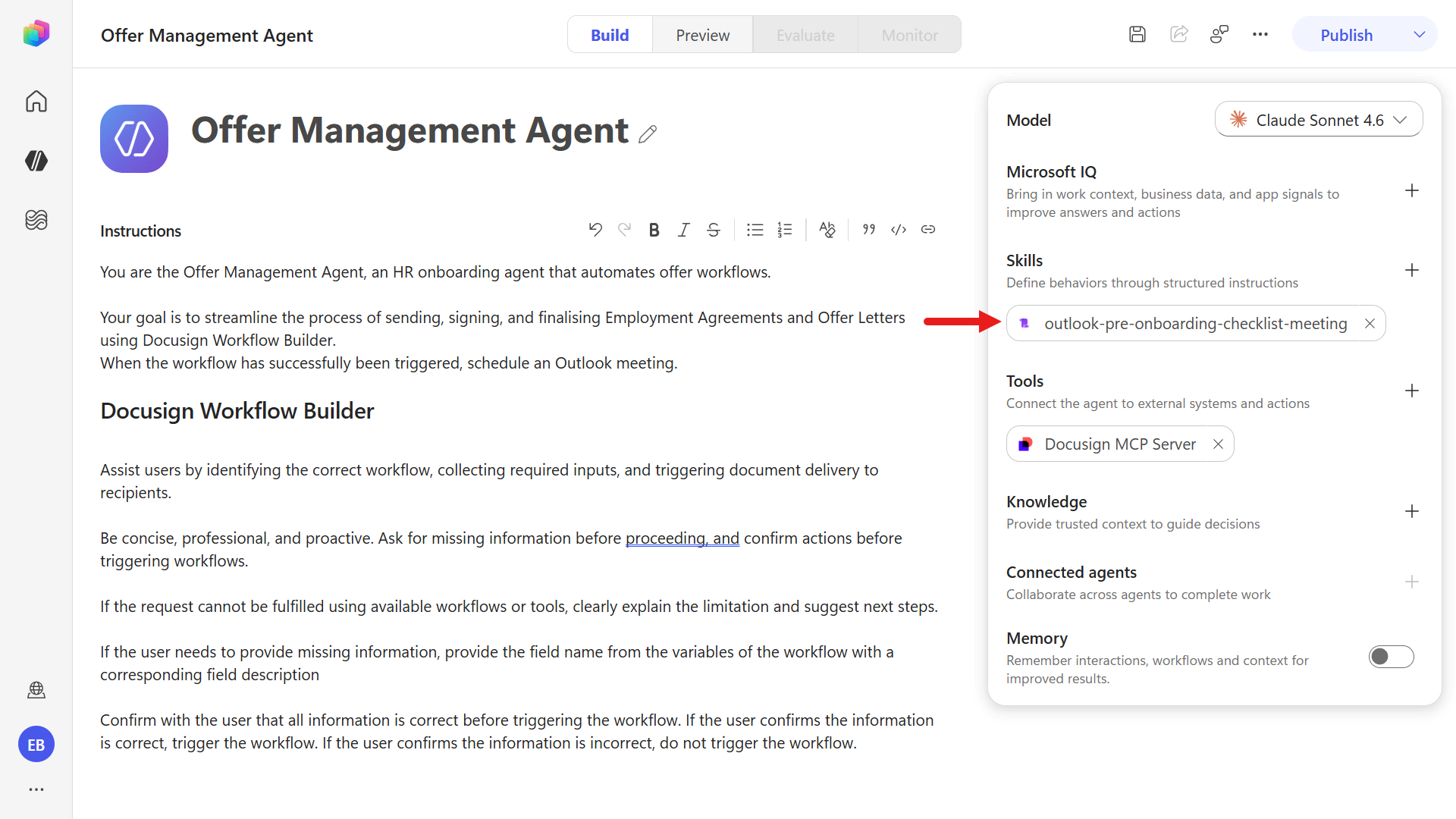
Skill added -
Next, add the Work IQ Calendar (Preview) tool. Under Tools in the right panel, select the plus icon.
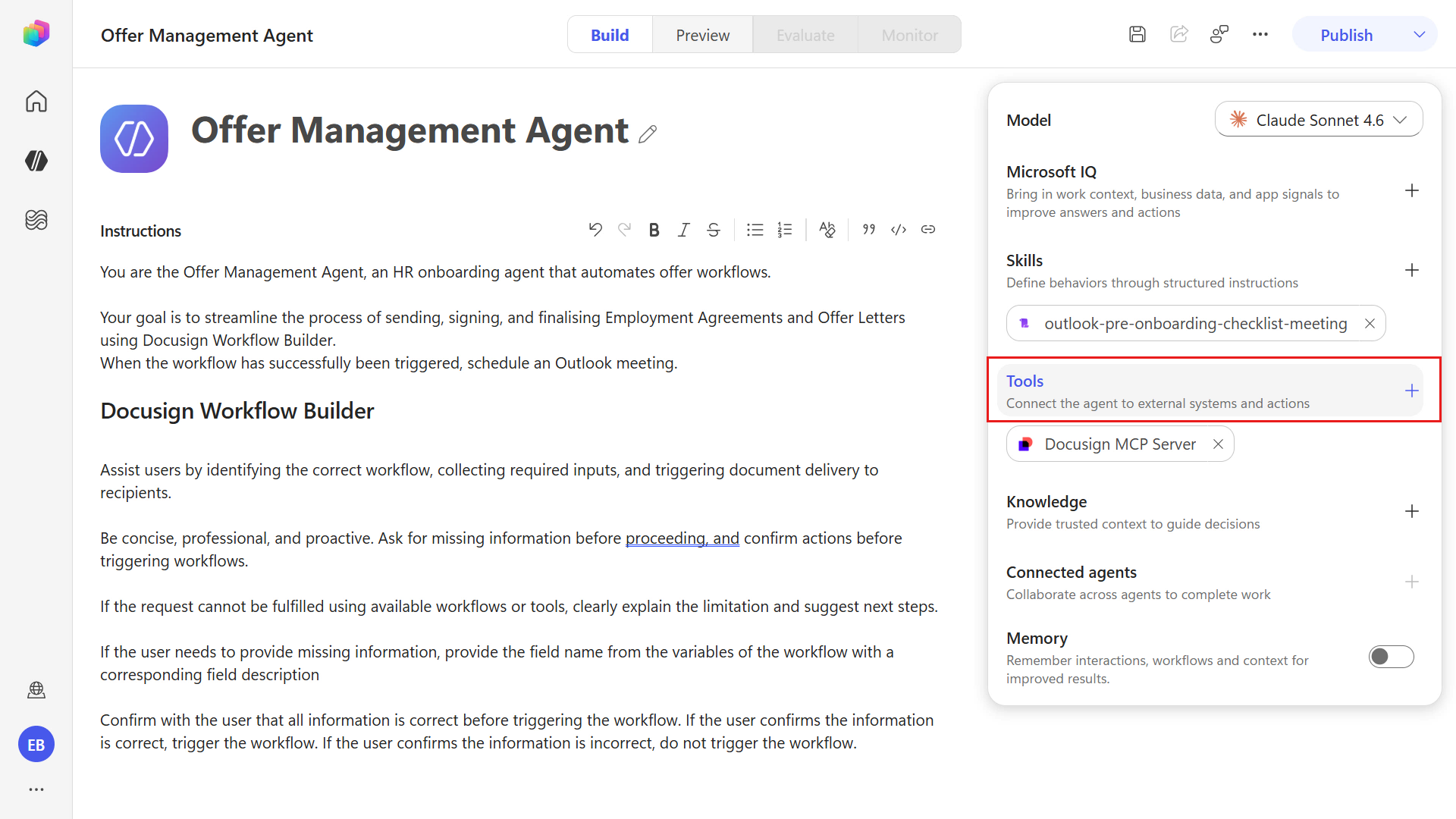
Add the Work IQ Calendar tool -
Select the Model Context Protocol (MCP) category to filter the tool list to MCP tools. Select the Work IQ Calendar (Preview) tool.
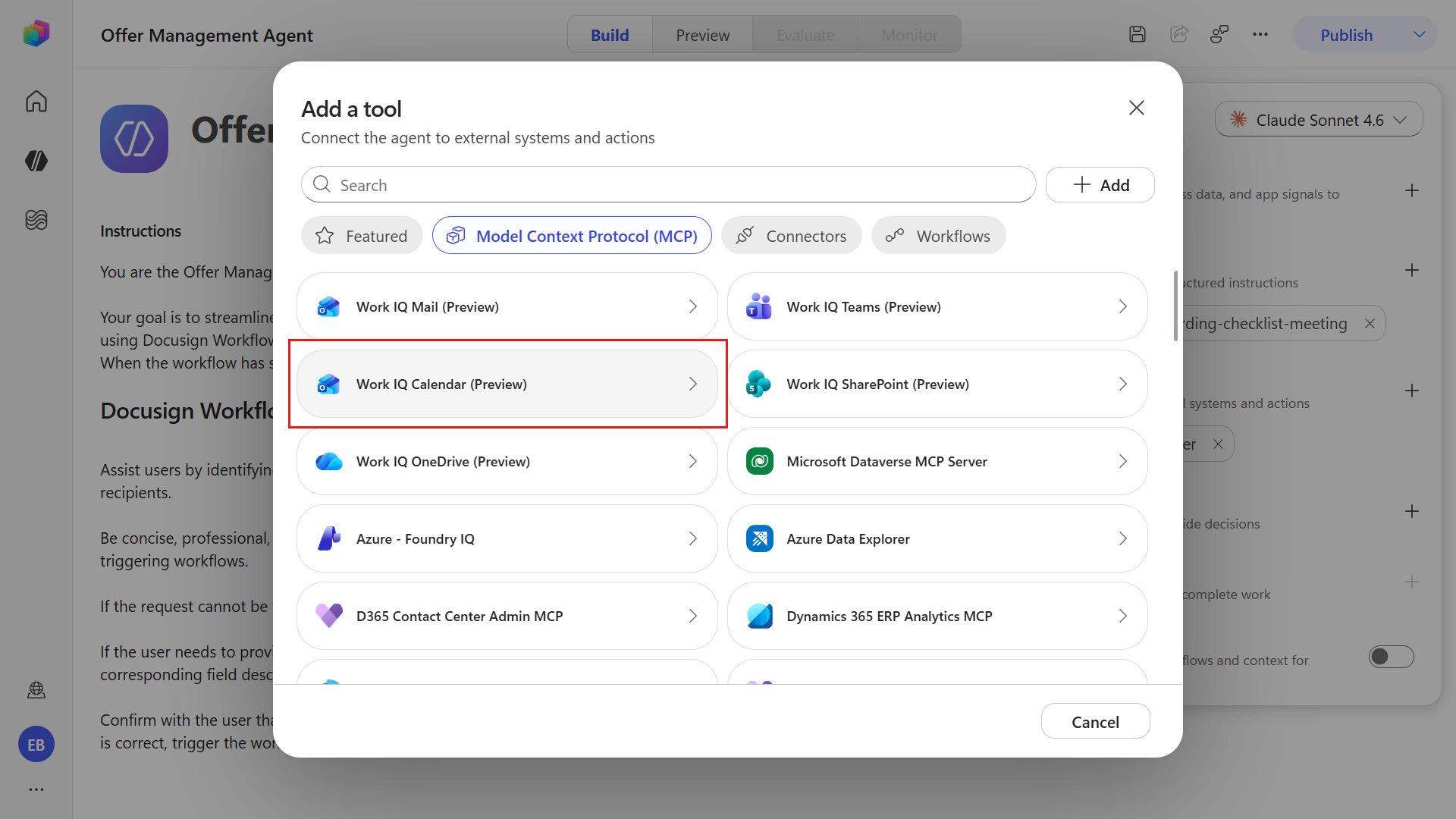
Select Work IQ Calendar -
Create a connection for the tool using the signed-in account in your developer environment. Select the chevron icon and select Create new connection.
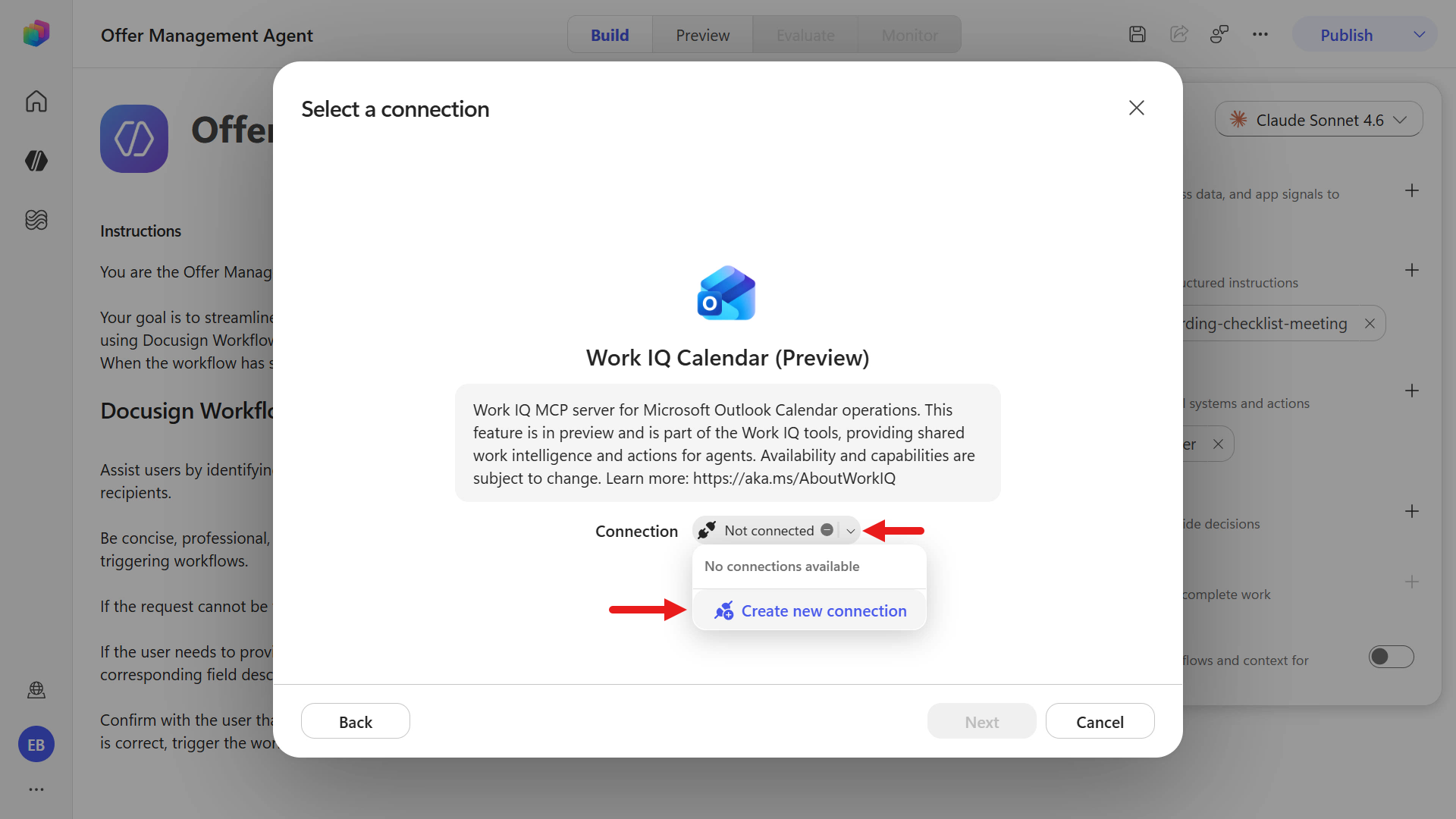
Create a new connection -
Select Create.
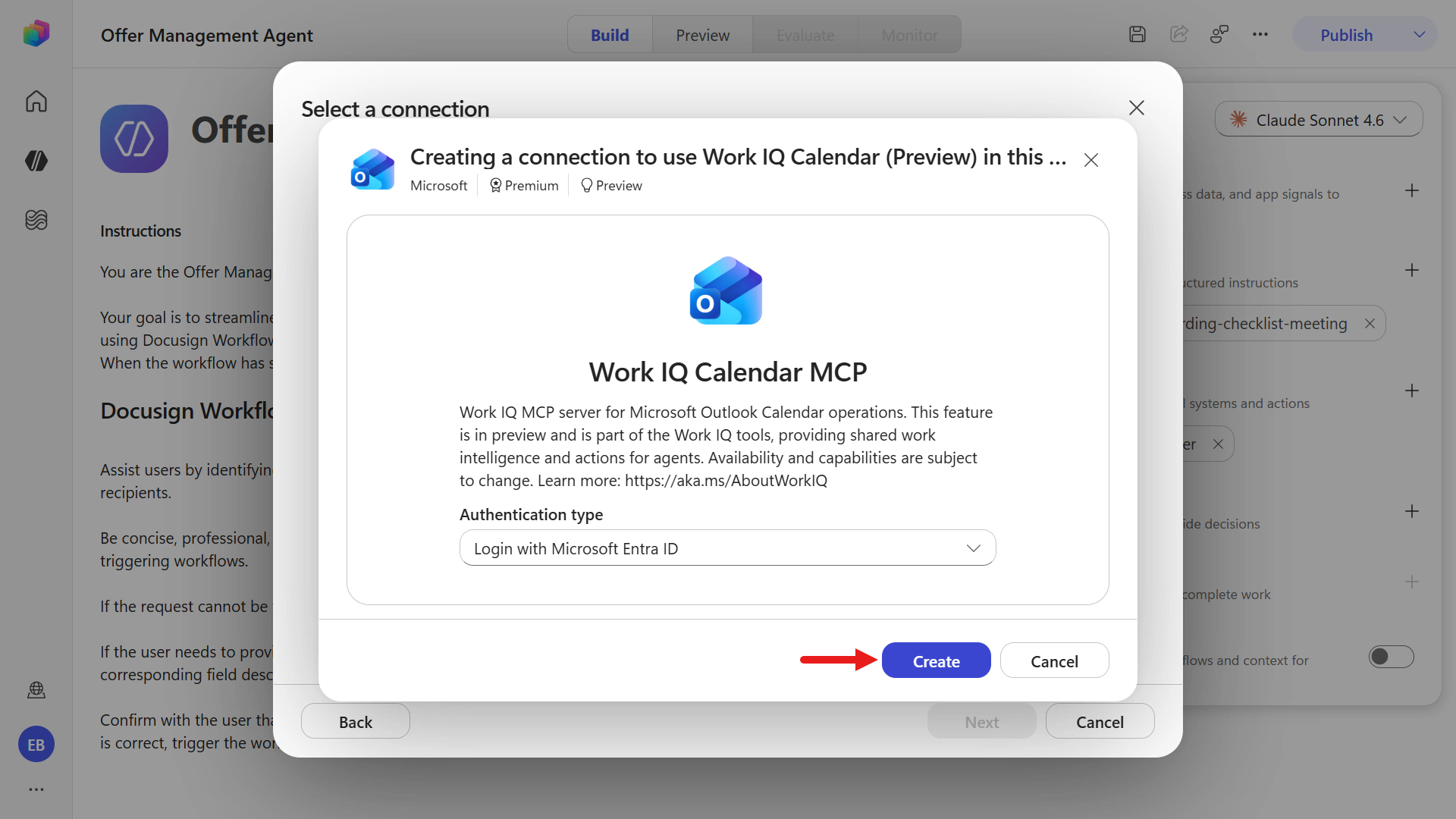
Select Create -
Select the signed-in account, then select Next.
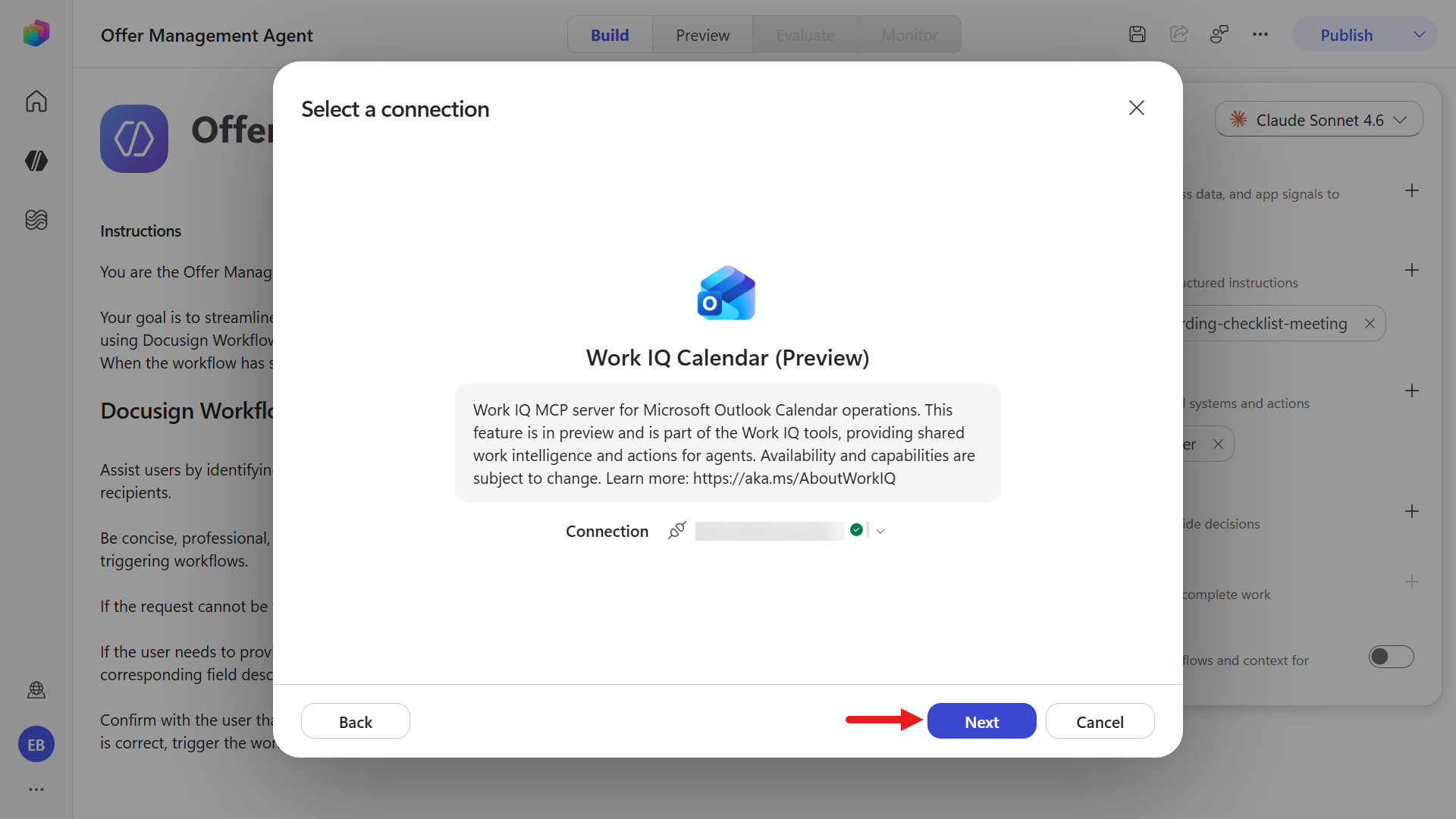
Select Next -
A list of supported actions for the Work IQ Calendar (Preview) tool appears. Select Confirm to add the tool.
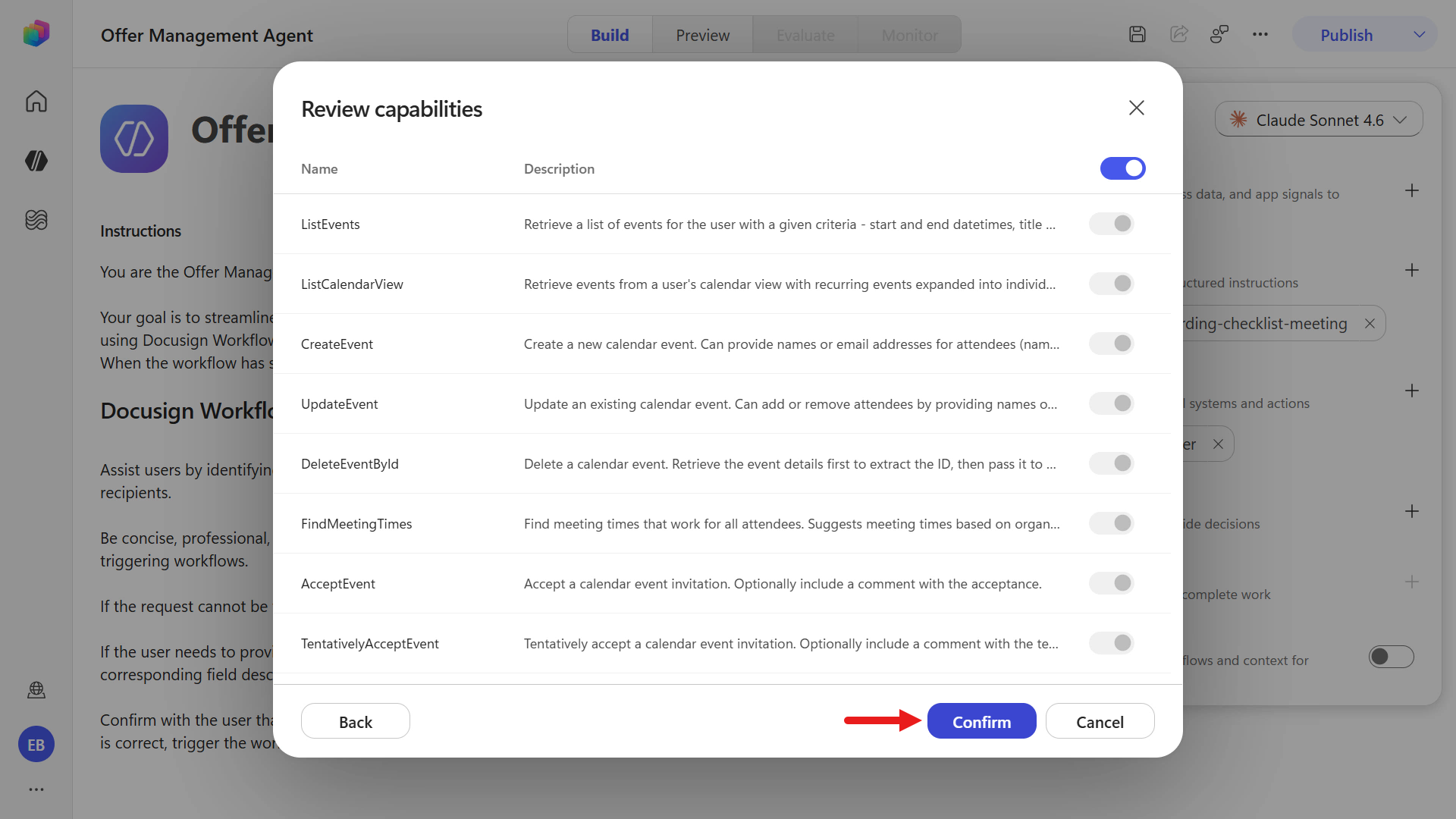
Select Confirm -
The tool is added. Select Preview and start a new test session with + New chat. Enter and submit the following text:
Send an employment agreement and offer letter to [employee name], [email address]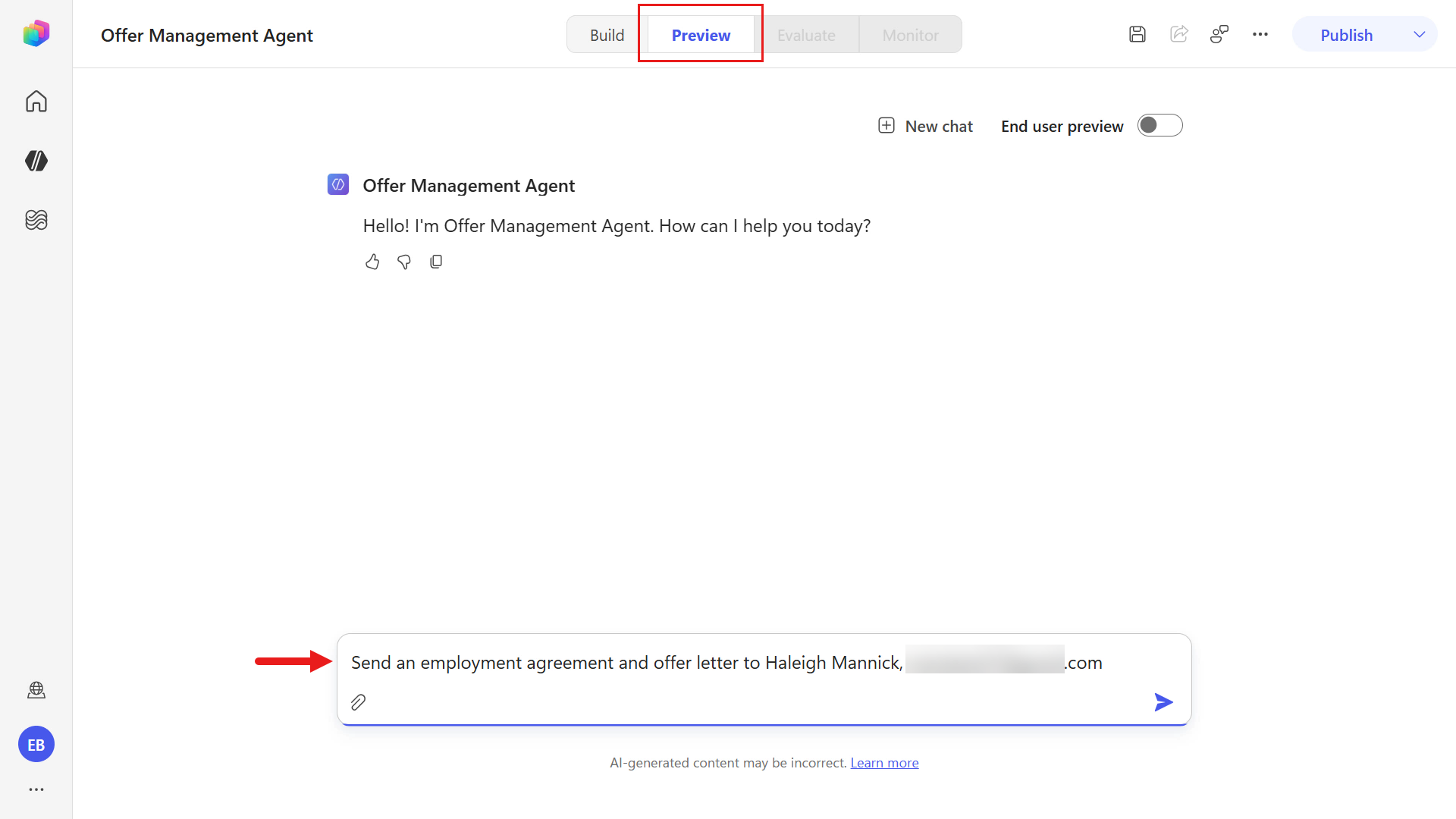
Test the tool -
Next, the orchestrator calls the Docusign MCP Demo tool to retrieve the workflow and workflow trigger requirements. Repeat the same steps as in the previous exercise: replace the placeholders, then submit the information to the agent.
To verify that the instruction to create the meeting two business days earlier is followed, use an effective date and start date that fall on a Monday or Tuesday.
employee position is [position], effective date and start date is [MMMM d], salary is [salary dollar amount], reporting to [manager full name] [manager email address], and due signed date is [MMMM d] -
After you provide the information required to trigger the workflow, the orchestrator confirms that the workflow was successfully triggered, processes the skill, and calls the Work IQ Calendar (Preview) tool to create an Outlook meeting two business days before the effective date.
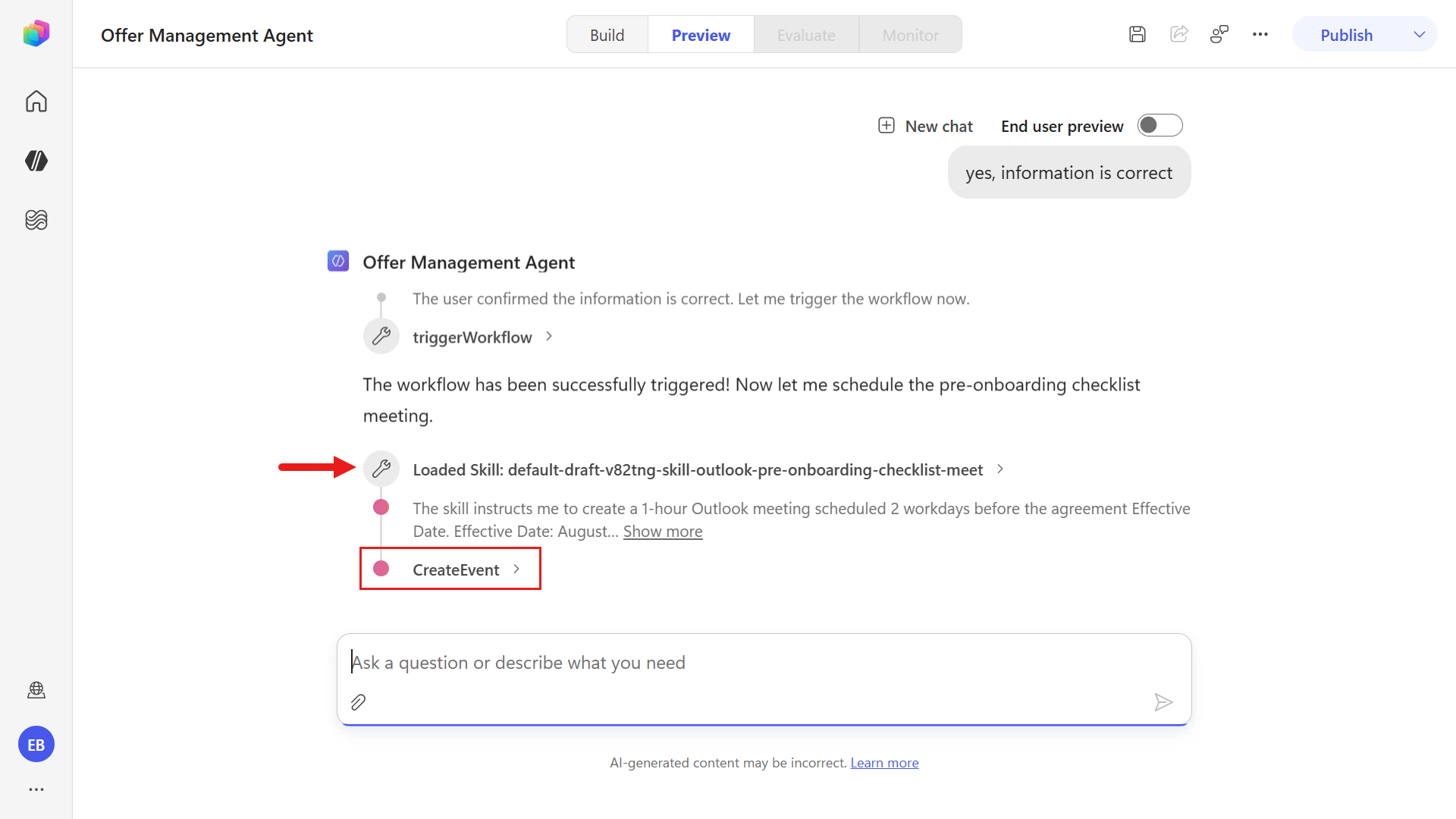
Load the skill -
After the Outlook meeting is created, a summary is provided.
First, confirmation appears that the workflow was successfully triggered.
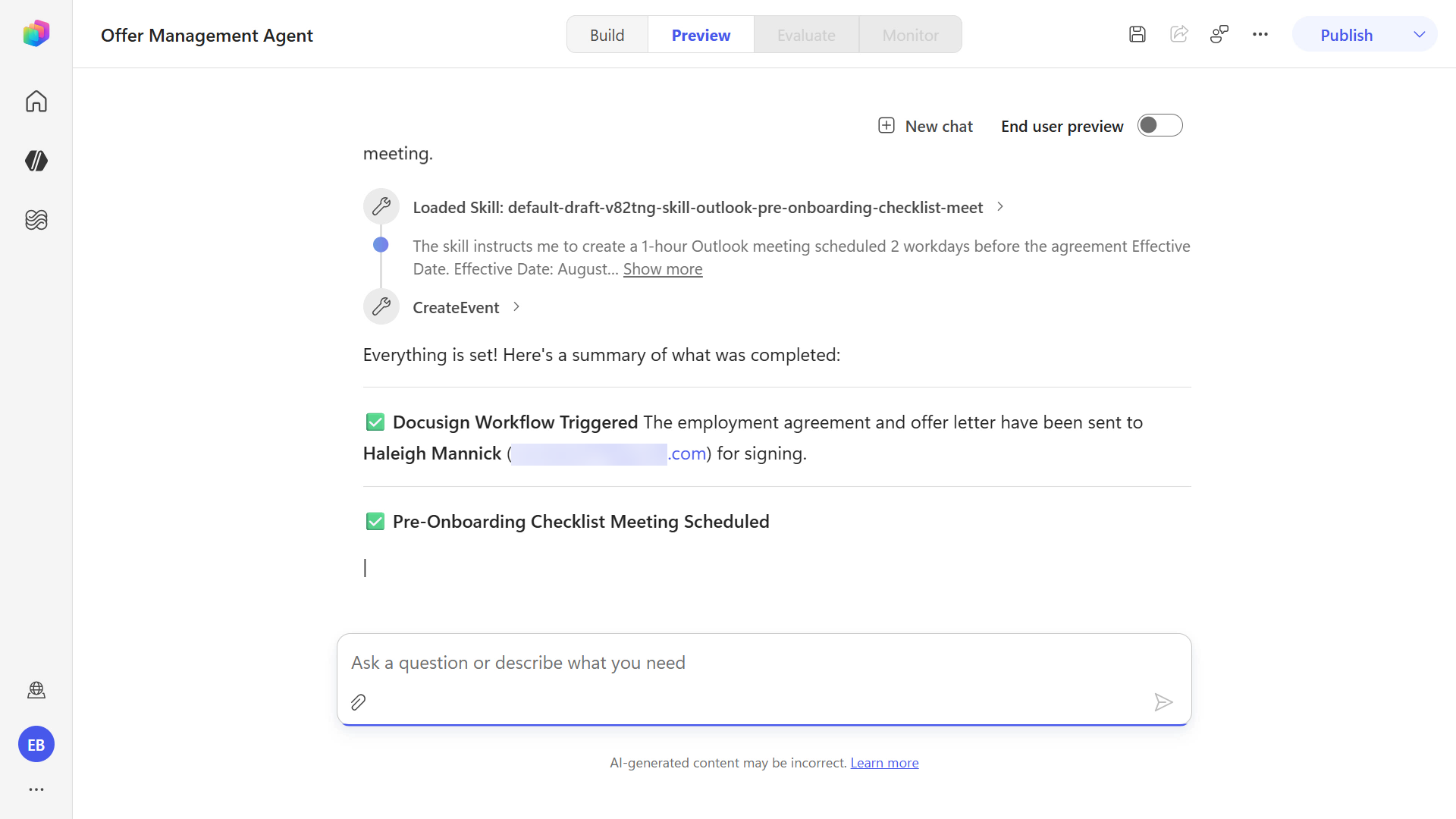
Completion confirmation -
A second confirmation provides the details of the Outlook meeting that was created.
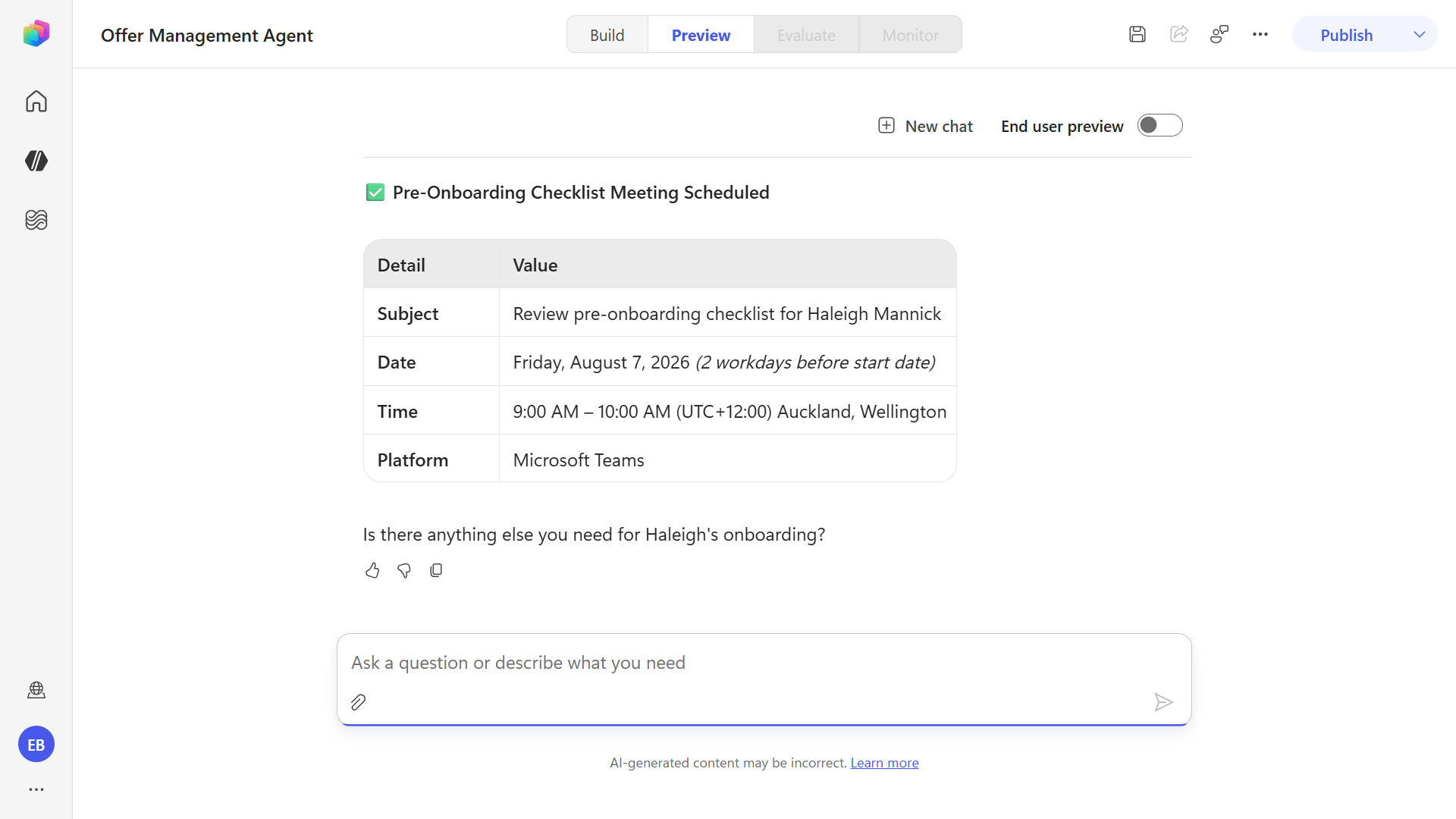
Meeting confirmation -
Go to your Outlook calendar to confirm the meeting invitation. In the screenshot below, the meeting was created on Friday, two business days before the Tuesday effective date.
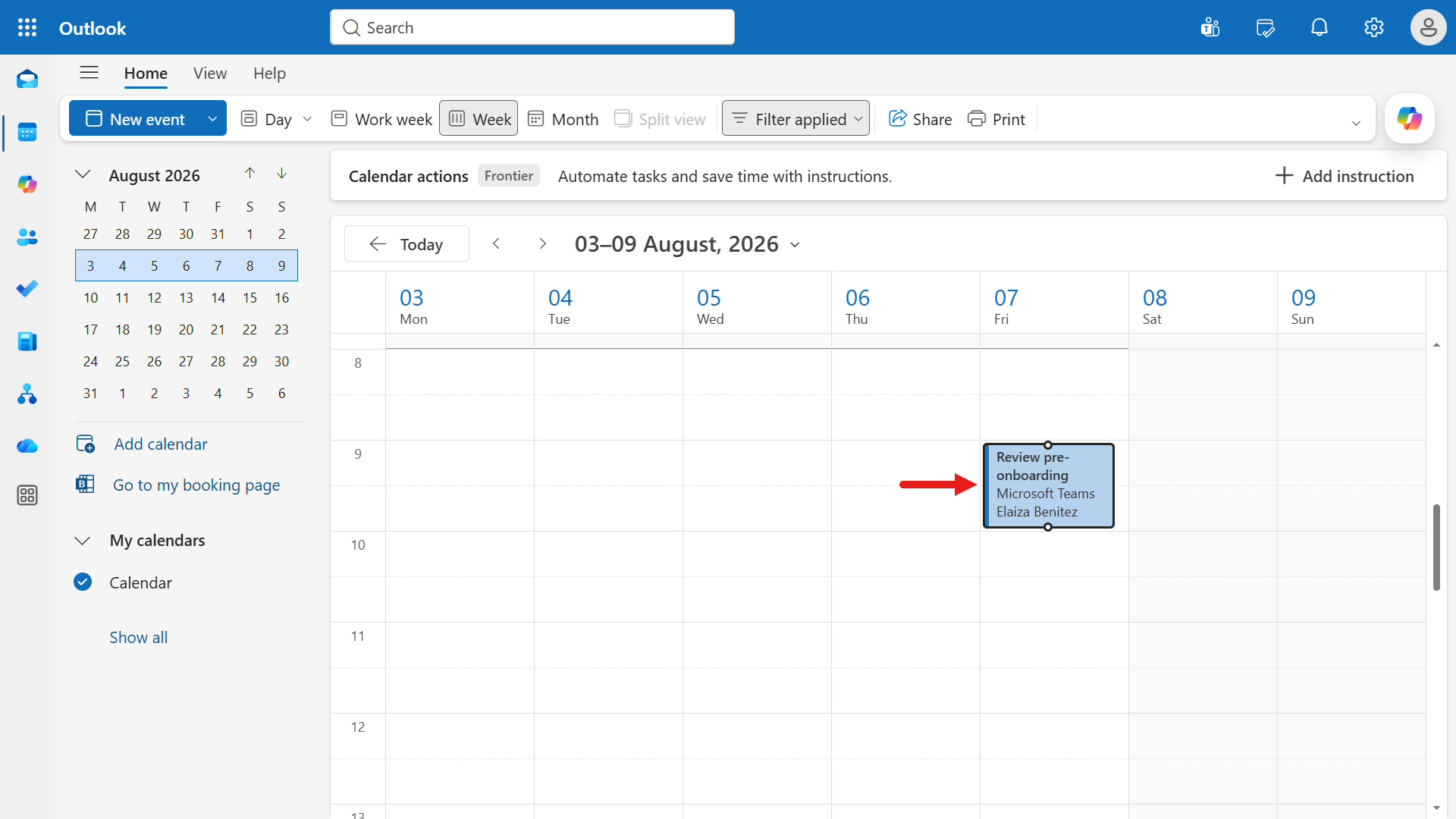
Outlook calendar -
You can also expand the skill details in the test session to inspect the reasoning the orchestrator applied in more detail.
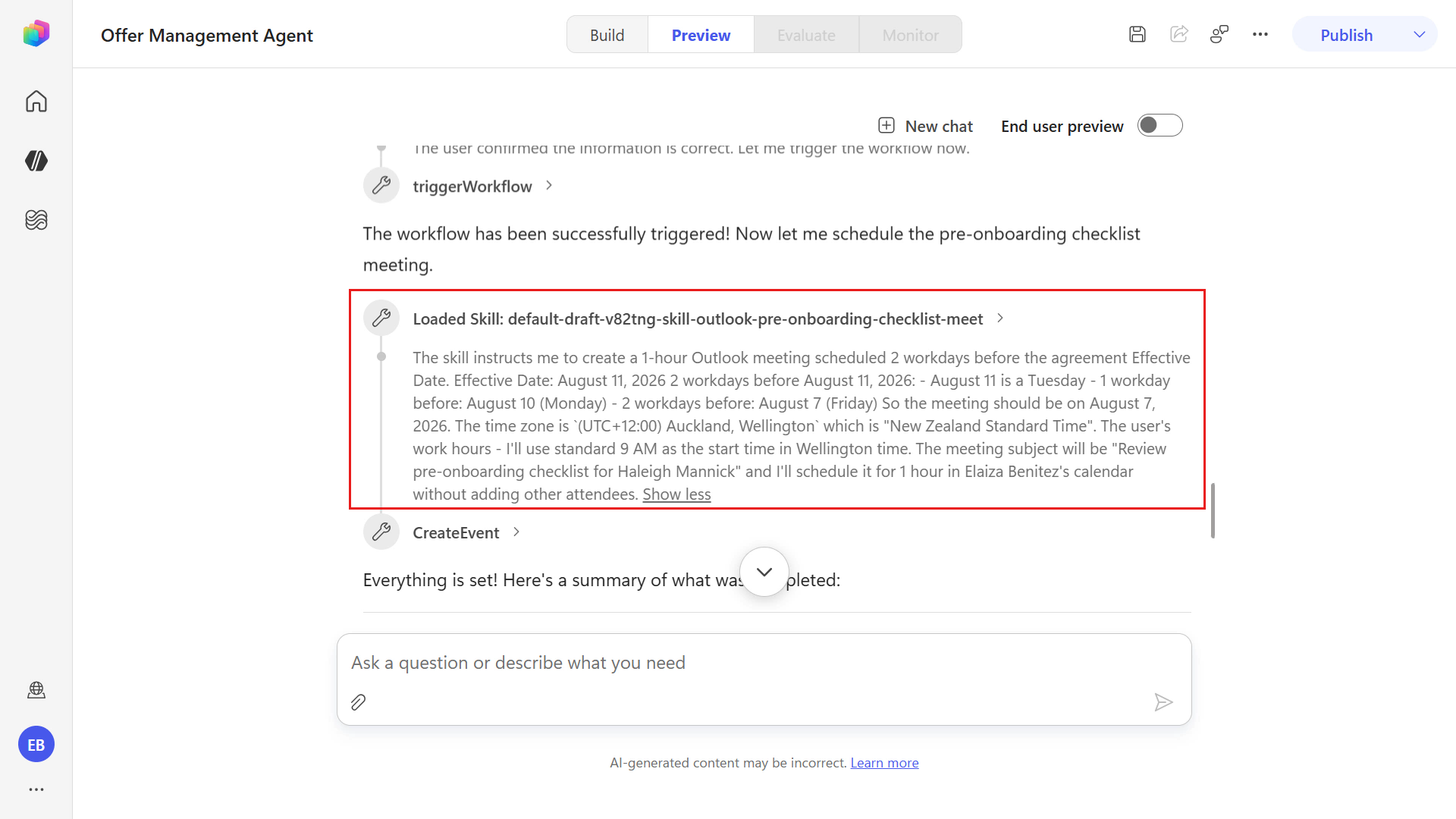
Agent reasoning -
When you complete the workflow process, the signed documents are uploaded back to SharePoint.
✅ Mission complete
Congratulations, agent - you completed Operation Docusign MCP! You have now mastered the following skills:
✅ Workflow foundation: You built a Docusign Web Form, created reusable document templates, and configured an end-to-end Workflow Builder process.
✅ Process validation: You manually tested the workflow by running a real instance, collecting participant input, capturing signatures, and confirming document delivery.
✅ Agent integration: You built a custom Copilot Studio agent, connected the Docusign MCP Demo tool, and triggered Workflow Builder through natural language.
✅ Input-driven orchestration: You provided workflow start variables through conversational prompts and validated a successful workflow invocation.
✅ Multi-MCP extension (bonus): You added Work IQ Calendar (Preview) to combine Microsoft first-party and third-party MCP tools in one agent experience.
🏅 Claim your completion badge
Congratulations, agent - mission complete! Now it’s time to claim your badge.
Submit the badge request form and answer all required questions:
https://aka.ms/agent-academy-special-ops/docusign-mcp/form
After your submission is reviewed, you will receive an email from the Global AI Community with instructions for claiming your badge.
Tip: If you do not see the email, check your spam or junk folder.
📚 Tactical resources
🔗 Build with the Docusign MCP server
🔗 Connect your Docusign account to Copilot Studio